
AWN-USB-54R - Network card / adapter Advantek Networks - Free user manual and instructions
Find the device manual for free AWN-USB-54R Advantek Networks in PDF.


| Product Type | Wireless USB Network Adapter |
| Model | AWN-USB-54R |
| Brand | Advantek Networks |
| Wireless Standard | IEEE 802.11b/g |
| Frequency Band | 2.4 GHz |
| Maximum Data Rate | 54 Mbps |
| Interface | USB 2.0 |
| Antenna | Internal antenna |
| Security | WEP, WPA, WPA2 |
| Dimensions (approx.) | 2.5 x 1.0 x 0.5 inches (63 x 25 x 12 mm) |
| Weight (approx.) | 10 g (0.35 oz) |
| Power Source | Powered via USB port (5V DC) |
| Operating Range | Up to 100 meters (indoor, depending on environment) |
| Supported OS | Windows, Mac OS, Linux (driver dependent) |
| Maintenance | Keep dry and dust-free; clean with a soft cloth |
| Safety | Avoid exposure to extreme temperatures or liquids |
| Spare Parts | Not user-serviceable; no replaceable parts |
| General Information | Plug-and-play installation; compatible with 802.11b/g networks |
Frequently Asked Questions - AWN-USB-54R Advantek Networks
User questions about AWN-USB-54R Advantek Networks
0 question about this device. Answer the ones you know or ask your own.
Ask a new question about this device
Download the instructions for your Network card / adapter in PDF format for free! Find your manual AWN-USB-54R - Advantek Networks and take your electronic device back in hand. On this page are published all the documents necessary for the use of your device. AWN-USB-54R by Advantek Networks.
USER MANUAL AWN-USB-54R Advantek Networks
Advantek
Networks
Wireless – G USB Adapter
User's Manual
Model # AWN-USB-54R
FCC Warning
This equipment has been tested and found to comply with the limits for a Class B digital device, pursuant to part 15 of the FCC Rules. These limits are designed to provide reasonable protection against harmful interference in a residential installation. This equipment generates, uses, and can radiate radio frequency energy and, if not installed and used in accordance with the instructions, may cause harmful interference to radio communication. However, there is no guarantee that interference will not occur in a particular installation. If this equipment does cause harmful interference to radio or television reception, which can be determined by turning the equipment off and on, the user is encouraged to try to correct the interference by one or more of the following measures:
- Reorient or relocate the receiving antenna.
- Increase the separation between the equipment and receiver.
- Connect the equipment into an outlet on a circuit different from that to which
- Consult the dealer or an experienced radio/TV technician for help. the receiver is connected.
FCC Caution: Any changes or modifications not expressly approved by the party responsible for compliance could void the user's authority to operate this equipment.
This device complies with Part 15 of the FCC Rules. Operation is subject to the following two conditions: (1) This device may not cause harmful interference, and (2) this device must accept any interference received, including interference that may cause undesired operation.
IMPORTANT NOTE:
FCC Radiation Exposure Statement:
This equipment complies with FCC radiation exposure limits set forth for an uncontrolled environment. This equipment should be installed and operated with a minimum distance of about eight inches (20cm) between the radiator and your body.
This transmitter must not be co-located or operated in conjunction with any other antenna or transmitter.
CE Mark Warning
This is a Class B product. In a domestic environment, this product may cause radio interference, in which case the user may be required to take adequate measures.
Copyright
2006 All Rights Reserved. No part of this document can be copied or reproduced in any form without written consent from the company.
Revision History
Revision
History
V1.0
First release
All brand and product names mentioned in this manual are trademarks and/or registered trademarks of their respective holders.
Contents
1. Introduction......4
1.1 Features ....4
1.2 Package Contents ....4
1.3 LED Indicator....4
2. IP Address ....5
3. Install Driver/Utility....6
3.1 For Windows XP & Windows 2000 ......6
3.2 For Windows ME & Windows 98SE....13
3.3 For Windows Vista ....18
4. Wireless Network Configuration .....27
4.1 General....27
4.2 Profile....27
4.3 Available Network 28
4.4 Advanced 30
4.5 Status ....31
4.6 Statistics ....31
5. Troubleshooting ....32
6. Glossary....33
1. Introduction
This adapter is an IEEE 802.11g client device that delivers unrivaled wireless performance for your desktop PC or laptop PC. With this adapter, you can easily upgrade your computer wireless connectivity. Once connected, access your high-speed Internet connection while sharing photos, files, music, video, printers, and storage. Get a better Internet experience with a faster wireless connection so you can enjoy smoother digital phone calls, gaming, downloading, and video streaming. It provides peer-to-peer communication among any compatible wireless users and no Access Point required. This adapter offers easy installation and cost-effective connection for corporate, SOHO and residential users. This adapter supports WEP Data Encryption and WPA high-level WLAN security features that guarantee the best security for users.
This product is made in ISO9001 approved factory and complies with FCC part 15 regulations and CE approval.
1.1 Features
- Compatible with IEEE 802.11g standard and maximum data transfer rate up to 54Mbps
• Dynamic date rate scaling at 54, 48, 36, 24, 18, 12, 9 and 6Mbps for 802.11g
• Dynamic date rate scaling at 11, 5.5, 2 and 1Mbps for 802.11b
• Supports 64/128-bit WEP data encryption function for high level of security
• Supports WPA-PSK advanced WLAN security
• Supports both Infrastructure and Ad-Hoc Peer-to-Peer Networking Modes
• Supports automatic fallback increase data security and reliability
• Supports Power Save mode - Simple user setup and diagnostics utilities
- USB 2.0 interface
1.2 Package Contents
• One Wireless USB 2.0 Adapter
• One USB A-type male to female extension cable
- One CD disk includes driver, utility and user's manual
1.3 LED Indicator
| LED | Light Status Description | |
| Flashing Wireless LAN has Activity (ACT) data being sent. ACT / LINK | ||
| On | Wireless LAN has been activated. | |
2. IP Address
To use this Wireless 54 Mbps USB Adapter with a computing device, the Wireless 54 Mbps USB Adapter must be equipped with an USB 1.1 or 2.0 Interface. All drivers and supporting software for the Wireless 54 Mbps USB Adapter need to be loaded and configured first.
Ask the system administrator for the following information which you may need during installation:
● Wireless Client Name
- Wireless SSID
- Computer's unique client name and workgroup name
● Network account, user name and password.
- IP address, gateway address, and subnet mask if you're not using a DHCP server.
Every computer in a network is identified by a unique network address. There are two methods of assigning network addresses to computers in a TCP/IP network:
- Static IP addressing
● Dynamic IP addressing (DHCP)
In networks with static IP addressing, the network administrator manually assigns an IP address to each computer. Once a static IP address is assigned, a computer uses the same IP address every time if reboots and logs on to the network. You can manually change the IP address in the Network Properties dialog box. Networks using static IP addresses are easy to set up and do not require additional network management software.
In a network with dynamic IP addressing, a DHCP server in the network dynamically assigns IP address to all clients every time they log on to the network. Networks using dynamic IP addresses require setting up and running a DHCP Server.
3. Install Driver/Utility
3.1 For Windows XP & Windows 2000
Step1: Inset Wireless LAN USB Adapter Installation CD into CD-ROM drive then windows below will appear. Click Install Driver Utility to begin Driver Installation.

Step2: After click Install Driver Utility, the Choose Setup Language windows will show. Select the language or the installation from the choices below and then click Next to continue.

Step 3: Welcome windows will show as below, please click Next to continue.

Step 4: Please wait for while during setup program is configuring.

Step 5: Now searching for Hardware and installing Drivers.

Step 6: Click Continue Anyway while below two windows are shown.
Software Installation

The software you are installing has not passed Windows Logo testing to verify its compatibility with Windows XP. (Tell me why this testing is important.)
Continuing your installation of this software may impair or destabilize the correct operation of your system either immediately or in the future. Microsoft strongly recommends that you stop this installation now and contact the software vendor for software that has passed Windows Logo testing.
Continue Anyway
STOP Installation
Hardware Installation

The software you are installing for this hardware:
Realtek RTL8187B Wireless 802.11g 54Mbps USB 2.0 Network Adapter
has not passed Windows Logo testing to verify its compatibility with Windows XP. (Tell me why this testing is important.)
Continuing your installation of this software may impair or destabilize the correct operation of your system either immediately or in the future. Microsoft strongly recommends that you stop this installation now and contact the hardware vendor for software that has passed Windows Logo testing.
Continue Anyway
STOP Installation
Step 7: Click Finish to complete installation.

[Configure Wireless LAN Utility]
Step 1: After Setup has finished installing the driver, please right-click the Wireless LAN icon on the system tray, and select "Open Config Utility".

Step 2: The USB Wireless LAN Utility will be displayed; select "Available Network" tab and the utility will auto-detect the available network channels and shows them in the list. Choose one you would like to connect.

Step 3: The Wireless Network Properties windows will show. You will see the network channel which you choose show in the Profile Name. Enter the Network Key (if it is necessary) and click OK to continue.

Step 4: The chosen Wireless network will be listed in the Profile tab.
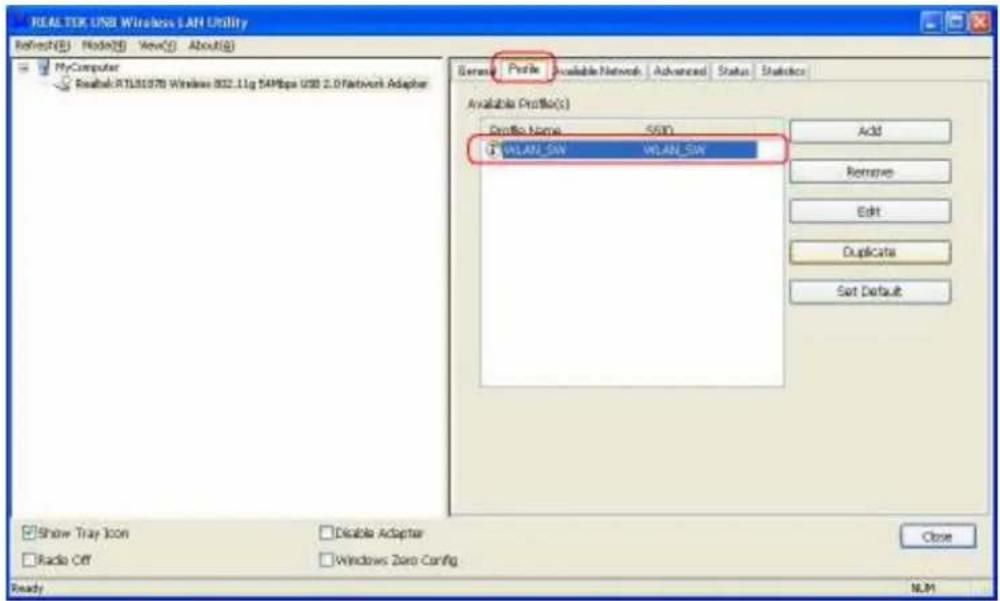
Step 5: Now you can browse the Internet Explorer and connect to the Internet.

Step 6: You can also move your mouse to wireless LAN icon in the system tray and check current Wireless Network Connection status.

3.2 For Windows ME & Windows 98SE
Step1: Inset Wireless LAN USB Adapter Installation CD into CD-ROM drive and then windows below will appear. Click Install Driver Utility to begin Driver Installation.

Step2: After click Install Driver Utility, the Choose Setup Language windows will show. Select the language or the installation from the choices below and then click Next to continue.
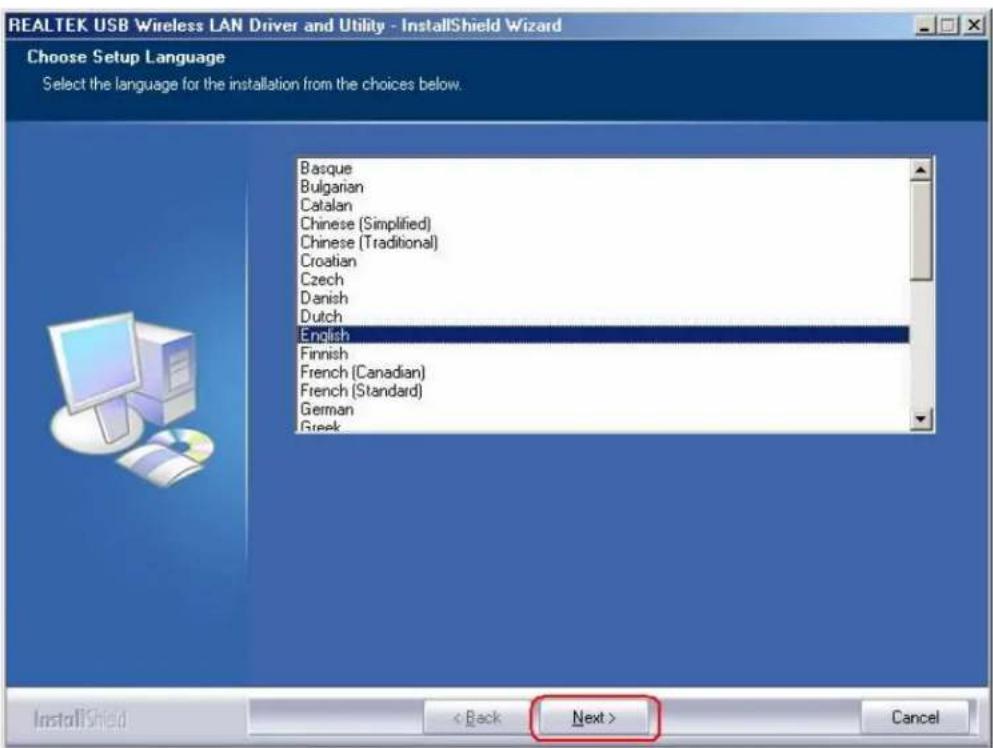
Step 3: Welcome windows will show as below, please click Next to continue.

Step 4: Please wait for while during setup program is configuring.

Step 5: Now searching for Hardware and installing Drivers.
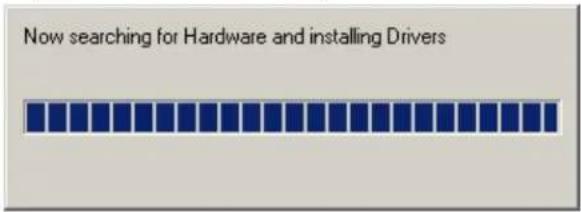
Step 6: After setup has finished, click "Finish" to exit the wizard.
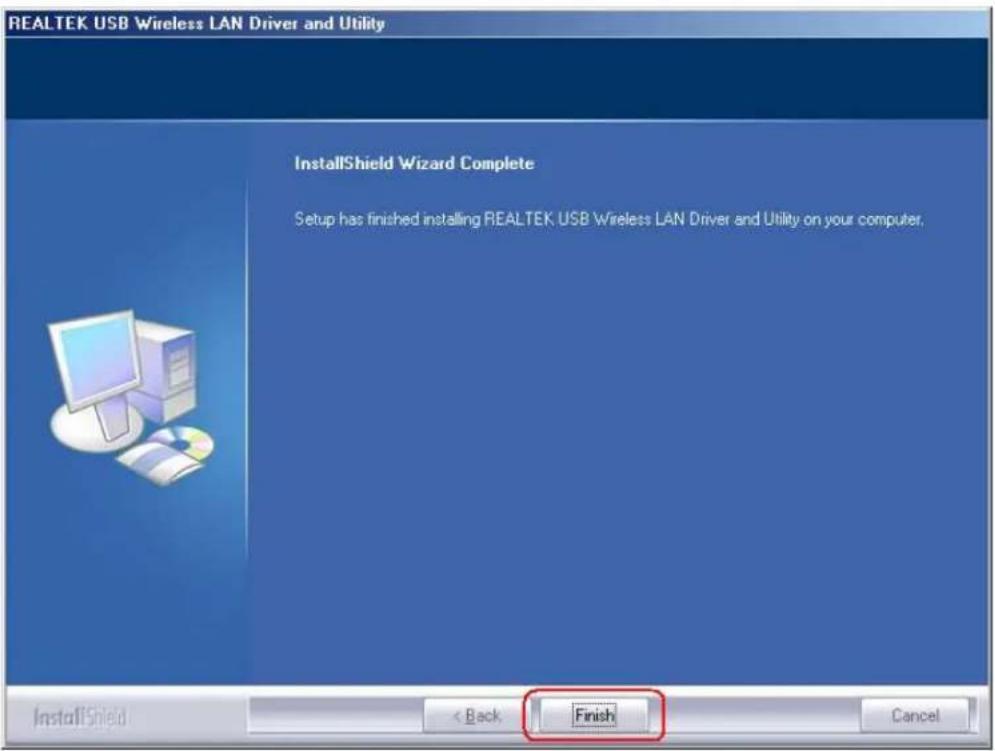
Step 7: You must restart your computer to complete the device configuration. Select Yes, I want to restart my computer now and click OK Button.

[Configure Wireless LAN Utility]
Step 1: After reboot the computer, double-click USB Wireless LAN Utility to open the Utility.
![Advantek Networks AWN-USB-54R - [Configure Wireless LAN Utility] - 1](/content/2026/05/999543/images/7c6eb0becac3e89d67366b1efbdc53a39baf2bc7619bf288bdd53009a7c78038.jpg)
Step 2: The USB Wireless LAN Utility will be displayed; select "Available Network" tab and the utility will auto-detect the available network channels and shows them in the list. Choose one you would like to connect.

Step 3: The Wireless Network Properties windows will show. You will see the network channel which you choose show in the Profile Name. Enter the Network Key (if it is necessary) and click OK to continue.
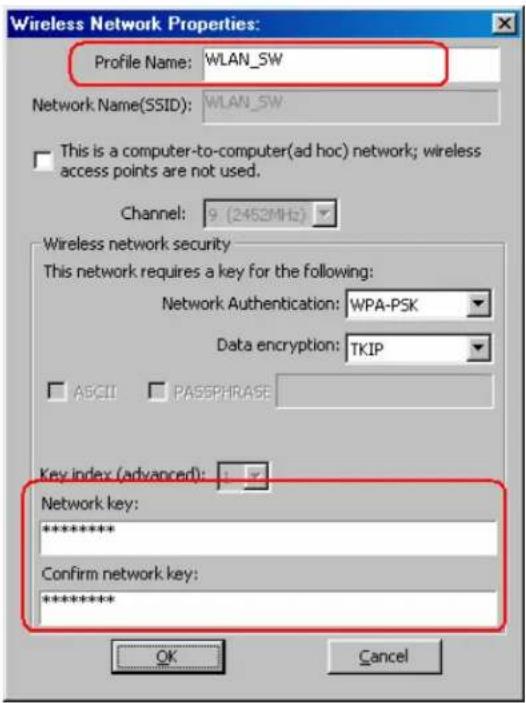
Step 4: The chosen Wireless network will be listed in the Profile tab.

Step 5: Now you can browse the Internet Explorer and connect to the Internet.
3.3 For Windows Vista
Step1: Inset Wireless LAN USB Adapter Installation CD into CD-ROM drive then windows below will appear. Click Install Driver Utility to begin Driver Installation.

Step2: After click Install Driver Utility, the Choose Setup Language windows will show. Select the language or the installation from the choices below and then click Next to continue.

Step3: Welcome windows will show as below, please click Next to continue.

Step4: Please wait for while during setup program is configuring.
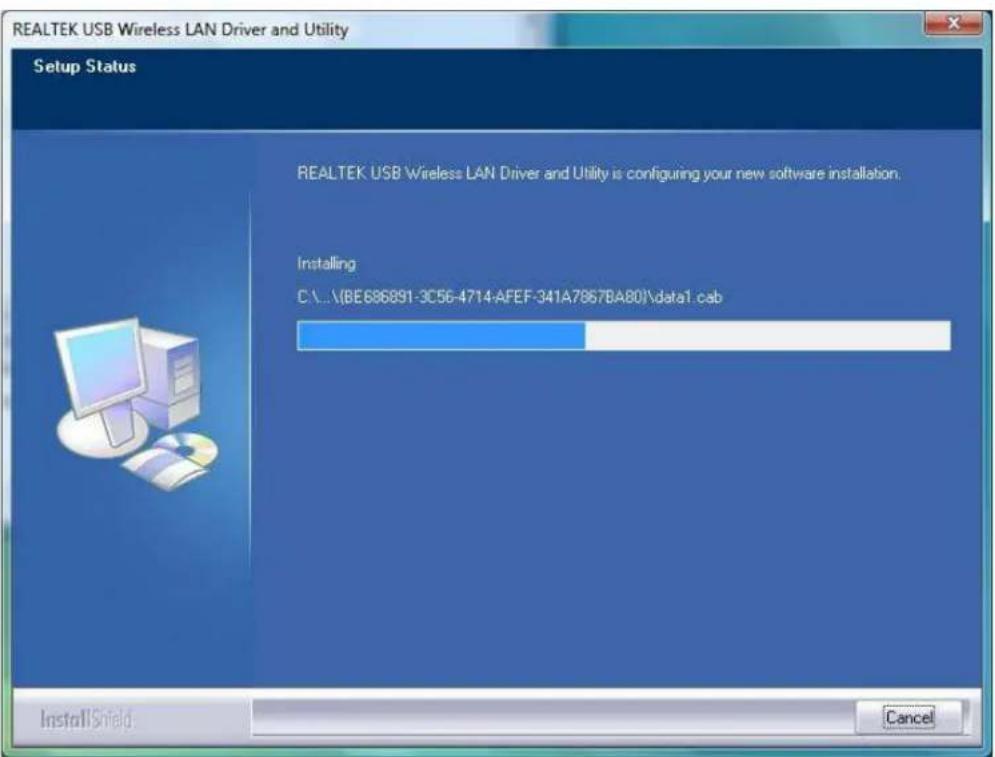
Step5: Choose Install this drive software anyway and continue the next step.

Step6: Please wait for while during the driver install process.

Step7: Choose Install this drive software anyway and continue the next step.

Step8: Click Finish to complete installation.
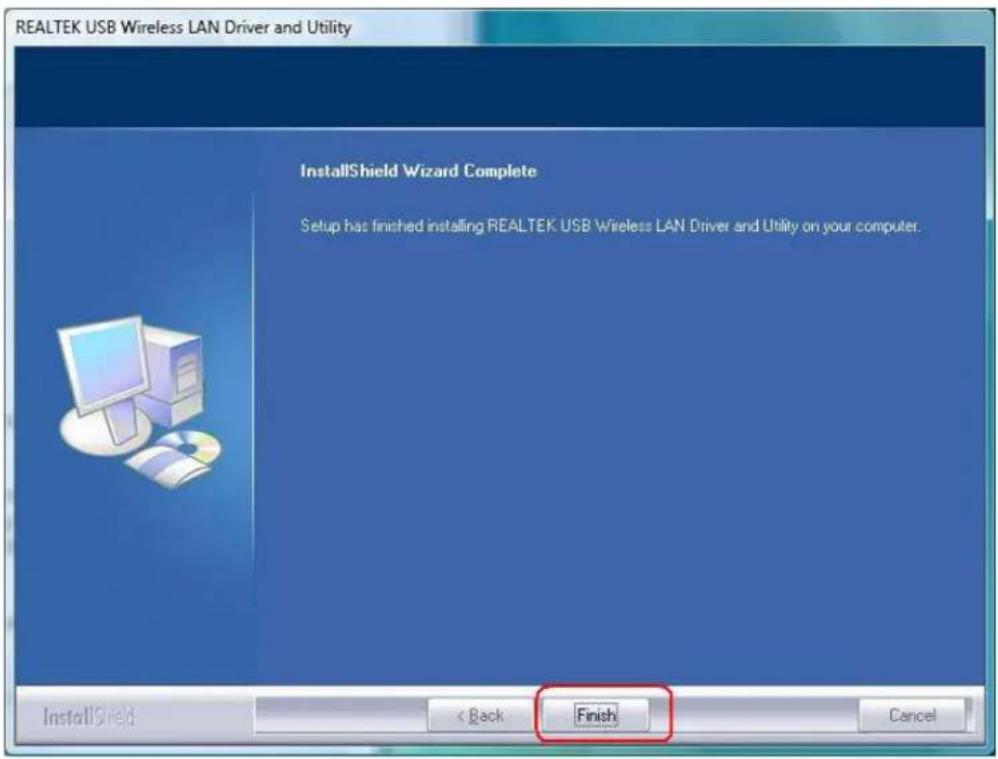
Step9: After setup your device, Windows System will pop-up the message and asks you to restart your computer for finishing set up your new hardware. Please click YES, I want to restart my computer now to restart again.
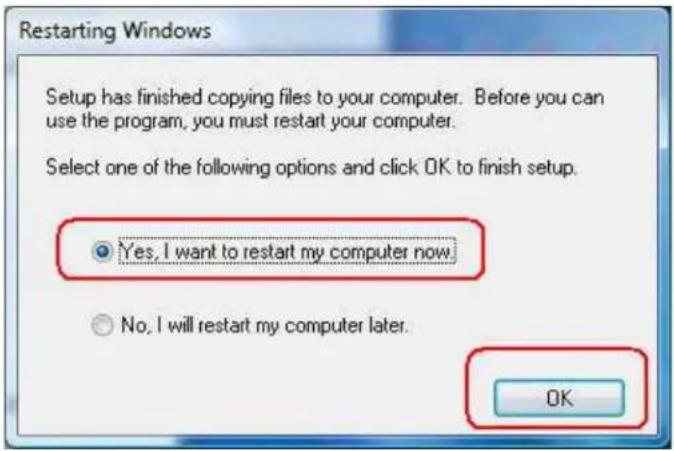
Step10: After you restart your computer, please go to Start → Control Panel.
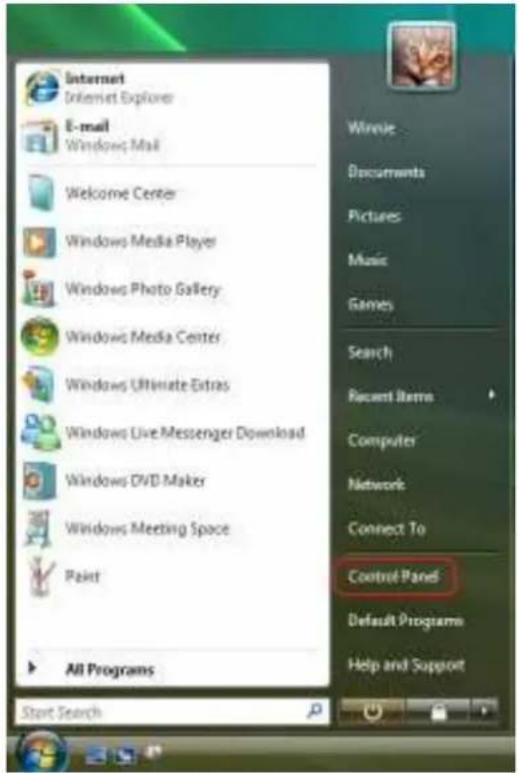
Step11: Select "Network and Sharing Center".

Step12: In the right panel, choose "Manage network connections".
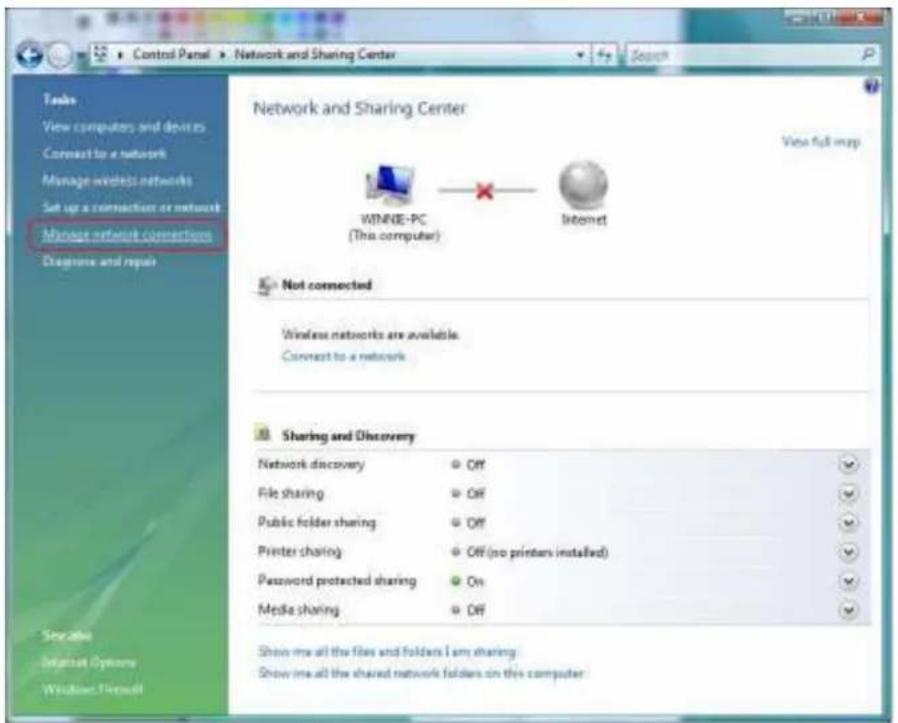
Step13: Right-click the Wireless Network Connection 2 (which is indicated "Realtek RTL8187B Wireless 802.11g 54Mbps USB 2.0 Network Adapter #2") and choose "Connect/Disconnect".

Step14: Select an available network to connect.

Step15: Type the network security key or password if it is necessary.

Step16: Please wait for connecting the selected network.
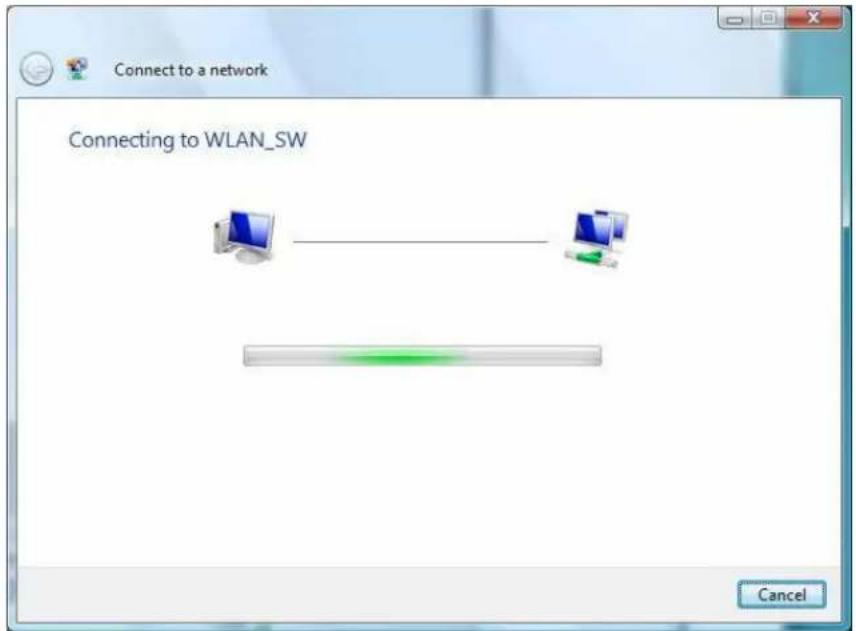
Step17: After successfully connected to the network, click "Close" to exit this wizard.

Step18: Back to Network and Sharing Center, you will see the computer has been connected to the Internet.

4. Wireless Network Configuration
The Configuration Utility is an application that helps you to configure the Wireless LAN PCI Card and monitor the link status and statistics during the communication process.
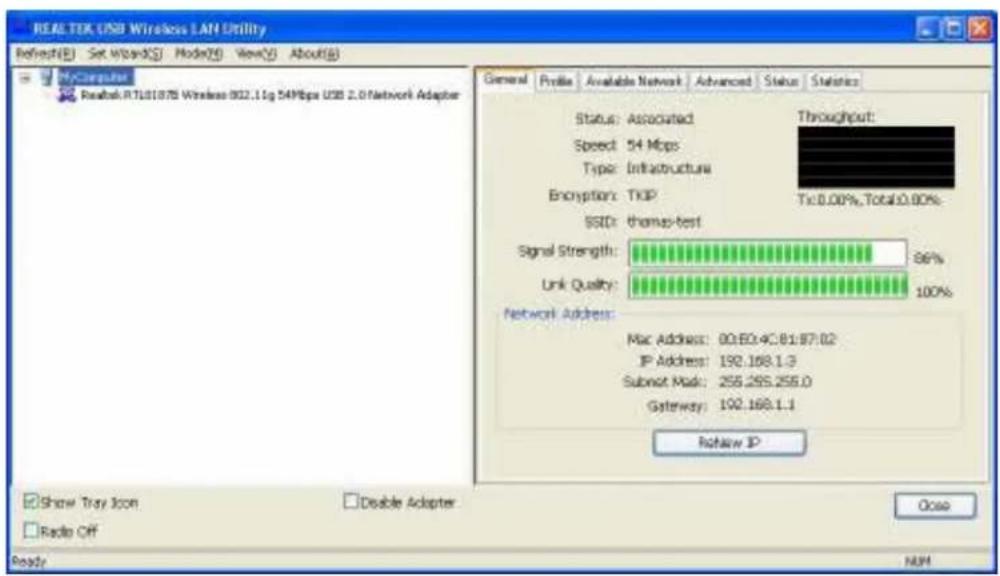
4.1 General
In the "Configuration", you can immediately monitor the link status.
4.2 Profile
In the "Profile", you can view the current using Available Point(s). You can add, remove or edit the current Available Point(s). Also you can duplicate the AP or Set current AP as Default.

4.3 Available Network
The "Available Network" shows all Access Points, Routers or Adapters nearby when operating in Ad-Hoc mode.
Click "Refresh" button to collect the SSID and Channel information of all the wireless devices nearby. If you want to connect to any device on the list, double-click the item on the list, and the card will automatically connect to the selected device.

If you want to add one Access Point to the profile, click "Add to Profile" button. The Wireless network properties windows will display. You can configure your Wireless Network Security for the card.

[Network Authentication]
-- Open System: No authentication is needed among the wireless devices.
-- Shared Key: Only Wireless device using a shared key (WEP Key identified) is allowed to connecting each other. Setup the same key as the wireless device which the card intends to connect.
-- WPA-PSK: It is a special modem of WPA for home users without an enterprise authentication server and provides the same strong encryption protection.
-- WPA2-PSK (for WPA2 Personal): This option will be present only if the wireless network adapter and its driver support WPA2.
-- WPA 802.1X: 802.1x authentication is required in WPA. In the 802.11 standard, 802.1x authentication was optional.
-- WPA2 802.1X: WPA2 is the next-generation Wi-Fi security standard, combining the most powerful authentication and encryption techniques to protect wireless networks from unauthorized use. Based upon the recently-ratified IEEE 802.11i standard, WPA2 adds the Advanced Encryption Standard (AES) to the original WPA specification to provide the greatest levels of network security available. The National Institute of Standards and Technology (NIST) advocates the use of AES security to protect sensitive digital information on government networks.
[Data Encryption]
-- Disabled: Disable the WEP Data Encryption.
-- WEP: Enabled the WEP Data Encryption. When the item is selected, you have to continue setting the WEP Key Length & the key Index.
-- TKIP: Enable the TKIP Data Encryption. When the item is selected, you have to continue setting the Network Key & Confirm network key.
-- Network Key: The keys are used to encryption data transmitted in the wireless network. Fill in the text box by following rules below:
→ 64-bit: Input 10 digit Hex values (in the "A-F", "a-f", and "0-9" range) as the encryption keys. For example: "0123456aef"
→ 128-bit: Input 26 digit Hex values (in the "A-F", "a-f", and "0-9" range) as the encryption keys. For example: "01234567890123456789abcdef"
-- Confirm Network Key: Re-type again the Network key in this text box.
-- Key Length: You may select the 64-bit or 128-bit to encryption transmitted data. Larger key length will provide higher level of security, but the throughput will be lower.
-- Key Index (Advanced): The maximum of key index is 4.
[802.1X configure]
-- EAP TYPE (Extensible Authentication Protocol Authentication Types): Because WLAN security is essential and EAP authentication types provide a potentially better means of securing the WLAN connection, vendors are rapidly developing and adding EAP
authentication types to their WLAN access points. Some of the most commonly deployed EAP authentication types include MD5, GTC, TLS, EAP, TTSL, and PEAP.
-- Tunnel: Use the drag-down list to choose the tunnel.
-- Username: Enter the username for personal certificate.
-- Identity: Enter the Identity for personal certificate.
-- Password: Enter the password in advance.
-- Certificate: Click drag-down list to choose certificate that you want to use.
4.4 Advanced
In the "Advanced", you can configure Wireless LAN adapter's Power Save, Wireless Mode, 802.00b Preamble Mode, Channel Plan, Fragment Threshold, and RTS Threshold.

4.5 Status
In the "Status", you can view the current link status of Wireless LAN adapter.

4.6 Statistics
In the "Statistics", you can get the real time information about the packet transmission and receiving status.

5. Troubleshooting
Symptom:
The LED is off.
Remedy:
Make sure the USB Adapter is inserted properly. Otherwise contact your vendor.
Symptom:
The LED is always on not blinking
Remedy:
Make sure that you have installed the driver from attached CD. Otherwise contact your vendor.
Symptom:
The LED is blinking but the USB Adapter icon does not appear in your icon tray..
Remedy:
Make sure that you have installed the Utility from the attached CD.
Symptom:
The USB Adapter is linking, but can't share files with others.
Remedy:
Make sure the File and printer sharing function is enabled. You can enable the function by checking the icon of My Computer -> Control Panel -> Network -> file and printer sharing -> I want to be able to give others to access to my files.
Symptom:
Slow or poor performance.
Remedy:
Try to select another channel for the communicating group or move your device closer to the Access Point.
6. Glossary
IEEE 802.11 Standards
The IEEE 802.11 Wireless LAN Standards Subcommittee, which is formulating a standard for the industry.
Access Point
An internetworking device that seamlessly connects wired and wireless networks together.
Ad Hoc
An Ad Hoc wireless LAN is a group of computers, each with a WLAN adapter, connected as an independent wireless LAN. Ad Hoc wireless LAN is applicable at a departmental scale for a branch or SOHO operation.
BSSID
A specific Ad Hoc LAN is called a Basic Service Set (BSS). Computers in a BS must be configured with the same BSSID.
DHCP
Dynamic Host Configuration Protocol – a method in which IP addresses are assigned by server dynamically to clients on the network. DHCP is used for Dynamic IP Addressing and requires a dedicated DHCP server on the network.
Direct Sequence Spread Spectrum
This is the method the wireless cards use to transmit data over the frequency spectrum. The other method is frequency hopping. Direct sequence spreads the data over one frequency range (channel) while frequency hopping jumps from one narrow frequency band to another many times per second.
ESSID
An infrastructure configuration could also support roaming capability for mobile workers. More than one BSS can be configured as an Extended Service Set (ESS). Users within an ESS could roam freely between BSSs while served as a continuous connection to the network wireless stations and Access Points within an ESS must be configured with the same ESSID and the same radio channel.
Ethernet
Ethernet is a 10/100Mbps network that runs over dedicated home/office wiring. Users must be
wired to the network at all times to gain access.
Gateway
A gateway is a hardware and software device that connects two dissimilar systems, such as a LAN and a mainframe. In Internet terminology, a gateway is another name for a router. Generally a gateway is used as a funnel for all traffic to the internet.
IEEE
Institute of Electrical and Electronics Engineers.
Infrastructure
An integrated wireless and wired LAN is called an Infrastructure configuration. Infrastructure is applicable to enterprise scale for wireless access to central database, or wireless application for mobile workers.
ISM Band
The FCC and their counterparts outside of the U.S. have set aside bandwidth for unlicensed use in the so-called ISM (Industrial, Scientific and Medical) band. Spectrum in the vicinity of 2.4 GHz, in particular, is being made available worldwide. This presents a truly revolutionary opportunity to place convenient high-speed wireless capabilities in the hands of users around the globe.
Local Area Network (LAN)
A LAN is a group of computers, each equipped with the appropriate network adapter card connected by cable/air, that share applications, data, and peripherals. All connections are made via cable or wireless media, but a LAN does not use telephone services. It typically spans a single building or campus.
Network
A network is a system of computers that is connected. Data, files, and messages can be transmitted over this network. Networks may be local or wide area networks.
Protocol
A Protocol is a standardized set of rules that specify how a conversation is to take place, including the format, timing, sequencing and/or error checking.
Roaming
In an infrastructure network, this is when a wireless PC moves out of range of the previously connected access point and connects to a newly connected access point. Throughout
network environment where access point is deployed, PCs can always be connected regardless of where they are located or roam.
SSID
A Network ID require to a network. Only clients and Access Points that share the same SSID are able to communicate with each other. This string is case-sensitive.
Simple Network Management Protocol (SNMP)
Simple Network Management Protocol is the network management protocol of TCP/IP. In SNMP, agents-this can be hardware as well as software-monitor the activity in the various devices on the network and report to the network console workstation. Control information about each device is maintained in a structure known as a management information block.
Static IP Addressing
A method of assigning IP addresses to clients on the network. In networks with Static IP address, the network administrator manually assigns an IP address to each computer. Once a Static IP address is assigned, a computer uses the same IP address every time it reboots and logs on to the network, unless it is manually changed.
Temporal Key Integrity Protocol (TKIP)
The Temporal key Integrity Protocol, pronounced tee-kip, is part of the IEEE 802.11i encryption standard fir wireless LANs. TKIP is the next generation of WEP, the Wired Equivalency Protocol, which is used to secure 802.11 wireless LANs. TKIP provides per-packet key mixing, a message integrity check and a re-keying mechanism, thus fixing the flaws of WEP.
Transmission Control Protocol / Internet Protocol (TCP/IP)
TCP/IP is the protocol suite developed by the advanced Research Projects Agency (ARPA). It is widely used in corporate Internet works, because of its superior design of WANs. TCP governs how packet is sequenced for transmission the network. The term “TCP/IP” is often used generically to refer to the entire suite of related protocols.
Transmit / Receive
The wireless throughput in Bytes per second averaged over two seconds.
Wi-Fi Alliance
The Wi-Fi Alliance is a nonprofit international association formed in 1999 to certify interoperability of wireless Local Area Network products based on IEEE 802.11 specification. The goal of the Wi-Fi Alliance's members is to enhance the user experience through product
interoperability. The organization is formerly known as WECA.
Wi-Fi Protected Access (WPA)
The Wi-Fi Alliance put together WPA as a data encryption method for 802.11 wireless LANs. WPA is an industry-supported, pre-standard version of 802.11i utilizing the Temporal Key Integrity Protocol (TKIP), which fixes the problems of WEP, including using dynamic keys.
Wide Area Network (WAN)
A WAN consists of multiples LANs that are tied together via telephone services and/or fiber optic cabling. WANs may span a city, s state, a country, or even the world.
Wired Equivalent Privacy (WEP)
Now widely recognized as flawed, WEP was a data encryption method used to protect the transmission between 802.11 wireless clients and APs. However, it used the same key among all communicating devices. WEP's problems are well-known, including an insufficient key length and no automated method for distributing the keys. WEP can be easily cracked in a couple of hours with off-the shelf tools.
Wireless LAN (WLAN)
A wireless LAN does not use cable to transmit signals, but rather uses radio or infrared to transmit packets through the air, Radio Frequency (RF) and infrared are the commonly used types of wireless transmission. Most wireless LANs use spread spectrum technology. It offers limited bandwidth, usually under 11Mbps, and user share the bandwidth with other devices in the spectrum; however, users can operate a spread spectrum device without licensing from the Federal Communications Commission (FCC).


- Advantek
- Networks
- Wireless – g usb adapter
- User's manual
- Fcc warning
- Important note
- Ce mark warning
- Copyright
- Revision history
- Contents
- Introduction......4
- Ip address ....5
- Install Driver/Utility....6
- Wireless network configuration .....27
- Troubleshooting ....32
- Glossary....33
- Introduction
- 1.1 Features
- 1.2 Package contents
- 1.3 LED indicator
- Ip address
- Install driver/utility
- 3.1 For windows xp & windows 2000
- Software installation
- Hardware installation
- [Configure wireless lan utility]
- 3.2 For windows me & windows 98SE
- 3.3 For windows vista
- Wireless network configuration
- 4.1 General
- 4.2 Profile
- 4.3 Available network
- [Network authentication]
- [Data encryption]
- [802.1X configure]
- 4.4 Advanced
- 4.5 Status
- 4.6 Statistics
- Troubleshooting
- Symptom
- Glossary
- Ieee 802.11 standards
- Access point
- Ad hoc
- Bssid
- Dhcp
- Direct sequence spread spectrum
- Essid
- Ethernet
- Gateway
- Ieee
- Infrastructure
- Ism band
- Local area network (lan)
- Network
- Protocol
- Roaming
- Ssid
- Simple network management protocol (snmp)
- Static ip addressing
- Temporal key integrity protocol (tkip)
- Transmission control protocol / internet protocol (tcp/ip)
- Transmit / receive
- Wi-fi alliance
- Wi-fi protected access (wpa)
- Wide area network (wan)
- Wired equivalent privacy (wep)
- Wireless lan (wlan)
Brand : Advantek Networks
Model : AWN-USB-54R
Category : Network card / adapter