
ALN-101C - Network card Advantek Networks - Free user manual and instructions
Find the device manual for free ALN-101C Advantek Networks in PDF.


| Product Type | Fast Ethernet PCI Network Interface Card |
| Brand | Advantek Networks |
| Model | ALN-101C |
| Bus Interface | 32-bit PCI Bus Master (PCI 2.1/2.2 compatible) |
| Network Standard | IEEE 802.3 10Base-T, IEEE 802.3u 100Base-TX |
| Data Transfer Rate | 10/100 Mbps (auto-sensing) |
| Duplex Mode | Full duplex (20/200 Mbps) |
| Connector Type | 1 x RJ-45 (STP) |
| Topology | Star |
| Auto-Negotiation | Supported |
| Wake on LAN (WOL) | Supported (requires WOL cable) |
| FIFO Buffers | Built-in (eliminates external memory) |
| IRQ / I/O Address | Auto-assigned by system |
| Diagnostic Software | Provided |
| Operating System Support | Novell NetWare, Windows NT/98/ME/2000/XP, and other popular OS |
| Power Consumption | 1.8W (Max) |
| Operating Temperature | 0°C to 55°C |
| Humidity | 10% to 90% (non-condensing) |
| Dimensions (approximate) | 12.0 cm x 6.0 cm x 1.5 cm |
| Weight (approximate) | 50 g |
| Certifications | FCC Class B |
Frequently Asked Questions - ALN-101C Advantek Networks
User questions about ALN-101C Advantek Networks
0 question about this device. Answer the ones you know or ask your own.
Ask a new question about this device
Download the instructions for your Network card in PDF format for free! Find your manual ALN-101C - Advantek Networks and take your electronic device back in hand. On this page are published all the documents necessary for the use of your device. ALN-101C by Advantek Networks.
USER MANUAL ALN-101C Advantek Networks
natural_image
Blue diamond-shaped logo with a vertical 'T' inside, no text or symbols present.Advantek
Networks
10/100Mbps Fast Ethernet LAN Card
User's Guide
Model # ALN-101C
FCC COMPLIANCE STATEMENT
This equipment has been tested and found to comply with the limits of a Class B computing devices, pursuant to Part 15 of the FCC rules. These limits are designed to provide reasonable protection against harmful interference in a residential installation. This equipment generates uses and can radiate radio frequency energy and, if not installed and used in accordance with the instructions, may cause harmful interference to radio communications.
If you suspect this product is causing interference, turn your computer on and off while your radio or TV is showing interference. If the interference disappears then when you turn the computer off and reappears then you turn the computer on, something in the computer is causing interference.
Features & Specifications
Features & Benefits:
* Supports 32-bit PCI Bus Master for high performance and low processor utilization.
* Complies to PCI 2.1 and PCI 2.2 specification
* Complies with the IEEE 802.3 CSMA/CD, 10/100Base-TX standard.
* Full duplex design to double the performance to 20Mbps/200Mbps.
* One STP connector for 100Mbps or 10Mbps network speed.
* Support Auto-negotiation function.
* Built-in FIFO buffers to eliminate external memory.
* Auto-setups IRQ and I/O address.
* Supports early interrupt on transmit to increase performance.
* Supports Novell NetWare, Windows NT/98/ME/2000/XP and other popular operating systems
* Provides diagnostic software
* Wake on LAN (If adapter supports WOL function).
* Topology : Star
* Connect to : RJ-45
Standard & Specification:
* Standard: IEEE 802.3 10BaseT IEEE 802.3u 100BaseTX
* Transmission Rate: 10Mbps or 100Mbps
* Hardware Required: IBM compatible PC with available PCI slot (PCI 2.1 or PCI 2.2)
* IRQ Line: Assigned by system
* I/O Address : Assigned by system
* Drivers: Novell NetWare, Windows NT/98/ME/2000/XP and other popular operating systems
* Temperature : 0 to 55 C (Operating)
* Humidity : 10% to 90% (Non-condensing)
* Power consumption : 1.8W (Max.)
Trouble-shooting
If you experience any problems with the adapter, first make sure the appropriate driver is loaded, the proper cable is connected to the adapter port and the hub complies with the adapter specification, such as 10Mbps 10Base-TX or 100Mbps 100BaseTX, then check the LED.
TRADEMARKS
Copyright 2000 by the manufacturer of this product. No part of this manual may be reproduced, transcribed, stored in a retrieval system, translated into any language or computer language or computer language without the prior written consent of the manufacturer. All brand and product names are trademarks and/or registered trademarks of their respective companies.
Hardware Installation:
-
Turn off the computer and remove its cover.
-
Insert the adapter into a PCI slot.
- Secure this adapter to the rear of the computer chassis and put back the computer cover.
- Connect the adapter to the network using twisted-pair cable.
- Connect the NIC and the PC mother board with WOL cable. (If adapter supports WOL function)
Driver Installation:
- For Windows XP, Windows 2000, Windows ME:
a) When Windows boots up, operating system will detect the LAN card and Found New Hardware Wizard windows will appear. Click Cancel:
![Found New Hardware Wizard Welcome to the Found New Hardware Wizard This wizard helps you install software for: Ethernet Controller If your hardware came with an installation CD or floppy disk, insert it now. What do you want the wizard to do? ○ install the software automatically [Recommended] ○ Install from a list or specific location (Advanced) Click Next to continue. < Back Next > Cancel](/content/2026/05/960303/images/912e3d9c67aa947dc8434649748a2e0770147a2426420e8a93662a558d13a1d5.jpg)
b) Insert the Driver Installation CD into CD-ROM drive, window below will appear then click Install Driver:

c) When OS finishes loading device driver, window below will appear. Click Ok to complete the installation:

- For Windows 98SE
a) When Windows boots up, operating system will detect LAN card and Add New Hardware Wizard window will appear. Click Cancel:

b) Insert the Driver Installation CD into CD-ROM drive, window below will appear then click Install Driver:

c) After OS finishes loading device driver, window below will appear then click OK to restart the system.
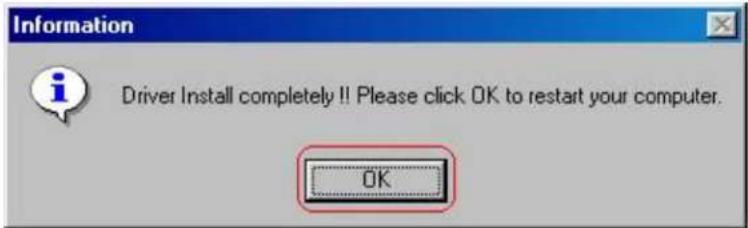
d) After the system boots up, Please wait for a while to finish setting up the device. When operating system finishes loading LAN card files, window below will appear. Click Yes to reboot the system again. When your system boots up, you are ready to use the LAN card.


Brand : Advantek Networks
Model : ALN-101C
Category : Network card