
ATV-TUNER-FM2 - TV tuner card Advantek Networks - Free user manual and instructions
Find the device manual for free ATV-TUNER-FM2 Advantek Networks in PDF.


| Product Type | TV Tuner Card |
| Model | ATV-TUNER-FM2 |
| Brand | Advantek Networks |
| Interface | PCI |
| TV Tuner Type | Analog (PAL/NTSC/SECAM) |
| FM Radio Tuner | Yes |
| Dimensions (approx.) | 120 mm x 80 mm x 20 mm |
| Weight (approx.) | 50 g |
| Power Supply | Via PCI slot (3.3V / 5V) |
| Power Consumption | ~5 W |
| Video Inputs | Composite, S-Video, Antenna (RF) |
| Audio Output | Stereo via line-out |
| Remote Control | Included (infrared) |
| Functions | TV playback & recording, FM radio, video capture |
| Video Capture Resolution | Up to 720x576 (D1) |
| Supported OS | Windows 98/ME/2000/XP |
| Software Included | TV tuner application, FM radio player |
| Maintenance | Keep dry, clean with soft cloth |
| Safety | Avoid moisture, do not open case |
| Spare Parts Availability | Remote control optional |
Frequently Asked Questions - ATV-TUNER-FM2 Advantek Networks
User questions about ATV-TUNER-FM2 Advantek Networks
0 question about this device. Answer the ones you know or ask your own.
Ask a new question about this device
Download the instructions for your TV tuner card in PDF format for free! Find your manual ATV-TUNER-FM2 - Advantek Networks and take your electronic device back in hand. On this page are published all the documents necessary for the use of your device. ATV-TUNER-FM2 by Advantek Networks.
USER MANUAL ATV-TUNER-FM2 Advantek Networks
natural_image
Blue diamond-shaped logo with a vertical 'T' inside, no text or symbols present.Advantek
Networks
PCI TV Tuner with FM Radio
Quick Installation Guide
Model # ATV-TUNER-FM2
PCI TV Tuner with FM Radio
General
This guide describes the installation and basic usage of the ATV-TUNER-FM2. This guide will help you get started in using these products. If you require further information or troubleshooting information, please refer to the ATV-TUNER-FM2 User's Guide, which is available on the software CD and may also be installed on your PC hard disk.
Minimum System Requirements
● 400 MHz Pentium II or equivalent CPU and 128 MB RAM
● Sound Blaster or equivalent sound card
- One PCI slot
- CD-ROM drive for software installation
- Windows XP/Vista
● 10 MB free disk space for basic software installation
Recommended System Requirements
● 1.7 GHz Pentium 4 or equivalent CPU and 256 MB RAM
● Sound Blaster or equivalent sound card
- One PCI slot
- CD-ROM for software installation
● Windows XP with DirectX 9.0 installed
● 30 MB free space for software installation
● 600 MB to 3 GB per hour of recorded video
Package Contents
- PCI TV Tuner w/ FM
- Remote Control
- RM Cable
- FM Antenna
- Software CD
- Audio loop cable
- Battery
Connection
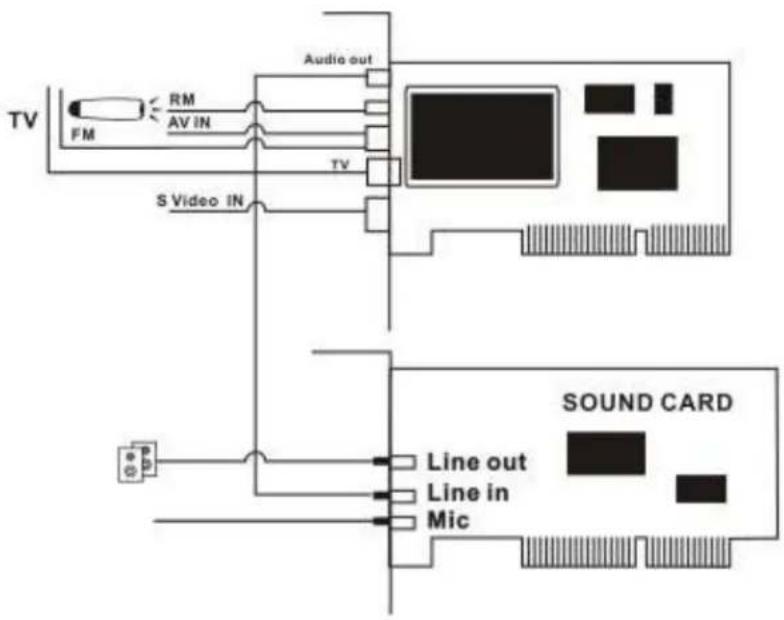
Driver and Software Installation
Driver Installation
Step 1: OS will tell you when it find a new hardware-- "New Hardware Device" was found. Please choose "Cancel"

Step 2: Insert the driver CD into CD-ROM, browse the CD, Click "Driver Install" or run Driver\Setup.exe, then press "next" to continue

Step 3: Click "next" to continue installation
Step 4: Click "Install" to continue installation driver
Step 5: Installing TV Video Capture, Click "Continue Anyway"

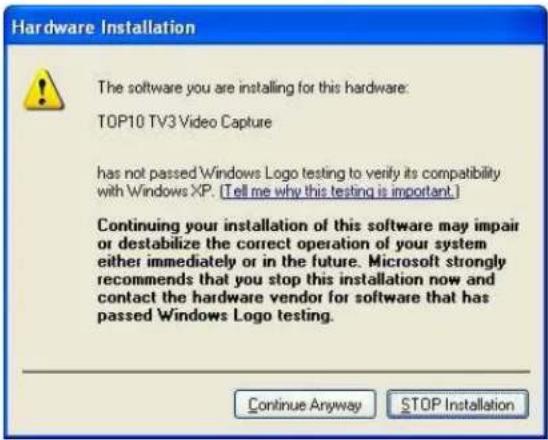
Step 6: Installing TV Tuner card, Click "Continue Anyway"


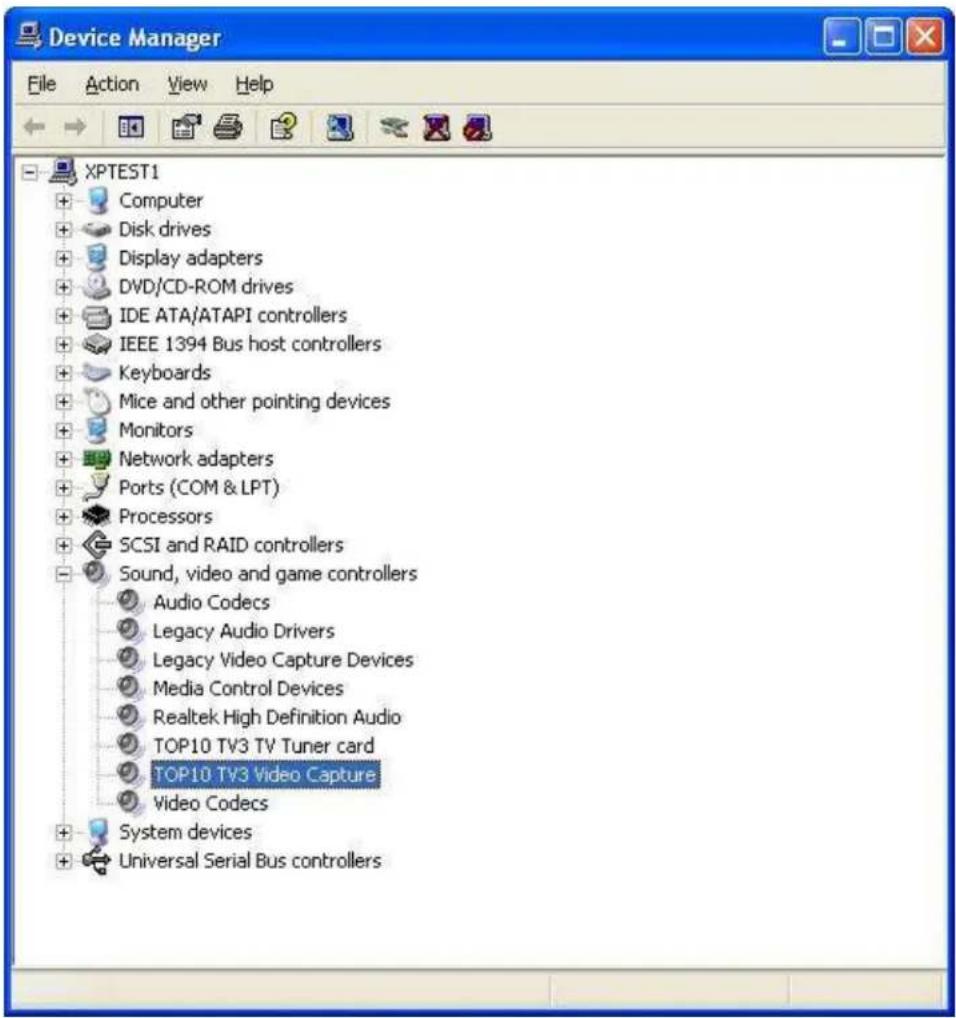
Step 7: When all finished, please check on open the control panel, select "System", select "system properties", select "Device Manager", you can see four new device drivers installed.
TOP10 TV3 Video Capture
TOP10 TV3 TV Tuner card
Software Installation
Step 8: You can choose your prefer language, there are two options (Chinese and English)
Step 9: If u have not install DirectX9.0, OS will install DirectX9.0 automatically
Step 10: After DirectX9.0 installation finished, After installation the component, click "Next" to continue install "WinTVR3"
Step 11: Select which directory to install, just choose browse, or click "next" to select the default directory
Step 12: Choose install the components, and click "Next"
Step 13: Click "Next" to install WinTVR3
Step 14: Installation start to copy files to destination directory
Step 15: Auto promote install "Windows Media Format 9", and click "Yes"
Step 16: Click "Yes" to continue "Windows Media Format 9" installation
Step 17: Install MPEG4 plug-ins, Click "Continue Anyway" (Only Windows XP)
Step 18: System will prompt that system will restart, please click "Finish"
Step 19: These are the ICONS that will appear in your desktop.

WinTVR User Interface
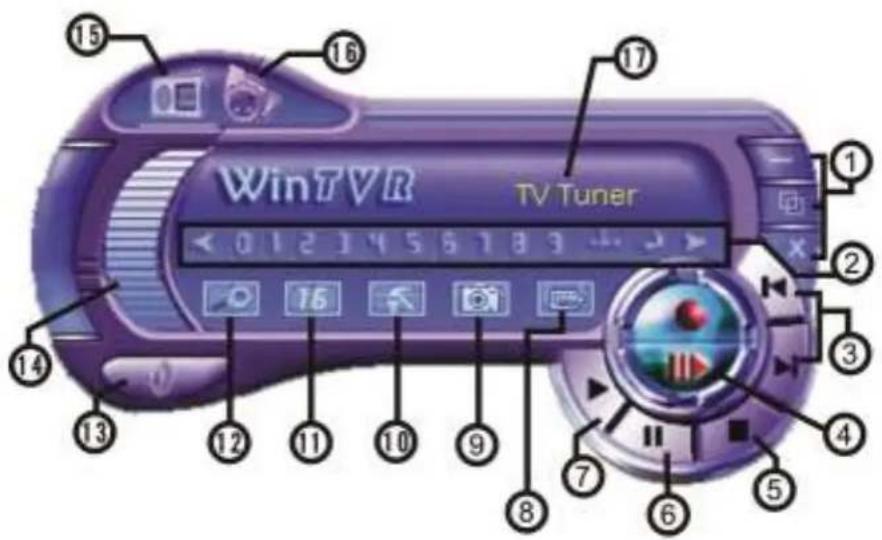
| No. | Description No. Description | |||
| 1 | Minimize/Full Screen/Close | 10 | Settings | |
| 2 | Channel Selection Keypad | 11 | 16 Channel Preview | |
| 3 | Step Backward/Step Forward | 12 | Auto Scan TV Channels | |
| 4 | Record/Time-Shifting | 13 | Mute | |
| 5 | Stop | 14 | Volume Control | |
| 6 | Pause | 15 | Switch to FM | |
| 7 | Play | 16 | Recording Schedule | |
| 8 | Open Movie Clip | 17 | Current Status | |
| 9 | Take a Snapshot |
FM Interface Explanation
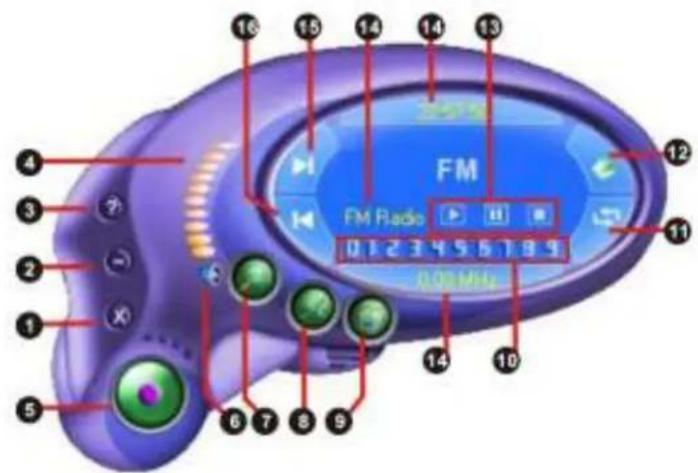
| No. | Description No. Description | channel | ||
| 1 Exit FM 9 Shift to TV | ||||
| 2 Minimize 10 Channel digit key | ||||
| 3 FM copyright 11 Back to preview | ||||
| 4 Volume bar 12 Open recorded files | ||||
| 5 Start Record 13 Play recorded files | Pause/stop recorded filesStop play next recorded files | |||
| 6 Mute | Display window state | |||
| 7 Auto scan channel | Jump to next channel | |||
| 8 Setup menu | 16 Jump to last channel | |||
Remote Control and Key description
| Key No. | Description |
| 1 | Switch input source: Switch from TV,Composite video and S-Video |
| 2 Turn On/Off application software | |
| 3 Digital Keys | |
| 4 Return to previous channel | |
| 5 Single/double/triple digit | |
| 6 | CH+.CH-: Channel Up/DownVOL+.VOL-: Volume Up/DownMute |
| 7 Brightness up | |
| 8 Brightness down | |
| 9 | AUD: Stereo/Mono |
| 10 TTX: Teletext | |
| 11 | Record: Record/stopPlay: Play recorded filesPauseStop/recordFast forwardBack forwardAuto scan channelSnapshotSetup menuFull screen window and video desktop switchFM:Power on/off: Exit WinTVR3 |

Note: This IR Remote can not be use on other devices: VCD or Satellite decoder device.


Brand : Advantek Networks
Model : ATV-TUNER-FM2
Category : TV tuner card