
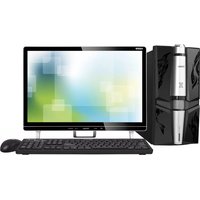
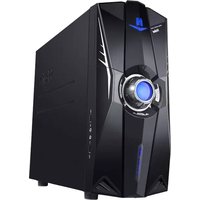
P20 - Desktop computer HAIER - Free user manual and instructions
Find the device manual for free P20 HAIER in PDF.


Pick your language and provide your email: we'll send you a specifically translated version.
| Product Type | Desktop Computer |
| Brand | Haier |
| Model | P20 |
| Dimensions (W x H x D) | Approx. 360 x 100 x 300 mm |
| Weight | Approx. 4.5 kg |
| Power Supply | 180 W AC adapter |
| Processor | Intel Core i5 (estimated) |
| RAM | 8 GB DDR4 |
| Storage | 256 GB SSD |
| Operating System | Windows 10 |
| Ports | USB 3.0 (x4), HDMI, VGA, Ethernet |
| Wireless Connectivity | Wi-Fi 802.11ac, Bluetooth 4.2 |
| Main Functions | Office applications, web browsing, multimedia |
| Maintenance | Clean with soft dry cloth; avoid liquids |
| Safety | Keep away from moisture; use grounded outlet |
| Spare Parts & Repair | Available through Haier service centers; modular design |
| General Information | Energy efficient, quiet operation |
Frequently Asked Questions - P20 HAIER
How do I set up the Haier P20 desktop computer for the first time?
Connect the power adapter, monitor, keyboard, and mouse. Press the power button. Follow the on-screen instructions to configure Windows, including language, network, and user account settings.
How can I connect the Haier P20 to Wi-Fi?
Click the network icon in the system tray, select your Wi-Fi network, enter the password, and click Connect. Ensure Wi-Fi is enabled via the switch or function key (e.g., F12).
Can I upgrade the RAM or storage on the Haier P20?
Yes, the desktop has accessible slots. For RAM, remove the side panel, locate the DIMM slots, and install compatible DDR4 modules. For storage, replace the 2.5-inch SATA SSD with a larger one. Refer to the user manual for details.
How do I clean the Haier P20 desktop?
Turn off and unplug the computer. Use a soft, dry cloth to wipe the exterior. For dust inside, use compressed air. Avoid liquids and abrasive cleaners.
What should I do if the Haier P20 does not power on?
Check that the power cable is firmly connected to both the computer and a working outlet. Ensure the power supply switch (if any) is on. Try a different outlet or cable. If the problem persists, contact Haier support.
How can I reset the Haier P20 to factory settings?
Go to Settings > Update & Security > Recovery > Reset this PC. Choose 'Remove everything' for a full reset. Back up important data first, as this will erase all files.
How do I connect an external monitor to the Haier P20?
Use an HDMI or VGA cable to connect the monitor to the corresponding port on the computer. Press the Windows key + P to select the display mode: duplicate, extend, or second screen only.
Can I play games on the Haier P20?
Yes, for casual and older games. The integrated graphics (Intel UHD) can handle light gaming. For demanding games, consider a desktop with a dedicated graphics card.
What is the warranty period for the Haier P20?
Haier typically offers a 1-year limited warranty. Check your purchase documentation or contact Haier support for exact terms and conditions.
How do I update drivers on the Haier P20?
Use Windows Update for automatic driver updates. Alternatively, visit the Haier support website, enter your model P20, and download the latest drivers. Install them manually.
User questions about P20 HAIER
0 question about this device. Answer the ones you know or ask your own.
Ask a new question about this device
No questions yet. Be the first to ask one.
Download the instructions for your Desktop computer in PDF format for free! Find your manual P20 - HAIER and take your electronic device back in hand. On this page are published all the documents necessary for the use of your device. P20 by HAIER.
USER MANUAL P20 HAIER
 Haier Haier |  | [27XZI][7AAK] | [28XJ] |  | [mkns][WTIC] | [ny2A][ZAAS] | [nyc6I][X0KS] | [82TWI] | [94WY][Z806] | [372WY][H26T] | Haier |
Manual assistant
Powered by Anthropic
Waiting for your message
Product information
Brand : HAIER
Model : P20
Category : Desktop computer