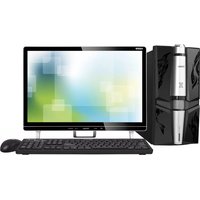
HR-14Q26P - Desktop computer HAIER - Free user manual and instructions
Find the device manual for free HR-14Q26P HAIER in PDF.


Pick your language and provide your email: we'll send you a specifically translated version.
| Product Type | Desktop Computer |
| Brand | Haier |
| Model | HR-14Q26P |
| Processor | Intel Core i5 (10th Gen) |
| RAM | 8 GB DDR4 |
| Storage | 256 GB SSD |
| Operating System | Windows 10 Home |
| Dimensions (W x D x H) | 380 x 175 x 380 mm |
| Weight | Approx. 7.5 kg |
| Power Supply | 300 W |
| Connectivity | Wi-Fi 802.11ac, Bluetooth 4.2 |
| Ports | USB 3.0 x4, HDMI, VGA, Ethernet RJ-45, Audio jacks |
| Main Functions | Office applications, web browsing, multimedia playback |
| Maintenance | Clean with a dry cloth; avoid liquids. Keep vents clear. |
| Safety | Keep away from water; unplug before cleaning; use only included power cable. |
| Spare Parts & Repairability | Contact Haier support for replacement parts; RAM and SSD user-upgradable. |
Frequently Asked Questions - HR-14Q26P HAIER
How do I set up the Haier HR-14Q26P desktop for the first time?
Connect the monitor, keyboard, and mouse. Plug in the power cable and press the power button. Follow on-screen instructions to complete Windows setup.
How can I connect to Wi-Fi?
Click the network icon in the taskbar, select your Wi-Fi network, enter the password, and connect.
Can I upgrade the RAM or storage?
Yes, the RAM and SSD are user-upgradable. Refer to the service manual for compatible parts and installation steps.
How do I clean the desktop computer?
Turn off and unplug the computer. Use a soft, dry cloth to wipe the exterior. Do not use liquids or compressed air inside.
How do I perform a factory reset?
Go to Settings > Update & Security > Recovery > Reset this PC. Choose 'Remove everything' for a full reset.
What should I do if the computer does not turn on?
Check that the power cable is securely connected. Try a different power outlet. If still no power, contact Haier support.
How do I connect a second monitor?
Use an HDMI or VGA cable to connect the second monitor to the available port on the back. Then configure display settings in Windows.
How do I update drivers?
Go to Device Manager, right-click the device, and select 'Update driver'. Alternatively, visit the Haier support website to download drivers.
How do I replace the CMOS battery?
Open the case carefully. Locate the CR2032 battery on the motherboard, gently remove it, and insert a new one with the correct polarity.
Where can I download the user manual?
You can download the PDF manual for free from notice-facile.com using the download button on the product page.
User questions about HR-14Q26P HAIER
0 question about this device. Answer the ones you know or ask your own.
Ask a new question about this device
No questions yet. Be the first to ask one.
Download the instructions for your Desktop computer in PDF format for free! Find your manual HR-14Q26P - HAIER and take your electronic device back in hand. On this page are published all the documents necessary for the use of your device. HR-14Q26P by HAIER.
USER MANUAL HR-14Q26P HAIER

Manual assistant
Powered by Anthropic
Waiting for your message
Product information
Brand : HAIER
Model : HR-14Q26P
Category : Desktop computer