
Mismart Xenior - Smartphone Wolder - Free user manual and instructions
Find the device manual for free Mismart Xenior Wolder in PDF.


| Product Type | Smartphone |
| Brand | Wolder |
| Model | Mismart Xenior |
| Display Size | 6.5 inches |
| Resolution | HD+ (1600 x 720 pixels) |
| Processor | Quad-core 1.6 GHz |
| RAM | 3 GB |
| Internal Storage | 32 GB |
| Expandable Storage | MicroSD up to 128 GB |
| Rear Camera | 13 MP + 2 MP dual |
| Front Camera | 8 MP |
| Battery Capacity | 4000 mAh |
| Operating System | Android 11 (Go edition) |
| Dimensions | 165 x 76 x 8.5 mm |
| Weight | 185 g |
| SIM Card | Dual Nano-SIM |
| Connectivity | Wi-Fi 802.11 b/g/n, Bluetooth 4.2, GPS, 4G LTE |
| Sensors | Accelerometer, Proximity, Light |
| Power Supply | 5V/1A charger (USB micro-B) |
| Cleaning | Wipe with soft dry cloth; avoid liquids |
| Safety | Do not expose to extreme temperatures or moisture |
| Replaceable Parts | Battery not user-replaceable; screen and back cover serviceable by authorized center |
Frequently Asked Questions - Mismart Xenior Wolder
User questions about Mismart Xenior Wolder
0 question about this device. Answer the ones you know or ask your own.
Ask a new question about this device
Download the instructions for your Smartphone in PDF format for free! Find your manual Mismart Xenior - Wolder and take your electronic device back in hand. On this page are published all the documents necessary for the use of your device. Mismart Xenior by Wolder.
USER MANUAL Mismart Xenior Wolder
natural_image
Front view of a smartphone displaying a blue screen with navigation buttons (no text or symbols on screen)• ACC, APE, FLAC, MIA,
MP3.WAV.
• Radio FM

• Android 4.2

- 2Mpx
- 8Mpx + flash

• WPI b/g/n
- BT 4.0
· 3G

- MicroUSB

- JPEG, BMP, GIF, PNG.

Discover you new Wolder device. Welcome to our family :)
Thanks for choosing us. Before first using your smartphone, make sure the battery and SIM or memory card are installed. To do so, remove the back cover>slip the SIM card into the card holder>insert the memory card into the metal slot with the metal contacts facing down until it clicks to the right position.
natural_image
Black smartphone with blue screen and navigation buttons, no visible text or symbols on screen or backgroundOnce the SIM card is installed, you can insert the battery by aligning the gold contacts on the battery with the gold contacts in the battery compartment. Gently push down on the battery until it clicks into place.
To turn on your telephone hold and press for a few seconds the power button that you cand find on the right side of the device. To turn it off hold and press the power button until you can read on the screen the options:
Power off/Restart/Airplane mode
WARNING: Charge the battery before starting to use your mismart Xenior for the first time: connect the adapter to the charger jack>connect the charger to a standard AC wall outlet. Don't disconnect the charger until the battery is fully charged.
Get used to mismart Xenior


*(press to get the options for the current screen)
**(press to return to home/hold to recently used applications)
*** (press to go to the previous screen)
How is your smartphone? Technical features

·4.5"
- 854x480 pixels
- Multitouch
- 98.5×55 mm

• DualSIM

• RAM 512 MB
- Flash 4GB

- 137×68×11.6 mm
- 146 g

• CPU Dual Core 1.3 GHz

-10h
-1700 mAh


• GPS
• A-GPS

• MPEGA,AVI,MP4,MKV,
• MPEGA,AVI,MP4,MKV,
• MPEGA,AVI,MP4,MKV,
• MPEGA,AVI,MP4,MKV,
• MPEGA,AVI,MP4,MKV,
• MPEGA,AVI,MP4,MKV,
• MPEGA,AVI,MP4,MKV,
• MPEGA,AVI,MP4,MKV,
• MFGA/AVMPK/MW

• ACC, APE, FLAC, M4A.
MP3.WAV.
• Radio FM

• Android 4.2
• Android 4.2
• Android 4.2
• Android 4.2
• Android 4.2
• Android 4.2
• Android 4.2
• Android 4.2
• Android 42
• Android 4.2
• Android 4.2
• Android 4.2
• Android 4.2
• And
• And
• And
• And
• And

- 2Max
- 8Max + flash
• WIFI b/g/n
• BT 4.0
· 3G
• MicroUSB
• MicroUSB
• MicroUSB
• MicroUSB
• MicroUSB
• MicroUSB
• MicroUSB
• MicroUSB
• Mauus8
• MicroUSB
• MicroUSB
• MicroUSB
• MicroUSB
• MicroUSB
• MicroUSB
• MicroUSB
• MicroUSB
• MicroUSB

- JPEG, BMP, GIF, PNG.
- JPEG, BMP, GIF, PNG.
- JPEG, BMP, GIF, PNG.
- JPEG, BMP, GIF, PNG.
- JPEG, BMP, GIF, PNG.
- JPEG, BMP, GIF, PNG.
- JPEG, BMP, GIF, PNG.
- JPEG, BMP, GIF, PNG.
• JRC, BNP, QIF, PNC.
- JPEG, BMP, GIF, PNG.
- JPEG, BMP, GIF, PNG.
- JPEG, BMP, GIF, PNG.
- JPEG, BMP, GIF, PNG.
• JPEG, BMP, G
- JPEG, BMP, GIF, PNG.
- JPEG, BMP, GIF, PNG.
- JPEG, BMP, GIF, PNG.
- JPEG, BMP, GIF, PNG.

• Light & proximity sensors
• Accelerometer
• Accelerometer
• Accelerometer
• Accelerometer
• Accelerometer
• Accelerometer
+ Gestural

For your safety
-Don't make or receive handheld calls while driving. And never text while driving.
-Keep away from pacemakers and other electronic medical devices (such as hearing aids).
-Small parts may cause a choking.
-Your smartphone may become warm during charging and during normal use.
-Only use approved accessories.
-Don't try to disassemble your mismart Xenior.
-Avoid contacting with liquids. Keep your mismart dry.
-Do not use harsh chemicals, cleaning solvents, or aerosols to clean mismart Xenior or its accessories.
-Avoid extreme temperatures.
-Avoid contacting with anything magnetic.
-Don't dispose of your phone in fire.
-Switch off when near explosive materials or liquids.
-Switch off when asked to in hospitals and medical facilities.
-Switch off when told to in aircrafts and airports.
-Don't use at petrol stations.
mismart Xenior Home Screen
To be able to use your smartphone, you'll need to unlock it. It is very easy. You just have to slide down the button that appears on the screen.
Once you've unlocked the screen, you'll find the main desk, with the most important choices of what you can do with your mismart Xenior.

If you slide the screen to the right or to the left, two other desktops appear with more options to make the most out of your phone: calendar, calculator, messages, calls, magnifying glass, radio, etc..
Can I change my desktops?
Xenior mismart desktops are fully customizable: you can choose what buttons to include on each screen, so you have the different options offered by your phone at hand depending on your preferences.
The way to change them is simple: press the Menu key ☐ and select Edit screen. You will see a small pen in the upper right corner of each icon. If you press on the pen, you could choose the application or tool that you want to place there.
Set up mismart Xenior
Apart from your desktop, you can also change other settings of your phone, like volume, screen brightness, language, Wi-fi connection, date and time, or size of the letter.
To do so, you just have to hold and press the Menu Key ☐ and select the option System settings. Two tabs, one with common options and another one with all the settings you can change, will display on the screen. To select one or the other, you just have to click on them.
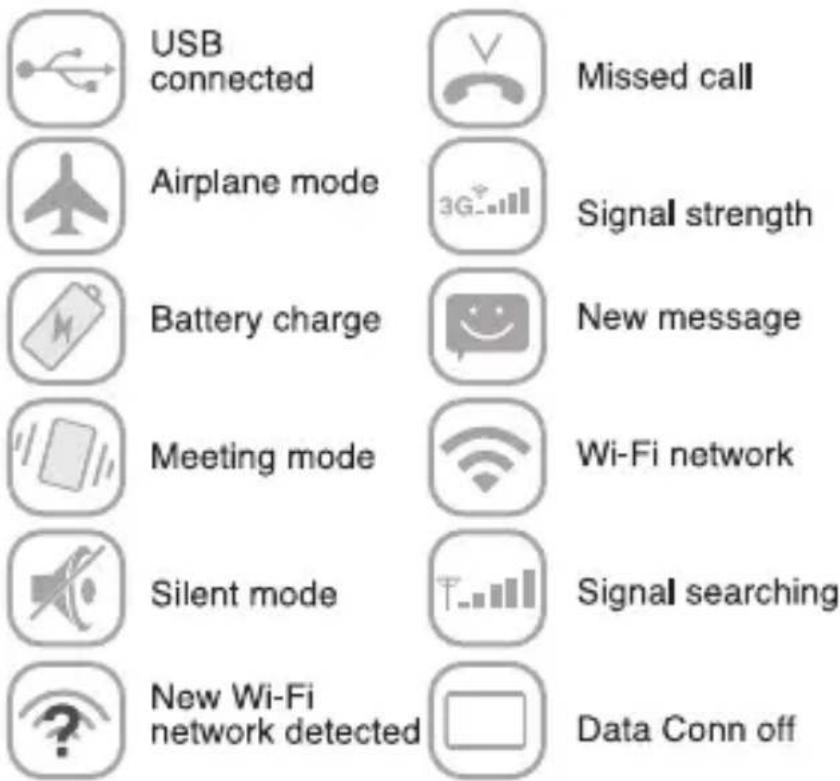
Status and notification icons
Your phone will tell you what's going on by showing you simple icons. Here's what they mean:
Make a call
With mismart Xenior, making calls is very easy and you have several ways to do it. From the main desktop, clicking on the button or the Family button or on the Contacts one, and once inside, pressing the name of the person you want to talk.
If you prefer, you can make a call by pressing the ☐, dial the number you want to call and press ☐ again.
As you have seen, pressing 📄 you also have the option of calling using your contact list, by clicking on the Contacts tab and the name of the person you want to call.
Recieve/reject calls
Drag the 📄 icon to the right to answer the call; drag the 🔊 icon to the left to reject the call.
Tap ☑ to finish a call.
During a call, you can mute your microphone so that the person you are speaking to cannot hear you: tap 📄 to turn your microphone off. To turn it on again, tap 📄.
If you want to turn the speakerphone on/off during a call, tap 📄.
Get in touch with your family
As you can see on the main screen of your phone there is a button called Family. You can add all the phone numbers of the people you call most, to have them always at hand. You only have to click on the button ⊕ and find the name and number of the person you want to add from your phone's contact book.
To add numbers to your address book, you have the button Contacts on your main desktop 📁. To add a new name use the key> Ⓑ select the storage location> enter the contact name, phone number and other information (optional) and save it.
To find a contact press the key Ⓞ> enter the name of the person you're looking for.
S.O.S
Mismart Xenior has a SOS Help direct call button. It is the red button you can find in the back of your phone.
From the SOS Settings button 📁 on the main desktop, you can decide what person or unit (112, 091, etc.). your phone will notify when you press that button.
Send messages
To send a message you have to tap the key that you can find on the right desktop of your smartphone and press to create a new message>introduce the name or number of the recipient (as you type, your smartphone will offer matched contacts suggestions). You can also use the option to choose recipients from your contact list>select Write message.
Getting connected to the Internet
Mismart Xenior has impressive networking capabilities. To connect to the Internet you can use default connection settings to connect to the Internet via your mobile network or Wi-Fi.
The network connection can be enabled/ disabled manually. Just press Menu key> System settings>Data use.
Remember that if you want to get connected via your mobile network you need a data plan with your service provider!
Connecting to a Wi-Fi network
If you don't have a data plan, you can connect by Wi-Fi. Wi-Fi provides wireless Internet access over distances of up to about 300 feet. If you want to turn on Wi-Fi press Menu Key>System settings> and slide to the right the button by Wi-Fi menu.
Once Wi-Fi is on, the Wi-Fi access points, or "hotspots", that your phone has detected are displayed with their names and security settings. Tap an access point to connect to it.
NOTE: If security features are implemented, you'll need to enter a password.
Surf on the Internet
With the 📄 icon on your Home screen you can surf on the Internet. Tap the address bar to enter the website you want to browse>write the address>tap 📋 on the keyboard.
More info and support
For more information about our products, practical advices, frequent questions, users manuals, updates, etc. visit http://www.wolderelectronics.com.
To contact our technical support visit www.wolderelectronics.com/soporte/servicio-tecnico
Declaration of conformity
GLOBAL WOLDER GROUP S.L, Polígono Industrial de Barros n°29, 39408 Barros, Cantabria, Spain, declares that this product, model mismart Xenior, complies with the provisions of Directive 99/05/CE on Radio Equiments and Telecommunications (R&TTE), and Directive 2004/108/-CEE on Electromagnetic Compatibility, according to harmonized standards.
See you :)
Bem-vindo
mismart Xenior
natural_image
Black smartphone with blue screen and navigation buttons (no text or symbols on screen)- ACC, APE, FLAC, MIA, MP3, WAV. - Radio FM

• Android 4.2

- 137x68x11,6 mm - 146 g

• CPU Dual Core 1,3 GHz

- 2Mpx - 8Mpx + flash

• WIP b/g/n • BT 4.0 • 3G

- MicroUSB

- JPEG, BMP, GIF, PNG.

Conectar-se a Internet
- Discover you new Wolder device. Welcome to our family :)
- Power off/Restart/Airplane mode
- Get used to mismart Xenior
- How is your smartphone? Technical features
- For your safety
- mismart Xenior Home Screen
- Can I change my desktops?
- Set up mismart Xenior
- Status and notification icons
- Make a call
- Recieve/reject calls
- Get in touch with your family
- S.O.S
- Send messages
- Getting connected to the Internet
- Connecting to a Wi-Fi network
- Surf on the Internet
- More info and support
- Declaration of conformity
- Conectar-se a Internet
Brand : Wolder
Model : Mismart Xenior
Category : Smartphone