
ZM-K400G - Keyboard ZALMAN - Free user manual and instructions
Find the device manual for free ZM-K400G ZALMAN in PDF.


| Product Type | Keyboard |
| Model | ZM-K400G |
| Brand | Zalman |
| Interface | USB |
| Dimensions (approx.) | 440 x 140 x 30 mm |
| Weight (approx.) | 800 g |
| Power Supply | USB powered (5V DC) |
| Backlight | Illuminated, red/blue colors selectable |
| Macro Keys | 5 dedicated G keys (G1-G5), programmable |
| Multimedia Hot Keys | 7 hot keys, programmable with media functions |
| Polling Rate | Selectable: 125Hz, 250Hz, 500Hz, 1000Hz |
| Driver Software | Available for download from Zalman website |
| Operating System Support | Windows (specific versions not stated) |
| Warranty | 1 year |
| Cleaning Instructions | Wipe with a soft dry cloth; avoid liquids |
| Safety | Discontinue use if malfunction occurs; contact place of purchase |
| Spare Parts & Repairability | Not specified; contact manufacturer or authorized service |
Frequently Asked Questions - ZM-K400G ZALMAN
User questions about ZM-K400G ZALMAN
0 question about this device. Answer the ones you know or ask your own.
Ask a new question about this device
Download the instructions for your Keyboard in PDF format for free! Find your manual ZM-K400G - ZALMAN and take your electronic device back in hand. On this page are published all the documents necessary for the use of your device. ZM-K400G by ZALMAN.
USER MANUAL ZM-K400G ZALMAN
5 MACRO KEYS FOR GAMING 7 HOT KEYS FOR EASY ACCESS ILLUMINATED BACKLIGHT
English
Português
한글
English Firstly connect the gaming keyboard with PC and then install the driver as the instructions as below.
English Firstly connect the gaming keyboard with PC and then install the driver as the instructions as below.
3
English
Chose the destination folder, then click "NEXT"
Português
4
English
Then it start to install, it comes out an option page below after a while.
Click "YES" and "FINISH" to restart the computer.
After th computer restart, the installation would be finished.
Portugues
5
English
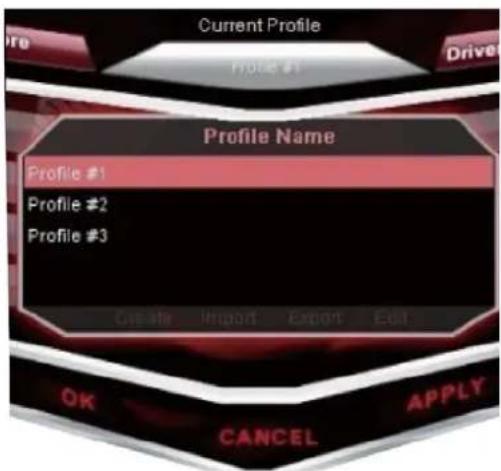
After the computer restart, you could find a gaming keyboard icon on the lower right corner of the page. Right click it, chose "CONFIGURATION".
Portugues
Then you could see the gaming driver on the page.
Portugues
1
English
If you find there's no back light on the keyboard, don't worry.
You should click the "RESTORE" on the driver when the first use.
Then click "OK". Then the back lighting starts to turn on.
Portugues
2

English
If you want to change the color of the back light, you could press R&B key on the keyboard. There are two colors to be chosen, red and blue.
Portugues
Or you could click the round button on the driver. Then it comes out an option page below. Chose the light color and click "ON", then click "OK:
- Then click the "APPLY" below, the back lighting start to change.
Português

1
2

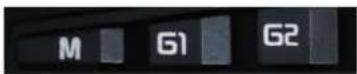
For example, you want to program G1 with the macro recording function.
First, click "G1" in the window of software, and then click "MACRO" on the driver.
Portugues
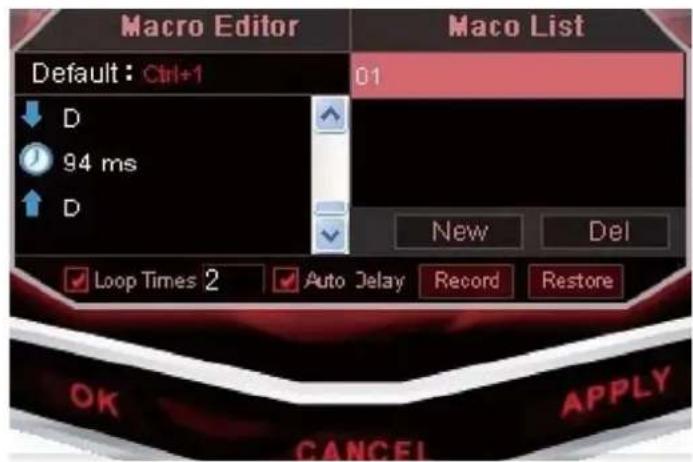
Create a new 'Macro' for G1 key, click "NEW" and input a file name.
Then press the "ENTER" key on the keyboard.
Português
If you click the "RECORD" option, then you could start to record.
For example you want to record "W A S D", you could press "W A S D" on your keyboard now. When you finish it, click "STOP".
(You can also tick "loop time" and fill in the loop times you want to configure or also tick 'auto delay')
Português
4
English
Click the "APPLY", then you could find the G1 key start to turn into red on the driver. That means you just finished the G1 programming
Portugues
The "loop times" option mean how many times the command would repeat.
For example you want the "WASD" command repeat 5 times, chose the "loop time" and modify "1" into "99", tick this column and fill in the times you want before you record a 'Macro'.
Português
The "Auto Delay" means the driver will memory the delay time of your each key press when you start to record the commands.
Portugues
The multimedia keys are programmable; include the macro recording and all the other function. When click the "RESTORE DEFAULT" on the driver, and then it will restore its defaulted media function.
Português
Then you could see the page like below, the multimedia function icon light turns off.
Português
4
English
Then you could configure a new multimedia function into this key.
Portugues
English
Click "APPLY" to finish it.
Português
The key's icon turns red on the driver; it means this key has the new multimedia function.
natural_image
Close-up of a car dashboard with control buttons and playback controls (no readable text or symbols)POLLING RATE SELECT | SELECIONANDO A "POLLING RATE" | 롤링 레이트 설정
English
The polling rate could be selected of the keyboard.
Português
Click this button on the driver.
Português
Then you could see there options on the page.
Português
Choose your favorite then click OK. The 1000Hz is the fastest speed.
Português
All ‘G’ keys and multimedia keys can be programmable. You can record ‘Macro’ as the above-mentioned instruction or you can program these keys with the functions showed in the software such as ‘Advance’, ‘Mouse’ and so on.
The principle is same as that you configure a ‘Multimedia’ function for the key.
Português
English Warranty period is one year.
If the device stops working properly, discontinue its use then contact the place where you purchased it. Original purchase receipt and/or other documentation may be required to verify the purchase date. Thank you.
* Please download the program from Zalman's website if the device requires one.
Brand : ZALMAN
Model : ZM-K400G
Category : Keyboard