XTab 7X - Tablet WayteQ - Free user manual and instructions
Find the device manual for free XTab 7X WayteQ in PDF.


| Product Type | Tablet |
| Brand | WayteQ |
| Model | XTab 7X |
| Display Size | 7 inches |
| Display Resolution | 1024 x 600 pixels |
| Touchscreen | Capacitive, multi-touch |
| Operating System | Android |
| Processor | Quad-core, 1.3 GHz |
| RAM | 1 GB |
| Storage | 8 GB internal, microSD card slot |
| Camera (Front) | 0.3 MP |
| Camera (Rear) | 2 MP |
| Connectivity | Wi-Fi 802.11 b/g/n, Bluetooth 4.0 |
| Battery | Li-Ion, 3000 mAh |
| Dimensions | 191 x 122 x 10.5 mm |
| Weight | 310 g |
| Power Adapter | 5 V, 1 A USB charger |
| Cleaning | Use a soft, dry cloth |
| Safety | Avoid exposure to water and extreme temperatures |
| Spare Parts | Not user-serviceable; battery is built-in |
Frequently Asked Questions - XTab 7X WayteQ
User questions about XTab 7X WayteQ
0 question about this device. Answer the ones you know or ask your own.
Ask a new question about this device
Download the instructions for your Tablet in PDF format for free! Find your manual XTab 7X - WayteQ and take your electronic device back in hand. On this page are published all the documents necessary for the use of your device. XTab 7X by WayteQ.
USER MANUAL XTab 7X WayteQ
Important Safety Precautions ....3
Cleaning the Panel....3
Cleaning the Tablet....3
Features......4
Buttons Overview 4
Accessories....5
What's in the Box ....5
Charging the Battery 5
Power on/off and Unlock the tablet....5
II - FUNCTIONNING OF THE TABLET....6
Navigation 6
Home Screen 6
Application Launcher Screen....6
Status Bar 7
Onscreen Keyboard 7
III - SETTINGS....8
Set Up Wi-Fi Connection....8
Set Date and Time....9
Set Up Email 9
Set Up Calendar....10
Create Shortcuts or Widgets on Home Screen 11
Change Wallpapers....11
Use folders....11
IV - CONNECTIONS ....12
Wi-Fi....12
PC Connection....12
V - APPLICATIONS....12
Camera 12
To take picture....12
To record video....12
Clock....13
Browser 14
Calculator....15
Downloads 15
Gallery....16
Music....17
Movie Player 18
FM radio....19
Phone Calls....20
Making calls 20
Call Menu....20
Emergency Calls 20
Call log 21
Sending Messages....21
SIM management....21
VI - PRODUCT SPECIFICATION....22
INTRODUCTION
First of all, thank you very much for purchasing WayteQ product!
Please read this manual carefully before using this product.
This company will connue to provide new funcons for the development of the product, and there will be no separate change in the case of any change in the product's performance and funcons.
If the actual setup and the applicaon methods are not identical to those as set forth in this manual, please access to the latest product informaon of our web site.
I - GETTING STARTED
Important Safety Precautions
Always follow these basic safety precautions when using your tablet. This will reduce the risk of re, electric shock and injury.
Warning: To reduce the risk of re of shock hazard, do not expose this product to rain or water.
Warning: To prevent the risk of electric shock, do not remove the cover. There are no user-serviceable parts inside. Opening will void your warranty.
- Unplug the tablet before performing maintenance.
- Keep your tablet out of direct sunlight and heat sources.
- Protect the power cord. Route power cords so that they are not likely to be walked on or pinched by items placed on or against them. Pay parcular aenon to the point where the power cord is aached to the tablet.
• Only use the AC adapter included with the tablet. Using any other power adapter will void your warranty.
• Unplug the power cord from the outlet when the unit is not in charging condion.
Cleaning the Panel
Treat the screen gently. The screen is made of glass and can be scratched or broken.
To clean ngerprints or dust from the screen, it is recommended to use a so, non-abrasive cloth such as a camera lens cloth to clean the screen.
If you use a commercial Cleaning Kit, do not apply the cleaning liquid directly to the screen. Clean the screen with cleaning cloth moistened with the liquid.
Cleaning the Tablet
Clean the outer surface of the tablet (excluding the screen) with a so cloth dampened with water.
Features
The tablet includes these key features:
- Displays Alarm, Browser, Calculator, Calendar, Camera, Clock, Email, File Browser, Gallery, Music, Seng, Movie Player and etc
• Displays digital photos, Play Music and Video - Wi-Fi funcon to connect with your AP router for internet browsing
- GPS receiver
- Micro Secure Digital™ (micro SD) slot for external storage
• SIM and Mciro SIM slot - Capacive touch screen for all user operaons
• 4 GB Internal Memory - USB2.0 OTG for conneccon to the PC or USB ash drive
Buttons Overview
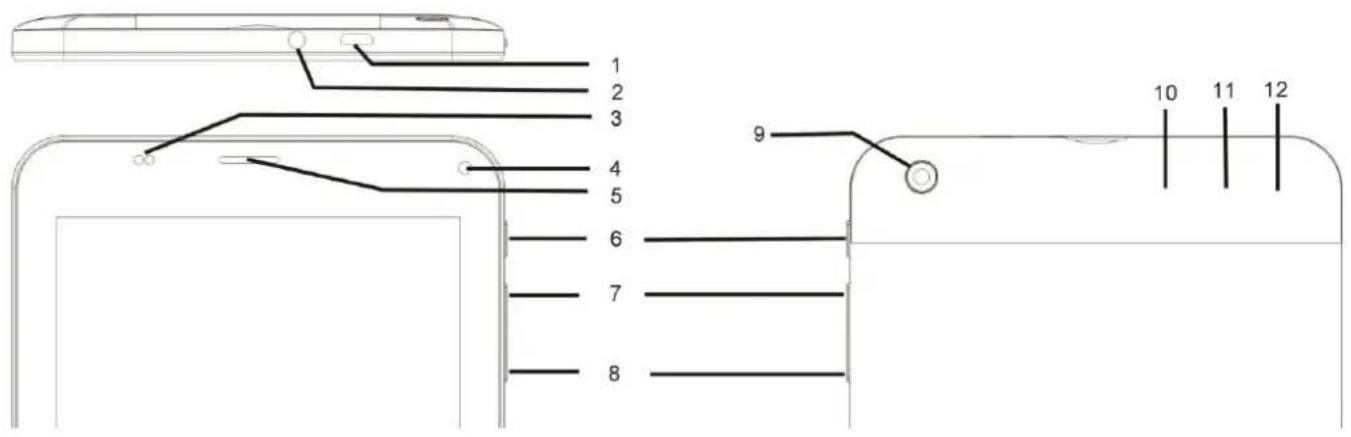
- Micro USB, 2. Earphone, 3. Light sensor / Proximity sensor, 4. Front camera, 5. Speaker, 6. Power, 7. Volume +, 8. Volume -, 9. Back camera, 10. Micro SD, 11. SIM card, 12. Micro SIM card
Accessories
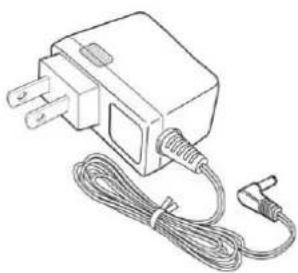
natural_image
Line drawing of a small electrical adapter with power input and cord (no text or symbols)Power Adapter
(depending on the regional requirement, the plug may look dierent)
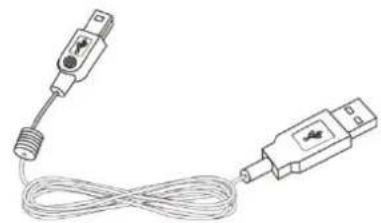
natural_image
Line drawing of two connected electrical probes with a coiled cable (no text or symbols)USB Cable
What's in the Box
WayteQ xTAB 7x Tablet PC
AC Power Adapter (5V/2A)
USB Cable, OTG adapter
Quick Start Guide
Charging the Battery
Plug the AC power adapter into tablet and into a wall outlet.
Icon will turn to icon while the baery is charging.
* It is strongly recommended you fully charge the device for about 4-6 hours before use. * When charging
baery, the baery indicator for a fully charged baery is a steady blue baery icon on the nocaon bar.
icon means the baery is sll being charged, even when 100% has been displayed for baery level on the Sengs
→ About tablet→ Status screen.
Power on/off and Unlock the tablet
The tablet is easy to set up. Just follow these steps:
- To power: Press and hold Power buon for 2 second.
- To unlock: Wait unl a screen with a lock icon shows up, gently tap the "Lock" icon and slide it toward the unlock icon.
- To power o: Press and hold the Power buon for 2 seconds unl "Power o" window pops up on screen where you can choose OK opon to power o the device.
Note: The screen with the lock icon will me out in 10 seconds if you do not unlock it. In case it happens, the Power buon can be pressed briefly to make it show up again.
II - FUNCTIONNING OF THE TABLET
Navigation
Tablet has ve home screens by default. The rst me you turn on the tablet or aer having factory data reset, you will see a navigaon screen.
* To see all you applicaons, touch .
* You can put your favorite applicaons on Home screen.
Home Screen
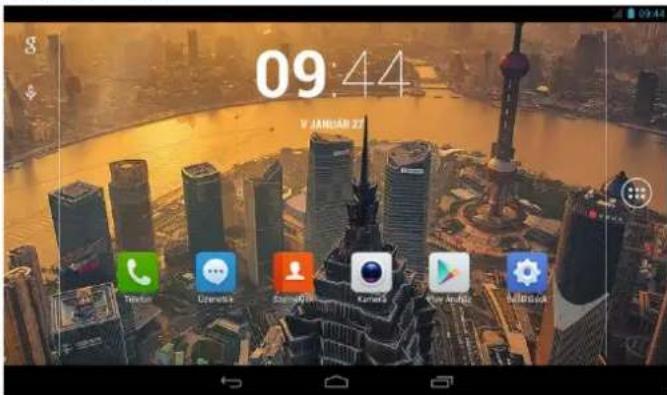
A typical Home screen with wallpaper, status bar, and few applicaons at the boom.
* The background wallpaper may be dierent from model to model
◆ Google
- 10% 10% 10% 10% 10% 10% 10% 10% 10% 10% 10% 10% 10% 10% 10% 10% 10% 10% 10% 10% 10% 10% 10% 10% 10% 10
◆ shortcut to applicaon Launcher screen.
Application Launcher Screen
A typical applicaon Launcher screen is shown below. One icon represents one applicaon which can be run by tapping on the icon.
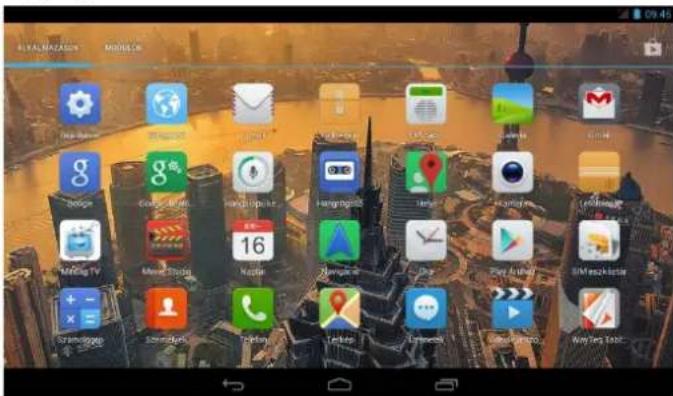
*The screen icon may be dierent from model to model
Status Bar
At the boom and top of the screen, the status bars mainly indicates Back icon, Home icon, Recent viewed applicaons icon, Current me, Wi-Fi status, 3G status, Bluetooth status and baery level, etc.

natural_image
Four white line icons on black background: left-pointing arrow, house, document, and bracket (no text or symbols)
| Icon | Acon |
 | On any funconal screen, tap this icon to go back one screen or exit applicaon. |
 | On any funconal screen, tap this icon to go to Home screen |
 | Shows a list of thumbnail images of applicaons you’ve work with recently. To open an applicaon, touch it. To remove a thumbnail from the list, swipe it le or right. |
 | Screenshot |
 | Current me |
 | Wi-Fi conncon and signal strength |
 | Baery level. Will turn orange when baery is low and turn red when baery is very low. |
 | SIM card and GSM signal strength |
Onscreen Keyboard
The onscreen keyboard appears automatically anymore you tap on a text line for input. While entering text with the onscreen keyboard, each character will be entered into the posion pointed by a vercal cursor. You can change the cursor posion by tapping with your nger on the posion you want to enter the next character. To select dierent language keyboard, touch and hold icon A pop menu will show up to let you select the "Input Opons"
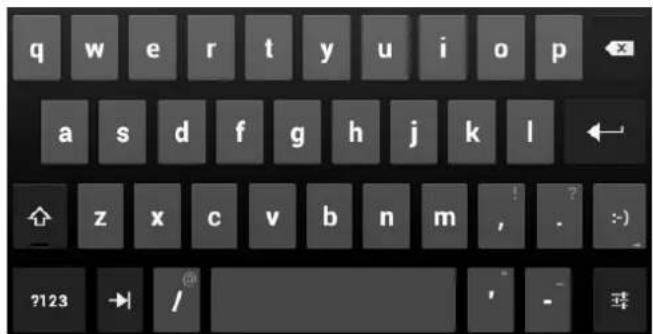
Input options
Input languages
Android keyboard settings
*Seng up an Internaonal keyboard: see "Install Third-Part Applicaon" secon.
III - SETTINGS
Set Up Wi-Fi Connection

Make Wi-Fi Connecon In Sengs → Wireless & networks → Wi-Fi, slide the Wi-Fi switch to the I posion.
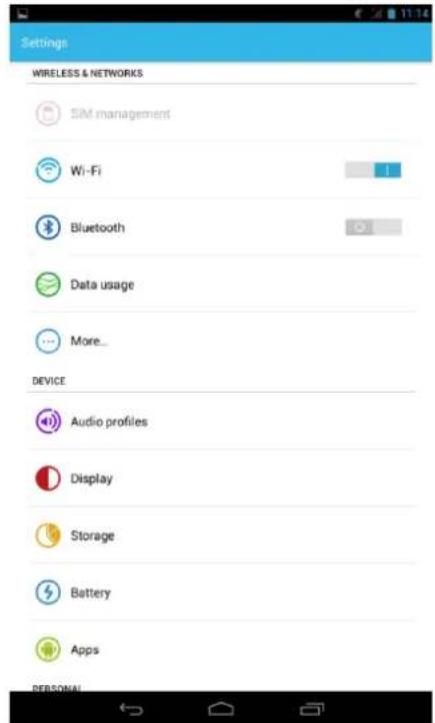
Normally, the device will automatically scan the available Wi-Fi Access Point (AP). If this does not happen, select Scan (upper right corner) to scan for the available Wi-Fi APs. Then, tap on the desired AP to make the conncon. If it is a secured AP, system will prompt you for the password. Enter it by tapping on the password entry line, and use the onscreen keyboard to enter the password. Then, tap on the Connect to start conncng to that AP. When conncon is established, the Wi-Fi connected icon will show up on the status bar.
Set Date and Time
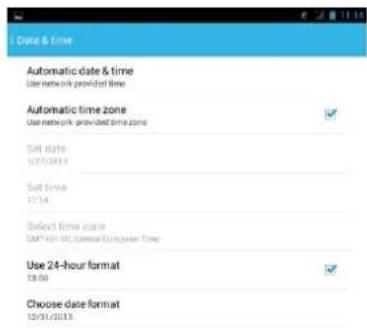
Use Sengs → Data & Time to open up the data/me seng screen as shown below. Select the correct me zone. If the Wi-Fi is connected to Internet, check on the Automac to have me set up automacally. If Wi-Fi is not connected to Internet, uncheck Automac date & me to temporarily set date and me. Then, check Automac again before leaving the screen. In the future, when the Wi-Fi is connected to internet, date and me will be automacally adjusted.

Set Up Email

You can congregate Email for most accounts in just a few steps. For many popular email services, tablet automacally enters most of the sengs for you.
- Make sure the Wi-Fi is connected.
- Open the Email applicaon and enter your Email address and password, then tap "Next"
- Give a name to your account then tap "Next". Mail messages will be downloaded automacally.
| Icon | Acon |
| Tap to enter E-mail compose interface | |
| Tap to enter search interface of Inbox | |
| Refresh | |
| Tap to enter Account sengs. To remove your account record in tablet, tap Remove account |
Set Up Calendar

Calendar makes you easy to stay on schedule. You can view your schedule in day/week/month/and agenda mode by touching icons at upper le corner. Swipe to scroll vercally or horizontally.
When using calendar for the rst me, there are some steps you shall follow:
- Tap Calendar icon into Gmail entering interface, then enter your Gmail account and password and tap Next.
- Change the Serve "gmail.com" for "m.google.com", then tap Next step.
- You can tap on the specific date to start using your personal calendar now.
Icons across the top:
| Icon | Acon |
| TODAY, MONDAYFebruary 13, 2012 | Tap to see the viewing type: day/week/month/and agenda |
 | Tap to view today's schedule |
 | Tap to show the creang events interface |
 | Tap to show more opons: Refresh/Search/Sengs |
Create Shortcuts or Widgets on Home Screen
In order to access to frequently used applicaons / widgets more quickly, you can create a short cut to an applicaon / widget and place it on the Home screen. Therefore, you don't need to spend to look for it among the many applicaons / widgets on the Launcher screen.
Shortcuts
Press the applicaon icon in the Launcher screen and hold unl the icon is enlarged and background has been changed to Home screen. Then drag the enlarged icon to an empty space on Home screen and release the nger.
Widgets
Widget is a small applicaon. Aer being installed, it shows up in the main Widgets screen.
To add widgets: Touch and hold a widget, drag it to an empty space on Home screen and release your nger.
To remove shortcut / widget: Tap and hold any icon / widget on Home screen, then drag it into the Remove icon.
* If there is not enough room to drop it, the icon / widget won't get added to the Home screen.
Change Wallpapers
Tap any blank space on Home screen and hold until a Choose wallpaper from menu pops out. Then, you can select wallpaper from your Gallery / Live wallpapers / Wallpapers.
Choose wallpaper from

Gallery

Live Wallpaper

Select

Wallpaper
Use folders
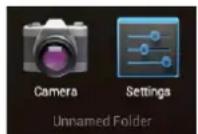
You can combine several applicaons' icon in a folder by dropping one icon over another on a Home screen.
From any Home screen, you can:
Open a folder by a slight touch.
Rename a folder by touching its name.
Move icons around your Home screens : Touch, hold, and then slide.
IV - CONNECTIONS
Wi-Fi
This tablet uses the 802.11b/g/n wireless specicaon to transmit and receive data. For more informaon, refer to “Set up Wi-Fi Connecon” on page 8.
PC Connection
Connect your tablet to a PC via USB cable. By connecng tablet to PC, you can synchronies les or transfer data directly.
- Plug one end of a USB cable to a tablet and plug the other end to a PC. Drag down the upper status bar at the le top corner. Choose USB connected. Tap Turn on USB storage to connect to PC.
- For a beer use of your tablet, tap Turn o USB storage every me you unmount USB storage.
V - APPLICATIONS
Camera

Tablet allows you to take photos and video through the cameras. To change from front and rear camera tap
To take picture
Tap on the shuer buon to take a picture.
To record video
Tap on the Recording buon to start video recording. To stop recording tap .

Tap to open the sengs.
Clock
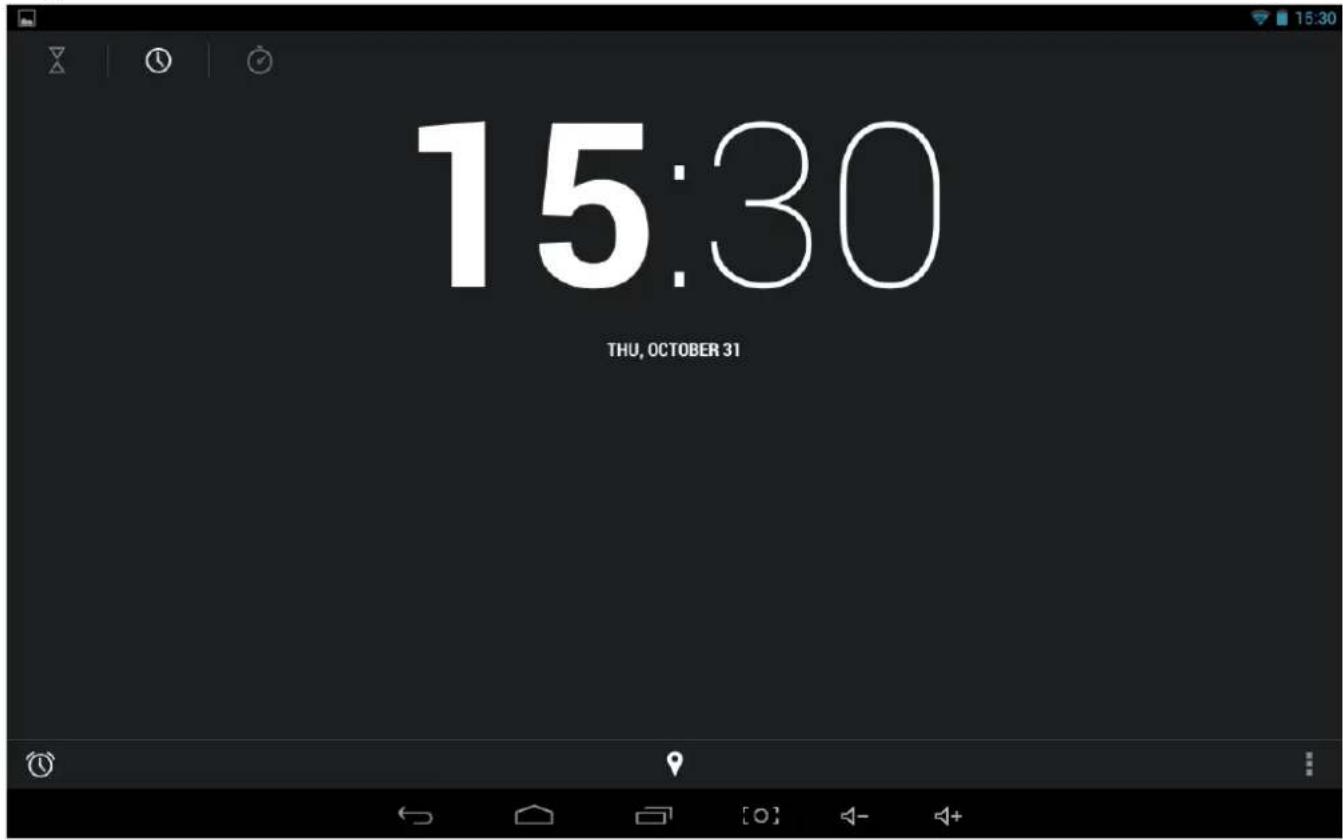
Aer tapping on clock icon in Launcher screen, the following screen will be shown. Tap on icon into alarm seng interface.
Browser

Browser is used for browsing the World Wide Web. With the web browser plug-ins, you could browse websites to watch videos, download contents, and listen to music etc.

Google Magyarors


Get the Google Search app, designed for the iPad
Unknown - Use precise location

- Tap the address eld (in the tle bar) to bring up the onscreen keyboard, enter website address, then tap Go.
- Similar website previously browsed or key work previous searched will appear beneath the address eld. You can tap them to go to the web site listed or search the key word.
- Double tap on screen to zoom in and zoom out. Moving ngers across the screen will pan the screen up, down, le or right.
Tap Menu buon a the right-upper corner to display additional funcons at the boom of the screen.
Calculator
To perform mathemacal calculaon directly on tablet by tap numbers and symbols.
Downloads
Files, applicaons and other items you download from Browser or Email will be stored in your micro SD card. Use the Downloads applicaon to view, reopen or delete what you've downloaded.
- Touch an item in Downloads can reopen it.
- Check items you want to share, and then tap icon to choose a sharing method from the list.
- Check items you want to delete; then tap delete icon. The item will be deleted from your micro SD card.
- In Downloads window → Tap Sort by size or Sort by date to switch back and forth.
Gallery

Tap on "Gallery" in Launcher screen to open the applicaon.
- The rst screen shows all photos and subfolders as albums.
- Tap on a picture or album into photo thumbnail mode. (Default view)
- Tap a thumbnail into photo single view mode.
- When in photo single view mode, tap anywhere on screen to show funcon bar on screen.
| Icon | Acon |
 | Share photos by Google/Bluetooth/Email |
 | Go to more opons: Delete/Slideshow/Rotate le/ Rotate right/Crop photo/ Details/Set picture as |
Music

Tap "Music" in the applicaon launcher screen to get to the song screen as below:
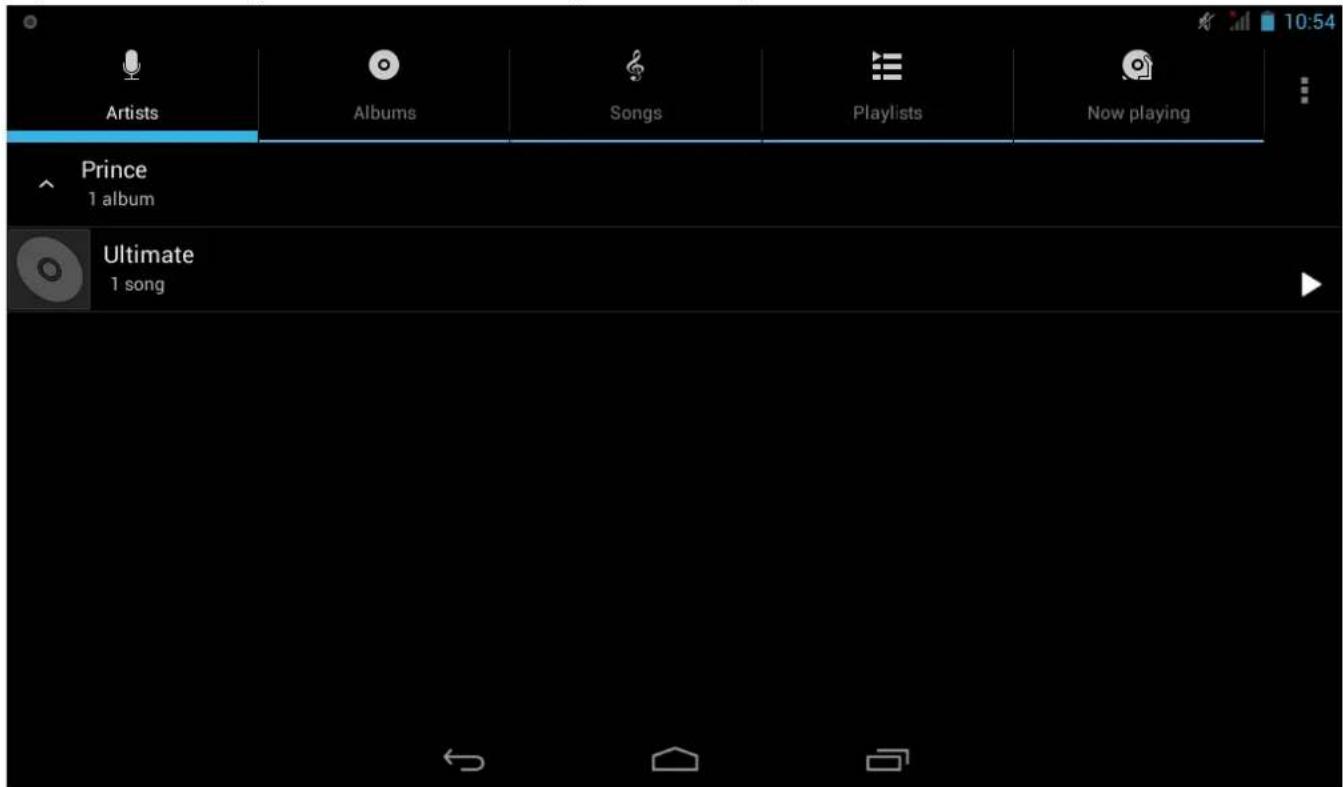
Select the Arsts/Albums/songs or playlists mode to play music. Use the onscreen icons to conjure how you want to play the songs.
| Icon | Acon |
| Show playing list | |
| Turn shue on/o funcon | |
| Repeang all songs, current song or O | |
| Previous song | |
| Pause/ Stop | |
| Next song |
Note: Song will keep playing as background music while you leave the music playback screen. This funcon allows you to browse les, view photos and surf Internet while listening to music. To stop playing songs, tap on Pause on the music playing screen followed by the Back buon.
Tap in status bar to select other funcons to play the song.
Movie Player

- Tap "Video" in the applicaon launcher screen.
- Browse the video le to play from the list.
- Tap video to start play.
To search in video, simply drag white bar below video. To display controls tap video, to hide controls again tap video again.
| Icon | Acon |
 | Play / pause |
 | Select sound track |
| [7773] | More opons: Stop, Loop |
| [2XSW] | Full screen |
FM radio
Tap „FM radió” icon in applicaon launcer screen. The screen below appears:
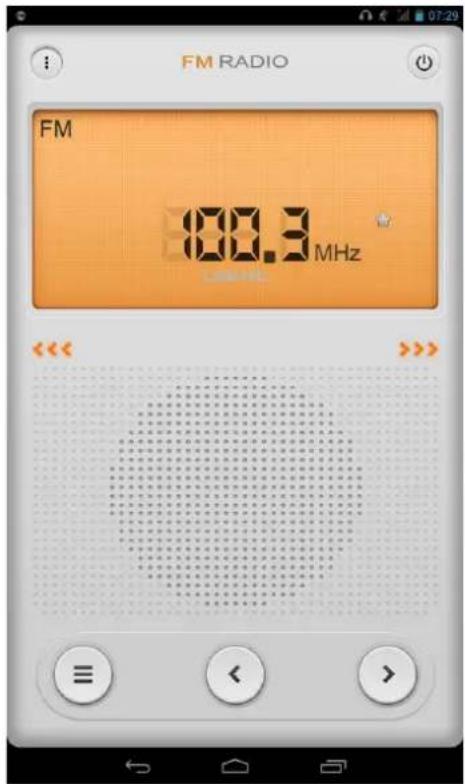
| Turn o | |
| Channel list. Tap channel to hear it. Tap and hold to add to favorites or delete from favorites or edit a favorite channel. | |
| Previous channel | |
| Next channel | |
| Previous frequency (0.1 MHz backward) | |
| Next frequency (0.1 MHz-et forward) | |
| Add to favorite channels | |
| More opons: Search, Speaker/Headphone (listen to radio through speaker or headphone), Record FM |
Funcons for FM recording
| Start record | |
| Stop record. Give a name for the recording and save it | |
| Playback recording |
Tap Back buon to exit FM recording.
Phone Calls

The “SIM2” slot is for micro SIM card while the “SIM1” slot is for standard sized SIM card (WCDMA/GSM).
Noce: You can refer to the recepon icon in the status bar to see if the service is available, or how good the recepon is. The number of the bars in the icon illustrate the recepon quality, the more the beer.
Making calls
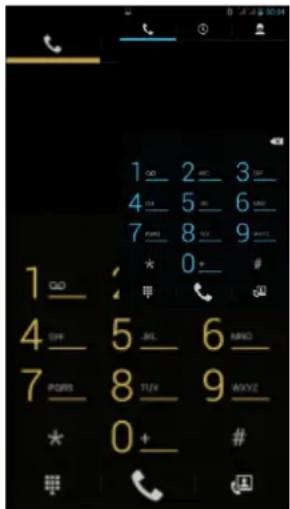
Use the phonebook/dialer to make phone calls. You can make a call by directly selecng a contact from the phonebook or go into the contact detail screen. Below are the illustraon of related icons:
| Dialer | Call Log | ||
| Phonebook | Display Similar Contact | ||
| Backspace | Dialer Screen | ||
| No Recepon | Hide the Dialer | ||
| Sengs: Select “fast dial”, “phonebook” or “call sengs | |||
Call Menu
Touch a answer a phone call. If you are wearing a headset, you can press the
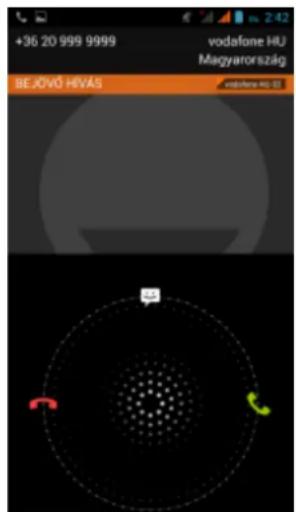
buon on the headset to answer. Touch on the power buon to reject a
phone call. If you are wearing a headset, you can press and hold the buon to reject. When you are not available for answering a phone call, you can drag the ring upward to the message buon, and the phone will automatically send a message to the number of the incoming call.
| Contact Avatar | Hang up |
Emergency Calls
If you are within the service range of GSM mobile network, you should be able to make emergency calls, even if there isn't any SIM card in your phone.
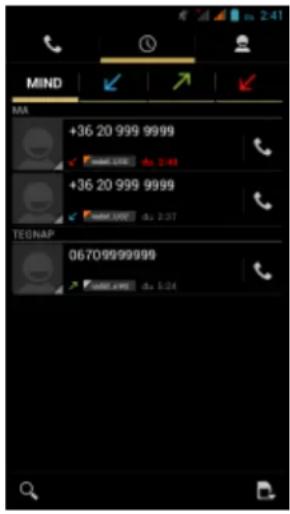
Call log
| Incoming Call Missed | Calls Successfully Made | ||
| Incoming Call Answered | Touch to delete call records or go to call sengs | ||
| Search for Contact | Touch to make fast call |
Noce: You can see the numbers or the contacts' names of missed incoming calls by opening the nocaon panel or the dialer. Other operaons: touch a call record to make a phone call, or save as a new contact, or send a short message, or make a video call, or delete it from the call log.
Sending Messages
You can send or receive text messages while you are within the service areas. You can also choose to send mulmedia messages to anyone with a phone number. To manage messages tap icon.
SIM management
Go to Sengs -> SIM management to set working parameters of SIM cards. When using two SIM cards at the same me aer tapping call icon in call log or dialer, you can choose which SIM card you want to use for the call in the appearing menu.
VI - Product Specification
| General | |
| Panel Size/Type | 7" IPS, 5 points capacive touch panel |
| Aspect Rao | 16:9 |
| Resoluon | 1024 x 600 |
| CPU | MTK8312 Dual-core Cortex-A9 1,3 GHz |
| OS | Android 4.2.2 |
| Storage | |
| Internal memory | 1 GB |
| NAND Flash | 4 GB |
| External SD card | Micro SD up to 32GB |
| Connectvity | |
| WIFI | 802.11 b/g/n |
| Bluetooth | 4.0 |
| GPS | Built in |
| Camera | 0.3 Mega pixel front / 3.0 Mega pixel rear |
| SIM slot | Normal and Micro SIM |
| USB OTG | USB OTG 2.0 x 1 |
| Stereo Speaker | Built-in |
| Microphone | Built-in |
| Earphone | 3.5mm Stereo Jack |
| Sensor | |
| Accelerometer | Yes |
| User Interface | |
| Hardware Keys | Power, Vol+, Vol- |
| Virtual | Full Touch Screen /Virtual keyboard |
| Extras | |
| FM radio | Built in |
| Dimension/Weight/Condion | |
| Dimension | 190 x 110 x 10.3 mm |
| Weight | 275g |
| Operaon Condion | 0°C~40°C |
| Storage Condion | -20°C~55°C |
| Power | |
| Baery | Li-Polymer Rechargeable 3,7V, 2700mAh |
| AC/DC Adapter | 100Vac~240Vac,0.5A, 50Hz-60Hz, 5V/2A |
- II - FUNCTIONNING OF THE TABLET....6
- III - SETTINGS....8
- IV - CONNECTIONS ....12
- V - APPLICATIONS....12
- VI - PRODUCT SPECIFICATION....22
- INTRODUCTION
- I - GETTING STARTED
- Important Safety Precautions
- Cleaning the Panel
- Cleaning the Tablet
- Features
- Buttons Overview
- Accessories
- What's in the Box
- Charging the Battery
- Power on/off and Unlock the tablet
- II - FUNCTIONNING OF THE TABLET
- Navigation
- Application Launcher Screen
- Status Bar
- Onscreen Keyboard
- III - SETTINGS
- Set Up Wi-Fi Connection
- Set Date and Time
- Set Up Email
- Set Up Calendar
- Create Shortcuts or Widgets on Home Screen
- Shortcuts
- Widgets
- Change Wallpapers
- Use folders
- IV - CONNECTIONS
- Wi-Fi
- PC Connection
- V - APPLICATIONS
- Camera
- To take picture
- To record video
- Browser
- Google Magyarors
- Calculator
- Downloads
- Gallery
- Movie Player
- Phone Calls
- Making calls
- Call Menu
- Emergency Calls
- Sending Messages
- SIM management
Brand : WayteQ
Model : XTab 7X
Category : Tablet