XTAB-100 S - Tablet WayteQ - Free user manual and instructions
Find the device manual for free XTAB-100 S WayteQ in PDF.


| Product Type | Tablet |
| Brand | WayteQ |
| Model | XTAB-100 S |
| Display Size | 9.7" IPS capacitive touch panel |
| Display Resolution | 1024 x 768 (4:3 aspect ratio) |
| Processor | ARM Cortex-A9, 1 GHz |
| Operating System | Android 2.3.4 |
| Internal Memory (RAM) | 512 MB DDR2 |
| Internal Storage | 4 GB NAND Flash |
| External Storage | Micro SD up to 32 GB |
| Video Support | MPEG 1/2/4, H.264/VC-1 @1080P, RealVideo 8/9/10 @720P |
| Audio Support | MP3, WMA, AAC, OGG |
| Image Support | JPEG, BMP, GIF, PNG |
| Wi-Fi | 802.11 b/g/n |
| Bluetooth | V2.1 + EDR Class 2 |
| Cameras | 0.3 MP front, 2.0 MP rear |
| HDMI | 1.3 |
| USB | USB OTG 2.0 x 1 |
| Battery | Li-Polymer 7.4V, 3500 mAh |
| Battery Life (Audio) | Up to 10 hours |
| Battery Life (Video) | Up to 4 hours |
| Dimensions | 242.4 x 189.4 x 12.8 mm |
| Weight | 650 g |
| Power Adapter | 100-240V AC, 0.5A, 50-60Hz, output 12V/2A |
| Sensors | 3-axis G-sensor (gravity) |
| Box Contents | Tablet, AC adapter, USB cable, OTG adapter, Quick Start Guide |
Frequently Asked Questions - XTAB-100 S WayteQ
User questions about XTAB-100 S WayteQ
0 question about this device. Answer the ones you know or ask your own.
Ask a new question about this device
Download the instructions for your Tablet in PDF format for free! Find your manual XTAB-100 S - WayteQ and take your electronic device back in hand. On this page are published all the documents necessary for the use of your device. XTAB-100 S by WayteQ.
USER MANUAL XTAB-100 S WayteQ
TABLE OF CONTENTS
INTRODUCTION....4
I - GETTING STARTED .... 4
Important Safety Precautions....4
Cleaning the Panel 5
Cleaning the Personal Touch Tablet....5
Features 5
Buttons Overview....6
Accessories 6
What's in the Box....7
Charging the Battery....7
Power on/off and Unlock Personal Touch Tablet 7
II - FUNCTIONNING OF THE TABLET 8
Navigation....8
Home Screen....8
Application Launcher Screen....9
Status Bar....9
Onscreen Keyboard....10
III - SETTINGS 11
Set Up Wi-Fi Connection 11
Set Date and Time 12
Set Up Email....13
Set Up Calendar 14
Create Shortcuts on Home Screen 15
Create Widgets on Home Screen....15
Change Wallpapers 16
Install Third-Part Applications from micro SD 16
IV - CONNECTIONS 17
Wi-Fi....17
Bluetooth 17
PC Connection .... 18
Connect to TV set....19
V - APPLICATIONS 20
Camera....20
Clock 21
Browser 22
Calculator 23
Downloads....23
Gallery 24
Music....25
Video Player 26
File Browser....27
VI - THE REMOTE CONTROL (OPTIONAL) 28
VII - PRODUCT SPECIFICATION 28
INTRODUCTION
First of all, thank you very much for purchasing WayteQ product!
Please read this manual carefully before using this product.
This company will continue to provide new functions for the development of the product, and there will be no separate change in the case of any change in the product's performance and functions.
If the actual setup and the application methods are not identical to those as set forth in this manual, please access to the latest product information of our web site.
I - GETTING STARTED
Important Safety Precautions
Always follow these basic safety precautions when using your Personal Touch Tablet. This will reduce the risk of fire, electric shock and injury.
Warning: To reduce the risk of fire of shock hazard, do not expose this product to rain or water.
Warning: To prevent the risk of electric shock, do not remove the cover. There are no user-serviceable parts inside. Opening will void your warranty.
- Unplug the Personal Touch Tablet before performing maintenance.
- Keep your Personal Touch Tablet out of direct sunlight and heat sources.
- Protect the power cord. Route power cords so that they are not likely to be walked on or pinched by items placed on or against them. Pay particular attention to the point where the power cord is attached to the Personal Touch Tablet.
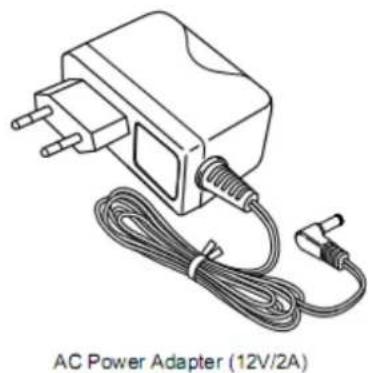
- Only use the AC adapter included with the Personal Touch Tablet. Using any other power adapter will void your warranty.
- Unplug the power cord from the outlet when the unit is not in charging condition.
Cleaning the Panel
Treat the screen gently. The screen is made of glass and can be scratched or broken. To clean fingerprints or dust from the screen, it is recommended to use a soft, non-abrasive cloth such as a camera lens cloth to clean the screen.
If you use a commercial Cleaning Kit, do not apply the cleaning liquid directly to the screen. Clean the screen with cleaning cloth moistened with the liquid.
Cleaning the Personal Touch Tablet
Clean the outer surface of the Personal Touch Tablet (excluding the screen) with a soft cloth dampened with water.
Features
Welcome to the Personal Touch Tablet! The Personal Touch Tablet includes these key features:
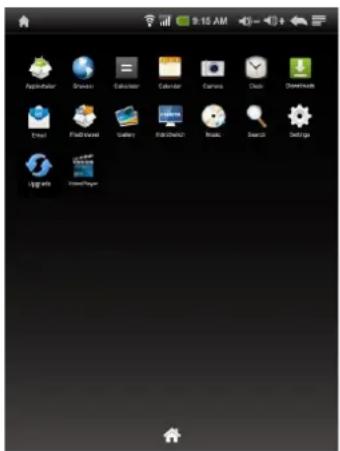
- Displays Alarm, AppInstaller, Browser, Calculator, Calendar, Camera, Clock, Email, File Browser, Gallery, HDMI Switch, Music, Setting, Video Player and etc
- Displays digital photos, Play Music and Video
- Wi-Fi function to connect with your AP router for internet browsing
- Micro Secure Digital™ (micro SD) slot for external storage
- Capacitive touch screen for all user operations
- 4GB Internal Memory
- USB2.0 OTG for connection to the PC or USB flash drive
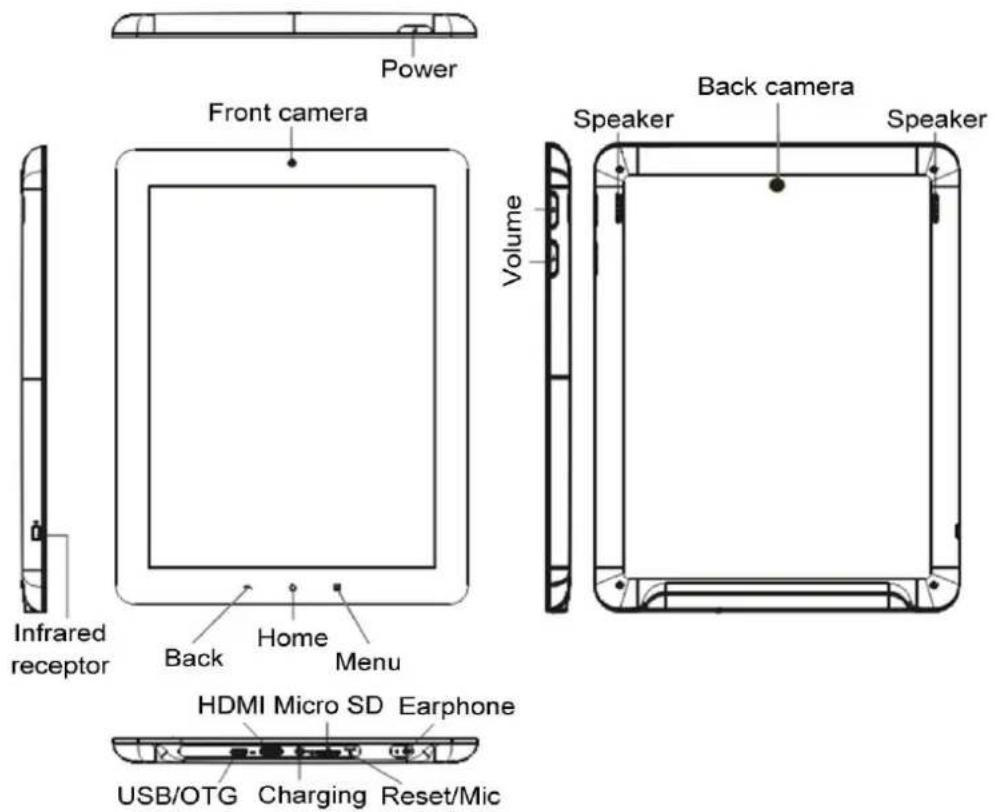
Buttons Overview
Accessories
natural_image
Line drawing of an AC Power Adapter (12V/2A) with a plug, cable, and terminal block (no text or symbols on the diagram itself)Power Adapter (depending on the regional requirement, the plug may look different)
natural_image
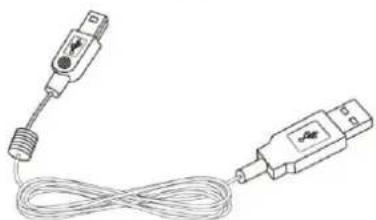
Line drawing of a pair of connected electrical connectors with wires (no text or symbols)USB Cable
What's in the Box
WayteQ xTAB-100s Personal Touch Tablet
AC Power Adapter (12V/2A)
USB Cable, OTG adapter
Quick Start Guide
Charging the Battery
Plug the AC power adapter into the Personal Touch Tablet and into a wall outlet.
Icon will be turn flashing with charging sign while the battery is charging.
When charging is completed, the battery icon will turn into a steady green.
* It is strongly recommended you fully charge the device for about 4-6 hours before use.
Power on/off and Unlock Personal Touch Tablet
The Personal Touch Tablet is easy to set up. Just follow these steps:
- To power on the device, press and hold Power button for 3 seconds to turn on tablet.
- Wait until a screen with a lock and speaker icon show up, gently tap the "Lock" icon and slide it toward the speaker icon to unlock tablet.
- To power off the device, press and hold the Power button for 2 seconds until a MID options message show up on screen where you can choose Power off option to power off the device.
Note: The screen with the lock icon will time out in 10 seconds if you do not unlock it. In case it happens, the Power button can be pressed briefly to make it show up again.
II - FUNCTIONNING OF THE TABLET
Navigation
Tablet has five home screens by default. You can tailor shortcuts or widgets to home screen to fit your needs by using Add to Home screen function. For more information, refer to “Create Shortcuts on Home Screen” on page 15.
Home Screen

natural_image
Sunlighting against a bright blue sky with scattered clouds and distant light rays (no text or symbols visible)A typical Home screen with wallpaper, status bar, and few applications at the bottom.
◆ A shortcut to browser
◆ A shortcut to application Launcher screen.
◆ A shortcut to system Settings
Application Launcher Screen
A typical application Launcher screen is shown below. One icon represents one application which can be run by tapping on the icon.
Status Bar
On the top corner of the screen, the status bar mainly indicates Home icon, Wi-Fi status, battery level, current time and volume, etc.

| Icon | Action |
 | On any functional screen, tap this icon to go to Home screen |
 | Shows the status of micro SD (this icon shows micro SD is removed.) |
 | Wi-Fi connection and signal strength |
 | Battery level. Will turn orange when battery is low and turn red when battery is very low. |
 | Indicates alarm clock is turned on |
 | Current time |
 | Volume down |
 | Volume up |
 | On any functional screen, tap this icon to go back one screen or exit application. |
 | Tap this icon to open a contextual menu screen. The available options will vary, depending on what application is running on the screen. |
Onscreen Keyboard
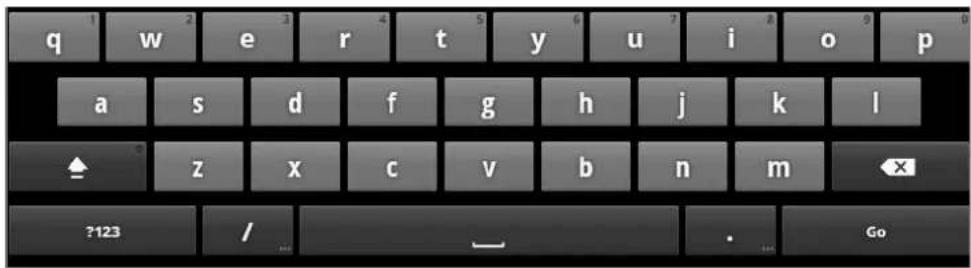
The onscreen keyboard appears automatically anytime you tap on a text line for input. While entering text with the onscreen keyboard, each character will be entered into the position pointed by a vertical cursor. You can change the cursor position by tapping with your finger on the position you want to enter the next character. To select different language keyboard, touch and hold the text line. A pop menu will show up to let you select the "Input Method"
| Edit text |
| Input method |
*Setting up an International keyboard: see "Install Third-Part Applications from micro SD" section.
III - SETTINGS
Set Up Wi-Fi Connection
Make Wi-Fi Connection In Settings → Wireless & networks → Wi-Fi Settings, check on the Wi-Fi to turn on the Wi-Fi.
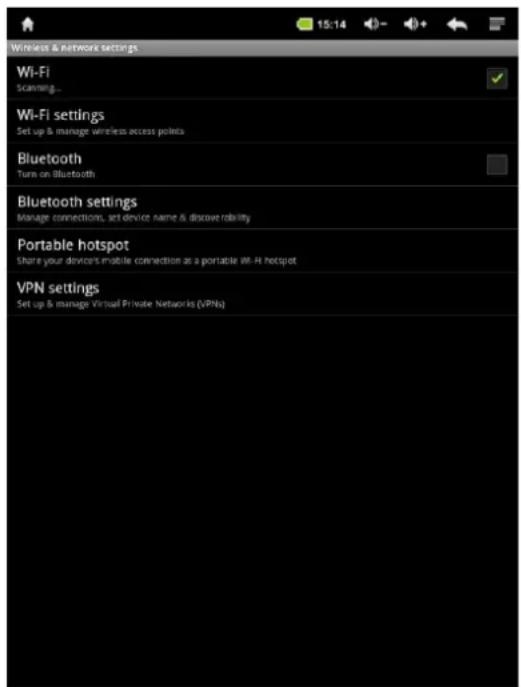
Normally, the device will automatically scan the available Wi-Fi Access Point (AP). If this does not happen, press Menu (upper right corner icon in the Status bar) and select Scan to scan for the available Wi-Fi APs. Then, tap on the desired AP to make the connection. If it is a secured AP, system will prompt you for the password. Enter it by tapping on the password entry line, and use the onscreen keyboard to enter the password. Then, tap on the Connect to start connecting to that AP.
When connection is established, the Wi-Fi connected icon will show up on the status bar.
Set Date and Time

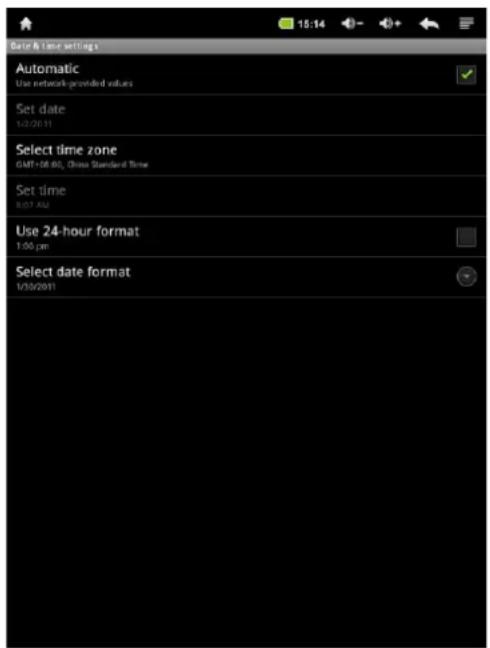
Use Settings → Data & Time to open up the data/time setting screen as shown below. Select the correct time zone. If the Wi-Fi is connected to Internet, check on the Automatic to have time set up automatically. If Wi-Fi is not connected to Internet, uncheck Automatic to temporarily set date and time. Then, check Automatic again before leaving the screen. In the future, when the Wi-Fi is connected to internet, date and time will be automatically adjusted.
Set Up Email

You can configure Email for most accounts in just a few steps. For many popular email services, tablet automatically enters most of the settings for you.
- Make sure the Wi-Fi is connected.
- Open the Email application and enter your Email address and password, then tap "Next"
- Give a name to your account then tap "Done". Mail messages will be downloaded automatically.
Tap to show function bar at the bottom of the screen
| Icon | Action |
 | Refresh |
| [5SDD] | Tap to enter E-mail compose interface |
 | Tap to enter mailbox interface |
| [7SYG] | Tap to enter your accounts viewingTo remove your account record in tablet, touch and hold your account address >Tap Remove account. |
 | Account settings |
Set Up Calendar

Calendar makes you easy to stay on schedule. You can view your schedule by day, week, and month.
When using calendar for the first time, there are some steps you shall follow:
- Tap Calendar icon into Gmail entering interface, then enter your Gmail account and password and tap Next.
- Erase “\” icon in front of your Domain\Username.
- Change the Serve "gmail.com" for "m.google.com", then tap next step.
In Account options, you can adjust: Email checking frequency and Amount to synchronize and so on.
Tap on the specific date to start using your personal calendar now.
Tap to show function bar at the bottom of the screen.
| Icon | Action |
| 1 | Show all schedules sorted by Day |
| 7 | Show all schedules sorted by Week |
| 31 | Show all schedules sorted by Month |
| Show all schedules sorted by specific Agenda | |
| Show all schedules sorted by today | |
| Show more options: New event \ Calendars \ Settings |
Create Shortcuts on Home Screen
In order to access to frequently used applications more quickly, you can create a short cut to an application and place it on the Home screen. Therefore, you don't need to spend to look for it among the many applications on the Launcher screen.
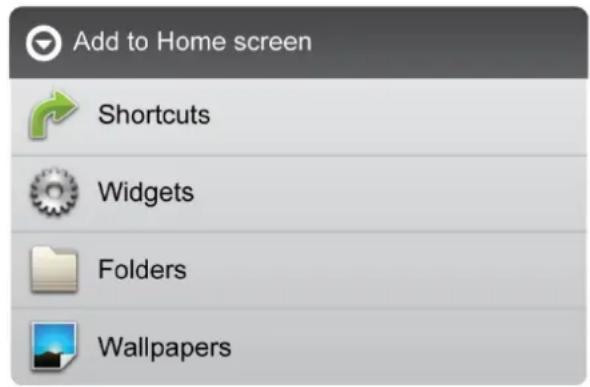
There are two ways to make shortcuts:
- Tap any blank space on Home screen and hold until a pop out menu shows up. Then, you can select Shortcuts to add to the Home screen.
- Press the application icon in the Launcher screen and hold until the icon is enlarged and background has been changed to Home screen. Then, drag the enlarged icon to an empty space on Home screen and release the finger.
Create Widgets on Home Screen
Widget is a small application. After being installed, it does not show up in the Application Launcher screen. However, using the same method as creating shortcuts on Home screen, widgets can be put on the Home screen, and be launched by tapping on the widget icon.
Change Wallpapers
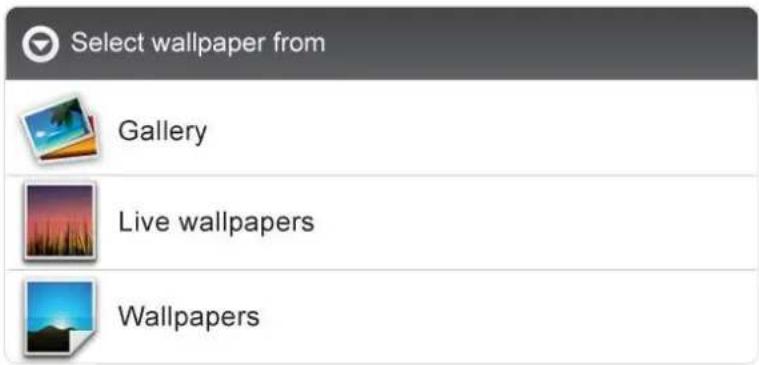
In Add to Home screen menu tap Wallpapers, then a submenu shows up. You can select wallpaper from your Gallery/ Live wallpapers/ default Wallpapers.
Install Third-Part Applications from micro SD
AppInstaller can be used to install the application file (with extension apk) into the system.
- Change the Settings to allow third-party application installation. In Settings → Applications → Unknown sources, check the box to the right.
- Prepare the application files in a micro SD card and insert the micro SD card.
- Launch the AppInstaller application on the application launcher screen. The system will scan for the installation files in the SD. Find the application you want to install from the list and tap on it. The installation process will start. Follow the screen instruction to complete the installation.
IV - CONNECTIONS
Wi-Fi
This tablet uses the 802.11b/g/n wireless specification to transmit and receive data. For more information, refer to “Set up Wi-Fi Connection” on page 11.
Bluetooth
Bluetooth is a short-range communications technology that enables you to link to other devices for exchanging information without a physical connection.
Make Bluetooth Connection In Settings → Wireless & networks → Bluetooth, check on

the Bluetooth to turn it on. Icon will display when Bluetooth is active.
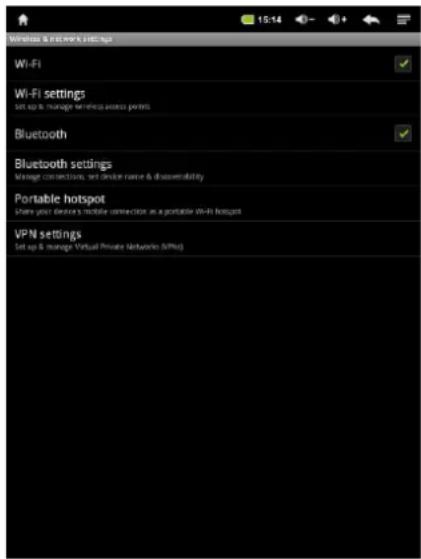
Normally, the device will automatically scan the available Bluetooth devices. If this does not happen, tap Scan for devices for the available Bluetooth device. Then, tap on the desired device for a while to show Pair & connect, and enter a PIN to pair with this Bluetooth to make the connection. Tap on the OK to start connecting to that Bluetooth. When connection is established, you may start exchanging information now.
*Insert a TF card before storing information.
PC Connection
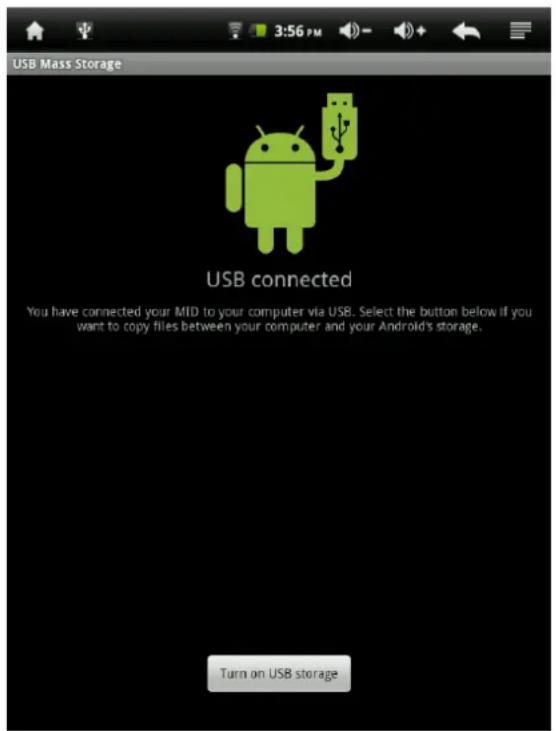
Connect your tablet to a PC via USB cable. By connecting tablet to PC, you can synchronies files or transfer data directly.
- Plug one end of a USB cable to a tablet and plug the other end to a PC, then you will see a screen as below. Tap Turn on USB storage to connect to PC.
- For a better use of your tablet, tap Turn off USB storage every time you unmount USB storage.
Connect to TV set
HDMI switch can switch your video display from tablet to a TV or monitor with HDMI input. While the tablet screen is shown on TV or monitor, tablet will become a touch pad for all operations, including switching video display back to the tablet screen.
To switch the video display from the tablet screen to a TV or Monitor equipped with HDMI input
-
Plug one end (larger end) of the HDMI cable into one of the TV/monitor HDMI inputs, and plug the other end to tablet HDMI output.
-
Choose the correct input source setting on TV/monitor. Wait until the HDMI
icon shows up on the status bar, and indicates "HDMI connected".
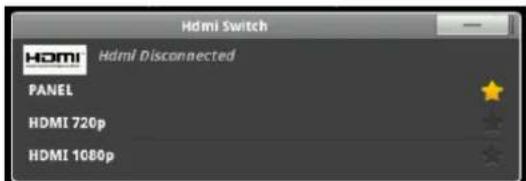
- Open the HDMI Switch application. Tap on a compatible video format the TV/monitor can accept. If you don't know which one to use, the best guess is to tap on the 720p.
-
Wait for a few seconds, the tablet video will show up on the TV/monitor screen.
-
Slide your finger on the tablet screen to move an arrow to the OK button, and double tap the tablet screen to apply the selection.
-
From this moment on, until your use the HDMI Switch application to switch the video back to tablet screen or disconnect the HDMI cable, you can use the following gestures to perform all the operations.
-
Finger move - move arrow cursor on the TV/monitor
- Double tap - select/open the item pointed by the arrow
- Double tap and quick move – slide the screen, scroll a list or move the tapped icon.
-
Double tap and hold -- equivalent to the long press of an item when video display is on the tablet screen.
-
To switch back to the normal video on the tablet screen, simply unplug the HDMI cable
V - APPLICATIONS
Camera
Tablet allows you to take photos and video through the front camera. You can take photos at resolution up to 1600 x 1200 pixel (2.0 megapixels) and videos at resolution up to 640 x 480 pixels. The picture taken and video recorded will be store in the internal memory.
To take picture:
Make sure mode switch is set to , the photo mode.
Tap on the shutter button to take a picture.
To record video:
Make sure mode switch is set to , the video recording mode.
Tap on the Recording button to start video recording.
| Icon | Action |
| [CSDW] | Exposure \ Picture size \ Picture quality \ Color effect \ Camera setting submenu |
 | White balance submenu for different light environment |
| [6TZA] | Zoom submenu |
| [7B47] | Video recording mode |
| [07J93] | Photo mode |
| [ZW78] | Tap to take picture or start video recording. Photo or video will be saved in the micro SD card automatically. After photo is taken or recording, tap the square icon on upper-right corner of the screen to review. |
Clock
Tap on clock icon. The following screen will be shown. You can tap on the icon at the bottom screen to adjust alarm settings, play photo slideshow, play music or go back to Home screen.
The icon at the upper-right corner can be used to adjust the brightness of the panel.
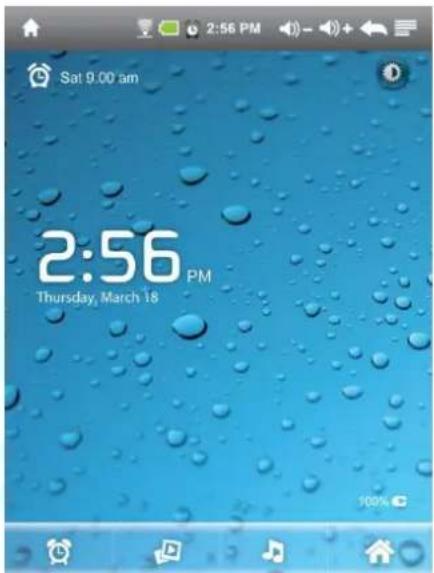
| Icon | Action |
| Adjust alarm clock | |
| Play photo slideshow of internet memory or micro SD | |
| Play music | |
| Exit to Home screen | |
| Adjust panel brightness |
Tap Menu button at the right-upper corner to display additional functions at the bottom of the screen: Set alarms, Add alarm or Set the docking (not available now).
Browser

Browser is used for browsing the World Wide Web. With the web browser plug-ins, you could browse websites to watch videos, download contents, and listen to music etc.
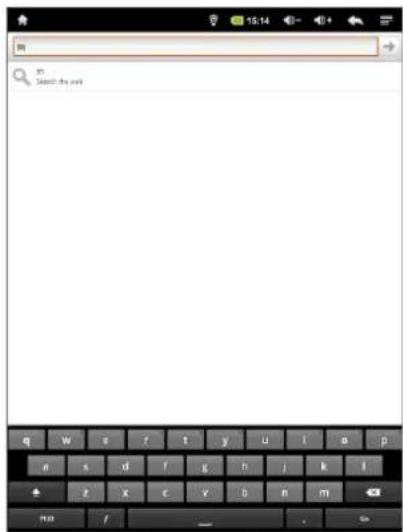
- Tap the address field (in the title bar) to bring up the onscreen keyboard, enter website address, then tap Go.
- Similar website previously browsed or key work previous searched will appear beneath the address field. You can tap them to go to the web site listed or search the key word.
- Double tap on screen to zoom in and zoom out. Moving fingers across the screen will pan the screen up, down, left or right.
Tap Menu button at the right-upper corner to display additional functions at the bottom of the screen.
Calculator

To perform mathematical calculation directly on tablet by tap numbers and symbols.
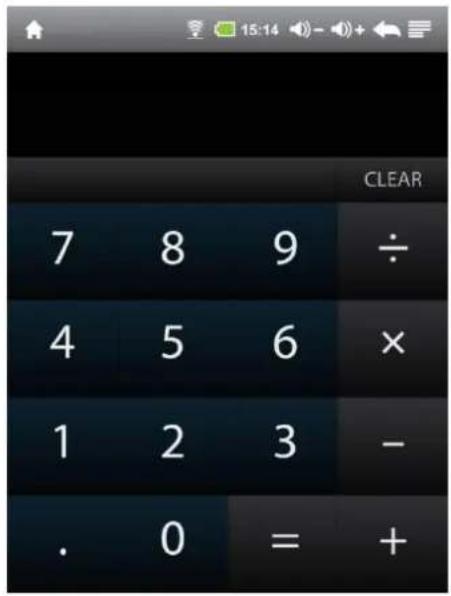
Tap to show function bar at the bottom of the screen
| Icon | Action |
 | Clear history of calculation |
 | Show advanced panel |
Downloads

Files, applications and other items you download from Browser or Email will be stored in your micro SD card. Use the Downloads application to view, reopen or delete what you've downloaded.
- Touch an item in Downloads can reopen it.
- Check items you want to delete; then tap Delete. The item will be deleted from your micro SD card.
Tap icon on upper right corner of the screen → Tap Sort by size or Sort by time to switch back and forth.
Gallery
natural_image
Illustration of a tropical beach scene with palm trees and sun (no text or symbols)Tap on "Gallery" in Launcher screen to open the application.
-
The first screen shows all photos and subfolders located in the Pictures folder.
-
Tap Pictures folder into photo thumbnail mode. (Default view)
-
Tap a thumbnail into photo single view mode.
-
When in photo single view mode, tap anywhere on screen to show function bar on screen.
| Icon | Action |
 | Tap to start sliding photos |
 | Go to more options |
 | Share photos by Bluetooth or Email |
 | Delete photo |
 | Go to more options: Details of photo/ Set as wallpaper/ Crop photo/ Rotate option: Right/ Left |
Music

Tap "Music" in the application launcher screen to get to the song screen as below:
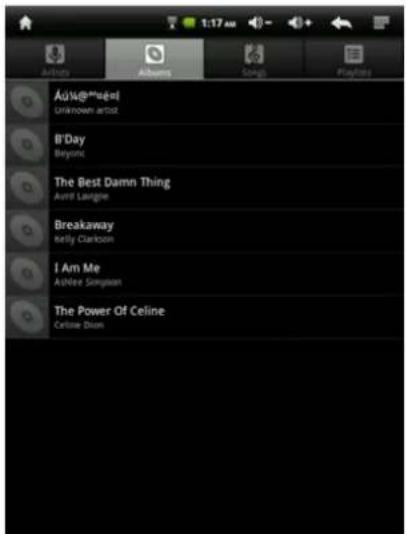
Select the song, album, artist or playlist to play music. Use the onscreen icons to configure how you want to play the songs.
| Icon | Action |
 | Show playing list |
| [TTYX] | Turn shuffle on/off function |
| [A007] | Repeating all songs, current song or Off |
 | Previous song |
 | Pause/ Stop |
| [WKAB] | Next song |
Note: Song will keep playing as background music while you leave the music playback screen. This function allows you to browse files, view photos and surf Internet while listening to music. To stop playing songs, tap on Pause on the music playing screen followed by the Back button.
Tap on status bar to select other functions to play the song.
Video Player

- Tap "Video Player" in the application launcher screen.
- Browse the micro SD or internal memory to find the video file to play.
- Tap video file to start playing video.
- While playing video file, tap anywhere on screen to display the control bar as below. Drag the yellow bar to fast forward or backward view video.

| Icon | Action |
| Back to previous menu | |
| Move to previous video | |
| Fast reverse | |
| Play/Pause | |
| Fast forward | |
| Move to next video | |
| ●●● | Show more options |
Additional options in the control bar are:
| Icon | Action |
| Back icon | |
| Resume Mode | |
| Repeat all or Repeat one | |
| Audio Track | |
| To | Subtitle |
| Adjust the size of screen display format: Normal/ Full Screen/ 4:3 / 16:9 | |
| Adjust screen brightness: 1/2/3/4 |
File Browser

In main screen, tap FileBrowser to choose your options first: Internal Memory / SD Card.
Icons on FileBrowser
| Back to Device List interface | |
| Multiple select / open mode | |
| Edit file: Cut/Copy/ Paste/Delete | |
| Sort file: Sort by name/ Sort by date/ Sort by size | |
| Back icon | |
| Change between thumbnail mode and list mode interface | |
| Help mode | |
| Close FileBrowser |
VI - The remote control (optional)
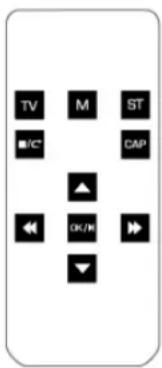
M Menu
escape
OK/ play/pause/ok
UP
DOWN
previous/ long press to fast reverse
next/long press to fast forward
VII - Product Specification
| General | |
| Panel Size/Type | 9,7" IPS capacitive touch panel |
| Aspect Ratio: | 4:3 |
| Resolution | 1024 x 768 |
| CPU | ARM Coretex-A9, 1 GHz |
| OS | Android 2.3.4 |
| Storage | |
| Internal memory | 512MB DDR2 |
| NAND Flash | 4GB |
| External SD card | Micro SD up to 32GB |
| Support Format | |
| Video | MPEG 1/2/4, H.264/VC-1 @1080PRealVideo 8/9/10 @720P |
| Audio | MP3, WMA, AAC, OGG |
| Images | JPEG, BMP, GIF, PNG |
| Connectivity | |
| External 3G dongle | Support |
| WIFI | 802.11 b/g/n |
| Bluetooth | V2.1 + EDR class 2 compliant |
| Webcam | 0.3 Megapixel front, 2.0 Megapixel back |
| HDMI | 1.3 |
| USB OTG | USB OTG 2.0 x 1 |
| Built-in speaker | Stereo |
| Microphone | Built-in |
| Earphone | 3.5mm Stereo Jack |
| Sensor | |
| Gravity | 3-axis g-sensor |
| User Interface | |
| Hardware Keys | Power, Vol+, Vol- |
| Virtual | Full Touch Screen /Virtual keyboard |
| Dimension/Weight/Condition | |
| Dimension: | 242,4 x 189,4 x 12.8 mm |
| Weight | 650g |
| Operation Condition | 0°C~40°C |
| Storage Condition | -20°C~55°C |
| Power | |
| Battery : | Li-Polymer Rechargeable 7.4V/3500mAh |
| Audio playback : 10 hours | |
| Video Playback : 4 hours | |
| AC/DC Adapter | 100Vac~240Vac,0.5A, 50Hz-60Hz, 12V/2AADS-24S-12 1224GPG |
- TABLE OF CONTENTS
- INTRODUCTION....4
- I - GETTING STARTED .... 4
- II - FUNCTIONNING OF THE TABLET 8
- III - SETTINGS 11
- IV - CONNECTIONS 17
- V - APPLICATIONS 20
- INTRODUCTION
- I - GETTING STARTED
- Important Safety Precautions
- Cleaning the Panel
- Cleaning the Personal Touch Tablet
- Features
- What's in the Box
- Charging the Battery
- Power on/off and Unlock Personal Touch Tablet
- II - FUNCTIONNING OF THE TABLET
- Navigation
- Application Launcher Screen
- Status Bar
- Onscreen Keyboard
- III - SETTINGS
- Set Up Wi-Fi Connection
- Set Date and Time
- Set Up Email
- Set Up Calendar
- Create Shortcuts on Home Screen
- Create Widgets on Home Screen
- Change Wallpapers
- Install Third-Part Applications from micro SD
- IV - CONNECTIONS
- Wi-Fi
- Bluetooth
- PC Connection
- Connect to TV set
- V - APPLICATIONS
- Camera
- Clock
- Browser
- Calculator
- Downloads
- Gallery
- Music
- Video Player
- File Browser
- VI - The remote control (optional)
- VII - Product Specification
Brand : WayteQ
Model : XTAB-100 S
Category : Tablet