
Hermes 7 Color - Keyboard Gamdias - Free user manual and instructions
Find the device manual for free Hermes 7 Color Gamdias in PDF.


| Product Type | Keyboard |
| Brand | Gamdias |
| Model | Hermes 7 Color |
| Dimensions | 440 x 130 x 35 mm |
| Weight | Approximately 1 kg |
| Connection | USB 2.0 |
| Cable Length | 1.8 meters |
| Switch Type | Mechanical (Blue switches) |
| Switch Life | 50 million keystrokes |
| Backlight | RGB per-key backlight |
| Layout | Full-size (104 keys) |
| Compatibility | Windows 7, 8, 10, 11 |
| Polling Rate | 1000 Hz |
| Key Rollover | N-key rollover |
| Anti-Ghosting | Full key anti-ghosting |
| Power Consumption | 5V, 500mA (via USB) |
| Wrist Rest | Detachable |
| Software | Gamdias Hermes Control Panel |
| Maintenance | Clean with a dry or damp cloth. Do not use abrasive cleaners. |
| Safety | Avoid liquids. Keep away from extreme heat and moisture. |
| Spare Parts / Reparability | Keycaps and switches are replaceable. Contact Gamdias support for repairs. |
Frequently Asked Questions - Hermes 7 Color Gamdias
User questions about Hermes 7 Color Gamdias
0 question about this device. Answer the ones you know or ask your own.
Ask a new question about this device
Download the instructions for your Keyboard in PDF format for free! Find your manual Hermes 7 Color - Gamdias and take your electronic device back in hand. On this page are published all the documents necessary for the use of your device. Hermes 7 Color by Gamdias.
USER MANUAL Hermes 7 Color Gamdias
Mechanical Gaming Keyboard

NOTE
GAMDIAS
GAMING ART IN MOTION
Thank you for purchasing GAMDIAS™ HERMES 7 COLOR mechanical gaming keyboard. The new HERMES 7 COLOR keyboard is designed by combining user's fundamental requirements and features of the HERMES series mechanical keyboard as well as lightweight and compact keypad with integrated wrist rest. All these are aimed at enhanced mobility, comfort operation, and spatiality.
Your HERMES 7 COLOR is built-in neon backlight along with stylish and elegant metal plate design. Your personalized options are made more vivid and color with its 9 built-in lights effects and 5 set of custom patterns. Anti-ghosting with N-key rollover as well as consecutive attack mode dominates in any battlefields. It is an indispensable weapon in your game!
System Requirements
• Windows® XP/ Vista/ 7 / 8 /10
• PC with USB ports
Package Contents
• GAMDIAS TM HERMES 7 COLOR Mechanical Keyboard
• Multi-language quick installation guide
• GAMDIAS TM sticker
Hardware and Software Installation
- Insert the USB plug of the GAMDIAS TM HERMES 7 COLOR keyboard into an available USB port on the computer.
- The "New Hardware Found" notification will be displayed. Follow the instructions on the screen to complete the hardware installation.
Introduction to HERMES 7 COLOR Keyboard Configuration
A. Seven multimedia shortcut keys: Open Media Player, Previous track, next track, play/pause, mute, decrease volume, increase volume

B. Swap between WASD and arrow key modes: Press [Fn + F4] once to enable swap mode. Press again to disable

C. Lock keyboard keys: Press [Fn + F11] once to lock the keyboard keys so there will be no response when they are pressed. Press again to unlock the keys

D. Edit a custom pattern:

(1) Press [Fn + F12] to enter the edit mode, the preset keys on [1],[2],[3],[4] and [5] keys will start blinking simultaneously.

(2) Press in the preset key [1]...[5], where you want to save your custom pattern, the lights on the keyboard will turn off and the Gaming light indicator will start blinking.
(3) Press the keys once to create your own pattern, press the same key again will cancel your selected key.
(4) Press [Fn+F12] to save your current custom pattern to the specified preset key in Step (2). The blinking indicator lights will return to normal.
*During Step 2, after idle for 25 seconds without inputs, or press [Fn+F12] again will automatically cancel the edit mode, and the lights will return to normal.
E. Reset to factory settings: Press and hold the [FN + Pause Break] (more than 3 seconds) until all the lights are turned off. After one second, you will see the Gaming light indicator start blinking 3 times until the keyboard has been reset to factory settings.

F. Five custom pattern shortcut keys:

G. Nine lighting effects shortcut keys: Marquee, Breathing, Ripple, Circular marquees, Responsive Fade out.

Wave, Colored ribbon (Without backlit/with backlit), Rotation, Static/Light off.

*Press twice on [FN + Home] or [FN + End] will perform the next effect.
H. Speed adjustment of shortcut key: There are 11 speed levels (0\~11 where 0 represents stop).

- Keyboard backlight brightness level adjustment: [Fn + Num8]
increases brightness, [Fn + Num2] decreases brightness. There are 6 phases for brightness level adjustment.
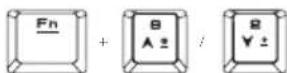
J. Consecutive Attack Mode: Press once to enable the Consecutive Attack Mode; press again to disable the function. When starting the consecutive attack mode, just simply press and hold the key, and then you can continuously fire during the game, providing you an easy operation.

K. Game mode: Press [Fn + Win] once to lock the Windows key so there will be no response when it is pressed. Press again to unlock the key

Register your GAMDIAS™ HERMES 7 COLOR Mechanical Keyboard
Please visit www.GAMDIAS.com for online product registration
WEEE Directive & Product Disposal
At the end of its serviceable life, this product should not be treated as household or general waste. It should be handed over to the applicable collection point for recycling of electrical and electronics equipment, or returned to the supplier for disposal.
For downloading updated software/firmware, please visit GAMDIAS website at www.GAMDIAS.com.
The information contained in this documentation is for reference only. The text, images and charts of this documentation have been processed with intensive care and we have been dedicated to ensure the accuracy and completeness. However, the content of this document is subject to change without notice and no liability nor responsibility is assumed for any loss or damage arising from any kind of misunderstood, improper uses of the hardware, software, and documents.

GAMDIAS
Gaming Art in Motion
GAMDIAS Technology Co., Ltd.
"7F, No.113, Jian 2nd Rd., Jhonghe Dist., New Taipei City 23585, Taiwan (R.O.C.)" www.GAMDIAS.com
© 2015 GAMDIAS Technology Co., Ltd. All rights reserved. All GAMDIAS trademarks and logos are registered trademarks of GAMDIAS Technology Co., Ltd. All other trademarks and logos presented in this material are the property of their respective owners. GAMDIAS Technology Co., Ltd. reserves the right to revise the specifications mentioned on this packaging.
www.GAMDIAS.com

GAMDIAS
Gaming Art in Motion
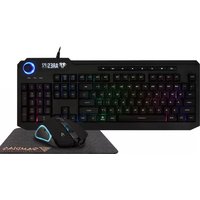
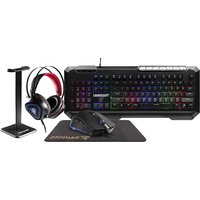
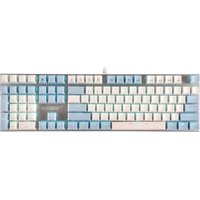
Brand : Gamdias
Model : Hermes 7 Color
Category : Keyboard