
Hermes RGB - Keyboard Gamdias - Free user manual and instructions
Find the device manual for free Hermes RGB Gamdias in PDF.


| Product Type | Mechanical Gaming Keyboard |
| Brand | Gamdias |
| Model | Hermes RGB |
| Switch Type | Mechanical (unspecified, typical linear or tactile) |
| Backlighting | RGB, 16.8 million colors |
| Lighting Effects | 13 built-in effects, 5 custom via HERA software |
| Processor | 32-bit high performance microprocessor |
| Onboard Memory | Stores up to 6 profiles and macros |
| Programmable Keys | 6 macro keys per profile (FN+G1/G2), 6 profile shortcut keys (FN+1~6) |
| Multimedia Keys | 6 dedicated keys: previous, next, play/pause, mute, volume +/- |
| Game Mode | Windows key lock (FN+Win) |
| On-The-Fly Macro Recording | Yes (FN+F9) |
| Keyboard Lock | FN+F11 toggle |
| WASD and Arrow Key Swap | FN+F4 toggle |
| Connection Interface | USB |
| Power Source | USB powered (5V, 500mA typical) |
| Dimensions (Approximate) | 460 x 200 x 40 mm (18.1 x 7.9 x 1.6 in) |
| Weight (Approximate) | 1.2 kg (2.65 lbs) |
| Cable Length | 1.8 m (5.9 ft) braided |
| Wrist Rest | Integrated, detachable (presumed) |
| Material | Metal backplane, plastic keys |
| Software | Gamdias HERA (Windows XP/Vista/7/8/10) |
| Package Contents | Keyboard, keycap puller, multi-language quick guide, sticker |
| Compatibility | Windows XP/Vista/7/8/10, USB port |
| Cleaning | Use a dry soft cloth; avoid liquids and abrasives |
Frequently Asked Questions - Hermes RGB Gamdias
User questions about Hermes RGB Gamdias
0 question about this device. Answer the ones you know or ask your own.
Ask a new question about this device
Download the instructions for your Keyboard in PDF format for free! Find your manual Hermes RGB - Gamdias and take your electronic device back in hand. On this page are published all the documents necessary for the use of your device. Hermes RGB by Gamdias.
USER MANUAL Hermes RGB Gamdias
Mechanical Gaming Keyboard

Thank you for purchasing the GAMDIAS ^™ HERMES RGB mechanical gaming keyboard. The new HERMES RGB keyboard is designed by combining user's fundamental requirements and features of the HERMES series mechanical keyboard as well as lightweight and compact keypad with integrated wrist rest. All these are aimed at enhanced mobility, comfort operation, and spatiality.
With 16.8 million full color backlight along with metal backplane for optimizable light reflection effects, your HERMES RGB offers still more bright and clear total lighting effects. Your personalized options are made more vivid and color with its 13 built-in light effects and at least 5 custom. The 32-bit high performance microprocessor along with GAMDIAS ^™ HERA software stores your favorite settings in keyboard to enable switching to different profiles by pressing one of the 6 preset shortcut key sets (FN+1\~FN+6).
Your HERMES RGB comes with two keys (FN+G1/G2) of programmable macro for each profile, which enables playing preset macros during gaming. Its portable profile and macro files saved in keyboard can be shared with other gamers or auto backed up in your computer.
System Requirements
• Windows ® XP/ Vista/ 7 / 8/ 10
• PC with USB ports
- Internet connection (used to install the HERA software)
• GAMDIAS ^TM HERA software
Introduction to HERMES RGB Keyboard Configuration
A. Six sets of customizable gaming profiles: PF1\~PF6

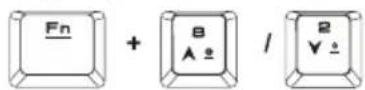
B. Six multimedia shortcut keys: Previous track, next track, play/pause, mute, decrease volume, increase volume

C. Four shortcut keys for switching among four keyboard light effects.( Wave, Rotation, Slide in, Static/Light off)

* (1) Additional light effect options require HERA support
* (2) Selected light effects will be auto saved in current profile
* (3) Direction of the Wave and Rotation light effects will be changed by pressing the FN and arrow key the same time.
D. Speed adjustment of shortcut key: There are 11 speed steps in existence (0\~11 where 0 represents stop).

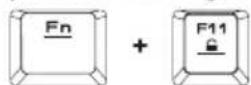
E. Lock keyboard keys: Press [Fn + F11] once to lock the keyboard keys so there will be no response when they are pressed. Press again to unlock the keys
Hardware and Software Installation
- Insert the USB plug of the GAMDIAS ^TM HERMES RGB keyboard into an available USB port on the computer.
- The "New Hardware Found" notification will be displayed. Follow the instructions on the screen to complete the hardware installation.
- Connect to the GAMDIAS ^™ website (http://www.GAMDIAS.com) and download the latest version of HERA software.
- Start installing the GAMDIAS ^TM HERA software and follow the instructions on the screen to complete.
Package Contents
• GAMDIAS ^TM HERMES RGB Mechanical Keyboard
- Keycap puller
- Multi-language quick installation guide
• GAMDIAS ^TM sticker
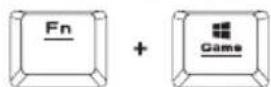
F. Game mode: Press [Fn + Win] once to lock the Windows key so there will be no response when it is pressed. Press again to unlock the key
G. Lock keyboard keys: Press [Fn + F11] once to lock the keyboard keys so there will be no response when they are pressed. Press again to unlock the keys
H. Swap between WASD and arrow key modes: Press [Fn + F4] once to enable swap mode. Press again to disable

I. On-The-Fly macro recording (OTF):
* [OTF record indicator] = LED on the top-right corner of the keyboard (Game light) * [Fn + F9] = OTF Record on/off

(1) Start OTF recording: Press [Fn +F9] and all keys will start flashing simultaneously
(2) OTF recording: Enter the macro action (keyboard keys) to record
(3) End OTF recording: Press [Fn+F9] and all keys will start rapidly blinking
(4) Specify macro key: Press the key to execute the macro and all keys will return from rapidly blinking to their original indicator statuses
* To cancel OTF recording during the process, press [Fn + F9] after step (3) to cancel recording; at this time the all keys will return to their original statuses
* If no keys were pressed for 20 seconds during step (2) the macro recording process or step (4) specify macro key process, macro recording will end automatically and all keys will return to their original statuses
Register your GAMDIAS™ HERMES RGB Mechanical Keyboard
Please visit www.GAMDIAS.com for online product registration
WEEE Directive & Product Disposal
At the end of its serviceable life, this product should not be treated as household or general waste. It should be handed over to the applicable collection point for recycling of electrical and electronics equipment, or returned to the supplier for disposal.
For downloading updated software/firmware, please visit GAMDIAS website at www.GAMDIAS.com.
The information contained in this documentation is for reference only. The text, images and charts of this documentation have been processed with intensive care and we have been dedicated to ensure the accuracy and completeness. However, the content of this document is subject to change without notice and no liability nor responsibility is assumed for any loss or damage arising from any kind of misunderstood, improper uses of the hardware, software, and documents.

GAMDIAS
Gaming Art in Motion
GAMDIAS Technology Co., Ltd.
"7F, No.113, Jian 2nd Rd., Jhonghe Dist., New Taipei City 23585, Taiwan (R.O.C.)" www.GAMDIAS.com
© 2015 GAMDIAS Technology Co., Ltd. All rights reserved. All GAMDIAS trademarks and logos are registered trademarks of GAMDIAS Technology Co., Ltd. All other trademarks and logos presented in this material are the property of their respective owners. GAMDIAS Technology Co., Ltd. reserves the right to revise the specifications mentioned on this packaging.
www.GAMDIAS.com

natural_image
Golden geometric logo with interlocking triangular shapes on black background (no text or symbols)GAMDIAS
Gaming Art in Motion
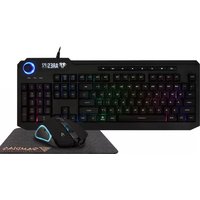
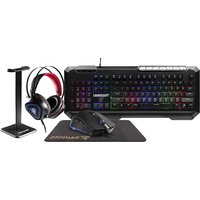
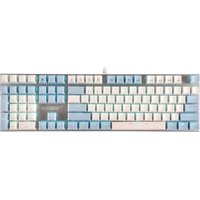
Brand : Gamdias
Model : Hermes RGB
Category : Keyboard