
3860 - Television ORION - Free user manual and instructions
Find the device manual for free 3860 ORION in PDF.


Pick your language and provide your email: we'll send you a specifically translated version.
| Product Type | Television |
| Brand | Orion |
| Model | 3860 |
| Screen Size | 20 inches (diagonal) |
| Display Technology | CRT |
| Aspect Ratio | 4:3 |
| Resolution | 480i (NTSC/PAL) |
| Inputs | RF Antenna, Composite Video (RCA), Audio L/R (RCA) |
| Outputs | Headphone jack (3.5mm) |
| Tuner | Analog (NTSC/PAL/SECAM) |
| Power Supply | AC 100-240V, 50/60Hz |
| Power Consumption | 80 W (typical) |
| Dimensions (W x H x D) | 450 x 400 x 350 mm |
| Weight | 15 kg |
| Main Functions | Channel scan, volume control, picture adjustment (brightness, contrast, color, sharpness), sleep timer, closed captioning |
| Remote Control | Included (batteries: 2x AAA) |
| Care & Cleaning | Wipe screen with soft dry cloth; do not use liquids or abrasive cleaners |
| Safety Warnings | Do not block ventilation openings; unplug during storms or if unused for long periods; use only specified power cord |
| Spare Parts & Repairability | Contact Orion authorized service center for genuine replacement parts |
| General Information | Refer to user manual for complete instructions and troubleshooting |
Frequently Asked Questions - 3860 ORION
How do I connect an external device to my Orion 3860 TV?
Use the Composite input (yellow for video, white/red for audio) on the back or side of the TV. Connect the corresponding cables from your external device.
How can I change the input source?
Press the Source or Input button on the remote control or TV panel repeatedly to cycle through available inputs (TV, AV, etc.).
Why is there no sound from my TV?
Check that the volume is not muted and is turned up. Ensure the audio cables are properly connected if using external speakers. Also verify that the Mute function is off.
How do I set up the sleep timer?
Press the Sleep button on the remote repeatedly to select the desired duration (e.g., 30, 60, 90 minutes). The TV will automatically turn off after the set time.
How can I improve the picture quality?
Access the Menu and navigate to Picture settings. Adjust Brightness, Contrast, Color, and Sharpness to your preference.
What should I do if the remote control stops working?
First, replace the batteries (2x AAA). Check that nothing is blocking the IR sensor on the TV. If it still doesn't work, try pressing the buttons on the TV panel itself.
How do I perform an automatic channel scan?
Go to the Menu, select Channel or Setup, then choose Auto Scan or Auto Tune. The TV will search for available analog channels and store them.
Can I use this TV with a digital converter box?
Yes, connect the converter box output to the TV's Composite or RF input. Set the TV to the corresponding input source.
Why is the picture distorted or has static?
Check the antenna connection. If the signal is weak, adjust the antenna position. For external devices, ensure cables are securely connected. Also try adjusting the brightness and contrast settings.
How do I clean the TV screen safely?
Turn off the TV and unplug it. Use a soft, dry microfiber cloth to gently wipe the screen. Do not use any liquids, cleaners, or abrasive materials as they may damage the screen.
User questions about 3860 ORION
0 question about this device. Answer the ones you know or ask your own.
Ask a new question about this device
No questions yet. Be the first to ask one.
Download the instructions for your Television in PDF format for free! Find your manual 3860 - ORION and take your electronic device back in hand. On this page are published all the documents necessary for the use of your device. 3860 by ORION.
USER MANUAL 3860 ORION
Audio/Video Anschlüsse....49
natural_image
Illustration of a vintage computer setup with a power outlet, paper sheet, and wiring (no text or symbols)natural_image
Illustration of a computer monitor with X marks on top and a stack of books with X marks on the right side (no text or symbols)natural_image
Illustration of a computer monitor with a cup on top emitting a device, connected to an electrical plug (no text or symbols present)natural_image
Illustration of a hand using a screwdriver to test a computer monitor on a power outlet (no text or symbols present)natural_image
Illustration of hands holding a handheld device with buttons and wires (no text or symbols visible)natural_image
Illustration of a satellite connected to an electrical device with lightning bolts and power plug (no text or symbols)natural_image
Illustration of a computer monitor connected to an electrical outlet via cable (no text or symbols)Rückseite

natural_image
Simple line drawing of a three chasing recycling symbol (no text or labels)natural_image
Illustration of a hand using a power plug to test electrical components, with a magnified view showing a switch and resistor (no text or symbols present)natural_image
Illustration of a person using a handheld device to interact with an electronic device and antenna (no text or symbols present)natural_image
Illustration of hands holding a handheld device with buttons and a clip (no text or symbols visible)natural_image
Illustration of a hand interacting with a vertical grid pattern, no text or symbols present
natural_image
Two soccer players in action, one kicking the ball while the other assists (no text or symbols visible)natural_image
Illustration showing a hand interacting with a control panel and a textured surface with a starburst symbol (no text or symbols present)natural_image
Illustration of a hand interacting with a keyboard (no text or symbols visible)
Programm 0-9
natural_image
Illustration of a hand pressing down on a film strip (no text or symbols visible)
Programm 10-99
Am Gerät:
natural_image
Illustration of a hand pointing at a vertical grid pattern (no text or symbols)
natural_image
Two soccer players in action, one kicking the ball while the other pushes the ball (no text or symbols visible)natural_image
Hand pointing at a control panel with buttons (no text or symbols visible)

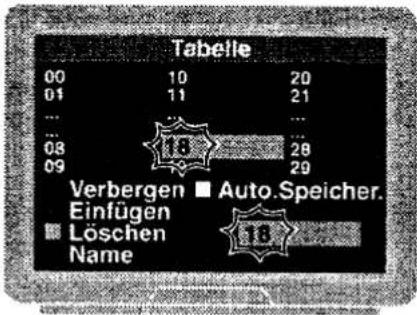
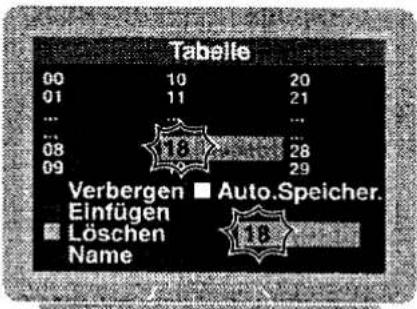
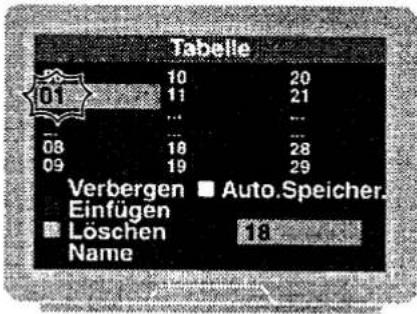


Am Gerät:
1 - SUB-Taste drücken.
natural_image
Illustration of a hand pointing at a vertical grid of rectangular blocks (no text or symbols)
Audio/Video Anschlüsse
D
382.004


natural_image
Two soccer players in action, one blocking the ball while the other assists (no text or symbols visible)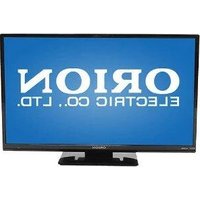

Table of contents
Click a title to access it
Manual assistant
Powered by Anthropic
Waiting for your message
Product information
Brand : ORION
Model : 3860
Category : Television