
CS230 - Printer Océ - Free user manual and instructions
Find the device manual for free CS230 Océ in PDF.


Pick your language and provide your email: we'll send you a specifically translated version.
| Product Type | Color Laser Printer |
| Brand | Océ |
| Model | CS230 |
| Dimensions (W x D x H) | 420 x 380 x 320 mm |
| Weight | 15 kg |
| Power Supply | AC 220-240V, 50/60 Hz |
| Power Consumption (active) | 350 W (printing), 10 W (standby) |
| Functions | Print, Copy, Scan, Network |
| Print Resolution | 1200 x 1200 dpi |
| Print Speed | Up to 25 ppm (color and B&W) |
| Paper Handling | 250-sheet input tray, 100-sheet output |
| Connectivity | USB 2.0, Ethernet, Wi-Fi |
| Display | 2-line LCD panel |
| Maintenance | Clean exterior with soft dry cloth; replace toner and drum as needed |
| Safety | Do not block vents; unplug before cleaning; use only Océ supplies |
| Spare Parts & Repairability | Replacement toner cartridges, drum unit, fuser available; user-replaceable |
| General | Energy Star certified, quiet operation |
Frequently Asked Questions - CS230 Océ
How do I set up the Océ CS230 printer for the first time?
Unpack the printer, remove all packing tape, install the toner cartridges and drum unit, load paper into the tray, connect power and USB or network cable, then follow the on-screen setup wizard.
How do I clear a paper jam?
Open the front cover, remove the drum unit, and gently pull out any jammed paper from the rollers. Check the paper tray and output area. Close the cover and restart printing.
How do I replace the toner cartridge?
Open the top cover, lift the toner access door, remove the old cartridge by pulling the green handle, insert the new one until it clicks, and close the covers.
How do I connect the printer to Wi-Fi?
Press the Menu button on the control panel, navigate to Network Settings, select Wi-Fi, choose your network, enter the password using the on-screen keyboard, and confirm.
How do I print from a mobile device?
The Océ CS230 supports AirPrint and Mopria. Ensure your mobile device and printer are on the same Wi-Fi network, then select the printer from the sharing menu.
How do I scan a document to my computer?
Place the document on the scanner glass, press Scan, select the destination (e.g., email or network folder), and start the scan. Ensure the printer driver is installed on your computer.
What should I do if the printer is not turning on?
Check the power cable connection and try a different power outlet. Verify the power switch is on. If the issue persists, contact Océ support.
How do I clean the printer?
Turn off and unplug the printer. Use a soft, lint-free cloth slightly dampened with water to wipe the exterior. Do not use any solvents or abrasive cleaners.
Where can I find the user manual?
The user manual is available for free download on the notice-facile.com website. You can also request a translated version by email.
What is the recommended paper type?
Use plain paper (75-90 g/m²) for everyday printing. For best results, use Océ branded paper. Avoid very thick or glossy paper unless specified.
User questions about CS230 Océ
0 question about this device. Answer the ones you know or ask your own.
Ask a new question about this device
No questions yet. Be the first to ask one.
Download the instructions for your Printer in PDF format for free! Find your manual CS230 - Océ and take your electronic device back in hand. On this page are published all the documents necessary for the use of your device. CS230 by Océ.
USER MANUAL CS230 Océ
natural_image
3D technical illustration of a multi-level industrial machine with internal components (no visible text or symbols)
Copy job
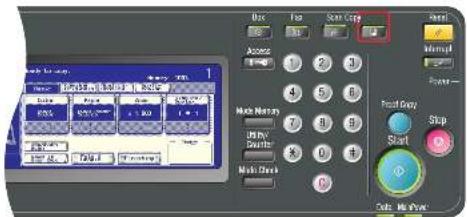
- Press the function key 'Copy' on the operator panel.
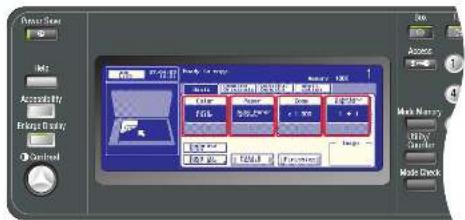
- Select the settings 'Color', 'Paper', 'Zoom', 'Simplex / Duplex' for the copy job.

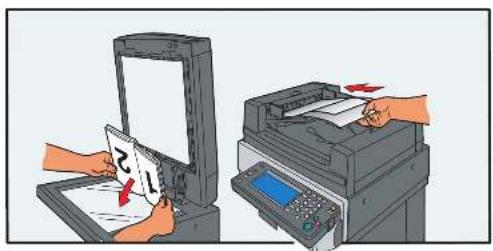
- Place the original(s) on the glass plate (face down) or on the Document Feeder (face up).

- Press the green 'Start' key.
Print job

- Select the 'Output Method'.

- If sent to a User Box, press the function key 'Box' on the operator panel.

- Select the needed 'User Box'.
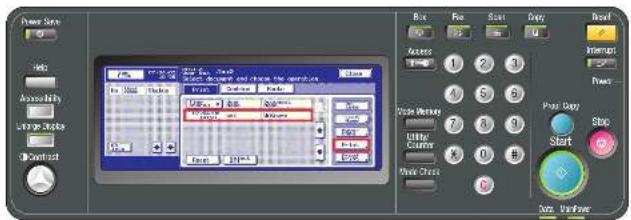
- Select the job in the 'Print' tab and press 'Print'.

- Press the green 'Start' key.
Océ|Quick Reference Card

natural_image
3D technical illustration of a multi-tiered industrial machine with visible internal components and mounting brackets (no text or symbols)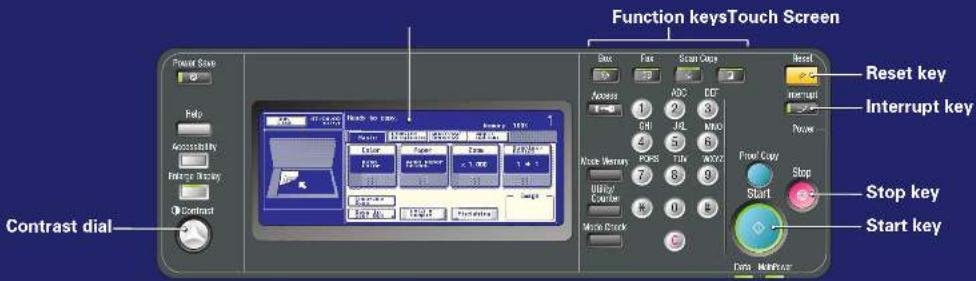
Scan job

- Press the function key 'Scan' on the operator panel.

- Select the scanning method: 'Program', 'Group', 'Address Book' or 'Direct Input' and select 'Scan Destination'.
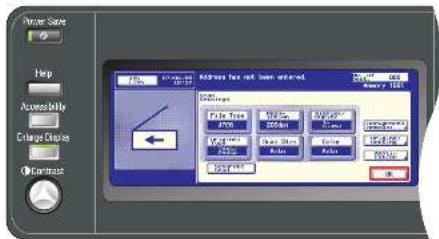
- Select 'Scan Settings' and press 'OK'.
natural_image
Illustration of two hands printing or printing a document into a printer (no text or symbols visible)- Place the original(s) on the glas plate (face down) or on the Document Feeder (face up).

- Press the green 'Start' key.
Fax job
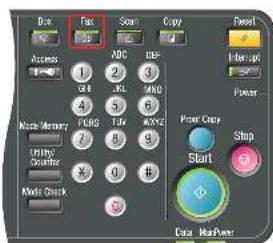
- Press the function key 'Fax' on the operator panel.

- Select the fax method: 'Program', 'Group', 'Address Book' or 'Direct Input'.

- In case of Direct Input, use the keypad to enter the fax number of destination.
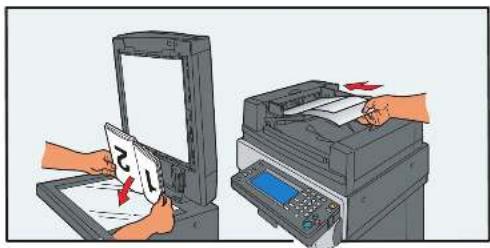
- Place the original(s) on the glas plate (face down) or on the Document Feeder (face up).
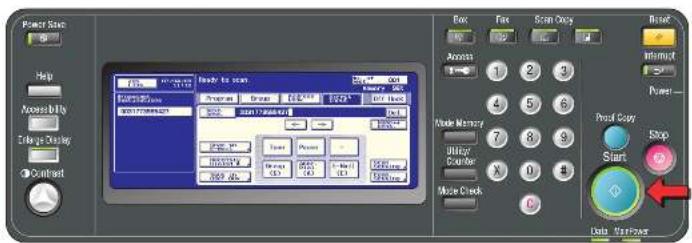
- Press the green 'Start' key.
Table of contents
Click a title to access it
Manual assistant
Powered by Anthropic
Waiting for your message
Product information
Brand : Océ
Model : CS230
Category : Printer