
DA-E570 - Audio Dock SAMSUNG - Free user manual and instructions
Find the device manual for free DA-E570 SAMSUNG in PDF.


| Product Type | Dual audio dock station (Dual Dock) with built-in speakers |
| Brand | SAMSUNG |
| Model | DA-E570 |
| Dimensions (W x D x H) | Approximately 30.0 x 17.0 x 9.4 cm |
| Weight | Approximately 2.0 kg |
| Power supply | 12 V DC power adapter, grounded mains plug |
| Wireless connectivity | Bluetooth with aptX codec for high-quality stereo audio |
| Docking station | Dual dock: 5-pin connector (Samsung Galaxy) and 30-pin connector (Apple) |
| Auxiliary input | AUX IN jack (3.5 mm) for audio peripherals |
| Playback functions | Play/Pause, skip forward/backward, Bass function |
| Remote control | Yes, with 3 V lithium batteries, range 7 m |
| Display | LED indicators (standby, mode, volume) |
| Output power | 5 W per channel (4 Ω, THD 10%, 1 kHz) |
| Frequency response | 20 Hz – 22 kHz (±3 dB) |
| Signal-to-noise ratio | 65 dB (analog input) |
| Apple device compatibility | iPod touch (3rd/4th gen), iPod nano (5th/6th gen), iPhone 3GS/4/4S, iPod classic |
| Samsung device compatibility | Samsung Galaxy devices with 5-pin connector (requires Samsung Wireless Audio Dock app) |
| Operating temperature | +5°C to +35°C |
| Operating humidity | 10% to 75% |
| Warranty | 1 year parts and labor (Canada), Samsung after-sales service |
| Country of manufacture | Korea |
Frequently Asked Questions - DA-E570 SAMSUNG
User questions about DA-E570 SAMSUNG
0 question about this device. Answer the ones you know or ask your own.
Ask a new question about this device
Download the instructions for your Audio Dock in PDF format for free! Find your manual DA-E570 - SAMSUNG and take your electronic device back in hand. On this page are published all the documents necessary for the use of your device. DA-E570 by SAMSUNG.
USER MANUAL DA-E570 SAMSUNG
Wireless Audio with Dock user manual
imagine the possibilities
Thank you for purchasing this Samsung product. To receive more complete service, please register your product at www.samsung.com/register
Dual Docking Audio Speaker System
Using the system's dual docking station, dock, charge, and then play either Samsung Galaxy devices or Apple devices through the system's built-in speakers.
aptX®
aptX enables high quality Bluetooth stereo audio, delivering wired audio quality wirelessly.
LICENSE
Made for

iPod iPhone
iPad, iPhone, iPod, iPod nano, iPod shuffle, and iPod touch are trademarks of Apple Inc., registered in the U.S. and other countries.
SAFETYWARNINGS
TO REDUCE THE RISK OF ELECTRIC SHOCK, DO NOT REMOVE THE COVER(OR BACK).
NO USER-SERVICEABLE PARTS ARE INSIDE. REFER SERVICING TO QUALIFIED SERVICE PERSONNEL.
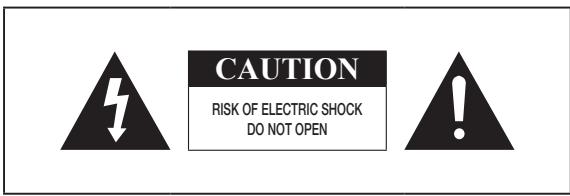
This symbol indicates "dangerous voltage" inside the product that presents a risk of electric shock or personal injury.
This symbol indicates important instructions accompanying the product.
WARNING : To reduce the risk of fire or electric shock, do not expose this appliance to rain or moisture.
CAUTION : TO PREVENT ELECTRIC SHOCK, MATCH WIDE BLADE OF PLUG TO WIDE SLOT, FULLY INSERT.
- This apparatus shall always be connected to a AC outlet with a protective grounding connection.
- To disconnect the apparatus from the mains, the plug must be pulled out from the mains socket, therefore the mains plug shall be readily operable.
CAUTION
- Do not expose this apparatus to dripping or splashing. Do not put objects filled with liquids, such as vases on the apparatus.
- To turn this apparatus off completely, you must pull the power plug out of the wall socket. Consequently, the power plug must be easily and readily accessible at all times.
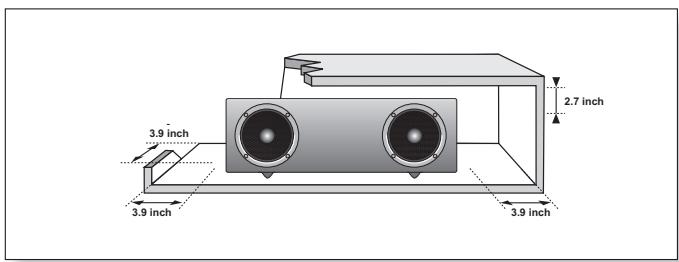
Ensure that the AC power supply in your house complies with the power requirements listed on the identification sticker located on the back of your product. Install your product horizontally, on a suitable base (furniture), with enough space around it for ventilation (3-4 inches). Make sure the ventilation slots are not covered. Do not place the unit on amplifiers or other equipment which may become hot. This unit is designed for continuous use. To fully turn off the unit, disconnect the AC plug from the wall outlet. Unplug the unit if you intend to leave it unused for a long period of time.
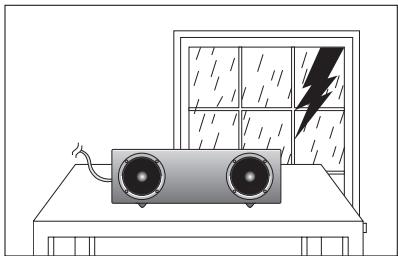
During thunderstorms, disconnect the AC plug from the wall outlet. Voltage peaks due to lightning could damage the unit.
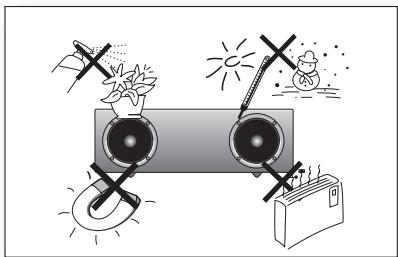
Protect the product from moisture (i.e. vases), and excess heat (e.g. fireplaces) or equipment creating strong magnetic or electric fields Disconnect the power cable from the AC supply if the unit malfunctions. Your product is not intended for industrial use. This product is for personal use only.
Condensation may occur if your product has been stored in cold temperatures. If transporting the unit during the winter, wait approximately 2 hours until the unit has reached room temperature before using.
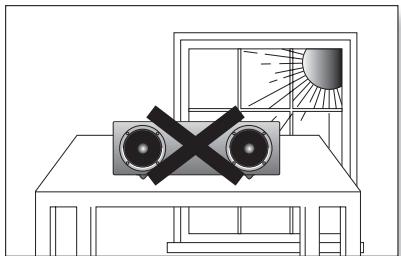
Do not expose the unit to direct sunlight or other heat sources. This could cause the unit to overheat and malfunction.
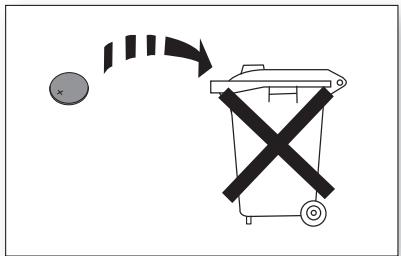
The batteries used with this product contain chemicals that are harmful to the environment.
Do not dispose of batteries in the general household trash.
FEATURES
2 Features
2 License
SAFETY INFORMATION
3 Safety warnings
4 Precautions
GETTING STARTED
6 Before reading the user's manual
6 What's included
DESCRIPTIONS
7 Top/Front/Rear Panel
REMOTE CONTROL
9 Tour of the remote control
POWER ON AND VOLUME CONTROL
10 Turning the Power on/off
10 Adjusting the volume
CONNECTIONS
11 Using the Spacer Cover
12 Connecting a device to the Dual Dock
13 Connecting an audio device using AUX IN
15 Connecting to Bluetooth devices
PLAYING
16 Using the docking mode with Samsung Galaxy and Apple Devices
17 Using the Bluetooth mode
FUNCTIONS
18 Advanced functions
TROUBLESHOOTING
19 Troubleshooting
APPENDIX
20 Specifications
20
BEFORE READING THE USER'S MANUAL
Note the following terms before reading the user manual.
Icons used in this manual
| Icon | Term | Definition |
| ! | Caution | Indicates a situation where a function does not operate or settings may be canceled. |
| Note | Indicates tips or instructions on the page that help a function operate. |
Safety Instructions and Troubleshooting
1) Familiarize yourself with the Safety Instructions before using this product. (See page 3)
2) If a problem occurs, check Troubleshooting. (See page 19)
Copyright
©2012 Samsung Electronics Co., Ltd.
All rights reserved; no part or whole of this user's manual may be reproduced or copied without the prior written permission of Samsung Electronics Co., Ltd.
WHAT'S INCLUDED
Check for the supplied accessories shown below.
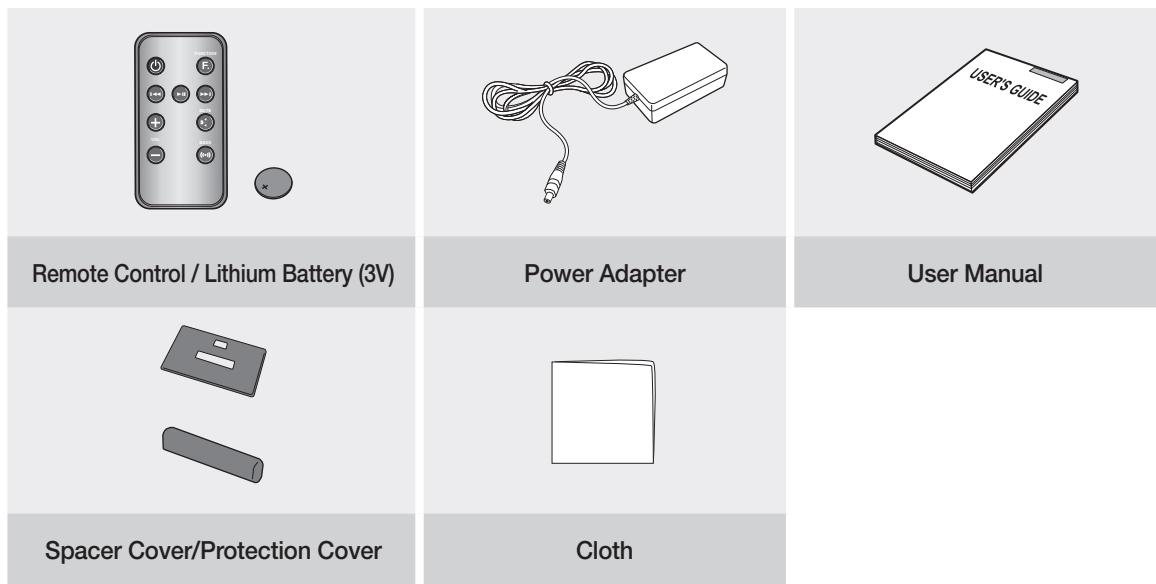

- The appearance of the accessories may differ slightly from the illustrations above.
TOP/FRONT/REAR PANEL
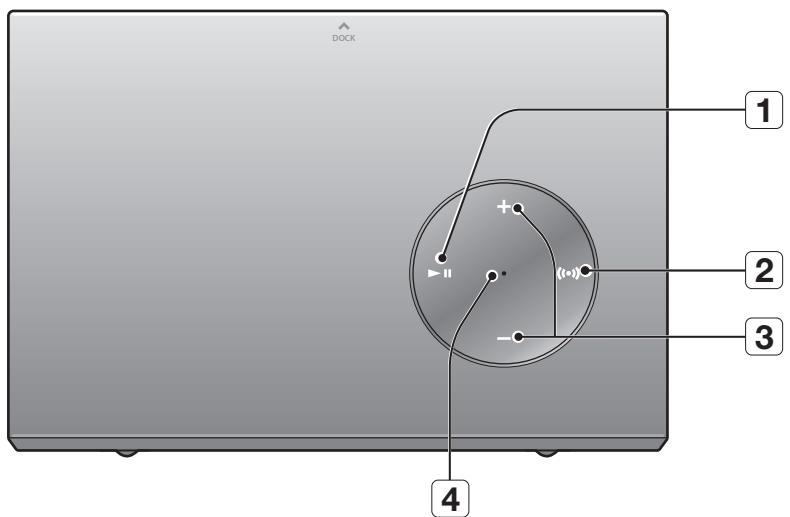
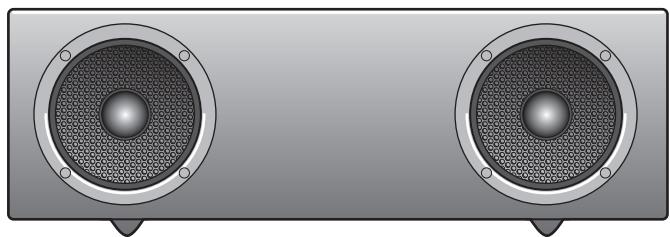
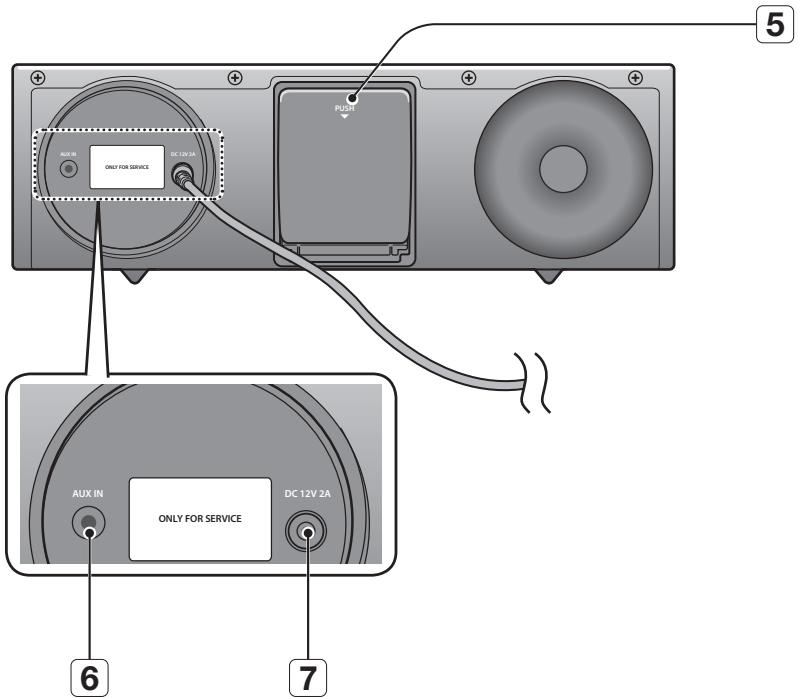
| 1 | PLAY/PAUSE BUTTON | Play or pause a music file. |
| 2 | BASS BUTTON | Optimize the sound based on your tastes. |
| 3 | VOLUME +/- BUTTON | Controls the volume level. |
| 4 | STANDBY LED | The standby LED lights up in standby mode. The standby LED turns off when the power of the unit turned on. |
| 5 | DUAL DOCK | Provides a 5 pin dock for Samsung Galaxy devices and a 30 pin dock for Apple devices. |
| 6 | AUX IN | Connect to the Analog output of an external device. |
| 7 | DC 12V | Connect the unit's DC adapter to this jack. |

- When you turn on this unit, there will be a 4 to 5 second delay before it produces sound.

-
This unit can connect to mobile devices with high audio output levels. When you connect this unit to external devices with high output levels, it may lower the audio output to protect the amp and speakers.
-
When disconnecting the power cable from the wall outlet, hold the plug. Do not pull the cable.
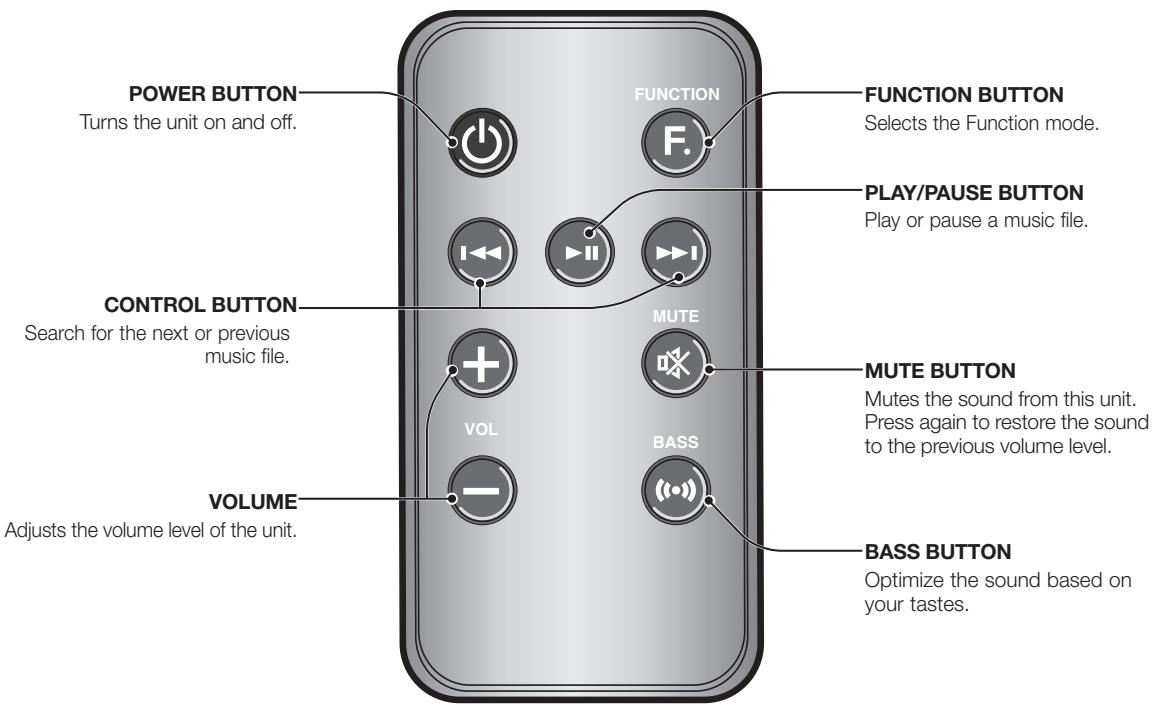
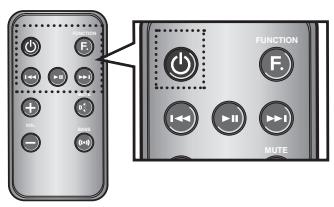
TOUR OF THE REMOTE CONTROL
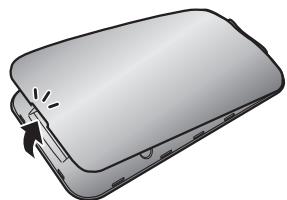
Installing battery in the Remote Control

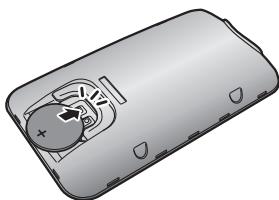

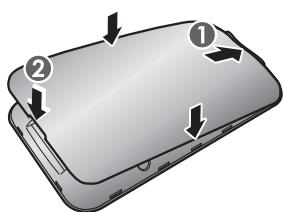
-
Open the cover of the remote control by putting your fingernail into the gap between the cover and body of the remote control. Then, lift the cover and separate it completely.
-
Install a 3V Lithium battery. Insert the battery into the battery compartment with the + side facing up.
-
Fit the remote control's cover to the remote control. Next, lower the cover so that it is flush with the body of the remote, and then press the cover into the body by pushing the edges down with your hand.

- Be careful not to catch your fingernail in the gap when you lift the cover. You can damage your fingernail.
Operation Range of the Remote Control
You can use the remote control up to 23 feet (7 meters) in a straight line from the unit. You can also operate the remote at a horizontal angle of up to 30^ from the remote control sensor.
power on and volume control
- To turn on this unit, press any button on the unit's top panel when the unit is in Standby mode.
or,
Press POWER on the remote control.
- To turn off this unit, press the button on the unit's top panel for more than 3 seconds.
or,
Press POWER on the remote control again.

- The standby LED is on when AC Plug is connected to the wall outlet and the Power of the unit is off. The standby LED is off when the power of the unit is on.
The power of the unit automatically turns off if there is no input for 20 minutes.
ADJUSTING THE VOLUME
Use ^+ , - buttons to adjust the volume. As you adjust the volume, the Input mode LED blinks.
The LED remains on in case you increase the volume when it has already been set to maximum, or decrease the volume when it has already been set to minimum.
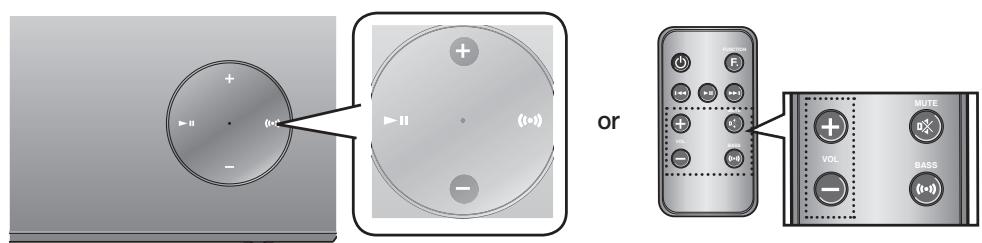
Press the + / - button on the right side of the top panel.
or,
Press VOL + / - on the remote control.

The volume level increases or decreases when you press VOL + / -
- You can also use the volume controls of devices connected using the Dual Dock or Bluetooth to control the volume. However, your ability to control the volume using the volume controls of devices connected using Bluetooth may be limited.
connections
USING THE SPACER COVER
Attach the space cover if you want to dock a Samsung Galaxy or Apple device having no protective case onto the Dual Dock.
- Use it for stable installation of your device considering the shape of the device.
The Dual Dock also comes with a protective cover for the 30-pin Apple device connector. Use the protective cover for the 30-pin connector when you attach the 5-pin Samsung Galaxy device.
See the illustrations below for additional instructions.
| <For Apple Device Users> | <For Galaxy Device Users> |
| When docking a device, use appropriate support considering the docking device's protective case or the device's shape for further stability. | |
| Protective Cover | |
Used for docking devices having no protective case on it.
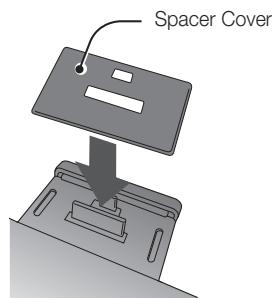
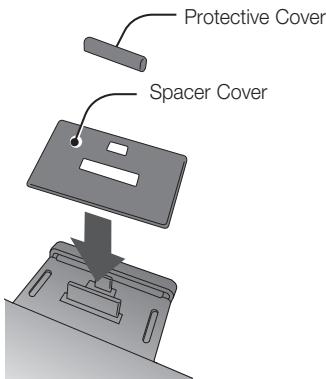

- It is impossible to attach a device to the Dual Dock that has a case thicker than 1.5 ~mm or an unusual rounded bottom.
How to connect a device to the Dual Dock.
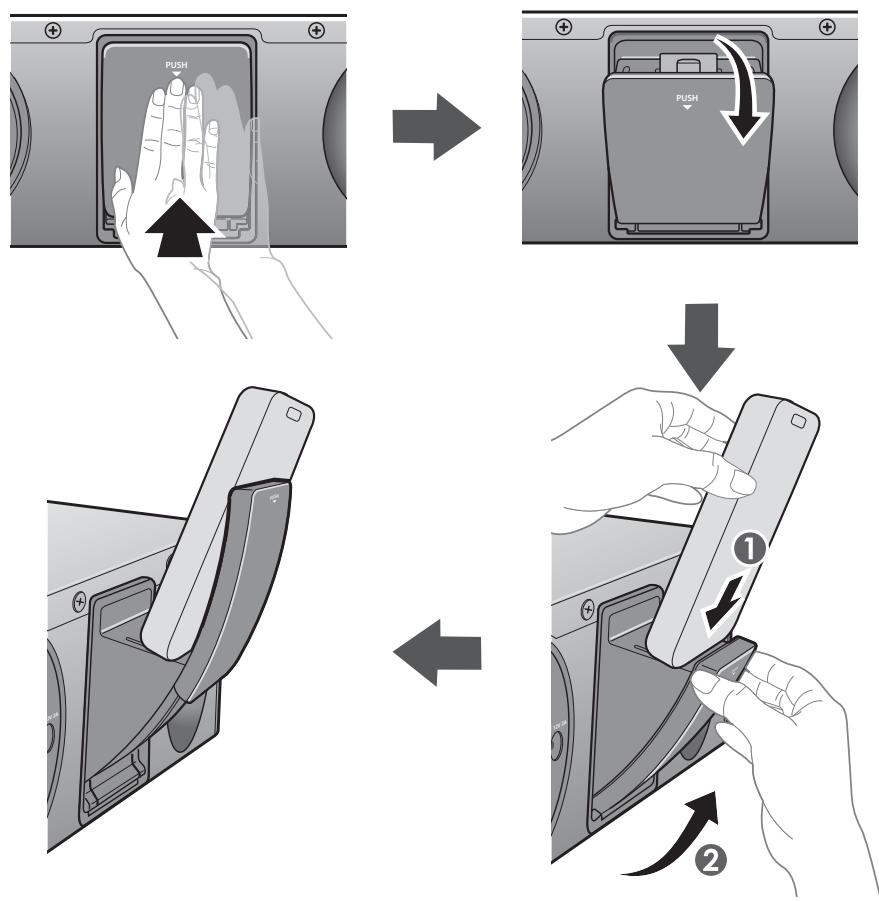
- The DUAL DOCK is located on the back of the product. To open, push it in gently.
- If you have a Samsung Galaxy device, connect the device to the 5 pin (smaller) connector to connect to the Dual Dock. If you have a Apple device, connect the device to the 30 pin (larger) connector on the Dual Dock.
- Lift the device support up as shown to prevent the device from sliding or falling off the Dual Dock.

- Turn on your Samsung Galaxy device before you attach it to the Dual Dock.
This unit doesn't support the simultaneous docking of Samsung Galaxy and Apple devices. - Connect your Samsung Galaxy or Apple device to the Dual Dock before starting Docking mode. (See page 16)
This section explains how to connect the unit to an audio device.
This unit requires one analog audio jack for connecting to an audio device.
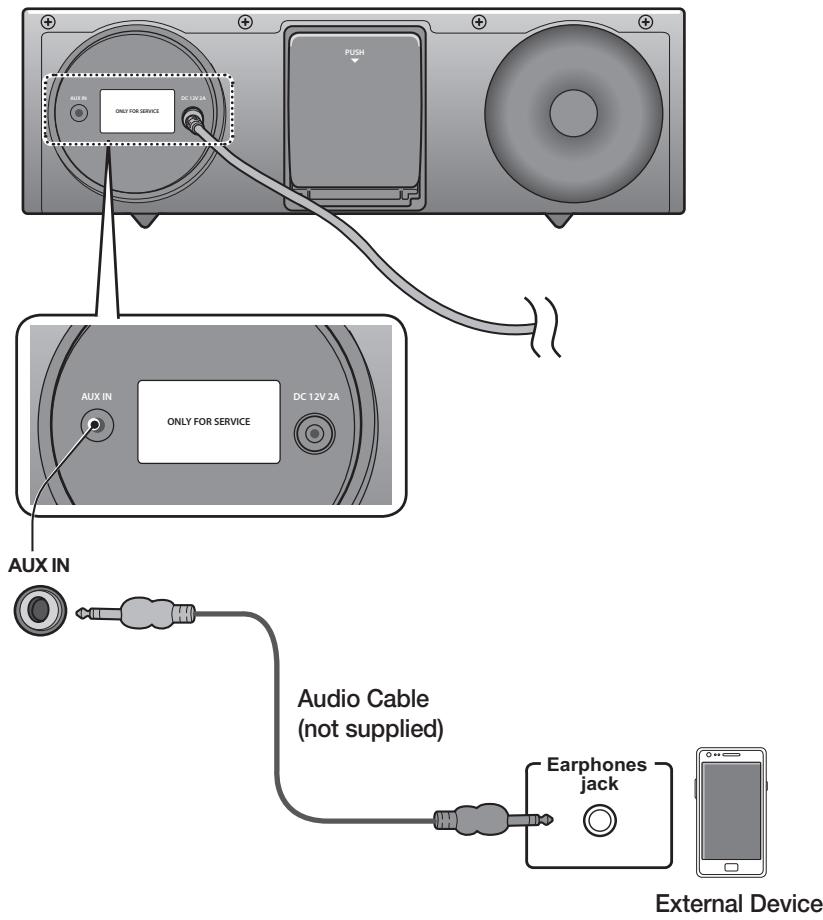
AUX IN
Connect AUX IN (Audio) on the back of the unit to the earphone jack of the external device or audio device.
If connected to an external device via AUX input while your Samsung Galaxy device is docked or connected to a Bluetooth device at the same time, the input source switches between the AUX and Samsung Galaxy or Bluetooth device by tapping the PAUSE button on the Samsung Galaxy / Bluetooth device. Tap it again to switch to the other input source.

- Use the Function key on the remote control to switch between connected devices, if there are multiple devices connected to the Docking station.
- Before moving or installing this product, be sure to turn off the power and disconnect the power cord.
BLUETOOTH
You can connect the Wireless Audio with Dock to Bluetooth devices and enjoy music with high quality stereo sound, all without wires!
What is Bluetooth?
Bluetooth technology lets Bluetooth-compliant devices interconnect easily with each other using a short wireless connection.
- A Bluetooth device may cause noise or malfunction, depending on usage, when:
- A part of your body is in contact with the receiving/transmitting system of the Bluetooth device or the Wireless Audio with Dock.
- It is subject to electrical variation from obstructions caused by a wall, corner, or by office partitioning.
- It is exposed to electrical interference from same frequency-band devices including medical equipment, microwave ovens, and wireless LANs.
- Keep the Wireless Audio with Dock and the Bluetooth device close together when pairing.
- The further the distance between the Wireless Audio with Dock and Bluetooth device, the worse the quality. If the distance exceeds the Bluetooth operational range, the connection is lost.
- In poor reception-sensitivity areas, the Bluetooth connection may not work properly.
- The Bluetooth connection only works when the Bluetooth device is close to the set. The connection is automatically cut off if the Bluetooth device moves out of range. Even within range, the sound quality may be degraded by obstacles such as walls or doors.
- This wireless device may cause electric interference during its operation.

- You may be required to enter a PIN code (password) when connecting the Bluetooth device to the Wireless Audio with Dock. If the PIN code input window appears, enter <0000> .
The Wireless Audio with Dock supports SBC data (44.1kHz, 48kHz).
The AVRCP feature is not supported.
- Connect only to a Bluetooth device that supports the A2DP (AV) function.
- You cannot connect to a Bluetooth device that supports only the HF (Hands Free) function.
Only one Bluetooth device can be paired at a time.
- Once you have turned off the Wireless Audio with Dock and the pairing is disconnected, the pairing will not be restored automatically. To reconnect, you must pair the devices again.
- The Wireless Audio with Dock may not search or connect properly in the following cases:
- If there is a strong electrical field around the Wireless Audio with Dock.
- If several Bluetooth devices are simultaneously paired to the Wireless Audio with Dock.
-
If the Bluetooth device is turned off, not in place, or malfunctions
-
Note that such devices as microwave ovens, wireless LAN adaptors, fluorescent lights, and gas stoves use the same frequency range as the Bluetooth device, which can cause electric interference.
This section explains how to connect the Wireless Audio with Dock to Bluetooth compatible devices.
To connect the Wireless Audio with Dock to a Bluetooth device
Before you begin, confirm that your Bluetooth device supports the Bluetooth compliant stereo headset function.
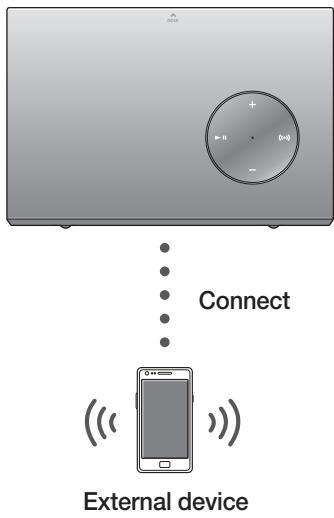
- Select the Bluetooth menu on your Bluetooth device.
(Refer to the Bluetooth device's user manual for instructions.)
-
Scan or search for All Devices or for Headsets.
-
You will see a list of devices.
- Select "[Samsung]W_AudioXXXXX" from the searched list.
- If the Bluetooth device fails to pair with the Wireless Audio with Dock, delete the "[Samsung]W_AudioXXXXX" found by the Bluetooth device, and search for the Wireless Audio with Dock again, and then repeat Steps 1, 2, and 3.
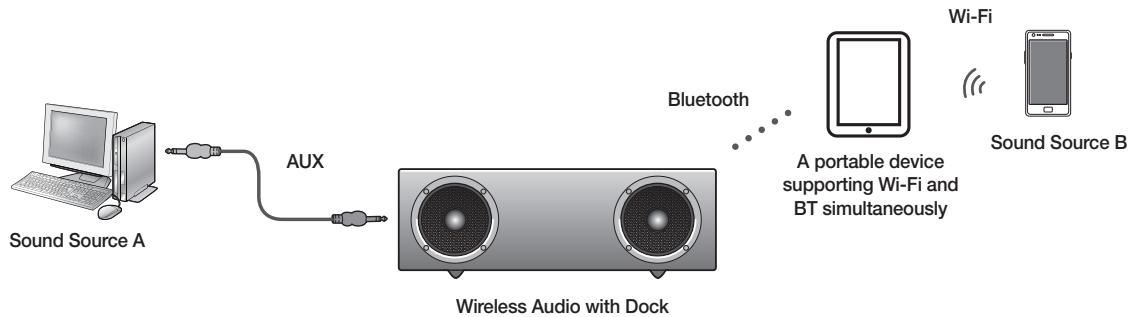

- When the AUX and Bluetooth operate at the same time as shown above, the sound may come from both simultaneously.
USING THE DOCKING MODE WITH SAMSUNG GALAXY AND APPLE DEVICES
Connect the Samsung Galaxy or Apple device to the Dual Dock. (See page 12)
To use your Samsung Galaxy series device with the Dual Dock, you must download and install the Docking Mode application from the Android Market on the device. To download, follow these steps:
- Tap the Play Store (Android Market) icon on the Samsung Galaxy device's main screen.
- Tap the search icon on the screen to access the search bar.
- In the search bar, type in the [Samsung Wireless Audio Dock], and then search.
- In the search result list, find, and then tap [Samsung Wireless Audio Dock] to start downloading.
- Tap [install].
To play music, follow these steps:
1-1. If you start the app when the Wireless Audio with Dock is the only device for the Bluetooth connection, selecting PLAY in your device automatically establishes the Bluetooth connection to the Wireless Audio with Dock and the unit plays music.
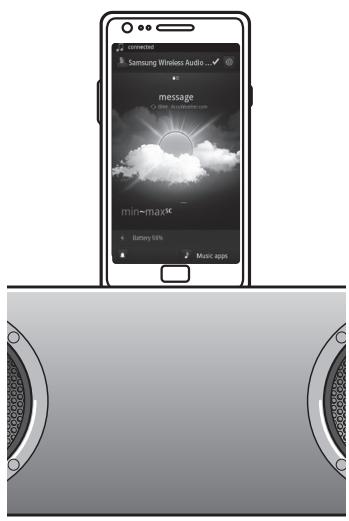
1-2. If there are multiple devices for Bluetooth connection including Wireless Audio with Dock,
1) When you start the app, the list of the devices which you can connect to the Wireless Audio with Dock will appear.
2) Play music after connecting to the Wireless Audio with Dock by selecting it on the list of devices.
-
If there exists a Bluetooth device paired to the Wireless Audio with Dock before, it will not appear in the list and be connected automatically.
-
If you replace the Wireless Audio with Dock which you have paired to your mobile device, you should delete the remaining settings saved in your device before pairing to the new one.

[Clear data].
![SAMSUNG DA-E570 - [Clear data]. - 1](/content/2019/11/98942/images/02fa4e3f6ecfa01023dfe7318ddddf50921eb0c6e2087f0c87377c590141e0b2.jpg)
- Once you started the application, running is not disturbed by charging your mobile device with an ordinary charger.
- When you connect other device to the Wireless Audio with Dock after connecting Samsung Galaxy device in docking mode, you may have to turn off the Bluetooth mode of the Samsung Galaxy device.
If you have trouble connecting the Samsung Galaxy device to the Dual Dock, turn off the devices's Bluetooth mode.
- Select the mode as described above, and then connect the Apple device to the Dual Dock as described in Connecting a Device to the Dual Dock (Page 12). You will hear a ringing sound.
- Select the
menu in the main screen of the Apple device. -
Select and play the desired music.
-
The music will play through the Wireless Audio with Dock's speakers.
![SAMSUNG DA-E570 - [Clear data]. - 1](/content/2019/11/98942/images/b54639223bddb42f71d3f5e709729d889c6c2e7369c18cfe1305702a9fdcd5c2.jpg)
- While playing a video with your device, Play/Pause/Next/Back operations may not be available. Use the button on your device to operate it.
Compatibility list (Apple Device)
Docking mode compatible iPod/iPhone models
Update the software of your iPod/iPhone to the latest version before using it with this unit.
- iPod touch (4th generation)
- iPod touch (3rd generation)
- iPod nano (6th generation)
- iPod nano (5th generation)
- iPhone 4S
- iPhone 4
- iPhone 3GS
- iPod classic
- Depending on its version of iPod Software, your device may not be compatible or may operate abnormally.
If you connect an incompatible Apple device, the Standby LED will blink.
USING THE BLUETOOTH MODE
Connect the Bluetooth device to the Wireless Audio with Dock. (See page 15)
To connect your Bluetooth device when the Wireless Audio with Dock is in Bluetooth mode, search for the Wireless Audio with Dock on the device's Bluetooth list. Select the Wireless Audio with Dock, and then connect. Once the Wireless Audio with Dock has connected, select and play the desired music.
The music will play through the Wireless Audio with Dock's speakers.

- If you want to change the device which is connected through Bluetooth mode to other device, disconnect the existing device and try to connect to the other device which you want to use.
- While in Bluetooth communication, Play/Pause/Next/Back operations may not be available depending on used mobile device and application.
- Operating Bluetooth device paired to the Wireless Audio with Dock may cause stuttering if operated while the Wireless Audio with Dock is playing back from AUX input.
To disconnect the Bluetooth device from the Wireless Audio with Dock
You can cancel Bluetooth pairing from the Wireless Audio with Dock. For instructions, see the Bluetooth device's user manual.
- The Wireless Audio with Dock will be disconnected.

- The Bluetooth connection only works when the Bluetooth device is close to the set. The connection is automatically cut off if the Bluetooth device moves out of range. Even within range, the sound quality may be degraded by obstacles such as walls or doors.
- If the Bluetooth device comes back into the effective range, you can restart to restore the pairing with the Bluetooth device.
ADVANCED FUNCTIONS
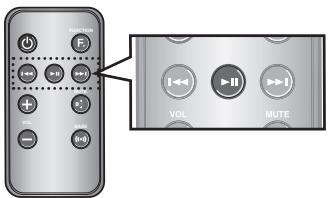
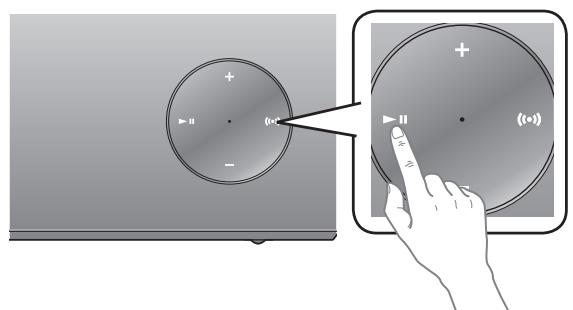
Play/Pause
During playback, press the button.
- Press the button to stop playing the file temporarily. Press the button again to play the selected file.

- This function does not operate in AUX mode.
Using function
Change the mode to switch to Docking and AUX sources.
Press FUNCTION on the remote control of this unit.
Each time the button is pressed, the selection changes as follows: iPod (iPhone) Galaxy (Bluetooth) AUX mode

- Check the function you want to use by pressing the Function button on the remote control when multiple devices are connected to the product simultaneously.
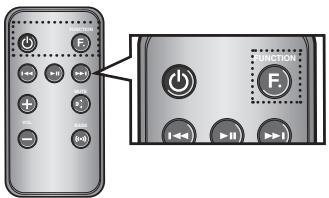
Skip Forward/Back
During playback, press the button.
- When there is more than one file and you press the button, the next file is selected.
- When there is more than one file and you press the button, the previous file is selected.
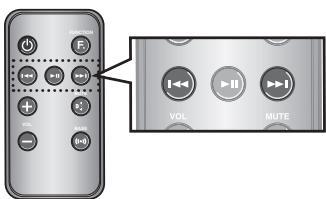

- This function does not operate in AUX mode.
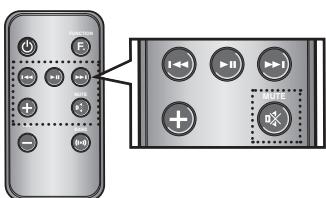
Muting the sound
This is useful when answering a doorbell or telephone call.
- To mute sound of this unit, press the MUTE (×) button of the remote control.
- Press MUTE (×) on the remote control again (or press VOLUME +/−) to restore the sound.
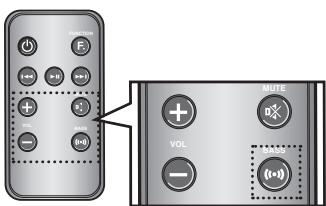
Using the BASS function
Lets you optimize the bass sound according to your tastes.
Press BASS on the remote control of this unit.
Each time the button is pressed, the selection changes as follows: BASS ON OFF
troubleshooting
Before requesting service, please check the following.
| Symptom | Check | Remedy |
| The unit will not turn on. | ·Is the power cord plugged into the outlet? | ·Connect the power plug to the outlet. |
| A function does not work when the button is pressed. | ·Has the Wireless Audio with Dock or the remote been exposed to static electricity? | ·Disconnect the power plug and connect it again. |
| Sound is not produced. | ·Is the unit properly connected to device? ·Is the Mute function on? ·Is the volume set to minimum? | ·Connect it correctly. ·Press the Mute button to cancel the function. ·Adjust the volume. |
| The remote control does not work. | ·Are the batteries drained? ·Is the distance between remote control and main unit too far? | ·Replace with new batteries. ·Operate closer to the main unit. |
SPECIFICATIONS
| Model name | DA-E570 | |
| GENERAL | Power supply | DC 12V 2A |
| Power consumption | 11.2W | |
| Weight | 4.4 lbs | |
| Dimensions (W x D x H) | 11.8 x 6.69 x 3.7 inches | |
| Operating temperature range | +41°F to +95°F | |
| Operating humidity range | 10 % to 75 % | |
| AMPLIFIER | Rated output power | 5W/CH, 4OHM, THD = 10%, 1kHz |
| Input sensitivity/Impedance | 800mV/20Kohm | |
| S/N ratio (analog input) | 65 dB | |
| Separation(1kHz) | 60 dB | |
| FREQUENCY RESPONSE | Analog input | 20Hz~22kHz(±3 dB) |
| DOCKING RATING | iPod | 5 V 1.0 A |
| Galaxy | 5 V 1.0 A | |
- S/N ratio, distortion, separation, and usable sensitivity are based on measurement using AES (Audio Engineering Society) guidelines.
- Nominal specification
- Samsung Electronics Co., Ltd reserves the right to change the specifications without notice.
- Weight and dimensions are approximate.
- For the power supply and Power Consumption, refer to the label attached to the product.
LIMITED WARRANTY TO ORIGINAL PURCHASER
Samsung Electronics Canada Inc.(SECA), warrants that this product is free from defective material and workmanship.
SECA further warrants that if this product falls to operate properly within the specified warranty period and the failure is due to improper workmanship or defective materials, SECA will repair or replace the product at its option.
All warranty repairs must be performed by a SECA Authorized Service Center. (The name and address of the location nearest you can be obtained by calling toll free: 1- 800- SAMSUNG)
LABOR
One year (Carry-in)
PARTS
One year
On carry-in models, transportation to and from the service center is the customer's responsibility.
The original dated sales receipt must be retained by the customer and is the only acceptable proof of purchase. It must be presented to the authorized service center at the time service is requested.
EXCLUSIONS (WHAT IS NOT COVERED)
This warranty does not cover damage due to accident, fire, flood and/ or other acts of God; misuse, incorrect line voltage, improper installation, improper or unauthorized repairs, commercial use or damage that occurs in shipping. Exterior and interior finish, lamps, glass are not covered under this warranty. Customer adjustments which are explained in the instruction manual are not covered under the terms of this warranty. This warranty will automatically be voided for any unit found with a missing or altered serial number. This warranty is valid only on products purchased and used in Canada.
HEADQUARTERS
SAMSUNG ELECTRONICS CANADA INC.,
CUSTOMER SERVICE
55 STANDISH COURT MISSISSAUGA, ONTARIO L5R 4B2 CANADA
FABRIQUE EN COREE
If you have any questions or comments relating to Samsung products, please contact the SAMSUNG customer care center.
| Area | Contact Centre | Web Site |
| ■ North America | ||
| Canada | 1-800-SAMSUNG (726-7864) | www.samsung.com |
| Mexico | 01-800-SAMSUNG (726-7864) | www.samsung.com |
| U.S.A | 1-800-SAMSUNG (726-7864) | www.samsung.com |
Wireless Audio with Dock guide d'utilisation
7 Dessus/Faces avant/Arrière
TELECOMMANDE
MISE SOUS/HORS TENSION
ou
- Wireless Audio with Dock user manual
- Dual Docking Audio Speaker System
- LICENSE
- SAFETYWARNINGS
- CAUTION
- FEATURES
- SAFETY INFORMATION
- GETTING STARTED
- DESCRIPTIONS
- REMOTE CONTROL
- POWER ON AND VOLUME CONTROL
- CONNECTIONS
- PLAYING
- FUNCTIONS
- TROUBLESHOOTING
- APPENDIX
- BEFORE READING THE USER'S MANUAL
- Safety Instructions and Troubleshooting
- Copyright
- WHAT'S INCLUDED
- TOP/FRONT/REAR PANEL
- TOUR OF THE REMOTE CONTROL
- Installing battery in the Remote Control
- Operation Range of the Remote Control
- ADJUSTING THE VOLUME
- USING THE SPACER COVER
- AUX IN
- BLUETOOTH
- What is Bluetooth?
- To connect the Wireless Audio with Dock to a Bluetooth device
- USING THE DOCKING MODE WITH SAMSUNG GALAXY AND APPLE DEVICES
- → [Clear data].
- Compatibility list (Apple Device)
- USING THE BLUETOOTH MODE
- To disconnect the Bluetooth device from the Wireless Audio with Dock
- ADVANCED FUNCTIONS
- Play/Pause
- Using function
- Skip Forward/Back
- Muting the sound
- Using the BASS function
- SPECIFICATIONS
- LIMITED WARRANTY TO ORIGINAL PURCHASER
- LABOR
- PARTS
- EXCLUSIONS (WHAT IS NOT COVERED)
- Wireless Audio with Dock guide d'utilisation
- TELECOMMANDE
- MISE SOUS/HORS TENSION
Brand : SAMSUNG
Model : DA-E570
Category : Audio Dock