
BTM-11 - Smartphone BRIGMTON - Free user manual and instructions
Find the device manual for free BTM-11 BRIGMTON in PDF.


| Product Type | Smartphone (Basic Feature Phone) |
| Brand | Brigmton |
| Model | BTM-11 |
| Dimensions (approx.) | 120 x 50 x 10 mm |
| Weight (approx.) | 80 g |
| SIM Card Type | Standard SIM |
| Memory Card Support | T-Flash (microSD) up to 32 GB |
| Camera | Yes, basic camera with photo capture |
| FM Radio | Yes, with automatic search and station storage |
| Bluetooth | Yes, with device search and visibility control |
| Torch Light | Yes, dedicated torch key |
| SOS Button | Yes, programmable with up to 5 numbers and SMS |
| Power Supply | Rechargeable battery, USB charging |
| Display | Color display (specifics not provided) |
| Keypad | Numeric keypad with dedicated function keys (M1, M2, SOS, Torch) |
| Input Method | Multi-language text input, symbol input with * key |
| Audio | Speaker, earphone jack (assumed) |
| Profiles | General, Silent, Conference, Exterior |
| Security | SIM PIN, phone lock, auto lock, factory reset |
| Languages | Multiple languages (selectable in settings) |
Frequently Asked Questions - BTM-11 BRIGMTON
User questions about BTM-11 BRIGMTON
0 question about this device. Answer the ones you know or ask your own.
Ask a new question about this device
Download the instructions for your Smartphone in PDF format for free! Find your manual BTM-11 - BRIGMTON and take your electronic device back in hand. On this page are published all the documents necessary for the use of your device. BTM-11 by BRIGMTON.
USER MANUAL BTM-11 BRIGMTON
natural_image
Abstract curved shape with smooth gradient, no text or symbols presentBRIGMTON
surfing technology
Auto re-llamada. ON/OFF
natural_image
Abstract curved white shape on white background, no text or symbols presentBRIGMTON
surfing technology
INSTRUCTION MANUAL
PHONE
BTM-11
CONTROLS
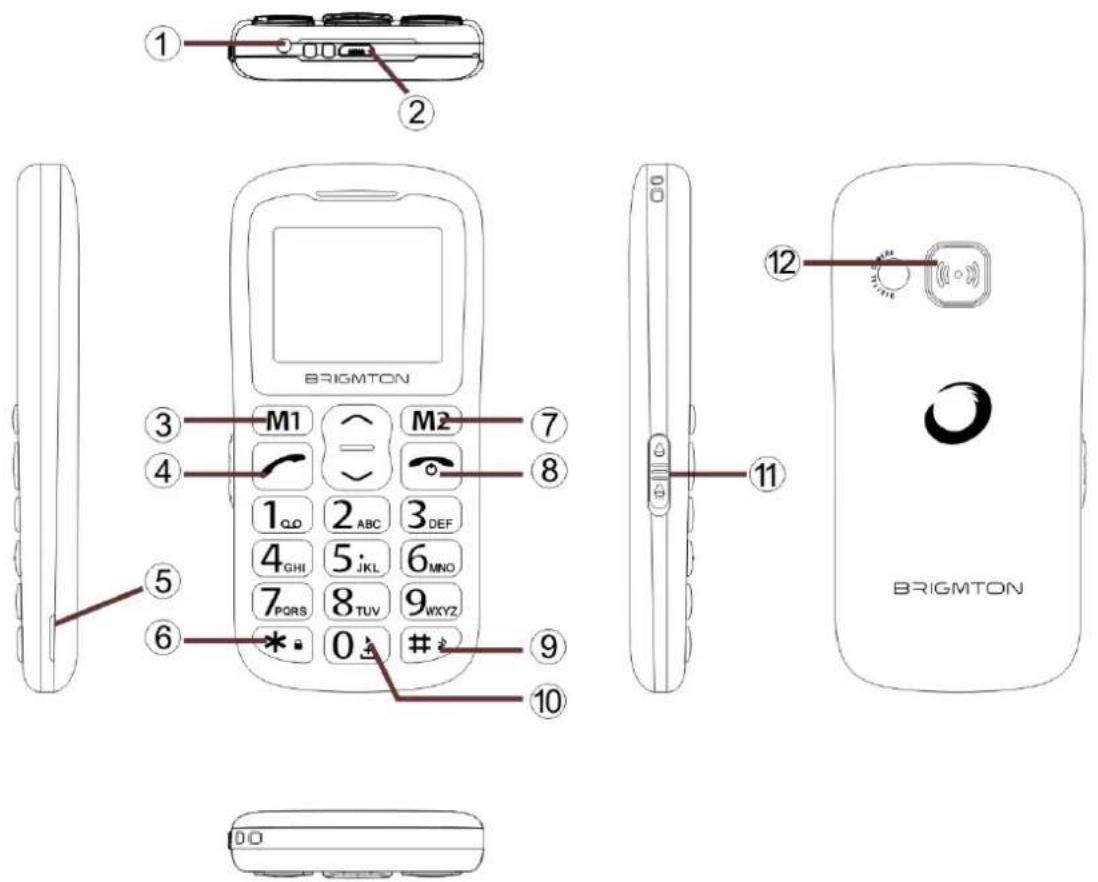
- LED light
2.USB port - M1 button, in standby mode, press this button enter into main menu.
- Call button.
- Snap joint, please open the battery cover here.
6.* key, in standby mode, long press this key to lock/unlock the keypad, when edit message, press this key to input symbol. - M2 button .In standby mode, press M2 enter into phonebook.
- End call /power on/power off.
9 .# key, long press it change to Silent mode / change input method. - 0 key, Take photos/play music, input + before international Phone numbers.
- Torch Key.
- SOS button.
OPERATION
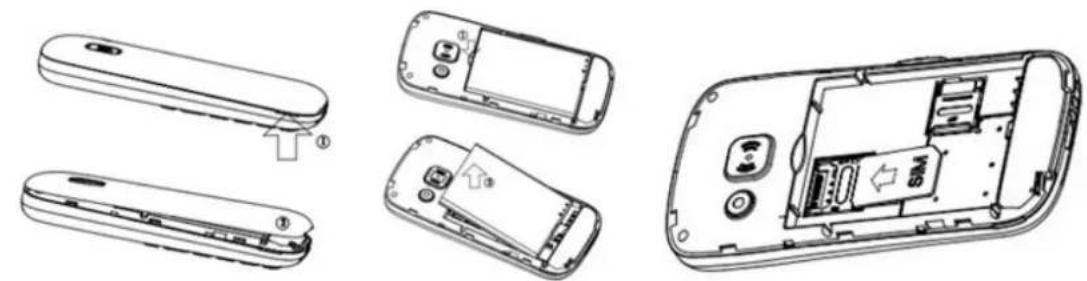
INSTALLING THE SIM CARD AND BATTERY
- Remove the battery cover.
- Insert the T-Flash card by carefully sliding into the holder.
-
Insert the SIM card by carefully sliding into the holder. Make sure the SIM card's contacts are facing inwards.
-
Insert the battery by sliding it into the battery compartment.
- Replace the battery cover.
natural_image
Exploded view diagram of a mobile phone showing internal components and casing (no text or labels)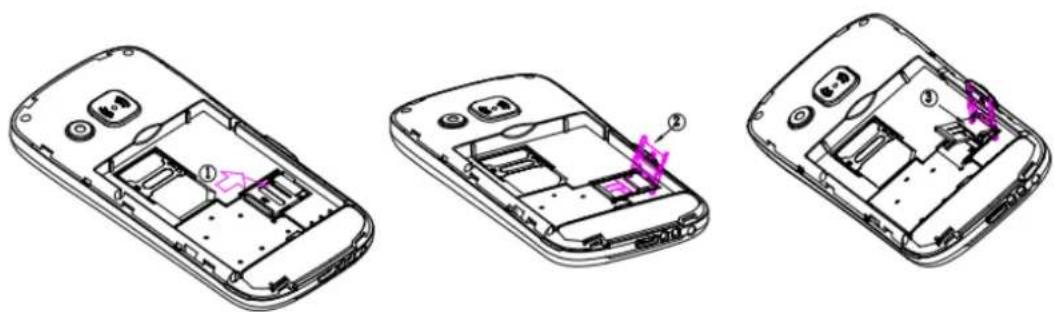
natural_image
Three line drawings of a smartphone showing internal components and labeled parts (no text or symbols present)CONTACTS
Add new contact
- Press Menu to enter contacts and press OK.
- Select Add Contact and press OK.
- Enter the name. Press the Up / Down buttons to fill in the following option, number, image and tone.
- Press Option and save the contact.
- Press Back to return to the standby mode.
Calling
- In standby mode, enter the phone number including the area code.
- Press to dial. Press Cancel to cancel the call.
Make a call from the phonebook
- In Idle mode, press Name to open the phone book.
- Use the Up / Down buttons to view the contacts or perform a quick search by pressing the first letter of the name.
- Press the green call button to call the selected contact.
Note: To enter +, required in international numbers, press and hold the ^ button.
MESSAGES
Write and send SMS
-
Press Menu and select the message menu. Press OK.
-
Select Write message and press OK.
- Use the letters to write the message. Press * to enter symbols. Press # to change the input method
- Press Options to select the number or name and send.
Inbox
- Press Menu and select the message menu. Press OK.
- Select Inbox and press OK.
- Select a message from the list and press Options to view the message.
Other options: View / Reply / Call / Forward to others / Delete / Delete all / Save to calendar (save the sender's number)
Draft
Store saved messages.
- Press Menu and select the message menu. Press OK.
- Select Draft and press OK.
- Select a message from the list and press Options to View / Send / Edit / Delete / Delete All.
Outbox
- Press Menu and select the message menu. Press OK.
- Select Output Tray and press OK.
- Select a message from the list and press Options to View / Forward / Edit / Delete / Delete All.
Sent messages
To check all sent messages.
SMS Settings
You can check the memory status and configure preferred storage or save sent messages.
CALLS
All incoming, missed, and outgoing calls are stored in the call center.
View call history
- Press Menu and select the call menu and press OK.
- Select Call History and press OK.
- You can check the call records:
Missed/Recieved/Received/All Calls
Delete call records: Missed / Done / Received / All calls
Call settings
- Press Menu and select the call menu and press OK.
- Select Call settings and press OK.
- You can activate or deactivate the functions below:
Caller ID.
Call waiting.
Call forwarding.
Call blocking.
Advanced configuration:
Auto re-call. ON / OFF
Callback reminder: ON / OFF
Answer Mode: Press OK to select "Any Key" or "Auto Answer".
ORGANIZER
Alarm
- Press Menu and enter organizer and press OK. Press Alarm.
- Select an alarm and press Edit and select the status. Use the * and # buttons to select Off / On.
- Select time and enter the time
- Snooze: To select the time until it rings again. Use the * and # buttons to select the time or leave it idle.
- Repeat: Select once / daily / Choose (day)
- Alarm tone, press Option and select the tone.
- Alert Type: Use the * and # buttons to select Vibrate / Sonar / Vibrate and Ring.
- Press save to save the alarm.
Calendar
- Press Menu and enter Organizer. Select Calendar.
Today's date will be displayed on the screen. - Press Options to make the following settings:
View: Displays the event for the selected date.
View all: View all events
Add event:
A. Enter the subject for the event.
B. Enter a start date and time for the event.
C. Enter the end date and time of the event.
D. Enter the subject of the event.
E. Activates alarm and repeat times for the event.
F. Enter the location of the event.
G. Save the event.
Delete event: Delete the selected event.
Go to date: Enter the date and press OK.
Go to Today: Press to carry today's date
View of the week: Shows the week
Calculator
- Press Menu and enter Organizer. Select Calculator.
- Enter numbers and use # for the decimal point.
- Use the Up / Down arrows for (+ - * ÷) and press OK.
Enter the next number and press OK.
The result is displayed on the screen.
Bluetooth
- Press Menu and enter Organizer. Select Bluetooth
- Status: Press Active / Inactive to turn Bluetooth on or off.
- Visibility: Select Active / Inactive to turn visibility on or off.
- My device: Add new devices.
- Device search
- My name: Change the name of your device (current BTM-11).
- Advanced: You can configure the Audio Path / Memory / My Address
- Audio path: Select normal or bluetooth headset.
- Memory: Select phone / card.
- My address: Bluetooth address.
MULTIMEDIA
FM Radio
- Press Menu to enter Multimedia and select FM Radio.
- Press OK to display the list of stations. Press the Up / Down button to switch from one station to another
- Select Options and Broadcasters to access the stored stations. To save a station press the selected memory and Option, Edit and enter Name and Frequency.
- Select Dial to enter the station directly.
- Select Automatic Search to start the station search.
- Select settings to edit Background Sounds, to leave the radio playing in other menus.
Take photos
- Press Menu to enter Multimedia and select Camera
- Press "0" to take a photo, the photo will be saved automatically.
- To view the image, go to the Image Viewer.
File manager
You can see all your files, both the memory card and the phone, you can also Format your memory card
Play music
- Store music on your phone or memory card first.
- Press Menu, Multimedia and select File manager.
- Select the preferred music from your phone or memory card and press "0" to play or pause it.
- Press up / down to select the last song or the next song.
- To control the volume use * and #
- Press the hang up button to stop.
CONFIGURATIONS
SOS
-
Press OK.
-
Status: Press OK to switch to SOS on / off.
- SOS numbers: Select to set the family numbers.
You can set up to 5 numbers. - SOS SMS Status: Press OK to switch to SOS SMS on / off.
- SOS SMS: Enter the message to be sent.
- Tone Warning: Press OK to activate or deactivate.
Make an SOS call
Before making an SOS call, make sure that the SOS status is activated and you have already completed the SOS settings.
When you press the SOS button, the phone will automatically send SOS messages to the 5 SOS numbers and then call the 5 SOS numbers one by one.
Phone
Select Phone settings and press OK.
-
Setting time and date
-
Select the time zone and press OK
- Select Time and date and press OK.
- Select time / date format.
-
Update with time zone
-
Language
- Press to select the language in the list and press OK.
- Input Method
- Select the preferred input method and press OK.
-
Screen
-
Wallpaper: Select the desired wallpaper.
- Backlight: Select the time and intensity.
- Display date and time: Displays the date and time.
- Show operator name
Profiles
In the configuration menu, select profiles and press OK:
general
Silence
Conference
Exterior
In each mode you can Activate / Personalize / Reset.
Customize general mode: you can configure the following options:
- Alert type: Sonar / Vibrate / Sonar + Vibrate / Sonar after Vibrate.
- Type of tone: Repeat / 1 beep.
- Received call tone: select the desired sound.
- Tone Volume
-
SMS tone: Select the desired tone
-
SMS volume
- Audible Keypad: When pressing numeric keys a voice says the number.
- Volume Key: Select the volume of the audible keyboard.
- Power Tone
- Off tone
- System Alert
Speed Dial:
Keys M1, M2: You can enter direct dial numbers in M1 and M2. To do this you must have the contacts stored in the phonebook first.
Select Enable or Disable.
Keys 2-9: You can enter direct dial numbers in M1 and M2. To do this you must have the contacts stored in the phonebook first.
Select Enable or Disable.
Lock function: You can enable / disable the functions you want so that they are not accessed and make the operation of the device easier.
Designated key: Select the desired shortcut function for the Up / Down buttons
Security
- SIM: Set the SIM PIN
- Phone: You can set a phone lock password.
- Auto lock: You can set the time to automatic lock or deactivate it.
Restore factory settings: Enter (0000) to reset your phone to the default setting.
"Features can change without notice"
BRIGMTON
surfing technology
IMPORTED
FERSON ELECTRÓNICA, S.A.
CIF: A-41111881
SANTA CLARA DE CUBA 12
SEVILLA
ESPAÑA
DECLARATION OF CONFORMITY
Ferson Electrónica, S.A. declares under our responsibility that the equipment meets the requirements indicated in the following directives:
ECM DIRECTIVES
- EN60950-1:2006+A11:2009+A1:2010+A12:2011+A2:2013
- IEC 62471:2006
- EN 50566:2013
- EN 50360:2001/A1:2012
- EN 62209-1:2006
- EN 62209-2:2010
- EN 62479:2010
- EN 301 489-1 V1.9.2
- EN 301 489-7 V1.3.1
- EN 301 489-17 V2.2.1
- EN 301 511 V9.0.2
- EN 300 328 V1.9.1
Description of apparatus:
Model BRIGMTON BTM-11
Phone


BRIGMTON
surfing technology
- BRIGMTON
- INSTRUCTION MANUAL
- CONTROLS
- OPERATION
- INSTALLING THE SIM CARD AND BATTERY
- CONTACTS
- Add new contact
- Calling
- Make a call from the phonebook
- MESSAGES
- Write and send SMS
- Inbox
- Draft
- Outbox
- CALLS
- View call history
- Call settings
- ORGANIZER
- Alarm
- Calendar
- Add event:
- Calculator
- Bluetooth
- MULTIMEDIA
- FM Radio
- Take photos
- File manager
- Play music
- CONFIGURATIONS
- SOS
- Phone
- Profiles
- Speed Dial:
- Security
- DECLARATION OF CONFORMITY
- ECM DIRECTIVES
Brand : BRIGMTON
Model : BTM-11
Category : Smartphone