
BPhone-551QC - Smartphone BRIGMTON - Free user manual and instructions
Find the device manual for free BPhone-551QC BRIGMTON in PDF.


| Product Type | Smartphone |
| Brand | Brigmton |
| Model | BPhone-551QC |
| Dimensions | 145 x 72 x 8.5 mm (estimated) |
| Weight | 150 g (estimated) |
| Display | 5.5-inch capacitive touch screen |
| Operating System | Android (version not specified) |
| Processor | Quad-core 1.3 GHz (estimated) |
| RAM | 1 GB (estimated) |
| Internal Storage | 8 GB (estimated) |
| Expandable Storage | microSD up to 32 GB (estimated) |
| Rear Camera | 5 MP with flash (estimated) |
| Front Camera | 2 MP (estimated) |
| Battery | Removable Li-Ion, 2500 mAh (estimated) |
| Charging Time | 2–5 hours |
| Connectivity | WiFi 802.11 b/g/n, Bluetooth 4.0, 3G WCDMA |
| SIM Card | Single SIM (2G/3G) |
| Headphone Jack | 3.5 mm |
| USB | Micro USB 2.0 |
| Safety | Temperature range -10°C to +55°C; avoid liquids and dust |
| Cleaning | Wipe with a soft dry cloth; do not use liquids |
| Spare Parts | Removable back cover and battery; other parts not user-replaceable |
| Repairability | Low; contact authorized service center |
Frequently Asked Questions - BPhone-551QC BRIGMTON
User questions about BPhone-551QC BRIGMTON
0 question about this device. Answer the ones you know or ask your own.
Ask a new question about this device
Download the instructions for your Smartphone in PDF format for free! Find your manual BPhone-551QC - BRIGMTON and take your electronic device back in hand. On this page are published all the documents necessary for the use of your device. BPhone-551QC by BRIGMTON.
USER MANUAL BPhone-551QC BRIGMTON
Never attempt to disassemble the phone. You are solely responsible for how you use your phone and any consequences of its use.
As a rule, switch off your phone whenever phone use is prohibited. Using the phone is subject to safety measures designed to protect users and their environment.
Do not use the phone in damp areas (bathroom, swimming pool, sports activities, etc.).
Protect it from liquids, moisture and sweat.
Do not expose your phone to extreme temperatures lower (-10 °C / + 55 °C)
The physicochemical processes that occur in batteries impose temperature limits when charging the battery. Your phone automatically protects the batteries in extreme temperatures.
Do not leave your phone within the reach of small children, the removable parts may be accidentally ingested.
Electrical safety: Only use the chargers listed in the manufacturer's catalog.
Aircraft safety: When traveling by plane, you need to turn off your phone whenever directed by the cabin crew or the warning signs.
Personal Safety: To prevent possible hearing damage, do not listen at high volumes for long periods.
Explosive materials: Please comply with warning signs at petrol stations. Observe restrictions on the use in places such as chemical plants, fuel depots, etc.
Electronic equipment: To avoid the risk of demagnetization, do not let electronic devices close to your phone for a long time.
Electronic medical equipment: Your phone is a radio transmitter which may interfere with electronic medical or implants, such as hearing aids, pacemakers, insulin pumps equipment, etc. It is recommended that a minimum distance of 15 cm between the phone and an implant. Your doctor or the manufacturers of such equipment will be able to give you any advice you may need on this subject.
Hospitals: Make sure the phone is switched off in hospitals when so instructed by warning signs or by medical staff.
Traffic safety: Do not use the phone while driving. In order to give your full attention to driving, stop and park safely before making a call. You must comply with any legislation.
2. GENERAL DESCRIPTIONS
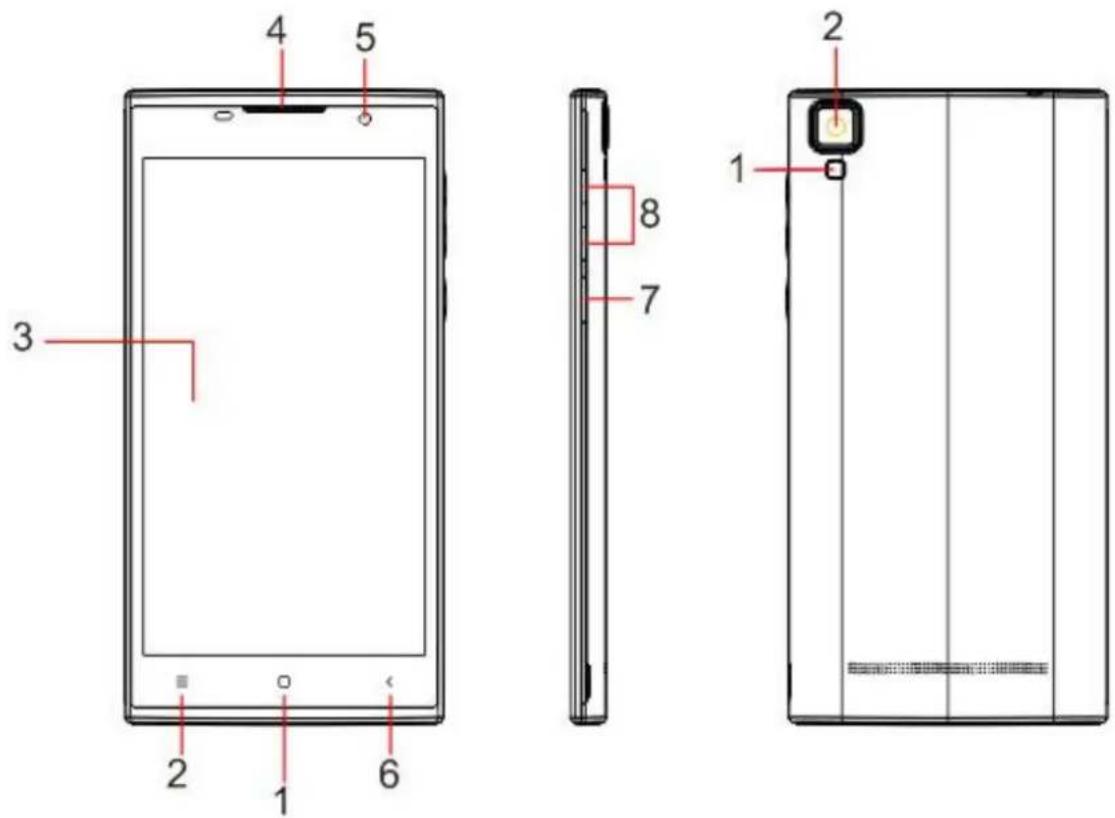
FRONT PANEL
1) Start button
2) Menu button
3) Touch screen
4) Headphone input
5) Front camera
6) Return button
7) Power button
8) Volume button
REAR PANEL
1) Rear camera
2) Flash
3. INSTALL THE SIM CARD
You need to remove the back cover before you can install the SIM card and battery. Also, always be sure to disconnect the power before installing or replacing the SIM card.
To remove the back cover
1) Make sure your device is turned off.
2) Use your fingernail to open the back cover with the help of the notch.
To install the SIM card
The device supports 2G and 3G (WCDMA) SIM cards.
1) Locate the SIM card slot, then insert the SIM card with your address as the following figure.
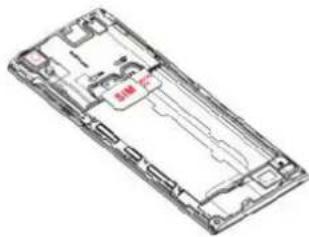
2) Slide the SIM card into the slot
4. INSTALLING THE CARD STORAGE
To have additional storage for your images, videos, music and files, you can buy a memory card and install it on your device.
1) Make sure your device is turned off and remove the back cover.
2) Locate the memory card slot on the top of the right panel exposed.
3) Insert the memory card into the slot according to the icon display.
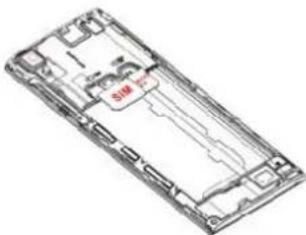
To remove the memory card, the same but in reverse.
Note: Make sure the power is off before inserting or removing the memory card to avoid damage.
5. BATTERY CHARGE
New batteries are partially charged. Before using the device, it is recommended that you charge the battery. Some batteries perform best after several cycles of full charge / discharge.
- Connect the DC end of the adapter into the micro USB port on the device and connect the end of the AC power outlet for charging.
- It normally takes about 2 \~ 5 hours to fully charge the device. The operation of the device while charging with the AC adapter may extend the time of full charge.
- NOT USE THE PHONE WHILE CHARGING.
6. ON / OFF
- To switch on, hold the power button until the startup screen appears, then release, automatically enter the Home screen. If this is the first time it is used, it will enter setup menu guide. Please follow the instructions on the screen.
- Press the power button once to enter sleep mode and press it again to open the device.
- Hold down the power button and then click OK to turn off the device.
NOTE: If the system is stopped, press and hold the power button until
7. MENU DESCRIPTION
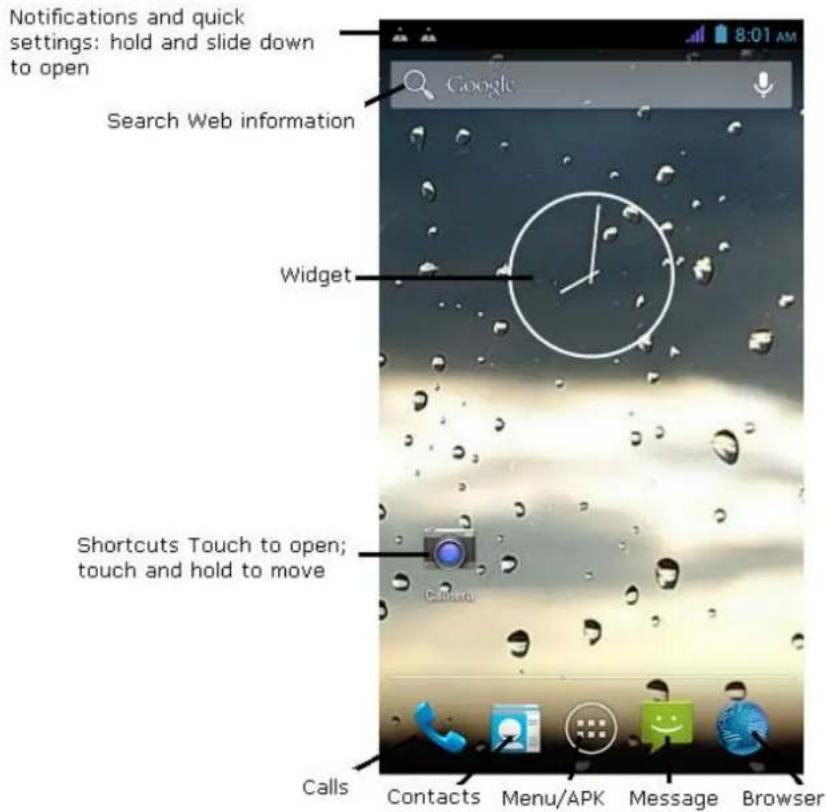
8. CHANGE OF LANGUAGE AND TIME
From the Start menu click on the icon and select Settings to access the options list.
- Select Settings-Language and Text Input-Language: change the language of the OSD.
- Select Settings- Date and time: change the system time.
9. CONNECTING TO A WI-FI NETWORK
- In the home screen click on the icon and select Settings to access the options list. Select Wireless & networks.
- If the WiFi is off, tap the Wi-Fi line to turn it on.
- The device scans for Wi-Fi networks and displays them on the screen.
- Tap the network you want to connect. Then tap the password field to enter the required network information and tap "connect".
- The device will attempt to connect to the access point with the Wi-Fi network settings you entered
10. PC CONNECTION
- Connect the device to your PC via the USB cable.
- The required driver is automatically installed and then click "Turn on USB storage" in the phone screen to activate the USB storage.
- Select the content you want to transfer from your PC.
- Drag the content from the PC to the device.
- Do not disconnect the USB cable during charging can cause a malfunction of the device and files.
- Use your PC to disconnect the device
11. TROUBLESHOOTING
1: What if water enters the device?
- DO NOT turn on the device.
- Disconnect the power outlet in order to deactivate instead of pressing the power button. Disconnect all external devices and then send it to the service center for advice.
2: How to check if the device does not turn?
- If the power is low, connect the adapter to charge.
- Remove the micro-SD card and any other external device.
3: How to restore the factory settings?
- Go to Settings --- backup & restore --- Factory data reset to restore the system to the default state.
4: How to prolong battery usage
- Adjust the brightness of the touch screen to proper level Display Settings
- Lower the volume.
- Set the time of suspension to the proper level Settings / Display / suspension time
5: What if the micro SD or SIM card can not be read?
- Please turn off the device and reinsert the card.
6: Why Bluetooth and 3G function is disabled? (Applicable only for model with Bluetooth and 3G)
- When the "airplane mode" is enabled, Bluetooth and 3G function can not be activated.
"Features can change without notice"
BRIGMTON
surfing technology
IMPORTED
FERSON ELECTRÓNICA, S.A.
CIF: A-41111881
SANTA CLARA DE CUBA 12
SEVILLA
ESPAÑA
DECLARATION OF CONFORMITY
Ferson Electrónica, S.A. declares under our responsibility that the equipment meets the requirements indicated in the following directives:
EMC DIRECTIVES
EN60950-1:2006/A11:2009/A1:2010
EN 62311: 2088
EN 301 489-1 V1.9.2:2011-09
EN 301 489-17 V2.1.1:2009-05
EN 300 328 V1.7.1: 2006-10
ETSI EN 301 489-1 V1.9.2(2011-09)
ETSI EN 301 489-17 V2.1.1(2009-05)
Description of apparatus:
BRIGMTON Model BPHONE-551QC
Mobile Internet Device
CE
- GENERAL DESCRIPTIONS
- FRONT PANEL
- REAR PANEL
- INSTALL THE SIM CARD
- To remove the back cover
- To install the SIM card
- INSTALLING THE CARD STORAGE
- BATTERY CHARGE
- ON / OFF
- MENU DESCRIPTION
- CHANGE OF LANGUAGE AND TIME
- CONNECTING TO A WI-FI NETWORK
- PC CONNECTION
- TROUBLESHOOTING
- BRIGMTON
- DECLARATION OF CONFORMITY
- EMC DIRECTIVES
Brand : BRIGMTON
Model : BPhone-551QC
Category : Smartphone