
MZ-5PA256 - SSD SAMSUNG - Free user manual and instructions
Find the device manual for free MZ-5PA256 SAMSUNG in PDF.


User questions about MZ-5PA256 SAMSUNG
0 question about this device. Answer the ones you know or ask your own.
Ask a new question about this device
Download the instructions for your SSD in PDF format for free! Find your manual MZ-5PA256 - SAMSUNG and take your electronic device back in hand. On this page are published all the documents necessary for the use of your device. MZ-5PA256 by SAMSUNG.
USER MANUAL MZ-5PA256 SAMSUNG
Samsung Solid State Drive Quick User Manual
Table of Contents
- SSD (Solid State Drive) Overview............3
- Precautions 3
Handling Precautions 3
Installation Precautions. 4
- Hardware Installation Guide 5
Notebook PC 5
Desktop PC. 6
- BIOS Configuration............7
- Operating System (OS) Installation............8
- Magician Software Installation............8
- Certified Specifications 9
- SAMSUNG SSD 470 Series Warranty Statement......10
1. SSD (Solid State Drive) Overview
SSD is an innovative information storage medium that boasts superior performance and higher reliability than conventional HDDs (Hard Disk Drive). SSDs provide very fast PC booting, application loading speed, and perform exceptionally well in multi-tasking environments. SSDs also have several great features such as very low power consumption, extremely low heat emission, no noise and outstanding stability compared to conventional HDDs. Please visit www.samsung.com/SSD for more information on SSDs.
The information contained in this document is subject to change without notice. All rights reserved.
2. Precautions
Handling Precautions
Injury or product damage may occur if the following guidelines are not followed.
- Shock
SSDs are built to be stronger against shock or vibration and can protect data with greater safety than conventional HDDs. However, please protect the product from heavy knocks. Severe blows may damage components in your SSD and may also cause hardware detection failures or operational failures when installed in your PC. In addition, severe blows may open or break the SSD cover.
- Short Circuit
Please keep metal objects out of the SATA Interface circuit. SSD circuits may be shorted if the SATA interface is contacted by metal objects or electrical shock. This may cause hardware detection failures or operational failures.
- Disassembly/Damage/Removal
Please do not disassemble the SSD, damage the SSD or remove the sticker or the label affixed on the product. Any product that has the case opened, or has a damaged or removed label on the back of the product shall not be covered by the warranty.
Installation Precautions
- Please ensure that the PC power is turned OFF and the power cable is unplugged before removing the PC cover to install the SSD. Serious damage may occur if an HDD is removed or SSD is installed while the PC power is turned on. Even though many PCs and storage devices support the Hot Plugging (Hot Swapping) feature of SATA interface, we strongly recommend that you still turn the PC power OFF and then start the installation process.
Note: Hot Plugging (Hot Swapping) allows changing storage devices while the PC power is turned on.
- Please disconnect all cables and disconnect the HDD from the bay and bracket properly and securely if you want to replace an installed HDD with an SSD. You should keep all the disassembled items safely, such as the bracket, screws, cables, etc., in order to install the SSD. If an existing SATA HDD is being replaced with an SSD, you can use the existing SATA interface cable and SATA power cable. If the SSD is being newly installed in your desktop PC, then you should prepare any necessary items such as a SATA interface cable, SATA power cable, 3.5 inch bracket, screws, etc.
- A SATA interface cable that is longer than 1 metre may result in hardware detection failures or operational failures.
Note: SATA cables are compatible with all SATA interface types (SATA 1.5 Gbps, 3 Gbps and 6 Gbps).
- Please check the terms and conditions of your PC manufacturer's warranty since it may prohibit the user from disassembling the PC and self-installing the SSD.
- This SSD 470 Series is designed, manufactured and certified for general desktop PC and notebook PC environments, so it is not intended or allowed to be used in enterprise server systems, workstations, and storage systems. If you need SSDs for applications or environments other than general PCs, please purchase a different product made specifically for such purposes.
3. Hardware Installation Guide
This section briefly describes the installation procedures of the SSD. For more information, please refer to the user manual of your PC.
Notebook PC
- Turn OFF the notebook PC power. Disconnect the power plug and remove the battery from the PC.

- Remove the HDD cover on the back of the notebook PC, and then carefully remove the HDD from the bay without damaging the HDD connector.
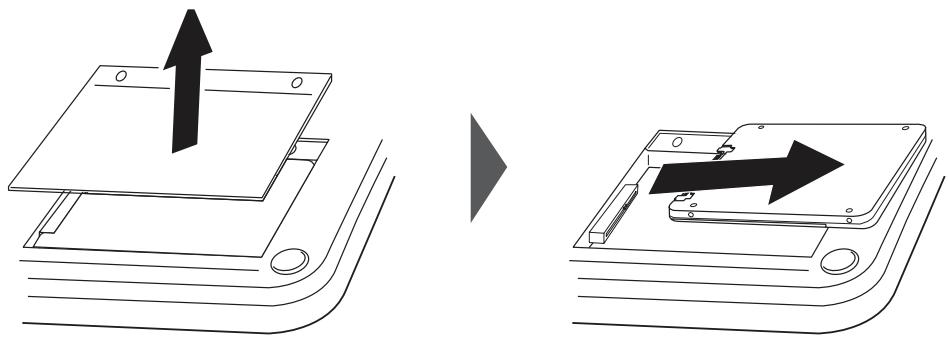
- If the HDD is fixed with a bracket, then disassemble the HDD from the bracket. Be careful when you disconnect the connector or cables from the HDD.
- Precisely assemble the SSD with the bracket, and then connect the cable.
- Insert the SSD into the bay carefully so it fits properly, and then close the HDD cover.
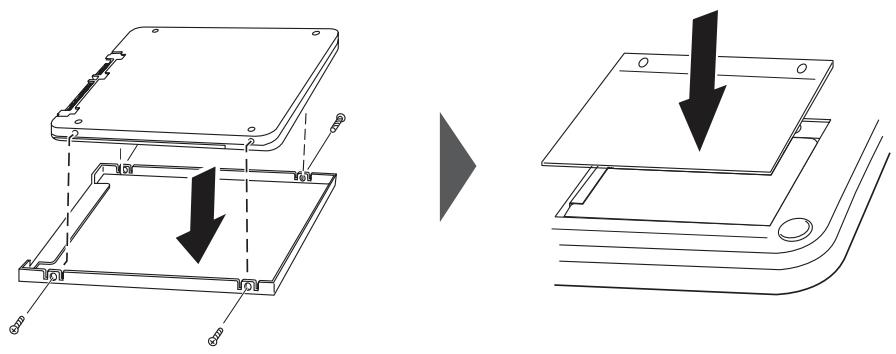
- Re-insert the battery.
Desktop PC
- Turn OFF the desktop PC power and disconnect the power cable.
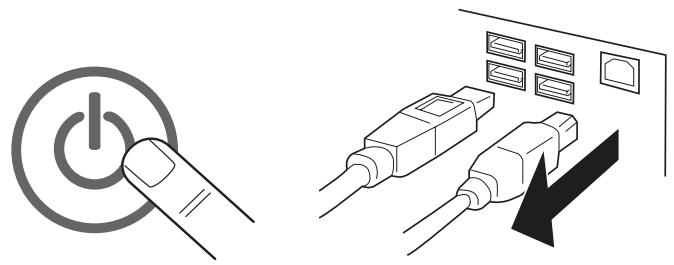
- Remove the desktop PC cover.
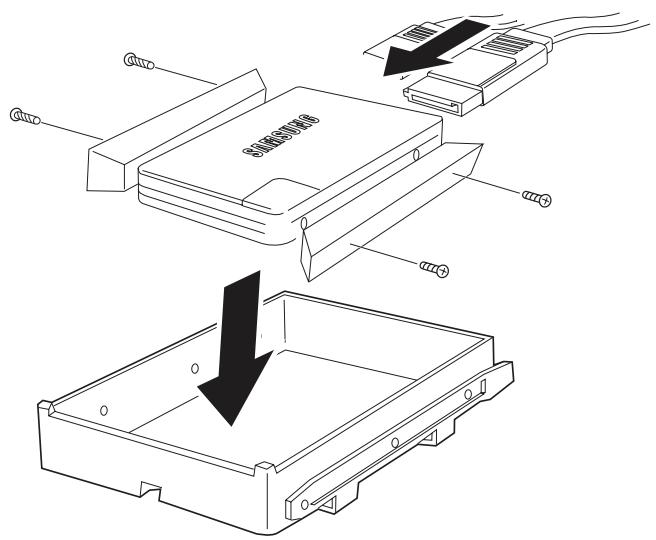
- If the SSD is added in addition to the existing storage device, mount it in a 2.5" HDD bay. Next, connect the SATA cable and power cable to the SSD. If your PC is only equipped with 3.5" HDD bays, then assemble the SSD in a 2.5" to 3.5" bracket first and then mount the bracket in an empty HDD bay.
- If you are replacing an existing HDD with the SSD, disconnect all cables connected to the HDD and then remove the HDD from the bay. Assemble the SSD in a 2.5'' to 3.5'' bracket first and then mount the bracket in an empty HDD bay. Next, connect the SATA cable and power cable properly.
Note: You may need proprietary chassis screws, rails or brackets to use in the drive bay.
Note: Desktop PCs have multiple SATA ports based on the PC chipset and motherboard model. It is recommended that the SSD be connected to the lowest numbered SATA port. Most desktop PCs have 4~6 SATA ports and each is numbered on the motherboard or indicated in the user manual. If SATA port numbers are not indicated on the motherboard or you are not sure about port numbers, then you can simply install the SSD on any available port.
- Close the desktop PC cover and reconnect the PC power cable.

4. BIOS Configuration
In most cases, the system will automatically detect the newly installed SSD when you restart the PC. If not, please follow the procedure indicated below or refer to the user manual of your PC.
- Turn the PC power ON.
- Press the special key for your system to get into the PC BIOS settings (also called CMOS) during the initial booting process.
Note: The way to get into the BIOS settings and the settings menu differs between PC manufacturers. Refer to your PC's user manual for the detailed procedure. In most cases the key is the F2 or Delete key.
- After entering the PC BIOS settings, make sure that your PC BIOS recognises your Samsung SSD 470 Series and the operation mode is [SATA].
Note: The BIOS type may be different between PC motherboard manufacturers and PC manufacturers. As a result, the BIOS configuration and the menu names of the features may vary slightly for different PC brands and/or models. Some PC manufacturers have the BIOS optimised exclusively for their PCs and may provide only limited setting options. For more details, please refer to the user manual provided by your PC manufacturer.
- If the PC BIOS and OS support [AHCI] mode, enable [AHCI] mode.
Note: Some PC chipsets do not support [AHCI] mode even if they support the SATA interface. Check your PC's user manual.
- Save BIOS settings and reboot the PC.
Note: If the BIOS detects the SSD and a booting error message appears during the PC booting process, then the SSD installation has been done correctly and you can now start installing an OS.
5. Operating System (OS) Installation
It is recommended that you reinstall your OS to ensure an optimal operating environment for the SSD.
For the detailed OS installation procedures, refer to the user manual or installation guide for the OS that you prefer to install.
Note: If you are using a previous version of Windows OS, such as Windows XP or Windows Vista, then it is recommended that you upgrade to Windows 7 because it supports the most optimal operating environment for SSDs such as native support of AHCI drivers and TRIM command support.
Note: The SSD 470 Series may not operate properly under Mac OS X versions lower than 10.5 Leopard.
6. Magician Software Installation
Samsung provides dedicated software for the Samsung SSD 470 Series in order to maintain the best operating environment for Samsung SSDs. The Samsung SSD Magician software provides various features, such as system information analysis, SSD performance optimisation (TRIM features), SSD benchmark testing and the latest firmware updates.
To install the Samsung SSD Magician software, please visit www.samsung.com/SSD and download the installation file and user manuals.
Note: The Samsung Magician software only supports the SSD 470 Series.
7. Certified Specifications
CE (European Union/Community)
VCCI (Voluntary Control Council for Interference by Information)
FCC (Federal Communications Commission)
C-TICK (Australian Communications Authority certification mark)
KCC (Korea Communications Commission)
BSMI (Bureau of Standards, Metrology and Inspection)
• cUL (C- Underwriter's Laboratories, Inc.)
- TUV (Technischer Uberwachungs Verein)
- CB (IECEE CB Scheme)

This marking on products, accessories and/or accompanying documents means that used electrical and electronic equipment should not be mixed with general household waste. For proper treatment, recovery and recycling, take this product to designated collection points where it will be accepted free of charge. Contact your local authority for further details about your nearest designated collection point. Business users in the European Union intending to discard electrical and electronic equipment should contact their dealer or supplier for further information.
8. SAMSUNG SSD 470 Series Warranty Statement
Thank you for purchasing a SAMSUNG Solid State Drive 470 Series (the "Product"). SAMSUNG values your business and always attempts to provide you with the very best quality of service.
PLEASE CAREFULLY READ THE FOLLOWING TERMS AND CONDITIONS BEFORE USING THE PRODUCT PROVIDED BY SAMSUNG ELECTRONICS CO., LTD. ("SAMSUNG"). YOUR USE OF THE PRODUCT CONSTITUTES AGREEMENT WITH THE TERMS AND CONDITIONS OF THIS SAMSUNG SSD WARRANTY STATEMENT ("AGREEMENT"). IF YOU DO NOT AGREE TO THE TERMS AND CONDITIONS OF THIS AGREEMENT, DO NOT USE THE PRODUCT.
A. Warranty Policy
SAMSUNG warrants to the original end-user customer or purchaser of this Product ("You") that the Product is free from material defects and workmanship, subject to the conditions stated herein.
In the event SAMSUNG determines, in its sole discretion, that the Product suffers from material defects in manufacture and does not substantially conform to the published specifications under normal use, for as long as You own the Product, and subject to the conditions and exceptions stated in this Agreement, SAMSUNG will, at its option, either: (1) repair or replace the Product with a new or refurbished Product of equal or greater capacity and functionality; or (2) issue a credit, less any rebates, in accordance with the credit schedule provided in Section E of this Agreement. In the case of replacements, SAMSUNG may replace Your Product with one that was previously used, repaired and tested to meet SAMSUNG specifications. This warranty is provided only to You and is not transferable. Proof of purchase may be required.
THIS AGREEMENT CONTAINS SAMSUNG'S ENTIRE LIABILITY AND YOUR EXCLUSIVE REMEDY FOR BREACH OF THIS AGREEMENT. SAMSUNG DISCLAIMS ALL OTHER EXPRESS AND IMPLIED WARRANTYES, INCLUDING, BUT NOT LIMITED TO, ANY IMPLIED WARRANTYES OF MERCHANTABILITY, FITNESS FOR A PARTICULAR PURPOSE AND UNINFRINGEMENT. IN NO EVENT SHALL SAMSUNG, ITS SUPPLIERS OR ANY AFFILIATES BE LIABLE FOR ANY INDIRECT, CONSEQUENTIAL, INCIDENTAL OR SPECIAL DAMAGES, ANY FINANCIAL LOSS OR ANY LOST DATA OR FILES, EVEN IF SAMSUNG HAS BEEN ADVISED OF THE POSSIBILITY OF SUCH DAMAGE AND NOTWITHSTANDING THE FAILURE OF ESSENTIAL PURPOSE OF ANY LIMITED REMEDY. IN NO EVENT WILL SAMSUNG'S LIABILITY EXCEED THE AMOUNT PAID BY YOU FOR THE PRODUCT. THESE LIMITATIONS AND EXCLUSIONS APPLY TO THE FULLEST EXTENT PERMITTED BY APPLICABLE LAW.
B. Warranty Limitations
The warranty stated herein shall not apply if: (i) the Product was not used in accordance with any accompanying instructions, (ii) the Product was not used for its intended function (for example, using the SSD 470 Series in enterprise server systems, workstations, and storage systems), (iii) any failure or defect arose out of the presence of a third-party product, software or component, whether authorised or not, (iv) any failure or defect was a result of improper installation, misuse, unauthorised repair, modification or accident, and (v) there exist any other circumstances which SAMSUNG determines is evidence of a breach of this Agreement by You.
You agree that the Product shall not be used in life support systems or other applications where failure could threaten injury or life. SAMSUNG disclaims any and all liability in connection with, arising out of, or related to, any such use of the Product.
SAMSUNG's warranty also does not cover Products which, by way of example, have been received improperly packaged, altered, or physically damaged. Products will be inspected upon receipt. You can refer to a non-exhaustive list of examples of the warranty limitations below.
- Improperly packaged or shipped, including use of an unqualified shipping container
- Any alterations, modifications, or physical damage of the Product, including, but not limited to, deep scratches
- Any alterations, modifications, or removal of any SAMSUNG labels or barcodes on the Product
- Opened SSD casing
- Tampered with or missing tape seal or serial number
C. Warranty Period
| Type | Period |
| SSD 470 Series for desktop PC & notebook PC usage only | 3 years |
D. Return Procedure and Guidelines
SAMSUNG will not provide any warranty coverage unless claims are made in compliance with the proper return procedure. For more information regarding warranty service and customer support, You may contact an authorised SAMSUNG service centre or refer to www.SAMSUNG.com/SSD. For more information regarding the location of authorised SAMSUNG service centres, as well as access to the SAMSUNG automated customer service directory, You may refer to www.SAMSUNG.com . If determined necessary, You will be asked to provide Your name, address, phone number, email address and the Product serial number. You will then be issued a Return Material Authorisation ("RMA") number that must be included when returning the Product to SAMSUNG.
Products returned to SAMSUNG must be properly packaged in either their original packaging or packaging that provides protection equivalent to the original packaging and then sent to the address provided when receiving Your RMA number. An unauthorised return, i.e. one for which an RMA number has not been issued or is improperly packaged, will be returned to You at Your expense. The customer is responsible for the shipping charges to the service centre and SAMSUNG will cover the shipping cost when sending a replacement Product to the customer, if replacement is deemed to be necessary by SAMSUNG.
You are advised to ship any Products to SAMSUNG with the benefit of tracking information, as SAMSUNG is not responsible for any damage or loss to the Product while in transit. SAMSUNG also recommends that all data on the Product should be backed up before being sent to SAMSUNG. In the case of replacements, ownership of the original Product will be transferred to SAMSUNG and SAMSUNG will not return the original Product to You. Data recovery is not covered under this warranty and is not part of the repair or replacement process. SAMSUNG is not liable for any data loss or corruption in any cases.
You hereby acknowledge and agree that each region may have regional specific warranty implications that may change the terms and conditions of this Agreement in its specific application to You.
- For detailed information, please contact SAMSUNG or an authorised SAMSUNG service centre.
| Area | Centre | Contact Point | Remark |
| Europe Netherlands) | HANARO | Address : 5751 PC, Florijn 8, Deurne, The Netherlands Email: samsungmemory@hanaro.eu | End-user support only |
E. Credit Schedule
In the event SAMSUNG elects to provide You with a credit in accordance with the terms and conditions of this Agreement, SAMSUNG will remit to You such credit in accordance with (i) the stage of the Product in its applicable warranty term, and (ii) the current sales price of the same model of the Product or one of similar capacity. Remittance will be provided as follows:
| Year of Warranty (From the date of purchase) | Percentage of current sales price of Product or similar Product |
| Within one year | 100% |
| Within two years | 75% |
| Within three years | 50% |