
ENF656-USB-AGER - Router ENCORE - Free user manual and instructions
Find the device manual for free ENF656-USB-AGER ENCORE in PDF.


| Product Type | Wireless Router |
| Brand | ENCORE |
| Model | ENF656-USB-AGER |
| Dimensions (approx.) | 200 x 150 x 30 mm |
| Weight (approx.) | 300 g |
| Power Supply | 9V DC, 0.6A (AC adapter included) |
| Wireless Standard | IEEE 802.11 b/g/n |
| Frequency Band | 2.4 GHz |
| Wired Ports | 4 x 10/100 Mbps LAN, 1 x 10/100 Mbps WAN |
| USB Port | 1 x USB 2.0 (for sharing storage/printers) |
| Antenna | 2 x external detachable antennas |
| Security | WPA/WPA2-PSK, WEP, SPI firewall, MAC filtering |
| Management | Web-based GUI, DHCP, QoS, VPN pass-through |
| Operating Temperature | 0°C to 40°C |
| Humidity | 10% to 90% non-condensing |
| Care and Cleaning | Wipe with a soft, dry cloth. Do not use liquids or aerosols. |
| Safety Instructions | Keep away from water and heat sources. Use only the supplied adapter. |
| Spare Parts | No user-replaceable parts. Contact support for repairs. |
Frequently Asked Questions - ENF656-USB-AGER ENCORE
User questions about ENF656-USB-AGER ENCORE
0 question about this device. Answer the ones you know or ask your own.
Ask a new question about this device
Download the instructions for your Router in PDF format for free! Find your manual ENF656-USB-AGER - ENCORE and take your electronic device back in hand. On this page are published all the documents necessary for the use of your device. ENF656-USB-AGER by ENCORE.
USER MANUAL ENF656-USB-AGER ENCORE
56K Analog Modem User's Manual
APRIL 2008
Copyright
Copyright © 2008 by this company. All rights reserved. No part of this publication may be reproduced, transmitted, transcribed, stored in a retrieval system, or translated into any language or computer language, in any form or by any means, electronic, mechanical, magnetic, optical, chemical, manual or otherwise, without the prior written permission of this company.
Disclaimer
This company makes no representations or warranties, either expressed or implied, with respect to the contents hereof and specifically disclaims any warranties, merchantability or fitness for any particular purpose. Any software described in this manual is sold or licensed "as is". Should the programs prove defective following their purchase, the buyer (and not this company, its distributor, or its dealer) assumes the entire cost of all necessary servicing, repair, and any incidental or consequential damages resulting from any defect in the software. Further, this company reserves the right to revise this publication and to make changes from time to time in the contents hereof without obligation to notify any person of such revision or changes.
Caution
This device complies with part 15 of the FCC rules. Operation is subject to the following two conditions.
(1) This device may not cause harmful interference, and
(2) This device must accept any interference received, including interference that may cause undesired operation.
Per FCC 15.21, you are cautioned that changes or modifications not expressly approved by the part responsible for compliance could void the user's authority to operate the equipment.
All brand and product names mentioned in this manual are trademarks and/or registered trademarks of their respective holders.
Contents
1. Introduction......3
1.1 System Requirements ....3
1.2 Package Contents....3
2. Hardware Installation Instructions....3
2.1 USB Analog Modem....3
3. Software Driver Installation .... 4
3.1 Modem Software Driver Installation Procedures......4
3.1.1 For Windows Vista, XP, and 2000 ....5
3.1.2 For Windows ME and 98SE ....8
1. Introduction
Fax Modem Installation CD is an installation utility for USB Data / FAX / TAM Analog Modems. It automatically detects and installs recently installed modem hardware under Windows OS. This utility includes Install Driver, Install Software Utilities, User Manual and Readme four sections. Click Install Driver to start analog modem device driver installation process. Install Software Utilities includes "FAXTALK Communicator SE" (all modem software driver installation program), FAXTALK NetOnHold (modem software driver installation program for modems with Hold-on-Call feature), Adobe Reader and Panda Platinum Internet Security 2008. User Manual includes this user's manual and specs for all modems this utility supports. Readme includes modem software driver locations and modem hardware installation instructions.
1.1 System Requirements
● Pentium 100 MHz CPU or faster
● 32 MB system memory or more
● 10 MB free space on your hard drive
● 256-color VGA or higher resolution
CD-ROM drive
● One available PCI slot for internal modem.
● Microsoft Windows 98SE, ME, 2000, XP or Vista operating system disk
1.2 Package Contents
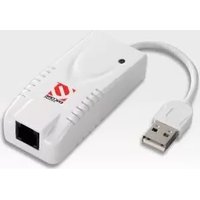
• One External Analog Modem
● One RJ-11 Cable
● One USB Cable for USB model
● Fax Modem Installation CD
- Quick Installation Guide
If any of above items is missing or damaged, please contact your local dealer immediately.
2. Hardware Installation Instructions
2.1 USB Analog Modem
1) Connect modem and PC with USB cable.
2) Plug one end of RJ-11 cable into modem's LINE jack and the other end into telephone wall jack.
3. Software Driver Installation
3.1 Modem Software Driver Installation Procedures
Insert FAX Modem Installation CD into CD-ROM drive then window below will appear.

Install Driver: Click Install Driver to start analog modem installation process.
Install Software Utilities: Install Software Utilities includes "FAXTALK Communicator SE" (all modem software driver installation program), FAXTALK NetOnHold (modem software driver installation program for modems with Hold-on-Call feature), Adobe Reader (Version 6.0 for Windows 98SE/ME/2000 and Version 8.0 for Windows XP/Vista) and Panda Platinum Internet Security 2008 (Supports Windows 2000/XP/Vista only).
User Manual: User Manual includes this user's manual and specs for modem this utility supports.
Readme: Readme includes modem software driver locations and modem hardware installation instructions.
3.1.1 For Windows Vista
Step 1: Please insert your installation CD into your CD drive, and then the CD will auto-run and show the main installation screen as below. Please click "Install Driver" to start the installation

Step 2: Click Install Driver to start the modem installation, window below will appear

Step 3: After Fax Modem Installation Utility finishes installing corresponding analog modem device driver, window below will appear. Click OK to complete the installation process.

Step 4: Click Exit to close FAX Modem Installation Utility.

Step 5: To check if modem is properly installed:
For Vista
Right-Click "My Computer" from Desktop icon → Choose "Properties" → Select "Device Manager".

For Windows XP
Click "Start → Settings → Control Panel → System → "Hardware" tab → Choose
"Device Manager"

For Windows 2000
Click "Start → Settings → Control Panel → System → "Hardware" tab → Choose
"Device Manager"

3.1.2 For Windows ME and 98SE
Step1: After the USB Modem hardware is installed in your computer, please turn on your computer. When the computer is started, the system will find the new hardware device and show the window as below. Just simply click "Cancel" to close the windows.

Step2: Please insert your installation CD into your CD drive, and then the CD will auto-run and show the main installation screen as below. Please click "Install Driver" to start the installation.

[For Windows ME]
Step 3: Please wait for while during the device driver is installing.

Step 4: After driver install process is completed, please click "OK".
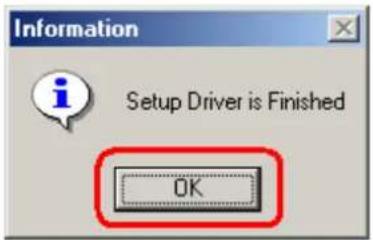
Step 5: Click Exit to close FAX Modem Installation Utility.

Step 6: To check if modem is properly installed:
For Windows ME
Click "Start → Settings → Control Panel → Modems".

[For Windows 98SE]
Step3: After driver install process is completed, please click "OK" to restart your computer.

Step4: After system boots up, operating system will detect the recently installed analog modem, window below will appear then click Next to continue.

Step5: Click Next to continue:

Step6: Select Specify a location (utility automatically gives driver location, so you don't have to enter the driver location path) then click Next to continue:

Step7: Click Next to continue:

Step8: After operating system finishes installing the analog modem driver, click Finish to complete the device driver installation:

Step9: Click OK to continue

Step10: Select Specify a location (utility automatically gives driver location, so you don't have to enter the driver location path) then click OK to continue:
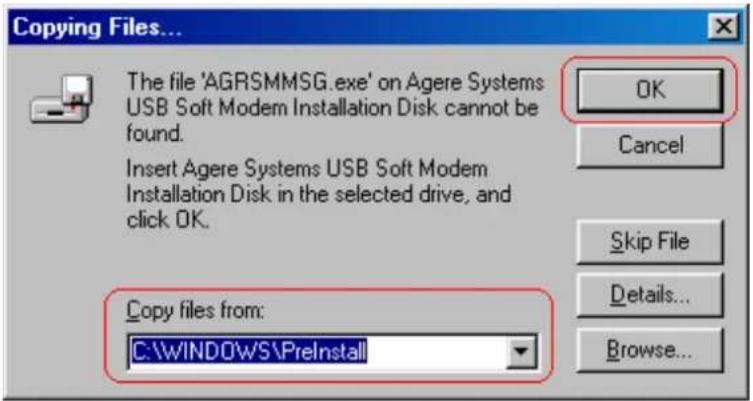
Step11: After operating system finishes installing the analog modem driver, click Finish to complete the device driver installation.
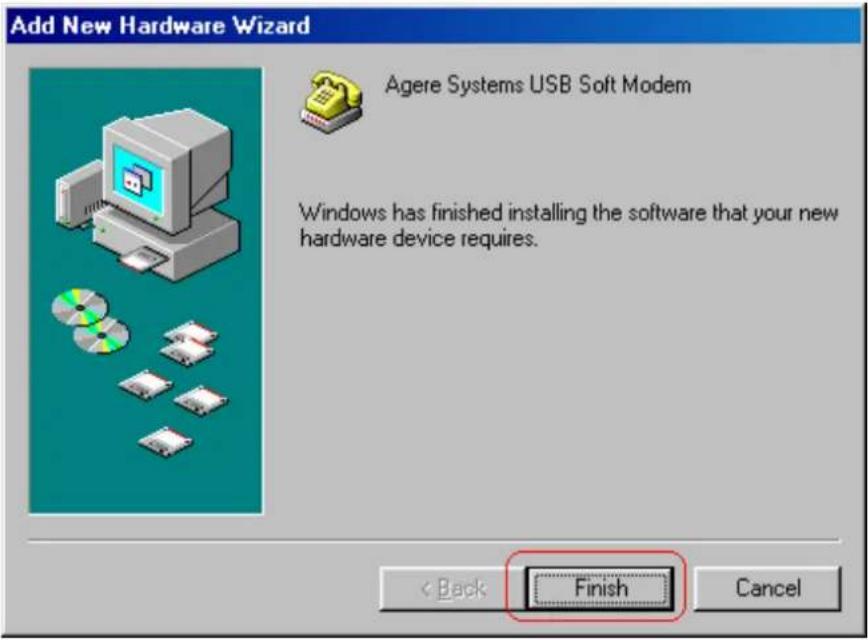
Step12: To check if modem is properly installed:
For Windows 98SE
Click "Start → Settings → Control Panel → Modems".


- 56K Analog Modem User's Manual
- Copyright
- Disclaimer
- Caution
- This device complies with part 15 of the FCC rules. Operation is subject to the following two conditions.
- Contents
- Introduction......3
- Hardware Installation Instructions....3
- Software Driver Installation .... 4
- Introduction
- System Requirements
- Package Contents
- Hardware Installation Instructions
- USB Analog Modem
- Software Driver Installation
- Modem Software Driver Installation Procedures
- For Windows Vista
- For Vista
- For Windows XP
- For Windows 2000
- For Windows ME and 98SE
- [For Windows ME]
- [For Windows 98SE]
Brand : ENCORE
Model : ENF656-USB-AGER
Category : Router