
HX-MT050DA - External hard drive SAMSUNG - Free user manual and instructions
Find the device manual for free HX-MT050DA SAMSUNG in PDF.


| Product type | Portable external hard drive |
| Brand | Samsung |
| Model | HX-MT050DA |
| Storage capacity | 500 GB (actual usable capacity may vary) |
| Interface | USB 2.0 High Speed (USB 1.1 compatible) |
| Maximum transfer rate | 480 Mbps |
| Power supply | USB bus-powered (self-powered) |
| Dimensions (W x D x H) | 111 x 82 x 17 mm |
| Weight | Approximately 160 g (estimated) |
| Pre-installed file system | FAT32 |
| Compatible operating systems | Windows XP, Vista, 7; Mac OS X 10.4.8 or later |
| Included software | Samsung Auto Backup (automatic backup), Samsung SecretZone (encryption) |
| Included accessories | USB 2.0 cable, protective case, quick start guide |
| LED indicator | Solid light when idle, blinking during transfer |
| Case material | Plastic |
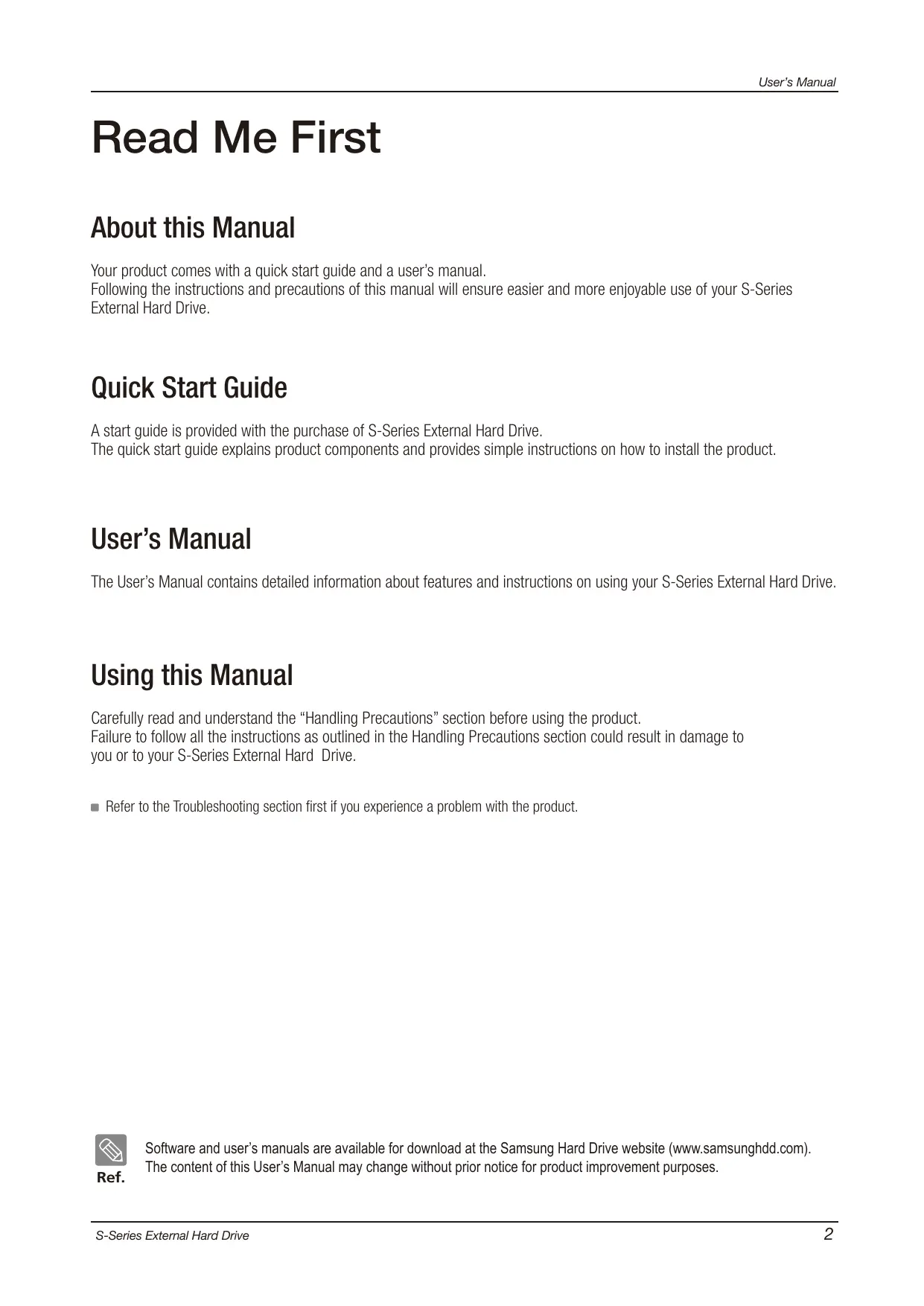
| Available colors | Black, White, Red, Brown, Blue, Pink (depending on region) |
| Warranty | 3 years (limited) |
| Care and cleaning | Clean with a soft, dry cloth. Do not use chemical products. |
| Safety precautions | Use the "Safely Remove Hardware" option before disconnecting. Avoid shocks, humidity, and magnets. Do not disassemble. |
| Spare parts and repairability | Not user-repairable. Contact an authorized Samsung service center. |
| Certifications | CE, FCC, VCCI, C-TICK, KCC, BSMI, cUL, TUV, CB |
Frequently Asked Questions - HX-MT050DA SAMSUNG
User questions about HX-MT050DA SAMSUNG
0 question about this device. Answer the ones you know or ask your own.
Ask a new question about this device
Download the instructions for your External hard drive in PDF format for free! Find your manual HX-MT050DA - SAMSUNG and take your electronic device back in hand. On this page are published all the documents necessary for the use of your device. HX-MT050DA by SAMSUNG.
USER MANUAL HX-MT050DA SAMSUNG
S-Series External Hard Drive User's manual
Read Me First
About this Manual
Your product comes with a quick start guide and a user's manual.
Following the instructions and precautions of this manual will ensure easier and more enjoyable use of your S-Series External Hard Drive.
Quick Start Guide
A start guide is provided with the purchase of S-Series External Hard Drive.
The quick start guide explains product components and provides simple instructions on how to install the product.
User's Manual
The User's Manual contains detailed information about features and instructions on using your S-Series External Hard Drive.
Using this Manual
Carefully read and understand the "Handling Precautions" section before using the product.
Failure to follow all the instructions as outlined in the Handling Precautions section could result in damage to you or to your S-Series External Hard Drive.
Refer to the Troubleshooting section first if you experience a problem with the product.

Ref.
Software and user's manuals are available for download at the Samsung Hard Drive website (www.samsunghdd.com).
The content of this User's Manual may change without prior notice for product improvement purposes.
Handling Precautions
The following information serves to ensure user's safety and prevent damage to user's properties. Carefully read the information provided and use your product correctly.
Supplied with the rated USB BUS Power
S-Series must use the USB Bus Power. Please connect to the USB Port supplied with the rated USB BUS Power.
Installation Related
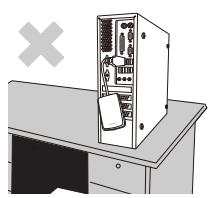
Use the product on a flat surface.
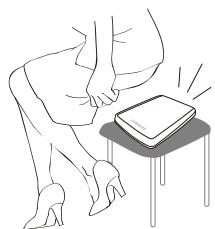
Do not sit on the product and do not place a heavy object over the product.
Product case or connector can be damaged and may cause a break down.
Data Cable Usage
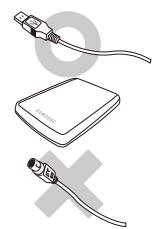
Standardized data cable.
This may increase the wrong operation and may cause a malfunction.
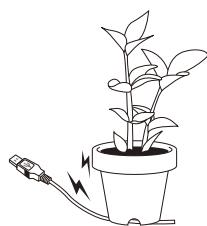
Do not severely bend the data cable and do not place a heavy object over the data cable.
If the data cable is damaged, it may cause a malfunction.
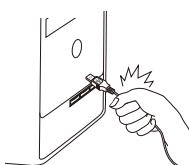
Do not unplug the data cable by severely pulling the cable.
This may damage connector on the product and may cause a problem with the product.
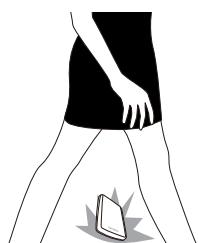
Shock
The external drive is very portable and you may easily drop it. Take care not to drop and tip the product while carrying the external drive. If you make an impact on the external drive, it may cause bad sectors on the disk. Bad sectors can cause various and potentially read/write errors.
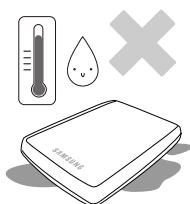
Humidity
If you use the product in places exposed to humidity, it may danger of electric shock. In addition, prolonged exposure to moisture can corrode various parts and components.
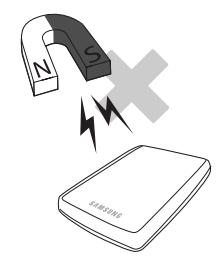
Magnets
Magnetic objects can cause various types of damage to the HDD, including data damage. Keep magnets and magnetic objects away from the external drive.
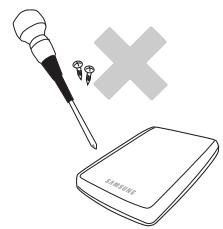
Disassembly and Label Removal
For repair, please visit the designated (samsung) customer service center. Unauthorized disassembly, repair, or reform of the product and unauthorized removal of the labeling will void your warranty.
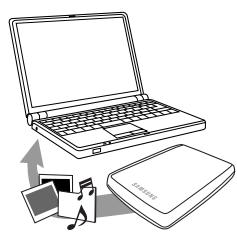
Always Backup your Important Data
The external drive manufacturer does not guarantee data stored in the external drive and will not assume responsibility for any mental or material damage incurred during data recovery.
- Backup : Storing the original and a copy on two or more separate and accessible storage media.
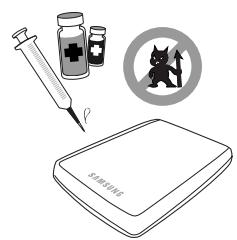
Regular Virus Scanning
Frequently scan the device for viruses and protect the external drive from virus infection.
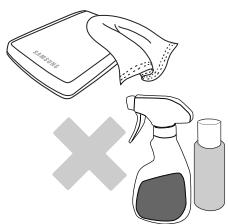
Cleaning the product
- Never use cleaning fluid or similar chemicals.
- Do not spay cleaner directly on the product.
- It may cause discoloration and deformation of the product.

Custody Related
Keep the product and accessories out of the reach of children. It may cause personal injuries and problem.
Safely Remove Hardware
Always use the Safely Remove Hardware feature before shutting down the HDD or disconnecting the USB cable and power cable.
1MB=1,000,000bytes / 1GB=1,000,000,000bytes
Actual accessible capacity may vary from advertised capacity due to formatting and partitioning of the hard drive, as well as due to your computer's operating system.
Table of Contents
Read Me First 2
About this Manual
Quick Installation Guide
User's Manual
Using this Manual
Handling Precautions
3 Supplied with the rated USB BUS Power
3 Installation Related
3 Data Cable Usage
3 Shock
3 Humidity
4 Magnets
4 Disassembly and Label Removal
4 Always Backup your Important Data
4 Regular Virus Scanning
4 Cleaning the product
4 Custody Related
4 Safely Remove Hardware
Introduction
6 Introduction
Specifications
7 S1 Mini / S2 Portable
8 S2 Portable 3.0
Connecting your S-Series
9 Installation
11 Windows
12 Macintosh
Using your S-Series
13 Copying / Moving Files
13 Removable Disk Method
15 Safely Removing your S-Series
15 For Windows
16 For Macintosh
S-Series Software
17 S-Series External Hard Drive Software
17 Samsung Auto Backup
17 Samsung Auto Backup Installation
19 Data Backup using Samsung Auto Backup
25 Quick Backup
26 Restoring Backup Data
29 Samsung SecretZoneTM
30 Virtual Drive with Samsung SecretZone™
Troubleshooting
32 FAQ
Appendix
33 Partitioning and Changing File System Type
33 Reformat to FAT32
34 Reformat to NTFS32
34 Format in Macintosh
35 Product Certifications
35 FCC
36 Warranty Information
Introduction
The S-Series External Hard Drive is a high-performance external hard drive that supports USB. Unlike conventional desktop disk drives, the S-Series External Hard Drive makes it possible for you to instantaneously add greater storage capacity to your system without having to take the computer apart.
This means that your S-Series External Hard Drive comes fully partitioned and formatted for your use and you can instantly access to the drive by simply plugging it into your computer through a USB port.
Rebooting and other cumbersome steps are not necessary. "SecretZone™", which is part of the software bundle that comes with your S-Series External Hard Drive, allows you to protect and manage your private data.
Specifications (S1 Mini / S2 Portable)
| Category | S1 Mini | S2 Portable | |
| Interface | High Speed USB | ||
| Transfer Rate | 480 Mbps Max. | ||
| Power | USB Host Power | ||
| Operating System | Windows XP / Vista / 7 | ||
| Mac OS X 10.4.8 or Later | |||
| Hard Disk Capacity | 120GB / 160GB / 200GB / 250GB | 160GB / 250GB / 320GB / 500GB / 640GB | 750GB, 1TB |
| Dimensions (W x H x L) | (62mm x 15mm x 87mm) | (82mm x 17mm x 111mm) | (82mm x 18mm x 111mm) |
| Color | Black / White / Red / Brown | Black / White / Red / Brown / Blue / Pink | |
| Format System | FAT32 | ||
System Requirements
PC:WindowsXP/Vista/7
Macintosh : Mac OS X 10.4.8 or Later
- Upgrade your operating system to the latest version to enjoy better performance and reliability.
Components
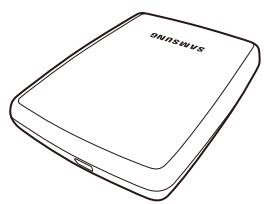
S1 Mini / S2 Portable
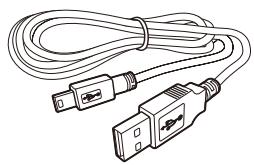
USB 2.0-Cable
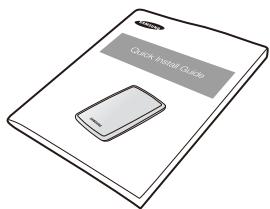
Quick Start Guide
Pouch
※ When you purchase a S1 Mini / S2 Portable External Hard Drive, make sure that all components have been included in your product package.
Overview
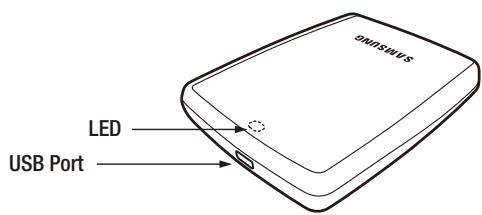

LED Description
1) Standby Status : Steadily lit LED
f. 2) Read/Write in Progress : Blinking LED
Some computers supply limited USB bus power. If your drive doesn't power on after connecting the USB cable, you may need to purchase a USB Y-cable from retailers or online shops.
Specifications (S2 Portable 3.0)
| Category | S2 Portable 3.0 |
| Interface | Super Speed USB |
| Transfer Rate | 5 Gbps Max. |
| Power | USB Host Power |
| Operating System | Windows XP / Vista / 7 |
| Hard Disk Capacity | 250GB / 320GB / 500GB / 640GB / 750GB / 1TB |
| Dimensions (W x H x L) | (82mm x 17mm x 111mm) |
| Color | Black |
| Format System | FAT32 |
System Requirements
PC:WindowsXP/Vista/7
- Upgrade your operating system to the latest version to enjoy better performance and reliability.
Components
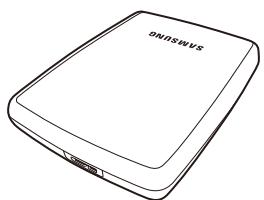
S2 Portable 3.0
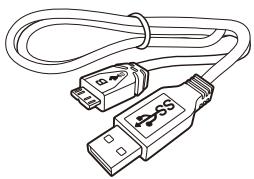
USB 3.0 Micro-B Cable
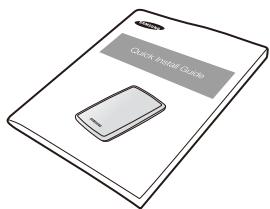
Quick Start Guide
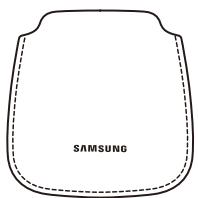
Pouch
※ When you purchase a S2 Portable 3.0 External Hard Drive, make sure that all components have been included in your product package.
Overview
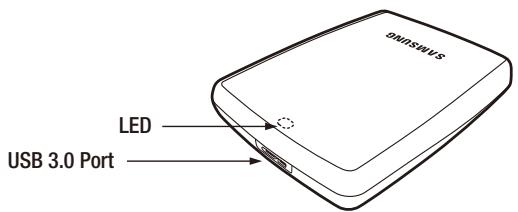

LED Description
1) Standby Status : Steadily lit LED
2) Read/Write in Progress : Blinking LED
Connecting your S1 Mini / S2 Portable
Installation
Verify that the computer meets the minimum system requirements as outlined in #System Requirements. Insert the USB cable to the desktop/laptop computer as shown in Figures 1 and 2:
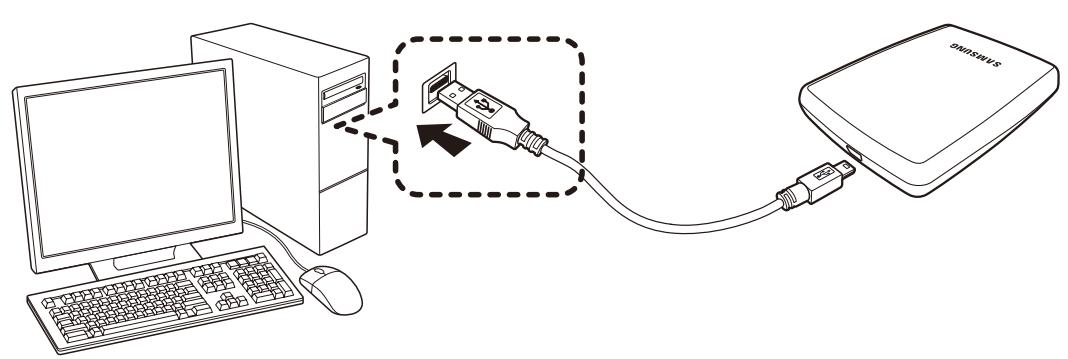
- Figure 1. Connecting to a Desktop Computer
- Figure 2. Connecting to a Laptop Computer
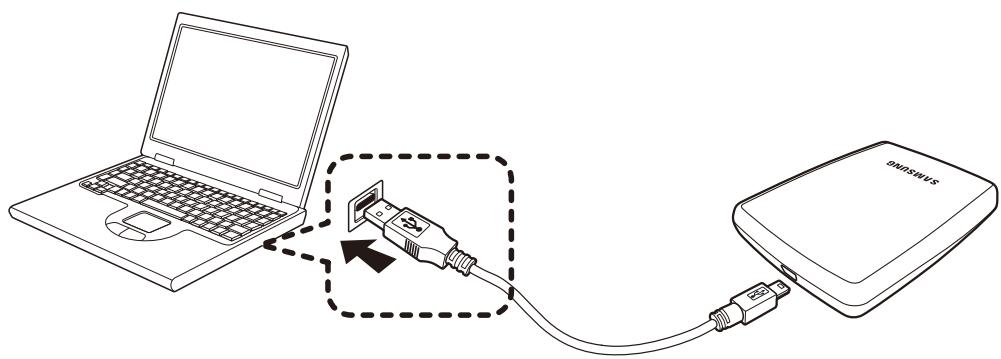
Your S-Series External Hard Drive will automatically activate once connected to the computer.
Connecting your S2 Portable 3.0
Installation
Verify that the computer meets the minimum system requirements as outlined in #System Requirements. Insert the USB cable to the desktop/laptop computer as shown in Figures 3 and 4:
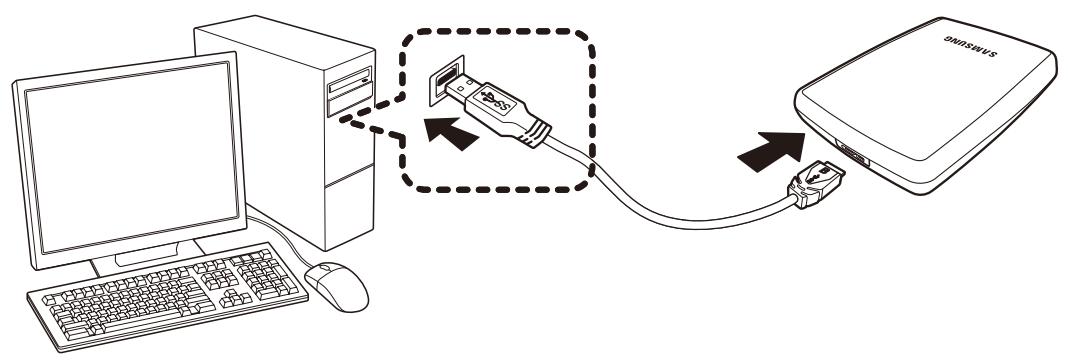
- Figure 3. Connecting to a Desktop Computer
- Figure 4. Connecting to a Laptop Computer
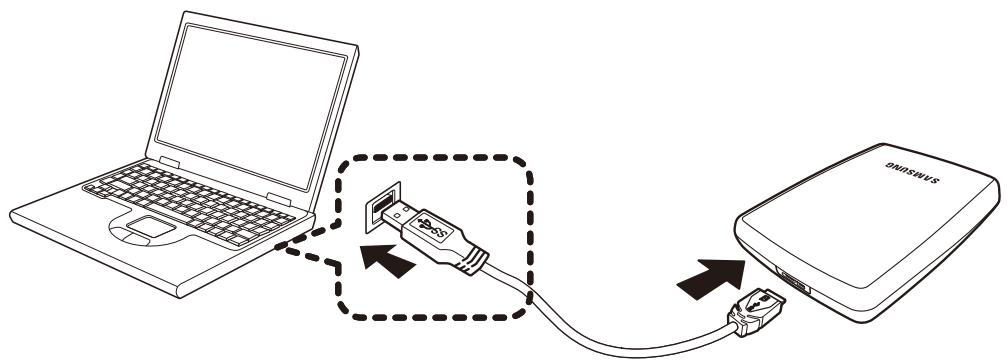
- LED Color
- USB 2.0 : Green
- USB 3.0 : Blue
To use the S2 Portable 3.0 model at its maximum speed, you need a PC or a Host Card that supports USB 3.0 interface.
Windows
When you connect the S-Series External Hard Drive to the computer a small icon will appear in the system tray at the lower right corner of the screen.
- Figure 5. System Tray indicating an external device

The operating system will recognize and display "Samsung" drive under "My Computer."
- Figure 6. In the Windows Explorer, you will see a new Samsung drive
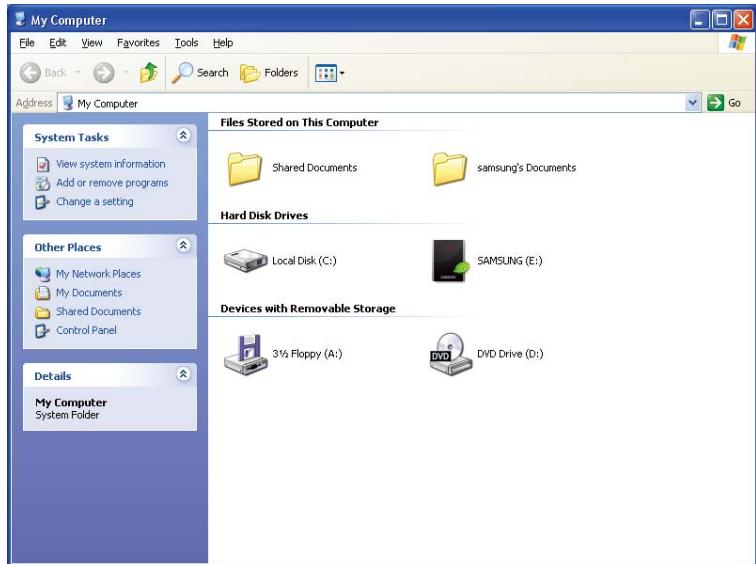
You are now ready to use the Samsung S-Series External Hard Drive.
Macintosh
Connect your S-Series External Hard Drive to the computer. Your Macintosh operating system will then generate a SAMSUNG.
- Figure 7. Macintosh External HDD connection icon

Finder
File
Edit
View
SAMSUNG
After clicking the SAMSUNG icon, the following folder will appear.
Figure 8. Macintosh Folders
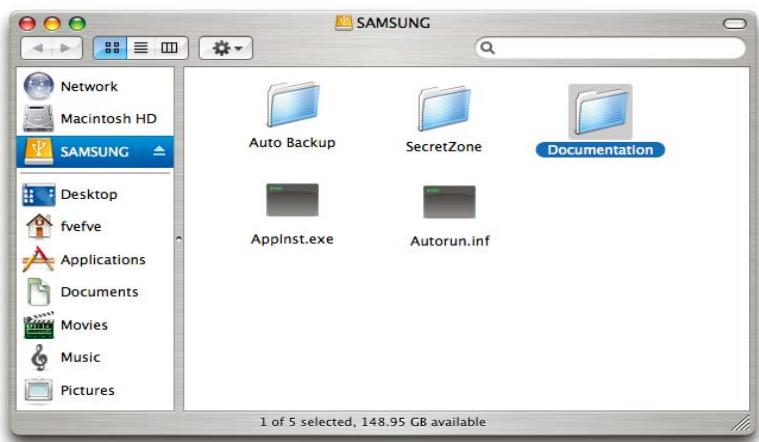

You are now ready to use the Samsung S-Series External Hard Drive. (Software included with your S-Series External Hard Drive does not support the Mac operating environment.)
Using your S-Series
Copying / Moving Files
Now that you h ave successfully installed your new S-Series External Hard Drive, you copy or move files or whole folders from your new S-Series to your computer and vice-versa.

It is important to understand the difference between Copy and Move.
Copy : is to make a duplicate folder or file and store it so that you have two copies.
Move : is to take a folder or file from one location and put it into another.
WHEN YOU MOVE A FOLDER OR FILE, YOU NO LONGER HAVE A BACKUP COPY.
Copy and paste files from the computer to the S-Series External Hard Drive (Removable Disk Method).
Removable Disk Method
For the purposes of this manual, we will make a copy of the Temp folder on the C drive of your computer and copy it to the S-Series External Hard Drive.
From the Windows Desktop click:
Start Programs Accessories Windows Explorer
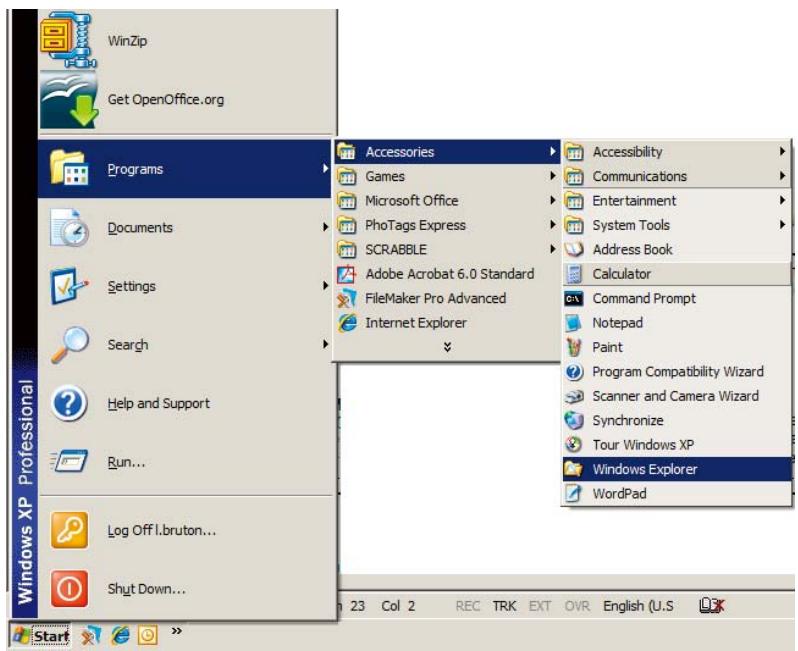
- Figure 9. Getting to the Windows Explorer
From the Windows Explorer, you will see various drive letters; A, C, your C drive is your local
Hard Drive. The S-Series will most likely be the E drive however, it could be any drive letter.
For the purposes of this manual, we will assume that the S-Series is the E drive. As well, for practice copying folders and files, we will copy the Temp folder onto the S-Series.
From the Windows Explorer screen:
Click Local Disk C
From the right-hand pane:
Right-click the Temp folder Click Copy
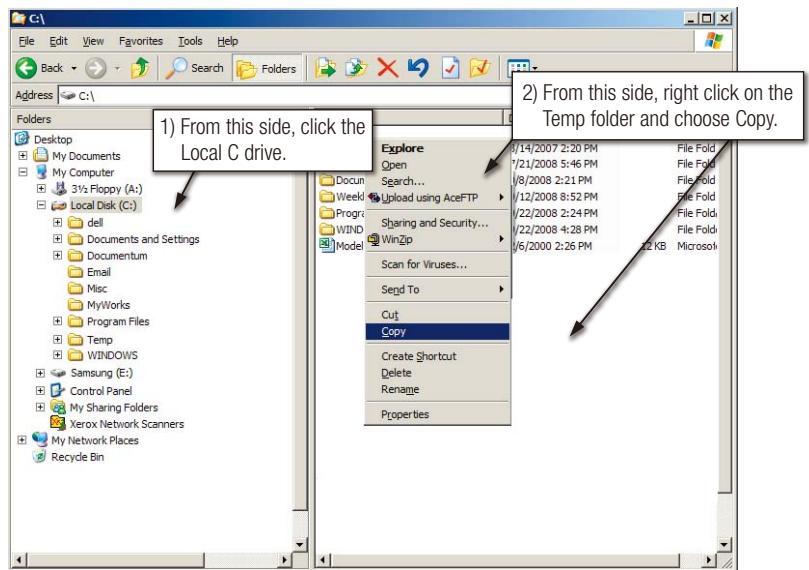
- Figure 10. When you Right-Click on a file or folder, you get another menu.
Now, we will copy the Temp folder from the Local C drive, to the Samsung E drive. From the left pane in the Windows Explorer : Right Click Samsung E Click Paste
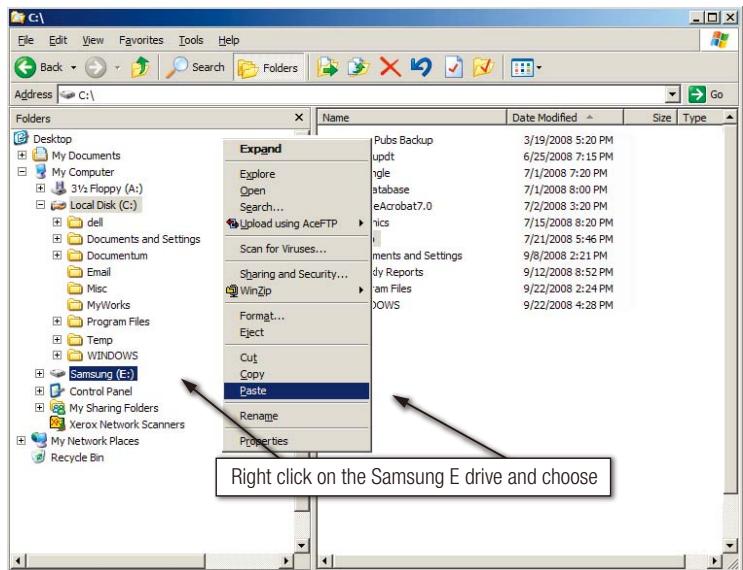
- Figure 11. Using a Right-Click again, we can paste the Temp file onto the S-Series drive.

NOTE : Detaching the USB cable while file transfer is in progress can damage your computer and/or S-Series External Hard Drive. If you need to disconnect the USB cable, wait for the transfer process to complete first and then disconnect using the "Safely Remove Hardware" option.
Safely Removing your S-Series
For Windows
Right-click the arrow icon from the system tray at the lower right corner of your screen.
- Figure 12. The taskbar is located at the bottom-right of the screen.

Click "Safely Remove Hardware."
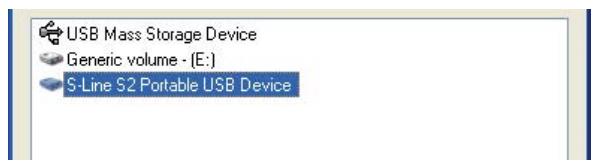
- Figure 13. The 'Safely Remove Hardware' prompt will list every device that is attached to your system.
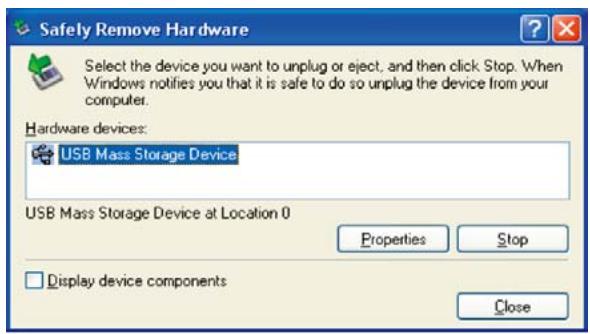
Click "Samsung S-Series USB device".
- Figure 14. This prompt will list all of the Mass Storage Devices like your Local Hard drive and your S-Series Hard drive.
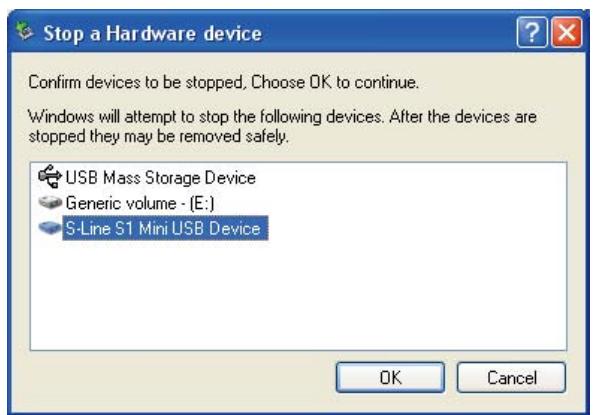
[S1 Mini]
[S2 Portable]
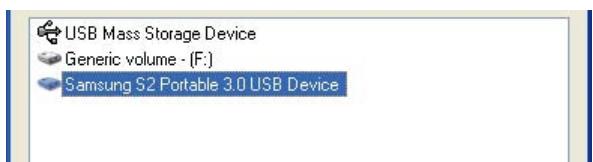
[S2 Portable 3.0]
When you see the "Safely Remove Hardware" message, you may safely remove the device from the system.
For Macintosh
Click the external hard drive icon and select "Eject "SAMSUNG."
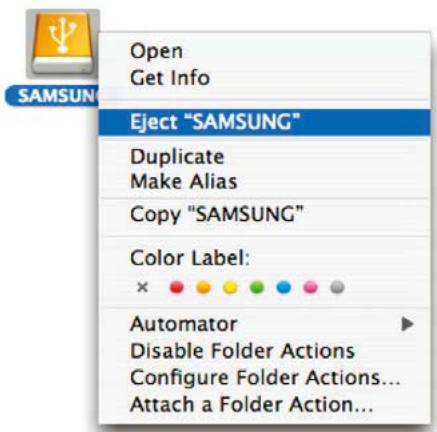
Figure 15. For the Macintosh click the USB icon and choose Eject "SAMSUNG"
This safely disconnects the drive. It is now safe to detach the drive from the computer.

Do not disconnect S-Series External Hard Drive's USB cable from the computer while file transfer is in progress. Interrupting the file transfer could lead to data corruption and/or damage to your S-Series External Hard Drive.
S-Series Software
S-Series External Hard Drive Software
Samsung S-Series External Hard Drive comes with Samsung Auto Backup and Samsung SecretZone™. These applications support the Windows only.
Connecting your S-Series External Hard Drive to the computer will automatically activate the installation wizard. Select "Install Samsung Tools" to install the applications.
Samsung Auto Backup and Samsung SecretZone™ will only be available when S-Series External Hard Drive is connected to your computer.
For further information, please refer to the Auto Backup and SecretZone™ user's manuals that accompanied your S-Series External Hard Drive.
Samsung Auto Backup
Samsung Auto Backup is a personal backup solution that enables you to backup individual files. The application provides both manual and automatic (scheduled) backup features and includes various backup options such as backup in compressed file format and use of filters for backup files.
Samsung Auto Backup Installation
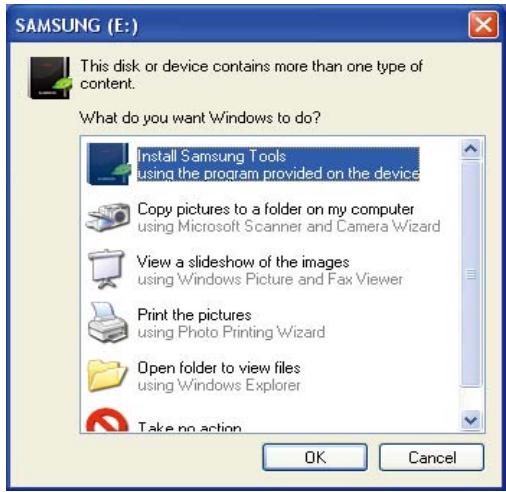
- You will see this dialog the first time you connect your S-Series External Hard Drive to the computer.
- Select "Install Samsung Tools" and the click "OK."
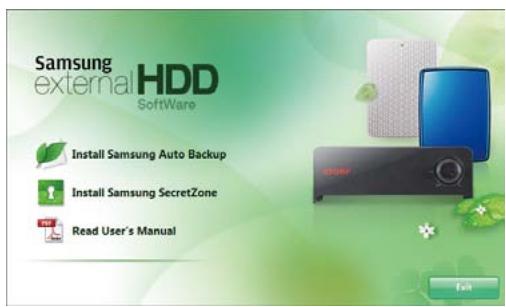
- Select "Install Samsung Auto Backup to start the installation process".
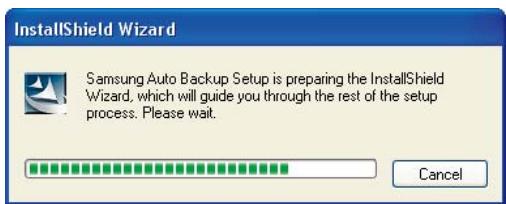
- Once the preparation process is complete, InstallShield Wizards' greeting dialog will display.
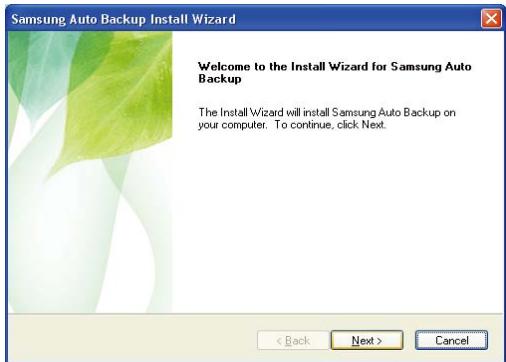
- Click "Next."
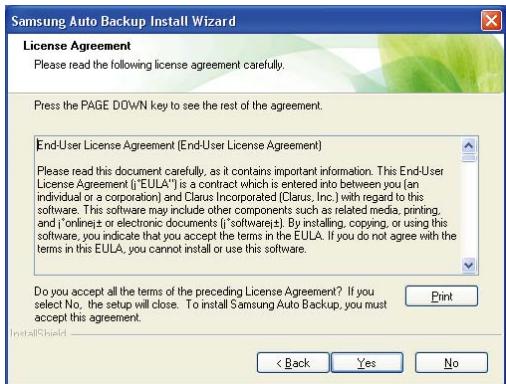
- The dialog will display the end user license agreement. Carefully read the agreement. Select "yes".
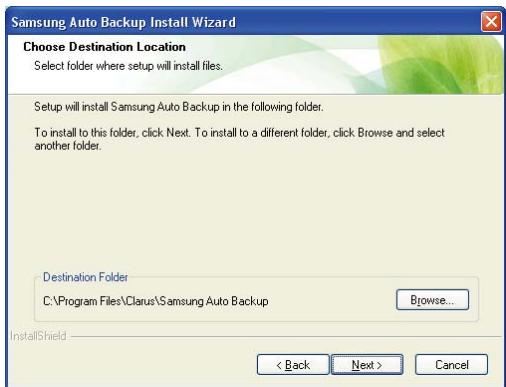
- Select the destination for Samsung Auto Backup installation and then click "Next."
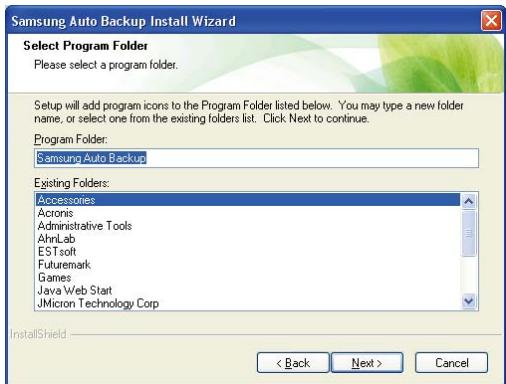
- Select the folder under which you wish the Samsung Auto Backup icon to be registered. Then, click "Next."
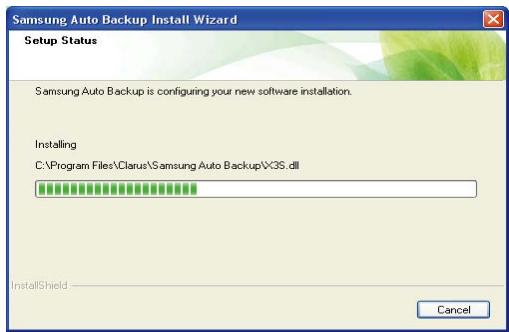
- The dialog will then display the installation progress.
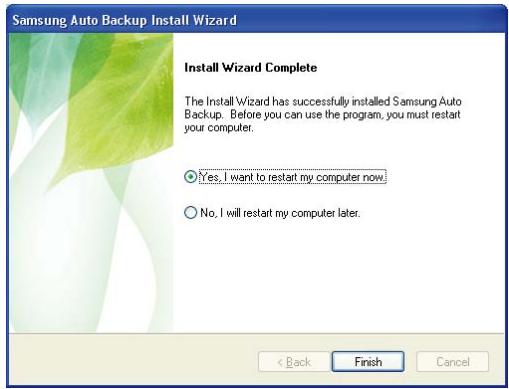
- Once the installation process is complete, a dialog requesting your decision on whether to reboot now or later will prompt. Click "Finish" to exit the installation wizard.
Select "Yes, I want to restart my computer now" and then exit the installation wizard in order to finalize Samsung Auto Backup installation.
Data Backup using Samsung Auto Backup
There are two ways to backup data:
Data Backup Options
Manual Backup
Quick Backup
You will need to first configure backup options before using Samsung Auto Backup.
Launch Samsung Auto Backup by clicking Start Programs SEC Samsung Auto Backup.
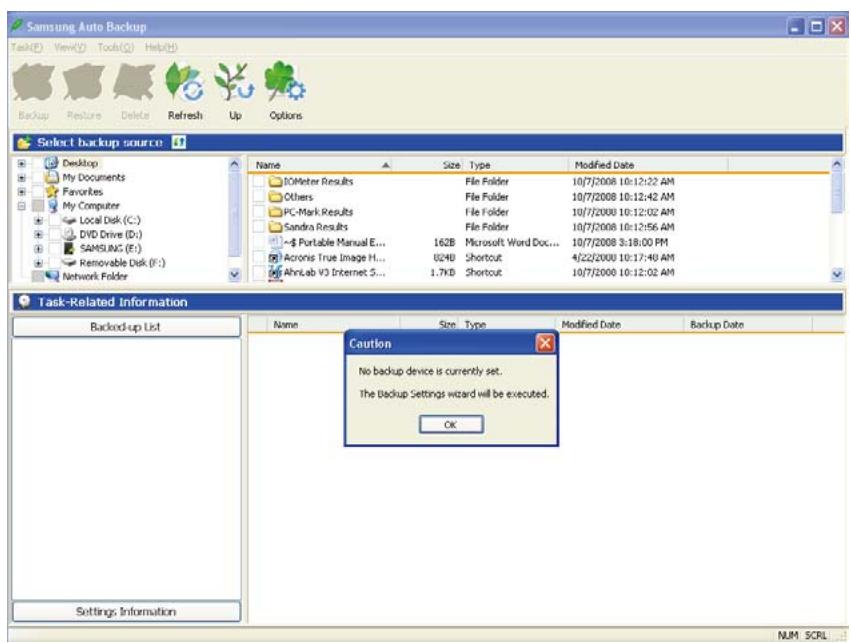
Figure 16. Samsung Auto Back Screen
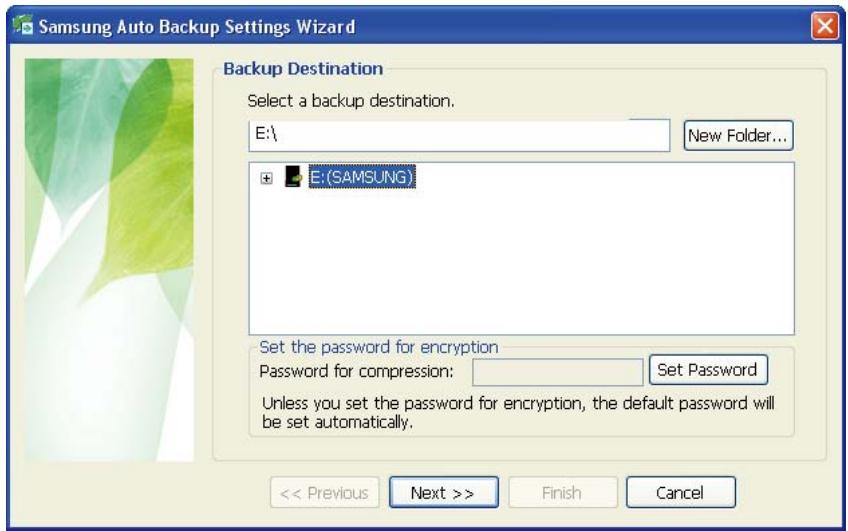
Figure 17. Backup Destination Selection Dialog
Designate the path to the backup device and then click "Next."
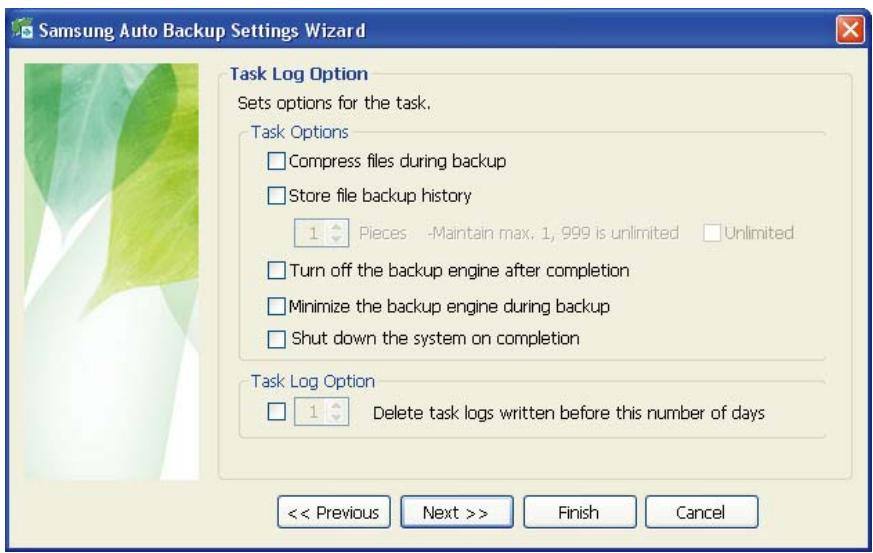
- Figure 18. Optional Settings Dialog
Configure the various backup options.
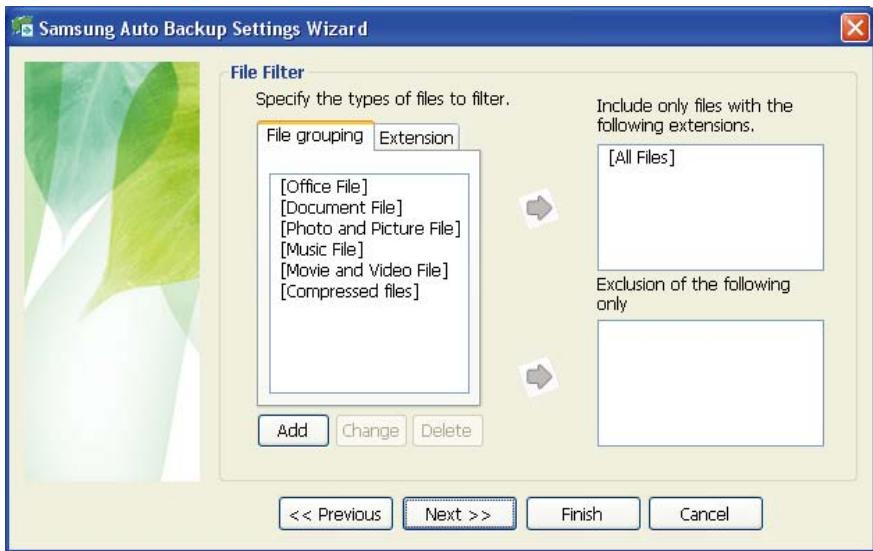
- Figure 19. File Filter Configuration Dialog
From the File Filter Configuration dialog, you will be able to select types of files you wish to backup and you wish to be excluded from the backup process. You can define these files by grouping or by specific file extensions. For file groups, the application provides preconfigured groups and the ability to add user-defined groups.
Clicking "Next" without making any change in this dialog sets the application to backup all types of files from the source.
Figure 20. Backup Scheduling Dialog
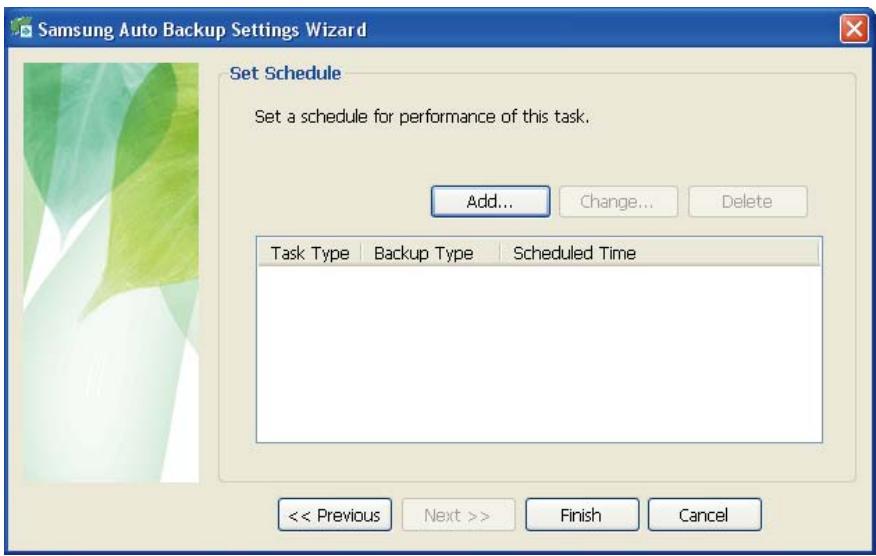
It's even possible for the user to schedule automatic backups. Click "Add" to configure and add a new Auto Backup schedule. Clicking the "Add" button will prompt the New Schedule dialog.
Figure 21. New Schedule Dialog
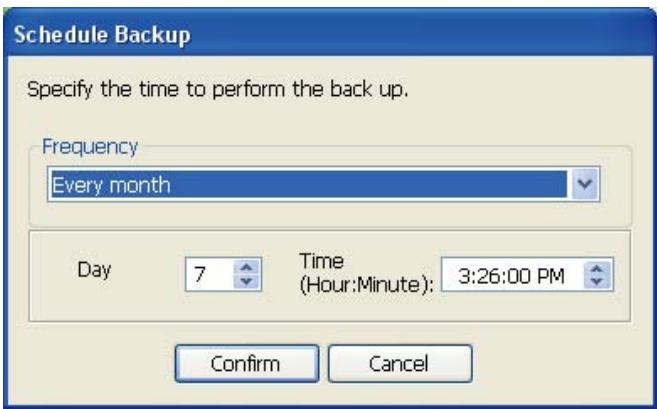
Select how often and when you wish Auto Backup to be performed and then click "OK."
From the Backup Scheduling dialog, click "Finish" to exit the backup configuration wizard. You are now ready to backup your data.
Samsung Auto Backup is configured to perform real time backup by default. Therefore, the application will automatically back up the content of "My Documents" after you exit the backup configuration wizard.
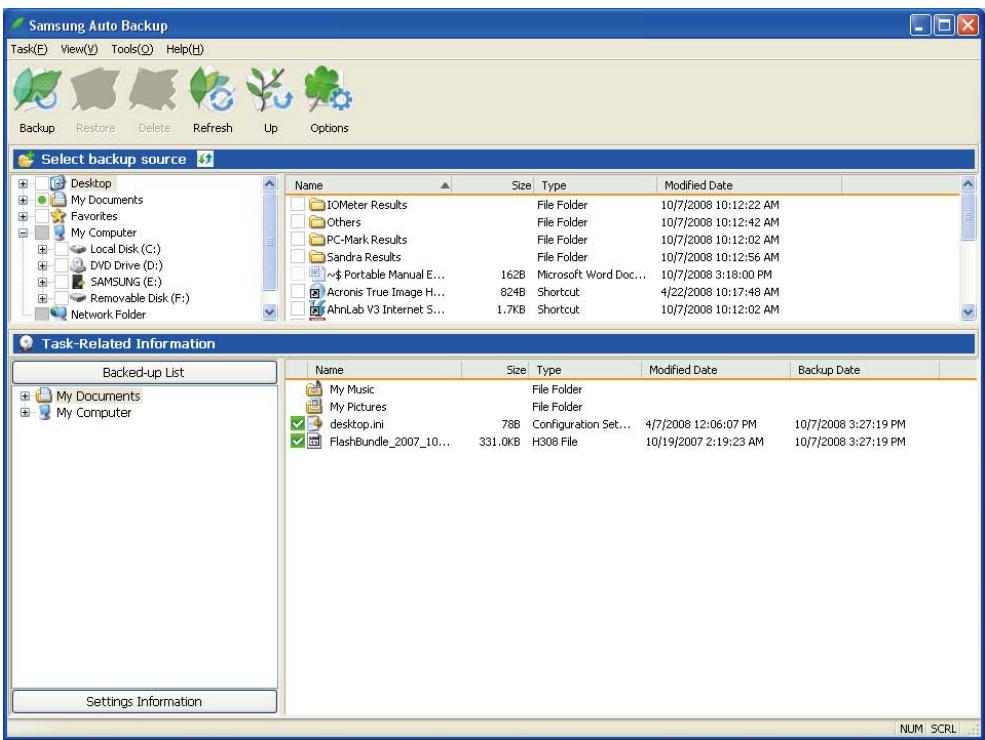
Figure 22. Initial Application Screen
Once you have successfully configured Auto Backup, a new icon will appear on your system tray.
In this icon, the red section of the bar indicates the amount of storage device space used and the green section indicates the amount of space available.

Figure 23. System Tray
Double-click the icon to view detailed information about the device's space use.
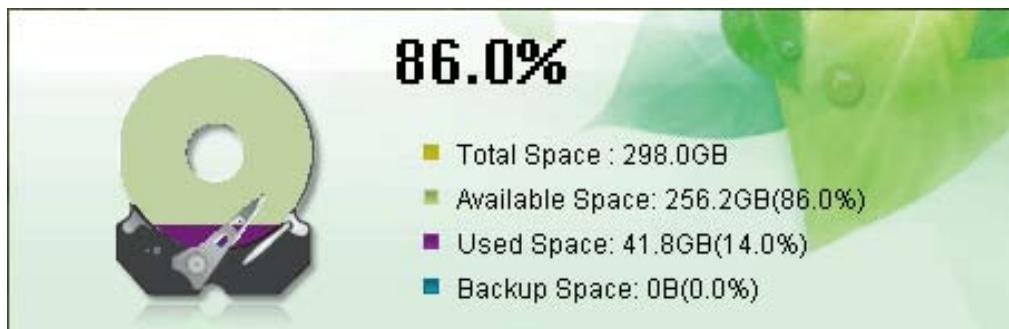
Figure 24. System Tray
Select original file(s) you wish to back up by checking the file(s) and/or folder(s) from the Original File Selection window.
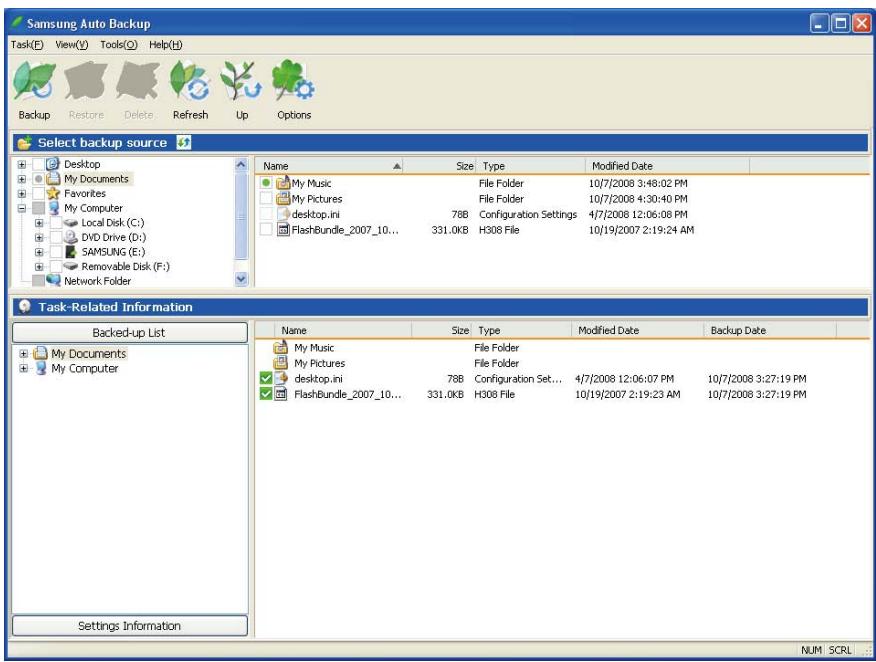
Figure 25. Original File Selection Screen - Manual Backup
Select "Backup" from the "Task" menu or click "Backup" from the toolbar.
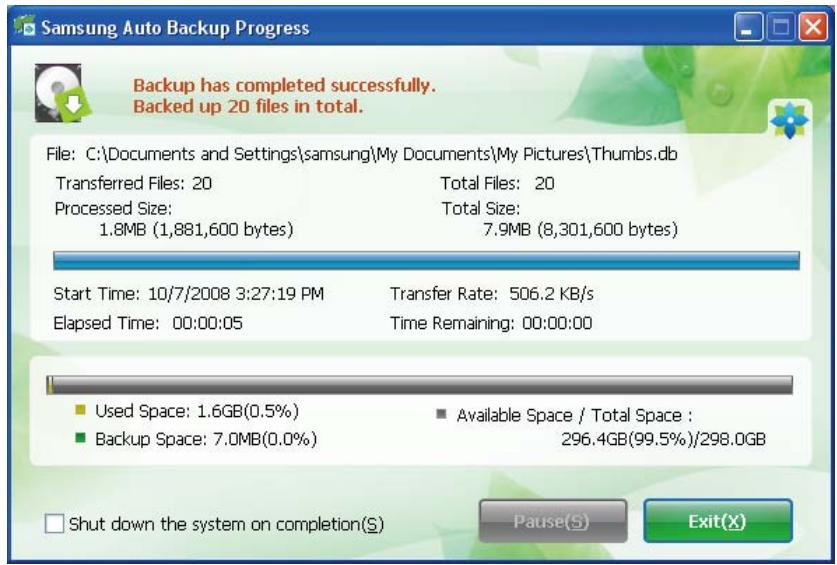
Figure 26. Backup Completion Dialog
Quick Backup
Select file(s) and/or folder(s) you wish to back up. Right-click on your selection and then select "Quick Backup" from the context menu.
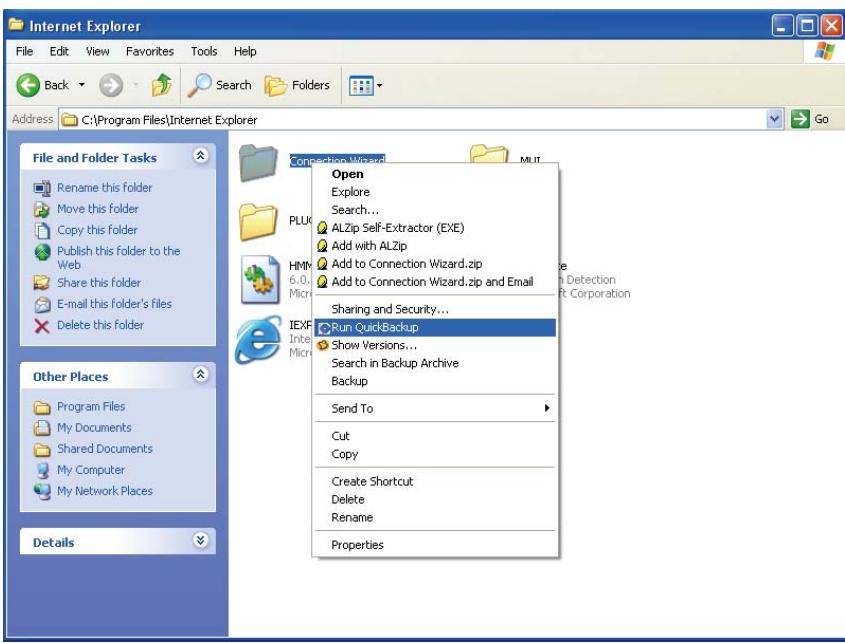
Figure 27. Original File Selection Screen - Quick Backup
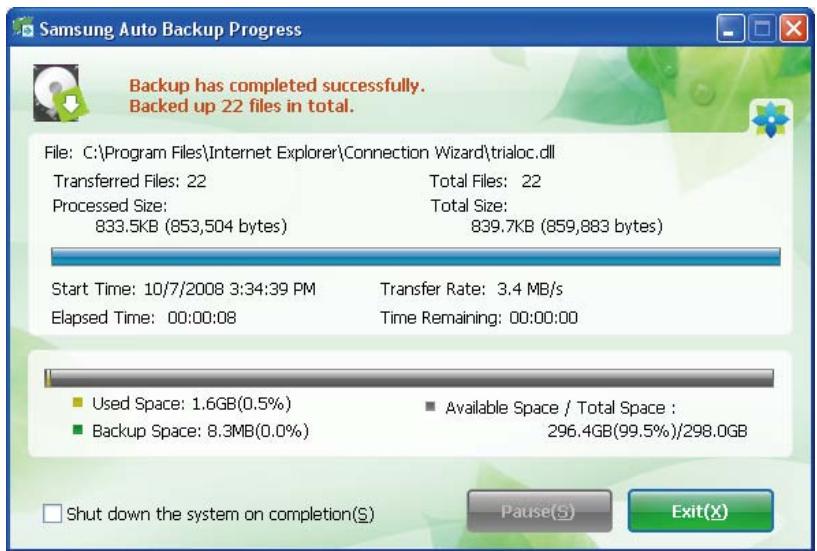
Figure 28. Backup Completion Dialog

Quick Backup will only function with the backup device properly configured. Files and folder that have been backed up with Quick Backup are automatically stored as backups of originals.
Restoring Backup Data
You can restore your backup data using Samsung Auto Backup.
To restore your backup data using Samsung Auto Backup, you will need to launch the restore wizard. There are three ways of doing this. First, select the file(s) and/or folder(s) you with to restore and:
Right-click on selected files and select "Restore."
Select "Restore" from the "Task" menu.
Click on "Restore" from the toolbar.
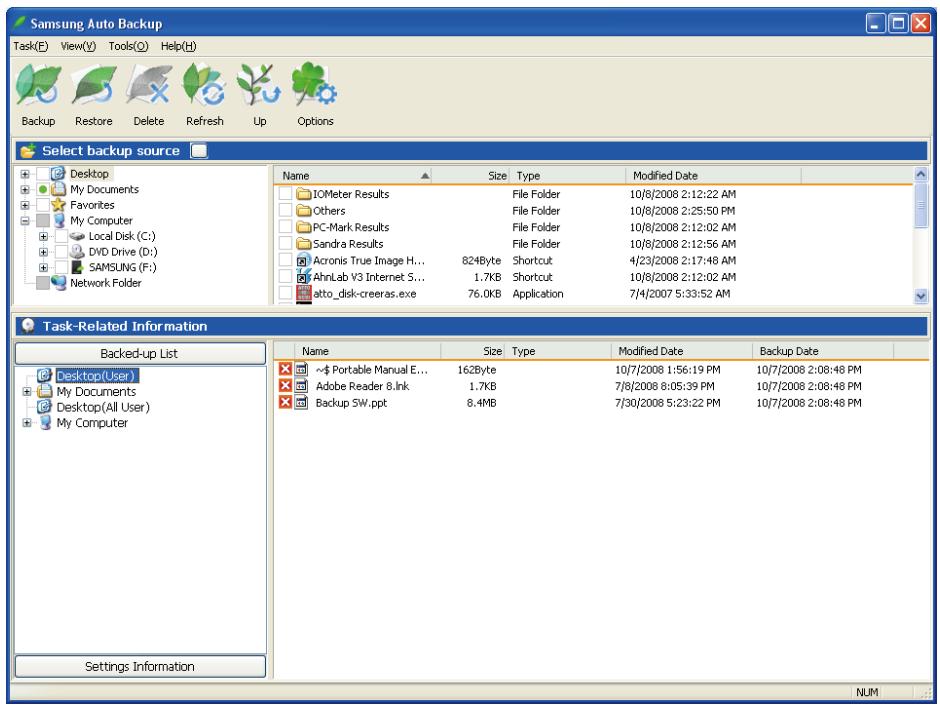
Figure 29. Restore Selection Screen
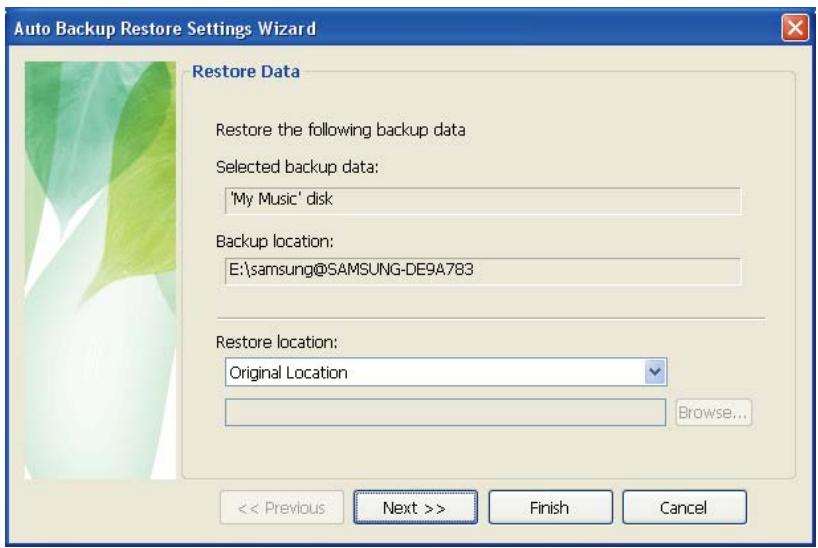
Figure 30. Restore Selection Screen
Restore wizard's first screen will prompt you to select the restore backup file destination.
There are two options available to you, which are:
Restore backup files to their original folder or
Designate a new destination folder to restore backup files to.
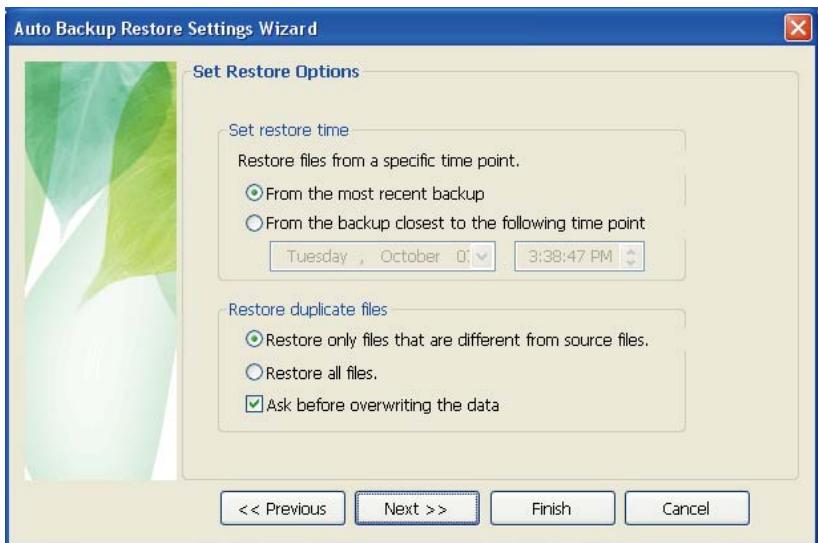
Figure 31. Restore Options Screen
Restore wizard will then present restore time and duplicate file restoring options.
You will be able to choose to restore backup files from the most recent backup or from the closest backup to a specified date and time.
As for duplicate backup files, you have the option to restore backup files that are different from their originals only or to restore all the files.
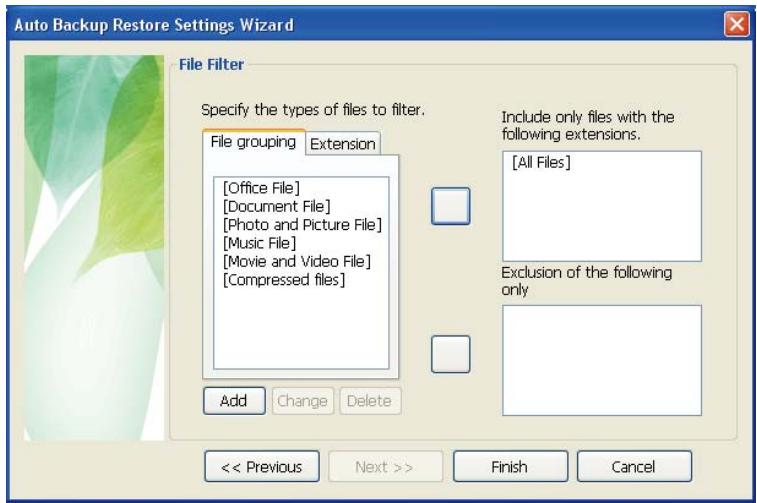
Figure 32. File Filter Screen
Restore file filter wizard lets you designate the types of files you wish to restore.
Designate the types of file extensions and/or file groups you wish to restore or exclude from restoring and then click "Finish." Clicking "Finish" without making any change in this dialog sets the application to restore all file types.
After configuring the options, click "Finish" to start restoring backup files.
Samsung Auto Backup Engine window will prompt and display the restore progress.
This engine ignores duplicate files and restores only those files with different data or creation date, resulting in much faster processing times.
Once the process is complete, the following screen will display:
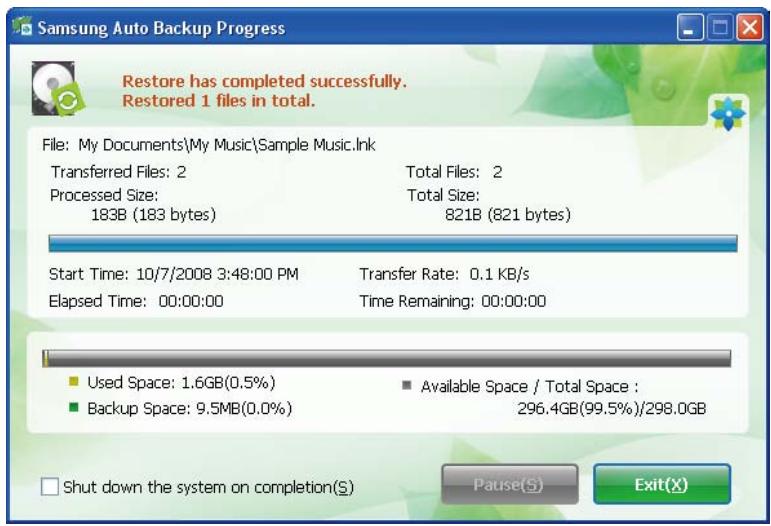
Figure 33. Restore Completion Screen
Samsung SecretZone™
Samsung SecretZone™ is an information privacy software application operating in the Windows environment. Samsung SecretZone™ enables you to save and protect important and private data from others with ease.
Samsung SecretZone™ Installation
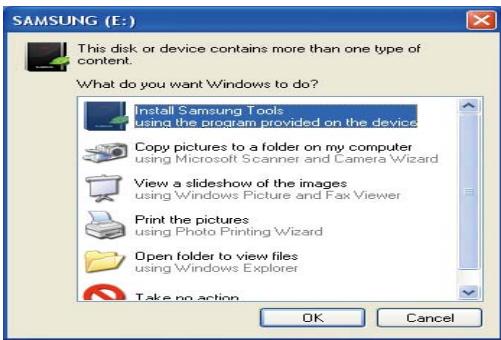
- You will see the following dialog the first time you connect your S-Series External Hard Drive to the computer.
- Select "Install Samsung tools" and then click "OK."
3.Select "Install Samsung SecretZoneTM".
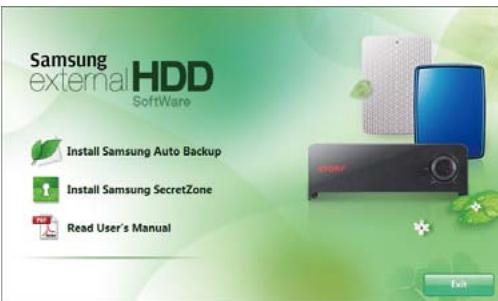
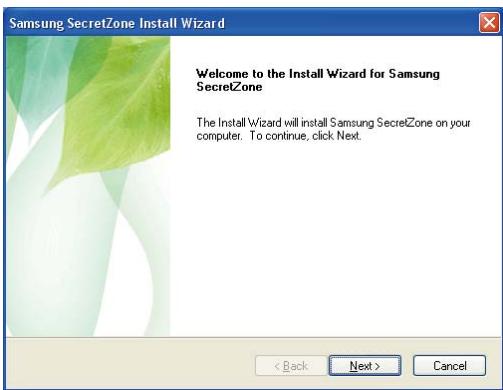
- Once the preparation process is complete, InstallShield Wizard's greeting dialog will display.
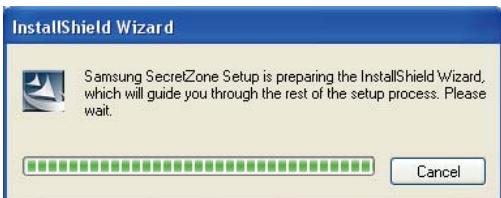
- Click "Next."
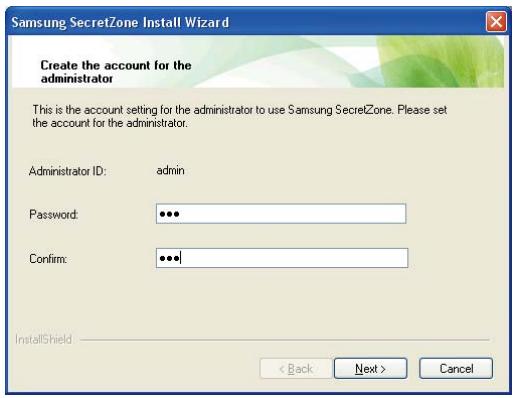
- You will then be asked to enter an administrator password. Enter the password and then click "Next" to continue.
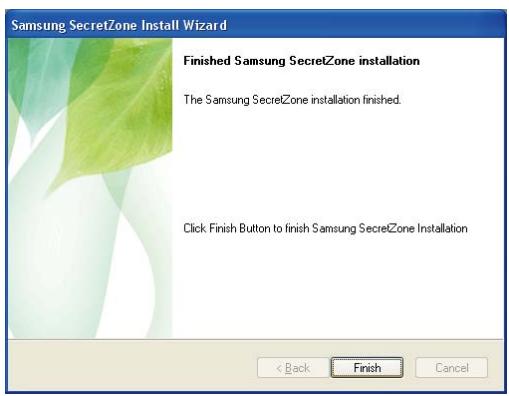
- Click "Finish" to complete the installation process.
Virtual Drive with Samsung SecretZone™
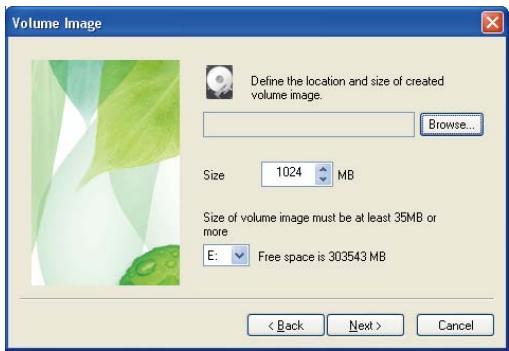
- Click "Browse" and designate the file you wish to create.
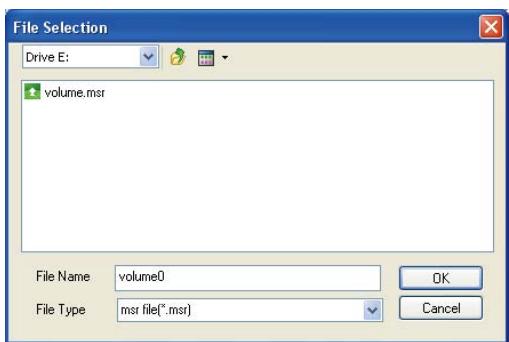
- Designate the name and size of the volume image you wish to create.

Samsung SecretZone™ is a security software and will not allow you access to protected data without a proper ID and password. Be careful not to lose your ID and password.
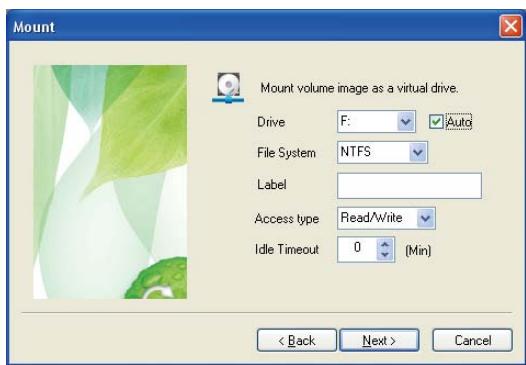
- Designate the drive to connect with, the file system, label, accessibility, and idle session limit.
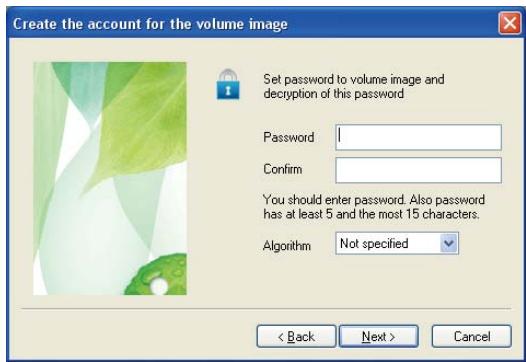
- Designate the volume's password and algorithm.
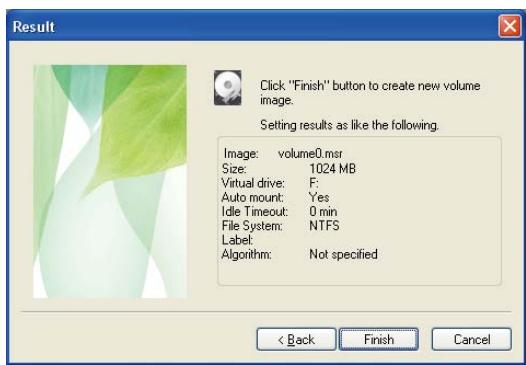
- Verify your virtual image settings.
- If the settings are correct, click "Finish" to generate the volume image.
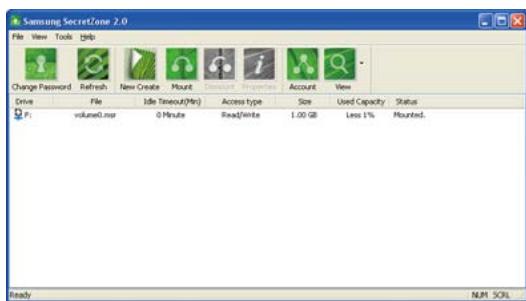
You've now created a virtual drive.
Troubleshooting
- Check the USB cable connection.
- Check the LED light on the HDD.
-
Check the power supply to S-Series External Hard Drive.
-
Ticking noise is an indication of insufficient power.
- If the drive is not being recognized, try plugging it into a different USB port.
FAQ
Q1. File transfer takes too long.
A1. You will experience slow file transfer speeds if your computer does not support USB 2.0 or if you do not connect S-Series External Hard Drive to a USB 2.0 port. Try connecting S-Series External Hard Drive to a different port or, if your computer does not support USB 2.0, purchase a separate USB 2.0 port.
A1. To use the S2 Portable 3.0 model at its Maximum speed, you need a PC or a Host Card that supports USB 3.0 interface and USB 3.0 Cable.
Q2. The actual storage capacity of S-Series External Hard Drive is different than the capacity shown on the packaging.
A2. Type of file system used for the drive, partitioning arrangement, type of operating system, and various other factors can affect the actual storage capacity displayed by your computer. (1MB=1,000,000bytes and 1GB=1,000,000,000bytes.)
Q3. I connected my S-Series External Hard Drive, and the computer seems to recognize it, but the drive won't show up under Windows Explorer.
A3. S-Series External Hard Drive is by default formatted to FAT32 and will work normally when you connect it to your computer. However, if the partition has been erased or the file system has been changed to a one that's not recognized by Windows, the drive will not appear under Windows Explorer. Try formatting the drive to FAT32 or NTFS. (Caution: Formatting will erase all data stored in the drive.)
Q4. I am using Windows XP and cannot format the drive to FAT32.
A4. Windows operating systems that followed Windows NT have limited FAT32 formatting to 32GB. Therefore, if you wish to format your S-Series External Hard Drive to FAT32, you will need to download a format utility from our website. (Caution: Formatting will erase all data stored in the drive. We recommend that you back up your data before proceeding.)
Q5. My computer will not boot up properly.
A5. If you boot up your system with S-Series External Hard Drive connected to the computer, it's possible that your system's BIOS is attempting to boot from the external HDD. Change the BIOS booting sequence or disconnect the external HDD from the system and then try booting again.
Q6. I formatted my S-Series External Hard Drive and lost all the bundle software.
A6. Bundle applications that came with your S-Series External Hard Drive are available for download at Samsung Electronics' customer support website.
Q7. I am using a Mac, and I can't copy files.
A7. This could be a file system compatibility issue. By default, S-Series External Hard Drive is formatted to FAT32 for cross platform compatibility. If the drive has been formatted to NTFS, data stored in the drive can only be read by Mac systems.
Appendix

WARNING - PARTITIONING AND FORMATTING YOUR DRIVE WILL PERMANENTLY ERASE ALL THE FILES ON THE DRIVE. DO NOT ATTEMPT TO DO THIS UNLESS ALL OF YOUR FILES HAVE BEEN BACKED UP AND CHECKED FOR RELIABILITY AND READABILITY.
Partitioning and Changing File System Type
It's possible to partition your S-Series External Hard Drive and change the file system type.
Reformat to FAT32
Reformat to NTFS
Reformat in Macintosh
Reformat to FAT32
- Use Samsung USB Format Utility to format your S-Series External Hard Drive to FAT32. (Samsung USB Format Utility is a Windows application and is available for downloaded from Samsung's online Customer Support page.)
Figure 34. FAT format utility
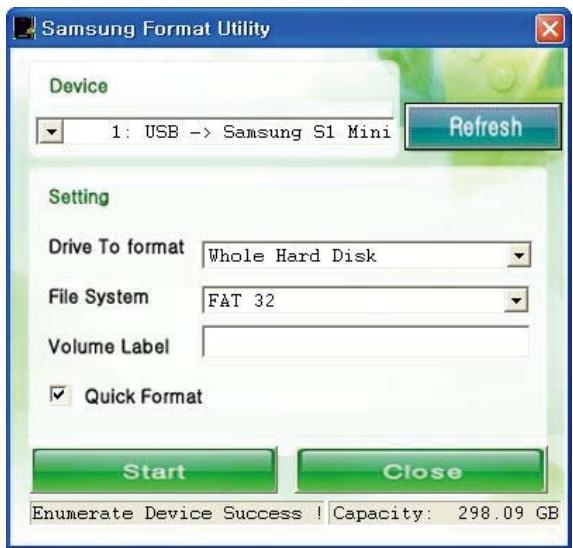
[S1 Mini]
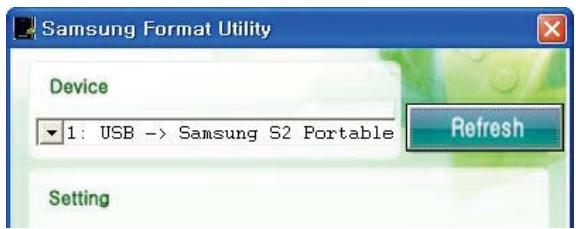
[S2 Portable]
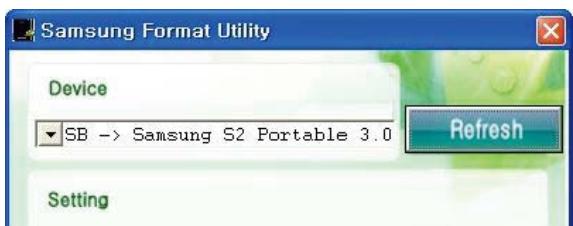
[S2 Portable 3.0]
Reformat to NTFS
Following describes formatting to NTFS in Windows XP:
- Connect S-Series External Hard Drive to the computer.
- Click "Start" from the lower left corner of your screen.
- Right-click "My Computer" and then select "Manage."
- From the "Computer Management" tool, select "Disk Management."
- Right-click the drive you wish to format and then select "Delete Partition."
- Once drive partition has been deleted, right-click the drive you wish to format and then select "New Partition" as shown in the diagram below.
- From Create Partition Wizard, select "Primary Partition" and then enter the desired size of the partition.
- From the "File System" menu, select "NTFS" and format.

WARNING - PARTITIONING AND FORMATTING YOUR DRIVE WILL PERMANENTLY ERASE ALL THE FILES ON THE DRIVE. DO NOT ATTEMPT TO DO THIS UNLESS ALL OF YOUR FILES HAVE BEEN BACKED UP AND CHECKED FOR RELIABILITY AND READABILITY.
Format in Macintosh
Following describes formatting in Mac OS X:
- Launch Mac OS X's "Disk Utility" tool.
- Open the main drive folder from the desktop. Open the "Applications" folder and then the "Utilities" folder.
- Select the "Disk Utility" file.
- Select the drive you wish to reformat.
- Select the "Erase" menu.
- Select "Mac OS Extended (Journaled)" from "Volume Format" menu and then Click "Erase" button
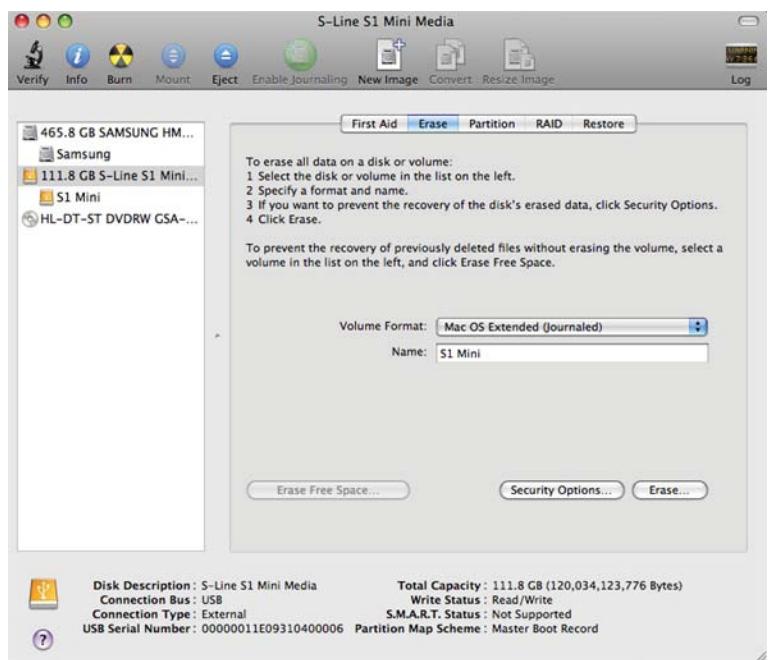
Once formatting is complete, the drive will appear on your desktop.
Product Certifications
CE (European Union/Community)
VCCI (Voluntary Control Council for Interference by Information)
FCC (Federal Communications Commission)
C-TICK
KCC (Korea Communications Commission)
BSMI (Bureau of Standards, Metrology and Inspection)
cUL (C- Underwriter's Laboratories, Inc)
This marking on the product, accessories or literature indicates that the product and its electronic accessories (e.g. charger, headset, USB cable) should not be disposed of with other household waste at the end of their working life. To prevent possible harm to the environment or human health from uncontrolled waste disposal, please separate these items from other types of waste and recycle them responsibly to promote the sustainable reuse of material resources.
Household users should contact either the retailer where they purchased this product, or their local government office, for details of where and how they can take these items for environmentally safe recycling.
Business users should contact their supplier and check the terms and conditions of the purchase contract. This product and its electronic accessories should not be mixed with other commercial wastes for disposal.
FCC
| CAUTION : Changes or modifications not expressly approved by the part responsible for compliance could void the user's authority to operate the equipment. | |
| Class B | Note : This equipment has been tested and found to comply with the limits for a Class B digital device, pursuant to part 15 of the FCC Rules. These limits are designed to provide reasonable protection against harmful interference in a residential installation. This equipment generates uses and can radiate radio frequency energy and, if not installed and used in accordance with the instructions, may cause harmful interference to radio communications. However, there is no guarantee that interference will not occur in a particular installation. If this equipment does cause harmful interference to radio or television reception, which can be determined by turning the equipment off and on, the user is encouraged to try to correct the interference by one or more of the following measures:Reorient or relocate the receiving antenna.Increase the separation between the equipment and receiver.Connect the equipment into an outlet on a circuit different from that to which the receiver is connected.Consult the dealer or an experienced radio/TV technician for help. |
Warranty Information
The following limited warranty applies to the Samsung external hard disk drive but does not supersedes regional and national laws and regulations.
Limited Warranty
Samsung makes the following limited warranties during the warranty period: (a) the Products will function properly under normal use; (b) the Products will be free from defects in materials or workmanship; (c) the Products will conform to the published specifications; and (d) the Products will conform to any additional specifications agreed to in writing by the parties.
Samsung warranties do not cover any problem that is caused by (a) commercial use; accident; abuse; neglect; shock; electrostatic discharge; heat or humidity beyond product specifications; improper installation; operation; maintenance or modification; or (b) any misuse contrary to the instructions in the user's manual; or (c) lost passwords; or (d) malfunctions caused by other equipment.
Our limited warranties are void if a product is returned with removed, damaged, or tampered labels or any alterations (including removal of any component or external cover). Our warranties do not cover data loss – back up the contents of your drive to a separate storage medium on a regular basis. Also, consequential damages; incidental damages; and costs related to data recovery, removal and installation are not recoverable under our warranties.
Warranty Period
The warranty period for product is three (3) years from the documented date of purchase from Samsung or a Samsung' authorized reseller.
Customer Service
To request warranty service, please contact the place of purchase, or visit our web site (www.samsunghdd.com) for information on obtaining service or an RMA (Return Material Authorization) number. Submit your phone number, e-mail, address, name, product model, and serial number(s) and an RMA number with all pertinent information will be provided to you for returning product to Samsung. When you return the product to Samsung, the product must be properly packaged in original packing with a traceable forwarder and freight prepaid to the return address listed on the RMA. Remember to write the RMA number on the out side of box, or the shipment will be refused and returned to you at freight collect.
Samsung, or an authorized Samsung service center, will replace your product with a functionally equivalent product. Samsung will not return your original drive and data recovery is not included.
It is highly recommended that you backup your data. Once your drive is received at Samsung, the ownership of the product and all content therein will be transferred to Samsung.
Please contact Samsung with any comments or inquiries at www.samsunghdd.com
SAMSUNG
Samsung Electronics Co., Ltd.
STORAGE SYSTEM DIVISION
HEAD OFFICE: 416, MAETAN-3 DONG, YEONGTONG-GU, SUWON SI, GYEONGGI-DO, KOREA, 443-742
FAX:82-54-479-5567
Copyright
Samsung Electronics reserves all copyrights to the content of this manual. Copyright laws prohibit reproduction of this manual in part or whole by any third party without the explicit consent of Samsung Electronics.
Sa msgung Electronics does not assume any patent responsibility for the use of information contained in this manual.
Disclaimer
This user's manual has been subjected to thorough reviews and verifications to ensure accuracy of its content and contains information that's pertinent to the model and series it describes at the time of publication. However, content of this manual and/or product specifications are subject to change without prior notice and with no direct or indirect liability on Samsung Electronics' part concerning such change.