
TAB 9 3G V8 - Tablet Trevi - Free user manual and instructions
Find the device manual for free TAB 9 3G V8 Trevi in PDF.


| Product Type | Tablet |
| Brand | Trevi |
| Model | TAB 9 3G V8 |
| Display Size | 9 inches |
| Dimensions (approx.) | 240 x 160 x 9 mm |
| Weight (approx.) | 450 g |
| Operating System | Android (unspecified version) |
| Connectivity | Wi-Fi 802.11 b/g/n, Bluetooth 4.0, 3G (HSPA+) |
| Navigation | GPS, A-GPS |
| Processor | Quad-core 1.3 GHz |
| RAM | 1 GB |
| Storage | 8 GB internal, microSD up to 32 GB |
| Camera (Rear) | 2 MP |
| Camera (Front) | 0.3 MP |
| Battery | Li-Ion 4000 mAh |
| Charging | 5V / 2A via Micro-USB |
| Audio | 3.5 mm headphone jack, built-in speaker, microphone |
| Sensors | Accelerometer, proximity |
| Maintenance | Clean with a soft, dry cloth; avoid moisture |
| Safety | Do not expose to water or high temperatures |
| Spare Parts & Repairability | Battery and screen replaceable by qualified technician |
Frequently Asked Questions - TAB 9 3G V8 Trevi
User questions about TAB 9 3G V8 Trevi
0 question about this device. Answer the ones you know or ask your own.
Ask a new question about this device
Download the instructions for your Tablet in PDF format for free! Find your manual TAB 9 3G V8 - Trevi and take your electronic device back in hand. On this page are published all the documents necessary for the use of your device. TAB 9 3G V8 by Trevi.
USER MANUAL TAB 9 3G V8 Trevi
natural_image
Abstract digital illustration with globe, network lines, and scattered data blocks (no readable text or symbols)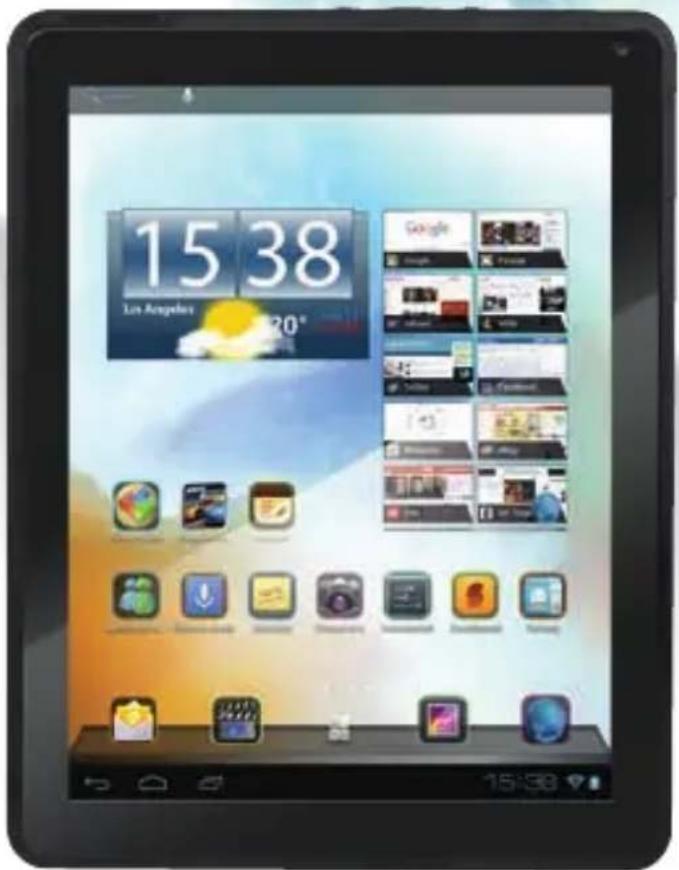
Tab 9 ^3G V8
PRECAUTIONS FOR CORRECT DISPOSAL OF THE PRODUCT...... pag.38
INDICE
natural_image
Simple line drawing of a finger pointing at a horizontal bar (no text or symbols)natural_image
Simple line drawing of a device with a cable and plug, no text or symbols presentNote:
natural_image
Illustration of a desktop computer setup with monitor, tower, keyboard, and mouse (no text or symbols)natural_image
Scenic view of a calm blue lake with distant hills and small boats (no text or symbols visible)
natural_image
Scenic landscape with a calm lake and distant hills under a clear blue sky (no text or symbols visible)Video
natural_image
Grid of 20 colorful nature and food images including fruits, peaches, watermelon, cherries, and animals (no text or symbols)
15. IMPOSTAZIONI
Wi-Fi
DISPLAY....9.7-inch TFT LCD, IPS, Capacitive (Ten-toud
RESOLUTION 1024X 768 (4:3)
CPU ...... ARM Cortex A9, 1.6GHz, Dual Core CPU, Quad Core G
RAM 1GB DDR3
SISTEMA OPERATIVO Android 4.1
MEMORIA INTERNA 8 GB
WIRELESS NETWORK . Wi-Fi (802.11 b/g/n)
3G WCDMA
FORMATI AUDIO ...... MP3, WMA, WAV, APE, FLAC, AAC, OGG
FORMATI VIDEO ......AVI, WMV, MP4, MKV, RM, RMVB, FLV, MOV, 3GP
FORMATI FOTO . JPEG, BMP, GIF
FORMATI eBook . ....TXT, PDB, PDF, Epub, FB2
Welcome 24
Important Notice 25
Keys and Function 25
I. Getting Started ....26
1.1 Turn on/off....26
1.1.1 Turn on....26
1.1.2 Turn off....26
1.2 Lock/unlock the screen (sleep mode)....26
1.3 Connect to computer....26
II. Your Home Screen 27
2.1 Change wallpaper for home screen 27
2.2 Add/delete application on home screen 28
2.3 Add widgets to home screen ....28
III. Network Connection ....28
3.1 Wi-Fi 28
3.1.1 Turn on Wi-Fi 28
3.1.2 Turn off Wi-Fi 28
3.1.3 Add a Wi-Fi network 29
3.2 3G network .....29
IV. Internet Browsing 29
4.1 Internet Browsing 29
V. Install and Manage Apps ....30
5.1 Install Apps ....30
5.2 Manage Apps ....30
VI. Multi-media Function ....31
6.1 Music 31
6.2 Video 32
6.2.2 HDMI Output 32
6.3 Gallery 33
6.4 Camera 33
6.5 E-book reader ....34
VII. Setting 35
VIII. Batery 36
Troubleshooting 36
WELCOME
Thank you for purchasing this tablet.
It brings you much convenience for your business (supports Word, Excel, send & receive e-mails...) and entertainment (supports 3D game, chatting, movie playback, eBooks.....).
Running on Android 4.1, with a 1.6 GHz processor and highly responsive capacitive touch screen, it brings you wonderful user experience.
Before beginning, please refer to this user manual carefully.
IMPORTANT NOTICES
- The new battery will be in its best condition after 2-3 times full charge and discharge.
- While using the earphone, if the volume is excessively high it may cause hearing damage. So please adjust the volume of the player to a moderate level and balance the time of using.
- Do not disconnect the tablet suddenly when formatting or uploading and downloading, which can lead to program errors.
- Do not dismantle the tablet by yourself, and do not use alcohol, thinner or benzene to clean its surface.
- Do not use the tablet while driving or walking.
- The tablet is not moisture and water resistant. Please do not use it in a damp environment.
- Do not drop or hit it to hard surface, or the screen may get damaged.
- Do not upgrade the firmware by yourself. This would cause damage to your tablet.
KEYS AND FUNCTIONS

natural_image
Blank white rectangle with faint border lines and numbered axes (no text or symbols)
- Front camera, 2M pixel camera.
- ESC key, tap to return to the previous screen/page.
- Vol+ key, press to increase the volume.
- Vol-key, press to decrease the volume.
- Menu key, tap to view the option menu. When you Tap the Menu key from within an application, you will see the sub-menus for the application.
- Front Speaker, on left side.
- Front Speaker, on right side.
-
Charging indicator, there will be battery charging indicator light while charging.
-
Power jack (DC input), Connect to a 9V output adaptor as included in the accessories.
- TF card slot, to insert your TF card.
- HDMI, Connect to TV output via a HDMI cable
- Earphone jack, To connect your earphone.
- Mini-USB slot, connect to a computer via a USB cable to transfer data (e.g., music, videos, photos, and other files).
- USB HOST, USB OTG, supports mouse keyboard, USB flash disk, etc, with a
converting cable
- SIM SLOT, To insert SIM card
- Power and lock key, Hold and press to turn on or turn off this unit. Briefly press to turn on or turn off the screen.
- MIC.
- Reset, press to reset the tablet if it freezes or behaves abnormal.
- Rear camera, 3M pixel rear camera.
I. GETTING STARTED
1.1 Turn on/off
1.1.1 Turn on
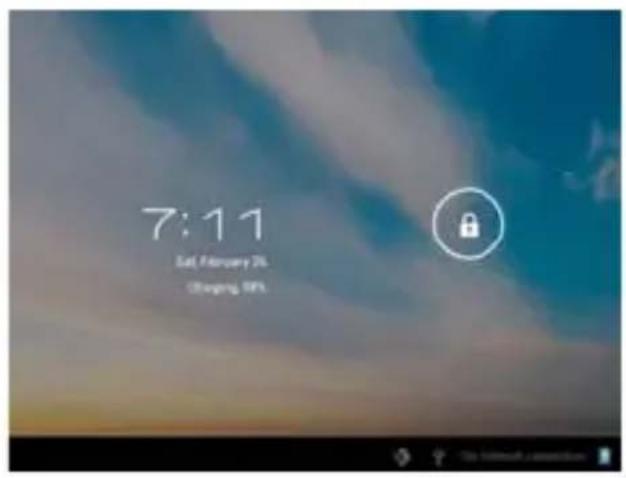
To start your tablet, press and hold the power key at the right side of your tablet for a while. Tab and drag the lock out of the circle to unlock.

Tab and drag the lock out of the circle to unlock.
Drag the lock to right: you will go to the home screen.
Drag the lock to left: you will go to camera directly.
1.1.2 Turn off
To power off your tablet, press and hold the power button until the “Would you like to shut down?” dialog appears and tap “OK” to power it off.
1.2 Lock/unlock the screen (sleep mode)
To save battery, you should put your tablet in sleep mode by turning off the LCD display. To do this, shortly press the power key. Press it again to wake up the screen.
1.3 Connect to computer
You can connect your tablet to your computer with the supplied USB cable so you can transfer media files.
If your computer is XP system, please install a Windows Media Player 11 for your computer before transfer media files as android 4.1 system needs Windows Media Player 11 support.
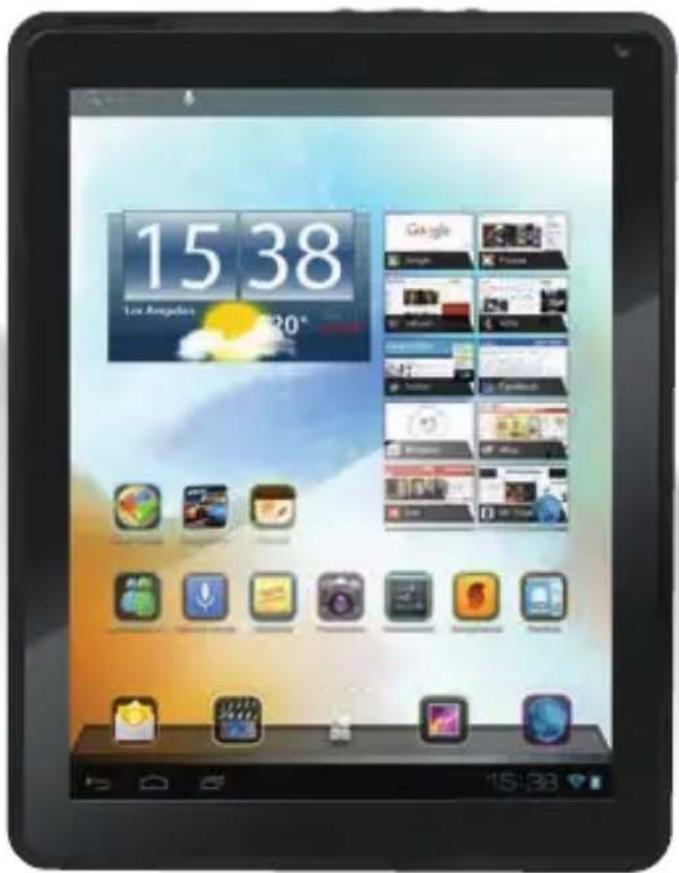
II. YOUR HOME SCREEN
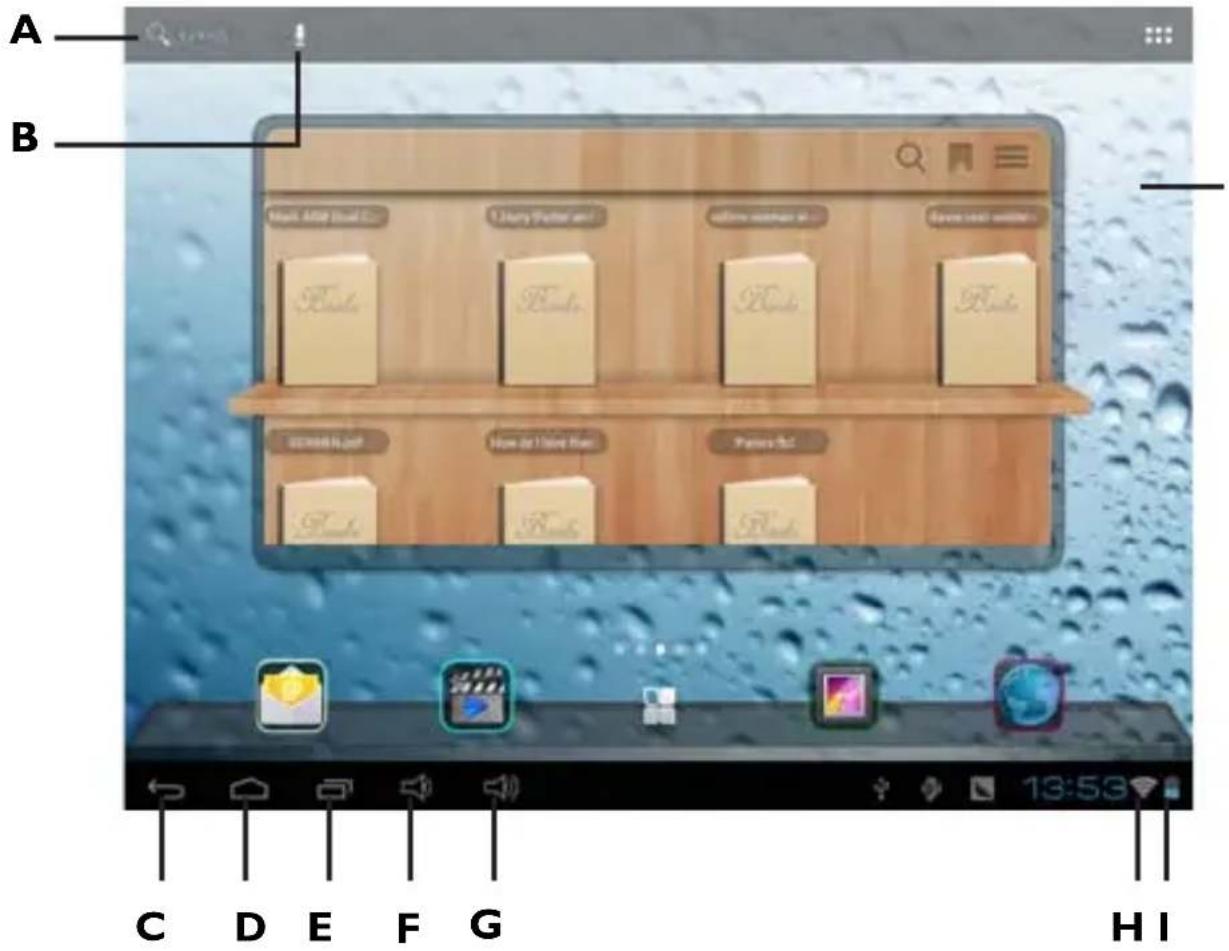
| A. Google search Tap to enter Google search page |
| B. Voice search Tap to open voice search |
| C. ESC key Tap to return to the previous screen/ page. |
| D. Home Tap to return to your home page |
| E. Recent operations Tap to show your recent operations |
| F. Volume - Tap to lower the volume |
| G. Volume + Tap to upper the volume |
| H. Wi-Fi Signal There will be WIFI signal when WIFI connected |
| I. Battery status Show battery status |
2.1 Change wallpaper for home screen:
Tab and hold your finger in any blank space of the home screen, you will see a pop-up
options; you can choose wallpaper from Gallery, live Wallpapers or Wallpapers.
2.2 Add/delete applications on home screen:
There are several apps in the home screen, you can also add more frequently-used app icons in this home page and delete some less frequently-used ones.
Tab the app launcher in the top right corner to go to all apps panel, tap and move the app you want to the home screen.
To delete an app from home screen, tap and hold it, and them movie it to the remove

Remove
icon.
2.3 Add widgets to home screen:
Tab all Apps launcher Tab WIDGETS. There are Analog clock, bookmarks, calendar, Email, and lots of other widgets. Drag the widget you want to the home screen.
Tips: Besides your home screen, you can access to other four panels by sliding left or right in your home screen. You can also customize these panels.
III. NETWORK CONNECTION
3.1 Wi-Fi
Wi-Fi can only be used when it connects with home Wi-Fi Access Point (AP) or a free unsecured Wi-Fi hotpot. Under “Wireless & networks”, tap “Wi-Fi” to turn it on. After a moment, your Wi-Fi networks list should populate. If you need to rescan for available networks, tap “scan”
3.1.1 Turn on Wi-Fi
Within the App Panel, tap "Settings" • "Wi-Fi" to turn on wifi.

Your tablet lists the networks it finds within range. Tap a network to connect. If necessary, enter Network SSID, Security, and Wireless password, and tap "Connect". When your tablet is connected to the network, the wireless indicator appears in the status bar. Waves indicate connection strength.
3.1.2 Turn off Wi-Fi
Please turn off Wi-Fi if you're not using it to save the battery. To turn off Wi-Fi, Tab it again.

3.1.3 Add a Wi-Fi network
Users may also add a Wi-Fi network under “Wi-Fi settings”. In “Wi-Fi settings”, tap “Add network”. Enter the SSID (name) of the network. If necessary, enter security or other network configuration details. Touch Save.
Note: Network status icons turn blue if you have a Google Account added to your tablet and the tablet is connected to Google services, for syncing your Gmail, Calendar events, contacts, for backing up your settings, and so on.
3.2 3G Network
A 3G network is a mobile network that allows high-speed data access and advanced network capacity. It features a wider range of services and advanced network capacity over the previous 2G network.
Your tablet supports both built-in 3G by SIM card and external 3G network by a 3G dongle. 3G dongles are connected via the USB HOST port.
To use 3G network by SIM card, please insert 3G SIM card and at the same time, go Setting---More---Turn on Modem power, wait a minute and you will find 3G signal at the bottom right corner of the screen.
To use 3G network by 3G dongle, please connect your dongle with the tablet by USB host, and make sure you have already turned off the Modem power as mentioned above.
Note: Not all the external 3G dongle can work with this tablet; you have to buy the compatible dongle, which you have to try before you buy.
IV. INTERNET BROWSING
4.1 Internet Browsing
Before using your browser, make sure Wi-Fi or internet is connected.
In your app panel, Tab the browser

icon to open your browser.
Tap the address bar, the Android keyboard will appear for your entry of keywords or URL.
New Tab bookmark this page Open bookmarks

Tab the icon in the top corner of the browser page to open the submenu.
V. INSTALL AND MANAGE APPS
5.1 Install Apps
Go to the "ApkInstaller" to install and manage your apps. To install an application, follow below steps:
- Tap to open the 'APKInstaller' • 'Install' • then tap "Internal Memory" or "TF Card". Available .apk files will appear at the right side. Touch the required one to install it.
Note: Make sure the .apk file is workable on android 4.0, and the suffix is .apk. e.g. "angrybirds.apk".
In some cases, there may be no icon on in the App Panel after an .apk file is installed. Possible reasons may be that this app is not compatible with your OS or the downloaded .apk file is a broken one so you may need to download a full version.
5.2 Manage Apps
Tap to open the 'APKInstaller' • 'Manage'. Tab the app and then you can launch, export, and uninstall it.

You can also go to "AppS" under "Settings" to manage apps.
VI. MULTI-MEDIA FUNCTION
6.1 Music
After loading your music into your tablet, tap the music icon to open the music player. You can select songs by Artist, Albums, songs or Play lists. Tap to select. The media player allows you to shuffle, skip, or pause your current selection and even displays the album artwork when available.


Tab in the bottom line to open a submenu in music playing page.
6.2 Video
You can play videos saved in your tablet or TF card. To play, tap Video launch the video player:

icon to
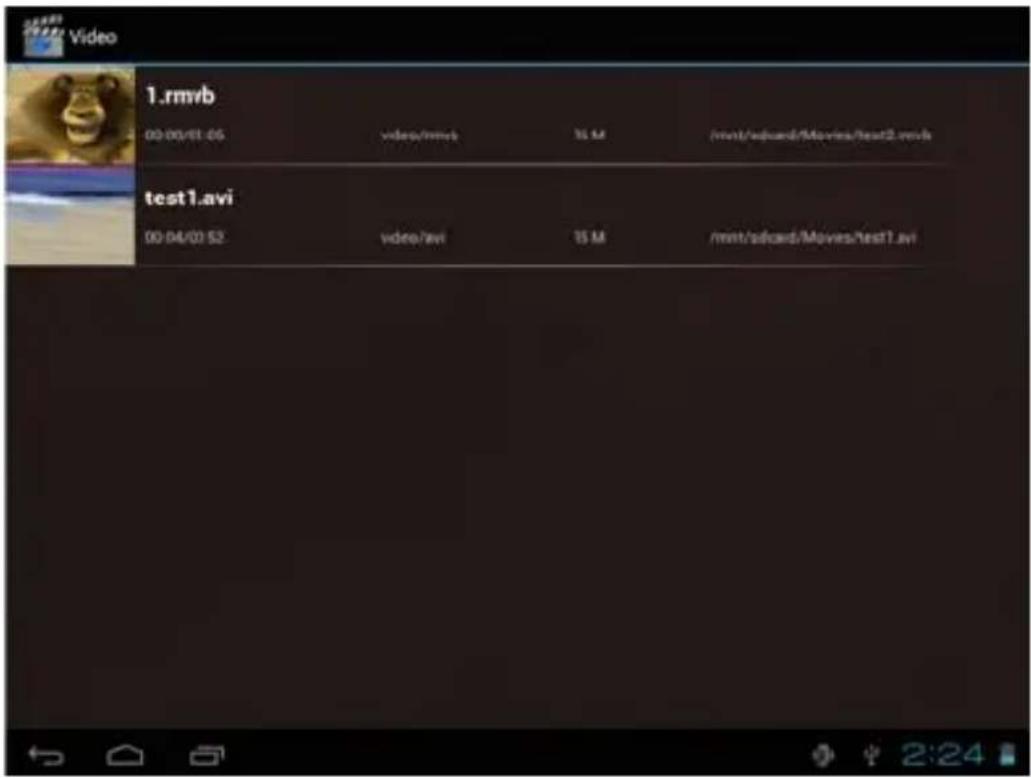
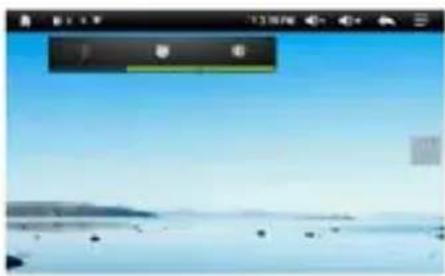
Tab the video you would like to play. Tab the screen to show the video tool bar. You can play back, fast forward, pause your video here. You can also add bookmark for your video, adjust brightness, or set screen ratio here. Here is the toolbar:

With the Wi-Fi on, you are also able to view an on-line video.
6.2.2 HDMI Output
Connect the tablet to your TV via HDMI cable and wait for a while for your TV set to receive signal. Adjust your TV if necessary. HDMI cable is not included as an accessory.
a. Tap 'Video player' or other video players and play a required movie.
b. Adjust your TV set and select "HDMI" output
c. Connect the tablet to your TV via HDMI cable, and wait for a few seconds for your TV
set to receive signal.
You can also operate on your tablet while HDMI connected.
6.3 Gallery
You can view, show off, and even edit your digital pictures on the tablet's full color, high-
resolution display. After loading your media, tap Gallery 📋 to display your pictures:

natural_image
Grid of 20 colorful nature and food images including peacock, apple, ladybug, cherries, kiwi, and candy (no text or symbols)Tab the picture you want to display it, and slide right or left to show other pictures. Tap the menu icon, you can edit, rotate, crop, or set it as wallpaper.
6.4 Camera
Tap the icon to open camera. Your tablet is built in 2M front camera and 3M rear camera. You can take a photo, or a video both by front camera and rear camera. Note: After you power on your tablet, you can go to camera directly by drag the lock to left.

6.5 E-book reader
The tablet supports many e-Book formats like PDF, Text, E-Pub, and FB2....
Tap the “e-book” icon to open e-book shelves. Tab an e-book to open the book and read
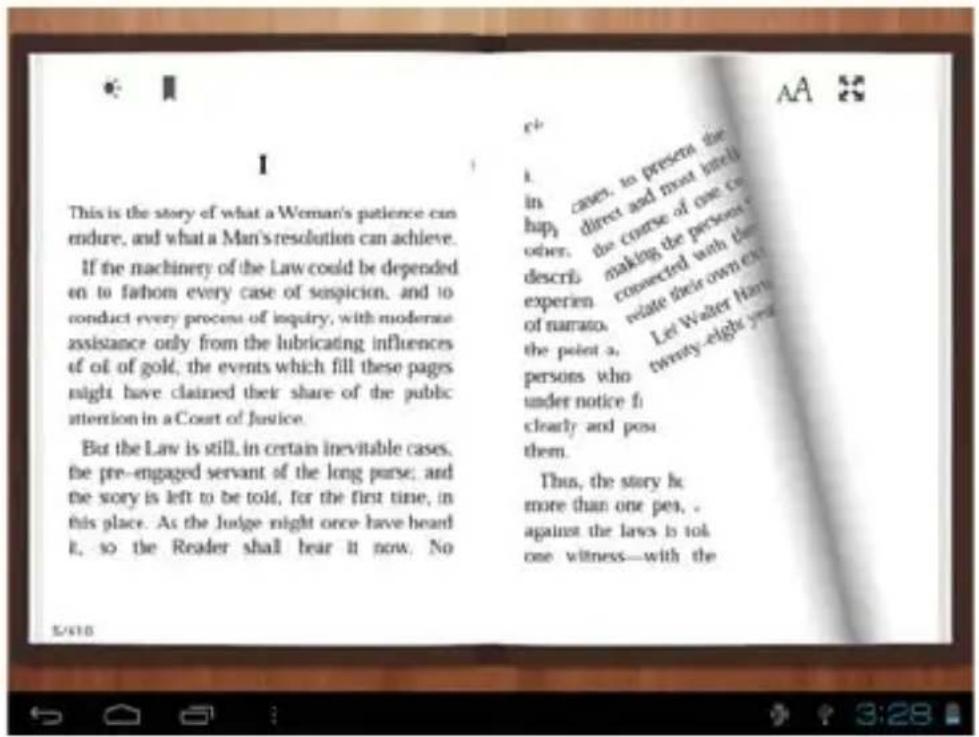
You can page up or page down by sliding your finger right or left.
Tab or the menu button to check the sub-menus. You can set the font size, Go to Page jump; check your bookmarks, set the auto flip time, etc.
VII. SETTING
Tap the "Settings" icon to go to settings.
You can check and set wireless networks, sound, display, storage, Battery, Accounts &sync, security, language, date time, about tablet, etc.
Wi-Fi: tap “Settings” • “Wireless & networks” to turn on wifi and scan. It will show a list of Wi-Fi networks scanned in range. Choose a strong Wi-Fi network to connect. (You may need to input the password).
Display: To set Brightness, Wallpaper, Sleep time-out, Font size here.
Storage: Check internal storage here. If you insert a Micro SD card, or USB disk, you can check the total and available space for your Micro SD card or USB disk. Please unmount it to safely remove it.
Battery: Check the Battery status here.
Display: Tab "Settings" • "Display" to set brightness, screen time-out, etc.
Language & input: to set language and keyboard input.
Backup & reset: choose to go to submenu “back up my data” and “Factory data reset”. If you choose factory data reset, all data from your tablet’s internal storage will be erased. Choose this option carefully.
About Tablet: To check information about your tablet, such as Model number, android
version, etc.
VIII. BATTERY
 |  |  | |||
| Very low Battery Full Battery Charging Battery | |||||

‘’ indicates that the power of Battery is full. When the battery level becomes too low, a prompt comes up to note you to charge your tablet.
While charging, you can check the charging status in the lock screen:
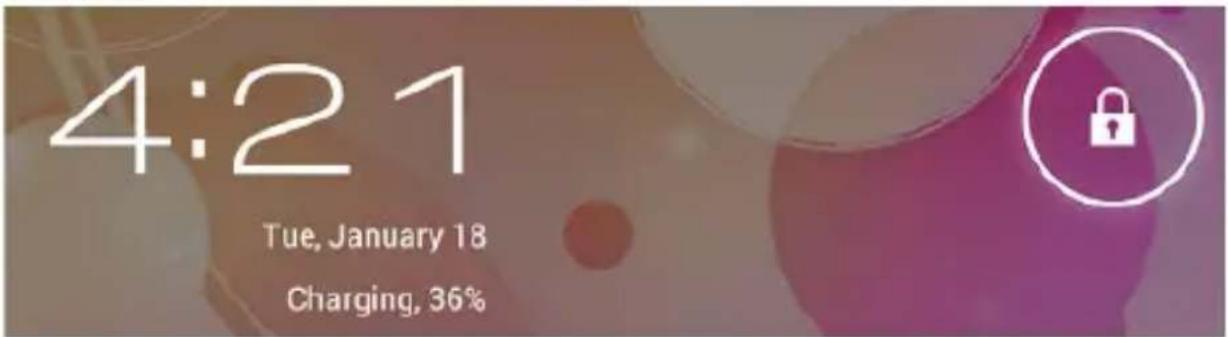
It takes around 5 hours to charge your tablet to full battery. Please only use the 9V /2.5A adaptor included in the gift box to charge it.
TROUBLESHOOTING
- Can not turn on the tablet
Check the tablet's power level; please charge it before starting it. In case your tablet still cannot be turned on, you may try to reset it
- No sound from earphone
Check if volume is set to '0'. Or earphone may be broken, please change for another one.
- Big noise
Check if there is dust in the earphone or speaker. Check if the file is broken.
- Frozen to any operation
Please use a pin to reset and then restart your tablet.
- Screen drift or unresponsive screen
To correct it, you may
a) Go to Settings • Accessibility • Touch panel calibration to calibrate it;
b) In case calibration cannot be carried out, you may press and hold the power button for about 15 seconds to force the tablet to shut down. Calibration will be automatically done after you start up your tablet.
c) Use a USB mouse to carry out calibration operations on your tablet.
6. Application not workable
Possible reasons may be that this app is not compatible with your OS or the downloaded .apk file is broken so you may need to download a full version.
7. How delete a Google account?
If an account is added, the account is shown in “Accounts & sync” of “Settings”, where you may also add another account. To delete an undesired account, go to “Settings” • “Privacy settings” • “Factory data reset”. Your tablet’s internal storage, downloaded apps, etc. will also be deleted, except the info in your flash memory. Be careful before you carry out this operation.
TECHNICAL SPECIFICATION
DISPLAY....9.7-inch TFT LCD, IPS, Capacitive (Ten-touch)
RESOLUTION 1024X 768 (4:3)
CPU ...... ARM Cortex A9, 1.6GHz, Dual Core CPU, Quad Core GPU
RAM 1GB
OPERATIVE SISTEM ...... Android 4.1
MEMORY BUILT-IN . 8 GB
WIRELESS NETWORK . Wi-Fi (802.11 b/g)
3G WCDMA
AUDIO FORMAT ...... MP3, WMA, WAV, APE, FLAC, AAC, OGG
VIDEO FORMAT ......AVI, WMV, MP4, MKV, R, RMVB, FLV, MOV, 3G
PICTURES ...... JPEG, BMP, GIF
E-Book . ....TXT, PDB, PDFEpub,
CORRECT DISPOSAL WARNING

Precautions for correct disposal of the product.
The symbol shown on the equipment indicates that waste must be disposed of in “separate collection” and so the product must not be disposed of together with urban waste.
The user must take the product to special “separate waste collection centres” provided by local government, or deliver it to the retailer against the purchase of a new product.
Separate collection of waste and subsequent treatment, recycling and disposal operations promotes the production of equipment with recycled materials and limits negative effects on the environment and on health caused by improper handling of waste.
Illegal disposal of the product leads to the enforcement of administrative penalties.

natural_image
Abstract digital background with blurred tech icons and no readable text or symbolsTab 93G V8

Trevi S.p.A.
Strada Consolare Rimini-San Marino, 62
47924 RIMINI (RN) Italy
Tel. 0541/756420 - Fax 0541/756430
www.trevi.it - E-mail: info@trevi.it






- Tab 9 3G V8
- INDICE
- Note:
- Video
- IMPOSTAZIONI
- Wi-Fi
- WELCOME
- IMPORTANT NOTICES
- GETTING STARTED
- Turn on/off
- Turn on
- Turn off
- Lock/unlock the screen (sleep mode)
- Connect to computer
- YOUR HOME SCREEN
- Change wallpaper for home screen:
- Add/delete applications on home screen:
- Add widgets to home screen:
- NETWORK CONNECTION
- Wi-Fi
- Turn on Wi-Fi
- Turn off Wi-Fi
- Add a Wi-Fi network
- 3G Network
- INTERNET BROWSING
- Internet Browsing
- INSTALL AND MANAGE APPS
- Install Apps
- Manage Apps
- MULTI-MEDIA FUNCTION
- Music
- Video
- HDMI Output
- Gallery
- Camera
- E-book reader
- SETTING
- BATTERY
- TROUBLESHOOTING
- To correct it, you may
- Application not workable
- How delete a Google account?
- TECHNICAL SPECIFICATION
- CORRECT DISPOSAL WARNING
- Precautions for correct disposal of the product.
- Tab 93G V8
Brand : Trevi
Model : TAB 9 3G V8
Category : Tablet