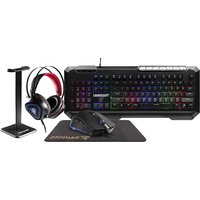
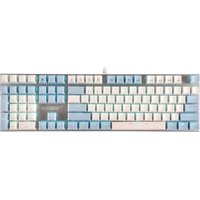
Gamdias Hermes E7 - Keyboard

Hermes E7 - Keyboard Gamdias - Free user manual and instructions

Find the device manual for free Hermes E7 Gamdias in PDF.

📄 4 pages English EN Download 💬 AI Question 10 questions ⚙️ Specs
Notice Gamdias Hermes E7 - page 1
Pick your language and provide your email: we'll send you a specifically translated version.
Product Type Mechanical Gaming Keyboard
Model Hermes E7
Brand Gamdias
Layout Full-size (104 keys)
Switch Type Mechanical (Gamdias Hera or Kailh box switches)
Backlight Per-key RGB LED
Connectivity Wired USB 2.0
Cable Length 1.8 m braided cable
Key Rollover N-key rollover
Polling Rate 1000 Hz
Onboard Memory 512 KB (macro/profile storage)
Dimensions (W x D x H) 445 x 135 x 35 mm
Weight 1.2 kg
Power Supply USB bus power (5V, 500mA)
Main Functions Mechanical typing, customizable RGB, macro recording, media controls, gaming mode
Wrist Rest Detachable magnetic leather wrist rest
Software Support Gamdias Hermes Engine (Windows)
Compatible Systems Windows 10/11, macOS (limited)
Care and Cleaning Disconnect USB, use compressed air or soft brush for dust; avoid liquids
Safety Do not expose to moisture; use only with supplied cable; avoid sharp objects
Spare Parts and Repairability Switch replacement possible (soldering required); keycaps available from Gamdias
Warranty 2 years limited warranty
General Information Gaming keyboard with mechanical switches and per-key RGB lighting; designed for durability and performance

Frequently Asked Questions - Hermes E7 Gamdias

How do I connect the Hermes E7 keyboard?
Plug the USB cable into an available USB 2.0 port on your computer. The keyboard will be automatically recognized. For full software functionality, install the Gamdias Hermes Engine from the official website.
What type of switches does the Hermes E7 use?
The Hermes E7 uses mechanical switches, typically Gamdias Hera or Kailh box switches (depending on the variant). They are hot-swappable? Actually, they are soldered but can be replaced with desoldering.
Can I customize the RGB lighting?
Yes, via the Gamdias Hermes Engine software. You can choose from preset effects or create per-key custom colors. Onboard memory allows saving up to 5 profiles.
How do I clean the keyboard?
Disconnect the keyboard. Use compressed air to dislodge debris between keys. Wipe the surface with a slightly damp (not wet) microfiber cloth. Avoid isopropyl alcohol unless necessary.
Is the Hermes E7 compatible with macOS?
It works as a standard USB keyboard on macOS, but advanced features like macro programming and RGB customization require the Windows-only Hermes Engine software.
What is N-key rollover?
N-key rollover means every key press is registered simultaneously, regardless of how many keys are pressed. This prevents ghosting and is essential for fast-paced gaming.
Does the keyboard have media keys?
Yes, it includes dedicated media control keys (play/pause, volume, mute) via the Fn layer. The exact location is shown in the manual.
How do I reset the keyboard to factory settings?
Press and hold the Fn + Esc keys for 5 seconds until the LEDs flash. This clears all custom profiles and returns default lighting.
What do I do if a key stops working?
First, check for physical debris under the keycap. Remove the keycap (use a puller if needed) and clean. If the switch is defective, it may need desoldering and replacement. Contact Gamdias support for service.
Where can I download the user manual and software?
Visit the official Gamdias website at www.gamdias.com under the Hermes E7 product page. Manuals and the Hermes Engine software are available for download.

User questions about Hermes E7 Gamdias

0 question about this device. Answer the ones you know or ask your own.

Ask a new question about this device

The email remains private: it is only used to notify you if someone responds to your question.

No questions yet. Be the first to ask one.

Download the instructions for your Keyboard in PDF format for free! Find your manual Hermes E7 - Gamdias and take your electronic device back in hand. On this page are published all the documents necessary for the use of your device. Hermes E7 by Gamdias.

USER MANUAL Hermes E7 Gamdias

natural_image Abstract geometric pattern with nested triangles and a central square (no text or symbols)

Esc F1 F2 F3 F4 F5 F6 F7 F8 F9 F10 F11 F12 ~ ! @ # $ % ^ & * ( ) - + ← 1 2 3 4 5 6 7 8 9 0 - = TAB Q W E R T Y U I O P { } / CAPS LOCK A S D F G H J K L : : . SHIFT Z X C V B N M < ? / SHIFT CTRL WIN ALT ALT FN MENU CTRL INS HOME PGUP PHISC SCHX PAUSE DEL END PGDN

HERMES IE7

Mechanical Gaming Keyboard

《English》

Thank you for purchasing the GAMDIAS™ HERMES E7 mechanical keyboard. The HERMES E7 focuses on providing a comfortable gaming experience. Its compact design combined makes it the perfect match for FPS gaming. The easy-to-use keyboard is versatile enough to suit every scenario, from gaming to work.

System Requirements

  • Windows ® XP/ Vista / 7 / 8 / 10
  • PC with USB ports

Package Contents

• GAMDIAS™ HERMES E7 Mechanical Gaming Keyboard
• 1.5m Tyer-C to A cable
- Keycap / Switch puller

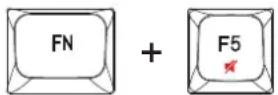
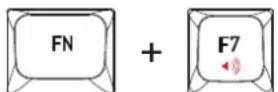
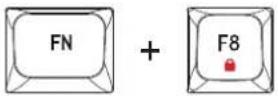
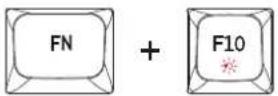
Introduction to HERMES E7 Key Combination

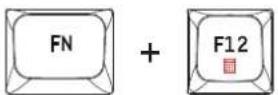
Reset to Default(Press for 3 seconds)

Gamdias Hermes E7 - Introduction to HERMES E7 Key Combination - 1

Previous Track

Gamdias Hermes E7 - Introduction to HERMES E7 Key Combination - 2

Play / Pause Track

Gamdias Hermes E7 - Introduction to HERMES E7 Key Combination - 3

Next Track

Gamdias Hermes E7 - Introduction to HERMES E7 Key Combination - 4

Stop Track

Gamdias Hermes E7 - Introduction to HERMES E7 Key Combination - 5

Mute

Gamdias Hermes E7 - Introduction to HERMES E7 Key Combination - 6

Volume Down

Gamdias Hermes E7 - Introduction to HERMES E7 Key Combination - 7

Volume Up

Gamdias Hermes E7 - Introduction to HERMES E7 Key Combination - 8

Keyboard Lock

Gamdias Hermes E7 - Introduction to HERMES E7 Key Combination - 9

Switch Lightaing Effects

Gamdias Hermes E7 - Introduction to HERMES E7 Key Combination - 10

Switch Lighting Colors

Gamdias Hermes E7 - Introduction to HERMES E7 Key Combination - 11

Turn Off Lighting

Gamdias Hermes E7 - Introduction to HERMES E7 Key Combination - 12

Calculator

Gamdias Hermes E7 - Introduction to HERMES E7 Key Combination - 13

PrtSc

Gamdias Hermes E7 - Introduction to HERMES E7 Key Combination - 14

ScrLk

Gamdias Hermes E7 - Introduction to HERMES E7 Key Combination - 15

Pause

Gamdias Hermes E7 - Introduction to HERMES E7 Key Combination - 16

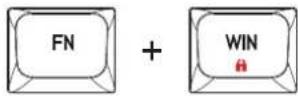
Win Lock

Gamdias Hermes E7 - Introduction to HERMES E7 Key Combination - 17

Brightness Increase

Gamdias Hermes E7 - Introduction to HERMES E7 Key Combination - 18

Brightness Decrease

Gamdias Hermes E7 - Introduction to HERMES E7 Key Combination - 19

Lighting Effects Speed Increase

Gamdias Hermes E7 - Introduction to HERMES E7 Key Combination - 20

Lighting Effects Speed Decrease

Gamdias Hermes E7 - Introduction to HERMES E7 Key Combination - 21

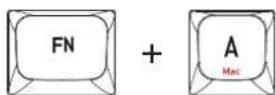
Switch to Mac Setup

Gamdias Hermes E7 - Introduction to HERMES E7 Key Combination - 22

Switch to WIN Setup

Gamdias Hermes E7 - Introduction to HERMES E7 Key Combination - 23

Gamdias Hermes E7 - Introduction to HERMES E7 Key Combination - 24

natural_image Abstract geometric logo with interlocking black and gold shapes forming a triangular pattern (no text or symbols)

GAMDIAS

GRAMING ART IN MOTION

Manual assistant
Powered by Anthropic
Waiting for your message
Product information

Brand : Gamdias

Model : Hermes E7

Category : Keyboard