IOPEXTKBOARD319BTR - Keyboard IOPLEE - Free user manual and instructions
Find the device manual for free IOPEXTKBOARD319BTR IOPLEE in PDF.


| Product Type | Wireless Bluetooth Keyboard |
| Model | IOPEXTKBOARD319BTR |
| Brand | IOPLEE |
| Connectivity | Bluetooth 5.0 |
| Dimensions (L x W x H) | 285 x 120 x 20 mm |
| Weight | 400 g |
| Power Source | 2 x AAA Batteries (not included) |
| Battery Life | Approximately 6 months (typical usage) |
| Number of Keys | 78 keys |
| Key Layout | US QWERTY with function row |
| Compatible Systems | Windows, macOS, Android, iOS |
| Multi-Device Connection | Up to 3 devices, switch via Fn keys |
| Material | ABS plastic |
| Color | Black |
| Special Functions | Multimedia keys (volume, play/pause), auto-sleep after 10 minutes |
| Cleaning Instructions | Wipe with a soft, slightly damp cloth; avoid liquids entering the keyboard |
| Safety Warning | Keep away from water and extreme temperatures |
| Spare Parts / Repairability | Batteries are user-replaceable; no other spare parts available |
| Warranty | 1 year limited warranty |
| Package Contents | Keyboard, User Manual, AAA Batteries (may vary) |
Frequently Asked Questions - IOPEXTKBOARD319BTR IOPLEE
User questions about IOPEXTKBOARD319BTR IOPLEE
0 question about this device. Answer the ones you know or ask your own.
Ask a new question about this device
Download the instructions for your Keyboard in PDF format for free! Find your manual IOPEXTKBOARD319BTR - IOPLEE and take your electronic device back in hand. On this page are published all the documents necessary for the use of your device. IOPEXTKBOARD319BTR by IOPLEE.
USER MANUAL IOPEXTKBOARD319BTR IOPLEE
Thank you very much for purchasing one of our products. We kindly ask you to read this instruction manual carefully and to keep it, as it provides valuable information regarding safe use and maintenance.
INDEX
1 Safety Warnings
2 Description of the Appliance
3 Before first use
4 Operation
5 Cleaning and maintenance
6 Technical Specification
7 Disposal
8 Warranty and Compliance
1 Safety Warnings
- If any liquid enters the product accidentally. Please unplug the USB cable connecting the keyboard from the computer immediately.
- The keyboard should be placed on a stable desktop to avoid falling and damaging the keyboard.
- When cleaning the keyboard, do not rinse it directly with water
- Washing hands before using the keyboard can prevent sweat and bacteria from contaminating the keyboard. Washing hands after use can prevent contamination by bacteria on the keyboard.
2 Description of the Appliancear
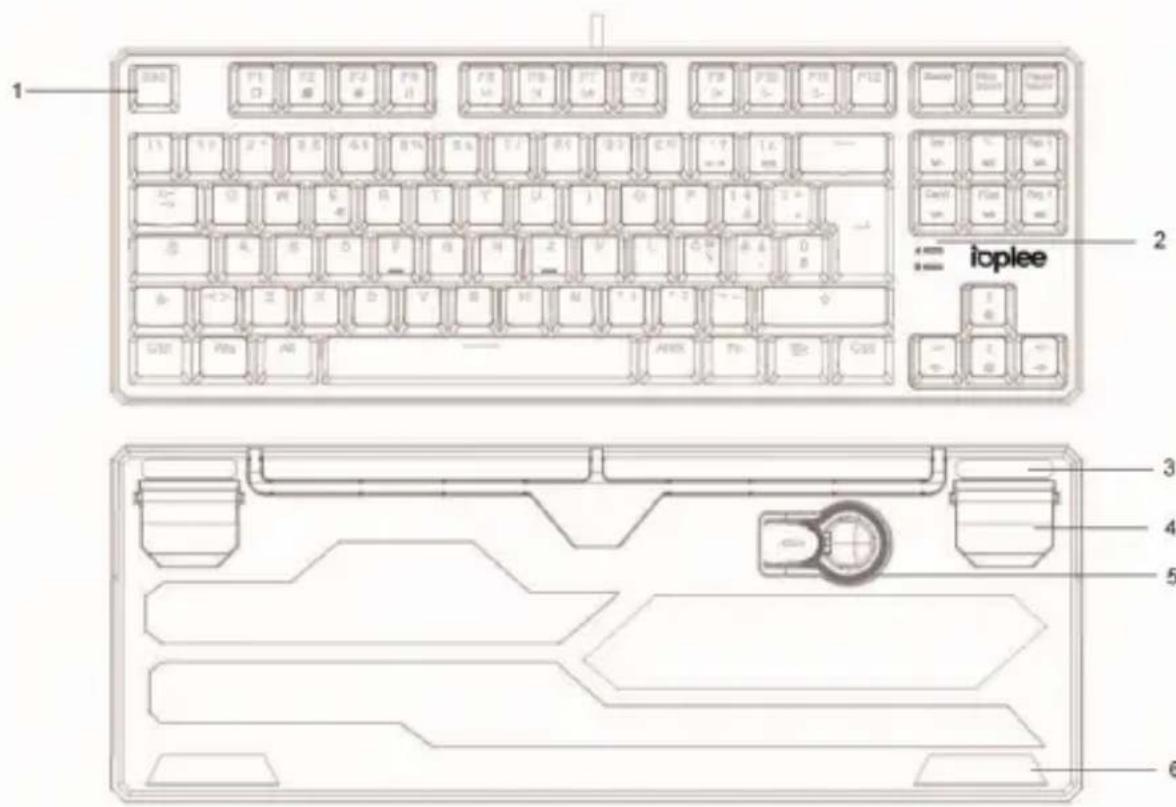
-
Keycaps
-
Indicator LED*2
3.Non-slip mat*2
-
Keyboard stand*2
-
Keycap puller
6.Non-slip mat*2
3 Before first use
Before using the keyboard, be sure to carefully review the keyboard manual and operate according to the requirements and specifications in the manual.
4 Operation
- Insert the USB interface of the mechanical keyboard into the USB port of the computer.
- Once inserted, the computer will recognize the keyboard automatically and you can start using it immediately.
RGB backlight setting: total 18 LED effects.
FN + Ins (M1): press 3 times and 3 LED effects will be showed.
FN + ↘ (M2): press 3 times and 3 LED effects will be showed.
FN + Pag ↑ (M3): press 3 times and 3 LED effects will be showed.
FN + Canc (M4): press 3 times and 3 LED effects will be showed.
FN + Fine (M5): press 3 times and 3 LED effects will be showed.
FN + Pag ↓ (M6): press 3 times and 3 LED effects will be showed.
Shortcut key Function:
1.FN + I: switch to the self-defined LED
2.FN + RGB: change the LED color
3.FN + l: save the self-defined mode
4.FN + ↑: increase LED brightness
5.FN + ↓: decrease LED brightness
6.FN + ←: decrease LED changing speed
7.FN + →: increase LED changing speed
8.FN + ?: LED direction change
9.FN + W: exchange WASD and
10.FN + Win: windows lock function and press again to unlock
11.FN + ESC, then press F1, F3, F5 in order and switch to restore factory setting
Multimedia function:
| FN + F1= Computer | FN + F7= Play/Pause |
| FN + F2= Homepage | FN + F8= CD Stop |
| FN + F3= Calculator | FN + F9= Mute |
| FN + F4= CD | FN + F10= Volume- |
| FN + F5= Prev Track | FN + F11= Volume+ |
| FN + F6= Next Track |
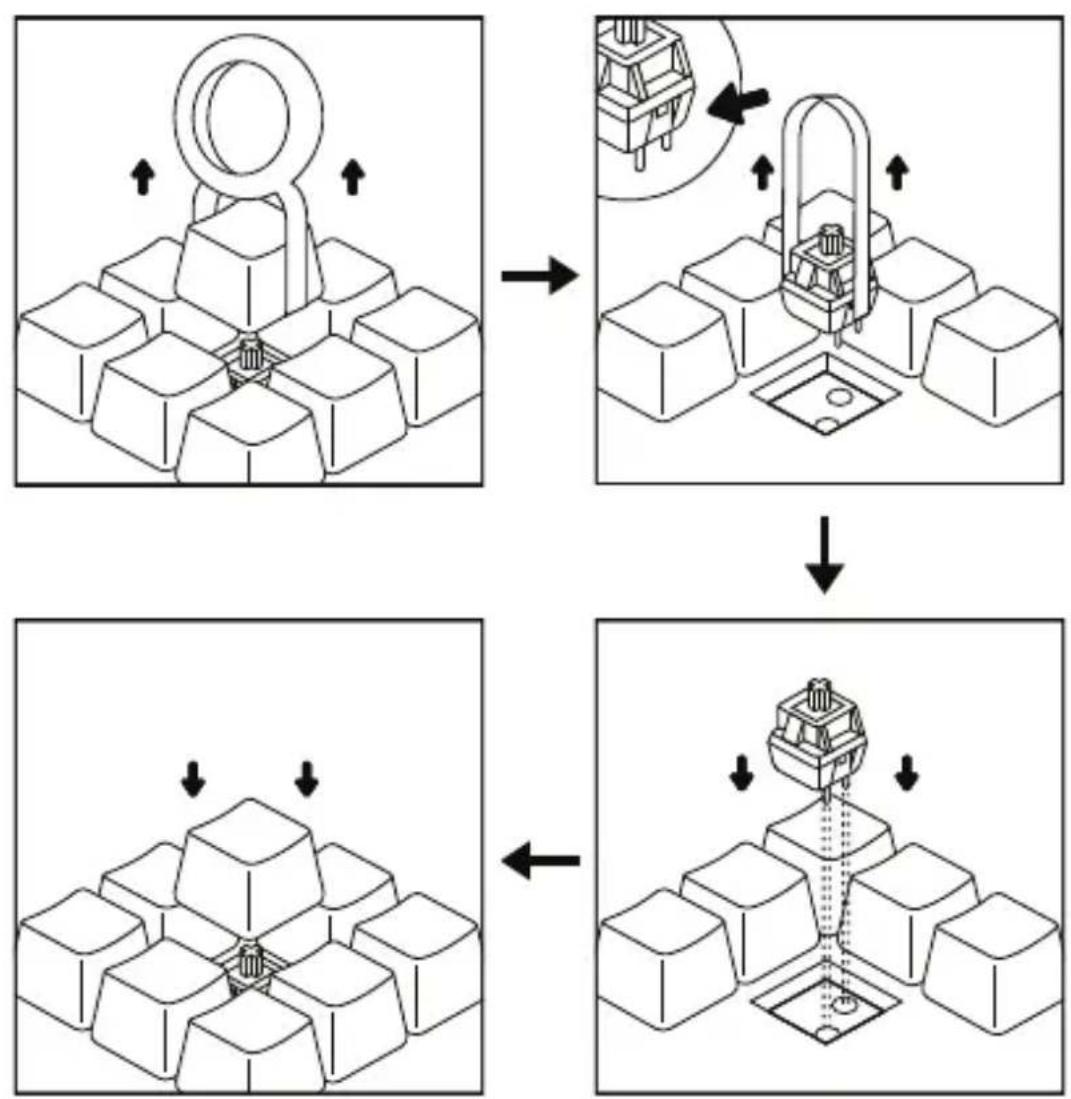
Replaceable switch:
When the key cannot work well, you can change it yourself based on the following process.
1. Remove keycap:
Use the keycap puller tool to clamp on a keycap and pull upwards to detach keycap with switch.
Sometimes the switch may come out as well if the keycap is secured tightly on switch, which is normal.
For longer keys, such as: the space key, always clamp and remove from the middle of the keycap.
2. Remove switch:
Use the switch puller to push in 2 tabs located on top and bottom side. Once they are pushed in, pull upwards to remove switch from keyboard case.
Warning: it is very easy to scratch your keyboard case with this tool, so take caution when removing switches.
3. Insert switch:
Align switch to holes on the keyboard and insert
straight down. There should be minimal resistance and the switch should pop into the frame of keyboard.
It is recommended at this time to have a text-editor on you PC open to make sure the switch works well when you press it.
4. Insert keycap
Once you have confirmed the switch is properly inserted, snap back in in the appropriate keycap.
Warning: don't mix the keycap and please replace it one by one.
5 Cleaning and Maintenance
- Remove the keyboard from the device.
- Lift the keyboard and turn it upside down to let paper scraps, dust, snack crumbs, etc. come out from the inside of the keycap.
- Clean the keycap and the top surface by using microfiber cloth.
6 Technical Specification
| Model number | IOPEXTKBOARD319BTR |
| LED | RGB LED |
| Keys | 88 |
| Connection Type | USB |
| Material | ABS |
| Cable length (mm) | 1800 |
| Product Size LxWxH(mm) | 361.5*133.5*22.5 |
| Weight | 950g |
7 Disposal
Processing of electric and electronic equipment at the end of their service life (applicable in member countries of the European Union and other European countries operating a selective waste collection system).
This symbol, affixed to the product or its packaging, indicates that the product must not be processed with household waste. It must be brought to an electric and electronic waste collection point for recycling and disposal. By ensuring the appropriate disposal of this product you also help in preventing potentially negative consequences for the environment and human health. The recycling of materials helps preserve our natural resources. For further information regarding the recycling of this product, please contact your municipality, local waste disposal centre or the store where the product was purchased.
In accordance with Legislative Decree of March 14, 2014, No. 49,

"Implementation of Directive 2012/19/EU on Waste Electrical and Electronic Equipment (WEEE)"the crossed-out wheeled bin symbol on the appliance or its packaging indicates that the product must be collected separately from other waste at the end of its life. Therefore, the user should dispose of the end-of-life appliance at the appropriate collection points for electronic and electrical waste or return it to the retailer when purchasing a new equivalent appliance, on a one-to-one basis. Proper separate collection for the subsequent disposal, treatment, and environmentally friendly disposal of the discarded appliance helps to prevent potential negative effects on the environment and health and promotes the recycling of the materials the appliance is composed of. Unauthorized disposal of the product by the user may result in the application of administrative sanctions provided by current regulations.
8 Warranty and Compliance
This IOPLEE Warranty applies only to IOPLEE products purchased for personal use and not those intended for resale.
Your IOPLEE product is warranted in accordance with the terms and conditions of this warranty against defects in workmanship and conformity for a period of a 2 years, and that period begins upon delivery of the item, if purchased from an official dealer.
The warranty will not be valid if the product has been opened, in the presence of physical damage, damage resulting from incorrect use, modifications, repairs by unauthorized persons, negligence and in the event that the product has been used for purposes other than those for which it was intended; furthermore, the legal guarantee will not apply if the purchase methods or other circumstances demonstrate, with reasonable certainty, that the
purchase itself is not exclusively aimed at private consumption.
In the event that the product is defective, it can be returned to the retailer along with a description of the type of malfunction, proof of purchase, and any accessories.
If the product is still under warranty, you will receive a replacement product (if available) from the dealer.
These are not covered by the warranty:
- Accidental damage or damage resulting from incorrect or improper use, contact with liquids; damage caused by accidents or force majeure events such as fire, earthquake, flood, vandalism, theft or other external cause.
- Cosmetic damage such as scratches, dents, or other breakage of plastic parts, caused by handling errors.
- Defects resulting from normal product wear and tear (product aging).
- Incompatibility with other hardware/software products not listed in the minimum system
requirements.
- Consumable accessories such as batteries, protective covers, and fuses, which normally wear out over time. Problems due to noncompliance related to labour or materials are excluded.
In no event shall the manufacturer be liable for incidental or consequential damages, including any loss of business profits or other commercial damages resulting from the use of the product.
Due to the rapidly evolving nature of our products, the content of this manual may be subject to change without prior notice.

Made in China
ioplee
Manufactured and imported by Exertis Supply Chain Services Limited. Unit 21 Fonthill Business Park, Clondalkin. Dublin 22, D22 FR82, Dublin, Ireland
- INDEX
- Safety Warnings
- Description of the Appliancear
- Before first use
- Operation
- Shortcut key Function:
- Multimedia function:
- Replaceable switch:
- Remove keycap:
- Remove switch:
- Insert switch:
- Insert keycap
- Cleaning and Maintenance
- Technical Specification
- Disposal
- Warranty and Compliance
- These are not covered by the warranty:
- ioplee
Brand : IOPLEE
Model : IOPEXTKBOARD319BTR
Category : Keyboard