
Opus - PC Case Azza - Free user manual and instructions
Find the device manual for free Opus Azza in PDF.


| Product Type | Mid-Tower PC Case |
| Brand | Azza |
| Model | Opus |
| Motherboard Support | ATX, Micro-ATX, Mini-ITX |
| Dimensions (H x W x D) | 460 x 210 x 420 mm |
| Weight | 7.5 kg |
| Material | Steel, Tempered Glass |
| Side Panel | Tempered Glass (left side) |
| Expansion Slots | 7 |
| Drive Bays | 2 x 3.5", 2 x 2.5" (internal) |
| Front I/O | 2 x USB 3.0, 1 x USB 2.0, HD Audio & Mic |
| Fan Support (Front) | 3 x 120mm or 2 x 140mm |
| Fan Support (Top) | 2 x 120mm or 2 x 140mm |
| Fan Support (Rear) | 1 x 120mm |
| Radiator Support (Front) | Up to 360mm |
| Radiator Support (Top) | Up to 240mm |
| GPU Clearance | 380 mm |
| CPU Cooler Clearance | 160 mm |
| PSU Clearance | 200 mm |
| Dust Filters | Front, top, and PSU bottom (removable) |
| Included Fans | None (case without fans) or 3 x 120mm ARGB |
| RGB Support | ARGB controller (may be included) |
| Cleaning Instructions | Use soft lint-free cloth; clean dust filters with water; avoid abrasive cleaners |
| Safety Precautions | Handle tempered glass with care; avoid impact; keep away from children |
| Spare Parts | Contact Azza support for replacement screws, fan brackets, or glass panel |
| Warranty | 1 year limited warranty |
Frequently Asked Questions - Opus Azza
User questions about Opus Azza
0 question about this device. Answer the ones you know or ask your own.
Ask a new question about this device
Download the instructions for your PC Case in PDF format for free! Find your manual Opus - Azza and take your electronic device back in hand. On this page are published all the documents necessary for the use of your device. Opus by Azza.
USER MANUAL Opus Azza
natural_image
Abstract geometric logo design with orange and black shapes on dark background (no text or symbols)OPUS

natural_image
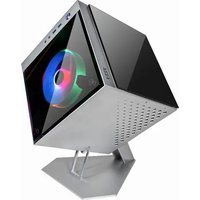
Exterior view of a modern, reflective metallic device with geometric edges and no visible text or symbolsAZZA
| Model | |
| Model Name | Opus |
| Model Number CSAZ-809 | |
| Specifications | |
| Type | ATX |
| Color | Space gray and Black glass (exterior) / Black (interior) |
| Side Panels | 4 Tempered glass panelsSandblasted anodized aluminum structure |
| Max CPU Cooler Height Up to 60mm | |
| Max Video Card Length Up to 360mm (Vertical) | |
| Power Supply Not Included | |
| Motherboard Compatibility | <305x280mm E-ATX, ATX, Micro-ATX, Mini-ITX |
| Expansion | |
| External 5.25" Drive Bays | 0 |
| Internal 2.5" Drive Bays | Up to 2 |
| Internal 3.5" Drive Bays | 1 |
| Expansion Slots | 3 (Vertical) |
| I/O Ports Power button, USB 3.0 x2, Type C x1 | |
| Physical Specifications | |
| Dimensions (HxWxD) 539 x 320 x 320 mm / Weight 8.7 kg / 19.2 lbs | 21.2 x 12.6 x 12.6 inches |
| Features | |
| Tempered Glass | High-quality tempered glass panels allow for clear visuals of inner components |
| Available Fan Ports | 3 x 120 mm ports on the rear |
| Included Fan None | |
| Radiator Support | Supports radiators up 360 mm |
| Accessories | 30 cm PCI-e 3.0 Riser Cable & Power MeshAnother 30cm PCI-e 4.0 extension cable version is available |
1. Removing Four Glass Panels.

natural_image
3D rendering of a metallic mechanical housing with an upward arrow symbol (no text or labels)
natural_image
3D rendering of a mechanical device with an orange arrow indicating rotation or change (no text or symbols present)2. Removing Four Sides Metal Frame.

natural_image
3D rendering of a metal enclosure with internal structural framework and mounting holes (no text or symbols)3. Removing GPU Holder and PSU Cover Together

natural_image
3D CAD model of a mechanical housing or enclosure with highlighted circular features (no text or symbols)The screwdriver can go straight through

natural_image
3D rendering of a black mechanical device with red motion lines indicating movement or force, no visible text or symbols- Motherboard Installation.
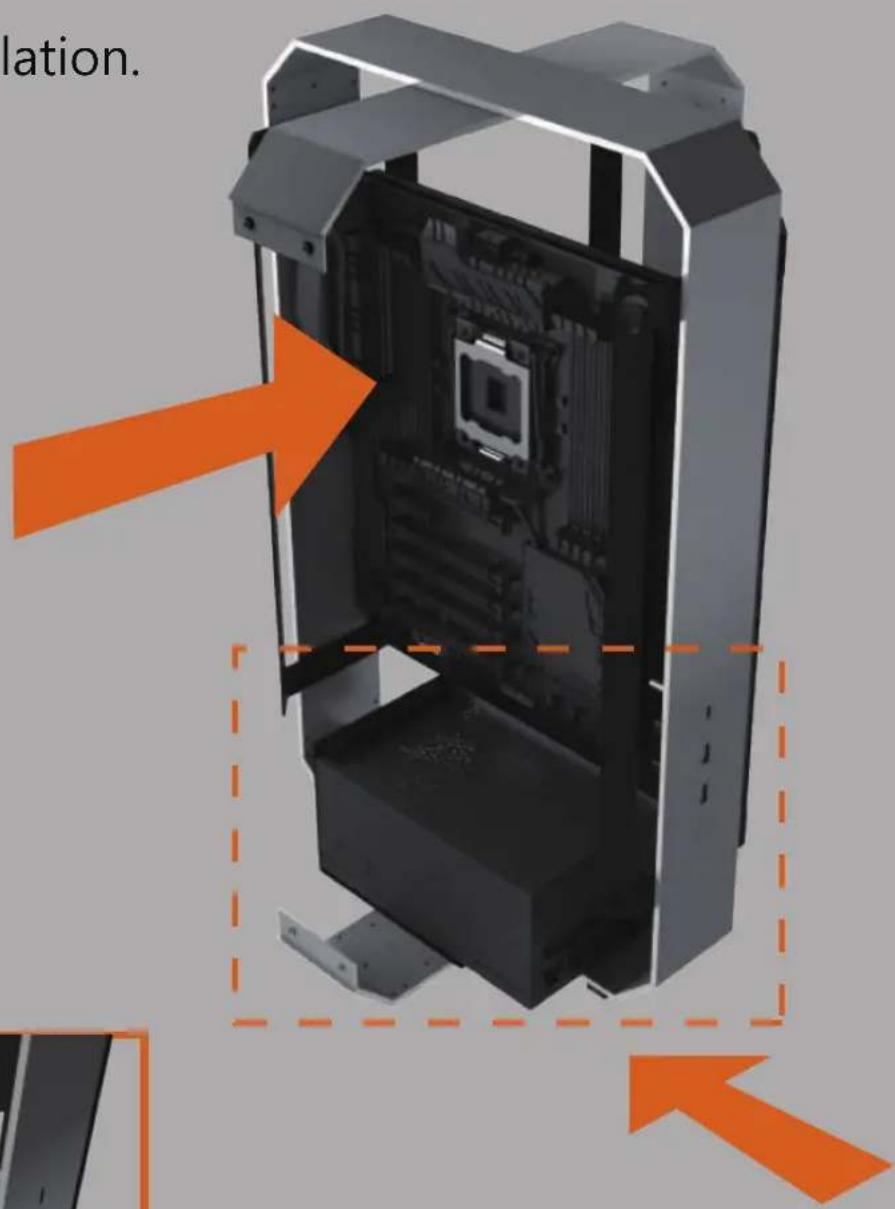

natural_image
Interior view of a computer tower with visible CPU socket and ventilation slots (no text or symbols)The parts kit contains a psu filter.
- Power Supply Installation.
6. HDD & SSD Installation.

natural_image
Top-down view of a black mechanical component with orange dashed outline highlighting a specific area (no text or symbols)Supports up to:
3.5" HDD x1 + 2.5" SSD x 1
or
2.5"SSD x 2
* The bracket supports a 3.5" or 2.5" device.
7. Removing The Radiator/Fan Bracket.


8. Cooling System Installation

natural_image
3D rendering of a black server rack with an orange arrow indicating direction (no text or symbols)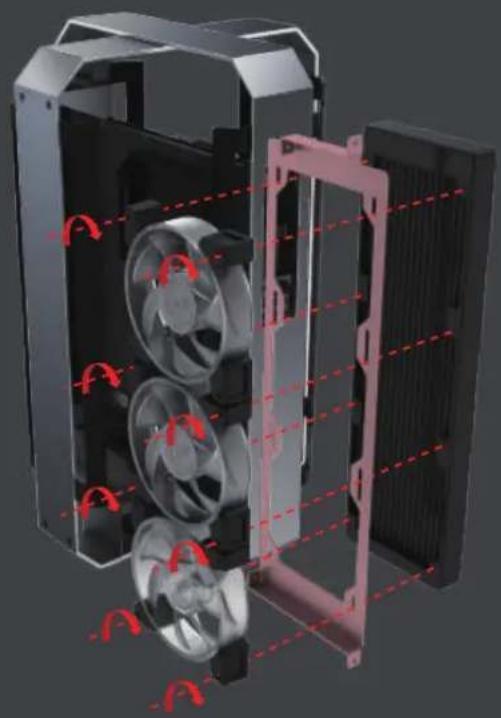
natural_image
3D cutaway view of a mechanical device showing internal fan and cooling fins (no text or symbols)9. Cooling System Installation.

natural_image
3D rendering of a mechanical device with internal fan blades and orange directional arrows indicating motion (no text or symbols)Please install the CPU bracket and radiator pump into the motherboard before pushing the cooler into the chassis.

120mm x3
Max Height of Radiator 360 mm
10. GPU Installation
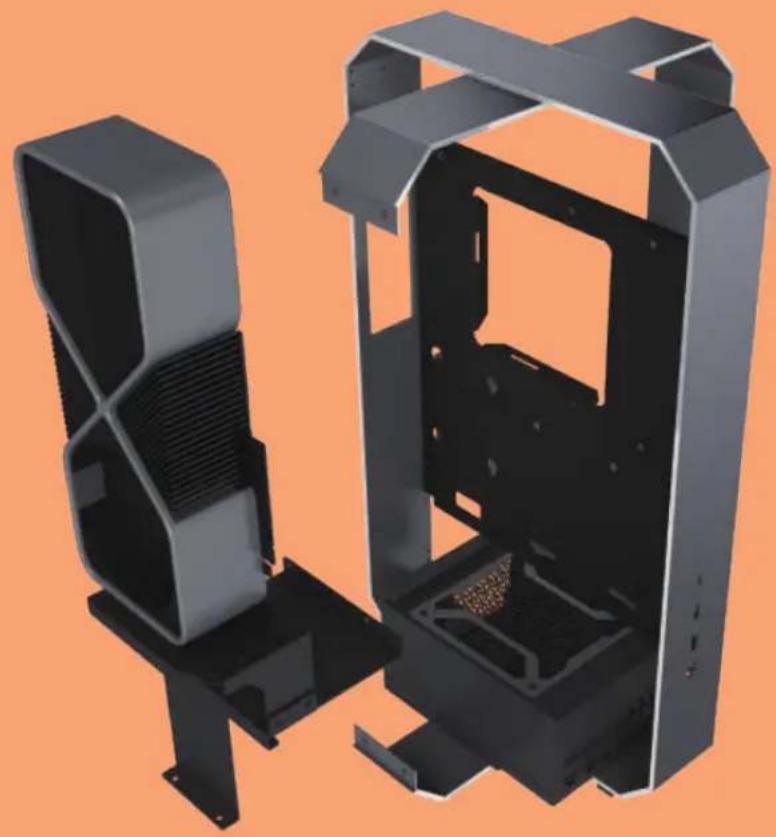
natural_image
3D rendering of a black metal enclosure with internal compartments and structural supports, shown against an orange background (no text or symbols)Supports up to 360mm long video cards.
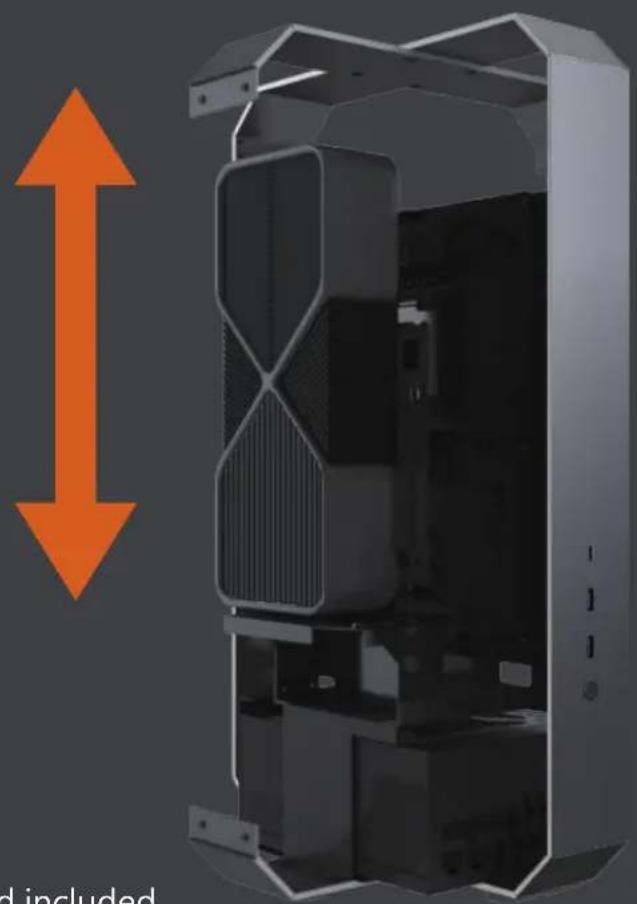
natural_image
3D rendering of an internal device housing with orange vertical arrow indicating upward motion (no text or symbols)30cm PCI-E 3.0 extension cable for GPU card included
11. Accessories
natural_image
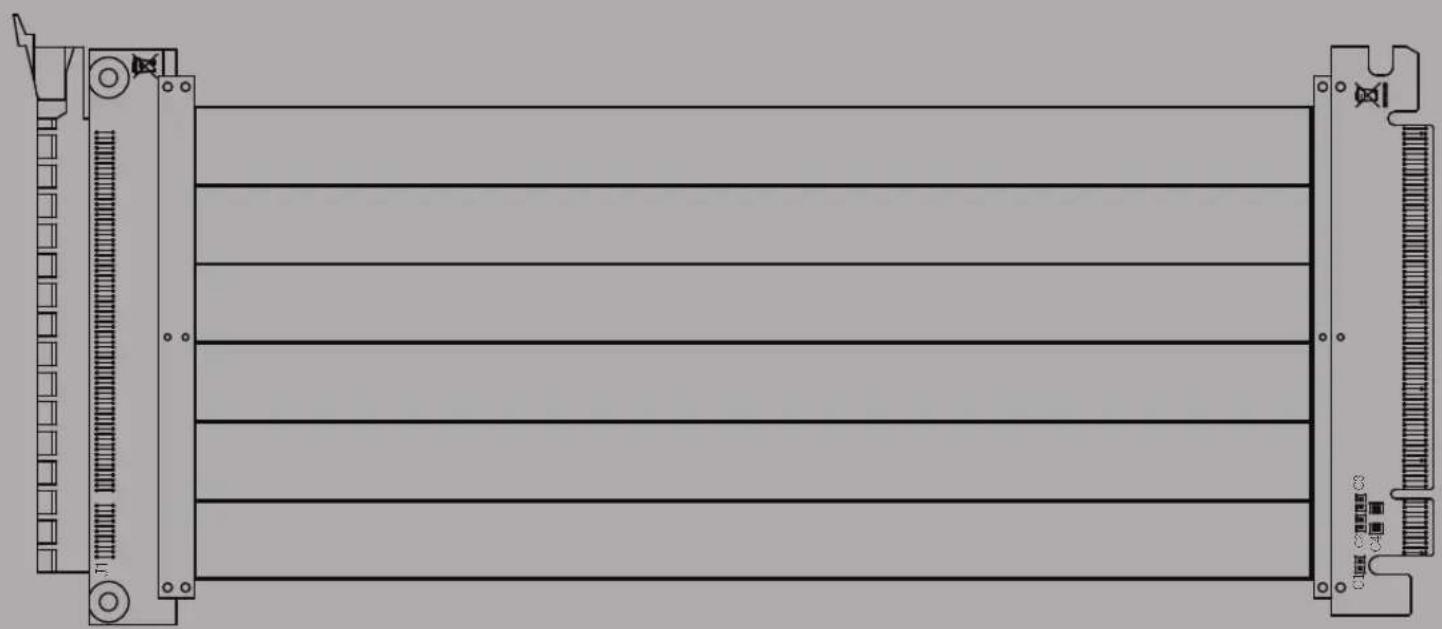
Technical line drawing of a rectangular electronic component with mounting brackets and internal channels (no text or symbols)300 mm PCI-E 3.0 Cable(Support ATX Motherboard) Another 300mm PCI-e 4.0 extension cable version is available
4.0 The latest 4.0 version provides faster transmission speed
This extension cable also supports the following graphics cards: RTX 3000 series, RTX 3080, RTX 3090 FE, RX 5700XT and RX 6000 GPUs.
■ Please note before use:
- Measure the distance between your motherboard, PCI-E slot and GPU connection to confirm whether the length of this 4.0 cable is sufficient.
- Update your motherboard BIOS to the latest version.
- Update your GPU software to the latest version.
- Check whether the motherboard BIOS setting is 4.0. Some software will not switch automatically. If the switching fails, the PC will not start normally.

natural_image
Black rectangular electronic component with metallic connectors and a gold-colored connector on the right side (no text or symbols visible)
natural_image
Abstract geometric logo design with symmetrical white shapes on dark background (no text or symbols)THANK YOU

- OPUS
- Removing Four Glass Panels.
- Removing Four Sides Metal Frame.
- Removing GPU Holder and PSU Cover Together
- HDD & SSD Installation.
- Removing The Radiator/Fan Bracket.
- Cooling System Installation
- Cooling System Installation.
- GPU Installation
- Accessories
- The latest 4.0 version provides faster transmission speed
Brand : Azza
Model : Opus
Category : PC Case