HomeShield - Home Automation Hive - Free user manual and instructions
Find the device manual for free HomeShield Hive in PDF.


| Product Type | Smart Home Security Hub |
| Brand | Hive |
| Model | HomeShield |
| Dimensions (approx.) | 120 x 120 x 30 mm |
| Weight (approx.) | 250 g |
| Power Supply | Mains powered (AC 100-240V) with backup battery |
| Battery Backup | Lithium-ion, up to 8 hours |
| Connectivity | Wi-Fi 802.11 b/g/n, Zigbee, Bluetooth |
| Compatibility | Hive ecosystem (thermostats, sensors, lights) |
| Main Functions | Home automation control, security monitoring, alarm system, remote access via app |
| Supported Sensors | Motion, door/window, smoke/CO, water leak |
| App Control | Hive app (iOS/Android) for remote control and alerts |
| Voice Control | Amazon Alexa, Google Assistant, Apple HomeKit |
| Security Features | Encrypted communication, tamper alert, geofencing |
| Maintenance & Cleaning | Wipe with a dry, soft cloth; avoid liquids |
| Safety Certifications | CE, FCC, RoHS |
| Operating Temperature | 0°C to 40°C |
| Spare Parts & Repairability | Not user-serviceable; contact Hive support for replacement |
| Warranty | 2 years limited |
| Package Contents | Hub, power adapter, Ethernet cable, quick start guide |
Frequently Asked Questions - HomeShield Hive
User questions about HomeShield Hive
0 question about this device. Answer the ones you know or ask your own.
Ask a new question about this device
Download the instructions for your Home Automation in PDF format for free! Find your manual HomeShield - Hive and take your electronic device back in hand. On this page are published all the documents necessary for the use of your device. HomeShield by Hive.
USER MANUAL HomeShield Hive
natural_image
Family gathering outside a brick building with a car trunk open, including children and adults, near green ivy-covered walls (no visible text or symbols)Welcome to Hive HomeShield

natural_image
Orange HIVE logo on dark background with stylized wave design (no text or symbols beyond logo)Let's get started
Get the app up and running
If you're a new customer, download the Hive app and create an account.
If you're an existing customer, make sure you have the latest version.
Set up your devices in the app
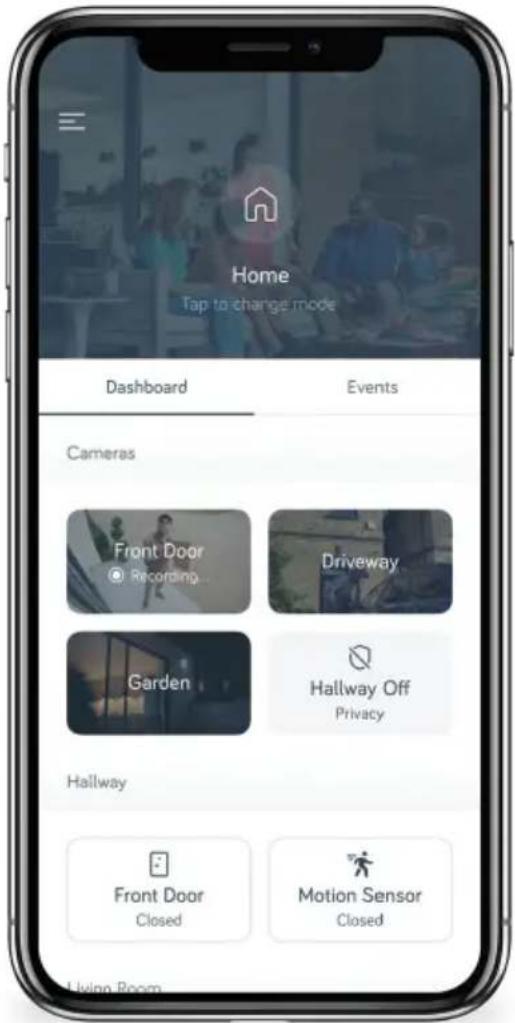
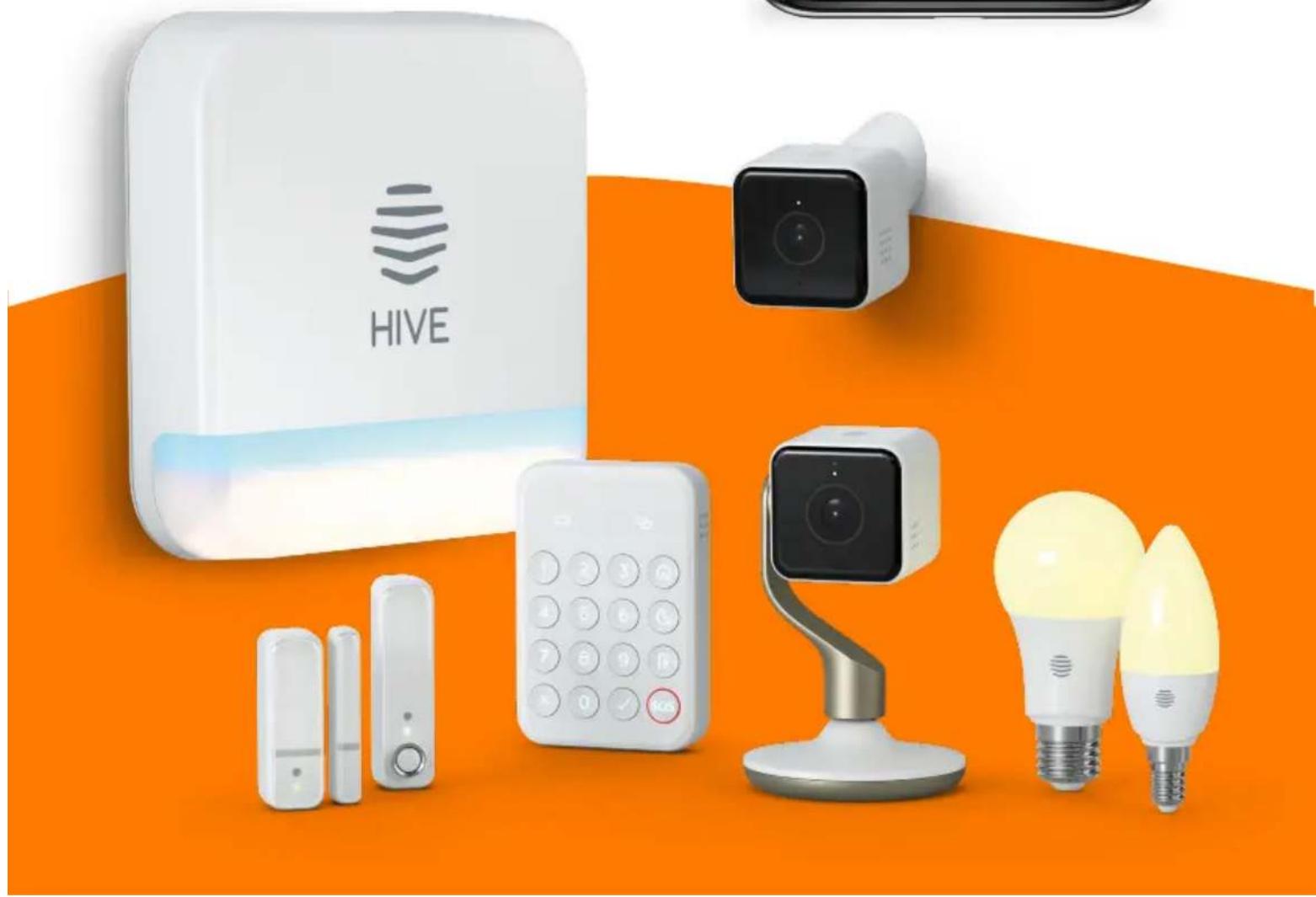
Open up the Hive app and go to install devices, then tap install Hive HomeShield. It will guide you through setting up, including where to place and how to fit your devices.
natural_image
Product display of HIVE home security devices including smart lock, camera, phone, and two fluorescent bulbs against an orange background (no text or symbols on main objects)Making the most of HomeShield
We've designed HomeShield to help you protect your home and your family.
Here's how:
- Arm or disarm from anywhere
Use your smartphone or Apple Watch to turn your alarm on and off from wherever you are
• Home, Sleep and Away modes
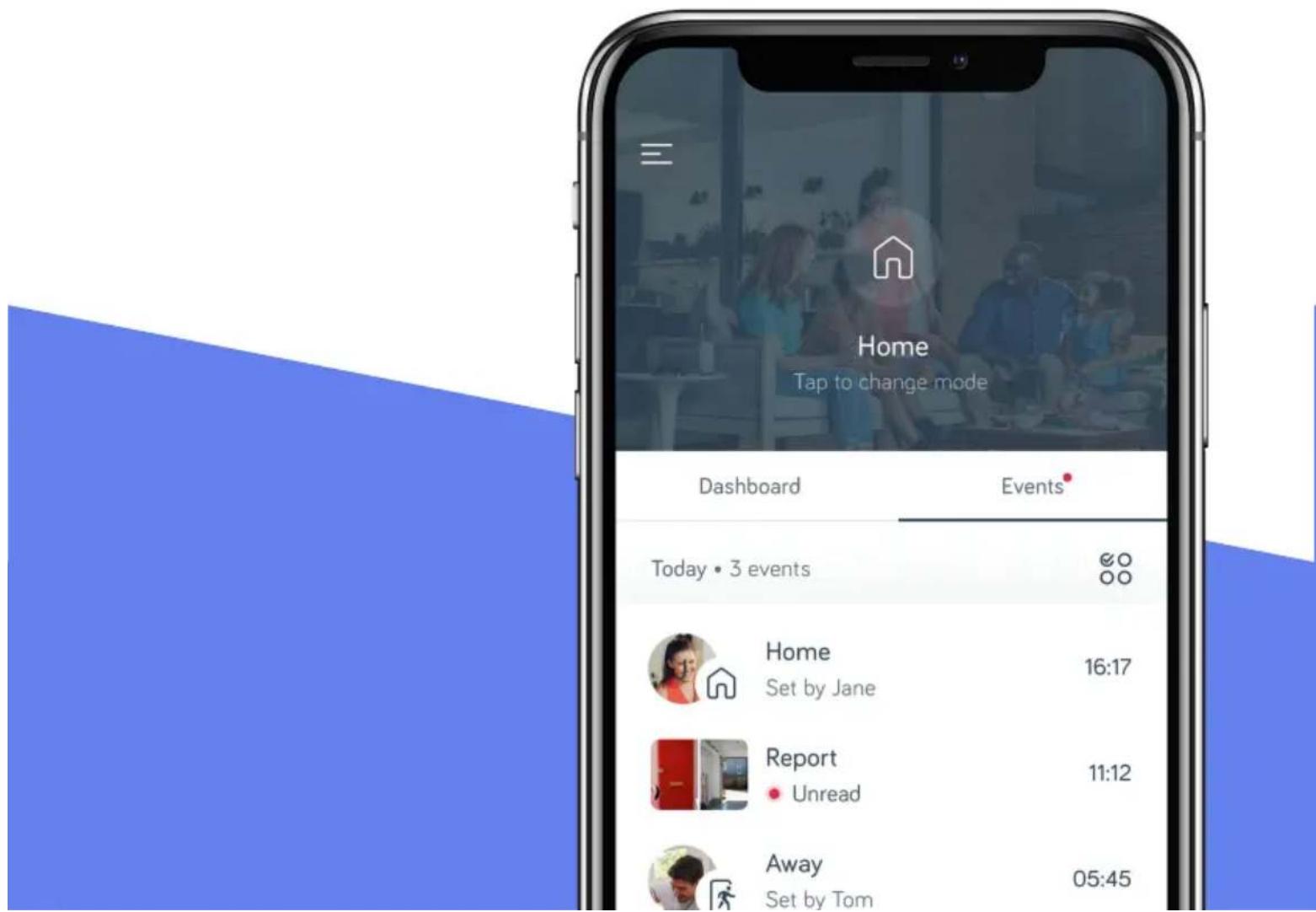
Three different modes to protect the right parts of your home at the right times. All easily customised in the Hive app
• Intelligent alerts when anything happens
Choose to receive app notifications, text messages or automated phone calls when something happens
- Smart reports showing what's happened and when
See what devices were triggered and – if you've added friends or family to HomeShield – who's been notified
• Create unique PINs for your family and guests
If you have a babysitter, cleaner or dogwalker, you can also give them temporary access for the times they need
natural_image
Exterior view of a brick wall with a white HIVE-branded digital display unit mounted on it, under bright sunlight (no text or symbols visible)What happens when your alarm is raised
The moment your cameras or sensors detect anything, there's a countdown – that you can customise – before HomeShield jumps into action. Then here's what happens:
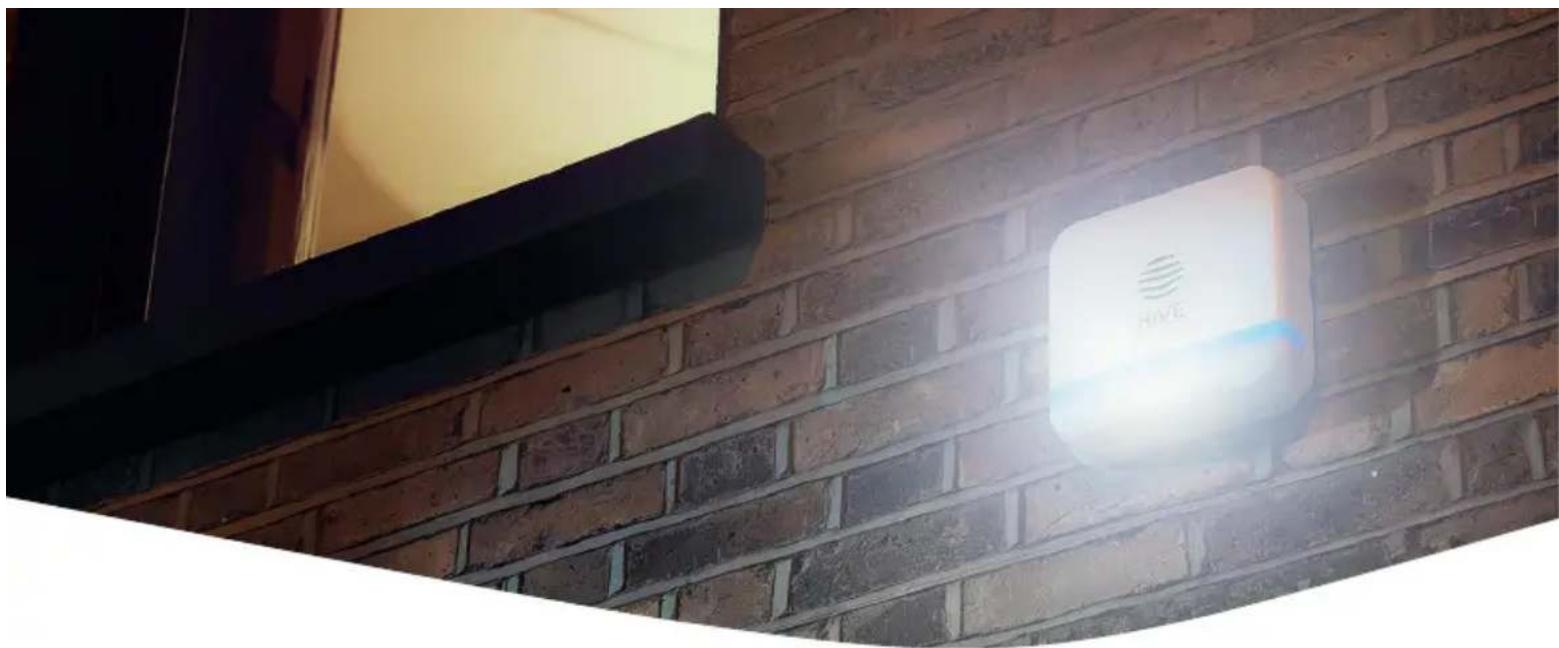
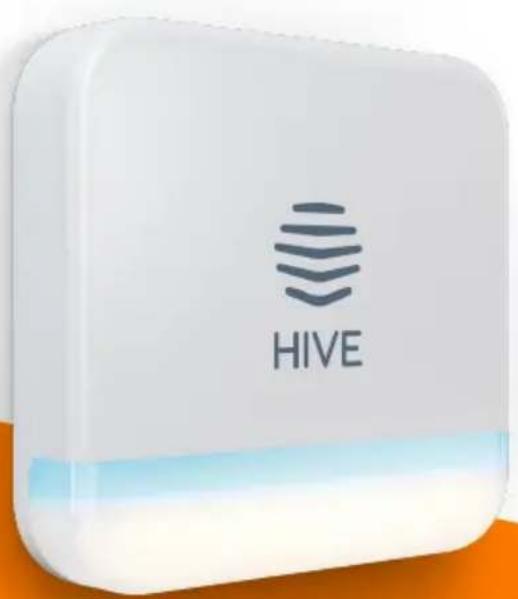
- Your Hive Siren will sound and the external security light will flash
- You and any contacts you've selected instantly receive an in-app notification, text or automated phone call (chosen in your settings)
- Tap the notification and go straight to the dashboard in your Hive app showing what's happened, and see which friends or family have been notified
- If you've got cameras you can livestream or check the footage they've captured
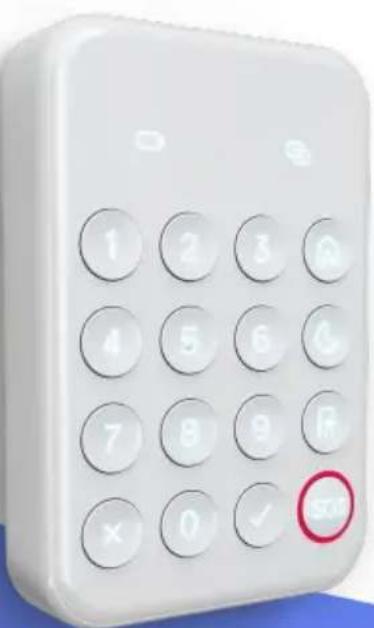
- If it's a false alarm, you can turn your alarm off on your app, keypad or Apple Watch. If not, call your local police station straight from the app
natural_image
White calculator with numeric keypad and a red circular button on the right (no visible text or symbols)Installing your Hive Siren and Hive View Outdoor cameras yourself?
You'll need to drill a hole in the outside wall to feed the cables through to the devices outside.
Each device will need to be connected to a plug socket.
Here are the tools you'll need:
- A ladder to safely attach the siren above the height of the first floor (ideally 2.5 to 3m high)
- A power drill with a masonry drill bit (400mm long, 6mm or 12mm wide). You'll need a drill bit 16mm wide to put both cables through the same hole
• A Phillips head screwdriver #1
natural_image
White HIVE device with a stylized 'HIVE' logo on its side, placed on an orange surface (no additional text or symbols visible)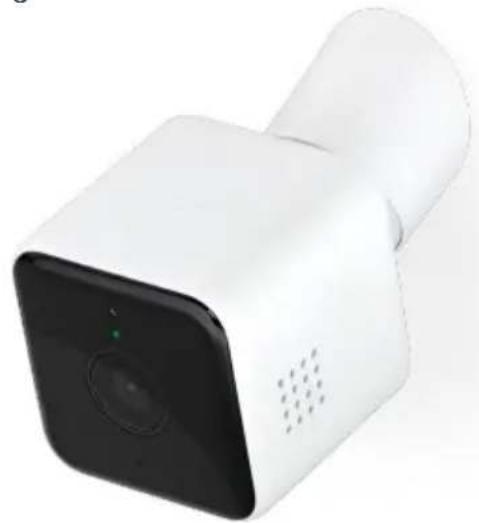
natural_image
White smart security camera with a black square lens and ventilation grille (no visible text or symbols)Need a hand with installation?
No problem. Go to hivehome.com/install to book a professional installation.
One of our trusted expert engineers will install all your devices, set them up in your app and make sure your HomeShield is ready to go.
Keep up with our latest news on social media:

@hive

@hivehomeuk

@hivehomeuk
Any questions?
Speak to us on webchat: go to hivehome.com/support and click on 'chat now'. Or order online at hivehome.com
851847-0320V1
Head to hivehome.com/homeshield to discover more.
- Welcome to Hive HomeShield
- Let's get started
- Get the app up and running
- Set up your devices in the app
- Making the most of HomeShield
- Here's how:
- What happens when your alarm is raised
- Installing your Hive Siren and Hive View Outdoor cameras yourself?
- Here are the tools you'll need:
- Need a hand with installation?
- Keep up with our latest news on social media:
- Any questions?
Brand : Hive
Model : HomeShield
Category : Home Automation