Keypad - Home Automation Hive - Free user manual and instructions
Find the device manual for free Keypad Hive in PDF.


| Product Type | Home Automation Keypad |
| Brand | Hive |
| Model | Keypad |
| Dimensions | 80 x 80 x 15 mm |
| Weight | 100 g (including batteries) |
| Power Supply | 2 x AAA alkaline batteries |
| Battery Life | Up to 12 months under normal use |
| Display | Backlit LCD screen |
| Number of Keys | 12 numeric keys + 3 function keys |
| Connectivity | Wireless, encrypted protocol |
| Operating Range | Up to 30 meters indoors |
| Operating Temperature | 0°C to 40°C |
| Main Functions | Arm/disarm alarm system, control lighting and heating, trigger emergency alarm, view system status |
| Security Features | Tamper protection, low battery indicator, secure pairing with Hive Hub |
| Maintenance | Wipe with a soft, dry cloth. Do not use liquids or solvents. |
| Spare Parts | AAA batteries only |
| Repairability | The device is sealed and not user-serviceable; contact Hive support for issues. |
| Compatibility | Requires Hive Hub and Hive app; compatible with Hive ecosystem devices |
| Mounting | Wall mount (screws and adhesive tape included) or tabletop stand |
| Warranty | 2 years from date of purchase |
| Package Contents | Keypad unit, user manual, mounting kit, AAA batteries (pre-installed) |
Frequently Asked Questions - Keypad Hive
User questions about Keypad Hive
0 question about this device. Answer the ones you know or ask your own.
Ask a new question about this device
Download the instructions for your Home Automation in PDF format for free! Find your manual Keypad - Hive and take your electronic device back in hand. On this page are published all the documents necessary for the use of your device. Keypad by Hive.
USER MANUAL Keypad Hive
natural_image
Modern white electronic device with a numeric keypad and 'SOS' button, mounted on a wall (no readable text or symbols beyond basic design)Keypad user guide
Welcome to Hive. This guide tells you everything you need to know to set up your Hive Keypad.
What's in the box
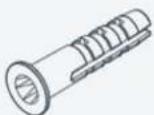
Please check the contents of your Hive Keypad's packaging before proceeding to assemble your Hive Keypad. If you're missing any parts please get in touch with our customer care team by visiting www.hivehome.com/contact-us
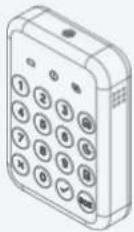
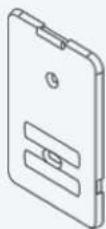
Wall mountKeypad
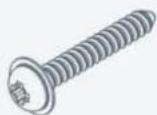
2x Screws
2x Wall plugs
Tools you may need
If you need to arrange for a professional installer to set-up your Hive Keypad please contact our customer care team by visiting www.hivehome.com/install
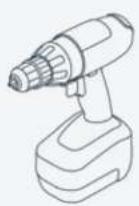
Important: If you are installing the Keypad using the wall mount, you should be competent using power tools. If you need to drill into brick or stone, you'll need an SDS power drill and masonry bits.
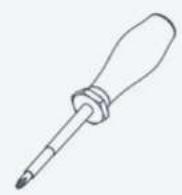
Phillips screwdriver #1
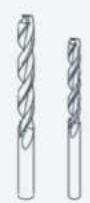
Drill bits 6mm, 12mm Power drill
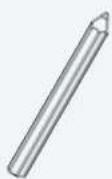
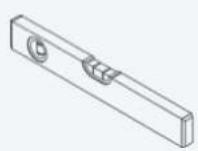
Pencil/marker Spirit level
Where to place
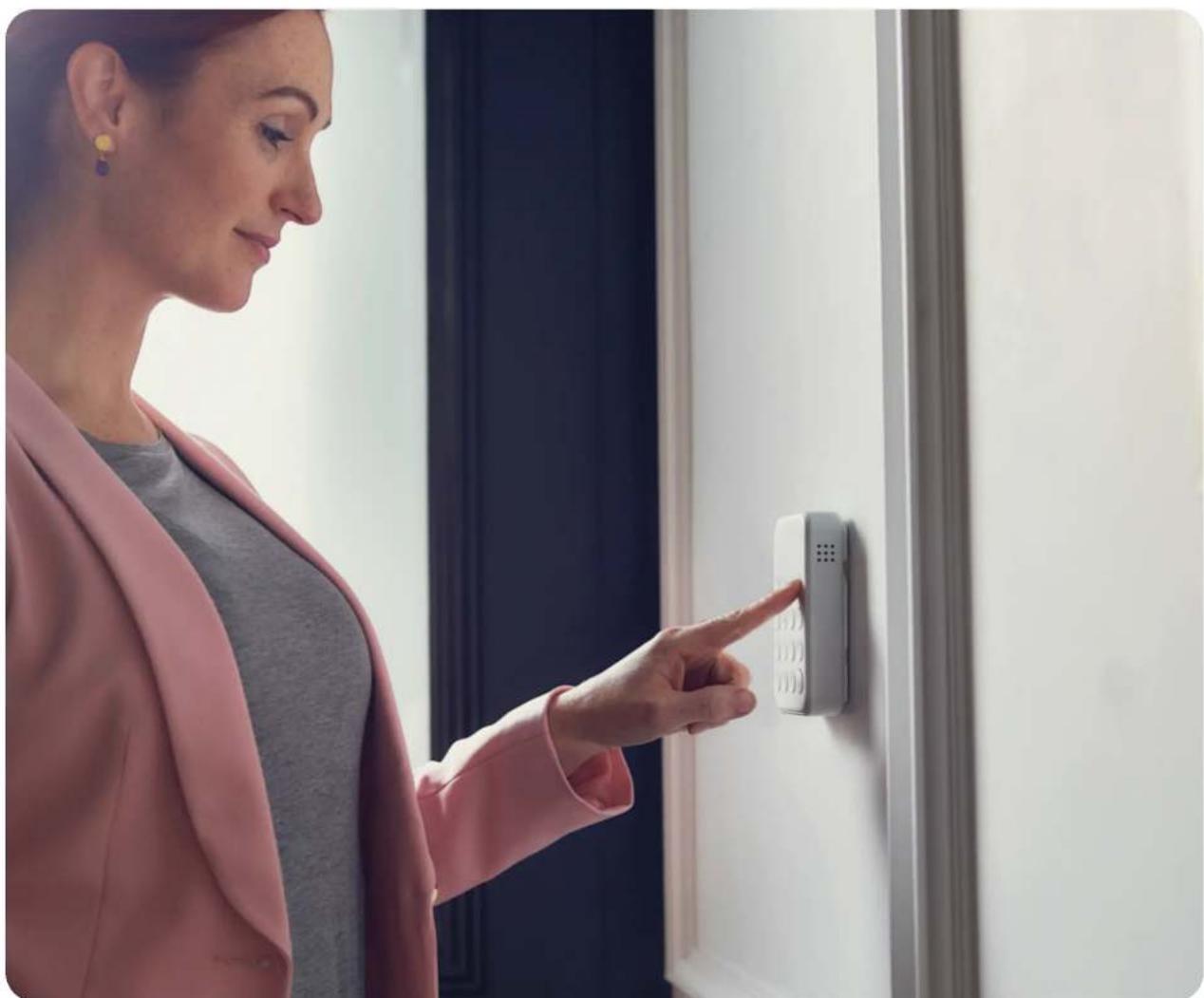
A typical location for a Keypad is in your hallway close to your front door for ease of access when arming or disarming your home.
natural_image
Woman in pink blazer pointing at a wall-mounted digital phone (no visible text or symbols)You can set your HomeShield alarm using the using the Keypad, Hive app, Apple Watch or Voice commands
Change modes using your keypad
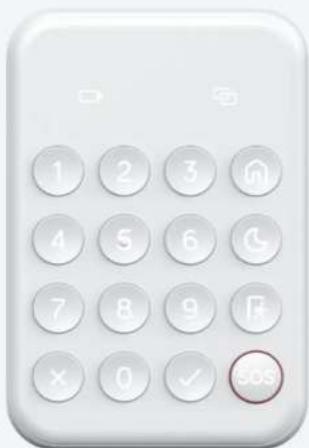
1 Select the desired mode by pressing either the 'Home mode', 'Sleep mode' or 'Away mode' buttons.
2 Enter your PIN.
3 Press the Tick button.
Note: When selecting Away mode or Sleep mode the countdown to arming the home starts. You can adjust the countdown period in HomeShield Settings.
Family and guest access
Family members and guests will need their own PIN to disarm HomeShield. You can assign new PINs or change your own PIN in the Hive app.
natural_image
Close-up of a white calculator with numeric keypad and function buttons (no readable text or symbols)
Home mode

Sleep mode

Away mode
Activate SOS on your Keypad
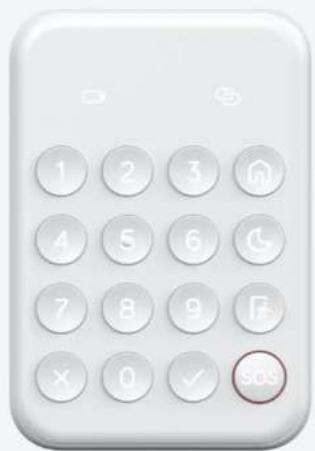
In an emergency you can activate your HomeShield alarm with the SOS button on your Keypad.
To do this, follow the steps below:
1 Press and hold the SOS button on the Keypad for 3 seconds. You will hear a beep and the button's light will turn green, to show that SOS has been activated.
2 Activating SOS will raise the Alarm. You can customize what happens when the SOS button is pressed, such as your Siren sounding or your Hive Lights switching on, and who will be notified from your chosen contacts, in your Hive app.
3 To disable SOS simply activate Home mode, either on your Keypad, in the Hive app or Apple Watch. The SOS button on the Keypad will turn white when SOS is deactivated.
4 An alarm report will be created to show any activity and video captured by your chosen cameras during the active SOS time.
natural_image
Close-up of a white calculator with numeric keypad and a red circular button labeled '30S' (no other text or symbols visible)
SOS
Keypad offline
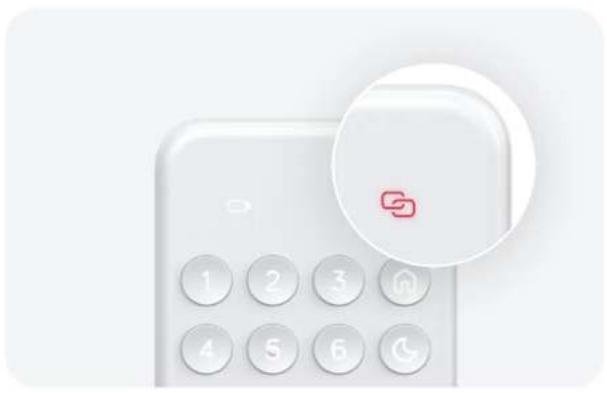
If your keypad network light is red your keypad may be offline. You will not be able to arm or disarm HomeShield until it is back online. Follow the instructions in your Hive app to get your keypad back online.
natural_image
Illustration of a white calculator with numbered buttons and a red circular icon (no text or symbols)Low battery
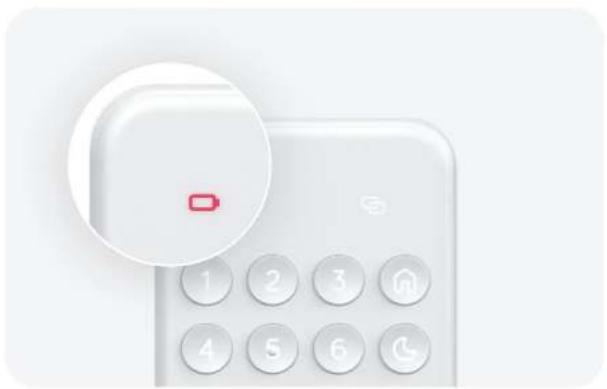
If your keypad battery light is flashing red you will need to replace its batteries soon. If your keypad battery light is solid red it will soon shut down unless you replace its batteries immediately.
natural_image
White calculator with a red button and circular icon, no visible text or symbols on the device itselfYour Keypad accepts 2x CR123 batteries.
Reset Keypad
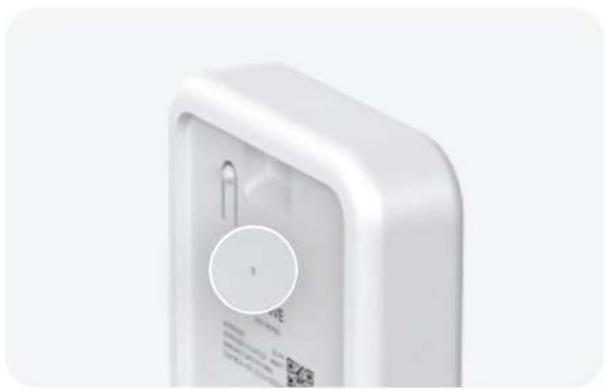
If you need to reset the Keypad, remove the back cover and then carefully use a pin to press and hold the reset button for 5 seconds. This will put the Keypad back in to pairing mode. You can then use the Hive app to add your Keypad to HomeShield again.
natural_image
Close-up of a white electronic device casing with a circular button and label (no readable text or symbols)Need help?
If you need further assistance, please contact our customer care team by visiting www.hivehome.com/contact-us

HIVE
Brand : Hive
Model : Keypad
Category : Home Automation