
RN03 - Video transmission equipment Kiloview - Free user manual and instructions
Find the device manual for free RN03 Kiloview in PDF.


| Product Type | Network Video Encoder/Decoder |
| Model | RN03 |
| Dimensions | 100 x 100 x 25 mm |
| Weight | 150 g |
| Power Supply | DC 12V, 1A |
| Power Consumption | ≤ 5W |
| Video Input | HDMI, up to 1080p60 |
| Video Output | HDMI, up to 1080p60 |
| Network Interface | RJ45 10/100/1000 Mbps |
| Video Encoding | H.264/H.265, up to 1080p60 |
| Video Decoding | H.264/H.265, up to 1080p60 |
| Audio Input/Output | 3.5mm stereo, embedded HDMI |
| Streaming Protocols | RTMP, RTSP, HLS, SRT |
| PoE Support | Yes (802.3af) |
| Operating Temperature | 0°C to 40°C |
| Maintenance | Clean with a dry, soft cloth. Do not use liquids. |
| Safety | Use only the supplied power adapter. Do not disassemble. |
| Spare Parts | Not available separately; contact support for repairs. |
| General Information | Compact network video encoder/decoder for professional streaming. |
Frequently Asked Questions - RN03 Kiloview
User questions about RN03 Kiloview
0 question about this device. Answer the ones you know or ask your own.
Ask a new question about this device
Download the instructions for your Video transmission equipment in PDF format for free! Find your manual RN03 - Kiloview and take your electronic device back in hand. On this page are published all the documents necessary for the use of your device. RN03 by Kiloview.
USER MANUAL RN03 Kiloview
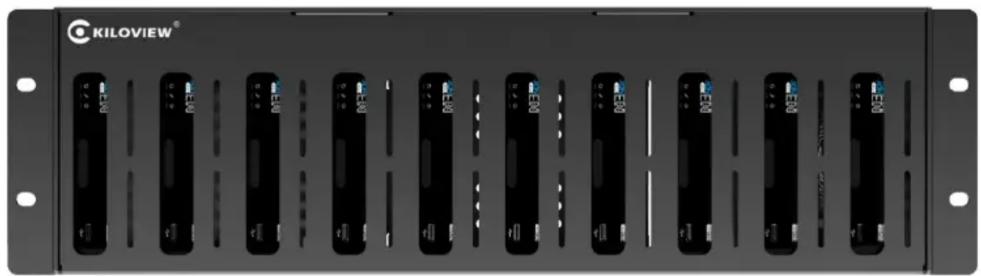
RN03 3RU Video encoding and decoding Chassis
natural_image
Front panel of a rack-mounted electronic device with multiple black modules and ventilation slots (no visible text or symbols)Contents
Chassis installation
■ Encoding Application
Decoding Application
Before using this product, it is recommended that you read the guide carefully. To ensure your personal safety and avoid physical or electrical damage to the device. Please strictly follow the instructions of this guide or install and use it under the guidance of professionals. Incorrect electrical connections or physical installation may cause permanent damage to the device and even threaten personal safety.
1. RN03 Installation
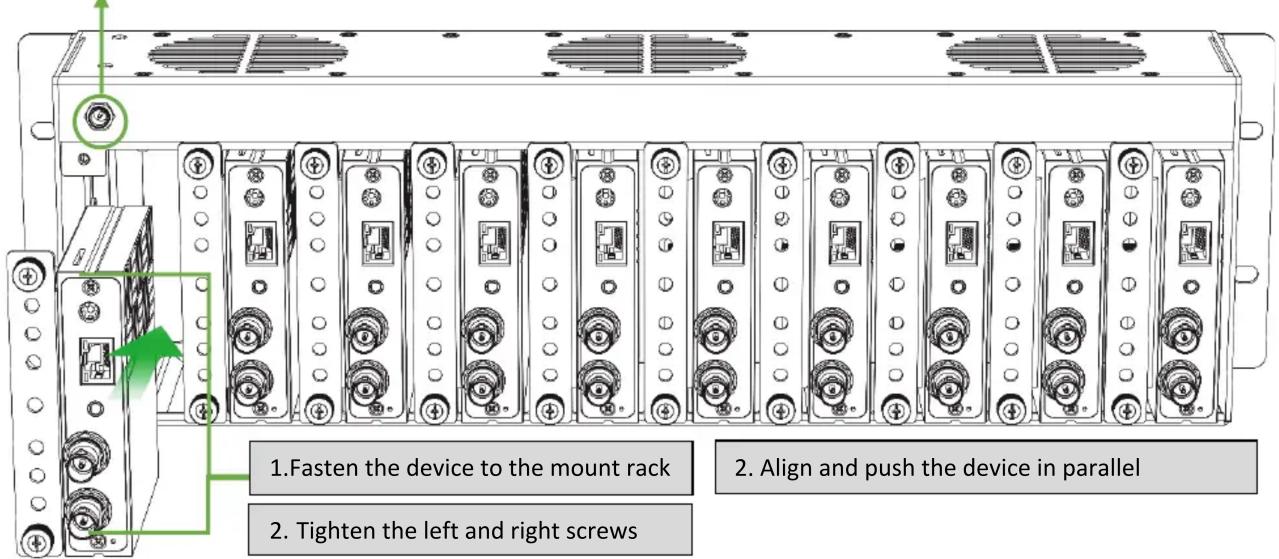
Align the card assembly with the card slots and push in vertically, then tighten the double-sided screws. Reverse the process for removal.
12V Fan powered

Note
- The chassis is a plug-in structure, which can easily complete the replacement/mixing of N series codec, realizing the same chassis compatible with 1/2/3/4 channels and multi-interface, encoding/decoding mixed solutions. The chassis has no centralize power supply, and each module needs to be powered separately for normal operation.
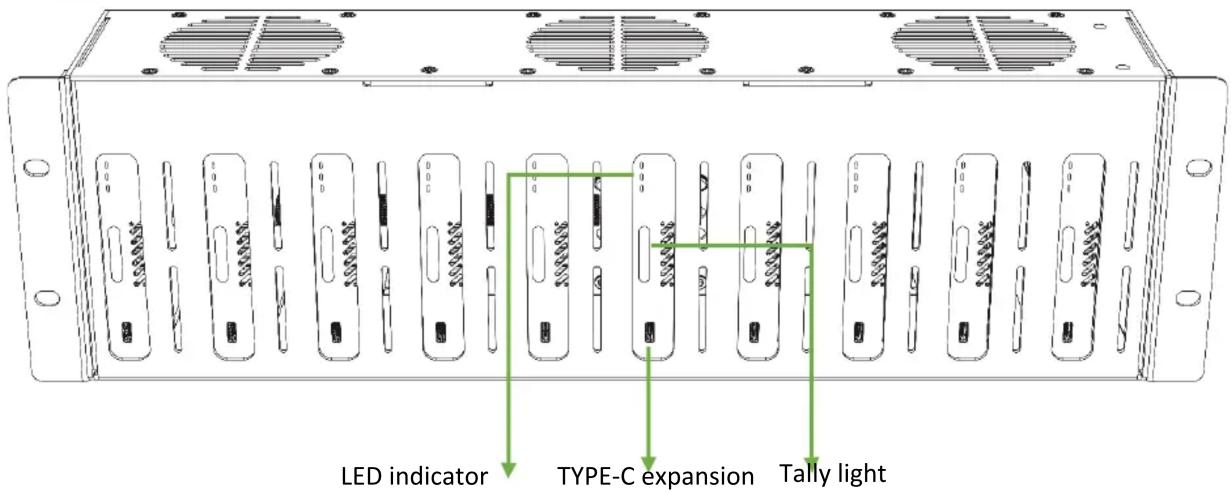
- Tally-green light: indicates that the current video is in Preview state; red light: indicates that the current video is in Program state.
- The chassis is a plug-in structure, which can easily complete the replacement/mixing of N series codec, realizing the same chassis compatible with 1/2/3/4 channels and multi-interface, encoding/decoding mixed solutions. The chassis has no centralize power supply, and each module needs to be powered separately for normal operation.
- LED indicator. Power: always white indicates that power is connected; LINK: white flashing indicates normal network access; Run: flashing white indicates normal work in progress LED indicator.
2. Application
2.1 Encoding applications

flowchart
graph TD
    A["Network"] <--> B["Switcher"]
    B --> C["Computer"]
    D["SDI Video source"] --> E["12V Fan Powered"]
    D --> F["12V Power supply interface"]
    G["LOOP"] --> H["Computer"]
2.2 Decoding application

flowchart
graph TD
    A["NDI input"] --> B["Switcher"]
    B --> C["Monitor"]
    D["12V Fan powered"] --> E["12V Powersupply interface"]
    E --> F["Computer"]

Note
- The chassis does not provide centralized power supply for the codecs, and each codec needs to be powered separately for normal operation. The fan is connected to the 12V power supply separately.
3. Others
To prolong the device life, please unplug the power and keep it properly if you do not use it for a long time.
For more questions, please contact us via:
https://www.kiloview.com/en/support


Please scan with browser.
KILOVIEW Electronics CO., LTD.
Tel: 86-18573192787 Email: support@kiloview.com Web: www.kiloview.com/en
Address: B4-106/109, Jiahua Intelligence Valley Industrial Park, 877 Huijin Road, Yuhua District,
Changsha City, Hunan Province, China.
Brand : Kiloview
Model : RN03
Category : Video transmission equipment