
KB-G8200 - Keyboard Sven - Free user manual and instructions
Find the device manual for free KB-G8200 Sven in PDF.


| Product Type | Gaming Keyboard |
| Model | KB-G8200 |
| Dimensions (L x W x H) | 365 x 173 x 36 (49) mm |
| Weight | 570 g |
| Interface | USB |
| Number of Keys | 95 |
| Multimedia Keys | 12 (Fn) + 7 shortcut keys |
| Backlight | Customizable RGB with brightness adjustment |
| Cable Type | Durable braided cable |
| Special Features | Programmable keys with macros, control knob for sound, built-in memory, variable tilt angle, WIN key lock |
| System Requirements | Windows OS, free USB port |
| Package Contents | Keyboard, User Manual, Warranty card |
| Software Support | Available at www.sven.fi for backlight and macro configuration |
| Compatibility | Windows |
Frequently Asked Questions - KB-G8200 Sven
User questions about KB-G8200 Sven
0 question about this device. Answer the ones you know or ask your own.
Ask a new question about this device
Download the instructions for your Keyboard in PDF format for free! Find your manual KB-G8200 - Sven and take your electronic device back in hand. On this page are published all the documents necessary for the use of your device. KB-G8200 by Sven.
USER MANUAL KB-G8200 Sven
Congratulations on the purchase of Sven keyboard!
Please read this User Manual before using the unit and retain this User Manual in safe place for future reference.
COPYRIGHT
© SVEN PTE. LTD. Version 1.1 (23.05.2023).
This Manual and information contained in it are copyrighted. All rights reserved.
TRADEMARKS
All trademarks are the property of their legal holders.
NOTICE OF RESPONSIBILITY RESTRICTION
Despite the exerted efforts to make this Manual more exact, some discrepancies may occur. The information of this Manual is given on “as is” terms. The author and the publisher do not bear any liability to a person or an organization for loss or damages which have arisen from the information contained in the given Manual.
UNPACKING
- Unpack the device carefully. Make sure there are no accessories left in the box. Check up the device for damage; if the product was damaged during transportation, address the firm which carried out the delivery; if the product functions incorrectly, address the dealer at once.
• Shipping and transportation equipment is permitted only in the original container. - Does not require special conditions for realization.
- Dispose of in accordance with regulations for the disposal of household and computer equipment.
- The date of manufacture of the product is indicated on the box.
APPLICATION
KB-G8200 keyboard is an input device. It is designed to enter information into the computer, as well as controll the operation of the computer.
PACKAGE CONTENTS
- Keyboard — 1 pc
• User Manual — 1 pc
• Warranty card — 1 pc
SPECIAL FEATURES
- Programmable keys with macros configuration option.
- 7 shortcut keys.
• 12 multimedia (Fn) keys. - Customizable RGB backlight.
- Backlight brightness adjustment.
- Variable tilt angle.
• Durable braided cable.
• Control knob for sound adjustment.
• Built-in memory allows to use saved settings on other PCs.
SYSTEM REQUIREMENTS
- OC Windows.
- Free USB port.
INSTALLATION
- Connect the keyboard to an available USB port of your PC.
• Installation of keyboard is automatic after its connection to USB port of PC.
MULTIMEDIA KEYS DESCRIPTION

Open "My computer"

Open homepage

Start e-mail app

Play / Pause

Stop playing

Play previous track

Play next track
FUNCTIONAL KEYS DESCRIPTION
Fn + F1 Start media player
Fn + F2 Volume down
Fn + F3 Volume up
Fn + F4 Mute / Unmute
Fn + F5 Stop playing
Fn + F6 Play previous track
Fn + F7 Play next track
Fn + F8 Stop playing
Fn + F9 Open homepage
Fn + F10 Start e-mail app
Fn + F11 Open "My computer"
Fn + F12 Lock keyboard
Fn + W Switch WASD keys to arrows and back
Fn + PrtSc Turn ON / OFF backlight
Fn + Scroll Lock Switch backlight mode
Fn + Insert Change backlight color
Fn + Page Up Increase backlight brightness level
Fn + Page Down Decrease backlight brightness level
Fn + стрелка влево Increase backlight flashing speed
Fn + стрелка вправо Decrease backlight flashing speed
Fn + WIN WIN key lock
Note. Press the shortcut keys while holding the Fn key.
SOFTWARE INSTALLATION
Software is hosted on SVEN official website: www.sven.fi. Download and install the software. Software expands keyboard capabilities, allows to configure backlight modes, re-assign keys and programme macros.
Button menu (button configuration)
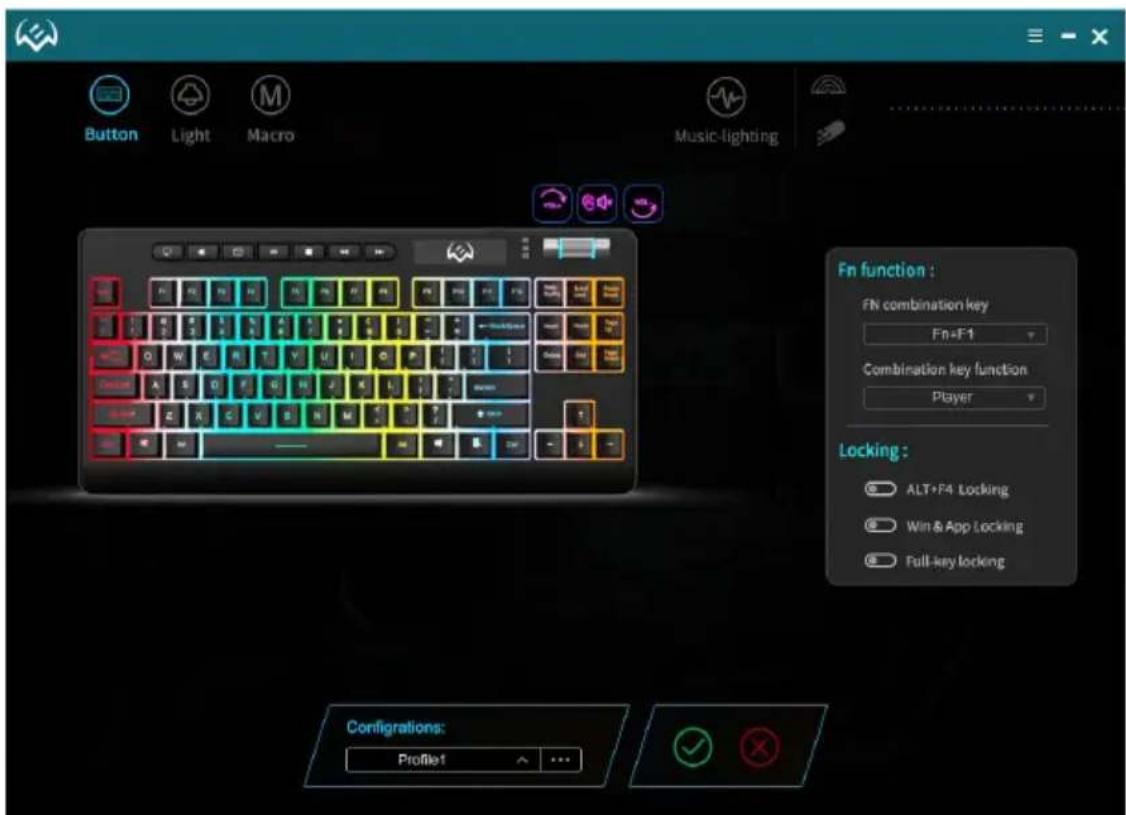
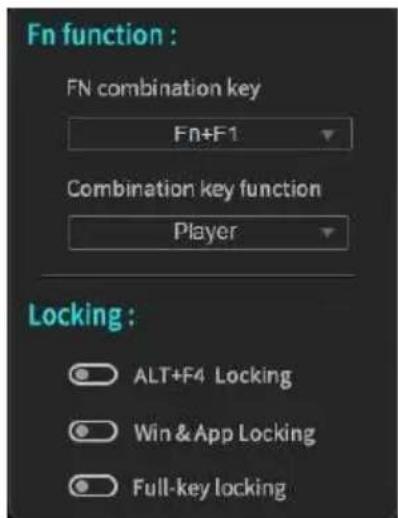
Assigning the functional keys (Fn function)
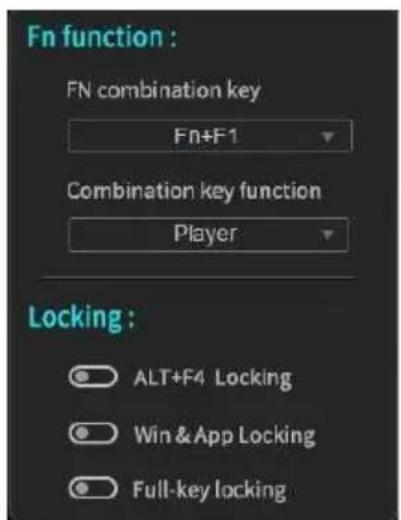
In a Fn function window: the keys F1-F12 get values among functions from the list. Functions allow to control media player, manage sound, keyboard, as well as open various system programs.
Locking functions Locking:
- ALT+F4 Locking - lock the key combination
- Win & App Locking - lock the Windows key
• Full-key locking – lock the keyboard completely
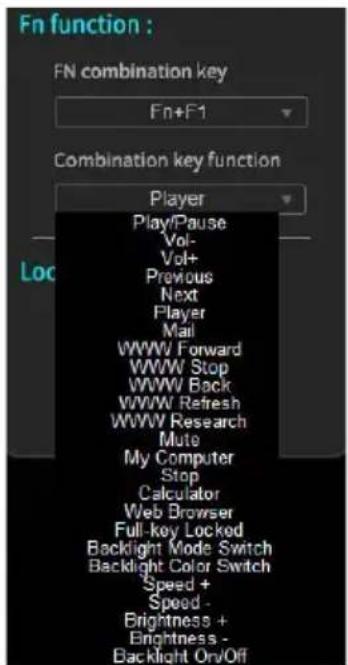
List of supported commands for functional buttons programming.
Re-assigning individual keys
In order to re-assign (assign) new functions to the keys, it is required to click a key with a mouse. A window will open, like on a screenshot below.
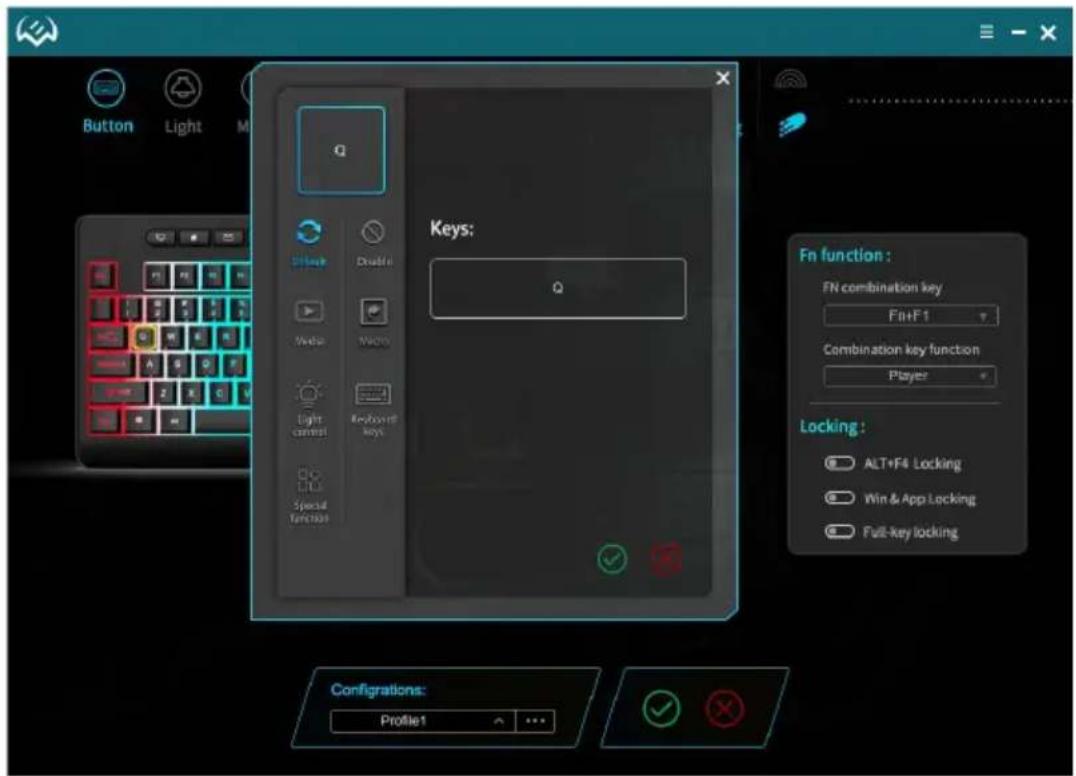
In the left window there are the following settings:
- Default – resets the key value to default
• Media – media functions
• Light control – keyboard backlight control functions
SVEN®
Gaming Keyboard
- Special function – assigns FN or Full-key Locked (keyboard lock) function to a key
- Disable – disables a key
- Macro – macro command, it is required to programme the macro in advance.
- Keyboard keys – assign any button on a keyboard
Creation of profile files
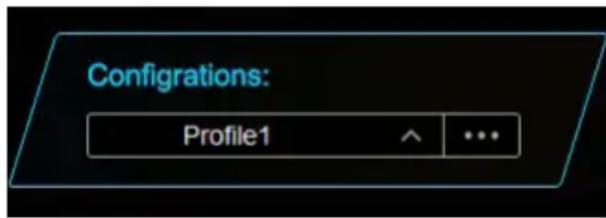
In a Configuration window (button with three dots) a user can save, load or delete the profile file. In order to reset settings to default, press Reset.
Backlight configuration
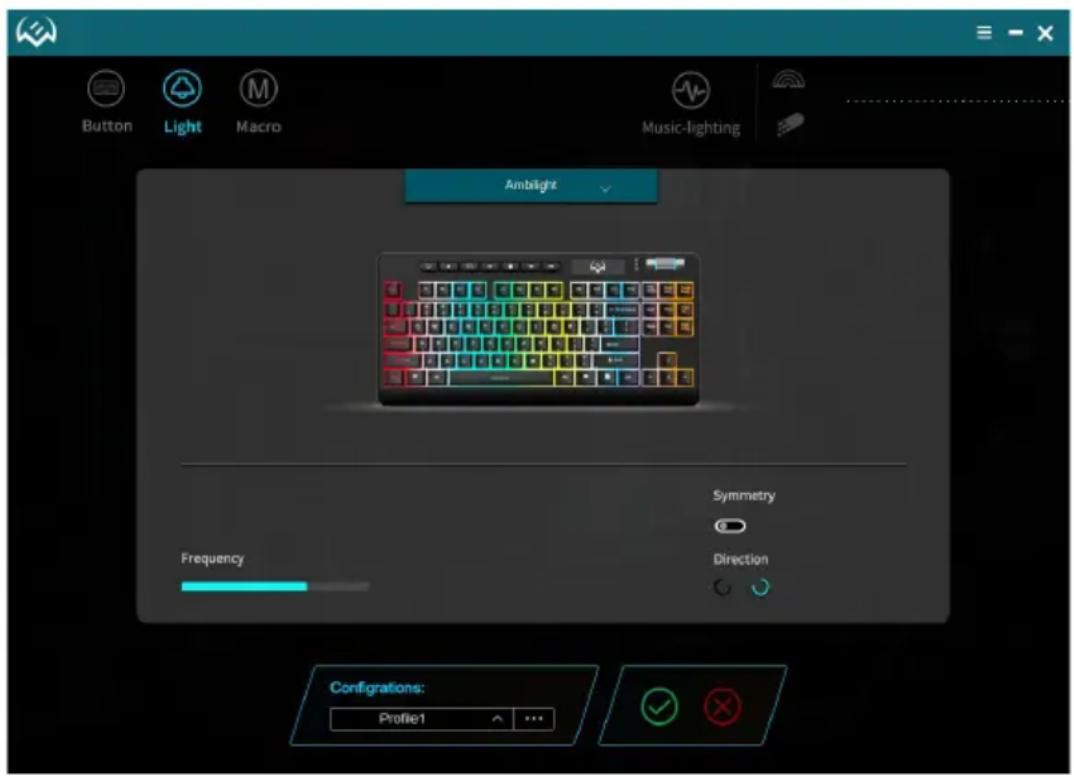
Light option allows to configure the keyboard backlight and has the following operating modes:
- Backlight Off - turn off the backlight.
- Breathing – the selected colors turn on alternately. A user can set quantity of indication colors. Flashing frequency can be set by a user via Frequency setting.
- Constant – the keyboard is lighted with a set color, no flashing. Backlight brightness can be set by a user via Brightness setting.
- Response – the backlight is turned on when keyboard keys are pressed. Switching sequence and quantity of colors are defined by a user. Duration and brightness of response can be set by Frequency and Brightness settings. There is an option to set various visual backlight effects and change their settings.
- Neon – backlight is turned on alternately with all seven colors, flashing frequency can be set
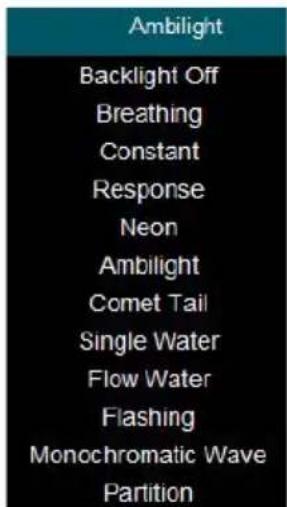
by a user via Frequency setting. Smooth color change
- Ambilight is a moving wave effect, flashing frequency can be set by a user via Frequency setting. Direction of a backlight moving wave can be changed via Direction (left/right) and Simmety (from the middle) options.
- Comet Tail - backlight mode "comet tail". Light effects can be configured the same way as described above.
- Flow Water – light effects in a wave form, also there is an option to adjust brightness and backlight change frequency.
- Flashing – backlight flashes in sectors, colors are selected from a pallet.
- Monochromatic Wave – sectoral breathing mode, allowing to control frequency.
- Partition – static backlight of a keyboard.
MACRO menu
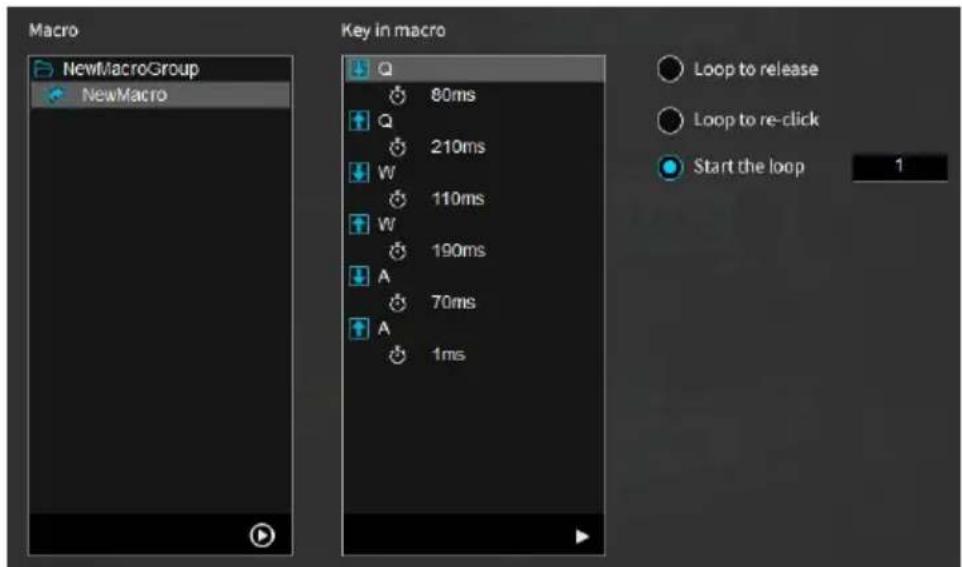
Macro is a sequence of events, consisting of pressing and releasing the keyboard keys, mouse buttons, as well as time intervals between pressing.
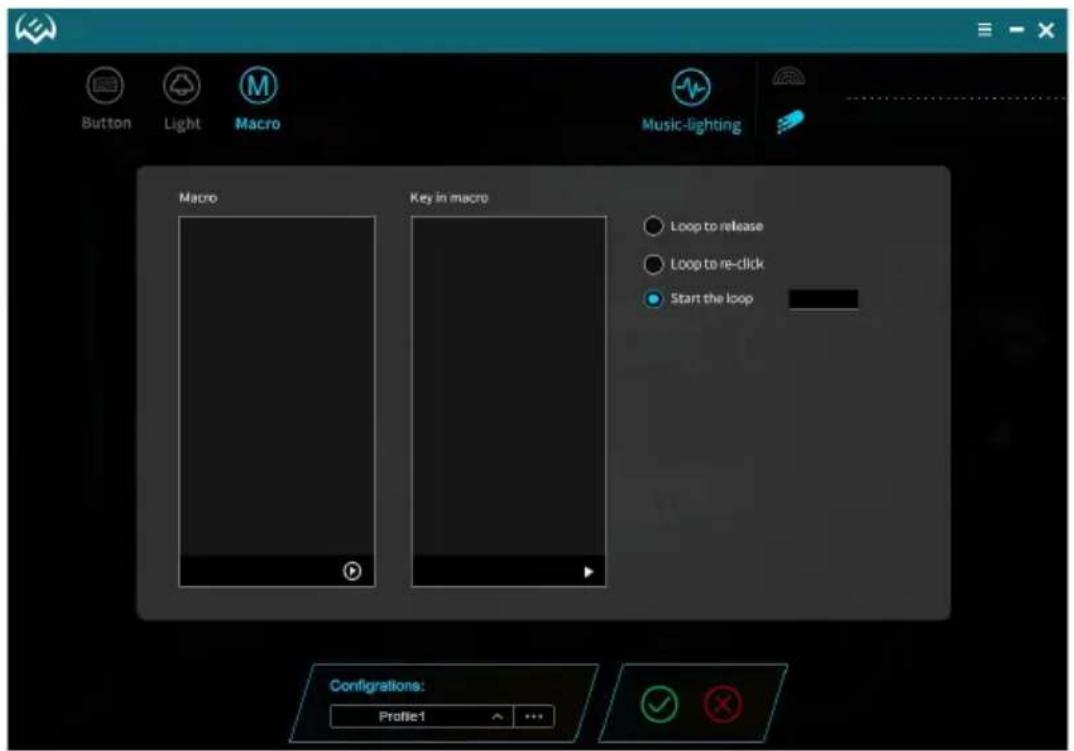
Macro editing window is divided into two parts. Macro area contains a list of macro groups and names, Key in macro area displays a list of commands of the selected macro.
The right side contains additional options:
- Loop to release – repeat a macro while the button is pressed.
- Loop to re-click – macro is repeated in a loop at single pressing and releasing a button. The first pressing starts macro input, second pressing ends macro input.
- Start the loop – macro is repeated in a loop at single button pressing, quantity of loops can be specified in a right window.
Create a new macro
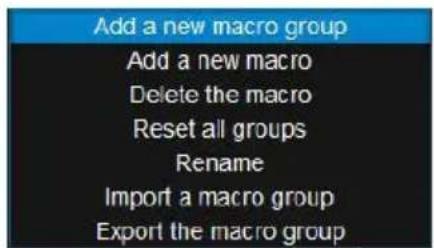
In order to create a macro, hover a mouse cursor to Macro window area, press a mouse right key and select Add a new macro group from the list. A group named New will be created by default, then using the same sequence create a macro name Add a new macro (by default a new macro is titled New).
Record a macro.
Macro commands start recording after ⬆ button is pressed. A window Key in macro will show all the pressed buttons, and ⬆ button finishes the process of command input.
![110ms W 190ms A 70ms A 1ms Insert Before Insert After Insert XY Insert LED Insert [delay] Change Parameters Delete](/content/2026/05/981903/images/b0ea8369e59e1f81c3271090602c0e1f3708225c20674ca13fe3f043eb03418f.jpg)
Edit a macro.
In order to edit a macro, click a row, that you need to edit (the row will be highlighted in gray), then press ▶ and select the required option from a contextual menu.
Assign a pre-recorded macro to keyboard buttons
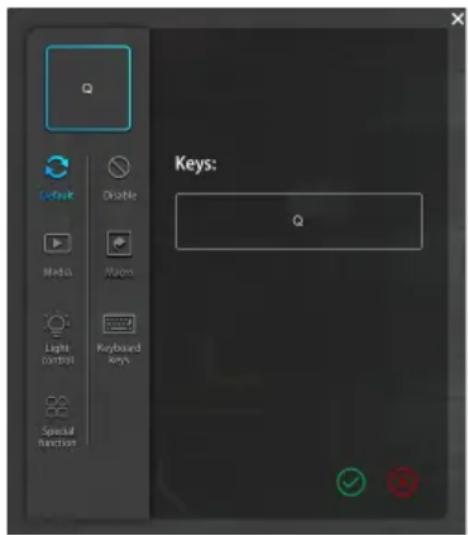
In order to assign a macro in a Button menu, click on a selected key, that you need to assign a previously created macro to.
In a displayed window select Macro option. In a Macro group field select a macro group from a list. Then in a Macro field select a required macro from the list.
All settings can be saved by pressing √ button, in order to cancel and close the application press ✗.
In order to save all changes, press the green button ⏻, in order to cancel them, press the red one.
Attention: saved settings work only if the software is launched; if you close the software, the keyboard will operate by default.
TROUBLESHOOTING
| Problem Solution | |
| Keyboard is not working. | 1. Disconnect keyboard from PC and check connector pins for possible damage. If there is no external damage found and connector pins are OK, connect keyboard to PC again.2. We recommend to address the nearest authorized service center. |
TECHNICAL SPECIFICATIONS
| Parameter, measurement unit Value | |
| Q-ty of keyboard keys, pcs 95 | |
| Q-ty of media keys, pcs 12 (Fn) | |
| Keyboard layout Eng/Rus | |
| OS compatibilitty Windows | |
| Interface USB | |
| Dimensions (L x W x H), mm 365 × 173 × 36 (49) | |
| Weight, g 570 |
Notes. Technical specifications given in this table are supplemental information and can not give occasion to claims. Technical specifications are subject to change without notice due to improvement of SVEN production.
Technical support is on www.sven.fi.
Запись макроса
Manufacturer: SVEN PTE. LTD, 176 Joo Chiat Road, № 02-02, Singapore, 427447. Produced under the control of Oy Sven Scandinavia Ltd. 15, Kotolahdentie, Kotka, Finland, 48310. Made in China.
® Registered Trademark of Oy SVEN
Scandinavia Ltd. Finland.
- No % A & ? *
- Congratulations on the purchase of Sven keyboard!
- COPYRIGHT
- TRADEMARKS
- NOTICE OF RESPONSIBILITY RESTRICTION
- UNPACKING
- APPLICATION
- PACKAGE CONTENTS
- SPECIAL FEATURES
- SYSTEM REQUIREMENTS
- INSTALLATION
- MULTIMEDIA KEYS DESCRIPTION
- FUNCTIONAL KEYS DESCRIPTION
- SOFTWARE INSTALLATION
- Re-assigning individual keys
- SVEN®
- Gaming Keyboard
- Creation of profile files
- MACRO menu
- Create a new macro
- Record a macro.
- Edit a macro.
- Assign a pre-recorded macro to keyboard buttons
- TROUBLESHOOTING
- TECHNICAL SPECIFICATIONS
- Запись макроса
Brand : Sven
Model : KB-G8200
Category : Keyboard