
Y11B - Desktop computer HAIER - Free user manual and instructions
Find the device manual for free Y11B HAIER in PDF.


| Product Type | 2-in-1 Tablet PC (Desktop Computer) |
| Brand | Haier |
| Model | Y11B |
| Operating System | Windows 8.1 |
| Processor | Intel Core M-5Y10c |
| RAM | 4GB DDR |
| Storage | 32GB SSD + 500GB HDD |
| Display | 11.6-inch, 1366x768 widescreen |
| Touchscreen | Yes |
| Wi-Fi | 802.11 b/g/n |
| Bluetooth | 4.0 |
| Cameras | Front 2MP, Rear 2MP |
| Battery | Li-ion polymer, 4600mAh (2 cells) |
| Power Adapter | Input 100-240V AC, Output DC 12V=2.5A |
| Dimensions (Tablet) | 301 x 186 x 10.4 mm |
| Dimensions (Keyboard) | 301 x 201.7 x 14.8 mm |
| Micro SD Support | Up to 64GB |
| Audio | 3.5mm combo jack |
| USB | Micro USB 3.0 |
| Speakers | Built-in stereo |
| Microphone | Built-in |
| Cleaning | Use dry soft cloth; do not use chemicals or liquids. |
| Safety | Do not disassemble; avoid extreme temperatures; use only original battery. |
| Spare Parts | Battery, Keyboard, Power Adapter available |
| General | User manual included; supports Windows 8.1 and above. |
Frequently Asked Questions - Y11B HAIER
User questions about Y11B HAIER
0 question about this device. Answer the ones you know or ask your own.
Ask a new question about this device
Download the instructions for your Desktop computer in PDF format for free! Find your manual Y11B - HAIER and take your electronic device back in hand. On this page are published all the documents necessary for the use of your device. Y11B by HAIER.
USER MANUAL Y11B HAIER
Y11B haier (Intel Core M-5Y10c)英文说明书 (28P规格80×120mm)
内页:80g 双胶纸、单黑印刷
封面:157g铜版纸、单黑印刷
Haier


natural_image
Two open digital tablets, one open showing a grid interface and the other closed with a keyboard (no visible text or symbols)Haier Y11B Quick Start Guide
Introduction
Thank you for your choosing the new tablet pc.
This guide serves to enable users to get to know and familiar with our product as soon as possible. Here we have made a brief introduction to the key layout and definitions in figures and words.
Contents
Accessories List....01
Technical Specifications....01
Precautions before Use....03
Key Layout and Definitions....04
Key Descriptions and Applications....06
Introduction to Desktop....08
- Windows8.1 Start Screen....08
- Image Slide Application....09
- Introduction to app Interface....10
- Charm Menu Column....12
- Double Screen Application....13
Basic Operations....14
- Dormancy, Restart, and Power off.....14
- Security Management 15
Troubleshooting....16
Important Statements....17
Accessories List
- Tablet pc (1)
● Keyboard (1)
● Power Adapter (1)
● Qualified Card (1) - User Manual (1)
● Warranty Card (1)
Note: specific accessory in accordance with actual.
Technical Specifications
| Project | Description |
| CPU | Intel® CoreTM M-5Y10c |
| DDR-RAM | 4GB |
| SSD | 32GB |
| HDD | 500GB |
| Operating system | Windows 8.1 |
| Wi-Fi | Supports 802.11 b/g/n |
| Bluetooth | Bluetooth 4.0 |
| G-sensor | Built-in |
| Microphone | Built-in |
| USB port | Micro USB |
| Audio port | 3.5mm combo earphone port |
| Camera | Front Camera, 2 Mega PixelsRear Camera, 2 Mega Pixels |
| Standard battery | Lithium-ion polymer battery 4600mAh x 2cell |
| Power adapter | Input: 100-240VAC, 50-60 Hz Output: DC 12V=2.5A |
| Micro SD card | 64GB max. |
| Main screen | 11.6 inches high resolution 1366×768 widescreen |
| Product size | tablet: 301×186×10.4mm keyboard: 301×201.7×14.8mm |
Disclaimer: These specifications are for reference only and shall not constitute any commitment in any way. Concerning the product improvement, we shall reserve the right to change the product specifications without further notice.
Only support Windows8 operating system and above.
Precautions before Use
- This production is suitable for use in non-tropic areas below 2,000 meters, and the mark ⚙ in the nameplate indicates the product is suitable for use in non-tropic areas.
- Prevent the tablet pc from falling to the ground or being strongly impacted otherwise.
- Do not use it in the long term in any environment where the air is too cold, too hot (<35°C), too humid or with too much dust. Do not expose the tablet pc to sunlight.
- Avoid using it in the strong magnetic and strong static environment as much as possible.
- Once any water or other liquid splashes onto the tablet pc, close it immediately and do not use it until it dries out.
- Do not clean the tablet pc with any detergent containing chemical element or other liquid to avoid causing damage due to corrosion and becoming damp. If cleaning is really necessary, clean it with dry soft cloth tissue paper.
- Our company shall not bear any and all responsibilities for loss or deletion of material inside the machine caused due to abnormal software and hardware operation, maintenance or any other accident.
- Please back up your important material at any time to avoid loss.
- Please do not disassemble the tablet pc by yourself; otherwise you will lose the right to warranty.
- Replacement with incorrect type batteries may cause explosion. Make sure to use original batteries.
Key Layout and Definitions
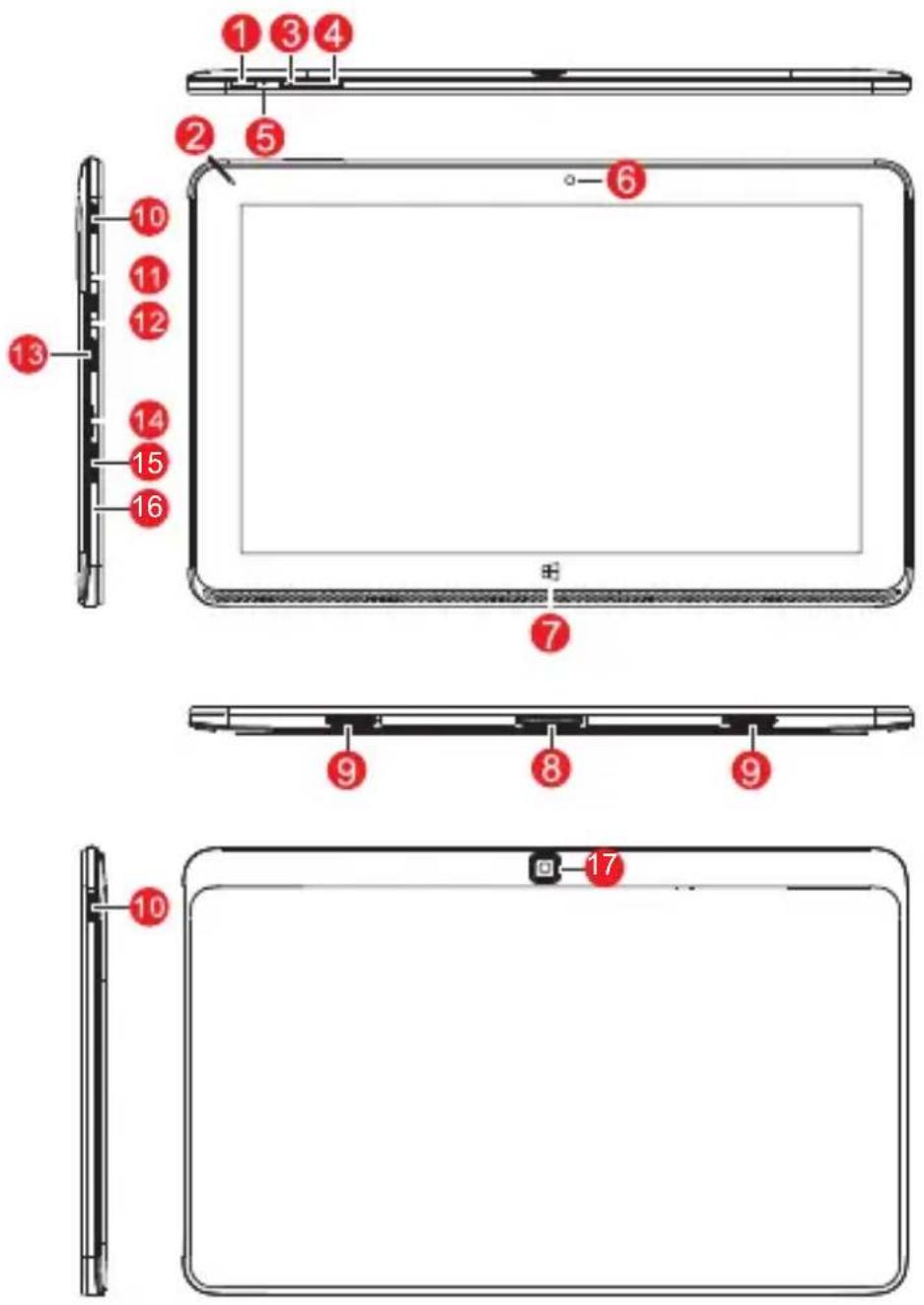
1 Power button: the tablet PC will power on after press this key 3 seconds. you can press this button let the LCD closed (press 1sec.) or display (press 3sec.), also let the computer to enter the sleeping mode or wake up.
② DC indicator: During charging is Red, being full is green.
③/④ Sound+/sound- : up/down volume.
⑤ Reset button: long time (press 3sec) this button to force power off the tablet PC.
⑥ Front camera: take photos, and record video.
⑦ Windows key: Press this button to return to the Start screen.
⑧ Pogopin interface: Detachable dock linking the table pc and the keyboard.
⑨ Keyboard and tablet connection port: keep keyboard and tablet together.
10 Loudspeaker: The built-in loudspeaker enables you to hear the sound without having to linking additional device.
11 Combo audio port: support audio output to external loudspeaker and input the voice to tablet pc with Microphone of earphone (CTIA standard).
12 Power DC port : Recharge your tablet pc through DC interface. also can input the voice from Microphone. support CTIA earphone.
13 Micro USB 3.0port: support Micro USB 3.0/2.0 device or standard USB 3.0/2.0 device with OTG cable.
14 MicroSD& MicroSDHC Format Micro SD card slot: The built-in storage card reader slot supports MicroSD and MicroSDHC format.
15 SIM card slot: No 3G capabilities.
16 Microphone.
17 Back camera: take photos, and record video.
Key Descriptions and Applications
Attention: Keyboard is optional, and configure the product according to the specific type of the tablet pc you have bought.
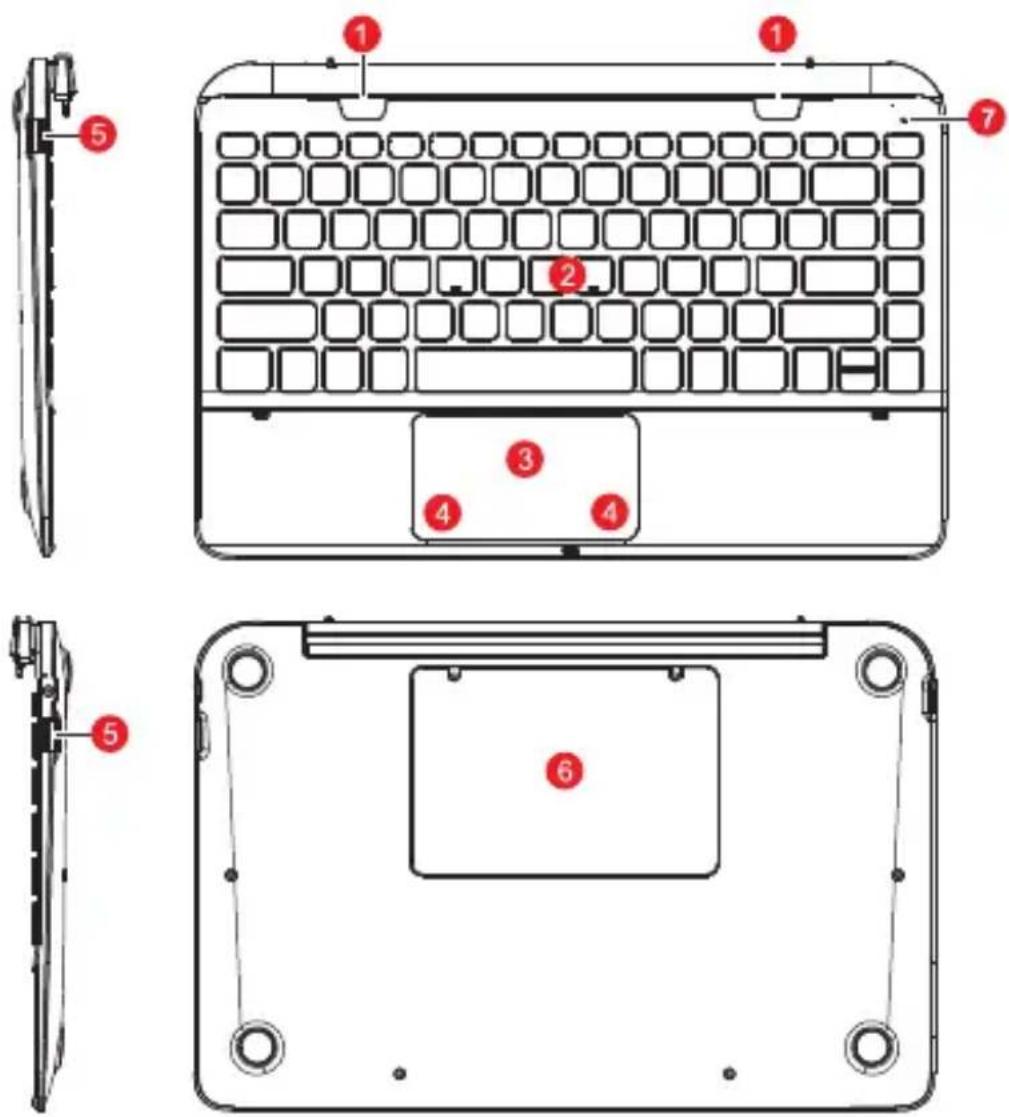
① Keyboard Booth: Detachable dock linking the table pc and the keyboard.
② Keyboard group: The keyboard group provides full size QWERTY key and best typewriting comfortability.
3 Track pad used to control the cursor on the table pc, with the same function as a mouse.
④ Keyboard left key and right key.
⑤ USB Port: support standard USB Device.
6 HDD DISK bar: with Hard disk drive 500GB.
⑦ Indicator: HDD data access lamp.
Use of tablet and keyboard.
Note: The base of the keyboard keys FN key + HDD, having an open/close function of HDD.

natural_image
Exterior view of a modern laptop with a grid screen displaying app icons (no visible text or symbols on screen)Attach the tablet to the keyboard to function as a laptop.

natural_image
Line drawing of a hand pointing at a laptop screen (no text or symbols)Detach the tablet by lifting one corner to release it from the keyboard to function as a tablet.

natural_image
Line drawing of a hand holding a tablet over a laptop keyboard (no text or symbols)Introduction to Desktop
- Windows 8.1 start image: On the start screen, you can see many programs fixed in the image. These application programs are displayed in the form of "magnet". As long as you click them, you can easily visit them.
You need to log on your Microsoft account before the application program completely runs.

2. Image slide applications
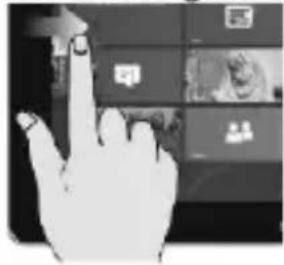
Slide to right
natural_image
Hand pointing at a digital interface with icons and a video player (no readable text or symbols)Slide to the right from the left side of the screen to start the application program in running.
Slide to left

natural_image
Hand interacting with a touchscreen display (no visible text or symbols)Slide to the left from the right side of the screen to start Charm menu column.
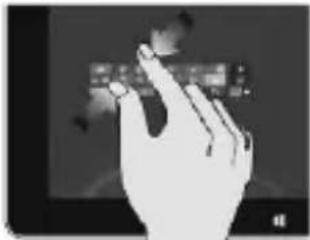
Reduce
natural_image
Silhouette of a hand interacting with a tablet device (no visible text or symbols)On the touch screen, narrow two fingers to reduce the image.
Enlarge

natural_image
Hand interacting with a touchscreen display showing multiple video thumbnails (no readable text or symbols)On the touch screen, widen two fingers to enlarge the image.
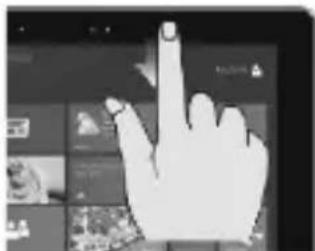
Slide downward
natural_image
Hand gesture pointing upward on a digital interface (no text or symbols visible)In start screen, slide from the top of the screen to view all application programs.
Slide with finger

natural_image
Hand cursor pointing at a digital interface with blurred UI elements (no readable text or symbols)In start screen, slide finger right and left to move the image.
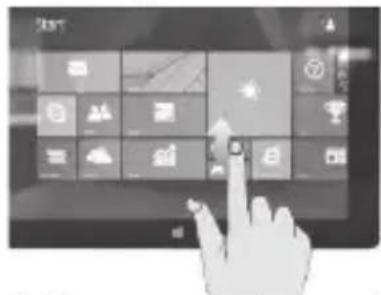
Slide upward
natural_image
Hand interacting with a tablet displaying a grid of app icons (no readable text or symbols)In the start screen, slide upward from the bottom of the screen to visit all application program (APPS) interfaces.
- Recommend app downloaded from the MS app store in shop.

- Introduction to app Interface
Besides the application programs already fixed on the start screen, you can also start other application programs in all application programs, such as other software application programs attached to the tablet
pc.

If you want to fix more application programs on the start interface, see the operation in the figure below, (1) lightly touch, press and hold the application program magnet for about one second and then let go, and select (2) to fix to the start screen.

Conversely, if you want to cancel or delete a certain application in the start screen, (1) lightly touch, press and hold the application program magnet for about one second and then let it go and run, and select (2) attribute column to cancel the programs such as fixation and deletion and then it can be completed.

5. Charm menu column
Slide it to the left from the right side of the screen to start Charm menu column, including: Start, Device, Setup, Share, and Search Program.

Slide it to the left from the right side of the screen to start Charm menu column, including: Start, Device, Setup, Share, and Search Program.

Can let you search the files and application grams in the tablet pc.

Can let you share the program through social change website or e-mail.

Can return to the start screen. From the start en, you can also use this function to return the ication program that is opened in the latest.
Can let you read, write and share files, connect external screen or printer with the device connected to the tablet pc.

Can let you set up the table pc.
Search menu

Share menu

Device Menu

Setup Menu

6. Dual-Screen Application
On my computer in (Figure 1), slide it inward from the left side of the screen, drag it and hold. Let go when seeing double interfaces appear.
In (Figure 2), press the partition button on the middle partition line and drag right and left to partition the display proportion of the double screens.

natural_image
Black-and-white photo of a lone tree on a grassy field with a curved arrow and clock in the background (no readable text or symbols)(Figure 1)

(Figure 2)
Basic Operations
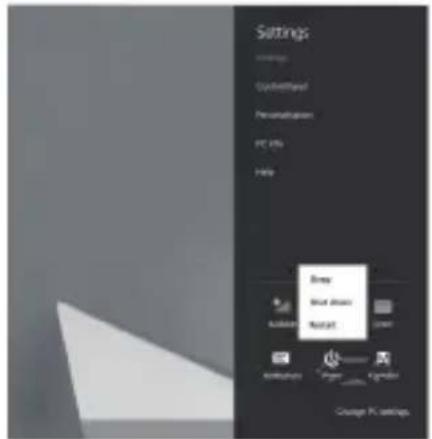
- Sleeping, restart and power off
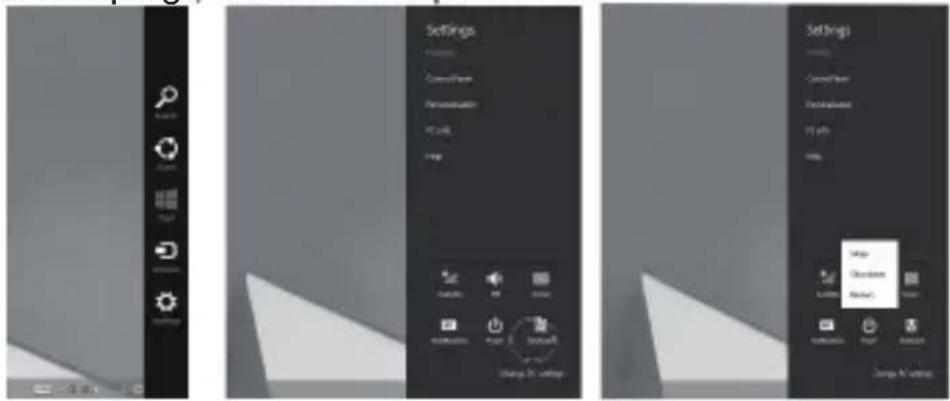
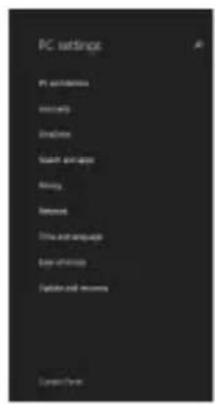
2. Security Management User and password setup

natural_image
Microscopic view of cellular structures with labeled components (no readable text or symbols)Method for quick setup:
Click the "Setup" button in "Charm" setup, and select "Change computer setup". Select "User" on the left and click "Create local account" in "Your account" on the right side. After inputting the password of Complete Windows Live Id Account, input username, password, confirm password and password prompt.
Caution
In order to prevent the battery possibly occurs leaks, over heat, swollen, please note the preventive measure.
Handling Precautions and Guideline
- Strictly prohibits directly connect battery to power source plug.
- Please do not throw the battery to water or put into heater.
- Strictly prohibits plunging the battery in sea water or water, when battery do not use, please store battery in the cool-dry environment.
- The prohibition in strong static electricity and strong magnetic field place use, otherwise is easy to destroy the battery PCBA.
- The prohibition puts the battery nearby the hot high temperature source, like the fire, the heater and so on use and leaves alone.
- The prohibition directly connects the battery cathode with the metal to short-circuit.
- The prohibition rap or throws, steps on the battery and so on.
- Forbids directly to weld the battery and pierces the battery with the nail or other sharp weapons.
- If the battery sends out the unusual smell, gives off heat, the distortion or appears any exceptionally, immediately moves the battery from the installment or the battery charger to and stops using.
- If the battery occurs leaks, the electrolyte enters eye, please do not have to rub scratches, the application clear water flushing eye, and delivers the medical treatment otherwise to be able immediately to injure the eye.
- When battery long-term storage, or assembly in the host, suggest customer should take every 3 months carry on one time charge and discharge and recharge it to half-charge state (3.80-3.95V/cell)(the method:0.5CmA charge and discharge).
- Abandon the battery to wrap up the electrode using the insulating paper, prevented the battery short-circuits.
- Abandon battery processing to be supposed to follow the local government the laws and regulations.
- Do not decompose the battery.
Note: To extend your battery life under the premise for watching the brightness to the minimum, so that the internal light source can use less electricity.
Troubleshooting
■ Your device can not be turned on.
The battery power is used up. Please fully charge your device.
■ Your device can not access to the Internet via Wi-Fi.
- Check whether your device can receive any Wi-Fi signal.
- Check whether the wireless router supports DHCP. If not, please configure a static IP address.
- Check whether the wireless router has been connected to the Internet.
■ Your device responds to operations slowly.
- Check whether too many applications are running in the backstage.
- Check whether any incompatible-version application has been installed.
- Use the antivirus software to scan and kill the malicious programs (if any).
■ Your device gets warm in use.
It is normal that your device gets warm in a long-time use or in charging.
■ Your device crashes and its keys do not work.
Press and hold the power button for 8 seconds, and the system will turn off and then press the power button to start the device.
■ The total memory is smaller than the theoretical memory.
A certain space has been used to store the system files and install user applications, so it appears that the total
memory is smaller than the theoretical memory.
■ Some video files can not be played.
Your device supports most of the common audio and video file formats, except a few special formats. We suggest that you download a third-party player to play those exceptional files.
Important Statements
All contents and services obtained through your device shall belong to a third party under the protection of copyright, patent, trademark or other intellectual properties, and shall be used for your personal non-commercial purposes only. You are not allowed to use any content or service in any way without the authorization of the content or service provider.
In no case shall we be held liable for any direct, indirect or accidental loss or damage caused by your accessing any content, service, information or third-party software through your device.
Third-party services are subject to change, deletion or may stop without prior notice. We shall not imply or assure that all services and contents will be kept available at all time.
We shall not be responsible for providing any related customer service for any third-party service or content. Please refer your questions and service requests directly to the relevant content or service provider.
Please remember to backup the data when using your device. We shall not be held liable for any personal data loss or damage caused by software or hardware
misoperation, product repair, battery replacement or any other unexpected situations, or for any other indirect loss arising thereof. Any misunderstandings in relation to this Manual shall be beyond our control. Consequently, we shall not bear any liability for any accidental loss caused by the use of this Manual or for any third-party claim caused by the use of your device.
CE Statement
Notices for the use of pad
Your pad is a product of superior design and craftsmanship and should be treated with care. The following suggestions can help you comply with the terms of repair kits, to extend the life of your pad.
1) Place the mobile pad and its parts and components out of reach of small children.
2) Keep the pad dry. Rain, humidity and all types of liquids which contain minerals will corrode electronic circuits.
3) Don't touch the pad with wet hands when charging, it will cause electric shock or damage the pad.
4) Avoid placing the device in high temperature environment. High temperatures will shorten the life of electronic devices, damage batteries, and warp or melt certain plastics. Avoid placing the device in significantly low temperature environments. When the temperature rises, the pad will produce water vapor that may damage electronic circuit.
5) Avoid placing the pad in dusty or dirty places, otherwise parts may be damaged.
6) To avoid damage to the pad, do not place it near a lit cigarette, an open flame or any other heat source.
7) Do not open the device, non-professional approach will cause damage to the pad.
8) Do not shake the pad or throw it from high places. handling the pad roughly can damage internal circuit boards.
9) Do not paint the pad, as paint will block headphones, microphones or other removable parts, and cause the
part or the device to stop working.
10) Use clean, soft, dry cloth to clean the camera and light sensor lenses. Do not use of harmful chemicals, cleaning agents or cleaning fluids to clean the pad.
11) If mobile pad, battery, charger, or mobile pad accessories are defective, send to the nearest qualified service center for inspection.
12) If necessary, Service Centre staff will assist you and will arrange for pad repairs.
13) To prevent possible hearing damage, do not listen at high volume levels for long periods
Caution:
Use the Mobile pad in an environment with temperature between 5°C and 35°C, For the following equipment: Mobile pad is in compliance with the essential requirements and other relevant provisions of Directive 1999/5/EC.
The earphones should be used carefully. Excessive sound pressure from earphones and headphones can cause hearing loss.

The product shall only be connected to a USB interface of version USB 2.0 or higher. The connection to a power USB is prohibited.
Adapter shall be installed near the equipment and shall be easily accessible.
The device complies with RF specifications when the device used at 0 mm form your body.
Risk of explosion if battery is replaced by an incorrect type.
Dispose of used batteries according to the instructions.
The plug considered a disconnect device of adapter.
FCC Warning
1. Labelling requirements :
This device complies with part 15 of the FCC Rules. Operation is subject to the following two conditions: (1) This device may not cause harmful interference, and (2) this device must accept any interference received, including interference that may cause undesired operation.
2. Information to user :
Any Changes or modifications not expressly approved by the party responsible for compliance could void the user's authority to operate the equipment.
Note: This equipment has been tested and found to comply with the limits for a Class B digital device, pursuant to part 15 of the FCC Rules. These limits are designed to provide reasonable protection against harmful interference in a residential installation. This equipment generates uses and can radiate radio frequency energy and, if not installed and used in accordance with the instructions, may cause harmful interference to radio communications. However, there is no guarantee that interference will not occur in a particular installation. If this equipment does cause harmful interference to radio or television reception, which can be determined by turning the equipment off and on, the user is encouraged to try to correct the interference by one or more of the following measures:
--Reorient or relocate the receiving antenna.
--Increase the separation between the equipment and receiver.
--Connect the equipment into an outlet on a circuit different from that to which the receiver is connected.
--Consult the dealer or an experienced radio/TV technician for help.
3. RF warning for pad:
This equipment complies with FCC radiation exposure limits set forth for an uncontrolled environment. This equipment should be installed and operated with minimum distance 20cm between the radiator & your body.
4. Specific Absorption Rate (SAR) information for intel Core M-5Y10c program.
This pad meets the government's requirements for exposure to radio waves. The guidelines are based on standards that were developed by independent scientific organizations through periodic and thorough evaluation of scientific studies. The standards include a substantial safety margin designed to assure the safety of all persons regardless of age or health.
FCC RF Exposure Information and Statement The SAR limit of USA (FCC) is 1.6 W/kg averaged over one gram of tissue. Device types: Y11B (FCC ID: 2ACZD-Y11B) has also been tested against this SAR limit. SAR information on this and other pad can be viewed on-line at http://www.fcc.gov/oet/ea/fccid/. Please use the device FCC ID number for search. This device was tested for typical body-worn operations with the back of the handset kept 5mm from the body. To maintain compliance with FCC RF exposure requirements, use accessories that maintain a 1.5cm separation distance between the user's body. The use of belt clips, holsters and similar accessories should not contain metallic components in its assembly. The use of accessories that do not satisfy these requirements may not comply with FCC RF exposure requirements, and should be avoided.
| |
(No text)
[Non-Text]
[Non-Text]
[Non-Text]
[Non-Text]
[Non-Text]
[Non-Text]
[Non-Text]
[Non-Text]
[Non-Text]
[Non-Text]
[Non-Text]
[Non-Text]
[Non-Text]
[Non-Text]
[Non-Text]
[Non-Text]
[Non-Text]
The Ground Truth image displays a single, solid horizontal line. According to Rule 2 (UNDERSCORE & LINE RULES), this is a stylistic or background line, not a placeholder underscore. Therefore, the OCR result must ignore it. The provided OCR content is "____", which consists of four underscores. This is an incorrect interpretation of the line as a placeholder, violating the rule that stylistic lines must be ignored. The OCR has hallucinated underscores where none should exist based on the GT's visual context. Hence, the OCR result is inconsistent with the Ground Truth.
L
(No text)
| |
(1) AD = BD = 1
- Haier
- Introduction
- Contents
- Accessories List
- Precautions before Use
- Key Descriptions and Applications
- Introduction to Desktop
- Image slide applications
- Charm menu column
- Dual-Screen Application
- Basic Operations
- Security Management User and password setup
- Caution
- Handling Precautions and Guideline
- Troubleshooting
- ■ Some video files can not be played.
- Important Statements
- CE Statement
- Notices for the use of pad
- Caution:
- FCC Warning
- Labelling requirements :
- Information to user :
- RF warning for pad:
- Specific Absorption Rate (SAR) information for intel Core M-5Y10c program.
Brand : HAIER
Model : Y11B
Category : Desktop computer