
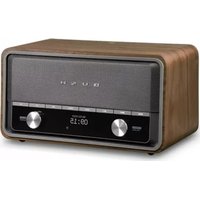
CDAB12 - Radio BUSH - Free user manual and instructions
Find the device manual for free CDAB12 BUSH in PDF.


| Product Type | DAB+/FM Radio |
| Model Number | CDAB12 |
| Brand | Bush |
| Dimensions (approx.) | 200 x 130 x 60 mm |
| Weight (approx.) | 500 g |
| Power Supply | AC 230V, 50Hz or DC 6V (4 x AA batteries) |
| Frequency Bands | DAB/DAB+ (174-240 MHz), FM (87.5-108 MHz) |
| Functions | Auto scan, 30 preset stations, alarm, sleep timer, snooze |
| Display | LCD screen with scrolling text |
| Audio Output | Mono speaker, 3.5 mm headphone jack |
| Antenna | Built-in ferrite rod for DAB, telescopic for FM |
| Battery Life | Approx. 30 hours (alkaline) |
| AC Adapter Input | AC 100-240V, 50/60Hz |
| Standby Power Consumption | < 1 W |
| Accessories Included | AC power adapter, user manual |
| Cleaning Instructions | Wipe with a soft dry cloth; do not use liquids or solvents |
| Safety Precautions | Keep away from water and moisture; do not open the device |
| Spare Parts / Repairability | Contact Bush customer service for authorized repairs |
Frequently Asked Questions - CDAB12 BUSH
User questions about CDAB12 BUSH
0 question about this device. Answer the ones you know or ask your own.
Ask a new question about this device
Download the instructions for your Radio in PDF format for free! Find your manual CDAB12 - BUSH and take your electronic device back in hand. On this page are published all the documents necessary for the use of your device. CDAB12 by BUSH.
USER MANUAL CDAB12 BUSH


Pocket Portable DAB Radio
Contents
Important safety information....3
Setting up....5
Check the package contents 5
Charging the battery 5
Your Pocket DAB/FM radio....6
Using your Pocket DAB/FM radio 7
Switch on 7
Switch off....7
Time and date 7
Using the menu 8
Change the mode 8
Adjusting the volume 8
Using the DAB radio....9
Changing DAB stations....9
Scanning for DAB stations....9
Prune DAB stations....10
Storing a DAB station preset....10
Tune to a DAB station preset....11
DAB display information....11
Dynamic range control (DRC)....12
Using the FM radio....14
Tuning to an FM station....14
Changing the scan setting 14
Audio mode 15
Storing an FM station preset....15
Tune to an FM station preset....16
FM display information....16
System menu options 18
General information....20
Guarantee 21


⚠️ Important safety information
- Keep the product and all its parts out of reach of small children.
- This product is not intended for use by persons (including children) with reduced physical, sensory or mental capabilities, or lack of experience and knowledge, unless they have been given supervision or instruction concerning the use of the appliance by a person responsible for their safety.
- Keep it dry. Avoid exposure to precipitation, humidity and liquids which could all affect the product circuitry.
- Do NOT leave it in high temperatures as electronic devices and plastic parts may warp in heat.
- Do NOT leave it in low temperatures as moisture can form inside the product, which may damage the circuit board.
- Do NOT store in dusty or dirty areas.
- Only use the USB cable that came with the product. Using an unauthorised cable will invalidate your guarantee and may irrecoverably damage the product.
- Do NOT attempt to open the product. This product does not contain any user serviceable parts. Unauthorised handling of the device may damage it and will void your warranty.
- Do NOT use your pocket radio near emergency/intensive care medical equipment; if you have a pacemaker fitted or during an electrical storm.
- Do NOT use harsh chemicals, cleaning solvents or detergents to clean the product. Wipe with a damp (not wet) soft cloth to clean.
- This product has an integral rechargeable battery and should not be disposed of in the normal household waste but taken to an appropriate recycling facility, where and when these are available.
- Never throw batteries in a fire or attempt to open the outer casing.


WARNING:
To prevent possible hearing damage, do not listen to this Soundbase at high volume levels for long periods of time.
Setting up
Check the package contents
The package contains:
• 1 x BUSH Pocket portable DAB/FM radio
- 1 x Earphones
- 1 x USB charging cable
- 1 x Instruction manual
Charging the battery
Your pocket radio has an integral rechargeable battery. Before you use your radio for the first time, you need to charge the battery. From a full charge you will be able to listen to your radio continuously for approximately 5 hours.
-
Connect the micro USB end of the charging cable to the USB socket on the end of the pocket radio (next to the On/Off switch).
-
Plug the standard USB end of the charging cable into a computer or other USB charging device.
-
Plug the earphones supplied into the headphone socket on the end of the pocket radio. The earphones also work as the radio aerial and so these need to be connected when you first switch your radio on and it scans for DAB radio stations.
-
Switch the pocket radio on. When the radio has powered up and has scanned for DAB stations. Press and release the 'Select' button until the battery charge status is displayed e.g.: Battery 25.
Note: If the battery is completely exhausted, you will need to wait a short while after it has been on charge, before the radio will power on and you are able to check the battery status information.
- The pocket radio battery is fully charged when 'Battery 100' is displayed.
Backlit dot matrix display
Your Pocket DAB/FM radio
Front
Tune - / Scroll in the menu TVVolumeScroll in the menu
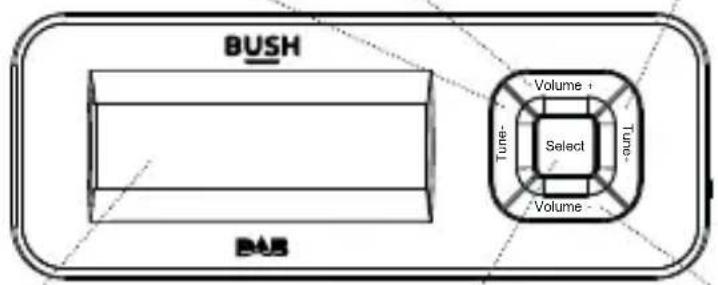
Backlit dot matrix display
Select/Station information/ Press and hold to enter the menu
Volume -


Left side Right side

natural_image
Simple line drawing of a circular component with a curved arrow, no text or symbols present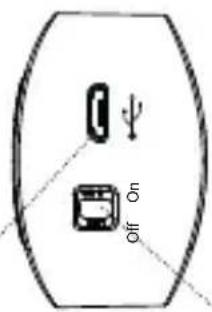
Earphone socket Micro USB socket On/Off switch
Using your Pocket DAB/FM radio
Switch on
Note: Plug the earphones supplied into the headphone socket on the end of the pocket radio. The earphones also work as the radio aerial and so these need to be connected when you first switch your radio on and it scans for DAB radio stations.
- Slide the power switch on the end of the pocket radio to 'On'. 'Welcome to Digital Radio' will be displayed and your radio will be in Standby mode. The current time and date will be displayed.
- Press and release the 'Select' button. Your radio will return to the mode that was last used in (DAB or FM). If you were listening to a DAB or FM station before, then this will be automatically selected.
After a short while, when the radio is playing, the display backlight will turn off to save battery power, when you press and release any button the display backlight will turn back on.
Switch off
- Slide the power switch on the end of the pocket radio to 'Off'. The radio and display will switch off.
Time and date
The first time you listen to DAB radio, the time and date of your product will be synchronised automatically to that broadcast by the DAB service in 24 hour mode; which is in line with daylight saving, so there is no need to set the time and date manually.
If you do wish to set the time and date manually, please see page 18.
Using the menu
You can change some of the factory default settings, as well as switching between DAB and FM mode, on your pocket radio within the product Menu.
To access the Menu in DAB or FM mode:
- Press and hold the 'Select' button to access the Menu. '
' or ' ' will be displayed. - Use the 'Tune+' or 'Tune-' buttons to scroll through the available options in each mode.
- Press and release the 'Select' button to select or confirm an option.
Change the mode
- Press and hold the 'Select' button to change between DAB and FM mode. '
' or ' ' will be displayed. - Press and release the 'Select' button again to change to DAB or FM mode, as appropriate. 'DAB' or 'FM', as appropriate will be displayed to confirm the mode.
Adjusting the volume
Press and release the 'Volume+' button to increase the volume.
Press and release the 'Volume –' button to decrease the volume.
Using the DAB radio
Check that your Radio is in DAB mode. The first time you use the pocket radio or if the station list is empty, your radio will automatically begin to scan for DAB radio stations. A progress bar will show the progress of the scan and the number of stations found during the scan will also be displayed.
When the scan is complete your radio will select the first available station and begin to play. Stations are listed in numerical and then alphabetical order by default.
Changing DAB stations
In DAB mode:
- Press and release the 'Tune-' or 'Tune+' buttons to scroll through the available stations in the station list.
- When the station that you would like to listen to is displayed press and release the 'Select' button. There will be a short delay whilst your DAB radio tunes to your selected station.
Scanning for DAB stations
With DAB radio, additional stations and services regularly become available so it's a good idea to carry out a manual scan every now and then to make sure that you have the most up to date station listing stored within the memory of your Radio. If you have moved your Radio to another location, e.g.: if you go on holiday, then it's also a good idea to carry out a manual scan.
Note: Plug the earphones supplied into the headphone socket on the end of the pocket radio. The earphones also work as the radio aerial and so these need to be connected when you scan for DAB radio stations.
In DAB mode:
-
Press and hold the 'Select' button to enter the menu. '
' is displayed. -
Press and release the 'Tune –' or 'Tune +' buttons to scroll to '
'. -
Press and release the 'Select' button. 'Scanning...' will be displayed and a progress bar will show the progress of the scan and the number of stations found during the scan will also be displayed.
Prune DAB stations
You can remove the DAB stations in the station list that cannot be received in your area. These are listed with a '?' prefix.
-
Press and hold the 'Select' button to enter the menu. '
' is displayed. -
Press and release the 'Tune -' or 'Tune +' buttons to scroll to '
'. Press and release the 'Select' button. -
'Prune?
Yes' is displayed. Use the 'Tune+' button to move to 'Yes'. Press and release the 'Select' button to confirm and prune the station list. Stations with a '?' prefix will now no longer be displayed.
Storing a DAB station preset
Your pocket radio can store up to 10 DAB radio stations in its preset memories for instant access to your favourite stations.
-
Tune the Radio to the DAB radio station that you wish to preset.
-
Press and hold the 'Select' button to enter the menu. '
' is displayed. -
Press and release the 'Tune –' or 'Tune +' buttons to scroll to '
'. Press and release the 'Select' button. -
'Preset Store' <1:(Empty)> is displayed. Press and release the 'Tune –' or 'Tune +' buttons to scroll to the preset location that you would like to store the radio station to (1-10).
-
Press and release the 'Select' button, the display will confirm 'Preset X stored', where 'X' is the number of the preset (1-10).
Note: If there is already an existing DAB station stored under a preset, it will be over written when you store the new station.
Tune to a DAB station preset
In DAB mode:
- Press and hold the 'Select' button to enter the menu. '
' is displayed. - Press and release the 'Tune –' or 'Tune +' buttons to scroll to '
'. Press and release the 'Select' button. - 'Preset Recall <1:>' is displayed together with the name or frequency of the station stored there, or (Empty) if no previous station has been stored.
- Press and release the 'Tune –' or 'Tune +' buttons to scroll to the Preset location and station that you would like to listen to (1-10).
- Press and release the 'Select' button. The radio will instantly tune to that station and begin to play.
Note: If no DAB station has been stored under the preset button, 'Preset Empty' will be displayed, then the radio will revert to the previously selected radio station.
DAB display information
When listening to a DAB station you can change the information that will appear on the display. There are several different types of information that are sent by the broadcaster.
• Dynamic Label Segment (DLS)
This is scrolling text information supplied by the broadcaster. Information could be the name of an artist or music title, DJ's name, contact details for the radio station etc.
- Signal Strength An empty □will appear on the display to indicate the minimum signal strength for acceptable listening. The row of solid rectangles indicate the actual signal strength that you are receiving. The stronger the signal, the further to the right the row of solid rectangles will be.
- Program Type (PTY) Such as 'Rock', 'Pop', Talk' or 'News'
- Multiplex Name Displays the broadcasting area and collection of radio stations on this frequency e.g.: BBC National DAB, Digital 1 Network.
• Channel and Frequency - e.g.: 12B 225.648 MHz
• Signal error This is displayed as a number between 0-99. It would not be possible to satisfactorily listen to a radio station with a signal error rate of 30 or above.
• Signal information The data rate at which the signal is being transmitted.
- Pocket radio battery charge level 100 indicates a full charge.
• Time and date - supplied by the broadcaster.
- Repeatedly press and release the 'Select' button to cycle through the different information options.
Dynamic range control (DRC)
In DAB mode:
The dynamic range for each radio programme is set by the broadcaster for each radio station and may be different for the types of programme broadcast, such as pop or classical music or a chat show. The dynamic range control signal is transmitted in parallel with the audio signal for each programme and with your radio you can use this control signal to expand or compress the dynamic range (the difference between the loudest and quietest sounds) of the reproduced audio signal. Changing the dynamic range can affect the 'loudness' and/or 'quality of sound' of the programme that you hear so that it will be more suited to your listening conditions and your own personal listening requirements. e.g. in a noisy environment, where quiet sounds might be swamped, setting the compression to maximum will 'boost' the quiet sounds, whilst keeping the loudest sounds at their original level.
There are 3 levels of compression:
-
DRC off: no compression. This is the default setting.
• DRC low: medium compression.
• DRC high: maximum compression. -
Press and hold the 'Select' button to enter the menu. '
' is displayed. -
Press and release the 'Tune –' or 'Tune +' buttons to scroll to '
'. Press and release the 'Select' button. The current DRC setting will have an '*' next to it. -
Press and release the 'Tune –' or 'Tune +' buttons to scroll through the options and press the 'Select' button to confirm.
Using the FM radio
Check that your Radio is in FM radio mode. When your radio is in FM mode it can receive Radio Data System or 'RDS' information if this is being transmitted by the broadcaster. RDS information will often include the station name, detail about the programme and the current time.
Tuning to an FM station
Note: Plug the earphones supplied into the headphone socket on the end of the pocket radio. The earphones also work as the radio aerial and so these need to be connected when you scan for FM radio stations
In FM mode:
-
Press, hold and then release the 'Tune+' button to scan up the frequency band. Press, hold then release the 'Tune-' button to scan down the frequency band. 'Scanning...' will be displayed and your radio will search for the next available station and then stop on that station.
-
Press and release the 'Tune –' or 'Tune +' button to fine tune each frequency in 0.05MHz steps, if necessary.
Changing the scan setting
In FM mode:
-
Press and hold the 'Select' button. 'Switch To DAB' is displayed.
-
Press and release the 'Tune –' or 'Tune +' buttons to scroll to '
'. -
Press and release the 'Select' button. . There are now two different options to choose from and the current setting will have an '*' next to it.
- Strong stations - the scan will only stop when a strong signal strength is received which should also result in a better audio quality.
It is possible that the station you are scanning for may be missed using this option.
- All stations - the scan will stop for every station it receives, even if the signal strength is poor.
- Press and release the 'Tune –' or 'Tune +' buttons to scroll and choose from the two options available and press the 'Select' button to confirm.
Audio mode
The radio will automatically switch between Stereo and Mono, depending on the quality of the signal being received but you can override this function and manually switch between 'Stereo' and 'Mono'.
-
Press and hold the 'Select' button. 'Switch To DAB' is displayed.
-
Press and release the 'Tune –' or 'Tune +' buttons to scroll to '
-
Press and release the 'Select' button. There are now two different options of 'Forced mono' and 'Stereo allowed' and the current setting will have an '*' next to it.
-
Press and release the 'Tune –' or 'Tune +' buttons to scroll to and choose from the two options available and press the 'Select' button to confirm.
Storing an FM station preset
Your pocket radio can store up to 10 FM radio stations in its preset memories for instant access to your favourite stations.
-
Tune the Radio to the FM radio station that you wish to preset.
-
Press and hold the 'Select' button to enter the menu. '
' is displayed. -
Press and release the 'Tune –' or 'Tune +' buttons to scroll to '
'. Press and release the 'Select' button. -
'Preset Store' <1:(Empty)> is displayed. Press and release the 'Tune –' or 'Tune +' buttons to scroll to the preset location that you would like to store the radio station to (1-10).
- Press and release the 'Select' button, the display will confirm 'Preset X stored', where 'X' is the number of the preset (1-10).
Note: If there is already an existing FM station stored under a preset, it will be over written when you store the new station.
Tune to an FM station preset
In FM mode:
- Press and hold the 'Select' button to enter the menu. '
' is displayed. - Press and release the 'Tune –' or 'Tune +' buttons to scroll to '
'. Press and release the 'Select' button. - 'Preset Recall <1:>' is displayed together with the name or frequency of the station stored there, or (Empty) if no previous station has been stored.
- Press and release the 'Tune –' or 'Tune +' buttons to scroll to the Preset location and station that you would like to listen to (1-10).
- Press and release the 'Select' button. The radio will tune to that station and begin to play.
Note: If no FM station has been stored under the preset button, 'Preset Empty' will be displayed, then the radio will revert to the previously selected radio station.
FM display information
When listening to an FM station you can change the information that will appear on the second line of the display. There are several different types of information that are sent by the broadcaster.
- Radiotext (RT)
This is scrolling text information supplied by the broadcaster. Information could be the name of an artist or music title, DJ's name, contact details for the radio station etc.

- Program Type (PTY) Such as 'Rock', 'Pop', Talk' or 'News'
• Station name or frequency Such as BBC R4 or 92-95MHz
- Audio mode The radio will automatically switch between Stereo and Mono, depending on the quality of the signal being received but you can override this function and manually switch between 'Stereo' and 'Mono'. Please refer to 'Audio Mode' on page 15.
- Pocket radio battery charge level – 100 indicates a full charge.
• Time and date - Supplied by the broadcaster.
- Repeatedly press and release the 'Select' button to cycle through the different information options.
System menu options
There are several system menu setting options available on your pocket radio that you can change.
To access the System Menu in DAB or FM mode:
- Press and hold the 'Select' button to access the Menu. '
' or ' ' will be displayed. - Use the 'Tune+' or 'Tune-' buttons to scroll to '
'. - Press and release the 'Select' button.
- Use the 'Tune +' or 'Tune -' buttons to scroll through the available options.
- Press and release the 'Select' button to select or confirm an option.
Available options are:
-
-
-

-
Restores the original factory default settings.
Note: When you reset your radio, all of your DAB and FM radio station presets will be deleted.
-
Displays the software version of your pocket radio.
General information
This symbol indicates that this product should not be treated as normal household waste and it should be recycled. Please take it to your nearest collection facility or for further details contact your local council or visit www.recycle-more.co.uk
Batteries contain substances that may be harmful to the environment and human health. Keep out of the reach of children and seek immediate medical help if swallowed.
This symbol indicates that batteries should not be disposed of in the normal household waste but taken to appropriate local recycling facilities, where and when these are available.
Never throw batteries in a fire or attempt to open the outer casing
BUSH
PRODUCT GUARANTEE
This product is guaranteed against manufacturing defects for a period of

Year
This product is guaranteed for twelve months from the date of original purchase.
Any defect that arises due to faulty materials or workmanship will either be replaced, refunded or repaired free of charge where possible during this period by the dealer from whom you purchased the unit.
The guarantee is subject to the following provisions:
- The guarantee does not cover accidental damage, misuse, cabinet parts, knobs or consumable items.
- The product must be correctly installed and operated in accordance with the instructions contained in this manual.
- It must be solely for domestic purpose.
- The guarantee will be rendered invalid if the product is re-sold or has been damaged by inexpert repair.
- Specifications are subject to change without notice.
- The manufacturer disclaims any liability for the incidental or consequential damages.
The guarantee is in addition to and does not diminish your statutory or legal rights.
Guarantor: Argos Ltd, 489-499 Avebury Boulevard, Central Milton Keynes, MK9 2NW


CE

Jun 15/Issue 1
- Pocket Portable DAB Radio
- Contents
- ⚠️ Important safety information
- WARNING:
- Setting up
- Check the package contents
- Charging the battery
- Backlit dot matrix display
- Your Pocket DAB/FM radio
- Using your Pocket DAB/FM radio
- Switch on
- Switch off
- Time and date
- Using the menu
- Change the mode
- Adjusting the volume
- Using the DAB radio
- Changing DAB stations
- Scanning for DAB stations
- Prune DAB stations
- Storing a DAB station preset
- Tune to a DAB station preset
- DAB display information
- Dynamic range control (DRC)
- Using the FM radio
- Tuning to an FM station
- Changing the scan setting
- Audio mode
- Storing an FM station preset
- Tune to an FM station preset
- FM display information
- System menu options
- General information
- BUSH
- PRODUCT GUARANTEE
- Year
Brand : BUSH
Model : CDAB12
Category : Radio