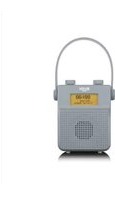
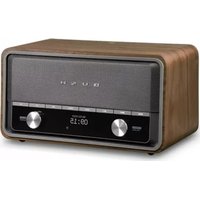
NE-2151 - Radio BUSH - Free user manual and instructions
Find the device manual for free NE-2151 BUSH in PDF.


| Product Type | DAB/FM Digital Radio |
| Brand | Bush |
| Model | NE-2151 |
| Dimensions (WxDxH) | 136mm x 57mm x 162mm |
| Weight | ~0.5 kg |
| Power Supply | Mains adapter: Input AC 100-240V ~ 50/60Hz, 0.3A; Output DC 6V 1A |
| Battery | Built-in rechargeable battery (partially charged at shipment) |
| Radio Frequency Bands | FM: 87.5-108 MHz; DAB: 174-240 MHz |
| Output Power | 2W RMS |
| Display | Backlit LCD display with adjustable brightness levels |
| Speaker | Built-in single speaker |
| Headphone Jack | 3.5mm stereo (earphones not included) |
| Antenna | Built-in hanging strap antenna |
| Modes | DAB, FM, Bluetooth |
| Preset Stations | Up to 10 presets per band (DAB/FM) |
| Alarm | Dual alarms with snooze (5-30 min) and sleep timer (up to 90 min) |
| ECO Power Mode | Auto standby after 15 minutes in DAB mode if no signal |
| Bluetooth Range | Approximately 8 meters |
| Controls | Volume dial, buttons: STANDBY, MODE, PRESET/RECALL/STORE, SCROLL/SELECT/SCAN/MENU, INFO, DIMMER/SNOOZE |
| Safety Features | Overheating protection, ventilation required (10cm clearance), automatic shut-off if no Bluetooth connection |
| Cleaning | Unplug before cleaning; use only dry cloth; no liquids or abrasive pads |
| Repair / Disassembly | No user-serviceable parts; do not open covers; contact qualified service personnel |
| Accessories Included | Mains adapter (AC/DC) |
| Guarantee | 12 months from date of purchase |
Frequently Asked Questions - NE-2151 BUSH
User questions about NE-2151 BUSH
0 question about this device. Answer the ones you know or ask your own.
Ask a new question about this device
Download the instructions for your Radio in PDF format for free! Find your manual NE-2151 - BUSH and take your electronic device back in hand. On this page are published all the documents necessary for the use of your device. NE-2151 by BUSH.
USER MANUAL NE-2151 BUSH
You'll soon be enjoying your new DAB/FM Digital Radio.
It all begins here, with your instructions. Don't worry, there's nothing too technical coming up. Just simple, step-by-step guidance to get you up and running quickly. Sound good? Then let's get started.
Help and Guidance
We're here to help you get the most from your DAB/FM Digital Radio. Should you require any guidance, a simple solution can often be found online at:
www.argos-support.co.uk
If you still require further assistance, call one of our experts on 0345 604 0105.
If you require any technical guidance or find that your product is not operating as intended, a simple solution can often be found in the Troubleshooting
Contents
1 Safety information
Safety information
6
2 Getting to know your DAB/FM Digital Radio
Ready? Let's begin 10
Product Overview 10
Power Source 13
3 Using your DABFM Digital Radio Basic Operation 17
Basic Operation 17
DAB Operation 19
FM Operation 23
Bluetooth® Operation 24
System setting 25
Setting the Alarm 27
Snooze Function 28
Sleep Function 29
Display Backlight 29
Using Earphones 30
4 Other information
Specifications 33
5 Product support
Troubleshooting 36
Help and assistance 38
Disposal 39
Guarantee
40
section of these instructions, or online at www.argos-support.co.uk If you still require further assistance, call one of our experts on 0345 604 0105

natural_image
Solid gray rectangular shape with a diagonal white corner (no text or symbols)Safety information
1

natural_image
Abstract geometric pattern composed of interconnected triangles and squares on a grid background (no text or symbols)
Safety information
Important - Please read these instructions fully before installing or operating
SAFETY PRECAUTIONS
- Read all the instructions carefully before using the unit and keep them for future reference.
- Check that the voltage marked on the rating label matches your mains voltage.
- The unit must be placed on a flat stable surface and should not be subjected to vibrations.
- Do not place the unit on sloped or unstable surfaces as the unit may fall off or tip over.
- The mains socket must be located near the unit and should be easily accessible.
- Avoid extreme degrees of temperature, either hot or cold. Place the unit well away from heat sources such as radiators or gas/electric fires. Avoid exposure to direct sunlight and other sources of heat.
- Never place any type of candle or naked flame on the top of or near the unit.
- To reduce the risk of fire, electric shock or product damage, do not expose this unit to rain, moisture, dripping or splashing. No objects filled with liquids, such as vases, should be placed on the unit.
- If you spill any liquid into the unit, it can cause serious damage. Switch it off at the mains immediately. Withdraw the mains plug and consult your dealer.
- To prevent the risk of electric shock or fire hazard due to overheating, ensure that curtains and other materials do not obstruct the ventilation vents.
- Do not install or place this unit in a bookcase, built-in cabinet or in another conned space, ensure that a minimum of 10cm should be kept around the apparatus for ventilation.
Safety
- Always disconnect the unit from the mains supply before connecting/disconnecting other devices or moving the unit.

Safety information
Important - Please read these instructions fully before installing or operating
- Unplug the unit from the mains socket during a lightning storm.
- This unit will become warm when used for a long period of time. This is normal and does not indicate a problem with the unit.

CAUTION
RISK OF ELECTRIC SHOCK DO NOT OPEN


The lightning flash with arrowhead symbol, within an equilateral triangle, is intended to alert the user to the presence of uninsulated “dangerous voltage” within the unit’s enclosure that may be of sufficient magnitude to constitute a risk of electric shock.

The exclamation point within an equilateral triangle is intended to alert the user to the presence of important operating and maintenance (servicing) instructions in the manual accompanying the unit.
Mains Adapter
- Make sure the unit is not resting on top of the mains adapter cable, as the weight of the unit may damage the mains cable and create a safety hazard.
- If the mains adapter is damaged it must be replaced by the manufacturer, its service agent, or similarly qualified persons in order to avoid a hazard.
Interference
- Do not place the unit on or near appliances which may cause electromagnetic interference. If you do, it may adversely affect the operating performance of the unit, and cause a distorted sound.

Safety information
Important - Please read these instructions fully before installing or operating
Supervision
- Children should be supervised to ensure that they do not play with the unit.
- Never let anyone especially children push anything into the holes, slots or any other openings in the case - this could result in a fatal electric shock.
Service/Maintenance
- To reduce the risk of electric shock, do not remove screws. The unit does not contain any user serviceable parts. Please leave all maintenance work to qualified personnel.
- Do not open any fixed covers as this may expose dangerous voltages.
- Ensure to unplug the unit from the mains socket before cleaning.
- Do not use any type of abrasive pad or abrasive cleaning solutions as these may damage the unit's surface.
- Do not use liquids to clean the unit.

To prevent possible hearing damage. do not listen at high volume levels for long periods.
Fully understand user manual before use.
Ensure your player at low volume levels or power off before you leaving.

natural_image
Solid gray rectangular shape with a diagonal white corner (no text or symbols)Getting to know your DAB/FM Digital Radio
2

natural_image
Abstract geometric pattern composed of interconnected triangles and squares on a grid background (no text or symbols)Getting to know your DAB/FM Digital Radio
You'll be up and running in no time
Ready? Let's begin...
Please read these instructions carefully. They contain important information which will help you get the best from your product and ensure safe and correct installation and operation.
If you require any further assistance, our technical experts are happy to help. For full details, refer to the product support section at the end of these instructions.
Product Overview
Top view
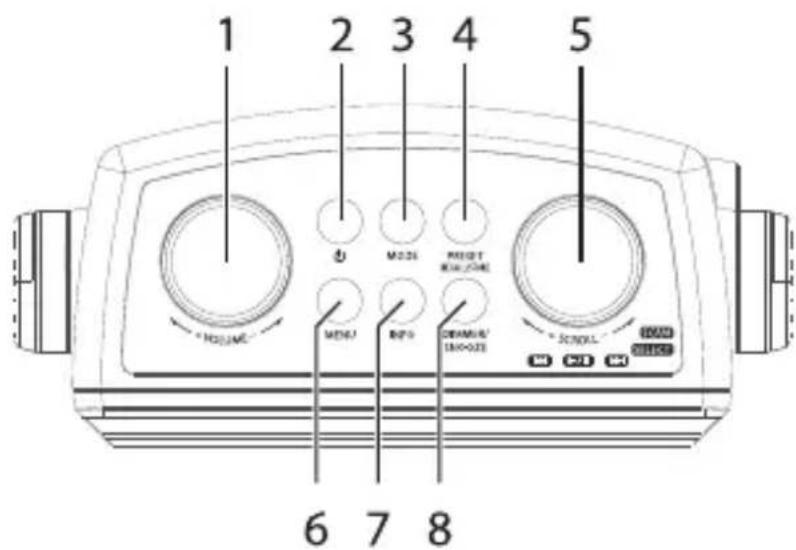
- VOLUME Control
- STANDBY Button
- MODE Button
-
PRESET/RECALL/ STORE Button
-
SCROLL/ SELECT/SCAN/
- MENU Button
- INFO Button
- DIMMER/SNOOZE Button

Getting to know your DAB/FM Digital Radio
You'll be up and running in no time
Front view Side view

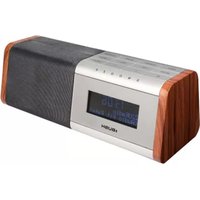
- Hanging strap (built-in antenna)
- Display
- Speaker

- Socket Cover
- Earphones Jack
- DC IN Socket
Getting to know your DAB/FM Digital Radio
You'll be up and running in no time
Power Source
Mains Power
- Connecting the unit to any other power source may cause damage the unit.
- Unwind the mains adaptor cable to its full length.
- Connect the end of the cable to the DC IN Socket at the right side of the unit and then connect the mains adaptor to the mains socket. Make sure the mains adaptor is firmly inserted into the main socket. The unit is now ready to use.
- To switch the unit off completely, unplug the mains plug from the mains socket.
Battery Power
- Connect the mains adapter to the DC IN socket on the unit. Connect the other end to the mains socket.
- Battery will automatically start charging whilst in STANDBY mode.
- To check the charged capacity, switch on the unit and press INFO button repeatedly until the display shows
. When the battery is charged to full capacity, it will show Battery Full. - Remove the main adapter. The battery is now ready for use.

- The battery is partially charged at shipment. Charge the battery to full for the first time use.
- When the radio is connected to the mains and in use, the battery will be recharged but at a much slower rate.
- Do not disconnect the mains power adapter during charging.
- It is normal for the battery to become warm during charging.
- Do not use the battery under high temperature or near heat sources.
Getting to know your DAB/FM Digital Radio
You'll be up and running in no time

- During battery operation, if the battery becomes flat (about 15%), the display will shows Battery Low, you should change to AC operation and recharge the battery.

During battery operation, the ⏻ STANDBY button will work as a POWER ON/OFF button. The display will be totally off when the radio is powered off. The display backlight will be dimmed in few seconds after radio power on, and it will be turned to full brightness for 10 seconds on every button press.

natural_image
Solid gray rectangular shape with a diagonal white corner (no text or symbols)Using your DAB/FM Digital Radio
3

natural_image
Abstract geometric pattern composed of intersecting lines and triangles on a grid background (no text or symbols)Using your DAB/FM Digital Radio
Let's get started
Basic Operation
Powering ON/OFF
If the unit is connected to the mains power for the first time, the unit will in standby mode after showing "Welcome! Digital Radio".
- Press the ⒶSTANDBY button to switch the unit on.
- Press the ⬇STANDBY button again to switch the unit back to standby mode.
- Disconnect the mains plug from the main socket if you want to switch the unit off completely.
Selecting Modes
Press the MODE button repeatedly to switch between DAB, FM or Bluetooth mode..
Adjusting the Volume
Turn the VOLUME control to adjust the volume.
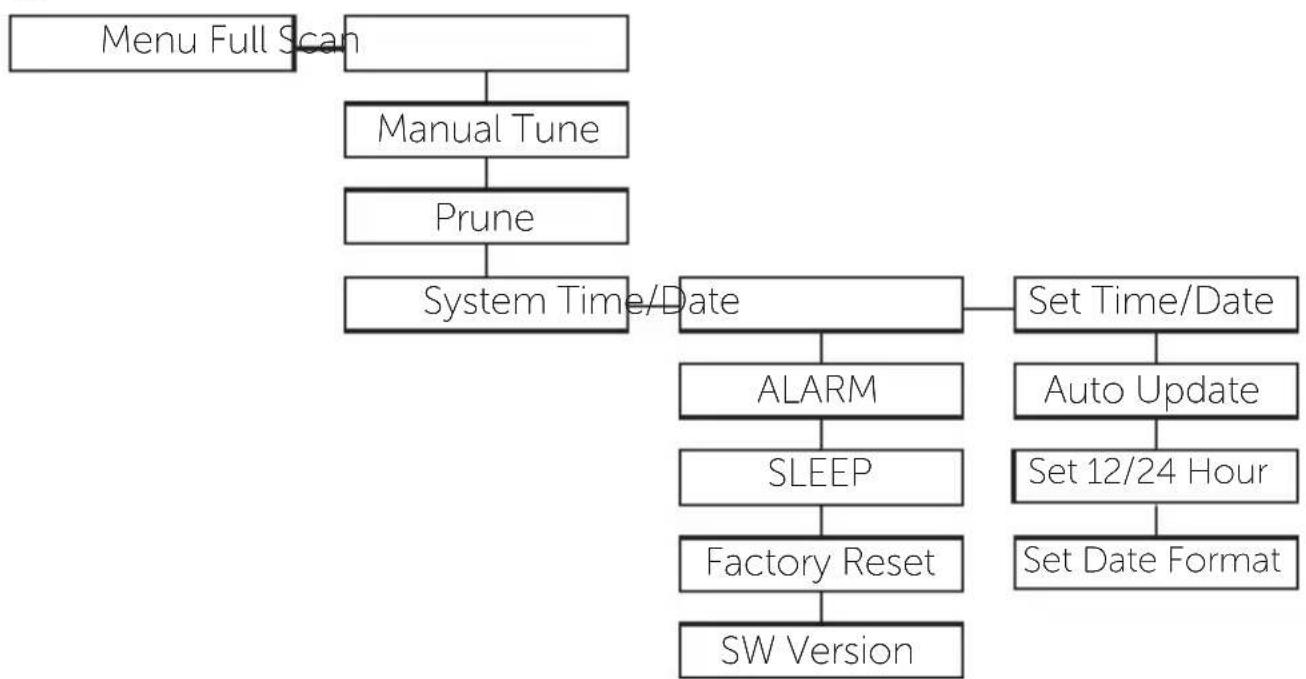
DAB Menu Overview
Below is a map of the menu structure of your radio to help you see how to navigate through the menus.
- Press the MENU button to enter the menu.
- Turn the SCROLL/SELECT/SCAN dial to see all the options.
- Press the SCROLL/SELECT/SCAN dial to select an item in the menu.(F.1)
FM Menu Overview
Below is a map of the menu structure of your radio to help you see how to navigate through the menus.
- Press the MENU button to enter the menu.
- Turn the SCROLL/SELECT/SCAN dial to see all the options.

Using your DAB/FM Digital Radio
Let's get started
- Press the SCROLL/SELECT/SCAN dial to select an item in the menu.(F.2)
F.1
flowchart
graph TD
    A["Menu Full Scan"] --> B["Manual Tune"]
    B --> C["Prune"]
    C --> D["System Time/Date"]
    D --> E["Set Time/Date"]
    E --> F["Auto Update"]
    F --> G["Set 12/24 Hour"]
    G --> H["Set Date Format"]
    D --> I["ALARM"]
    I --> J["SLEEP"]
    J --> K["Factory Reset"]
    K --> L["SW Version"]
F.2

flowchart
graph TD
    A["Menu Scan Setting"] --> B["Audio Setting"]
    B --> C["System"]
    B --> D["Strong Stations Only"]
    D --> E["All Stations"]
    B --> F["Forced Mono"]
    F --> G["Stereo Allowed"]
    B --> H["Time/Date"]
    H --> I["ALARM"]
    I --> J["SLEEP"]
    J --> K["Factory Reset"]
    K --> L["SW Version"]
    H --> M["Set Time/Date"]
    M --> N["Auto Update"]
    N --> O["Set 12/24 Hour"]
    O --> P["Set Date Format"]
Using your DAB/FM Digital Radio
Let's get started
DAB Operation
If the unit is connected to the mains power and then switched on from standby for the first time, the unit will automatically enter into the DAB mode and perform auto scan function. During the scan the display will show "Scanning..."

together with a slide bar that indicates the progress of the scan and the number of stations that have been found so far.
Once the scan has finished, the unit will select the first
alphanumerically found station. To explore the found stations, turn the SCROLL/SELECT/SCAN dial and then press SCROLL/SELECT/SCAN dial to confirm selection.

If no stations are found after auto scan, the unit will then enter into the Tune Select Menu. Turn the SCROLL/SELECT/SCAN dial and then press the SCROLL/SELECT/SCAN dial to select "Full scan" or "Manual tune" modes for stations.
DAB Full Scan
The full scan will search for the entire DAB Band III channels. After the scan has finished, the first alphanumerically found station will be automatically selected.
- To activate full scan, press the MENU
button to enter into the Tune Select Menu, then turn the SCROLL/SELECT/SCAN dial to select "Full scan", and press the SCROLL/SELECT/SCAN dial to confirm, the display
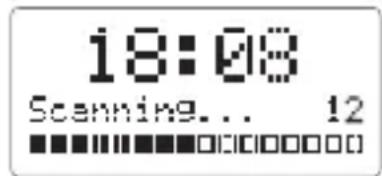
will show "Scanning ..." and a progressing slide bar.
- All the stations that have been found will be stored automatically, to explore and select listening to the found stations, turn the SCROLL/SELECT/SCAN dial and then press SCROLL/SELECT/SCAN dial to confirm selection.
Using your DAB/FM Digital Radio
Let's get started
DAB Manual Tune
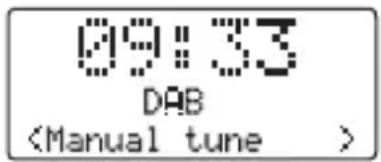
As well as the full scan function, you can manually tune the radio. This can help if you know your radio has missed stations. You will need to know which multiplex the missing radio station is in.
- Press the MENU button and then turn the SCROLL/SELECT/SCAN dial to select Manual tune, press the SCROLL/SELECT/SCAN dial to confirm.
- Turn the SCROLL/SELECT/SCAN dial to cycle through the DAB channels, which are numbered from 5A to 13F.
- After your desired channel number is selected, press the SCROLL/SELECT/SCAN dial to enter the current multiplex, it will now display the multiplex and below you will see the signal strength.
- You will not see any new radios stations or hearing anything while in manual tune. To find the newly tuned in stations search through the Station List.
Prune Invalid
You may remove all unavailable stations from the list.
-
During DAB mode, press the MENU button, and then turn the SCROLL/SELECT/SCAN dial to select
. And press the SCROLL/SELECT/SCAN dial to confirm. -
Turn the SCROLL/SELECT/SCAN dial to select
and press the SCROLL/SELECT/SCAN dial to confirm delete. Or select to cancel.
DAB Display Modes
Every time you press the INFO button, the display will cycle through the following display modes and the information is displayed on the lower segment of the display:

Using your DAB/FM Digital Radio
Let's get started
DLS (Dynamic Label Segment)
Dynamic label segment is a scrolling message that the broadcaster may include with their transmissions. The message usually includes information, such as program details etc.
Signal strength
The display will show a slide bar to indicate the signal strength, the stronger the signal, the longer the bar will be from left to right.
Programme type
This describes the "style" or "genre" of the programme that is being broadcast.
Ensemble name
The Ensemble/Multiplex is a collection of radio stations that are bundled and transmitted together in a single frequency. There are national and local multiplexes, local ones contain stations that are specific to that area.
Channel number/frequency
This displays the Channel number/frequency of the present station, such as "11C 220.352MHz".
Signal error
Show the stability and quality of signal reception, the best representation for 0.
Audio Bit Rate
The display will show the digital audio bit rate being received.
Battery Status
The display will show the battery status/capacity.
Time
The broadcaster (radio station) provides clock information automatically so there is no need to manually set this information.
Using your DAB/FM Digital Radio
Let's get started
Date
The broadcaster (radio station) provides date information automatically so there is no need to manually set this information.
Storing and Recalling Stored Stations
In either DAB or FM, you can store up to 10 of your favourite stations to the memory. This will enable you to access your favourite stations quickly and easily.
- To store a preset, you must first be listening to the station that you would like to save, press and hold the PRESET/ RECALL/ STORE button. The "
" will show on the display and flash.

If there a station that already stored, it will show the stored "station name/ frequency and P#" and flash.
Please note that you have to press and hold the PRESET/ RECALL/ STORE button for 2 seconds. If you see the word "Preset Recall" in the display you did not hold the PRESET/ RECALL/ STORE button down for long enough.
- Turn the SCROLL/SELECT/SCAN dial to select your desired preset station number and then press the SCROLL/SELECT/SCAN dial to confirm. The station will be stored and the screen will then show "Preset # stored".
- To recall a preset, press the PRESET/ RECALL/ STORE button, and then turn the SCROLL/SELECT/SCAN dial to select desired preset station number. And press the SCROLL/SELECT/SCAN dial to confirm.
- If you choose a preset station number that has not been allocated a station, "Empty" will be displayed.

ECO-Power Mode
This unit features an ECO-Power/Standby mode. It will automatically turns to Standby mode after 15mins if there is not signal in DAB mode.
Using your DAB/FM Digital Radio
Let's get started
FM Operation
Switching from DAB to FM Mode
To switch the unit from DAB to FM mode, press the MODE button repeatedly; until the display shows FM and the frequency.
Auto Scan
To search for an FM station, press the SCROLL/SELECT/SCAN dial to start the auto scan. When turn the SCROLL/SELECT/SCAN dial to left side and then press the SCROLL/SELECT/SCAN dial, it will start auto scan toward the low frequency. When turn the SCROLL/SELECT/SCAN dial to right side and then press the SCROLL/SELECT/SCAN dial, it will start auto scan toward the high frequency. The display will show "Scanning ...". Once a station has been found, the scanning will stop automatically.
Manual Scan
To search for FM stations manually. Turn the SCROLL/SELECT/SCAN dial until your desired frequency is reached.
Scan Setting
This is a scanning option to scan all stations, or just scan stations with strong signal.
- Press the MENU button, then turn the SCROLL/SELECT/SCAN dial to select
, then press the SCROLL/SELECT/SCAN dial to confirm. - Turn the SCROLL/SELECT/SCAN dial to select
or . Press SCROLL/SELECT/SCAN dial to confirm.
Using your DAB/FM Digital Radio
Let's get started
Audio Setting
This unit will automatically switch between stereo and mono mode, but you can override this and switch this function manually. This can be helpful when receiving poor signal reception.
- Press the MENU button then turn the SCROLL/SELECT/SCAN dial to select
- Turn the SCROLL/SELECT/SCAN dial to select
or and then press SCROLL/SELECT/SCAN dial to confirm.
Storing and Recalling Stored Stations
Refer to the DAB section of the instruction book, the setting is same as the DAB setting.
Bluetooth® Operation
The unit has a Bluetooth function that can receive a signal within 8 metres.
Pairing the unit with a Bluetooth device to listen to music:
- Press the MODE button repeatedly to select Bluetooth mode.
- If the unit is not paired with any Bluetooth device, the display will flash "Disconnected".
- Activate your Bluetooth device and select the search mode.
- The device will appear on your Bluetooth device list.
- Select the device and the display of the unit will show "Connected" after connection successful.
- To disconnect the Bluetooth function, switch to another function on the unit or disable the bluetooth function from your Bluetooth device.
Using your DAB/FM Digital Radio
Let's get started

- The operational range between the unit and the device is approximately 8 metres.
- If the signal strength is weak, your Bluetooth receiver may disconnect, but it will re-enter pairing mode automatically.
- For better signal reception, remove any obstacles between the unit and the Bluetooth device.
- This unit supports A2DP (Advanced Audio Distribution Profile) and AVRCP (Audio Video remote Control Profile) functions. This can only be paired with one Bluetooth device at one time.
- Compatibility with all devices and media types is not guaranteed.
- Some mobile phones with the Bluetooth function may connect and disconnect as you make and end calls. This is not an indication of a problem with your unit.
- If the unit without connect Bluetooth device, it automatically turns to Standby mode after 15 minutes.
System setting
Automatically Setting the Clock
The clock with be updated automatically if you can receive DAB/FM signal in your location. In order to synchronize to the current local time, you must leave it on the DAB/FM station for a period of time.
Setting the Time and Date
You can manually set the time and date if you wish. Make sure you have set AUTO UPDATE to "NO UPDATE". If you do not do this, your radio will automatically find the correct time from a radio station and change the time.
- Switch on the radio, press MENU button to display the menu.
Using your DAB/FM Digital Radio
Let's get started
- Turn the SCROLL/SELECT/SCAN dial to select
, and then press SCROLL/SELECT/SCAN dial to confirm. - Turn the SCROLL/SELECT/SCAN dial to select
- Turn SCROLL/SELECT/SCAN dial to select the option below and then press SCROLL/SELECT/SCAN dial to confirm.
| Set time/date | Turn the SCROLL/SELECT/SCAN dial to adjust the time and date, and then press SCROLL/SELECT/SCAN dial to confirm. |
| Auto update | Turn the SCROLL/SELECT/SCAN dial to select Update from Any, DAB, FM or No update, then press the SCROLL/SELECT/SCAN dial to confirm. |
| Set 12/24 hour | Turn the SCROLL/SELECT/SCAN dial to select Set 24 hour or Set 12 hour, and then press the SCROLL/SELECT/SCAN dial to confirm. |
| Set date format | Turn the SCROLL/SELECT/SCAN dial to select DD-MM-YYYY or MM-DD-YYYY, and then press the SCROLL/SELECT/SCAN dial to confirm. |
- Press MENU button to exit the menu.
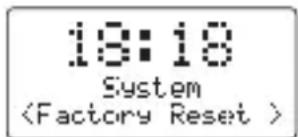
Factory Reset
- Switch on the radio, press MENU button to display the menu.
- Turn the SCROLL/SELECT/SCAN dial to select
, and then press SCROLL/SELECT/SCAN dial to confirm. - Turn the SCROLL/SELECT/SCAN dial to select
, and then press SCROLL/SELECT/SCAN dial to confirm. - The display will show "Factory Reset?". Turn SCROLL/SELECT/SCAN dial to select
.

Using your DAB/FM Digital Radio
Let's get started
- Press SCROLL/SELECT/SCAN dial to start the system reset, "Restarting..." will show on the display. After the reset is complete, the unit will enter Standby mode if it is using mains power, or will start DAB full scan if it is using battery power.

After the factory reset, all the tuned stations, DAB & FM preset stations will be erased.
Software Version
- Switch on the radio, press the MENU button to display the menu.
- Turn the SCROLL/SELECT/SCAN dial to select
, and then press SCROLL/SELECT/SCAN dial to confirm. - Turn the SCROLL/SELECT/SCAN dial to select
, and then press SCROLL/SELECT/SCAN dial to confirm. - The software version will show on the display.
- Press MENU button to exit the menu.
Setting the Alarm (Mains Operation Only)
Make sure you have preset FM and DAB stations before setting the Alarm.
-
The unit has two alarms. Press MENU button to enter the menu.
-
Turn the SCROLL/SELECT/SCAN dial to select "System" and then press SCROLL/SELECT/SCAN dial to confirm.
-
Turn the SCROLL/SELECT/SCAN dial to select "Alarm" and then press SCROLL/SELECT/SCAN dial to confirm.
-
Turn the SCROLL/SELECT/SCAN dial to select "Alarm 1" or "Alarm 2" and then press the SCROLL/SELECT/SCAN dial to confirm.
-
Turn the SCROLL/SELECT/SCAN dial to select "Alarm 1 Setup" or "Alarm 2 Setup" and then press the SCROLL/SELECT/SCAN dial

Using your DAB/FM Digital Radio
Let's get started
to start the following parameters.
- Turn the SCROLL/SELECT/SCAN dial to select and then press SCROLL/SELECT/SCAN dial to select the option below:
| On time Alarm On time HH:MM | |
| Duration 15/30/45/60/90 mins | |
| Source Buzzer/ DAB/ FMIf you have chosen DAB/FM; turn the SCROLL/SELECT/SCAN dial to select the last listened or the preset radio station. | |
| Enable Daily/ Once/ Weekends/ Weekdays | |
| Volume Volume level (slide bar) | |
| Alarm On/Off |
- When set, the alarm icon and number will appear on the display.
Snooze Function
10:37
- When the alarm has triggered, press the DIMMER/SNOOZE button to temporarily switch off the alarm. Press DIMMER/SNOOZE button to select a time 5, 10, 15 or 30 minutes. (The options of SNOOZE time is depend on the duration setting of the alarm)
- The display will show "Zz" to indicate that snooze is on and the display will show the minutes remaining before the alarm sounds again.

If one alarm goes off while the other is in snooze mode, snooze mode will be cancelled.
Using your DAB/FM Digital Radio
Let's get started
Sleep Function
This function allows you to program the unit to switch off by itself after a set period of time.
- Press the MENU button to enter the menu
- Turn the SCROLL/SELECT/SCAN dial to select "System" and then press SCROLL/SELECT/SCAN dial to confirm.
- Turn the SCROLL/SELECT/SCAN dial to select "Sleep" and then press SCROLL/SELECT/SCAN dial to confirm.
- Turn the SCROLL/SELECT/SCAN dial to select from Sleep off/10/20/30/60/70/80/90 minutes.
- When your desired sleep time appears in the display, release the button and the sleep function will be activated in five seconds. "S#" will show on the display (for example "S1" represents "10 minutes" sleep time).
- When the sleep timer is zero, the unit will go off. To turn the sleep function off while the sleep time is still counting down, repeat above (1) to (4) steps to select "Sleep Off" and then press SCROLL/SELECT/SCAN dial to confirm.
- To see how much sleep time is left, repeat above (1) to (3) steps.
Display Backlight
There are four backlight levels to choose from.
To set the backlight level, repeatedly press the DIMMER/SNOOZE button and the brightness of the display will change in sequence: Low>Medium>High>Off>

- There is no backlight control if in snooze mode or in battery power.
Using your DAB/FM Digital Radio
Let's get started
Using Earphones
- A 3.5mm type headphone socket is located at the right side of the unit.
- Connect earphones (not included) to the earphone socket.
- Always set the volume level to minimum then slowly increase the volume to obtain the desired volume level.
- When the earphones are connected, the speaker will automatically mute.

Long-term exposure to loud music may cause hearing damage. It is best to avoid extreme volume when using earphones, especially for extended periods of time.
Other information
4

natural_image
Abstract geometric pattern composed of intersecting lines and triangles on a grid background (no text or symbols)Other information
Helpful technical information
Specifications
| Mains Adaptor Input AC 100-240V ~ 50/60Hz, 0.3AOutput DC 6V 1A | |
| Output Power 2W RMS | |
| Radio Frequency FM | 87.5 - 108MHzDAB 174 - 240 MHz |
| Dimension 136mm (W) x 57mm (D) x 162mm (H) | |
| Weight ~ 0.5kgs | |
Product support
5

natural_image
Abstract geometric pattern composed of intersecting lines and triangles on a grid background (no text or symbols)Product support
Help is always at hand
Troubleshooting
| Observation | Potential cause / solution |
| The unit does not work (display not illuminated) | Has the adaptor lead been correctly plugged into the mains and the DC input jack at the side of the unit?Does the socket that is being used have power?Has the power lead been removed from the back of the unit without the batteries being installed? |
| The unit does not work on batteries | Has the adaptor lead been removed from the radio?Are the batteries inserted correctly?Are the batteries exhausted? |
| No sound (display illuminated) | Is the volume set at minimum?Are headphones fitted in the phones jack? |
| Clock display flashes | Indicates power has been interrupted and time signal has been lost. Switch on and tune in to a DAB station to automatically update the clock. |
| Radio reception noisy (FM) | Extend or adjust the position of the antenna or radio.FM stereo – if weak switch to MONO as this requires less signal strength. |
| Radio reception stutters / bubbling sounds (DAB) | Signal is weak. Extend the antenna or adjust the location of the radio. Positions higher up or nearer windows may improve reception. |
Product support
Help is always at hand
| Observation | Potential cause / solution |
| DAB 'service not available' | This usually means that reception is weak, not that there is no service. Try re-orienting the antenna or moving the radio to a different location. Check that your local area has DAB coverage on http://www.ukdigitalradio.com/coverage/postcodesearch/ |
| Alarm does not work | Has the alarm been activated – see section "ACTIVATING AND USING THE ALARM"(P28)?Has the correct alarm been activated? |
Product support
Help is always at hand
Help and assistance
If you require any technical guidance or find that your DAB/FM Digital Radio is not operating as intended, a simple solution can often be found in the Troubleshooting section of these instructions or online at www.argos-support.co.uk
If you still require further assistance, call one of our experts on 0345 604 0105. To help give us give you a fast and efficient service please have the following information ready:
Model Ref.
Serial number
You can find these on the rating plate - a small information panel (usually a sticker or metal plate) on the rear of your product.
Date of purchase
This will be shown on your receipt
Local call rates applies*
Line open 8am-7pm Monday to Saturday and 10am-4pm Sunday
*Calls to Argos enquiry lines may attract a charge and set up fee from residential lines depending on your call plan/tariff. Mobile and other providers costs may vary, see www.bt.com/pricing for details.
For security and training purposes, telephone calls to and from customer service centres may be recorded and monitored. Calls from Republic of Ireland will attract international call charges.
Product support
Help is always at hand

This appliance complies with the following EEC directives:
2006/95/EEC Low voltage directive
2004/108/EMC directive
Disposal
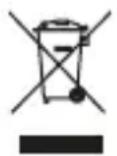
This symbol on the product or in the instructions means that your electrical and electronic equipment should be disposed at the end of its life separately from your household waste.
There are separate collection systems for recycling in the EU.
For more information, please contact the local authority or your retailer where you purchased the product.
Notes for battery disposal
The batteries used with this product contain chemicals that are harmful to the environment.
To preserve our environment, dispose of used batteries according to your local laws or regulations.
Do not dispose of batteries with normal household waste.
For more information, please contact the local authority or your retailer where you purchased the product.
All trademarks are the property of their respective owners and all rights are acknowledged.
Product support
Help is always at hand
BUSH
Call us now and activate your 12 month guarantee
Thank you for choosing Bush. Your new product is guaranteed against faults and breakdowns for 12 months. Don't forget to register it with us today so we can provide you with our best possible after-sales service and useful updates.
www.bushregistration.co.uk
FREEPHONE\* 0800 597 8548
Lines are open 8am - 8pm, 365 days a year. *Calls may be recorded and monitored.
Your Bush Guarantee
This product is guaranteed for twelve months from the date of original purchase. Any defect that arises due to faulty materials or workmanship will be repaired free of charge (or if applicable the product will be replaced or the purchase price refunded) where possible during this period by the dealer from who your purchased the unit.
The guarantee is subject to the following provisions:
The guarantee does not cover accidental damage, misuse, cabinet parts, knobs or consumable items.
The product must be correctly installed and operated in accordance with the instructions contained in the manual.
It must be used solely for domestic purposes. The guarantee will be rendered invalid if the product is
re-sold or has been damaged by inexpert repair.
Specifications are subject to change without notice.
Bush disclaim any liability for loss or damage arising from the breakdown of the product.
This guarantee is in addition to and does not diminish your statutory or legal rights.
Product support
Help is always at hand
Important Data Protection Information
If you provide us with information about another person, you confirm that they have appointed you to act for them, to consent to the processing of their personal data including sensitive personal data and that you have informed them of our identity and the purposes (as set out in the Important Data Privacy notice displayed overleaf) for which their personal data will be processed.
You are entitled to ask for a copy of the information we hold about you (for which we may charge a small fee) and to have any inaccuracies in your information corrected.
For quality control and training purposes, we may monitor or record your communications with us.
If your personal details change, if you change your mind about any of your marketing preferences or if you have any queries about how we use your information, please let us know by contacting our Data Protection Officer, Domestic & General, Leicester House 17 Leicester Street, Bedworth, Warwickshire CV12 8JP.
BUSH
Contact:
www.argos-support.co.uk
Helpline: 0345 604 0105
DAB Digital Radio


- Help and Guidance
- Contents
- Safety information
- Getting to know your DAB/FM Digital Radio
- Using your DABFM Digital Radio Basic Operation 17
- Other information
- Product support
- Safety information
- 1
- SAFETY PRECAUTIONS
- Safety
- CAUTION
- Mains Adapter
- Interference
- Supervision
- Service/Maintenance
- Getting to know your DAB/FM Digital Radio
- 2
- Ready? Let's begin...
- Product Overview
- Power Source
- Mains Power
- Battery Power
- Using your DAB/FM Digital Radio
- 3
- Basic Operation
- Powering ON/OFF
- Selecting Modes
- Adjusting the Volume
- DAB Menu Overview
- FM Menu Overview
- DAB Operation
- DAB Full Scan
- DAB Manual Tune
- Prune Invalid
- DAB Display Modes
- DLS (Dynamic Label Segment)
- Signal strength
- Programme type
- Ensemble name
- Channel number/frequency
- Signal error
- Audio Bit Rate
- Battery Status
- Time
- Date
- Storing and Recalling Stored Stations
- ECO-Power Mode
- FM Operation
- Switching from DAB to FM Mode
- Auto Scan
- Manual Scan
- Scan Setting
- Audio Setting
- Bluetooth® Operation
- System setting
- Automatically Setting the Clock
- Setting the Time and Date
- Factory Reset
- Software Version
- Setting the Alarm (Mains Operation Only)
- Snooze Function
- Sleep Function
- Display Backlight
- Using Earphones
- Other information
- 4
- Product support
- 5
- Help and assistance
- Line open 8am-7pm Monday to Saturday and 10am-4pm Sunday
- Disposal
- Notes for battery disposal
- BUSH
- Call us now and activate your 12 month guarantee
- www.bushregistration.co.uk
- FREEPHONE\* 0800 597 8548
- Your Bush Guarantee
- Important Data Protection Information
Brand : BUSH
Model : NE-2151
Category : Radio