
S570 - Music Player NAD - Free user manual and instructions
Find the device manual for free S570 NAD in PDF.


| Product Type | Music player (DVD, VCD, CD, MP3) |
| Brand | NAD |
| Model | S570 |
| Dimensions (L x W x H) | 450 x 293 x 106 mm |
| Net weight | 5.5 kg |
| Gross weight | 7.0 kg |
| Power supply | 120 V 60 Hz or 230 V 50 Hz (depending on version) |
| Playable formats | DVD, VCD, audio CD, CD-R/CD-RW MP3 |
| Video outputs | Composite, S-Video, Component (Y/Pr/Pb), SCART (RGB) |
| Audio outputs | Analog stereo (RCA), digital coaxial and optical |
| Video DAC | 10-bit |
| Audio DAC | 192 kHz / 24-bit |
| Audio decoders | Dolby Digital, DTS, HDCD, MPEG-2 multichannel |
| Progressive Scan | Yes (NTSC only, component output) |
| Special functions | Zoom (x2 to x32), repeat, programming, markers |
| Screen saver | Yes (after 8 minutes in pause/stop) |
| Auto shutdown | Yes (after screen saver, or via 12 V trigger) |
| 12 V trigger input | Yes (3.5 mm jack) |
| External IR input | Yes (3.5 mm jack) |
| Maintenance and cleaning | Clean discs from center to edge with a soft cloth; avoid solvents |
| Safety | Class 1 laser; do not expose to moisture; do not open the casing |
| Available spare parts | Remote control batteries (AAA), audio/video cables (not supplied) |
| Repairability | Contact an authorized service center; no user repair |
| General information | Regional code set according to zone; compatible with PAL/NTSC TV |
Frequently Asked Questions - S570 NAD
User questions about S570 NAD
0 question about this device. Answer the ones you know or ask your own.
Ask a new question about this device
Download the instructions for your Music Player in PDF format for free! Find your manual S570 - NAD and take your electronic device back in hand. On this page are published all the documents necessary for the use of your device. S570 by NAD.
USER MANUAL S570 NAD
WARNING: TO REDUCE THE RISK OF FIRE OR ELECTRIC SHOCK, DO NOT EXPOSE THIS PRODUCT TO RAIN OR MOISTURE
CAUTION
THIS DVD PLAYER EMPLOYS A LASER SYSTEM. TO ENSURE PROPER USE OF THIS PRODUCT, PLEASE READ THIS OWNER'S MANUAL CAREFULLY AND RETAIN FOR FUTURE REFERENCE. SHOULD THE UNIT REQUIRE MAINTENANCE, CONTACT AN AUTHORIZED SERVICE LOCATION.
USE OF CONTROLS, ADJUSTMENTS TO MODIFY PERFORMANCE OF PROCEDURES OTHER THAN THOSE SPECIFIED MAY RESULT IN HAZARDOUS RADIATION EXPOSURE.
TO PREVENT DIRECT EXPOSURE TO LASER BEAM, DO NOT TRY TO OPEN THE ENCLOSURE. VISIBLE LASER RADIATION EXISTS WHEN THE ENCLOSURE IS OPENED. DO NOT STARE INTO BEAM.
THE APPARATUS SHALL NOT BE EXPOSED TO DRIPPING OR SPLASHING AND THAT NO OBJECTS FILLED WITH LIQUIDS, SUCH AS VASES, SHALL BE PLACED ON THE APPARATUS.
WARNING: CHANGES OR MODIFICATIONS NOT EXPRESSLY APPROVED BY THE PARTY RESPONSIBLE FOR COMPLIANCE COULD VOID THE USER'S AUTHORITY TO OPERATE THE EQUIPMENT.
NOTE
S570 is not an auto voltage DVD player. Connect only to the prescribed AC outlet, i.e., 120V 60Hz or 230V 50Hz.
RECORD YOUR MODEL NUMBER (NOW, WHILE YOU CAN SEE IT)
The model and serial number of your new DVD player are located on the back of the DVD player cabinet.
For your future convenience, we suggest that you record these numbers here:
MODEL NO.
SERIAL NO.
NAD is a trademark of NAD Electronics International, a division of Lenbrook Industries Limited Copyright 2002, NAD Electronics International, a division of Lenbrook Industries Limited
TABLE OF CONTENTS
INTRODUCTION
Safety Precautions 2
IDENTIFICATION OF CONTROLS
Front Panel/Display window 4
Rear Panels 5
Preparing The Remote Control 7
Remote Control 8
Operation Of The S570 With The Remote Control 9
OPERATION
Operation of the S 570 10-11
Introduction 10
Screen Save 11
Automatic Power Off Function 11
Stopping Play 11
Resume Play 11
SpecialPlayback 11-12
Still Picture 11
Frame Advance. 11
Skipping chapters and tracks. 11
Scanning at High Speed 12
Playing in Slow-Motion 12
OSD Operation 13
Display/Titles/Menu/Subtitles 13
Viewing From Another Angle 14
Repeat Play 14
Storing Markers in Memory 15
Zoom Feature 15
Random Play 16
Program Play 16
Playback Audio with CD, VCD, and DVD 17
Playback with MP3 17
SETUP
Connecting to Surround Sound System 18-21
Dolby Digital Sound 18
Dolby Pro Logic Surround Sound 19
2-Channel Digital Stereo Sound 20
DTS Sound 21
Connecting to an Analogue Stereo System 22
Connecting to a TV Directly 23
Initial Setup Settings 24-27
Selecting Languages 24
Selecting Video Display Mode 25
Selecting Scan Type. 25
Selecting Signal Mode 26
Selecting Gamma Settings 26
Selecting Black Level 26
Selecting Analogue On 27
Selecting Analogue Off 27
REFERENCE
Notes on Discs 27
Playable Discs 28
Disc Requirements 28
Table of Languages and Their Abbreviations 29
Trouble Shooting 30
Specifications 31
Copyright Information/Macrovision Product Notice 32
FRONT PANEL
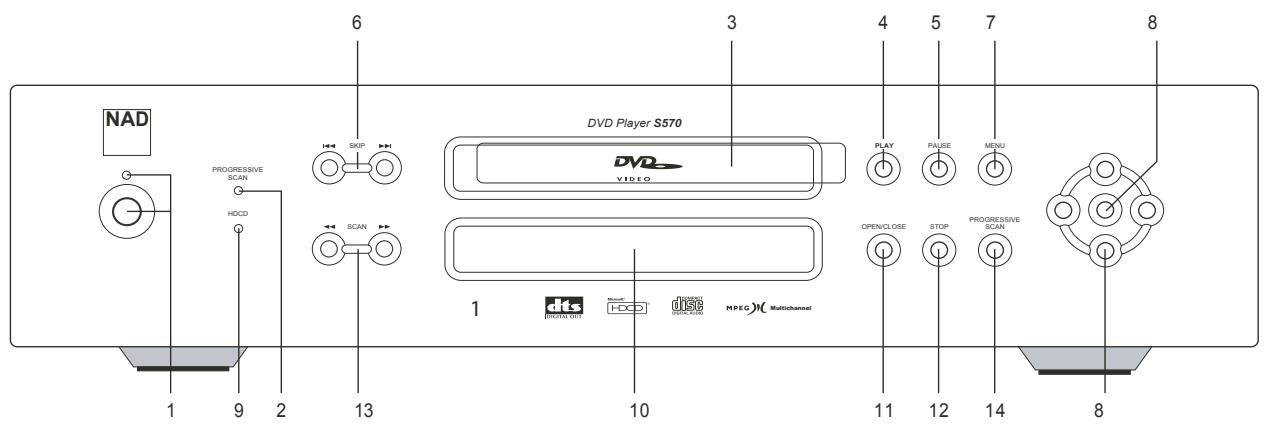
1 Power button and on/standby/off indicator
2 PROGRESSIVE SCAN indicator
3 DVD tray
4 PLAY button
5 PAUSE buttons
6SKIPbuttons
7 MENU button
8 SELECT/navigation buttons
9 HDCD indicator
10 Display window
11 OPEN/CLOSE button
12 STOP button
13 SCAN buttons
14 PROGRESSIVE SCAN button
DISPLAY WINDOW
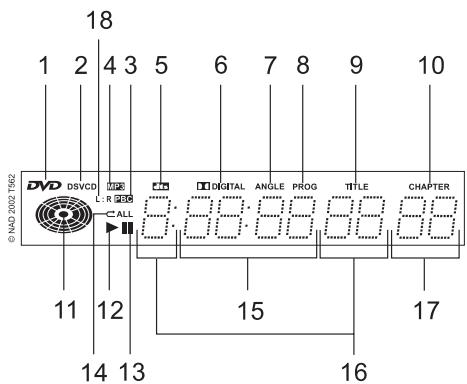
1 DVD indicator
2 VCD indicator
3 PBC indicator for VCD
4 MP3 indicator
5 DTS indicator
6 DOLBY DIGITAL indicator
7 ANGLE indicator
8 PROGram indicator
9 TITLE Indicator
10 CHAPTER Indicator
11 Operating status indicator
12Playback indicator
13 Pause indicator
14 Repeat playback mode indicators
15 Total playing time display
16 Title/track number display
17 Chapter number display
18 L R indicator
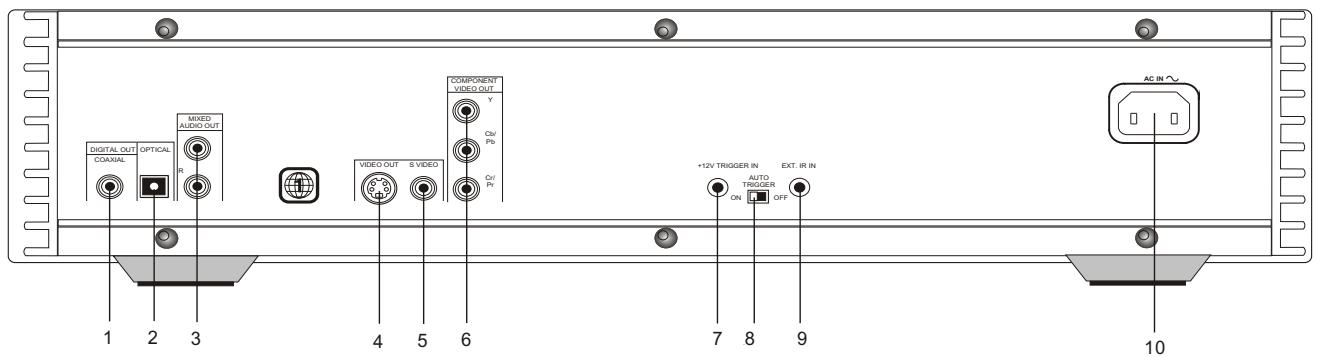
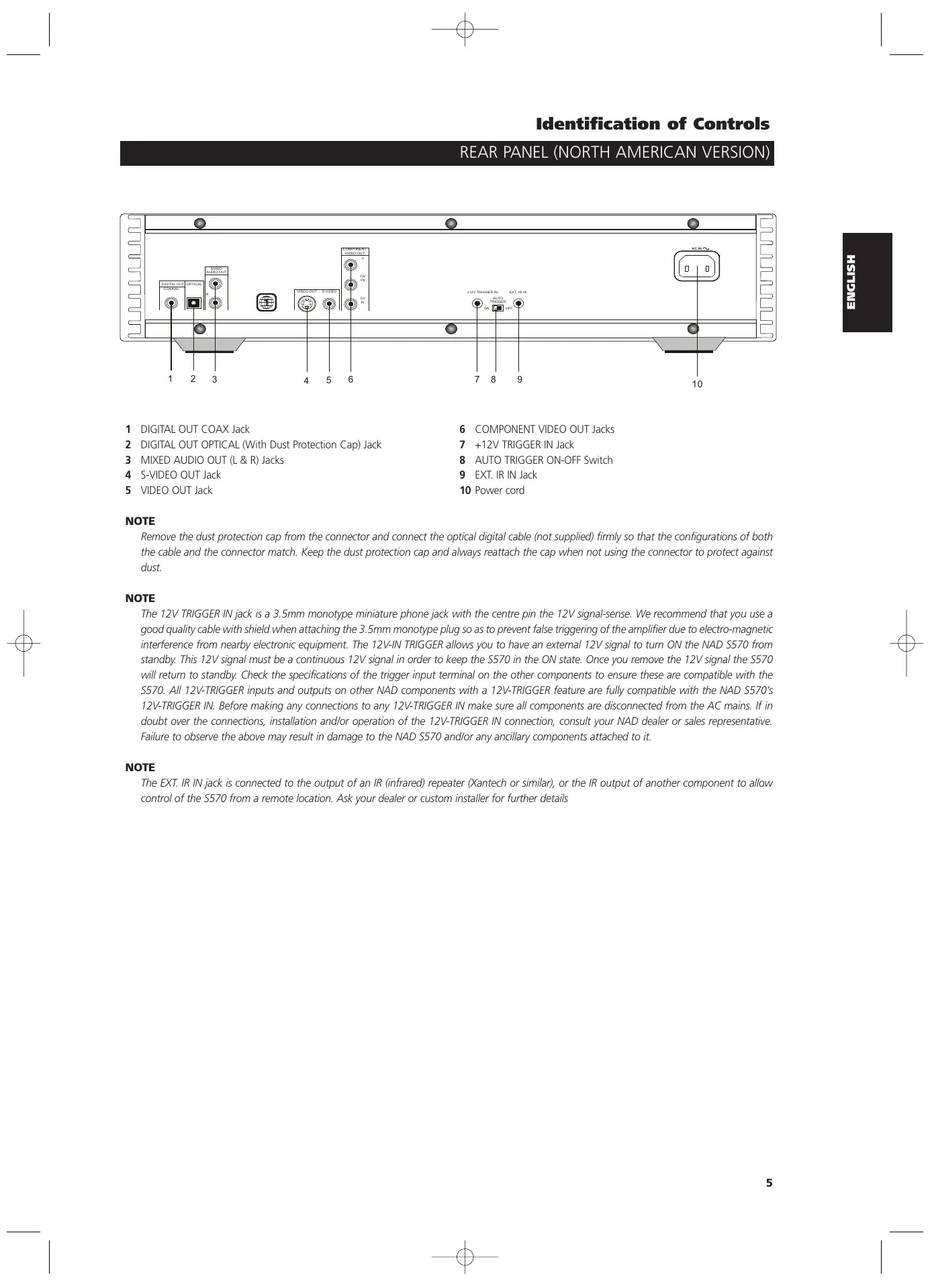
1 DIGITAL OUT COAX Jack
2 DIGITAL OUT OPTICAL (With Dust Protection Cap) Jack
3 MIXED AUDIO OUT (L & R) Jacks
4 S-VIDEO OUT Jack
5VIDEO OUT Jack
6 COMPONENTVIDEOOUTJacks
7 +12V TRIGGER IN Jack
8 AUTO TRIGGER ON-OFF Switch
9EXT. IR IN Jack
10 Power cord
NOTE
Remove the dust protection cap from the connector and connect the optical digital cable (not supplied) firmly so that the configurations of both the cable and the connector match. Keep the dust protection cap and always reattach the cap when not using the connector to protect against dust.
NOTE
The 12V TRIGGER IN jack is a 3.5mm monotype miniature phone jack with the centre pin the 12V signal-sense. We recommend that you use a good quality cable with shield when attaching the 3.5mm monotype plug so as to prevent false triggering of the amplifier due to electro-magnetic interference from nearby electronic equipment. The 12V-IN TRIGGER allows you to have an external 12V signal to turn ON the NAD S570 from standby. This 12V signal must be a continuous 12V signal in order to keep the S570 in the ON state. Once you remove the 12V signal the S570 will return to standby. Check the specifications of the trigger input terminal on the other components to ensure these are compatible with the S570. All 12V-TRIGGER inputs and outputs on other NAD components with a 12V-TRIGGER feature are fully compatible with the NAD S570's 12V-TRIGGER IN. Before making any connections to any 12V-TRIGGER IN make sure all components are disconnected from the AC mains. If in doubt over the connections, installation and/or operation of the 12V-TRIGGER IN connection, consult your NAD dealer or sales representative. Failure to observe the above may result in damage to the NAD S570 and/or any ancillary components attached to it.
NOTE
The EXT. IR IN jack is connected to the output of an IR (infrared) repeater (Xantech or similar), or the IR output of another component to allow control of the S570 from a remote location. Ask your dealer or custom installer for further details
REAR PANEL (EUROPEAN VERSION)
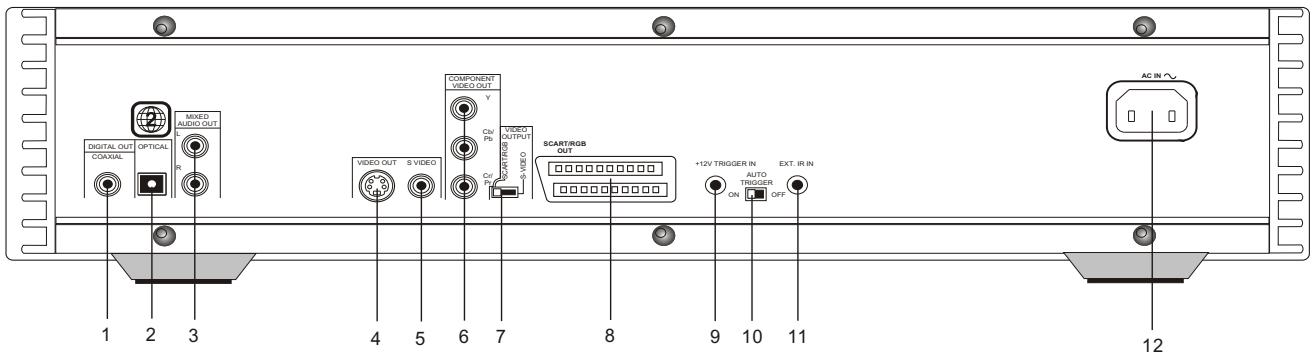
1 DIGITAL OUT COAX Jack
2 DIGITAL OUT OPTICAL (With Dust Protection Cap) Jack
3 MIXED AUDIO OUT (L & R) Jacks
4 S-VIDEO OUT Jack
5 CompositeVIDEO OUT Jack
6 COMPONENTVIDEOOUTJacks
7VIDEO OUTPUT S-VIDEO-SCART/RGB Switch
8 SCART/RGB OUT Jack
9 12V TRIGGER IN jack
10 AUTO TRIGGER ON-OFF Switch
11EXT. IR IN Jack
12 Power cord socket
NOTE
Remove the dust protection cap from the connector and connect the optical digital cable (not supplied) firmly so that the configurations of both the cable and the connector match. Keep the dust protection cap and always reattach the cap when not using the connector to protect against dust.
NOTE
The 12V TRIGGER IN jack is a 3.5mm monotype miniature phone jack with the centre pin the 12V signal-sense. We recommend that you use a good quality cable with shield when attaching the 3.5mm monotype plug so as to prevent false triggering of the amplifier due to electro-magnetic interference from nearby electronic equipment. The 12V-IN TRIGGER allows you to have an external 12V signal to turn ON the NAD S570 from standby. This 12V signal must be a continuous 12V signal in order to keep the S570 in the ON state. Once you remove the 12V signal the S570 will return to standby. Check the specifications of the trigger input terminal the other components to ensure these are compatible with the S570. All 12V-TRIGGER inputs and outputs on other NAD components with a 12V-TRIGGER feature are fully compatible with the NAD S570's 12V-TRIGGER IN. Before making any connections to any 12V-TRIGGER IN make sure all components are disconnected from the AC mains. If in doubt over the connections, installation and/or operation of the 12V-TRIGGER IN connection, consult your NAD dealer or sales representative. Failure to observe the above may result in damage to the NAD S570 and/or any ancillary components attached to it.
NOTE
The EXT. IR IN jack is connected to the output of an IR (infrared) repeater (Xantech or similar), or the IR output of another component to allow control of the S570 from a remote location. Ask your dealer or custom installer for further details
Insert the batteries into the remote control so you can use it to operate the S570.
1 Open the battery cover
2 Insert two batteries (AAA size)
3 Make sure to match the + and - on the batteries to the marks inside the battery compartment.
4 Close the cover
NOTES ON BATTERIES
Improper use of batteries may cause battery leakage and corrosion.
- To operate the remote control correctly, follow the instructions.
- Do not insert the batteries into the remote control in the wrong direction.
- Do not charge, heat, open or short-circuit the batteries.
- Do not throw the batteries into fire.
- Do not leave dead or exhausted batteries in the remote control.
- Do not use different types of batteries together, or mix old and new batteries.
- If you do not use the remote control for a long period of time, remove the batteries to avoid possible damage from battery corrosion.
- If the remote control does not function correctly or if the operating range becomes reduced, replace all batteries with new ones.
- If battery leakage occurs, wipe the battery liquid from the battery compartment, then insert new batteries.
- The batteries should last about one year with normal use.
OPERATION OF THE S 570 WITH THE REMOTE CONTROL
This section shows you how to use the remote control. Point the remote control at the remote control sensor and press the buttons.
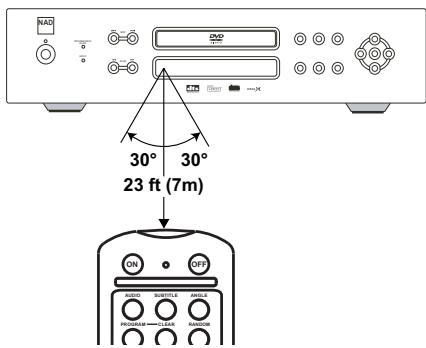
Distance: About 23 ft (7 m) from the front of the remote sensor
Angle: About 30 degrees in each direction of the front of the remote sensor
NOTES ON THE REMOTE CONTROL
- Do not expose the remote sensor of the S570 to a strong light source such as direct sunlight or illumination. If you do so, you may not be able to operate the S570 with the remote control.
- Point the remote control at the remote sensor on the S570.
- Do not drop or give the remote control a shock.
- Do not leave the remote control near an extremely hot or humid place.
- Do not spill water or put anything wet on the remote control.
- Do not disassemble the remote control.
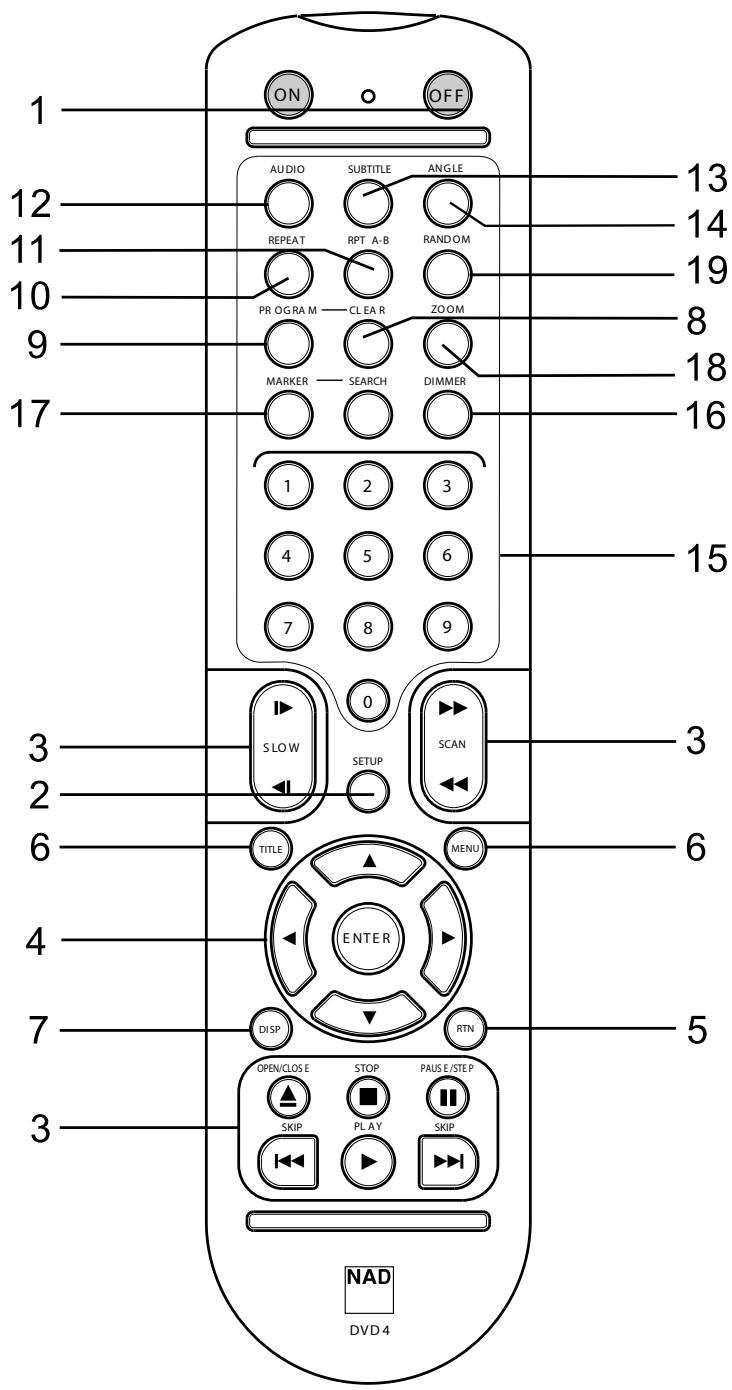
1 POWER ON, POWER OFF
2 SETUP
3 Transport control keys OPEN/CLOSE, STOP, PAUSE, STEP, PLAY, SKIP, SCAN, SLOW
4 ENTER and navigation buttons
5 RETURN
6 TITLE, MENU
7 DISPLAY
8 CLEAR
9 PROGRAM
10 REPEAT
11 REPEAT A-B
12 AUDIO
13 SUBTITLE
14 ANGLE
15 Numerical buttons
16 DIMMER
17 MARKER, SEARCH H
18 ZOOM
19 RANDOM
1 The power buttons labeled ON and OFF will toggle the S570 from standby to ON position, only if the power button on the left front of the S570 is in the ON (depressed) state.
2 The SETUP button is used in conjunction with the television monitor's On Screen Display (OSD) connected to the S570, (see the section on 'Initial Set-up Settings') to edit the DVD's drop-down-menu OSD.
3 There are ten transport control buttons that allows one to directly control the DVD/VCD/CD media. These buttons handle the basic operations of OPEN/CLOSE the media tray, STOP, PAUSE, STEP, PLAY, SKIP tracks, SCAN tracks, and SLOW scan tracks.
4 The navigation buttons / / in conjunction with the ENTER button allows one to navigate the OSD, title and menu screens.
5 The RETURN button is used for backup navigation of various DVD and SETUP menus.
6 The TITLE and MENU buttons are used to display via OSD, the title headings and menus of the DVD, VCD/S VCD with PBC and MP3 CD media when available.
7 The DISPLAY button will show an OSD for advanced DVD/VCD/CD player configuration, when the S570 is in play or pause mode.
8 The CLEAR button is used to clear OSD values and menus.
9 The PROGRAM button is used for programming the tracks on CD/VCD/SVCD media.
10 The REPEAT button when pressed once, repeats an audio CD track or DVD chapter. If the button is pressed twice the entire audio CD is repeated or the DVD chapters are repeated.
11 The REPEAT A-B button is used to repeat a specific start to stop section of an audio CD or DVD/VCD. During play mode of the media, press the button once to store the start point of the S570 in memory. When pressed a second time the stop point of the media is stored. The S570 will play the selected section(s) until REPEAT A-B button is pressed.
12 The AUDIO button will allow one to switch the audio language of the DVD media only if the DVD media supports the AUDIO button feature.
13 The SUBTITLE button will allow one to switch on or off the various types of subtitles for the DVD media being viewed, only if the DVD media supports the SUBTITLE button feature.
14 The ANGLE button will allow one to select various viewing angles of each movie scene only if the DVD media supports this feature.
15 The number buttons are used for inputting numeric values when navigating the menu, title, and display OSDs or when directly selecting media tracks.
16 The DIMMER button allows the user to conveniently dim the S570 front display. Each press of the DIMMER button will change the dimness one level for a total of 3 levels then to maximum brightness. The brightness will revert to 100% when power is cycled.
17 The MARKER and SEARCH buttons allows one to set up to 9 bookmarks on a DVD, VCD and CD for quick reference. After each marker is stored one then presses the SEARCH then navigation buttons to play the bookmark.
18 The ZOOM button allows one to expand the viewed image up to 32 times. To clear the zoom menu, press the CLEAR button.
19 The RANDOM button allows one to randomly play audio CD media. In conjunction with the REPEAT buttons the audio CD would randomly play all tracks on an audio CD. This feature is not available on most DVD/VCDs.
When you want to play back DVD videodiscs, turn on the TV and select the video input source connected to the DVD player.
When you want to enjoy the sound of DVD videodiscs or audio CDs from the audio system, turn on the audio system and select the input source connected to the DVD player.
Set the playback picture size according to the aspect ratio of the connected TV in the 'Setup' and 'Video' OSD menus.
Press POWER. The S570-power indicator will become a bright blue.
Press OPEN/CLOSE. The disc tray opens.
- You can open the disc tray by pressing this button even if the DVD player is in standby mode. The power indicator will turn from amber to green.
Place a disc on the disc tray with the playback side down.
- There are two different disc sizes. Place the disc in the correct guide on the disc tray. If the disc is out of the guide, it may damage the disc and cause the S570 to malfunction. Press PLAY. The disc tray is automatically closed and playback begins.
- If the disc is placed in upside down (and it is a single sided disc), “— — ” will appear on the S570's display and ‘NO DISC' appears on the TV screen.
- If you insert an audio CD, the total tracks and time will appear.
- After playing back all of the chapters in the title, S570 automatically stops and returns to the menu screen.
Press the navigation keys then and press ENTER, or press the numeric button(s), to select the desired item. Play of the selected item now begins.
- For further information, also refer to the jacket or case of the disc you are playing.
AFTER OPERATION
When the unit is not in use, remove the disc and press the POWER OFF button on the remote to switch the S570 to standby. If the S570 is left unattended for any length of time such as during a vacation, then switch off the S570 by depressing the green power button found on the left front of the S570.
NOTES
- Do not move the DVD player during playback. Doing so may damage the disc and the S570.
- Use the OPEN/CLOSE button on the remote control or S570 to open and close the disc tray.
- Do not push the disc tray while it is moving. Doing so may cause the S570 to malfunction.
- Do not push up the disc tray or put any objects other than discs on the disc tray. Doing so may cause the S570 to malfunction.
- Keep your fingers well clear of the disc tray as it is closing. Be especially careful with children's fingers around the closing disc tray, as there is a risk of personal injury.
- Depending on the DVD disc, some operations may be different or restricted. Refer to the jacket or case of the disc you are playing.
- Do not switch the S-Video switch on the back of the S570 when the S570 is in the ON position. Doing so may result in poor picture quality.
SCREEN SAVE
The screen saver is useful to prevent your display from becoming damaged. The screen saver picture appears when you leave the S570 in pause or stop mode for about 8 minutes.
AUTOMATIC POWER OFF FUNCTION
The S570 can be powered to standby by the 12V-TRIGGER IN. Also, the S570 will automatically turn itself to standby mode after the Screen Saver has been engaged for about 8 minutes.
STOPPING PLAY
Press STOP during playback either on the remote or the S570.
RESUME PLAY
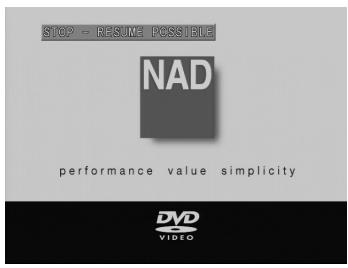
When play is stopped, the unit records the point where STOP was pressed and the TV OSD will display 'STOP-RESUME POSSIBLE'.
Press the PLAY button either on the remote or the S570 and play will resume from this point.
NOTE
Resume function will be cleared when the STOP is pressed twice. Resume function will be cleared when the power is turned off and then on. Opening the disc tray cancels Resume function. The Resume function may not be available on some DVD/VCD discs.
STILL PICTURE (PAUSE)
Press PAUSE during playback. For a DVD, the S570 will be placed in the still picture mode. For a CD the player will be placed in the pause mode.
FRAME ADVANCE (DVD ONLY)
Press PAUSE during still playback (each time you press PAUSE, the picture advances one frame). To resume normal playback, press PLAY
SKIPPING CHAPTERS AND TRACKS
SKIPPING FORWARD
Press SKIP (or SKIP FORWARD icon) during playback
A chapter (DVD) or a track (CD) is skipped each time the button is pressed.
SKIPPING BACK
Press SKIP (or SKIP BACK icon) during playback. When the button is pressed once midway through a chapter/track, the player returns to the start of that chapter/track. When it is pressed again, a chapter/track is skipped each time the button is pressed.
PAUSE ON
PLAY - CHAPTER 5
You can play back discs at various speeds.
SCANNING AT HIGH SPEED
To scan at fast-forward or fast-reverse during playback, press the SCAN button during playback
CUSTOM DVD SCAN BACKWARD
ScanSkip=3
CUSTOM DVD SCAN FORWARD
ScanSkip=3
The speed of advance (reverse) is relatively slow at first. When the button is pressed again, the speed becomes faster. (Each time the button is pressed, the speed increases up to 3 steps for DVD/CD)
The speed will be retained even after the button is released.
To return to normal playback, press PLAY
NOTE
The DVD player does not play back sound during the high-speed reverse and forward playback of DVD videodiscs. However, the S570 player plays back sound during fast forward or fast reverse playback of audio CDs.
Press the SLOW buttons during playback. The playback speed becomes slower than the normal speed.
Backward slow at Speed -2
Backward slow at Speed -8
Forward slow at Speed 2
Forward slow at Speed 8
The speed of slow motion is fast at first. When the button is pressed again, the speed becomes slower.
Each time the button is pressed, the speed decreases up to 8 times.
The speed will be retained even after the button is released.
To return to normal playback, press PLAY
NOTES
- The sound is muted during slow-motion playback.
- Subtitles appear on the screen during slow motion playback.
The SLOW button does not work with Audio CDs.
DISPLAY/TITLES/MENUS/SUBTITLES
Examples of GUI (Graphical User Interface) MENU Icons (The screens may differ depending on the disc contents.
Press DISPLAY during playback [TV screen] DVD GUI
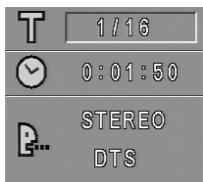
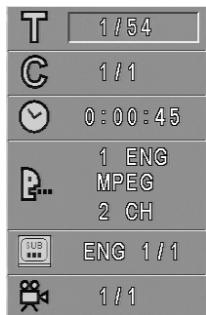
To show the current title number, press the DISPLAY button, and navigate to the desired title number or type in the numeric number directly and press ENTER. To show the current chapter number and to jump to the desired chapter number, press DISPLAY and navigate to the Chapter menu and enter the desired numeric value. To show the current audio (Stereo, Left, Right) and to select to the desired audio channel, toggle through the audio selections by pressing the AUDIO button repeatedly.
1 Press AUDIO during playback. Each time this button is pressed, the TV screen displays changes.
2 Press AUDIO repeatedly until the desired sound is selected.
Some movie discs may contain two or more titles. If the disc has a title menu recorded on it, the TITLE button can be used to select the movie title. (The details of operation differ depending on the disc used.)
NOTE
Selecting a title may not be possible on certain DVD discs.
1 Press TITLE. A list of the titles on the disc is displayed. Press TITLE again to resume play from the scene when TITLE was first pressed.
2 Press ENTER, PLAY, or press the numeric button(s), to select desired title. The selected title now starts playing.
Some DVDs have unique menu structures called DVD menus. For example, DVDs programmed with complex contents provide guide menus, and those recorded with various languages provide menus for audio and subtitle language. Although the DVD menu's contents and operation differ from disc to disc, the following explains the basic operation when this feature is used.
1 Press MENU during play. The DVD menu available on the disc is now displayed. Pressing MENU again resumes play from the scene when MENU was first pressed.
- Resume play may not be possible on certain discs.
2 Press ENTER, or press the numeric button(s), to select desired item. The selected item is now executed.
It is possible to change the subtitle language to a different language from the one selected at the initial settings. This operation works only with discs on which multiple subtitle languages are recorded.
1 Press SUBTITLE during playback. When no subtitles are recorded, 'OFF' will be displayed instead of the language number.
2 Press SUBTITLE repeatedly until the desired language is selected. Number of the subtitle language being played back is shown. To eliminate the On Screen Subtitles, press SUBTITLE repeatedly to select 'OFF' at step 2.
NOTES
- In some cases, the subtitle language is not changed to the selected one immediately.
- When a disc supporting the closed caption is played, the subtitle and the closed caption may overlap each other on the TV screen. In this case, turn the subtitle off.
- When the desired language is not selected even after pressing the button several times, it means that the language is not available on the disc.
- When the power is turned on or the disc is removed, subtitles appear in the language selected at the initial settings. If this language is not recorded on the disc, the disc's priority language appears.
VIEWING FROM ANOTHER ANGLE
Some DVDs may contain scenes, which have been shot simultaneously from a number of different angles. For these discs, the same scene can be viewed from each of these different angles using the ANGLE button. (The recorded angles differ depending on the disc used.)
1 Press ANGLE during playback. Angle number will display being played back.
2 Press ANGLE repeatedly until the desired angle is selected.

FOR YOUR REFERENCE
The ANGLE Icon will blink in the DVD display window at scenes recorded at different angles to indicate that angle switching is possible. The angle number can be programmed beforehand; the angle will be switched to the selected number when the ANGLE indicator blinks.
NOTE
This function only works for discs having scenes recorded at different angles..
REPEAT PLAY
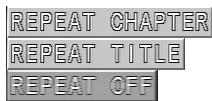
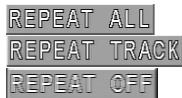
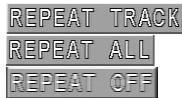


Press REPEAT during playback. Each time this button is pressed, the TV screen changes as shown below and the disc will repeat a chapter or title (DVD) or a track (CD).
DVD
Repeat of chapter being played Repeat of title being played Cancel repeat mode (normal play)
CD
Repeat of entire disc contents
Repeat of track being played
Cancel repeat mode (normal play)
TO PROGRAM REPEAT PLAY (CD)
If REPEAT is pressed during program play, repeat play is operated as below.
Repeat of the current programmed track
Repeat of all programs
Cancel repeat mode by pressing the REPEAT button several times until REPEAT OFF is displayed
REPEATING SECTIONS BETWEEN TWO SPECIFIC POINTS (A-B REPEAT)
1 Press A-B during play at the point where repeat play is to start (A).
2 Press A-B during play at the point where repeat play is to be concluded (B). Repeat play of the selection between points A and B starts.
To return to normal play
Press A-B button once, 'REPEAT OFF' is displayed.
NOTES
- Repeat play works only with discs for which the elapsed playing time appears in the DVD display window during playback.
- Repeat play may not work correctly with some DVDs.
- A-B repeat play works only within a title DVD or a track CD.
- Some subtitles recorded around point A or B may fail to appear (DVD).
- Repeat and Play may not work with MP-3 encoded CD-R and CD-RW.
Storing a MARKER in the S570's memory is similar to marking your page in a book. It allows you to quickly return to any point on the disc.
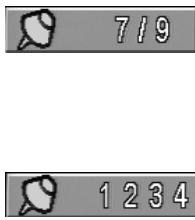
1 Press MARKER during play at the starting point to be viewed (listened to) again Indicates 1/9 is stored in the memory. Up to 9 markers can be stored in the memory.
RECALLING/CLEARING A MARKER
2 Press SEARCH during playback
3 Use the navigation buttons to select the marker to be recalled/cleared.
4 Press ENTER to recall a marker. Or press CLEAR to clear a marker.
Play resumes from the point corresponding to the selected marker, or the selected marker is cleared.
NOTE
- These operations work only with discs for which the elapsed playing time appears in the DVD display window during playback or stop.
- Some subtitles recorded around the marker may fail to appear (DVD).
- All the markers are cleared when the power is turned off or the disc is removed.
- A marker is not stored when the DVD or title menu is displayed on the TV screen.
ZOOM FEATURE
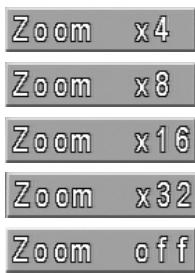
The ZOOM feature allows you to zoom-in and enlarges the picture on the screen to 32 times its normal size.
1 Press ZOOM during normal playback or pause.
Each press of the ZOOM button changes the TV screen. The magnification level will be displayed in the upper right corner of the zoom area.
2 To resume normal playback. Press ZOOM repeatedly until the normal picture is restored. The OSD will display 'Zoom Off'. Pressing CLEAR will also restore normal picture.
NOTE
Some discs may not respond to the Zoom feature.
- Zoom does not work on subtitles or menus included on DVD videodiscs.
RANDOM PLAY (CD)
1 Press RANDOM during normal playback or stop mode. The S570 automatically starts random playback and the PROG indicator will appear in the S570's display.
2 To resume normal playback, press RANDOM.
NOTE
- This function only works with audio CD discs. Random does not work with DVD movies. You can playback titles or tracks in random order. (Random playback)
- Random playback may not be possible on certain discs.
- If you press the SKIP button during random playback, the DVD player goes to another track randomly and starts playback.
PROGRAM PLAY (CD)
The player plays the tracks on the disc in the order you specify.
1 Press PROGRAM during stop mode. The program playback screen appears on the TV screen. To exit the screen, press PLAY or PROGRAM.
2 Press the numeric button(s) to select the desired track number. Press ENTER to store the track. Repeat step 2 to select another track. Up to 20 tracks can be programmed.
3 Press PROGRAM or PLAY to exit the screen. The selected track is stored in the memory and play now begins in the programmed sequence. If you press PROGRAM to exit the screen, the selected tracks are memorized. If you press PROGRAM after clearing 'Resume Play' the selected programmed tracks are cleared.
NOTE
After playback of all programmed tracks, play is stopped.
Program play function is possible only with audio CDs. It does not work with DVD movie discs
CLEARING THE PROGRAM
To clear the programmed tracks one by one
Press navigation buttons to select the unwanted number and then press CLEAR.
Press PROGRAM to exit the screen (The programs are also cleared when the power is turned off or the disc removed.)
CD
1 Press AUDIO during play.
2 Press AUDIO repeatedly until the desired sound is selected.
VCD
1 Press AUDIO during play.
2 Press AUDIO repeatedly until the desired sound is selected.
DVD
1 Press AUDIO during play. Number of the audio soundtrack language being played back.
2 Press AUDIO repeatedly until the desired language (or encoding method, channel number) is selected.
NOTES
- When the desired language is not selected even after pressing the button several times, it means that the language is not available on the disc.
- When the power is turned on or the disc is removed, the language heard is the one selected at the initial settings. If this language is not recorded on the disc, only the available language on the disc will be heard.
Some discs may not respond to Audio feature.
AUDIO:ENG
AUDIO:FRA
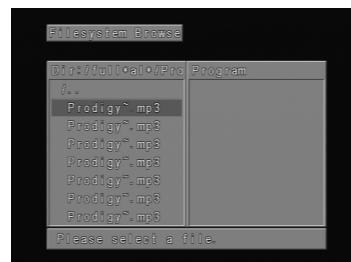
PLAYBACK WITH MP3
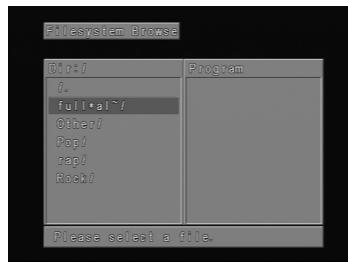
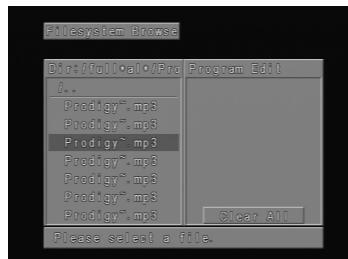
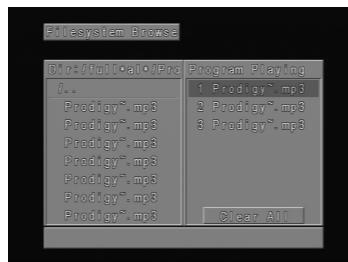
1 Load an MP3 disc. The MP3 directory menu will be displayed.
2 Press navigation buttons to select the directory where MP3 files that you want to play are located and then press ENTER.
3 Press the navigation buttons to select the desired MP3 file of the selected directory of your disc. If you want to return to the previous menu, press the navigation buttons in conjunction with the ENTER button.
4 Press ENTER or PLAY to start playback of the file.
FOR YOUR REFERENCE
Press navigation buttons to skip to the next file or previous file during playback.
TO PLAY AN MP3 FILE REPEATEDLY
Press the REPEAT or REPEAT A-B buttons on the remote.
TO PROGRAM MP3 FILES IN A SEQUENCE
Press the PROGRAM button and the MP3 menu will open the program menu to the right of the main menu. Then select the files from any directory using the navigation buttons in conjunction with the ENTER button. One can store up to 20 files in the program sequence.
The REPEAT and REPEAT A-B function as 'TO PLAY AN MP3 FILE REPEATEDLY'.
One can enjoy the high quality dynamic sound of Dolby Digital, Dolby Pro Logic and 2 Channel Digital Stereo.
ABOUT DOLBY DIGITAL SOUND
Dolby Digital is the surround sound technology used in theatres showing the latest movies, and is now available to reproduce this realistic effect in the home. You can enjoy motion picture and live concert DVD videodiscs by connecting the S570 to a 5.1 channel AV receiver equipped with a Dolby Digital decoder (AC-3) or Dolby Digital processor.
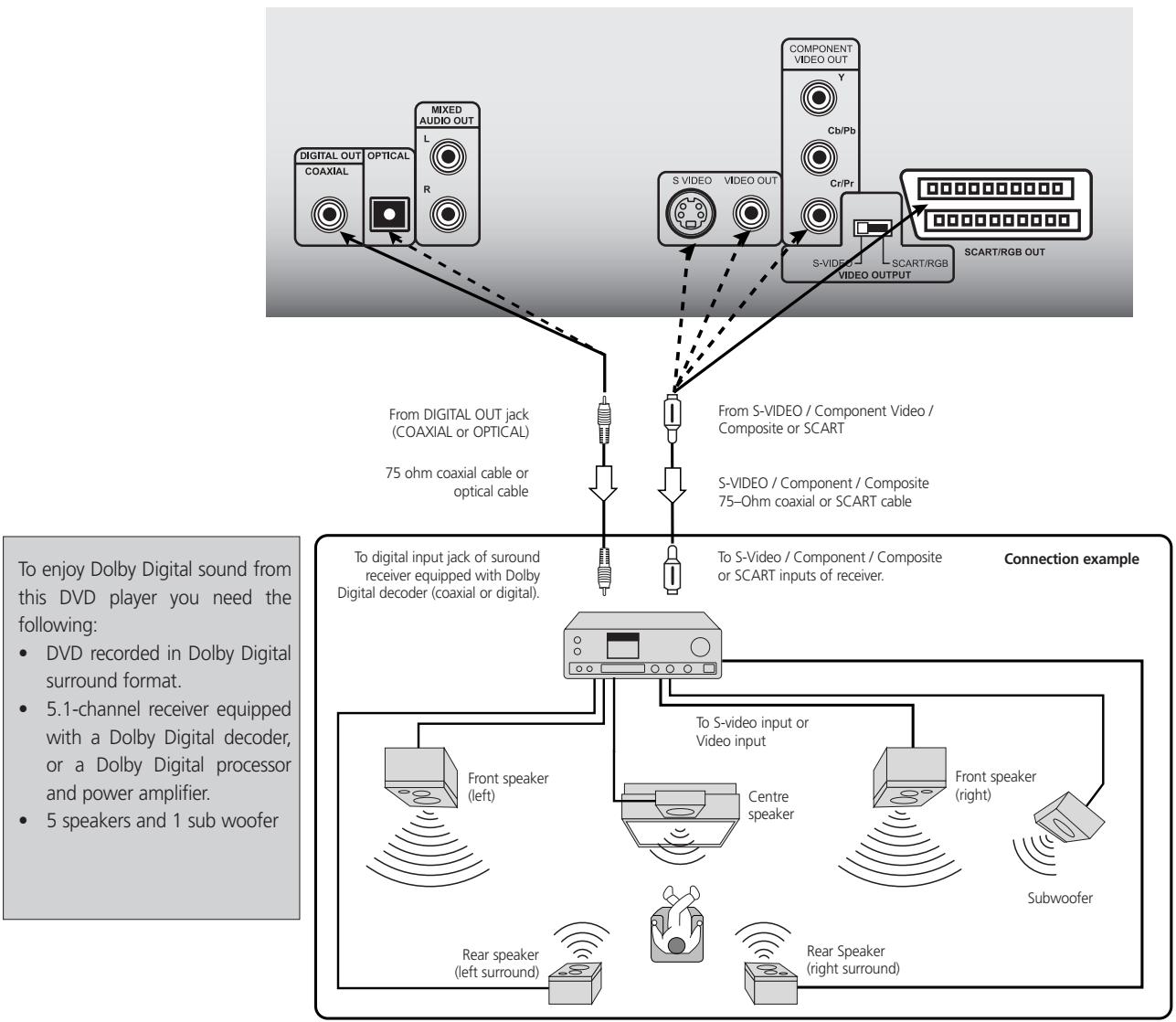
TO ENJOY DOLBY DIGITAL SOUND
You need to select from the OSD drop down menu, Audio, Analogue Off, and Auto, 96K or 48K. If uncertain, select Auto from the Analogue Off menu. Do not set the Digital Audio Output of this DVD player to Analogue Off unless you are connecting the DIGITAL OUT jack of the DVD player to an AV decoder that has the Dolby Digital decoding function. High volume sound may damage your hearing as well as the speakers (Refer to Initial Setup Settings, Audio).
NOTE
Refer to the owner's manual of your audio equipment as well. Depending on your Dolby Digital surround sound decoder, the decode rate may be 96 or 48K. When you connect the S570 to other equipment, be sure to turn off the power and unplug all of the equipment from the wall outlet before making any connections. The output sound of the S570 has a wide dynamic range. Be sure to adjust the receiver's volume to a moderate listening level. Otherwise, the speakers may be damaged by a sudden high volume sound. Turn off the receiver before you connect or disconnect the S570's power cord. If you leave the receiver power on, the speakers may be damaged.
DOLBY PRO LOGIC SURROUND SOUND
One can enjoy the high quality sound of Dolby Pro Logic Surround Sound if your AV receiver is equipped with a Dolby Pro Logic Surround Sound processor or decoder.
To enjoy Dolby Pro Logic sound from this DVD player you need the following:
DVD recorded in Dolby Pro Logic format.
- Dolby Pro Logic AV receiver equipped with a Dolby Pro Logic decoder, or Dolby Pro Logic decoder and power amplifier
5 speakers
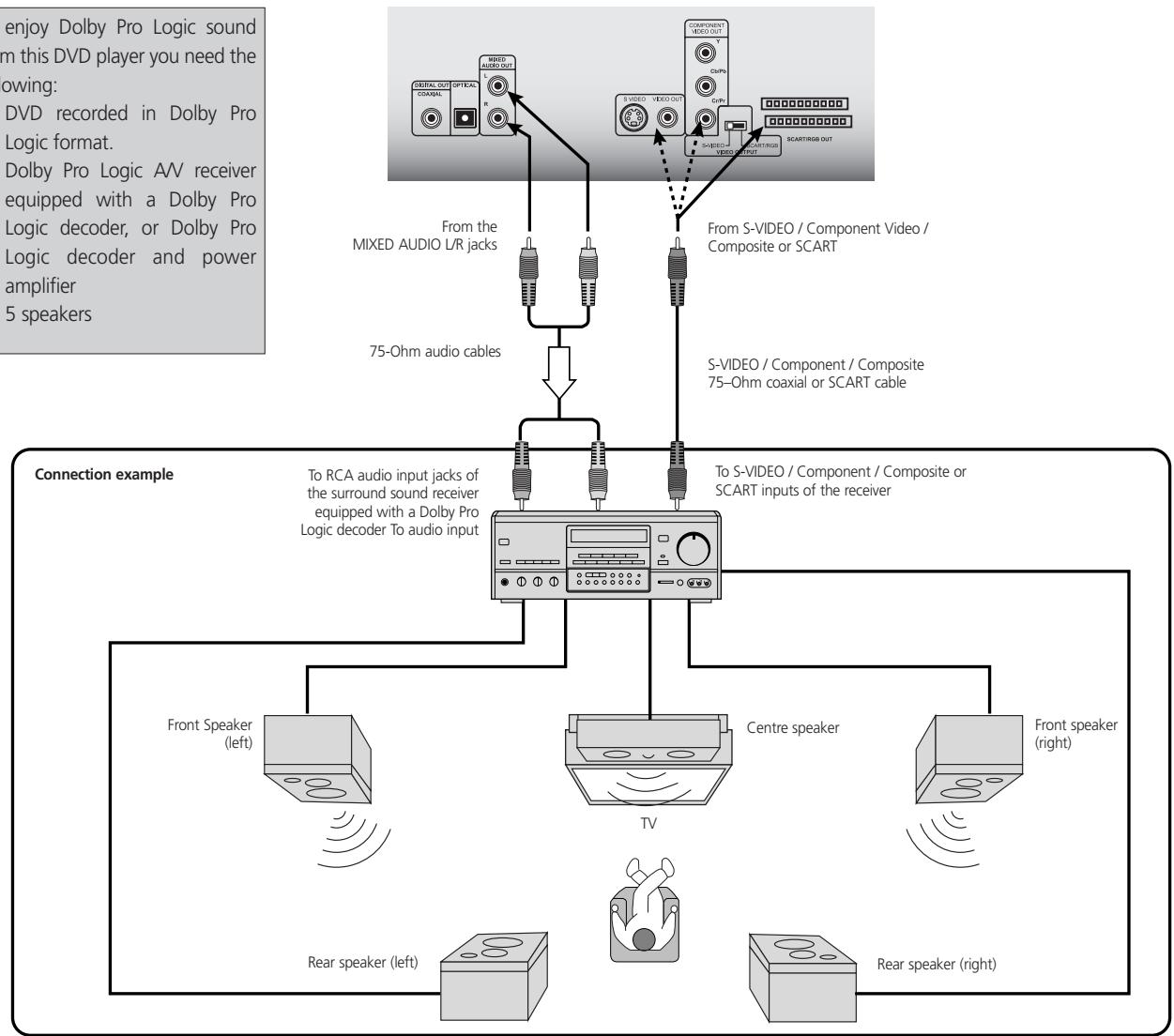
WITH A RECEIVER EQUIPPED WITH A DOLBY DIGITAL DECODER
Connect the equipment the same way as described in Enjoying Dolby Digital Sound. Refer to that AV receiver's owner's manual and set the receiver so you can enjoy Dolby Pro Logic Surround sound.
WARNING
Do not set the Digital Audio Output of this DVD player to 'Analogue Off' unless you are connecting the DIGITAL OUT jack of this DVD player to an AV decoder that has the Dolby Digital decoding function. High volume sound may damage your hearing as well as the speakers. (Refer to Initial Setup Settings, Audio)
NOTE
Refer to the owner's manual of your audio equipment as well. Depending on your Dolby Digital surround sound decoder, the decode rate may be 96 or 48K. When you connect the S570 to other equipment, be sure to turn off the power and unplug all of the equipment from the wall outlet before making any connections. The output sound of the S570 has a wide dynamic range. Be sure to adjust the receiver's volume to a moderate listening level. Otherwise, the speakers may be damaged by a sudden high volume sound. Turn off the receiver before you connect or disconnect the S570's power cord. If you leave the receiver power on, the speakers may be damaged.
2 CHANNEL DIGITAL STEREO SOUND
You can enjoy the dynamic sound of 2 Channel Digital Stereo by connecting this DVD player to a receiver equipped with a digital audio input and speaker system (right and left front speakers).
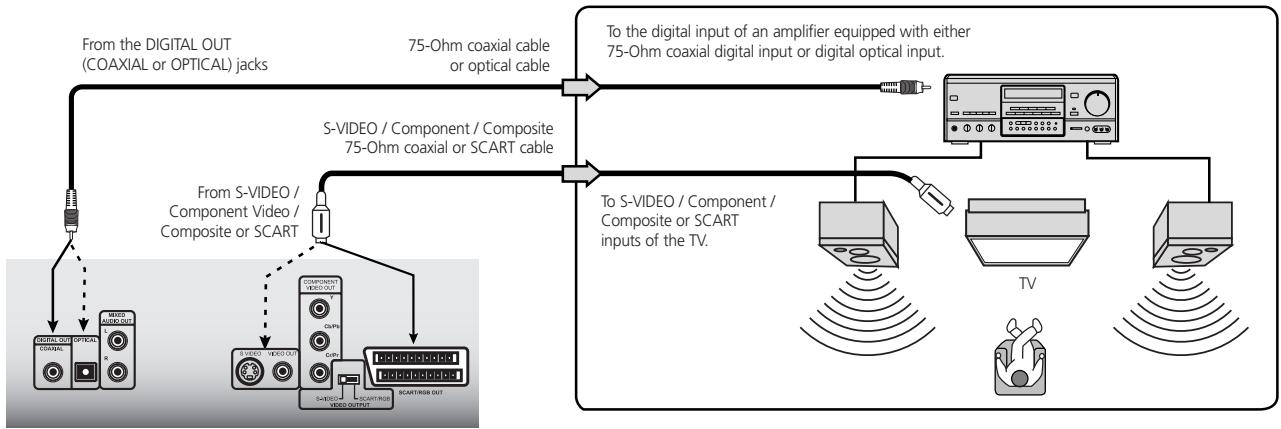
TO ENJOY DIGITAL SOUND
You need to select from the OSD drop down menu, Audio, Analogue Off, and Auto, 96K or 48K. If uncertain, select Auto from the Analogue Off menu. (Refer to Initial Setup Settings, Audio)
NOTES
- Switch the power off on the S570 before switching the SCART/S-VIDEO switch position.
Refer to the owner's manual of your receiver as well.
Before you connect the S570 to other equipment, be sure to turn off the power and unplug all of the equipment from the wall outlet before making any connections. - Depending on your Digital sound decoder, the decode rate may be 96 or 48K.
- The output sound of the S570 has a wide dynamic range. Be sure to adjust the receiver's volume to a moderate listening level. Otherwise, the speakers may be damaged by a sudden high volume sound.
- Turn off the receiver before you connect or disconnect the S570's power cord. If you leave the receiver power on, the speakers may be damaged.
DTS SOUND
In order to enjoy DTS sound your AV Receiver or processor must be equipped with a DTS Decoder. The digital output of the S570 must be set to Analogue Off and the disc must have a DTS soundtrack. There is no analogue output of the S570 for DTS soundtrack.
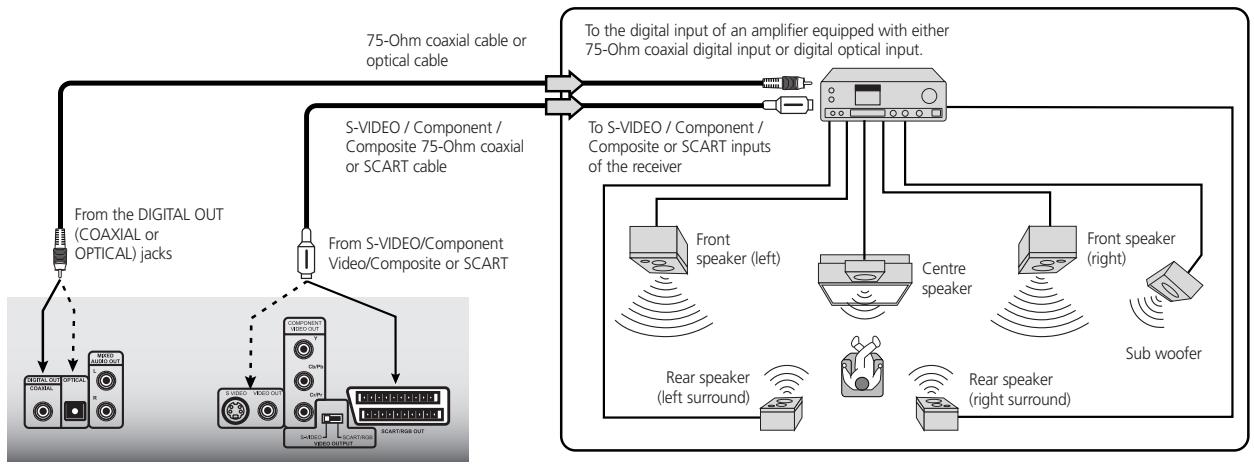
TO ENJOY DTS SOUND
You need to select from the OSD drop down menu of the S570, Audio, Analogue Off, and Auto, 96K or 48K. If uncertain, select Auto from the Analogue Off menu.
WARNING
Do not set the Digital Audio Output of this DVD player to Analogue Off unless you are connecting the DIGITAL OUT jack of this DVD player to an AV decoder that has the Dolby Digital decoding function. High volume sound may damage your hearing as well as the speakers (Refer to Selecting Digital Audio Output. (Refer to Initial Setup Settings, Audio)
NOTES
- Switch the power off on the S570 before switching the SCART/S-VIDEO switch position.
Refer to the owner's manual of your receiver as well. - Before you connect the S570 to other equipment, be sure to turn off the power and unplug all of the equipment from the wall outlet before making any connections.
Depending on your Digital sound decoder, the decode rate may be 96 or 48K. - The output sound of the S570 has a wide dynamic range. Be sure to adjust the receiver's volume to a moderate listening level. Otherwise, the speakers may be damaged by a sudden high volume sound.
- Turn off the receiver before you connect or disconnect the S570's power cord. If you leave the receiver power on, the speakers may be damaged.
CONNECTING TO AN ANALOGUE STEREO SYSTEM
Good quality sound of 2-Channel Stereo system can be achieved by connecting this DVD player to a receiver equipped with a two analogue audio inputs (right and left) and speaker system (right and left front speakers).
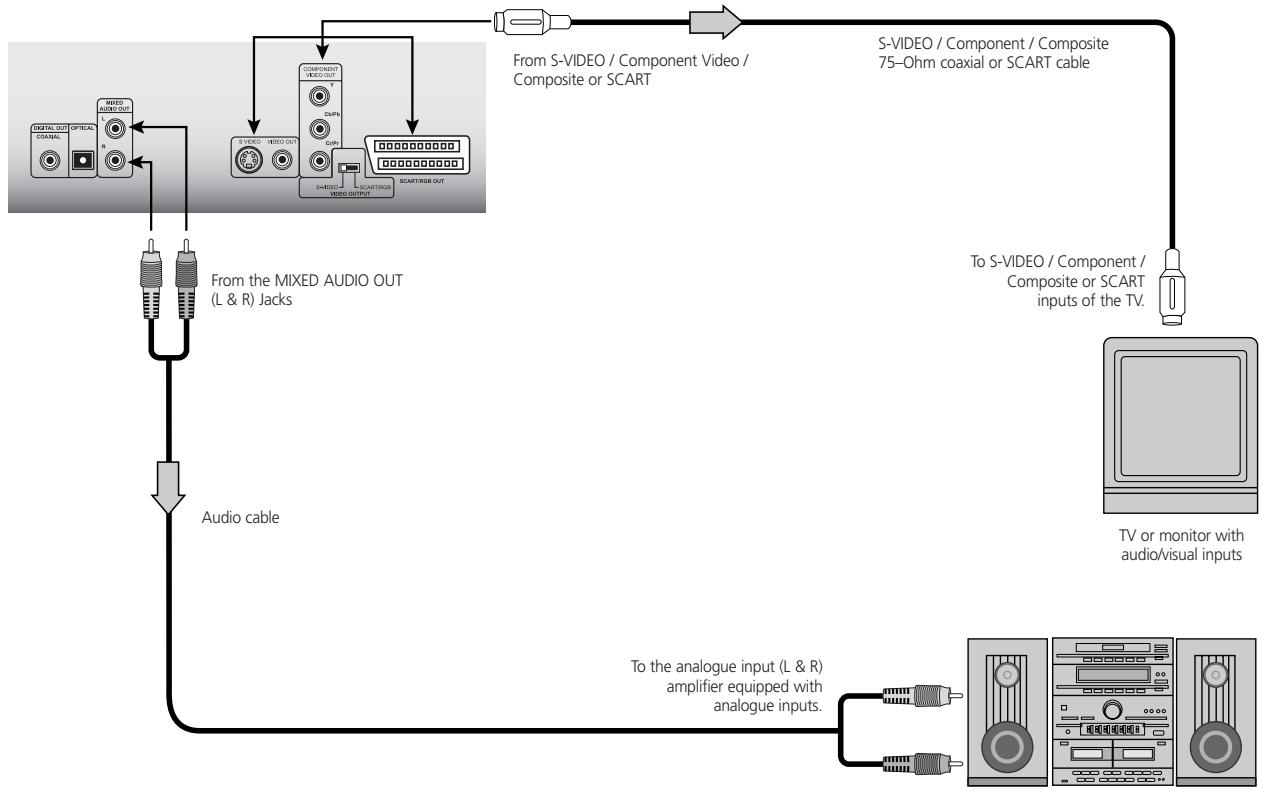
Audio system
TO ENJOY GOOD QUALITY SOUND
You need to select from the OSD drop down menu, Audio, Analogue On, and 48K.
NOTES
- Switch the power off on the S570 before switching the SCART/S-VIDEO switch position.
Refer to the owner's manual of your receiver as well. - Before you connect the S570 to other equipment, be sure to turn off the power and unplug all of the equipment from the wall outlet before making any connections.
- Depending on your Digital sound decoder, the decode rate may be 96 or 48K.
- The output sound of the S570 has a wide dynamic range. Be sure to adjust the receiver's volume to a moderate listening level. Otherwise, the speakers may be damaged by a sudden high volume sound.
- Turn off the receiver before you connect or disconnect the S570's power cord. If you leave the receiver power on, the speakers may be damaged.
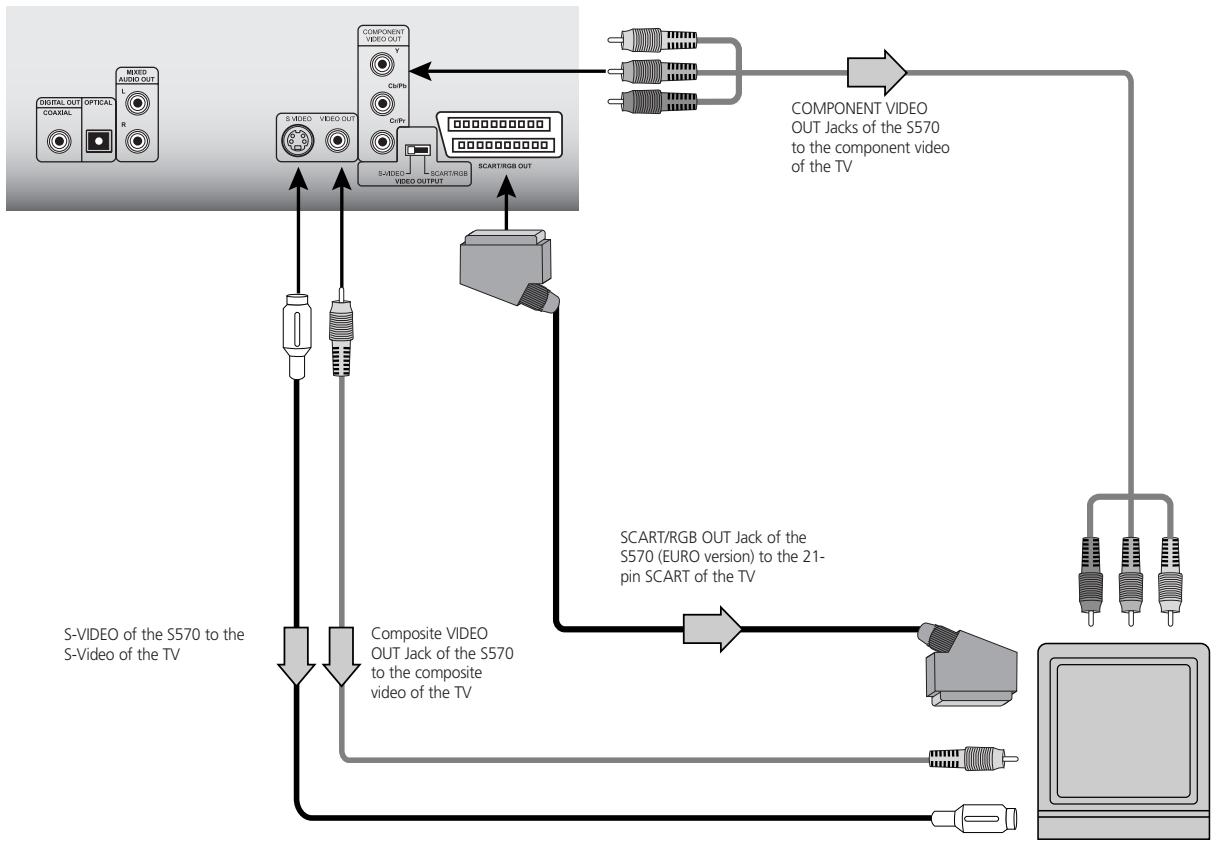
TV or monitor with audio/video inputs
NOTE
The switch labeled Video OUTPUT S-VIDEO-SCART/RGB is used to select between one of two outputs, the S-VIDEO and the 21-pin SCART/RGB. If one intends to connect to the S-VIDEO then slide the switch to S-VIDEO; if to the 21-pin SCART/RGB, then slide the switch to the SCART/RGB position.
A 75-Ohm video and audio cables are supplied with the S570. SCART and S-Video cables can be purchased from your local NAD retailer.
WARNING
Do not set the Digital Audio Output of this DVD player to Analogue Off unless you are connecting the DIGITAL OUT jack of this DVD player to a TV that is equipped with an AV decoder that has the Dolby Digital decoding function. High volume sound may damage your hearing as well as the speakers. (Refer to Initial Setup Settings, Audio)
NOTES
- Switch the power off on the S570 before switching the SCART/S-VIDEO switch position.
Refer to the owner's manual of your receiver as well. - Before you connect the S570 to other equipment, be sure to turn off the power and unplug all of the equipment from the wall outlet before making any connections.
Depending on your Digital sound decoder, the decode rate may be 96 or 48K. - The output sound of the S570 has a wide dynamic range. Be sure to adjust the receiver's volume to a moderate listening level. Otherwise, the speakers may be damaged by a sudden high volume sound.
- Turn off the receiver before you connect or disconnect the S570's power cord. If you leave the receiver power on, the speakers may be damaged.
INITIAL SETUP SETTINGS

The player can always be operated under the same conditions (especially with DVD discs), once the initial settings have been completed. The settings will be retained in the memory until they are changed, even if the power is switched off.
1 Press SETUP in the stop or playback mode. The 'Setup', 'Video' and 'Audio' menus are displayed.
2 Press the navigation keys to select the desired setting and press ENTER. Some items require additional steps. When the RETURN or SETUP key is pressed the screen returns to the Initial Settings display.
3 To exit SETUP menu press RETURN, SETUP, PLAY, or OPEN/CLOSE buttons.
SELECTING LANGUAGES
To select language for DVD audio, DVD menus and OSDs on the TV. Do the following.
1 From the drop-down menu of the OSD, press ENTER to select the Settings menu. A drop-down menu for 'OSD', 'Audio', 'Subtitle', 'Menu', and 'Text' will display.
2 Use the navigation keys to select the desired Language and then press the ENTER button on the remote to store the selection.
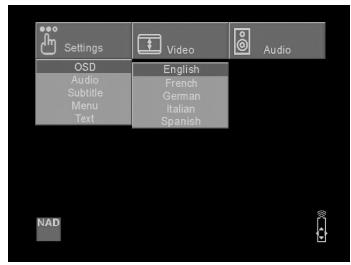
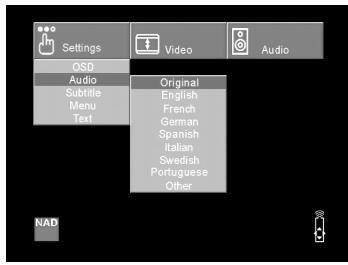
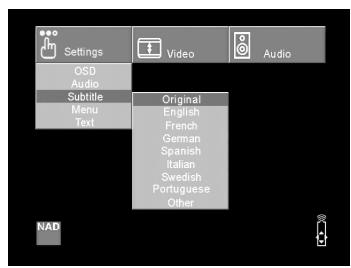
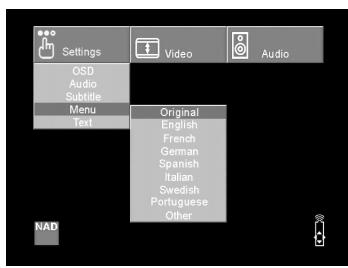
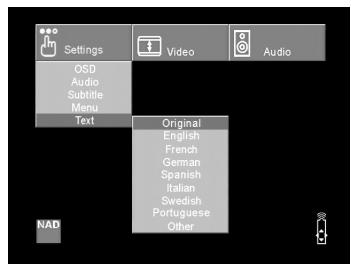
NOTE
The Audio, Subtitle, Menu, and Text OSD are media specific. Not all media support the various language options. Refer to the specific media documentation for available features. Refer to the section 'REFERENCE', 'Table of Languages and Their Abbreviations' for available languages and their codes.
SELECTINGVIDEODISPLAYMODE
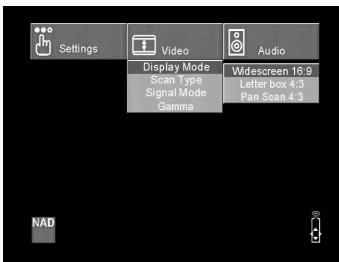
To select the appropriate display mode according to your TV set, one selects the SETUP menu form the remote. Choose 'Video', 'Display Mode', then the three choices that best fit your TV set.
1 From the drop-down menu of the OSD screen, use the navigation arrows to select 'Video' and press ENTER on the remote.
2 Use the navigation keys to select the desired 'Display Mode' and press ENTER on the remote
'Widescreen 16:9': Select when a wide-screen TV set is connected. Played in FULL size. (Setting the wide-screen TV to FULL mode is also necessary)
'Letterbox 4:3': The video material not formatted in the Pan & Scan style is played back in the letterbox style (black bands appear at top and bottom of screen).
'Pan Scan 4:3': Select when a conventional TV set is connected. The video material formatted in the Pan & Scan style is played back in that style (the left and right edges are cut off).
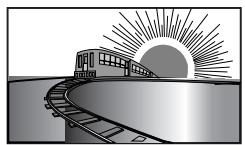
16:9 Wide
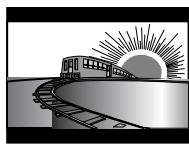
4:3 Letterbox
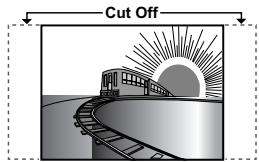
4:3 Panscan
NOTES
Each screen shows an example when the video material for a widenscreen is played. (This setting does not affect the video material for conventional size.)
- Progressive scan is available in NTSC with Component output only. Progressive scan is not available for PAL-Component or PAL-SCART output.
SELECTING SCAN TYPE
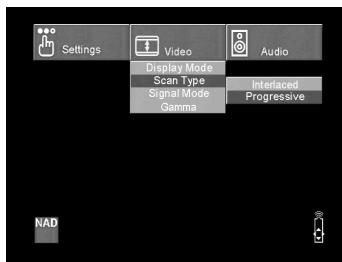
To select the appropriate scan type according to your TV set, one selects the 'Setup' menu form the remote. Choose 'Video', 'Scan Type', then the two choices that are available.
1 From the drop-down menu of the OSD screen, use the navigation arrows to select 'Video' and press ENTER on the remote.
2 Using the navigation keys, toggle between the two scan modes 'Interlaced' or 'Progressive Scan' and press ENTER on the remote
There are two modes for scanning depending on your TV set, one is Progressive scan, the other interlaced scan. Select the scan type that best suits your TV set.
NOTE
Progressive scan is available in NTSC with Component output only. Progressive scan is not available for PAL-Component or PAL-SCART output.
INITIAL SETUP SETTINGS
SELECTING SIGNAL MODE
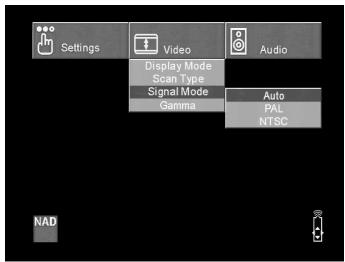
To select the appropriate signal mode according to your TV set, one selects the SETUP menu form the remote. Choose 'Video', 'Signal Mode', then the three choices that best fit your TV set.
1 From the drop-down menu of the OSD screen, use the navigation arrows to select 'Video' and press ENTER on the remote.
2 Use the navigation keys to select the 'Signal Mode' and press ENTER on the remote
3 Three options will present itself, 'Auto', 'PAL' and, 'NTSC'
OPTIONS
The 'Auto' setting will detect automatically the media being played and display it.
The other two settings 'NTSC' and 'PAL' can be selected to force the output of the S570 to the desired format. For example one can load a PAL media and display it in the NTSC format. Similarly one can load an NTSC media and display it in the PAL format.
Depending on the type of TV set you own, select the signal mode you wish to watch the DVD/VCD. The default or Auto setting is PAL for European S570 and NTSC for North American S570.
NOTE
Progressive scan is available in NTSC with Component output only. Progressive scan is not available for PAL-Component or PAL-SCART output.
SELECTING GAMMA SETTINGS
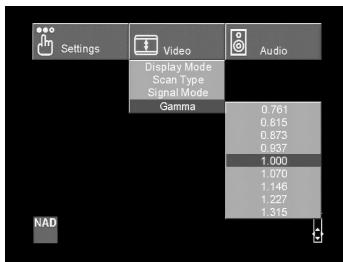
To select the appropriate gamma according to your TV set, one selects the Setup menu form the remote. Choose 'Video', 'Gamma', then either of the two choices that are available.
1 From the drop-down menu of the OSD screen, use the navigation keys to select 'Video' and press ENTER on the remote
2 Using the navigation arrows, select 'Gamma' and press ENTER
3 Using the navigation arrows, select the colour/intensity linearity for your TV/monitor and press ENTER. The default setting is 1.000
NOTE
Each monitor or display device has a GAMMA setting. Please refer to your owner's manual for your TV/monitor for the optimum GAMMA setting. If you do not know your setting, use the default of 1.000.
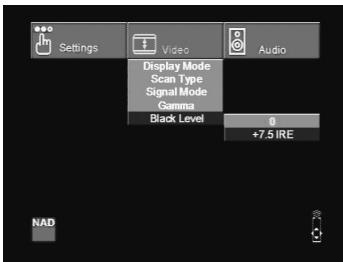
Personal taste may require the adjustment of the black level for the DVD disc you are viewing to either "0" or "+"7.5" IRE. This adjustment sets the reference level for absolute black as seen on your TV set. To select the appropriate Black Level according to your signal mode, one selects the Setup menu from the remote. Choose 'Video', 'Black Level', then either of the two choices that are available.
1 From the Drop-down menu of the OSD screen, use the navigation keys to select 'Video', and press ENTER on the Remote
2 Using the navigation arrows, select 'Black Level' and press ENTER
3 Using the navigation arrows, select either '0' or +7.5' IRE and press ENTER
NOTES
The black level defaults are different for each type of S570; NTSC S570 is +7.5 IRE, PAL S570 is 0 IRE.
- Setting the black level incorrectly may result in poor contrast when displaying dark scenes.
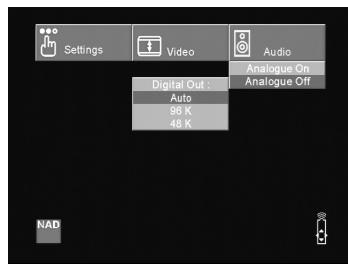
SELECTING AUDIO
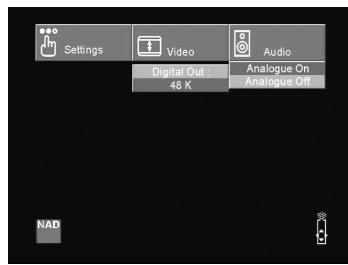
Each DVD disc has a variety of audio output options. Set the player's digital audio output according to the type of audio system you use.
1 From the drop-down menu of the OSD screen, press the navigation keys to select 'Audio' and press ENTER on the remote.
2 Using the navigation keys to select the desired output press ENTER on the remote to store your selection.
'Analogue On'
Digital Out = 48K
'Analogue Off'
'Digital Out' = 'Auto'
'Digital Out' = '48 K'
'Digital Out' = '96 K'
NOTES
If an active digital audio output signal is supplied to a receiver or other equipment without a corresponding digital decoding capability, a very loud noise may be produced which could permanently damage the speakers.
The DTS DVD disc sound is played back only when the DVD player is connected to a receiver with a DTS decoder.
NOTES ON DISCS
ON HANDLING DISCS
- Do not touch the playback side of the disc.
- Do not attach paper or tape to discs. To do so may cause the discs to jam inside the machine
ON CLEANING DISCS
- Fingersprints and dust on the disc cause picture and sound deterioration. Wipe the disc from the centre outward with a soft cloth. Always keep the disc clean.
- If you cannot wipe off the dust with a soft cloth, wipe the disc lightly with a slightly moistened soft cloth and finish with a dry cloth wiping from the centre outward, not in a spiral rotation.
- Do not use any type of solvents such as thinner, benzene, commercially available cleaners or anti-static spray for vinyl LPs. They may damage the disc.
- The S570's OSD may display "ERROR: DISC MINOR - CLEAN ME". If it does, clean the disc as mentioned above.
ON STORING DISCS
- Do not store discs in a place subject to direct sunlight or near heat sources.
- Do not store discs in places subject to moisture and dust such as a bathroom or near a humidifier.
- Store discs vertically in a case. Stacking or placing objects on discs outside of their case may cause warping.
ABOUT THIS OWNER'S MANUAL
This owner's manual explains the basic instructions of this S570. Some DVD/VCD/CD media have functions that may not be explained in this owner's manual. Therefore, some instructions may differ from the S570 owner's manual, and there may be extra instructions. In this case, follow the instructions displayed on the media package or displayed on the OSD during operation. The following responses means the function explained in this owner's manual is not available on that specific media being played.
Not Allowed
NOT VALID WITH THIS MEDIA
Refer to the owner's manual of your audio equipment as well. When you connect the S570 to other equipment, be sure to turn off the power and unplug all of the equipment from the wall outlet before making any connections. The output sound of the S570 has a wide dynamic range. Be sure to adjust the receiver's volume to a moderate listening level. Otherwise, the speakers may be damaged by a sudden high volume sound. Turn off the receiver before you connect or disconnect the S570's power cord. If you leave the receiver power on, the speakers may be damaged.
PLAYABLE DISCS
The S570 can play back the following discs.
| Disc Mark | Contents | Disc size | Maximum playback time | |
| DVD video discs | DVD VIDEO | Audio+ Video (moving pictures) | 12 cm | Approx. 4 hours (single sided disc) |
| Approx. 8 hours (double sided disc) | ||||
| 8 cm | Approx. 80 minutes (single sided disc) | |||
| Approx. 160 minutes (double sided disc) | ||||
| Audio CDs | COMPACT DISC DIGITAL AUDIO | Audio | 12 cm | 74 minutes |
| 8 cm | 20 minutes |
In addition this unit can play back a CD-R or CD-RW that contains audio titles or MP3 files
You cannot playback discs other than those listed above such as Video CD CD-ROM, CD-Extra, CD-G, photo CD, and CD-i discs. To do so may render the S570 permanently inoperable.
REGION MANAGEMENT INFORMATION
Region Management Information: This DVD Player is designed and manufactured to respond to the Region Management Information that is recorded on a DVD disc. If the Region number described on the DVD disc does not correspond to the Region number of this DVD player, this DVD player cannot play that disc. Please contact your dealer for the region number for your S570.
NOTES ON UNAUTHORIZED DISCS
You may not be able to play back some DVD videodiscs on this player if they were purchased from outside your geographic area or made for business purposes. When you try to play back an unauthorized disc, "Check Regional Code" appears on the TV screen.
Enter the appropriate code number in the Settings' drop-down-menu, 'Other' for "Audio", "Subtitle", "Menu" and/or "Text". Be aware that this is a media specific feature that may not be available for all DVDs and VCDs.
Code
6565 Afar
6566 Abkhazian
6570 Afrikaans
6577 Ameharic
6582 Arabic
6583 Assamese
6588 Aymara
6590 Azerbaijani
6665 Bashkir
6669 Byelorussian
6671 Bulgarian
6672 Bihari
6678 Bengali; Bangla
6679 Tibetan
6682 Breton
6765 Catalan
6779 Corsican
6783 Czech
6789 Welsh
6865 Danish
6869 German
6890 Bhutani
6976 Greek
6978 English
6979 Esperanto
6983 Spanish
6984 Estonian
6985 Basque
7065 Persian
7073 Finnish
7074 Fiji
Code Language
7079 Faroese
7082 French
7089 Frisman
7165 Irish
7168 Scots Gaelic
7176 Galician
7178 Guarani
7185 Gujarati
7265 Hausa
7273 Hindi
7282 Croatian
7285 Hungarian
7289 Armenian
7365 Interlingua
7378 Indonesian
7383 Icelandic
7384 Italian
7387 Hebrew
7465 Japanese
7473 Yiddish
7487 Javanese
7565 Georgian
7575 Kazakh
7576 Greenlandic
7577 Cambodian
7578 Kannada
7579 Korean
7583 Kashmiri
7585 Kurdish
7589 Kirghiz
7665 Latin
Code Language
7678 Lingala
7679 Laothian
7684 Lithuanian
7686 Latvian, Lettish
7771 Malagasy
7773 Maori
7775 Macedonian
7776 Malayalam
7778 Mongolian
7779 Moldavian
7782 Marathi
7783 Malay
7784 Maltese
7789 Burmese
7865 Nauru
7869 Nepali
7876 Dutch
7879 Norwegian
7982 Oriya
8065 Panjabi
8076 Polish
8083 Pashto, Pushto
8084 Portuguese
8185 Quechua
8277 Rhaeto-Romance
8279 Rumanian
8285 Russian
8365 Sanskrit
8368 Sindhi
8372 Serbo-Croatian
8373 Singhalese
Code Language
8375 Slovak
8376 Slove
8377 Samoan
8378 Shona
8379 Somali
8381 Albanian
8382 Serbian
8385 Sudanese
8386 Swedish
8387 Swahili
8465 Tamil
8469 Telugu
8471 Tajik
8472 Thai
8473 Tigrinya
8475 Turkmen
8476 Tagalog
8479 Tonga
8482 Turkish
8484 Tatar
8487 Twi
8575 Ukrainian
8582 Urdu
8590 Uzbek
8673 Vietnamese
8679 Volapuk
8779 Wolof
8872 Xhosa
8979 Yoruba
9072 Chinese
9085 Zulu
TROUBLESHOOTING
SYMPTOMS AND CORRECTION
Check the following guide for the possible cause of a problem before contacting service.
| SYMPTOM | CAUSE | CORRECTION |
| No power | ·The power cord is disconnected | ·Plug the power cord into the wall outlet securely. |
| The power is on, but the DVD player does not work | ·No disc is inserted. | ·Insert a disc (Check that the DVD or VCD indicator in the S570's display is lit). |
| No picture | ·The TV is not set to receive DVD signal output. | ·Select the appropriate video input mode on the TV so that the picture from the DVD player appears on the TV screen. |
| ·The video cable is not connected securely. | ·Connect the video cable into the jacks securely. | |
| ·The connected TV power is turned off. | ·Turn on the TV. | |
| No sound | ·The equipment connected with the audio cable is not set to receive DVD signal output. | ·Select the correct input mode of the audio receiver so you can listen to the sound from the DVD player. |
| ·The audio cables are not connected securely. | ·Connect the audio cable into the jacks securely. | |
| ·The power of the equipment connected with the audio cable is turned off. | ·Turn on the equipment connected with the audio cable. | |
| ·The Audio output settings are incorrect. | ·Select either Analogue On or Analogue Off depending on your hardware configuration. | |
| The playback picture is poor | ·The disc is dirty. | ·Clean the disc. |
| The DVD player does not start playback | ·No disc is inserted. | ·Insert a disc (Check that the DVD or VCD indicator in the S570's display is lit). |
| ·An unplayable disc is inserted. | ·Insert a playable disc (Check the disc type, color system and Regional code). | |
| ·The disc is placed upside down. | ·Place the disc with the playback side down. | |
| ·The disc is not placed within the guide. | ·Place the disc on the disc tray correctly inside the guide. | |
| ·The disc is dirty. | ·Clean the disc. | |
| ·A menu is on the TV screen. | ·Press the SETUP button to turn off the menu screen. | |
| The remote control does not work properly | ·The remote control is not pointed at the remote sensor of the DVD player. | ·Point the remote control at the remote sensor of the DVD player. |
| ·The remote control is too far from the DVD player. | ·Operate the remote control within about 23 ft (7 m). | |
| ·There is an obstacle in the path of the remote control and the DVD player. | ·Remove the obstacle. | |
| ·The batteries in the remote control are exhausted. | ·Replace the batteries with new ones. |
Video DAC RGB-10 Bit (Built in one chip)
Video output Composite Video
S-Video (Y/C)
Component Video (Y/Pr/Pb)
Euro SCART with RGB & Composite
Progressive scan (NTSC only)
Digital Zoom x2,x4,x8,x16,x32,Still&MovingPicture
TV Type Setup PAL/NTSC
Audio DAC 192 KHz/24 Bit
MPEG-2 Multi channel MPEG-2 Decoder Built in
MP3 Decoder Digital Output,
Stereo on downmix output
Dolby Digital 5.1 Channel support on digital output
2 Channel downmix analogue
HDCD 5.1 Digital support on digital output
2 channel analogue
DTS 5.1 Digital support on digital output
Down mix Left and Right Channel
Digital Audio Output Coaxial Output
Optical Output
Others Auto switch from PCM to bit stream
Shipping Weight Net 5.5 kg / 12.1 lb
Shipping Weight Gross 7.0 kg / 15.4 lb
Unit Dimensions (L x W x H) 293mm(11.5") x 450mm(17.7") x 106mm(4.2")
COPYRIGHT INFORMATION/MACROVISION PRODUCT NOTICE
DIGITAL THEATER SYSTEMS NOTICE
"DTS" and "DTS Digital Surround" are registered trademarks of Digital Theater Systems, Inc.
MACROVISION PRODUCT NOTICE
This product incorporates copyright protection technology that is protected by method claims of certain U.S. patents and other intellectual property rights owned by Macrovision Corporation and other rights owners. Use of this copyright protection technology must be authorized by Macrovision Corporation, and is intended for home and other limited viewing uses only unless otherwise authorized by Macrovision Corporation. Reverse engineering or disassembly is prohibited.
CONSUMERS SHOULD NOTE THAT NOT ALL HIGH DEFINITION TELEVISION SETS ARE FULYLY COMPATIBLE WITH THIS PRODUCT AND MAY CAUSE ARTIFACTS TO BE DISPLAYED IN THE PICTURE. IN CASE OF S570 PROGRESSIVE SCAN PICTURE PROBLEMS, IT IS RECOMMENDED THAT THE USER SWITCH THE CONNECTION TO THE STANDARD DEFINITION INTERLACE OUTPUT. IF THERE ARE QUESTIONS REGARDING YOUR TV SET COMPATIBILITY WITH THIS PRODUCT MODEL S570 DVD PLAYER, PLEASE CONTACT NAD ELECTRONICS INTERNATIONAL CUSTOMER SERVICE, +1 905 831 0799.
It is forbidden by law to copy, broadcast, show, broadcast on cable, play in public, and rent copyrighted material without permission. DVD videodiscs are copy protected, and any recordings made from these discs will be distorted. This product incorporates copyright protection technology that is protected by method claims of certain U.S. patents and other intellectual property rights owned by Macrovision Corporation and other rights owners. Use of this copyright protection technology must be authorized by Macrovision Corporation, and is intended for home and other limited viewing uses only, unless otherwise authorized by Macrovision Corporation. Reverse engineering or disassembly is prohibited.
DOLBY LABORATORIES NOTICE
This product is manufactured under license from Dolby Laboratories. Dolby, Pro Logic, and the double-D symbol are trademarks of Dolby Laboratories. Confidential Unpublished works. Copyright 1992-1997 Dolby Laboratories. All rights reserved.

www.NADelectronics.com
©2002 NAD ELECTRONICS INTERNATIONAL A DIVISION OF LENBROOK INDUSTRIES LIMITED
- WARNING: TO REDUCE THE RISK OF FIRE OR ELECTRIC SHOCK, DO NOT EXPOSE THIS PRODUCT TO RAIN OR MOISTURE
- CAUTION
- WARNING: CHANGES OR MODIFICATIONS NOT EXPRESSLY APPROVED BY THE PARTY RESPONSIBLE FOR COMPLIANCE COULD VOID THE USER'S AUTHORITY TO OPERATE THE EQUIPMENT.
- NOTE
- RECORD YOUR MODEL NUMBER (NOW, WHILE YOU CAN SEE IT)
- TABLE OF CONTENTS
- INTRODUCTION
- IDENTIFICATION OF CONTROLS
- OPERATION
- SETUP
- REFERENCE
- FRONT PANEL
- DISPLAY WINDOW
- REAR PANEL (EUROPEAN VERSION)
- NOTES ON BATTERIES
- OPERATION OF THE S 570 WITH THE REMOTE CONTROL
- NOTES ON THE REMOTE CONTROL
- AFTER OPERATION
- NOTES
- SCREEN SAVE
- AUTOMATIC POWER OFF FUNCTION
- STOPPING PLAY
- RESUME PLAY
- STILL PICTURE (PAUSE)
- FRAME ADVANCE (DVD ONLY)
- SKIPPING CHAPTERS AND TRACKS
- SKIPPING FORWARD
- SKIPPING BACK
- PAUSE ON
- PLAY - CHAPTER 5
- SCANNING AT HIGH SPEED
- DISPLAY/TITLES/MENUS/SUBTITLES
- VIEWING FROM ANOTHER ANGLE
- FOR YOUR REFERENCE
- REPEAT PLAY
- DVD
- CD
- TO PROGRAM REPEAT PLAY (CD)
- REPEATING SECTIONS BETWEEN TWO SPECIFIC POINTS (A-B REPEAT)
- To return to normal play
- RECALLING/CLEARING A MARKER
- ZOOM FEATURE
- RANDOM PLAY (CD)
- PROGRAM PLAY (CD)
- CLEARING THE PROGRAM
- VCD
- TO PLAY AN MP3 FILE REPEATEDLY
- TO PROGRAM MP3 FILES IN A SEQUENCE
- ABOUT DOLBY DIGITAL SOUND
- TO ENJOY DOLBY DIGITAL SOUND
- DOLBY PRO LOGIC SURROUND SOUND
- WITH A RECEIVER EQUIPPED WITH A DOLBY DIGITAL DECODER
- WARNING
- CHANNEL DIGITAL STEREO SOUND
- TO ENJOY DIGITAL SOUND
- DTS SOUND
- TO ENJOY DTS SOUND
- CONNECTING TO AN ANALOGUE STEREO SYSTEM
- TO ENJOY GOOD QUALITY SOUND
- INITIAL SETUP SETTINGS
- SELECTING LANGUAGES
- SELECTINGVIDEODISPLAYMODE
- SELECTING SCAN TYPE
- SELECTING SIGNAL MODE
- OPTIONS
- SELECTING GAMMA SETTINGS
- SELECTING AUDIO
- NOTES ON DISCS
- ON HANDLING DISCS
- ON CLEANING DISCS
- ON STORING DISCS
- ABOUT THIS OWNER'S MANUAL
- Not Allowed
- NOT VALID WITH THIS MEDIA
- PLAYABLE DISCS
- In addition this unit can play back a CD-R or CD-RW that contains audio titles or MP3 files
- REGION MANAGEMENT INFORMATION
- NOTES ON UNAUTHORIZED DISCS
- Code
- Code Language
- TROUBLESHOOTING
- SYMPTOMS AND CORRECTION
- COPYRIGHT INFORMATION/MACROVISION PRODUCT NOTICE
- DIGITAL THEATER SYSTEMS NOTICE
- MACROVISION PRODUCT NOTICE
- DOLBY LABORATORIES NOTICE
- ©2002 NAD ELECTRONICS INTERNATIONAL A DIVISION OF LENBROOK INDUSTRIES LIMITED
Brand : NAD
Model : S570
Category : Music Player