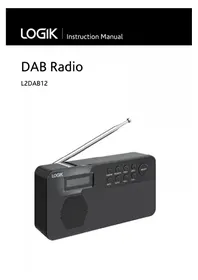
L3DAB12 - Radio Logik - Free user manual and instructions
Find the device manual for free L3DAB12 Logik in PDF.
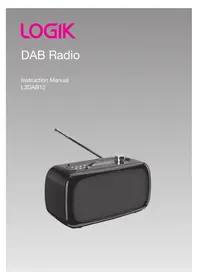


| Brand | Logik |
| Model | L3DAB12 |
| Product Type | DAB/DAB+ Portable Radio |
| Dimensions | Approx. 200 x 130 x 60 mm |
| Weight | Approx. 600 g (including batteries) |
| Power Supply | AC adapter (included) or 4 x AA batteries |
| Display | LCD with backlight |
| Tuning Bands | DAB/DAB+ and FM (RDS) |
| Preset Stations | 20 DAB, 20 FM |
| Audio Output | Built-in speaker (3W RMS) |
| Headphone Jack | 3.5 mm (stereo) |
| Auxiliary Input | 3.5 mm AUX IN |
| Antenna | Fully retractable telescopic |
| Controls | Rotary volume, buttons for menu and presets |
| Additional Functions | Sleep timer, alarm, station ordering, service following |
| Battery Life | Approx. 10 hours (alkaline) |
| Cleaning | Wipe with a soft, dry cloth |
| Safety | Keep away from water and heat sources |
| Spare Parts | Available through Logik service centers |
Frequently Asked Questions - L3DAB12 Logik
User questions about L3DAB12 Logik
0 question about this device. Answer the ones you know or ask your own.
Ask a new question about this device
Download the instructions for your Radio in PDF format for free! Find your manual L3DAB12 - Logik and take your electronic device back in hand. On this page are published all the documents necessary for the use of your device. L3DAB12 by Logik.
USER MANUAL L3DAB12 Logik

Unpacking....4
Product Overview....5
Front View....5 Rear View....5 Top View....6
Power Source 6
Mains Power 6 Battery Power....6 Battery Life (Approx. hours) 6 Knowing when to replace the batteries....7
Switching On Your Unit for the First Time ....7
Basic Operation 8
Powering ON/OFF....8 Selecting Modes....8 Adjusting Volume....8 Software Version....8 System Reset 8
DAB Operation....9
Memory....9 Presetting Stations....9 Recalling a Preset Station....9 DAB Display Modes....10 Auto Scan Modes....11 Secondary Services....11 Manual Tuning....11
FM Operation 12
Switching from DAB to FM Mode 12 Auto Scan....12 Manual Scan 12 Presetting Stations....12 Recalling a Preset Station....12 FM Display Modes 13 Using Earphones....14 Select Sensitivity in FM....14
Maintenance 15
Hints and Tips 15
Specifications.... 15
Safety Warnings....16
Thank you for purchasing your new Logik DAB FM Radio.
We recommend that you spend some time reading this instruction manual so that you fully understand all the operational features it offers. You will also find some hints and tips to help you resolve any issues.
Read all the safety instructions carefully before use and keep this instruction manual for future reference.

Unpacking
Remove all packaging from the tower fan. Retain the packaging. If you dispose of it, please do so according to any local regulations.
The following items are included:
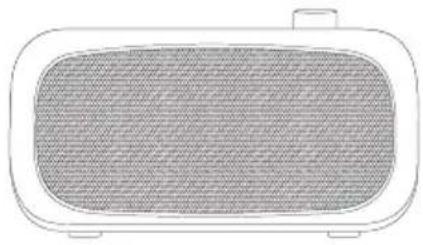
Radio Mains Adapter
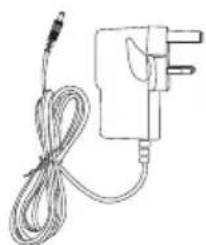
(P.N.: AD080501000UK)
Instruction Manual (P.N.: L3DAB12-001)
Front View
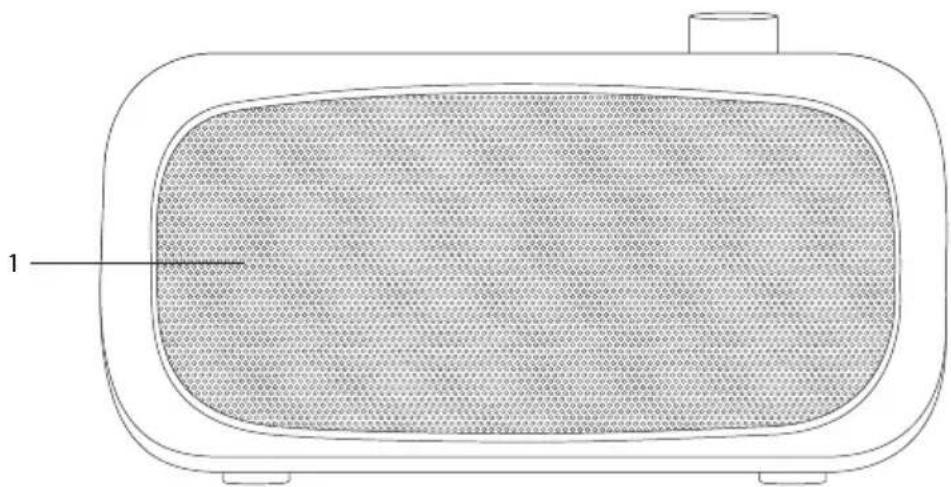
- Speaker
Rear View
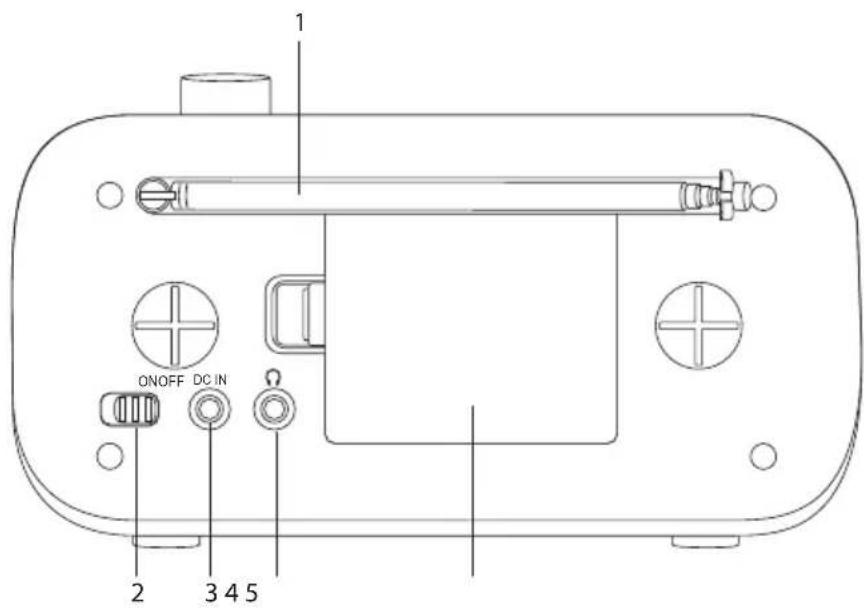
- Telescopic Aerial
- ON/OFF Switch
- DC IN 5V Socket
- Earphones Socket
- Battery Compartment
Top View
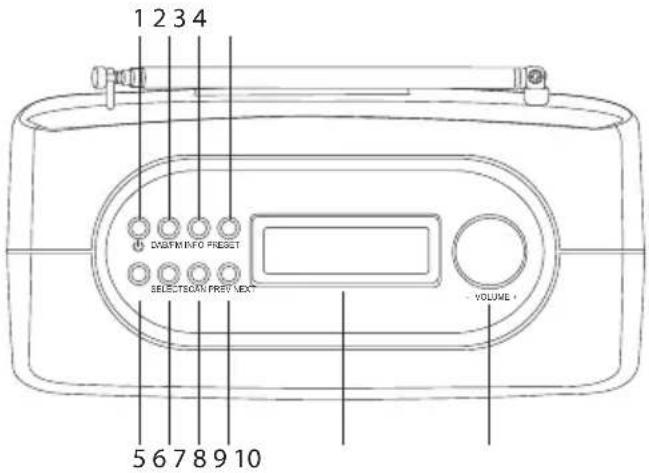
- STANDBY Button
- DAB/FM Button
- INFO Button
- PRESET Button
- SCAN Button
- SELECT Button
- PREV Button
- NEXT Button
- LCD Display Window
- VOL+/- Dial

Power Source
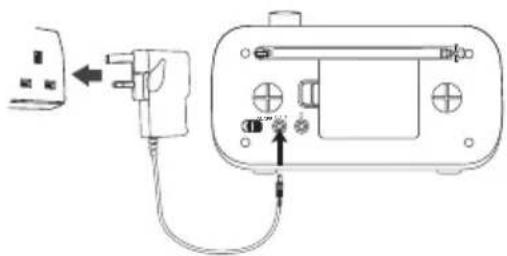
Mains Power
Connect the mains adapter (included) to the DC 5V IN socket and the mains socket.
Battery Power
Insert 4 x AA batteries (not included) correctly by following the polarity (+ or −) indications in the battery compartment.
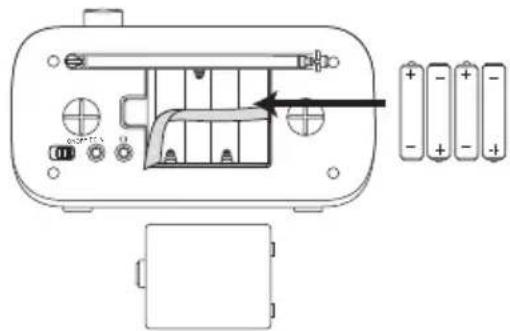
Battery Life (Approx. hours)
| Battery Type | DAB FM | |
| Alkaline (Size AA) | 8 | 8 |
Knowing when to replace the batteries
- When the batteries lose power, the sound becomes weak and distorted.
- When the batteries are completely exhausted, "■23" appears on the display and the power is turned off.
- When "■3" appears, replace all the batteries with new ones. After the batteries have been replaced, switch the ON/OFF switch to the "ON" position to turn the indication off.
Handling the Batteries
- Improper or incorrect use of batteries may cause corrosion or battery leakage, which could cause personal injury or damage to property.
- Install the batteries correctly by following the polarity (+ and -) indications in the battery compartment. Use only the types of batteries indicated in this manual.
- Do not install new batteries with used ones and do not mix different types of batteries.
- Do not dispose of used batteries as domestic waste. Dispose of them in accordance with local regulations.
- If you are not going to use the unit for a long time, remove the batteries to avoid damage from battery leakage and corrosion.
- Do not take more than 1 minute to replace the batteries, otherwise the clock, any lists of receivable broadcasts for DAB scan, preset favourite services and all settings will be initialized. Should that happen, set the functions again.
- If the batteries are replaced while the power is on, the unit may revert to the factory setting.
- Due to the short battery life span of some alkaline batteries, it is recommended to use rechargeable batteries. This saves cost and is more environmentally friendly.

Switching On Your Unit for the First Time
- Switch the ON/OFF switch at the back of the unit to the "ON" position to turn the unit on. For initial use, the unit will automatically enter the DAB mode and start the auto tune quick scan for DAB stations.
- During scanning, the display will show a slide bar that indicates the progress of the scan, and the amount of radio stations that have been found so far. Once the scan has finished, the unit will select the first alphanumeric station.
Powering ON/OFF
Connect the unit to the mains socket and switch the ON/OFF switch at the back of the unit to "ON" position to switch the unit on.
- Press the ⏻ STANDBY button to switch the unit back to Standby mode.
- Switch the ON/OFF switch to the "OFF" position to turn the unit off.
- Disconnect the mains adapter from the mains socket if you want to switch the unit off completely.
Selecting Modes
Press the DAB/FM button repeatedly to switch between modes (DAB or FM).
Adjusting Volume
Turn the VOLUME +/- dial to increase/decrease the volume.
Software Version
- Press and hold the INFO button for 2 seconds and then release it to view the software version of this unit.
- The software version will automatically disappear after 5 seconds.
System Reset
There may be times when you need to reset your unit back to the factory settings. If you experience reception problems you may want to reset and try again. If you move the unit to another part of the country and pick up the local and national DAB stations in that area, your previously tuned channels may no longer be available.
- To do the system reset, press and hold the INFO button until the software version display.
- Press the INFO button, and press the SELECT button, and display will show "Press select key to reset".
- Then press the SELECT button to start the system reset. The unit will then start the Quick Scan for DAB channels immediately.

After the system reset, all the tuned stations, DAB & FM preset stations setting will be erased.
To listen to the tuned stations press either the PREV / NEXT buttons. Each time you press the PREV / NEXT buttons, you will skip to the previous or next stored station. The unit will display the station name.
Memory
When you power up the unit again, the unit plays the same mode and station (DAB or FM) as the last operation.
Presetting Stations
You can store up to 10 of your favourite stations to the memory. This will enable you to access your favourite stations quickly and easily.
- To store a preset, you must first be listening to the station that you would like to save, then press and hold the PRESET button.
- Press the PREV / NEXT buttons to select your desired preset station number.
- Press the SELECT button to confirm the selection.
- The station will be stored and the display will show "Preset # stored".
Recalling a Preset Station
- Once you have saved a station to one of the preset buttons, you can recall it by pressing the PRESET button.
- Press the PREV / NEXT buttons to select your desired preset station number.
- Press the SELECT button to confirm the selection.
- If you choose a preset that hasn't been allocated a station, the display will show "Preset empty #".
DAB Display Modes
Every time you press the INFO button, the display will cycle through the following display modes: DLS, Programme Type, Multiplex Name, Frequency, Audio Bit rate, Signal Strength, Date/Time.
The information is displayed on the lower segment of the display.
DLS (Dynamic Label Segment)
Dynamic label segment is a scrolling message that the broadcaster may include with their transmissions. The message usually includes information, such as programme details etc.
Programme Type
This describes the "Style" or "Genre" of music that is being broadcast e.g. "Rock" or "Classical".
Multiplex Name
A multiplex is a collection of radio stations that are bundled and transmitted on one frequency. There are national and local multiplexes. Local ones contain stations that are specific to that area e.g. BBC World.
Frequency
The frequency of the present station will be displayed, such as "11C 220.352MHz".
Audio Bit Rate
The display will show the audio mode (Stereo or Mono) and the digital audio bit rate being received.
Signal Strength
The display will show a slide bar to indicate the signal strength, the stronger the signal, the longer the bar will be from left to right.
Time/Date
The broadcaster (radio station) provides clock and date information automatically so there's no need to manually set this information.
![graph TD A["DLS"] --> B["Programme Type"] B --> C["MuitIplex Name"] C --> D["Frequency"] D --> E["Audio Bit Rate"] E --> F["Signal Strength"] F --> G["Date/Time"]](/content/2026/05/968461/images/3964616710ca8aaa277feeb79cfa50353f7cc79d6f9e1192f1220bb0bd40a6b6.jpg)
Auto Scan Modes
There are two types of scans: Quick scan and Full scan.
- Quick scan:
Searches the stations between channels 10A and 12D.
To activate the quick scan, press the SCAN button.
• Full scan:
Searches all DAB channels in the DAB Band III.
Press and hold the SCAN button for 2 seconds.
Secondary Services
You may see a “>” symbol after the name of the station, indicating that there are secondary services available for that station. These secondary services contain extra services related to the primary station. For example, a sports station may want to add extra commentaries. The secondary services are inserted directly after the primary station in the station list.
To select the secondary station, press the NEXT button when the “>” appears in the display before the station name. When the secondary service ends, the unit will automatically switch back to the primary station.
Manual Tuning
In addition to the auto tune function, you can manually tune the receiver. This can help when aligning your aerial or when adding stations that were missed during auto tuning.
- Press and hold the SELECT button; the display will now show "Manual tune".
- Press the PREV / NEXT buttons to cycle through the DAB channels, which are numbered from 5A to 13F.
- After your desired channel number is selected, press the SELECT button to enter the current multiplex; the top line will now display the first station in the multiplex.
- Press the PREV / NEXT buttons to see what stations are present in the found multiplex.
- Once you have reached the last station in the found multiplex, it will revert back to the first station. If you wish to exit the Manual Tuning mode, just press the SELECT button.
Switching from DAB to FM Mode
To switch the unit from DAB to FM mode, press the DAB/FM button once. The display shows "Switching to FM".
On the top line of the display is the current frequency. On the bottom of the display, will show since no channel is tuned in and no RDS (radio data system) data is available.
Auto Scan
To search for an FM station, you need to press and the SCAN button. The unit will start scanning up the frequency band. To scan down the frequency band, press and hold the SCAN button. Once a station has been found, the scanning will stop automatically.
If no station is found, then the tuning will stop once it has cycled through the entire FM band (87.5-108MHz).
Manual Scan
To search FM stations manually, simply press the PREV / NEXT buttons repeatedly until your desired frequency is reached. Each press will skip 0.05MHz
Presetting Stations
You can store up to 10 of your favourite stations to the memory. This will enable you to access your favourite stations quickly and easily.
- To store a preset, you must first be listening to the station that you would like to save, then press and hold the PRESET button.
- Press the PREV / NEXT buttons to select your desired preset station number.
- Press the SELECT button to confirm the selection.
- The station will be stored and the display will show "Preset # stored".
Recalling a Preset Station
- Once you have saved a station to one of the preset buttons, you can recall it by pressing the PRESET button.
- Press the PREV / NEXT buttons to select your desired preset station number.
- Press the SELECT button to confirm the selection.
- If you choose a preset that hasn't been allocated a station, the display will show "Preset empty #".
FM Display Modes
Every time you press the INFO button, the display will cycle through the following display modes: Programme Type, Signal Strength, Time/Date, Channel Frequency, Audio Mode, Radio Text.
Programme Type
This describes the "Style" or "genre" of music that is being broadcast e.g. "Rock" or "Classical".
Signal Strength
The slide bar indicates how strong the signal is, the stronger the signal, the longer the bar will be.
Time/Date
The broadcaster (Radio station) provides clock and date information automatically so there's no need to manually set this information. In the unlikely event that the broadcaster does not transmit any clock information; the display will show .
Channel Frequency
This shows the frequency of the current station, e.g., 89.80 MHz.
Audio Mode
When in FM mode, the display will show if the station is being received.
Radio Text
As with DAB, the broadcaster can include a scrolling text that displays information about the current program. If Radio Text information is not available, then the display will show .
![graph TD A["Programme Type"] --> B["Signal Strength"] B --> C["Time/Date"] C --> D["Channel Frequency"] D --> E["Audio Mode"] E --> F["Radio Text"]](/content/2026/05/968461/images/d497b54264acfaaf3eedc333f9e2d6aba8de453fbffb825fa77cca6a3dd05a65.jpg)
Using Earphones
Turn down the volume before connecting the earphones. Slowly raise the volume with the earphones on until you reach your desired volume. When earphones are connected, the speaker is automatically disabled.
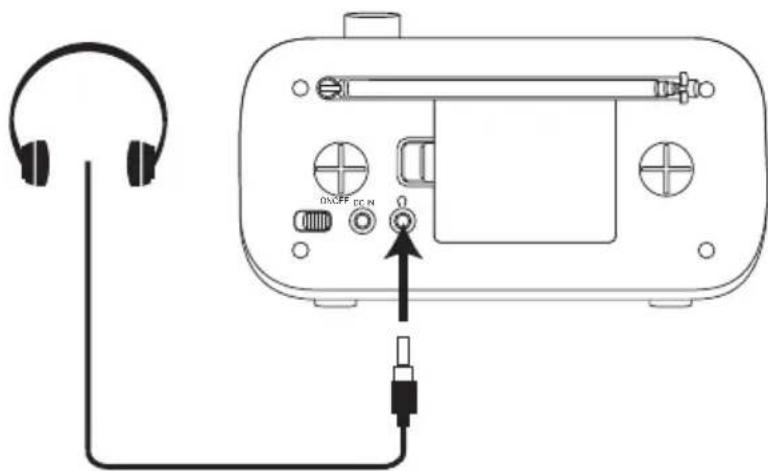

Avoid using earphones with the volume turned up for an extended period of time. Doing so can damage your hearing. It is advisable to keep the volume at a moderate level at all times.
Select Sensitivity in FM
- Press and hold the SELECT button for 2 seconds.
- Show 1-10 level, press the PREV / NEXT buttons to select the sensitivity manually.

Ensure the unit is firmly unplugged from the mains socket before cleaning.
• To clean the unit, wipe the case with a slightly moist, lint-free cloth. - Do not use any cleaning fluids containing alcohol, ammonia, or abrasives. - Do not spray an aerosol at or near the unit.
Hints and Tips
| Problem Cause / Solution | |
| No Sound Adjust the volume control, it may not be turned up. | |
| Static Sound Signal reception is too low. Adjust the aerial or move the unit to a stronger signal location. | |
| Sound is distorted Volume is too high. Adjust the volume control. | |
| Desired station not found | Weak signal. Use the Manual Tune function. |
| The display shows “Not available” | No DAB coverage in your area or poor reception. Adjust the position of the aerial. |
| Poor reception. Adjust the position of the aerial. | |
| The display is blank This may occur if the broadcaster changes the label of a service or removes a label while tuned. The unit will try to retune or perform a scan. | |
Specifications
| Mains Supply Mains ad | apter Input 100-240V ~ 50/60 HzMains adapter Output DC 5V 1A |
| DC battery 4 x AA batteries (not included) | |
| Output Power 1 x 1.0W | |
| Radio Frequency Range | FM87.5 – 108 MHzDAB Band III 5A-13F |
- Read all the instructions carefully before using the unit and keep them for future reference.
- Retain the manual. If you pass the unit onto a third party, make sure to include this manual.
- Check that the voltage marked on the rating label matches your mains voltage.
Damage
- Please inspect the unit for damage after unpacking.
- Do not continue to operate the unit if you are in any doubt about it working normally, or if it is damaged in any way - switch off, withdraw the mains adapter and consult your dealer.
Location of Unit
- The unit must be placed on a flat stable surface and should not be subjected to vibrations.
- Do not place the unit on sloped or unstable surfaces as the unit may fall off or tip over.
- The mains socket must be located near the unit and should be easily accessible.
Temperature
- Avoid extreme degrees of temperature, either hot or cold. Place the unit well away from heat sources such as radiators or gas/electric fires.
- Avoid exposure to direct sunlight and other sources of heat.
Naked Flames
- Never place any type of candle or naked flame on the top of or near the unit.
Moisture
- To reduce the risk of fire, electric shock or product damage, do not expose this unit to rain, moisture, dripping or splashing. No objects filled with liquids, such as vases, should be placed on the unit.
- If you spill any liquid into the unit, it can cause serious damage. Switch it off at the mains immediately. Withdraw the mains adapter and consult your dealer.
Ventilation
- To prevent the risk of electric shock or fire hazard due to overheating, ensure that curtains and other materials do not obstruct the ventilation vents.
- Do not install or place this unit in a bookcase, built-in cabinet or in another confined space. Ensure the unit is well ventilated.
Safety
• Always disconnect the unit from the mains supply before connecting/ disconnecting other devices or moving the unit. - Unplug the unit from the mains socket during a lightning storm.
Mains Adapter Cable
- Make sure the unit is not resting on top of the mains adapter cable, as the weight of the unit may damage the cable and create a safety hazard.
Interference
- Do not place the unit on or near appliances which may cause electromagnetic interference. If you do, it may adversely affect the operating performance of the unit, and cause a distorted picture or sound.
Earphones
- Listening to loud sounds for prolonged periods of time may permanently damage your hearing.
- Before putting on earphones, turn the volume down then put the earphones on and slowly increase the volume until you reach a comfortable listening level.
Batteries
- Batteries used in the remote control for this unit are easily swallowed by young children and this is dangerous.
- Keep loose batteries away from young children and make sure that the battery holder tray is secure in the remote control. Seek medical advice if you believe a cell has been swallowed.
- Please dispose of batteries correctly by following the guidance in this manual.
Supervision
- Children should be supervised to ensure that they do not play with the unit and the remote control.
- Never let anyone, especially children, push anything into the holes, slots, or any other openings in the case - this could result in a fatal electric shock.
CAUTION
RISK OF ELECTRIC SHOCK
DO NOT OPEN


The lightning flash with arrowhead symbol, within an equilateral triangle, is intended to alert the user to the presence of uninsulated “dangerous voltage” within the unit’s enclosure that may be of sufficient magnitude to constitute a risk of electric shock.

The exclamation point within an equilateral triangle is intended to alert the user to the presence of important operating and maintenance (servicing) instructions in the manual accompanying the unit.
Service
- To reduce the risk of electric shock, do not remove screws. The unit does not contain any user-serviceable parts. Please leave all maintenance work to qualified personnel.
- Do not open any fixed covers as this may expose dangerous voltages.
Maintenance
- Ensure to unplug the unit from the power supply before cleaning.
- Do not use any type of abrasive pad or abrasive cleaning solutions as these may damage the unit's surface. Do not use liquids to clean the unit.
NOTE: If you require a replacement for any of the items listed below, please quote their corresponding part numbers:
Replacement Part Part Number
Mains Adapter AD080501000UK

Visit Partmaster.co.uk today for the easiest way to buy electrical spares and accessories. With over 1 million spares and accessories available we can deliver direct to your door the very next day. Visit www.partmaster.co.uk or call 0844 800 3456 (UK customers only) Calls charged at National Rate.
Rovi Proprietary Rights
This item incorporates copy protection technology that is protected by U.S. patents and other intellectual property rights of Rovi Corporation. Reverse engineering and disassembly are prohibited.
Restriction on Use & Rovi Trade Mark Rights
Use of the copyright protection technology contained in this product must be authorised by Rovi Corporation and is intended for home and other limited viewing uses only unless otherwise authorised by Rovi Corporation. The names "Rovi Corporation" and "Macrovision" are protected by trademarks.
Notes for battery disposal
The built-in batteries used with this product contain chemicals that are harmful to the environment. To preserve our environment, dispose of used batteries according to your local laws or regulations. Do not dispose of batteries with normal household waste. Contact a qualified technician to remove the built-in battery prior to disposal.
For more information, please contact the local authority or your retailer where you purchased the product.
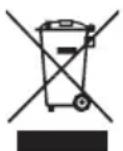
This symbol on the product or in the instructions means that your electrical and electronic equipment should be disposed at the end of its life separately from your household waste. There are separate collection systems for recycling in the EU.
For more information, please contact the local authority or your retailer where you purchased the product.
All trademarks are the property of their respective owners and all rights are acknowledged.
DSG Retail Ltd • Maylands Avenue • Hemel Hempstead
Herts • HP2 7TG • England
(P.N. L3DAB12-001)


- UNPACKING
- PRODUCT OVERVIEW
- POWER SOURCE
- SWITCHING ON YOUR UNIT FOR THE FIRST TIME
- BASIC OPERATION
- DAB OPERATION
- FM OPERATION
- MAINTENANCE
- HINTS AND TIPS
- SPECIFICATIONS
- SAFETY WARNINGS
- THANK YOU FOR PURCHASING YOUR NEW LOGIK DAB FM RADIO
- FRONT VIEW
- REAR VIEW
- TOP VIEW
- MAINS POWER
- BATTERY POWER
- BATTERY LIFE (APPROX. HOURS)
- KNOWING WHEN TO REPLACE THE BATTERIES
- HANDLING THE BATTERIES
- POWERING ON/OFF
- SELECTING MODES
- ADJUSTING VOLUME
- SOFTWARE VERSION
- SYSTEM RESET
- MEMORY
- PRESETTING STATIONS
- RECALLING A PRESET STATION
- DAB DISPLAY MODES
- DLS (DYNAMIC LABEL SEGMENT)
- PROGRAMME TYPE
- MULTIPLEX NAME
- FREQUENCY
- AUDIO BIT RATE
- SIGNAL STRENGTH
- TIME/DATE
- AUTO SCAN MODES
- QUICK SCAN
- FULL SCAN
- SECONDARY SERVICES
- MANUAL TUNING
- SWITCHING FROM DAB TO FM MODE
- AUTO SCAN
- MANUAL SCAN
- FM DISPLAY MODES
- CHANNEL FREQUENCY
- AUDIO MODE
- RADIO TEXT
- USING EARPHONES
- SELECT SENSITIVITY IN FM
- DAMAGE
- LOCATION OF UNIT
- TEMPERATURE
- NAKED FLAMES
- MOISTURE
- VENTILATION
- SAFETY
- MAINS ADAPTER CABLE
- INTERFERENCE
- EARPHONES
- BATTERIES
- SUPERVISION
- SERVICE
- REPLACEMENT PART PART NUMBER
- ROVI PROPRIETARY RIGHTS
- RESTRICTION ON USE & ROVI TRADE MARK RIGHTS
- NOTES FOR BATTERY DISPOSAL
Brand : Logik
Model : L3DAB12
Category : Radio