MP3-512 LCD - Mp3 player Logik - Free user manual and instructions
Find the device manual for free MP3-512 LCD Logik in PDF.
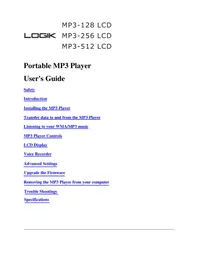


| Product Type | Portable MP3 Player |
| Brand | Logik |
| Model | MP3-512 LCD |
| Internal Memory | Built-in 512 MB (6 MB reserved for firmware) |
| Interface | USB 2.0 Mass Storage Device |
| Power Source | 1 x AAA/LR03 battery (supplied) |
| Battery Life | Up to 8 hours continuous playback |
| Display | 128 x 32 dot-matrix LCD with backlight |
| Audio Formats | MP3, WMA |
| Equaliser Presets | Normal, X-Bass, Rock, Jazz, Classical, Pop |
| Voice Recording | ADPCM encoding, 8 kHz to 32 kHz sampling rate |
| Signal-to-Noise Ratio | > 90 dB |
| Frequency Response | 20 Hz ~ 20 kHz |
| Output Power | < 11 mW (each channel) |
| Total Harmonic Distortion | 0.01% ~ 0.5% |
| Controls | Play/Pause, Stop, Skip Next/Previous, Volume +/-, A-B/Menu, Hold Switch |
| Operating Systems Supported | Windows Me/2000/XP, Windows 98 SE (with driver), Mac OS X 10.2.6+ |
| Weight | Approx. 30 g (including battery) |
| Dimensions (approx.) | 80 x 30 x 15 mm |
| Special Features | Lyric display (LRC format), hold function, voice recorder, firmware upgradeable |
| Accessories Included | Earphones, 1 x AAA battery, USB port cover, user manual |
| Safety Warning | Prolonged listening at high volume may damage hearing. Avoid static electricity. |
Frequently Asked Questions - MP3-512 LCD Logik
User questions about MP3-512 LCD Logik
0 question about this device. Answer the ones you know or ask your own.
Ask a new question about this device
Download the instructions for your Mp3 player in PDF format for free! Find your manual MP3-512 LCD - Logik and take your electronic device back in hand. On this page are published all the documents necessary for the use of your device. MP3-512 LCD by Logik.
USER MANUAL MP3-512 LCD Logik
Installing the MP3 Player
Transfer data to and from the MP3 Player
Listening to your WMA/MP3 music
MP3 Player Controls
LCD Display
Voice Recorder
Advanced Settings
Upgrade the Firmware
Removing the MP3 Player from your computer
Troubleshooting
Specifications
Safety
Listening to loud sounds for prolonged periods may permanently damage your hearing. Before putting on the headphones, place them around your neck and turn the volume down. Then put the headphones on and slowly increase the volume until you find a comfortable listening level.
Introducing the MP3 Player
The MP3 Player incorporates a portable WMA/MP3 Player, Voice Recorder and USB 2.0 Mass Storage Device.
MP3 Player Features:
- WMA/MP3 player. • Synchronous lyric display with WMA/MP3 music.
- Voice recorder.
• USB mass storage device. • Integrated USB connector. • Backlit display. • Superb audio quality. • No cable required. • Requires 1 AAA / LR03 battery (supplied).
System support:
• Supports Windows Me/2000/XP.
Note for Windows Me/2000/XP users: Installation of the MP3 Player drivers is required only if you wish to upgrade the firmware of the player.
Note for Windows 2000 users: Windows Service Pack 3 must be installed before installing MP3 Player drivers.
• Supports Windows 98 SE after installation of drivers (see below). • Supports Mac OS X (version 10.2.6 or above) without driver.
Note:
• To minimize static electricity, avoid operating the player in an extremely dry environment. • Under the environment with electrostatic discharge, the product may malfunction and require user to reset the product.
Installing the MP3 Player
Installation of drivers for computers using Windows Me/2000/XP is not necessary.
Note for Windows Me/2000/XP users: Installation of the MP3 Player drivers is required only if you wish to upgrade the firmware of the player.
Note for Windows 2000 users: Windows Service Pack 3 must be installed before installing MP3 Player drivers.
Windows 98 SE users will need to install the MP3 Player on their system:
Insert the CD-ROM and the menu will appear.
- Click the Setup Driver Button to begin the installation.
- Follow the screen instructions to complete the installation.
Or
- Click the View Manual Button to browse the manual.
- In the manual, click on the link below to open the folder containing the MP3 Player installation program.
- Click on the Setup icon to begin the installation.
- Follow the screen instructions to complete the installation.
Transfer data to and from the MP3 Player.
- Make sure that the MP3 Player is turned off.
- Remove the USB port cover & disconnect the earphone.
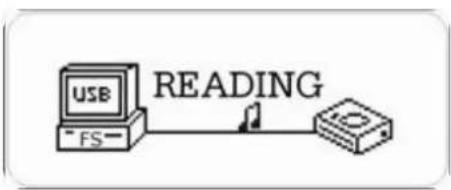
- Plug the MP3 Player into the USB port of your computer. The built-in LCD displays "READY", indicating that the MP3 Player is in USB mode. The MP3 Player is then automatically recognized (in 'My Computer') as a removable media device.
- Transfer files to or from the internal Flash RAM using Windows explorer.
- Unplug the MP3 Player from your computer, WMA/MP3 files can now be listened to and all data stored can be transferred to another computer.
Listen to WMA/MP3 music files with the MP3 Player
- Follow the instructions for the transfer of data to and from the MP3 Player to copy WMA/MP3 music files to the MP3 Player.
- Install 1 AAA/LR03 battery into the battery compartment.
- Connect the supplied earphones to the earphone socket.
- Press the Play button.
- Use the MP3 Player controls to adjust playback and volume level to listen to your WMA/MP3 music.
Note: Installing the battery:
- Push and slide out the battery compartment door
- Install the battery.
Lyric display function
The MP3 Player supports lyric files in LRC format.
- Prepare an MP3 or WMA music file, for example, happymusic.mp3.
- Download a lyric file from the internet. The lyric file must have the extension .lrc. For example, happymusic-2004.lrc.
- Rename the lyric file. For example, happymusic.lrc. This ensures that the lyric filename is the same as the corresponding music filename.
- Copy the lyric file and music file to the MP3 player.
- Disconnect the MP3 player.
- Use the Skip buttons to select the music file, for example, abc.mp3. Press the Play button to play.
- The LRC icon will appear, and the lyrics will display synchronously on the LCD while the music is playing.
The MP3 player supports LRC format only.
If the lyrics do not sync with the music, please download a better lyric file from the internet and try again.
Make sure the MP3 music and LRC file are in the same directory and have the same filename. Otherwise, the MP3 player cannot recognize the lyric file.
MP3 Player Controls
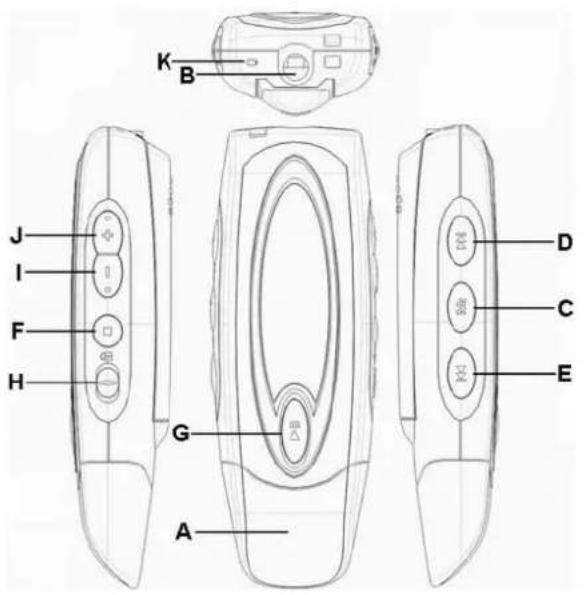
A. USB Port Cover B. Headphone Socket C. A-B / Menu Button D. Skip Next / Fast Forward E. Skip Previous / Fast Rewind F. Power Off/Stop G. Power On/Play/Pause H. Hold Switch I. Volume Down J. Volume Up K. Microphone
LCD Display
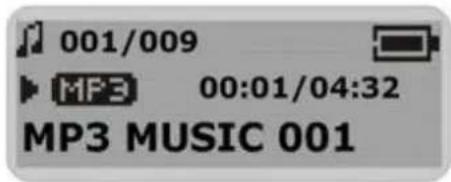
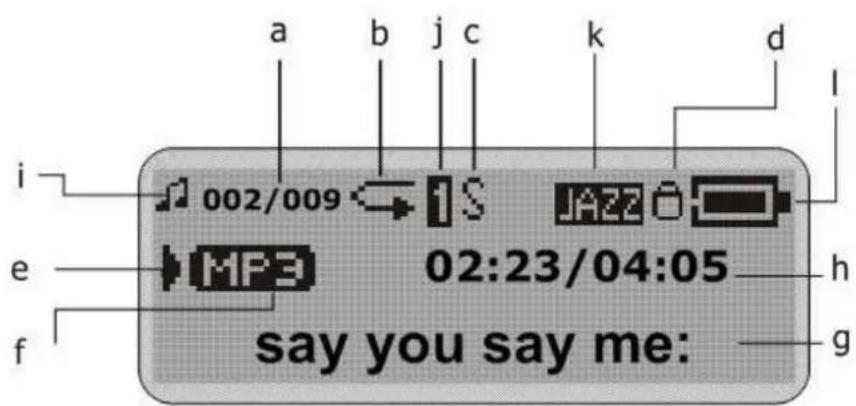
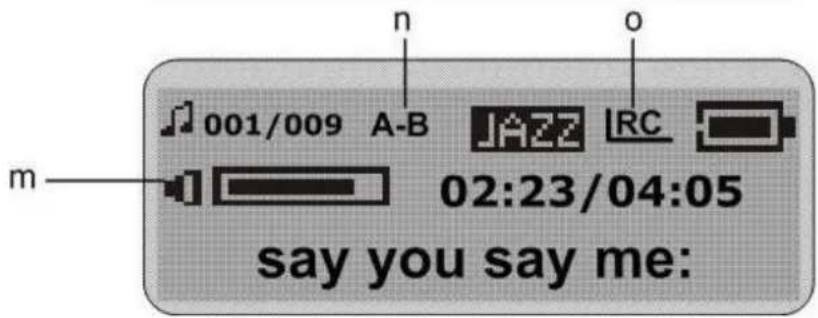
a. Track Number / Total Tracks b. Repeat All c. Shuffle d. Hold e. Play/Pause/Stop/Rec. f. Music Type g. ID3 Tag (track name) display h. Elapsed Time / Track Time i. Music Mode / Voice Mode j. Repeat One k. Equalizer l. Battery Indicator m. Volume n. A-B Repeat o. Lyric Display Function
Voice Recorder
Record Voice
- Select Record in the LCD menu list to begin recording.
- Press the Stop or Menu button to stop the recording and enter Voice mode.
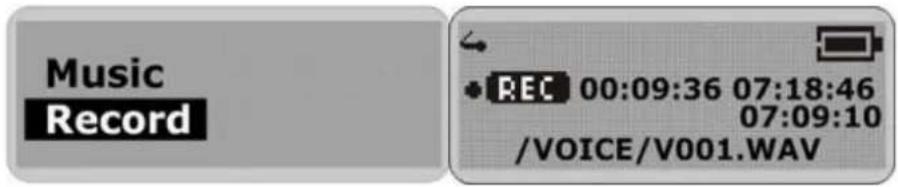
The voice recording will be saved as a file named Vxxx.WAV in the Voice folder. Note: The LCD display will read MEMORY FULL when all available memory has been used.
Playback Voice
This operation is similar to the playback of music.
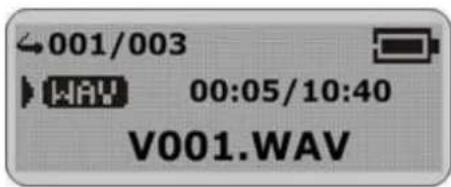
- Select Voice in the LCD menu to enter Voice mode.
- Select a recording to listen to by pressing the Skip buttons.
- Press the Play button to playback the recording.
Hold Function
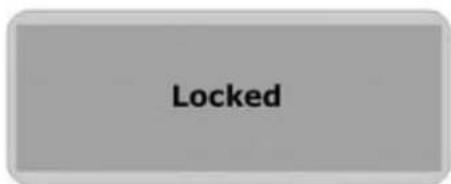
Use the Hold function to deactivate the MP3 Player controls (to avoid accidental activation).
- To activate the Hold function, slide the Hold switch.
- Slide the Hold switch back to turn off the Hold function.
Note: The MP3 Player will turn off automatically if the hold switch is on when turning on the power.
Advanced Settings
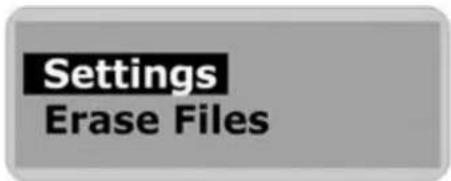
To navigate the settings menu.
- Press & hold the A-B/Menu button and release it to enter the settings menu.
- Press the Skip buttons to choose a setting.
- Press the A-B/Menu button to select that setting.
- After setting is finished, press & hold the A-B/Menu button and release it to exit the Menu.
Equalizer Setting
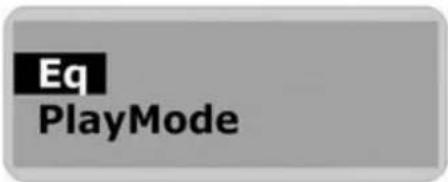
The Equalizer (Eq) setting is to adjust the music playback effect. There are six Eq presets available: Normal, X-Bass, Rock, Jazz, Classical and Pop.
- Select Equalizer in the settings menu.
- Press the Skip buttons to select a preset Eq.
- Press the A-B/Menu button to activate.
Play mode Setting
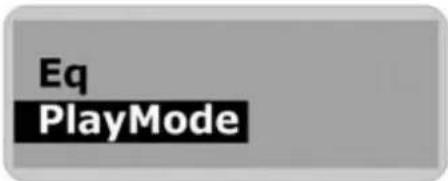
The available Play modes are:
- Normal
- Repeat Track
- Repeat All
- Shuffle
- Shuffle Repeat
- In the settings menu, select Play Mode.
- Press the Skip buttons to select a play mode.
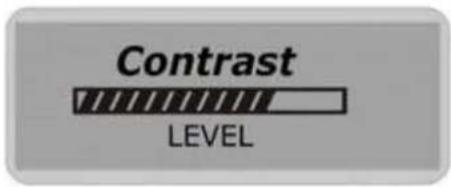
Adjust LCD Contrast
To adjust the LCD contrast
- In the settings menu, select Contrast.
- Press the Skip buttons to adjust the contrast level.
- Press the A-B/Menu button to go back to the settings menu.
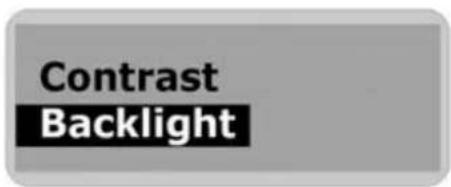
Backlight
To adjust the backlight
- In the settings menu, select Back Light.
- Press the Skip buttons to adjust the delay before the backlight is switched off.
Note: Selecting "Disable" would turn off the backlight. Selecting "On" will turn on the backlight.
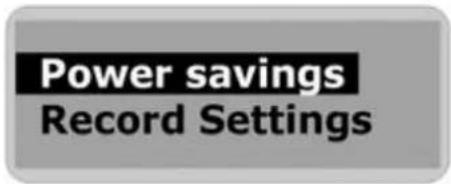
Power Savings
Use the Power Saving function to automatically turn the MP3 Player off after a predetermined length of inactivity.
- In the settings menu, select Power Savings.
- Press the Skip buttons to select time.
Note: Selecting "Disable" will not turn off the MP3 Player automatically.
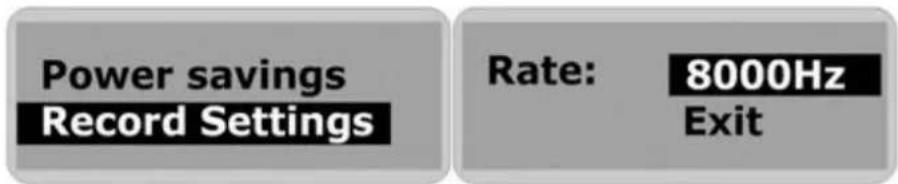
Record Settings
A high record sampling frequency brings an increase in sound quality but also a corresponding increase in memory usage.
- In the settings menu, select Record settings.
- Press the Skip buttons to select "Source". Press the A-B/Menu button repeatedly to select a record source in which to change its sampling frequency or recording format settings.
- Press the Skip buttons to select "Encoder". Press the A-B/Menu button repeatedly to select a recording format.
- Press the Skip buttons to select "Rate". Press the A-B/Menu button repeatedly to cycle through the available Recording Sampling Frequencies.
- Press the Skip buttons to select "Exit" and press the A-B/Menu button to exit the Record Setting menu.
Sampling Frequency Maximum Recording Time per 128MB
8000 Hz 8 hours
11025 Hz 5.8 hours
16000 Hz 4 hours
22050 Hz 2.9 hours
32000 Hz 2 hours
Note: The recording format options in "Encoder" are different. The user does not need to change this setting.
Load default
To reset all settings to factory default settings,
- In the settings menu, select "Load default".
- Press the A-B/Menu button. The default settings are loaded to the MP3 player.
![graph TD A["Load default Exit"] --> B["Completed"] C["Loading..."] --> B](/content/2026/05/965403/images/2a42edf32517847ecfb6c32946f3c6bc684d08e53be871ddd3a1ef84e7bffbd4.jpg)
Erasing files
Warning: Erased files cannot be recovered.
- Stop playback or recording before attempting to erase files.
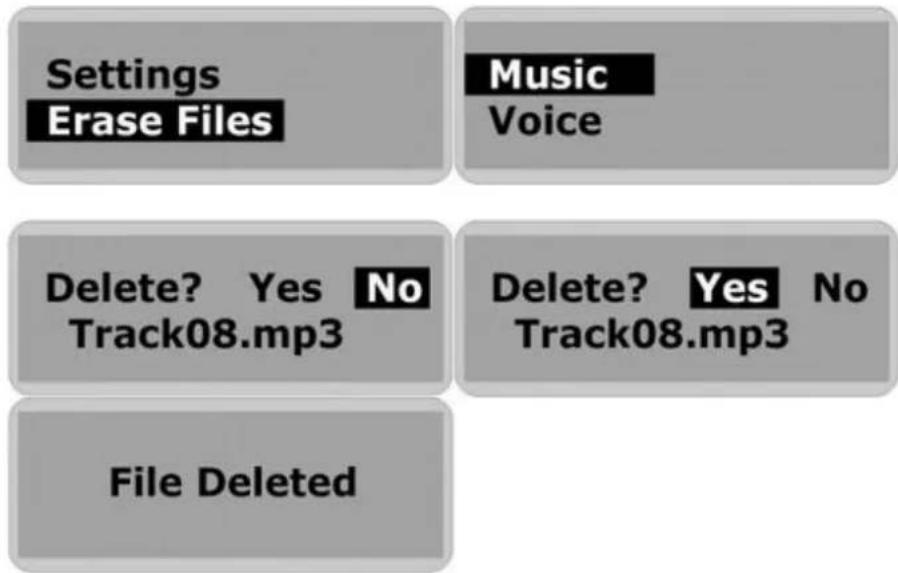
- Press and hold the A-B/Menu button and release it to enter the menu and select Erase Files.
- There are two options to choose from. To erase music files, select Music. To erase voice recordings, select Voice.
- You will be asked if you are sure you want to erase the listed music file or voice memo.
- If you are sure you want to erase the listed file, press the Skip buttons to choose Yes. Then press the A-B/Menu button to confirm.
- The file is erased. Another file will be listed on the screen and you will be asked again if you want to erase this file.
- When you have finished erasing the file, the player will automatically exit to Erase Files screen.
- Select Exit to take you back to the menu list.
About
Information is available regarding the firmware version, built-in memory size and free memory size.
- Select About in menu list.
- The firmware version and Internal Media info appears.
- Press the Skip buttons to read the Free memory space.
- Press A-B/Menu button to exit to menu list screen.

Upgrade the Firmware
The firmware in the player can be updated through the Firmware Download utility running on your PC. To update the firmware, run the Firmware Download utility. The MP3 Player driver must be installed to use the Software Utility.
- Plug the MP3 Player into the USB port of your computer. The built-in LCD will display "READY", indicating that the MP3 Player is in USB mode.
- To run the Player Update utility go to: Start > Programs > SigmaTel MSCN Audio Player > Firmware Download.
- Check the Current Firmware Version and Upgrade Firmware Version. If you are sure it is the correct version to update, click on the Start button.
- The firmware will be transferred to the player. Please wait until it has finished.
- Click on the Close button to exit.
Format Data Area option: When not selected (default): Updates the firmware only. If selected (recommended): Updates the firmware and formats the storage space.
To Format the MP3 Player
- Connect the MP3 Player to the computer.
- Format the MP3 Player (removable disk) using the Windows format tool.
Note: Do not select NTFS from the File System menu. Otherwise, the MP3 Player can not work and you will need to format it again.
Removing the MP3 Player from your computer
Windows Me, 2000 & XP user:
- Click on the Safely Remove Hardware icon in the taskbar (next to the clock).
- Click on Safely remove USB Mass Storage Device.
- Wait until a Safe to Remove Hardware message is displayed.
- Remove the MP3 Player.
Windows 98/98SE user:
- Please wait until the player LCD displays "IDLE" for a moment.
- Remove the MP3 Player.
Troubleshooting
Q: The LCD displays nothing after turning on the MP3 player.
A:
1. Check to see if the battery has been inserted. 2. Check to see if the battery needs replacing. Check to see that the battery has been inserted correctly. 3. If it still does not work, go to the next step.
Put the player in recovery mode
1. Take out the battery from the battery compartment. 2. Press and hold the play button. Do not release it until step 4. 3. Plug the MP3 player into the USB port of your computer. 4. Hold for 5 seconds and release the play button. 5. Leave the MP3 player in the USB port for the next step.
Refresh the firmware
1. On your computer, run the Firmware Download utility: go to Start > Programs > SigmaTel MSCN Audio Player > Firmware Download. 2. The utility will start to search for the MP3 player. Please wait until the Firmware Download window appears. 3. Select "Format Data Area". 4. Click on the Start button to start. 5. The firmware will be transferred to the player. Please wait until it has finished. 6. Click on the Close button to exit.
Note: If the utility cannot find the MP3 player even after searching for several minutes, please cancel the searching, and redo the steps from step 1 and make sure that the MP3 player is put into Recovery mode.
Q
The LCD displays "Error! Reformat media" and power off.
A
Incorrect format. Reformat the player!
If you format the MP3 player to NTFS format, it will show "Error! Reformat media" and power off. You must reformat it to FAT or FAT32 format in Windows Explorer.
Q Why can't I play DRM protected files?
A
DRM-protected files will only play if you copy them to the player through Windows Media Player or through the music management software provided by the online music store where you purchased the files.
MP3 Player Specifications
- Internal Memory
○ Built-in 128MB, 256 MB, 512 MB or 1 GB (6 MB reserved for firmware and system management)
- Interface
o USB
- Power
○ 1 x AAA Battery
o Battery continuous playing time: Up to 8 hours
• Equaliser
o Normal, XBass, Rock, Jazz, Classical, Pop
- Display
- 128 x 32 dots Dot-matrix LCD with backlight
- ID3 Tag display
- Controls
- Power On / Play / Pause
- Stop / OFF
- Skip Next
- Skip Previous
○ A-B/Menu button
○ Volume +
o Volume -
o Hold Switch
- Processor
- 75 MIPS DSP
- Audio Playback
- Windows Media Audio (WMA)
o MPEG Audio Layer 3 (MP3)
• Voice Recording
○ ADPCM encoding
- 8 KHz to 32 KHz sampling rate
○ Each 128 MB memory provides about 8 hours recording (at default setting, 8 KHz)
• Signal to Noise Ratio
○ > 90 dB
• Frequency Response
○ 20 Hz ~ 20 kHz
- Output
o < 11 mW (each output)
• Total Harmonic Distortion Output
○ 0.01% ~ 0.5%
- Ports
o USB Port
○ Phone Out
- Firmware
- Flash based. User upgradeable.


This symbol on the product or in the instructions means that your electrical and electronic equipment should be disposed at the end of its life separately from your household waste. There are separate collection systems for recycling in the EU.
For more information, please contact the local authority or your retailer where you purchased the product.
For more information, please contact the local authority or your retailer where you purchased the product.
- SAFETY
- INTRODUCING THE MP3 PLAYER
- MP3 PLAYER FEATURES
- SYSTEM SUPPORT
- NOTE
- INSTALLING THE MP3 PLAYER
- OR
- TRANSFER DATA TO AND FROM THE MP3 PLAYER
- LISTEN TO WMA/MP3 MUSIC FILES WITH THE MP3 PLAYER
- LYRIC DISPLAY FUNCTION
- MP3 PLAYER CONTROLS
- LCD DISPLAY
- VOICE RECORDER
- RECORD VOICE
- PLAYBACK VOICE
- HOLD FUNCTION
- ADVANCED SETTINGS
- EQUALIZER SETTING
- PLAY MODE SETTING
- ADJUST LCD CONTRAST
- BACKLIGHT
- POWER SAVINGS
- RECORD SETTINGS
- LOAD DEFAULT
- ERASING FILES
- WARNING: ERASED FILES CANNOT BE RECOVERED
- ABOUT
- UPGRADE THE FIRMWARE
- TO FORMAT THE MP3 PLAYER
- REMOVING THE MP3 PLAYER FROM YOUR COMPUTER
- WINDOWS ME, 2000 & XP USER
- WINDOWS 98/98SE USER
- TROUBLESHOOTING
- Q: THE LCD DISPLAYS NOTHING AFTER TURNING ON THE MP3 PLAYER
- PUT THE PLAYER IN RECOVERY MODE
- REFRESH THE FIRMWARE
- INCORRECT FORMAT. REFORMAT THE PLAYER
- Q WHY CAN'T I PLAY DRM PROTECTED FILES
- MP3 PLAYER SPECIFICATIONS
- INTERNAL MEMORY
- INTERFACE
- POWER
- EQUALISER
- DISPLAY
- CONTROLS
- PROCESSOR
- AUDIO PLAYBACK
- VOICE RECORDING
- SIGNAL TO NOISE RATIO
- FREQUENCY RESPONSE
- OUTPUT
- TOTAL HARMONIC DISTORTION OUTPUT
- PORTS
- FIRMWARE
Brand : Logik
Model : MP3-512 LCD
Category : Mp3 player