L2GMP409 - Mp3 player Logik - Free user manual and instructions
Find the device manual for free L2GMP409 Logik in PDF.


| Product Type | MP3 Player |
| Model | L2GMP409 (also L4GMP409, L8GMP409) |
| Brand | Logik |
| Display | 1.44 inch 65K color CSTN, 128x128 resolution |
| Storage Capacity | 2GB, 4GB, or 8GB (model dependent) |
| Audio Formats | MP3, WMA, WAV |
| Photo Formats | JPEG, BMP |
| Video Format | MTV (converted via included software) |
| E-Book Format | TXT |
| Recording | Voice recording via built-in microphone (WAV format) |
| Connectivity | USB 2.0 high speed |
| Battery | Built-in rechargeable Li-polymer 350mAh |
| Battery Life | Up to 9 hours (music), up to 4 hours (video) |
| Charging | Via USB connection to computer; approx. 8 hours for first charge |
| Dimensions | 74 x 40 x 11.5 mm |
| Weight | Less than 40 g (without accessories) |
| Equalizer | Normal, Pop, Rock, Classic, Jazz, Ultra Bass, Custom (5-band) |
| Play Modes | Normal, Repeat One, Repeat All, Random & Repeat All, Folder Normal, Folder Repeat, Folder Random |
| Additional Features | Lyric sync (LRC), A-B repeat, hold button, FM? (not specified) |
| System Requirements | Windows 98SE/2000/ME/XP/Vista; USB port |
| Spare Parts | USB Cable (38-012-10300019), Earphones (50-110-31960119), CD with manual (54-871-90000509) |
| Safety | Do not expose to moisture, extreme temperatures; use only provided accessories; dispose battery properly |
Frequently Asked Questions - L2GMP409 Logik
User questions about L2GMP409 Logik
0 question about this device. Answer the ones you know or ask your own.
Ask a new question about this device
Download the instructions for your Mp3 player in PDF format for free! Find your manual L2GMP409 - Logik and take your electronic device back in hand. On this page are published all the documents necessary for the use of your device. L2GMP409 by Logik.
USER MANUAL L2GMP409 Logik
2GB/4GB/8GB MP3 Player
INSTRUCTION MANUAL
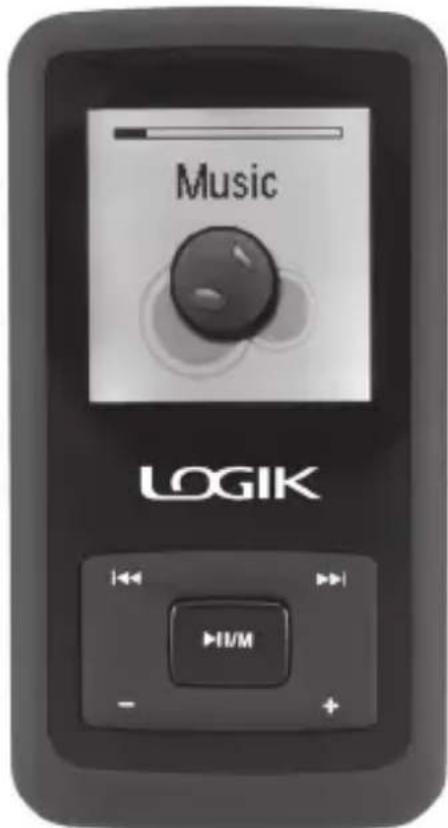
Congratulations on the purchase of your new Logik MP3 Player. It has many exciting features to make your listening to music experience more enjoyable.
We recommend that you spend some time reading this instruction manual in order to fully understand these features.
You will also find some tips and help with troubleshooting common issues.
Read all the safety instructions carefully before using the MP3 Player and keep this instruction manual for future reference.
Contents
Product Overview ....5
Unpacking the MP3 Player....5
Features....5
Identification of Parts and Controls....6
Connecting to a Computer ....7
System Requirements....7
Installing the Driver for Windows 98 SE ....7
Loading Files from a Computer to the MP3 Player....7
Disconnecting the USB Cable 8
Charging the Battery 8
Battery Level Indication 8
Basic Operation 9
Power On/Off the MP3 Player 9
Resetting the MP3 Player....9
Hold Function....9
Entering the Main Menu....9
Music Playback ....10
Playing Music....10
Displaying Lyrics....11
Entering the Music Setup Menu 11
E-BOOK Viewing......20
Customising Settings 21
Language....21
Play Mode....21
Record Settings....21
Contrast....22
Timer Off....22
Reset....22
Deleting Files and Folders 23
About....23
Converting Video To MTV Format 24
Hints and Tips....25
Specifications 26
Safety Warnings 27
Unpacking the MP3 Player
Remove all packaging from the MP3 player. Retain the packaging. If you dispose it please do so according to local regulations.
The following items are included:
natural_image
Front view of a LOGIK mobile phone with control buttons (no visible text or symbols beyond branding)MP3 Player Installator with part number: 50-110-31960119
USB Cable
part number:
38-012-10300019
Instruction Manual
part number:
54-871-90000509
If items are missing or damaged, please contact partmaster (UK only).
Tel: 0870 6001 338 for assistance.
Features
1.44 inch 65K colour CSTN with 128*128 resolution •
Built-in rechargeable Li-polymer battery•
USB 2.0 high speed transmission•
Supports playback of MP3, WMA and WAV files
Supports multiple equalizer (EQ) and 3D sound effects•
Supports multiple playback mode: section repeat, file repeat, folder repeat and random
Supports the basic information of titles, artists and albums of music files(ID3 tag)•
Supports lyrics synchronisation, displayed on screen while music is playing•
Supports viewing of JPEG and BMP picture files•
Supports converted MTV video format (file transformation tool included)•
Supports viewing of e-book in TXT format•
Supports voice recording via the build-in microphone •
Multiple language user's interface•
Identification of Parts and Controls
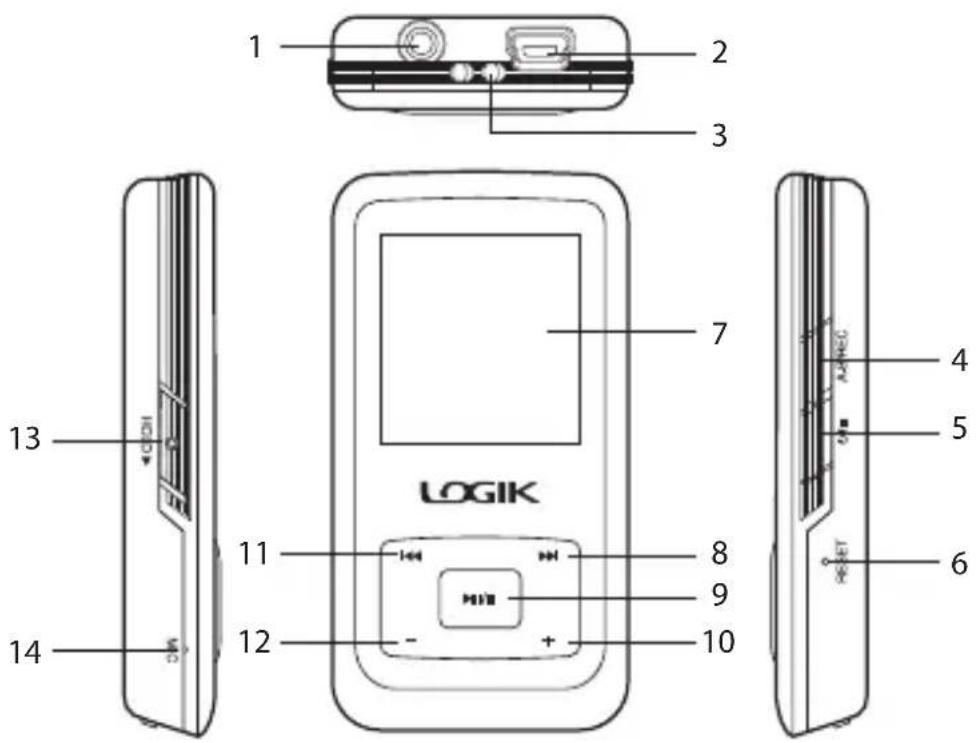
Earphones jack 1.
USB cable connection port2.
Neck strap holder3.
A-B/REC button4.
- /button
Press and hold to turn the MP3 player on/off.
Exit and return to the previous menu•
RESET hole/button6.
Display screen 7.
-
Next, Fast forward button
-
/▶ button
To play / pause the playback•
Press and hold to enter the main menu.
• Enter submenu for each mode
-
- Volume up button
-
Previous, Fast rewind button
-
— Volume down button
-
Hold ▶ switch
-
MIC Microphone
System Requirements
Your computer system must meet the following requirements:
Pentium 200MHz or above•
Microsoft Windows 98SE / 2000 / ME / XP / Vista®
120MB of available hard disk space•
USB port supported•
CD-ROM drive•
Installing the Driver for Windows 98 SE
If your computer is running Windows ME / 2000 / XP / Vista ® , no driver is required.
If your computer is running Windows 98 SE, you must install the driver provided on the CD before connecting the MP3 player to your computer.
Insert the installation CD into the CD-ROM drive.1.
Execute the "2. USB Disk Win98 Driver Version xxx.exe" file in the CD and follow the instructions in the pop-up window to complete the installation.
Restart the computer.3.

Make sure the MP3 player is disconnected from the computer when installing the driver.
Loading Files from a Computer to the MP3 Player
Files can be transferred directly into the MP3 player using the USB data cable.
Connect the MP3 player to the computer using the USB cable.1.
The computer system will detect "2. New Hardware" and start to install the driver automatically. Wait for the system to finish the installation. When it has finished, a new "Removable Disk" will be created in "My Computer".
Select the files on your computer and simply drag and drop them into the 3.
"Removable Disk".

Please do not disconnect the MP3 player from the computer during file transfers as it may cause the file transfer process and MP3 player to malfunction.
Disconnecting the USB Cable
After completing the file transfer, disconnect the USB cable in the following way:
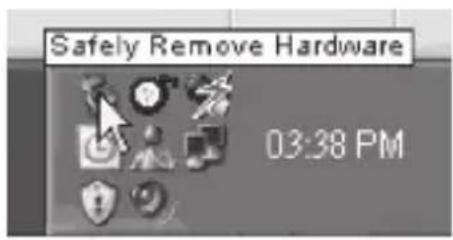
Double click the green arrow "1. Safely Remove Hardware" in the taskbar on the bottom right of the window.
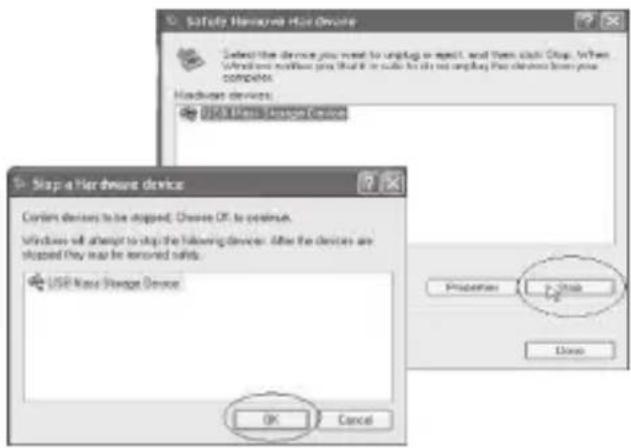
Select "2. USB Mass Storage Device" and click "Stop".
- The "Stop a Hardware device" pop-up window will appear, select "USB Mass Storage Device" and click "OK". Then you can unplug the MP3 player safely.
Charging the Battery
Your MP3 player has a built-in rechargeable Li-polymer battery. The battery is charged automatically whenever the MP3 player is connected to a computer.
If you charge the MP3 player while loading files to the MP3 player, it may take a longer time.

- Fully charge the MP3 player before you use it for the first time (\~8 hours) or when you haven't used it for a long period of time.
- Charge the MP3 player immediately when the "Low battery" message is displayed.
Do not overcharge the battery as it may shorten its life.
The MP3 player does not function while charging.
Battery Level Indication
The approximate power levels of your battery are indicated as follows:

Full Two-third full Low

Empty


Power On/Off the MP3 Player
Make sure the battery is sufficient and the earphones are connected.
Press and hold the ⏻/■button to power on.
Press and hold the ⏻/■button to power off.
Resetting the MP3 Player
If the user interface is not responding, you will need to use a pointed object to insert into the RESET hole/button to re-initialise the system of your MP3 player.
Hold Function
To lock all buttons of the MP3 player, slide the HOLD▶ button in the direction of the arrow. All buttons will then be disabled.

To deactivate the lock function, slide back the HOLD ▶ button.
Entering the Main Menu
Press and hold the ▶/∥ button to open the main menu. Use the buttons to select an item and press the ▶/∥ button to confirm your selection. All available options are listed below.
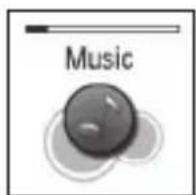
Music playback Voice Recording playback
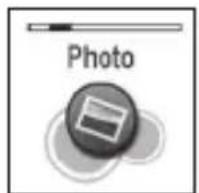
Reco depicting playback
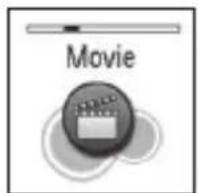
ck
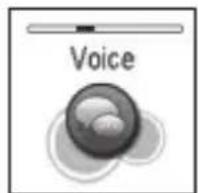
Voice recording
playback
广力云
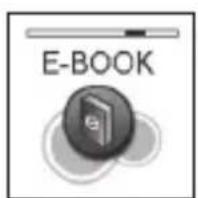
E-Book viewing
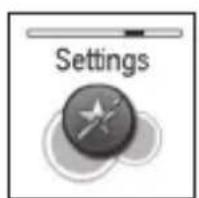
Customising settings

Deleting files and folders
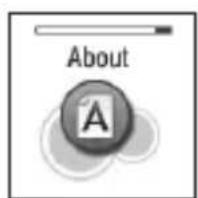
Software version, total and free memory of the MP3 player
Music Playback
Playing Music

Make sure the battery power level is sufficient and the earphones are connected correctly.
- Press and hold the ▶II / M button to enter the main menu. Press the ◀◀ ▶▶ buttons to select Music.
Press the ▶-11/ Mutton to display the following screen.
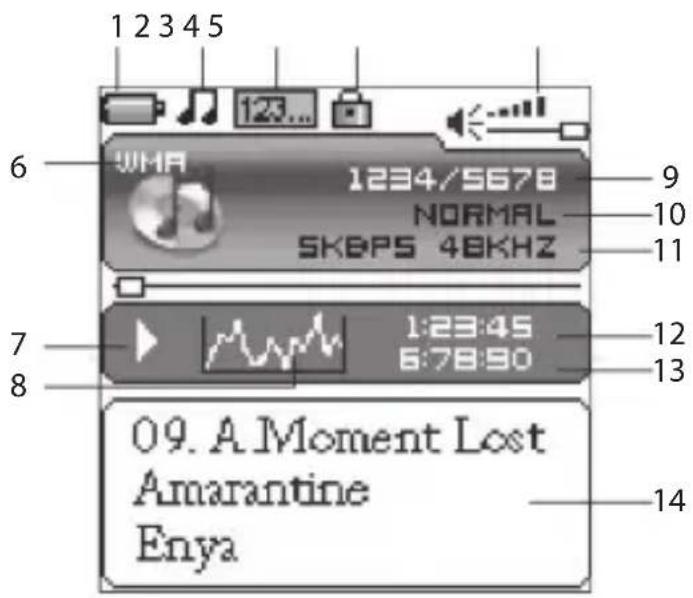
- Remaining battery power indicator
- Music indicator
- Repeat mode indicator
- Key locked indicator
- Volume indicator
- Music format
- Play / Pause / Stop / Fast forward / backward
- Audio frequency
- Current track / Total track number
- EQ mode indicator
- Sample rate
- Elapsed time of current track
- Total time of current track
- Music name / ID3 tag / lyrics
Press the ▶.||/ button to play the music. While playing music, you can:
Pausing/Resume Playing· :
Press the ▶||/ Mutton to pause playing. Press the ▶button again to resume playing.
Skipping Tracks• :
Press the ◀◀▶buttons to skip to previous / next track.
- Searching:
Press and hold the ◀◀▶buttons to fast rewind / fast forward within a track.
Adjusting the Volume• :
Press the +/ -button to increase / decrease the volume.
A-B Repeat· :
A desired section of a track can be played back repeatedly by using the A-B repeat.
- While a track is playing, press the A-B/REC button to set the beginning point of the section. The icon 📐 is displayed.
- Press the A-B/REC button again to set the ending point of the section. The icon is displayed and the selected section starts playing back repeatedly.
- To cancel the A-B repeat playback and return to normal playback, press the A-B/REC button again.
- Exit:
Press and hold the ▶||/Button to return to the main menu.

The A-B repeat function can only be used within the same track.
Displaying Lyrics
This MP3 player supports lyrics display while playing music. Only lyrics in LRC format can be displayed. To add lyrics to music, perform the following steps:
Choose an MP3/WMA file, for example "love music.mp3".1.
Download the corresponding lyrics with extension ".lrc" from the Internet. 2.
Rename the lyrics file. Make sure that the lyrics filename is the same as the music 3. file name. For example "love music.lrc"
Copy both files into the same folder on the MP3 player.4.
Start playback of the music file. The lyrics will be displayed on screen while the 5. music is being played.
Entering the Music Setup Menu
While playing music, press the ⏻ /■ button to enter the Music Setup Menu.
Press the 2 button and then the /button to access the following: Repeat, Equalizer, 3D, Play Rate, File. After finishing the music setting, press the 3 /button to exit the Music Setup Menu.
The repeat mode setting enables you to play the tracks in a desired order.
Press the 🔊 / ■button while listening to a track. The Music Setup Menu appears on the screen. Press the ◀◀▶◀▶ buttons to select Repeat.
Menu
Repeat
Equalizer
○ 3D
○ Play Rate
File
Press the ▶||/Mbutton to enter the Repeat Menu. Press the ◀◀▶buttons to select the desired mode as below and then press the ▶||/Mbutton to confirm and exit.
Normal·
Play all the saved music files in order once.
Repeat One·
Play the current or selected file repeatedly.
Repeat All.
Play all the music files in order repeatedly.
Random & Repeat All-
Play all the files in a random order repeatedly.
Folder Normal·
Play all the files in the current folder in order once.
Folder Repeat·
Play all the files in the current folder repeatedly.
- Folder Random
Play all the files in the current folder in random order.
Repeat
Normal
○ Repeat One
○ Repeat All
○ Random & Repeat
○ Folder Normal
○ Folder Repeat
○ Folder Random
To Set Equalizer
The equalizer setting enables you to select an equalizer from the six preset equalizer settings to suit the type of audio output or customise your personal equalizer effect.
Press the 🔊/■button while listening to a track. The Music Setup Menu appears on the screen. Press the buttons to select Equalizer.
Menu
○ Repeat
Equalizer
3D
○ Play Rate
File
Press the ▶.□/ N button to enter the EQ Menu. Press the ◀◀ ▶buttons to select the desired equalizer from Normal, Pop, Rock, Classic, Jazz, Ultra Bass and Custom. Press the ▶/□ button to confirm and exit.
| EQ |
| ○ Normal |
| ○ Pop |
| ○ Rock |
| ○ Classic |
| ○ Jazz |
| ○ Ultra Bass |
| ○ Custom |
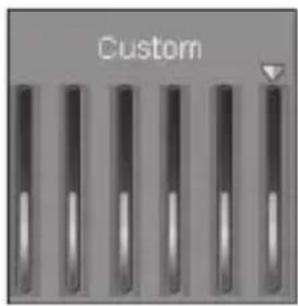
To customise EQ, select Custom, and press the ▶II/ NoButton. The Custom EQ value bars appear on the screen.
Press the 🔊 buttons to navigate between the value bars.
Use the 3 or -button to adjust the value and then press the ▶/□ button to confirm.
After completing the setting, press the Ⓐ/■button to exit.
To set 3D Sound Effect
Press the 🎨 button while listening to a track. The Music Setup Menu appears on the screen. Press the |◀◀▶▶| buttons to select 3D.
Press the ▶-□/ M button to enter the 3D Menu. Press the ▶-□/ ▶ buttons to select On or Off, and then press the ▶-□/ M button to confirm and exit.
| 3D | |
| ○ Off | |
| ○ On | |
To Set Play Rate
Press the ⏻ button while listening to a track. The Music Setup Menu appears on the screen. Press the << >> buttons to select Play Rate.
Menu
○ Repeat
Equalizer
3D
Play Rate
File
Press the ▶II/ Mbutton to enter the Play Rate Menu. Press the ◀◀▶buttons to select a play rate from 1.00X, 1.14X, 1.33X, 0.67X and 0.80X. Press the ▶II/ Mbutton to confirm and exit.
P-Rate
To Navigate Music Files
Press the ⏻ button while listening to a track. The Music Setup Menu appears on the screen. Press the << >> buttons to select File.
Menu
○ Repeat
Equalizer
○ 3D
○ Play Rate
File
Press the ▶// Mutton. The music file list appears on the screen.
Use the ⬆ button to select a folder or file and then press the ▶ button to open the folder or play the selected file.
| Track 103.mp3 |
| Track 104.mp3 |
| Track 105.mp3 |
| Track 106.mp3 |
| Track 107.mp3 |
| Track 108.mp3 |
| Track 109.mp3 |
| Track 110.mp3 |
Photo Playback
This MP3 player supports the playback of pictures in JPEG and BMP format.
Press and hold the ▶.II / Mbutton to enter the main menu. Press the ◀◀ ▶buttons to select Photo and then press the ▶II / Mbutton.
Press the □◀▶buttons and then press the ▶button to access the followings.

Manual
To view pictures manually.
Press the ◀◀▶buttons to display the previous or next picture.

Slide Show
Once selected all the pictures on your MP3 player will play in a slide show.

Thumbnail
To search for photos. Up to four pictures are displayed on the screen at a time. Press the ◀◀ ▶buttons to navigate between pictures and press the /▶button to view the selected picture in full screen.
Press the Ⓐ/ ▪ button to return to the previous menu or press and hold the ▶▶II M button to return to the main menu.
Movie Playback
This MP3 player supports the playback of converted videos in MTV format.
- Press and hold the ▶// Nbutton to enter the main menu. Press the ◀◀buttons to select Movie.

Press the ▶.||/ Mutton to display the following screen.
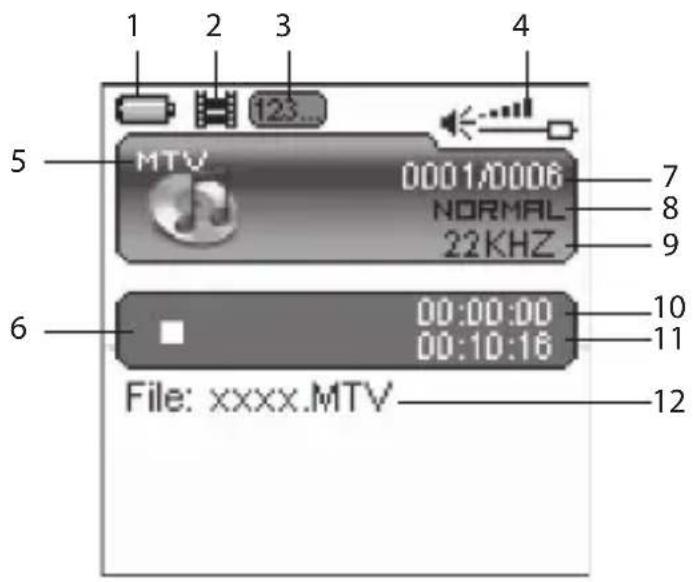
- Remaining battery power indicator
- Movie indicator
- Repeat mode indicator
- Volume indicator
- Movie format
- Play / Pause / Stop / Fast forward / backward
- Current video files / Total video files number
- EQ mode indicator
- Sample rate
- Elapsed time of current track
- Total time of current track
- Movie name
Press the ▶.11/ Mutton to play the movie. While playing the movie, you can:
Pausing/Resume Playing· :
Press the ▶||/M button to pause playing. Press the ▶button again to resume playing.
Stop Playing• :
Press the ⏻/■button to stop playing.
Skipping Video Files• :
Press the ◀◀▶buttons to skip to the previous / next video file.
Searching· :
Press and hold the ◀◀▶buttons to rewind / fast forward within a video file.
Adjusting the Volume• :
Press the + / -button to increase / decrease the volume.
- Exit:
Press and hold the ▶II / M button to return the main menu.
Entering the Movie Setup Menu
Press the ⏻ button to stop the playback.
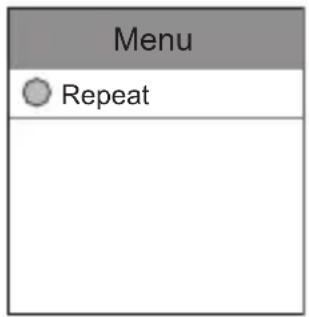
Press the 🔊/ □button again to enter the Movie Setup Menu and select Repeat.
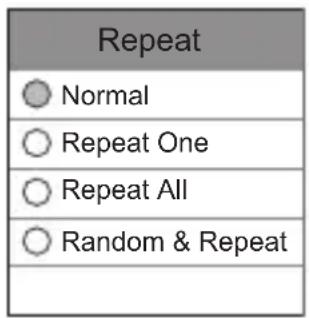
Press the ▶.|| / Mbutton to enter the Movie Repeat Menu. Press the ◀ buttons to select the desired mode as below and then press the ▶/|| button to confirm and exit.
Normal·
Plays all the saved video files in order once.
Repeat One·
Plays the current video files or selected video file repeatedly.
Repeat All.
Plays all the video files in order repeatedly.
Random & Repeat All·
Plays all the video files in a random order repeatedly.
Press the ④/ ▪ button to return to the previous menu or press and hold the ▶II M button to return to the main menu.
Voice Recording
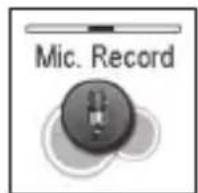
In Mic. Record mode, you can make voice recordings using the integrated microphone. You also can directly press and hold A-B/REC button to start recording in Music or Voice mode.
Press and hold the ▶.II/ Mutton to enter the main menu. Press the ◀buttons to select Mic. Record.
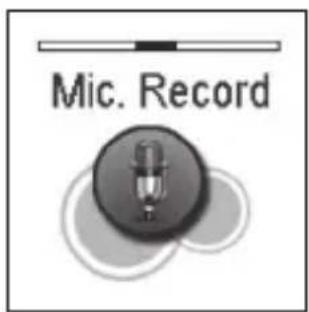
Press the ▶-11 / Mbutton to display the following screen and the MP3 player starts recording.
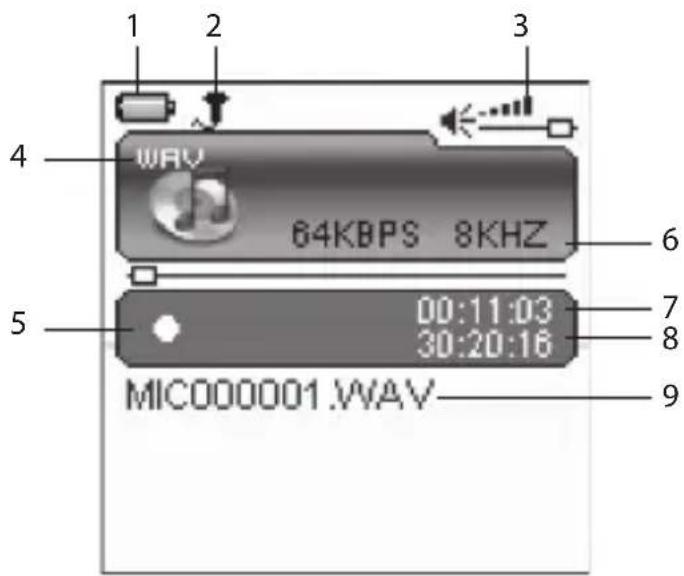
Remaining battery power indicator 1. Recording voice indicator 2. Volume indicator 3. Recording voice format 4.
- Recording / Pause
- Sample rate
- Elapsed time of current recording Remaining recording time8.
- Recording voice name
During recording, you can:3.
Pausing/Resume Recording· :
Press the ▶||/ M button to pause recording. Press the /▶ button again to resume recording.
Stop Recording· :
Press the ⏻/■button to save the recordings. The MP3 player will go to the Voice playback interface automatically. You may then press the ▶/|| button to start playing the recordings directly.

The recorded files are saved in the MICIN.DIR folder of the MP3 player as WAV files (format: MIC0000X.WAV) and can be listened in the Voice mode, see page 18 for details.
Voice recording is automatically stopped when the memory of the MP3 player is full. Data that has been already recorded is automatically saved.
Voice Recording Playback
All recordings can be played in the voice mode.
Press and hold the ▶.∥/Mbutton to enter the main menu. Press the ◀buttons to select Voice.
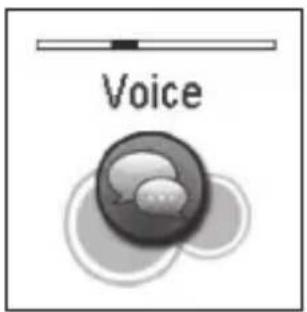
Press the ▶-□ / M button to display the following screen.
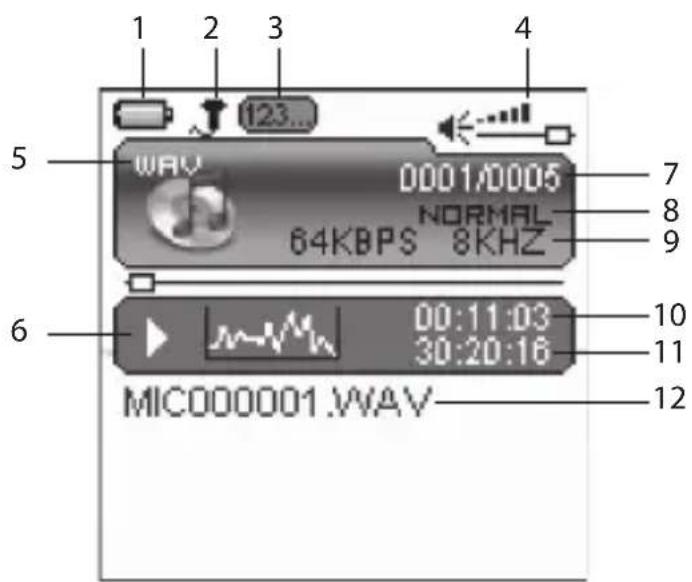
- Remaining battery power indicator
- Music indicator
- Repeat mode indicator
- Volume indicator
- Music format
- Play / Pause / Stop / Fast forward / backward
- Current track / Total track number
- EQ mode indicator
- Sample rate
- Elapsed time of current track
- Total time of current track
- Voice Recording name
Press the ▶.□/ M button to play the recording while playing recordings, you can:
Pausing/Resume Playing• :
Press the ▶II / Mbutton to pause playing the recording. Press the ▶button again to resume playing the recording.
Skipping Recordings• :
Press the ◀◀▶buttons to skip to previous / next recording.
Searching· :
Press and hold the ◀◀▶buttons to fast rewind / fast forward within a recording.
Adjusting the Volume• :
Press the +/ -button to increase / decrease the volume.
Exit:
Press and hold the ▶// Nbutton to return to the main menu.
E-BOOK Viewing
This MP3 player only supports the playback of files in TXT format. Other formats must be saved as TXT formats before transferring to the MP3 player.
Press and hold the ▶II/ Mutton to enter the main menu. Press the ◀buttons to select E-BOOK.
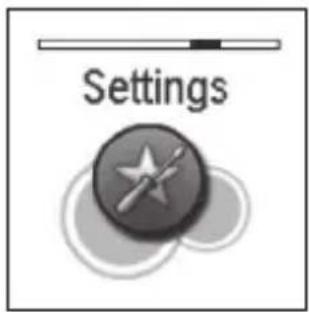
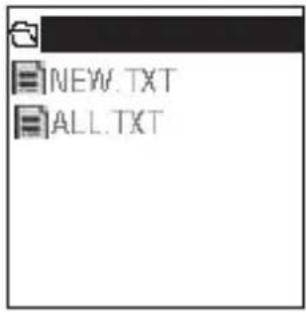
Press the ▶II/ Mbutton. The E-book list appears on the screen if you use the E-BOOK function for the first time or reset the MP3 player.
Press the □◀ ▶buttons to select a folder or file and then press the ▶∥ button to open the folder or view the selected file.
While reading E-book, you can:
Move to Previous/Next Page• :
Press the ◀◀▶buttons to move to previous / next page.
Skip to Next Page Automatically• :
While viewing text, press the ▶/ N button to automatically skip pages. Press the ▶/ l button again to stop the automatic skipping.
Exit· :
Press the ⏻/■button to return to the E-book list or press and hold the ▶▶II M button to return to the main menu.

The last page you read is saved as a bookmark automatically when you exit the E-book mode. The bookmark page will be displayed on the screen when you switch to E-BOOK mode next time.
Customising Settings
The MP3 player settings can be customised by accessing the Settings Menu. The Settings Menu consists of several items where various functions can be selected concerning language, play mode, recording, contrast, time off, storage, reset, etc.
Press and hold the ▶.|| / Mbutton to enter the main menu.
Press the ◀◀ ▶buttons to select Settings and then press the ▶∥/Mbutton.
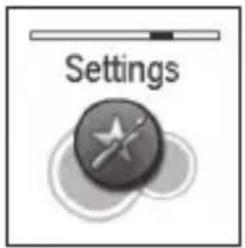
Press the ▶ buttons and then press the /▶ button to access the followings.

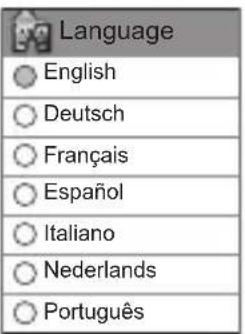
Language
Press the ◀◀ ▶buttons to select a desired menu language: English / German / French / Spanish / Italian / Dutch / Portuguese.

Play Mode
Press the ◀◀▶buttons to select the repeat mode for the music, voice and movie playback.
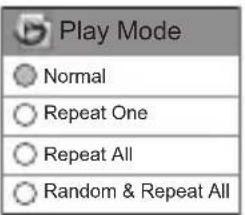
Normal·
Plays all the saved files in order once.
Repeat One·
Plays the current files or selected file repeatedly.
Repeat All.
Plays all the files in order repeatedly.
Random & Repeat All-
Plays all the files in a random order repeatedly.

Record Settings
Press the ◀◀▶buttons to set the microphone recording quality. Choose from: 8000Hz, 11025Hz, 16000Hz, 22050Hz, 32000Hz and 44100Hz.
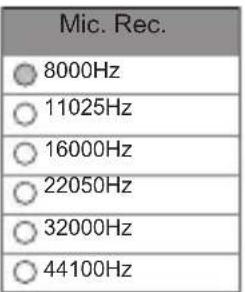

The higher the frequency, the higher the quality, however, the recordable time will be shortened.

Contrast
Press the ◀◀▶buttons to adjust the contrast of the screen display.
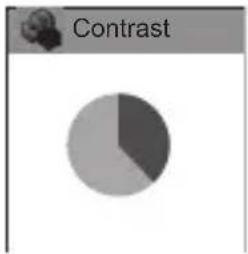
pie
Contrast | Segment | Value (%) | |---|---| | Dark Gray | 40 | | Light Grey | 35 |
Timer Off
Press the ◀◀ ▶buttons to select the desired mode as below and then press the ▶II / Mbutton to confirm and exit.
Stop Off.
To set the shutdown time. The MP3 player will power off automatically if the MP3 player is inactive for the set period of time.
Choose from: 15, 30 seconds, 1, 2, 5, 10 and 30 minutes or you can select "Disable".
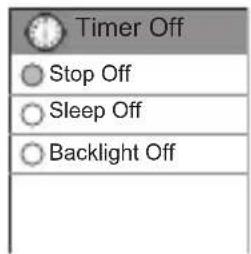
Sleep Off.
To set the sleep time. The MP3 player will power off automatically after the set period of time.
Choose from: 10, 15, 30, 60, 90 minutes, 2 and 3 hours or you can select "Disable".
Backlight Off.
To set the LCD off time. The backlight will power off automatically if no button is pressed for the set period of time.
Choose from: 1, 5, 10, 30, 60 minutes or you can select "Always On".

Reset
Press the ◀◀▶buttons to restore all the MP3 player settings back to the factory default settings.
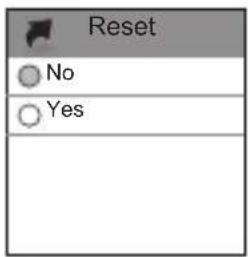
Press the ▶// M button to return to the previous menu or press the /◎button to return to the main menu.
Deleting Files and Folders
In the Delete mode, you can delete the files and folders stored on your MP3 player without a computer.
Press and hold the ▶.|| / Mbutton to enter the main menu. Press the ◀buttons to select Delete.
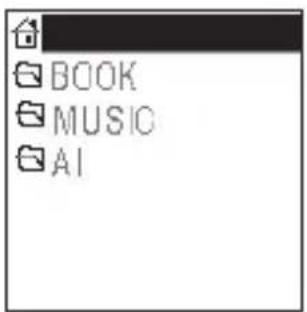
Press the ▶.□/Mbutton. The file list appears on the screen. Press the ◀buttons to navigate between the files or folders.
To delete a file, select the file and then press the ▶/□/ Mbr the ⏻/ □button. To delete a folder, select the folder and press the ⏻/ □button. Use the □buttons to select Yes and then press the ▶/□ button to confirm. Select No and then press the ▶/□ button to cancel.
About
In the About mode, you can check and review the firmware version, total memory and free memory of the MP3 player.
Press and hold the ▶/M button to enter the main menu. Press the ◀buttons to select About.
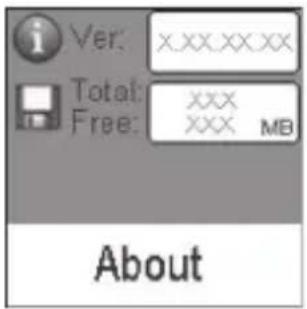
Press the ▶-□/MP button. The firmware version, total/free memory of the MP3 player is displayed on the screen. Press the ▶-□/MP button to return to the previous menu or press the ⬆ button to return to the main menu.
Converting Video to MTV Format
This MP3 player supports the playback of videos in MTV format. Other formats (AVI, WMV, MEPG1, Quick Time, MPEG2, RealMedia, MPEG4, 3GP) must be converted to MTV format. The "MTVVideo Converter" is supplied on the CD to enable you to convert the other formats to MTV format.
Insert the provided CD in the CD-ROM drive of 1. your computer.
Double-click the file "2. Video Converter.exe" in the folder "MTVVideoConverter". The Video
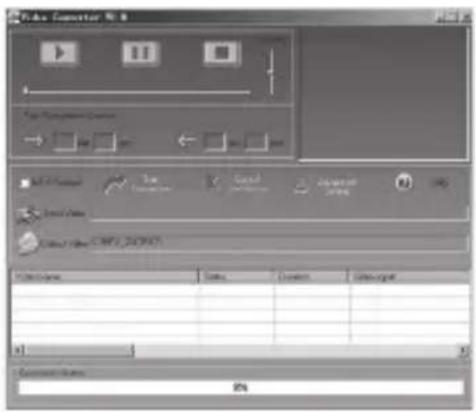
Converter V2.9 window appears.
Click "3. Input Video", and then select the input

If your video files (e.g. MP4 file) cannot be found in the Open dialog box, select All Files (*.*) in the File of type box.
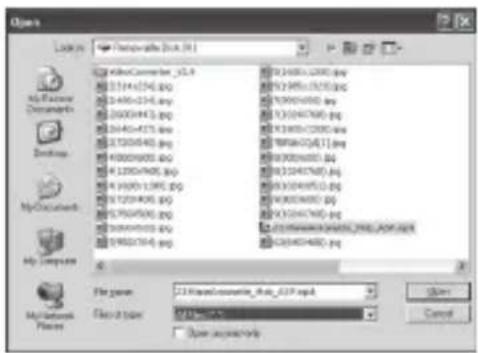
Source from the Open dialog box.
Click "4. Output Video" to select an output directory.
Click "5. Advanced Settings". Select "128x128" in the "Output Frame Size" box and select "MTV" in the Output Format box.
Click "6. Start Conversion".
For detailed operations, click "Help".
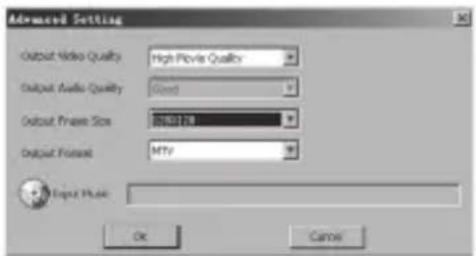

To make your video playable on the MP3 player, you must select 128x128 or less in the Output Frame Size box (Advanced Setting). Otherwise, the message "Device Not Support" will appear on the screen when you play the video file.
You have to install the relevant codec package before running "Video Converter.exe". If not, the system will prompt "Load Video Failed!". When you attempt to convert the video files. Click "OK" and follow the prompt to download and install codec from the web site.
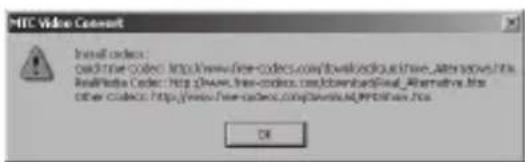
Hints and Tips
If a problem does occur, it may often be due to something very minor. The following table contains various tips.
| Cannot power on The battery may be exhausted. Recharge the battery. | |
| Files cannot be downloaded | Check if the driver is installed correctly in the computer. Check the connection between the MP3 player and the • computer. |
| No sound from the earphones | Check that the volume is on. Check the connection between the earphones and the • MP3 player. Check if the music file format is supported by the MP3 • player. |
| Recording cannot be done | Check if there is enough memory and battery capacity. |
| The buttons do not work | • The key may be locked. Slide back the HOLD ▶ button to deactivate the lock function. |
Specifications
| Model L2GMP409 / L4GMP409 / L8GMP409 | |
| Audio Format MP3 / WMA | |
| Photo Format JPEG / BMP | |
| Video Format MTV | |
| MP3 bit Rate 8Kbps~320Kbps | |
| WMA bit rate 5Kbps-320Kbps | |
| S/N rate ≥80dB | |
| Distortion <0.2% | |
| Power out 2*1mW (16 ohm load) | |
| Size 74 x 40 x 11.5mm | |
| Weight <40g (without accessories) | |
| Frequency response 20Hz~20KHz | |
| Dynamic current ≤40mA (Play MP3, backlight off)≤75mA (Play movie) | |
| Power off current ≤250uA | |
| Storage condition Humidity <90%, Normal temperature | |
| Working condition Humidity <85%,-10~40°C | |
| Battery 350mAh, up to 9 hours playback for music and 4 hours for video | |
| EQ | Normal//Rock/Pop/Classic/Jazz/Ultra bass/Custom |
Safety Warnings
Retain the manual. If you pass the unit onto a third party make sure to include this manual.
Damage
Please inspect the unit for damage after unpacking.
Do not continue to operate the unit if you are in any doubt about it working • normally, or if it is damaged in any way - switch off and consult your dealer.
Temperature
Avoid extreme degrees of temperature, either hot or cold. Place the unit well away from heat sources such as radiators or gas/electric fires.
Avoid exposure to direct sunlight and other sources of heat.
Naked Flames
Never place any type of candle or naked flame on the top of or near the unit.
Moisture
Do not expose this unit to rain, moisture, dripping or splashing.
If you spill any liquid into the unit, it can cause serious damage. Switch it off and consult your dealer.
Interference
Do not place the unit on or near appliances which may cause electromagnetic • interference. If you do, it may adversely affect the working of the unit, and cause a distorted picture or sound.
LCD screen
The LCD screen is manufactured using high-precision technology. However, some tiny black points and/or bright points (red, blue or green in colour) may constantly appear on the LCD screen. These points are generated in the manufacturing process and are normal.
Earphones
For traffic safety, do not use earphones while driving or cycling.
Listening to loud sounds for prolonged periods of time may permanently damage • your hearing.
Before putting on earphones, turn the volume down then put the earphones on and slowly increase the volume until you reach a comfortable listening level.
Batteries
Please dispose of the battery correctly by following the guidance in this manual.
Service
Do not open any fixed covers. The unit does not contain any user-serviceable parts.
Please leave all maintenance work to qualified personnel.
Maintenance
Ensure to switch off the unit before cleaning.
Do not use any type of abrasive pad or abrasive cleaning solutions as these may damage the unit's surface.
Do not use liquids to clean the unit.
| Note: If you require a replacement for any of the items listed below, please quote their corresponding part numbers: | |
| Replacement Part Part Number | |
| USB Cable 38-012-10300019 | |
| Earphones 50-110-31960119 | |
| Installation CD with Instruction Manual 54-871-90000509 | |

Visit Partmaster.co.uk today for the easiest way to buy electrical spares and accessories.
With over 1 million spares and accessories available we can deliver direct to your door the very next day.
Visit www.partmaster.co.uk
or call
0870 6001 338
(UK customers only)
Calls charged at National Rate.
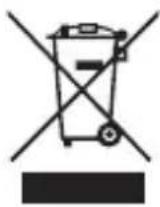
This symbol on the product or in the instructions means that your electrical and electronic equipment should be disposed at the end of its life separately from your household waste. There are separate collection systems for recycling in the EU.
For more information, please contact the local authority or your retailer where you purchased the product.
Important Notice for the battery disposal
The batteries used with this product contain chemicals that are harmful to the environment. To preserve our environment, disposal of used batteries according to your local laws or regulations. Do not dispose of batteries with the normal household waste.
For more information, please contact the local authority or your retailer where you purchased the product.
Removal of the battery
Always bring your product to a professional to remove/ replace the battery.
Windows is a registered trademark of Microsoft Corporation in the United States and other countries.
All trademarks are the property of their respective owners and all rights are acknowledged.
DSG Retail Ltd. Maylands Avenue Hemel Hempstead Hertfordshire HP2 7TG England
- 2GB/4GB/8GB MP3 Player
- Contents
- Product Overview ....5
- Connecting to a Computer ....7
- Basic Operation 9
- Music Playback ....10
- E-BOOK Viewing......20
- Customising Settings 21
- Deleting Files and Folders 23
- About....23
- Converting Video To MTV Format 24
- Hints and Tips....25
- Specifications 26
- Safety Warnings 27
- Unpacking the MP3 Player
- Features
- Identification of Parts and Controls
- System Requirements
- Installing the Driver for Windows 98 SE
- Loading Files from a Computer to the MP3 Player
- Disconnecting the USB Cable
- Charging the Battery
- Battery Level Indication
- Power On/Off the MP3 Player
- Resetting the MP3 Player
- Hold Function
- Entering the Main Menu
- Music Playback
- Playing Music
- Adjusting the Volume• :
- A-B Repeat· :
- - Exit:
- Displaying Lyrics
- Entering the Music Setup Menu
- Menu
- Normal·
- Repeat One·
- Repeat All.
- Random & Repeat All-
- Folder Normal·
- Folder Repeat·
- - Folder Random
- Repeat
- To Set Equalizer
- To set 3D Sound Effect
- To Set Play Rate
- P-Rate
- To Navigate Music Files
- Photo Playback
- Manual
- Slide Show
- Thumbnail
- Movie Playback
- Entering the Movie Setup Menu
- Random & Repeat All·
- Voice Recording
- Voice Recording Playback
- Pausing/Resume Playing• :
- Skipping Recordings• :
- Searching· :
- Exit:
- E-BOOK Viewing
- Customising Settings
- Language
- Play Mode
- Record Settings
- Contrast
- Timer Off
- Stop Off.
- Sleep Off.
- Backlight Off.
- Reset
- Deleting Files and Folders
- About
- Converting Video to MTV Format
- Hints and Tips
- Safety Warnings
- Damage
- Temperature
- Naked Flames
- Moisture
- Interference
- LCD screen
- Earphones
- Batteries
- Service
- Maintenance
- Important Notice for the battery disposal
- Removal of the battery
Brand : Logik
Model : L2GMP409
Category : Mp3 player