
DVDSL33 - DVD player SANYO - Free user manual and instructions
Find the device manual for free DVDSL33 SANYO in PDF.


| Product Type | DVD Video Player |
| Brand | SANYO |
| Model | DVDSL33 |
| Dimensions (W × H × D) | 435 × 50 × 230 mm |
| Weight | 2.05 kg |
| Power Supply | 120 V AC, 60 Hz |
| Power Consumption | 10 Watts |
| Playable Disc Formats | DVD-Video, Audio CD, MP3 CD, KODAK Photo CD, JPEG CD |
| Video Outputs | Composite video, S-Video, Component video (Y Pb Pr) |
| Audio Outputs | Stereo analog audio (RCA), Digital coaxial |
| Signal-to-Noise Ratio (audio) | More than 105 dB |
| Harmonic Distortion (audio) | 0.003% |
| Special Features | Image zoom, Multi camera angle, A-B repeat, Programmed play, Random, Last memory |
| Playback Modes | Normal play, Fast forward/reverse, Slow motion, Frame by frame, Pause |
| Initial Settings | Language, Display, Digital output, Parental control |
| Care and Cleaning | Clean the cabinet with a soft, slightly damp cloth. Do not use solvents. |
| Safety | Do not expose to moisture. Disconnect before cleaning. Have repairs done by a professional. |
| Spare Parts | Remote control, audio/video cable included. Batteries not included. |
Frequently Asked Questions - DVDSL33 SANYO
User questions about DVDSL33 SANYO
0 question about this device. Answer the ones you know or ask your own.
Ask a new question about this device
Download the instructions for your DVD player in PDF format for free! Find your manual DVDSL33 - SANYO and take your electronic device back in hand. On this page are published all the documents necessary for the use of your device. DVDSL33 by SANYO.
USER MANUAL DVDSL33 SANYO
Before Connection .E7
Choosing a Connection E7
Basic Connections E8
Connecting to a Conventional TV (Example 1) E8
Connecting to a TV with Progressive-scan Capability (Example 2) E10
Additional Connection Examples E11
Connecting to an Audio System and TV (Example 3) ...E11
Connecting to an Amplifier with Dolby Digital Decoder,
DTS Decoder or MPEG2 Decoder (Example 4) E12
Connecting to a Digital Amplifier (Example 5) E12
Connecting to an Amplifier with Dolby Pro Logic Decoder
(Example 6) E13
Power Supply E13
For Safe and Efficient Operation .E13
Playable Discs E14
Basic Operation.. E15
Preparations E15
BasicPlayback E15
StoppingPlayback. E16
Continuing Playback from Where You Stopped Watching
(LAST MEMO PLAY), for DVD only. E16
Selecting a DVD Menu E17
Selecting a Top Menu [DVD] E17
Chapter (Track) Skip E17
Title Search [DVD] E18
Chapter Search [DVD] E18
Time Search [DVD] E18
Time Search [CD] E18
Track Search [CD] E18
FastPlayback E19
Slow Motion Playback [DVD] E19
Still Picture (Pause) E19
Frame by Frame Advance Playback [DVD] E19
Picture Zoom (Pin Point Zoom) [DVD] E20
Viewing from a Desired Camera Angle
(Multi-Angle) [DVD] E20
Angle Replay E20
RepeatPlayback E21
Designated Range Repeat Playback (A-B Repeat) .... E21
RandomPlayback[CD] E22
ProgrammedPlayback[CD] E22
Selecting Subtitle Language [DVD] E23
Selecting Audio Soundtrack Language
(Multi-Language) [DVD] E23
Selecting On-Screen Information E24
Selecting Picture Mode E24
Picture Disc Operation E27
KODAK Picture CD Playback E27
JPEG CDPlayback E28
Picture Zoom E28
Initial Settings. E29
Setting Language E29
Setting Display E30
Setting Digital Out E31
Setting Parental E32
Language Code List. E33
Troubleshooting Guide E34
Maintenance .E35
Specifications E35
Warranty E36
Please Read This Manual.
Because DVD is a new technology, we recommend that you read this manual carefully before connecting your DVD
video player and operating it for the first time.
Keep the manual in a safe place for future reference.
IMPORTANT INFORMATION:
To connect this unit to a TV, TV must have a set of Audio/Video composite input jacks (RCA-type). You cannot use an antenna terminal to connect this unit.
To enjoy Dolby Digital sound
For connection, see "Connecting to an Amplifier with Dolby Digital Decoder, DTS Decoder or MPEG2 Decoder (Example 4)" on page E12.
See "Setting Digital Out" in the INITIAL SETTINGS on page E31.
-E1-
13/06/2003, 10:06

DVD-SL33/CA(English)
2
CAUTION
RISK OF ELECTRIC SHOCK DO NOT OPEN

CAUTION: TO PREVENT THE RISK OF ELECTRIC SHOCK, DO NOT REMOVE COVER (OR BACK). NO USER-SERVICEABLE PARTS INSIDE. EFER SERVICING TO QUALIFIED SERVICE PERSONNEL.
WARNING: UNAUTHORIZED RECORDING OF COPYRIGHTED MATERIAL MAY VIOLATE APPLICABLE COPYRIGHT LAWS. THE MANUFACTURER ASSUMES NO RESPONSIBILITY FOR UNAUTHORIZED DUPLICATION, USE OR OTHER ACTS WHICH INFRinge UPON THE RIGHTS OF COPYRIGHT OWNERS.
This symbol indicates that dangerous voltage constituting a risk of electric shock is present within this unit.

This symbol indicates that there are important operating and maintenance instructions in the literature accompanying this unit.
WARNING: TO PREVENT FIRE OR SHOCK HAZARD, DO NOT EXPOSE THIS APPLIANCE TO RAIN OR MOISTURE.
THIS CLASS B DIGITAL APPARATUS COMPLIES WITH CANADIAN ICES-003.
WARNING!
- UNAUTHORIZED RECORDING OF COPYRIGHT MATERIAL MAY VIOLATE APPLICABLE COPYRIGHT LAWS. THE MANUFACTURER ASSUMES NO RESPONSIBILITY FOR UNAUTHORIZED DUPLICATION, USE OR OTHER ACTS WHICH INFRinge UPON THE RIGHTS OF COPYRIGHT OWNERS.
TO AVOID THE HAZARDS OF FIRE OR ELECTRICAL SHOCK,DO NOT EXPOSE THIS APPLIANCE TO RAIN OR OTHER MOISTURE. - THE USE OF CONTROLS OR ADJUSTMENTS OR THE PERFORMANCE OF PROCEDURES OTHER THAN THOSE SPECIFIED HEREIN MAY RESULT IN HAZARDOUS RADIATION EXPOSURE.
- THIS UNIT SHOULD NOT BE ADJUSTED OR REPAIRED BY ANYONE EXCEPT PROPERLY QUALIFIED SERVICE PERSONNEL
-E2-
IMPORTANT SAFETY INSTRUCTIONS
- Read Instructions - All the safety and operating instructions should be read before the product is operated.
- Retain Instructions - The safety and operating instructions should be retained for future reference.
- HeedWarnings – All warnings on the product and in the operating instructions should be adhered to.
- Follow Instructions - All operating and use instructions should be followed.
- Cleaning – Unplug this product from the wall outlet before cleaning. Do not use liquid cleaners or aerosol cleaners. Use a damp cloth for cleaning.
- Attachments - Do not use attachments not recommended by the product manufacturer as they may cause hazards.
- Water and Moisture – Do not use this product near water – for example, near a bath tub, wash bowl, kitchen sink, or laundry tub; in a wet basement; or near a swimming pool; and the like.
- Accessories – Do not place this product on an unstable cart, stand, tripod, bracket, or table. The product may fall, causing serious injury to a child or adult, and serious damage to the product. Use only with a cart, stand, tripod bracket, or table recommended by the manufacturer, or sold with the product. Any mounting of the product should follow the manufacturer's instructions, and should use a mounting accessory recommended by the manufacturer.
- A product and cart combination should be moved with care. Quick stops, excessive force, and uneven surfaces may cause the product and cart combination to overturn.
PORTABLE CART WARNING (Symbol provided by RETAC)
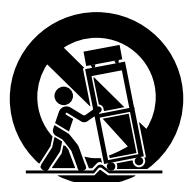
(Figure 1)
- Ventilation – Slots and openings in the cabinet are provided for ventilation and to ensure reliable operation of the product and to protect it from overheating, and these openings must not be blocked or covered. The openings should never be blocked by placing the product on a bed, sofa, rug, or other similar surface. This product should not be placed in a built-in installation such as a bookcase or rack unless proper ventilation is provided or the manufacturer's instructions have been adhered to.
- Power Sources – This product should be operated only from the type of power source indicated on the marking label. If you are not sure of the type of power supply to your home, consult your product dealer or local power company. For products intended to operate from battery power, or other sources, refer to the operating instructions.
- Grounding or Polarization – This product may be equipped with a polarized alternating-current line plug (a plug having one blade wider than the other). This plug will fit into the power outlet only one way. This is a safety feature. If you are unable to insert the plug fully into the outlet, try reversing the plug. If the plug should still fail to fit, contact your electrician to replace your obsolete outlet. Do not defeat the safety purpose of the polarized plug.
- Power-Cord Protection – Power-supply cords should be routed so that are not likely to be walked on or pinched by items placed upon or against them, playing particular attention to cords at plugs, convenience receptacles, and the point where they exit from the product.
- Lightning – For added protection for this product during a lightning storm, or when it is left unattended and unused for long periods of time, unplug it from the wall outlet and disconnect the antenna or cable system. This will prevent damage to the product due to lightning and power-line surges.

- Outdoor Antenna Grounding – If an outside antenna or cable system is connected to the product, be sure the antenna or cable system is grounded so as to provide some protection against voltage surges and built-up static charges. Article 810 of the National Electrical Code, ANSI/NFPA 70, provides information with regard to proper grounding of the mast and supporting structure, grounding of the lead-in wire to an antenna discharge unit, size of grounding conductors, location of antenna-discharge unit, connection to grounding electrodes, and requirements for the grounding electrode. See Figure 2.
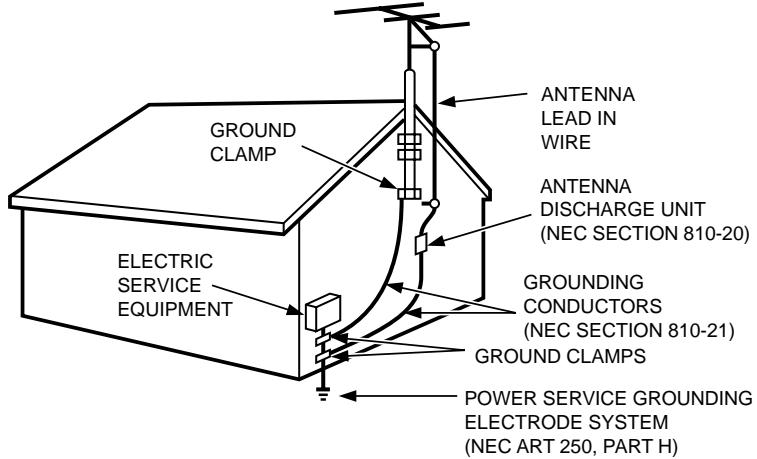
EXAMPLE OF ANTENNA GROUNDING AS PER NATIONAL ELECTRICAL CODE, ANSI/NFPA 70
NEC - NATIONAL ELECTRICAL CODE
S2898A
(Figure 2)
- Power Lines – An outside antenna system should not be located in the vicinity of overhead power lines or other electric light or power circuits, or where it can fall into such power lines or circuits. When installing an outside antenna system, extreme care should be taken to keep from touching such power lines or circuits as contact with them might be fatal.
-
Overloading – Do not overload wall outlets, extension cords, or integral convenience receptacles as this can result in a risk of fire or electric shock.
-
Object and Liquid Entry – Never push objects of any kind into this product through openings as they may touch dangerous voltage points or short-out parts that could result in a fire or electric shock. Never spill liquid of any kind on the product.
- Servicing – Do not attempt to service this product yourself as opening or removing covers may expose you to dangerous voltage or other hazards. Refer all servicing to qualified service personnel.
- Damage Requiring Service – Unplug this product from the wall outlet and refer servicing to qualified service personnel under the following conditions:
a. When the power-supply cord or plug is damaged.
b. If liquid has been spilled, or objects have fallen into the product.
c. If the product has been exposed to rain or water.
d. If the product does not operate normally by following the operating instructions. Adjust only those controls that are covered by the operating instructions as an improper adjustment of other controls may result in damage and will often require extensive work by a qualified technician to restore the product to its normal operation.
e. If the product has been dropped or damaged in any way.
f. When the product exhibits a distinct change in performance – this indicates a need for service.
- Replacement Parts – When replacement parts are required, be sure the service technician has used replacement parts specified by the manufacturer or have the same characteristics as the original part. Unauthorized substitutions may result in fire, electric shock, or other hazards.
- Safety Check - Upon completion of any service or repairs to this product, ask the service technician to perform safety checks to determine that the product is in proper operating condition.
- Heat - The product should be situated away from heat sources such as radiators, heat registers, stoves, or other products (including amplifiers) that produce heat.
This appliance shall not be exposed to dripping or splashing water and that no object filled with liquid such as vases shall be placed on the apparatus.
ACCESSORIES
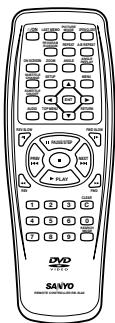
Wireless remote control
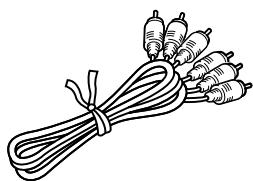
Audio/Video cable
-E4-

13/06/2003, 10:06
CONTROLS
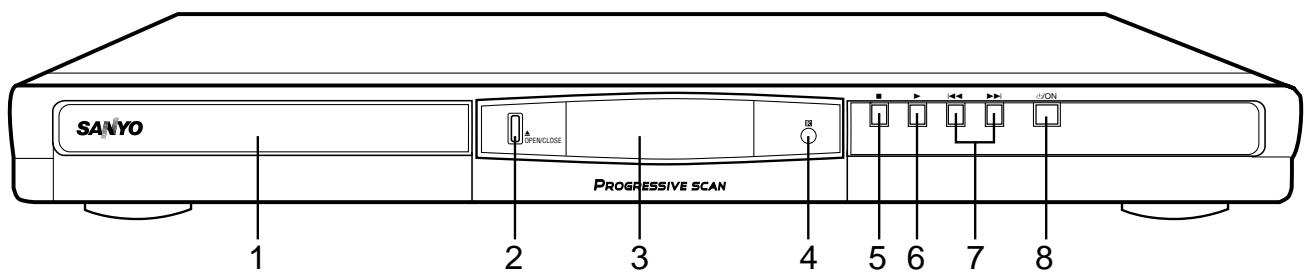
Front Panel
- Disc tray
- Open/Close button (▲)
- FL display
-
Remote sensor (IR)
-
Stop button (■)
- Play button (▶)
- Skip/Next/Previous buttons (▶▲,▶▶)
- Power button (ON)
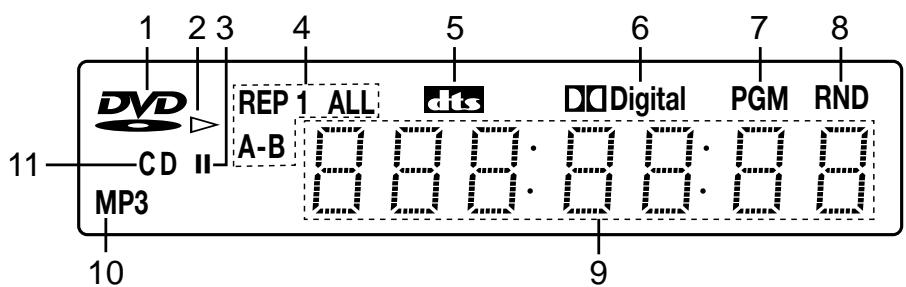
FL Display
1.DVDindicator(DVD)
2. Play indicator (▶)
3. Pause indicator (II)
4. Repeat mode indicators (REP, 1, ALL, A-B)
5. DTS indicator (dts)
6. Dolby Digital indicator (Digital)
- Program indicator (PGM)
- Random play indicator (RND)
- Message or number indicators
(Title, cheaper, track, playing time or other information)
- MP3 indicator (MP3)
- CD indicator (CD)
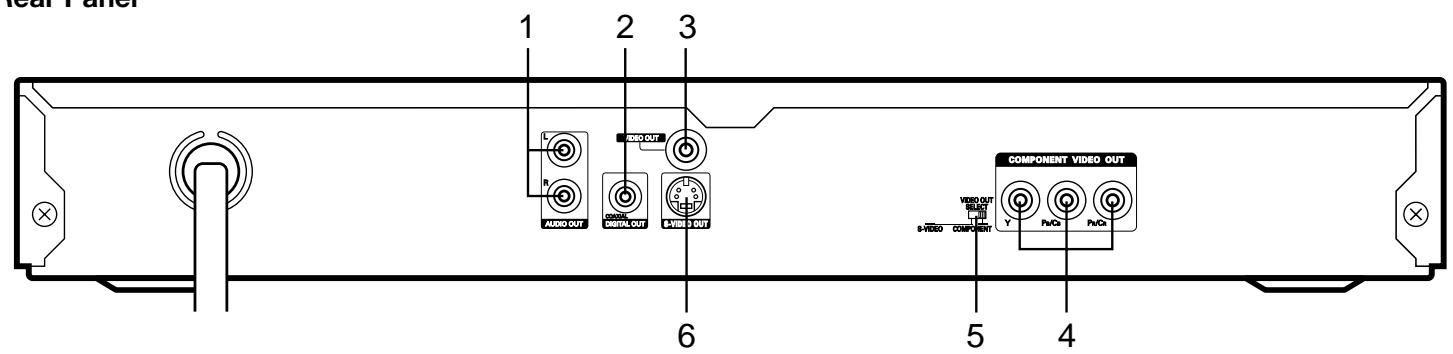
Rear Panel
- Audio output jacks (AUDIO OUT)
- Coaxial digital output jack (DIGITAL OUT)
-
Video output jack (VIDEO OUT)
-
Component video output jacks (COMPONENT VIDEO OUT)
- Video output select switch (VIDEO OUT SELECT)
- S-Video output jack (S-VIDEO OUT)
-E5-

DVD-SL33/CA(English)
6

13/06/2003, 10:06

REMOTE CONTROL
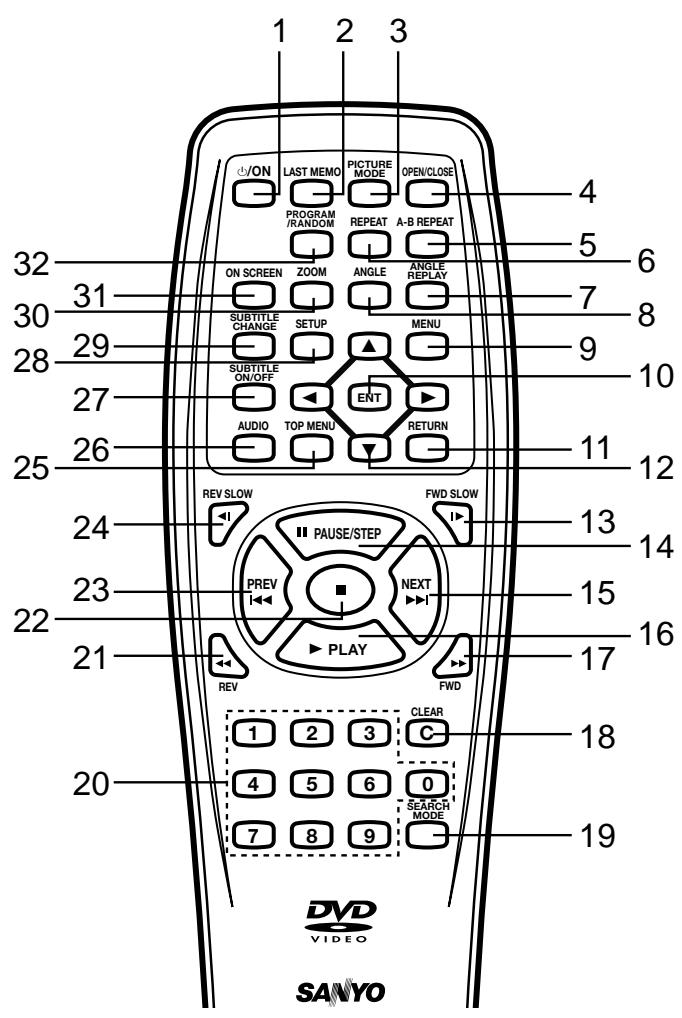
Controls
- Power button (ON)
- Last memory button (LAST MEMO)
- Picture mode button (PICTURE MODE)
- Open/Close button (OPEN/CLOSE)
- A-B repeat button (A-B REPEAT)
- Repeat button (REPEAT)
- Angle replay button (ANGLE REPLAY)
- Angle button (ANGLE)
- Menu button (MENU)
- Enter button (ENT)
- Return button (RETURN) (See page E26.)
- Directional arrow buttons (▲, ▲, ▼, △)
- Forward slow button (FWD SLOW▶)
- Pause/Step button (II PAUSE/STEP)
- Skip/Next button (NEXT▶▶)
- Play button (▶ PLAY)
17.Forward button (FWD - Clear button (CLEAR)
- Search mode button (SEARCH MODE)
- Number buttons (1-9, 0)
- Reverse button (REV
- Stop button (■)
- Skip/Previous button (PREV
- Reverse slow button (REV SLOW
- Top menu button (TOP MENU)
- Audio button (AUDIO)
- Subtitle On/Off button (SUBTITLE ON/OFF)
- Setup button (SETUP)
- Subtitle change button (SUBTITLE CHANGE)
- Zoom button (ZOOM)
- On screen display button (ON SCREEN)
- Program/Random play button (PROGRAM/RANDOM)
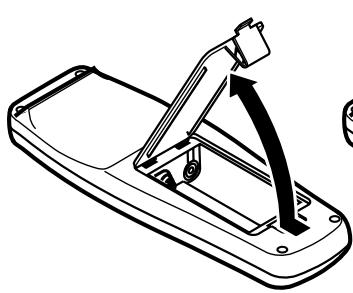
Inserting batteries
1
2
Two "AA" batteries
(not supplied)
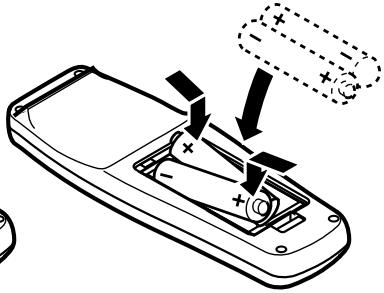
Note:
Remove the batteries if the remote control is not to be used for a month or more. Batteries left in the unit may leak and cause damage.
IMPORTANT NOTE:
SPENT OR DISCHARGED BATTERIES MUST BE RECYCLED OR DISPOSED OF PROPERLY IN COMPLIANCE WITH ALL APPLICABLE LAWS. FOR DETAILS INFORMATION, CONTACT YOUR LOCAL COUNTY SOLID WASTE AUTHORITY.
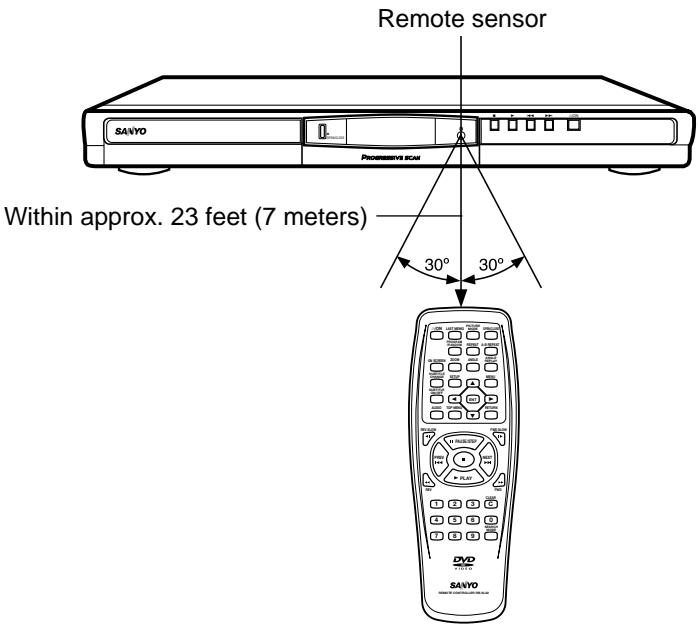
Remote control range
Note:
This is not multibrand remote control.
BEFORE CONNECTION
IMPORTANT INFORMATION:
- To connect this unit to a TV, TV must have a set of Audio/Video composite input jacks (RCA-type). You cannot use an antenna terminal to connect this unit.
If your TV has only an antenna terminal, please purchase the TV with Audio/Video input jacks or the RF modulator. - Do not connect the unit to a VCR directly. The playback picture will be distorted because DVD video discs are copy-protected.
- Please refer to the instruction manuals for the components that you are connecting (TV, AV amplifier, etc.).
Choosing a Connection
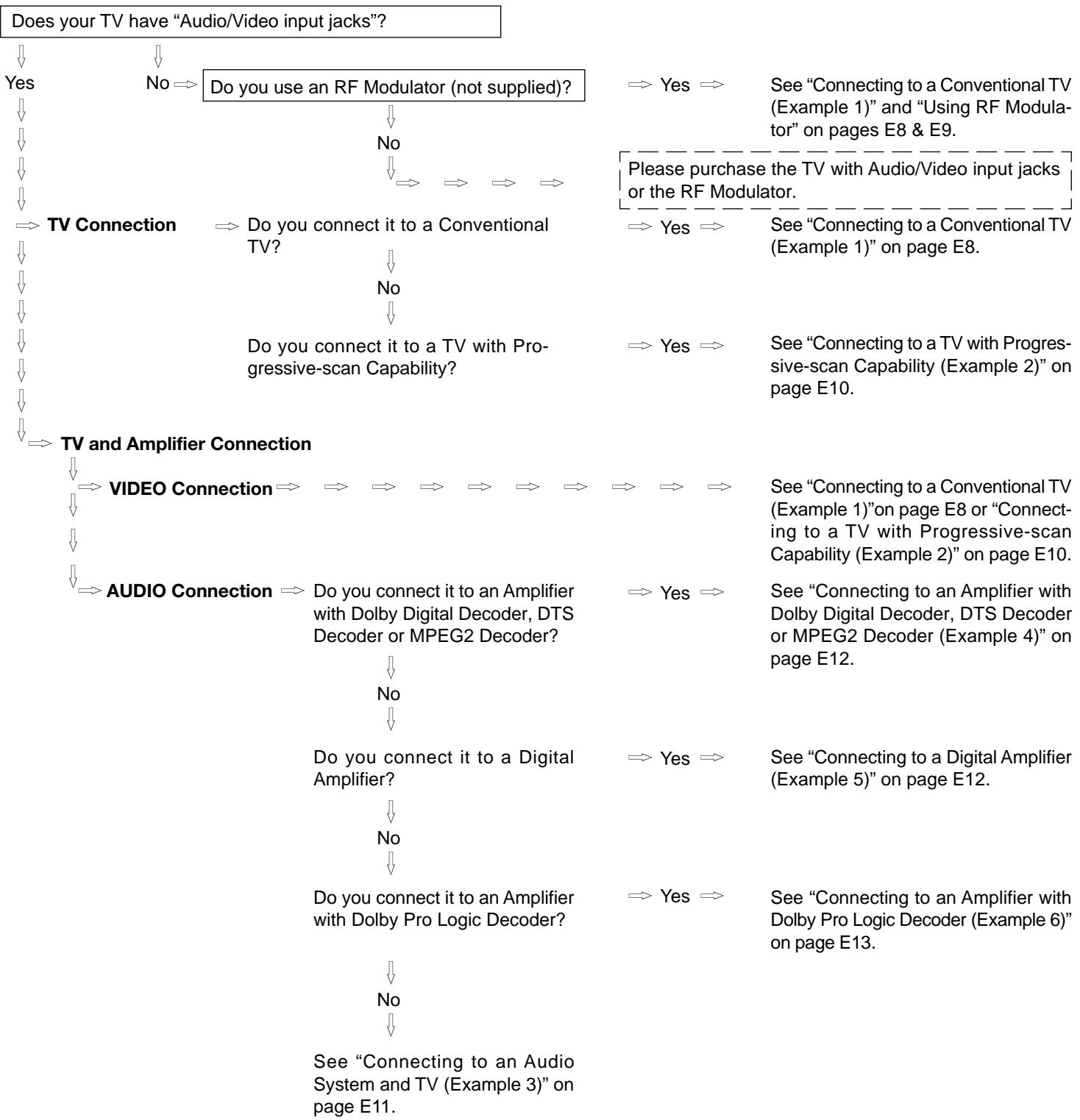

BASIC CONNECTIONS
Connecting to a Conventional TV (Example 1)
Connect the DVD video player to your TV.
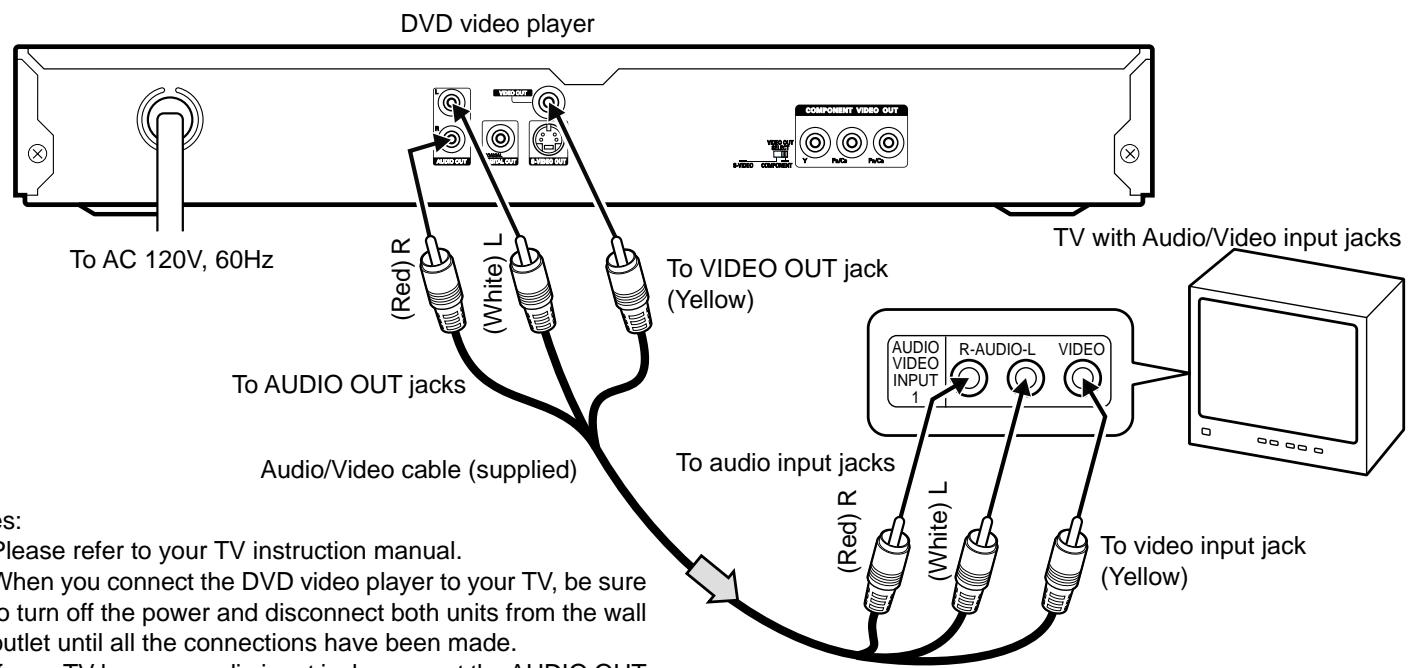
Notes:
- Please refer to your TV instruction manual.
- When you connect the DVD video player to your TV, be sure to turn off the power and disconnect both units from the wall outlet until all the connections have been made.
- If your TV has one audio input jack, connect the AUDIO OUT jacks of the DVD video player to a Y-cable adaptor (not supplied), then connect it to the TV Audio input. Please consult your local audio/video dealer.
- Do not connect the DVD video player to a VCR directly. The playback picture will be distorted because DVD video discs are copy protected.
Using the S-VIDEO jack
Note:
Please follow the steps before turn on the power.
- If your TV has the S-video input jack, connect the DVD video player with the S-video cable (not supplied). (The VIDEO OUT jack connection is not necessary.) You can enjoy clearer picture playback.
- Set the VIDEO OUT SELECT switch to the S-VIDEO position.
- You also need to connect the left and right audio cables (not supplied) to the AUDIO OUT jacks of DVD video player and the Audio input jacks of the TV.
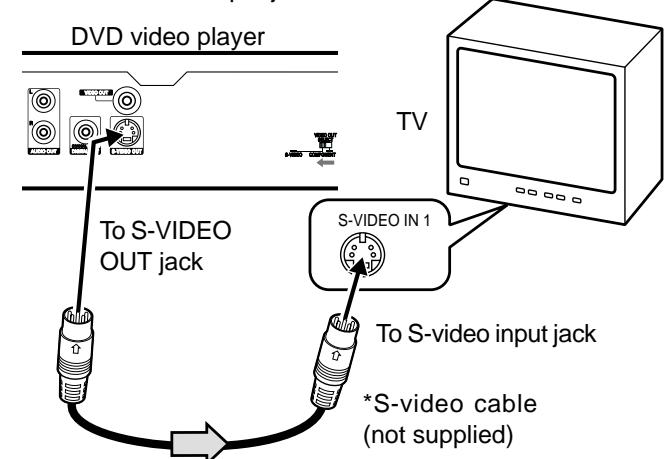
*Please consult your local audio/video dealer.
Using the COMPONENTVIDEO OUT jacks
Note:
Please follow the steps before turn on the power.
1. If your TV has the component video input jacks, connect the DVD video player to these jacks. (The VIDEO OUT or S-VIDEO OUT jack connection is not necessary.) You can enjoy high quality picture playback.
2. Set the VIDEO OUT SELECT switch to the COMPONENT position.
3. You also need to connect the left and right audio cables (not supplied) to the AUDIO OUT jacks of DVD video player and the Audio input jacks of the TV.
4. Set the DVD video player to the INTERLACE position. See page E15.
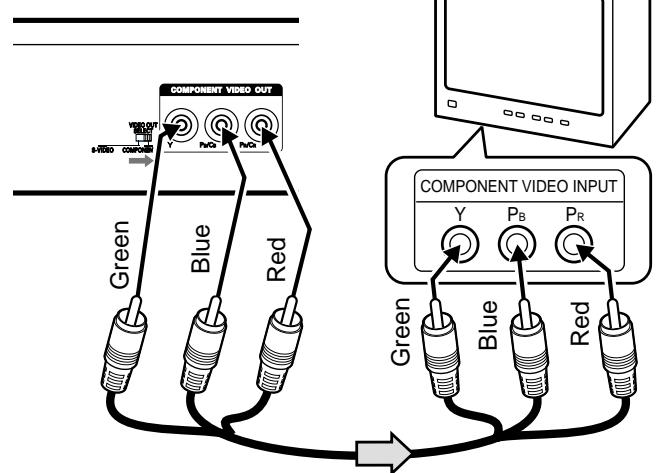
*Component video cable (not supplied)
Using RF Modulator
If your TV does not have a Video input jack and has an antenna
terminal only, please purchase the *RF Modulator (not supplied).
(*Please consult your audio/video dealer.)
Example: DVD video player, TV and RF Modulator connections
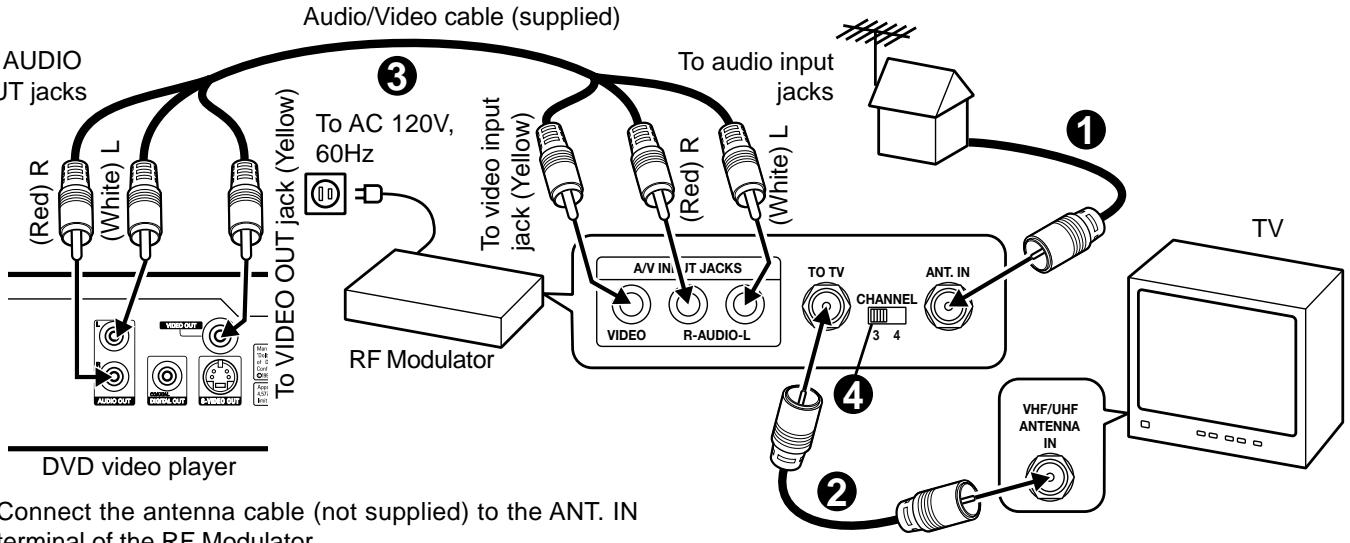
- Connect the antenna cable (not supplied) to the ANT. IN terminal of the RF Modulator.
- Connect the 75-ohm coaxial cable (not supplied) between the TO TV terminal of the RF Modulator and the VHF/UHF ANTENNA IN terminal of the TV.
-
Connect the Audio/Video cable (supplied) between the AUDIO OUT and VIDEO OUT jacks of the DVD video player and the AUDIO INPUT and VIDEO INPUT jacks of the RF Modulator.
-
Turn on the TV, and set the channel number (CHANNEL3 or CHANNEL4) on both TV and RF Modulator, whichever is not used for regular broadcast in your area. Note:
For more details, please refer to the instruction manual of the RF Modulator.
Example: DVD video player, VCR, TV and RF Modulator connections
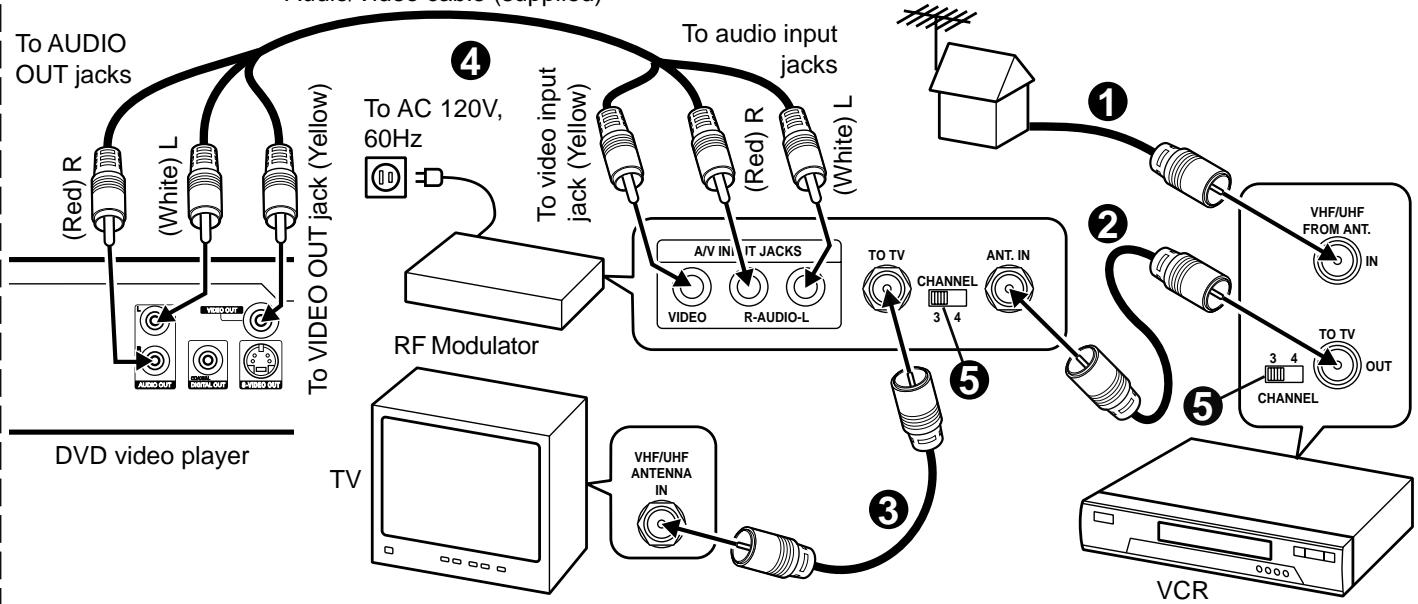
Audio/Video cable (supplied)
- Connect the antenna cable (not supplied) to the VHF/UHF FROM ANT IN terminal of the VCR.
- Connect the 75-ohm coaxial cable (not supplied) between the TO TV OUT terminal of the VCR and the ANT. IN terminal of the RF Modulator.
-
Connect the 75-ohm coaxial cable (not supplied) between the TO TV terminal of the RF Modulator and the VHF/UHF ANTENNA IN terminal of the TV.
-
Connect the Audio/Video cable (supplied) between the AUDIO OUT and VIDEO OUT jacks of the DVD video player and the AUDIO INPUT and VIDEO INPUT jacks of the RF Modulator.
- Turn on the TV, and set the channel number (CHANNEL3 or CHANNEL4) on all TV, VCR and RF Modulator, whichever is not used for regular broadcasts in your area.
Note:
For more details, please refer to the instruction manual of the RF Modulator.
Connecting to a TV with Progressive-scan Capability (Example 2)
Your TV must be capable of handing progressive scanning and have component video input capability.
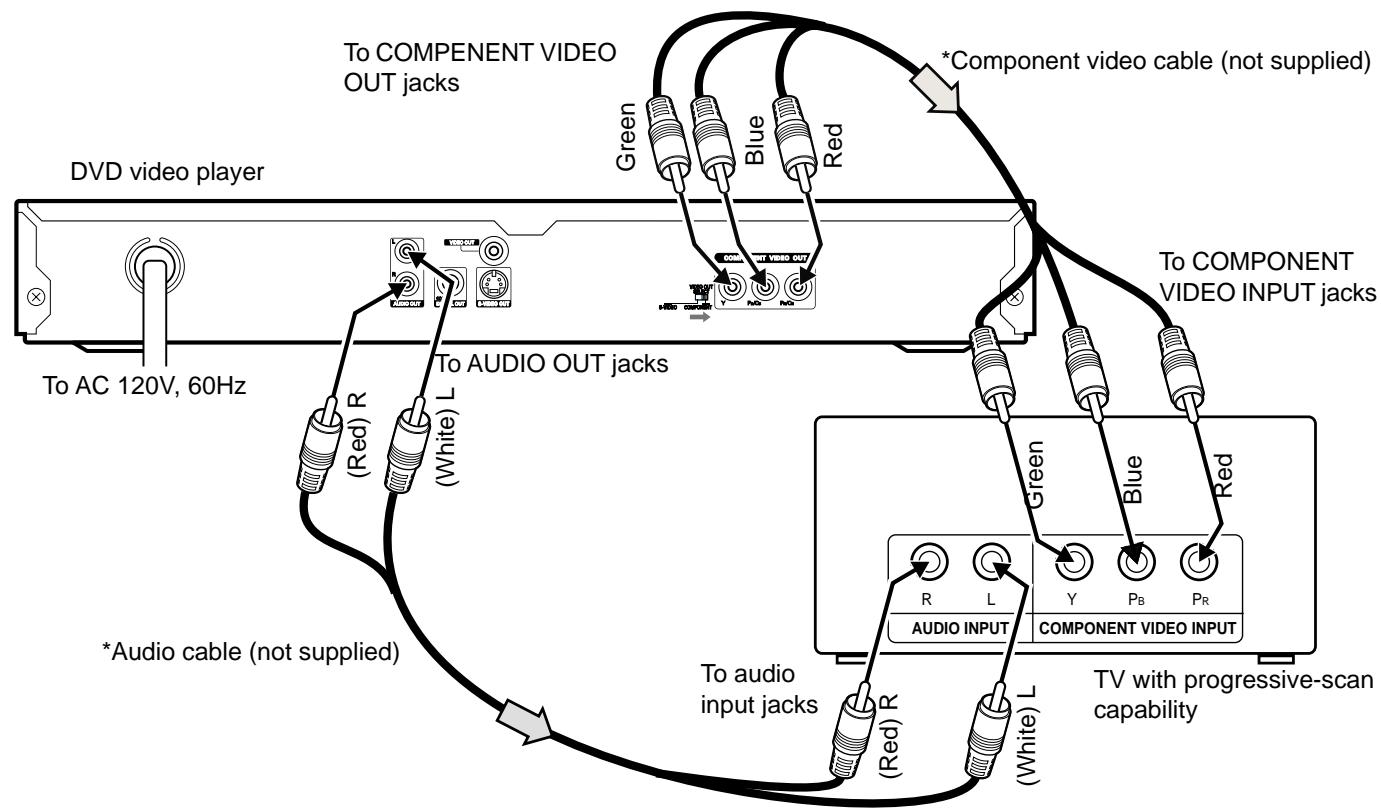
*Please consult your local audio/video dealer.
- Connect the DVD video player to the component video input jacks of the TV. (The VIDEO OUT or S-VIDEO OUT jack connection is not necessary.)
- Set the VIDEO OUT SELECT switch to the COMPONENT positon.
- You also need to connect the left and right audio cables (not supplied) to the AUDIO OUT jack of DVD video player and the Audio input jacks of the TV.
- Set the DVD video player to the PROGRESSIVE position. See page E15.
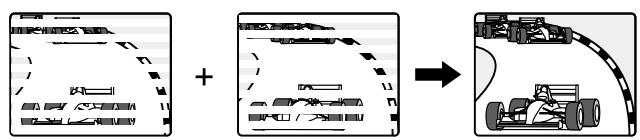
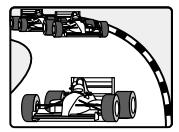
Progressive Scanning
While interlaced scanning produces one frame of video in two fields, progressive scanning creates one frame in one field.
Conventional interlaced scanning constitutes one second with 30 frames (60 fields), but progressive scanning constitutes it with 60 frames from scratch. Progressive scanning can reproduce shaper picture with high resolution for still image or other picture containing long texts or horizontal lines.
This model has compliance with 525p (progressive) system.
Interlaced scanning
Progressive scanning
Notes:
- Please refer to your TV instruction manual.
- When you connect the DVD video player to your TV, be sure to turn off the power and disconnect both units from the wall outlet until all the connections have been made.
- Do not connect the DVD video player to a VCR directly. The playback picture will be distorted because DVD video discs are copy protected.
ADDITIONAL CONNECTION EXAMPLES
Connecting to an Audio System and TV (Example 3)
Connect the DVD video player to an Audio System and a TV.
DVD video player
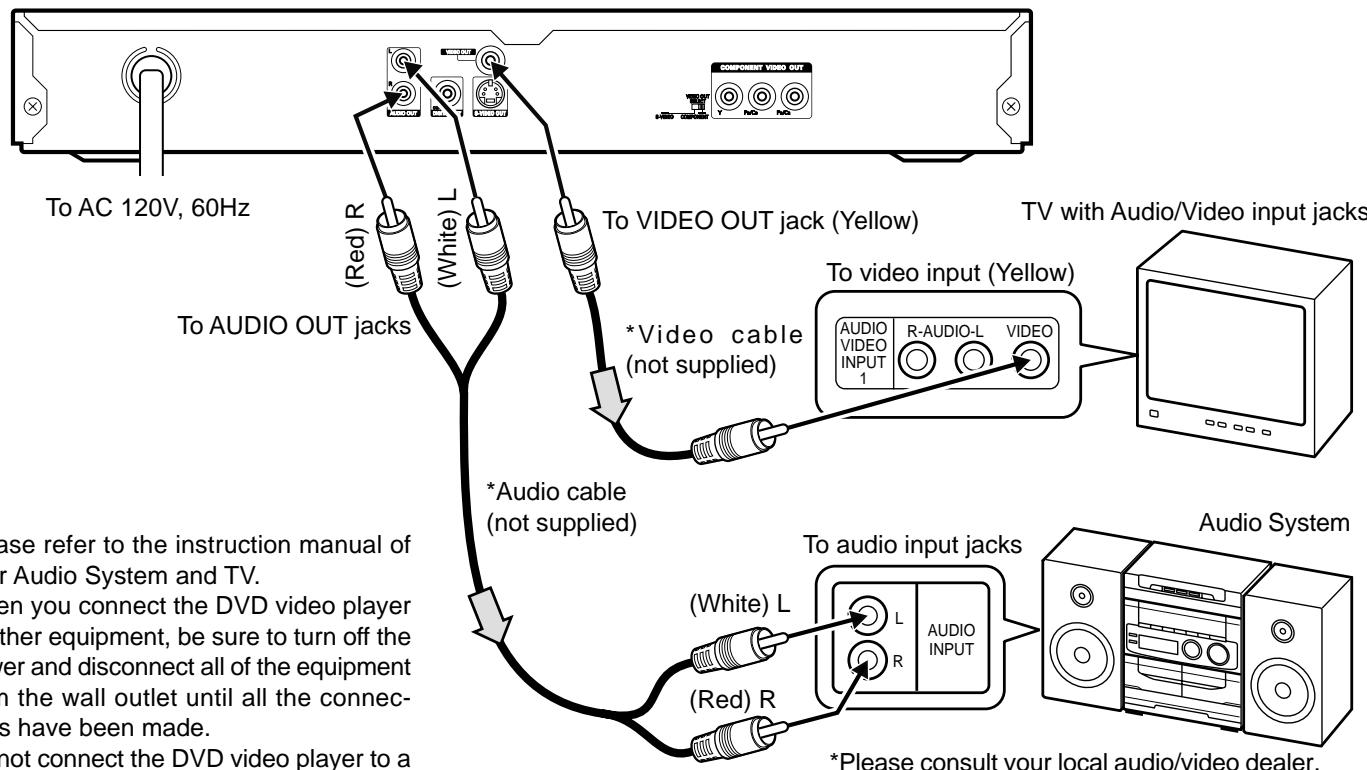
Notes:
- Please refer to the instruction manual of your Audio System and TV.
- When you connect the DVD video player to other equipment, be sure to turn off the power and disconnect all of the equipment from the wall outlet until all the connections have been made.
- Do not connect the DVD video player to a VCR directly. The playback picture will be distorted because DVD video discs are copy protected.
Using the S-VIDEO jack
Note:
Please follow the steps before turn on the power.
1. If your TV has the S-video input jack, connect the DVD video player with the S-video cable (not supplied). (The VIDEO OUT jack connection is not necessary.) You can enjoy clearer picture playback.
2. Set the VIDEO OUT SELECT switch to the S-VIDEO position.
3. You also need to connect the left and right audio cables (not supplied) to the AUDIO OUT jacks of DVD video player and the Audio input jacks of the Audio System.
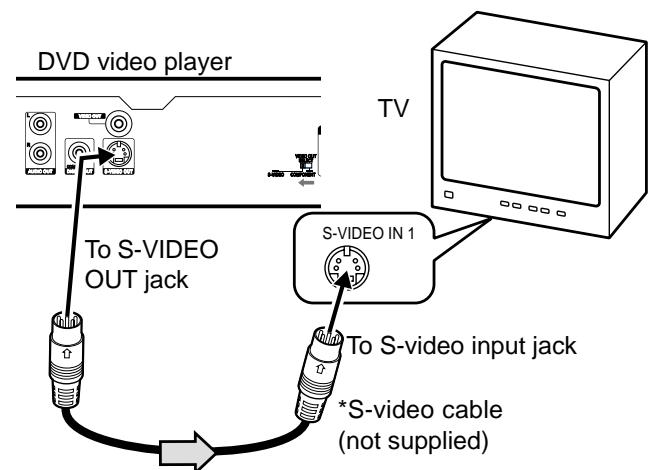
*Please consult your local audio/video dealer.
Using the COMPONENTVIDEO OUT jacks
Note:
Please follow the steps before turn on the power.
- If your TV has the component video input jacks, connect the DVD video player to these jacks. (The VIDEO OUT or S-VIDEO OUT jack connection is not necessary.) You can enjoy high quality picture playback.
- Set the VIDEO OUT SELECT switch to the COMPONENT position.
- You also need to connect the left and right cable (not supplied) to the AUDIO OUT jacks of DVD video player and the Audio input jacks of the Audio System.
- Set the DVD video player to the INTERLACE position. See page E15.
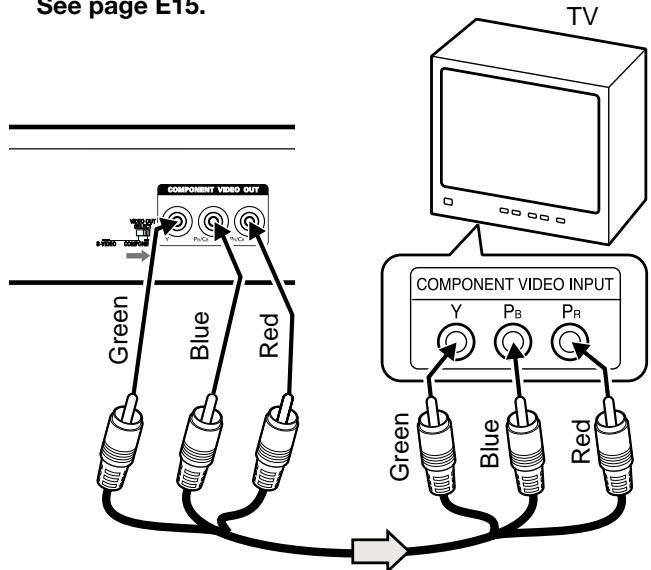
*Component video cable (not supplied)
Notes:
- For VIDEO connection, please refer to "BASIC CONNECTIONS".
- Please refer to the instruction manual of your amplifier.
- When you connect the DVD video player to your amplifier, be sure to turn off the power and disconnect both units from the wall outlet until all the connections have been made.
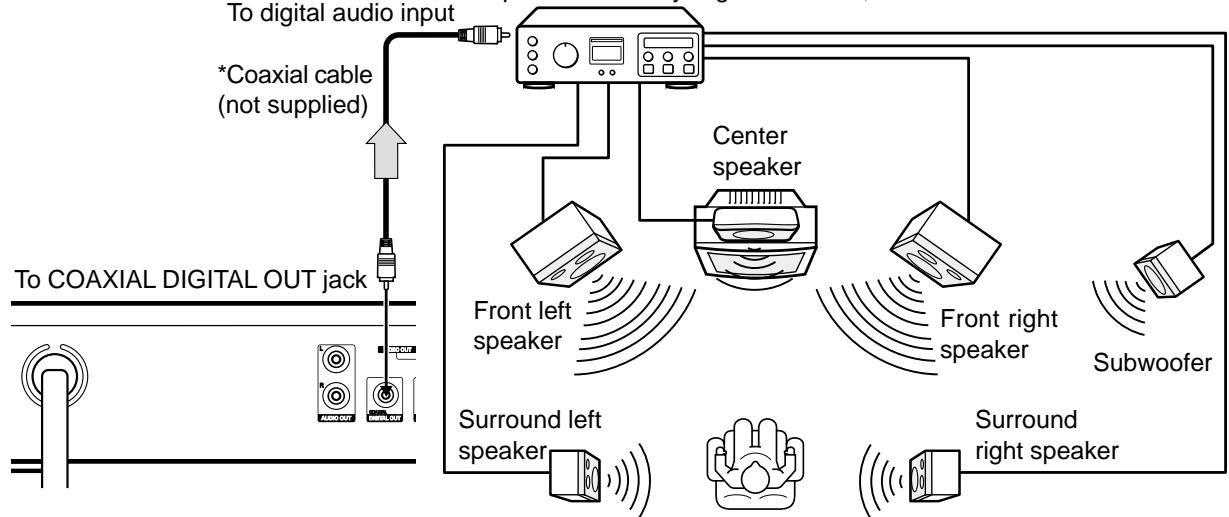
Connecting to an Amplifier with Dolby Digital Decoder, DTS Decoder or MPEG2 Decoder (Example 4) Amplifier with Dolby Digital Decoder, DTS Decoder or MPEG2 Dec
To enjoy Dolby Digital sound
Select "Dolby Digital BitStream" in "Setting Digital Out" on the
INITIAL SETTINGS. (See page E31.)
To enjoy DTS sound
Select "DTS On" in "Setting Digital Out" on the INITIAL
SETTING. (See page E31.)
To enjoy MPEG2 sound
Select "MPEG BitStream" in "Setting Digital Out" on the INITIAL
SETTING. (See page E31.)
Manufactured under license from Dolby Laboratories.
"Dolby", "Pro Logic" and the double-D symbol are trademarks of
Dolby Laboratories.
"DTS" and "DTS Digital Out" are trademarks of Digital Theater
Systems, Inc.
You can enjoy 2 Channel Digital Stereo Sound.
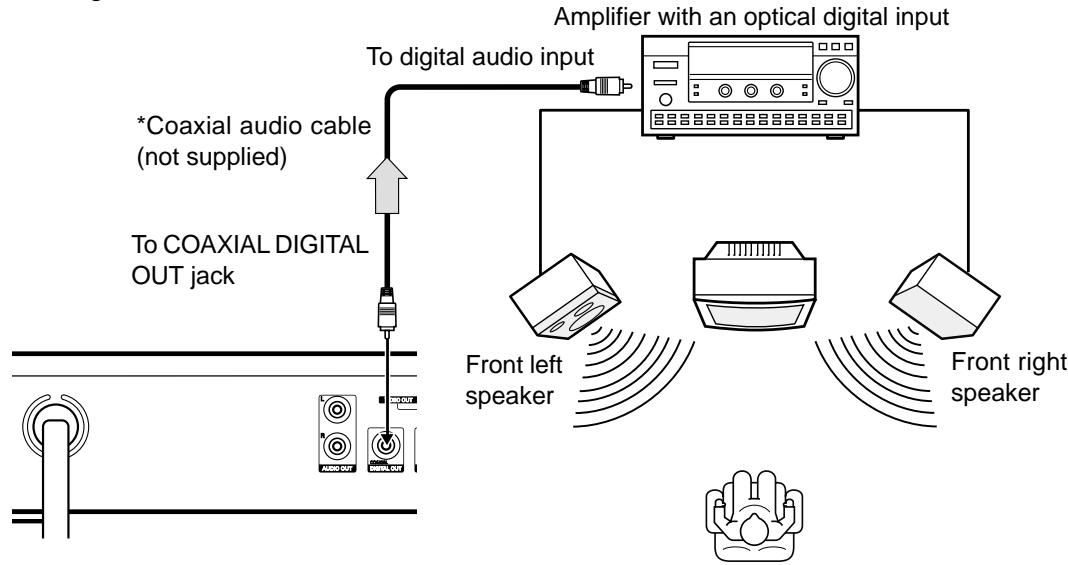
Connecting to a Digital Amplifier (Example 5)
*Please consult your local audio/video dealer.
To enjoy 2 Channel Digital Stereo sound
Select "Dolby Digital LPCM", "MPEG LPCM", and "DTS Off" in
"Setting Digital Out" on the INITIAL SETTINGS. (See page E31.)
Note:
If "DTS On" is selected, loud noise will occur. (See page E31.)
-E12-
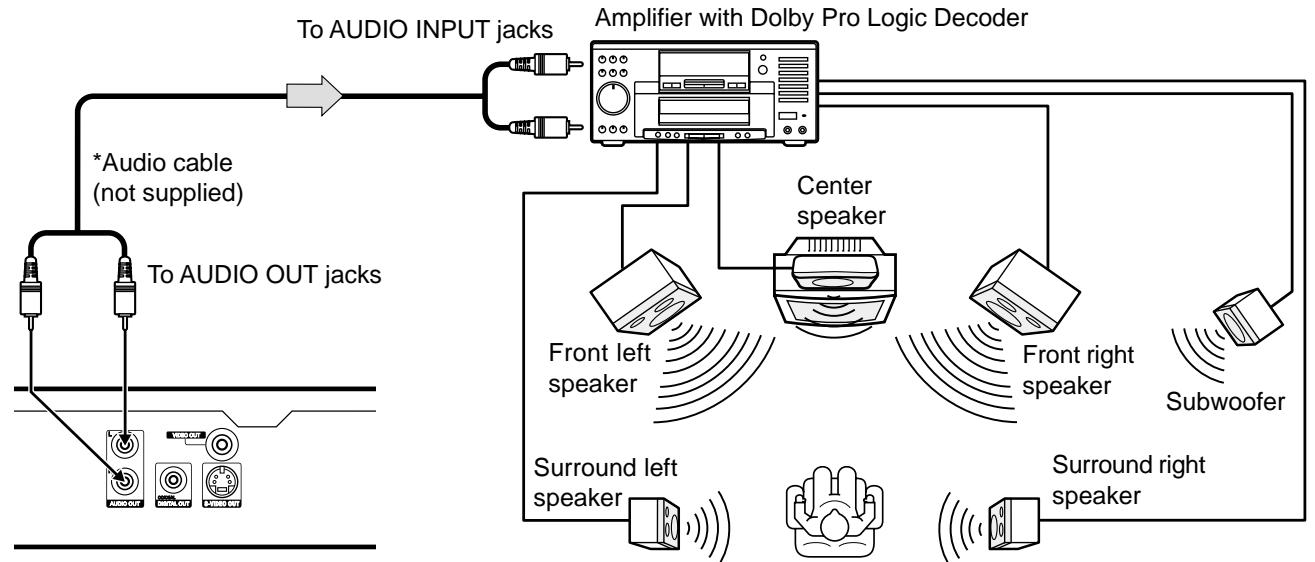
Connecting to an Amplifier with Dolby Pro Logic Decoder (Example 6)
Note:
Please refer to your amplifier instruction manual.
*Please consult your local audio/video dealer.
Power Supply
Connect the power cord to a 120VAC 60Hz outlet. This unit is equipped with a polarized plug. If you have difficulty inserting the plug, turn it over and reinsert it. If the unit will not be used for a long time, disconnect the AC plug from AC outlet.
Notes:
- Before plugging the power cord into an AC outlet, make sure that all the connections have been made.
- The unit is not disconnected from the AC power unless the power cord is unplugged from the AC outlet.
CAUTION:
When connecting the DVD video player, follow the installation instruction in "IMPORTANT SAFETY INSTRUCTIONS" on page E2.
CAUTION:
TO PREVENT ELECTRIC SHOCK, MATCH WIDE BLADE OF PLUG TO WIDE SLOT, FULLY INSERT.
ATTENTION:
POUR ÉVITER LES CHOC ÉLECTRIQUES, INTRODUIRE LA LAME LA PLUS LARGE DE LA FICHE DANS LA BORNE CORRESPONDANTE DE LA PRESE ET POUSSER JUSQU'AU FOND.
- Do not damage the power cord.
- When not in use, disconnect the power cord from the outlet. Grasp the plug, not the cord, when disconnecting the unit.
- If water should enter the unit, electrical shock or a malfunction may result. Use in an area where there is low humidity and little dust.
- Do not disassemble or alter the unit in any way.
- Do not use the unit in areas where extremes in temperature occur (below 40^(5^) or exceeding 95^(35^) ), or where it may be exposed to direct sunlight.
- Because of the DVD video player extremely low noise and wide dynamic range, there is a tendency to set the volume on the amplifier higher than necessary. Doing so may produce an excessively high output from the amplifier which can cause damage to your speakers. Please be careful in this regard.
-
Sudden changes in the surrounding temperature can cause dew to form on the optical pickup lens inside the unit. Under this condition the unit may be unable to operate properly. If this should occur, remove the disc and allow the player to adjust to the surrounding temperature.
-
When carrying the unit, be sure to remove a disc which may be inside and turn the power off. Then unplug the power cord from the AC outlet after 10 seconds. Carrying the unit with a disc inside may damage the disc and/ or the unit.
- The unit is automatically set to the Screen Saver mode after approximately 15 minutes have elapsed under the stop or pause mode.
- The unit is automatically set to the standby mode after approximately 30 minutes have elapsed under the complete stop mode.
- Do not install this equipment in confined space, such as a book case or built in cabinet.
Press [▲] (or [OPEN/CLOSE] on the remote control) when closing the disc tray. Do not push the disc tray.

PLAYABLE DISCS
The following types of discs can be played on the unit.
| Disc type and logo mark | |
| DVD-Video | VIDEO™ |
| Audio CD | COMPACT DISC DIGITAL AUDIO |
Region Number
Region number (Regional restriction code) is built-in to the unit and DVD video discs.
Region number “1” or “ALL” of DVD video discs can be used on this unit.


DVD Video Disc
DVD video discs are divided into title, and the titles are subdivided into chapters.
| Title 1 | Title 2 | |||
| Chapter 1 | Chapter 2 | Chapter 3 | Chapter 4 | Chapter 5 |
There are marks on some DVD video disc package. Example:

Multiple languages

Multi-language subtitles

Multi-angle
Multi-aspect

Region Number

Closed caption
CAUTION:
- Only the above types of discs can be played on this unit. DVD-ROM, CD-ROM, SVCD, CVD, VCD, etc. cannot be played.
- This unit can play back the DVD-R that has recorded movie data as well. However, some DVD-Rs cannot be played back depending on the recording conditions.
- The DVD-R that has no movie data cannot be played back.
- This unit is to be used exclusively with the NTSC color system. PAL and SECAM system discs cannot be used with the unit.
For MP3 CD, please see page E25.
For Picture/JPEG CD, please see pages E29 and E30.
Handling, Storing and Cleaning Discs
- Fingersprints and dust should be carefully wiped from the signal surface of the disc (glossy side) with a soft cloth. Wipe in a straight motion from the center to the outside of the disc.
- Never use chemicals such as record cleaning sprays, antistatic sprays or fluids, benzene or thinner to clean the discs. These chemicals will permanently damage the plastic surface of the disc.
- To remove a disc from its storage case, press down on the center of the case and lift the disc out, holding it carefully by the edges.
- Discs should be returned to their cases after use to protect them from dust and scratches.
- To prevent warping the disc, do not expose it to direct sunlight, high humidity or high temperatures for extended periods of time.
- Do not apply paper or write anything on either side of the disc. Sharp writing instruments, or the inks used in some felt-tip pens, may damage the surfaces of the disc.
This product incorporates copyright protection technology that is protected by method claims of certain U.S. patents and other intellectual property rights owned by Macrovision Corporation and other rights owners. Use of this copyright protection technology must be authorized by Macrovision Corporation, and is intended for home and other limited viewing uses only unless otherwise authorized by Macrovision Corporation. Reverse engineering or disassembly is prohibited.
Audio CD Disc
Audio CD discs are divided into tracks.
Track 1
Track 2
Track 3
Track 4
Track 5
BASIC OPERATION
Preparations
- Turn on the power (TV, Audio System, AV amplifier, etc.).
- Select the video input sources from your television. (Please refer to your TV instruction manual.)
- Select the playback picture size according to the aspect ratio of the TV. (For more details, see "Setting Display" on page E30.)
BasicPlayback
Notes:
- Do not touch the disc tray while it is moving.
- Never place anything except a disc on the disc tray. Foreign objects can damage the unit.
- Do not apply excessive force to the disc tray.
Discs must be placed on the disc tray one at a time.
When operation buttons are pressed, that operarion is displayed on the TV screen. The display turns off after several seconds.
4:3 LB
(Letterbox):

4:3 PS
(Panscan):
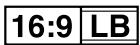
16:9 :
- Select the audio input source (Audio System, AV amplifier, etc.).
- When the DVD video player is connected to the COMPONENT VIDEO OUT jacks of the TV (see pages E8, E10 and E11), you must select the INTERLACE or PROGRESSIVE position.
Note: Initial setting is "INTERLACE". If you use a Conventional TV for first time, skip this section.
- Turn on the power (TV and DVD video player).
- In "No Disc" mode, until "□I" (INTERLACE) or "□P" (PROGRESSIVE) appears on the TV screen.
Conventional TV: Select "I".
TV with Progressive-scan Capability: Select " P ".
Note:
In “□P” mode, the closed caption may not appear on the TV screen.
Important Note:
- This instruction manual explains the basic instruction of this unit using the remote control.
- Some DVD video discs have different functions that may not be explained in this instruction manual. You may need extra instruction. In this case, please follow the instructions displayed on the TV screen or jacket or case of the disc.
- “ ” may appear on the TV screen during operation. This icon means that the function is not available on the disc now.
- For improvement, FL displays and on-screen displays subject to change without notice.
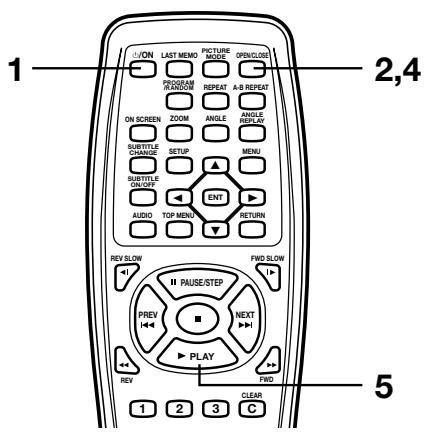
-
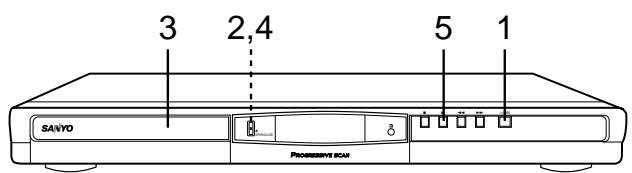
Press [b/ON].
-
"SANYO" logo appears on the TV screen.
-
"-----" blinks, and then "NO dISC" appears on the FL display.
-
Press [▲ OPEN/CLOSE] (or [OPEN/CLOSE] on the remote control).
-
"OPEN" appears on the FL display and the disc tray opens.
Note:
To open or close the disc tray, be sure to press [▲ OPEN/CLOSE] (or [OPEN/CLOSE] on the remote control). Do not press the disc tray with your hand. -
Place the disc with the label facing up on the disc tray.
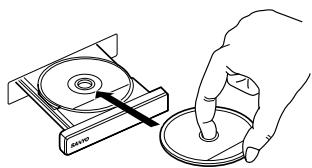
For 5-inch (12cm) disc
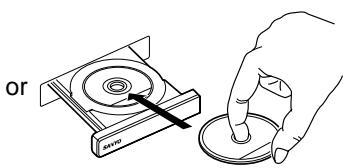
For 3-inch (8cm) disc
-E15-
- Press [▲ OPEN/CLOSE] (or [OPEN/CLOSE] on the remote control) again.
The disc tray closes.
- "Reading" appears on the TV screen.
Note:
Some discs may start playback automatically.
- Press [▶PLAY] (or [▶] on the unit) to start playback.
- “▶” appears.
Example:
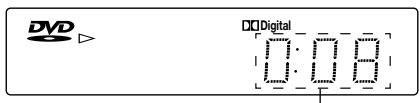
Elapsed playing time
Notes:
- In some discs, even if 4:3 PS is selected, the black bands may remain on the screen.
- If the disc is loaded with the label side downward (and it is a single sided disc), or if a badly scratched disc is loaded, "No Play" appears on the TV screen. If this occurs, load the disc correctly or replace the disc.
If a DVD disc menu screen appears on the TV screen...
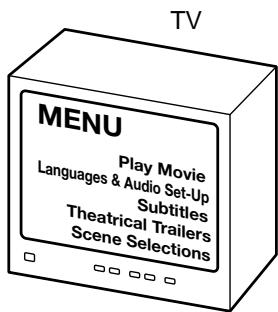
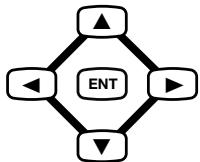
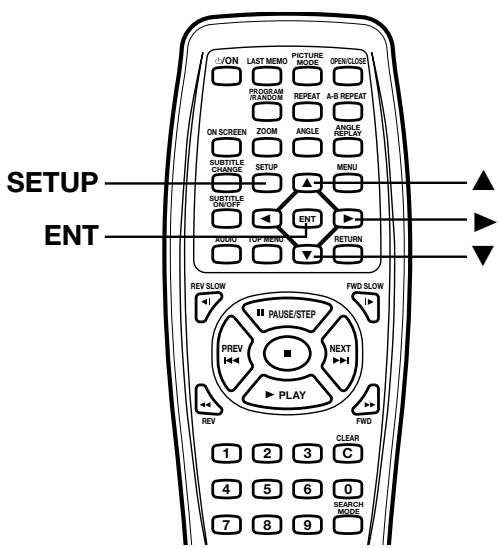
- Press [▲], [▶], [▼] or [▲] (or the number buttons) to select the desired menu.
- Press [ENT].
Playback of the selected menu starts.
Note:
For more details, please refer to the jacket or case of the disc.
To lock the disc tray
You can lock the disc tray to prevent misuse of young children. While the disc tray is opened, press [▲ OPEN/CLOSE] on the until "LOC" appears on the FL display (or "Disc Tray Locked" appears on the TV screen). (The disc tray closes.)
- The OPEN/CLOSE (or [▲ OPEN/CLOSE]) button will not function.
To release this mode, press [▲ OPEN/CLOSE] on the unit until "UN-LOC" appears on the FL display (or "Disc Tray Unlocked" appears on the TV screen).
Stopping Playback
[DVD]
- Press [■] once during playback. "Resume" appears briefly on the TV screen.
When you press [▶ PLAY] (or [▶ ] on the unit), playback starts automatically from the point where you stopped. “▶” appears briefly on the TV screen. Note:
Some discs may not resume playback. - Press [■] twice during playback. “■” appears briefly on the TV screen and playback stops completely. When you press [▶PLAY] (or [▶]), playback starts from the beginning of the disc.
[CD]
Press [■] once during playback. The unit stops completely.
To turn off the power, press [ON]. "OFF" appears briefly on the FL display.
![SANYO DVDSL33 - [CD] - 1](/content/2025/01/96423/images/6e4856f842a4562d4c37cdc25fcecabb103eb033e17b0f4c568fd917373006c2.jpg)
ContinuingPlayback from Where You Stopped Watching (LAST MEMO PLAY), for DVD only
- Press [LAST MEMO] to stop playback. "Last Memo " appears briefly on the TV screen. "StOP" appears on the FL display.
- Press [OPEN/CLOSE] (or [▲ OPEN/CLOSE] on the unit) to open the disc tray to change the disc, or press [⊥/ON] to turn off the power.
-
Load the disc (or press [▶ PLAY]), or press [↓/ON] again. "Last Memo Play?" screen appears on the TV screen.
-
Press [▲] to select "Yes".
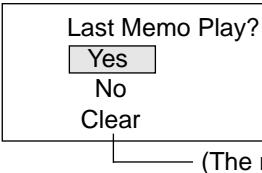
5. Press [ENT].
Playback resumes from the point where you stopped. If desired, press [LAST MEMO] again.
Notes:
- Point on up to 2 discs can be memorized.
- The Last Memo Play mode may not work correctly with some discs.
-E16-
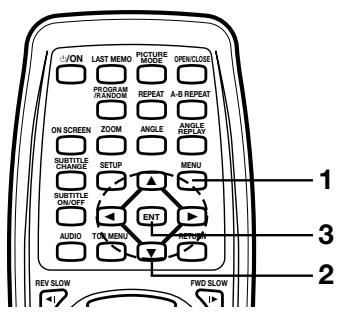
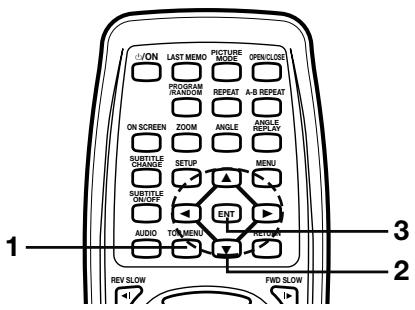
Selecting a DVD Menu
Notes:
The operation may differ depending on the disc used.
-
Selecting a menu may not be possible on some discs.
-
Press [MENU].
The main menu screen will appear.
Note:
Press [MENU] again to resume playback.
- Press [▲], [▼], [▲] or [▶] (or the number buttons) to
select the desired menu.
- Press [ENT].
The selected menu playback starts.
Selecting a Top Menu [DVD]
Notes:
The operation may differ depending on the disc used.
-
Selecting a top menu may not be possible on some discs.
-
Press [TOP MENU].
The top menu will appear (if the disc contains a top menu).
- Press [▲], [▼], [▲] or [▶] (or the number buttons) to
select the desired menu.
- Press [ENT].
The selected menu playback starts.
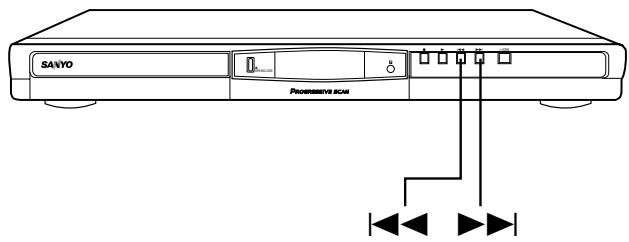
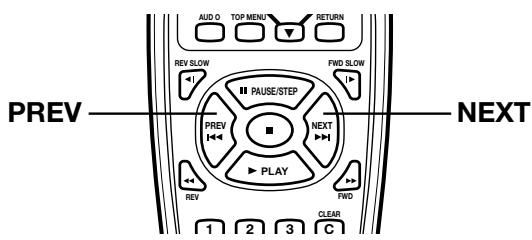
Chapter (Track) Skip

Skipping forward
Press [NEXT▶▶I] (or▶▶I) during playback to skip to the next chapter (or track).
"▶I" appears briefly on the TV screen.
A chapter (or track) is skipped each time the button is pressed.
Skipping backward
Press [PREV] (or) during playback to skip back to the
beginning of the chapter (or track) currently play.
"▶" appears briefly on the TV screen.
Press the button again immediately to skip back to the beginning of the previous chapter (or track).
Note:
You can skip only through the chapters, not over the title on the DVD disc.
Important Note:
" " may appear on the TV screen during operation. This
icon means that the function is not available on the disc now.
-E17-
Title Search [DVD]
- Press [SEARCH MODE] once during playback or in the stop mode.
The title search screen appears on the TV screen.
Example:
Title Search
--|28
- Press the number button(s) to enter the title number.
Example:
To select Title No.3, press [3].
To select Title No.10, press [1], then [0].
To select Title No.24, press [2], then [4].
Note:
If you make a mistake, press [CLEAR].
- Press [▶ PLAY].
Playback starts from the selected title.
Chapter Search [DVD]
- Press [SEARCH MODE] twice during playback.
The chapter search screen appears on the TV screen.
Example:
Title 01
Chapter Search
--|35
- Press the number button(s) to enter the chapter number. Example:
To select Chapter No.3, press [3].
To select Chapter No.10, press [1], then [0].
To select Chapter No.24, press [2], then [4].
Note:
If you make a mistake, press [CLEAR].
- Press [▶ PLAY].
Playback starts from the selected chapter.
Time Search [DVD]
- Press [SEARCH MODE] three times during playback.
The time search screen appears on the TV screen.
Time Search
- Press the number button(s) to enter the time. Example:
20 minutes 5 seconds
42 minutes 39 seconds
Press [2], [0], [0] and [5].
1 hour 4 minutes 35 seconds Press [1], [0], [4], [3] and [5].
Note:
If you make a mistake, press [CLEAR].
- Press [▶ PLAY].
Playback starts from the searched time.
Note:
The Search mode may not work on some discs.
Important Note:
" " may appear on the TV screen during operation. This
icon means that the function is not available on the disc now.
![SANYO DVDSL33 - Time Search [DVD] - 1](/content/2025/01/96423/images/5f18570dc343dec7d41f2be0b0d361020e9e845f65c98b800aa60ff0eb97275a.jpg)
Time Search [CD]
- Press [SEARCH MODE] once during playback.
The time search screen appears on the TV screen.
Time Search
- Press the number button(s) to enter the time.
Example:
2 minutes 5 seconds Press [2], [0] and [5].
42 minutes 39 seconds Press [4], [2], [3] and [9].
Note:
If you make a mistake, press [CLEAR].
- Press [▶ PLAY].
Playback starts from the searched time in the track.
Track Search [CD]
![SANYO DVDSL33 - Track Search [CD] - 1](/content/2025/01/96423/images/b4163039d486014fd686284d54fd57b9e8e53ee01b2f9859a3b2c5f6e455a847.jpg)
- Press the number buttons during playback or in the stop mode.
Example:
To select Track No.3, press [3].
To select Track No.10, press [1], then [0].
To select Track No.24, press [2], then [4].
Note:
If you make a mistake, press [CLEAR].
- Press [▶ PLAY].
Playback starts from the selected track.
-E18-
FastPlayback
Fast forward playback
Press [FWD▶] repeatedly to select the fast speed forward playback (up to 200 times normal speed in DVD).
[DVD]
| 1→2→3→4 (4 steps) [CD] |
1 2 (2 steps)
Press [▶ PLAY] to return to normal playback.
Fast reverse playback
Press [REV] repeatedly to select the fast speed reverse playback (up to 200 times normal speed in DVD).
[DVD]
| 1 | 2 | 3 | 4 | (4 steps) |
[CD]
1 2 (2 steps)
Press [▶ PLAY] to return to normal playback.
Note:
The sound is muted during fast playback in DVD.
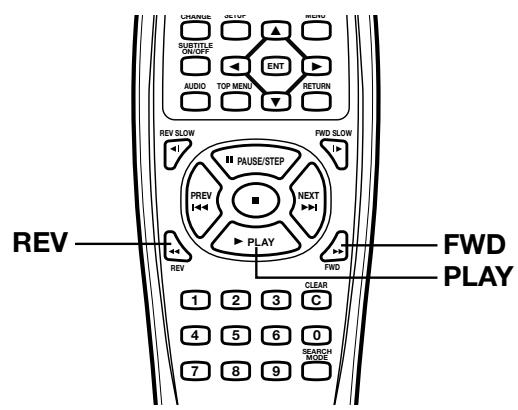
Important Note:
" " may appear on the TV screen during operation. This icon means that the function is not available on the disc now.
Slow MotionPlayback [DVD]
Forward slow playback
Press [FWD SLOW ] repeatedly to select the forward slow speed playback.
1 2 3 4 (4 steps)
Press [▶ PLAY] to return to normal playback.
Reverse slow playback
Press [REV SLOW ] repeatedly to select the reverse slow speed playback.
1 2 3 4 (4 steps)
Press PLAY] to return to normal playback.
Note:
The sound is muted during slow motion playback.
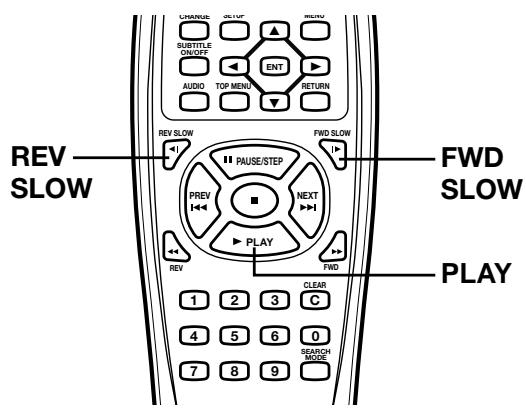
Still Picture (Pause)
Press [I PAUSE/STEP] during playback.
- "II" appears on the FL display.
- "II" appears briefly on the TV screen.
[DVD]
Still picture mode
[CD]
Pause mode
Press [▶ PLAY] to return to normal playback.
Note:
The sound is muted during still picture.
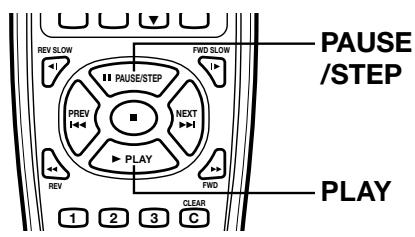
Frame by Frame Advance Playback [DVD]
Press [II PAUSE/STEP] during still picture.
- "II" appears briefly on the TV screen.
Each time the button is pressed, the picture advances one frame.
Press [▶ PLAY] to return to normal playback.
Note:
The sound is muted.
- Frame playback is operated forward only.
-E19-
![SANYO DVDSL33 - Frame by Frame Advance Playback [DVD] - 1](/content/2025/01/96423/images/d9cd7acce4b0b562553168892b423025bf2f3d61c47c6e122940ab3ad77f9bd2.jpg)
![SANYO DVDSL33 - Frame by Frame Advance Playback [DVD] - 2](/content/2025/01/96423/images/0578ee5f50ba9d103b82846571292613f4fe90de6e8295cb362dfb933c5ad471.jpg)
Picture Zoom (Pin Point Zoom) [DVD]
- Press [ZOOM] during normal/slow playback or still picture. The pin point guide appears on the TV screen.
![SANYO DVDSL33 - Picture Zoom (Pin Point Zoom) [DVD] - 1](/content/2025/01/96423/images/b599abe0ff2e983c907cc06c52571d56dceb6ab6ef5c6d60abdcc7bd8e739248.jpg)
The guide divides the screen into nine, and the number shows the point.
Note:
If you quit the screen, press [ZOOM].
-
To select the point, do one of the following:
-
Press [▲], [▶], [▼] or [▲], and press [ENT].
Press the number button.
![SANYO DVDSL33 - Picture Zoom (Pin Point Zoom) [DVD] - 2](/content/2025/01/96423/images/a601ca443e56f9847782243ce5a0feaea61e3294cdd6646aac70d669f6ea42b2.jpg)
The screen is magnified.
- “Q 1” appears briefly on the TV screen.
If necessary, press [▲], [▶], [▼] or [▲] repeatedly to move the screen as desired.
![SANYO DVDSL33 - Picture Zoom (Pin Point Zoom) [DVD] - 3](/content/2025/01/96423/images/fb18dbd52de957a9ff0be2e5d4e6e18b914641ab7422d008ca6d360f0ed464a3.jpg)
- Press [ZOOM] again.
The screen is magnified more than "Q1".
- "O 2" appears briefly on the TV screen.
If necessary, press [▲], [▶], [▼] or [▲] repeatedly to move the screen as desired.
-
Press [ZOOM] to return to the original screen.
-
“Q Off” appears briefly on the TV screen.
Note:
Pin Point Zoom may not work on some discs.
Viewing from a Desired Camera Angle (Multi-Angle) [DVD]
![SANYO DVDSL33 - Viewing from a Desired Camera Angle (Multi-Angle) [DVD] - 1](/content/2025/01/96423/images/07da6f63b287a28c9480ef303b6648ea38a5168f75289f3621b6799f5772b3a2.jpg)
Some DVD video discs may contain scenes which have been shot simultaneously from a number of different camera angles. The jacket or case of discs that are recorded with angles will be marked.
Example:
![SANYO DVDSL33 - Viewing from a Desired Camera Angle (Multi-Angle) [DVD] - 2](/content/2025/01/96423/images/25b387b533ebb73008fda4101d2d06a843447fa8c567992e8cd3e238fd35c398.jpg)
![SANYO DVDSL33 - Viewing from a Desired Camera Angle (Multi-Angle) [DVD] - 3](/content/2025/01/96423/images/9576c78e64b825cac6ba5a99c197b2c450e3eea7b28f64b542d51c064df031c1.jpg)
Note:
The recorded angles differ depending on the disc used.
- Play the disc that is recorded with angles.
- Press [ANGLE] repeatedly until the desired angle appears. Example:
![SANYO DVDSL33 - Viewing from a Desired Camera Angle (Multi-Angle) [DVD] - 4](/content/2025/01/96423/images/6361262a24c13b843829dc4d8db08fab887a9b465e42d5347b307ac9da2b84a5.jpg)
3/5
Important Note:
" " may appear on the TV screen during operation. This icon means that the function is not available on the disc now.
Angle Replay
During Multi-angle playback screen, press [ANGLE REPLAY]. The unit skips back to last approximately 10 seconds, changes it to the next camera angle and plays it, and continues playback. If desired, press the button again.
-E20-
Repeat Playback
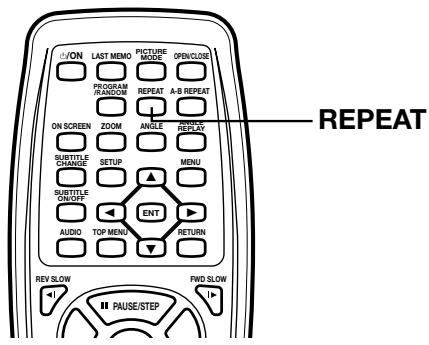
Press [REPEAT] during playback (or programmed playback) of the title (or track) you want repeat.
Each time the button is pressed, the repeat mode will be changed as follows.
[DVD]
| TV screen | FL display | Operation |
| Chapter | REP 1 | Repeat of chapter being played |
| Title | REP ALL | Repeat all title being played |
| Off | Normal playback mode |
[CD]
During Normal Playback
| TV screen | FL display | Operarion |
| 1 | REP 1 | Repeat of track being played |
| All | REP ALL | Repeat all tracks |
| Off | Normal playback mode |
During Programmed Playback
| TV screen | FL display | Operation |
| Program 1 | REP 1 | Repeat the programmed track being playback |
| Program All | REP ALL | Repeat all programmed tracks |
| Off | Original programmed playback mode |
During Random Playback
| TV screen | FL display | Operarion |
| 1 | REP 1 | Repeat of track being played |
| All | REP ALL | Repeat all tracks at random |
| Off | Original random playback mode |
Designated Range Repeat Playback (A-B Repeat)
-
Press [A-B REPEAT] during playback at the beginning of the section you want to repeat (Point A).
-
“...A-” appears on the TV screen.
-
"A" appears on the FL display.
-
Press [A-B REPEAT] again at the end of the section you want to repeat (Point B).
-
“...B” appears briefly on the TV screen.
-
" -B" appears, and "A-B" remains lit on the FL display.
The section between points A and B is played repeatedly.
-
To return to normal playback, press [A-B REPEAT] again.
-
"... Off" appears briefly on the TV screen.
Note:
Repeat playback or A-B repeat playback mode may not work correctly with some discs.
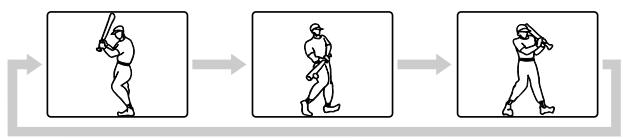
Point A
Point B
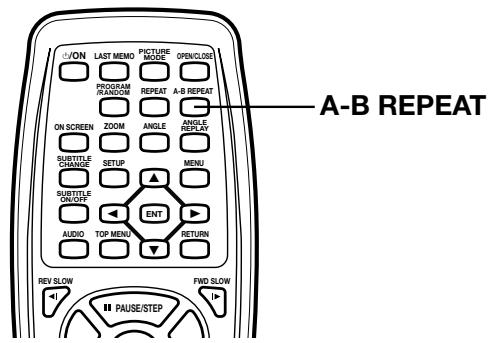
Important Note:
" " may appear on the TV screen during operation. This icon means that the function is not available on the disc now.

Random Playback [CD]
-
Press [PROGRAM/RANDOM] once in the stop mode.
-
"Random" appears on the TV screen.
-
Press [▶ PLAY] to begin random playback.
-
"RND" appears on the FL display.
The unit will automatically select tracks at random.
Notes:
- To stop random playback, press [■].
- [A-B REPEAT] and [SEARCH MODE] do not work during Random Playback.
Important Note:
" " may appear on the TV screen during operation. This icon means that the function is not available on the disc now.
ProgrammedPlayback[CD]
Up to 20 selections can be programmed.
Programming procedure
-
Press [PROGRAM/RANDOM] twice in the stop mode.
-
"Program Mode" screen appears.
-
Press the number buttons to select the track number. Example:
To select Track No.3, press [0], then [3].
To select Track No.10, press [1], then [0].
To select Track No.24, press [2], then [4].
Notes:
If you make a mistake, press [CLEAR].
-
To quit the "Program Mode" screen, press [PROGRAM/RANDOM].
-
Press [▼] to move the highlighted box down.
Example:
Program Mode
All Clear
103 6-- 11-- 16--
2-- 7-- 12-- 17--
3-- 8-- 13-- 18--
4-- 9-- 14-- 19--
5-- 10-- 15-- 20--
-
Repeat steps 2 and 3 as above to select another track.
-
Press [▶ PLAY] to start playback.
-
"PGM" appears on the FL display.
When all programmed selections have played, the unit stops automatically.
The programmed contents are retained in memory.
Note:
To play the program again, press [PROGRAM/RANDOM] twice to call up the "Program Mode" screen, then press [▶ PLAY].
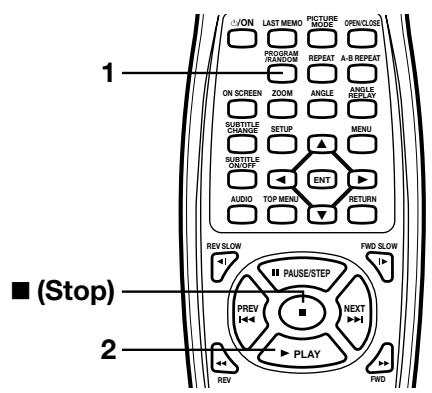
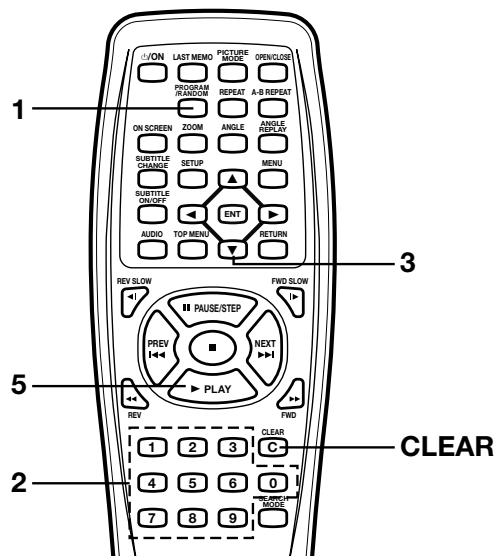
To clear the program one by one
- Press [PROGRAM/RANDOM] twice to display the "Program Mode" screen.
- Press [] or [] to select the track number.
- Press [CLEAR].
To clear all the programs
- Press [PROGRAM/RANDOM] twice to display the "Program Mode" screen.
- Press [▲] to select "All Clear".
- Press [ENT].
To change the program
- Press [PROGRAM/RANDOM] twice to display the "Program Mode" Screen.
- Press [] or [] to select the track number.
- Press the number buttons to select the track number to be replaced.
Note:
To quit the "Program Mode" screen, press [PROGRAM/RANDOM].
-E22-
Selecting Subtitle Language [DVD]
This operation works only with discs on which multiple subtitle languages are recorded.
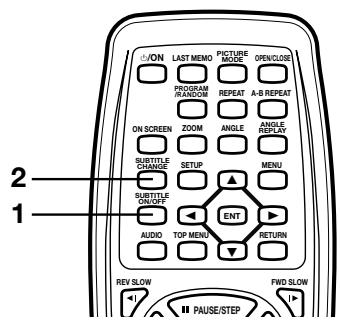
- Press [SUBTITLE ON/OFF] during playback. The subtitle language mark appears. (Example: 1/3 en) If "Off" appears, press the button again.
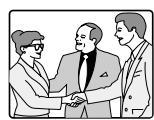
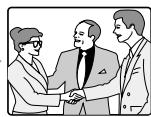
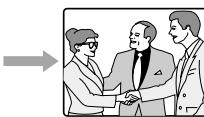
- Press [SUBTITLE CHANGE] repeatedly until the desired subtitle language appears on the TV screen. After a few seconds, "□" disappears. Example:
□3/3 fr
French
Notes:
- In some cases, the subtitle language is not changed to the selected one.
- When a disc supporting closed caption is played, the subtitle and the closed caption may overlap each other on the TV screen. In this case, turn the subtitle off.
- When the desired language is not available even if the button is pressed, the language is not available on the disc.
- When the power is turned on or the disc is replaced, select the subtitle language again.
- If the subtitle language is not necessary, press [SUBTITLE ON/OFF] to select "□ Off".
- Please refer to "Setting Language" on page E31.
Important Note:
" " may appear on the TV screen during operation. This icon means that the function is not available on the disc now.
Selecting Audio Soundtrack Language (Multi-Language) [DVD]
This operation works only with discs on which multiple audio soundtrack languages are recorded.
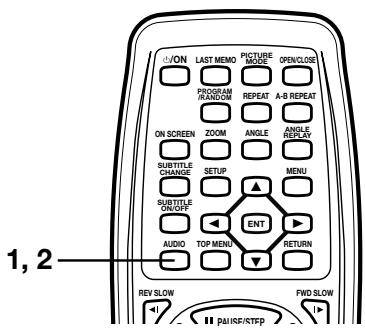
- Press [AUDIO] during playback.
- Press [AUDIO] repeatedly until the desired language appears on the TV screen. Examples:
1/4 fr
French
1/3 DTS
DTS sound
(If using an amplifier with DTS Decoder, the DTS sound will be heard. See page E12 for the amplifier connection.)
Notes:
- When the desired language is not selected even if the button is pressed, the language is not available on the disc.
- When the power is turned on or the disc is replaced, select the language again.
- If the language is not recorded on the disc, only the available language on the disc will be heard.
Hello!
Holà!
Hola!
-E23-

Selecting On-Screen Information
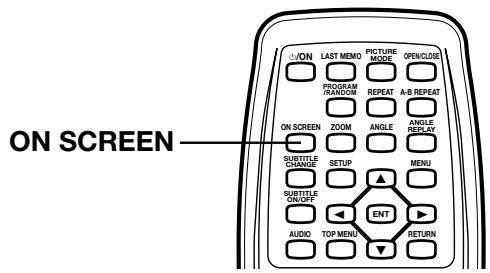
Press [ON SCREEN] repeatedly to show the disc information (Title, Chapter, Title elapsed playing time, Language, etc.).
Example for DVD:
- Press [ON SCREEN] during playback.
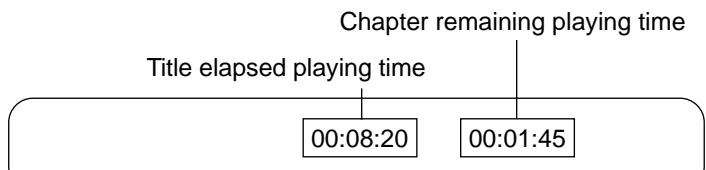
- Press [ON SCREEN] again.
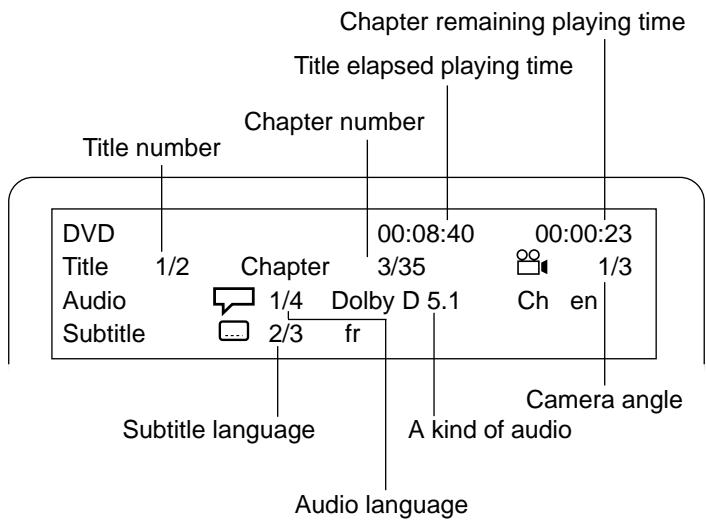
- Press [ON SCREEN] to close the disc information.
For improvement, on-screen displays subject to change without notice.
Example for Audio CD:
1. Press [ON SCREEN].

- Press [ON SCREEN] again.
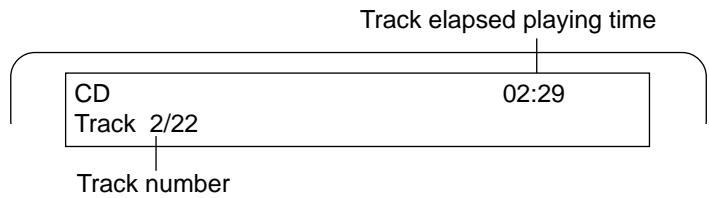
- Press [ON SCREEN] to close the disc information.
Selecting Picture Mode
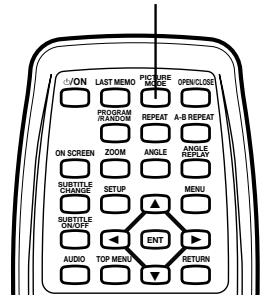
Press [PICTURE MODE] to show the picture mode. Each time the button is pressed, the picture mode changes as follows:
Standard Mild Black and White Standard ...
PICTURE MODE
Important Note:
" " may appear on the TV screen during operation. This icon means that the function is not available on the disc now.
-E24-
MP3 CD OPERATION
Before Starting
This unit can play back the CD that has recorded music data, MP3 files.
The file system is ISO9660 Level 1 and Level 2.
- If the CD has both audio CD tracks and MP3 files, only audio CD tracks are played.
- It would take 30 seconds or more for this unit to read MP3 files depending on its structure.
- This unit can recognize up to 256 files or folders per disc. The CD with 257 files or folders and over is not available to this unit.
- MP3 CDs may not be played in the recorded order.
- Please use the MP3 software with the function that can record data alphabetically or numerically.
- Please refrain from making many subFolders by preference.
However, some CD-R/RWs cannot be played back depending on the recording conditions.
Before playing back MP3 files, please read the following.
MP3 CD
- MP3 files must have the extension letters,“.MP3” or“.mp3”.
- Standard, sampling frequency, and the bit rate: MPEG-1 Audio
32kHz, 44.4kHz, 48kHz
32kbps ~ 320kbps (constant bit rate or variable bit rate)
- The recommended recording setting for a high-quality sound is 44.1kHz of sampling frequency and 128kbps of constant bit rate.
LIMITATIONS ON DISPLAY
- Available letters for display are the following: capital or small alphabets of A through Z, and numbers of 0 through 9.
- Other letters than those above are replaced in “-” (hyphen).
CAUTION:
- Some MP3 CDs cannot be played back depending on the recording conditions.
- The CD has no music data or non-MP3 files cannot be played back.
- The WMA files cannot be played back.
MP3 CDPlayback
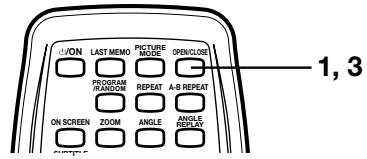
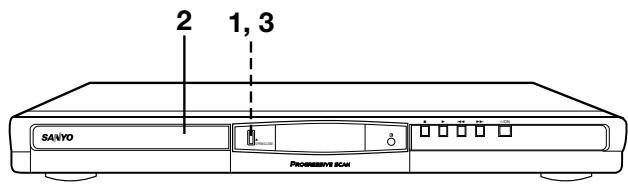
- Press [▲ OPEN/CLOSE] (or [OPEN/CLOSE] on the remote control).
- "OPEN" appears on the FL display, and the disc tray opens.
Note:
To open or close the disc tray, be sure to press [▲ OPEN/CLOSE] (or [OPEN/CLOSE] on the remote control). Do not press the disc tray with your hand.
- Place the disc with the label facing up on the disc tray.
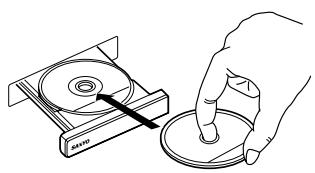
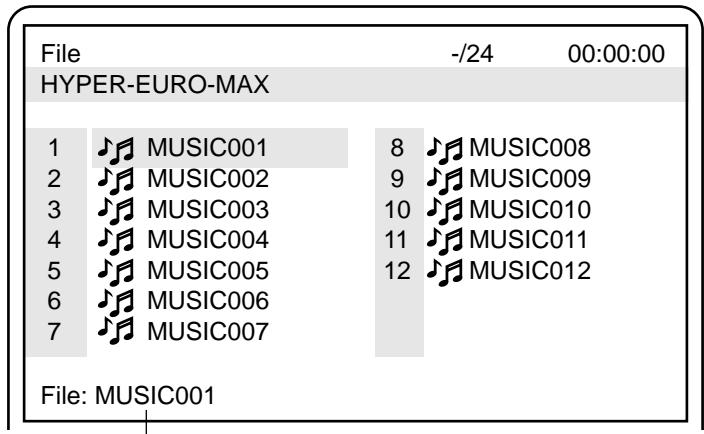
File information
Note:
If the disc is loaded with the label side downward, or if a badly scratched disc is loaded, "No Play" appears on the TV screen.
If this occurs, load the disc correctly or replace the disc.

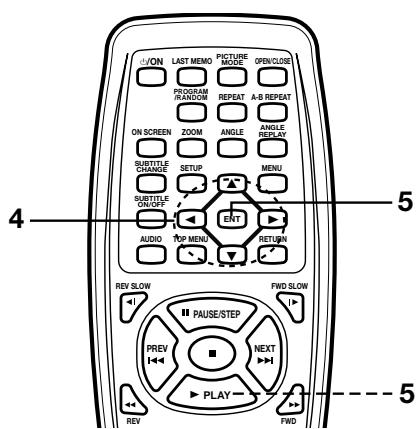
- Press [] , [] , [] or [] to move the highlighted box to the desired file.
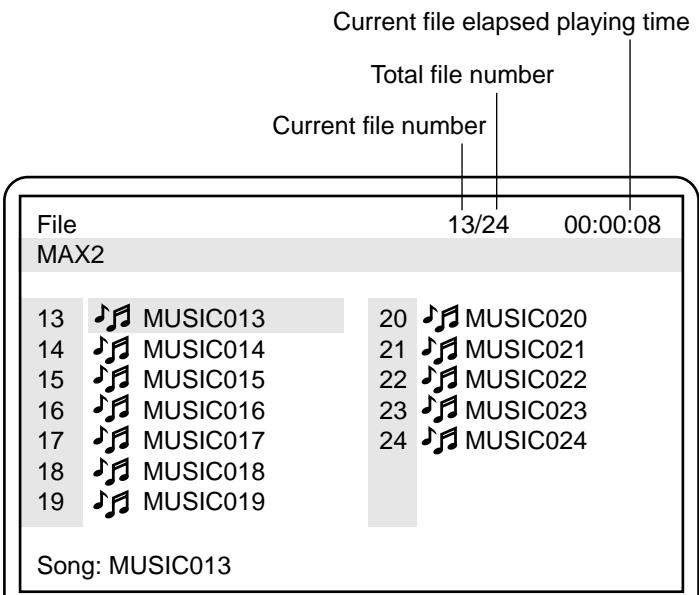
To go on to the next or previous directory, press [▲], [▷], [▼] or [◁].
- To go back to the previous directory, press [RETURN].
- In some discs, if [MENU] is pressed, it goes back to the first directory.
-
Press [ENT] (or PLAY) to start playback.
-
“▶” appears briefly on the TV screen
The letter's color in the highlighted box turns green. - "MP3" appears on the FL display.
Example: (the second directory)
Important Note:
" " may appear on the TV screen during operation. This icon means that the function is not available on the disc now.
Stopping Playback
Press [■] during playback. “■” appears briefly on the TV screen and playback stops completely.
Pause
Press [II PAUSE/STEP] during playback.
"I" appears briefly on the TV screen.
- "II" appears on the FL display.
Note:
The sound is muted.
Press PLAY] to return to normal playback.
File Skip
Skipping forward
Press [NEXT▶] during playback to skip to the next file.
"▶▶I" appears briefly on the TV screen.
Skipping backward
Press [PREV] during playback to skip back to the beginning of the file currently play.
"↑" appears briefly on the TV screen.
Press the button again immediately to skip back to the beginning of the previous file.
Repeat Playback
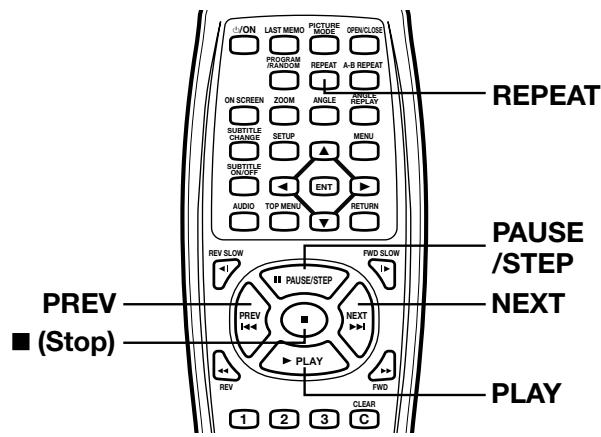
Press [REPEAT] during playback.
Each time the button is pressed, the repeat mode will be changed as follows.
| TV screen | FL display | Operation |
| 1 | REP 1 | Repeat of file being played |
| All | REP ALL | Repeat all files |
| Off | Normal playback mode |
Note:
Repeat playback may not work correctly with some disc.
-E26-
With KODAK Picture CD, it's easy to turn film into pictures you can email from your PC and view on this DVD video player! Just bring your film in for processing, and check the box for KODAK Picture CD. You'll get back your prints and negatives as usual-plus you'll get a special CD that contains your pictures along with software that lets you view, enhance, share, and print your pictures from your computer and view them on this DVD video player.
-
Load the disc with the label facing up on the disc tray. (Please refer to "MP3 CD OPERATION" on page E25.)
-
"PHOtO" appears on the FL display.
- "Picture CD" appears briefly on the TV screen.
- The first thumbnail pictures (maximum 9-picture) appear on the TV screen.
Example:
- Press [] , [] , [] or [] to move the cursor to the desired picture.
To go to the next or previous thumbnail pictures, press [NEXT] or [PREVI].
-
Press [ENT] (or [▶ PLAY]) to start the slide show from the selected picture.
-
If you press [I PAUSE/STEP] during the slide show, the slide show stops temporary. "I" appears briefly.
Press [▶ PLAY] (or [■ PAUSE/STEP]) again to resume the slide show.
- If the picture appears upside down or sideways, do the following steps.
1) Press [PAUSE/STEP], if necessary.
2) Press [ANGLE] repeatedly until it's right side up.
"290°", "2180°", "2270°" or "Normal" appears briefly on the TV screen.
3) Press [▶ PLAY] (or [■ PAUSE/STEP]) to skip to the next picture and continue the slide show.
- If you press [NEXT▶▶] or [PREVI▶] during the slide show, it skips to the next picture or previous picture.
After the last picture has displayed, the last thumbnail pictures appear.
- To stop the slide show, press [■]. The thumbnail pictures appear.
- If [TOP MENU] is pressed during the slide show, the thumbnail pictures appear.
Notes:
- If you press [MENU], the file list appears.
Example:
Picture
PICTURES
- /37
00:00:00
1
2
3
4
5
6
0
8
9 00
10园 010
11 01
12 01:
13 园 01:
14. 01.
File: 001-1A
If you start the slide show from the file list...
1) Press [], [], [] or [] to move the highlighted box to the desired file.
2) Press [ENT] (or PLAY]) to start the slide show. The file list appears after the last picture has displayed.
- If you press [TOP MENU], the thumbnail pictures appear.
FUJICOLOR CD can be used.
The file system is ISO9660 Level 1 and Level 2. - This unit can recognize up to 256 files or folders per disc. The CD with 257 files or folders and over is not available to this unit.
- Some discs cannot be played back depending on the recording conditions.
KODAK and Picture CD are registered trademarks of Eastman Kodak company.
-E27-

JPEG CD Playback
You can also view digital images from JPEG files on disc created by your computer.
- It would take 30 seconds or more for this unit to read the JPEG files depending on its structure.
-
Some JPEG files cannot be played back depending on the recording conditions.
-
Load the disc with the label facing up on the disc tray. (Please refer to "MP3 CD OPERATION" on page E25.)
-
"FILE" appears on the FL display.
- The file list appears on the TV screen.
Example:
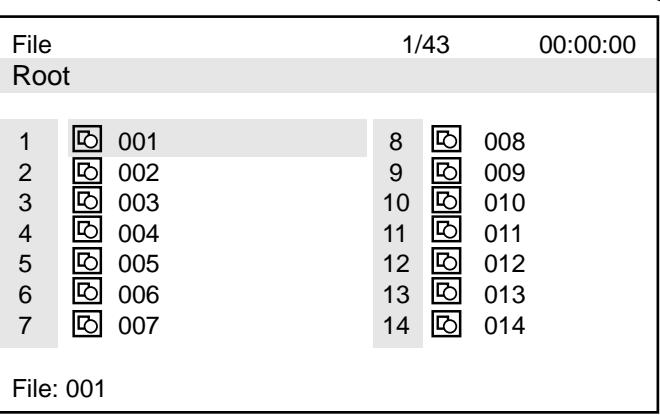
- Press [], [], [] or [] to move the highlighted box to the desired file.
-
Press [ENT] (or [▶ PLAY]) to start the slide show from the selected file.
-
"PHOtO" appears on the FL display.
-
If you press [PAUSE/STEP] during the slide show, the slide show stops temporary. "II" appears briefly. Press [▶ PLAY] (or [PAUSE/STEP]) again to resume the slide show.
- If the picture appears upside down or sideways, do the following steps.
1) Press [PAUSE/STEP], if necessary.
2) Press [ANGLE] repeatedly until it's right side up. "90°", "180°", "270°" or "Normal" appears briefly on the TV screen.
3) Press [▶ PLAY] (or [■ PAUSE/STEP]) to skip to the next picture and continue the slide show.
- If you press [NEXT▶▶] or [PREVI▶] during the slide show, it skips to the next file or previous file.

After the last file has displayed, the file list appears.
Notes:
- To stop the slide show, press [■]. The file list appears.
- If the disc is loaded with the label side downward, or if a badly scratched disc is loaded, "No Play" appears on the TV screen. If this occurs, load the disc correctly or replace the disc.
- The file system is ISO9660 Level 1 and Level 2.
- This unit can recognize up to 256 files or folders per disc. The CD with 257 files or folders and over is not available to this unit.
JPEG resolution up to 5760 × 3840 . - Some discs cannot be played back depending on the recording conditions.
Picture Zoom
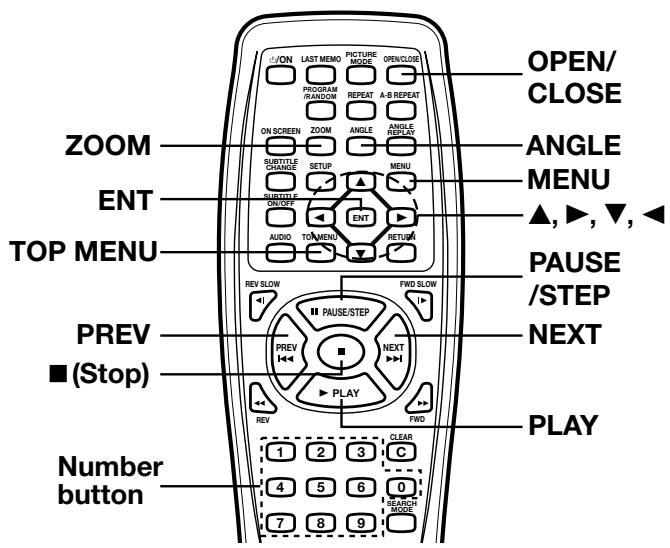
- Press [II PAUSE/STEP] at the desired picture (KODAK Picture CD and JPEG CD).
- Press [ZOOM].
- Press [▲], [▼], [▼], [▲] and [ENT] (or number buttons). The picture is magnified. (For more details, please refer to "Picture Zoom" on page E20.)
- Press [▶ PLAY] to resume the slide show.
If the disc is mixed with MP3 and JPEG files...
- Press [], [], [] or [] to move the highlighted box to the desired file.
- Press [ENT] (or [▶ PLAY]) to start playback (or slide show). If you start from the MP3 file, the unit plays the MP3 files. But the unit skips the JPEG files automatically.
- If you start from the JPEG file, the unit plays the JPEG files. But the unit skips the MP3 files automatically.
Important Note:
" " may appear on the TV screen during operation. This icon means that the function is not available on the disc now.
INITIAL SETTINGS
Once the initial settings have been completed, the unit can always be operated under the same conditions.
The settings will be retained in the memory until they are changed, even if the power is turned off.
Setting Language
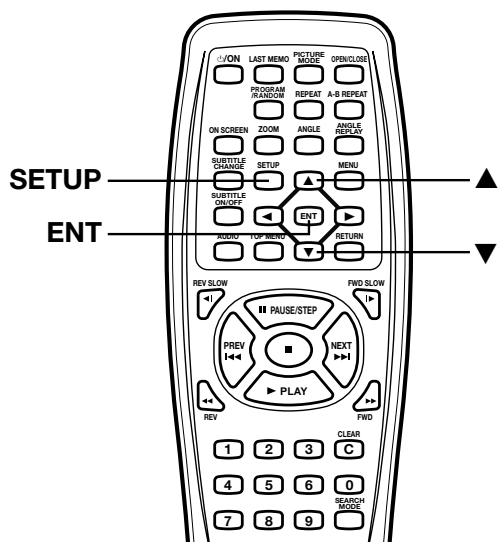
- Press [SETUP] in the stop mode.
The setup screen appears.
"Language" is highlighted.
Language
Display
Digital Out
Parental
- Press [ENT].
"Language" screen appears. - Press [▼] or [▲] to select the item (highlighted). Example:
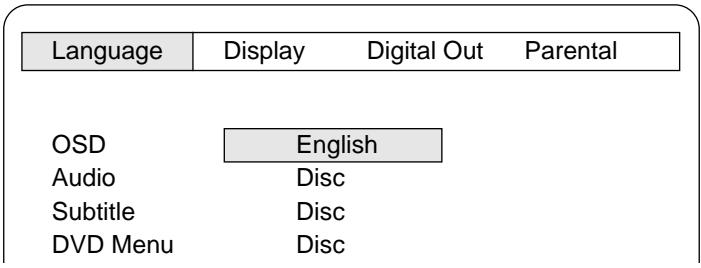
- Press [ENT].
The submenu appears.
Example:
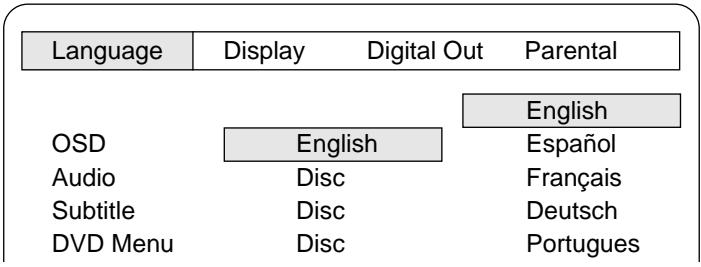
- Press [] or [] to select the language (highlighted).
- Press [ENT].
The selected language remains. - Repeat steps 3 6 for other items.
Note:
If "Others" is selected, enter the language code. (See "LAN-
GUAGE CODE LIST" on page E33.) - Press [▲] to skip back to the setup screen (or press [SETUP]).
Notes:
- In this instruction manual, the language in on-screen display is English. If you change the language, please follow the selected language in on-screen display.
- You cannot switch audio sound track languages if there is only one language recorded on the disc.
- When you play back a DVD video disc, the unit automatically displays the pre-selected subtitle language if it is included on the disc.
- If "Others" is selected, enter the language code. (See "LANGUAGE CODE LIST" on page E33.)
- For improvement, on-screen displays subject to change without notice.
Setting Display
- Press [SETUP] in the stop mode.
The setup screen appears.
Language
Display
Digital Out
Parental
- Press [▶] to select "Display".
- Press [ENT].
"Display" screen appears.
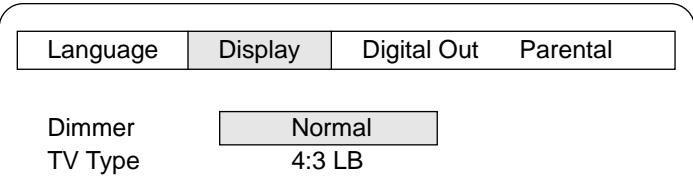
- Press [ENT] again.
The submenu (FL display brightness on the player, "Normal" and "Dark") appears.
Dimmer
TV Type
Normal
4:3 LB
Normal
Dark
- Press [▼] or [▲] to select the FL display brightness.
Example: To select "Dark".
Dimmer
TV Type
Normal
4:3 LB
Normal
Dark
- Press [ENT].
(In this example, "Dimmer Dark" remains.)
-
Press [▼] to select "TV Type".
-
Press [ENT].
The submenu ("4:3 LB", "4:3 PS" and "16:9") appears.
Dimmer
TV Type
Drak
4:3 LB
4:3 LB
4:3PS
16:9
- Press [] or [] to select the appropriate setting for your
TV screen size.
Example: To select "4:3 PS"
Dimmer
TV Type
Drak
4:3 LB
4:3 LB
4:3PS
16:9
- Press [ENT].
(In this example, "TV Type 4:3 PS" remains.)
- Press [▲] to skip back to the setup screen (or press [SETUP]).
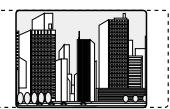
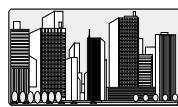
4:3 LB (Letterbox):
Select when a conventional TV set is connected.
When the wide screen disc is played back, the black bands appear at the top and bottom of screen.
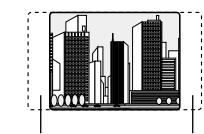
4:3 PS (Panscan):
Select when a conventional TV set is connected.
When the wide screen disc is played back, it displays pictures cropped to fill to your TV screen. The left and right edges are cut off.
16:9:
Select when a wide screen TV set is connected.
Played in "FULL" size. (Setting the wide screen TV to "FULL" mode is also necessary.)
Notes:
- The screen size may differ depending on the DVD video discs.
- If you select 16:9 to get rid of the black bands on screen when wide screen disc is played back, picture may be slightly distorted.
- In some discs, even if 4:3 PS is selected, the black bands may remain on the screen.

Cut off
Cut off


-E30-

Setting Digital Out
If the COAXIAL DIGITAL OUT jack is connected to the amplifier, you must set as follows:
- Press [SETUP] in the stop mode. The setup screen appears.
| Language | Display | Digital Out | Parental |
- Press [▶] to select "Digital Out".
- Press [ENT]. "Digital Out" screen appears.
| Language | Display | Digital Out | Parental |
| 96kHz LPCM | 48 kHz LPCM | ||
| Dolby Digital | LPCM | ||
| DTS | Off | ||
| MPEG | LPCM | ||
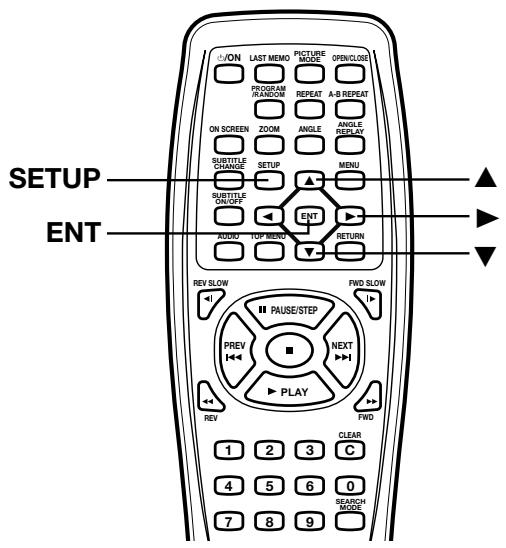
- Press [] or [] to select the item (highlighted).
- Press [ENT]. The submenu appears. Example:
| 96kHz LPCM | 48 kHz LPCM | LPCM |
| Dolby Digital | LPCM | BitStream |
| DTS | Off | |
| MPEG | LPCM |
- Press [▲] or [▼] to select the submenu (highlighted). Example: To select "Dolby Digital BitStream".
| 96kHz LPCM | 48 kHz LPCM | |
| Dolby Digital | LPCM | LPCM |
| DTS | Off | BitStream |
| MPEG | LPCM |
96kHz LPCM (96kHz Liner Pulse Code Modulation): If your amplifier is available for 96kHz sampling, select "96kHz LPCM". If not, select "48kHz LPCM".
Notes:
- When "48kHz LPCM" is set, there are 48kHz LPCM audio signals from the AUDIO OUT jacks, not 96kHz LPCM audio signals.
- When playing back the DVD video disc which recorded with 96kHz LPCM, there is no digital output.
- However playing back the DVD video disc with no copyright protection, the sound is original recorded sound.
Dolby Digital:
If your amplifier has Dolby Digital Decoder, select "BitStream". If not, select "LPCM".
DTS:
If your amplifier has DTS Decoder, select "On". If not, select "Off".
MPEG (Moving Picture Expert Group):
If your amplifier has MPEG2 Decoder, select "BitStream". If not, select "LPCM".
- Press [ENT]. (In this example, "Dolby Digital BitStream" remains.)
- Repeat steps 4 7 for other items.
- Press [▲] to skip back to the setup screen (or press [SETUP]).

Setting Parental
- Press [SETUP] in the stop mode.
The setup screen appears.

- Press [▶] to select "Parental".
- Press [ENT].
"Parental" screen appears.
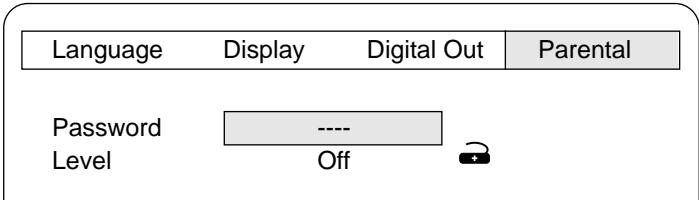
- Press [▼] to skip "Password ---" and select "Level".

- Press [ENT] repeatedly to select the parental lock level ("Level Off" ~ "Level 8").
Example: To select "Level 1"

- Press [▲] to return to "Password ---".
- Enter a number in 4 digits.

Note:
If you make a mistake, press [CLEAR].
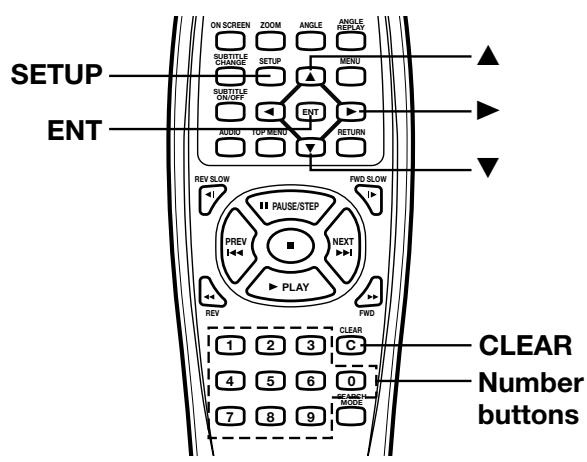
- Press [ENT].
The password is now set.

Note:
If you do not set it, Parental Control does not work, and it returns to the initial settings.
- Press [SETUP]
The setup screen disappears.
Parental Control
MPAA (Motion Picture Association of America) Guideline is a rating system that provides advanced cautionary information to parent about the content of movie programs.
The parental lock level is equivalent to the following MPAA Rating System.
Level 7: NC-17 (No one 17 and under admitted)
Level 6: R (Restricted)
Level 4: PG-13 (Parents strongly cautioned)
Level 3: PG (Parental guidance suggested)
Level 1: G (General audiences)
Some DVD discs contain a restriction level which enables parents to prevent playback of discs by children. This unit is equipped with a password designed to prevent children changing the level.
You cannot play DVD video discs rated higher than the level you selected unless you cancel the parental lock function.
For example, when you select level "5", the unit will not play discs with ratings of "6", "7" or "8".
The information will appear on the TV screen.
If you forget the password...
Enter "788444" even if 4 digits "----" appears, then press [ENT] to clear the current password.
Enter a new password and set the parental lock level again.
Note:
DVD video discs may or may not respond to the parental lock settings. Make sure this function works with your DVD video discs.
-E32-
LANGUAGE CODE LIST
Enter the appropriate code number for the initial settings "AUDIO", "SUBTITLE" and "DVD MENU".
| Code | Language abbreviation | Language |
| 6565 | aa | Afar |
| 6566 | ab | Abkhazian |
| 6570 | af | Afrikaans |
| 6577 | am | Amharic |
| 6582 | ar | Arabic |
| 6583 | as | Assamese |
| 6589 | ay | Aymara |
| 6590 | az | Azerbaijani |
| 6665 | ba | Bashkir |
| 6669 | be | Byelorussian |
| 6671 | bg | Bulgarian |
| 6672 | bh | Bihari |
| 6673 | bi | Bislama |
| 6678 | bn | Bengali; Bangla |
| 6679 | bo | Tibetan |
| 6682 | br | Breton |
| 6765 | ca | Catalan |
| 6779 | co | Corsican |
| 6783 | cs | Czech |
| 6789 | cy | Welsh |
| 6865 | da | Danish |
| 6869 | de | German |
| 6890 | dz | Bhutani |
| 6976 | el | Greek |
| 6978 | en | English |
| 6979 | eo | Esperanto |
| 6983 | es | Spanish |
| 6984 | et | Estonian |
| 6985 | eu | Basque |
| 7065 | fa | Persian |
| 7073 | fi | Finnish |
| 7074 | fj | Fiji |
| 7079 | fo | Faeroese |
| 7082 | fr | French |
| 7089 | fy | Frisian |
| 7165 | ga | Irish |
| 7168 | gd | Scotts Gaelic |
| 7176 | gl | Galician |
| 7178 | gn | Guarani |
| 7185 | gu | Gujarati |
| 7265 | ha | Hausa |
| 7273 | hi | Hindi |
| 7282 | hr | Croatian |
| 7285 | hu | Hungarian |
| 7289 | hy | Armenian |
| 7365 | ia | Interlingua |
| Code | Language abbreviation | Language |
| 7369 | ie | Interlingue |
| 7375 | ik | Inupiak |
| 7378 | in | Indonesian |
| 7383 | is | Icelandic |
| 7384 | it | Italian |
| 7387 | iw | Hebrew |
| 7465 | ja | Japanese |
| 7473 | ji | Yiddish |
| 7487 | jw | Javanese |
| 7565 | ka | Georgian |
| 7575 | kk | Kazakh |
| 7576 | kl | Greenlandic |
| 7577 | km | Cambodian |
| 7578 | kn | Kannada |
| 7579 | ko | Korean |
| 7583 | ks | Kashmiri |
| 7585 | ku | Kurdish |
| 7589 | ky | Kirghiz |
| 7665 | la | Latin |
| 7678 | In | Lingala |
| 7679 | lo | Laothian |
| 7684 | lt | Lithuanian |
| 7686 | lv | Latvian, Lettish |
| 7771 | mg | Malagasy |
| 7773 | mi | Maori |
| 7775 | mk | Macedonian |
| 7776 | ml | Malayalam |
| 7778 | mn | Mongolian |
| 7779 | mo | Moldavian |
| 7782 | mr | Marathi |
| 7783 | ms | Malay |
| 7784 | mt | Maltese |
| 7789 | my | Burmese |
| 7865 | na | Nauru |
| 7869 | ne | Nepali |
| 7876 | nl | Dutch |
| 7879 | no | Norwegian |
| 7967 | oc | Occitan |
| 7977 | om | (Afan) Oromo |
| 7982 | or | Oriya |
| 8065 | pa | Punjabi |
| 8076 | pl | Polish |
| 8083 | ps | Pashto, Pushto |
| 8084 | pt | Portuguese |
| 8185 | qu | Quechua |
| 8277 | rm | Rhasto-Romance |
| Code | Language abbreviation | Language |
| 8278 | rn | Kirundi |
| 8279 | ro | Romanian |
| 8285 | ru | Russian |
| 8287 | rw | Kinyarwanda |
| 8365 | sa | Sanskrit |
| 8368 | sd | Sindhi |
| 8371 | sg | Sangro |
| 8372 | sh | Serbo-Croatian |
| 8373 | si | Singhalese |
| 8375 | sk | Slovak |
| 8376 | sl | Slovenian |
| 8377 | sm | Samoan |
| 8378 | sn | Shona |
| 8379 | so | Somali |
| 8381 | sq | Albanian |
| 8382 | sr | Serbian |
| 8383 | ss | Siswati |
| 8384 | st | Sesotho |
| 8385 | su | Sundanese |
| 8386 | sv | Swedish |
| 8387 | sw | Swahili |
| 8465 | ta | Tamil |
| 8469 | te | Telugu |
| 8471 | tg | Tajik |
| 8472 | th | Thai |
| 8473 | ti | Tigrinya |
| 8475 | tk | Turkmen |
| 8476 | tl | Tagalog |
| 8478 | tn | Setswana |
| 8479 | to | Tonga |
| 8482 | tr | Turkish |
| 8483 | ts | Tsonga |
| 8484 | tt | Tatar |
| 8487 | tw | Twi |
| 8575 | uk | Ukrainian |
| 8582 | ur | Urdu |
| 8590 | uz | Uzbek |
| 8673 | vi | Vietnamese |
| 8679 | vo | Volapük |
| 8779 | wo | Wolof |
| 8872 | xh | Xhosa |
| 8979 | yo | Yoruba |
| 9072 | zh | Chinese |
| 9085 | zu | Zulu |
TROUBLESHOOTING GUIDE
If you have followed the instructions and are having difficulty operate the unit, locate the SYMPTOM in the left column below. Check the corresponding POSSIBLE CAUSE and CORRECTIVE ACTION columns to locate and remedy the problem.
| SYMPTOM | POSSIBLE CAUSE | CORRECTIVE ACTION |
| No power. | No power plug connection at the AC wall outlet. | Insert the power plug into the AC wall outlet. |
| The power is on, but the player does not work. | No disc is loaded. | Load a disc. |
| No picture. | An unplayable disc is loaded. | Load a playable disc. (Check the disc logo, type, color system and region number. See page E14.) |
| The TV is not set to receive signal from the player. | Select the correct input function on the TV. | |
| The video cable is not connected. | Connect the video cable into the jack. | |
| The S-video cable is not connected. | Connect the video cable into the jack. | |
| “PROGRESSIVE” mode is set. | Select “INTERLACE” mode. (See page E15.) | |
| No sound. | The TV is turned off. | Turn on the TV. |
| The audio cables are not connected. | Connect the audio cables into the jacks. | |
| The audio equipment is turned off. | Turn on the audio equipment connected with the audio cable. | |
| The playback picture is poor. | An unplayable disc is loaded. | Load a playable disc. (Check the logo, type, color system and region number. See page E14.) |
| “⊗” appears on the TV screen. | The selected function does not operate on the disc now. | The feature or action cannot be completed at this time because: • The feature is not available at the moment. • The DVD software restricts it. • The DVD software doesn’t support the fea-ture (e.g., angles). |
| The unit does not start playback. | No disc is loaded. | Load a disc. |
| An unplayable disc is loaded. | Load a playable disc. (Check the disc, logo, type, color system and regional code. See page E14.) | |
| The disc is loaded with the label side down. | Load the disc on the disc tray correctly. | |
| The disc is dirty. | Clean the disc or replace it. (See page E14.) | |
| “PARENTAL” is set. | Cancel the parental lock function or change the rating level. Reset it after play. (See page E32.) | |
| “No Play” appears on the TV screen. | An unplayable disc is loaded. | Load playable disc. (Check the disc logo, type, color system and region number. See page E14.) |
| “PARENTAL” is set. | Cancel the parental lock function or change the rating level. Reset it after play. (See page E32.) | |
| The disc may not have the correct file or data. | Load a playable disc. | |
| The disc tray does not open. | The disc tray may be locked. | Press the ▲ OPEN/CLOSE button on the unit until “UN-LOC” appears. (See page E16.) |
| The FL display on the unit is dark. | The display is set to “Dark”. | Reset it to “Normal”. (See page E30.) |
-E34-
| SYMPTOM | POSSIBLE CAUSE | CORRECTIVE ACTION |
| The operation or display is not normal. | The unit must be reset. | 1. Disconnect the power cord. 2. Reconnect the power cord. 3. Resume operation. |
| The remote control does not work properly. | The batteries in the remote control are weak, or installed incorrectly. | Check the battery polarity (+ or -). Replace the batteries. (See page E6.) |
| The remote control is not aimed at the remote sensor window. | Aim the remote control at the remote sensor window. (See page E6.) |
SERVICING:
Should this product require service, refer to the SANYO DVD limited warranty.
If you do not have a convenient SANYO service station nearby, contact the SANYO dealer where you purchased the unit. Be sure to give the model number and explain the problem. The dealer will advise you how to obtain service.
MAINTENANCE
WARNING:
FOR YOUR PERSONAL SAFETY, BE SURE TO DISCON
NECT THE AC POWER CORD BEFORE PROCEEDING
WITH ANY MAINTENANCE OR CLEANING.
Cleaning the cabinet
Use a clean soft cloth moistened with plain lukewarm water and wrung dry. Never use benzol, benzene or other strong chemical cleaners since these could damage the finish of your unit. It is important that no liquid reaches the inside of the unit.
SPECIFICATIONS
Type:
DVD Video player
Signal format:
SC color
Laser:
Semiconductor laser, wavelength 650 nm/790 nm
Frequency range (digital audio):
4 Hz to 44 kHz (DVD fs: 96 kHz)
Signal to nose ratio:
More than 105 dB
Harmonic distortion (digital audio)
0.003%
Wow and flutter:
Below measurable level
Outputs:
S-VIDEO OUT:
Y: 1.0V_p - p (75Ω)
C: 0.286 Vp-p (75 Ω)
COMPONENTVIDEOOUT:
Y:1.0 Vp-p (75Ω)
P_B / C_B : 0.7V_p - p (75Ω)
Approx. 4.5 lbs (2.05 kg)
IMPORTANT INFORMATION
Because its products are subject to continuous improvement, SANYO reserves the right to modify product designs and specifications without notice and without incurring any obligation.

DVD-SL33/CA(English)
36
-E35-

13/06/2003, 10:06

THE SANYO COMFORT WARRANTY AUDIO/VIDEO PRODUCTS
WARRANTY APPLICATION
New, unused Sanyo Audio/Video products purchased through a Sanyo authorized dealer in Canada are warranted against manufacturing defects in materials and workmanship for ONE YEAR from the date of purchase by the original retail purchaser. This warranty only applies in favor of the original retail purchaser of the warranted product.
SANYO CANADA INC.'S RESPONSIBILITY
During the warranty period, SANYO Canada Inc. will repair, or at our option, replace an Audio/Video product which shows evidence of a manufacturing defect in materials or workmanship.
Replacement PARTS are warranted for the remaining portion of the warranty period.
WHAT IS NOT COVERED
(a) Products purchased outside Canada.
(b) Products purchased in a used condition.
(c) Problems due to product set-up and installation.
(d) Adjustments that are outlined in the Operating Manual.
(e) Accessory items including antenna, batteries, cassette tapes, cables, etc.
(f) Damage in or due to transportation.
(f) Damage due to improper maintenance, improper wiring, accident, abuse, misuse or negligence.
(h) Damage caused by lightning and power surges.
ORIGINAL RETAIL PURCHASER'S RESPONSIBILITY
You, the original retail purchaser, must present your original, dated bill-of-sale together with this warranty to SANYO Canada Inc. or to an authorized Sanyo Service Depot when you make a claim under this Warranty.
You, the original retail purchaser, are responsible for any costs of TRANSPORTING the product to and from SANYO Canada Inc. or an authorized Sanyo Service Depot. You also are responsible for the cost of any MAINTENANCE necessary in respect of the product.
WARRANTY BECOMES VOID
This warranty becomes void if the product's serial numbers are altered or removed or if any repair to the product is made
other than by SANYO Canada Inc. or by an authorized Sanyo Service Depot.
LIMITATIONS
(a) SANYO Canada Inc. reserves the right to change or improve the design of the model of the product warranted hereunder without incurring any obligation to make any
modifications to or to install any improvement in or on the product.
(b) In no event shall SANYO Canada Inc. or any of its Authorized Dealers be liable for special or consequential damage arising from the use of this product.
STATUTORY WARRANTY
The above provisions do not preclude the operation of any applicable provincial statute which in certain circumstances may not allow some of the limitations and exclusions
described in this Warranty. Where any terms of this Warranty
are prohibited by such a statute, they shall be deemed null and void but the remainder of this warranty shall remain in effect.
HOW TO OBTAIN WARRANTY SERVICE
Please contact the Sanyo Authorized Dealer from whom the product was purchased, or contact us directly at:
SANYO Canada Inc.
1-300 Applewood Cres.
Concord, Ont. L4K 5C7
(905) 760-9944
1-800-263-2244
http://www.sanyocanada.com






SANYO Canada Inc.
-E37-

13/06/2003, 10:06

- Please Read This Manual.
- IMPORTANT INFORMATION:
- To enjoy Dolby Digital sound
- CAUTION
- WARNING!
- IMPORTANT SAFETY INSTRUCTIONS
- NEC - NATIONAL ELECTRICAL CODE
- ACCESSORIES
- CONTROLS
- REMOTE CONTROL
- Note:
- IMPORTANT NOTE:
- BEFORE CONNECTION
- Choosing a Connection
- BASIC CONNECTIONS
- Connecting to a Conventional TV (Example 1)
- Notes:
- Using the S-VIDEO jack
- Using the COMPONENTVIDEO OUT jacks
- Using RF Modulator
- Connecting to a TV with Progressive-scan Capability (Example 2)
- Progressive Scanning
- ADDITIONAL CONNECTION EXAMPLES
- Connecting to an Audio System and TV (Example 3)
- Power Supply
- CAUTION:
- ATTENTION:
- PLAYABLE DISCS
- Region Number
- DVD Video Disc
- Handling, Storing and Cleaning Discs
- Audio CD Disc
- BASIC OPERATION
- Preparations
- BasicPlayback
- 4:3 LB
- 4:3 PS
- 16:9 :
- To lock the disc tray
- Stopping Playback
- [DVD]
- [CD]
- ContinuingPlayback from Where You Stopped Watching (LAST MEMO PLAY), for DVD only
- Press [ENT].
- Selecting a DVD Menu
- Selecting a Top Menu [DVD]
- Chapter (Track) Skip
- Skipping forward
- Skipping backward
- Title Search [DVD]
- Chapter Search [DVD]
- Time Search [DVD]
- Time Search [CD]
- Track Search [CD]
- FastPlayback
- Fast forward playback
- Fast reverse playback
- Slow MotionPlayback [DVD]
- Forward slow playback
- Reverse slow playback
- Still Picture (Pause)
- Frame by Frame Advance Playback [DVD]
- Picture Zoom (Pin Point Zoom) [DVD]
- Viewing from a Desired Camera Angle (Multi-Angle) [DVD]
- Angle Replay
- Repeat Playback
- Designated Range Repeat Playback (A-B Repeat)
- Random Playback [CD]
- ProgrammedPlayback[CD]
- Programming procedure
- To clear all the programs
- To change the program
- Selecting Subtitle Language [DVD]
- Selecting Audio Soundtrack Language (Multi-Language) [DVD]
- Selecting On-Screen Information
- Example for DVD:
- Selecting Picture Mode
- MP3 CD OPERATION
- Before Starting
- MP3 CD
- LIMITATIONS ON DISPLAY
- Pause
- File Skip
- JPEG CD Playback
- Picture Zoom
- If the disc is mixed with MP3 and JPEG files...
- INITIAL SETTINGS
- Setting Language
- Setting Display
- Setting Digital Out
- Dolby Digital:
- Setting Parental
- Parental Control
- LANGUAGE CODE LIST
- TROUBLESHOOTING GUIDE
- SERVICING:
- MAINTENANCE
- WARNING:
- SPECIFICATIONS
- THE SANYO COMFORT WARRANTY AUDIO/VIDEO PRODUCTS
- WARRANTY APPLICATION
- SANYO CANADA INC.'S RESPONSIBILITY
- WHAT IS NOT COVERED
- ORIGINAL RETAIL PURCHASER'S RESPONSIBILITY
- WARRANTY BECOMES VOID
- LIMITATIONS
- STATUTORY WARRANTY
- HOW TO OBTAIN WARRANTY SERVICE
- SANYO Canada Inc.
Brand : SANYO
Model : DVDSL33
Category : DVD player