
NX500 - Car navigation system CLARION - Free user manual and instructions
Find the device manual for free NX500 CLARION in PDF.


| Product Type | Automotive Navigation System |
| Brand | CLARION |
| Model | NX500 |
| Display | 6.5-inch widescreen LCD touchscreen (280,800 pixels, 1200 x 234 RGB) |
| Dimensions (W x H x D) | 178 mm x 100 mm x 179 mm |
| Weight | 3.5 kg |
| Power Supply | 14.4 V DC (10.8 to 15.6 V allowable), negative ground |
| Current Consumption | 15 A fuse, rated automatic antenna current ≤ 500 mA |
| Output Power | 18 W RMS x 4 channels at 4 Ω (1% THD+N) |
| Signal-to-Noise Ratio | 85 dBA (ref. 1 W into 4 Ω) |
| FM Tuner | 87.9 - 107.9 MHz, sensitivity 8 dBμV |
| AM Tuner | 530 - 1710 kHz, sensitivity 28 dBμV |
| DVD Player | DVD video, Audio CD, MP3/WMA, DVD±R/RW support (MP3/WMA) |
| Audio Formats | MP3 (up to 320 kbps), WMA (up to 320 kbps), Audio CD |
| Navigation | Built-in GPS, NAND flash memory, USB update, TTS voice guidance (street names) |
| POI Database | 12 million points of interest |
| Connectivity | USB (iPod/iPhone), AUX/AV input, rear camera, Sirius, HD Radio, Bluetooth |
| Bluetooth | Built-in, hands-free calling and audio streaming compatible |
| Inputs/Outputs | Audio/video input (3-level), audio/video output (RCA), video output, camera input |
| Safety Features | Parking brake lock for video, DVD parental control, Sirius radio password |
| Included Accessories | Remote control (with CR2025 battery), GPS antenna, wiring harness, USB cable, trim ring, rear strap |
| Cleaning | Soft, dry cloth; for stubborn dirt, diluted neutral detergent; do not use solvents |
| Repairability | Do not open the case; contact an authorized Clarion center |
Frequently Asked Questions - NX500 CLARION
User questions about NX500 CLARION
0 question about this device. Answer the ones you know or ask your own.
Ask a new question about this device
Download the instructions for your Car navigation system in PDF format for free! Find your manual NX500 - CLARION and take your electronic device back in hand. On this page are published all the documents necessary for the use of your device. NX500 by CLARION.
USER MANUAL NX500 CLARION
For USA and Canada only
www.clarion.com
Dear Customer:
Congratulations on your purchase of a Clarion mobile electronic product. We are confident that you'll enjoy your Clarion experience.
There are many benefits to registering your product. We invite you to visit our website at www.clarion.com to register your Clarion product.
We have made product registration simple with our easy to use website.
The registration form is short and easy to complete. Once you're registered, we can keep you informed of important product information.
Register at www.clarion.com - it's easy to keep your Clarion product up to date.
Contents
-
FEATURES....4 Expanding Systems....4
-
PRECAUTIONS 5
-
CONTROLS 7
Operational Panel 7
Functions of Buttons 8
Remote Control 9
Functions of Remote Control Buttons 10 -
CAUTIONS ON HANDLING....12 Operation panel....12 Navigation System....12 USB Port....13 Cleaning....13 Handling Discs....14
-
DVD VIDEO SYSTEM....15 DVD Video Features....15 Discs....16 About the registered marks etc....17
-
OPERATIONS....18 Basic Operations....18 Radio Operations....22 DVD Video Player Operations....23 Sirius Satellite Radio Operations....30 Navigation System Operations....32
Introduction to Navigation Software .... 32
Main Menu Screen Operations.... 32
Route to Home Address.... 33
Select the Destination ....33 • Address or Intersection Mode....33 • Point of Interest Mode....34 • Coordinates Mode....35 • Edit Favorites Mode....35 • History Mode....36 System Preferences Setup....36 Office Address Setup....37 Trip Computer Readings and Resets....38
-
ACCESSORIES ....39 iPod/iPhone Operations....39 USB Operations....41 Bluetooth Audio Player Operations....42 HD Radio Operations....47 AUX In/AV In Operations....49 Camera In Operations....49 Setup Operations....50
-
TROUBLESHOOTING....52
- ERROR DISPLAYS....53 10.SPECIFICATIONS....54 INSTALLATION/ WIRE CONNECTION GUIDE....55
1. FEATURES
■Double Din 6.5" Touch Panel Control
■Motorized 7" Touch Panel Control
■ DVD Video/CD-DA/MP3/WMA
Playback Capability
■Built-In Navigation
■ OEM Steering Wheel Remote Ready
■ Compatible with Sirius Satellite Radio
■ Built-In Bluetooth®
■ Compatible with iPod®/ iPhone™ via USB
■ HD Radio™ Ready






Bluetooth®



MP3/WMA
Expanding Systems
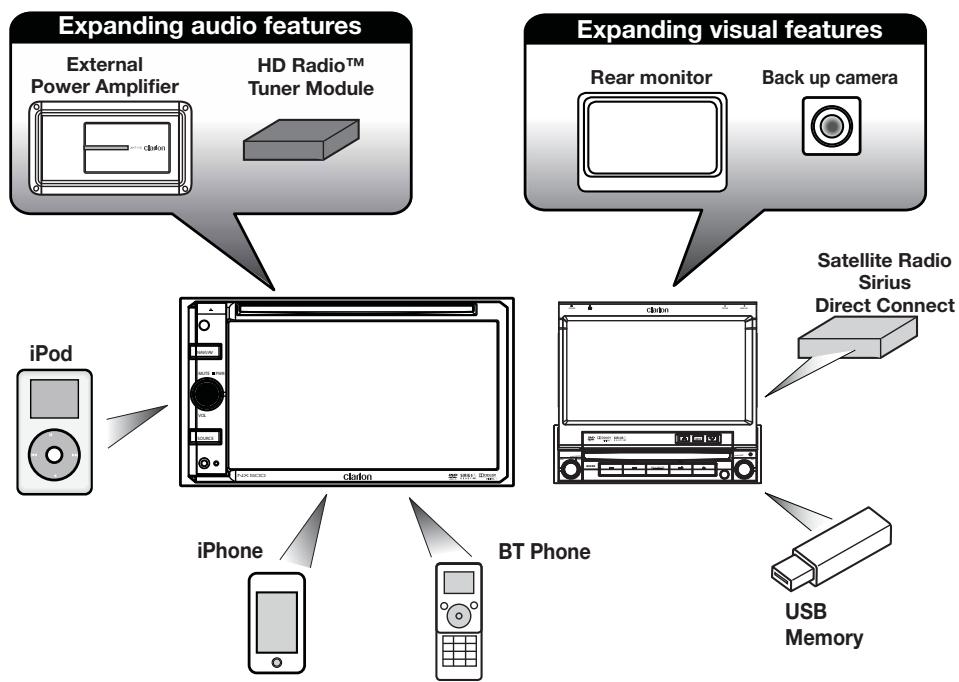
flowchart
graph TD
    A["External Power Amplifier"] --> D["Clifton"]
    B["HD Radio™ Tuner Module"] --> D
    C["iPod"] --> D
    D --> E["Clifton"]
    F["iPhone"] --> E
    G["BT Phone"] --> E
    H["USB Memory"] --> I["Satellite Radio Sirius Direct Connect"]
    J["Back up camera"] --> K["Rear monitor"]
    L["Expansion audio features"] --> D
    M["Expansion visual features"] --> K
NOTE:
The unit can receive analog, HD Radio (optional) and satellite radio (optional) broadcasts. The items listed outside the frames are the commercial products generally sold.
2. PRECAUTIONS
WARNING
- For your safety, the driver should not watch any video sources and/or operate the controls while driving. Please note that watching and operating any video sources while driving are prohibited by law in some countries. Also, while driving, keep the volume to a level at which external sounds can be heard.
- When using the navigation system, follow the precautions listed below. After reading this manual, be sure to keep it in a handy place (such as the glove box of your car).
- This navigation system should not be used to replace your own judgment. No itinerary suggested by this navigation system should ever override any highway regulations, your own judgment, or a knowledge of safe driving practices. Do not follow the navigation system's suggested itinerary if it would cause you to perform a dangerous or illegal act, place you in a dangerous situation, or take you into an area you consider unsafe.
- The advice provided by the navigation system is to be regarded as a suggestion only. There may be times when the navigation system displays the vehicle's location incorrectly, fails to suggest the shortest route, or fails to direct you to your desired destination. In such instances, rely on your own driving judgment, taking into account the driving conditions at the time.
- Do not use the navigation system to locate emergency services. The database does not contain a complete listing of emergency services such as police stations, fire halls, hospitals and walk-in clinics. Please show discretion and ask for directions in such instances.
- As the driver, you alone are responsible for your driving safety.
- In order to avoid a traffic accident, do not operate the system while driving.
- In order to avoid a traffic accident, operate the system only when the vehicle is stopped at a safe place and the parking brake is on.
- In order to avoid a traffic accident or traffic offense, remember that actual road conditions and traffic regulations take precedence over the information contained on the navigation system.
- The software may contain inaccurate or incomplete information due to the passage of time, changing circumstances, and the sources of information used. Please respect current traffic conditions and regulations at all times while driving.
- Where actual road conditions and highway regulations differ from the information contained on the navigation system, abide by the highway regulations.
- Keep the amount of time spent viewing the screen while driving to a strict minimum.
- The navigation system does not provide, nor represent in any way information on: traffic and highway regulations; technical aspects of the vehicle including weight, height, width, load and speed limits; road conditions including grade, percentage of incline and surface conditions; obstacles such as the height and width of bridges and tunnels; and other current driving or road conditions. Always rely on your own judgment when driving a car, taking into account current driving conditions.
- Do not disassemble or modify this unit. It may cause an accident, fire, or electric shock.
- Do not use this unit when a trouble exists, such as no screen content appears or no sound is audible. It may cause an accident, fire, or electric shock. For that case, consult your authorized dealer or a nearest Clarion service center.
- In case of a problem, such as foreign materials have entered in the unit, the unit gets wet, or smoke or strange smells come out of the unit, etc., stop using this unit immediately, and consult your authorized dealer or a nearest Clarion service center.
Using it in that condition may cause an accident, fire, or electric shock. - Use a fuse with the same specification only when replacing the fuse.
Using a fuse with a different specification may cause a fire. -
For the installation of this unit or a change in the installation, ask your authorized dealer or a nearest Clarion service center for safety. Professional skills and experiences are required to do so.
-
When the inside of the car is very cold and the player is used soon after switching on the heater, moisture may form on the disc (DVD/CD) or the optical parts of the player and proper playback may not be possible. If moisture forms on the disc (DVD/CD), wipe it off with a soft cloth. If moisture forms on the optical parts of the player, do not use the player for about one hour. The condensation will disappear naturally allowing normal operation.
- Driving on extremely bumpy roads which cause severe vibration may cause the sound to skip.
- This unit uses a precision mechanism. Even in the event that trouble arises, never open the case, disassemble the unit, or lubricate the rotating parts.
- This equipment has been tested and found to comply with the limits for a Class B digital device, pursuant to Part 15 of the FCC Rules. These limits are designed to provide reasonable protection against harmful interference in a residential installation. This equipment generates, uses, and can radiate radio frequency energy and, if not installed and used in accordance with the instructions, may cause harmful interference to radio communications. However, there is no guarantee that interference will not occur in a particular installation. If this equipment does cause harmful interference to radio or television reception, which can be determined by turning the equipment off and on, the user is encouraged to consult the dealer or an experienced radio/TV technician for help.
INFORMATION FOR USERS: CHANGES OR MODIFICATIONS TO THIS PRODUCT NOT APPROVED BY THE MANUFACTURER WILL VOID THE WARRANTY AND WILL VIOLATE FCC APPROVAL
3. CONTROLS
Operational Panel
![[▲] MIC SENSOR [NAVI/AV] [MAUTE] [■ PWR] [VOL] [SOURCE] AUX IN RESET NAV1/AV MUTE ■PWR VOL SOURCE NX500 clarion Bluetooth SIRUS DOULBY NATL](/content/2024/12/95862/images/3b2c17125a3748bfc4865388018b594e99f98caee512b92f6e2463d77edda1e4.jpg)
![[CLOSE] [BND] [PS/AS] [NAVI/AV] clarion MIC [TILT UP] [INFO] [TILT DOWN] DVD IDOLEY SIRIUS Bluetooth MIC INFO OPEN BND Clarion PS AS DISP PS AS DISPLAY RESET push MUTE [■ PWR] [VOL] N250D SEEK [I◀] [SOURCE] SCAN [▶/II] [▲] [AUX IN] [push ENT] [SEL]](/content/2024/12/95862/images/16a93b2244ce3d90a621a62ac8e683af50b2951b7860011a1b560d8d97e3d5f9.jpg)
Functions of Buttons
Note: Be sure to read this chapter while referring to front diagram "CONTROLS"
[MUTE] [■ PWR] [VOL] Knob
- Press this knob to turn on the power. Keep pressing this knob more than 1 second to turn off the power.
- Press this knob to attenuate the sound of the receiver, press again to restore sound.
- Rotate the knob to increase or decrease the volume.
[NAVI/AV] Button
- Press this button to enter navigation video.
- Press this button more than 2 seconds to return to the previous mode.
[SOURCE] Button
- Press this button to scroll through the available sources such as AM/FM Tuner, Sirius, DVD, NAVI, USB, Camera modes, etc.
[◀◀] [▶▶I] Search/Seek Button
- Press to search next or previous station or channel in Tuner, Sirius radio modes.
- Press to search next or previous track or chapter in CD, MP3/WMA, iPod and DVD video modes.
- Press and hold to fast forward or fast backward by ×2 ,4,8,16 step in CD, MP3/WMA and DVD video mode.
- Press and hold to fast forward or fast backward in iPod music.
- Press and hold to enter manual seek status in Tuner and Sirius radio mode, then press briefly to seek station by step.
[▶/II] Play /Pause Button / Scan Button
Press to play, pause or scan audio or video.
- Press shortly to scan.
- Press and hold one time:
Audio or video file will be paused. If then press briefly, file will be resumed to play.
[▲] Eject
- Press to eject disc from unit when panel is opened.
[OPEN] [CLOSE] Button
Use this button to open/close operation panel.
[BAND] Button
- Use this button to enter AM/FM tuner mode from any source.
- Once in AM/FM tuner mode, you can press it to change bands between FM1, FM2, FM3, AM bands.
[PS/AS] Button
- Press this button to start the preset scan mode.
- Press and hold this button to start the auto preset scan and setting mode.
[^] [∨] Button
Press the buttons to adjust the operational panel angle.
[INFO] Button
Press to turn On and Off to display list in Tuner, Sirius radio, DVD/CD modes.
[push ENT] [SEL] Button
- Rotate the button to move to next folder in iPod mode.
- Press to confirm and play current media file in CD, MP3/WMA, DVD and iPod mode.
[DISPLAY] Button
- Press this button to display band in Radio, Sattelite, CD/DVD, iPod mode.
- Press one more time to dispaly current time from any mode.
RESET Button
- Press this button to reset the unit.
SENSOR
- Receiver for the remote control unit (operating range: 30 degree in all directions).
MIC
- Internal microphone for use during Bluetooth phone calls. Sensitivity can be adjusted from the Settings menu.
![Signal transmitter Operating range: 30° in all directions [MUTE] [MODE] [0 - 9] [SRCH] [▲] [▼] [ESC] [◀] [▶] [TITLE] [◀◀] [▶▶] [ZOOM] [AUDIO] clarion [OPEN] [POWER] [VOLUME] [INFO] [■ / BAND] [SEL] [MENU] [PIC] [A→B] [OK] [REPEAT] [ROOT] [SUB TITLE/VIDEO iPod MODE*] [ANGLE/AUDIO iPod MODE*] * Only when capable iPod/iPhone is connected](/content/2024/12/95862/images/8b3f08fb10c6599cd6cc37a78d0ee937c50ad94d3c0837344856e39a1d6e301f.jpg)
Replacing the batteries
- Press the retention tab and pull out the battery tray and remove the old battery.
- Insert the new CR2025 battery and slide the battery tray back in the remote control the same direction that you removed it. Please ensure the tray is inserted in the correct direction.
Note:
Using batteries improperly can cause them to explode. Take note of the following points:
- When replacing batteries, replace both batteries with new ones.
- Do not short-circuit, disassemble or heat batteries.
- Do not dispose of batteries into fire or flames.
- Dispose of discharged batteries properly.
Functions of Remote Control Buttons
You can use the remote control unit to control the NX500 and NZ500.
Note:
- The wireless remote control operation may not be optimal in direct sunlight.
Shared modes
[MODE] Button
- Press this button to scroll through the various available sources such as the AM/FM tuner, DVD player, iPod, Sirius Radio, or AUX IN.
[VOLUME] Button
Increase and decrease volume.
[MUTE] Button
Turns mute on and off.
[POWER] Button
Press this button to turn the unit on or off.
[OPEN] Button
Press this button to OPEN or CLOSE the motorized screen. Please ensure there are no obstructions before starting the operation.
[MENU] Button
Press this button to enter the MAIN MENU. From the main menu, you can select your desired source or change your settings.
[PIC] Button
Press this button to change your monitor settings such as Brightness, Color, and Contrast.
[SEL] Button
Press this button to change your audio settings such as Tone, Fader, and Balance.
[ESC] Button
Press this button to exit selection and adjustment menus.
TUNER/Satellite Radio mode
[BAND] button
Switches reception band.
[0 - 9] Buttons
- Use in the Key Pad screen to set the radio frequency or Satellite Radio channels.
- Use to select the preset number in the Preset List screen.
[SEARCH] Button
Press to show/hide the Key Pad screen.
[OK] button
Press to fix the entered data in the Key Pad screen.
[◀◀], [▶▶] Buttons
Press to seek the next available higher or lower station in TUNER mode. In Sirius Radio mode, you will scroll through the categories.
[◀◀], [▶▶] Buttons
Press to manually select the next higher or lower station in TUNER and Satellite Radio modes.
[▲], [▼] Buttons
Press to scroll through the saved presets in the TUNER mode. Press [OK] to tune to the highlighted preset.
[INFO] Button
Press to switch in and out of the LIST mode while in the TUNER/ Sirius Radio mode.
DVD PLAYER mode
- Press to turn on and off the playtime display in the DVD video.
- Press to switch in and out of the LIST mode while playing CD audio.
[SEARCH] Button
Press to open the direct search menu while in the DVD video mode.
[OK] Button
Press to select, play or pause video and audio media.
[■/BAND] Button
- Press to stop video and audio media play back.
[0 - 9] Buttons
- Press to enter DVD video chapters/titles in the Key Pad screen.
- Press to set the track/folder number of the CD, or MP3/WMA in the Key Pad screen.
[DISC SEL] Button
- Press to show/hide the Track List screen in the CD mode.
- Press to show/hide the Folder List screen in the MP3/WMA mode.
[TITLE] Button
Press to go to the title menu on the DVD.
[ROOT] Button
Press to go to the root menu on the DVD.
[▲], [▼], [◀], [▶] Buttons
- Press to select button items on the menu screen of a DVD video.
- Press [◀], [▶] to scroll through the page screens in the CD and MP3/WMA modes.
Functions of Remote Control Buttons
[◀◀], [▶▶] Buttons
- Press to select the next higher or lower chapter number in DVD video mode.
- Press to select the next higher or lower track in CD.
[◀◀], [▶▶]Buttons
Press to perform fast-forward and fast-backward. Press again to advance to higher speed reversing or forwarding such as 2x, 4x, 8x and 16x. Press once more to resume normal speed playback.
[RPT] Button
- Press to perform chapter repeat in the DVD video mode, and track repeat in CD and MP3/WMA modes.
- Press again to perform title repeat in DVD video mode or folder repeat in MP3/WMA mode. In CD mode, this will activate the repeat all mode.
- Press again to perform all repeat in MP3/WMA playback mode.
[A→B] Button
- Press to set initial starting point of repeat. The screen will show 'REP A-'.
- Press again to set repeat ending point. The screen will show ‘REP A-B’
- Press again to turn off A-B repeating. The screen will show ‘REP AB Off’
[ZOOM] Button
Press to turn on and zoom in while in DVD Video mode. You can zoom in up to 3x.
[AUDIO] Button
Press to switch the AUDIO function in the DVD video mode.
[SUB-T] Button
Press to display subtitles in the DVD video mode.
[ANGLE] Button
Press to switch the ANGLE function in the DVD video mode when the Angle mark is displayed.
[OK] Button
Press to play or pause the selected media.
[◀], [▶] Buttons
Press to scroll the list screens.
[◀◀], [▶▶] Buttons
Press to select the next higher or lower track numbers.
[◀◀], [▶▶] Buttons
Press to perform fast-forward or fast-backward searching. Press again to change the speed to 2x, 4x, 8x or 16x.
4. CAUTIONS ON HANDLING
Operation Panel
For a longer service life, be sure to read the following cautions.
- The operation panel will operate properly in a temperature range of 0^ to 60^ .
- Do not allow any liquids on the set from drinks, umbrellas etc. Doing so may damage the internal circuitry.
- Do not disassemble or modify the set in any way. Doing so may result in damage.
- Subjecting the operation panel to shocks may result in breakage, deformation or other damage.
-
If a problem should occur, have the set inspected at your store of purchase.
-
Do not insert objects or poke in the space between the operation panel and the main unit when the panel is tilted.
- The remote control unit may not work if the remote control sensor is exposed to direct sunlight.
- In extremely cold weather, the display movement may slow down and the display may darken, but this is not a malfunction. The display will work normally when the temperature increases.
- Small black and shiny spots inside the liquid crystal panel are normal for LCD products.
Navigation System
- To prevent discharge of the car battery, use this system with the engine of the vehicle running as much as possible.
- The housing of this unit may become hot because this unit has a high-speed CPU. Be careful to handle the unit during navigating or immediately after turning the power off.
- Turn off the power of the vehicle when connecting or disconnecting wires. Doing this while the power of the vehicle is turned on, may cause a trouble or malfunction.
Note:
- When using this unit first time after purchasing, or not used for long periods of time, it might take about 5 to 15 minutes until the current location is determined using GPS. Moreover, even when using it often, it may take about 2 to 3 minutes until the current location is determined according to the GPS measuring situation.
- When the route (path) cannot be calculated, move desired destination to a nearby main road and perform calculation again. It may
be impossible to find a route in case the car location is too close to the desired destination.
- For vehicles equipped with an intelligent key, do not bring the intelligent key close to the unit of the navigation system. The navigation system may not operate correctly.
- If an electrical equipment that generates a strong electrical noise is used near this unit, the screen may be disturbed and noise may be generated. In this case, keep away such an electrical equipment or refrain from using it.
- Data saved to the flash memory may get lost in case of a breakdown, malfunction, or other trouble of this unit.
- Operation of the navigation system may be limited to protect the unit if the temperature is extremely high or low. In such a case, please wait until temperature becomes normal again.
USB Port
- The USB memory stick may stick out when inserted, so it may cause danger during driving. In such cases, you can use a commercial USB extension cable, etc., but use it safely under your own judgment.
- The USB memory sticks must be recognized as “USB mass storage class” to work properly. Some models may not operate correctly.
When the memorized data is lost or damaged by any chance, Clarion shall not be liable for any damage.
When using an USB memory stick, we recommend that you backup your data stored on it before by using a personal computer etc.
- Data files may be broken when using USB memory sticks in the following situation: When disconnecting the USB memory stick or turning the power off during writing or reading data.
When affected by static electricity or electric noise. Connect/disconnect the USB memory stick when it is not accessed. - Some USB memory sticks cannot be inserted to the main unit because of their shape. In such cases, use a commercial USB extension cable to connect them.
- Connecting with the computer is not covered.
- Music files (MP3, WMA, etc.) stored in the USB memory stick cannot be played back.

WARNING
Alkaline (CR) button batteries contain Perchlorate.
Dispose of discharged batteries properly.
Cleaning
- Cleaning the cabinet
Use a soft, dry cloth and gently wipe off the dirt. For tough dirt, apply some neutral detergent diluted in water to a soft cloth, wipe off the dirt gently, then wipe again with a dry cloth. Do not use benzene, thinner, car cleaner, etc., as these substances may damage the cabinet or cause the paint to peel. Also, leaving rubber or plastic products in contact with the cabinet for long periods of time may cause stains.
- Cleaning the liquid crystal panel
The liquid crystal panel tends to collect dust, so wipe it off occasionally with a soft cloth. The surface is easily scratched, so do not rub it with hard objects.
Handling Discs
Handling
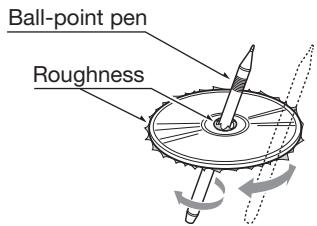
- New discs may have some roughness around the edges. If such discs are used, the player may not work or the sound may skip. Use a ball-point pen or the like to remove any roughness from the edge of the disc.
- Never stick labels on the surface of the disc or mark the surface with a pencil or pen.
- Never play a disc with any cellophane tape or other glue on it or with peeling off marks. If you try to play such a disc, you may not be able to get it back out of the DVD player or it may damage the DVD player.
- Do not use discs that have large scratches, are misshapen, cracked, etc. Use of such discs may cause misoperation or damage.
- To remove a disc from its storage case, press down on the center of the case and lift the disc out, holding it carefully by the edges.
- Do not use commercially available disc protection sheets or discs equipped with stabilizers, etc. These may damage the disc or cause breakdown of the internal mechanism.
Storage
- Do not expose discs to direct sunlight or any heat source.
- Do not expose discs to excess humidity or dust.
- Do not expose discs to direct heat from heaters.
Cleaning
- To remove fingermarks and dust, use a soft cloth and wipe in a straight line from the center of the disc to the circumference.
- Do not use any solvents, such as commercially available cleaners, anti-static spray, or thinner to clean discs.
• After using special disc cleaner, let the disc dry off well before playing it.
On Discs
- Exercise a good precaution when loading a disc. The operation panel will close automatically when leaving it open for a while.
- Never turn off the power and remove the unit from the car with a disc loaded.
CAUTION
For your safety, the driver should not insert or eject a disc, opening the operation panel while driving.
5. DVD VIDEO SYSTEM
DVD video is a high-quality digital video source that provides crisp and clear images. One 12 cm disc contains either one film or four hours of music.
DVD Video Features
This unit provides the following functions in addition to the high image quality and sound quality of DVD video.
Note:
- The functions described in this section, for example, the recorded language, subtitles, angles, etc. differ depending on the DVD video disc.
Refer to the instructions provided with the DVD video. - Some disc functions may operate differently from described in this manual.
Multi-sound function
DVD video can store up to 8 languages for one film; select the language of your preference.
- The languages stored on the disc are indicated by the icon shown below.

Multi-angle function
A DVD video that is filmed from multiple angles allows you to select the angle of choice.
- The number of recorded angles are indicated by the icon shown below.

A DVD video can record subtitles for up to 32 languages and you can select the language of the subtitles you wish to see. The number of recorded subtitle languages are indicated by the icon shown below.
Multi-story function
When a DVD video contains more than one story for a film, you can select the story you wish to enjoy. The operation procedures vary with the disc; observe the instructions for selecting a story provided during playback.
Menu screens
Menus can be called up during DVD video playback to perform menu setting.
• Example showing menu display
Discs
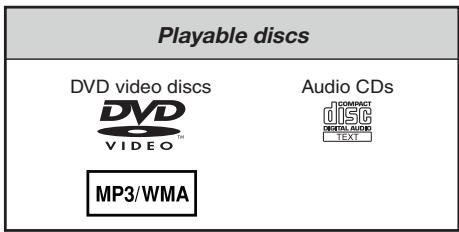
playable discs
This DVD video player can play the following discs.
About CD Extra discs
A CD Extra disc is a disc in which a total of two sessions have been recorded. The first session is Audio session and the second session is Data session.
Your personally-created CDs with more than second data sessions recorded cannot be played on this DVD video player.
Note:
- When you play a CD Extra disc, only the first session will be recognized.
About playing a CD-R/CD-RW disc (MP3, WMA)
This player can play CD-R/CD-RW discs previously recorded in music CD format (MP3, WMA) or video CD format.
About playing a DVD-R/RW or DVD+R/RW disc
This player cannot play DVD-R/RW and DVD\~R/RW discs previously recorded in video CD format. However, MP3/WMA files recorded on DVD-R/RW and DVD+R/RW discs can be played.
Discs that cannot be played back
This DVD video player cannot play back DVD-Audio, DVD-RAM, Photo CDs, etc.
Note:
- It may also not be possible to play back CDs recorded on a CD-R unit and CD-RW unit. (Cause: disc characteristics, cracks, dust/dirt, dust/dirt on player's lens, etc.)
- If a CD-R or CD-RW disc that has not been finalized is played, it will take a long time to start playing. Also, it may not be possible to play depending on its recording conditions.
- You cannot play SuperAudio CDs. Playback of the CD player is not supported even if it is a hybrid disc.
About MP3/WMA playback
This unit can play back CD-R/CD-RW, DVD-R/ RW and DVD\~R/RW discs on which MP3/WMA music data have been recorded.
For a detailed information, see the section entitled “Listening to MP3/WMA”.
Note on region numbers
The DVD video system assigns a region number to DVD video players and DVD discs by sales area. DVD video players sold in the United States can play back DVD discs with the region number
“ALL”, “1” or any combination of numbers that also incorporate a “1”.
The DVD video region number is marked on the disc jacket as shown below.


About the registered marks, etc.
- This product incorporates copyright protection technology that is protected by U.S. patents and other intellectual property rights. Use of this copyright protection technology must be authorized by Macrovision, and is intended for home and other limited viewing uses only unless otherwise authorized by Macrovision. Reverse engineering or disassembly is prohibited.
- Manufactured under license from Dolby Laboratories. “Dolby”, “Pro Logic” and the double-D symbol are trademarks of Dolby Laboratories.
- “Made for iPod” means that an electronic accessory has been designed to connect specifically to iPod and has been certified by the developer to meet Apple performance standards. “Works with iPhone” means that an electronic accessory has been designed to connect specifically to iPhone and has been certified by the developer to meet Apple performance standards.
Apple is not responsible for the operation of this device or its compliance with safety and regulatory standards.
iPod and iTunes® are trademarks of Apple Inc., registered in the U.S. and other countries. iPhone is a trademark of Apple Inc.
- HD Radio™ and the HD Radio and HD Radio Ready logos are proprietary trademarks of iBiquity Digital Corporation.
- The Bluetooth® word mark and logos are owned by the Bluetooth® SIG, Inc. and any use of such marks by Clarion Co., Ltd. is under license. Other trademarks and trade names are those of their respective owners.
- 2009 SIRIUS XM Radio Inc., SIRIUS, XM and all related marks and logos are trademarks of SIRIUS XM Radio Inc. and its subsidiaries. All other marks, channel names and logos are the property of their respective owners.
6. OPERATIONS
Basic Operations
Note:
- Be sure to read this chapter referring to the chapter "3. CONTROLS"
CAUTION
When the unit is turned on, starting and stopping the engine with its volume raised to the maximum level may harm your hearings. Be careful about adjusting the volume.
Turning ON and OFF the Power
Note:
- Start the engine before using this unit.
- Be careful about using this unit for a long time without running the engine. If you drain the car's battery too far, you may not be able to start the engine and this can reduce the service life of the battery.
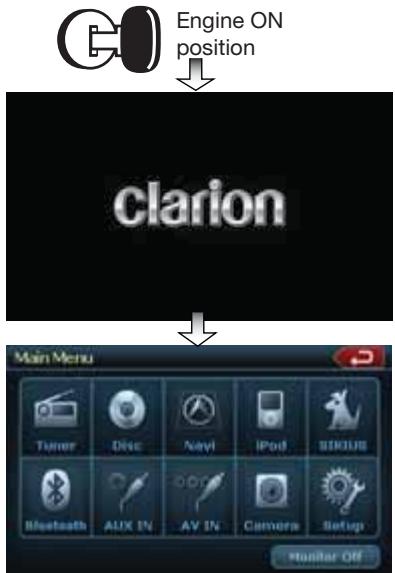
- Start the engine. The power button / knob illumination on the unit will light up.
- Press the [■ PWR] button on the tuner to turn ON the power.
- Press the [⏻] power button on the remote control to turn ON the power.
- To turn OFF the power, press and hold the [■ PWR] power button on the tuner for more than 2 seconds.
- To turn OFF the power, press and hold the [⏻] power button on the remote control for more than 2 seconds.
Opening and Closing Operational Panel
Press [OPEN] button on the unit (NZ500). The operational panel will be open. Press the same button again to close the panel.
CAUTION
- Do not move the operation panel forcibly or do not apply strong force to the operation panel.
- When the operation panel is operating, be careful not to get your hand or finger caught between the operation panel and main unit or its mechanical parts.
- The driver should not operate the operation panel while driving.
Adjusting the Angle of the Operational Panel
Adjust the desired angle by pressing [^] [∨] tilt buttons on the unit (NZ500).
Selecting a Mode
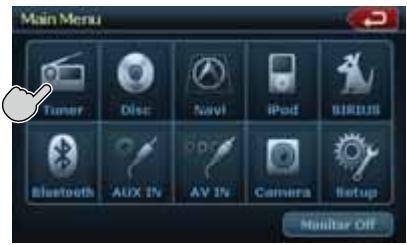
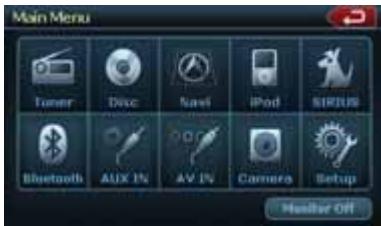
- Touch the screen button on the Main Menu to enter the desired mode: Tuner, Disc, NAVI, USB, Sirius, AUX IN, AV IN, etc., iPod/iPhone. *External equipment not connected to this unit is not displayed.
Turning Monitor ON or OFF
- Touch the screen button Monitor OFF on the Main Menu to turn Off the screen.
- Touch the screen again to turn monitor screen On.
Basic Operations
Adjusting the volume
Turn the volume knob to adjust the volume. Clockwise: Increases the volume.
Counter- clockwise : Decreases the volume.
- The volume level indicated in the display is in a range from 0 (min.) to 40 (max.).
CAUTION
While driving, keep the volume level at which external sounds can be heard.
Mute
Press the [MUTE] [PWR] button to turn mute On and Off.
Adjusting the Settings
-
Press [Setup] to enter setting menu mode.
-
Press the desired mode button. Modes come in the following order:
-
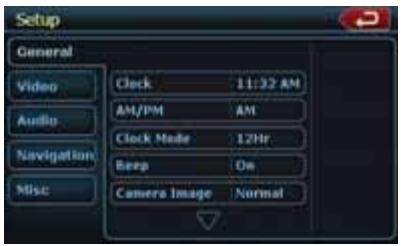
General, including Clock settings, Beep, Camera Image, Radio Field, Tel Mute, Tel SP, Aux In Input SW, Version.
• Video, Audio, Navigation, Misc.
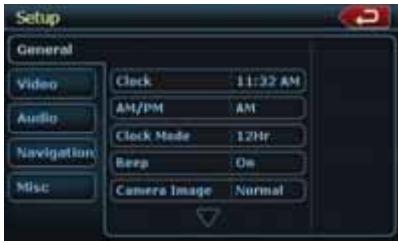
- Perform the adjustment for the desired item. See the following sections fo details.
Adjusting the Audio
- Press the [EQ] button on the screen or the [SEL] button on the remote control.
- Touch the item key to adjust.
- Perform the adjustment.
See the following sections for detail.

- Touch the [◀] key to return to the previous screen.
* In the following sections, only the details regarding adjustments are described, procedures to select items are skipped.
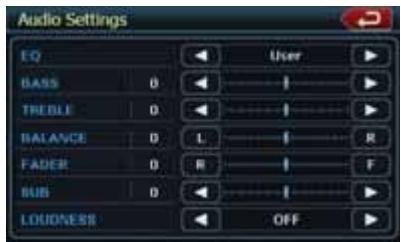
Adjusting the Balance/Fader
- Touch the BALANCE or FADER in the Audio Settings.
- Touch the [F] or [R] key to adjust to the fader level.
- The factory default setting is "0". (Adjustment range: front 9 to rear -9)
- Touch the [L] or [R] key to adjust to the balance level.
- The factory default setting is "0". (Adjustment range: left -9 to right 9)
Adjusting the Bass
The bass gain and bass frequency can be adjusted as follows.
- Touch [◀] or [▶] key to set the desirable level.
- To set the bass center frequency, enter the Audio adjustment in the SETUP menu.
Adjusting the Treble
The treble gain and treble frequency can be adjusted as follows.
- Touch [◀] or [▶] key to set the desirable level.
- To set the treble center frequency, enter the Audio adjustment in the SETUP menu.
Basic Operations
Adjusting the clock
Press the [Setup] button. The Setup menu will be displayed. Touch "Clock" in General sub menu.
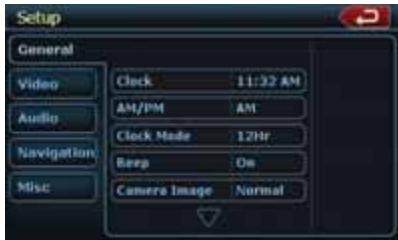
- Set up the time by touching the digital numbers on the screen.
- Touch the [Clock Mode] to change time settings to 12Hr or 24Hr. Select 12Hr, than you can choose AM or PM mode.
Adjusting the Radio region
- Touch the [Radio Field] button in the Setup menu.
- A region selection menu will appear. Scroll down using the arrow at the bottom of the menu. Scroll up using the arrow at the bottom of the menu. Select the area's radio region that you are in. If the region selected is incorrect, radio reception will be poor.
Displaying the Navigation Map
- Touch the [Navi] button on the Main Menu screen.
The warning screen will be displayed.
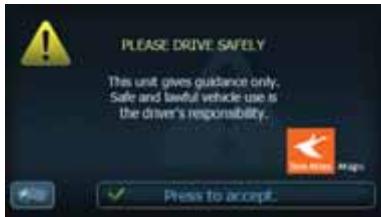
- Press the highlighted check mark (Accept). The Main Menu will be displayed. Select your destination.
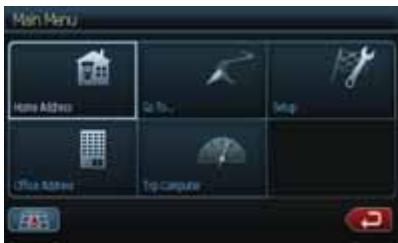
-
Select one of the options displayed on the screen.
-
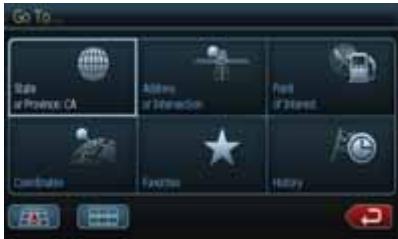
Go To...
- Point of Interest
• State or Province: CA (The software remembers the last State/Province)
• History (The adresses you navigate before)
- The navigation system will calculate a route to the selected destination by using the criteria set in Setup Mode.
- Touch the State or Province button. The "City" keyboard screen will be displayed. Press the check button to choose the city from the list, or spell the City name on keyboard. Than press Enter button.
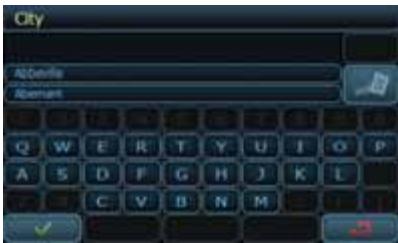
- Enter the required information on the screens displayed in the order shown below. In order to proceed to the next screen, press the "Check" button.
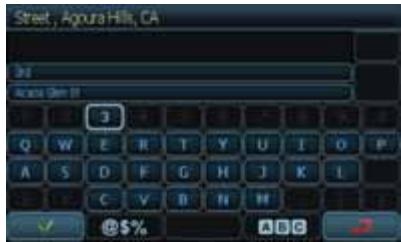
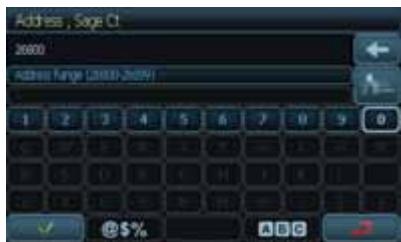
- Press the highlighted "Start Route" button.
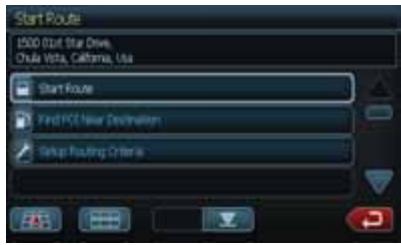
- Route map will be displayed. The navigation to your destination will start.
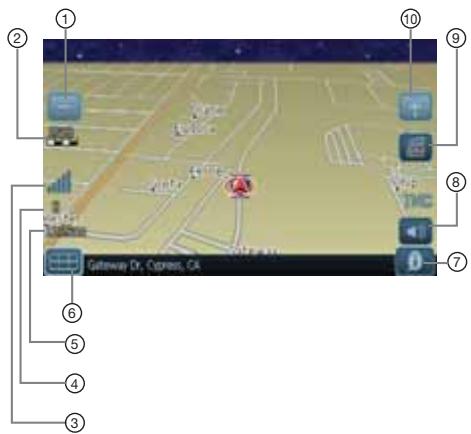
1 - Zoom Out
2 - Map Scale
3 - GPS Status
4 - Compass Position
5 - Current Time
6 - Back to Menu
7 - Local Information
8 - Mute
9 - Change View
10 - Zoom In
- To set up navigation menu, see "Navigation set up" in "Setup Operations" chapter.
Reset to Factory Defaults
- Press Setup to enter setting menu mode.
- Press the Misc button.
- Press Restore Defaults button. Select [YES] to restore your unit to factory default settings. This function will erase all memory from the unit and you must reset all personalized items such as tuner presets.
NOTE: You will be asked once to confirm that you would like to reset the unit. The unit will power down and restart with factory defaults.
Radio Operations
Listening to the Radio
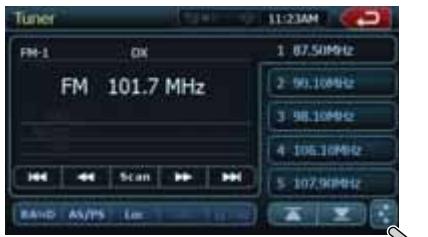
- Touch the Tuner button on the Main menu display. The tuner mode screen is displayed.
- Press the [BAND] button or touch the [Band] key on remote control to select the radio band. Each time the button is pressed, the radio reception band changes in the following order: FM1, FM2, FM3, AM, FM1...
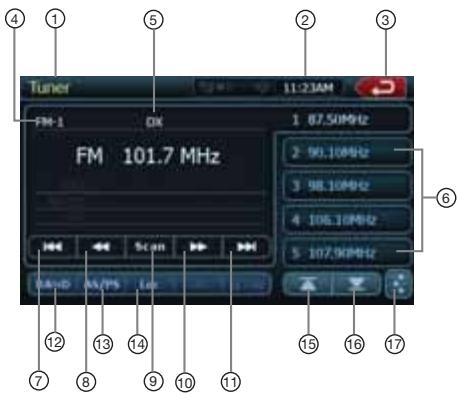
1 - Tuner display
2 - Clock display
3 - Main Menu button
4 - Band display
5 - Loc/DX display
6 - Preset list
7 - Seek down
8 - Tune down
9 - Scan button
10 - Tune Up
11 - Seek Up
12 - Band button
13 - AS/PS button
14 - Loc/DX Button
15 - Previous page button
16 - Next page button
17 - EQ button
Seek Tuning
- Press the [BAND] button to select the radio band (FM or AM).
-
Touch the [I◄◄] or [►►I] key to automatically seek a station.
-
When touching the [▶▶] key, the station is sought in the direction of higher frequencies.
- When touching the [◀◀◀] key, the station is sought in the direction of lower frequencies.
Manual Tuning
- Press the [BAND] button to select the radio band (FM or AM).
- Touch the [◀◀] or [▶▶] key to automatically seek a station.
- When touching the [▶▶] key, the station is sought in the direction of higher frequencies.
- When touching the [◀◀] key, the station is sought in the direction of lower frequencies.
Recalling a preset station
There are 2 ways to recall the preset station.
• Using the remote control:
- Press the [BAND] button to select the desire band (FM or AM) on the remote control.
- Press the preset number (1 to 6) on numeric pad.
• Using the tuner unit:
- Press the [BAND] button to select the desire band (FM or AM) on the tuner.
- Press the preset station (1 to 5) on tuner display.
- Press [▲] or [▼] to select next station up or down the preset list.
- Press [AS] button to auto search and store the stations.
Manual memory
- Touch the desired Band key to select the band you wish to store.
- Tune in the station you wish to store using the seek tuning, manual tuning, or preset tuning.
- Touch and hold the desired Preset key you wish to store the current station for more than 2 seconds.
Auto Store
The Auto Store is a function for storing up to 12 stations that are automatically tuned in sequentially. If 12 receivable stations cannot be received, a previously stored station remains unoverwritten at the memory position.
- Touch the [Band] key to select the desired band. (FM or AM)
- Touch and hold the [AS] key to start the Auto Store function.
A beep sounds and the stations with good reception are stored automatically to the preset channels.
Radio Operations
Preset Scan
The Preset Scan receives the stations stored in the preset memory in order. This function is useful when searching for the desired station in memory.
- Touch the [Band] key to select the desired band. (FM or AM)
- Touch the [PS] key to start the Preset Scan. The unit starts scanning each station for 10 seconds sequentially.
- When the desired station is tuned in, touch the [PS] key again to continue receiving that station.
LOC/DX Setting
The DX / LOC setting changes the tuner sensitivity in order to separate closely spaced stations. This feature is useful in areas that have many radio stations in close proximity.
- Touch the [DX] key to switch to LOCAL tuner sensitivity.
- Touch the [LOC] key to switch to DX tuner sensitivity.
DVD Video Player Operations
Change DVD System Settings
Note:
If the set up operation is performed in the middle of DVD video play, the disc will restart from the beginning.
Selecting DVD Set Up Menu
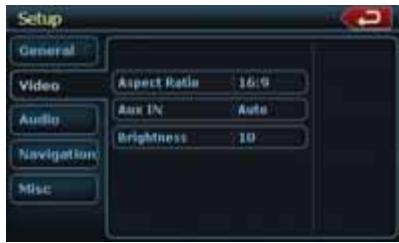
- Press the [SETUP] button on the Main Menu to access the Video set up menu.
- Press the [Video]. The video menu is displayed.
Setting up the Screen Size
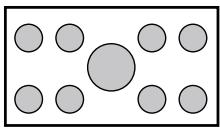
Press the [Aspect Ratio] button on the display in to change the screen size 4:3 or 16:9. The factory default setting is “16:9”.
- When watching a wide type through a conventional type of the rear view monitor (4:3), the leftmost and rightmost areas of the screen are cut off.
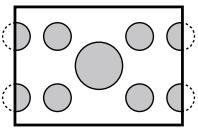
This function allows displaying the important
part of image fully on the screen. In some cases, image is displayed while being panned (scrolled).
- When watching a wide type through a wide type of the rear view monitor (16:9), the leftmost and rightmost areas of the screen are not cut off.
Setting up the Video System Format
Press the Aux IN button on the display to set up the video system format : Auto, PAL or NTSC. The default setting is Auto.
Touch the required system format on the screen.
Setting up the Video Brightness
Press the brightness button. Touch the desired video brightness displayed, on scale from 0 to 20.
DVD Video Player Operations
Setting up the password for parental level control
The factory default setting is "0000".
- In Main Menu press Setup button. Press Misc button on the dispaly. Touch the Set Password ---- and a numerical key pad will appear.
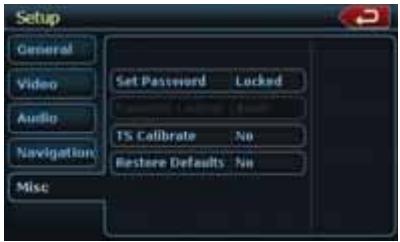
Input a new password. The password is set. Note: When a disc with view restrictions is inserted, you will be prompted to input a password. The disc will not be viewable until the correct password is entered.
Set rating for parental level control
- Select MISC screen while in SETUP mode. Press Kid Saf button. Press the desired rating for level control. Use this table to set the parental level.
| NC-17 | NO ONE 17 AND UNDER ADMITTED |
| R | RESTRICTED |
| PG13 | PARENTS STRONGLY CAUTIONED |
| PG | PARENTAL GUIDANCE SUGGESTED |
| G | GENERAL AUDIENCES |
- The contents that the parental level restricts vary with the country code.
Note: The rating can be selected only under the password unlocked status, and the limits can be set only under the password locked status.
Watching/Listening to a disc
Note: Refer to the diagram in "CONTROLS" chapter.
- To load a disc: Press the [OPEN] button to flip down the front panel. (NZ500 only) Insert the disc into the center of the insertion
slot the label side facing up.
CAUTION
For your safety, the driver should not insert or eject a disc, or operate the controls while driving.
Note:
- Never insert foreign objects into the disc insertion slot.
- If the disc is not inserted easily, there maybe another disc in the mechanism or the unit may require service.
- 8cm (single play) discs cannot be used.
- Disc starts playing automatically.
! WARNING
Some videos may be recorded at higher than desired volume levels. Increase the volume gradually from the minimal setting after the video has started.
Ejecting a disc
- To eject a disc press eject [▲] button. The play mode than switches to the Tuner mode.
*If the disc is left in the ejected position for 15 seconds, the disc is automatically reloaded. In this case, the play mode will remain set to the Tuner mode.
Note: If you force a disc into before auto reloading, it will damage a disc.
Showing DVD Player mode screen
After disc is loaded, the play mode is automatically engaged.
Touch the screen of the playing disc to display DVD Video menu. The display will return to the playback screen, if you do not touch the screen for 5 seconds.
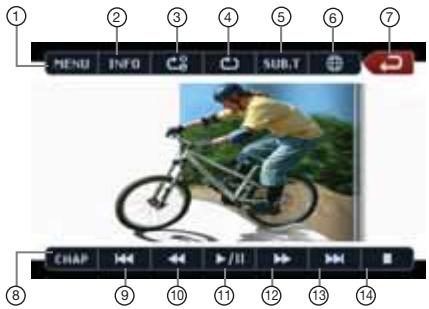
DVD Video Player Operations
1 - MENU Button
8 - Chap Button
2 - INFO Button
9 - Previous Track Button
3 - A-B Repeat Button
10 - Fast Backward Button
4 - Repeat Button
11 - Play/Pause Button
5 - Subtitle Button
12 - Fast Forward Button
6 - Channel Button
13 - Next Track Button
7 - Main Menu Button
14 - Stop Button
Operate the DVD Player menu
You can select the button items displayed in the DVD menu by directly touching it. If the button items are hard to select correctly, you can also operate them by using the remote control directional buttons.
Stop Playback
- Touch the [■] key. Playback is stopped.
- To resume playback, press the [▶/■] button. Playback resumes from the scene where playback is stopped.
Play/Pause Playback
- Touch the [▶/■] key to pause during playback.
- Touch the [▶/■] key again to resume playback.
Skip (Search) a Chapter
- Press the [◀◀] or [▶▶] button during playback.
Chapters are skipped down or up from current locations, as many times as the button is pressed, and playback starts.
Fast Forward Fast Backward
- Press the [◀◀] or [▶▶] button to start your fast backward or fast forward during playback.
The playback speed starts at 2x, then will increase to 4x,8x, and 16x with each additional press.
*No audio is reproduced during fast forward and fast backward operation.
*The fast forward and fast backward speed may differ depending on the disc.
Search with a Chapter/Title Number
You can locate the beginning of a scene using the chapter numbers or title numbers recorded on the DVD Video disc.
- Showing the DVD PLAYER mode screen, touch the [CHAP] key.
The Key Pad screen appears with the chapter number input mode. Touching the [Title] key
turns the Key Pad to the title number input mode. Touching the [Time] key turns the Key Pad to the time number input mode.
- Title
A large segment to divide the data area of the disc.
- Chapter
A small segment to divide the data area of the disc.
• Time
A specific time on the disc.
- Input the number of the title/chapter/time that you want to play back with the [0] to [9] key.
- Touch the [OK] key.
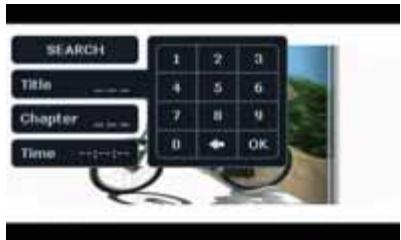
Playback starts from the scene of the input title number, time or chapter number. *If the input title/chapter/time number does not exist or searching with a title/chapter number is not allowed, the screen image will not change.
- Touch the [←] Back key.
Repeat Playback
This operation plays back chapters recorded on the DVD-Video repeatedly.
- Showing the DVD Player mode screen, touch the [→] Repeat key.
- Touch the [▶] key once for Chapter Repeat, again for Title Repeat.
- Press the [→] button again to turn off the repeat playback.
Repeat A → B
Select the desired passage to play back.
Touch [→B] repeat A to B button.
Selected passage starts play again.
Touch this button again to stop replay.
DVD Video Player Operations
Using the Title Menu
On DVD discs containing two or more titles, you can select from the title menu for playback.
- Showing the DVD PLAYER mode screen, touch the [CHAP] key during playback. The title menu screen appears.
*Depending on the disc, the title menu cannot be called. - Select the button items displayed in the title menu screen by the same way of the DVD menu operation.
*Depending on the disc, items cannot be selected with the ten-key buttons.
Switching among the languages
On discs in which two or more audios or audio languages have been recorded, you can switch among the audio languages during playback.
- Touch the [⊕] audio key during playback.
• Each time you touch the key, you can switch among audio languages.
- It may take time to switch among audios.
* Depending on the disc, up to 8 audios may be recorded. For details, see the mark of the disc: (⑧) Indicates that 8 audios have been recorded).
* When the power is turned on and when the disc is changed to a new one, the language set as the factory default is selected. If that language has not been recorded, the language specified on the disc.
* Depending on the disc, switching may be completely impossible or impossible on some scenes.
- The DVD PLAYER mode screen will hide in 5 seconds after your selection is made.
Switching Subtitles
On DVD discs in which two or more subtitle languages have been recorded, you can switch among the subtitle languages during playback.
- Touch the [Sub T.] key during playback. Each time you touch the key, you can switch among subtitles.
-
It may take time to switch among subtitles.
* Depending on the disc, up to 32 kinds of subtitles may be recorded. For details, see the mark of the disc: (☐. Indicates that 8 kinds of 8 subtitles have been recorded).
* Depending on the disc, switching may be completely impossible or impossible on some scenes. -
The DVD Player mode screen will hide in 5 seconds after your selection is made.
- To turn off subtitles, repeat touching [Sub T.] key until subtitles are turned off.
Switching angles
On DVD discs in which video images have been recorded in two or more angles, you can switch among the angles during playback.
- Touch the [Angle] button on the remote control during playback. Each time you touch the key, you can switch among angles.
* It may take time to switch among angles.
* Depending on the disc, up to 9 angles may be recorded. For details, see the mark of the disc: (∞2) Indicates multi-angle).
* Depending on the disc, angles may switch smoothly or switch with a momentary still image.
* Depending on the disc, switching may be completely impossible or impossible on some scenes.
* Depending on the disc, scenes recorded in two or more angles may be played back.
Displaying the playback status
Touch the [INFO] key on the DVD Player mode screen, or remote control. Playback status is displayed on the screen.
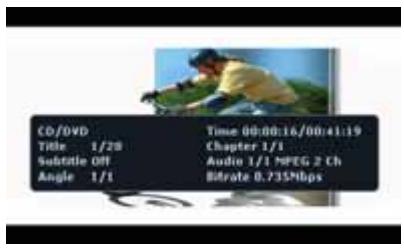
LISTENING TO a CD
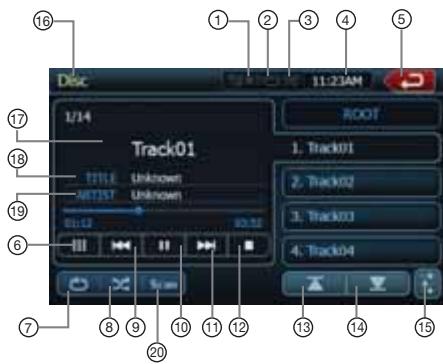
1 - Mute Display
2 - Repeat Display
3 - Shuffle Display
4 - Clock Display
5 - Main Menu Button
6 - Keyboard Button
7 - Repeat Button
8 - Shuffle Button
9 - Previous Track Button
12 - Stop Button
13 - Previous Page Button
14 - Next Page Button
15 - EQ Button
16 - Source Display
17 - Song Title
18 - Artist Information
19 - Album Information
20 - Scan Button
10 - Play/Pause Button
11 - Next Track Button
Pausing Playback
- Touch the [Ⅲ] button to pause playback.
- Touch the [▶] button to resume playback.
Skipping a Track (searching)
Touch the [I◄◄] button during playback. Tracks are skipped, as many as the times the button is pressed, and playback starts.
- Pressing the [▶▶▶] button starts playback from the beginning of the next track.
- Pressing the [I◄◄] button starts playback from the beginning of the current track. When this button is pressed again within about 2 seconds, playback starts from the beginning of the previous track.
Fast Forward and Fast Backward
- Press and hold the [▶▶▶] or [▶◀◀] button during playback.
Press again to advance to higherspeed reversing or forwarding such as 2x,4x, 8x and 16x. Press once more to resume normal speed playback.
Scanning the Tracks
- Touch the [Scan] button during playback. Touch again to advance to higher speed reversing or forwarding such as 2x,4x, 8x and 16x. Press once more to resume normal speed playback.
Searching with the Track Number
This operation allows searching using the track numbers recorded on the CDs.
- Touch the [■■■] keyboard button on a display. The numerical keypad will appear on the screen.
- Input the track number that you want to play back with [0] to [9] key.
Playback starts from the track of the input track number.
- If the input track number does not exist or searching with a track number is not allowed, the screen image will not change.
Selecting a track on the Track List Screen
This function allows you to select tracks from a displayed list.
- Touch the trak title on the display list. The selected track will start playing.
- When the desired track is not displayed, touch the [▲] or [▼] key to scroll the track list.
- Touch the desired track title key. The corresponding track is started playback.
- Press the [☐] key to return to the previous screen.
Other various play functions
Touch the touch key of the function you want to play.
Repeat [☐]: Press once to start a single track repeat. Press again to activate a repeat all. To turn repeat off, press same button again.
- Repeat symbols are displayed in the info window in the upper right area of the screen.
Shuffle [X]: Touch this button to shuffle the tracks during playback.
Touch this button again to turn off the feature.
- A shuffle symbol is displayed in the info window in the upper right area of the screen.
Stop Playing [■]: Stop play all the tracks.
Set up [÷] Audio: Touch this button to enter EQ settings menu.
DVD Video Player Operations
LISTENING TO MP3/WMA
This unit is an ID3 Tag compatible model. This unit supports the ID3 TAGs of the Version 2.4, 2.3, 1.1 and 1.0.
In displaying, this unit gives priority to the Version 2.3 and 2.4 TAGs.
After USB device inserted into USB slot, or disc is loaded, the play mode is automatically engaged.
What is MP3/WMA?
MP3 is an audio compression method and classified into audio layer 3 of MPEG standards. WMA is an audio compression method developed by Microsoft Corporation.
These audio compression methods have penetrated into PC users and become a standard format.
These features compress the original audio data to about 10 percent of its initial size with a high sound quality. This means that about 10 music CDs can be recorded on a CD-R disc or CD-RW disc to allow a long listening time without having to change CDs.
Note:
- Some CDs recorded on CD-R/RW mode may not be usable.
Displaying MP3/WMA TAG titles
Tag information such as title, artist and album title can be displayed for MP3/WMA file containing Tag information.
Precautions when creating MP3 disc
- File extensions
-
Always add a file extension “.MP3” or “.mp3” to an MP3 file, and “.WMA” or “.wma” to a WMA file by using single byte letters. If you add a file extension other than specified or forget to add these file extension, the file cannot be played. In addition, if you use upper case and lower case letters (capital and small letters) mixedly for file extensions, normal play may not be possible.
-
Files other than MP3/WMA data cannot be played.
Playing files with a format not supported will be skipped, and the scan, random and repeat playback mode may be canceled.
- File and Disc Not Supported
Files and discs with following extensions are not supported: *.AAC, *.DLF, *.M3U, *.PLS, MP3 PRO files, files with DRM, open session discs.
- Logical format (File system)
-
When writing an MP3/WMA file on a disc, please select "ISO9660 level 1 or level 2 (without including expansion format)" as the writing software format. Normal playback may not be possible if the disc is recorded on another format.
-
The folder name and file name can be displayed as the title during MP3/WMA play but the title must be within 31 single byte alphabetical letters and numerals for the folder name and file name (including an extension). Entering more letters or numerals than specified may cause an incorrect display.
- Entering File and Folder Names
Names using the code list characters are the only file names and folder names that can be entered and displayed. Using any other character will cause the file and folder names to be displayed incorrectly.
• Electronic Shock Protection
10 seconds for CD-DA (CDA) 45 seconds for MP3 recorded at 44.1 kHz, 128kbps 90 seconds for WMA recorded at 44.1 kHz, 128kbps
- Folder structure
- A disc with a folder having more than 8 hierarchical levels will conflict with the ISO9660 and playback will be impossible.
• Number of files or folders
-
The maximum allowable number of folders is 200 (including root directory); the maximum allowable number of files is 1500 (max. 1500 per folder). This represents the maximum number of tracks that can be played back.
-
Tracks are played in the order that they were recorded onto a disc. (Tracks might not always be played in the order displayed on the PC).
- Some noise may occur depending on the type of encoder software used while recording.
- In case of a track recorded at VBR (variable bit rate), the display for the play time of the track may be slightly different from the actual play time. Also, the recommended value of VBR ranges from 32 kbps to 320 kbps.
• After disc selection, the play mode is automatically engaged.
Playing MP3 folders
When selected for play, files and folders (Folder Search, File Search or Folder Select) are accessed in the order in which they were written to the media. As a result, the order in which they are expected to be played may not match the order in which they are actually played.
You may be able to set the order in which MP3/WMA files are to be played by assigning file names beginning with play sequence numbers such as "01" to "99".
For example, a medium with the following folder/ file hierarchy is subject to Folder Search, File Search or Folder Select. See the diagram below.
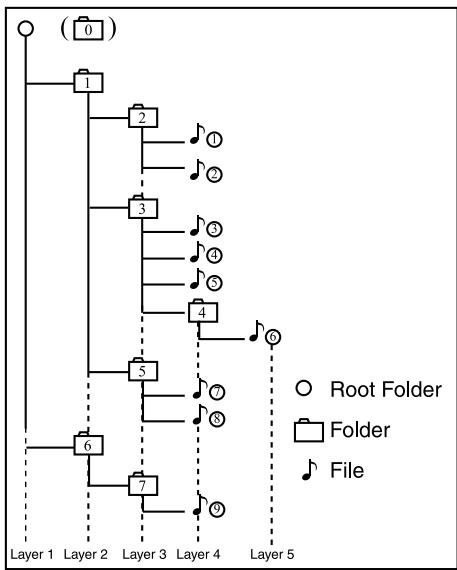
flowchart
graph TD
    A["0"] --> B["1"]
    B --> C["2"]
    C --> D["3"]
    D --> E["4"]
    E --> F["5"]
    F --> G["6"]
    G --> H["7"]
    H --> I["8"]
    style A fill:#fff,stroke:#000
    style B fill:#fff,stroke:#000
    style C fill:#fff,stroke:#000
    style D fill:#fff,stroke:#000
    style E fill:#fff,stroke:#000
    style F fill:#fff,stroke:#000
    style G fill:#fff,stroke:#000
    style H fill:#fff,stroke:#000
    style I fill:#fff,stroke:#000
    note right of A: (0)
    note left of B: Layer 1 to Layer 5
    note right of C: Root Folder
    note right of D: Folder
    note right of E: File
The player will only recognize three folder levels and does not display folders containing other folders. In the example above, the unit will display folders 2, 3, 4, 5, and 7, but not 1 and 6 since they only contain folders and not playable material.
Playback Picture Menu
The picture on the display comes with the different functions to operate.
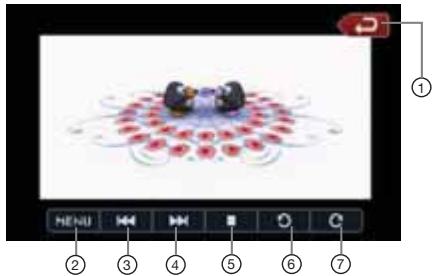
1 - Main Menu Button
2 - Menu Button
3 - Previous Picture Button
4 - Next Picture Button
5 - Stop Button
6 - Rotate Picture counterclockwise
7 - Rotate Picture clockwise
- Touch [▶▶▶] button to play next picture.
- Touch [◀◀◀] button to play previous picture.
- Touch [■] button to stop playing.
- Touch [O] button to rotate picture 90^ counterclockwise.
- Touch [C] button to rotate picture 90^ clockwise.
- Touch [MENU] button to return to disc root Menu.
- Touch [←] button to return to the Main menu.
Sirius Satellite Radio Operations
This function is available when a Sirius Satellite Radio Receiver is connected through the dedicated connection. This unit requires the following receiver:
SIRIUS Satellite Radio Receiver: SC-C1
Note:
SIRIUS satellite radio is a subscription service. Please contact Sirius Radio to begin or alter your subscription:
- Internet: www.sirius.com Telephone: 888-539-SIRIUS (747487)
Selecting a Satellite Radio mode
Press the [SIRIUS] button on Main Menu display. The system changes to the Sirius Satellite Radio mode. The Sirius mode screen is displayed.
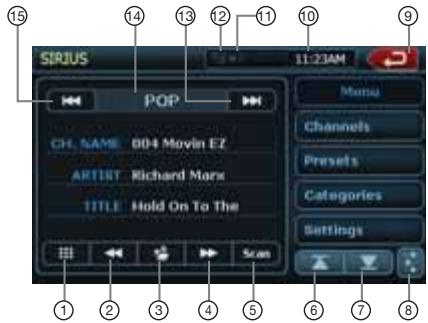
1 - Keyboard Button
2 - Previous Channel Button
3 - Store Button
4 - Next Channel Button
5 - Scan Button
6 - Previous Page Button
7 - Next Page Button
8 - EQ Button
9 - Main Menu Button
10 - Clock Display
11 - Mute Display
12 - Satellite Signal
13 - Next Category Button
14 - Category Name
15 - Previous Category Button
16 - Source Display
17 - Song Title
18 - Artist Information
19 - Album Information
20 - Scan Button
Information Displayed During Reception
The following information is displayed when the satellite radio cannot be received normally.
- When the receiver is turned on the first time or after a reset: "UPDATING" followed by a percentage of completion.
- When a channel is being tuned in (no signal is yet received): "ACQUIRING SIGNAL"
- A channel without a broadcast has been selected: "INVALID CHANNEL"
- A channel not covered by your contract: "CALL 888-539-SIRIUS"
Call (888) 539-747487 to activate your radio.
- When a channel is out of air time: "OFF AIR"
- When the antenna is disconnected or has been damaged: "ANTENNA ERROR"
Confirming Your Radio ID
-
Touch the [::] keyboard button on the SIRIUS Menu display to display the keypad. Enter "0" and press "OK". Your SIRIUS ID (12-digit number) will be displayed.
-
Touch the [Settings] button on the SIRIUS Menu display to enter Settings menu.
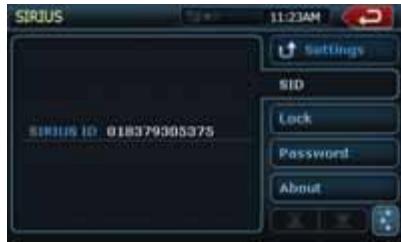
- Press [SID] button. Your SIRIUS ID (12-digit number) will be displayed.
Channel Selection
- Touch the [Channels] button on the SIRIUS Menu display to enter channel list preview mode.
- Select the channel with the [◀◀] or [▶▶]. Only channels that can be received are selected.
Channels that are locked and channels not covered by the contract will be skipped.
The receiver seeks the next available channel below or above the current channel.
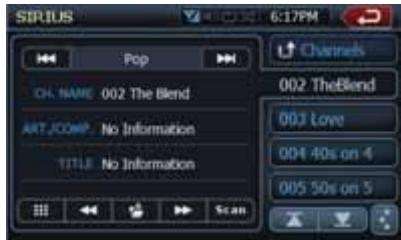
Channel Selection with the channel number
- Touch the direct access button on the SIRIUS Menu display to enter direct channel selection.
- Enter the channel number of your desired station by touching the [0] to [9] keys. If you enter a wrong number, you can cancel it by touching the [BACK] key.
Sirius Satellite Radio Operations
- Touch the [OK] key.
The radio channel you entered will be tuned.
Recalling a preset station
A total of 20 satellite radio stations can be stored in the receiver's memory. You can access the presets by pressing the Presets button. This allows you to store your favorite satellite radio stations in the memory for later recall.
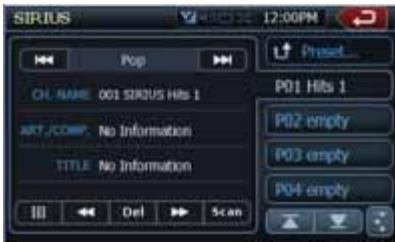
- Touch the [Preset...] button to enter the preset list to select or save your presets.
- Touch [▲] or [▼] button to view previous or next page.
* There are 5 pages of preset memory space available for your use. You can scroll the pages using the scroll bar buttons to the right of the screen.
- Touch the [Preset...] key to return to the previous screen.
Auto Preset Store
- Touch and hold for more than 2 seconds the corresponding preset key to save the selected channel.
- Touch the [☐] button to save the current channel.
Deleting a Preset
- Touch [Preset...] button and enter the preset menu.
- Touch the preset button you would like to delete.
- Touch the [DEL] button to delete it.
Receiving Stations by Category
Satellite Radio allows you to select broadcast channel category (contents).
- Touch [Categories] button to enter category mode.
- Touch [▲] or [▼] button to view all valid category.
- Touch the desired category item key to select the category.
- Select the desired channel by touching it momentarily on the screen.
Note:
When the category selection mode is entered, the category of the last received channel is displayed first.
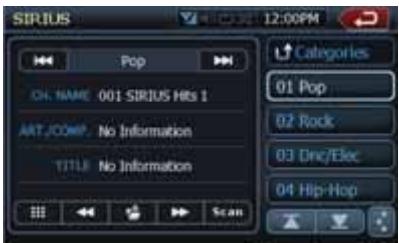
Parental Controls Lock Channels
- Touch [Settings] button to enter setting list.
- Touch [Lock] button to enter lock list.
- Touch [▽] key to view next page in the lock list.
- Touch the channel item, and it will be locked or unlocked alternately.
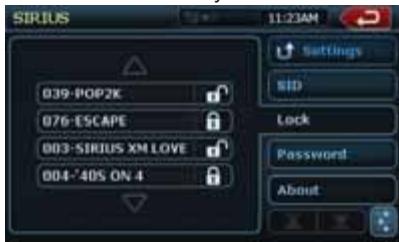
Setting the password
- Touch [Settings] button to enter setting list.
- Touch [Password] button to enter password mode.
- Touch [ 🔒 ] to set password.
- Touch [💡] button to remove password.
- Touch [Settings] button to return to Sirius menu.
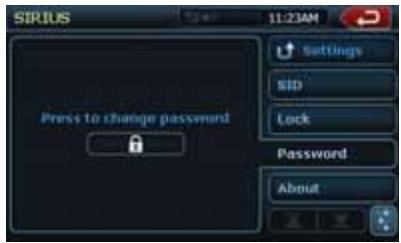
Note:
If you set passwords, you must input the correct code to enter lock list. When you try to locked channel by keypad, it will dispaly password's keypad. Only entering correct code can tune to the channel, or it will be back to the last channel, if a password is wrong.
Navigation System Operations
Introduction to Navigation Software
Navigation software provides turn-by-turn visual and voice assistance to direct you to selected destination. The software quickly calculates step-by-step directions to any destination available on the included navigation map. The navigation software uses Global Positioning System (GPS) satellites, and a digital roadway map database to calculate and display travel directions. The system's GPS antenna receives signals from a constellation of 24 satellites orbiting the earth and uses the strongest of signals, to determine your position to within meters.
Vehicle Position
The navigation software's computer considers vehicle speed and heading changes, together with longitude and latitude information, to accurately determine vehicle heading and position on a digital map. Signals from GPS satellites are used to determine the vehicle location. Three (good) or four (best) satellites must be received to accurately determine location. The GPS reception status is indicated by the GPS symbol on the map.
Map and Information Database
The map database used by navigation software was created using high-resolution aerial and land based data collection. Car navigation maps are frequently updated. While the database was judged to be as accurate as possible at the time of its release, a map database can never be 100% accurate. Road information that is maintained in the map databases, such as turn restrictions or road names may change over time.
Main Menu Screen Operations
- After the navigation system is activated by touching "NAVI" button on the Main Menu screen, the warning screen is displayed. Press the button to accept it.
- The "Main Menu" navigation screen is displayed.
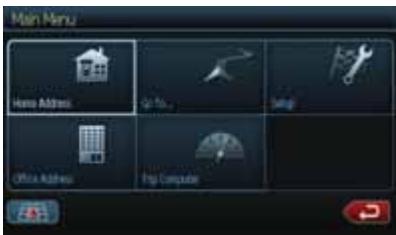
-
Main menu screen has different options:
Home Address - Route to home address.
Go To... - Select a destination for navigation. Setup - Set preferences for routing and navigation display.
Office Address - Route to office address. Trip Computer - Display speed, trip, odometer reading, clock reading. -
To operate the navigation system use display function buttons as described below.

Zoom in the map to show a smaller area

Zoom out the map to show a larger area

Return to Map mode Display map in 2D view

Return to the previous screen

Display menu, jump to main menu

Display map in 3D view

Select current panned position, after panning map.

Information about current location on the map, mode items

Select (check) currently highlighted item

Display spell mode

Page up, page down in displayed list

Step up or step down on menu list

Voice instructions are activated

Reset button

Cancel button

Delete button (Move cell content to Trash can)
Route to home address
- Touch the Home Address button on the screen. If the home address is not set previously, the following screen will be displayed.
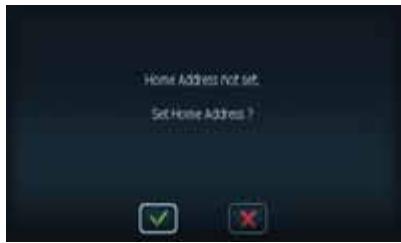
- Press the check key to display home address set up screen.
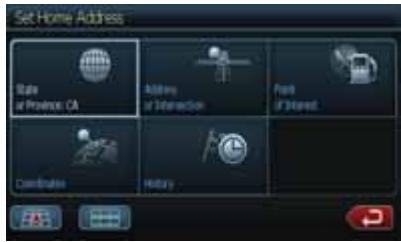
- Select one of the option on the screen to set the address. Once the address is set, it will be saved in the software memory.
- If the home address was saved previously, the screen with address will pop up, after you touched the Home Address button. Start your route
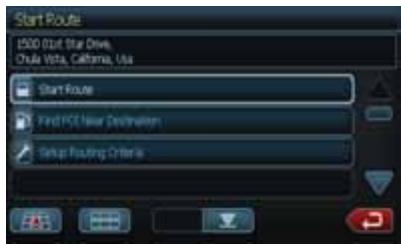
Select the destination
To select the destination press Go To... button on Main Menu screen. The Go To... screen is displayed.
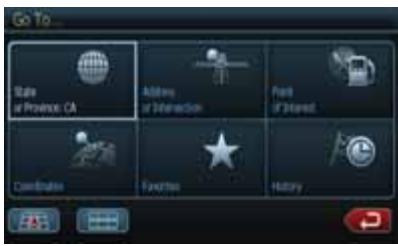
To start your navigation use one of these modes:
Address or Intersection
Point of Interest
Favorites
History
Adress or Intersection Mode
- Press Address or Intersection, if you know the street address. The spelling keyboard will be displayed.
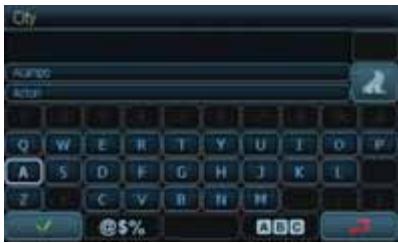
- Touch the first letter of desired city on the keyboard. The city name will appear on the screen.
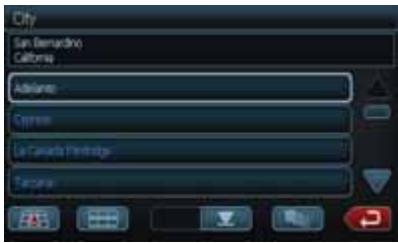
- Touch the √ select key. The list of the cities, which name starts with same letter, will be displayed. Press the desired city name.
- Touch name. street key to display street
The street screen is displayed.
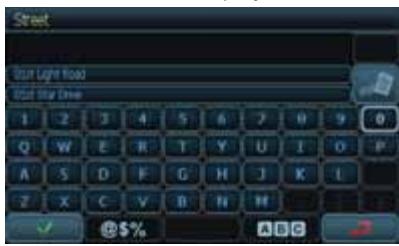
- Choose desired street by typing on the keyboard. The list of streets under this letter will be displayed. Press up or down button to go thru the list. Select your street.
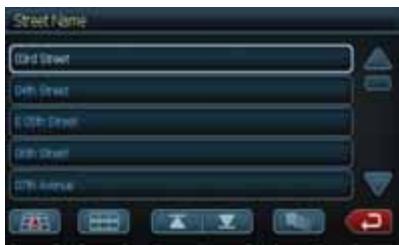
Press ← button to return to the street mode screen.
- Touch the 📄 postal code button to display postal code.
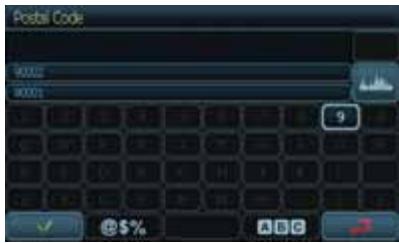
Press the select key to dispaly the list of the postal code. Select the desired code and press return key.
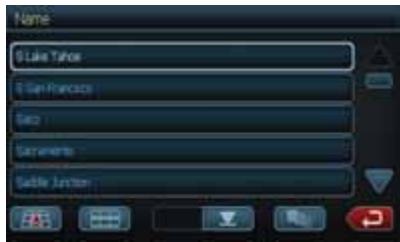
Point of Interest Mode
- Use Point of Interest option when you are going to a public place or are looking for some type of facility such as a gasoline station. After selecting the Point of Interest option, you must select the State/Province where the destination is located.
NOTE: The system remembers the last State/Province selected, so this step is not necessary every time.
- Point of Interest may be searched by Category, City or Name.
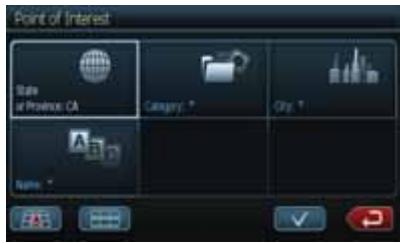
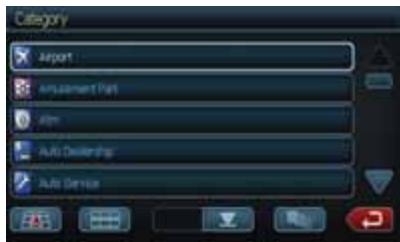
- Use Category mode, if you are looking for a certain service or business, like nearest gas station.
- City mode - select the city by spelling it's name.
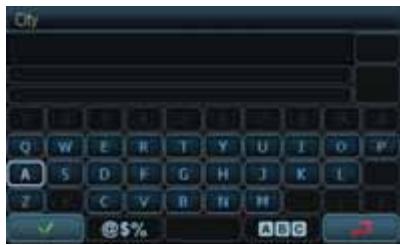
- Name mode - select the name by typing it.
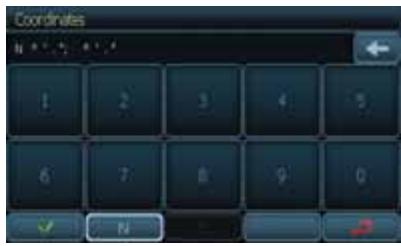
Coordinates Mode
You can route to a destination by directly inputting latitude and longitude values.
Favorites Mode
You can select your route to a destination by choosing one of preset favorite places in the Favorites mode.
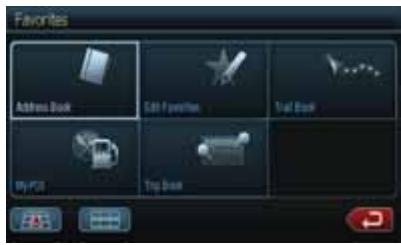
- Address Book is a convenient place to store frequently visited destinations.
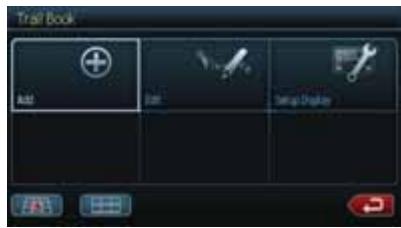
- Trail Book will allow to create your own navigation routes.
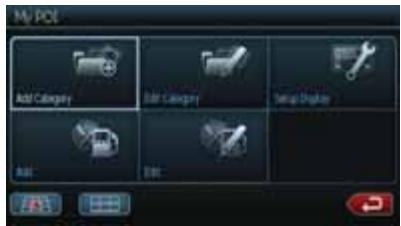
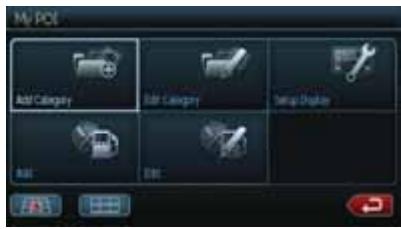
- My POI will allow to create and save your personal points of interest.
- Trip Book will allow to navigate multiple destination trip.
![Enter Name of Trip trip_1 1 2 3 4 5 6 7 8 9 0 Q W E B T Y U I O P A S D F G H J K L Z X C V D H M / [ ] ✓ @5% ABC](/content/2024/12/95862/images/df9195a62eaee716759f3ae0e1f09280dd76af81f5aa0ddced087abf05c7c4f6.jpg)
Edit Favorites
- Press this button to edit Address Book, Trail Book, Trip Book, My POI. The following screen will pop up.
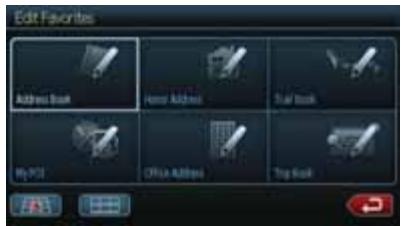
- Select the mode, you want to edit. The editing screen will be displayed.
Address Book editing screen:
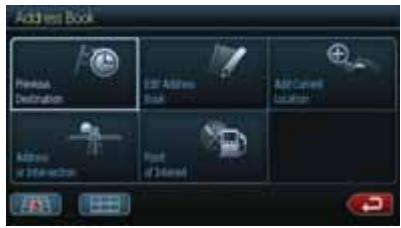
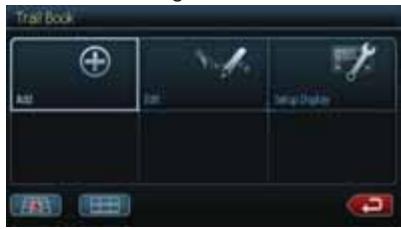
Trail Book editing screen:
Trip Book editing screen:
![Enter Name of Trip TRP_1 1 2 3 4 5 6 7 8 9 0 Q W E B T Y U I O P A S D F G H J K L Z X C V B H M / [ ] @ $% ABC](/content/2024/12/95862/images/6a866a73ff7efb4fdd252cbdb7ab9a9a7fc7d9ff7f6a9bd27868f04b66c73967.jpg)
My POI editing screen:
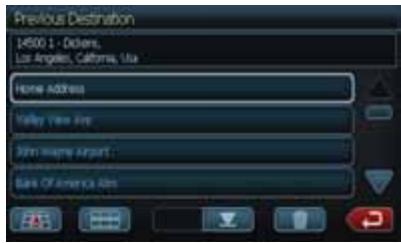
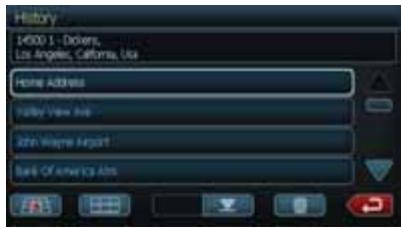
History Mode
Previous destinations entered into your navigation software are automatically saved into the memory. This is helpful when you want to return to a recent destination, such as a hotel where you may be staying. The Previous Origin of the last calculated route is also stored for easy return to your start point.
System Preferences Setup
Press this button to set up your preferences for routing and navigation. The following screen will pop up. Select the mode you want to be set.
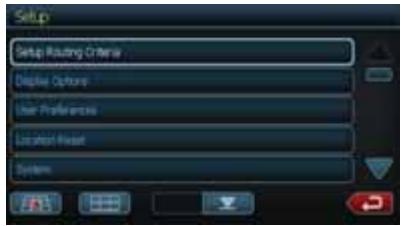
- Press Setup Routing Criteria to set up your driving preferences. Check the preferable items on pop up screen.
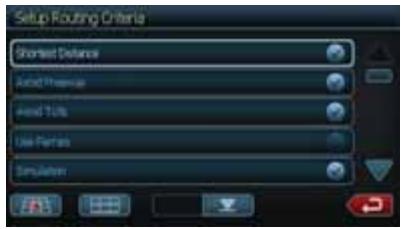
- Press Display Options to set up your screen display preferences. All the options are listed on 3 screens. Check the preferable items on pop up screen list.
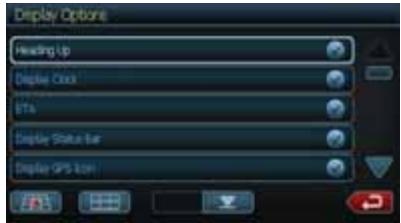
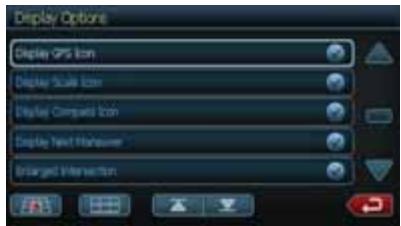
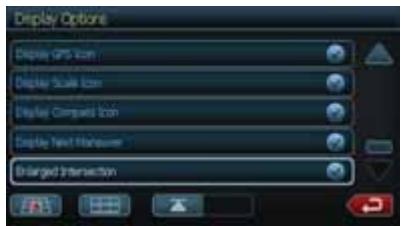
- Press User Preferences to set up your personal preferences. All the options are listed on 2 screens. Check the preferable items on pop up screen list.
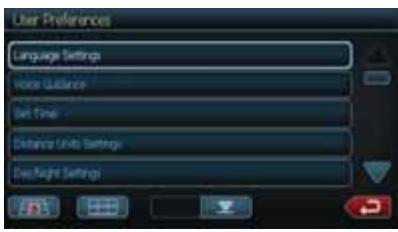
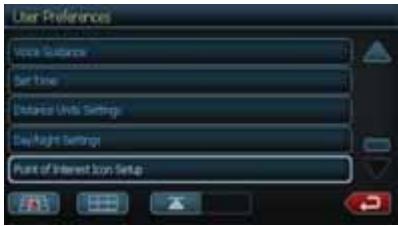
- Press Location Reset to set up your location preferences. Select the item, you would like to reset from pop up screen options.
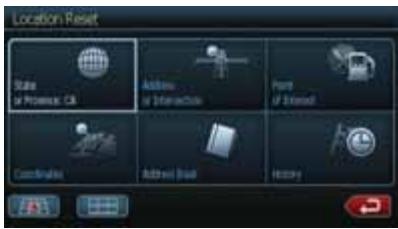
- Press System button. The following screen will pop up.
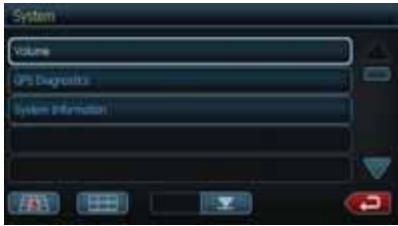
- Select the Volume mode. The popup screen will allow to mute or turn on the system sound.
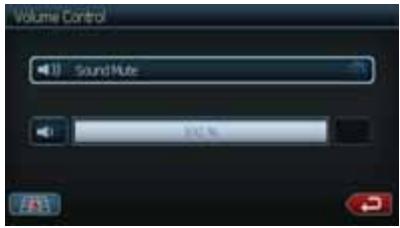
- Select the GPS Diagnostics mode. The information about current GPS condition will be displayed on poup screen.
![GPS Diagnostics [COMR, 4000] 4970.8ms Satellites: Visible O Satellites Used O GPS Time 11:26:41:59, a=5/6, a=38:39 N 0.0" 0.0" E 0.0" 0.0" Sat. D SNR: Elevation: AEM: SNR: D, F = 0.00, H = 0.00, V = 0.00](/content/2024/12/95862/images/eff5cd0f5ff32da1dec3b0a23884bb88893ff6fb351e9b5181f61ec416bf9a89.jpg)
- Select the System Information mode. The information about your navigation system will be displayed on pop up screen.
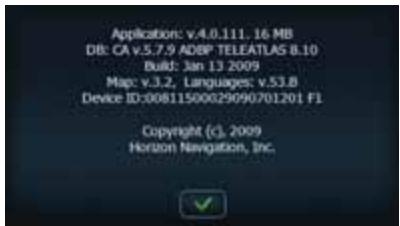
Office Adress Guidance and Setup
Press this button and the Start Route screen will pop up.
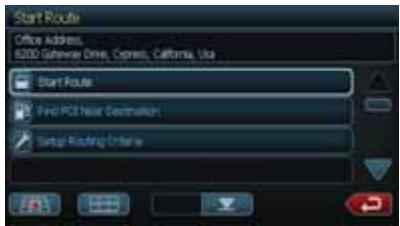
If the office address is not saved:
- Press the Favorites on the Go To screen.
- On pop up screen press Edit Favorites button. The following screen will pop up.
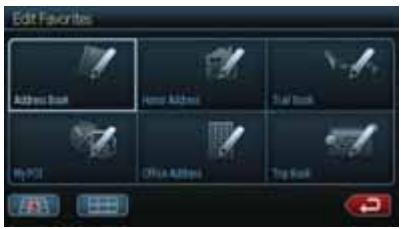
- Press the Office Address button.
The Set Office Address screen will be displayed. Fill the information in highlighted items.
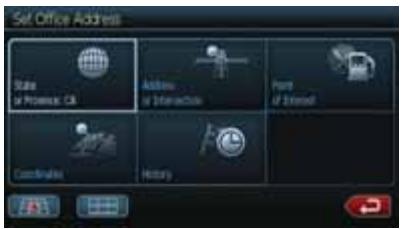
Trip Computer Readings and Resets
Press this button to display speed, trip, odometer reading, clock reading.
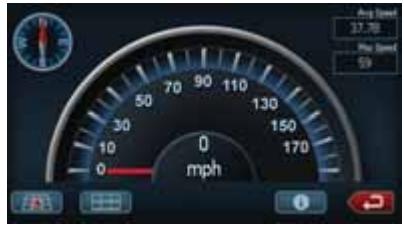
- Touch the ⓘ button to display the trip information items.
The following screen will pop up.
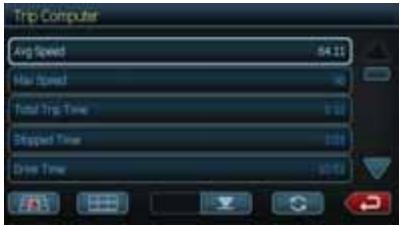
Touch the arrow keys down or up the list or page to display more listed items.
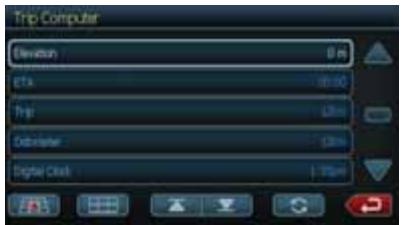
- Select the item from dispayed list by touching it.
- Reset the displayed item by pressing the reset key. The following screen will pop up.
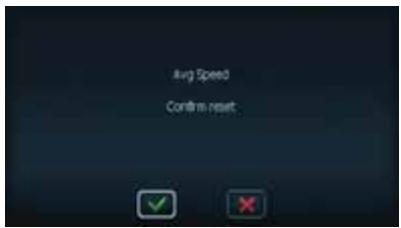
- Touch the check button to accept, or cancell button to return back to Trip Computer screen.
7. ACCESSORIES
iPod/iPhone Operations
iPod/iPhones can be connected by using the connector cable supplied with the iPod/iPhone, but in this case, you can enjoy its audio sound only. To enjoy video movies stored in the iPod/iPhone with video displaying them on this unit, it is required to use the special connector cable separately sold.
Note:
- This system will not operate or may operate improperly with unsupported versions.
- For detailed information on the playable iPod/iPhone models, see our home page: www.clarion.com
Notes on using Apple iPod/iPhone
- Do not connect an iPod/iPhone to this unit with a headphone connected to the iPod/iPhone.
- After the iPod/iPhone has been connected to this unit, the iPod's buttons are disabled for operation in the Music mode. In the Video mode, do not operate the iPod's buttons.
- When in the iPod mode, a special iPod/iPhone control screen is displayed different from the main screens for other modes.
- When in the iPod mode, the screen image input from the AUX terminal is output to the rear monitor.
- When no data is present, the title display will remain blank.
- The iPod/iPhone is used with the equalizer function turned OFF.
- Set the iPod/iPhone's language setting to English before connecting your iPod/iPhone. Some characters of the other languages may not be displayed correctly in this system.
- Precautions on battery consumption: If the iPod/iPhone is connected to this unit when the iPod/iPhone's internal battery has run down, this function may not operate correctly. You must connect the iPod/iPhone after charging the battery if it has run down.
Selecting the iPod mode
- Connect your iPod/iPhone to the USB connector. The system will automatically detect the connected device and change to the iPod mode. The iPod icon is displayed on the Main Menu screen.
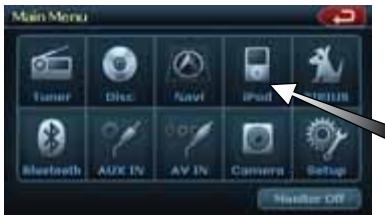
The playback starts after a while, from where the iPod/iPhone has been paused.
- When a iPod/iPhone is already connected Touch the [iPod] key on the Main Menu screen. The system changes to the iPod mode, and starts playback from the previous position.
Controlling the iPod/iPhone
Operation keys
- iPod audio mode screen
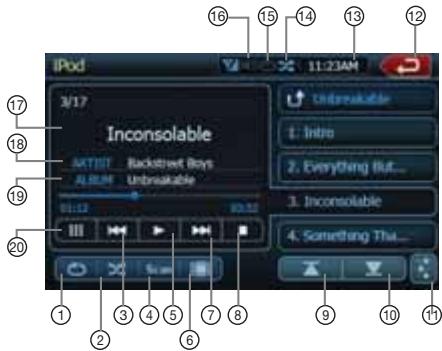
1 - Repeat Button
2 - Shuffle Button
3 - Previous Track Button
4 - Scan Button
5 - Play/Pause Button
6 - iPod Video Button
7 - Next Track Button
8 - Stop Button
9 - Previous Page Button
10 - Next Page Button
11 - EQ Button
12 - Main Menu Button
13 - Clock Display
14 - Shuffle Display
15 - Repeat Display
16 - Mute Display
17 - Song Title
18 - Artist Information
19 - Album Information
20 - Keyboard Button
[☐] Video key
- Switches to the screen of which the video output from the iPod/iPhone is displayed.
Note:
- Note that not all iPod/iPhone devices are compatible to output video to this unit.
iPod/iPhone Operations
[×] Shuffle key
- Use to switch the shuffle mode on or off. When enabled, this function performs playback of tracks in random order, regardless of the order in which they are recorded.
[11] Play/Pause key
- Use to control playback and pause.
- Touch the key during playback. Playback pauses.
- To resume playback touch the key again.
[‡] EQ button
- Use to enter Audio Settings menu to set.
[■■] Keyboard button
- Use to input number to select the track.
[💡] Repeat button
- Use to repeat the selected track.
Skipping a track (searching)
- Press the [▶▶▶] or [▶◀◀] button during playback. Tracks are skipped, as many times as the button is pressed, and playback starts.
- Pressing the [▶▶▶] button starts playback from the beginning of the next track.
- Pressing the [I◄◄] button starts playback from the beginning of the current track. When this button is pressed again within about 2 seconds, playback starts from the beginning of the previous track.
Fast forward and fast backward playback
Press and hold the [▶▶▶] or [▶◀◀] buttons on the menu display for fast forward or fast reverse. The first press will advance the music at 2x speed. Following presses will increase the speed to 4x, 8x, and 16x. Release the button to resume normal playback.
Selecting a list item from a list screen
- Touch the display list icon in the iPod selection screen.
- Touch a desired list item on the screen to display the corresponding list of tracks.
- Use the [▲] and [▼] keys to scroll the list.
- Touch the desired track name on the list to play back.
- Use the [▲] and [▼] keys to scroll the list.
Viewing video data in the iPod/iPhone (only for the iPod/iPhone with video features)
When you connect an iPod/iPhone with video features by using the optional connector cable for iPod/iPhone with video, you can enjoy the video data and slide show data stored in the iPod/iPhone showing them on the display of this unit (and the rear monitor if connected).
Note:
- Do not connect the iPod/iPhone to this unit when a Video Playlists item is selected on the iPod/iPhone.
- Touch the [☐] video key on the iPod audio menu screen. The iPod play video screen is displayed.
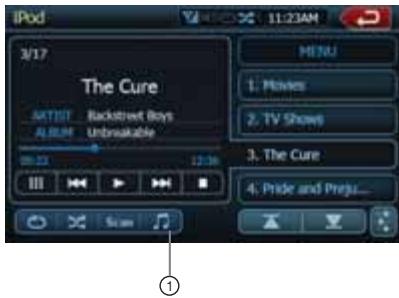
- Select the type of video, you would like to be played, by touching it on the right side of the menu. The video playback will start.
Note:
Video playback is not available on all iPod/iPhone devices. Please contact your Clarion dealer for details. An optional connection cable or accessory may be required for this feature.
-
To stop the video play, touch the screen iPod play video menu will be displayed.
-
Touch the [♪] audio button (1) to return to the iPod audio menu.
Note:
- "AUDIO ONLY" is displayed when the automobile is moving.
- Image data may not be played back according to the status of the iPod/iPhone.
- The volume setting of video data is relatively lower than audio data. Be sure to lower the volume setting before switching to the other mode.
- Do not select the categories with no track registered from the iPod menu screen. The iPod/iPhone may be frozen. If the iPod /iPhone is frozen, reset the iPod/iPhone by following the procedure described in the instruction manual of the iPod/iPhone.
- Audio may be played back slightly out of synchronization with video images.
USB Operations
This system can play audio files (MP3/WMA) stored in an USB memory which is recognized as “USB Mass Storage Class device”. You can use your USB memory as an audio device by simply copying desired audio files into it.
Note:
- This system will not operate or may operate improperly with some USB memory.
- Files protected with any DRM can not be played.
Notes on using USB memories
- General notes
- When no data is present, the message "NO FILE" will be displayed.
- The USB memory is used with the equalizer function turned OFF.
• Notes on the MP3/WMA files
- This system can play the MP3/WMA files stored in the USB memory.
- This system cannot play DivX files stored in the USB memory.
- Set the Sampling Frequency to: For MP3 files:
- MPEG1 Layer3: 32, 44.1, or 48 kHz
• MPEG2 Layer3: 16, 22.05, or 24 kHz - MPEG2.5 Layer3: 8, 11.025, or 12 kHz For WMA files: 32, 44.1, or 48 kHz
- Set the Bit Rate to: For MP3 files:
• MPEG1 Layer3: 32 to 320 kbps (VBR)
- MPEG2 Layer3: 16 to 160 kbps (VBR)
- MPEG2.5 Layer3: 16 to 160 kbps (VBR) For WMA files: 32,48, 64, 80, 96, 128, 160, or 192 kbps
- Add the following file extension using single byte characters:
For MP3 files: “.MP3” or “.mp3” For WMA files: “.WMA” or “.wma”
• Notes on the folder structure
- The folder hierarchy must be within 8 hierarchical levels. Otherwise, playback will be impossible.
- The maximum allowable number of folders is 200 (including root directory and folders with no MP3/WMA file).
- The maximum allowable number of files in a folder is 1500.
- The maximum files allowable in all folders is 1500.
- You can store the MP3 files, WMA files together in a folder.
• Notes on the Tag titles
The limitations on the Tag titles are same as those in the MP3/WMA modes.
- Folder representation in the folder list The limitations on the folder representation are same as those in the MP3/WMA modes.
Selecting the USB Memory mode
Connect your USB memory to the USB connector. The system will automatically detect the connected device, and change to the USB mode (USB Memory mode), and start playback after a while. If you reconnect the same device that you disconnected last, the system will play back where it left off.
- When an USB memory is already connected
Touch the [USB] key to select the USB in a Main Menu mode.
The system changes to the USB mode and starts playback from the previous position.
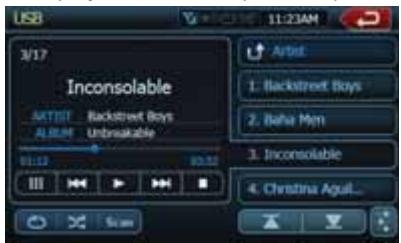
Playing back files in the USB memory
The operations in the USB Memory mode are same as those in the MP3/WMA modes. See “Listening to a CD” for details.
Note:
When performing the fast forward or fast backward function, the playback speed will become 10-time faster. For the VBR files, it may differ depending on the file.
Bluetooth Audio Player Operations
Some Bluetooth cellular phones have the audio features, and some portable audio player support the Bluetooth feature. These devices will be called as “Bluetooth audio players” in this manual. This system can play audio data stored in a Bluetooth audio player.
Note:
- This system will not operate or may operate improperly with some Bluetooth audio players.
- For detailed information on the playable Bluetooth audio players, see our home page: www.clarion.com
Selecting the Bluetooth mode
- Press the [◀] button to display the Main Menu screen.
- Touch the [Bluetooth] key to select the Bluetooth mode.
The system changes to the Bluetooth mode. If the connection with a Bluetooth audio player has been already established, you may select the Music function. - When the connection with a Bluetooth audio player has been established, the ✗ icon is displayed at the top of the screen.
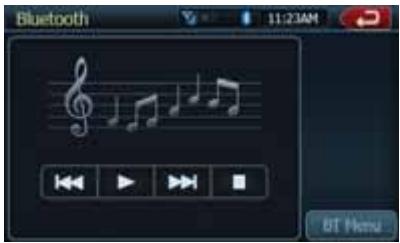
Bluetooth audio player settings
Confirming Bluetooth Information and setting Pass Key You can confirm the various information concerning the Bluetooth Interface features.
- Touch the [Settings] key to display the information on the screen.
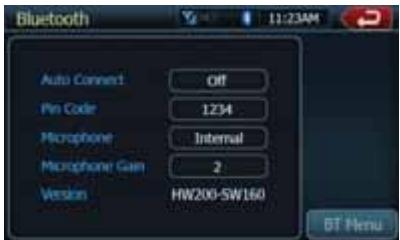
- When you finish confirming the Bluetooth information, touch the [BT Menu] key to return to the previous screen. If you want to change the Pass Key setting of this unit, perform the following steps.
-
The factory default setting is "1234".
-
Touch the text box of the Pass Key item to display the Ten-Key Pad screen.
-
Enter your desired 4-digit PIN number, then touch the [OK] key.
Registering your Bluetooth audio player (Pairing)
You can register up to 5 Bluetooth audio players.
- Turn on the power of the Bluetooth audio player you wish to register.
- Touch the [Device] key to display the Device Select screen.
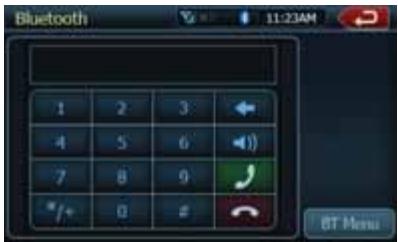
-
Touch the [Add] key to display the Add the Device screen.
-
Touch your desired Device key to select the key for the Bluetooth audio player to be registered.
-
If entering the Pass Key code is prompted on your Bluetooth audio player, enter the Pass Key code set to this unit.
- You can change the Pass key setting of this unit from the BT Info screen.
When the pairing operation completes, the registered Bluetooth audio player is set as the current device, and the display returns to the Bluetooth mode screen.
Note:
- You cannot register the same Bluetooth audio player which is already registered doubly. If you wish to change the Device key registered, once delete the corresponding Bluetooth audio player from the previous Device key, and then register it again to your desired Device key.
- To delete the Bluetooth audio player registration
-
Touch the [Device] key.
-
Touch the desired Device key you wish to delete.
A confirmation screen is displayed.
- Touch the [Delete] key to display the Delete the Device screen.
Selecting the Bluetooth audio player
To change the current Bluetooth audio player to the other device which is already registered, perform the following operation.
-
Touch the [Device] key to display the Device Select screen.
-
Touch the currently connected device, then press the [Cut] key to disconnect the active device.
-
Touch the desired Device key you wish to use. Press the [Connect] key to select it as your active device. The corresponding Bluetooth audio player is set as the current device.
- If the power of the Bluetooth audio player is not turned on, turn it on.
- The Bluetooth audio player may prompt to acknowledge the Bluetooth connection or to enter the Pass Key code of this unit. Perform these operations according to the message displayed.
- Touch the [BT Menu] key to return to the previous screen.
Controlling the Bluetooth audio player
Note:
- Occasionally, depending on the environment, playback sounds may be fragmented, or switch noises may be generated.
Playing back a music
After the connection with a Bluetooth audio player is established, the play mode is automatically engaged.
- When playback is not started, touch the [▶] key.
Pausing playback
-
Touch the [Ⅲ] key during playback. Playback pauses.
-
To resume playback, touch the [▶] key. Playback resumes.
Skipping a track (searching)
- Press the [◀◀] or [▶▶] button during playback. Tracks are skipped, as many as the times the button is pressed, and playback starts.
Fast forward and fast backward
- Press and hold the [I◀◀] or [▶▶I] button during playback. The system enters the fast backward or fast forward playback mode during pressing the button. Releasing the button resumes the normal speed playback.
Bluetooth Telephone Operations
When the connection with your Bluetooth cellular phone is established, the following functions are available on this unit:
- Listening to your telephone calls on the car speakers.
- Answering to an incoming call.
- Making a call using the Ten-Key pad screen.
- Making a call using the Phone Book data in the selected cellular phone.
- Making a call using the History data of the dialed/received calls.
Note:
- Some cellular phones may not be able to transfer the Phone Book data.
- The Phone Book data transmission may take a long time. The operations of sending calls are disabled during the data transmission.
- You can talk with other party by using the internal microphone. When it is hard to hear for the other party in accordance with the communication condition or the used telephone, use the optional microphone (RCB-199), and set the Microphone Select setting to “External”. The sound will be improved, but noises may still be heard depending on the communication condition.
Selecting the BT Phone mode
- Press the [◀] button to display the Menu screen.
- Touch the [Bluetooth] key to select the Bluetooth mode.
- Touch the [Telephone] key to select the BT Phone mode.
The Telephone screen is displayed.
- When the connection with a Bluetooth telephone has been established, the ⚙ icon and signal level indicator are displayed at the top of the screen.
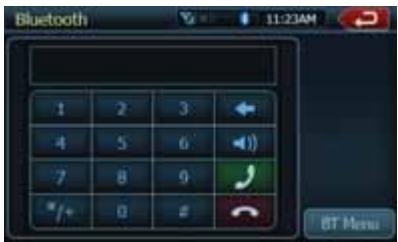
Telephone settings
Setting the telephone features
- Touch the [Setting] key to display the Telephone Settings screen.
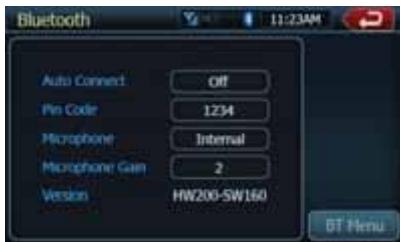
- Perform setting for the desired item. See the following sections for detail.
- Touch the [Back] key to return to the previous screen.
- Setting Automatic Connection The system automatically reconnects the
cellular phone after the connection is lost or the system is restarted.
- The factory default setting is “OFF”. Touch the [ON] or [OFF] key of the Automatic Connection item to set the function ON or OFF.
- Selecting Microphone
You can select the microphone to be used.
- The factory default setting is “Internal”. Touch the [External] or [Internal] key of the Microphone Select item to set the function.
Note:
- Setting Microphone Gain
- When "Internal" is selected, and a call comes in during the operation panel open, the operation panel is automatically closed because the microphone is on the operation panel.
- When "Internal" is selected, the [OPEN/CLOSE] button is disabled during a call.
You can adjust the input level of the microphone in 5 levels.
- The factory default setting is "3".
Note:
- The input level of the microphone can be affected by its surroundings. Adjust the level when the person on the other end of the telephone has a reception problem.
- Touch the level indicator button of the Microphone Gain item to adjust the input level.
- Confirming Bluetooth Information and setting Pin Code
You can confirm the various information concerning the Bluetooth Interface features.
- Touch the [Settings] key of the BT Info item to display the information on the screen.
- When you finish confirming the Bluetooth information, touch the [BT Menu] key to return to the previous screen. If you want to change the Pin Code setting of this unit, perform the following steps.
- Touch the text box of the Pin Code item to display the Ten-Key Pad screen. • The factory default setting is "1234".
- Enter your desired 4-digit PIN number, then touch the [OK] key.
Registering your cellular phone (Pairing)
You can register up to 4 cellular phones.
- Turn on the power of the cellular phone you wish to register.
- Touch the [Device] key to display the Device Select screen.
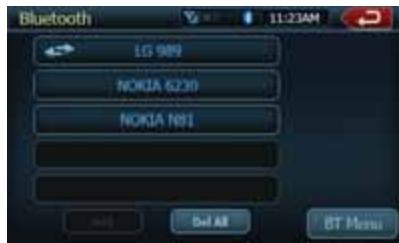
- Touch the [Add] key to display the Add the Cellular screen.
- Touch your desired Cellular key to select the key for the cellular phone to be registered.
- You cannot select the Cellular key of which another cellular phone is already registered. Select a blank Cellular key.
- If entering the Pass Key code is prompted on your cellular phone, enter the Pass Key code set to this unit.
- You can change the Pass key setting of this unit by the BT Info screen under the Telephone Settings screen. When the pairing operation completes, the registered cellular phone is set as the current telephone, and the display returns to the Telephone screen.
Note:
-
You cannot register the same cellular phone which is already registered doubly. If you wish to change the Cellular key registered, once delete the corresponding cellular phone from the current Cellular key, and then register it again to your desired Cellular key.
• To delete the cellular phone registration -
Touch the [Device] key.
-
Touch the desired Device key you wish to delete. A confirmation screen is displayed.
- Touch the [Delete] key to display the Delete the Cellular screen.
Selecting the cellular phone
To change the current cellular phone to the other device which is already registered, perform the following operation.
-
Touch the [Device] key to display the Device Select screen.
-
Touch the currently connected device, then press the [Cut] key to disconnect the active device.
-
Touch the desired Device key you wish to use. Press the [Connect] key to select it as your active device. The corresponding cellular phone is set as the current telephone.
-
If the power of the cellular phone is not turned on, turn it on.
-
The cellular phone may prompt to acknowledge the Bluetooth connection or to enter the Pass Key code of this unit. Perform these operations according to the message displayed.
-
Touch the [Back] key to return to the previous screen.
Obtaining the Phone Book data
Sending the Phone Book data from the cellular phone enables you to make a call using the Phone Book function from this unit.
- Perform the Object Push transfer operation of the Phone Book data on the current cellular phone. For details of the operation, see the operation manual of the cellular phone.
Note:
- Some cellular phones may not be able to transfer the Phone Book data.
- Some cellular phones cannot transfer the Phone Book data when the hands-free mode is set or it is also registered in the Bluetooth mode. In those cases, disable these functions from the cellular phone before performing the Object Push transfer.
- Some cellular phones may transfer Phone Book data automatically.
Telephone operations
Note:
- For your safety, this system disables the calling functions when the car is moving. Be sure to stop the car and apply the parking brake before making a call.
Making a call using the Ten-Key pad
-
Touch the [Telephone] key to display the Ten-Key pad screen.
-
Enter the telephone number by using the Ten-Key pad displayed on the screen.
-
Touch the [ ↗ ] (Send) key to call the entered number.
- The following Telephone Interrupt screen is displayed during phone call.
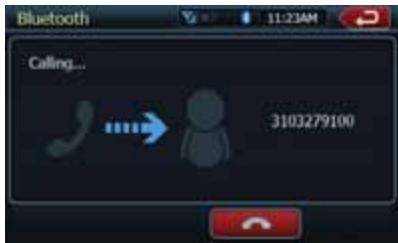
- Touch the [◀] (Private) key to talk using the cellular phone canceling the hands-free function. To return to the hands-free mode, touch the [◀] (Private) key.
- When the call is finished, touch the [☐] (End) key to hang up. The display will return to the previous mode screen selected before entering the BT Phone mode.
Note:
- Depending on the cellular phone, the Telephone Interrupt screen may be closed and the connection with this system may be disconnected when entering the Private mode.
Making a call using the Phone Book
You can use the Phone Book data obtained from the cellular phone to make a call from this unit.
Note:
- Before using this function, the Phone Book data must be sent from the cellular phone
- Only the Phone Book items with at least one telephone number registered in the captured Phone Book data are displayed on the Phone Book screen.
-
Touch the [Contacts] key to display the Phone Book screen.
-
Touch the desired Name key you wish to dial.
-
Touch the [] or [] key to scroll the list.
-
When you touch the alphabet key at the right of the screen, the list scrolls to the item which starts with the specified character.
-
Touch the desired Number key you wish to dial.
- Touch the [Call] key to call the specified number. The Telephone Interrupt screen is displayed, and calling starts.
- When the call is finished, touch the [图标] (End) key to hang up.
Making a call using the History
The system will memorize the Dialed/Received calls record data in the memory. You can confirm it and use it to make a call from this unit.
- Touch the [Call Log] key.
The History List screen is displayed.
- The items are sorted by Dialed, Missed and Received calls.
- Touch the [] or [] key to scroll the list.
-
Touch the [BT Menu] key to return to the previous screen.
-
Touch the desired History item key you wish to dial.
- Touch the [Call] key to call the specified number. The Telephone Interrupt screen is displayed, and calling starts.
- When the call is finished, touch the [图标] (End) key to hang up.
Answering to an incoming call
When a call comes in, the following Telephone Interrupt screen appears.
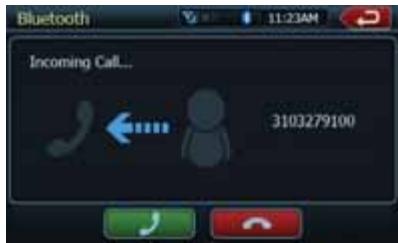
You can answer to the incoming call on this system by the following operation.
- Touch the [ 🔍 ] (Send) key to answer to the call.
- When the call is finished, touch the [图标] (End) key to hang up.
HD Radio Operations
This function is available when an HD Radio tuner is connected.
This unit can control the following HD Radio tuner:
• HD Radio Module (THD400)
Note:
- Be sure to disconnect power before connecting/disconnecting the HD Radio tuner.
- Not all areas offer HD Radio broadcasts
• HD Radio stations may not always broadcast subchannels - Volume levels of HD Radio stations may vary. Increase the volume gradually from the minimal setting after the channel is selected. Be sure to lower the volume setting before switching to another mode or channel.
Additional information about HD Radio can be found at www.hdradio.com
Listening to HD Radio
- Touch the Tuner button on the Main menu display. The tuner mode screen is displayed.
- Press the [BAND] button or touch the [Band] key on remote control to select the radio band. Each time the button is pressed, the radio reception band changes in the following order: FM1, FM2, FM3, AM, FM1...

1 - Stereo indicator
2 - Signal strength
3 - Station name
4 - HD Radio status
5 - Clock
6 - Main Menu key
7 - Preset list
8 - EQ mode key
9 - Next preset page
10 - Previous preset page
11 - Frequency display
12 - Seek up
13 - iTunes TAG key
14 - Manual tune up
15 - Auto store/Preset scan key
16 - Channel scan
17 - HD Radio subchannel key
18 - Manual tune down
19 - Band key
20 - Seek down
Seek Tuning
- Press the [BAND] button to select the radio band (FM or AM).
- Touch the [◀◀] or [▶▶] key to automatically seek a station.
- When touching the [▶▶] key, the station is sought in the direction of higher frequencies.
- When touching the [◀◀] key, the station is sought in the direction of lower frequencies.
Manual Tuning
- Press the [BAND] button to select the radio band (FM or AM).
- Touch the [◀◀] or [▶▶] key to automatically seek a station.
- When touching the [▶▶] key, the station is sought in the direction of higher frequencies.
- When touching the [◀◀] key, the station is sought in the direction of lower frequencies.
- To quick tune, touch and hold the [◀◀] or [▶▶] key to tune into a station.
Recalling a preset station
There are 2 ways to recall the preset station.
- Preset scan function:
-
Press the [BAND] button to select the desire band (FM or AM) on the remote control.
-
Press the [AS/PS] key momentarily. The unit will begin to scan the saved presets.
-
When the desired preset is found, press the [AS/PS] key momentarily.
HD Radio Operations
- Manual recall:
- Press the [BAND] button to select the desire band (FM or AM) on the tuner.
- Press the preset station (1 to 15) on tuner display. Press [▲] or [▼] to select next station up or down the preset list.
- Touch the desired Band key to select the band you wish to store.
- Tune in the station you wish to store using the seek tuning, manual tuning, or preset tuning.
- Touch and hold the desired Preset key you wish to store the current station for more than 2 seconds.
Manual memory
- Touch the desired Band key to select the band you wish to store.
- Tune in the station you wish to store using the seek tuning, manual tuning, or preset tuning.
- Touch and hold the desired Preset key you wish to store the current station for more than 2 seconds.
Auto Store
The Auto Store is a function for storing up to 15 stations that are automatically tuned in sequentially. If 15 receivable stations cannot be received, a previously stored station remains unoverwritten at the memory position.
- Touch the [Band] key to select the desired band. (FM or AM)
- Touch and hold the [AS/PS] key to start the Auto Store function. A beep sounds and the stations with good reception are stored automatically to the preset channels.
Preset Scan
The Preset Scan receives the stations stored in the preset memory in order. This function is useful when searching for the desired station in memory. 1. Touch the [Band] key to select the desired band. (FM or AM) 2. Touch the [PS] key to start the Preset Scan. The unit starts scanning each station for 10 seconds sequentially. 3. When the desired station is tuned in, touch the [PS] key again to continue receiving that station.
HD Radio Subchannel Function
- Touch the [HD] key to switch between the available subchannels. Each time the key is touched, the subchannel reception changes in the following order: HD1, HD2, HD3, HD4, HD1...
- You can save your desired subchannel by touching and holding the desired Preset key you wish to store the current subchannel for more than 2 seconds.
Note: Not all stations have HD Radio subchannel broadcasts.
iTunes Tagging Function
- Touch the [TAG] key to store the current music information to memory.
- You may store up to 64 tags in the memory when an iPod/iPhone is not connected.
- When an iPod/iPhone is connected to the unit, the unit will automatically transfer the tags to the iPod/iPhone.
Note: Not all broadcasted material can be tagged. The iTunes Tagging function is only available for Apple iPod and iPhone devices.
AUX In / AV In Operations
External peripheral devices, including a game console, camcorder, navigation unit, iPod/ iPhone, etc. can be connected to the AUX IN or AV IN connector on the back of this unit using the A/V media cables.
! WARNING
For your safety, the driver should not watch the VTR, etc. or operate the controls while driving. Please note that watching and operating the VTR, etc. while driving are prohibited by law in some countries.
NOTE:
For your safety, the unit has a safety function, which turns off the picture when car is moving, so only the audio can be heard. The picture can be only watched, when the car is stopped and parking brake is applied.
Switching to AUX IN / AV IN mode
Press [AUX IN] or [AV IN] button on Main Menu to select desired mode (when unit is reading).
The LCD will display the external video. The screen will dispaly “No Video” menu, if there is no video signal.
You cannot directly control external devices connected to the AUX IN or AV IN input.
Camera In Operations
Switching to Camera mode
Press [Camera] button on Main Menu to select desired mode (when unit is reading). The LCD will display the external video. The screen will dispaly "No Video" menu, if there is no video signal. Press [◀] back button to return to the Main Menu.
When the video signal is displayed, press right top corner to return to the Main Menu.
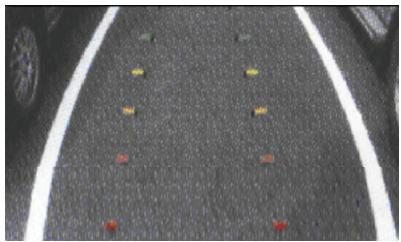
natural_image
Close-up of a car's asphalt road with colored markers indicating locations (no text or symbols visible)Setup Operations
Press [Setup] button on the Main Menu screen. The Setup menu screen will be displayed.
General Setup Menu
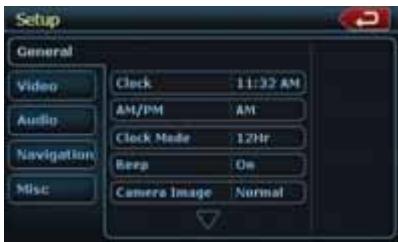
Clock: Touch the button to set the clock. Select Clock Mode 12 Hr.
AM/PM: Touch the button to change AM or PM, when 12Hr mode is selected.
Beep: The function of it is to choose the Beep voice on or off.
Camera Image: The Function of it is to choose the mode of camera image normal or mirror.
Radio Field: The function of it is to choose the radio mode in the country you are. It's contain USA, Europe, S. America, Other.
Tel Mute: The function of it is to set the Bluetooth ready on or off.
Tel SP: The function of it is to set the speaker of the Bluetooth ready front left or front right.
Aux In Input SW: The function of it is to choose the auxin input switch, including Low, Mid, High.
Version: Display the software version information.
Video Setup Menu
This menu includes: TV Shape; Aux IN; Brightness.
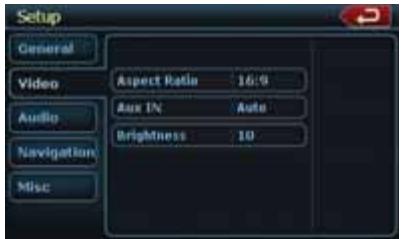
TV Shape: The function of it is to choose the screen area shape - 4:3 or 16:9.
Aux IN: The function of it is to choose Aux In format. It contains AUTO, PAL, NTSC.
Brightness: Set brightness value from 0 to 20.
Audio Setup Menu
This menu includes: Bass Freq; Treble Freq; Sub Filter; Bass Q-Factor.
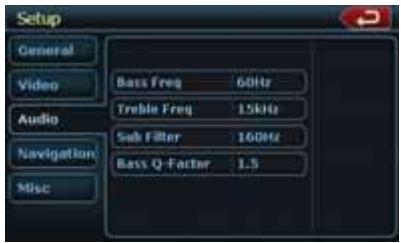
Bass Freq: Choose the desired bass frequency. 60Hz, 80Hz, 100Hz, 200Hz
Treble Freq: Choose the desired treble frequency 10KHz/12.5KHz/1 5KHz/17.5KHz.
Sub Filter: Choose the desired Sub Filter frequency: 80Hz/120Hz/160Hz.
Bass Q-Factor: Choose the Bass Q-Factor:1.0/1.25/1.5/2.0.
Navigation Setup Menu
This menu includes: GPS Time, Time Zone, DST
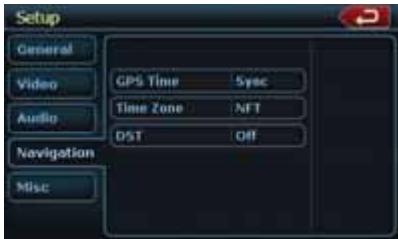
Setup Operations
GPS Time: Use this function of it is to synchronize the GPS time or not. It contains two choices: Ignore and Sync.
Time Zone: Choose the desired Time Zone: NTF/Atlantic/Eastern/Central/Mountain/Pacific/Alaska.
DST: Use this function to set Daylight Saving Time on or off.
Misc Set Up
This menu include: TS Calibrate; Set Password; Parental control.
TS Calibrate: The function of it is to select the TS Calibrate YES or NO.
Set password: The function of it is to set the password of the child lock.
Parental control: The function of it is to set the rating of the age. It contains Kid Saf/G/PG/PG- 13/PG-R/R/ NC- 17/Adult.
Software Update: Choose the function to update the software.
NAV Update: Choose the function to update the NAV software.
Restore Defaults: The function is to select to load factory default or not.
Phone Menu
If you receive a phone call and the Bluetooth is On, the screen will display Phone Interrupt Menu.
-
Press the right top corner to go back to Main Menu.
-
Touch [Setup] button to set Tel Mute and Tel SP.
EQ Set Up
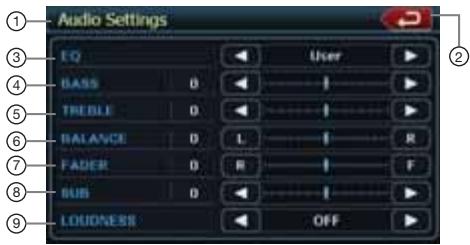
| No. | Button Name | Function |
| 1 | Title Name | Display title name |
| 2 | Main Menu Button | Close the Audio Settings menu |
| 3 | EQ | Set EQ mode |
| 4 | BASS | Set bass value |
| 5 | TREBLE | Set treble value |
| 6 | BALANCE | Set balance position |
| 7 | FADER | Set fader position |
| 8 | SUB | Set Sub Woofer level |
| 9 | LOUDNESS | Set loudness on or off |
Monitor OFF Menu
Press [Monitor OFF] button to temporarily turn off the dispaly. Touch the screen to turn the display on.
8. TROUBLESHOOTING
GENERAL
| Problem | Cause | Measure |
| Power does not turn on.(No sound is produced.) | Fuse is blown. | Replace with a fuse of the same amperage. If the fuse blows again, consult your store of purchase. |
| Incorrect wiring. | Consult your store of purchase. | |
| Nothing happens when buttons are pressed.Display is not accurate. | The microprocessor has malfunctioned due to noise, etc. | Turn off the power and open the operation panel. Press the reset button with a thin rod.Note:When the Reset button is pressed, turn off the ACC power.* When the Reset button is pressed, frequencies of radio stations, titles, etc. stored in memory are cleared.” |
| The remote control unit does not work. | Direct rays of the sun fall on the light-receptive part of the remote control unit. | When direct rays of the sun fall on the light-receptive part of the remote control unit, it may not work. |
| The batteries of the remote control unit are dead or there is no battery in the remote control unit. | Check the batteries of the remote control unit. |
DVD PLAYER
| Problem | Cause | Measure |
| Disc cannot be loaded. | Another disc is already loaded. | Eject the disc before loading the new one. |
| There is a foreign matter already in place. | Eject the foreign matter forcibly. | |
| Sound skips or is noisy. | Compact disc is dirty. | Clean the compact disc with a soft cloth. |
| Compact disc is heavily scratched or warped. | Replace with a compact disc with no scratches. | |
| Sound is bad directly after power is turned on. | Water droplets may form on the internal lens when the car is parked in a humid place. | Let dry for about 1 hour with the power on. |
| The image is not displayed. | The parking brake is not engaged. | Check that the parking brake is engaged. |
| Disc cannot play with the display “PARENTAL VIOLATION” shown. | Feature exceeds set parental level. | Release the view limitation or change the parental level.See the subsection “Setting up the parental level” |
USB DEVICE
| Problem | Cause | Measure |
| USB device cannot be inserted. | The USB device has been inserted with wrong direction. | Reversing the connection direction of the USB device, try it again. |
| The USB connector is broken. | Replace with a new USB device. | |
| USB device is not recognized. | The USB device is damaged. | Disconnect the USB device and reconnect. If the device is still not recognized, try replacing with a different USB device. |
| Connectors are loose. | ||
| No sound heard with the display “NO FILE” shown. | No MP3/WMA file is stored in the USB device. | Store these files properly in the USB device. |
| Sound skips or is noisy. | MP3/WMA files are not encoded properly. | Use MP3/WMA files encoded properly. |
| The iPod/iPhone’s video image is disturbed. | The TV Signal setting of the iPod/iPhone is not set correctly. | Set the TV Signal setting (NTSC/PAL) of the iPod/iPhone correctly. |
9. ERROR DISPLAY
If an error occurs, one of the following displays is displayed.
Take the measures described below to solve the problem.
DVD PLAYER
| Display | Cause | Measure |
| BAD DISC | A disc is caught inside the CD deck and is not ejected. | This is a failure of DVD deck's mechanism and consult your store of purchase. |
| BAD DISC | A disc cannot be played due to scratches, etc. | Replace with a non-scratched, non-warped disc. |
| BAD DISC | A disc is loaded upside- down inside the DVD deck and does not play. | Eject the disc then reload it properly. |
| PARENTAL VIOLATION | Parental level error | Set the correct Parental level. |
| WRONG REGION | Region code error | Eject the disc, and replace correct region code disc. |
If an error display other than the ones described above appears, press the Reset button. If the problem persists, turn off the power and consult your store of purchase.
* When the Reset button is pressed, frequencies of radio stations, titles, etc. stored in memory are cleared.
10. SPECIFICATIONS
FM Tuner
Frequency Range: 87.9 MHz to 107.9 MHz
Usable Sensitivity: 8 dBμV
50dB Quieting Sensitivity: 14 dBμV
Alternate Channel Selectivity: 70 dB
Stereo Separation: 25 dB (1 kHz)
Frequency Response: 30 Hz to 15kHz
AM Tuner
Frequency Range: 530 kHz to 1710 kHz
Usable Sensitivity: 28 dBμV
DVD Player System
Digital Versatile Disc System with CDDA capable
Usable discs:
DVD video disc, Compact disc
Frequency Response: 20 Hz to 20 kHz
Sound/Noise Ratio: 95 dbA (1W Ref)
Dynamic Range: 95 dB (1 kHz)
Distortion: 0.05%
Video system: NTSC
Navigation
Memory: NAND Flash Memory
Upgrade Platform: USB
TTS (Text to Speech): Street Announcements
Find Menu: Address, POI, History, Coordinates, Favorites, Plan on map
POI: 12 million
Road Selection: Unpaved, Permit needed, Motor ways, Toll, Ferries, Border crossing, Carpool lanes
Audio/Video Input
Audio input voltage: 300 μVrμs (low)
Audio input voltage: 600 μVrμs (med)
Audio input voltage: 950 μVrμs (high)
Video input voltage: 1.0Vp-p @75Ω
Audio/Video output
Audio output impedance: 10kΩ
Video output voltage: 1.0Vp-p @75Ω
LCD Monitor
NX500 Screen Size: 6.5" wide type
Pixels: 280,800
Resolution: 1200 x 234 (RGB)
NZ500 Screen Size: 7" wide type
Pixels: 336,960
Resolution: 1440x234 (RGB)
General
Power source voltage:
14.4 V DC (10.8 to 15.6 V allowable)
Ground: Negative
Current consumption:
4.0 A @1 W (57.6W @1W)
Auto Antenna Rated Current: 500 mA less
NX500 dimensions:
7" (178mm) width, 3-15/16" (100mm) height,
7" (179mm) depth
NX500 weight: 3.5 kg
NZ500 dimensions:
7" (178mm) width, 2" (50 mm) height,
7.5" (191.5mm) depth
NZ500 weight: 3.5 kg
Remote Control dimensions:
2-1/8" (54mm) width, 9/16" (14mm) height
4-13/16" (122 mm) depth
Remote Control weight:
50 grams (including battery)
Note:
- Specifications comply with JEITA Standards.
- Specifications and design are subject to change without notice for further improvement.
Power Output:
18W RMS x 4 Channels at 4Ω and 1% THD+N
Signal to Noise Ratio:
85 dBA (reference: 1W into 4Ω)

INSTALLATION /WIRE CONNECTION GUIDE
CONTENTS
- Before Starting....55
- Package Contents....55
- General Cautions....55
- Cautions On Installation 56
- Installing The Main Unit 57
- Cautions On Wiring 59
- Wire Connections 60
1. Before Starting
- This set is exclusively for use in cars with a negative ground 12V power supply.
- Read these instructions carefully.
- Be sure to disconnect the battery“ ”terminal before starting. This is to prevent short circuits during installation. (Figure 1)
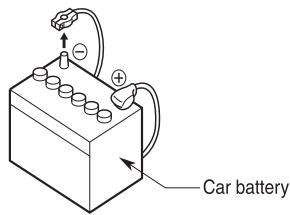
Figure 1
2. Package Contents
Main unit.... 1
GPS antenna 1
Wiring harness.... 1
AV cable 1
USB extension cable...... 1
Remote control unit.... 1
Battery (CR2025).... 1
(Installed in remote control)
2DIN trim ring 1
2DIN trim ring 200mm wide ..... 1
Back Strap.... 1
Flush mount bolts 4
Cap bolts.... 4
Rear radio stud and stopper .... 1
Cleaning cloth 1
Warranty Card 1
Owner's manual and
Installation manual .... 1
3. General Cautions
-
Do not open the case. There are no user-serviceable parts inside. If you drop anything into the unit during installation, consult your dealer or an authorized Clarion service center.
-
Use a soft, dry cloth to clean the case. Never use a rough cloth, thinner, benzine, or alcohol etc. For tough dirt, apply a little cold or warm water to a soft cloth and wipe off the dirt gently.
4. Cautions on Installation
- Prepare all articles necessary for installing the source unit before starting.
- This model features an operation panel that slides forward.
On some types of cars, the operation panel may make contact with the dashboard or gearshift lever, in which cause it cannot be installed. Before installing, check that the unit will not hamper operation of the gearshift lever or obstruct your view before selecting the installation location. (Figure 2)
NZ500
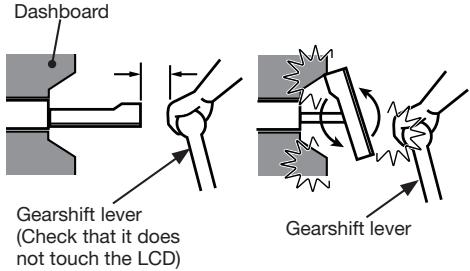
Figure 2
- Install the unit within 30^ of the horizontal plane. (Figure 3)
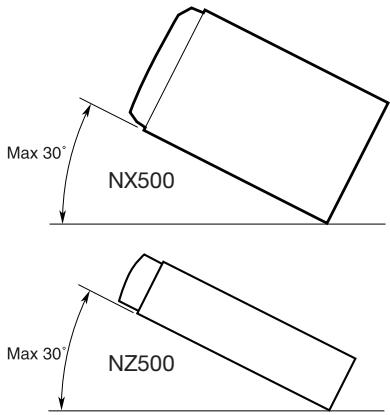
Figure 3
- If you have to do any work on the car body, such as drilling holes, consult your car dealer before hand.
- Use the enclosed screws for installation. Using other screws can cause damage. (Figure 4)
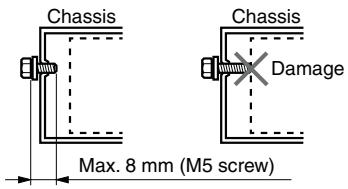
Figure 4
5. Installing the Main Unit
This unit is designed for fixed installation in the dashboard.
- When installing the main unit in NISSAN vehicles, use the parts attached to the unit and follow the instructions in Figure 6. When installing the main unit in TOYOTA vehicles, use the parts attached to the
vehicle and follow the instructions in Figure 7.
- Wire as shown in Section 7.
- Reassemble and secure the unit in the dashboard and set the face panel and center panel.
Mounting Screw Holes (Side View of the Main Unit)
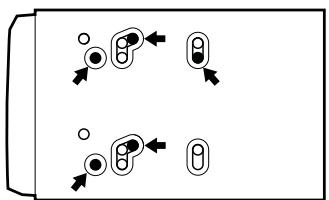
flowchart
graph TD
    A["○"] --> B["○"]
    C["○"] --> D["○"]
    E["○"] --> F["○"]
    G["○"] --> H["○"]
    I["○"] --> J["○"]
    K["○"] --> L["○"]
    M["○"] --> N["○"]
    O["○"] --> P["○"]
    Q["○"] --> R["○"]
    S["○"] --> T["○"]
    U["○"] --> V["○"]
    W["○"] --> X["○"]
    Y["○"] --> Z["○"]
    AA["○"] --> AB["○"]
    AC["○"] --> AD["○"]
    AE["○"] --> AF["○"]
    AG["○"] --> AH["○"]
    AI["○"] --> AJ["○"]
    AK["○"] --> AL["○"]
    AM["○"] --> AN["○"]
    AO["○"] --> AP["○"]
    AQ["○"] --> AR["○"]
    AS["○"] --> AT["○"]
    AU["○"] --> AV["○"]
    AW["○"] --> AX["○"]
    AY["○"] --> Z
    AZ["○"] --> AA
    BA["○"] --> BB
    BC["○"] --> AC
    BD["○"] --> AD
    BE["○"] --> AF
    BF["○"] --> AG
    BG["○"] --> AH
    BH["○"] --> AI
    BI["○"] --> AJ
    BJ["○"] --> AK
    BK["○"] --> AL
    BL["○"] --> AM
    BM["○"] --> AN
    BN["○"] --> AO
    BO["○"] --> AP
    BP["○"] --> AQ
    BQ["○"] --> AA
    BW["○"] --> BX
    BY["○"] --> ZB
    CA["○"] --> AZB
    CB["○"] --> BDQ
    CC["○"] --> BFQ
    DD["○"] --> BXQ
    DX["○"] --> AZX
    DXB["○"] --> BZX
    BZX --> BZX
    BZX --> BZX
    BZX --> BZX
    BZX --> BZX
    BZX --> BZX
    BZX --> BZX
For NISSAN vehicle
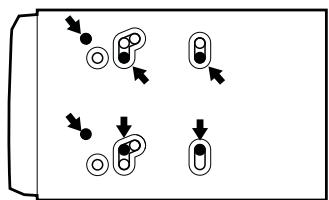
flowchart
graph TD
    A["Start"] --> B{Decision}
    B -->|Yes| C["Process Step 1"]
    B -->|No| D["Process Step 2"]
    C --> E["End"]
    D --> F["End"]
For TOYOTA vehicle
Figure 5
Installing the Main Unit in NISSAN Vehicle
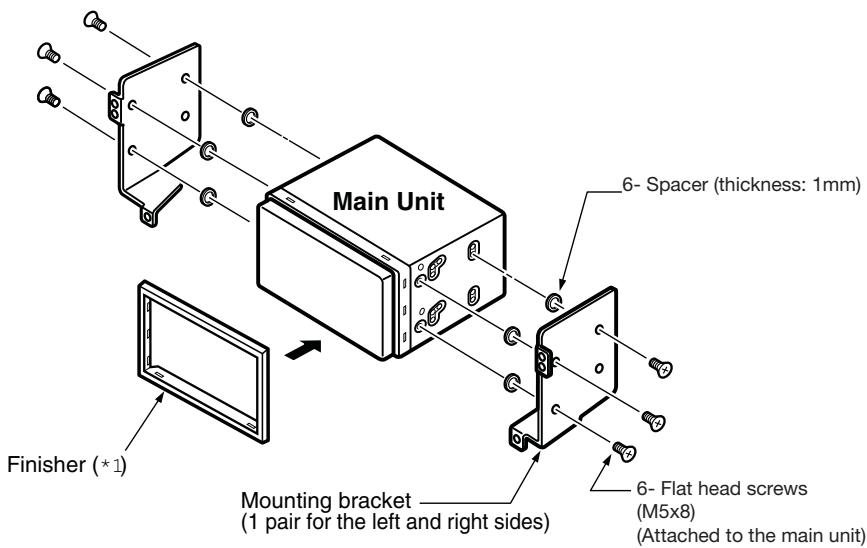
Figure 6
Note:
* 1: Position the face panel with its wide edge at the bottom. Fit the edge into the groove of the main unit.
Installing the Main Unit in TOYOTA Vehicle
Install by using parts attached to the vehicle. (Screws marked★ are attached to the vehicle.)
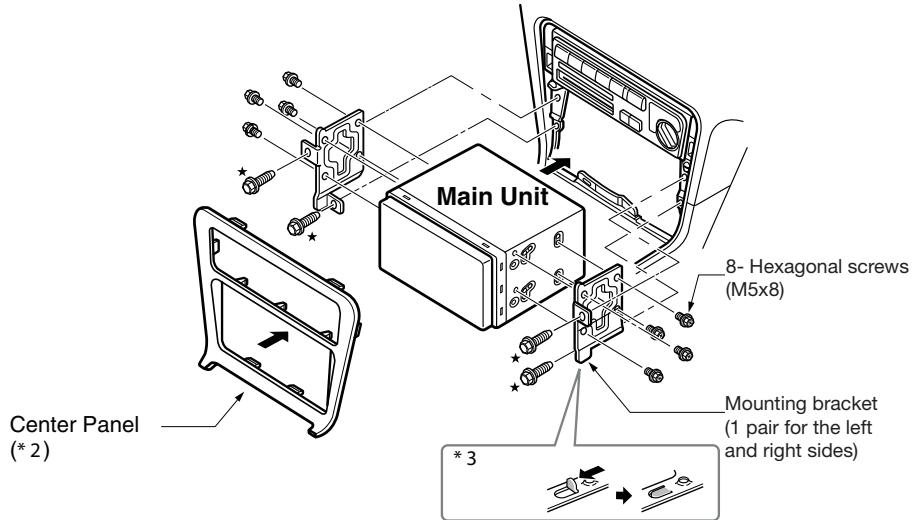
Figure 7
*2 Some panel openings are too small for the unit depending on the vehicle type and model. In such a case, trim the upper and lower sides of the panel frame by about 0.5 to 1.5mm so the unit can be inserted smoothly.
*3 If a hook on the installation bracket interferes with the unit, bend and flatten it with a nipper or similar tool.
Typical Mounting Brackets
Example 1
Example 2
Example 3
Affix the screws to the ● marks.
Vehicles other than NISSAN and TOYOTA
In some cases the center panel may require modification. (Trimming, filing, etc.)
- Removing the Main Unit
When the main unit is to be removed, disassemble it in the reverse of the order in "INSTALLING THE MAIN UNIT".
6. Cautions on Wiring
- Be sure to turn the power off before wiring.
- Be particularly careful where you route the wires. Keep them well away from the engine, and exhaust pipe, etc. Heat may damage the wires.
- If the fuse should blow, check to see if the wiring is correct.
If a fuse is blown, replace it with a new one of the same amperage rating as the original (15A FUSE).
- To replace the fuse, remove the old fuse on the back of the unit and insert the new one. (Figure 8)
NOTE:
There are various types of fuse holder. Do not let the battery side touch other metal parts.
CAUTION
After the connection, fix the cord by a clamp or insulation tape for protection.
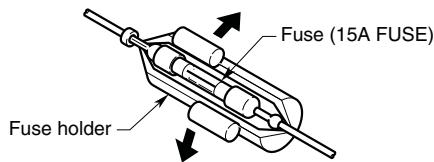
Figure 8
7. Wire Connections
Note:
- Before installing, be sure to disconnect the negative cable of the car battery.
- In the optional devices, the RCA cables and the Connector cables are separately-sold items.
NX500
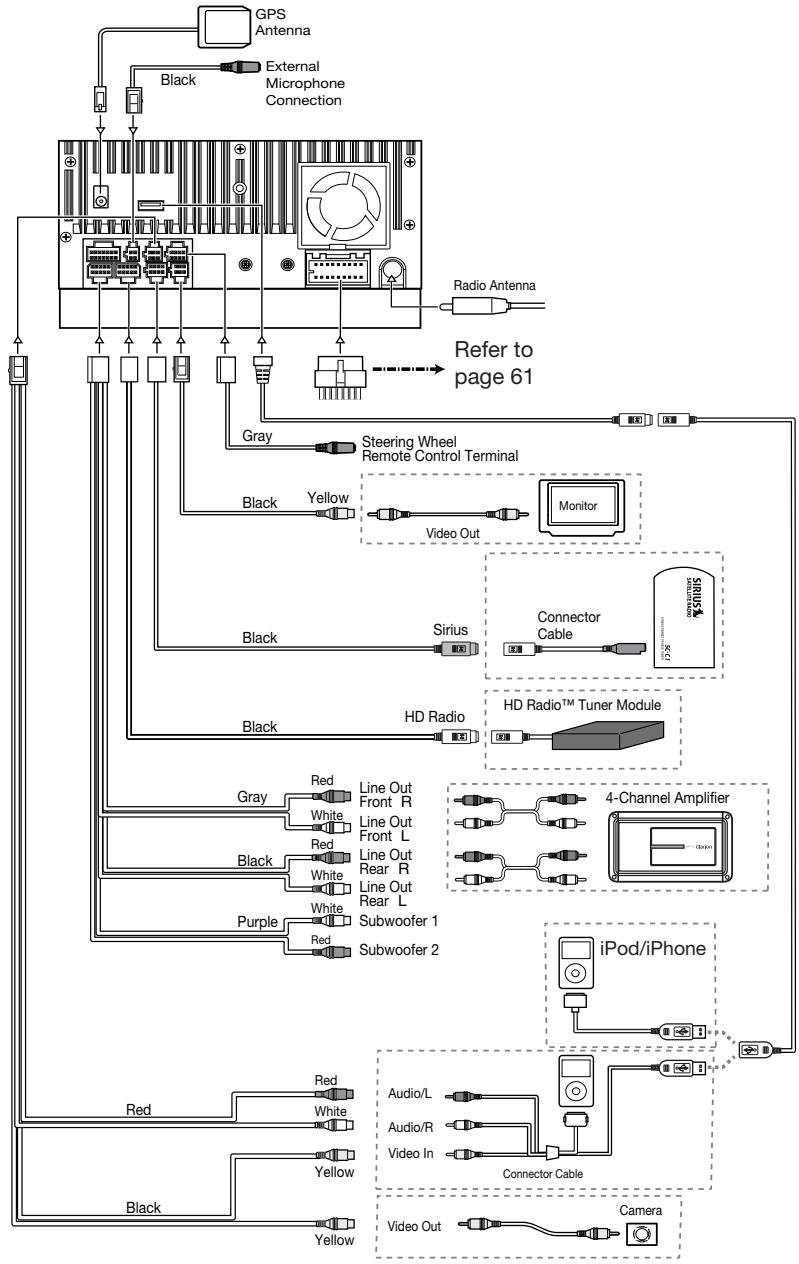
flowchart
graph TD
    A["GPS Antenna"] --> B["External Microphone Connection"]
    B --> C["Radio Antenna"]
    C --> D["Refer to page 61"]
    D --> E["Steering Wheel Remote Control Terminal"]
    E --> F["Monitor"]
    E --> G["Sirius"]
    G --> H["Connector Cable"]
    H --> I["HD Radio™ Tuner Module"]
    I --> J["4-Channel Amplifier"]
    J --> K["iPod/iPhone"]
    J --> L["Connector Cable"]
    L --> M["Video Out"]
    L --> N["Video In"]
    L --> O["Audio/R"]
    L --> P["Audio/L"]
    L --> Q["Radio In"]
    L --> R["Video Out"]
    L --> S["Video In"]
    L --> T["Audio/L"]
    L --> U["Audio/R"]
    L --> V["Audio/L"]
    L --> W["Radio In"]
    L --> X["Video Out"]
    L --> Y["Video In"]
    L --> Z["Audio/L"]
    L --> AA["Audio/R"]
    L --> AB["Audio/L"]
    L --> AC["Radio In"]
    L --> AD["Video Out"]
    L --> AE["Video In"]

flowchart
graph TD
    A["GPS Antenna"] --> B["Radio Antenna Jack"]
    B --> C["HD Radio"]
    C --> D["HD Radio™ Tuner Module"]
    D --> E["SIRIUS® DISCUITE RADIO SCC1"]
    E --> F["Connector Cable"]
    F --> G["iPod/iPhone"]
    G --> H["Connector Cable"]
    H --> I["4-Channel Amplifier"]
    I --> J["Monitor"]
    B --> K["Refer to page 61"]
    K --> L["External Microphone Connection"]
    L --> M["Black"]
    M --> N["Black"]
    N --> O["Yellow"]
    O --> P["Video"]
    P --> Q["Yellow"]
    Q --> R["White"]
    R --> S["Audio/L"]
    S --> T["Red"]
    T --> U["Red"]
    U --> V["Audio/R"]
    V --> W["Red"]
    W --> X["Line Out Subwoofer"]
    X --> Y["Purple"]
    Y --> Z["White"]
    Z --> AA["Red"]
    AA --> AB["Line Out Rear R"]
    AB --> AC["White"]
    AC --> AD["Line Out Rear L"]
    AD --> AE["Gray"]
    AE --> AF["Red"]
    AF --> AG["Line Out Front R"]
    AG --> AH["White"]
    AH --> AI["Line Out Front L"]
    AI --> AJ["Gray"]
    AJ --> AK["Yellow"]
    AK --> AL["Video Out"]
    AL --> AM["Video Out Camera"]
    AM --> AN["Steering Wheel Remote Control Terminal"]
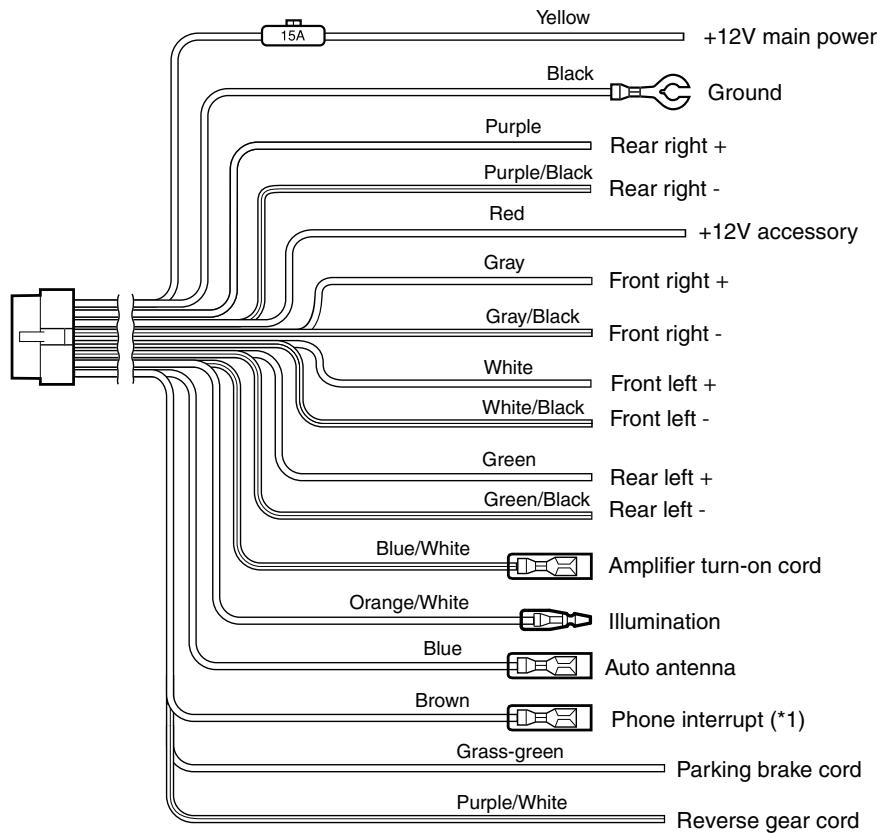
flowchart
graph TD
    A["15A Bus"] --> B["Yellow +12V main power"]
    A --> C["Black Ground"]
    A --> D["Purple Rear right +"]
    A --> E["Purple/Black Rear right -"]
    A --> F["Red +12V accessory"]
    A --> G["Gray Front right +"]
    A --> H["Gray/Black Front right -"]
    A --> I["White Front left +"]
    A --> J["White/Black Front left -"]
    A --> K["Green Rear left +"]
    A --> L["Green/Black Rear left -"]
    A --> M["Blue/White Amplifier turn-on cord"]
    A --> N["Orange/White Illumination"]
    A --> O["Blue Auto antenna"]
    A --> P["Brown Phone interrupt (*1)"]
    A --> Q["Grass-green Parking brake cord"]
    A --> R["Purple/White Reverse gear cord"]
Note:
*1: Connecting the PHONE INTERRUPT terminal
The phone interrupt will mute the audio if the lead receives a negative or ground signal.
See next page for how to connect the parking brake cord.
Connecting the parking brake cord
Connect the cord to parking brake lamp ground in the meter panel.
Note:
- Connecting the parking brake cord to lamp ground allows you to watch iPod/iPhone video/DVD video/AV input when the parking brake is engaged.
- When the parking brake cord is not connected, the monitor will not show any video sources.
- If “AUDIO ONLY” appears on the screen just after turning on the ACC power of the car, release the parking brake while confirming safety, and then engage the parking brake again.
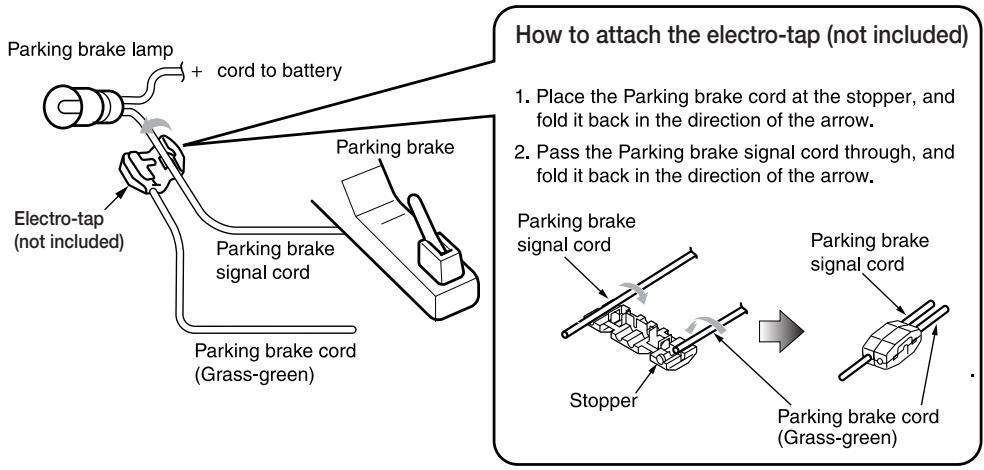
Connecting the accessories
- Connecting to the external amplifier
The external amplifiers can be connected to the 6 channel RCA output connections. Ensure that the connectors are not grounded or shorted to prevent damage to the unit.
- Connecting to iPod/iPhone device
The iPod/iPhone device can be connected to dedicated iPod/iPhone connection on the main unit. For detailed information, refer to the instruction sheet or manual for the iPod/iPhone cable.
Note:
- This unit may not support all functions of all iPod/iPhone devices.
- The iPod/ iPhone connection will charge your iPod/iPhone unless the iPod/iPhone battery is completely depleted. If the specified cord of the cellular phone is connected to the phone interrupt cord of the main unit, the audio mute is activated when cellular phone in use.
- Connecting to Sirius Satellite Radio Receiver
When Sirius Satellite Radio Receiver is to be connected, use the dedicated connector. For detailed information, refer to the instruction manual of the Sirius Satellite Radio Receiver.
DONNÉES D'ENREGISTREMENT DU PRODUIT CLARION
3. COMMANDES
Panneau de commande
![[▲] MIC CAPTEUR [NAVI/AV] [MUTE] Sourdine [■ PWR] [VOL] [SOURCE] ENTRÉE AUX REINITIALISATION NAV/AV MUTE •PWR VOL SOURCE NX500 clarion Bluetooth SIRIUS% DOULY NOSU](/content/2024/12/95862/images/e7f8e291e3651c31e3694d71582d4b0e3043ca4d4cd1c730b329e5df46b6c713.jpg)
![[CLOSE] Fermer [BND] Bande [PS/ENT] Préréglages/enter [NAVI/AV] clarion MIC [TILT UP] Inclinaison vers le haut [INFO] [TILT DOWN] Inclinaison vers le bas [DOLBY SIRIUS Bluetooth INFO OPEN BND CLARON PS DISP [SIGNATURE] 4.1.5.7.62 [DATA] [DATA] [DATA] [SOURDINE PUSH MUTE] [■ PWR] [VOL] [OPEN] Ouvrir [SOURCE] [SOURCE] [ENTRÉE AUX] [PS] (préréglages) [AS] Mémorisation automatique DISPLAY (Affichage) REINITIALISATION [PS/ENT] Appuyez/enter [SEL] (sélectionner)](/content/2024/12/95862/images/a2846cc548843446f9a40dcd434de187fe156032d1df9f8498216163ef9b99a9.jpg)
[▶/II] Bouton Lecture/Pause/Balayage
Bouton racine [ROOT]
Disques
Disques lisibles
Bouton Lecture/Pause
12 -Signal satellite
Commandes radio satellite Sirius
Remarque :
Address or Intersection (Adresse ou intersection)
Mode de favoris
Modification des favoris
Mode d'historique
NX500/NZ500
Commandes iPod/iPhone
Bouton Lecture/Pause [11]
Commandes AUX In/AV In
natural_image
Close-up of a road surface with white lane markings and scattered red markers (no text or symbols visible)Commandes de configuration
Commandes de configuration
4,0 A @1 W (57,6 W @1 W)
natural_image
Diagram showing a hand holding a tool interacting with a mechanical component, no text or symbols present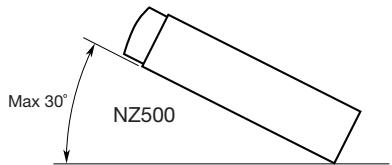
Figure 3
flowchart
graph TD
    A["Top Left"] --> B["Cell"]
    B --> C{Cell to Cell}
    C --> D["Cell to Cell"]
    D --> E["Cell to Cell"]
    E --> F["Cell to Cell"]
    F --> G["Cell to Cell"]
    G --> H["Cell to Cell"]
    H --> I["Cell to Cell"]
    I --> J["Cell to Cell"]
    J --> K["Cell to Cell"]
    K --> L["Cell to Cell"]
    L --> M["Cell to Cell"]
    M --> N["Cell to Cell"]
    N --> O["Cell to Cell"]
    O --> P["Cell to Cell"]
    P --> Q["Cell to Cell"]
    Q --> R["Cell to Cell"]
    R --> S["Cell to Cell"]
    S --> T["Cell to Cell"]
    T --> U["Cell to Cell"]
    U --> V["Cell to Cell"]
    V --> W["Cell to Cell"]
    W --> X["Cell to Cell"]
    X --> Y["Cell to Cell"]
    Y --> Z["Cell to Cell"]
3. CONTROLES
Panel de operación
![[▲] MICRÓFONO SENSOR [NAVI/AV] [MUTE] [■PWR] [VOL] [SOURCE] ENTRADA AUXILIAR RESTABLECER NAVIVAV MUTE ■PWR VOL SOURCE NX500 clarion Bluetooth SIRIUS & DOLEY F110768](/content/2024/12/95862/images/59a53912ba1945202c5b54af10ab332a90a143bd95b18229a742c95ad4e1143f.jpg)
Español
Discos
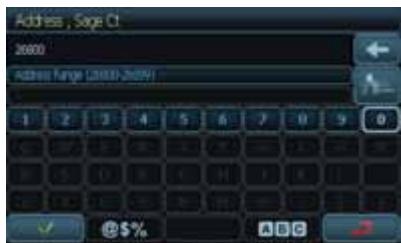
Nota:
Modo Favoritos
Modo Historical
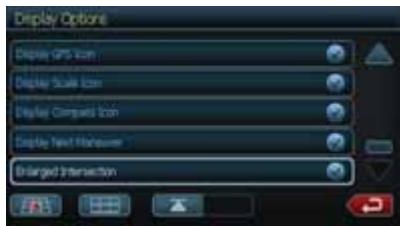
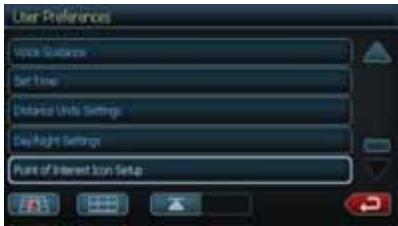
natural_image
Close-up of a road surface with white lane markings and scattered colored markers (no text or symbols visible)This device complies with Part 15 of the FCC Rules. Operation is subject to the following two conditions:
(1) this device may not cause harmful interference, and
(2) this device must accept any interference received, including interference that may cause undesired operation.
This Class B digital apparatus complies with Canadian ICES-003.
All Rights Reserved. Copyright © 2009: Clarion Co., Ltd.
Printed in China / Imprime au Chiné / Impreso en China
- Contents
- FEATURES
- NOTE:
- PRECAUTIONS
- WARNING
- CONTROLS
- Functions of Buttons
- [MUTE] [■ PWR] [VOL] Knob
- [NAVI/AV] Button
- [SOURCE] Button
- [◀◀] [▶▶I] Search/Seek Button
- [▶/II] Play /Pause Button / Scan Button
- [▲] Eject
- [OPEN] [CLOSE] Button
- [BAND] Button
- [PS/AS] Button
- [^] [∨] Button
- [INFO] Button
- [push ENT] [SEL] Button
- [DISPLAY] Button
- RESET Button
- SENSOR
- MIC
- Replacing the batteries
- Functions of Remote Control Buttons
- Shared modes
- [MODE] Button
- [VOLUME] Button
- [MUTE] Button
- [POWER] Button
- [OPEN] Button
- [MENU] Button
- [PIC] Button
- [SEL] Button
- [ESC] Button
- TUNER/Satellite Radio mode
- [0 - 9] Buttons
- [SEARCH] Button
- [OK] button
- [◀◀], [▶▶] Buttons
- [▲], [▼] Buttons
- DVD PLAYER mode
- [■/BAND] Button
- [DISC SEL] Button
- [TITLE] Button
- [ROOT] Button
- [▲], [▼], [◀], [▶] Buttons
- [◀◀], [▶▶]Buttons
- [RPT] Button
- [A→B] Button
- [ZOOM] Button
- [AUDIO] Button
- [SUB-T] Button
- [ANGLE] Button
- [◀], [▶] Buttons
- CAUTIONS ON HANDLING
- Operation Panel
- Navigation System
- USB Port
- Cleaning
- - Cleaning the cabinet
- - Cleaning the liquid crystal panel
- Handling Discs
- Handling
- Storage
- On Discs
- CAUTION
- DVD VIDEO SYSTEM
- DVD Video Features
- Multi-sound function
- Multi-angle function
- Multi-story function
- Menu screens
- Discs
- playable discs
- About CD Extra discs
- About playing a CD-R/CD-RW disc (MP3, WMA)
- About playing a DVD-R/RW or DVD+R/RW disc
- Discs that cannot be played back
- About MP3/WMA playback
- Note on region numbers
- About the registered marks, etc.
- OPERATIONS
- Basic Operations
- Turning ON and OFF the Power
- Opening and Closing Operational Panel
- Adjusting the Angle of the Operational Panel
- Selecting a Mode
- Turning Monitor ON or OFF
- Adjusting the volume
- Mute
- Adjusting the Settings
- Adjusting the Audio
- Adjusting the Balance/Fader
- Adjusting the Bass
- Adjusting the Treble
- Adjusting the clock
- Adjusting the Radio region
- Displaying the Navigation Map
- Reset to Factory Defaults
- Radio Operations
- Listening to the Radio
- Seek Tuning
- Manual Tuning
- Recalling a preset station
- Manual memory
- Auto Store
- Preset Scan
- LOC/DX Setting
- DVD Video Player Operations
- Change DVD System Settings
- Selecting DVD Set Up Menu
- Setting up the Screen Size
- Setting up the Video System Format
- Setting up the Video Brightness
- Setting up the password for parental level control
- Set rating for parental level control
- Watching/Listening to a disc
- ! WARNING
- Ejecting a disc
- Showing DVD Player mode screen
- Operate the DVD Player menu
- Stop Playback
- Play/Pause Playback
- Skip (Search) a Chapter
- Fast Forward Fast Backward
- Search with a Chapter/Title Number
- - Title
- - Chapter
- • Time
- Repeat Playback
- Repeat A → B
- Using the Title Menu
- Switching among the languages
- Switching Subtitles
- Switching angles
- Displaying the playback status
- LISTENING TO a CD
- Pausing Playback
- Skipping a Track (searching)
- Fast Forward and Fast Backward
- Scanning the Tracks
- Searching with the Track Number
- Selecting a track on the Track List Screen
- Other various play functions
- LISTENING TO MP3/WMA
- What is MP3/WMA?
- Displaying MP3/WMA TAG titles
- Precautions when creating MP3 disc
- - File extensions
- - File and Disc Not Supported
- - Logical format (File system)
- - Entering File and Folder Names
- • Electronic Shock Protection
- - Folder structure
- • Number of files or folders
- Playing MP3 folders
- Playback Picture Menu
- Sirius Satellite Radio Operations
- Selecting a Satellite Radio mode
- Information Displayed During Reception
- Confirming Your Radio ID
- Channel Selection
- Channel Selection with the channel number
- Auto Preset Store
- Deleting a Preset
- Receiving Stations by Category
- Parental Controls Lock Channels
- Setting the password
- Navigation System Operations
- Introduction to Navigation Software
- Vehicle Position
- Map and Information Database
- Main Menu Screen Operations
- Route to home address
- Select the destination
- Address or Intersection
- Point of Interest
- Favorites
- History
- Adress or Intersection Mode
- Point of Interest Mode
- Coordinates Mode
- Favorites Mode
- Edit Favorites
- History Mode
- System Preferences Setup
- Office Adress Guidance and Setup
- Trip Computer Readings and Resets
- ACCESSORIES
- iPod/iPhone Operations
- Notes on using Apple iPod/iPhone
- Selecting the iPod mode
- Controlling the iPod/iPhone
- Operation keys
- [☐] Video key
- [×] Shuffle key
- [11] Play/Pause key
- [‡] EQ button
- [■■] Keyboard button
- [💡] Repeat button
- Fast forward and fast backward playback
- Selecting a list item from a list screen
- Viewing video data in the iPod/iPhone (only for the iPod/iPhone with video features)
- USB Operations
- Notes on using USB memories
- - General notes
- • Notes on the MP3/WMA files
- • Notes on the folder structure
- • Notes on the Tag titles
- Selecting the USB Memory mode
- - When an USB memory is already connected
- Playing back files in the USB memory
- Bluetooth Audio Player Operations
- Selecting the Bluetooth mode
- Bluetooth audio player settings
- Registering your Bluetooth audio player (Pairing)
- - To delete the Bluetooth audio player registration
- Selecting the Bluetooth audio player
- Controlling the Bluetooth audio player
- Playing back a music
- Bluetooth Telephone Operations
- Selecting the BT Phone mode
- Telephone settings
- Setting the telephone features
- - Selecting Microphone
- - Setting Microphone Gain
- - Confirming Bluetooth Information and setting Pin Code
- Registering your cellular phone (Pairing)
- Selecting the cellular phone
- Obtaining the Phone Book data
- Telephone operations
- Making a call using the Ten-Key pad
- Making a call using the Phone Book
- Making a call using the History
- Answering to an incoming call
- HD Radio Operations
- Listening to HD Radio
- HD Radio Subchannel Function
- iTunes Tagging Function
- AUX In / AV In Operations
- Switching to AUX IN / AV IN mode
- Camera In Operations
- Switching to Camera mode
- Setup Operations
- Video Setup Menu
- Audio Setup Menu
- Navigation Setup Menu
- Misc Set Up
- Phone Menu
- Monitor OFF Menu
- TROUBLESHOOTING
- ERROR DISPLAY
- SPECIFICATIONS
- FM Tuner
- AM Tuner
- DVD Player System
- Navigation
- Audio/Video Input
- Audio/Video output
- LCD Monitor
- General
- Power Output:
- INSTALLATION /WIRE CONNECTION GUIDE
- Before Starting
- Package Contents
- General Cautions
- Cautions on Installation
- Installing the Main Unit
- Installing the Main Unit in TOYOTA Vehicle
- Typical Mounting Brackets
- Vehicles other than NISSAN and TOYOTA
- - Removing the Main Unit
- Cautions on Wiring
- Wire Connections
- Connecting the parking brake cord
- Connecting the accessories
- - Connecting to the external amplifier
- - Connecting to iPod/iPhone device
- - Connecting to Sirius Satellite Radio Receiver
- DONNÉES D'ENREGISTREMENT DU PRODUIT CLARION
- COMMANDES
- [▶/II] Bouton Lecture/Pause/Balayage
- Bouton racine [ROOT]
- Disques
- Disques lisibles
- Bouton Lecture/Pause
- Commandes radio satellite Sirius
- Remarque :
- Mode de favoris
- Modification des favoris
- Mode d'historique
- Commandes iPod/iPhone
- Bouton Lecture/Pause [11]
- Commandes AUX In/AV In
- Commandes de configuration
- CONTROLES
- Discos
- Nota:
- Modo Favoritos
- Modo Historical
Brand : CLARION
Model : NX500
Category : Car navigation system