USER MANUAL MAX983HD CLARION
Owner's manual (Navigation)
When using this navigation system, follow the precautions listed below. After reading this manual, be sure to keep it in a handy place (such as the glove box of your car).
AWarnings
- This navigation system should not be used as a substitute for your own judgment. Any route suggestions made by this navigation system may never override any local traffic regulations, your own judgment, and/or knowledge of safe driving practices. Disregard route suggestions by the navigation system if such suggestions would: cause you to perform a hazardous or illegal maneuver, place you in a hazardous situation, or route you into an area you consider unsafe.
- The advice provided by the navigation system is to be regarded only as a suggestion(s)/ There may be situations where the navigation system displays the vehicle's location incorrectly, fails to suggest the shortest course, and/or fails to direct you to your desired destination. In such situations, rely on your own driving judgment, taking into account current driving conditions.
- Do not use the navigation system to route you to emergency services. The database does not contain a complete listing of locations of emergency service providers such as police, fire stations, hospitals and clinics. Please use your judgment and your ability to ask for directions in these situations.
-
As a driver you are solely responsible for your road safety.
-
In order to avoid a traffic accident or traffic offence, remember that actual road conditions and traffic regulations take precedence over the information contained in the navigation system.
- Accordingly, the software may contain inaccurate or incomplete information due to the passage of time, changing circumstances, and due to the nature of the sources used. Please observe the actual traffic circumstances and regulations at all times while driving.
- The navigation system does not provide, or account for in any way; information regarding traffic and road laws; vehicle specifications including weight, height, width, load, and/or speed restrictions; road conditions including road slope, grade, and/or surface conditions; obstruction information including bridge and tunnel height and width, and/or other prevailing driving and/or road conditions. Always rely on your own driving judgment, taking into account current driving conditions.
-
Minimize the amount of time spent viewing the screen while driving.
-
The driver should not operate this unit while driving. Be sure to stop the vehicle in a safe place when the driver is operating this unit. For safety, some of the navigation functions are prohibited if the vehicle is not stopped with the parking brake engaged.
CAUTION
- While driving, set the volume so that sound from outside the vehicle can be heard. Driving without hearing sound from the outside of the vehicle may cause a traffic incident.
The following two manuals are provided to this system:
Owner's Manual (Audio, Visual, General & Installation)
This manual (hereinafter referred to as "Audio Manual") explains the functions and operation procedures of the AV features. In addition, the general precautions and other information on using this system are also explained in this manual.
Owner's Manual (Navigation) (This Book)
This manual (hereinafter referred to as "Navigation Manual") explains the functions and operation procedures of the navigation features.
Note:
- This manual is described on the assumption that the default Skin data has been applied. When the other Skin data is applied, the screen design and shapes of icons will be different from the contents listed in this manual.
- Please be aware that the device may be different from the manual according to the changes of the specifications.
Symbols used in this manual
Note: Lists what should be noted when operating or referential information.
[ ] button Indicates a button on this unit.
[ ] key Indicates a menu item on the screen. Indicates a title and page number on which recommended reference information is described.
Notes on Handling
- In no event shall Clarion be liable for any incidental damage (including, but not limited to, loss of the business profit or change/loss of the data) caused from use or inability to use of this product.
Note:
Safety Precautions 3
About This Manual 4
Notes on Handling 4
Contents 5
- Basic Operations 6
Switching the Operation Mode 6
Menu Types and Operation 6
Map Screen Features 10
Manipulating the Map Screen 16
Outline of Destination Entering Procedures 19
- Entering the Destination 22
Searching Your Destination from the Destination Menu 22
Searching Your Destination from the Map Screen 26
Searching for POI Using the Quick POI Function 26
Searching Your Destination from the Favourite/Frequent List 27
Setting the Destination and Starting the Route Guidance 28
- Route Guidance 30
Route Guidance Screen Features 30
About the Voice Guidance 32
Changing/Editing the Route Settings 32
Notes on the Route Guidance 36
Notes on the Voice Guidance 37
- Traffic Information 38
Displaying the Traffic Information 38
Notes on the Traffic Information 41
- System Settings 42
General Settings 43
Navigation Settings 44
Audio Settings 48
Adjusting the Monitor 48
User Settings 48
Registering/Editing the Data 49
Importing Data Using the SD Card 51
Service Options 52
Setting Safety Camera 53
- Favourite/Frequent List Operations 54
What is Favourite/Frequent List? 54
Using Favourite/Frequent List 54
- Voice Command Operations 57
Voice Command Features 57
List of the Voice Commands (Navigation Features) 59
Notes on the Voice Command Operations 61
- Others 62
Troubleshooting 62
Error Messages 62
About the Positioning Error 63
2. Basic Operations
See the Audio Manual for the procedure to turn the power on/off and the details of controls on the Operation Panel.
Switching the Operation Mode
To switch between the Navigation screen and Audio screen, press the [▶ NAVI] (Navi/AV) button.
Menu Types and Operation
This section explains the types of the typical menu screens on the touch panel and their operation.
Pressing the [MENU] button displays the Destination menu screen. By touching the desired menu item, you can display menu screens and perform operations of entering a destination.
Touching the menu item on the lower part of the screen displays each menu screen.
For the entering procedure of the destination, see "Outline of Destination Entering Procedures"
(P. 19), and "3. Entering the Destination" (P. 22).
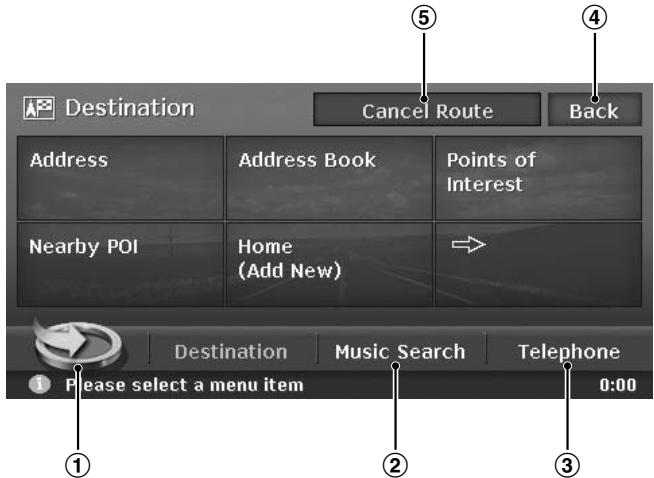
① [ ] key
Displays the Favourite list menu screen.
"Favourite/Frequent menu" (P. 7), "7."
Favourite/Frequent List Operations" (P. 54)
② [Music Search] key
Displays the Music Search menu screen.
"Music Catcher Operations" (Audio Manual)
③ [Telephone] key
Displays the Telephone menu screen.
"Telephone Operations" (Audio Manual)
(4) [Back] key
Returns to the previous screen.
⑤ [Cancel Route] key
Terminates the route guidance during the route guidance mode.
"Cancelling the route guidance" (P. 33)
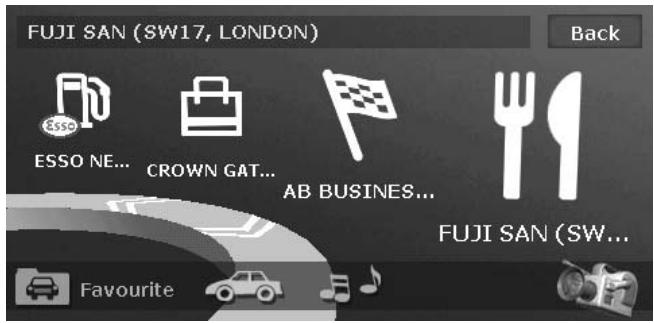
Touching the [ ] key in the Destination menu or in the Navi Shortcut menu displays the Favourite list menu screen.
Your favourite places can be registered in the Favourite list, and places often visited are automatically registered in the Frequent list.
From the 3D List screen of the Favourite/Frequent list menu, you can enter a destination by an easy operation. From the 2D List screen, you can edit the list items by drag-and-drop operations.
For details, see "7. Favourite/Frequent List Operations" (P. 54).
Touching the [NAVI] key from the Current Location Map screen displays the Navi Shortcut menu on top of the Map screen. Operate by touching the desired menu items or icons.
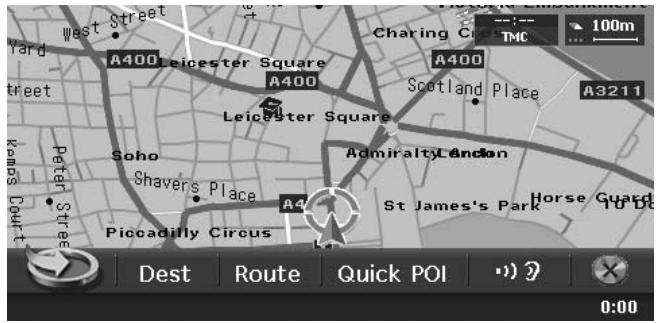

key:
Displays the Favourite list menu screen.
[Dest] key:
Displays the Destination menu screen of the navigation system.
[Route] key:
Displays the Route menu screen.
[Quick POl] key:
Displays the Quick POI screen for searching nearby POI or POI on the route with five categories. You can customise the categories by touching the [Setting] key on the Quick POI screen. The five categories can also be customised from the Setting menu. "Quick POI Settings" (P. 46)
[12] key:
Repeats the current voice guidance.
![CLARION MAX983HD - [12] key: - 1](/content/2025/01/95856/images/e97ad8e78c790cc0df99f272c29de2ed70660ccf7a7f389349f8c91169029261.jpg)
key:
Hides the Navi Shortcut menu.
After scrolling the map by touching the Map screen, touch the [OK] key on the screen to display the Location menu at the left side of the screen. You can set the location under the cursor at the centre of the screen as the destination or store it to the Address Book.
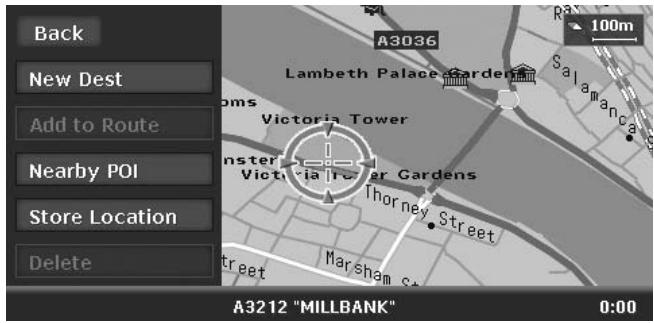
[Back] key:
Returns to the scrolled Map screen before touching the [OK] key.
[New Dest] key:
Sets the location under the cursor as the destination. When a destination is already set, the old destination is cancelled as soon as the new destination is set.
[Add to Route] key:
When another location is already set as the destination, you can set the location under the cursor as a waypoint. Touching this key displays the Edit Route screen. Specify the desired order of passing to set the location as a waypoint. "Editing the route" (P. 33)
[Nearby POI] key:
Displays the Category screen of the POIs in the vicinity of the location under the cursor.
[Store Location] key:
Registers the location under the cursor in the Address Book.
[Delete] key:
When the cursor points at a stored location, pressing this key deletes this location from the Address Book.
Types of the map
There are two types of map: the 2D map and the 3D map. Such as the method of scrolling the map, some operation are different depending on the map types. Moreover, you can display two types of maps at the same time on the divided screen, and can change the map orientation. Change the map appearance according to your preferences. "Scrolling the Map" (P. 16), "Changing the map appearance" (P. 16)
2D Map
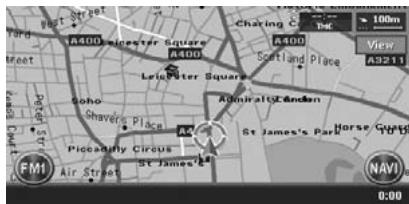
The 2D map is a map screen represented to the plane just like the map of atlases. It is suitable for searching a destination and confirming the road or route.
3D Map
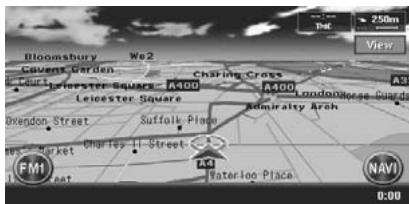
The 3D map is a map screen using a viewing position above the vehicle while looking in the direction of the car heading. It is suitable for understanding the image of the direction, because the perspective of the travelling direction can be adjusted as required.
Indicators on the map
Indicators displayed on the Map screen are different according to the conditions at that time. This section explains the main indicators displayed on the Map screen.
Indicators on the map of the current location
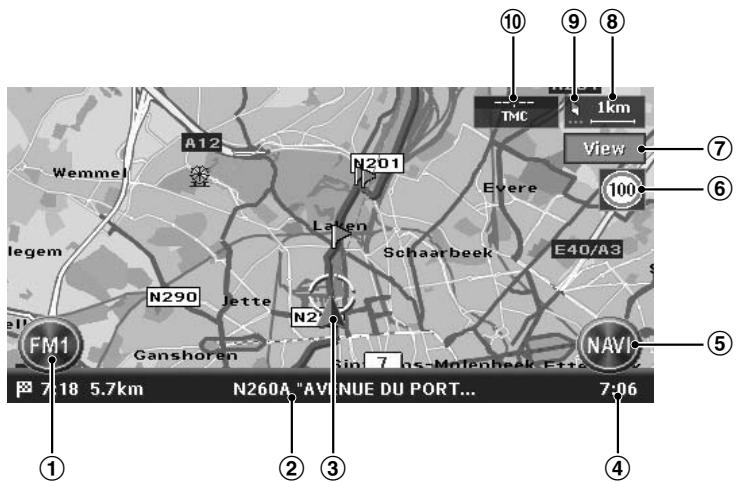
① AV Shortcut key
Displays the AV Shortcut menu.
Letters displayed on the key vary to indicate the current mode of the AV feature.
② Current street name
Shows the name of the current street.
③ Vehicle mark
Indicates the current location and direction of your vehicle. You can change this mark. "Vehicle Icon" (P. 45)
④Clock
Displays the current time.
⑤ [NAVI] key
Displays the Navi Shortcut menu.
⑥ Speed Limit Icon
Generally the icon shows the speed limit of the current main road where a speed data is supplied by a map database. When a speed data was changed, the numerals on the icon are changed and the indication blinks for a few seconds. "Changing the map appearance" (P. 16)
⑦ [View] key
Touch this for changing the appearance of the map. "Changing the map appearance" (P. 16)
⑧ Map scale
Indicates the scale of the map currently displayed.
⑨ Map bearing mark/GPS receiving status
Indicates the map orientation. You can switch the map orientation between Heading Up and North Up by touching this icon. "Changing the map appearance" (P. 16)
In addition, the receiving status of the GPS signal is indicated by coloured three dots under the bearing mark.
Blue:
Receiving in 3D
Yellow:
Receiving in 2D
Grey:
No signal received
10 TMC indicator
The TMC indicator turns to green and the time that data was received in last is indicated in the upper area while receiving TMC information.
"5. Traffic Information" (P. 38)
Indicators are displayed after scrolling the map. During scrolling, only the scroll cursor is displayed on the map.
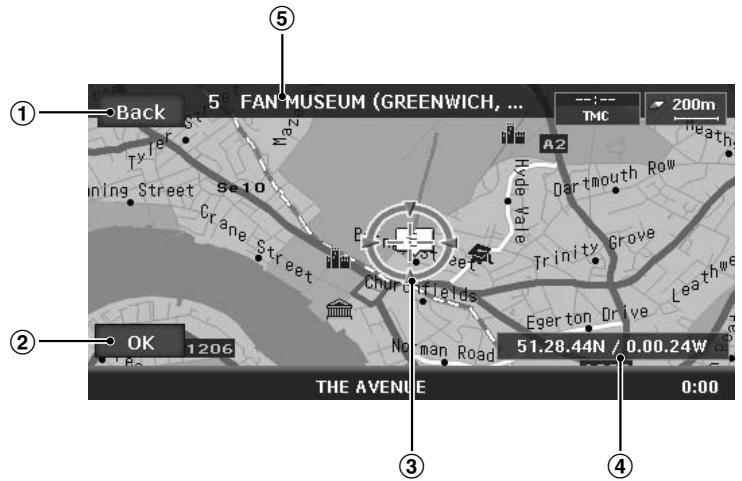
① [Back] key
Returns to the map of current location.
② [OK] key
Displays the Location menu. You can set the location under the cursor as the destination or store this location. "Location menu (Menu on scrolled map)" (P. 9)
Displayed when scrolling the map.
Displays the latitude/longitude information of the location under the cursor. Whether this is displayed or not can be set. "Map Scrolling Information" (P. 47)
When moving the cursor on a Stored Location, destination, or waypoint, the place name will be displayed.
If the TMC icon is put together to the cursor, the TMC information is displayed.
Indicators displayed during the route guidance mode
After a destination is set and travelling is started, the guidance route and various guidance information are displayed on the map. "Route Guidance Screen Features" (P. 30)
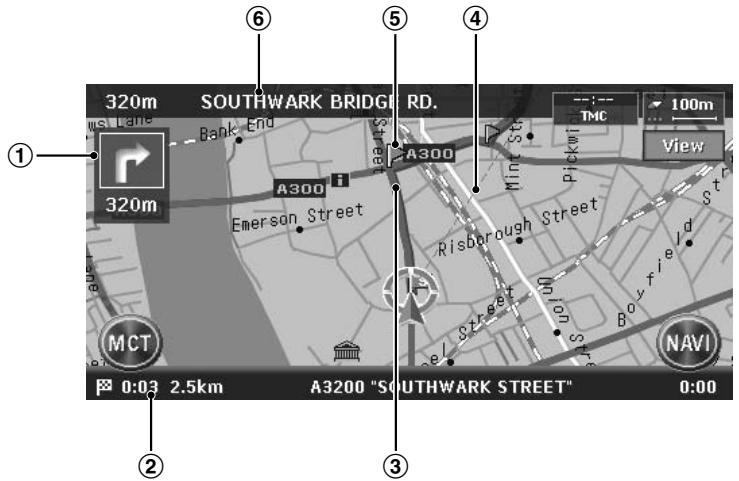
① Small Turn by Turn Arrow display
Displays the turning direction and distance to the next guidance point. Whether it is displayed or not can be set. "Map Guidance Settings" (P. 44)
(2) Expected arrival time and distance to the destination
The expected time of arrival to the destination and the distance from the current location to the destination are displayed. The remaining time and distance to the next waypoint are displayed additionally, if at least one waypoint is existing.
③ Guidance route
The guidance route to the destination is displayed. The colour of the route can be changed. "Route Colour" (P. 45)
④ Destination direction
Indicates the direction to the destination from the current location.
⑤ Guidance point
Indicates the guidance point.
(6) Next intersecting Road name and distance
The distance to the next guidance intersection and the name of the next intersecting road will be displayed when you get near to approx. 600m or 600 yd (2 km or 1.4 mile for a motorway) to the intersection.
Map symbols
This navigation system indicates information such as roads and facilities using symbols and colours.
Colour of the roads
Motorways
:
(Yellow with red border)
Main roads
:
(Red)
Minor roads
:
(Yellow)
Map symbols (examples)
The following map symbols are displayed on the map.

Municipal Office

Rental Car Company

University or College

Military Base

Petrol Station

Hotel

Airport

Historical Site

Restaurant

Main Station

Science Museum
Art Museum

Shopping Centre

Station

Tourist Information Centre

Supermarket

Ferry Terminal

Park & Ride

Golf Course

Car Park

Recreation Ground

Marina

Parking Lot

Sports Complex

Marina

Parking Garage

Library

Other Facilities
Landmark icons
Landmark icons are displayed on the Intersection map screen, etc. Whether they are displayed or not can be set. "Landmark Icon display" (P. 45)

Hospital

Petrol Station

Car Park

Hotel

Restaurant
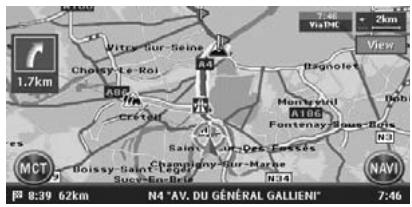
When the system receives RDS-TMC traffic information, detailed TMC traffic information on the route are displayed on the map. TMC traffic information is displayed on the map with symbols and congestion information colour. "5. Traffic Information" (P. 38)

Accident

Broken vehicle

Danger

Vehicle on wrong carriage way

Traffic congestion

Delay

Roadworks

Closed road

Contra flow

Lane restrictions

Road surface in poor condition

Slippery road

Fog reduced visibility

Rain

Snow

Weather

Wind

Information

Major events
Closed
Purple
Jammed
Red
Moderate
Yellow
Free flow
Green
No data (unknown):
Not displayed (no colour)
Touching the Map screen displays a cursor at the centre of the screen, and you can scroll the map. For the 2D map, touch the map to move the map to the touched position, and keep touching the map to scroll the map towards the touched direction.
For the 3D map, touch the upper part of the map to scroll the map toward the touched direction, and touch the left or right part to rotate the map while touching.
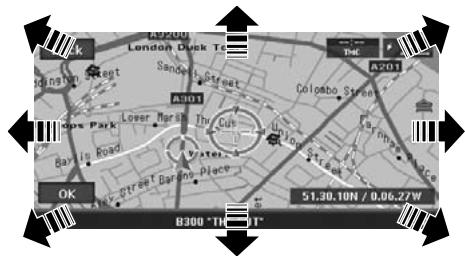
2D Map
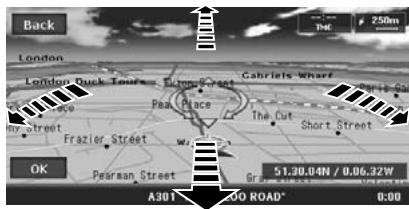
3D Map
[Back] key:
Returns to the current location map screen.
[OK] key:
You can set the location under the cursor as the destination or store the location to the Address Book. "Location menu (Menu on scrolled map)" (P. 9)
Displaying the map of the current car location
When the [MAP] button is pressed, the map around the current location is displayed with the vehicle in the centre of it. When the vehicle runs, the behaviour is the same.
Zooming IN/OUT the map
Press the [OUT] (Zoom Out) or [IN] (Zomm In) button to change the map scale.
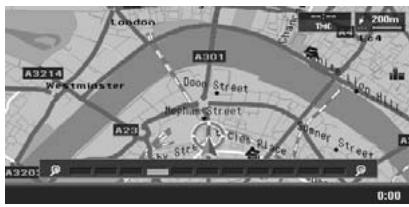
The 2D map can be adjusted in 11 steps, and the 3D map in 10 steps.
Increases the map scale, and shows a more detailed map. Keep touching it to enter the Free Zoom mode.
Decreases the map scale, and shows the map of a wider area. Keep touching it to enter the Free Zoom mode.
Note:
For the 2D/2D or 2D/3D map, these buttons work upon the right map. To adjust the left map, touch the left map, and then use these buttons.
Changing the map appearance
The Map screen can be adjusted regarding orientation or appearance of the map.
Screen examples
2D Map
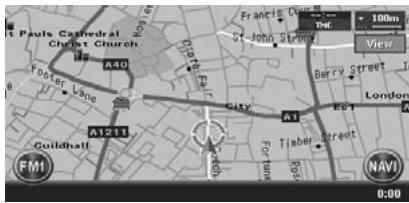
3D Map
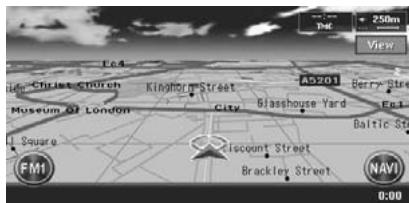
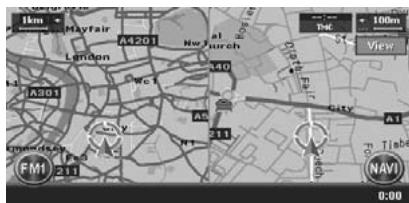
2D/2D Map
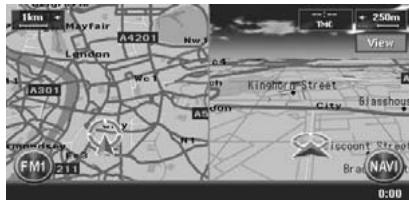
2D/3D Map
Touch the [View] key on the Map screen of the current vehicle location. The Map View menu is displayed.
Note:
You can also adjust these settings from [Navigation] of the Setting menu. "Map View settings" (P. 44)

[空]/[空] key:
Scrolls the Map View menu screen up or down.
[2D] key:
Changes to the map represented to the plane just like the map of atlases.
[3D] key:
Changes to the 3D map using a viewing position above the vehicle while looking in the direction of the car heading.
Note:
To change the 3D angle, set the "3D Map Angle" as mentioned below.
[2D/2D] key:
Displays two 2D maps right and left on the divided screen. This is convenient to view two maps with different scales.
Note:
To change the orientation or scale of the left map, set the "Left Map Heading" or "Left Map Scale" as mentioned below.
[2D/3D] key:
Displays a 2D map at the left and a 3D map at the right on the divided screen.
Note:
To change the orientation or scale of the left map, use the "Left Map Heading" or "Left Map Scale" as mentioned below.
"Turn list on Route":
During the route guidance mode: Set to ON to display the list of the name, distance, and turning direction of the guidance intersections at the left of the screen.
[ON]
Displays the Turn List screen.
[OFF]
Hides the Turn List screen.
"Intersection Map":
Changes the setting of the Intersection Close-up display which displays the turning direction of the next guidance intersection.
[ON]
Displays the Intersection Close-up display.
Hides the Intersection Close-up display.
"Main Map Heading":
Changes the orientation of the map. This control is available when the main map or the right map is set to 2D mode.
- [Heading Up]
The map is displayed with the travelling direction pointing up.
[North Up]
The map is displayed with north pointing up.
"Left Map Scale":
Changes the scale of the left map. This control is available when a divided map mode is selected.
·[+]
Increases the map scale, and shows a more detailed map.
Decreases the map scale, and shows the map of a wider area.
"Left Map Heading":
Changes the orientation of the left map. This control is available when the divided map screen is displayed.
- [Heading Up]
The map is displayed with the travelling direction pointing up.
[North Up]
The map is displayed with north pointing up. "3D Map Angle":
Changes the angle of the 3D map. This control is available when the 3D map is displayed.
- [Adjust]
The angle control keys are displayed. You can raise the angle by touching the [↑] key, and lower the angle by touching the [↓] key.
"Speed Limit Icon":
Changes the function of the Speed Limit icon.
[50]
The icon blinks and a beep sounds when the speed limit information in the map database is changed.
90
The icon blinks when the speed limit information in the map database is changed.
- [OFF]
This function is disabled.
[Hide Map] key:
Hides the map, and displays the screen containing only the next guidance point (Turn-by-Turn screen). This screen can also be displayed by keep pressing the [MAP] button. When the navigation system is not in the route guidance mode, the screen with the compass showing the direction is displayed.
CAUTION
- The actual speed limit may change due to hours or other circumstances. Be sure to observe the actual traffic circumstances and regulations at all times while driving.
- When the actual speed exceeds the speed limit data, the icon blinking and a beep sounding will not work.
To start route guidance, operate the navigation system with the following procedure:
- Select the method of searching destination from the Destination menu screen, then search for the desired destination.
Select a suitable searching method according to the place to search.

- Confirm the position of the place found with the Set Location menu screen or Place menu screen, then set the destination.
You can store the place found to the Address Book, or can confirm the information according to the place, as well as set it as destination.

- Start the route guidance from the Set Route menu screen.
You can also display other suggested routes, or confirm information of the route.
Other than the above procedure, you can also enter the destination by scrolling the map or from the Favourite/Frequent menu.
Setting destination by entering the address
This section explains the basic operation procedure to set the destination in detail, using the example to specify the destination by entering the address from the Destination menu. Read this explanation thoroughly because this procedure is similar to other destination entering methods.
For other destination entering methods, see "3. Entering the Destination" (P. 22).
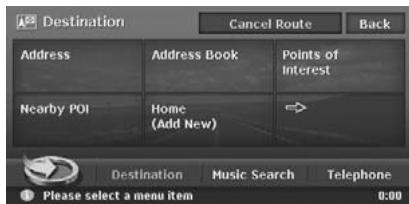
- Press the [MENU] button.
The Destination menu of the navigation system is displayed.
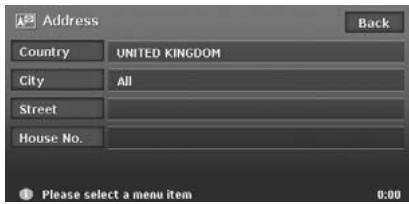
- Touch the [Address] key.
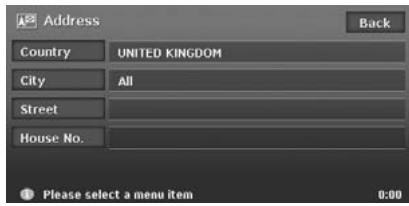
The Address input screen is displayed.
- Confirm the displayed country name (the previous country name is displayed). If the country name you wish to go to is not displayed, touch the [Country] key, otherwise proceed to the step 5.
- Touch the country name you wish to go. The specified country name is displayed.
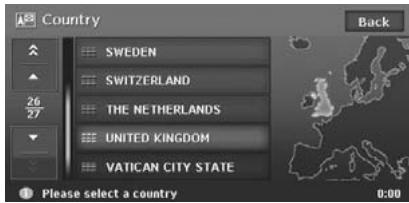
[▲]/[▼]
Scrolls the list up or down by one item.
[ ]
Scrolls the list by one page.
- Touch the [City] key.
Note:
You can omit the city name entry and directly enter a road name.
- Enter the city name you wish to go to by touching the characters on the screen, then touch the [OK] key.
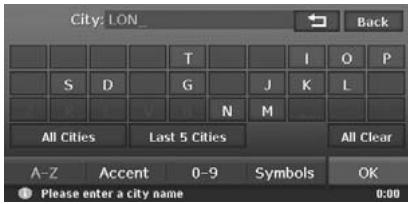
[←]
Deletes the last entered character.
[Back]
Returns to the previous screen.
[All Cities]
Specify all cities of the specified country for the search.
[Last 5 Cities]
Displays the list of five city names recently used. Touch desired city name you wish to go to.
[All Clear]
Deletes all characters entered so far.
[A-Z]
Displays the alphabetic input keyboard.
[Accent]
Displays the accent characters input keyboard.
[0-9]
Displays the number input keyboard.
[Symbols]
Displays the symbol characters input keyboard.
[OK]
Searches the map database using entered characters, and proceeds to the city name List.
Note:
- By touching the [OK] key, the city name list is displayed even if you do not enter all characters.
- During the character entry, the system shows the city name list automatically when the amount of matching cities is five or less.
- Touch the city name you wish to go to. Then, the system returns to the Address input screen.
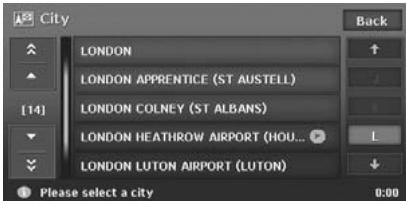
[(Alphabet)]
Scrolls the list to each initial letter.
The total number of list items is displayed at the left of the screen.
- Touch the [Street] key.
The Street input screen is displayed.
Note:
You can omit the street name entry. By touching the [OK] key, proceed to step 13.
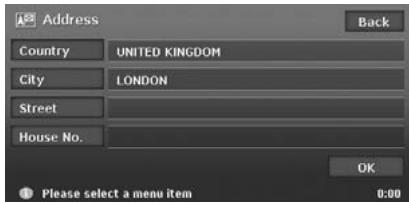
- Enter the street name you wish to go to by touching characters on the screen, then touch the [OK] key.
Enter by the same way as the city name entry. The street name list is displayed.
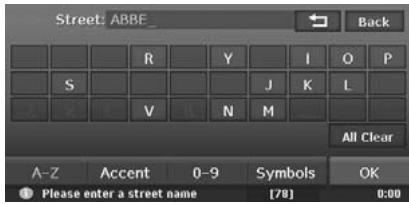
- Touch the street name you wish to go to. Then, the system returns to the Address input screen.
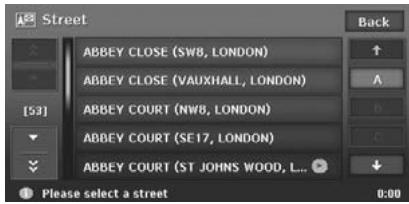
- Touch the [House No.] key. The house number input screen is displayed.
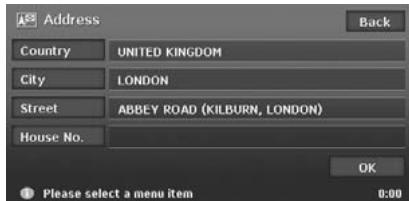
Note:
You can omit the house number entry. By touching the [OK] key proceed to step 13.
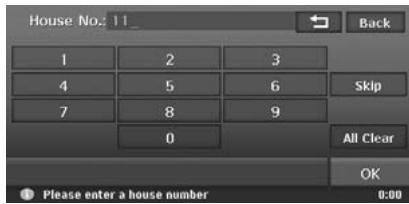
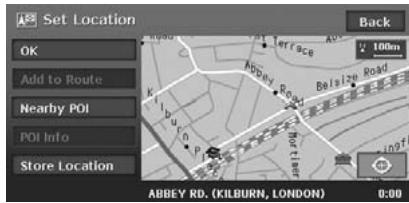
- Enter the house number by touching numbers on the screen, then touch the [OK] key. The Set Location menu is displayed. The place found is shown with “ 心 ” on the map.
Note:
The range of house numbers you can enter is displayed at the bottom of the screen.
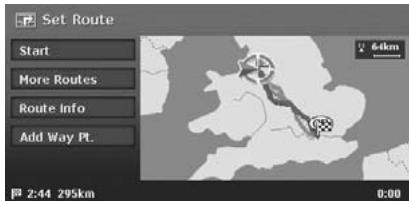
- Confirm the location, then touch the [OK] key. The Set Route menu is displayed with the map around the place selected.
Note:
With this screen, you can register the place found or can search facilities (POI) around the place. "Set Location menu" (P. 28)
- Touch the [Start] key. The route guidance will be started.
Note:
In this screen, you can also select among other suggested routes with a different routing priority condition, obtain additional route information, and set waypoints. "Set Route menu" (P. 28)
3. Entering the Destination
You can search for a destination from the Destination menu by using various methods. Use a suitable searching method according to the place you wish to go to.
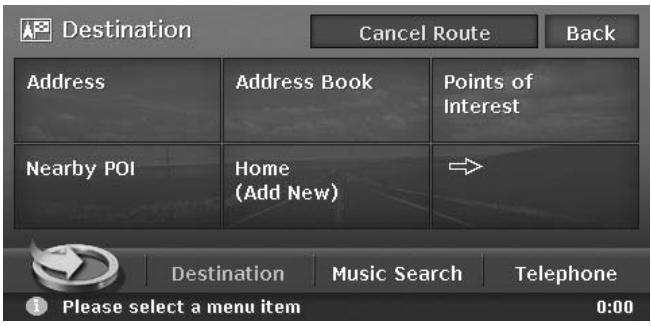

- Press the [MENU] button.
The Destination menu screen is displayed. Touching the [ ] (Next) key displays the next menu screen.
Note:
You can also display the Destination menu screen by touching the [Dest] key from the Navi Shortcut menu which is displayed by touching the [NAVI] key on the Map screen.
- Touch the desired searching method.
For the operation procedure hereafter, see the explanation of each section.
By Address
For the operation procedure using the [Address], see "Setting destination by entering the address" (P. 19)
By Address Book
Specifies a place registered in the navigation system as the destination.
Note:
To use this function, register places beforehand. "Address Book" (P. 49)
- Touch the [Address Book] key.
- From the displayed Address Book list, touch the stored location you wish to go. [Sort]
You can select the sorting method.
- [by Number]: Displayed by the registered order.
- [by Name]: Displayed by the alphabetical order of the name.
- [by Icon]: Displayed the list classified by icon type.
- [by Group]: Displayed the list classified by groups.
Note:
- You can store a new location by touching the [None (Add New)] key.
-
For storing or editing procedure, see "Address Book" (P. 49).
-
Confirm the location of the destination, then touch the [OK] key.
- Touch the [Start] key.
By Points of Interest (POI)
Select the category of the place, narrow down the data by specifying the area or entering the name, and then select the place you wish to go to. By touching the [by Name] key, you can also search a place by simply entering the name.
- Touch the [Points of Interest] key.
- Touch your desired category.
When a additional category list is displayed, touch a category again to select one.
- Enter the city name and place name.
- From the displayed place list, touch the place you wish to go to select it. [by Dist.]
The list is sorted by nearby order after pressing this key. This key is displayed when the list is set to the alphabetical order. [by Name]
The list is sorted by alphabetical order after pressing this key. This key is displayed when the list is set to the nearby order.
- Confirm the location of the destination, then touch the [OK] key.
- Touch the [Start] key.
By Nearby POI
Select the category of the place, then search for places around the current location.
- Touch the [Nearby POI] key.
- Touch your desired category. When an additional category list is displayed, touch a category again to select.
- From the displayed place list, touch the place you wish to go to select it.
- Confirm the location of the destination, then touch the [OK] key.
- Touch the [Start] key.
Going Home
When your home address is registered, you can start route guidance to your home by a simple operation.
Note:
When your home address is not registered, register it by touching the [Home (Add New)] key. When the list of searching methods appears, register your home address by the desired method. You can also register your home from the [Stored Data] of the Setting menu. "Home Location" (P. 49)
- Touch the [Home] key.
- Touch the [Start] key. The route to your home is automatically calculated and the route guidance is started.
By Previous Destination
The destinations previously used are registered in the previous destination list (up to 100 locations). You can enter a destination by selecting it from this list. When the previous destination list exceeds 100 items, the oldest entries are automatically deleted.
- Touch the [] (Next) key.
- Touch the [Previous Destinations] key.
- From the displayed previous destination list, touch the place you wish to go.
- Touch the [OK] key.
- Touch the [Start] key.
By Previous Starting Point
You can set the last start location as the destination. In case you want to set a return route from the reached destination, you can enter the new destination quickly using this method.
- Touch the [] (Next) key.
- Touch the [Previous Starting Point] key.
- Confirm the location of the destination, then touch the [OK] key.
- Touch the [Start] key.
By Postal Code
You can search for destinations by entering the country name and the postal code of the place you wish to go to.
Note:
- In some countries or districts, it may be hard to search specific places. In such cases, use postal code search as a subsidiary function of searching addresses.
- Touch the [] (Next) key.
- Touch the [Postcode] key.
- Touch the [Country] key, and touch the desired country name.
- Touch the [Postcode] key. The postal code input screen is displayed.
- Enter the postal code by touching number keys on the screen.
- Touch the [OK] key. For the rest of the procedure, read the sections that apply to the country of your residence.
- When the [Country] is set to the United Kingdom or the Netherlands
- Touch the [Pinpoint Search] key.
[Area Search] Displays the City name list that corresponds to the input postal code. Search a place by the same way of searching by address.
- Confirm the location of the destination, then touch the [OK] key. If a different place from where you wish to go to is displayed, touch the [Back] key to return to the previous screen, then perform the procedure of "When the [Country] is set to an other than the United Kingdom and the Netherlands" listed below.
3. Touch the [Start] key.
- When the [Country] is set to an other than the United Kingdom and the Netherlands
- Touch the [Area Search] key.
- Touch the desired City name to select. The Address input screen is displayed.
- If required, enter the Street name and House No., then touch the [OK] key.
- Touch the [Start] key.
By Motorway Entrance/Exit
You can search an entrance or exit of a motorway to set as the destination.
- Touch the [] (Next) key.
- Touch the [M-way Entrance/Exit] key.
- Touch the [Country] key, then touch the country name, if necessary.
- Touch the [Motorway] key.
- Enter the name of the motorway, then touch the [OK] key.
- From the displayed Motorway list, touch the desired motorway to select.
- Select the [Entrance] or [Exit] key.
- From the displayed Entrance list or Exit list, touch the place you wish to go to select it. [by Dist.]
The list is sorted by nearby order after pressing this key. This key is displayed when the list is set to the order along the road. [on the Way]
The list is sorted by order along the road after pressing this key. This key is displayed when the list is set to the nearby order.
- Confirm the location of the destination, then touch the [OK] key.
- Touch the [Start] key.
By Intersection
You can specify an intersection as destination by entering the two crossing street names, and set them as destination.
- Touch the [] (Next) key.
- Touch the [Intersection] key.
- Touch the [Country] key, then touch the country name, if necessary.
- Touch the [City] key, enter the city name, then touch the [OK] key. The city name entry can be omitted.
- From the displayed City list, touch the city to select it.
- Touch the [1st Street] key, enter the street name, then touch the [OK] key.
- From the displayed Street list, touch the street to select it.
- Select the 2nd Street by a similar procedure as for the 1st Street.
- Confirm the location of the destination, then touch the [OK] key.
- Touch the [Start] key.
By Stored Routes
Selects a route previously registered, then set it as the new route.
Note:
To use this function, one or more registered routes are required. When a route is currently set, you can register this route by touching the [None (Add New)] key in case the route contains at least one waypoint. You can also register the current route using the Route menu. "Stored Route" (P. 50)
- Touch the [] (Next) key.
- Touch the [Stored Routes] key.
- From the displayed stored route list, touch the route you wish to set.
- Touch the [Start] key.
You can set the downloaded data from website as a destination. For more information about the setting method, see the Clarion homepage.
You can search for a place by scrolling the map, and set it as the destination.
-
Scroll the map by touching the Map screen, and move the cursor to the place you wish to go to. Touch the [OK] key. → “Scrolling the Map” (P. 16)
-
Confirm the location of the destination, then touch the [New Dest] key.
-
Touch the [Start] key.
Note:
When you search a place far from the current location, change the map scale to search more quickly.
Searching for POI Using the Quick POI Function
By using the Navi Shortcut menu, you can enter a destination by searching a place near the current position or along the route quickly from five POI categories specified before in the Setting menu. When the destination has been set, you can specify POIs that you want to visit along the route as waypoints, and you can search them quickly.
You can customise the five categories in the Setting menu. "Quick POI Settings" (P. 46)
- Touch the [NAVI] key on the Map screen. The Navi Shortcut menu is displayed.
- Touch the [Quick POI] key. The Quick POI screen is displayed.
- Select a category by touching it. The list of the nearby places or along the route of the selected category is displayed. When the destination is already set, the following keys are displayed at the top of the screen.
[by Dist.]
The list of nearby POI ordered by the distance from the current location is displayed after pressing this key. This key is displayed when displaying the list screen of POI along the route.
[along the Route]
The list of POI along the route ordered by the distance from the current location is displayed after pressing this key. This key is displayed when displaying the list screen of nearby POI.
- Select the desired place you wish to go to by touching it.
- Touch the [Start] key. The route guidance to the destination will start. In case a route existed before the selected POI will be added as waypoint.
Searching Your Destination from the Favourite/ Frequent List
You can enter a destination by selecting from the list of the registered favourite places or the places often visited.
For detailed usage of the Favourite/Frequent list, see "Using Favourite/Frequent List" (P. 54)
By Favourite
You can enter a destination by selecting a place from the Favourite list registered beforehand.
- From the Destination menu or the Navi Shortcut menu, touch the [ ] key.
The Favourite list screen is displayed.
When your desired icon is not displayed, touch the [<<] or [>>] key to scroll the list.
- Touch the desired icon you wish to set as destination.
The Set Location menu screen is displayed.
- Confirm the location of the destination, then touch the [OK] key.
- Touch the [Start] key.
By Frequent
You can enter a destination by selecting a place from the Frequent list. The places entered as the destination are registered to the Frequent list automatically.
- From the Destination menu or the Navi Shortcut menu, touch the [ ] key. The Favourite list screen is displayed.
- Touch the [ ] (Frequent) key. The Frequent list screen is displayed. When your desired icon is not displayed, touch the [ << ] or [ >> ] key to scroll the list.
- Confirm the location of the destination, then touch the [OK] key.
- Touch the [Start] key.
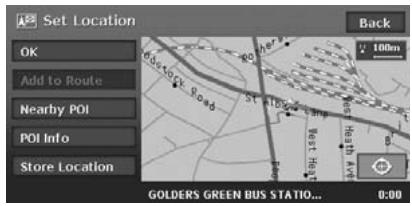
From the Set Location menu displayed when setting the searched place as the destination, you can perform the following operations according to the conditions:
[OK] key:
Sets the location shown by the "X" on the map as the destination.
[Add to Route] key:
When a destination is already set, you can set the location of the "X" as a waypoint. Specify the order of passing when setting the location as a waypoint. "Editing the route" (P. 33)
[Nearby POI] key:
You can search for a place of the specified category around the location of the "X", and set it as the destination. The searching procedure is similar to the procedure for POI search. "By
Nearby POl" (P. 23)
[POI Info] key:
When the navigation system has information concerning the searched location, you can display this information by pressing the [POI Info] key.
[Store Location] key:
Register the location found to the Address Book.
[+]key:
Touching this key changes the map to the map scrolling screen. You can adjust the location of the searched place.
Note:
- The name of the road close to the cursor is displayed at the bottom of the screen.
-
For the 2D maps, the road that will be set as destination blinks when the map scale is 200 m(1/8 mile) or smaller. When you set the following places as the destination, confirm the position of the blinking road:
-
Place where roads of ascending and descending have diverged
- Place near the intersection of overpass
- Place where no road exists in the vicinity
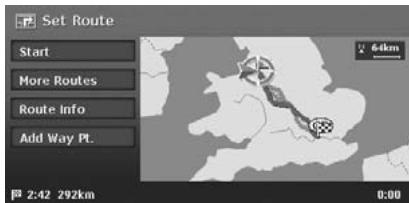
When you enter the destination, the Set Route menu is displayed with the map showing the suggested routes. You can perform the following operations from this screen according to the situation:
Note:
If approx. 30 seconds pass without touching any key after this screen is displayed, the route guidance will be automatically started.
[Start] key:
Starts the route guidance to the destination.
[More Routes] key:
You can change to other suggested routes with a different priority condition. You can also set this from the Route menu. "Selecting another route" (P. 35)
[Shortest Time]
Shows the route of which the required driving time is shortest.
- [Minimize M-way]
Shows the route of which motorways are not used as much as possible.
[Shortest Distance]
Shows the route of which the distance is shortest.
[OK]
Changes to the specified route.
[Route Info] key:
Shows the information of the suggested route selected on the screen.
- [Preview]
You can confirm the route from the map.
Touching the [▶] key scrolls the map so that the cursor moves along the travelling direction of the suggested route. Touching the [↓] key scrolls the map so that the cursor moves to the opposite direction of travelling along the suggested route. Touching the [■] key stops scrolling temporarily.
[Simulation]
- Starts the simulation of the route guidance with moving the vehicle mark automatically. Touching the [■] key stops the simulation temporarily, and the [▶] key restarts the simulation. Touching the [■] key stops the simulation, and returns to the previous screen.
[Add Way Pt.] key:
Adds waypoints to the suggested route displayed on the map. After the list of the place search method is displayed, search and select places you wish to set as waypoints by using similar methods as for entering a destination. After the Edit Route screen is displayed, touch the [Add way Point] key. Up to five waypoints can be specified.
You can also set waypoints after starting the route guidance. "Editing the route" (P. 33)
4. Route Guidance
After you have entered the destination and started the route guidance, you will be guided along the route by screen display and by voice.
Route Guidance Screen Features
As well as the Map screen, various guidance screens are displayed during the route guidance mode according to the situation.
Press the [MAP] button to switch the screen among the following guidance screens.
Intersection Map
When you get near to approx. 300 m or 300 yd (1 km or 1 mile for a motorway) from the next guidance point, the screen will be divided into two displays and the Intersection Map will be displayed on the left display.
You can set whether to display the Intersection Map screen or not. The factory setting is ON. "Changing the map appearance" (P. 16)
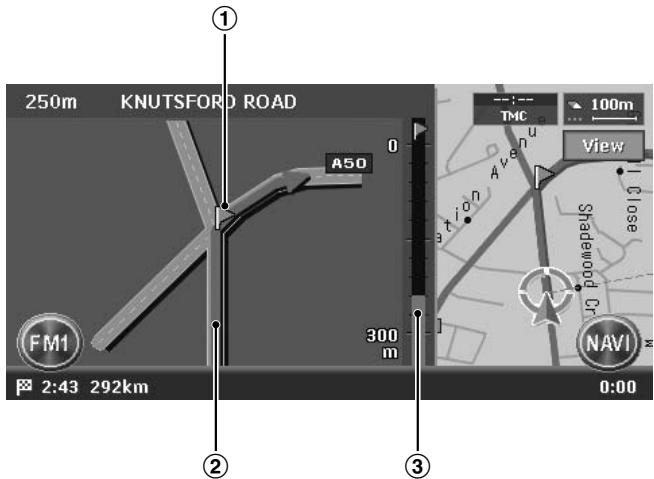
① Guidance point
Indicates the next guidance point.
② Guidance route
Indicates the direction to travel.
③ Remaining distance indication
Indicates the remaining distance to the next guidance point with the bar gauge.
Turn list on Route
The screen is always divided into two displays and the Turn List on Route is displayed on the left display if Turn list on Route is activated. The Turn List contains the guidance points next to the vehicle position, and will change while travelling.
When you get near to the next guidance point, the left display is automatically changed to the Intersection Map.
You can set whether to display the Turn List screen or not. The factory setting is OFF. "Changing the map appearance" (P. 16)
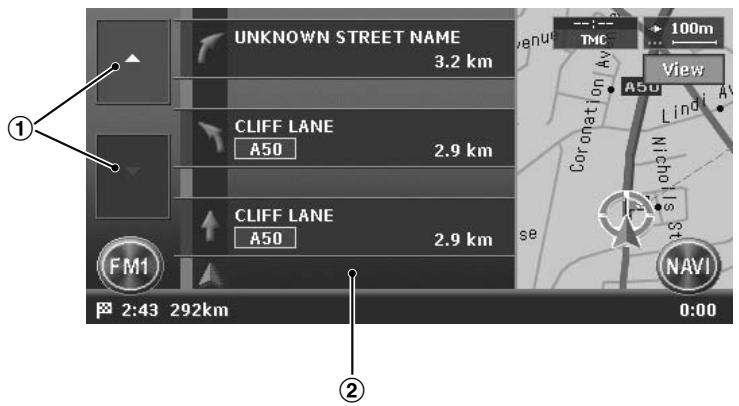
① [▲] / [▼] key
Scrolls the Turn List on Route screen. Touching the [ ] key displays the Turn List of the subsequent guidance points.
② Turn List
The list of the guidance points and turning directions are displayed from the items near to the vehicle position, and it will change while travelling.
Other guidance screens
From the Map Guidance settings menu of the Navigation Setting, you can set other functions such as displaying the small turn arrow or the intersection map. "Map Guidance Settings" (P. 44)
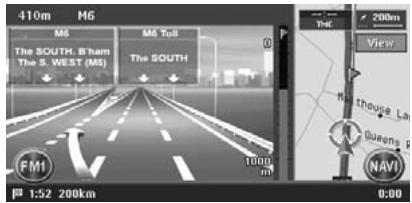
3D Junction View
While travelling on the motorway, when you get near to approx. 1 km or 1 mile from the next guidance point with junctions, the screen will be divided into two displays and the information of the junction with a 3D image will be displayed on the left display.
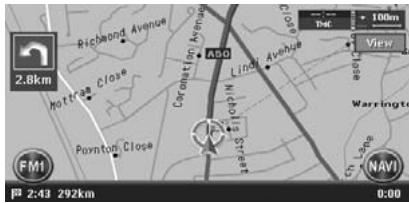
- Small Turn Arrow on Map
The turning direction and distance of the next guidance point is displayed at the upper left of the screen.
After starting the route guidance, not only guidance by screen but also guidance by voice, such as the turning direction or the distance to the guidance point, will be given when you get near to the guidance point.
You can set whether to use the voice guidance or not, and set the volume to be changed according to the vehicle speed. "Guidance Voice Settings" (P. 44)
Changing/Editing the Route Settings
From the Route menu, editing the current route, confirming the route information, setting the conditions of the route calculation, etc. can be performed.
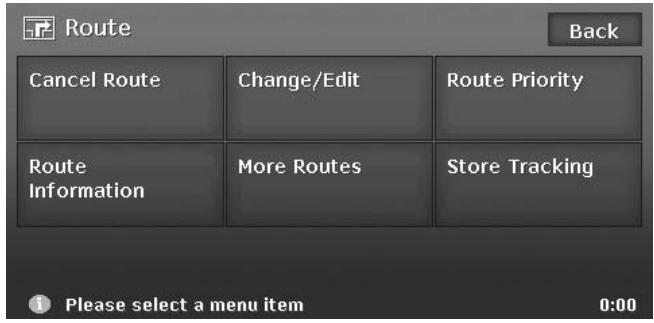
- Touch the [NAVI] key on the Map screen to display the Navi Shortcut menu.
- Touch the [Route] key.
The Route menu screen is displayed.
- Touch the desired menu item.
For the operation procedure hereafter, see the explanation of each section.
Cancelling/restarting the route guidance
Cancelling the route guidance
Terminates the route guidance during the route guidance mode.
- Touch the [Cancel Route] key.
A confirmation message is displayed.
This key is also provided on the Destination menu screen.
- Touch the [Yes] key.
The route guidance will be terminated, and the destination and route will be deleted.
Resuming the cancelled route guidance
Restores the previous route, and restarts the cancelled route guidance.
- Touch the [Resume Route] key.
A confirmation message is displayed.
- Touch the [Yes] key.
The route guidance will be restarted.
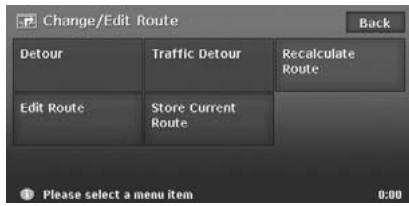
Changing/editing the route
Changes or edits the route currently specified.
- Touch the [Change/Edit] key.
The Change/Edit Route menu screen is displayed.
- Touch the desired menu item to select it.
Setting the diverting distance
Searches for a diverted route where the section from the current location up to the specified distance is avoided.
- Touch the [Detour] key.
- Touch the distance you want to avoid.
The route where the section of selected distance is avoided is automatically calculated, and the route guidance will be restarted.
You can change the route based on traffic information.
- Touch the [Traffic Detour] key.
The diverted route is displayed with TMC traffic information taken into account.
When no diverted route is found, a message is displayed.
- Confirm the diverted route, then touch the [OK] key.
The route with traffic information considered is automatically calculated, and the route guidance will be restarted.
Recalculating the route
After changing the conditions of the route calculation or when the status of the route is changed, you can recalculate the route if you want.
- Touch the [Recalculate Route] key.
The route is automatically recalculated, and the Set Route screen is displayed.
- Touch the [Start] key.
The route guidance will be restarted.
Editing the route
You can edit the current route.
- Touch the [Edit Route] key.
The Edit Route screen is displayed.
- Change settings by touching the desired setting item.
The route is recalculated with added or edited conditions.
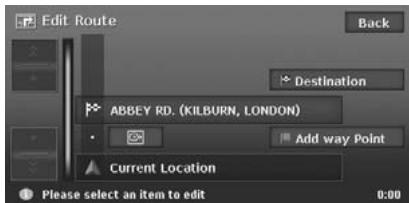
[Destination]
You can enter a new destination.
[Add way Point]
Up to 5 waypoints can be specified. The specified waypoints are displayed by marks with the ordinal number for visiting.
[(Current destination name/Waypoint name)]
The edit screen is displayed. Only the destination/waypoints that have not been passed can be edited.
- [Delete]: Displays a confirmation screen. If you touch the [Yes] key, the destination/ waypoint is deleted.
- [⊕]: You can adjust the location of the destination/waypoint by scrolling the map. [(Route calculation condition icon)]
You can change the conditions of route calculation. When you change a condition, the route is recalculated with the specified condition. When waypoints are specified, you can set the condition for each section of the route.
·
Calculates the route of which the required time is shortest.
·[图]:
Calculates the route of which motorways are not used as much as possible.
·[
Calculates the route of which the distance is shortest.
Storing the current route
Stores the current route as the Stored Route. "Stored Route" (P. 50)
- Touch the [Store Current Route] key.
A confirmation screen is displayed. Touching the [Yes] key stores the current route.
Note:
To register the current route, at least one waypoint is required.
Setting the conditions of the route calculation
You can customise the conditions of the route calculation.
Note:
The conditions set in the Route Priority menu screen are applied to the current route, the recalculation is performed automatically.
- Touch the [Route Priority] key.
The Route Priority menu screen is displayed.
- Touch the condition you wish to use.
Touching the [Back] key returns to the previous screen.
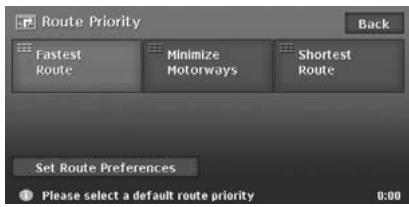
[Fastest Route]
Calculates the route of which the required time is shortest.
[Minimize Motorways]
Calculates the route of which motorways are not used as much as possible.
[Shortest Route]
Calculates the route of which the distance is shortest.
[Set Route Preferences]
Sets the detailed condition of the route calculation.
- [Minimize Toll Roads]: Minimises the use of toll roads.
- [Use Time Restricted Roads]: Uses roads with restricted usage time.
- [Use RDS-TMC information]: Considers the RDS-TMC information for routing.
- [Use Avoid Area Settings]: Takes a detour to avoid the registered Avoid Area.
- [Use Ferries]: Uses car ferries for routing.
- [Auto Reroute]: When leaving the suggested route during the route guidance mode, a new route is automatically recalculated.
Confirms various information of the current route.
- Touch the [Route Information] key.
The Route Information menu screen is displayed.
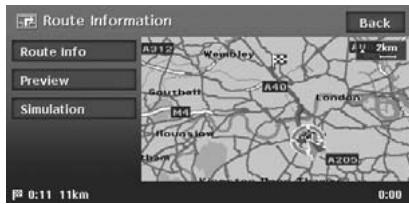
[Route Info]
Displays the list of route information. The main guidance points from the current location to the destination are displayed by the list format. When there is a lot of information items, you can scroll the list by touching the [空] , [] , [] , [] keys.
[Preview]
Confirms the suggested route by scrolling with the cursor on the map.
[Simulation]
Simulates the route guidance with moving the vehicle mark automatically.
Note:
Refer to the [Route Info] key in "Set Route menu" (P. 28) for details of [Preview] and [Simulation].
Selecting another route
Changes the current route to another suggested route with different priority conditions.
Note:
When waypoints are set, this operation is disabled.
- Touch the [More Routes] key.
If a confirmation screen is displayed, touch the [Yes] key.
The More Route menu screen is displayed.
- Touch the desired priority condition you wish to confirm.
The route of the specified priority condition is highlighted on the map.
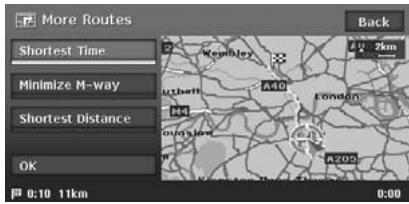
[Shortest Time]
Shows the route of which the required time is shortest.
[Minimize M-way]
Shows the route of which motorways are not used as much as possible.
[Shortest Distance]
Shows the route of which the distance is shortest.
- Touch the [OK] key.
The Set Route menu screen is displayed.
Touching the [Start] key starts the route guidance with the route you have selected.
Storing the track travelled
You can register the track which is the travelled path on the vehicle up to the current car position.
Note:
The track is automatically recorded from the place of departure up to 100km and the current tracking from the current location up to 20km can be registered for up to five tracks. You can select whether to display track traveled or not, and you can also register/edit it from the [Navigation] or the [Stored Data] of the Setting menu. "Tracking Display Settings" (P. 46).
- Touch the [Store Tracking] key.
A confirmation screen is displayed. Touching the [Yes] key stores the current track.
- When you enter the destination, be sure to stop the vehicle in a safe place.
- The displayed route is only a suggested route.
- Roads can change every day, and may have changed in geometries and traffic regulations from the date the map data is created. Be sure to follow the actual traffic regulations.
- It may take a little time until the suggested route is displayed according to the situation.
- Even when the destination is entered by the Stored Routes, the current location map screen is displayed. When the starting point is set to a remote position from the vehicle position, the route may not be displayed on the screen.
- Roads and places where the vehicle cannot pass, such as roads in housing areas, site or in installations, and roads under construction may be included in the suggested route.
- The passed waypoints are not included for route recalciulation.
-
When you set waypoints, the system calculates the routes between every point. Therefore, the following notes apply:
-
If a route between certain waypoints is not found, no route may be displayed.
- The route may not be connected in the vicinity of a waypoint.
-
A U-turn may be required at a waypoint.
-
The route calculation may not be completed in the following cases:
-
If there is no main road within a range of approx. 5km (3 miles) from the current location.
- If there is no main road within a range of approx. 5 ~km (3 miles) from the destination (or waypoints).
- If the vehicle is too close to the destination. In this case, a message to inform you about this will be displayed.
- If it is impossible to reach the destination or waypoints because of traffic regulations, etc.
- If the map database does not contain the area data of the selected locations.
-
If only an extremely roundabout route is available to reach the destination or waypoints.
-
When displaying a route, the followings may occur:
-
Even if a route calculation is requested on a main road, the start point of the suggested route may not exactly match the current vehicle location.
- If a route calculation is requested on a main road, the end point of the suggested route may not exactly match the destination.
- If a route calculation is requested on a main road, the system may suggest a route starting from another main road. In this case, park the vehicle in a safe location and adjust the current location using Setting menu, or continue driving until the vehicle icon appears on a main road. If either of these methods are not successful, request a route calculation again.
-
Ferry lines are stored in this system. Take into consideration the travel time required and operational condition before deciding whether to use them or not.
-
The current location or the travelling direction may shift according to the travelling condition. It is not a malfunction, and will return to a normal display when keeping travelling for a while.
- Though the vehicle position may shift in places other than the road such as in the parking lot, etc., it is not a malfunction. It will return to a normal display when travelling on an actual road for a while.
-
In the current location display, a representative name of the place which is nearest to the vehicle position in the map database is displayed, it may be different from the actual place name.
-
The voice guidance may not match the actual roads or regulations. The cause of this can be that the actual roads and the data in the map database are different, or the vehicle speed.
- If the content of the voice guidance does not match the actual roads or regulations, follow the information acquired from the actual traffic or road signs.
- The voice guidance is activated only for intersections with certain conditions. There may be cases that the vehicle has to turn, but the voice guidance is not activated.
- The content of the voice guidance may vary, depending on the direction of the turn and the type of the intersection.
- The voice guidance timing will vary depending on the situation.
- The voice guidance is not available when the voice guidance function is not set to ON. Moreover, even when the voice guidance function is set to ON, if the voice guidance volume is set to a very low value, the voice guidance may not be audible. → "Guidance Voice Settings" (P. 44)
- The voice guidance will start when the vehicle enters the suggested route. Before entering the route, refer to the map screen for directions.
- When the vehicle approaches a waypoint, the voice guidance will say "You have arrived at waypoint < 1 to 5> ". The voice guidance will switch to the next route section. Please refer to the map screen for directions until the next voice guidance is started.
- When the vehicle approaches a destination, the voice guidance will say "You have arrived at the destination". For the remainder of the way, please refer to the map screen for directions.
The RDS-TMC (Radio Data System-Traffic Message Channel) provides various information useful for driving using FM radio transmission. The system can receive RDS-TMC information, and can display the information on traffic conditions, congestion forecasts, and weather forecasts, etc. on the screen and on the map.
By using RDS-TMC, you can obtain or confirm event information on congestions, road works, and suspension of traffic, etc. around the route and the vehicle position.
When information is received from the RDS-TMC, the latest receiving time is displayed in the upper part of TMC indicator on the Map screen.
Note:
- You can set the system to calculate routes that avoid the traffic incidents and congestions, etc. by using received RDS-TMC information.
- When the TMC provider name is included in the received data, the TMC indicator on the map contains the TMC provider name.
- For the symbols used for the TMC, see "Symbols used for TMC traffic information" (P. 15).
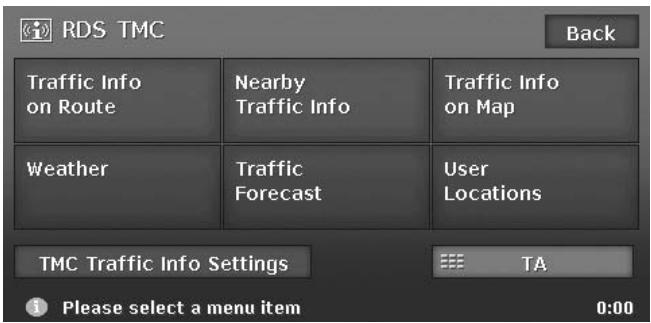
- Press the [i INFO] button.
The RDS TMC menu screen is displayed.
- Touch the desired item, and confirm the information.
Note:
- By touching the [TMC Traffic Info Settings] key, you can change the settings for the TMC information indicators and the TMC provider. "Setting TMC traffic information" (P. 40)
Confirms the traffic information on the current route.
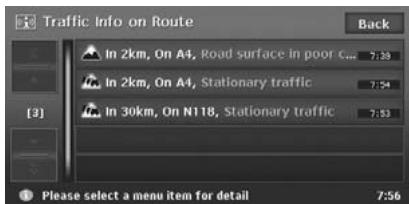
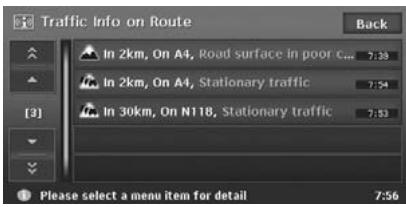
- Touch the [Traffic Info on Route] key. The TMC event list is displayed in order of distance from the current location on the current route. The time of the event received is displayed on the right side of the list.
- Touch the desired event. Detailed information of the event is displayed. Touch the [] / [] key to Scroll the detailed information screen.
The position and the TMC traffic information symbol of the selected event information are displayed on the map.
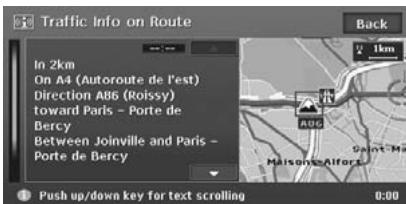
Touch the [Back] key to return to the previous screen.
You can confirm all the traffic information that are within 50km in the radius of the current location.
- Touch the [Nearby Traffic Info] key. The TMC event list is displayed in order of distance from the current location. You can confirm the detailed information by a similar way as for the [Traffic Info on Route] key.
You can confirm the information of all the TMC traffic information symbols displayed on the map.
- Touch the [Traffic Info on Map] key.
[ \langle \rangle / \langle \rangle ]
Moves the TMC traffic information symbol on the map, and switches to detailed information of other events.
Note:
To display the TMC traffic information on the map, touch the [TMC Traffic Info Settings] key, and set the "Traffic Info on Map" to ON. "Setting TMC traffic information" (P. 40)
- Touch the [Weather] key. The TMC event list about weather is displayed in order of distance from the current location. You can confirm the detailed information by a similar way as for the [Traffic Info on Route] key. Detailed information is not displayed for events without information about the weather.
- Touch the [Traffic Forecast] key. The TMC event list with congestion forecast information is displayed. You can confirm the detailed information by a similar way as for the [Traffic Info on Route] key.
-
Touch the [User Locations] key. The User Locations list and the map around the User Location is displayed.
-
Touch the desired User Location. The map moves, and you can identify the TMC event by the TMC traffic information symbol.
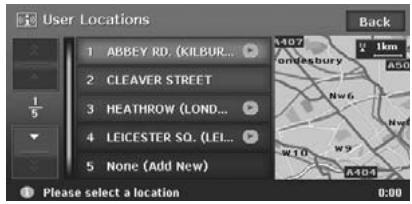
You can edit/register a User Location by touching the desired list item.
[(User Location name)]
The Edit User Location screen is displayed.
You can edit a registered User Location.
- [Rename]: Changes the User Location name.
- [Delete]: Deletes the User Location.
- [OK]: Terminates the editing, then returns to the previous screen.
- []: Changes the location of the User Location by scrolling the map.
[None (Add New)]
You can register a new User Location by the procedures similar to entering the destination.
- Touch the [TMC Traffic Info Settings] key. The TMC Traffic Info Settings menu screen is displayed.
- Touch the desired key on the screen to set it.
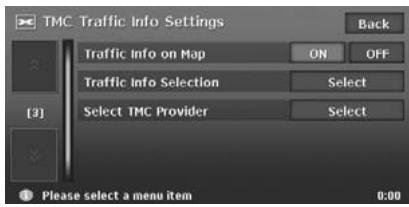
"Traffic Info on Map"
Switches ON and OFF the TMC traffic information display on the map. The factory setting is ON.
"Traffic Info Selection"
Switches ON and OFF the event information icon display for each event type. The factory settings are all ON.
You can set this for the following types of TMC traffic information event symbols:
[All Traffic Information], [Accident & Incident], [Traffic Status], [Roadworks], [Closure & Restrictions], [Weather & Road Info], [Information], [Traffic Forecast], [Weather]
"Select TMC Provider"
You can select the TMC provider you want to use.
- [Automatic]: Uses the provider automatically selected.
- [Manual]: Uses the provider you select from the list of providers.
Note:
For the TMC provider setting, we recommend to set to [Automatic].
Setting TA (Traffic Announcement) mode
- Touch the [TA] key.
"TA" will be displayed at the bottom of the screen, and the system enters the TA standby mode. For the detailed information on the TA standby mode, see "Radio Operations" (Audio Manual).
When the system receives a TMC information of high urgency located within 10km from the vehicle position or within 50km on the route, the system displays the high urgency information automatically, with a priority higher than any other screen.
To return to the Map screen, touch the [OK] key.
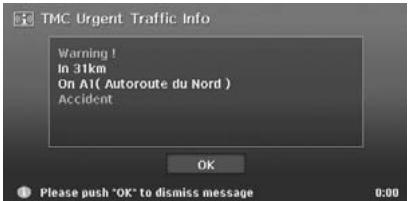
When a TMC event is found on your route, a diverted route with traffic information considered is automatically displayed.
Confirm or cancel the diverted route, and touch the [OK] key to start the route guidance. If you do not do anything, the diverted route will not be used.
The information given by RDS-TMC is only a reference, it may not match the actual traffic conditions. Be sure to follow the actual traffic regulations and traffic conditions.
6. System Settings
You can set various settings of the navigation system from the Setting menu.
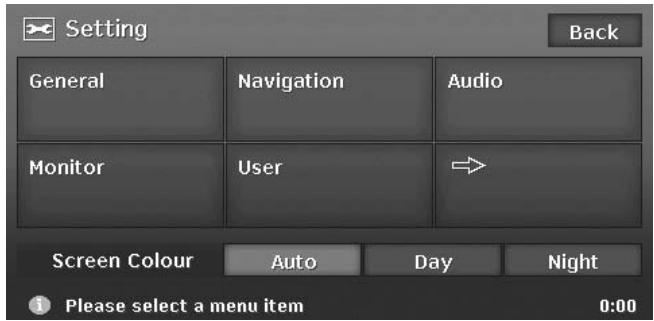
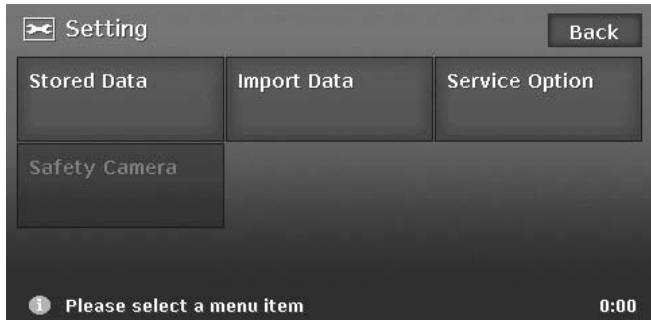
- Press the [] (Set) button.
The Setting menu screen is displayed. Touching the [→] (Next) key displays the additional Setting menu screen.
- Touch the desired menu item.
For the operation procedure hereafter, see the explanation of each section.
Note:
- For details about the Screen Colour item, see "Setting the Screen Colour mode" (P. 48)
When you touch the [General] key from the Setting menu, you can set various settings concerning the general features.
Language setting
You can change the language used by the system. As for "English", you can also select the unit of distance (km/mile).
"Language":
You can select the language from the following language keys:
[English (mile)] key
[English (km)] key
[François] key
[Deutsch] key
[Espanol] key
[Italiano] key
[Nederlands] key
[Portugues] key
[Svenska] key
[Dansk] key
Note:
For the languages other than English, distances are displayed using the metric system.
Clock settings
You can set various settings concerning the clock.
- Touch the [Setting] key of the "Clock" item. The Clock menu screen is displayed.
- Touch the desired menu item to set.
"On-Screen Clock":
Shows/hibes the clock display on the screen.
"Clock Format":
Changes the clock format to 12-hour/24-hour system.
"Daylight Saving Time":
Selects whether to apply the daylight saving time or not.
"Offset Adjust":
Adjusts the current time manually. The adjustment is applied as offset value related to the time signal received via GPS. Touching the [+] or [-] key shifts the time by 1 minute. Normally, it is not necessary to adjust because the time is received from the GPS signals automatically.
"Time Zone":
Sets the time zone. You can select from the list of 74 regions including the [Auto] key.
When you select the [Auto] key, the clock is automatically switched to the time zone of the country at the vehicle position.
Changing Skin
You can change the screen design by using the skin data stored in the hard disk drive.
Note:
This operation is disabled while recording a CD or loading/ejecting a disc.
- Touch the [Select] key of the "Skin Change" item.
- Touch the desired item key you wish to set.
Beep Sound
You can turn ON/OFF the beep sounds and menu operation sounds.
Keyboard Type
You can change the keyboard layout used for name entry.
- Touch the item key of the "Keyboard" item.
- Select the keyboard type by touching one of the following keys:
[ABCDEF] key
[QWERTY] key
[QWERTZ] key
[AZERTY] key
Voice Recognition
You can turn ON/OFF the voice recognition feature (optional). When you touch the [OFF] key, the voice recognition is not available.
Voice Feedback
You can turn ON/OFF the voice feedbacks which are responded when using voice commands.
You can confirm the version number of the map data and the system software here.
- Touch the [Info.] key.
The system information is displayed.
Other General Settings
See the Audio Manual for the details of the following settings:
"Blinking LED"
"Security Mode"
"System Check"
"System Information"
"Antenna"
When you touch the [Navigation] key from the Setting menu, you can set various settings or confirm the information concerning the navigation function.
Map Guidance Settings
You can change settings concerning the screen route guidance.
- Touch the [Map Guidance Settings] key.
The Guidance Settings menu screen is displayed.
- Touch the desired menu item to set.
"Route Guidance"
Turns ON/OFF the route guidance. When you touch the [OFF] key, the route guidance is not available.
3D Junction View
Shows/hibes the 3D Junction guidance screen.
"Small Turn Arrow on Map"
Shows/hibes the Small Turn Arrow displayed at the upper left of the Map screen.
"Interrupt AV"
You can set the interrupt of the route guidance screen while displaying the audio screen.
- [OFF]: The audio screen is not interrupted.
- [ ]: Displays the small turn arrow on the information pane. You can hide the arrow by touching it.
- [7]: The Route Guidance screen interrupts the audio screen, and returns to the main audio screen when the interrupt finishes.
"Set Average Speeds"
When you set "Auto" to "OFF", you can set the average speed of the vehicle for each road type. The time required to the destination will be calculated in consideration of the speed set.
- "Auto": When you touch the [ON] key, the time required is automatically calculated. To set the average speeds manually, touch the [OFF] key.
- ("Name of road type"): Touching the [+] / [-] key increases/decreases the average speed by 5km/h .
- "Reset": Touching the [Reset] key resets the average speeds to the factory settings.
Guidance Voice Settings
You can change settings concerning the voice guidance.
- Touch the [Guidance Voice Settings] key. The Guidance Voice Settings menu screen is displayed.
- Touch the desired menu item to set. "Guidance Voice": Sets whether to activate the voice guidance.
"Vol: Normal Speed": Adjusts the volume of the voice guidance when the vehicle speed is normal.
"Vol: High Speed": Adjusts the volume of the voice guidance when the vehicle speed is high.
"Voice Announcements": Sets the number of repetitions of the voice guidance per guidance point.
Map View settings
You can change settings concerning the map appearance.
- Touch the [Map View] key.
The Map View menu screen is displayed.
- Touch the desired menu item to set.
For details of the setting items, see "Changing the map appearance" (P. 16).
However, the [Hide Map] key is not displayed on this screen.
Map Design settings
You can change the map appearance, such as the colours of the map, type of vehicle mark, etc.
Map Colour
Selects the colours of the map for the Day mode (when illumination is turned OFF) and for the Night mode (when illumination is turned ON). "Map Colour (Day)/ "Map Colour (Night): Touch the item key, then touch one of the [Map Colour 1] to [Map Colour 4] keys you wish to set.
Vehicle Icon
Selects the type of the vehicle mark from 2 types.
"Vehicle Icon":
Touch the desired mark you wish to use.
Route Colour
Selects the colour of the suggested route displayed on the Map screen.
"Route Colour":
Touch the desired colour you wish to set.
Landmark Icon display
Switches ON and OFF Landmark icon display for each type.
- Touch the [Landmark Icons] key. The list of the Landmarks is displayed.
- Touch the [ON] or [OFF] key of the desired icon type you wish to change the setting for. The types of Landmarks that can be set are the following five types. The factory settings are all OFF. "Landmark icons" (P. 14)
"Petrol Station"
"Restaurant"
"Car Park"
"Hotel"
"Hospital"
Avoid Area Settings
You can register areas you do not want to pass or areas that often get congested as an Avoid Area. When you register the Avoid Areas, you can set the system to calculate routes avoiding the registered areas. "Setting the conditions of the route calculation" (P. 34)
Up to 10 Avoid Areas can be registered. You can edit the registered Avoid Areas.
Note:
You can also register/edit them from the [Stored Data] of the Setting menu. "Avoid Area" (P. 50)
To register an Avoid Area
- Touch the [Avoid Area Settings] key. The list screen of Avoid Areas is displayed.
- Touch the [None (Add New)] key.
- Search the area to avoid by a similar way as for entering a destination.
The setting screen of the Avoid Area is displayed with the map of area found.
- Touch the desired menu item to set. [Rename]
You can change the name of the Avoid Area.
Enter the name, then touch the [OK] key.
[Resize Area]
You can change the size of the Avoid Area in 5 steps. Touch the [Large], [▲], [Medium], [▼], or [Small] key.
[M-way]
You can set whether to avoid motorways passing the Avoid Area.
- [not included]: Not avoided.
[Delete]
Delete the current Avoid Area. [+]
You can correct the location of the Avoid Area by moving the cursor on the map.
- Touch the [OK] key.
To edit an Avoid Area
- Touch the [Avoid Area Settings] key.
- Touch the Avoid Area you wish to edit.
- Touch the desired menu item to set, and set it by a similar way as for registering Avoid Areas. Step 4 above
- Touch the [OK] key.
- Touch the [TMC Traffic Info Settings] key. The TMC Traffic Info Setting menu screen is displayed. For details of the TMC settings, see "Setting TMC traffic information" (P. 40).
Tracking Display Settings
The system can display track data for one trip (from ACC ON to OFF) from the place of departure up to a distance of 100km on the map. The track from the current location up to 20km can be registered for up to five tracks, and can be edited. The tracks on the map are displayed using the colour of the mark displayed left of the registered name. You can also set the system to always display the current track.
Note: You can also register/edit them from the [Stored Data] of the Setting menu. "Stored Tracking" (P. 50)
- Touch the [Tracking Display Settings] key. The list of track data is displayed.
- Touch the desired menu item.
To register a track
Registers the current track data.
- Touch the [ON] key of the [None (Add New)] item.
- On the displayed confirmation screen, touch the [Yes] key.
To show/hide track
- Touch the [ON] or [OFF] key from the list screen of track data. The setting of the track data display is changed. To set to always display the current track, touch the [ON] key of the "Current Tracking".
To edit a registered track
- Touch the [Edit] key of " (Registered name) from the list of track data.
For the "Current Tracking", only the [Map] and [Delete] key are displayed.
[Map]
You can confirm the registered track data on the map.
[Rename]
You can change the name of the registered track data.
[Replace]
Deletes the registered track data, and register the current track data.
[Delete]
Deletes the registered track data.
[OK]
Terminates the editing, and returns to the list of track data.
Quick POI Settings
Note:
You can also set the categories of the Quick POI from the Navi Shortcut menu. "Navi Shortcut menu" (P. 8)
You can customise the 5 categories of the Quick POI. In the factory settings, the following categories are registered:
"Item 1": [PETROL STAION]
"Item 2": [RESTAURANT]
"Item 3": [CAR PARK]
"Item 4": [HOTEL]
"Item 5": [HOSPITAL]
- Touch the [Quick POI Settings] key.
The Item list of Quick POI is displayed.
- Touch the desired Item of Quick POI you wish to change.
- Touch the desired main category of Quick POI.
- Touch the desired sub category of the Quick POI.
The system returns to the Item list of Quick POI.
You can set the information displayed on the scrolled map screen.
- Touch the [Map Scrolling Information] key. The Map Scrolling Information menu screen is displayed.
- Touch the [ON] or [OFF] key of each item. "Address Book Icons"
Shows/hibes detail information display for icons of locations registered in the Address Book while scrolling.
"TMC Traffic Icons"
Shows/ hides detail information display for icons of TMC traffic information while scrolling.
"Destination/Waypoint Icons"
Shows/ hides detail information display for destination and waypoints icons while scrolling.
"Latitude/Longitude Info"
Shows/hibes the latitude/longitude information displayed at the bottom right of the screen.
Adjusting Current Location
You can correct the vehicle position on the Map screen.
- Touch the [Adjust Current Location] key.
- Scroll the map so that the cursor points to the location you want to set as the vehicle position.
- Touch the [OK] key.
- Touch the [O] or [C] key to turn the arrowhead according to the direction of the vehicle.
- Touch the [OK] key.
Resetting All Settings to Factory Defaults
You can reset all settings to return to the factory settings.
Note:
Though all the settings are reset, the registered data such as the Address Book, Stored Routes, stored track data, and Avoid Area, are not erased.
- Touch the [Reset All Settings to Default] key.
- From the displayed confirmation screen, touch the [Yes] key.
Navigation System Check
You can check the conditions of the navigation system.
- Touch the [Navigation System Check] key. The Navigation System Check screen is displayed, and the conditions of GPS and various sensors are shown.
The detailed situation of GPS is displayed by touching the [GPS State] key.
"GPS"
"GPS Antenna"
"Speed Pulse"
To check the Speed Pulse connection, move the vehicle a little.
"Reverse Signal"
To check the Reverse Signal connection, once move the gear lever to the back position.
"Gyro Sensor"
"Parking Brake"
To check the Parking Brake connection, once engage the parking brake.
"Illumination"
To check the Illumination connection, once turn the lights on.
"RDS-TMC"
When you touch the [Audio] key from the Setting menu, you can set various setting concerning the audio features. For details, see the Audio Manual.
Adjusting the Monitor
Setting the Screen Colour mode
The system has two Screen Colour mode: the Day mode and the Night mode. Each Screen Colour mode has the own dimmer level setting.
To switch to the Day mode or Night mode manually, touch the [Day] or [Night] key of the "Screen Colour" item on the Setting menu.
When the [Auto] key is selected, the Screen Colour mode is automatically switched according to whether the illumination of the vehicle is turned off or on.
When you touch the [Monitor] key from the Setting menu, you can adjust the dimmer level of the monitor screen.
Monitor settings
When you touch the [Monitor] key from the Setting menu, you can adjust the dimmer level of the monitor screen.
[+]: Touch to make image brighter.
[-]: Touch to make image dimmer.
User Settings
When you touch the [User] key from the Setting menu, you can register the User Profiles to personalise the Favourite/Frequent/Recent Album list data. For details, see the Audio Manual.
From the Stored Data menu, you can register the home address, addresses of facilities and places, routes, track data, and Avoid Areas. You can also edit the data registered. The registered places or routes can be set as the destination or as the current route.
- Touch the [] (Next) key from the Setting menu.
- Touch the [Stored Data] key to display the Stored Data menu.
Home Location
Registers your home address. You can edit the registered home address.
To register the Home Location
The Home Location can be registered when the [Home Location (Add New)] key is displayed.
- Touch the [Home Location (Add New)] key.
- Search the location of your home by a similar way as for entering destinations.
- Confirm the searched location, edit items if required, then touch the [OK] key to register it. [Edit]
Edits the registered Home Location.
- "Show Icon on Map": Shows/hibes the home icon on the map.
- "Icon": Changes the icon for the Home Location.
- "Image": Specifies the image data for the Home Location.
- "Sound": Selects the sound heard when you get near the Home Location.
- "Direction": Sets the approach direction for locations along roads with separated lanes for each direction.
- "Distance": Sets the distance for locations along roads with separated lanes for each direction.
- "Phone No.": Registers the telephone number of your home. [Store to Favourite]
Registers the Home Location to the Favourite list.
To edit the Home Location
- Touch the [Home Location] key.
- Touch the desired Item, then edit it. [Edit]
Edits data by a similar way as for registering the Home Location. "To register the Home Location" as Step 3 above. [Delete]
Deletes the registered Home Location data. [Store to Favourite]
Registers the Home Location to the Favourite list.
[OK]
Terminates the editing, then returns to the previous screen.
[+]
Adjust the location by scrolling the map.
Address Book
Registers locations. You can register up to 200 locations, and can also edit the registered locations.
To register Locations
- Touch the [Address Book] key.
- Touch the [None (Add New)] key.
- Search for the location you wish to register by a similar way as for entering destinations.
- Confirm the location found, edit items if required, then touch the [OK] key to register it. [Edit]
Edits the Stored Location.
- "Show Icon on Map": Shows/hibes the Stored Location icon on the map.
- "Name": Changes the name of the Stored Location.
- "Icon": Changes the icon type for the Stored Location.
- "Image": Specifies the image data for the Stored Location.
- "Sound": Selects the sound heard when you get near the Stored Location.
- "Direction": Sets the approach direction for locations along roads with separated lanes for each direction.
- "Distance": Sets the distance at which the Sound is heard.
- "Phone No.": Registers the telephone number of the Stored Location.
- "Group": Sets the group the Stored Location belong to.
- "Swap Numbers": Changes the registration number of an Address Book entry. The number of the order of registration is initially specified automatically. In order to avoid that entries need to be deleted while changing the registration number, numbers can only be swapped with other entries.
[Store to Favourite]
Registers the Stored Location to the
Favourite list.
Note:
The Address Book can sorted by the registration number, name, icon, or group. So we recommend you set these items for your convenience.
To edit a Stored Location
- Touch the [Address Book] key.
- Touch the name of the Stored Location you wish to edit.
By touching the [Sort] key, you can change the listing order of the Address Book list.
Edit data by a similar way as for registering data.
"To register Locations" Step 3 (P. 49)
Stored Route
Registers the current route. You can register up to 5 routes, and can also edit the registered routes.
To register the current route
Note:
To register the current route, at least one way point is required.
- Touch the [Stored Route] key.
- Touch the [None (Add New)] key.
- On the displayed confirmation screen, touch the [Yes] key.
To edit the Stored Route
- Touch the [Stored Route] key.
- Touch the name of the Stored Route you wish to edit.
- Touch the desired item, then edit it.
[Rename]
Changes the name of the Stored Route.
[Replace]
Replaces the Stored Route with the current route.
[Delete]
Deletes the Stored Route.
[OK]
Terminates the editing, then returns to the previous screen.
- Touch the [OK] key.
Stored Tracking
By touching the [Stored Tracking], you can register/edit the Stored Tracking, or change settings for show/hide of the Stored Tracking. The operation procedures are the same as for the Tracking Display Settings of the Navigation settings. "Tracking Display Settings" (P. 46)
Avoid Area
By touching the [Avoid Area] key, you can set an Avoid Area. The operation procedures are the same as for the Avoid Area Settings of the Navigation settings. "Avoid Area Settings" (P. 45)
Deleting registered data
You can delete various data stored in the navigation system.
- Touch the [Delete Stored Items] key.
- Touch the item to delete.
[Home Location]
[All Stored Locations]
[All Stored Routes]
[Current Tracking]
[All Stored Trackings]
[All Avoid Areas]
[All Previous Destinations]
[Previous Starting Point]
[All Favourite items]
[All Frequent items]
- From the displayed confirmation screen, touch the [Yes] key.
From the [Import Data] menu, you can import the downloaded data from the website. For more information about the installation method and the function, see the Clarion homepage.
- Touch the [] (Next) key from the Setting menu.
- Touch the [Import Data] key to display the Import Data menu.
Note:
When you perform the operation of data import, confirm that the SD card on which the relevant data is stored has been set to the SD card slot.
To use the SD card
- Press the [OPEN/CLOSE] button to open the operation panel.
- Confirming the orientation of the SD card, insert the SD card surely to the SD card slot until it stops.
Note:
For the detailed information on using SD cards, see the Audio Manual.
CAUTION
Data may be broken when using SD cards in the following situation:
When disconnecting the SD card or turning the power off during writing or reading data. When affected by static electricity or electric noises.
It is recommended that you back up your important data to a personal computer by using the SD card.
Skin
You can import the Skin data stored in the SD card into the hard disk drive.
Touch the [Import] key of the "Skin" item, then operate according to the displayed messages. To delete the data imported to the hard disk drive, touch the [Delete] key.
You can import the Extra POI data stored in the SD card into the hard disk drive.
Touch the [Import] key of the "Extra POI" item, then operate according to the displayed messages.
To delete the data imported to the hard disk drive, touch the [Delete] key.
Safety Camera
You can import the location database of Safety Cameras stored in the SD card to the hard disk drive. Touch the [Import] key of "Safety Camera", then operate according to the displayed messages. To delete the data imported to the hard disk drive, touch the [Delete] key.
Note:
- This function displays the locations of Safety Cameras on the map using the imported location database of the Safety Camera on the hard disk drive, and warns that the vehicle approaches the location. For details, see the Clarion's homepage.
- Be sure to import the location database of Safety Cameras while the vehicle is stopped. The message "Reading Safety Camera data." disappears when the import is finished. If the vehicle starts to move before the message disappears, the import will be cancelled.
Other data
You can also import the following data:
- Image data
- Album Infomation data
For the detailed information on importing these data, see the Audio Manual.
From the [Service Option] menu, you can perform the operation such as displaying a demonstration of the navigation system, backup or restore of stored data, and resetting to the factory settings.
- Touch the [] (Next) key from the Setting menu.
- Touch the [Service Option] key to display the Service Option menu.
Demonstration
Displays the demonstration of the route guidance.
"Demo":
Touch the [Select] key, then touch the desired demonstration course to play.
Backing up User Data
You can back up the data currently stored in the navigation system to SD card.
Note:
- This function saves the following data: the data of the Stored Locations, the route data, the data registered in Favorite/Frequent list, the setting data of the Settings menu.
- The recorded music data, Playlist data, and data imported using SD cards (Skin, Extra POI, etc.) cannot be backed up.
"Backup User Data":
When touching the [Backup] key, a screen with a confirmation message appears. Operate according to the guidance on the screen displayed.
Restoring User Data
You can restore data backed up using SD card.
Note:
When you perform backup/restore of data of two different navigation systems, the stored data on the restored system will be lost. Be sure to back up data of the system to restore to before performing the restore operation.
"Restore User Data":
When touching the [Restore] key, a screen with confirmation message appears. Operate according to the guidance on the screen.
Resetting to the Factory Settings
You can return the navigation system to the status after purchase.
Note:
When the system is reset to the factory settings, all stored data is erased (including the music data in the Music Catcher). It is recommended that you backup all data you want to keep.
"Reset to Factory Setting":
When touching the [Reset] key, a screen with confirmation message appears. Operate according to the guidance on the screen.
Software & Map Update
You can update the software and the map data. "Software & Map Update":
When touching the [Start] key, a screen with a message prompting to insert the update disc appears. Operate according to the guidance on the screen.
Screen Adjustment
The position and sharpness of the screen can be adjusted.
"Screen Adjustment":
After touching the [Adjust] key, adjust the screen position by touching the [ ] , [ ] , [ ] and [ ] key. Touch the [1] or [2] key to select a setting at which the screen is displayed clearly.
From the Safety Camera menu, you can set the Safety Camera.
- Touch the [] (Next) key from the Setting menu.
- Touch the [Safety Camera] key to display the Safety Camera menu.
- Touch the desired menu item to set.
"Show Icon on Map":
Turns ON/OFF the Safety Camera Icon display on the map.
"Warning & Sound":
Turns ON/OFF both of the warning indication and alarm sound when the vehicle gets near a Safety Camera location.
"Camera Location":
Touch the [List] key to display the list of the Safety Camera locations. Touching an item of the list displays the icon at the location of the Safety Camera on the right map.
Note:
These settings are enabled when the Safety Camera data is stored in the hard disk. "Safety Camera" (P. 51)
7. Favourite/Frequent List
Operations
What is Favourite/Frequent List?
The system has the following 3 shortcut lists:
- Favourite list: You can register your favourite places.
- Frequent list: Destinations frequently entered are automatically registered.
- Recent Album list: Albums recently selected from the Music Search are automatically registered (see the Audio Manual for details).
You can display these lists by easy operation, and can specify your desired item to set as the destination or to be played back.
You can also customise these lists when its Angle is set to 2D list screen.
Using Favourite/Frequent List
Favourite/Frequent list
Favourite
You can register up to 16 favourite places. The favourite places can be registered from the Frequent by moving icons (drag and drop). In addition, you can register your home address from the [Home Location] key of the [Stored Data] key in the Setting menu, or places from [Address Book]. "Home Location" (P. 49), "Address Book" (P. 49)
Frequent
The system automatically registers the places entered as the destinations in the past. Up to 16 places, where the number of times you entered as destination is higher than others and the date is newer than others, are registered and sorted automatically. "2D List screen" (P. 56)
Displaying Favourite/ Frequent list
To display the Favourite/Frequent list screen, press the [MENU] button and touch the [ ] key, or press the [MAP] button and touch the [NAVI] key, and then touch the [ ] key from the Navi Shortcut menu.
Touching the [Favourite) or [ Frequent) key switches the screen. Large icons which indicate the category of registered places are displayed in each screen.
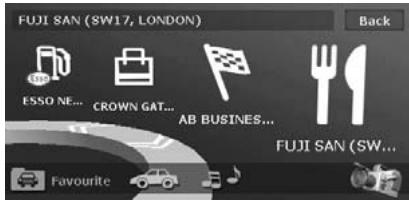
Switching Angle
Touch the [ ] key to switch the viewing angle.
3D List screen
2D List screen
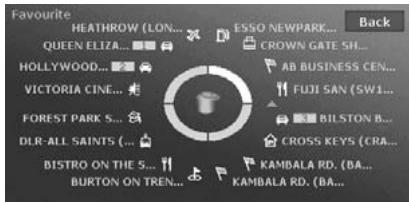
3D List screen
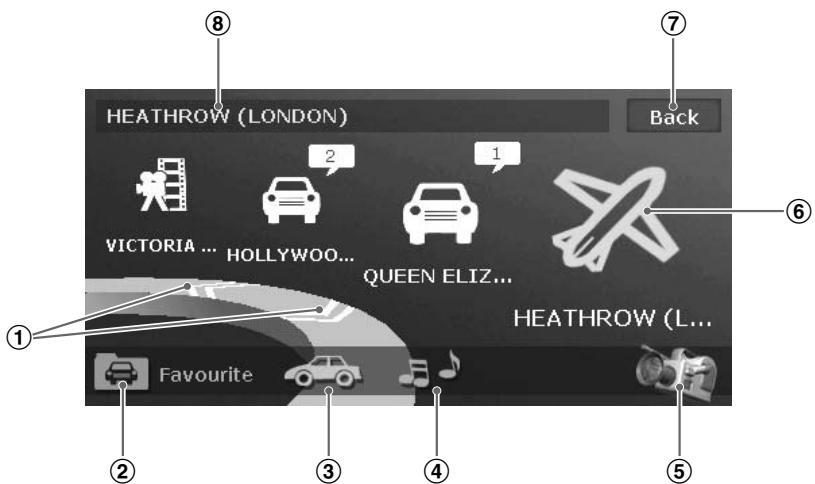
① [《》] [>>] key
Scrolls the list to display other icons. Up to 5 icons are displayed on the screen.
② [Favourite] key
Switches to the Favourite list screen.
③ [Frequent] key
Switches to the Frequent list screen.
(4) [3] (Recent Album) key
Switches to the Recent Album list screen.
See the Audio Manual for details.
⑤ [ ] key
Changes the viewing angle of the screen by switch to the 2D screen.
(6) Icon
Indicates the category of each registered place.
For the rotating icon, the registered name is displayed at the upper left of the screen. By touching the desired icon, you can set the registered place as the destination.
"Searching Your Destination from the Favourite/Frequent List" (P. 27)
For the Favourite/Frequent list items registered from the Stored Locations, the name and number in the Address Book are displayed together with the icon. If an image data is registered, the image is displayed instead of the icon.
⑦ [Back] key
Returns to the previous screen.
⑧ Registered name/Place name
Displays the registered name, place name, or facility name of the place which is selected (rotating icon).
2D List screen
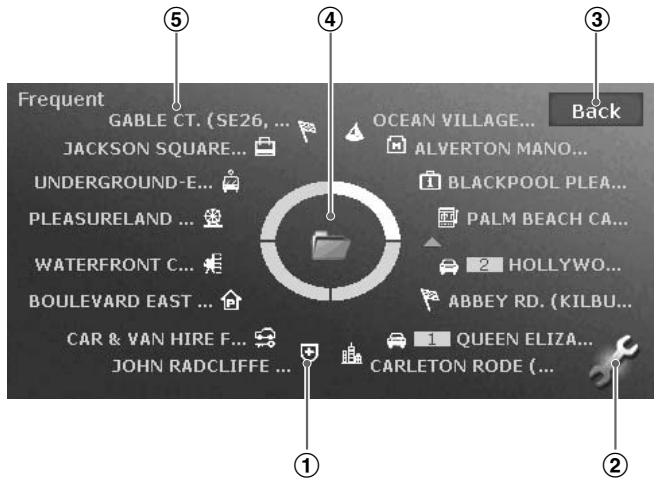
(1) Icon
Indicates the category of a registered place. The icon can be moved by touching and dragging it. Thus, you can change the location of the desired icon in the list, or drop the desired icon to the Trash icon to discard it or to the Folder icon to store it to the Favourite list.
② [ ] key
Displayed only on the Frequent list screen. Touching this key displays the following keys: "Delete Item"
Changes the Folder icon to the Trash icon. You can discard the desired icon.
"Sort by Date"
Changes the sorting method of the list to the order of the registered date.
③ [Back] key
Returns to the 3D List screen.
④Trash/Folder
In the Favourite list screen, the Trash icon is displayed. You can discard the desired icon by dragging and dropping it to theTrash icon. In the Frequent list screen, the Folder icon is displayed. You can move the desired icon to the Favourite list by dragging and dropping it to the Folder icon.
⑤ Registered name/Place name
Displays the registered name, place name, or facility name of the place which is selected.
8. Voice Command Operations
This system has a built in voice recognition function. You can perform fundamental operations by saying the corresponding voice commands.
Note:
- The supported languages by the voice command function are English, French, German, Italian, Dutch and Spanish. You can perform voice command operations after switching to a supported language. For details of switching languages, please see the "Language setting" (P. 43).
- When the language setting is set to Swedish, Portuguese, or Denmark, the voice command function is not available.
Voice Command Features
Voice Command menu
Pressing the [VOICE] button displays the following screen.
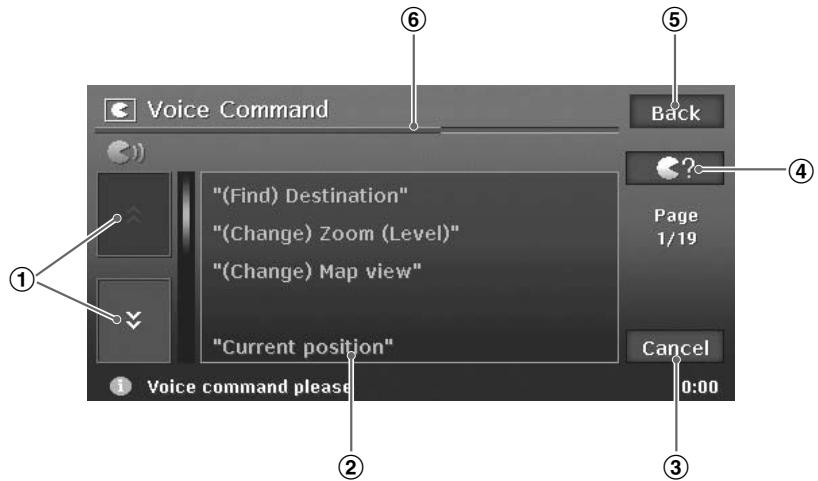
① [A]/[Y] key
Displays the previous page or next page of the Voice Command list. You can also operate by saying "Previous page" or "Next page".
② Voice Command list
This is the list of the commands for voice operation. The available commands at that time are displayed in yellow. You cannot operate by touching this list.
③ [Cancel] key
Cancel the voice recognition, and returns to the previous screen. You can also achieve this by saying "Cancel".
④ [?] key
Suspend the voice input waiting mode, and displays the available command list. Touching this again returns to the voice input waiting mode.
⑤ [Back] key
Returns to the previous screen. When the voice command operation is suspended, returns to the voice input waiting mode.
Indicates the time remaining of the voice input waiting mode. Say the desired command during the blue bar is displayed. The system returns to the previous screen when the blue bar runs out.
Note:
Various operation advices are displayed according to the status at the bottom of the screen. You can refer to them while operating the voice recognition.
Example of voice command operation
This section provides an example of the destination entry by inputting the location stored in the Address Book by voice.
- Press the [VOICE] button.
The Voice Command menu screen is displayed, and the announcement for the user to say the desired command and a beep sound are heard. The system enters the voice input waiting mode.
- Say "Address book".
When the voice command is recognised, the system will respond with a feedback message, display the list screen of the Address Book, then enter the voice input waiting mode again.
Note:
If you say the voice command before a beep sound is heard, the voice command cannot be recognised.
- Say the number of the desired list entry.
The registered place of the number said will be set as the destination.
The following table lists the fundamental command examples which can be input during the voice input wait mode entered by pressing the [VOICE] button, classified by the usage.
Note:
- You can omit the term enclosed by ( ).
- Touching the [ ] key displays the voice commands usable at that operating condition. You can refer to them.
These are the commonly usable commands in any condition during the voice input operation.
| Operation | Command |
| Terminates the voice operation, and displays the current location map screen. | “Map”“Current Position”, “Display/Show Map”, “Go to Map”, “(Show me) Where am I”, “Current Location” |
| Cancels the immediately precedent voice operation, and returns to the previous voice input wait mode. | “Back” |
| Displays the next page of voice command list displayed on the screen. | “Next (page)” |
| Displays the previous page of voice command list displayed on the screen. | “Previous (page)” |
| Displays the screen displayed when touching the [ Ⓞ?] key (Voice Help screen). | “(Voice) Help”“What can I say?” |
Voice commands for changing the map appearance
Say " (Change) map view" then say the following command.
| Operation | Command |
| Displays the 2D map. | “2D” |
| Displays the 3D map. | “3D” |
| Displays the 2D/2D maps on the split screen. | “(split screen) 2D (and) 2D” |
| Displays the 2D/3D maps on the split screen. | “(split screen) 2D (and) 3D” |
| Changes the map orientation to heading up. | “Heading up” |
| Changes the map orientation to North up. | “North up” |
| Displays the turn list. | “Turn list on”“Show turn list” |
| Hides the turn list. | “Turn list off”“Hide turn list” |
| Turns on the traffic information display on the map screen. | “Show traffic information”“Traffic information on” |
| Turns off the traffic information display on the map screen. | “Hide traffic information”“Traffic information off” |
Voice commands for changing the map scale
Say " (Change) zoom (level)"/(Change) scale" then say the following command.
| Operation | Command |
| Increases/decreases the map scale by one step. | “Zoom in/out” |
| Changes to the specified map scale. | “XX m (scale)” “XX mile (scale)” |
| Changes the map scale to minimum. | “Minimum (scale)” |
| Changes the map scale to maximum. | “Maximum (scale)” |
Voice commands for entering destination
Say "Find) Destination" then say the following command.
| Operation | Command |
| Sets the home address as the destination. | “(My) Home”
“(Go/Return to) (my) home”, “Set destination to (my) home” |
| Enters from the Address Book. | “(From) Address Book” |
| Enters from the Nearby POI. | “(From) Nearby POI” |
| Enters from the Previous Destinations. | “(From) Previous destination” |
Voice commands for setting voice guidance
These are the commands to change settings of the voice guidance during route guidance.
| Operation | Command |
| Sets the route guidance voice setting to ON. | “Voice guidance on”
“Activate (the) voice guidance” |
| Sets the route guidance voice setting to OFF. | “Voice guidance off”
“Deactivate (the) voice guidance” |
| Increases the volume of the guidance voice. | “Voice guidance Volume up” |
| Decreases the volume of the guidance voice. | “Voice guidance Volume down” |
| Repeats the immediately previous voice guidance. | “Repeat (voice) guidance” |
-
When operating the system by voice, it is necessary to reduce the surrounding noises to be recognised correctly. Follow the following guidelines.
-
Close the windows.
- Say commands clearly and correctly toward the microphone.
-
Refrain from other conversations while voice input.
-
After the announcement request to say commands is heard, say commands during the blue bar is displayed on the voice input listening time indication bar. The system returns to the previous screen when the blue bar runs out.
- Voice commands may not be recognised correctly. Use it as an assistance for the system operation only.
9. Others
Troubleshooting
| Problem | Cause | Remedy |
| RDS-TMC |
| The provider of RDS-TMC is not automatically selected. | The aerial is not connected. | Confirm the connection of the aerial. |
| [Manual] is selected on the Select TMC Provider screen. | Select [Automatic]. |
| The menu screen is not displayed. | Certain keys/functions are not available for your safety during driving. | Menu is displayed again when the vehicle is stopped in a safe place. |
| Too many landmark icons are displayed on the map. | According to system settings, many landmark icons are displayed according to the current location. | You can set the system not to display landmark icons.
“Landmark Icon display”(P. 45) |
Error Messages
| Error Message | Cause | Remedy |
| SD Card |
| ACCESS ERROR
Memory Card access failed | The SD card is not set correctly. | Set the SD card again. |
| The SD card is not recognised. | Set another SD card. |
| Hard Disk Drive |
| HIGH TEMP ERROR
Please wait until the temperature becomes normal | The HDD cannot be accessed because the temperature in the vehicle is extremely high. | Please wait until the temperature becomes appropriate. |
| LOW TEMP ERROR
Please wait until the temperature becomes normal | The HDD cannot be accessed because the temperature in the vehicle is extremely low. | Please wait until the temperature becomes appropriate. |
| HDD ACCESS ERROR
Please consult a dealer | The HDD cannot be accessed.
The sectors or clusters of the HDD may be damaged. | Please consult you nearest dealer. |
Error of the vehicle position
When the vehicle travels, this system learns the distance and the direction advanced on the map from the travelling data and corrects the position accordingly. (distance coefficient/learning function). Therefore, some initial travelling data is required for proper operation. According to the travelling situation and condition of the GPS satellites, the position of the vehicle position mark and the actual vehicle position may be different, but this is not a malfunction.
Effective method to avoid the positioning error
When you use the system for the first time, dislocation may appear as the travelling data is few. Though, after travelling for a while on a road where the signal from the GPS satellites can be received well (such as national roads, principal main roads, and principal minor roads), the vehicle position mark will be displayed accurately on the map. It is possible to train the system in a short time when applying the following method: Travel about 15 to 20km on a smooth road where there is no barrier in the sky like tall buildings or forests (GPS signals can be received well) at a constant speed of 25km / h or more (try to avoid frequent acceleration and moderation).
Clarion Co., Ltd.
A VARIOITUS
THIS IS A LICENSE AGREEMENT - AND NOT AN AGREEMENT FOR SALE - BETWEEN YOU AND NAVTEQ B.V. FOR YOUR COPY OF THE NAVTEQ NAVIGABLE MAP DATABASE, INCLUDING ASSOCIATED COMPUTER SOFTWARE, MEDIA AND EXPLANATORY PRINTED DOCUMENTATION PUBLISHED BY NAVTEQ (JOINTLY "THE DATABASE"). BY USING THE DATABASE, YOU ACCEPT AND AGREE TO ALL TERMS AND CONDITIONS OF THIS END USER LICENSE AGREEMENT ("AGREEMENT"). IF YOU DO NOT AGREE TO THE TERMS OF THIS AGREEMENT, PROMPTLY RETURN THE DATABASE, ALONG WITH ALL OTHER ACCOMPANYING ITEMS, TO YOUR SUP-PLIER FOR A REFUND.
OWNERSHIP
The Database and the copyrights and intellectual property or neighboring rights therein are owned by NAVTEQ or its licensors. Ownership of the media on which the Database is contained is retained by NAVTEQ and/or your supplier until after you have paid in full any amounts due to NAVTEQ and/or your supplier pursuant to this Agreement or similar agreement(s) under which goods are provided to you. NAVTEQ grants you a non-exclusive license to use the Database for your personal use or, if applicable, for use in your business' internal operations. This license does not include the right to grant sub-licenses.
LICENSE GRANT
NAVTEQ grants you a non-exclusive license to use the Database for your personal use or, if applicable, for use in your business' internal operations. This license does not include the right to grant sub-licenses.
LIMITATIONS ON USE
The Database is restricted for use in the specific system for which it was created. Except to the extent explicitly permitted by mandatory laws (e.g. national laws based on the European Software Directive (91/250) and the Database Directive (96/9)), you may not extract or reutilize substantial parts of the contents of the Database nor reproduce, copy, modify, adapt, translate, disassemble, decompile, reverse engineer any portion of the Database. If you wish to obtain interoperability information as meant in (the national laws based on) the European Software Directive, you shall grant NAVTEQ reasonable opportunity to provide said information on reasonable terms, including costs, to be determined by NAVTEQ.
TRANSFER OF LICENSE
You may not transfer the Database to third parties, except when installed in the system for which it was created or when you do not retain any copy of the Database, and provided that the transferee agrees to all terms and conditions of this Agreement and confirms this in writing to NAVTEQ. Multi-disc sets may only be transferred or sold as a complete set as provided by NAVTEQ and not as subset thereof.
LIMITED WARRANTY
NAVTEQ warrants that, subject to the warnings set out below, for a period of 12 months after acquisition of your copy of the Database, it will perform substantially in accordance with NAVTEQ's Criteria for Accuracy and Completeness existing on the date you acquired the Database; these criteria are available from NAVTEQ at your request. If the Database does not perform in accordance with this limited warranty, NAVTEQ will use reasonable efforts to repair or replace your non-conforming copy of the Database. If these efforts do not lead to performance of the Database in accordance with the warranties set out herein, you will have the option to either receive a reasonable refund of the price you paid for the Database or to rescind this Agreement. This shall be NAVTEQ's entire liability and your sole remedy against NAVTEQ. Except as expressly provided in this section, NAVTEQ does not warrant nor make any representations regarding the use of results of the use of the Database in terms of its correctness,
accuracy, reliability, or otherwise. NAVTEQ does not warrant that the Database is or will be error free. No oral or written information or advice provided by NAVTEQ, your supplier or any other person shall create a warranty or in any way increase the scope of the limited warranty described above. The limited warranty set forth in this Agreement does not affect or prejudice any statutory legal rights that you may have under the legal warranty against hidden defects.
If you did not acquire the Database from NAVTEQ directly, you may have statutory rights against the person from whom you have acquired the Database in addition to the rights granted by NAVTEQ hereunder according to the law of your jurisdiction. The above warranty of NAVTEQ shall not affect such statutory rights and you may assert such rights in addition to the warranty rights granted herein.
LIMITATION OF LIABILITY
The price of the Database does not include any consideration for assumption of risk of consequential, indirect or unlimited direct damages which may arise in connection with your use of the Database. Accordingly, in no event shall NAVTEQ be liable for any consequential or indirect damages, including without limitation, loss of revenue, data, or use, incurred by you or any third party arising out of your use of the Database, whether in an action in contract or tort or based on a warranty, even if NAVTEQ has been advised of the possibility of such damages. In any event NAVTEQ's liability for direct damages is limited to the price of your copy of the Database.
THE LIMITED WARRANTY AND LIMITATION OF LIABILITY, SET FORTH IN THIS AGREEMENT, DO NOT AFFECT OR PREJUDICE YOUR STATUTORY RIGHTS WHERE YOU HAVE ACQUIRED THE DATABASE OTHERWISE THAN IN THE COURSE OF A BUSINESS.
WARNING
The Database may contain inaccurate or incomplete information due to the passage of time, changing circumstances, sources used and the nature of collecting comprehensive geographic data, any of which may lead to incorrect results. The Database does not include or reflect information on - inter alia - neighborhood safety; law enforcement; emergency assistance; construction work; road or lane closures; vehicle or speed restrictions; road slope or grade; bridge height, weight or other limits; road or traffic conditions; special events; traffic congestion; or travel time.
GOVERNING LAW
This Agreement shall be governed by the laws of the jurisdiction, in which you reside at the date of acquisition of the Database. Should you at that moment reside outside the European Union or Switzerland, the law of the jurisdiction within the European Union or Switzerland where you acquired the Database shall apply. In all other cases, or if the jurisdiction where you acquired the Database cannot be defined, the laws of the Netherlands shall apply. The courts competent at your place of residence at the time you acquired the Database shall have jurisdiction over any dispute arising out of, or relating to this Agreement, without prejudice to NAVTEQ' right to bring claims at your then current place of residence.
WICHTIG - BITTE LESEN SIE DIESEN LIZENZVERTRAG FÜR ENDBENUTZER VOR DER VERWENDUNG DER NAVTEQ DATENBANK SORGFÄLTIG DURCH.
This system contains software that is licensed to Manufacturer by an affiliate of Microsoft Corporation pursuant to a license agreement. Any removal, reproduction, reverse engineering or other unauthorized use of the software from this system in violation of the license agreement is strictly prohibited and may subject you to legal action.
Microsoft, Windows, and the Windows Logo are registered trademarks or trademarks of Microsoft Corporation in the United States and/or other countries.
Copyright© 2006 Arex Co.,Ltd.Japan. All rights reserved.
This product is loaded with MatrixEngine® of NETDIMENSION CORPORATION for the 3D contents drive.
©2006 NETDIMENSION CORPORATION
| ASFINAG
bmV | "Der Location- und Event-Code wurde von der ASFINAG und dem BMVIT zur Verfügung gestellt" |
| Austria | "Traffic Information is provided by the Ministerie van de Vlaamse Gemeenschap and the Ministère de l'Equipement et des Transports" |
| Belgium | "EuroGeographics
"source: Géoroute IGN France & BD Carto IGN France" |
| Great Britain | "Die Grundlagendaten wurden mit Genehmigung der zuständigen Behörden entnommen" |
| Hungary | "Copyright ©2003; Top-Map Ltd." |
| Italy | "La Banca Dati Italiana è stata prodotta usinge quale riferimentoanche cartografia numerica ed al trattodotta e fornita alla Regione" |
| Norway | "Copyright © 2000; Norwegian Mapping Authority" |
| Poland | "EuroGeographics |
| Portugal | "Source: IgeoE - Portugal" |
| Slovenia | "EuroGeographics |
| Spain | "Informatión geografica propietad del CNIG" |
| Sweden | "Based upon electronic data © National Land Survey Sweden" |
| Switzerland | "Topografische Grundlage: © Bundesamt für Landestopographie" |
Publisher / Clarion Co., Ltd. http://www.clarion.com
Manufacturer / ZENRIN CO., LTD.
ZENRIN EUROPE B.V.
©2007 ZENRIN CO., LTD. ALL Rights Reserved.
©1993-2007 NAVTEQ All rights reserved.
Geographia Corporation
Map Coverage
| 07Q4 |
| Country | Detailed Coverage (%) |
| Western Europe | Austria | 100.0% |
| Belgium, Netherlands, Luxemburg | 100.0% |
| Denmark | 100.0% |
| Finland | 100.0% |
| France, Andorra, Monaco | 100.0% |
| Germany | 100.0% |
| Ireland | 100.0% |
| Italy, San Marino, Vatican city state | 100.0% |
| Norway | 100.0% |
| Portugal | 100.0% |
| Spain | 100.0% |
| Sweden | 100.0% |
| Switzerland, Liechtenstein | 100.0% |
| United Kingdom | 100.0% |
| Eastern Europe | Croatia | 41.0% |
| Czech Republic | 54.0% |
| Bulgaria | 14.0% |
| Estonia | 29.0% |
| Greece | 43.0% |
| Hungary | 42.0% |
| Latvia | 32.0% |
| Lithuania | 16.0% |
| Poland | 32.0% |
| Romania | 11.0% |
| Slovakia | 13.0% |
| Slovenia | 24.0% |
as of December 2007

clarion
Owner's manual (Audio, Visual, General & Installation)
Mode d'emploi (Audio, video, fonctionnement général et installation)
Benutzerhandbuch (Lyd visuel, generelt og installation)
Manuale dell'utente (Audio, video, generali e installatione)
Gebruikershandleiding (Audio, visuel, algemeen en installatione)
Guía de usuario (Imagen, sonido, general e instalación)
Ågarhandbok (Ljud, Sikt, Allmänt & Installation)
Manual do usozador (Áudio, Visual, Geral e Instalação)
Brugervejledning (Audio, Video, Allgemein und Installation)
MAX983HD
HDD NAVIGATION SYSTEM
SYTEME DE NAVIGATION HDD
HDD-NAVIGATIONSSYSTEM
SISTEMA DI NAVIGAZIONE HDD
HDD-NAVIGATIESYSTEM
SISTEMA DE NAVEGACISON HDD
NAVIGATIONSSYSTEM MED HÄRDDISK
SISTEMA DE NAVEGACão COM HDD (UNIDADE DE DISCO RÍGIDO)
HDD-NAVIGATIONSSYSTEM
1. Preface
Safety Precautions
When using this system, follow the precautions listed below. After reading this manual, be sure to keep it in a handy place (such as the glove box of your car).
WARNING
- For your safety, the driver should not watch the DVD video/TV/VTR or operate the controls while driving. Please note that watching and operating the DVD video/TV/VTR while driving are prohibited by law in some countries. Also, while driving, keep the volume to a level at which external sounds can be heard.
- Do not disassemble or modify this unit. It may cause an accident, fire, or electric shock.
- Do not use this unit when a trouble exists, such as no screen content appears or no sound is audible. It may cause an accident, fire, or electric shock. For that case, consult your authorised dealer or a nearest service centre.
- In case of a problem, such as foreign materials have entered in the unit, the unit gets wet, or smoke or strange smells come out of the unit, etc., stop using this unit immediately, and consult your authorised dealer or a nearest service centre. Using it in that condition may cause an accident, fire, or electric shock.
- Use a fuse with the same specification only when replacing the fuse. Using a fuse with a different specification may cause a fire.
- For the installation of this unit or a change in the installation, ask your authorised dealer or a nearest service centre for safety. Professional skills and experiences are required to do so.
CAUTION
- Do not use this unit without installing in the vehicle properly. It may cause an injury or electric shock.
- This appliance contains a laser system and is classified as a "CLASS 1 LASER PRODUCT".
To use this model properly, read this Owner's Manual carefully and keep this manual for your future reference. In case of any trouble with this player, please contact your nearest "AUTHORIZED service station". To prevent direct exposure to the laser beam, do not try to open the enclosure.
- While driving, set the volume so that sound from outside the vehicle can be heard. Driving without hearing sound from the outside of the vehicle may cause a traffic incident.
CHANGES OR MODIFICATIONS TO THIS PRODUCT NOT APPROVED BY THE MANUFACTURER WILL VOID THE WARRANTY.
The following two manuals are provided to this system:
Owner's Manual (Audio, Visual, General&Installation) (This Book)
This manual (hereinafter referred to as "Audio Manual") explains the functions and operation procedures of the AV features. In addition, the general precautions and other information on using this system are also explained in this manual.
Navigation System Operation Manual
This manual (hereinafter referred to as "Navigation Manual") explains the functions and operation procedures of the navigation features.
Note:
- This manual is described on the assumption that the default Skin data has been applied. When the other Skin data is applied, the screen design and shapes of icons will be different from the contents listed in this manual.
- Please be aware that the device may be different from the manual according to the changes of the specifications.
Symbols used in this manual
Note: Lists what should be noted when operating or referential information.
[ ] button : Indicates a button on this unit.
[ ] key : Indicates a menu item on the screen.
: Indicates a title and page number on which recommended reference information is described.
Notes on Handling
- In no event shall Clarion be liable for any incidental damage (including, but not limited to, loss of the business profit or change/loss of the data) caused from use or inability to use of this product.
About this system
Important
- To prevent discharge of the car battery, use this system with the engine of the vehicle running.
- The housing of this unit may become hot because this unit has a high-speed CPU. Be careful to handle the unit during navigating or immediately after turning the power off.
- Turn off the power of the vehicle when connecting or disconnecting wires. Doing this while the power of the vehicle is turned on may cause a trouble or malfunction.
- This unit uses a precision mechanism. Even in the event that trouble arises, never open the case, disassemble the unit, or lubricate the rotating parts.
Note:
- When using this unit first time after purchasing, or not used for long periods of time, it might take about 5 to 15 minutes until the current location is determined using GPS. Moreover, even when using it often, it may take about 2 to 3 minutes until the current location is determined according to the GPS measuring situation.
-
For vehicles equipped with an intelligent key, do not bring the intelligent key close to this unit. This system may not operate correctly.
-
If electrical equipment that generates a strong electrical noise is used near this unit, the screen may be disturbed and noise may be generated. In this case, keep away such electrical equipment or refrain from using it.
- When the inside of the car is very cold and the player is used soon after switching on the heater, moisture may form on the disc (DVD/CD) or the optical parts of the player and proper playback may not be possible. If moisture forms on the disc (DVD/CD), wipe it off with a soft cloth. If moisture forms on the optical parts of the player, do not use the player for about one hour. The condensation will disappear naturally allowing normal operation.
- Driving on extremely bumpy roads which cause severe vibration may cause the sound to skip.
-
TV broadcast reception (when the optional TV tuner is connected) When receiving the TV broadcast, the strength of the signals changes since the car is moving, so in some cases it may not be possible to receive clear pictures.
-
TV signals are strongly linear, so reception is affected by buildings, mountains and other obstacles.
-
External factors such as electric train lines, a high voltage lines, and signal devices may disturb the picture or cause noise.
-
If the reception is poor, switch to a station with good reception.
About the hard disk drive
Important
Data saved to the hard disk drive may get lost in case of a breakdown, malfunction, or other trouble of this unit. It is recommended that you back up your important data to a personal computer by using SD cards1. "Backing up User Data" (P. 72)
- Never detach the hard disk drive by yourself. In case data1 stored on the hard disk drive gets erased or destroyed due to this action, no repair covered by warranty can be granted.
Operation of this system may be limited to protect the hard disk drive if the temperature is extremely high or low. In such a case, please wait until temperature becomes normal again.
- Though certain buzzing can be heard when the hard disk drive is working, this is not a malfunction.
*1: You can back up the following data: the data of the Stored Locations, the route data, the data registered in Favourite/Frequent list, the setting data of the Settings menu.
The recorded music data, Playlist data, and data imported using SD cards (Skin, Image, Album Information, Extra POI) cannot be backed up.
About the liquid crystal panel
For a longer service life, be sure to read the following notes.
Important
- The operation panel will operate properly in a temperature range of 0 to 60^ .
- Do not allow any liquids on the set from drinks, umbrellas, etc. Doing so may damage the internal circuitry.
- Do not disassemble or modify the set in any way. Doing so may result in damage.
- Subjecting the operation panel to shocks may result in breakage, deformation or other damage.
- Do not let cigarettes burn the display. Doing so may damage or deform the cabinet.
- If a problem should occur, have the set inspected at your store of purchase.
- Do not insert objects or poke in the space between the operation panel and the main unit when the panel is tilted.
-
In extremely cold weather, the display movement may slow down and the display may darken, but this is not a malfunction. The display will work normally when the temperature increases.
-
Small black and shiny spots inside the liquid crystal panel are normal for LCD products.
- The touchkeys on the display operate when slightly touched. Do not press the touchkey screen with strong force.
- Do not push the case surrounding the touchkey panel with strong force. This may cause malfunctioning of the touchkeys.
Cleaning the unit
- Cleaning the cabinet
Use a soft, dry cloth and gently wipe off the dirt. For tough dirt, apply some neutral detergent diluted in water to a soft cloth, wipe off the dirt gently, then wipe again with a dry cloth.
Do not use benzene, thinner, car cleaner, etc., as these substances may damage the cabinet or cause the paint to peel. Also, leaving rubber or plastic products in contact with the cabinet for long periods of time may cause stains.
- Cleaning the liquid crystal panel
The liquid crystal panel tends to collect dust, so wipe it off occasionally with a soft cloth. The surface is easily scratched, so do not rub it with hard objects.
If you transfer or resell this unit to a third party or abandon this unit, note the following matters, deal with them under your own appropriate management.
For your privacy protection
Initialize (delete) all data (address data, etc.) including private information stored in the hard disk and the memory by the procedures described in this manual. For details, see "Resetting to the Factory Settings" (P. 72).
About the registered marks etc.
- This product incorporates copyright protection technology that is protected by U.S. patents and other intellectual property rights. Use of this copyright protection technology must be authorised by Macrovision, and is intended for home and other limited viewing uses only unless it is authorised by Macrovision. Reverse engineering or disassembly is prohibited.
- Manufactured under licence from Dolby Laboratories. "Dolby" and the double-D symbol are trademarks of Dolby Laboratories.
- Music recognition technology and related data are provided by Gracenote®. Gracenote is the industry standard in music recognition technology and related content delivery. For more information, please visit www.gracenote.com.
CD and music-related data from Gracenote, Inc., copyright © 2000-2008 Gracenote. Gracenote Software, copyright © 2000-2008 Gracenote. This product and service may practice one or more of the following U.S. Patents: #5,987,525; #6,061,680; #6,154,773; #6,161,132; #6,230,192; #6,230,207; #6,240,459; #6,330,593, and other patents issued or pending. Some services supplied under licence from Open Globe, Inc. for U.S. Patent: #6,304,523.
Gracenote and CDDB are registered trademarks of Gracenote. The Gracenote logo and logotype, and the "Powered by Gracenote" logo are trademarks of Gracenote.
- "iPod" is for legal or rightholder-authorised copying only. Do not steal musics.
- Windows Media™, and the Windows® logo are trademarks, or registered trademarks of Microsoft Corporation in the United States and/or other countries.
Gracenote® End User Licence Agreement
Version 20061005
This application or device contains software from Gracenote, Inc. of Emeryville, California ("Gracenote"). The software from Gracenote (the "Gracenote Software") enables this application to perform disc and/or file identification and obtain music-related information, including name, artist, track, and title information ("Gracenote Data") from online servers or embedded databases (collectively, "Gracenote Servers") and to perform other functions. You may use Gracenote Data only by means of the intended End-User functions of this application or device.
You agree that you will use Gracenote Data, the Gracenote Software, and Gracenote Servers for your own personal non-commercial use only. You agree not to assign, copy, transfer or transmit the Gracenote Software or any Gracenote Data to any third party. YOU AGREE NOT TO USE OR EXPLOIT GRACENOTE DATA, THE GRACENOTE SOFTWARE, OR GRACENOTE SERVERS, EXCEPT AS EXPRESSLY PERMITTED HEREIN.
You agree that your non-exclusive licence to use the Gracenote Data, the Gracenote Software, and Gracenote Servers will terminate if you violate these restrictions. If your licence terminates, you agree to cease any and all use of the Gracenote Data, the Gracenote Software, and Gracenote Servers. Gracenote reserves all rights in Gracenote Data, the Gracenote Software, and the Gracenote Servers, including all ownership rights. Under no circumstances will Gracenote become liable for any payment to you for any information that you provide. You agree that Gracenote, Inc. may enforce its rights under this Agreement against you directly in its own name.
The Gracenote service uses a unique identifier to track queries for statistical purposes. The purpose of a randomly assigned numeric identifier is to allow the Gracenote service to count queries without knowing anything about who you are. For more information, see the web page for the Gracenote Privacy Policy for the Gracenote service.
The Gracenote Software and each item of Gracenote Data are licensed to you "AS IS". Gracenote makes no representations or warranties, express or implied, regarding the accuracy of any Gracenote Data from in the Gracenote Servers. Gracenote reserves the right to delete data from the Gracenote Servers or to change data categories for any cause that Gracenote deems sufficient. No warranty is made that the Gracenote Software or Gracenote Servers are error-free or that functioning of Gracenote Software or Gracenote Servers will be uninterrupted. Gracenote is not obligated to provide you with new enhanced or additional data types or categories that Gracenote may provide in the future and is free to discontinue its services at any time.
GRACENOTE DISCLAIMS ALL WARRANTYES EXPRESS OR IMPLIED, INCLUDING, BUT NOT LIMITED TO, IMPLIED WARRANTYES OF MERCHANTABILITY, FITNESS FOR A PARTICULAR PURPOSE, TITLE, AND NON-INFRINGEMENT. GRACENOTE DOES NOT WARRANTY THE RESULTS THAT WILL BE OBTAINED BY YOUR USE OF THE GRACENOTE SOFTWARE OR ANY GRACENOTE SERVER. IN NO CASE WILL GRACENOTE BE LIABLE FOR ANY CONSEQUENTIAL OR INCIDENTAL DAMAGES OR FOR ANY LOST PROFITS OR LOST REVENUES.
© Gracenote 2008
- Preface 3
Safety Precautions 3
About This Manual 4
Notes on Handling 4
Notes on Data Stored in This System 6
About the registered marks etc. 6
Contents 8
- Basic Operations 9
Name and Function of the Controls. 9
Menu Types and Operation 11
Turning the Power ON/OFF 12
Opening the Operation Panel and Adjusting the Angle 13
Switching the Operation Mode 14
Turning the Audio OFF 14
Turning the Monitor OFF 14
Adjusting the Volume 14
Setting/Ejecting a Disc 15
Setting/Ejecting an SD Card. 17
Selecting Media Source 18
2Zone Function 19
- Operations of Basic Features 20
Radio Operations 20
DVD Video Operations 25
MP3/WMA Operations 33
Audio CD Operations 37
Music Catcher Operations 40
Using Recent Album List 46
- Operations of Accessories 47
TV Tuner Operations 47
AUX Operations 50
iPod Operations 51
Telephone Operations 56
CCD Camera Operations 59
Rear Monitor Operations 60
Remote Control Operations 61
- System Setting 63
General Settings 63
Navigation Settings 66
Audio Settings 66
Adjusting the Monitor 67
User Settings 68
Setting Stored Data 70
Importing Data Using the SD Card 70
Service Options 72
Setting Safety Camera 73
- Others 74
Voice Command Operations 74
Troubleshooting 75
Error Messages 77
Specification 78
INSTALLATION AND WIRE CONNECTION MANUAL 79
Safety Precautions 79
Package Contents 81
Contents in the Accessory Bag (No. 1) 8
Contents in the Accessory Bag (No. 2) ⑨ 81
Installing the Main Unit 82
Installing the GPS Antenna 85
Installing the Microphone for Voice Control. 86
Connecting the Speed Sensor 86
Wire Connection 87
2. Basic Operations
Name and Function of the Controls
Name of the Controls
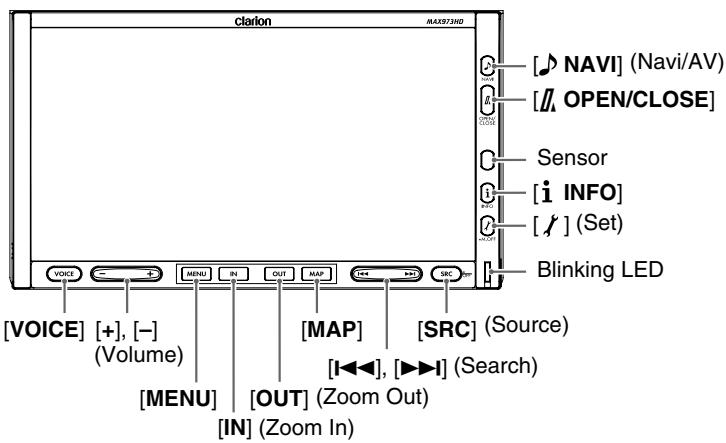
Function of the Controls
- Press this button to switch the screen between the Navigation mode screen and AV menu screen.
- Press this button to open/close the operation panel.
- Keep pressing this button more than 2 seconds to adjust the angle of the operation panel. The angle of the operation panel is adjustable in the range of 0^ to 30^ .
Sensor
- Receives the infrared signals sent from the optional remote control unit (operating range: 30^ in all directions).
- Press this button to display/hide the RDS TMC menu screen in any mode.
- When the Antenna function is set to "Auto Antenna" from the General menu in the Setting mode, keep pressing this button more than 2 seconds to extend/collapse the antenna. Be sure to collapse the antenna before entering in a place with low ceiling such as a multistory car park.
- Press this button to enter/exit the Setting mode to perform the system setting.
- Keep pressing this button more than 1 second to turn off the monitor (Monitor OFF).
Blinking LED
- When the Blinking LED function is set to "ON" from the General menu in the Setting mode, blinks when the power is turned off.
- Press this button to display/hide the Source menu screen.
- Keep pressing this button more than 1 second to turn off the AV feature (Audio Off).
- In the Tuner and TV Tuner modes, use these buttons to change to the previous/next preset station.
- In the DVD Video mode, use these buttons to select a chapter to be played.
Keep pressing a button during playback performs the fast-backward/fast-forward operation.
Keep pressing the [▶▶] button during pausing performs the slow playback.
- In the Audio CD, MP3/WMA, Music Catcher, and iPod modes, use these buttons to select a track to be played.
Keep pressing a button during playback performs the fast-backward/fast-forward operation.
- Press this button to display the Map screen of the current location in any mode.
- Keep pressing this button more than 1 second to display the Turn-by Turn/Compass screen in any mode.
- Press this button to decrease the map scale and to show a wider area of the map when the map is displayed. Keep pressing this button to enter the Free Zoom mode.
- Press this button to increase the map scale and to show a more detailed map when the map is displayed. Keep pressing this button to enter the Free Zoom mode.
- Press this button to display/hide the Destination menu screen in any mode.
- Use these buttons to increase/decrease the volume.
- Press this button to display the Voice Command menu screen and activate the voice command function.
This section explains the types of the typical menu screens on the touch panel and their operation.
Pressing the [SRC] (Source) button when the AV feature is turned on displays the Source menu screen. You can change the media sources or control the 2Zone function by touching the desired menu item. "Selecting Media Source" (P. 18), "2Zone Function" (P. 19).
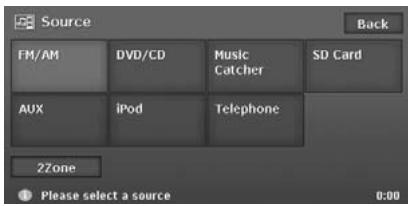
Selecting a media source from the Source menu screen displays the AV mode menu screen of the selected source mode. When the Navigation mode screen is displayed, pressing the NAV button displays the AV mode menu screen of the current source mode.
Each source mode has the own AV mode menu, and its menu items and their functions differ depending on the source mode. For detailed explanation on the AV mode menu of each source mode, see the corresponding section. As an example, the AV mode menu screen of the Tuner mode is shown below.
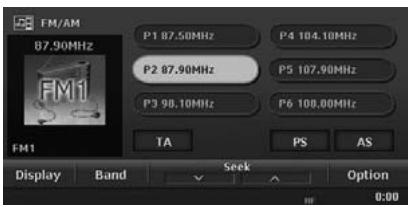
When the Map screen of the current location is displayed, touching the AV key displayed at bottom left of the screen displays the AV Shortcut menu of the current source mode on top of the Map screen.
Each source mode (except for the AUX mode) has the own AV Shortcut menu, and its menu items and their functions differ depending on the source mode. For detailed explanation on the AV mode menu of each source mode, see the corresponding section.
As an example, the AV Shortcut menu screen of the Tuner mode is shown below.
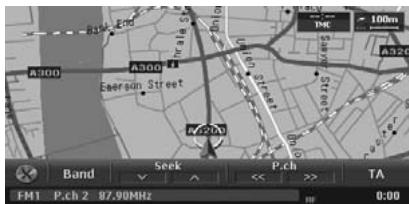
When an AV operation is performed in the Navigation mode, audio information concerning the selected station, chapter, track, etc. is displayed for a while at the bottom of the screen.
The recorded Albums recently selected from the Music Search are displayed on the Recent Album menu, and you can play them back by an easy operation.
To display the Recent Album menu, touch the [ ] key on the Music Search screen, the Destination menu or the Navi Shortcut menu, then touch the [ ] (Recent Album) key.
Note:
- Start the engine before using this unit.
- Be careful about using this unit for a long time without running the engine. If you drain the car's battery too far, you may not be able to start the engine and this can reduce the service life of the battery.
Turning the power on
- Start the engine. The illuminations on this unit light up and the power is automatically turned on.

Engine ON
position
Note:
- The power will be turned on even when the ignition switch is set to ACC ON position.
- When the following Caution screen is displayed
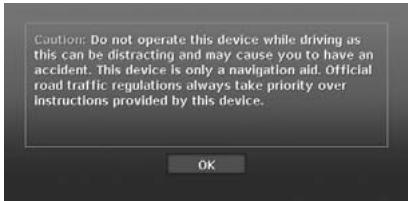
Touch the [OK] key. The system will resume the last status when the power was turned off.
- When the following User Profile screen is displayed
Touch your Profile key. The system will resume the last status when the power was turned off.
- This screen is displayed when the "Select on Opening" item is set to "ON" from the User menu in the Setting mode.
Turning the power off
- Turn the ignition switch to OFF position.
Note:
- Do not turn off the power while recording an audio CD or importing/exporting/deleting data. The data processed may be broken.
Open the operation panel when setting/ejecting a disc or SD card.
The angle of the operation panel can be adjusted depending on the mounting angle of the unit or light coming into the car.
CAUTION
- Do not move the operation panel forcibly or do not apply strong force to the operation panel.
- When the operation panel is operating, be careful not to get your hand or finger caught between the operation panel and main unit or its mechanical parts.
- The driver should not operate the operation panel while driving.
Opening/closing the operation panel
- Press the [J, OPEN/CLOSE] button. The operation panel will be opened or closed.
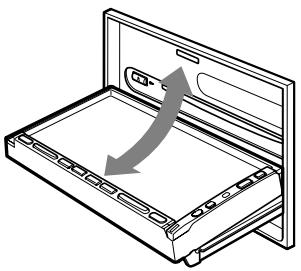
Note:
- The operation panel will close automatically when leaving it open for a while.
- When the operation panel is open, the touch panel cannot be operated.
Adjusting the angle of the operation panel
The angle of the operation panel can be adjusted in the range of 0^ to 30^ .
- Keep pressing the [J, OPEN/CLOSE] button more than 2 seconds.
Beeps will sound twice and the operation panel will start moving.
- When the operation panel is moved to your desired angle, release the button.
The operation panel will stop.
- Once you adjust the angle of the operation panel, the operation panel will return to the adjusted angle even after it is open/closed.
Returning the operation panel to the original angle
- Keep pressing the [J OPEN/CLOSE] button. It will move, and stop at 30^
- Keep pressing the [OPEN/CLOSE] button again.
It will move, and stop at 0^ .
To switch between the Navigation screen and Audio screen, press the [▶ NAVI] (Navi/AV) button.
Turning the Audio OFF
You can turn off all of the AV features.
- Keep pressing the [SRC] (Source) button more than 1 second. The AV features are turned off.
- Turning the AV features on
- Press the [SRC] (Source) button. The AV features are turned on, and the system resumes the last status of the AV features.
Turning the Monitor OFF
You can turn off the monitor screen, and change it to a black screen.
- Keep pressing the [f] (Set) button more than 1 second. The monitor screen is turned off.
- Turning the monitor on
-
Touch the monitor screen. The monitor screen is turned on, and resumes the last screen.
-
You can also turn on the monitor by pressing any button except for the [OPEN/CLOSE] and [+]/[-] (Volume) buttons.
Adjusting the Volume
- Press the [+]/[-] (Volume) buttons to adjust the volume.
[+]: Increases the volume.
[-]: Decreases the volume.
- The volume level indicated at the bottom of the screen is in a range from 0 (min.) to 33 (max.).
CAUTION
- When the system is turned on, starting and stopping the engine with its volume raised to the maximum level may harm your hearings. Be careful about adjusting the volume.
- While driving, keep the volume level at which external sounds can be heard.
Playable discs
This DVD player can play the following discs.
Playable discs
DVD video discs

Audio CDs

A CD Extra disc is a disc in which a total of two sessions have been recorded. The first session is Audio session and the second session is Data session.
Your personally-created CDs with more than second data sessions recorded cannot be played on this DVD player.
Note:
- When you play a CD Extra disc, only the first session will be recognised.
About playing a CD-R/RW disc
This player can play CD-R/RW discs previously recorded in Audio CD format or format with MP3/WMA files.
About playing a DVD-R/RW or DVD+R/RW disc
This player can play DVD-R/RW and DVD+R/RW discs previously recorded in DVD video format or format with MP3/WMA files.
Discs that cannot be played back
This player cannot play DVD Audio, DVD-RAM, Video CDs, Photo CDs, etc.
Note:
- It may not be possible to play back discs recorded on some CD/DVD drive units. (Cause: disc characteristics, cracks, dust/dirt, dust/dirt on player's lens, etc.)
- If a CD-R/RW, DVD-R/RW, or DVD+R/RW disc that has not been finalised is played, it will take a long time to start playing. Also, it may not be possible to play depending on its recording conditions.
- You cannot play Super Audio CDs. Playback of the CD player is not supported even if it is a hybrid disc.
About MP3/WMA playback
This unit can play back CD-R/RW, DVD-R/RW and DVD+R/RW discs on which MP3/WMA music data have been recorded. "MP3/WMA Operations" (P. 33).
Note on region numbers
The DVD video system assigns a region number to DVD video players and DVD discs by sales area.
The DVD video region number is marked on the disc jacket as shown below.


Notes on handling discs
Handling
- New discs may have some roughness around the edges. If such discs are used, the player may not work or the sound may skip. Use a ball-point pen or the like to remove any roughness from the edge of the disc.
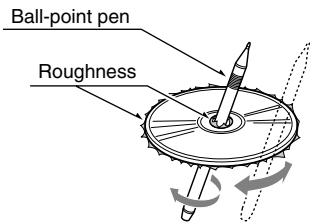
- Never stick labels on the surface of the disc or mark the surface with a pencil or pen.
- Never play a disc with any cellophane tape or other glue on it or with peeling off marks. If you try to play such a disc, you may not be able to get it back out of the DVD player or it may damage the DVD player.
- Do not use discs that have large scratches, are misshapen, cracked, etc. Use of such discs may cause malfunction or damage.
- To remove a disc from its storage case, press down on the centre of the case and lift the disc out, holding it carefully by the edges.
- Do not use commercially available disc protection sheets or discs equipped with stabilizers, etc. These may damage the disc or cause breakdown of the internal mechanism.
Storage
- Do not expose discs to direct sunlight or any heat source.
- Do not expose discs to excess humidity or dust.
- Do not expose discs to direct heat from heaters.
Cleaning
- To remove finger marks and dust, use a soft cloth and wipe in a straight line from the centre of the disc to the circumference.
- Do not use any solvents, such as commercially available cleaners, anti-static spray, or thinner to clean discs.
- After using special disc cleaner, let the disc dry off well before playing it.
On Discs
Exercise a good precaution when loading a disc. The operation panel will close automatically when leaving it open for a while.
- Never turn off the power and remove the unit from the car with a disc loaded.
CAUTION
For your safety, the driver should not insert or eject a disc opening the operation panel while driving.
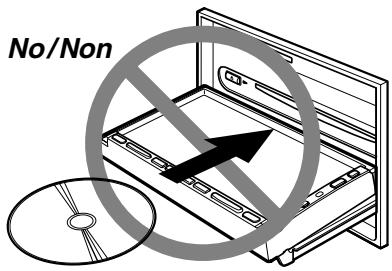
Setting a disc
- Press the [OPEN/CLOSE] button to open the operation panel.
- Insert a disc into the centre of the insertion slot with the label side facing up. The disc will automatically be drawn into the DVD player, and the operation panel will automatically be closed.
After setting a disc
The system will automatically be switched to the relevant source mode according to the disc, and start playing back the disc.
When a DVD video disc is set:
The system is switched to the DVD Video mode. See "DVD Video Operations" (P. 25).
When an Audio CD is set:
The system is switched to the CD mode. See "Audio CD Operations" (P. 37).
When a CD/DVD with MP3/WMA files is set:
The system is switched to the MP3/WMA mode. See "MP3/WMA Operations" (P. 33).
Note:
- Never insert foreign objects into the disc insertion slot.
- If the disc is not inserted easily, there may be another disc in the mechanism or the unit may require service.
- 8 cm (single play) discs cannot be used.
CAUTION
For your safety, the driver should not insert or eject a disc opening the operation panel while driving.
Ejecting the disc
- Press the [OPEN/CLOSE] button to open the operation panel.
- Press the [▲] (EJECT) button to eject the disc.
"EJECT" appears in the display, and the source mode then switches to the Tuner mode.
- If a disc is left in the ejected position for 15 seconds, the disc is automatically reloaded (Auto reload). In this case, however, the source mode will remain set to the Tuner mode.
Note:
- Do not eject the disc while recording the audio CD. Eject the disc after the recording is completed or after cancelling the recording.
- If you force a disc into the insertion slot before auto reloading, this can damage the disc.
In this system, SD cards are used for playing back MP3/WMA music data, importing/exporting data (Skin, Image, Album Information, Extra POI), and backing up/restoring the user data (Stored Locations, system settings, etc.).
Note:
- Use the SD memory cards formatted in FAT16 or VFAT format. The SDHC cards are cannot be used.
Setting an SD card
- Press the [OPEN/CLOSE] button to open the operation panel.
- Confirming the orientation of the SD card, insert the SD card surely into the SD card slot until it stops.
- Press the [OPEN/CLOSE] button to close the operation panel.
Note:
- Never insert foreign objects into the SD card slot.
- If the SD card is not inserted easily, there may be another card in the mechanism or the unit may require service.
CAUTION
For your safety, the driver should not insert or eject an SD card opening the operation panel while driving.
Ejecting the SD card
Note:
- Do not eject the SD card until the operation panel is completely opened. Data in the SD card may be broken.
- Press the [OPEN/CLOSE] button to open the operation panel.
When playing back music data in the SD card, the "Stop" message will appear in the display when the operation panel is completely opened.
- Push the head of the SD card slightly to eject the SD card.
The SD card will be stuck out, and "NO MEMORY CARD" will appear in the display.
- Remove the SD card, then press the [OPEN/CLOSE] button to close the operation panel.
You can change the media source to be played from the Source menu screen.
- Press the [SRC] (Source) button to display the Source menu screen.
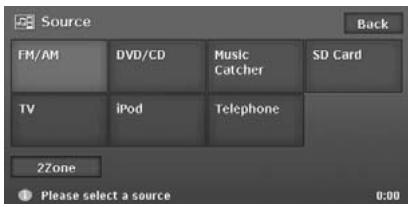
- Touch the desired Source key you wish to change to.
The system is switched to the corresponding source mode.
When you pressed the [SRC] (Source) button from the AV mode, the corresponding AV mode menu screen will be displayed.
When you pressed it from the Navigation mode, the previous screen will be displayed.
Available media sources
| Key name | Corresponding source mode | Refer to | Description |
| FM/AM | Tuner mode | → P. 20 | — |
| DVD/CD | DVD Video mode | → P. 25 | The source mode differs depending on the data format of the disc set in the DVD player.
When no disc is set in the DVD player, “NO DISC” will be displayed. |
| Audio CD mode | → P. 37 |
| MP3/WMA mode | → P. 33 |
| Music Catcher | Music Catcher mode | → P. 40 | — |
| SD Card | SD Card mode (MP3/WMA mode) | → P. 33 | When no SD card is set in the SD card slot, “NO MEMORY CARD” will be displayed. |
| TV*1 | TV Tuner mode | → P. 47 | Available only when the TV tuner unit is connected via CeNET. |
| AUX | AUX mode | → P. 50 | Available only when the TV tuner is not connected via CeNET. |
| iPod*1 | iPod mode | → P. 51 | Available only when the iPod is connected. |
| Telephone*1 | Telephone mode | → P. 56 | Available only when the Bluetooth Interface Box is connected via CeNET. |
*1: These Source keys are displayed only when the corresponding device is connected to this unit.
About the 2Zone Function
The 2Zone function is a function that assigns separate source output to the Front zone (this unit) and Rear zone (the optional rear monitor) by simultaneously playing two sources in this system. Therefore, the rear passengers are allowed to enjoy a different video source from the source played on the monitor of this unit.
- The source sounds of the Front zone are output from the speakers of the vehicle side, and those of the Rear zone are from the optional infrared headphone systems.
- Controlling a source assigned to the Rear zone can be made by using the optional remote control unit. To control it from this unit, once assign the same source to the Front zone, then control it.
Note:
- When a voice interrupt of the navigation system arises during the 2Zone function is turned on, the sound of the Front zone is muted, and the sound of the Rear zone is output normally.
When it arises during the 2Zone function is turned off, the audio signals to the 4ch speakers are attenuated, and the voice from the navigation system is output from the front two speakers.
- You cannot operate the 2Zone function during the voice interrupt of the navigation system.
- When the same source is assigned for Front and Rear zone, operations in a zone are also applied for another zone.
- The 2Zone function is disabled when the Telephone mode is selected.
- When a telephone interrupt arises while the 2Zone function is turned on, the 2Zone function is automatically turned off, and it does not resume the 2Zone ON status even when the interruption is finished (only when the TV tuner is connected).
For Front zone
All the sources except for the Telephone mode can be assigned for the Front zone.
For Rear zone
The following sources can be assigned:
DVD video mode
- TV Tuner mode
AUX mode
Setting the 2Zone function
The factory default setting is off.
- Press the [SRC] (Source) button to display the Source menu screen.
- Touch the [2Zone] key to turn the 2Zone function on.
The zone select keys are displayed at right of the [2Zone] key.
- Touch the desired Source key you wish to assign for the Rear zone, and perform operations for the source mode.
- Touch the [Rear] key to switch to the Rear zone, and touch the same Source key previously selected.
- Touch the [Front] key to switch to the Front zone, and touch the desired Source key you wish to assign for the Front zone.
- To turn the 2Zone function off, press the [SRC] (Source) button and touch the [2Zone] key.
3. Operations of Basic Features
Radio Operations
In addition to the ordinal tuner functions, this unit has a built-in RDS decoder system that supports broadcast stations transmitting RDS data.
Using this system, the following functions are available:
- TA (Traffic Announcement) function
- AF (Alternative Frequency) function
- REG (Regional Programme) function
- PTY (Programme Type) function
Note:
- When you store a station without broadcasting RDS data to the preset memory, store the station after receiving more than 10 seconds. If you store such a station within 10 seconds, it will be stored as an RDS station, and the RDS tracking function will work when tuning in.
Selecting the Tuner mode
- Press the [SRC] (Source) button to display the Source menu screen.
- Touch the [FM/AM] key to select the Tuner mode.
The Tuner mode screen is displayed.
Tuner mode screen
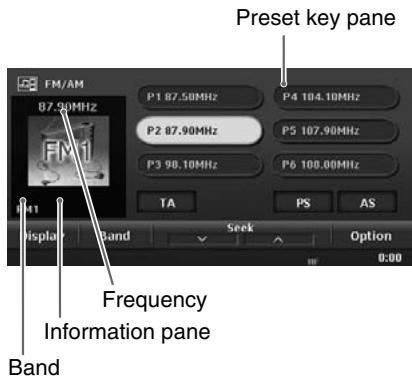
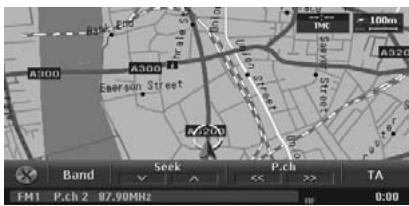
Radio operations
Listening to the radio
- Touch the [Band] key to select the radio band. Each time touching this key, the radio reception band changes in the following order:
$$
\begin{array}{l}\text {F M 1} \rightarrow \text {F M 2} \rightarrow \text {A S} \rightarrow \text {A M (M W / L W)} \rightarrow\\text {F M 1} \dots\end{array}
$$
-
Touch the desired Preset key on the Preset key pane to tune in the preset station.
-
The "AS" is a special FM band used by the Auto Store function.
- Press the [I▶] or [▶▶I] (Search) button to tune in the previous or next preset station.
- From the AV Shortcut menu, touch [P.ch] keys to tune in the previous or next preset station.
Seek tuning
There are 2 types of seek tuning: DX Seek and LO Seek.
The DX Seek can tune in to receivable broadcast stations, and the LO Seek can tune in to only broadcast stations with a good reception condition.
- Select the desired band by touching the [Band] key.
- Tune in to a station.
- If "TA" is displayed on the screen, TP stations are automatically sought.
DX Seek:
Touch the [v] or [A] key to automatically seek a station.
When the [] key is touched, the station is sought in the direction of higher frequencies; if the [] key is touched, the station is sought in the direction of lower frequencies.
- When the DX Seek tuning starts, "DX Seek" appears on the Information pane.
LO Seek:
If you keep touching the [v] or [A] key more than 1 second, the Local Seek tuning is carried out.
The broadcast stations with good reception sensitivity are automatically selected.
- When the Local Seek tuning starts, "LO Seek" appears on the screen.
Manual tuning
There are 2 ways available: Quick tuning and step tuning.
When you are in the step tuning mode, the frequency changes one step at a time. In quick tuning mode, you can quickly tune the desired frequency.
- Select the desired band by touching the [Band] key.
- Touch and hold the [Band] key for more than 1 second to switch to the manual tuning mode.
"Manual" appears on the screen, and the manual tuning is now available.
3. Tune into a station.
Quick tuning:
Touch and hold the [] or [] key for more than 1 second to tune in a station.
Step tuning:
Touch the [A] or [V] key to manually tune in a station.
Recalling a preset station
There are total of 24 preset positions (6 FM1, 6 FM2, 6 AS, 6 AM) to store individual radio stations in memory.
There are 3 ways available to recall the preset station.
From the Tuner mode screen
- Select the desired band by touching the [Band] key.
- Touch the desired Preset key on the Preset key pane to recall the preset station.
- Select the desired band by touching the [Band] key.
- Touch [P.ch] keys to tune in the previous or next preset station.
- You can also use the [I<\triangleright] and [▶▶I] (Search) buttons instead of the [P.ch] keys.
Manual memory
- Select the desired band by touching the [Band] key.
- Select the desired station with the seek tuning, manual tuning, or preset tuning.
- Touch and hold one of the Preset key for more than 2 seconds to store the current station into the preset memory.
Preset scan
The Preset Scan receives the stations stored in the preset memory in order. This function is useful when searching for the desired station in memory.
- Touch the [PS] key to start the Preset Scan. The unit starts scanning each station for 7 seconds sequentially.
- When the desired station is tuned in, touch the [PS] key again to continue receiving that station.
Auto store
The Auto Store is a function for storing up to 6 stations that are automatically tuned in sequentially. If 6 receivable stations cannot be received, a previously stored station remains unoverwritten at the memory position.
- Select the desired band by touching the [Band] key.
- Touch and hold the [AS] key for more than 2 seconds.
A beep sounds and the stations with good reception are stored automatically to the preset channels.
Even if you select FM1 or FM2, the received stations are stored into the memory for AS.
Displaying radio text
When the station receiving broadcasts text data, you can display the data on the screen.
1. Touch the [Display] key on the Tuner mode screen.
The received radio text is displayed on the screen.
TA (Traffic Announcement) function
In the TA standby mode, when a traffic announcement broadcast starts, the traffic announcement broadcast is received as top priority regardless of the function mode, so you can listen to it. The Traffic Programme (TP) automatic tuning is also available.
Setting TA standby mode
- Touch the [TA] key.
"TA" will be displayed at the bottom of the screen, and the system will automatically search for a TP station (TP SEEK). When an RDS broadcast station with traffic announcement programmes is received, "TP" will be displayed at the bottom of the screen. The [TA] key is also provided on the RDS TMC menu screen displayed by pressing the [i INFO] button.
Note:
- If no TP station is received, this system continues the search operation. Performing the above procedure again makes the "TA" go off, and stops TP station searching.
- When a Traffic Announcement broadcast starts
"TA" indication displayed at the bottom of the screen will blink If you touch the [TA] key while a Traffic Announcement broadcast is being received, the Traffic Announcement broadcast reception is cancelled, and the system goes into the TA standby mode.
Cancelling TA standby mode
- When "TA" is displayed on the screen, touch the [TA] key.
"TA" on the screen goes off, and the TA standby mode is cancelled.
The [TA] key is also provided on the RDS TMC menu screen displayed by pressing the [i INFO]button.
Auto store function for TP stations
You can automatically store up to 6 TP stations into the preset memory. If the number of TP that can be received is less than 6, the broadcast stations already stored in memory are left without being overwritten.
-
When "TA" is displayed on the screen, touch and hold the [AS] key for more than 2 seconds. The TP stations with a good reception condition are stored into the preset memory.
-
Even if you select FM1 or FM2, TP stations are stored into the memory for AS.
AF (Alternative Frequency) function
The AF function switches to a different frequency on the same network in order to maintain optimum reception.
Switching ON/OFF the AF function
- Touch the [Option] key.
-
Touch the [ON] or [OFF] key of the AF item to turn the function on or off.
-
When the AF function is ON, "AF" will be displayed at the bottom of the screen.
- If the reception of the current broadcast station deteriorates durably, "PI Searching" is displayed on the screen, and this unit searches for the same programme on another frequency.
REG (Regional Programme) function
When the REG function is ON, the optimum regional station can be received. When this function is OFF, if the regional station area is switched as you drive, a regional station for that region is received.
Note:
- This function is disabled when a national station such as BBC R2 is being received.
- The REG function ON/OFF setting is enabled only when the AF function is ON.
Switching ON/OFF the REG function
- Touch the [Option] key.
- Touch the [ON] or [OFF] key of the REG item to turn the function on or off.
Manually tuning a regional station in the same network
Note:
This function can be used when a regional broadcast of the same network is received.
- This function is enabled only when the AF function is ON and the REG function is OFF.
- Touch your desired Preset key to call out a regional station.
- Each time you touch the same Preset key, this unit switches from a local station to the other on the same network.
PTY (Programme Type) function
This function enables you to listen to a broadcast of the specified programme type when the broadcast starts, even if the system operates in a mode other than the Tuner mode.
- Some countries do not yet have PTY broadcast.
- In the TA standby mode, a TP station has priority over a PTY broadcast station.
Selecting PTY
- Touch the [Option] key.
- Touch the [Preset] key of the PTY Select item.
The system enters into the PTY select mode.
- Touch your desired PTY item key to select the programme type.
- The following table shows the factory default settings stored for the Preset keys:
| Preset number | PTY item |
| ENGLISH | Contents |
| 1 | News | News |
| 2 | Info | Information |
| 3 | Pop M | Pop music |
| 4 | Sport | Sport |
| 5 | Classics | Classics |
| 6 | Easy M | Easy listening music |
- Touch the [Back] key to return to the previous screen.
Cancelling PTY standby mode
- Touch the [Option] key.
- Touch the [OFF] key of the PTY item. "PTY" goes off, and the PTY standby mode is cancelled.
Cancelling PTY interrupt broadcast
- Touch the [TA] key during receiving the PTY interrupt broadcast. The PTY interrupt is cancelled, and the system returns to PTY standby mode. The [TA] key is also provided on the RDS TMC menu screen displayed by pressing the [i INFO] button.
PTY seek
- Touch the [Option] key.
- Touch the [Preset] or [Item] key of the PTY Select item.
- Touch your desired Programme Type key.
- Touch a Seek key.
If you touch the [] key or button, this unit seeks a PTY broadcast moving up the frequencies.
If you touch the [√] key or [<<] button, it seeks moving down the frequencies.
- If no station with the selected PTY broadcast can be received, the unit returns to the previous mode.
PTY preset memory
- Touch the [Option] key.
- Touch the [Item] key of PTY Select item. The PTY select mode is turned on.
- Touch your desired Programme Type key to select.
- Touch the [Preset] key to display the Preset screen.
Keep touching your desired Preset key on the Preset screen more than 2 seconds to store the selected programme type into the preset channel memory.
- The 29 types of PTY listed below can be selected.
| PTY item |
| ENGLISH | Contents |
| News | News |
| Affairs | Current Affairs |
| Info | Information |
| Sport | Sport |
| Educate | Education |
| Drama | Drama |
| Culture | Culture |
| Science | Science |
| Varied | Varied |
| Pop M | Pop Music |
| Rock M | Rock Music |
| Easy M | Easy Listening Music |
| Light M | Light Classical Music |
| Classics | Serious Classical Music |
| Other M | Other Music |
| Weather | Weather |
| PTY item |
| Finance | Finance |
| Children | Children's Programmes |
| Social | Social Affairs |
| Religion | Religion |
| Phone In | Phone In |
| Travel | Travel |
| Leisure | Leisure |
| Jazz | Jazz Music |
| Country | Country Music |
| Nation M | National Music |
| Oldies | Oldies Music |
| Folk M | Folk Music |
| Document | Documentary |
Emergency broadcast
If an emergency broadcast is received, all the function mode operations are stopped. "Alarm" appears on the screen and the emergency broadcast can be heard.
Cancelling an emergency broadcast
- Touch the [TA] key. The emergency broadcast reception is cancelled.
Volume setting of TA, emergency broadcast (Alarm) and PTY
The volume for TA, Alarm and PTY interrupts can be set during TA, Alarm or PTY interrupt.
-
The factory default setting is "15".
-
Use the [+] and [-] (Volume) buttons to set the volume to the desired level (00 to 33) during a TA, Alarm or PTY interrupt.
-
When the TA, Alarm, or PTY interrupt ends, the volume returns to the level before the interrupt.
About the DVD video features
This unit provides the following functions in addition to the high image quality and sound quality of DVD video.
Note:
- The functions described in this section differ depending on the DVD video disc. Refer to the instructions provided with the DVD video.
- Some disc functions may operate differently from those described in this manual.
Multi-sound function
DVD video can store up to 8 languages for one film; select the language of your preference.
- The languages stored on the disc are indicated by the icon shown below.

Multi-angle function Multi-sound function
A DVD video that is recorded from multiple angles allows you to select the angle of choice.
- The number of recorded angles is indicated by the icon shown below.

A DVD video can record subtitles for up to 32 languages and you can select the language of the subtitles you wish to see.
- The number of recorded subtitle languages is indicated by the icon shown below.
Multi-story function
When a DVD video contains more than one story for a film, you can select the story you wish to enjoy. The operation procedures vary with the disc; observe the instructions for selecting a story provided during playback.
Dolby
Manufactured under licence from Dolby Laboratories. "Dolby" and the double-D symbol are trademarks of Dolby Laboratories.
Menu can be called up during DVD video playback to perform menu selection.
Selecting the DVD Video mode
- Set a DVD video disc to the DVD player. The system will automatically read the disc data, change to the DVD Video mode, and start playback after a while.
"Setting/Ejecting a Disc" (P. 15)
WARNING
- Some videos may be recorded at a higher volume level than desired. Increase the volume gradually from the minimal setting after the video has started.
- For your safety, the driver should not watch the video or operate the controls while driving. Please note that watching and operating the video while driving are prohibited by law in some countries.
Note:
- For your safety, this system has a safety function which turns off the picture when the car is moving, so only the audio can be heard. The picture can only be watched when the car is stopped and the parking brake is applied.
- When a DVD video disc is already set
- Press the [SRC] (Source) button to display the Source menu screen.
- Touch the [DVD/CD] key to select the DVD Video mode. The system changes to the DVD Video mode, and starts playback from the previous position.
DVD Video mode screen
Touching the screen during the playback displays the following DVD Video mode screen.
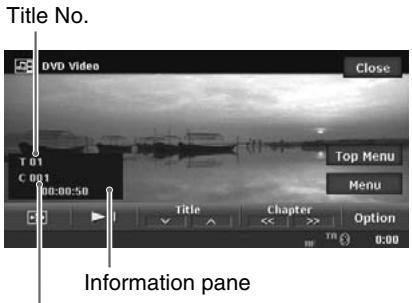
Chapter No.
- If you do not operate the menu for 5 seconds, the DVD Video mode screen will automatically be hidden, and it returns to the playback screen.
- To close the DVD Video mode screen within 5 seconds, touch the [Close] key.
Changing the DVD System Settings
Note:
- If the Setup operation is performed in the middle of DVD video play, the disc will restart from the beginning.
- Touch the screen to display the DVD Video mode screen.
- Touch the [Option] key to display the Option menu.
- Touch the [Setup] key to display the DVD Setup menu.
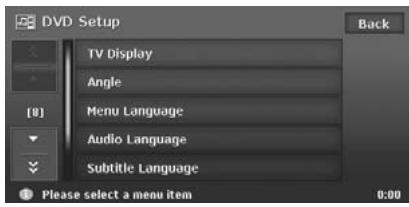
Touch the [×] key to display the next menu. Touch the [×] key to return to the previous menu.
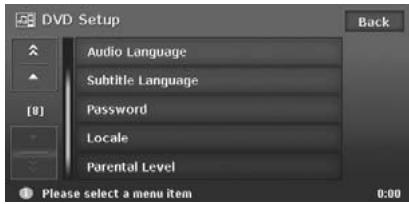
- Perform setting for the desired setting items. See the following sections for detail.
- In the following sections, only the details of settings are described, the procedures to select items are skipped.
- Touch the [Back] key.
Setting up the screen size
Set the screen size according to the optional rear monitor which is connected to this unit.
- Touch the [TV Display] key.
-
Touch the [Wide], [N PS], or [N LB] key to change the screen size to "Wide", "N PS", or "N LB".
-
The factory default setting is "Wide".
-
Touch the [Back] key.
- When watching through a wide type of the rear view monitor (16:9)
Wide:
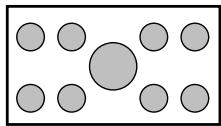
- When watching through a conventional type of the rear view monitor (4:3)
NPS:
The leftmost and rightmost areas of the screen are cut off.
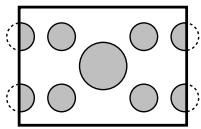
This function allows displaying the important part of image fully on the screen. In some cases, image is displayed while being panned (scrollled).
N LB:
A black zone is created in the top and bottom areas of the screen.
This method displays Cinema Scope and Vista Vision images without cutting them off by creating a black zone on the top and bottom gaps.
Setting up the angle mark display
You can set up so that the angle mark appears on scenes where the angles can be switched.
- Touch the [Angle] key.
- Touch the [ON] or [OFF] key to turn the Angle function "ON" or "OFF".
The factory default setting is "OFF".
- Touch the [Back] key.
- Touch the [Menu Language] key.
- Touch the desired Language key you wish to set.
-
The factory default setting is "English".
-
Touch the [Back] key.
Setting up the audio language
- Touch the [Audio Language] key.
-
Touch the desired Language key you wish to set.
-
The factory default setting is "English".
-
Touch the [Back] key.
Setting up the subtitle language
-
Touch the [Subtitle Language] key.
-
Touch the desired Language key you wish to set.
-
To turn off the subtitle, select the [OFF] key.
The factory default setting is "English".
-
Touch the [Back] key.
Setting up the password for setting up of the parental level
-
Touch the [Password] key.
-
Touch the ten-key (0 to 9) to input a 4-digit password.
-
Input the old password, and touch the [OK] key.
- The factory default setting is "0000".
- Input a new password, and touch the [OK] key.
- Input the same new password again, and touch the [OK] key.
Note:
- When a disc with view restrictions is inserted, you will be prompted to input a password. The disc will not be viewable until the correct password is entered.
Setting up the country code
Set up the country number for setting up of the parental level.
- Touch the [Locale] key.
- Touch the ten-key (0 to 9) to input a 4-digit country code (see the following table).
- The factory default setting is "7166" (U.K.).
- Touch the [OK] key.
Country code list
| Country | Input code |
| ALBANIA | 6576 |
| ANDORRA | 6568 |
| AUSTRIA | 6584 |
| BAHRAIN | 6672 |
| BELGIUM | 6669 |
| BOSNIA AND HERZEGOVINA | 6665 |
| BULGARIA | 6671 |
| CROATIA (local name: Hrvatska) | 7282 |
| CYPRUS | 6789 |
| CZECH REPUBLIC | 6790 |
| DENMARK | 6875 |
| EGYPT | 6971 |
| FINLAND | 7073 |
| FRANCE | 7082 |
| (FRANCE, METROPOLITAN) | 7088 |
| GERMANY | 6869 |
| GREECE | 7182 |
| HUNGARY | 7285 |
| ICELAND | 7383 |
| IRAN (ISLAMIC REPUBLIC OF) | 7382 |
| IRAQ | 7381 |
| IRELAND | 7369 |
| ISRAEL | 7376 |
| ITALY | 7384 |
| JAPAN | 7480 |
| JORDAN | 7479 |
| KUWAIT | 7587 |
| LEBANON | 7666 |
| LESOTHO | 7683 |
| Country | Input code |
| LIECHTENSTEIN | 7673 |
| LUXEMBOURG | 7685 |
| MACEDONIA, THE FORMER YUGOSLAV REPUBLIC OF | 7775 |
| MALTA | 7784 |
| MONACO | 7767 |
| NETHERLANDS | 7876 |
| (NETHERLANDS ANTILLES) | 6578 |
| NORWAY | 7879 |
| OMAN | 7977 |
| POLAND | 8076 |
| PORTUGAL | 8084 |
| QATAR | 8165 |
| ROMANIA | 8279 |
| SAN MARINO | 8377 |
| SAUDI ARABIA | 8365 |
| SLOVAKIA (Slovak Republic) | 8375 |
| SLOVENIA | 8373 |
| SOUTH AFRICA | 9065 |
| SPAIN | 6983 |
| SWAZILAND | 8390 |
| SWEDEN | 8369 |
| SWITZERLAND | 6772 |
| SYRIAN ARAB REPUBLIC | 8389 |
| TURKEY | 8482 |
| UNITED ARAB EMIRATES | 6569 |
| UNITED KINGDOM | 7166 |
| Vatican City State | 8665 |
| YEMEN | 8969 |
| YUGOSLAVIA | 8985 |
| FAROE ISLANDS | 7079 |
| GIBRALTAR | 7173 |
| GREENLAND | 7176 |
| SVALBARD AND JAN MAYEN ISLANDS | 8374 |
Setting up the parental level
You can change the level of parental lock (audiovisual restriction).
This function allows cutting scenes that are unfavourable for children or replacing them automatically with other scenes prepared in advance. For example, by replacing scenes of radical violence or portrayals of sex with safe scenes, you can make a trouble-free story as if it were so from the beginning.
- Touch the [Parental Level] key. The Password input screen is displayed.
-
Touch the ten-key (0 to 9) to input a 4-digit password, and touch the [OK] key.
-
The factory default setting of the password is "0000".
-
Touch the desired Level key to select level 1 to 8, or "No Parental".
-
The factory default setting is "No Parental".
-
Touch the [Back] key.
The relationship between DVD video category codes and parental level are shown in the table below. Use this table when setting the parental level.
| LEVEL7 | NC-17 (NO ONE 17 AND UNDER ADMITTED) |
| LEVEL6 | R (RESTRICTED) |
| LEVEL4 | PG-13 (PARENTS STRONGLY CAUTIONED) |
| LEVEL3 | PG (PARENTAL GUIDANCE SUGGESTED) |
| LEVEL1 | G (GENERAL AUDIENCES) |
- The contents that the parental level restricts vary with the country code.
DVD Video Operations
Watching a DVD Video
After disc loading, the play mode is automatically engaged.
- When playback is not started, touch the [▶ III] key.
- Operations may differ depending on the story of the disc.
For general DVD-Video discs, the DVD menu screen may appear.
After the DVD menu screen is displayed, select an item in the operations described as follows.
Selecting the screen size
You can change the screen size to suit to the playback film.
- This operation cannot be performed from the AV Shortcut menu screen.
- Showing the DVD Video mode screen, touch the [ ] key.
- Touch the [Wide], [Cinema], or [Normal] key to set the desired screen size.
- The factory default setting is "Wide". Wide:
The image is expanded so that the rectangle of the image fits to the screen. The aspect ratio of the image may be changed.
Cinema:
The image is expanded so that the left and right edges of the image fit to the screen. The top and bottom areas of the image may be cut off.
Normal:
The image is expanded so that the top and bottom edges of the image fit to the screen.
These operations cannot be performed from the AV Shortcut menu screen.
- Showing the DVD Video mode screen, touch the [Top Menu] or [Menu] key during playback.
The DVD menu appears.
- The displayed contents for each key differ depending on the DVD software.
- An example shown below is the DVD menu display:
- Touch the desired menu item displayed on the screen.
The function assigned to the menu item will be activated.
When the menu items are hard to select correctly, you can also operate them by displaying the Key Pad panel.
- When the Key Pad is displayed, Direct Touch operation of the button items is disabled.
- Press the [OUT] (Zoom Out) or [IN] (Zoom In) button.
The Cursor-Key Pad panel is displayed on the screen.
- Touching the [Num] key changes the panel to the Numeric-Key Pad.
- Select the desired menu item using either the Cursor-Key or the Num-Key according to the menu contents.
- Touch the [ENT] key to specify the selected menu item.
- Touch the [Back] key to hide the Key Pad panel.
Stopping playback
- Showing the DVD video mode screen, touch and hold the [▶■] key for more than 1 second during playback.
Playback is stopped.
- To resume playback, touch the [▶ III] key.
Playback resumes from the scene where playback is stopped.
Pausing playback
- Showing the DVD video mode screen, touch the [▶■] key during playback.
Playback pauses.
- To resume playback, touch the [▶■] key again.
Playback resumes.
Slow playback
- Touch the [▶ II] key during playback to pause playback, then touch and hold the [Chapter] key.
While touching the key, slow playback continues at 1/3 speed.
Releasing the key resumes the normal playback.
- The [ ] (Search) button can also be used instead of the [Chapter] key.
- Slow playback cannot be performed in the backward direction. In addition, audio cannot be reproduced during slow playback.
Fast forward and fast backward
- Touch and hold a [Chapter] key during playback.
[>>] key: Fast forward
[<<] key: Fast backward
The playback speed becomes 5-times faster at first and then 10-times faster 3 seconds later.
Releasing the key resumes the normal speed playback.
- The [I▶] and [▶▶I] (Search) buttons can also be used instead of the [Chapter] keys.
- No audio is reproduced during fast forward and fast backward operation.
- The fast forward and fast backward speed may differ depending on the disc.
Skipping chapters (searching)
"Chapter" means a small segment to divide the "Title" (film) which is recorded on the disc.
- Touch a [Chapter] key during playback.
Chapters are skipped as many as the times touching the key, and playback starts.
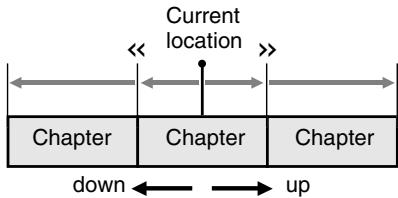
- Touching the [] key starts playback from the beginning of the next chapter.
- Touching the [] key starts playback from the beginning of the current chapter. When touching this key again within about 3 seconds, playback starts from the beginning of the previous chapter.
- The [I▶] and [▶▶] (Search) buttons can also be used instead of the [Chapter] keys.
Skipping titles (searching)
- Showing the DVD video mode screen, touch the [Title] key during playback.
Titles are skipped as many as the times touching the key, and playback starts.
- Touching the [A] key starts playback from the beginning of the next title.
- Touching the [√] key starts playback from the beginning of the previous title.
Searching with a chapter/title number
You can locate the beginning of a scene using the chapter numbers or title numbers recorded on the DVD Video disc.
-
This operation cannot be performed from the AV Shortcut menu screen.
-
Showing the DVD video mode screen, touch the [Option] key.
- Touch the [Search] key.
The Key Pad screen appears with the chapter number input mode. Touching the [Title] key turns the Key Pad to the title number input mode.
Title:
A large segment to divide the data area of the disc.
Chapter:
A small segment to divide the data area of the Title.
- Input the number of the title/chapter that you want to play back with the [0] to [9] key.
- Touch the [OK] key.
Playback starts from the scene of the input title number or chapter number.
- If the input title/chapter number does not exist or searching with a title/chapter number is not allowed, the screen image will not change.
Scan playback
Scans and plays back all chapters recorded on the disc, the first 10 seconds for each.
- This operation cannot be performed from the AV Shortcut menu screen.
- Showing the DVD video mode screen, touch the [Option] key.
- Touch the [Chapter] key of the Scan item, then touch the [Back] key.
The "C.SCN" will be displayed.
After scan playback of all chapters on the disc, chapter scanning through the same disc is performed again.
Depending on the disc, the menu may appear again after scan playback of all chapters within the title.
- To return to the normal playback at the currently played chapter, touch the screen to show the DVD video mode screen, and touch the [<<] key.
Repeat playback
This operation plays back the current chapter repeatedly.
- This operation cannot be performed from the AV Shortcut menu screen.
- Showing the DVD video mode screen, touch the [Option] key.
- Touch the [Chapter] key of the Repeat item, then touch the [Back] key.
The "C.RPT" will be displayed.
- Perform the same operation to turn off the repeat playback.
Switching among languages
On discs in which two or more audios or audio languages have been recorded, you can switch among the audio languages during playback.
- This operation cannot be performed from the AV Shortcut menu screen.
- Showing the DVD video mode screen, touch the [Option] key.
- Touch the [Audio] key during playback.
Each time you touch the key, you can switch among audio languages.
Depending on the disc, up to 8 audios may be recorded. For details, see the mark of the disc (2): Indicates that 2 audios have been recorded).
- When the power is turned on and the disc is changed to a new one, the language set as the factory default is selected. If that language has not been recorded, the language is specified on the disc.
Depending on the disc, switching may be completely impossible or impossible on some scenes.
- It may take time to switch among audios.
- Touch the [Back] key to return to the previous screen.
Switching subtitles
On DVD discs in which two or more subtitle languages have been recorded, you can switch among the subtitle languages during playback.
-
This operation cannot be performed from the AV Shortcut menu screen.
-
Showing the DVD video mode screen, touch the [Option] key.
- Touch the [Subtitle] key during playback. Each time you touch the key, you can switch among subtitles.
Depending on the disc, up to 32 kinds of subtitles may be recorded. For details, see the mark of the disc ( [2]: Indicates that 2 kinds of subtitles have been recorded).
Depending on the disc, switching may be completely impossible or impossible on some scenes.
- It may take time to switch among subtitles.
- Touch the [Back] key to return to the previous screen.
To turn off subtitles
- Repeat touching the [Subtitle] key until "0/X OFF" is displayed on the screen. Subtitles are turned off.
Switching angles
On DVD discs in which video images have been recorded in two or more angles, you can switch among the angles during playback.
This operation can be performed when the "Setting up the angle mark display" function (see page 27) is set to "ON".
-
This operation cannot be performed from the AV Shortcut menu screen.
-
Touch the [ ] (Angle) key during playback. Each time you touch the key, you can switch among angles.
Depending on the disc, up to 9 angles may be recorded. For details, see the mark of the disc (21: Indicates multi-angle).
Depending on the disc, angles may switch smoothly or switch with a momentary still image.
- When the power is turned on and the disc is changed to a new one, the language set at the time of factory shipment is selected. If that language has not been recorded, the language is specified on the disc.
Depending on the disc, switching may be completely impossible or impossible on some scenes.
- It may take time to switch among angles.
Depending on the disc, scenes recorded in two or more angles may be played back.
This system can play MP3/WMA data recorded on a disc or saved in an SD card.
About the MP3/WMA files
What is MP3/WMA?
MP3 and WMA are the audio compression methods which have penetrated into PC users and become a standard format.
MP3 is an audio compression method and classified into audio layer 3 of MPEG standards.
WMA is an audio compression method developed by Microsoft Corporation.
These features compress the original audio data to about 10 percent of its initial size with a high sound quality. This means that about 10 music CDs can be recorded on a CD-R/RW disc to allow a long listening time without having to change CDs.
Displaying MP3/WMA Tag titles
Tag information such as title, artist and album title can be displayed for an MP3/WMA file containing the Tag information.
Note:
- This system does not completely support the ID3 version 2.x tag format. These tags may not be displayed.
Precautions on the MP3/MWA data
- Files other than MP3/WMA data cannot be played. In addition, some files may not be played because of the encoding format. When a file cannot be played, the next file is played instead.
- Some noise may occur depending on the type of encoder software used to encode the data.
- You can apply the VBR (variable bit rate) format when encoding, but setting the value of VBR to within ranges from 32 kbps to 320 kbps is recommended. In case of data recorded in VBR, the displayed play time may be slightly different from the actual play time.
- Tag information entered with 2-byte characters may not be displayed properly on the display.
- Files that the DRM (Digital Rights Management) function is set cannot be played.
- Add a file extension“.MP3” or“.mp3” to an MP3 file, and“.WMA” or“.wma” to a WMA file using single byte characters. If you add other file extension or forget to add the file extension, the file cannot be played.
Precautions when preparing a disc/ SD card
Specify the following formats as the file system. Otherwise, normal playback may not be possible.
For a disc:
Specify "ISO9660 level 1" or "level 2" (without including expansion format) as the writing format when writing MP3/WMA files on a disc.
For an SD card:
Use the SD cards formatted in FAT16 or V-FAT format to store MP3/WMA files.
- Folder structure
- The folder hierarchy must be within 8 hierarchical levels. Otherwise, playback will be impossible.
- You can store the MP3 files and WMA files together in a folder.
Number of files or folders
For a disc:
- The maximum allowable number of folders is 255 (including root directory).
- The maximum allowable number of files in a disc is 512.
- The maximum allowable number of files in a folder is 255.
For an SD card:
- The maximum allowable number of folders is 99 (including root directory).
- The maximum allowable number of files in a card is 255.
- The maximum allowable number of files in a folder is 99.
- Folder representation in the Folder list
- Only folders containing MP3/WMA files (① to ④ in illustration) are displayed on the list. Folders containing no MP3/WMA file are not displayed.
- Folder hierarchy is ignored, and unified into 1 level.
- Folders are arranged in the order of the folder creation.
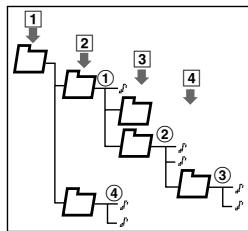
Selecting the MP3/WMA mode
The MP3/WMA mode is actually separated in CD mode or SD Card mode, and the selecting methods differ depending on the media source.
Selecting the CD mode
- Set a disc which the MP3/WMA data is recorded to the DVD player.
The system will automatically read the disc data, change to the CD mode (MP3/WMA mode), and start playback after a while.
"Setting/Ejecting a Disc" (P. 15)

WARNING
- Some tracks may be recorded at a higher volume level than desired. Increase the volume gradually from the minimal setting after the playback has started.
- When a disc is already set
- Press the [SRC] (Source) button to display the Source menu screen.
- Touch the [DVD/CD] key to select the CD mode.
The system changes to the CD mode (MP3/WMA mode), and starts playback from the previous position.
Selecting the SD Card mode
- Set an SD card which the MP3/WMA data is stored to the SD card slot.
"Setting/Ejecting an SD Card" (P. 17)
- Press the [SRC] (Source) button to display the Source menu screen.
- Touch the [SD Card] key to select the SD Card mode.
The system changes to the SD Card mode (MP3/WMA mode), and starts playback after a while.

WARNING
- Some tracks may be recorded at a higher volume level than desired. Increase the volume gradually from the minimal setting after the playback has started.
Note:
- When the operation panel is opened while playing back music data in the SD card, the playback will be stopped and the "Stop" message will appear in the display.
MP3/WMA mode screen
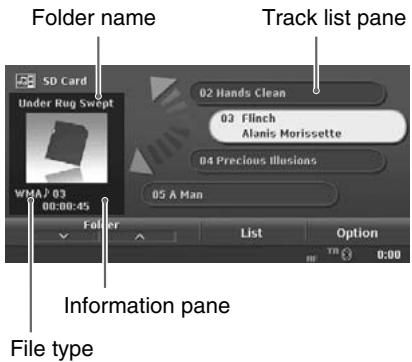
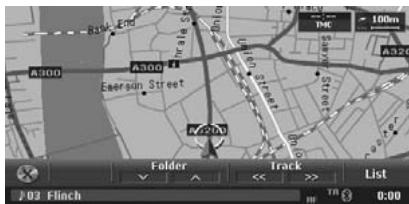
MP3/WMA operations
Selecting a track to play
- This operation cannot be performed from the AV Shortcut menu screen.
- Display the desired Track key on the Track list pane by touching the [ ] or [ ] key, touch the Track key to play back the track.
Playback of the specified track starts.
Skipping a track (searching)
- Press the [I▲▲] or [▶▶] (Search) button during playback.
Tracks are skipped, as many as the times pressing the button, and playback starts.
- Pressing the [ ] button starts playback from the beginning of the next track.
- Pressing the [▶] button starts playback from the beginning of the current track. When pressing this button again within about 2 seconds, playback starts from the beginning of the previous track.
To perform this operation from the AV Shortcut menu screen, use the [Track] keys instead of the [I▲] and [■▶] (Search) buttons.
These functions perform in the current folder only.
Fast forward and fast backward
- Keep pressing the [I▶] or [▶▶I] (Search) button during playback.
The playback speed becomes 10-times faster.
Releasing the button resumes the normal speed playback.
- To perform this operation from the AV Shortcut menu screen, use the [Track] keys instead of the [I▲] and [▶] (Search) buttons.
Skipping the current folder
- Touch a [Folder] key during playback.
The tracks of the current folder are skipped and playback starts from the first track of the next or previous folder.
Selecting a folder/track from the List screen
- Touch the [List] key.
The Folder list screen is displayed.
- When the desired folder is not displayed, touch the [A] or [V] key to scroll the list.
- Touch the desired Folder key.
The Track list screen appears.
- Touch the [] or [] key to scroll the list, and touch the desired Track key.
The corresponding track is started playback.
- Touch the [Back] key.
- Touch the [List] key to display the Folder list screen.
- Touch the desired Folder key.
The Track list screen appears.
- Touch the desired track key you wish to display the Tag information, then touch the [] key displayed at the right of the Track key.
The Tag information of specified track is displayed.
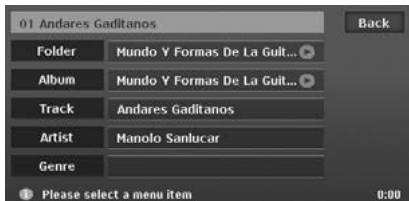
- Touch the [Back] key.
When a title or other information displayed on the screen is longer than the text area, you can confirm the entire text by scrolling it.
- Displaying the text you wish to scroll, touch the [▶] key displayed at the right of the text area.
The text will scroll once.
Other various play functions
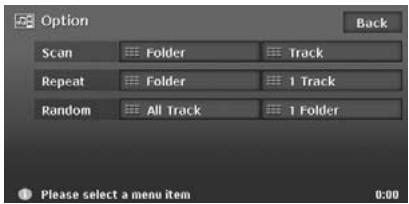
- Touch a touch key of the function you want to play.
Folder scan playback:
Touch the [Folder] key of the Scan item.
- This operation scans and plays back the first tracks of all folders in the disc/card, the first 10 seconds for each.
- "F.SCN" is displayed on the information pane.
Track scan playback:
Touch the [Track] key of the Scan item.
- This operation scans and plays back all tracks recorded in the disc/card, the first 10 seconds for each.
- "T.SCN" is displayed on the information pane.
Folder repeat playback:
Touch the [Folder] key of the Repeat item.
- This operation plays back tracks in the current folder repeatedly.
- "F.RPT" is displayed on the information pane.
1 track repeat playback
Touch the [1 Track] key of the Repeat item.
- This operation plays back the current track repeatedly.
- "T.RPT" is displayed on the information pane.
All track random playback:
Touch the [All Track] key of the Random item.
- This operation plays back tracks recorded in the disc/card in no particular order.
- "T.RDM" is displayed on the information pane.
1 folder random playback:
Touch the [1 Folder] key of the Random item.
- This operation plays the tracks in the current folder in a random order.
-
"F.RDM" is displayed on the information pane.
-
To cancel the play, touch the same touch key to cancel the function.
- Touch the [Back] key to return to the previous screen.
This system can display the track information (Album title, Track title, Artist name, and Genre) of the currently played disc by using the Album Information data stored in this system.
In addition, this system can record the audio data of the disc by compressing into ATRAC3 format, and store them as the Music Catcher data. "Recording tracks from a CD" (P. 39), "Music Catcher Operations" (P. 40)
When the track information can be obtained from the Album Information data, this data is used as the track information. If not, the album title is named using the recording date and a consecutive number (such as "2008.6.10-001"), and the track title is named such as "Track 01". You can edit this information in the Music Catcher mode. "Editing album/track information" (P.42)
Note:
- This system can play back/record the CDDA discs, and cannot play back/record the DTS CD discs. Some discs with CCCD or the other format may be able to play back.
- The Gracenote Media Database can be imported into the hard disk drive by using the SD card. "Importing Data Using the SD Card" (P. 70)
Selecting the Audio CD mode
- Set an audio CD to the DVD player.
The system will automatically read the disc data, change to the Audio CD mode, and start playback after a while. "Setting/Ejecting a Disc" (P. 15)
And also, recording data into the Music Catcher will be automatically started when the CD is not recorded in the Music Catcher.
- You can change the setting so that the recording is not performed automatically but performed manually. "Switching the CD Recording mode" (P. 66)

WARNING
- Some CDs may be recorded at a higher volume level than desired. Increase the volume gradually from the minimal setting after the playback has started.
Note:
While recording the CD, no operation for the disc can be made unless cancelling the recording. If you cancel recording, you can restart the recording by the manual operation. "Recording tracks from a CD" (P. 39)
- When an audio CD is already set
- Press the [SRC] (Source) button to display the Source menu screen.
- Touch the [DVD/CD] key to select the Audio CD mode.
The system changes to the Audio CD mode, and starts playback from the previous position.
Audio CD mode screen
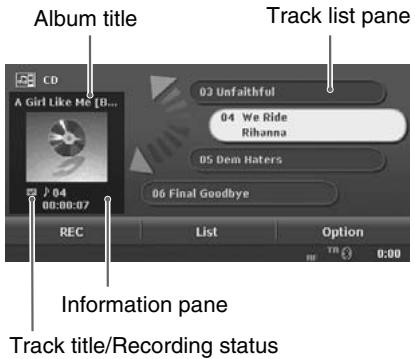
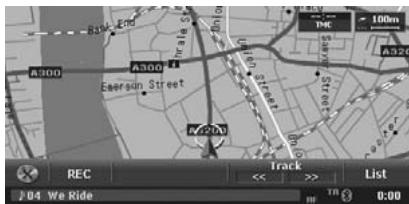
Audio CD operations
Selecting a track to play
- This operation cannot be performed from the AV Shortcut menu screen.
- Display the desired Track key on the Track list pane by touching the [▲] or [▼] key, then touch the Track key to play back the track. Playback of the specified track starts.
Skipping a track (searching)
- Press the [I▲
] or [▶▶] (Search) button during playback.
Tracks are skipped, as many as the times pressing the button, and playback starts.
- Pressing the [ ] button starts playback from the beginning of the next track.
- Pressing the [I] button starts playback from the beginning of the current track. When pressing this button again within about 2 seconds, playback starts from the beginning of the previous track.
- To perform this operation from the AV Shortcut menu screen, use the [Track] keys instead of the [I<▲] and [▶▶I] (Search) buttons.
Fast forward and fast backward
- Keep pressing the [I▶] or [▶▶I] (Search) button during playback.
The playback speed becomes 5-times faster at first and then 20-times faster 3 seconds later. Releasing the button resumes the normal speed playback.
- To perform this operation from the AV Shortcut menu screen, use the [Track] keys instead of the [I▶] and [▶▶I] (Search) buttons.
Selecting a track from the List screen
- Touch the [List] key.
The Track list screen appears.
- Touch the [A] or [V] key to scroll the list, and touch the desired Track key.
The corresponding track is started playback.
- Touch the [List] key to display the Track list screen.
- Touch the desired track key you wish to display the track information, then touch the [i] key displayed at the right of the Track key.
The track information of specified track is displayed.
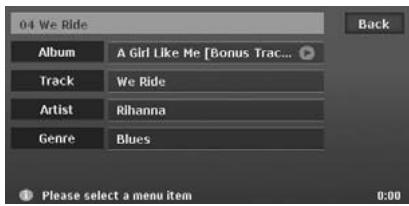
- Touch the [Back] key.
When a title or other information displayed on the screen is longer than the text area, you can confirm the entire text by scrolling it.
- Displaying the text you wish to scroll, touch the [▶] key displayed at the right of the text area.
The text will scroll once.
Other various play functions
- This operation cannot be performed from the AV Shortcut menu screen.
- Touch the [Option] key.
The Option menu screen is displayed.
- Touch a touch key of the function you want to play.
Track scan playback:
Touch the [Track] key of the Scan item.
- This operation scans and plays back all tracks recorded in the disc, the first 10 seconds for each.
- "T.SCN" is displayed on the information pane.
Track repeat playback:
Touch the [Track] key of the Repeat item.
- This operation plays back the current track repeatedly.
- "T.RPT" is displayed on the information pane.
Track random playback:
Touch the [Track] key of the Random item.
- This operation plays back tracks recorded in the disc in no particular order.
-
"T.RDM" is displayed on the information pane.
-
To cancel the play, touch the same touch key to cancel the function.
- Touch the [Back] key to return to the previous screen.
Recording tracks from a CD
With the factory default setting, all tracks on a CD are automatically recorded when the first time setting the disc into the DVD player. You can also change this setting to the setting of which the recording is not performed automatically, but it is performed manually.
- Recordable number of albums or tracks
- Up to 500 albums can be recorded.
- Up to 99 tracks can be included in an album.
- Up to 4000 tracks can be recorded.
- Up to 16 GB HDD space can be used for audio data.
- Setting the manual recording mode
For the setting operation, see "Switching the CD Recording mode" (P. 66).
Recording tracks
The Audio CD mode screen is displayed.
- Touch the [REC] key.
The Rec Mode screen is displayed.
- Touch the desired key you wish to perform. [All Tracks]:
Start recording of all the tracks in the CD.
[Current Track]:
Start recording of the track currently played back.
[Selected Tracks]:
The Select Track screen is displayed. Touch the desired Track keys you wish to record, then touch the [OK] key to start recording of the specified track.
What is the Music Catcher?
The audio data recorded from the audio CDs are stored in the Music Catcher. By selecting the Music Catcher mode, you can manage the great number of recorded audio data efficiently, and can play back these data.
- Recordable number of albums or tracks
- Up to 500 albums can be recorded.
- Up to 99 tracks can be included in an album.
- Up to 4000 tracks can be recorded.
- Up to 16 GB HDD space can be used for audio data.
About the Music Search function
You can search the audio data to be played back narrowing by the Album title, Artist name, Genre, Album image, and/or Playlist title selected from the list screens.
About the Playlist
Selecting the Music Catcher mode
- Press the [SRC] (Source) button to display the Source menu screen.
- Touch the [Music Catcher] key to select the Music Catcher mode. The system changes to the Music Catcher mode, and starts playback from the previous position.
Music Catcher mode screen
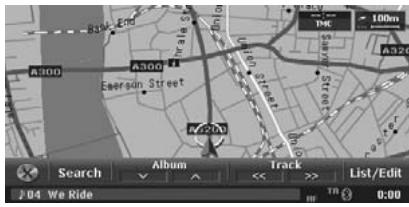
Basic operations of the Music Catcher
Note:
- The operations described in this section operate only upon the selected albums/playlists by using the Music Search function. "Searching tracks (Music Search)" (P. 43)
Selecting a track to play
- This operation cannot be performed from the AV Shortcut menu screen.
- Display the desired Track key on the Track list pane by touching the [ ] or [ ] key, touch the Track key to play back the track. Playback of the specified track starts.
Skipping a track (searching)
- Press the [I▲▲] or [▶▶] (Search) button during playback.
Tracks are skipped as many as the times pressing the button, and playback starts.
- Pressing the [ ] button starts playback from the beginning of the next track.
- Pressing the [▶] button starts playback from the beginning of the current track. When pressing this button again within about 2 seconds, playback starts from the beginning of the previous track.
- To perform this operation from the AV Shortcut menu screen, use the [Track] keys instead of the [I▲] and [▶] (Search) buttons.
These functions perform in the current album/playlist only.
Fast forward and fast backward
- Keep pressing the [I▶] or [▶▶I] (Search) button during playback.
The playback speed becomes 5-times faster at first and then 10-times faster 3 seconds later.
Releasing the button resumes the normal speed playback.
- To perform this operation from the AV Shortcut menu screen, use the [Track] keys instead of the [I▲] and [▶] (Search) buttons.
Skipping the current album/playlist
- Touch a [Album] or [ Playlist ] key during playback.
The tracks of the current album/playlist are skipped and playback starts from the first track of the next or previous album/playlist.
Selecting an album/playlist or track from the List screen
- Touch the [List/Edit] key.
The Album list screen or Playlist list screen is displayed.
- When the desired album/playlist is not displayed, touch the [A] or [V] key to scroll the list.
- Touch the desired Album/ Playlist key.
The Track list screen appears.
- Touch the [A] or [V] key to scroll the list, and touch the desired Track key.
The corresponding track is started playback. Touch the [Back] key.
-
Display the item key of the album/playlist/ track you wish to display information.
-
Touch the [List/Edit] key to display the Album list screen or Playlist screen.
- Moreover, touch desired Album/ Playlist key to display the Track list screen.
-
Touch the [] or [] key to scroll the list.
-
Touch the [ ] ] key displayed at the right of the desired item key.
The information of specified item is displayed.
Album information screen:
[ \text{Playlist information screen:} ]
Track information screen:
- Touch the [Back] key.
When a title or other information displayed on the screen is longer than the text area, you can confirm the entire text by scrolling it.
- Displaying the text you wish to scroll, touch the [▶] key displayed at the right of the text area.
The text will scroll once.
You can edit album/track information from the information screens. "Displaying information registered for the album/playlist/track" (P. 41)
Note:
-
This operation is disabled while recording a CD or loading/ejecting a disc. To edit the information of the album/tracks currently recording, once exit the Music Catcher mode, then enter again after the recording completes.
-
Display the item key of the album/track you wish to edit information.
-
Touch the [List/Edit] key to display the Album list screen.
- Moreover, touch desired Album key to display the Track list screen.
-
Touch the [] or [] key to scroll the list.
-
Touch the [1] key displayed at the right of the desired item key. The information of specified item is displayed.
- Perform the edit operation described below according to the specified item.
- When the setting is completed, touch the [Back] key to return to the previous screen.
-
By touching the [Get Info] key, you can obtain these information automatically from the Album Information data stored in the hard disk drive if they are listed.
-
Touch the [Album] key, edit the displayed album title by touching the characters on the screen, then touch the [OK] key.
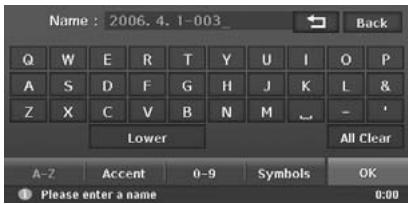
[1]
Deletes the last entered character.
[Back]
Returns to the previous screen.
[Lower]
Displays lower case characters input keyboard.
[Upper]
Displays upper case characters input keyboard.
[All Clear]
Deletes all characters entered so far.
[A-Z]
Displays the alphabetic input keyboard.
[Accent]
Displays the accent characters input keyboard.
[0-9]
Displays the number input keyboard.
[Symbols]
Displays the symbol characters input keyboard.
[OK]
Fixes the entered characters, and returns to the previous screen.
- Touch the [Artist] key, enter/edit the artist name by touching the characters on the screen, then touch the [OK] key.
Edit by the same way as the Album title entry.
- Touch the [Genre] key, touch the desired Genre key you wish to specify, then touch the [Back] key.
- Touch the [Image] key, touch the desired image key, then touch the [Back] key.
- You can assign your imported image data by touching the [User] key.
- By touching the [Get Info] key, you can obtain these information automatically from the Album Information data stored in the hard disk drive if they are listed.
- Touch the [Track] key, edit the track title by touching the characters on the screen, then touch the [OK] key.
Edit by the same way as the Album title entry.
- Touch the [Artist] key, enter/edit the artist name by touching the characters on the screen, then touch the [OK] key.
Edit by the same way as the Album title entry.
Searching tracks (Music Search)
You can search albums/playlists to play narrowing by the following categories:
Albums:
The Album list of all the recorded albums is displayed. You can select all the albums or a desired album.
Artists:
You can narrow the listed album title by specifying the artist name.
Genres:
You can narrow the listed album title by specifying the genre and artist name.
Album Image:
The Album list with the assigned image is displayed. You can select a desired album by looking the image.
Playlists:
The list of all the playlists registered is displayed. You can select all the playlists or a desired playlist.
Displaying the Music Search screen
- Touch the [Search] key.
The Music Search screen is displayed.
- This screen can also be opened by touching [Music Search] key from the Destination menu screen.
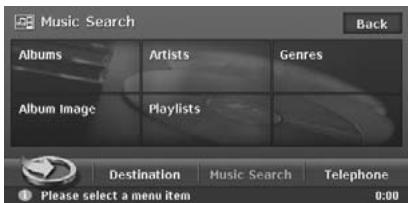
Note:
- This operation is disabled while recording the first track of a CD or loading/ejecting a disc.
Searching by Album
- Touch the [Albums] key on the Music Search screen.
The Album list is displayed with the order of recorded date.
-
Touch the desired Album key you wish to play back.
-
Selecting [All Albums] key specifies all the album data recorded in this system. You can change the album to play by the album skip operation.
- Touching the [by Name] key sorts the list by the alphanumeric order of the album title. In this list, touching the alphabet key displayed at the right of the screen scrolls the list to the first item of which the initial character of the album title matches to the specified key character.
- Touch the 空 or [] key to scroll the list.
Searching by Artist
- Touch the [Artists] key on the Music Search screen.
The Artist list is displayed with the alphanumeric order.
- Touch the desired Artist key you wish to search data.
The Album list of the specified artist is displayed with the order of recorded date.
- Touching the alphabet key displayed at the right of the screen scrolls the list to the first item of which the initial character of the artist name matches to the specified key character.
-
Touch the [] or [] key to scroll the list.
-
Touch the desired Album key you wish to play back.
-
Selecting [All Albums] key specifies all the album data of the specified artist. You can change the album to play by the album skip operation.
- Touching the [by Name] key sorts the list by the alphanumeric order of the album title. In this list, touching the alphabet key displayed at the right of the screen scrolls the list to the first item of which the initial character of the album title matches to the specified key character.
- Touch the [] or key to scroll the list.
Searching by Genre
-
Touch the [Genres] key on the Music Search screen. The Genre list is displayed.
-
Touch the desired Genre key you wish to search data. The Artist list of the specified genre is displayed.
-
Touch the 空 空 or [] key to scroll the list.
-
Touch the desired Artist key you wish to search data. The Album list of the specified artist is displayed with the order of recorded date.
-
Selecting [All Artists] key specifies all the artists of the specified genre.
- Touching the alphabet key displayed at the right of the screen scrolls the list to the first item of which the initial character of the artist name matches to the specified key character.
-
Touch the [] or [] key to scroll the list.
-
Touch the desired Album key you wish to play back.
-
Selecting [All Albums] key specify all the album data of the specified artist. You can change the album to play by the album skip operation.
- Touching the [by Name] key sorts the list by the alphanumeric order of the album title. In this list, touching the alphabet key displayed at the right of the screen scrolls the list to the first item of which the initial character of the album title matches to the specified key character.
- Touch the [X] or [Y] key to scroll the list.
Searching by Album Image
- Touch the [Album Image] key on the Music Search screen. The Album Image list is displayed.
-
Touch the desired Album key you wish to play back.
-
Touch the [又] or key to scroll the list.
Searching by Playlist
- Touch the [Playlists] key on the Music Search screen.
The Playlist list is displayed with the order of created date.
-
Touch the desired Playlist key you wish to play back.
-
Selecting [All Playlists] key specifies all the playlists created in this system. You can change the Playlist to play by the Playlist skip operation.
- Touching the [by Name] key sorts the list by the alphanumeric order of the playlist name. In this list, touching the alphabet key displayed at the right of the screen scrolls the list to the first item of which the initial character of the playlist name matches to the specified key character.
- Touch the [X] or [Y] key to scroll the list.
Creating a Playlist
You can create a playlist collecting your favourite numbers.
- Touch the [Search] key to display the Music Search screen.
- Touch the [Playlists] key to display the Playlist list.
- Touch the [New] key. The name entry screen is displayed.
- Enter the playlist name by touching the characters on the screen, then touch the [OK] key.
The Add Track screen is displayed.
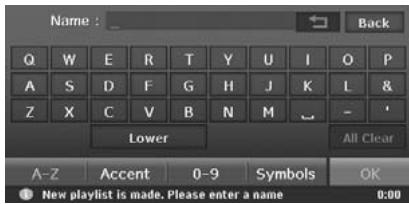
[ ] Deleted the last entered character.
[Back] Returns to the previous screen.
[Lower]
Displays lower case characters input keyboard.
[Upper]
Displays upper case characters input keyboard.
[All Clear]
Deletes all characters entered so far.
[A-Z]
Displays the alphabetic input keyboard.
[Accent]
Displays the accent characters input keyboard.
[0-9]
Displays the number input keyboard.
[Symbols]
Displays the symbol characters input keyboard.
[OK]
Fixes the entered characters, and proceed to the Add Track screen.
- Touch the [Album], [Artist], or [Genre] key to specify the search category, select an album by the similar operation as the Music Search function.
The Add Track list screen is displayed.
-
Touch the desired Track keys you wish to add to the playlist, then touch the [Add] key. The specified tracks are added to the playlist, and the display returns to the Add Track screen.
-
Touching the [OK] key adds the specified tracks and completes creating the Playlist.
- Repeat the operation of step 5 and 6 to add all the tracks you wish to be included in the playlist.
- When adding tracks is completed, touch the [Back] key to return to the previous screen.
Editing a Playlist
You can edit the playlist from the information screens. "Displaying information registered for the album/playlist/track" (P. 41)
- Select the playlist you wish to edit information using the Music Search function.
- Touch the [List/Edit] key to display the Playlist list screen.
From this screen, you can perform the following operations.
- Deleting Playlists
- Touch the [Delete] key.
The Playlist Delete screen is displayed.
- Select the playlists you wish to delete by touching the Playlist keys.
- Touching the [Select All] key selects all the listed Playlist keys.
- Touch the [OK] key.
A confirmation screen is displayed.
- Touch the [Yes] key to delete the selected playlist.
- Touch the [i] key displayed at the right of the desired Playlist key. The information screen of the specified playlist is displayed.
-
Touch the [ Playlist ] key, edit the displayed playlist name by touching the characters on the screen, then touch the [OK] key.
-
Edit by the same way as the Playlist name entry.
-
Touch the [Image] key, touch the desired Image key, then touch the [Back] key.
- You can assign your imported image data by touching the [User] key.
- Touch the [Back] key to return to the previous screen.
Editing track list of a Playlist
- Touch the desired Playlist key you wish to edit tracks.
The track list screen of the specified playlist is displayed.
-
Touch the [Delete] key to delete desired tracks.
-
Delete tracks by the same way as deleting playlists.
-
Touch the [Add] key to add tracks.
-
Add tracks by the same way as creating a playlist.
-
Touch the [Move] key, change the order of the listed tracks, then touch the [OK] key.
-
To move a track, touch the Track key you wish to move, then specify the position to be inserted by touching the corresponding [Move] key.
- Touching the [Back] key cancels the changes and returns to the previous screen.
What is Recent Album list?
The Recent Album list is one of the following 3 shortcut lists: (see the Navigation Manual for details of the Favourite list and Frequent list)
- Favourite list: You can register your favourite places.
- Frequent list: Destinations frequently entered are automatically registered.
- Recent Album list: Albums recently selected from the Music Search are automatically registered.
You can display these lists by easy operation, and can specify your desired item to set as the destination or to be played back.
You can also customise these lists when its Angle is set to 2D list screen.
Using the Recent Album list
Note:
- The Recent Album list is disabled when no music data is recorded in the Music Catcher.
Displaying the Recent Album list
- Press the [MENU] button, then touch the [ ] key.
The Favourite list screen is displayed.
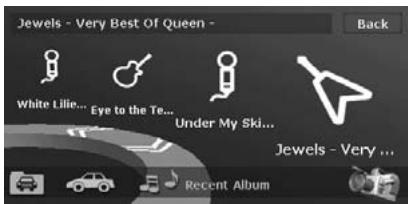
Switching Angle
- Touch the [ ] key to switch the viewing angle of the list.
The 2D List screen is displayed.
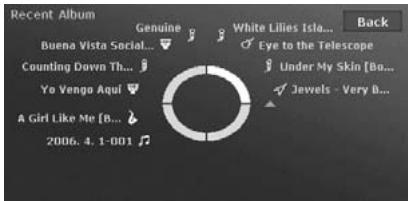
Playing back albums
- Touch the desired Album key you wish to play.
The source mode is changed to the Music Catcher mode, then playback starts from the first track of the specified album.
- Touch the [«»] or [»»] key on the quarter circle to scroll the list of the 3D List screen.
4. Operations of Accessories
TV Tuner Operations
About the TV tuner
Watching TV requires a TV tuner. When an optional TV tuner is connected through the CeNET cable, this unit controls all TV tuner functions.
The TV tuner has a VTR input terminal to which 1 external device can be connected. Connect a 12V video cassette player (VCP) or video cassette recorder (VCR) to the TV tuner input terminal. Changing the TV tuner to the VTR mode, you can display the VTR data on the monitor of this unit.
Selecting the TV Tuner mode
- Press the [SRC] (Source) button to display the Source menu screen.
- Touch the [TV] key to select the TV Tuner mode.
The system changes to the TV Tuner mode, and the TV screen is displayed.

WARNING
- For your safety, the driver should not watch the TV or operate the controls while driving. Please note that watching and operating the TV while driving are prohibited by law in some countries.
TV Tuner mode screen
Touching the TV screen displays the following TV Tuner mode screen.
- If you do not operate the menu for 5 seconds, the TV Tuner mode screen will automatically be hidden, and it returns to the playback screen.
- To close the TV Tuner mode screen within 5 seconds, touch the [Close] key.
AV Shortcut menu on the Map screen
Basic operations
Watching TV
Note:
-
For your safety, this system has a safety function which turns off the picture when the car is moving, so only the audio can be heard. The picture can only be watched when the car is stopped and the parking brake is applied.
-
Touch the screen to display the TV Tuner mode screen.
- Touch the [Band] key to select the desired TV band (TV1 or TV2).
Every touching this key toggles the TV band between TV1 and TV2.
- Touch the desired Preset key on the Preset list pane to tune in the preset TV station.
Watching a video
- Touch the screen to display the TV Tuner mode screen, then touch the [Option] key.
-
Touch the [VTR] key of the TV/VTR item to change to the VTR mode.
-
To return to the TV mode, perform the same operation again.
Seek tuning
- Touch the screen to display the TV Tuner mode screen.
- Touch the [Band] key to select the desired TV band (TV1 or TV2).
-
Touch a [Seek] key to automatically seek a station.
-
Touching the [] key to tune up the channel to the next available TV station, and the [] key to tune down.
Manual tuning
There are 2 ways available: Quick tuning and step tuning. When you are in the step tuning mode, the channel changes one step at a time. In quick tuning mode, you can quickly tune the desired frequency.
- Touch the screen to display the TV Tuner mode screen.
- Touch the [Band] key to select the desired band (TV1 or TV2).
-
Touch and hold the [Band] key for more than 1 second. "Manual" appears and manual tuning is now available.
-
Tune into a station.
Quick tuning:
Touch and hold a [Seek] key for more than 1 second to tune in a station.
Step tuning:
Touch a [Seek] key to manually tune in a station.
Recalling a preset station
A total of 12 TV stations can be stored (6-TV1 and 6-TV2).
There are 3 ways available to recall the preset station.
Using the Preset keys on the Preset list pane
- Touch the screen to display the TV Tuner mode screen.
- Touch the [Band] key to select the desired TV band (TV1 or TV2).
- Touch the desired Preset key to recall a stored TV station.
- Touch the [Band] key to select the desired TV band (TV1 or TV2).
-
Touch a [P.ch] key to tune in the previous or next preset station.
-
You can also use the [I<\triangleleft] and [▶▶I] (Search) buttons instead of the [P.ch] keys.
Manual memory
- Touch the screen to display the TV Tuner mode screen.
- Touch the [Band] key to select the desired TV band (TV1 or TV2).
- Tune in the desired TV station to be stored.
- Touch and hold the desired Preset key for more than 2 seconds to store the current station into the preset memory.
Auto store
Auto store selects 6 TV stations automatically and stores each one into a preset memory. If 6 stations cannot be received with good reception, previously stored stations remain and only the strong stations are stored into memory.
- Touch the screen to display the TV Tuner mode screen.
- Touch the [Band] key to select the desired TV band (TV1 or TV2).
- Touch and hold the [AS] key for more than 2 seconds.
A beep sounds and the stations with good reception are stored automatically to the preset channels.
Preset scan
Preset scan shows each preset channel before it automatically advances to the next preset. This function is useful for searching for desired TV station in memory.
- Touch the screen to display the TV Tuner mode screen.
- Touch the [PS] key to start preset scan. The unit starts scanning each station for 7 seconds sequentially.
- When the desired channel is received, touch the [PS] key again.
Setting the TV functions
These operations cannot be performed from the AV Shortcut menu screen.
Selecting the screen size
You can change the TV screen size to suit to the screen panel.
- Showing the TV Tuner mode screen, touch the [Wide] key.
- Touch the [Wide], [Cinema], or [Normal] key to set the desired screen size.
The factory default setting is "Wide".
Wide:
The image is expanded so that the rectangle of the image fit to the screen. The aspect ratio of the image may be changed.
Cinema:
The image is expanded so that the left and right edges of the image fit to the screen. The top and bottom areas of the image may be cut off.
Normal:
The image is expanded so that the top and bottom edges of the image fit to the screen.
Setting the TV diver
You can change the reception setting for the TV antenna connected to the TV tuner.
- Normally use the TV diver with the "ON" position.
- Touch the screen to display the TV Tuner mode screen, then touch the [Option] key.
- Touch the [ON] or [OFF] key of the TV DIVER item to turn this function on and off.
[ON]:
Sets reception emphasising the visual.
[OFF]:
Sets the diver setting to OFF.
- Touch the [Back] key to return to the previous screen.
Setting the TV area
When you select the TV area (TV reception area), the TV tuner area setting changes.
- Touch the screen to display the TV Tuner mode screen, then touch the [Option] key.
- Touch the Area key of the TV Area item to display a list of country name.
-
Touch the desired Country Name key to select a country.
-
Touch the [X] or [Y] key to scroll the list.
-
Touch the [Back] key to return to the previous screen.
This function is available when the TV tuner is not connected via CeNET, and a visual device, such as VTR, is connected to this unit by using the RCA pin lead.
WARNING
- For your safety, the driver should not watch the VTR, etc. or operate the controls while driving. Please note that watching and operating the VTR, etc. while driving are prohibited by law in some countries.
Selecting the AUX mode
Note:
-
For your safety, this system has a safety function which turns off the picture when the car is moving, so only the audio can be heard. The picture can only be watched when the car is stopped and the parking brake is applied.
-
Press the [SRC] (Source) button to display the Source menu screen.
-
Touch the [AUX] key to select the AUX mode. The screen of the connected visual device is displayed.
-
The black screen is displayed when no visual device is connected.
Selecting the screen size
You can change the displayed screen size to suit to the screen panel.
- Touch the screen to display the menu, then touch the [ ] key.
- Touch the [Wide], [Cinema], or [Normal] key to set the desired screen size.
The factory default setting is "Wide".
Wide:
The image is expanded so that the rectangle of the image fits to the screen. The aspect ratio of the image may be changed.
Cinema:
The image is expanded so that the left and right edges of the image fit to the screen. The top and bottom areas of the image may be cut off.
Normal:
The image is expanded so that the top and bottom edges of the image fit to the screen.
The input audio level of AUX terminal can be changed.
- The factory default setting is "High".
- Touch the screen to display the menu, then repeat touching the [Sens] key to select the level.
High: 16.25 dB
Mid: 3.75 dB
Low: 0 dB
This unit can be used to control a connected Apple iPod (for the information on the compatible models, see the Clarion homepage (http://www clarion.com)). Use the optional connector cable to connect the iPod.
Note:
- The unit will not operate, or may operate improperly with unsupported versions.
- For the information on the compatible models to the iPod video mode operations, see the Clarion homepage (http://www.clarion.com).
- Some functions may not operate properly depending to the software version of the iPod. Use the iPod updated with latest software downloaded from the Apple's website.
- When you connect the iPod which a great number of tracks are stored, it may take a long time to establish the connection with the iPod or to control the iPod features.
Notes regarding use of Apple iPod
- After the iPod has been connected to this unit, the iPod's buttons are disabled for operation.
- When the iPod mode has been selected with 2Zone function OFF, the following screen is output to the rear monitor:
When audio data is played: black screen
When video data is played: video image
- The remote control unit cannot be used to perform scan, repeat or random play.
- This unit can display the Podcast titles1, Artist names, Album titles, Song titles, Genre names, Playlist titles,Composer names,and Audiobooks titles1 registered on the iPod. When no data is present, the title display will remain blank.
*1: Whether these functions are available or not depends on the iPod version.
- The iPod is used with the equalizer function turned OFF.
- Do not connect an iPod to this unit with a headset connected to the iPod.
Selecting the iPod mode
- Connect your iPod to this unit using the optional connecter cable.
- Press the [SRC] (Source) button to display the Source menu screen.
- Touch the [iPod] key to select the iPod mode. The system changes to the iPod mode, and the iPod mode screen is displayed.
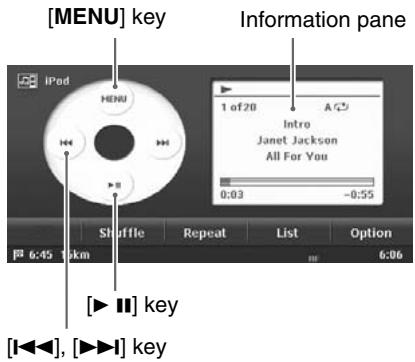
iPod mode screen
AV Shortcut menu on the Map screen
Controlling the iPod
Operation keys
[MENU] key ([Menu] key on the AV Shortcut menu)
- Displays the iPod Menu screen which is used to access to the list screens of the Albums, Tracks, Artists, Genres, Playlists, Podcasts, Composers, and Audiobooks stored in the iPod.
[ [1 \llbracket, [1] \ggbracket] ] key ([<<], [>>] key on the AV Shortcut menu)
- Use to perform track search operation. Touch and hold the key to enable fast-forward or fast-backward.
[>II]key
- Use to perform playback and pause.
[Shuffle] key
- Use to switch the shuffle mode, in the order: Song Shuffle Album Shuffle Shuffle OFF.
When the "Song Shuffle" is enabled, the tracks in the current track list are played back in random order, regardless of the order in which they are recorded.
When the "Album Shuffle" is enabled, all of the albums recorded in the iPod are selected in random order, and tracks in the albums are played back in the recorded order.
[Repeat] key
- Use to switch the repeat mode: 1-track Repeat All Repeat.
When "1-track Repeat" is enabled, the track currently played back is played back repeatedly.
When "All Repeat" is enabled, tracks in the current track list are played back repeatedly.
[List] key
- Use to display the list of tracks currently selected.
Note:
- This key is disabled while a shuffle mode is specified.
[Option]key
- Use to change the playback speed while playing the Audiobooks.
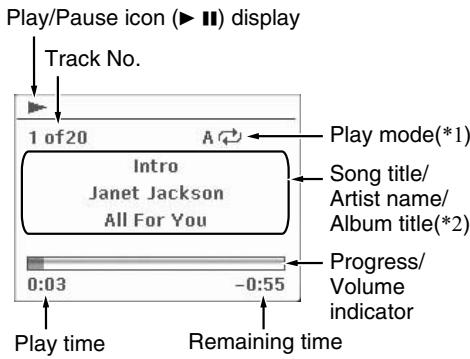
1: Displays status of Repeat, Shuffle play.
1:1-track Repeat
A:AllRepeat
1x:Song Shuffle
A<> : Album Shuffle
2: The title display shows, from top level down, the Song title, Artist name, and Album title. When a Podcast or Audiobooks which has two or more chapters is played back, the chapter title and chapter number are displayed.
When the text is too long to be displayed, it can be scrolled by touching the Information pane.
Pausing playback
- This operation cannot be performed from the AV Shortcut menu screen.
- Touch the [▶■] key during playback.
Playback pauses.
- To resume playback, touch the [▶ III] key again.
Playback resumes.
Skipping a track (searching)
-
Touch the [I▲
] or [▶▶] key during playback. Tracks are skipped, as many as the times the button is pressed, and playback starts.
-
Touching the [▶▶] key starts playback from the beginning of the next track.
- Touching the [▶] key starts playback from the beginning of the current track. When this key is touched again within about 2 seconds, playback starts from the beginning of the previous track.
- When a Podcast or Audiobooks which has two or more chapters is played back, touching the [I<\triangleleft] or [▶▶I] key while pausing moves the current location to the beginning of the previous or next chapter.
- You can also use the [I< ] and [▶] (Search) buttons or the [Track] keys on the AV Shortcut menu screen instead of the [I< ] and [▶] keys.
Fast forward and fast backward
- Touch and hold the [<<] or [>>] key during playback.
The playback speed becomes faster.
Releasing the key resumes the normal speed playback.
- You can also use the [I<\triangleright] and [▶triangleright]
(Search) buttons or the [Track] keys on the AV Shortcut menu screen instead of the [I<\triangleright] and [▶triangleright] keys.
Track List operation
Touching the [List] key displays the following Track List screen. The tracks to be played back are listed in this screen.
Selecting the track of starting playback
- Displaying the Track List screen, touch the desired Track key you wish to play. The system starts playback from the specified track.
- Touch the [X] or [Y] key to scroll the list.
- Touch the [Back] key to return to the previous screen.
- Displaying the Track List screen, touch the desired Track key you wish to display information.
- Touch the [] or [] key to scroll the list.
- Touch the [1] key displayed at the right of the Track key.
The track information of specified track is displayed.
- Touch the [Back] key to return to the previous screen.
When a title or other information displayed on the screen is longer than the text area, you can confirm the entire text by scrolling it.
- Displaying the text you wish to scroll, touch the [▶] key displayed at the right of the text area.
The text will scroll once.
You can specify the album to play by narrowing the following categories:
Albums:
The album list of all the albums recorded in the iPod is displayed.
Artists:
You can narrow the albums to be listed by specifying the artist name.
Genres:
You can narrow the albums to be listed by specifying the genre and artist name.
Composers:
You can narrow the albums to be listed by specifying the composer name.
In addition to the above, you can specify the playlist, podcast, or audiobook to be played back.
The following iPod Menu screen is displayed.
![CLARION MAX983HD - Touch the [MENU] key. - 1](/content/2025/01/95856/images/0bb33823d835dfb52ee9f2ad1856f4aa82c4353d8053ce8a90120e69db36194a.jpg)
2. Touch the [ ] (Next) key to display the next menu screen.
![CLARION MAX983HD - Touch the [MENU] key. - 2](/content/2025/01/95856/images/290f3fc020fdefc0c32417f89e8912cfee96137e94090d909caa33426ef9930d.jpg)
Selecting a list item from the list screen
-
Touch the desired Category key from the iPod Menu screen to display the corresponding list screen.
-
Touch the desired list item on the screen to specify it.
-
When an album list or playlist is specified, the screen returns to the iPod mode screen and playback starts from the first track of the specified album/playlist.
- When a list of podcasts or audiobooks is specified, the screen returns to the iPod mode screen and the specified track is played back.
- When another list is specified, the next list appears. Repeat this operation until you select the album to be played back.
- Touch the 空 空 or [] key to scroll the list.
iPod video mode operation (only for the iPod with video features)
When you connect an iPod with video features by using the optional connector cable for iPod with video, you can enjoy the video data and slideshow data stored in the iPod showing them on the display of this unit.
Note:
- For the information on the compatible models to the iPod video mode operations, see the Clarion homepage (http://www.clarion.com).
- Do not connect the iPod to this unit when a Video Playlists item is selected on the iPod.
-
Set the Video Settings of the iPod to "TV Out: On" and "TV Signal: PAL" before playing the visual data stored in the iPod.
-
Touch the [MENU] key to display the iPod Menu screen.
-
Touch the [Video] key to change to the Video mode. The screen will be changed to the iPod mode screen with the small video screen displayed on the information pane. In this condition, the iPod is turned into the normal operation mode, and you can control the iPod using the original controls of the iPod (iPod operation mode).
-
In the iPod operation mode, the following buttons on this unit and its remote control unit are operative as well: [I▶, [▶▶], [▶III] (this unit), [I▶, [▶▶], [▶III] (remote control unit)
Note:
- The [Video] key is displayed only when a fifth generation iPod is connected to the unit.
- Play back your desired video data or slideshow data from the iPod. The specified video data will be displayed on the information pane.
- Touch the information pane. The video data will be displayed on the whole screen.
Note:
- "Audio Only" is displayed when the motorcar is moving.
- To return to the iPod mode screen, touch the screen.
- To terminate the Video mode, touch the [MENU] key, then touch the [Music] key. The video playback is terminated, and the system returns to the audio playback mode.
Note:
Video data may not be played back according to the status of the iPod.
Selecting the screen size
When in the Video mode, you can change the screen size of the video image to suit to the screen panel.
- Touch the screen to display the iPod mode screen, then touch the [+] key.
- Touch the [Wide], [Cinema], or [Normal] key to set the desired screen size.
The factory default setting is "Wide".
Wide:
The image is expanded so that the rectangle of the image fits to the screen. The aspect ratio of the image may be changed.
Cinema:
The image is expanded so that the left and right edges of the image fit to the screen. The top and bottom areas of the image may be cut off.
Normal:
The image is expanded so that the top and bottom edges of the image fit to the screen.
- Touch the information pane to display the video image on the whole screen.
This function is enabled when the optional Bluetooth Interface Box is connected to this unit via CeNET. The following functions are available:
- Listening to your telephone calls on the car speakers.
- Making a call using the Ten-Key pad screen, or using the Phone Book or Dialled/Received/Missed calls records in the selected mobile phone.
- Making a call from the POI Information screen or from the Edit screen of the Address Book if the telephone number is registered.
Note:
- Depending on a mobile phone, you may need to perform the operation of the Object Push transfer on the mobile phone.
- Some mobile phones may not be able to transfer the Phone Book and record data.
- The Phone Book and record data transmission may take a long time. The operations of sending calls are disabled during the data transmission.
Selecting the Telephone mode
- Press the [SRC] (Source) button to display the Source menu screen.
-
Touch the [Telephone] key to select the Telephone mode. The system changes to the Telephone mode, and the Telephone mode screen is displayed.
-
You can also select the Telephone mode from the Destination menu screen by touching the [Telephone] key.
Note:
- When the 2Zone function is turned on, touching the [Telephone] key cancels the 2Zone function.
Telephone mode screen
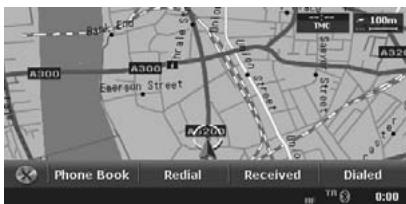
Note:
- The keys to make a call are disabled when no connection with a mobile phone is established.
- The [ ] icon is displayed at the bottom of the screen when the connection with a mobile phone is established. (It blinks during the connection operation.)
Telephone settings
Registering your mobile phone (Pairing)
You can register up to 5 mobile phones.
- Turn on the power of the mobile phone you wish to register.
- Touch the [Phone Select] key to display the Phone Select screen.
- Touch the [Add] key to display the Add New Device screen.
-
Touch one of item keys to specify the device type.
-
Touch the [又] or [又] key to scroll the list.
-
When the device type of your mobile phone is not listed, select the [General Device] key.
-
Touch the [Search] or [Wait] key.
[Search]: The Interface Box starts searching a mobile phone.
[Wait]: The Interface Box waits to be detected by a mobile phone.
When mobile phones are detected, the Device Select screen is displayed.
-
Touch the desired device key you wish to register, then enter the Pass key code on your specified mobile phone.
-
For the Pass key code, see the operation manual of the Bluetooth Interface Box. You can also confirm the Pass key code by the Bluetooth Device Information screen under the Phone Settings menu.
- Perform the Object Push transfer operation when your mobile phone requires it. For details of the operation, see the operation manual of your mobile phone.
When the pairing operation completes, the registered mobile phone is set as the current telephone, and the display returns to the Phone Select screen.
- You can delete the registered mobile phone by touching the [Delete] key on the Phone Select screen.
Selecting the mobile phone
- Touch the [Phone Select] key to display the Phone Select screen.
- Touch the desired Telephone key you wish to use. The corresponding mobile phone is set as the current telephone.
- Touch the [Back] key to return to the previous screen.
Setting the telephone features
- Touch the [Phone Settings] key to display the Phone Settings screen.
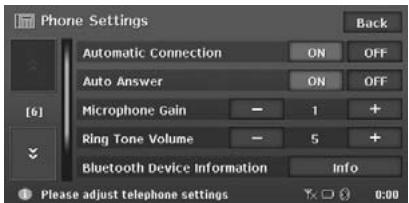
- Perform setting for the desired item. See the following sections for detail.
- Touch the [Back] key to return to the previous screen.
- Setting Automatic Connection
The Interface Box automatically reconnects the mobile phone after the connection is lost or the system is restarted.
The factory default setting is "ON".
- Touch the [ON] or [OFF] key of the Automatic Connection item to set the function ON or OFF.
- Setting Auto Answer
When a call comes in, the Interface Box automatically connects the call approx. 8 seconds after the calling starts.
- Setting Microphone Gain
You can adjust the input level of the microphone in 3 levels.
- Touch the [-] or [+] key of the Microphone Gain item to adjust the input level.
- Setting Ring Tone Volume
This system can generate a ring tone if the ring tone of the mobile phone cannot be used. You can adjust the volume of the ring tone in 8 levels.
Note:
- Normally, set to "0" to use the ring tone of the mobile phone, and adjust the volume from the mobile phone.
You can confirm the various information concerning the Bluetooth Interface Box.
- Touch the [Info] key of the Bluetooth Device Information item to display the information on the screen.
- Setting Phone Speaker
You can select the output speaker of telephone calls.
- The factory default setting is "Right".
- Touch the [×] key to display the next screen.
- Touch the [Left] or [Right] key of the Phone Speaker item to select the speaker.
[Left]: Telephone calls are heard from the front left speaker.
[Right]: Telephone calls are heard from the front right speaker.
Telephone operations
Making a call using the Ten-Key pad
- Touch the [10Keys] key to display the Ten-Key pad screen.
- Enter the telephone number by using the Ten-Key pad displayed on the screen.
- Touch the [ ] key to call the entered number.
- The following Telephone Interrupt screen is displayed during phone call.
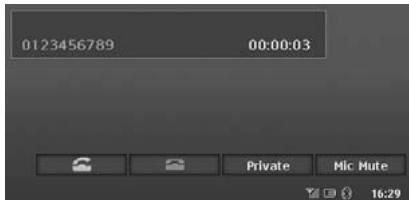
- Touch the [Private] key to talk using the mobile phone cancelling the hands-free function. To return to the hands-free mode, touch the [HFS] key.
-
Touch the [Mic Mute] key to turn off the microphone so that the sound does not be heard by the partner.
-
When the call is finished, touch the [ ] key to hang up. The display returns to the Telephone mode screen.
Note:
Depending on the mobile phone, the Telephone Interrupt screen may be closed and the connection with the Interface Box may be disconnected when entering the Private mode.
Redialling
- Touch the [Redial] key to call the last dialled number.
The Telephone Interrupt screen is displayed, and calling starts.
- When the call is finished, touch the [ ] key to hang up.
Note:
- When the dialed telephone number cannot be transferred from the mobile phone, "Unknown" is displayed instead of the number.
Using the Phone Book
The system will capture the phone book data registered in the selected mobile phone. You can use it to make a call from this unit.
Note:
- Some mobile phones may not be able to transfer the Phone Book data.
-
Only the Phone Book items with at least one telephone number registered in the captured Phone Book data are displayed on the Phone Book screen.
-
Touch the [Phone Book] key to display the Phone Book screen.
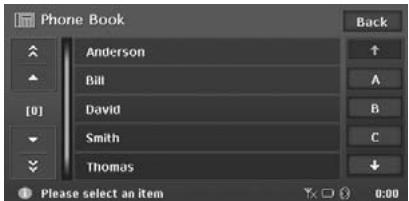
-
Touch the desired Name key you wish to dial.
-
Touch the [又] or [又] key to scroll the list.
-
When you touch the alphabet key at the right of the screen, the list scrolls to the item which starts with the specified character.
-
Touch the desired Number key you wish to dial.
The confirming message will appear.
- Touch the [Yes] key to call the specified number.
The Telephone Interrupt screen is displayed, and calling starts.
- When the call is finished, touch the [ ] key to hang up.
Using Dialled/Received/Missed Calls records
The system will capture the Dialled/Received/ Missed calls record data in the selected mobile phone. You can confirm it and use it to make a call from this unit.
Note:
-
Some mobile phones may not be able to transfer the record data.
Depending on the mobile phone, the record data may not be updated correctly when a call is made in the Private mode.
-
Touch the [Dialled Numbers], [Received Calls], or [Missed Calls] key according to the type of record list you wish to display.
The corresponding record list screen is displayed.
The confirming message will appear.
- Touch the [Yes] key to call the specified number.
The Telephone Interrupt screen is displayed, and calling starts.
- When the call is finished, touch the [ ] key to hang up.
If the optional CCD rear camera is installed in this system, the rear view image is displayed on the screen when the gear lever is put in the reverse gear position. In addition, this system can display guidelines on the camera image, which helps you to perceive the size of the vehicle.
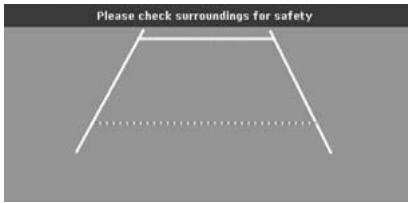
Note:
- The CCD camera image is not displayed on the rear monitor.
Displaying the Guidelines on the camera image
- Touch the screen when the rear view image is displayed.
The [Guide line] key is displayed.
A confirmation screen is displayed.
- Touch the [OK] key.
The guidelines are displayed on the screen image.
- Touching the [Guide line] key turns the guidelines display on/off.
Adjusting the guidelines position
You can adjust the position of the guidelines so that the size of the vehicle is represented.
- Display the guidelines by the procedure previously described.
- Touch the [Setting] key.
The four control point appears on the guidelines, and the control keys appear at the bottom of the screen.
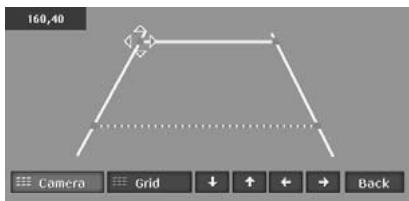
- Select the control point you wish to adjust the position by touching it, then move the control point by using the [ ],[ ],[ ], or [ ] key. [ ],[ ],[ ],[ ] ..
Touching these keys moves the selected control point by 1 dot.
Touching and holding these keys moves the selected control point by 5 dots.
[Camera]:
Hides/displays the camera image.
[Grid]:
Displays/ hides the grid on the screen.
- When the adjustment completes, touch the [Back] key to quit the adjustment mode.
By installing the optional rear monitor in this system, the rear passengers can enjoy visual sources played on the main unit (this unit). Moreover, they can enjoy the visual sources different from the media sources played on the main unit by using the 2Zone function. "2Zone Function" (P. 19)
Note:
- When 2Zone function is turned on, use the optional infrared headphone systems to listen to the Rear zone sound.
The following media sources played on the main unit can be displayed on the rear monitor:
DVD video
- TV Tuner
AUX
Operations on the rear monitor
Note:
See also the operation manual of the rear monitor.
- Turn on the power of the rear monitor.
- Switch the Source modes of the rear monitor so that the video image output from the main unit is displayed.
-
Play your desired visual source on the main unit.
-
Control the visual source from the main unit or using the optional remote control unit.
"Remote Control Operations" (P. 61)
You can use the optional remote control unit to control the AV features of this unit.
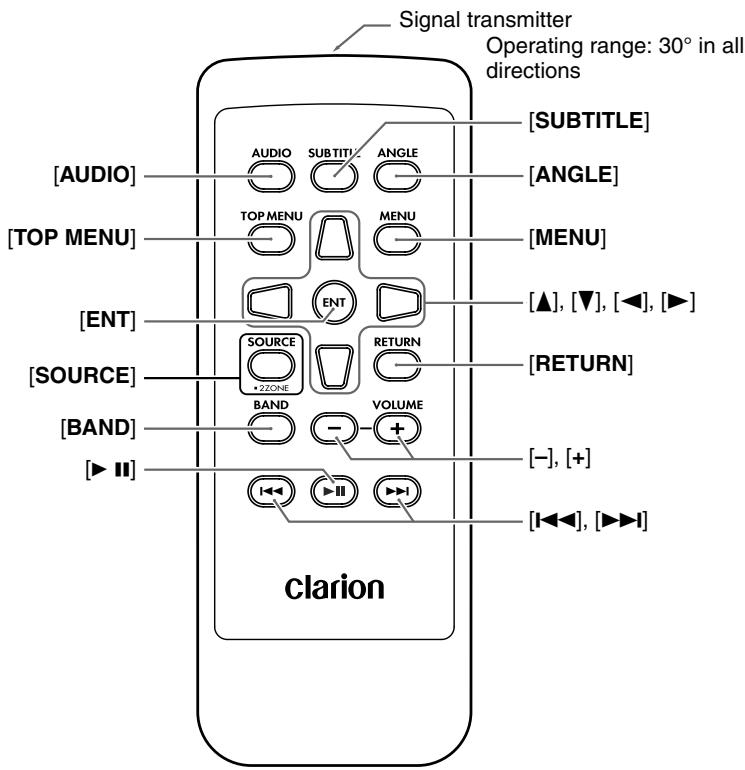
Inserting the Battery
- Slide the rear cover in the direction of the arrow, and remove it.
- Insert the CR2025 battery bundled with the remote control unit in the directions shown in the figure, then close the rear cover.
Note:
Using battery improperly can cause it to explode. Take note of the following points:
- Do not short-circuit, disassemble or heat battery.
- Do not dispose of battery into fire or flames.
- Dispose of spent battery properly.
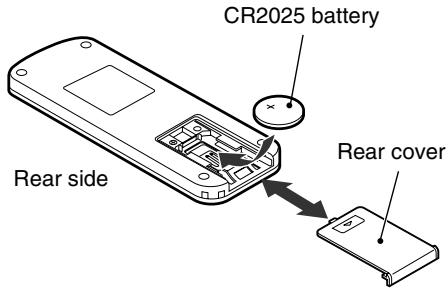
- When the 2Zone function is ON, the controls work upon the Rear zone only.
- Press to set the Audio language. (in DVD Video mode)
- Press to display subtitles. (in DVD Video mode)
- Press to set the Angle function of the DVD video when the Angle mark is displayed. (in DVD Video mode)
(Available only when the Angle function on the DVD Setup menu is set to ON.)
- Press to display the Top Menu screen stored on DVD video disc. Some discs are not displayed the top menu screen. (in DVD Video mode)
- Press to display the Menu screen stored on DVD video disc. (in DVD Video mode)
- Press to fix the selected button item on the Menu screen of a DVD video. (in DVD Video mode)
- Press to select button items displayed on the Menu screen of a DVD video. (in DVD Video mode)
- Press to switch the source modes such as FM/ AM mode, DVD/CD mode, etc. (in any mode; only DVD Video, TV Tuner, and AUX modes are selectable when 2Zone ON)
- Press to switch to the previous screen while the Menu screen of a DVD video is being displayed. However, it may occur that this button operation dose not work on some discs. (in DVD Video mode)
- Switches reception bands. (in Tuner/TV Tuner modes; disabled in Tuner mode when 2Zone ON)
- Decreases or increases the volume. (in any mode; disabled when 2Zone ON)
- Press to play or pause video and audio media. (in DVD Video/iPod modes; disabled in iPod mode when 2Zone ON)
- Keep pressing more than 1 second to stop video playback. (in DVD Video mode)
- Press to select the next lower or higher preset station. (in Tuner/TV Tuner modes; disabled in Tuner mode when 2Zone ON)
- Keep pressing more than 1 second to seek down or up. (in Tuner/TV Tuner modes; disabled in Tuner mode when 2Zone ON)
- Press to select the next lower or higher chapter number. (in DVD Video mode)
- Press to select the next lower or higher track. (in CD, MP3/WMA, Music Catcher, and iPod modes; disabled when 2Zone ON)
- Keep pressing to perform fast-backward or fast-forward playback. (in DVD Video, CD, MP3/WMA, Music Catcher, and iPod modes; enabled only in DVD Video mode when 2Zone ON)
5. System Setting
You can set various settings of this system from the Setting menu.
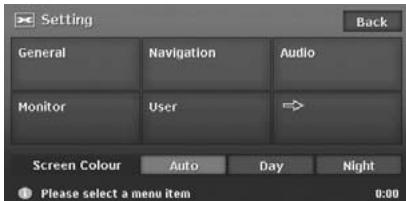
Setting menu screen 1
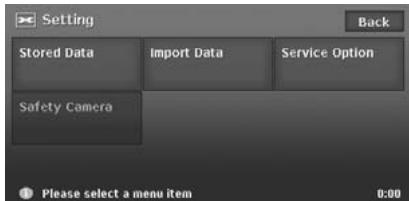
Setting menu screen 2
- Press the [] (Set) button.
The Setting menu screen is displayed.
Touching the [] (Next) key displays the additional Setting menu screen.
- Touch the desired menu item.
For the operation procedure hereinafter, see the explanation of each section.
Note:
- For details about the Screen Colour item, see "Setting the Screen Colour mode" (P. 67)
General Settings
When you touch the [General] key from the Setting menu, you can set various settings concerning the general features.
Language setting
You can change the language used by the system. As for "English", you can also select the unit of distance (km/mile).
"Language":
You can select the language from the following language keys:
[English (mile)] key
[English (km)] key
[François] key
[Deutsch] key
[Espanol] key
[Italiano] key
[Nederlands] key
[Portugues] key
[Svenska] key
[Dansk] key
Note:
- For the languages other than English, distances are displayed using the metric system.
Clock settings
You can set various settings concerning the clock.
-
Touch the [Setting] key of the "Clock" item. The Clock menu screen is displayed.
-
Touch the desired menu item to set.
"On-Screen Clock":
Shows/hibes the clock display on the screen.
"Clock Format":
Changes the clock format to 12-hour/24-hour system.
"Daylight Saving Time":
Selects whether to apply the daylight saving time or not.
"Offset Adjust":
Adjusts the current time manually. The adjustment is applied as offset value related to the time signal received via GPS. Touching the [+] or [-] key shifts the time by 1 minute. Normally, it is not necessary to adjust because the time is received from the GPS signals automatically.
"Time Zone":
Sets the time zone. You can select from the list of 74 regions including the [Auto] key. When you select the [Auto] key, the clock is automatically switched to the time zone of the country at the vehicle position.
Changing Skin
You can change the screen design by using the skin data stored in the hard disk drive.
- Touch the [Select] key of the "Skin Change" item.
- Touch the desired item key you wish to set.
Note:
- This operation is disabled while recording a CD or loading/ejecting a disc.
Beep Sound
You can turn ON/OFF the beep sounds and menu operation sounds.
Keyboard Type
You can change the keyboard layout used for name entry.
- Touch the item key of the "Keyboard" item.
- Select the keyboard type by touching one of the following keys:
[ABCDEF] key
[QWERTY] key
[QWERTZ] key
[AZERTY] key
Voice Recognition
You can turn ON/OFF the voice recognition feature (optional). When you touch the [OFF] key, the voice recognition is not available.
Voice Feedback
You can turn ON/OFF the voice feedbacks which are responded when using voice commands.
Blinking LED
When this function is set to "ON", the Blinking LED indicator will blink when the power is turned off.
Antenna
Select the [Auto Antenna] when your vehicle has the auto antenna.
Note:
- When the "Auto Antenna" is selected, you can extend/collapse the antenna by keeping pressing the [ i INFO] button more than 2 seconds. Be sure to collapse the antenna before entering in a place with low ceiling such as a multistory car park.
- Select [Others] for the vehicle equipped with no auto antenna. Otherwise, the radio reception may be disturbed extremely.
Security Mode
To set this function ON, setting a PIN code (called as "Personal Code") is required. When you set your Personal Code, a theft is prevented by disabling the operation of the unit.
In addition, set the Blinking LED function to "ON" to improve the effect of this function.
Setting the Security Mode
- Touch the [ON] key of the Security Mode item. The Set Code screen appears.
-
Enter your desired 4-digit Personal Code by using Ten-Key pad displayed on the screen, then touch the [OK] key.
-
Touch the [+] key when you make a mistake in entering.
-
Enter the same Personal Code again for confirmation, then touch the [OK] key. The entered Personal Code will be set, and it will return to the previous screen.
Resetting the Security Mode
- Touch the [OFF] key of the Security Mode item. The Erase Code screen appears.
- Enter your 4-digit Personal Code by using Ten-Key pad, then touch the [OK] key. The message "Code erased" appears, and it will return to the previous screen.
Personal Code entry
The Personal Code screen will be displayed when turning the power on after performing the following operations:
- The car battery was replaced.
- The backup power was cut off.
- The Reset button was pressed.
Note:
-
If you forgot your Personal Code, please consult your dealer or an authorized service centre.
-
Enter your Personal Code currently set. When the correct Personal Code is entered, the unit will restart from the initial startup screen.
Note:
- When you enter a wrong Personal Code, the message "Code incorrect" is displayed and the Personal Code entry is prohibited for a while. This prohibited time is changed according to the number of times of wrong code entry as follows:
1 to 6 times: 15 seconds
7 times or more: 15 minutes
System Check
You can check the connection status of the iPod and Bluetooth Interface Box.
Note:
- This operation is disabled while recording a CD or loading/ejecting a disc.
- Touch the [Check] key of the System Check item. The System Check screen is displayed, and connection statuses are shown.
- Touch the [Check] key to perform system check. A confirmation screen appears.
- Touch the [Yes] key. The system will be restarted.
You can confirm the version number of the map data and the system software. In addition, you can confirm the remaining capacity for the Music Catcher here.
- Touch the [Info.] key. The system information is displayed.
When you touch the [Navigation] key from the Setting menu, you can set various setting concerning the navigation system. For details, see the Navigation Manual.
Audio Settings
When you touch the [Audio] key from the Setting menu, you can set various settings concerning the audio features.
Adjusting the balance/fader
- Touch the [Edit] key of the BAL/FAD item.
-
Touch the [↑] or [↓] key to adjust the fader level.
-
The factory default setting is "0".
- Adjustment range: front 12 to rear 12
- You can also adjust the level by directly touching the desired position of the coordinate.
[↑]: Emphasises the sound from the front speakers.
[↓]: Emphasises the sound from the rear speakers.
-
Touch the [ ] or [ ] key to adjust the balance level.
-
The factory default setting is "0".
- Adjustment range: left 13 to right 13
- You can also adjust the level by directly touching the desired position of the coordinate.
[←]: Emphasises the sound from the left speakers.
[ ] Emphasises the sound from the right speakers.
Adjusting the BASS
The bass gain, bass frequency (centre frequency) and bass Q can be adjusted.
- Touch the [Edit] key of the BASS item.
- Touch the [-] or [+] key for the desirable type to adjust to a desirable level.
Gain:
-6 to 8 (The factory default setting is "0".)
FREQ:
50Hz, 80Hz, 120Hz (The factory default setting is "50Hz".)
Q:
1, 1.25, 1.5, 2 (The factory default setting is "1".)
Adjusting the MID
The MID gain, MID frequency (centre frequency) and MID Q can be adjusted.
- Touch the [Edit] key of the MID item.
- Touch the [-] or [+] key for the desirable type to adjust to a desirable level.
Gain:
-6 to 6 (The factory default setting is "0".)
FREQ:
700Hz, 1kHz, 2kHz (The factory default setting is "1kHz".)
Q:
1.5, 2 (The factory default setting is "2".)
Adjusting the TREBLE
The treble gain and treble frequency (centre frequency) can be adjusted.
- Touch the [Edit] key of the TREBLE item.
- Touch the [-] or [+] key for the desirable type to adjust to a desirable level.
Gain:
-6 to 6 (The factory default setting is "0".) FREQ:
8kHz, 12kHz (The factory default setting is "12kHz".)
Turning on/off the Magna Bass EX
The Magna Bass EX does not adjust the low sound area like the normal sound adjustment function, but emphasises the deep bass sound area to provide you with a dynamic sound.
- The factory default setting is "OFF".
Switching the CD Recording mode
You can set the CD Recording mode to [Auto] or [Manual]. When the [Auto] is set, recording CD is automatically performed when a CD is set into the DVD player.
- The factory default setting is "Auto".
Setting the Screen Colour mode
The system has two Screen Colour modes: the Day mode and the Night mode. Each Screen Colour mode has the own dimmer level setting. To switch to the Day mode or Night mode manually, touch the [Day] or [Night] key of the Screen Colour item on the Setting menu. When the [Auto] key is selected, the Screen Colour mode is automatically switched according to whether the illumination of the vehicle is turned off or on.
Monitor settings
When you touch the [Monitor] key from the Setting menu, you can adjust the Dimmer, Bright, Colour, Hue, and Contrast level of the monitor screen.
Note:
- Adjusting the Bright, Colour, Hue, and Contrast level is enabled only when a video image is played on this system.
-
The dimmer level adjustment operates upon the current Screen Colour mode.
-
Touch the [Monitor] key to display the Monitor menu screen.
-
Touch the [Dimmer], [Bright], [Colour], [Hue], or [Contrast] key to select adjustment type.
- Touch the [+] or [-] key to adjust the level.
"Bright": Adjusts the brightness of the display.
[+]: Press to make image brighter.
[-]: Press to make image dimmer.
"Colour": Adjusts the colour saturation.
[+]: Press to increase colour depth.
[-]: Press to decrease colour depth.
"Hue": Adjusts the tone of colour (red is emphasised or green is emphasised).
[+]: Press to increase green.
[-]: Press to increase red.
"Contrast": Adjusts the contrast of the display.
[+]: Press to increase the contrast.
[-]: Press to decrease the contrast.
"Dimmer": Adjusts the panel brightness.
[+]: Press to make image brighter.
[-]: Press to make image dimmer.
When you touch the [User] key from the Setting menu, you can register User Profiles to personalise Favourite/Frequent/Recent Album list data.
- Up to 4 User Profiles can be registered.
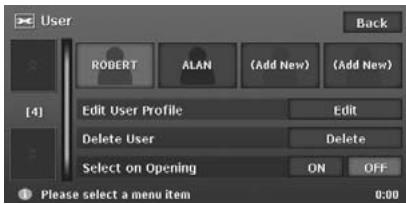
Registering the User Profile
- Touch the desired [(Add New)] key you wish to register.
A confirmation screen is displayed.
- Touch the [Yes] key.
The Name entry screen is displayed.
- Enter desired name of the User Profile by touching the characters on the screen.
[1]
Deletes the last entered character.
[Back]
Returns to the previous screen.
[Lower]
Displays lower case characters input keyboard.
[Upper]
Displays upper case characters input keyboard.
[All Clear]
Deletes all characters entered so far.
[A-Z]
Displays the alphabetic input keyboard.
[Accent]
Displays the accent characters input keyboard.
[0-9]
Displays the number input keyboard.
[Symbols]
Displays the symbol characters input keyboard.
[OK]
Fixes the entered characters, and proceeds to the next step.
- When the name entry completes, touch the [OK] key.
The new user profile is created, and a confirmation screen is displayed.
-
Touch the [No] key to return to the previous screen.
-
Touching the [Yes] key restarts the system with the new User Profile activated.
-
Edit the new User Profile by the following procedures.
Editing the User Profile
You can edit the details of the registered User Profile by the following procedure.
- Touch the [Edit] key of the Edit User Profile item.
The Edit User Profile screen is displayed.
- Touch the desired User Profile key you wish to edit.
The User Profile screen is displayed.
Edit the name, then touch the [OK] key to return to the User Profile screen.
-
Touch the [Birthday] key if you wish to enter. Enter the birthday information using the TenKey pad displayed on the screen, then touch the [OK] key to return to the User Profile screen.
-
Once you enter the Birthday information, you cannot leave the entry field in blank.
-
Touch the [Image] key if you wish to assign an image.
Touch the desired image displayed on the screen you wish to assign to, then touch the [OK] key to return to the User Profile screen.
-
Once you assign an image, you cannot leave the entry field in blank.
-
Touch the [User] key to assign an image imported by using SD cards.
-
Touch the [Memo] key if you wish to enter. Enter the desired text information using the keyboard displayed on the screen, then touch the [OK] key to return to the User Profile screen.
-
Once you enter the Memo information, you cannot clear it.
-
When editing User Profile completes, touch the [Back] key to return to the previous screen.
Deleting the User Profile
Note:
The Delete User screen is displayed.
- Touch the desired User Profile key you wish to delete.
A confirmation screen is displayed.
- Touch the [Yes] key to delete the selected User Profile.
The selected User Profile is deleted, then returns to the previous screen.
Switching the User Profile
Note:
A confirmation screen is displayed.
- Touch the [Yes] key to switch to the selected User Profile.
The system will be restarted with the selected User Profile.
Setting Select on Opening
Touch the [ON] or [OFF] key of the Select on Opening item.
When this setting is set to "ON", the User Profile screen to select the User Profile is displayed when turning on the power of this unit.
"Turning the power on" (P. 12)
From the Stored Data menu, you can register/edit various data used in the navigation system. For details, see the Navigation Manual.
Importing Data Using the SD Card
From the Import Data menu, you can import the downloaded data from the website. For more information about the installation method and the function, see the Clarion homepage.
- Touch the [→] (Next) key from the Setting menu.
- Touch the [Import Data] key to display the Import Data menu.
Note:
- When you perform the operation of data import, confirm that the SD card on which the relevant data is stored has been set to the SD card slot.
To use the SD card
- Press the [OPEN/CLOSE] button to open the operation panel.
- Confirming the orientation of the SD card, insert the SD card surely to the SD card slot until it stops.
Note:
- For the detailed information on using SD cards, see "Setting/Ejecting an SD Card" (P. 17).
CAUTION
Data may be broken when using SD cards in the following situation:
When disconnecting the SD card or turning the power off while writing or reading data. When affected by static electricity or electric noises.
It is recommended that you back up your important data to a personal computer by using the SD card.
Skin
You can import the Skin data stored in the SD card into the hard disk drive.
Touch the [Import] key of the "Skin" item, then operate according to the displayed messages.
To delete the data imported to the hard disk drive, touch the [Delete] key.
Image
You can import the image data stored in the SD card into the hard disk drive.
Touch the [Import] key of the "Image" item, then operate according to the displayed messages.
To delete the data imported to the hard disk drive, touch the [Delete] key.
Note:
- A special application is required for preparing image data used in this system. You can download this application from the Clarion homepage (http://www.clarion-eu.com/).
You can import/export the Album Information data into/from the hard disk drive.
The Gracenote Media Database has the album/ track information data used in the Music Catcher mode. Exporting the data to a PC, you can obtain the latest information from the Gracenote Media Database.
"Import"
Touch the [Import] key of the "Album Information" item, then operate according to the displayed messages.
"Export"
Touch the [Export] key of the "Album Information" item, then operate according to the displayed messages.
Note:
- A special application is required for obtaining the information. You can download this application from the Clarion homepage (http://www.clarion-eu.com/).
You can import the Extra POI data stored in the SD card into the hard disk drive.
Touch the [Import] key of the "Extra POI" item, then operate according to the displayed messages.
To delete the data imported to the hard disk drive, touch the [Delete] key.
Safety Camera
You can import the location database of Safety Cameras stored in the SD card to the hard disk drive. Touch the [Import] key of "Safety Camera", then operate according to the displayed messages. To delete the data imported to the hard disk drive, touch the [Delete] key.
Note:
- This function displays the locations of Safety Cameras on the map using the imported location database of the Safety Camera on the hard disk drive, and warns that the vehicle approaches the location. For details, see the Clarion's homepage.
- Be sure to import the location database of Safety Cameras while the vehicle is stopped. The message "Reading Safety Camera data." disappears when the import is finished. If the vehicle starts to move before the message disappears, the import will be cancelled.
From the Service Option menu, you can perform the operation such as displaying a demonstration of the navigation system, backup or restore of stored data, and resetting to the factory settings.
- Touch the [→] (Next) key from the Setting menu.
- Touch the [Service Option] key to display the Service Option menu.
Demonstration
Displays the demonstration of the route guidance.
"Demo":
Touch the [Select] key, then touch the desired demonstration course to play.
Backing up User Data
You can back up the data currently stored in this system to an SD card.
Note:
- This function saves the following data: the data of the Stored Locations, the route data, the data registered in Favourite/Frequent list, the setting data of the Settings menu.
- The recorded music data, Playlist data, and data imported using SD cards (Skin, Image, Album Information, Extra POI) cannot be backed up.
"Backup User Data":
When touching the [Backup] key, a screen with a confirmation message appears. Operate according to the guidance on the screen.
Restoring User Data
You can restore data backed up by using an SD card.
Note:
- When you perform backup/restore of data of two different systems, the stored data on the restored system will be lost. Be sure to back up data of this system to restore to before performing the restore operation.
"Restore User Data":
When touching the [Restore] key, a screen with confirmation message appears. Operate according to the guidance on the screen.
Resetting to the Factory Settings
You can return this system to the status after purchase.
Note:
- When the system is reset to the factory settings, all stored data is erased (including the music data in the Music Catcher). It is recommended that you backup all data you want to keep.
"Reset to Factory Setting":
When touching the [Reset] key, a screen with confirmation message appears. Operate according to the guidance on the screen.
Software & Map Update
You can update the system software and the map data.
"Software & Map Update"
When touching the [Start] key, a screen with message prompting to insert the update disc appears. Operate according to the guidance on the screen.
Screen Adjustment
The position and sharpness of the screen can be adjusted.
"Screen Adjustment":
After touching the [Adjust] key, adjust the screen position by touching the [ ],[ ],[ ] , and [ ] key. Touch the [1] or [2] key to select a setting at which the screen is displayed clearly.
From the Safety Camera menu, you can set the Safety Camera.
- Touch the [] (Next) key from the Setting menu.
- Touch the [Safety Camera] key to display the Safety Camera menu.
- Touch the desired menu item to set.
"Show Icon on Map":
Turns ON/OFF the Safety Camera Icon display on the map.
"Warning & Sound":
Turns ON/OFF both of the warning indication and alarm sound when the vehicle gets near a Safety Camera location.
"Camera Location":
Touch the [List] key to display the list of the Safety Camera locations. Touching an item of the list displays the icon at the location of the Safety Camera on the right map.
Note:
- These settings are enabled when the Safety Camera data is stored in the hard disk. "Safety Camera" (P. 71)
6. Others
Voice Command Operations
This system has built in voice recognition function. You can perform fundamental operations by saying the corresponding voice commands.
- For details of the operations, see the Navigation Manual.
List of the Voice commands (AV features)
The following table lists the fundamental command examples available to control the AV features.
Note:
- You can omit the term enclosed by ( ).
- Touching the [?] key displays the voice commands usable at that operating condition. You can refer to them.
These are the commonly usable commands in any condition during the voice input operation.
| Operation | Command |
| Terminates the voice operation, and displays the current location map screen. | “Map”“Current Position”, “Display/Show Map”, “Go to Map”, “(Show me) Where am I”, “Current Location” |
| Cancels the immediately precedent voice operation, and returns to the previous voice input wait mode. | “Back” |
| Displays the next page of voice command list displayed on the screen. | “Next (page)” |
| Displays the previous page of voice command list displayed on the screen. | “Previous (page)” |
| Displays the screen displayed when touching the [?] key (Voice Help screen). | “(Voice) Help”“What can I say?” |
Voice commands for changing the operation modes
| Operation | Command |
| Turns on the AV features. | “Audio On” |
| Turns off the AV features. | “Audio Off” |
| Switches to the Tuner mode. | “Radio” |
| Switches to the DVD/CD mode. | “DVD Player” or “CD Player” |
| Switches to the Music Catcher mode. | “Music catcher” |
| Switches to the SD Card mode. | “SD card player” |
| Switches to the AUX mode. | “AUX” |
| Switches to the iPod mode. | “iPod” |
Voice commands for controlling Tuner features
| Operation | Command |
| Performs seek tuning. | “Seek up/down” |
| Recalls a preset station. | “Preset 1/2/3/4/5/6”“Preset up/down” |
| Problem | Cause | Remedy |
| General |
| Power does not turn on. (No sound is produced.) | Fuse is blown. | Replace with a fuse of the same amperage. If the fuse blows again, consult your store of purchase. |
| Incorrect wiring. | Consult your store of purchase. |
| Nothing happens when buttons are pressed.Display is not accurate. | The microprocessor has malfunctioned due to noise, etc. | Turn off the power and open the operation panel. Press the Reset button with a thin rod.Note:·When the Reset button is pressed, the system is restarted with the Audio feature OFFReset button·When the Reset button is pressed, frequencies of radio stations, titles, etc. audio setting data stored in memory are cleared. |
| There are red, green, or blue points in the display. | — | This is not a failure, but a phenomenon peculiar to a liquid crystal panel (The liquid crystal panel is produced according to technology with very high precision. Note that, though there are effective pixels of 99.99% or more, pixel missing or normally lit pixels account for 0.01%.) |
| DVD Player |
| Disc cannot be loaded. | Another disc is already loaded. | Eject the disc before loading the new one. |
| There is a foreign matter already in place. | Eject the foreign matter forcibly. |
| Sound skips or is noisy. | The disc is dirty. | Clean the disc with a soft cloth. |
| The disc is heavily scratched or warped. | Replace with a disc with no scratches. |
| Sound is bad directly after power is turned on. | Water droplets may form on the internal lens when the car is parked in a humid place. | Let dry for about 1 hour with the power on. |
| The image is not displayed. | The parking brake is not engaged. | Check that the parking brake is engaged. |
| Disc cannot play with the display “PARENTAL CONTROL Please change the parental access level to playback the current disc.” shown. | The view is limited. | Release the view limitation or change the parental level. → “Setting up the parental level” (P. 29) |
| TV Tuner (When the optional TV tuner is connected) |
| The image is not displayed. | The parking brake is not engaged. | Check that the parking brake is engaged. |
| The display is dark. | The brightness control is too low. | Adjust the brightness properly. |
| The operating condition is not good. | The temperature inside the vehicle may be 0°C or lower. Set to an appropriate temperature (25°C or so) and check it again. |
| The headlight of the vehicle is lit. | The display is made dark at night to prevent the glare (When the headlight of the vehicle is lit in the daytime, the display gets dark). |
| The colour of the display is light or a shade of colour is not good. | The colour is not adjusted adequately. | Check that Colour and Hue are adjusted properly. |
| When the VTR is connected, the image is disturbed. | Improper NTSC/PAL setting | Set the VTR to output the PAL signals. |
| When the TV tuner is connected, the image gets unclear. | Bad receiving condition | A radio wave may not reach sufficiently due to obstruction of mountains or buildings. Check it again at a place where a radio wave can be received properly. |
| The TV tuner has a double or triple image. | Bad receiving condition | It may be under the influence of radio wave reflected by mountains or buildings. Check it again after changing place or direction. |
| The TV tuner has spots or stripes in the image. | Presence of jamming | It may be under the influence from motorcars, streetcar, power cable, neon sign, and so forth. Check it again after changing place. |
| Mobile Phone (When the optional Bluetooth Interface Box is connected) |
| The mobile phone cannot be connected. | The relevant profile is not selected on the mobile phone. | When selecting profiles is available, select a profile with hands-free feature. Otherwise, register the mobile phone again after deleting it from the Phone Select screen. |
| The Interface Box is trying to restore the connection with the previous mobile phone. | Turn off the Automatic Connection function, then register the mobile phone again. |
| The system does not operate correctly. | There is no response from the mobile phone. | Turn off the power of the mobile phone, then turn it on again. |
| Strange noise is heard from the speakers. | The remaining battery level of the mobile phone is low. | Charge the battery of the mobile phone. |
| DVD Player |
| MECHANISMERROR | A disc is caught inside theDVD player and is notejected. | This is a failure of DVD player's mechanism.Please consult your store of purchase. |
| DISC ERROR | A disc cannot be playeddue to scratches,etc. | Replace with a non-scratched,non-warped disc. |
| A disc is loaded up-side-down inside the DVDplayer and does not play. | Eject the disc then reload it properly. |
| INCORRECT FILEFORMAT | WMA files not supported bythis unit are played. | Perform the operation such as skipping a file.(Scan,repeat and random playback mode may becancelled.) |
| SD Card |
| ACCESS ERRORMemory Cardaccess failed | The SD card is not setcorrectly. | Set the SD card again. |
| The SD card is notrecognised. | Set another SD card. |
| Hard Disk Drive |
| HIGH TEMPERRORPlease wait until thetemperaturebecomes normal | The HDD cannot beaccessed because thetemperature in the vehicleis extremely high. | Please wait until the temperature becomesappropriate. |
| LOW TEMP ERRORPlease wait until thetemperaturebecomes normal | The HDD cannot beaccessed because thetemperature in the vehicleis extremely low. | Please wait until the temperature becomesappropriate. |
| HDD ACCESSERRORPlease consult adealer | The HDD cannot beaccessed.The sectors or clusters ofthe HDD may be damaged. | Please consult your nearest dealer. |
If an error display other than the ones described above appears, press the Reset button. If the problem persists, turn off the power and consult your store of purchase.
- When the Reset button is pressed, frequencies of radio stations, titles, etc. stored in memory are cleared.
GPS aerial
Mode: Microstrip flat aerial
Dimension: 30.4(W)× 11.7(H)× 35.5(D) mm
Impedance: 50 Ohm
Navigation System
GPS receiving frequency: 1575.42 MHz, C/A Code
Sensibility: -130 dBm or better
Number of GPS channels: 15 channels
FM Tuner
Frequency Range: 87.50 MHz to 108.00 MHz
Usable Sensitivity: 9 dBf
50dB Quieting Sensitivity: 15 dBf
Alternate Channel Selectivity: 70 dB
Stereo Separation (1 kHz): 32 dB
Frequency Response (±3 dB): 30 Hz to 15 kHz
AM Tuner
Frequency Range:
MW: 531 kHz to 1602 kHz
LW: 153 kHz to 279 kHz
Usable Sensitivity: 28dB V
DVD Player
System: Digital Versatile Disc System with CDDA capable
Usable discs: DVD video disc, Compact disc
Frequency Response: 20 Hz to 20 kHz (CD) (+1 dB/-2 dB)
Signal to Noise Ratio: 80 dB (1 kHz)
Dynamic Range: 80 dB (1 kHz)
Distortion: 0.05%
Audio Amplifier
Maximum power output: 200 W (50 W × 4)
Output Power: 4 × 31 W
(DIN 45324, +B = 14.4 V)
Speaker impedance: 4 (4 to 8 allowable)
Audio input:
130±60mVrms
(input impedance 10k or more)
Video input: 1.0 ± 0.2 Vp-p
(input impedance 75Ω)
Video Output
Video output: 1.0 ± 0.2 Vp-p (output impedance 75 Ω)
LCD Monitor
Screen Size: 7-inch wide type
156.2 mm Width × 82.3 mm Height
Display method: Transmission type TN liquid crystal display
Drive method: TFT (thin-film transistor) active matrix driving
Pixels: 336,960 (480 × 3 (RGB) × 234)
General
Power source voltage: 14.4 V DC (10.8 to 15.6 V allowable)
Earth: Negative
Current consumption: 4.3 A (1 W)
Auto Antenna Rated Current: 500 mA less
Dimensions of the Main Unit: 178 mm Width × 100 mm Height × 162 mm Depth
Weight of the Main Unit: 3.0kg
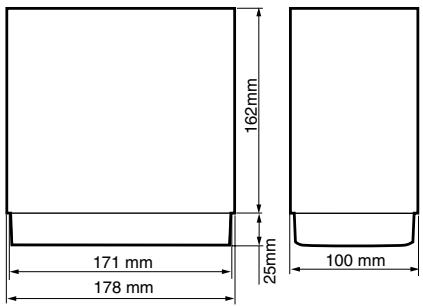
Note:
- Specifications comply with JEITA Standards.
- Specifications and design are subject to change without notice for further improvement.
INSTALLATION AND WIRE
CONNECTION MANUAL
Safety Precautions
Before use

WARNING
- Confirm the battery voltage of the vehicle to be installed. This unit is designed only for vehicles with DC 12V power supply.
- Disconnect the negative terminal of the battery before connecting wires, otherwise an electric shock, injury by short circuit may occur.
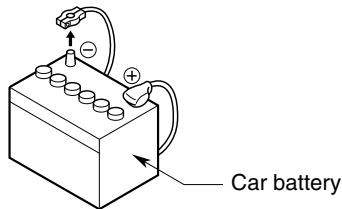
Notes on the place to install to

WARNING
CAUTION
-
Do not install the system in the locations described below. This may cause a fire, accident or electrical shock:
-
A location exposed to rain or dust.
- A location interfering with the driver's visual range or operation of the vehicle.
-
An unstable location, or where the system may fall.
-
Do not install this unit in a place exposed to direct sunlight or heat, or a place where the vent holes or heat radiation holes are covered.
- When you install the antenna, mount it in a place where the elements of the antenna do not protrude beyond the edge of the front, back, left and right of the vehicle. If it comes in contact with pedestrians, it may cause an accident.
Installation notes
WARNING
- Please note the position of pipes, tanks and electrical wirings before installing the unit into the vehicle. Failure in avoiding these may cause a fire or malfunction.
CAUTION
- Use only the supplied parts. If unspecified parts are used, they may cause damage.
- Any holes made in the body of the vehicle should be sealed with a silicon adhesive. If exhaust fumes or water penetrates into the vehicle, this may cause an accident.
- Fasten the bolts securely when installing the unit. If the bolts are loose, an accident or malfunction may occur.
Wire connection notes

WARNING
- Loom all cables according to the instruction manual so as not to hinder operation.
- Wire the connecting cables away from high temperature areas. If the coatings of the cables melt, it may cause an accident/ fire by a short circuit. Take care when wiring in the engine compartment.
- When wiring the connecting cables in a vehicle with an airbag system, never feed the cables through a place where it may interfere with the operation of the airbag. If the airbag not operating correctly in an emergency, it may cause increased injury.

CAUTION
- Connect cables appropriately. If a wrong connection is made, this may cause a fire or accident.
- When passing cables through the body of the vehicle, use non-conductive grommets.
- If the coatings of the cables are worn out by rubbing, this may cause an accident, fire or a short circuit.
- After wiring cables, fix them with insulation tape.
- Be sure to switch off the vehicle when connecting or disconnecting cables to/from the unit, otherwise an electric shock, injury or accident may occur.
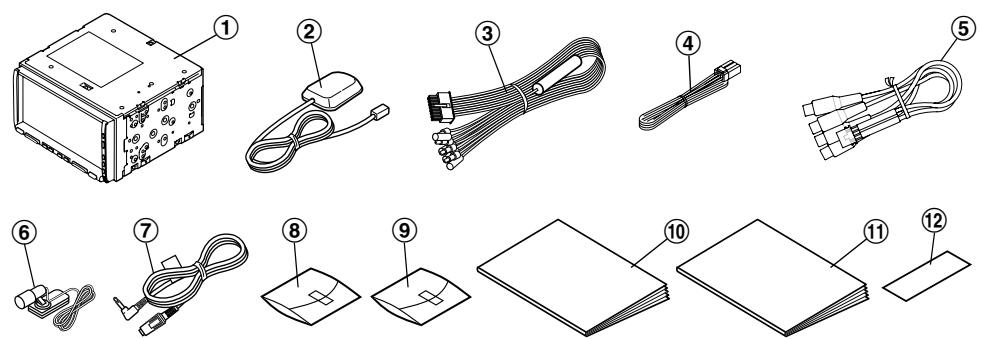
① Main unit. 1
② GPS antenna 1
③ Power supply lead. 1
④ Vehicle signal lead 1
⑤ RCA pin lead 1
⑥ Microphone for voice control. 1
⑦ Microphone extension lead 1
⑧ Accessory bag (No. 1). 1
⑨ Accessory bag (No. 2). 1
⑩ Owner's Manual (this book) 1
Navigation System Operation Manual...1
Warranty card 1
Contents in the Accessory Bag (No. 1) ⑧

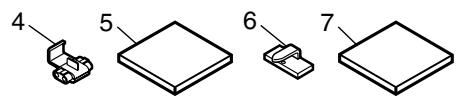
- Flat head screw (M5× 8) . 8
- Sems hexagonal screw (M5× 8) .8
- Electro tap 2
- Electro tap for speed sensor 1
- Double-sided tape for fastening antenna. 1
- Lead holder 10
- Double-sided tape for microphone .1
Contents in the Accessory Bag (No. 2) ⑨

- Rubber cap for RCA pin lead 6
Cautions on Installation
- Prepare all parts necessary for installing the main unit before starting.
- This model features an operation panel that slides forward. On some types of cars, the operation panel may make contact with the dashboard or gear lever, in which cause it cannot be installed.
Before installing, check that the unit will not hamper operation of the gear lever or obstruct your view before selecting the installation location.
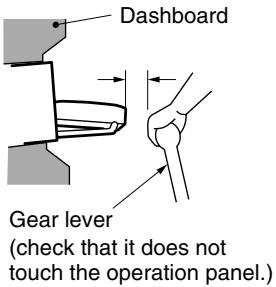
- Install the main unit within 30^ of the horizontal plane.
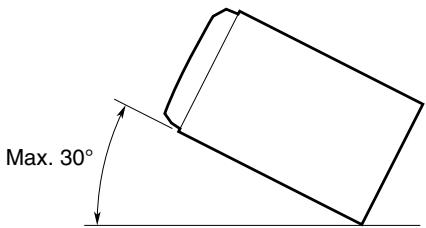
-
If you have to do any modification on the car body, such as drilling holes, consult your car dealer beforehand.
-
Use the included screws for installation. Using other screws may cause damage.
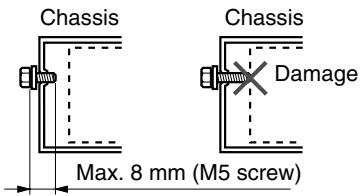
- This unit has a fan motor in the back of the main unit. When the fan motor vent is covered with leads or mounting bracket, it may cause a malfunction. Be sure not to cover it when wiring leads.
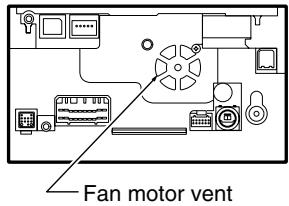
Installing the Main Unit
This unit is designed for fixed installation in the dashboard.
- When installing the main unit in NISSAN vehicles, use the parts attached to this unit.
When installing the main unit in TOYOTA vehicles, use the parts attached to the vehicle.
- Wire as shown in the section "Wire Connection".
- Reassemble and secure the unit in the dashboard and set the face panel and centre panel.
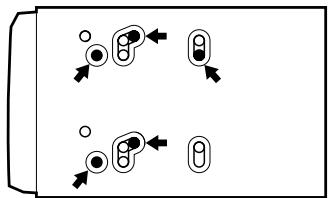
Mounting Screw Holes (Side View of the Main Unit)
For NISSAN vehicle
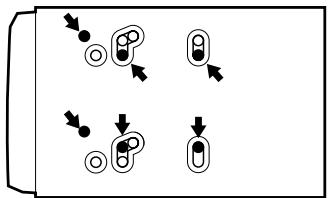
For TOYOTA vehicle
Installing the main unit in a NISSAN Vehicle
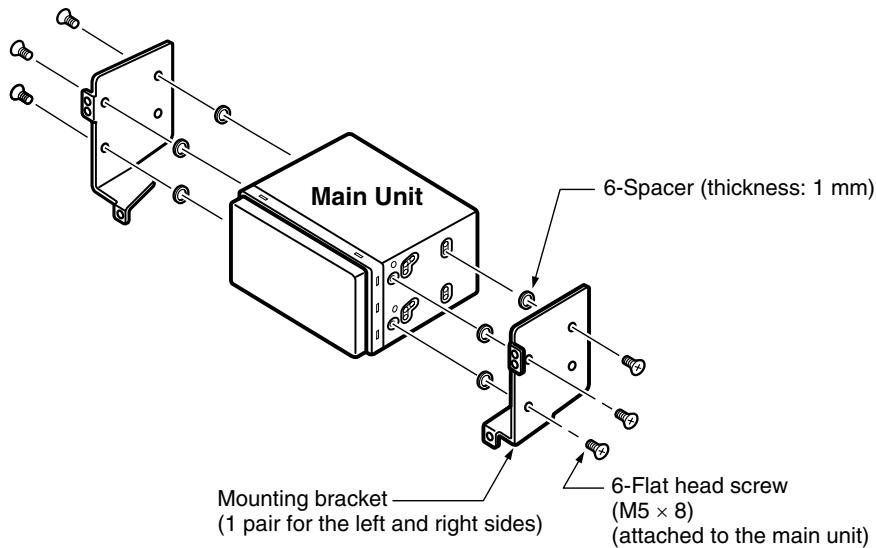
Installing the main unit in a TOYOTA Vehicle
Install by using parts attached to the vehicle. (Screws marked are attached to the vehicle.)
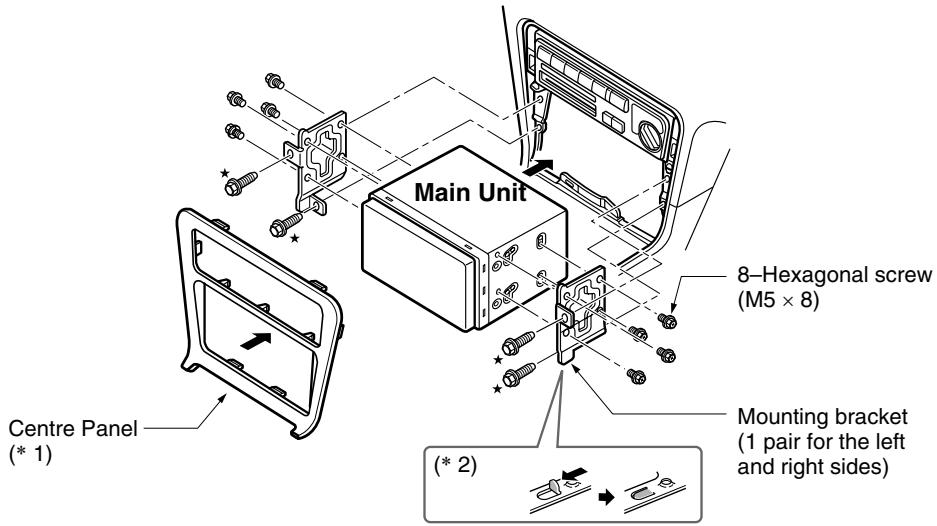
Note:
*1: Some panel openings are too small for the unit depending on the vehicle type and model. In such a case, trim the upper and lower sides of the panel frame by about 0.5 to 1.5mm so the unit can be inserted smoothly.
*2: If a hook on the installation bracket interferes with the unit, bend and flatten it with a nipper or similar tool.
Typical Mounting Brackets
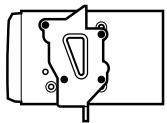
Example 1
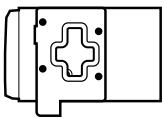
Example 2
Example 3
Affix the screws to the marks.
Vehicles other than NISSAN and TOYOTA
In some cases the centre panel may require modification. (Trimming, filing, etc.)
Removing the main unit
When the main unit is to be removed, disassemble it in the reverse of the order listed in this section.
WARNING
- Do not install the GPS antenna in a place where it may interfere with the operation of the airbag hinder the driver's visual range.
- Do not use this system with the GPS antenna lead cut off. The power cables in the lead may be short-circuited.
Note:
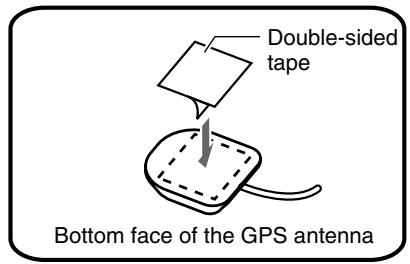
- Mount the GPS antenna.
Stick it surely on a flat plane of the dashboard towards the centre of the road where GPS signal interruption is minimised.
- Wire the GPS antenna lead.
Fasten the lead using the lead holders.
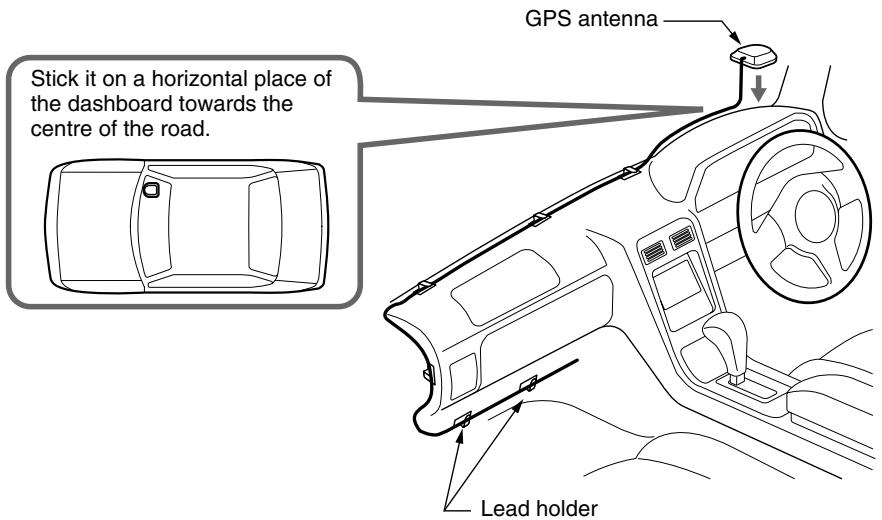
(Shows an example in case of the left-hand traffic.)
Note:
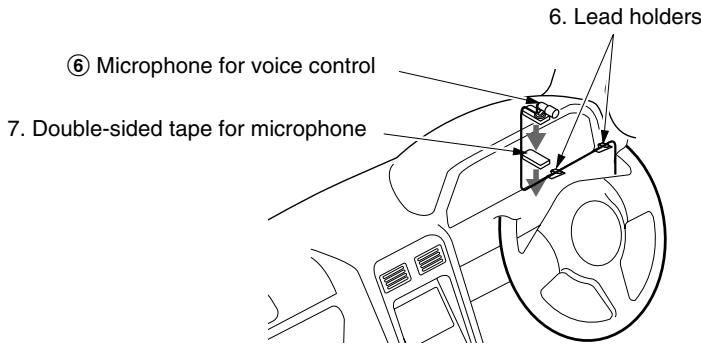
Connecting the Speed Sensor
Note:
-
Take care when connecting to the EC (Engine Control Computer) vehicle speed signal line.
-
Confirm the position of the EC (Engine Control Computer) and the vehicle speed signal line referring to your car make/model.
- Remove the vehicle parts, and confirm the position of the vehicle speed signal line of the EC.
- Connect the vehicle speed signal line and the speed sensor connection lead of the vehicle signal lead of this unit using the electro-tap for speed sensor.
- Connect the negative terminal of the battery and start the engine.
Drive the vehicle slowly and check that the signals are proportional to the vehicle speed and are correctly detected by displaying the connection check screen (see the "Navigation System Check" section of the Navigation Manual).
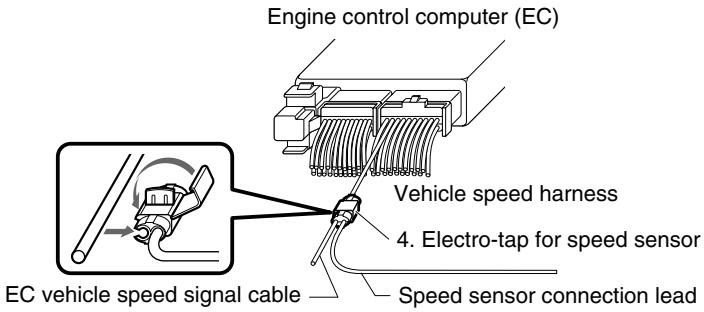
WARNING
- Disconnect the negative terminal of the battery before connecting wires, otherwise an electric shock, injury by short circuit may occur.
- Be sure to read the section "Wire Connection Notes" before installation or connection operations.
Note:
- For the optional devices, use the RCA pin cable and other connector cables sold separately.
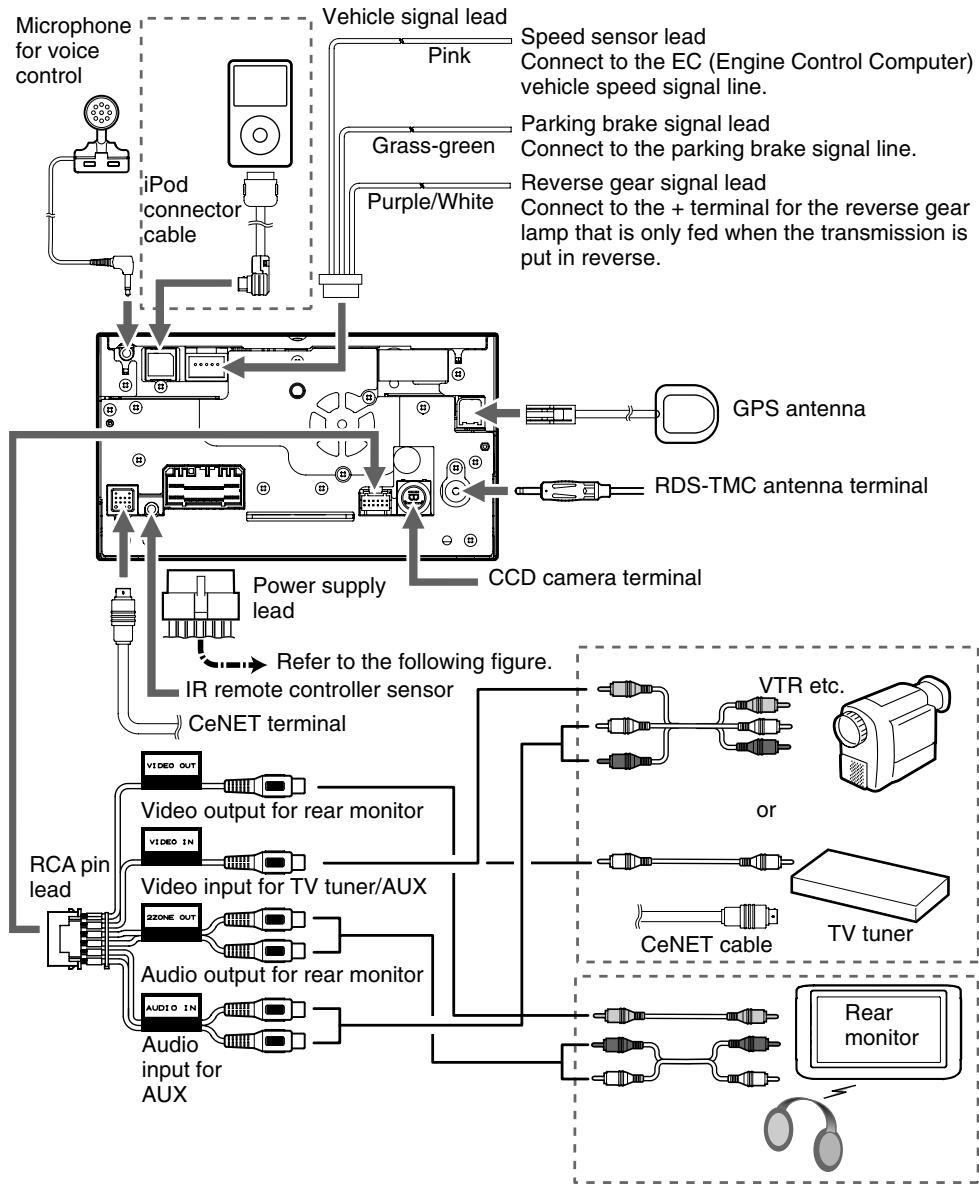
Power supply lead
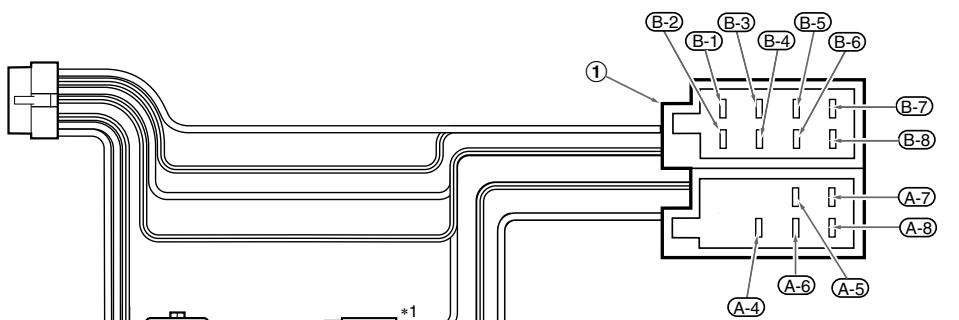
| No. | Description |
| (B-1) | REAR RIGHT⊕ |
| (B-2) | REAR RIGHT⊗ |
| (B-3) | FRONT RIGHT⊕ |
| (B-4) | FRONT RIGHT⊗ |
| (B-5) | FRONT LEFT⊕ |
| (B-6) | FRONT LEFT⊗ |
| (B-7) | REAR LEFT⊕ |
| (B-8) | REAR LEFT⊗ |
| (A-4) | +12 V MAIN POWER (*1) |
| (A-5) | TUNER +B |
| (A-6) | ILLUMINATION |
| (A-7) | +12 V ACCESSORY (*1) |
| (A-8) | EARTH |
| ① | ISO CONNECTOR |
| ② | Spare terminal (Yellow) |
Note:
*1: In certain vehicles - Volkswagen/Opel/Vauxhall - it is necessary to exchange the accessory and the main power connection, to avoid overload and loss of memory.
Notes on installing the RDS-TMC antenna
- For vehicles that do not allow radio wave penetration such as heat reflection glass, heat insulation glass or radio wave interception glass, the receiver sensitivity may decrease. For details, speak to the dealer where you purchased the unit.
- The receiver sensitivity may weaken by interference from other antennas within the vehicle, therefore try to install it away from other antennas.
- To prevent noise, wire the antenna cable separately from the power supply lead, speaker leads and the other cables of the vehicle.
Connecting to the CCD camera for vehicle
Connect the CCD camera for vehicle to the CCD camera terminal on the main unit. For detailed information, refer to the instruction sheet or manual for the CCD camera.
Note:
- A power supply box (sold separately) is required for connection of the main unit and the CCD camera.
- The power supply box for the camera CAA185 cannot be used. Please use the CAA188 instead.
Notes on wire connection
When connecting the plugs and sleeves, be sure to insert the plug until it locks securely. After completing connections, fasten the leads using lead clamps and tapes.
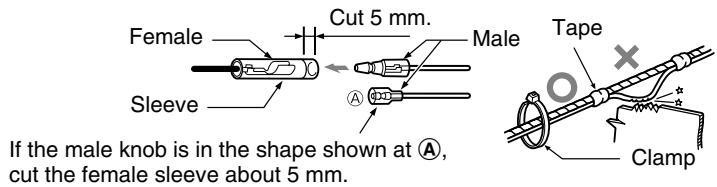
Connecting the reverse gear or parking brake signal lead
Connect each signal lead using the supplied electro-taps.

3. Electro-tap
- Place the lead from this unit at the stopper, and fold it back in the direction of the arrow.
- Pass the vehicle signal lead through, and fold it back in the direction of the arrow.
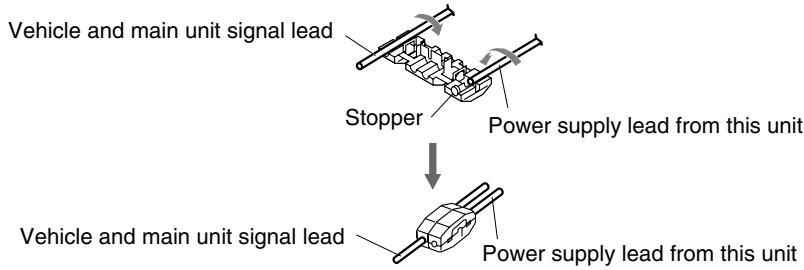
Note:
- After connecting the parking brake signal lead, pull the parking brake and check that the line falls to ground.
- For your safety, some functions will not operate unless the parking brake signal lead is connected correctly.
Example of relay usage
Use a special installation kit (relay lead kit), sold separately, prepared specifically for your model. For applicable models, consult the dealer where you purchased this unit.
Note:
- When connecting the main power supply lead (yellow) of the main unit, connect it to a spare terminal of this unit.
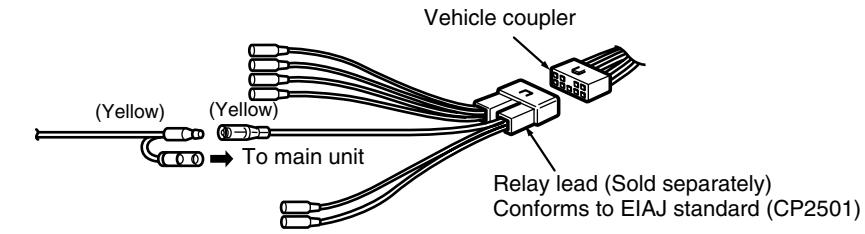

Replacing the fuse
If the fuse should blow, check to see if the wiring is correct. If a fuse is blown, replace it with a new one of the same amperage rating as the original (10A FUSE).
To replace the fuse, remove the old fuse of the power supply lead and insert the new one.
Note:
- There are various types of fuse holder. Do not let the battery side touch other metal parts.
CAUTION
- After the connection, fix the lead by a clamp or insulation tape for protection.
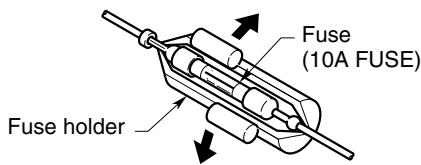
Clarion Co., Ltd.