
Epic 3 XWR-3150 - Router Luxul - Free user manual and instructions
Find the device manual for free Epic 3 XWR-3150 Luxul in PDF.


| Product Type | Dual-Band Wireless AC3100 Gigabit Router |
| Model | Epic 3 XWR-3150 |
| Brand | Luxul |
| Wireless Standard | 802.11ac (AC3100), dual-band 2.4GHz and 5GHz |
| Antennas | 4 external dual-band antennas (RPSMA female connectors) |
| LAN Ports | 4 x Gigabit Ethernet (green RJ-45) |
| WAN Port | 1 x Gigabit Ethernet (black RJ-45) |
| USB Port | 1 x USB (status LED on front panel) |
| Default IP Address | 192.168.0.1 |
| Default Username/Password | admin / admin |
| DHCP Server | Enabled by default (192.168.0.x subnet) |
| Wireless Controller | Supports management of up to 2 additional access points for seamless roaming |
| Power Adapter | Included; AC input 100-240V, DC output 12V |
| Reset Button | Press and hold ~20 seconds for factory reset |
| Dimensions (approx.) | 9.5 x 6.5 x 1.5 inches (estimated) |
| Weight (approx.) | 1.5 lbs (estimated) |
| Mounting Options | Horizontal desk or wall/ceiling mounting using keyholes (pattern included) |
| Ventilation | Ensure adequate space around device for ventilation |
| Compliance | FCC, CE (implied by brand) |
Frequently Asked Questions - Epic 3 XWR-3150 Luxul
User questions about Epic 3 XWR-3150 Luxul
0 question about this device. Answer the ones you know or ask your own.
Ask a new question about this device
Download the instructions for your Router in PDF format for free! Find your manual Epic 3 XWR-3150 - Luxul and take your electronic device back in hand. On this page are published all the documents necessary for the use of your device. Epic 3 XWR-3150 by Luxul.
USER MANUAL Epic 3 XWR-3150 Luxul
Epic 3
Dual-Band AC3100 Gigabit Router
XWR-3150
Includes:
Dual-Band Wireless AC3100 Gigabit Router
Dual Band Antennas (4)
Ethernet Cable
Power Adapter
ROUTER SETUP AND CONFIGURATION
1 Physical Installation
The Epic 3 Wireless Router is designed for simple and efficient installation. For horizontal installation, install the rubber feet and position the Epic 3 on a desk or other horizontal surface with adequate room around the device for ventilation. For wall or ceiling mounting, simply follow the directions on the included mounting pattern and use the mounting keyholes on the Epic 3.
2 Connecting Antennas, Ethernet and Power
Antennas: Ensure all dual-band antennas are installed on the router.
INTERNET Connection: Connect the Ethernet cable from the modem/router equipment provided by your Internet Service Provider (ISP) to the black INTERNET port of the Epic 3.
AC Power: Connect the included AC Adapter to the XWR-3150 first and then to the AC outlet.
3 Preparing for Access
IP Addressing
The Epic 3 default LAN IP address is 192.168.0.1. The DHCP server on the Epic 3 is configured by default to create a 192.168.0.x network.
Both the default LAN IP address and subnet scheme can be changed. However for hassle-free plug-and-play installation of other Luxul hardware, we recommend you use the default IP address if possible.
If your client device is set to obtain an address automatically, no further configuration is required and you can skip to the next step, Access and Setup.
If your computer or device isn't set to obtain an IP address automatically, you'll need to set a temporary static IP address on that device. Set the IP address of your computer to an address in the 192.168.0.X range, then set the Gateway/Router address to 192.168.0.1 (the default IP address of the Epic 3).

NOTE: Visit http://luxul.com/ip-addressing to learn more about changing your computer's IP address and getting connected.

Access and Setup
Getting Connected
Connecting Via an Ethernet Device: Use an Ethernet cable to connect your computer to one of the green Epic 3 LAN ports. Ethernet is the preferred method of connection.
Connecting Via a Wireless Device: Connect a wireless client device to one of the Epic 3 default wireless networks (Luxul3150 or Luxul31505G). Both Wireless networks will run in Open security mode, so a passphrase will not be required until wireless security is configured.
Open a web browser, enter 192.168.0.1, then log in to the router using the default user name and password and proceed with configuration:
Default IP: 192.168.0.1
Username: admin
Password: admin

NOTE: If another device on your network shares the 192.168.0.1 address, you'll need to reassign that device a different IP address to configure the Epic 3.

NOTE: Only devices that support the 5GHz frequency will see the default Luxul31505G wireless network.

Advanced Configuration
Configuring the Epic 3 as a Wireless Controller
The Epic 3 can manage up to two additional access points to enable wireless client roaming and simple configuration. To enable this feature, ensure one or two compatible access points are connected to the same network as the Epic 3, then select Wireless Controller from the Epic 3 web configuration interface. Follow the online help to add the access point(s) to the profile.

Caution: Do not manually configure access points you intend to manage with the Epic 3 for seamless roaming. Doing so will result in standalone AP that the Epic 3 will not find/manage.
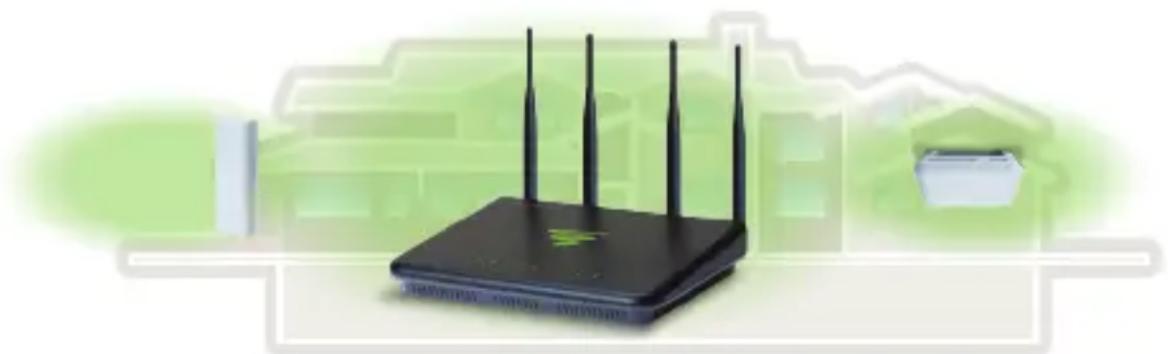
Epic 3 as a Controller
Activating Domotz in a Luxul Router

NOTE: Visit https://youtu.be/YOY9A_jV7BE_to learn how to activate Domotz in a Luxul router.
Other Advanced Configuration
For more information on configuring advanced features such as DDNS, VPN, etc., refer to the support resources at luxul.com.

Hardware Operation
Epic 3 Front Panel LED Indicators
| Indicator Name Status Function | |||
 | 5GHz ON A 5GHz wireless network is broadcasting. | ||
 | 2.4GHz ON A 2.4GHz network is broadcasting. | ||
 | 1-4 LED ON A device is connected to the corresponding Ethernet port. | ||
| FLASHING Data packets are being transmitted to the connected device. | |||
 | Internet LED | On | Router is connected to the ISP. |
| FLASHING Data packets are being transmitted | |||
 | USB LED | ON A USB-enabled device is connected and configured. | |
 | System LED | FLASHING Router is booting. | |
| HEART BEAT | Router is operating normally. | ||
| OFF | Router is not booting. | ||
 | Power LED | ON Power is applied to the Router. | |
| OFF | Power is not applied to the Router. | ||
Front Panel
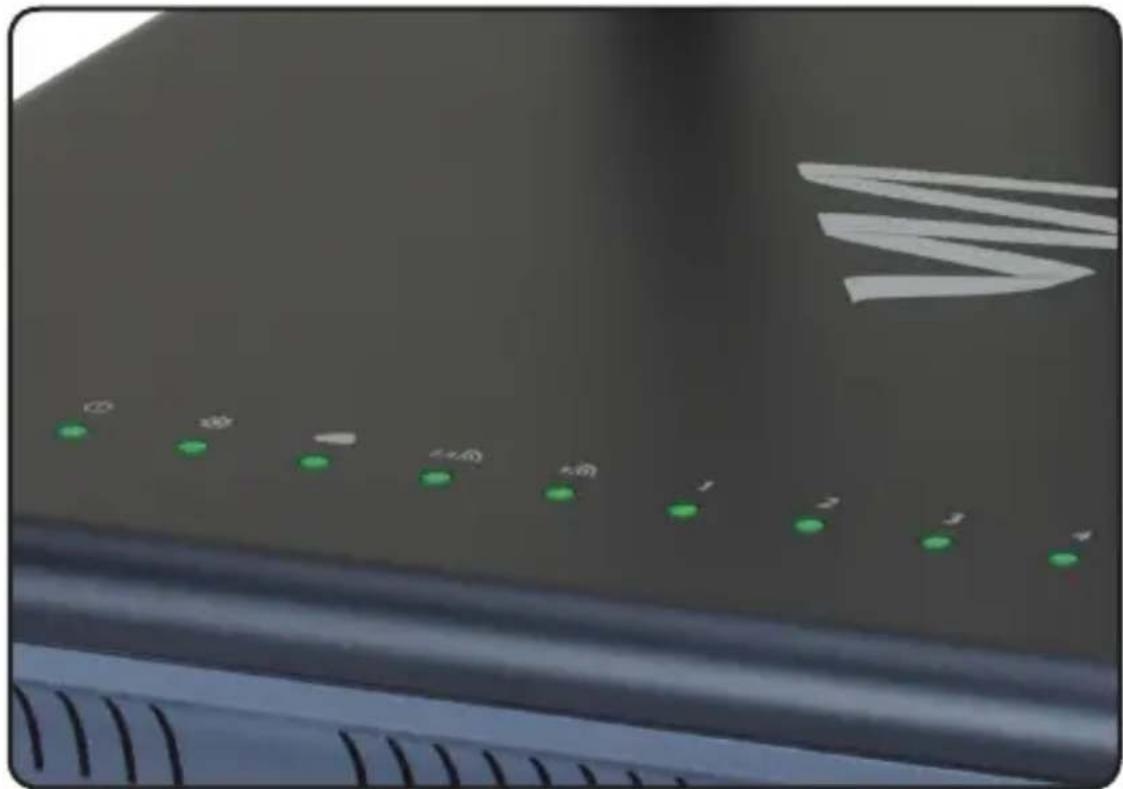
Epic 3 Front Panel View
Rear Panel
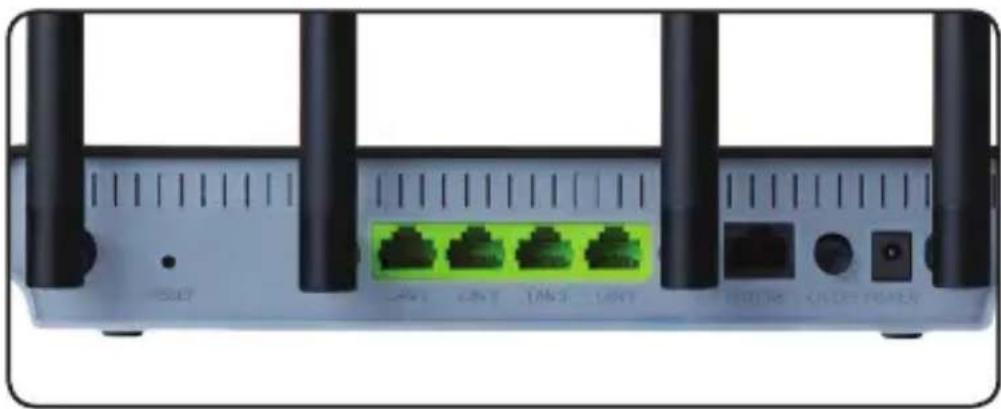
Epic 3 Rear Panel View
Antenna Ports: 4 RPSMA female antenna ports to connect the included antennas.

NOTE: All four antennas should be installed prior to powering up the XWR-3150 and are required for optimal performance.
▶ Power Input: Power adapter included.

NOTE: To reboot the router, disconnect the power adapter, wait 10 seconds and reconnect the power adapter.
WAN Port: (1) black RJ-45 Ethernet Port for Internet connection.
▶ LAN 1 - 4 Ports: (4) green RJ-45 Ethernet ports for connecting to the local network.

NOTE: A Luxul switch is recommended in conjunction with the Epic 3 to increase the number of local ports available.
▶ Reset Button: Used to restore factory default settings.

CAUTION: Holding the Reset button longer than 10 seconds will result in a factory reset.
To restore factory defaults, press and hold the Reset button until the System LED stops flashing (approximately 20 seconds). A factory reset will take one minute or more to complete. A successful factory reset is indicated when all of the Port LEDs flash once. When the System LED starts flashing again, the unit is ready.

CAUTION: Resetting the Epic 3 to factory defaults will remove all custom settings.
Sales
P: 801-822-5450
E: sales@luxul.com
Technical Support
P: 801-822-5450 Option 3
E: support@luxul.com
Copyright and Trademark Notices
No part of this document may be modified or adapted in any way, for any purposes without permission in writing from Luxul. The material in this document is subject to change without notice. Luxul reserves the right to make changes to any product to improve reliability, function, or design. No license is granted, either expressly or by implication or otherwise under any Luxul intellectual property rights. An implied license only exists for equipment, circuits and subsystems contained in this or any Luxul product.
© Copyright 2016 Luxul. All rights reserved. The name Luxul, the Luxul logo, the Luxul logo mark and Simply Connected are all trademarks and or registered trademarks of Luxul Wireless, Inc. All other trademarks and registered trademarks are property of their respective holders.
LUX-QIG-XWR-3150-v3 02211801
A brand of legrand®



- EPIC 3
- DUAL-BAND AC3100 GIGABIT ROUTER
- XWR-3150
- INCLUDES
- ROUTER SETUP AND CONFIGURATION
- 1 PHYSICAL INSTALLATION
- 2 CONNECTING ANTENNAS, ETHERNET AND POWER
- 3 PREPARING FOR ACCESS
- IP ADDRESSING
- ACCESS AND SETUP
- GETTING CONNECTED
- ADVANCED CONFIGURATION
- CONFIGURING THE EPIC 3 AS A WIRELESS CONTROLLER
- ACTIVATING DOMOTZ IN A LUXUL ROUTER
- OTHER ADVANCED CONFIGURATION
- HARDWARE OPERATION
- FRONT PANEL
- REAR PANEL
- SALES
- TECHNICAL SUPPORT
Brand : Luxul
Model : Epic 3 XWR-3150
Category : Router