
Epic 4 XBR-4500 - Router Luxul - Free user manual and instructions
Find the device manual for free Epic 4 XBR-4500 Luxul in PDF.


| Product Type | Multi-WAN Gigabit Router |
| Brand | Luxul |
| Model | Epic 4 XBR-4500 |
| Ethernet Ports | 5 RJ-45: 1 dedicated WAN, 1 dedicated LAN, 3 configurable WAN/LAN |
| USB Port | USB 3.0 (front panel) |
| Default IP Address | 192.168.0.1 |
| Default Username/Password | admin / admin |
| Power Supply | Built-in, 100-240VAC, 50/60Hz |
| Mounting Options | Desktop (with rubber feet) or 19-inch rack (with included L brackets) |
| LED Indicators | Power, System, USB, and port status (link/activity/speed) |
| Reset Button | Front panel: press to reboot, press and hold 15 seconds for factory reset |
| DHCP Server | Enabled by default |
| File/DLNA Server | Built-in (requires USB storage) |
| Maximum WAN Connections | Up to 4 independent Internet connections |
| Recommended Cable | CAT5/CAT5e/CAT6 UTP or CAT6 STP for 1000 Mbps |
| Operating Temperature | Not specified; ensure adequate ventilation |
| Dimensions (approx.) | 17.3 x 6.7 x 1.7 in (typical 19-inch rack width) |
| Weight (approx.) | 4.5 lbs (estimate) |
| Included Accessories | Rack mounting ears, rubber feet, power cord |
Frequently Asked Questions - Epic 4 XBR-4500 Luxul
User questions about Epic 4 XBR-4500 Luxul
0 question about this device. Answer the ones you know or ask your own.
Ask a new question about this device
Download the instructions for your Router in PDF format for free! Find your manual Epic 4 XBR-4500 - Luxul and take your electronic device back in hand. On this page are published all the documents necessary for the use of your device. Epic 4 XBR-4500 by Luxul.
USER MANUAL Epic 4 XBR-4500 Luxul
natural_image
Exterior view of a black LUXUL network switch device with five Ethernet ports and indicator lights (no readable text or symbols beyond branding)Epic 4
Multi-WAN Gigabit Router
XBR-4500
Includes:
Multi-WAN Gigabit Router
Rack Mounting Ears (2)
Rubber Feet (4)
Power Cord
SETUP AND CONFIGURATION
1 Physical Installation
The Epic 4 can be rack-mounted or used as a desktop router. Install it in a stable/safe place to avoid any possible damage. Make sure there is adequate space around the router for ventilation and proper heat dissipation. Avoid placement in direct sunlight. Do not place heavy articles on the router and verify the ground connection of the outlet is functioning properly.
Desktop/Shelf Installation
For desktop/shelf installation, attach the four rubber feet to the corner indentations on the bottom of the router, then place it on a solid, level platform.
Rack Installation
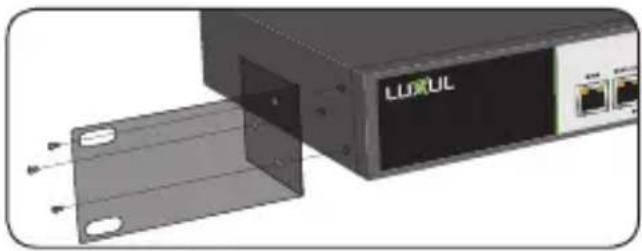
Use the included L brackets for convenient installation in a 19-inch server or AV rack. As shown below, use four screws to attach the L-shaped brackets on either side of the router, and mount the switch horizontally in the rack. Use your desired hardware to affix the router supports to the rack.
natural_image
3D rendering of a device with a labeled LUXUL front panel and external ports (no readable text or symbols beyond branding)Install Brackets for Rack-Mounting

natural_image
Exterior view of a black LUXUL device with two ports and three connectors (no visible text or symbols)Attach Feet for Desktop Installation
2 Connecting Ethernet and Power
Before installing the router, test the Internet connection to verify that it is functioning properly. Once Internet access is confirmed to be working, follow the steps below for installation and configuration.
Connecting Ethernet
Luxul recommends Category-5, super Category-5 or Category-6 unshielded twisted pair (CAT5/CAT5e/CAT6 UTP). To ensure best performance and stable data transmission at 1000 Mbps, use Category-6 shielded twisted pair.
- Connect the WAN: Connect the Internet cable from a telco/ISP modem/router to the dedicated WAN 1 port on the router.
- Connect the LAN: Connect a cable from the dedicated LAN 1 port on the router to a switch, access point, or computer.
For best performance, and to maximize available ports, Luxul recommends connecting all LAN devices to a Luxul switch, then connecting that switch to the Epic 4 LAN port via a single Ethernet cable.

NOTE: WAN 1 and LAN 1-4 are configured by default. The router must be configured to provide additional WAN ports

NOTE: Connect all LAN devices to a Luxul switch, then connect that switch to the router for best results.
Connecting Power
Use the included power cable to connect the router to a surge-protected outlet. The AC input socket and power switch are on the rear panel. The built-in power supply supports 100\~240VAC at 50/60Hz.

Access and Setup
Default IP Address
The Epic 4's default IP address is 192.168.0.1. This can be modified, however, we recommend you retain the default IP address if possible for hassle-free installation of other Luxul products.

NOTE: In the event another device on your network shares the 192.168.0.1 address, you'll need to temporarily reassign or remove that device while you configure the Epic 4.
Connecting a Client Device
Connect a client device to one of the router's LAN ports or to a switch that is connected to a LAN port. The DHCP server on the router is configured by default. If your client device is set to obtain an address automatically, no further configuration is required and you may skip to the next step, Logging In.
If your computer is not configured to obtain an address automatically, you'll need to configure it manually to connect to the router's 192.168.0.x network. To do so, set the IP address of your computer to an address in the 192.168.0.X range, then set the Gateway/Router address to 192.168.0.1 (the default IP address of the router), and proceed with configuration.
Once you're finished configuring the switch, you can return your computer's IP configuration to normal, typically "Obtain Automatically/DHCP."

Note: Visit http://luxul.com/ip-addressing to learn more about changing your computer's IP address and getting connected.
Logging In
To access the router's web configuration, open your web browser and enter the router's default 192.168.0.1 IP address in the address field. Log in to the router using the default user name and password:
Default IP: 192.168.0.1
Username: admin
Password: admin
Select the menu items on the left to view and/or modify the configuration. For information on configuring this router and routers in general, review the support resources at luxul.com.

Hardware Operation
The front panel of the router features Power, System and USB LEDs, and port status indicators for each of the router's five built-in ports.
The front panel features five RJ-45 Ethernet ports: A single dedicated WAN port, a dedicated LAN port, and three more ports which can be configured as either WAN or LAN ports. Using the dedicated WAN port along with all three shared WAN/LAN ports, the router can be connected to up to four independent Internet connections simultaneously. The front panel also features a recessed Reset button and a USB 3.0 port. Plug a USB flash drive or hard drive into the USB port and configure the built-in file/DLNA server to serve files to LAN-connected devices.
The rear panel features a power switch and power socket.
Front Panel

Reset Button
The Reset button (located on the front panel) can be used to reset (reboot) the switch, or to restore the switch factory default settings.
To Reset the Router: With the router powered on, press and release the Reset button.

CAUTION: Do not hold the button for more than a second. Doing so could erase all settings and restore factory defaults.
To Restore the Default Settings: With the router powered on, press and hold the Reset button for 15 seconds, then release the button. The switch automatically restores factory default settings. A factory reset may take approximately a minute to complete. A successful factory reset is indicated by all of the port LEDs flashing once. When the System LED begins to flash, the unit is ready.

CAUTION: Restoring default settings will remove any/all custom configuration.
LED Indicators
| Indicator | State Description | |
| POWER | On | Router is powered and switched on. |
| SYSTEM | Flashing | Router is functioning. |
| On | Router is booting. | |
| Off | Router is not functioning correctly. | |
| USB | On | A USB device is connected. |
| WAN/LAN | Yellow On/Green On | 1000 Mbps operation. |
| Yellow On/Green Off | 10/100 Mbps operation. | |
| Yellow Flashing | Network activity. | |
| Yellow Off/Green Off | No network connection. |
Sales
P: 801-822-5450
E: sales@luxul.com
Technical Support
P: 801-822-5450 Option 3
E: support@luxul.com
Copyright and Trademark Notices
No part of this document may be modified or adapted in any way, for any purposes without permission in writing from Luxul. The material in this document is subject to change without notice. Luxul reserves the right to make changes to any product to improve reliability, function, or design. No license is granted, either expressly or by implication or otherwise under any Luxul intellectual property rights. An implied license only exists for equipment, circuits and subsystems contained in this or any Luxul product.
© Copyright 2016 Luxul. All rights reserved. The name Luxul, the Luxul logo, the Luxul logo mark and Simply Connected are all trademarks and or registered trademarks of Luxul Wireless, Inc. All other trademarks and registered trademarks are property of their respective holders.
LUX-QIG-XBR-4500-v5 02221701
A brand of legrand®

natural_image
Abstract network diagram with interconnected nodes and lines on a dark background (no text or symbols)


- Epic 4
- Multi-WAN Gigabit Router
- Includes:
- SETUP AND CONFIGURATION
- Physical Installation
- Desktop/Shelf Installation
- Rack Installation
- Connecting Ethernet and Power
- Connecting Ethernet
- Connecting Power
- Access and Setup
- Default IP Address
- Connecting a Client Device
- Logging In
- Hardware Operation
- Front Panel
- Reset Button
- Sales
- Technical Support
- Copyright and Trademark Notices
Brand : Luxul
Model : Epic 4 XBR-4500
Category : Router