
Ares M1 - Keyboard Gamdias - Free user manual and instructions
Find the device manual for free Ares M1 Gamdias in PDF.


| Product Type | Gaming Keyboard (with bundled gaming mouse) |
| Brand | Gamdias |
| Model | Ares M1 |
| Dimensions (Keyboard) | Approx. 440 x 130 x 30 mm |
| Weight (Keyboard) | Approx. 800 g |
| Power Supply | USB-powered (5V, 500mA) |
| Connection Type | Wired USB |
| Cable Length | Approx. 1.5 m |
| Compatible Operating Systems | Windows XP / Vista / 7 / 8 / 10 |
| Key Layout | Standard 104-key layout with multimedia shortcuts |
| Multimedia Shortcut Keys | My Computer, Home, Email, Search, Play/Pause, Mute, Volume Up, Volume Down |
| Spill Resistance | Yes, spill-resistant design |
| Bundled Mouse | Gamdias Zeus E2 optical gaming mouse |
| Mouse DPI Settings | 1,200 / 1,600 / 2,000 / 3,200 DPI (default 1,200) |
| Mouse Buttons | Left, Right, Middle, Forward, Backward, DPI Cycle |
| Installation | Plug-and-play via USB; driver installation may be automatic |
| Cleaning Instructions | Disconnect from PC before cleaning. Use a soft, dry cloth. Do not use liquid cleaners. |
| Safety Precautions | Keep away from liquids and extreme temperatures. Do not disassemble. |
| Spare Parts / Repairability | No user-serviceable parts. Contact Gamdias support for repairs. |
| Manufacturer Support | www.GAMDIAS.com for product registration and support |
Frequently Asked Questions - Ares M1 Gamdias
User questions about Ares M1 Gamdias
0 question about this device. Answer the ones you know or ask your own.
Ask a new question about this device
Download the instructions for your Keyboard in PDF format for free! Find your manual Ares M1 - Gamdias and take your electronic device back in hand. On this page are published all the documents necessary for the use of your device. Ares M1 by Gamdias.
USER MANUAL Ares M1 Gamdias
Thank you for purchasing the GAMDIAS™ ARES M1. The GAMDIAS ARES M1 gaming keyboard has a comfortable design and spill resistant structure. The GAMDIAS™ ZEUS E2 optical gaming mouse employs premium micro-processor complemented by 3,200 DPI precision-perfect optical sensor.
System Requirements
- Windows ® XP/ Vista / 7 / 8 / 10
- PC with USB ports
Package Contents
• GAMDIAS™ ARES M1 Gaming Keyboard
• GAMDIAS™ ZEUS E2 Gaming Mouse
Hardware Installation
- Insert the USB plug of the GAMDIAS™ ARES M1 keyboard into an available USB port on the computer.
- The "New Hardware Found" notification will be displayed. Follow the instructions on the screen to complete the hardware installation.
- Insert the USB plug of the GAMDIAS™ ZEUS E2 mouse into an available USB port on the computer.
- The "New Hardware Found" notification will be displayed. Follow the instructions on the screen to complete the hardware installation.
Introduction to ARES M1 Keyboard Configuration
Eight multimedia shortcut keys: My Computer, Home, Email, Search, Play/Pause, Mute, Increase Volume, Decrease Volume
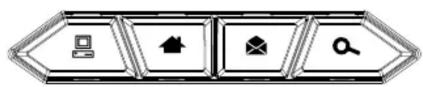
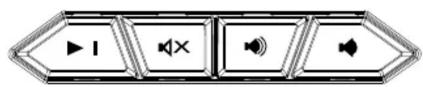
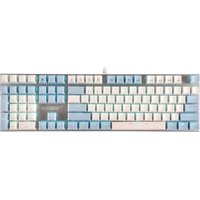
GAMDIAS ARES M1 Keyboard Layout
![ARESIM 1 Esc F1 F2 F3 F4 F5 F6 F7 F8 F9 F10 F11 F18 ' = 1 I 2 B 3 C 4 D 5 E 6 F 7 G H G [ O ] - - + ← Tab G W E R T Y U I O P [ ( ) ] Enter Caps A S D F G H J K L : : ' ' + Shift Z X C V B N M , < . > / ? Shifts Ctrl Aits Alt Alt GM < Y > 0 Use + Del](/content/2026/05/957209/images/4403e08ec24e0a3e7b0c4f265c4b4bec0683678df96820fe12fc13e92ced0a44.jpg)
ZEUS E2 Default Settings

Registering Your GAMDIAS™ ARES M1 Gaming Headset
Please visit www.GAMDIAS.com for online product registration.

natural_image
Abstract geometric logo design with interlocking black and gold shapes inside a large golden triangle (no text or symbols)GAMDIAS
GAMING ART IN MOTION
Brand : Gamdias
Model : Ares M1
Category : Keyboard