MP-F402 - Portable audio player MPMAN - Free user manual and instructions
Find the device manual for free MP-F402 MPMAN in PDF.


User questions about MP-F402 MPMAN
0 question about this device. Answer the ones you know or ask your own.
Ask a new question about this device
Download the instructions for your Portable audio player in PDF format for free! Find your manual MP-F402 - MPMAN and take your electronic device back in hand. On this page are published all the documents necessary for the use of your device. MP-F402 by MPMAN.
USER MANUAL MP-F402 MPMAN
- Do not subject the device to severe impact or drop it from high position.
- Do not use the player in extreme hot or cold, dusty or damp field. Do not expose it to direct sunshine.
- Back up the data frequently in case of accident data loss.
- Avoid using the player in strong magnetic field.
- Keep the device away from water or other liquids. In the event that water or other liquids enter the device, power off the product immediately, take out the battery and clean the device.
- Do not use chemical solution to clean the device in order to avoid corrosion. Clean it with a dry cloth.
- We are not responsible for the damages or lost data caused by malfunction, misusing, repairing the device or battery replacement.
- Do not attempt to disassemble, repair or modify the product, or it will be out of guarantee.
- Appearance or actual display of the player may be different from what is described in this manual. Please refer to the actual device.
Technical Notice
- Plug & Play is only available for WIN2000/XP. It is not supported by WIN98 and WIN98SE in which a driver needs to be installed.
- Please charge the battery immediately when the display indicates low battery, or the device will be powered off automatically.
- Please unplug the player properly to avoid data losing.
- The transfer rate displayed on the PC may be different depending on the operating system. Exact transfer rate should be subject to the player's indication.
Key Features
Play MP3, WMA and ASF file
- Folder Navigation
Voice Recording
FM Radio (optional)
SRS WOW sound effect
Built-in Rechargeable Li-polymer battery
Package Content
- Main Unit
-
Stereo earphone with neck strap
USB Cable -
User Manual
Warranty Card
Keys Description
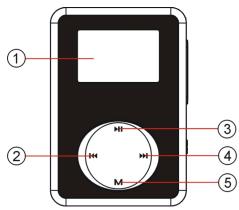
① LCD display
② Previous
③ Play/Pause
④ Next
⑤ MENU button
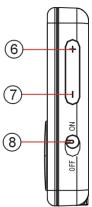
⑥ VOL+
⑦ VOL-
⑧ Power Switch
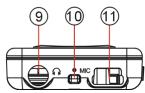
⑨ Earphone Jack
Built-in Microphone
USB Port
Basic Operations
| Function | Operation |
| Power On/Off | Turn the Power Switch to “ON”, and then press and hold the ➔ key to power on the device. Press and hold the ➔ key to close the screen, and then turn the Power Switch to “OFF” to power off the device. |
| Play/Pause | Press the ➔ key to play or pause. |
| Adjust Volume | Press the VOL+ or VOL- button to increase or decrease volume. |
| Previous/Next | Press the ↘ / ↘ button to play the previous or next track. |
| Fast Forward | Press and hold the ➔ button to fast forward the playback. |
| Rewind | Press and hold the ↘ button to rewind the playback. |
Enter various work modes
When you power on the device, you should see the main menu providing various work mode options - Music Mode, Record Mode, Voice Mode, Radio Mode and Setting Mode.
Press button to select a mode, and press the MENU button to enter it.
Music mode
On the main menu, select "Music Mode" to enter the music mode. You should see the playing screen when you enter it. Refer to the "Basic Operations" section for playing music.
- Enter folder navigation mode
(1) When the music is being played, shortly press the key to pause.
(2) Shortly press the MENU button to display submenu.
(3) Select "Local folder" and then press the MENU button to confirm.
(4) In the folder mode, press / button to select a folder and then press the MENU button to open it.
(5) In the opened folder, press button to select a track. To play the selected track, press the MENU button to enter music playing mode. To close the current folder and return, select the folder name and then press the MENU button, or press the button to return to the submenu.
- Delete Single Track
You can delete one single track following these steps:
(1) Pause the music playing first and then shortly press the MENU button to display submenu.
(2) Select "Delete file" and then press the MENU button to continue.
(3) Press / button to select "Yes" or "No", and then press the MENU button to confirm or press the button to cancel.
- Delete all tracks
You can delete all tracks following these steps:
(1) Pause the music playing first and then shortly press the MENU button to display submenu
(2) Select "Delete all" and then press the MENU button to continue.
(3) Press / button to select "Yes" or "No", and then press the MENU button to confirm or press the button to cancel.
A-B Repeat
To repeat the specified section of the current track,
(1) When the music is being played, shortly press the MENU button to display submenus.
(2) Press / button to select "Replay" and then press the MENU button to enter the A-B repeat mode.
(3) At your desired start point, press the MENU button to confirm the start point of the repeat.
(4) At your desired end point, press the MENU button to confirm the end point of the repeat.
(5) The section between the start point and the end point begins to be played
repeatedly.
(6) To stop the A-B repeat, press the MENU button again.
- Select Play Mode
You can switch between the following play modes:
Normal -Play all tracks in order and stop after playing
Repeat One - Keep repeating the current track
Folder - Play all tracks in current folder
Repeat Folder - Repeat all tracks in current folder
Repeat All - Play all tracks in order and repeat
Random - Play all tracks randomly
Intro- Play the first 10 seconds of each track
To select play mode:
(1) When the music is being played, shortly press the MENU button to display submenu.
(2) Press / button to select "Repeat" and then press the MENU button to show the provided options.
(3) Press / button to select the desired repeat mode, and press the MENU button to confirm or press the button to cancel and return.
- Select the preset EQ mode
You can play the tracks in different sound effect. The device provides 8 EQ modes: Natural, Rock, Pop, Classic, Soft, Jazz, DBB and UserEQ.
To set the preset EQ mode,
(1) When the music is being played, shortly press the MENU button to display submenu.
(2) Press / button to select "Equalizer" and then press the MENU button to show the provided options.
(3) Press button to select the desired mode, and press the MENU button to confirm or press the key to cancel and return.
To set the user-defined EQ,
(1) When the music is being played, shortly press the MENU button to display submenu.
(2) Press / button to select "Equalizer" and then press the MENU button to show the provided options.
(3) Press / button to select "UserEQ", and press the MENU button to confirm or press the key to cancel and return.
(4) Press / button to select the equalizer setting column, and press the VOL+/VOL- button to adjust the equalizer level.
(5) Press the MENU button to confirm setting.
- Set SRS and WOW sound effect
The device provides vivid sound effect SRS and WOW to enhance your music enjoyment. These steps can guide you to enable SRS and WOW setting:
(1) When the music is being played, shortly press the MENU button to display submenu.
(2) Press / button to select "SRS WOW mode" and then press the MENU key to show the provided options.
(3) Press / button to select "SRS WOW", and press the MENU key to confirm or press the key to cancel and return.
To adjust the WOW setting,
a. Select "Adjust WOW" and then press the MENU key to continue.
b. Select "SRS 3D", "TruBass" or "FOCUS" and then press the VOL+ / VOL- button to adjust the level.
c. Press the MENU key to confirm setting.
Note: WOW, SRS and (●) symbol are trademarks of SRS Labs, Inc. WOW technology is incorporated under license from SRS labs, Inc.
- Display lyric
To display the lyric during playback, you need to download a lyric file with the same name as the current track title to the player, and then press and hold the MENU button to enter the lyric display mode.
To hide the lyric, press the MENU button.
Note: The lyric file and the track should be in the same directory.
- Exit from the Music Mode
Press and hold the MENU button to exit and enter the main menu.
Voice recording
- Record
(1) On the main menu, select "Record Mode" and then press the MENU button to enter voice recording mode.
(2) Press the button to start recording.
(4) During recording, you can press the button to pause or resume recording.
(5) Press the MENU button to stop and save the recording.
CAUTION: DO NOT POWER OFF THE DEVICE DURING RECORDING. THAT WILL CAUSE CURRENT RECORDING UNSAVED AND LOST.
- Play the Recording
(1) On the main menu, select the "Voice Mode" to enter the voice playing mode.
(2) Press 14 button to select the file that you want to play and press the key to play it.
For detail information about playing, refer to the "Basic operations" and "Music Mode" section.
- Exit from the Record Mode
Press and hold the MENU button to exit and enter the main menu.
FM Radio (optional)
On the main menu, select "Radio Mode" and press the MENU button to turn on the FM radio.
- Auto Search for Broadcasting Stations
(1) Shortly press the MENU button to show the submenus.
(2) Press K button to select "Auto Search" and then press the MENU button to
continue.
(3) The radio automatically searches for stations within the frequency band. Found stations will be saved as preset stations.
- Search for Broadcasting Stations manually
Press / button to decrease or increase frequency manually.
- Save the found Station
You can save the found station following these steps:
(1) Press the MENU button shortly to show the submenu.
(2) Select "Save" and press the MENU button to continue.
(3) Press / button to select "Yes" or "No", and then press the MENU button to confirm.
- Listen to Station
Press the key to switch between the preset stations.
- Delete broadcasting station
(1) Tune to the preset station that you want to delete.
(2) Press the MENU button shortly to show the submenu.
(3) Select "Delete" (or select "Delete All" to delete all preset stations) and press the MENU button to continue.
(4) Press button to select "Yes" or "No" and then press the MENU button to confirm deletion.
Set the frequency band
This device provides two frequency bands for your choice: Normal Band (87.5~108MHz) and Japan Band (76~90MHz). You can select the band which is applicable for your local region.
Shortly press the MENU button to display the submenu. Select "Normal Band" or "Japan Band", and then press the MENU button to confirm.
Record the FM program
You can record the FM programs broadcasted by the station.
(1) When you are listening to the program, shortly press the MENU key to display the submenu.
(2) Select "Record" and then press the MENU button to enter the voice recording mode.
(3) Press the key to start, pause or resume recording.
(4) Press the MENU button to stop and save the recording
- Exit from the Radio Mode
Press and hold the MENU button to exit and enter the main menu.
System Settings
To customize the player settings:
(1) On the main menu, select "Setting Mode" and press the MENU button to enter the system setting mode.
(2) Press / button to select a setting item and press the MENU button to confirm or press the button to return.
| Item | Description |
| LCD Set | Brightness – Adjust the brightness of the screen. |
| DarkMode – Darken the screen after the set time for saving power. | |
| Language | Select the language in which the on-screen text is displayed. |
| Power off | Off time –Set the length of time after which the player is turned off automatically when it is idle.Sleep time – Set the continuous playback time before the player is turned off automatically. |
| KeyHoldTime | Used to lock buttons against being pressed accidentally. When the device has no activity, the buttons are locked automatically within the set time. Buttons will never be locked if the time “0” is set.To unlock the buttons, press and hold the MENU button. |
| Memory info. | Display percentage of the used memory space. |
| Firmware version | Display software version number. |
| Firmware Upgrade | Upgrade the firmware. |
Connect to the PC and download audio files
(1) Plug the larger end of the USB cable to the USB port of the PC, and plug the smaller end to the USB port of the player.
(2) When the "5" icon appear at the right bottom of the PC screen, double click "My Computer" on the desktop, you a new removable disk drive that indicate the player. Just use the removable disk as regular local disk, copying files from or to it.
(3) Remove the player from the PC in a safe way to avoid data loss.
a. Left click the icon at the right hand corner of the taskbar.
b. Click the pop-up mini-window with message of "Stop the USB Mass Storage Device - Drive (X)".
c. When you are prompted to remove the device, pull out the MP3 player.
Note: For Win98 system. Driver installation is required before connection.
Charge the Battery
The device has built-in lithium rechargeable batteries. It is charged by USB connection.
To charge the battery, just connect the player to a computer through the USB cable.
To know the charge progress, see the battery icon on the screen for reference. It takes about 3 hours to fully charge the battery.
Note:
a. Please charge the battery immediately when the display indicates low battery, or the device will be powered off automatically.
b. For maximum performance, lithium-ion batteries need to be used often. If you don't use the device often, be sure to recharge the battery at least once per month.
Troubleshooting
| Problem | Possible Cause | Solution |
| Cannot power on the device. | 1. The battery is too low. 2. The keys are locked. | 1. Charge the battery. 2. Press and hold the MENU button. |
| No sound when playing music or voice file. | 1. The volume is too low. 2. There are problems with the audio file. | 1. Adjust the volume. 2. Skip the file. |
| The player cannot be connected to the PC. | 1. The driver is not installed or destroyed. 2. The USB interface is not supported by PC's motherboard. | 1. Install or reinstall the driver shipped with the player. 2. Update or replace the PC's motherboard. |
| The displayed time is changing constantly. | The bit rate of the MP3 file is changing during playback. | Try to use fixed bit rate to compress the MP3 file. |
| The PC has error when you plug and unplug the player. | The player is disconnected from the PC abruptly while transferring files. | Do not disconnect the player from the PC when transferring files. |
| Total memory displayed on the player is not in accordance with the marked amount. | Part of memory is used to store programs and display characters. | |
| Some of MP3 files cannot be played properly. | The MP3 file is compressed by a standard, such as MPEG I Layer 1 or Layer 2 that the player does not support. | Delete the unsupported MP3 files. Use MPEG I Layer 3 standard to compress the unsupported MP3 files. |
Specification
| Item | Parameter |
| LCD Display | 96 x 64 Matrix Graphic Screen |
| Battery Type | Rechargeable Li-polymer Battery |
| Battery Life | 6-8 hours |
| Recording Format | ACT |
| Recording Length (Max.) | About 280 hours with 1GB |
| Music format | MP3, WMA, ASF |
| Bit rate | MP3/WMA: 8kbps ~ 320kbps ASF: 8kbps ~ 448kbps |
| Frequency range | 20Hz ~ 20kHz |
| Signal/noise ratio | >= 90 dB |
| Channel separation | >=40dB |
| Frequency response | <=3dB (20Hz ~ 20kHz) |
| Output power to earphones | L 4mW, R 4mW |
| USB Interface | USB 2.0 (high speed) |
| Memory media | FLASH |
| Memory capacity | 256MB ~ 8GB |
Video Conversion
For music synchronization and conversion, please use MPMANAGER software supplied in the CD ROM.
This software can be used also for UPDATE of your player MPMANAGER manual is included in your CDROM
For more information please check our website
www.mpmaneurope.com

CE