
ICR-350 - Portable audio player MPMAN - Free user manual and instructions
Find the device manual for free ICR-350 MPMAN in PDF.


User questions about ICR-350 MPMAN
0 question about this device. Answer the ones you know or ask your own.
Ask a new question about this device
Download the instructions for your Portable audio player in PDF format for free! Find your manual ICR-350 - MPMAN and take your electronic device back in hand. On this page are published all the documents necessary for the use of your device. ICR-350 by MPMAN.
USER MANUAL ICR-350 MPMAN
IMPORTANT SAFETY INSTRUCTIONS
PRECAUTIONS
To maintain optimum performance:
Do not use unit in places which are extremely hot, cold, dusty or humid.
Do not use or keep the unit in following places.
In a high humidity.
- In an area exposed to direct sunlight.
- Near sources of strong magnetism, such as televisions, speakers or magnets.
- Where there is a lot of movement or vibration, such as on a car.
For safety
- Do not attempt to disassemble this unit.
- make sure that pins or other foreign objects to not get inside the Unit.
- Take care not to drop the unit or subject it to strong shocks.
Note when listening with the earphones
- listen at moderate volumes to avoid hearing damage.
- Do not wear the earphones while driving or cycling
-
you should use extreme caution or temporarily discontinue use in potentially hazardous situations such as walking, Jogging, etc.
-
If you hear no sound, DO NOT turn the volume up high because the music could suddenly begin at high volume. To avoid hurting your ears or damaging the headphones turn the volume control to the lowest level before starting playback and slowly turn it up to the desired level.
Designs and Specifications are subject to change without notice.
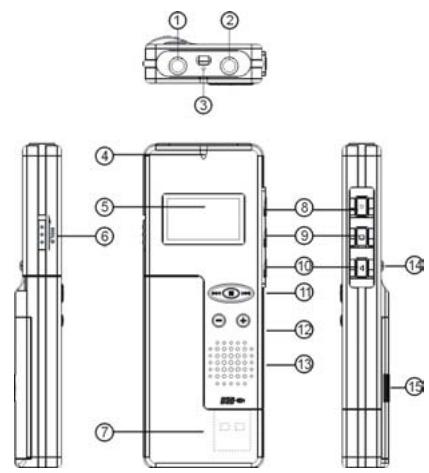
Location of Controls:
- Line-in socket
- Earphone socket
- Built-in microphone
- Status indicator
- LCD display
- HOLD button
- USB jack
- Record
- Stop/Pause
- Power on/off/playback/pause
- Menu/ Previous/REW /Next/FF
- Volume + Volume -
- Louder speaker
- Lock button
- Battery case
Display
Battery Level

The name of playing songs, number and time
Repeat Mode

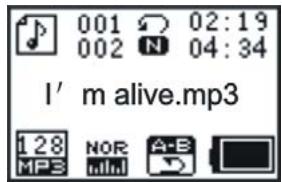
7 modes: Normal, Repeat One, Folder, Repeat Folder, Repeat All, Random, Intro
EQ mode

7 modes: Natural, Rock, Pop, Classical, Soft, Jazz, DBB
Basic operation
1. Power supply
It is powered by AAA battery or USB. When the remaining capacity of battery indication shows , please change the battery in time.
2. Power on/off
A. Press and hold button to power on. The LCD displays the startup logo.
B. Under the playback or stop (pause) status, press and hold to power off.
Note: If the unit is locked by the HOLD key, it displays the locked icon and then power off automatically while power on.
3. Mode
After powering on the unit, press and hold the M button to enter the main menu. There are four modes: Music mode MSC,
Recording mode REC, Voice mode VOI and System setting SYS. As the following picture shows:
Press▶or I to select the corresponding mode.
Press the M button to enter.
II. Recording Mode REC


1. Enter from the menu
1). Turn on the unit and enter the main menu.
2). Select the Recording mode REC by▶I/I按钮, and then press the M button to confirm and enter.
3). Press button to begin to record.
4). Press and hold button or the M button to stop recording and save at the same time.
Note: (1). If the LCD displays "Disk Full", it means that there is no enough space in
the disk, please delete some files to release the space.
(2). The unit supports 99 files under every directory. If the LCD displays "Directory Full", it means that there are already 99 files in the directory. Please change to another directory.
2. Shortcut
1) Under the stop status, press button to start to record. Press to pause.
2) Press and hold the button or M button to stop recording and save at the same time.
3. Select Record type
1) Under the recoding stops interface, press M button to enter the record menu.
2) Select "record type" and then press the M button to enter. Then select "record type" option by or button and then press M to confirm.
REC Type: SP record, WAV format, good timbre
LP record, ACT format, general timbre
SP VOR, WAV format, voice-control REC
LP VOR, ACT format, voice-control REC
Voice-control indicates that the record is controlled by voice. It will stop when there is no voice and record the datum when there is voice, so as to save the memory space.
3). Playback of recorded files
A. Enter the main menu, select the Voice Mode VOI.
B. Press the M button to enter the interface, and then press to playback.
C. Select the recorded files by or I button.
4. Telephone conversation recording
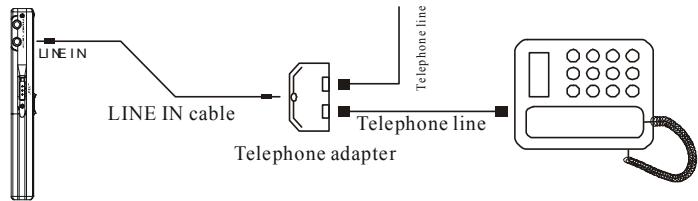
Connect the external telephone line and telephone cable to the telephone adaptor; link the audio line to the adaptor and LINE IN jack. Continuously press button to start recording.
5. Transfer recorded files to the external equipment
Link the audio cable to the PHONES (earphone) and external equipments' in-put jack, then press PLAY/M button of the recorder and the external equipment's REC button at the same time. (Please test the external equipment's REC function
before your recording in order to avoid failed recording)
Note: during the recording, if the unit was shut off by knock or other actions, all recording files will lost. So please operate carefully.
- Convert ACT format files into WAV format
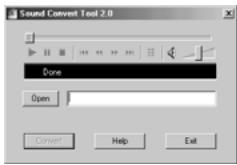

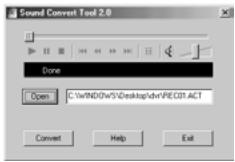
1). After install the software, open and run "sound converter", click "open"
2). Select the ACT files you want to convert
3). Clock "convert" and start the converting
III. Music Mode MSC and Voice Mode VOI
- Description of Keys Function
| Key | Action | Stop State | Play State | Play sub menu | Stop Sub menu | Main Menu |
| ▶ | long press | Power off | Power off | Power off | Same as in left | Power off |
| short press | Play | Stop | Exit the menu | × | ||
| M | long press | Enter main menu | Enter main menu | Enter main menu | Same as in left | Enter main menu |
| short press | Enter the main directory | Enter mode selection | Confirm the option or enter more further | × | ||
| ▶I | short press | Next | Next and play | Move sub menu | Same as in left | Next mode |
| long press | Continue scanning forward | FF | Move forward continuously | Move forward continuously | ||
| I | short press | Previous | Previous and play | Move sub menu | Same as in left | Previous mode |
| long press | Continue scanning backward | REW | Move backward continuously | Move backward continuously | ||
| + | short press | Increase volume step by step | Increase volume step by step | × | × | × |
| long press | Increase volume continually | Increase volume continually | × | × | × | |
| - | short press | decrease volume step by step | decrease volume step by step | × | × | × |
| long press | decrease volume continually | decrease volume continually | × | × | × | |
| • | short press | Enter the record interface and start to record | Enter the A-B repeat status | × | Enter the record interface and start to record | start to record |
| long press | Enter the record interface and start to record | Enter the A-B repeat status | × | Enter the record interface and start to record | start to record | |
| ■ | short press | To pause recording | × | × | × | × |
| long press | To save recording | Enter the playing submenu | × | × | × |
! Operation skills: You can exit from the menu or the select interface Quickly by short pressing "▶" key.
Do not shift too quickly when pressing the keys, please operate one by one.
2. Stop menu
Under the stop status, press M button to enter the stop menu. There are four
options: Main directory, Delete one, Delete All, and exit. Select the corresponding option by or button.
1). The unit support 99 top-level subdirectories. You can save different files in different directories (the directory should be pre-built in the PC), so that you can play and manage them by classifying.
Note: I. You can set the "Main disk directory" for music mod, record mode and voice mode respectively, i.e., the "main disk directory" of these three mode do not correspond the same directory.
II. There must be files which can be identified by the mode in the directory, so that the directory can be displayed while setting the "main disk directory".
2). Delete files
-
Select "delete one" or "delete all" to delete the current file or all of the files in the current folder.
-
Under pause status, press MODE/REP button to enter the stop menu, press or button to select "delete one", and then press the M button to enter the delete interface. Press or button to shift between "YES" and "NO"; select "YES" and press the M button to delete the current file; select "NO" to give up the deletion; select "delete all" to delete all of then files in the current directory.
Note: "delete all" can only delete the files in the current directory under the current mode. For example, under the music mode, if you select "delete all", you can only delete the music files. The recorded files will not be deleted.)
3). Select "exit", press the M button to exit the stop menu.
3. Play Menu
In Play state, short press MODE/REP key to enter Play menu including options of Repeat, Equalizer (only for Music mode), tempo rate, replay, replay times (only for music mode), replay gap(only for Music mode), and Exit. Select the corresponding option by press or 1< button. Enter options by short pressing M key.
1) Repeat Mode:

When playing music and REC files, you can select different cycling modes (e.g., Repeat one, repeat all, etc.)
When confirming your selection, the player will play the set rules. The play modes available include: Normal, Repeat One, Folder, Repeat Folder, Repeat All,
Random and Intro.
Normal: After the music in the current directory have been played fully, the player will play the music in the next directory till all files are played and then it will stop.
Repeat One: Repeat playing a single piece of music.
Folder:Play all the music in the folder.
Repeat Folder: Repeatedly play all the music in the folder.
Repeat All: Repeatedly play all the music.
Random: Play randomly the music in the current folder.
Intro: Play all the music of the first ten seconds in the current folder.
2). Equalizer (Only available in Music mode)
NOR (Natural)
Roch (Rock)
POP (Pop)
CL当前 (Classical)
(Soft)
Jazz (Jazz)
DBB)
3). Tempo Rate
When playing the music files (only applicable for MP3 files) and recorded files, the user can select different tempo rate (slower or faster), but the sound will not be changed.
4). Repeat Mode
(1) While playing, press button to set the point "A", the letter "B" in the repeat icon will flash. Press the button again to confirm the starting point B. Then the player will repeat playing between A and B. When reaching the set times or short press the M key to exit Repeat mode.
(2) Follow function (the voice mode doesn't have this function)
In A-B repeat, press button to enter the follow mode, the repeat icon " is changed into the follow icon " . Then the player will begin to record the voice of the user. The time length is the same as the A-B repeat. When the set time comes, the player will play the original voice and the icon will be changed into " . Then the user can press the bottom to enter the contrast function.
Note: In this state, press button to return to the state of "A-B repeat".
(3) Contrast function (the voice mode doesn't have this function)
After entering the contrast function, the repeat icon will be changed to "回". At the time, the player starts to play the following voice. After the following voice has been fully played, the icon will be changed to "回", at the time, it plays the original voice. After the original voice has been fully played, it starts to play the record repeatedly without stop (no limits of the "Repeat Times" setting) till you
press M button to exit.
(4)Replay Times (only music mode has this function)
Press M button to adjust the repeat times, the repeat times will determine it will exit after how many times of A-B repeat it plays.
(5) Replay gap (only music mode has this function)
Press M button to adjust the replay gap, the replay gap will determine the time length to be paused between this playing and the last playing (unit: second)
(6)Exit
Press the M key shortly to exit the play menu.
4. Lyrics
This player supports the lyrics function with MP3 playback.
Note :
1)Lyrics file format should be *.LRC
For example: The song file name is: A-DoNight.mp3. The lyric file name is: A-DoNight. Lrc
2) File name should be the same as the song's name.
3)Lyrics file should be placed in the same folder of the song.
During playback mode, press and hold M button to display Lyrics, Press M
button to exit.
my heart will go on and on
1
V. Lock
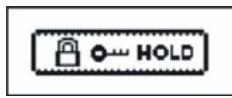
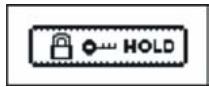
Under the playback or stop mode, status, push HOLD key per arrowhead direction to lock the player. On the hold mode, non of the functions can be used.
VI. System setup SYS
1. Clock
1). The current time (Electronic watch function. The time can only be showed after entering this interface):
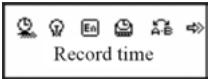
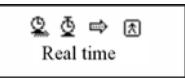
Press the M button to enter the current time interface:

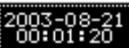
Press + (- to the reverse direction) to start to set form year (the year option starts to blink), then increase or decrease the numeral by or button. Then shortly press + to select Month, Day, Hour, Minute and Second and also increase or decrease the numeral by or button. Press M or key to confirm and exit after adjustment.
2). Pre-record
Set a time, and the unit will start to record automatically at the pre-set time.


Record timer
Press the M button to enter the Pre-record interface.

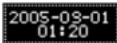
The way to adjust the pre-set time is same as the above: set the Year, Month, Day, Hour, Minute and Second one by one, and then press M or key to confirm and exit after adjustment.
Note: press button to turn on/shut down the function of pre-REC. if you shut down this function, there is no bell icon on the display.
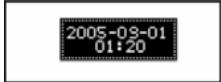
3). Length of record
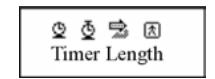
Press the M button to enter the record length interface:
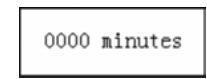
The way to adjust the time is same as the above: set the Year, Month, Day, Hour,
Minute and Second one by one, and then press M or key to confirm and exit after adjustment.
- Backlight time
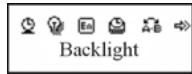
Press the M key to enter the backlight time interface.
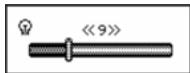
Press I /I按钮 to adjust the backlight. The unit of time is second. Press the M or key to confirm and exit after setting.
- Language Selection
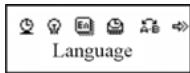
Press the M key to enter the language selection interface:
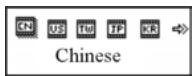
Press the button to select the corresponding language and the shortly press M button to confirm and exit.
4 Power off setting
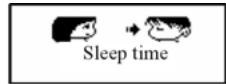
Press the M button to enter the power off setting interface. There are two modes:
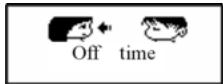
1). Power-saving mode
Set the time of Power off (unit: minute), in Stop state, the time is calculated when no key is pressed and the player would power off automatically. If it is set as 0 second, the function will be inactivated.
2). Sleep Mode
Set a time(unit: minute), the time is calculated when no key is pressed and the player would power off automatically, the time will be cleaned to zero before it is
powered off. (i.e. set for one time) it is mainly used for listening to songs before your sleep. The setting will be canceled automatically after power off. You have to reset it if you want to use it again.
5. Repeat Setting
Press the M button to enter the repeat setting interface. There are two modes:
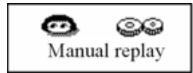
1). Manual Mode means it can not pause automatically when A-B repeat, but to set the point manually.
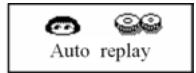
2). Auto Mode means it can pause automatically. (Pertaining to recitations without music.)
6. Contrast adjustment
Adjust the contrast of the screen.
7. On-line Mode
This setting is for the setting of modes of portable disks displaying in PC. Three modes available include: Multi Drive, Normal Only, and Encrypted Only.
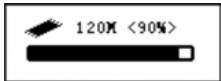
8. Memory info:
Check the remaining capacity of the flash memory. The former numerals represent the total capacity of the disk, and the percentage represents the percentage of the used space.
9. Firmware version:
Display the version of firmware.
10. Firmware upgrading
VI. Connection with PC
Install the driver for Windows Operating Systems 98 SE. For windows Operating System ME/2000/XP or greater, you don't need to install the driver.
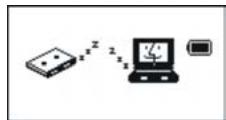
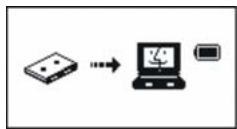
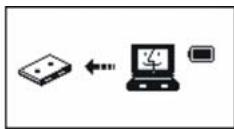
Turn on the player and insert USB into the USB ports of your PC. Once the connection is properly made, the following screen will display
Create a File Folder:
This player can recognize 99 files of level one created in portable disk by user.
- Upgrade Player
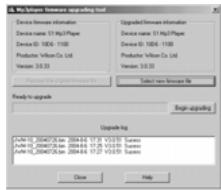
The player may be upgraded or maintained its system firmware using the tools and software installed on the computer.
- Enter the main menu, press "▶I/I" key to select "System Setting". Short
press "M" key to enter and press "▶▶I/I▼" key to select "Firmware Upgrade", press M key again to confirm and enter.
- Connect the player to PC.
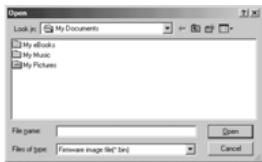
- Run the upgrading tool "MP3PlayerUpgrade" of PC, and then click "Select the Firmware file of new version" knob. Select the new firmware program (it can be found in the disk enclosed with the player or downloaded from the producer's website).
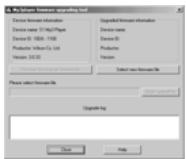
- Click the "Start upgrading" button and the system will start the work of upgrading.
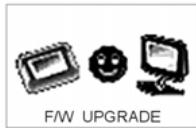
- After successful upgrading, the following will be displayed on the player:
Note:
- Firmware upgrading is used for enhancing and optimizing the performance of the player. But if the firmware is not upgraded, the normal work of the player will not be affected.
- The errors caused from the firmware upgrading may result in the failure of the player! So please read the operation manual carefully before the operation. It is recommended that this operation shall be done by the persons with sufficient computer knowledge.
- The software for the firmware upgrading of this player is not available to other series of players, vice versa.
3. Function of Special Space
The user can arbitrarily divide the USB disk into two parts through the tools enclosed with the player, (the use can see two disk letters. For system of Windows 2K, the computer should be installed with the SP4. Otherwise, the user can only see one disk letter. If the user wants to see the other disk letter, he has to select the "Single common disk" or "Single encryption disk" under "System setting/ On-line mode". One part shall be encrypted (it may not be encrypted, thus the disk can be used as two) so as to hide the contents. Such data cannot be seen without the passwords.
- Connect the player with the computer.
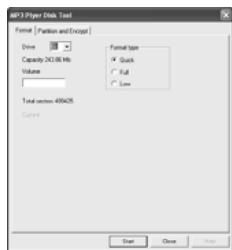
- Run the tool kit MP3 Player Disk Tool Of installation program enclosed with the player.
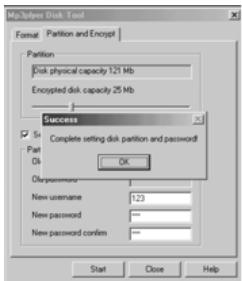
- The user will first see the format tool. Then select the "Divide/encrypt" and select a proper capacity for the encryption disk.
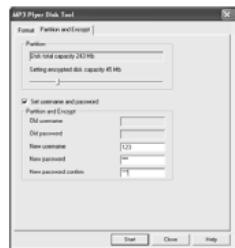
Then click the related block to set the user' name and the passwords. Enter the name in the block of "New user's name" and enter the password in the block of "New password". Then enter the new password again in the block of "Confirm the new password". Click the button "Start" to start dividing the disk.
- After dividing, the user will see the Left Indications:
- Press "Enter", and the computer will indicating for restart the system. Confirm it so as to restart the computer system.
-
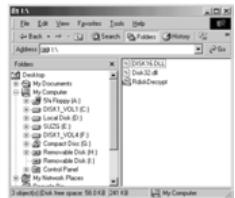
After starting, the user will see two disks (for the operation system lower than Windows 2K SP4, the user can only see one disk letter). Click the encrypted disk (listed at the second place), which has three files. Two are hidden files and one is the execution file. The disk only has the space of 300K.
-
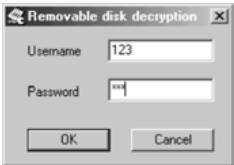
Run the execution file "RdiskDecrypt.exe" and enter the user's name and password into the Dialogue box. If the password is correct the Copy file in the disk will be opened.
8.Each time when connecting with the computer, user must enter the user's name and password so that he can open the encrypted disk.
Note: these files in the encrypted disk can't be identified by the player. Note: Either when the disk is divided into two parts or when two disks are combined into one, the data in the disk will be Deleted, please backup the data in advance.
Warning: Please don't lose your User's name and password; otherwise the encrypted disk cannot be used. The encrypted disk can only be cancelled by combining the disks, and this loses the files in the encrypted disk. Trouble Shooting
1. Why can't some MP3 be played?
Standard MP3 only includes: the songs in layer 3 of MPEG 1, layer 3 of MPEG 2 and layer 3 of MPEG 2.5. Otherwise, it won't be played in the player except transformed by the corresponding software.
2. Why doesn't the memory size displayed under the operational system match the figure on the tab?
The software in the MP3 player takes up a small portion of the memory, which coincides with the corresponding standards.
3. About WAV format
This solution supports WAV files of IMA ADPCM format only. If you want to store WAV files of other format in this player, please set up a new folder and store the WAV files in it. Don't put the WAV files of other format into the root directory of the mobile disk and the folder of VOICE, otherwise, the player may shut down when play such WAV files.
4.What causes the MP3 player running slowly?
Using or deleting files frequently in a long time will generate fragments in the flash memory, like fragment in the hard disk, which will cause the player running slowly.
5.What if the driving program of the MP3 player be damaged?
This is caused by improper operation. For details, please refer to the Upgrade/Renew Software part.
6.What if the MP3 play works abnormally, i.e, shutting down?
When abnormal causes occur due to improper operation, turn off the unit and then turn it on again.
Specification
Flash memory: 1GB.
Max recording time: HQ: 64Hr/LQ:16,000min
PC Supports ; Windows 98/ME/2000/XP, Mac OS 10.X & Linux kernel 1.2.4.2 & above
Dimension: 100mmx34mmx14mm
Weight: 24g (35g included battery)
Power source: AAA battery
Microphone: built-in capacitor microphone
Input: Built-in MIC
Output: Double-channel earphone, above 8 ohm.
Condition to use: 0-40C
Accessories:
Headphone, Neckstrap, USB Extension cable, Battery (1xAAA), Telephone Adaptor, Telephone cable, Audio Cable, Install CD, User Manual