
MP-FOL7 - Radio audio player MPMAN - Free user manual and instructions
Find the device manual for free MP-FOL7 MPMAN in PDF.


User questions about MP-FOL7 MPMAN
0 question about this device. Answer the ones you know or ask your own.
Ask a new question about this device
Download the instructions for your Radio audio player in PDF format for free! Find your manual MP-FOL7 - MPMAN and take your electronic device back in hand. On this page are published all the documents necessary for the use of your device. MP-FOL7 by MPMAN.
USER MANUAL MP-FOL7 MPMAN
- Support various audio formats
Such as MP3, WMA, WMV, ASF, WAV.
FM Stereo Radio
Strong auto searching or manual searching function, 40 local channels with different frequency may be saved (20 channels for one system), to enable you to enjoy the programs comfortably.
- Text Browser
To read books at the same time when listening to the music.
- USB function, no driver needed
This device is automatically recognized by your PC when using WIN2000 or above.
When using WIN98, a software (CDROM) installation is still needed.
REC
Record your voice with the microphone and save it in .WAV or .ACT formats.
- Seven tones equalizer
Normal, Rock, Pop, Classic, Soft, Jazz and DBB
- Multiple Play Modes
Normal, Repeat One, Folder, Folder Repeat, Repeat All, Shuffle and Introduce
- Auto Power Off
There are two modes including Sleep Mode and Energy-Saving Mode
- Animated Menu
With visual animated menu and related letters, operate it at your pleasure!
Statement
Firstly, thank you for using mpman© MP3 digital player!
To enable you to operate the player correctly and skillfully, please read this manual carefully before using.
- The contents in this manual might be changed for improvement.
And these contents with respect to performance and function shall be subject to change without any further notice.
In case the actual setup or operating method is inconsistent to the provision in this manual, you are advised to visit our website for the related information of the latest product.
www.mpmaneurope.com
Inside the Box
(1) MP3 player one
(2) Stereo earphone one pair
(3) Installation disk for WIN98 users one
(4)User's manual one
(5) USB cable one
System requirements
(1) Pentium 166 MHz or faster
(2) Windows 98/2000/ ME/XP
(3) USB port
(4) 4 X CD-ROM driver or higher
(5) 20MB of free space on hard disk
(6) 64 MB system memory
Contents
Functions Overview 1
Statement 2
Description 4
Figure and keys 5
Display 5
Battery 5
Basic functions 5
Enter menu 5
Browse operation 5
Enter function modes 6
Keys Operation 7
Music mode and Play mode 7
REC mode 7
FM mode 8
Play music 9
Simple Operation 9
EQ mode 9
Lyric synchronous display (karaoke function) 10
Voice Recording 10
Recording in REC mode 10
SelectRECstyle 10
Playback voice recordings 11
Convert the ACT recording files into WAV format 11
Use FM radio 12
Text reader 13
System setting 14
How to enter? 14
The parameters 14
Detailed instructions 14
USB disk 16
Create a folder (or directory) 16
Other settings 16
Select different directories (stop the submenu) 16
Delete files (stop the submenu) 17
Play mode (play the submenu) 17
Play speed (play the submenu) 18
Repeat mode (play the submenu) 18
Repeat time (play the submenu) 19
Repeat intervals (play the submenu) 19
Install driver for Win98 users 19
Special recommendations 20
Safe removal 20
Reset 21
Troubleshooting 21
Technical specifications 22
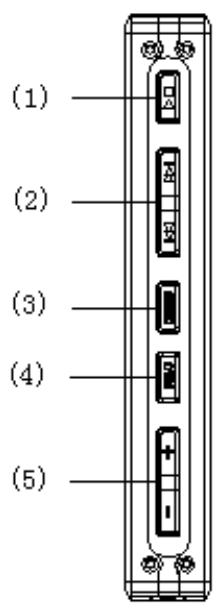
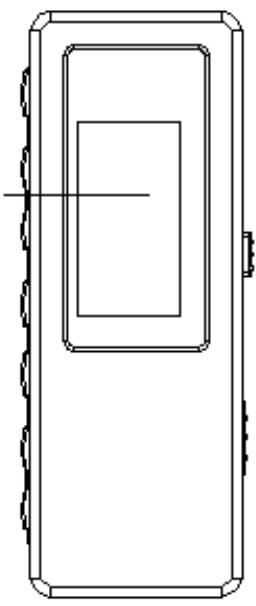
(6)
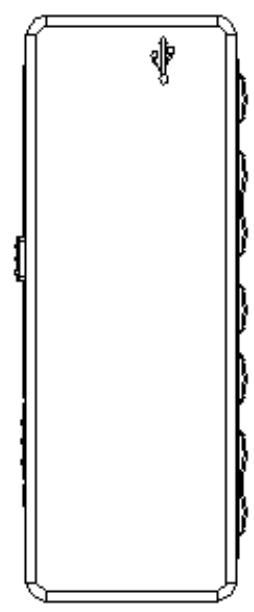
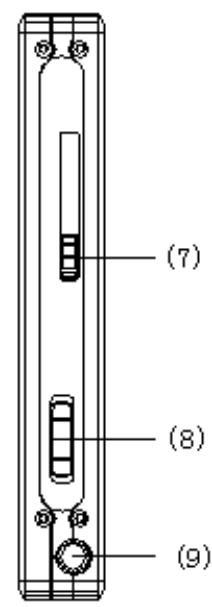
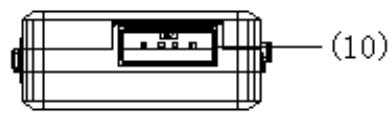
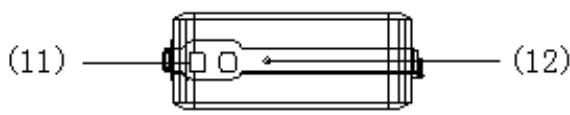
Figure & Keys
The screen shows a battery indicator with nine levels.
The battery indicator is full when the battery voltage 1.5V.
The battery indicator will be empty when the battery is used up. At that time, the player
should be charged with an external charger(optional) or with the USB connection on your PC.
Basic Functions
Enter Menu
Press Menu button to enter the menu:
Main menu (long press to enter during Stop mode),
Submenu during playback mode (short press to enter)
Submenu in Stop mode (short press to enter).
Browse Operation
Select the song to be introduced and enter menu option.
Press PREV key to select forward and NEXT key to select backward.
Skip backwards or forward when playing music.
Press PREV key to fast reverse and NEXT key to fast forward.
Enter function modes
Select different submenus in the main menu.
Short press Menu button to enter
Main menu :
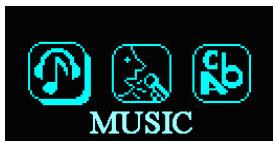
Music mode :
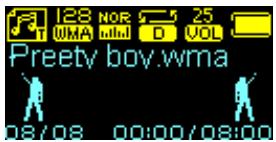
Record mode :
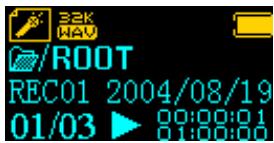
Voice mode :
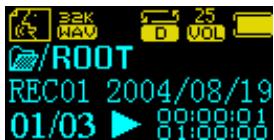
FM mode:
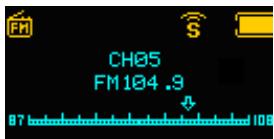
Text reader:
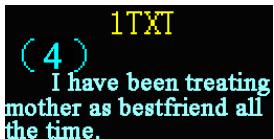
System function:
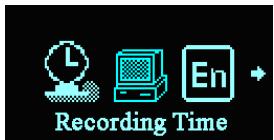
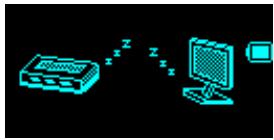
Enter USB mode via the PC connection:
Key operations
Music Mode and Voice Mode
| Press-keys | Action | Stop mode | Play mode | Play sub menu | Stop sub menu |
| Play | Long press | Power off | Power off | Power off | Power off |
| Short press | Play | Stop | Exit menu | Exit menu | |
| Menu | Long press | Enter main menu | Enter main menu | Enter main menu | Enter main menu |
| Short press | Enter Stop sub menu | Enter Play sub menu | Confirm the option or enter sub menu | Confirm the option or enter sub menu | |
| Next | Push | Next | Next and play | Move sub menu | Move sub menu |
| Press and hold | Go forward successively | F.FWD | Go forward successively | Go forward successively | |
| Prev | Push | Previous | Previous and play | Move sub menu | Move sub menu |
| Press and hold | Go backward successively t | F.REV | Go backward successively | Go backward successively | |
| Vol+ | Short press | Increase volume step by step | Increase volume step by step | × | × |
| Press and hold | Increase volume | Increase volume | × | × | |
| Vol- | Short press | Decrease volume step by step | Decrease volume step by step | × | × |
| Press and hold | Decrease volume | Decrease volume | × | × |
REC mode
| Press-keys | Action | Stop state | REC state |
| Play REC | Long press | Power off | Stop recording |
| Short press | Start recording | Pause recording | |
| Menu | Long press | Enter the main menu | × |
| Short press | Enter the REC submenu | × |
FM mode
| Press-keys | Action | In Tuning state | FM submenu |
| Play | Long press | Power off | Power off |
| Short press | If there is channel saved: next channel; If there is no channel saved: × | Exit the menu | |
| Mode | Long press | Enter main menu | Enter main menu |
| Short press | Enter the submenu | Confirm the option or enter further level | |
| Next | Push | Increase 100KHz by one step, or stop to search | Move the submenu |
| Press and hold | Increase 100KHz successively to search | Go forward successively | |
| Prev | Push | Decrease 100KHz by one step, or stop to search | Move the submenu |
| Press and hold | Decrease 100KHz successively to search | Go backward successively | |
| Vol+ | Short press | Increase volume step by step | × |
| Press and hold | Increase volume successively | × | |
| Vol- | Short press | Decrease volume step by step | × |
| Press and hold | Decrease volume successively | × |
Play Music
Simple operation
| 1. Connect earphone Insert the earphone plug into the earphone jack | 2. Switch the ON/OFF button (8) to the right. Select Music mode. Press menu button to enter. |
| 3. Select music Prev button (2): select the previous song Next button (2): select the next song | 4. Volume adjustment VOL+ (5): increases volume VOL- (5): decreases volume |
| Note: |
The player will power off automatically at the specified time by "System setting/power off setting/Save mode" except during playback or recording.
EQ mode
| 1. During playback Preetv boy.wma I lie awake at 01/03 00:00 00:00 | 2. Push Menu button to enter the Play submenu. |
| 3. Push Next button to select “EQ mode” option. | 4. Push Menu button to enter “EQ mode” menu. Natural |
| 5. Push Next button to select and push Menu button to confirm. | 6. EQ modes: NOR (Natural) ROCK (Rock) CLAS (Rock) Pop (Pop) Classical JAZZ (Jazz) DBB (DBB) |
Lyric Synchronous Display (Karaoke Function)
The player supports "*.LRC" lyric files, to achieve the synchronous play of lyric and sound.
How to use the lyric file?
The name of lyric file should be consistent with the name of the song file.
For example:
The song file name is: A-Do—Night.mp3
The lyric file name must be: A-Do—Night.lrc
How to know whether the song has a lyric file?
If the current song has a lyric file, the icon “” at the top left corner of Music Mode will become “
Voice recording
The player can store up to 99 REC files in each directory!
Recording in REC Mode
- Enter Main Menu
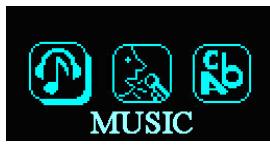
Music mode
- Push Next button to select REC mode

REC mode
- Push Menu button to enter REC mode.
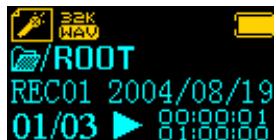
- Push REC button to start recording.
- Push Play button to pause/continue recording.
The recorded voice is saved in the current directory that is set in "REC Stop Submenu/main directory. If the screen displays "Space Full", it means that there is no space available to record new files. Delete other files to release space.
If the screen displays "Directory Full", it means that there are 99 recording files in the directory. Select another directory.
Select REC style
- Select record mode. No recording
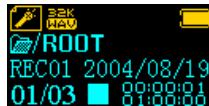
- Push Menu button to enter the REC submenu.
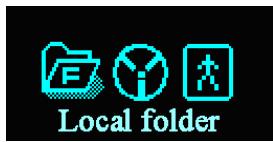
Local Folder
- Push Next button to select "REC Style" submenu:
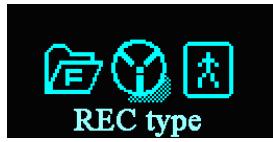
- Push Menu button to enter the submenu:
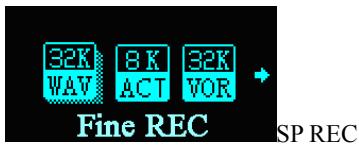
-
Push Next button to select the desired REC style.
-
Push Play button to start recording.
-
Push Mode button to confirm the selected style
- REC style:

SP recording, wav format and good quality

LP recording, act format and average quality

SP voice-control, wav format (voice-control REC: ding is paused if there is no sound)

LP voice-control and act format
Playback voice recordings
- Enter Main Menu
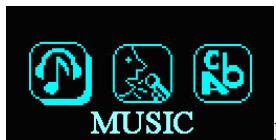
Music mode
- Push Next button to select "Voice mode" REC mode:
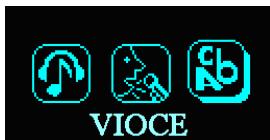
Voice mode
| 3. Push Mode button to enter Voice mode <|im_start|>assistant | 4. Select REC file: Prev key: select previous REC file Next key: select next REC file | |
| 5. Press Play button again to start to play | 6. Volume adjustment: VOL+ : increase volume VOL- : decrease volume | |
Convert the ACT voice recordings into Way format
When you want to listen to your voice recordings on your computer you need first to convert it into Wav format.
The converter is inside the CDROM supplied with your player.
Put it in your PC and open the "act to wav CONVERTOR" folder. Double click on the application to install it.
Go to Programs and choose "USB Flash disk Utilities" and then "Sound Convert" (see image below)
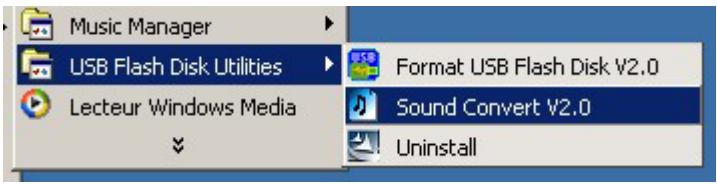
This will launch the converter that will allow you to convert voice recordings into wav or mp3 files.
Use FM Radio
- Enter Main Menu.
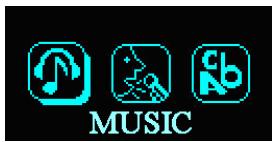
- Push Menu button to enter "FM mode".
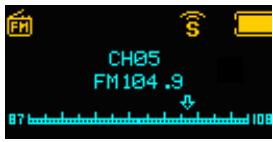
- Manual search:
Push Pre/Next to search channels manually
- Push Next button to select "FM mode".
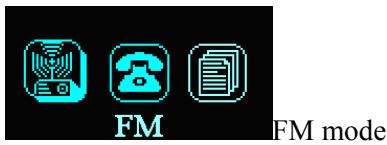
- Auto search
Push and hold Pre/Next button for two seconds. The device will select automatically the next available station.
- Store selected radio station:
Push Menu button to enter the FM submenu.
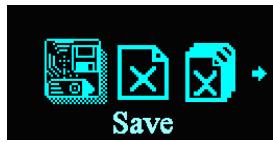
save stations
- Stored channels can be selected by pushing shortly on the Play button
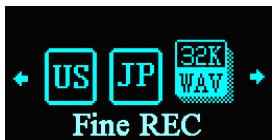
- Recording from the radio Select the desired radio station. Push Menu button to enter FM submenu and select the REC mode (Fine or Long).
Push Menu button to store the selected channel.
- Volume adjustment:
VOL+: volume increase
VOL-: volume decrease
Note:
If the current channel is a stereo broadcast, the screen will display "s".
Text reader
Text stored on the player in .txt or .lrc format, can be read in this mode
- Enter Main Menu
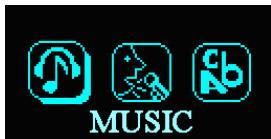
Music mode
- Push Menu button to enter Text mode
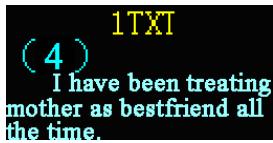
Push Play button to turn pages backward.
Push PREV button to turn pages forward.
Push NEXT button to turn pages backward.
- Press Next button to select "Text browser".
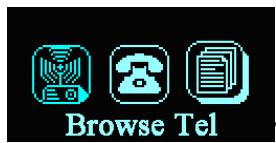
Text reader
- Text selection
Push Menu button to enter submenu. Select the directory by pushing Menu button again. Push Menu button to select the desired text
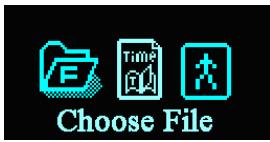
Text select

Note: Text reader only supports .txt and .lrc format.
System Settings
How to enter?
| 1. Enter Main Menu. MUSIC Music mode | 2. Press Next button to select “System settings”. SYS System settings |
| 3. Push Mode button to enter “System settings” Recording Time REC time |
The parameters
| REC time | Setting of the date and time for recordings |
| Screensaver time | Select the time (s) before the display enters into Screensaver mode |
| Screensaver picture | Select picture |
| Dancing pictures | Select picture during playback |
| Language Setting | Select different languages |
| Power off setting | Select a time (min). After this time period the player automatically switches off |
| Replay mode | Auto/manual replay |
| Contrast Adjustment | Set contrast of display |
| Online Mode | “Special space” function |
| Memory Info | Available and total memory size |
| Firmware Version | Displays the firmware version of the player |
| Exit | Exit the interface |
Detailed instructions
Setting of "REC time"
| 1. Select REC time in System settings Recording Time REC time | 2. Push Menu button to Enter the interface of REC time. L 2004-10-20 10:29:01 Recording Time REC time |
| 3. Push VOL+ button to select YEAR The YEAR number will flash: | 4. Push Next/Prev button to increase/decrease |
| 2004-10-20 10:29:01 Recording Time REC time | 2005-10-20 10:29:01 Recording Time REC time |
| 5. Push VOL+ button to select MONTH...... | 6. Push Menu button to confirm and exit. |
“Screensaver Time”setting
- Select "Screensaver Time"
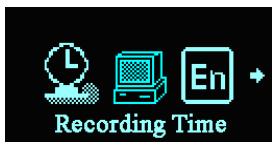
- Push Next/PREV button to adjust the time.
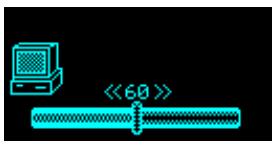
- Press Menu button to exit when the adjustment is done
“Screensaver picture” setting
Similar to the setting of "EQ mode".
“Dancing picture” setting
Similar to the setting of "EQ mode".
“Language selection”
Similar to the setting of "EQ mode".
O "Power off" setting
Similar to the setting of "Screensaver time"
: “Power-saving mode”: Device will switch off after preset time if no button is pushed (not during playback and recording)
"Sleeping mode": Device will switch off after preset time
Note: Sleeping mode is has to be reset every time you want to use this function.
Repeat setting
Similar to the setting of "EQ Mode".
O Contrast adjustment
Similar to the setting of "Screensaver time"
Setting of the Online Mode
Similar to the setting of "EQ mode".
Some operating systems (versions before Windows 2K SP4) can't support the USB with two disk icons.
Memory info
The number here indicates the total capacity of the disk and the percentage indicates the used part.
O "Firmware version"
The current version of the firmware used for the player can be checked.
USB disk
This player has the standard functions of a USB disk, supports the systems above Windows98 (WIN98 needs driver).
The player supports USB power supply so that it can be played without battery.
How to connect with PC? Power on the player and insert into USB port.
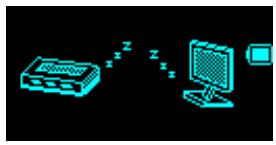
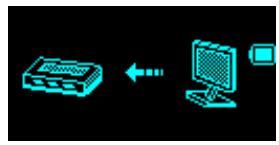
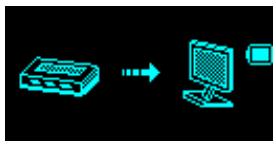
When connected with PC, the player has three modes
- Standby state
- Downloading state
- Uploading state
Create a folder (or directory)
You can put up to 99 songs per folder (or directory).
If you want to copy more than 99 songs into your MP3 player, you have to create a new folder (or directory).
Just go to "my computer" and open the external hard drive that represents your MP3 player.
To create a new folder (or directory) just right-click any blank area and select New, Folder from the resulting menu.
You can create up to 10 folders (including root folder) and up to 99 songs per folder
Other Settings
Select different directories (stop sub-menu)
Users can put different files into different directories.
- Stop interface (The example is in Music mode. The directories can be selected in recording and playing mode)
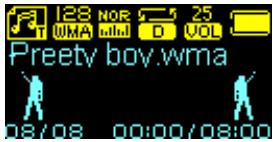
- Press Menu button to enter the Stop Submenu.
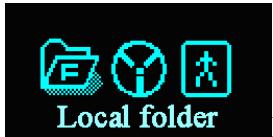
Main disk directory
- Press the Menu button again to Enter
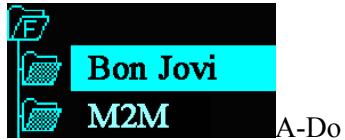
Richard Ren
4 Push Next or PREV button to select the directory
- Press Mode key to confirm the selected directory.
Deleting files (Stop sub-menu)
In the Music mode and Voice mode, the corresponding files and can be deleted.
| 1. stop mode | 2. Push Mode button to Enter the submenu Local folder Main disk directory |
| 3. Push Next button or Pre button to select “Delete files” or “Delete all files” Del file? Delete file? | 4. Push Menu button to Enter Del.file? NO M2M - PrettyBoy Delete file? Night A-Do 9skymusic |
| 5, Push Next button to change “NO” into “YES”. Del.file? X YES M2M - PrettyBoy deleting... Night A-Do 9SKY MUSIC | 6, Push Menu button to confirm Delete... M2M - PrettyBoy deleting... Night A-Do 9SKY MUSIC |
The function of "Delete all files" will delete all the files of the current mode in the current directory (for example, deleting all files in the Music mode is just deleting all the music files and the recording files will not be deleted)
Play mode
When reproducing music or recorded files, the user may select different play modes (repeat, shuffle)
O REPEAT
| (Normal) | After the songs in the current directory have been played, the player will play the music in the next directory until all files are played and then it will stop. |
| (Repeat One) | Repeats playing a single song. |
| D (Folder) | Plays all the music in the selected folder. |
| D (Repeat Folder) | Repeatedly plays all the music in the folder. |
| A (Repeat All) | Repeatedly plays all the music. |
SHUFFLE
| (R)(Random) | Plays the music at random in the current folder. |
INTRO
| I (Intro) | Plays the first 10s of each song in the current folder. |
Play speed (play submenu)
When playing the music (only applicable for MP3 files), the user can select different play speeds (either fast or slow), but the sound will not be changed.
| 1. During the playing of music Preety boy.wma 08/08 00:00/03:00 | 2. Push Menu button to Enter the play submenu |
| 3. Push Next button to select the item of “Play speed”. | 4. Push Menu button to Enter “Play speed” Tempo rate Play speed |
| 5. Push Next/prev button to change speed |
Repeat mode (play the submenu)
O A-B repeat
| 1. Music play or record play. 23 U8A NOE 25 2UOL Preety boy.wma 08/08 00:00/08:00 | 2. Push Menu button to Enter the play submenu. |
| 3. Push Next button to select the “Repeat mode” in the menu. | 4. Push Menu button to Enter “Repeat mode”. 23 U8A NOE 25 2UOL Preety boy.wma 08/08 00:00/08:00 Letter “A” in repeat icon will flash to wait for confirming the first point A. |
- Push NEXT button to confirm the second point B.
Letter “B” in repeat icon A-B will flash
- Push NEXT button to confirm point B.
Repeat icon is fixed. The player repeats between A and B until it reaches the set times and exit from the repeat mode. During this mode, the user can push PRE button to reset point A.
- Follow function (the playback mode doesn't have this function)
| 1. The section of A-B is being repeated. 128 NO2 A-B 25 UMA mini JOL Pretty boy.wma 08/08 00:00/08:00 | 2. Push Next button to enter Follow mode. |
| 3. The repeat icon“A-B”is changed into the follow icon “A-B” The player will record the voice of the user. The time length is the same as the A-B repeat. | 4. The player will play the original voice and the icon will be changed into“A-B”, Then the user can press Next button to enter the contrast function. |

In this state, press PRE button to return to the state of "A-B repeat".
Contrast function (playback mode doesn't have this function)
-
After entering the contrast function, the repeat icon will be changed to “ 品 ”, the player starts playing the original voice.
-
After the original voice has been reproduced, the icon will be changed to "A-B",
In this state, short pr to return to the state of "Follow function".
In above three states, push Menu to exit from the repeat mode.
Repeating time (play submenu)
Similar to the setting of "Screensaver time".
The repeat time will determine how many times A-B section is repeated.
Repeat intervals (play submenu)
Similar to the setting of "Screensaver time".
The repeat interval determines the time length to be paused between two sections
Install driver for Win98 users
Please note that you don't need any driver if you use Win Me / Win2000 / Win XP!
But, if you use Win98, you need to install a driver before using your MP3 player.
The driver is inside the CDROM which is in the box.
1/ Unplug the MP3 player
2/ Put the CDROM in the PC and open the "DRIVER FOR WIN98 USERS" folder.
3/ Launch the installation by clicking on "WIN98 DRIVER.EXE"
4/ When the installation is complete, restart the computer
5/ After restart, you can now plug your MP3 player, it will be recognized automatically by the PC.
Special recommendations
Safe removal hardware procedure

Always follow this procedure to avoid trouble with your player!
Never unplug your player without using this procedure!
Before unplugging your device
1/ Double click "the Safe Remove Hardware" icon on the task bar (see image 1):
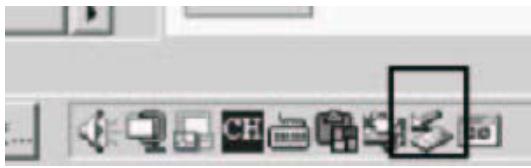
Image 1
2/ From the "Safely Remove Hardware" window, select "USB mass storage device" and click the "Stop" button (see image 2). The "Stop a Hardware device" window will pop up as shown (see image 3)
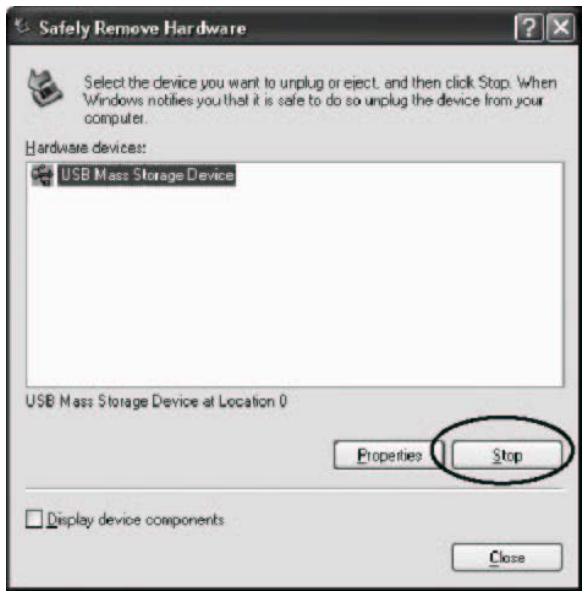

Image 2
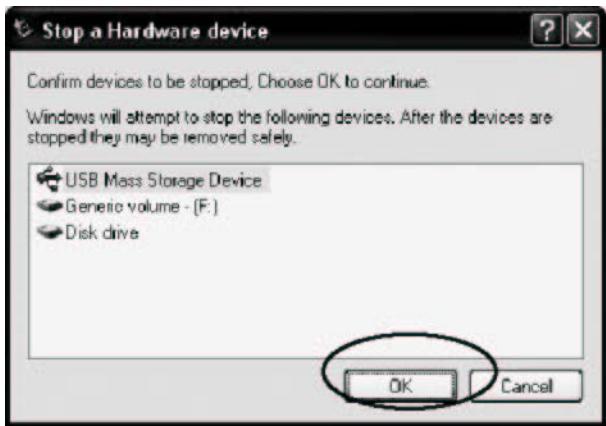
Image 3
3/ Click "OK. A safe to Remove Hardware" window will pop up. Now, it is safe to remove the USB cable and the player from the computer (see image 4)
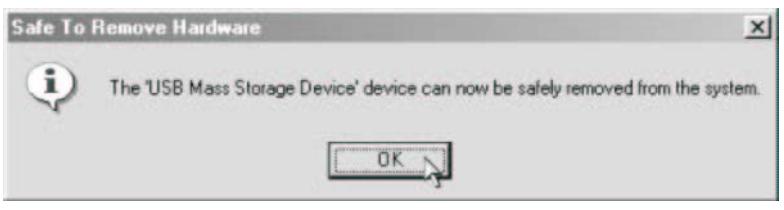
Image 4
If for any reason your player is blocked and cannot operate anymore, you have the possibility to reset the internal firmware.
You just have to switch it off and then on, Reset is automatic at startup.
Troubleshooting
| The player cannot be turned on. | Please make sure the battery is installed correctly. Check if the player is powered on or not |
| No voice can be heard from the earphone. | Please make sure the Volume button is not at the Zero position and the earphone is properly connected. Please make sure the earphone is clean The damaged MP3 may create noises at different levels and even it cannot play the music. Please keep the intact files. |
| Words on display are deformed. | Please make sure that you have selected the correct language. |
| FM does not have good receiving performance. | Adjust the position between the earphone and the player. Turn off the electric devices nearby. |
| The Player is totally blocked | Reset the firmware as explained on page 22 |
| The player cannot download the music properly. | Check to see if the USB wire is damaged and if it is properly connected. Check to see if the driver is properly installed. Check to see if there are any blank memories. |
Technical specifications
| Dimensions | 31mm×70mm×17mm | |
| Weight | 25g (excluding battery) | |
| Display | Lattice (128*68) OLED | |
| USB speed | High speed:USB2.0 (Read 1033K Byte/s, write 955K Byte/s) | |
| EMS memory | Flash memory:128/256/512MB,1GB | |
| Power Supply | Rechargeable Lithium battery | |
| Record | Sampling rate | 8KHz |
| Record format | WAV (32K bps)、ACT (8K bps) | |
| Record time | 35hours (ACT, 128M Flash) | |
| MP3、WMA、WMV、ASF | Max. earphone output | (L) 10mW+ (R) 10mW (32Ohm) |
| MP3 bit ratio | 8K bps – 320K bps | |
| Bit ratio of WMA、WMV、ASF | 5K bps – 384K bps | |
| Responding frequency Range | 20Hz to 20KHz | |
| SNR | 85dB | |
| Degree of distortion | ||
| FM Radio | Receiving Frequency Range | 76MHz – 96MHz / 87MHz – 108MHz |
| Storing radio stations | 20+20 | |
| Max. earphone output | (L) 10mW+ (R) 10mW (32Ohm) | |
| SNR | 45dB | |
| Music format | MP1、MP2、MP3、WMA、WMV、ASF、WAV | |
| Ambient temperature | -5 to 40 | |
| Several Language | ENG / FR / ITAL / GER / ESP / SWED / PORT / CZE / NL | |
| Supporting operating system | Windows98/SE/ME/2K/XP | |
Note: The design and specification of the product will be subject to change without any further notice.
DISCLAIMER:
Rechargeable batteries have a limited number of charge cycles and may eventually need to be replaced.
Battery life and number of charge cycles vary by use and settings. Your battery has a one year warranty.
For more information you can visit our website www.mpmaneurope.com