
TF-DVD7009 - Portable DVD Player COBY - Free user manual and instructions
Find the device manual for free TF-DVD7009 COBY in PDF.


| Product Type | Portable DVD Player |
| Model | TF-DVD7009 |
| Display | 7-inch TFT LCD, 16:9 aspect ratio, 480x234 pixels |
| Playback Discs | DVD-Video, Audio CD, JPEG CDs (CD-R/RW) |
| Power Supply | DC 9V 1A via AC adapter (100-240V~ 50/60Hz) or car adapter (12V only) |
| Battery | Built-in rechargeable lithium-polymer; ~4h charge time, ~300 charge cycles |
| Dimensions | 251 x 208 x 59 mm (main unit with battery) |
| Weight | 700 g (main unit with battery) |
| Audio Output | 1.2 Vrms (1 kHz, 0dB), 3.5mm mini jack |
| Video Output | 1±0.2V (p-p), 75 ohm, 3.5mm mini jack |
| Headphone Jack | 3.5mm stereo mini jack |
| Remote Control | IR remote with button battery (CR2025) |
| Parental Control | Password-protected (default 8888), rating levels 1-8 |
| Zoom | 1x, 2x, 3x with panning |
| Repeat Modes | A-B loop, Chapter, Title, Disc |
| Aspect Ratio | 16:9 (widescreen) and 4:3 (standard) selectable |
| Region Code | Region 1 |
| TV System | NTSC / PAL switchable |
| Audio Features | Dolby Digital (licensed), subtitle/audio/angle switching |
| Care Instructions | Clean discs with dry soft cloth radially; avoid chemicals; store in case |
| Safety | Do not open cover; use only specified adapters; avoid moisture and heat |
| Technical Support | Coby Electronics, 800-727-3592, techsupport@cobyusa.com |
Frequently Asked Questions - TF-DVD7009 COBY
User questions about TF-DVD7009 COBY
0 question about this device. Answer the ones you know or ask your own.
Ask a new question about this device
Download the instructions for your Portable DVD Player in PDF format for free! Find your manual TF-DVD7009 - COBY and take your electronic device back in hand. On this page are published all the documents necessary for the use of your device. TF-DVD7009 by COBY.
USER MANUAL TF-DVD7009 COBY
Please read this manual carefully before operation.
CAUTION
RISK OF ELECTRIC SHOCK
DO NOT OPEN

CAUTION: TO REDUCE THE RISK OF FIRE AND ELECTRIC SHOCK, DO NOT REMOVE THE COVER (OR BACK) OF THE UNIT. REFER SERVICING ONLY TO QUALIFIED SERVICE PERSONNEL.
For Customer Use:
Enter below the serial number that is located on the bottom of the unit. Retain this information for future reference.
Model No. TF-DVD7009
Serial No.
The lightning flash with arrowhead symbol within an equilateral triangle is intended to alert the user to the presence of uninsulated “dangerous voltage” within the product’s enclosure that may be of sufficient magnitude to constitute a risk of electric shock.

The exclamation point within an equilateral triangle is intended to alert the user to the presence of important operation and servicing instructions in the literature accompanying the appliance.
WARNING:
To prevent fire or shock hazard, do not expose this device to rain or moisture. Dangerous high voltage is present inside the enclosure. Do not open the cabinet.
Handling the cords on this product will expose you to lead, a chemical known to the State of California to cause cancer, and birth defects or other reproductive harm. Wash hands after handling.
CAUTION:
This Digital Video Disc player employs a laser system. To prevent direct exposure to the laser beam, do not try to open the enclosure or defeat the safety interlocks. When open and the interlocks are defeated, visible laser radiation is present.
To prevent electric shock, match wide blade of plug to wide slot of outlet and fully insert.
Use of controls, adjustments, or performance of procedures other than those specified herein may result in hazardous radiation exposure. DO NOT STARE INTO THE BEAM.
NOTICE:
This product incorporates copyright protection technology that is protected by U.S. patents and other intellectual property rights. Use of this copyright protection technology must be authorized by Macrovision, and is intended for home and other limited viewing uses only unless otherwise authorized by Macrovision. Reverse engineering or disassembly is prohibited.
FCC Notice:
FCC Statement: this device complies with Part 15 of the FCC Rules. Operation is subject to the following two conditions:
(1) This device may not cause harmful interference, and(2) This device must accept any interference received, including interference that may cause undesired operation.
Note: This equipment has been tested and found to comply with the limits for Class B digital devices, pursuant to Part 15 of the FCC rules. These limits are designed to provide reasonable protection against harmful interference in a residential installation. This equipment generates, uses and can radiate radio frequency energy and, if not installed and used in accordance with the instructions, may cause harmful interference to radio communications. However, there is no guarantee that interference will not occur in a particular installation. If this equipment does cause harmful interference to radio or television reception, which can be determined by turning the equipment off and on, the user is encouraged to try to correct the interference by one or more of the following measures:
- Reorient or relocate the receiving antenna.- Increase the separation between the equipment and receiver.- Connect the equipment into an outlet on a circuit different from that to which the receiver is connected.- Consult the dealer or an experienced radio/TV technician for help.
Use of shielded cable is required to comply with Class B limits in Subpart B of Part 15 of the FCC rules.
PRECAUTIONS
Do not make any changes or modifications to the equipment unless otherwise specified in the manual. If such changes or modifications should be made, you could be required to stop operation of the equipment.
CPRM
Content Protection for Removable Media (CPRM) is a hardware-based technology designed to enforce copy protection restrictions through built-in mechanisms in storage media that would prevent unauthorized file copying.

This player has built-in copyright protection technology that prevents copying from a DVD disc to any media.
If a video recorder is connected to the player, the video output image will be distorted during recording.
Manufactured under license from Dolby Laboratories. Dolby and the double-D symbol are trademarks of Dolby Laboratories. Confidential Unpublished Works.
© 1992-1997 Dolby Laboratories. All rights reserved.

natural_image
Recycling symbol composed of three chasing arrows forming a triangle (no text or labels)For recycling or disposal information about this product, please contact your local authorities or the Electronics Industries Alliance: www.eiae.org.
IMPORTANT SAFETY INSTRUCTIONS
- Read Instructions: All the safety and operating instructions should be read before the product is operated.
- Retain Instructions: The safety and operating instructions should be retained for future reference.
Heed Warnings: All warnings on the product and in the operating instructions should be 3. adhered to.
Follow Instructions: All operating and usage instructions should be followed.4.
- Cleaning: Unplug this product from the wall outlet before cleaning. Do not use liquid cleaners or aerosol cleaners. Use a damp cloth for cleaning.
Attachments: Use only attachments recommended by the manufacturer. Use of other attach-6. ments may be hazardous.
Water and Moisture: Do not use this product near water (e.g., near a bath tub, washbowl, 7. kitchen sink, laundry tub, in wet basements, or near a swimming pool and the like).
Heat: The product should be situated away from heat sources such as radiators, heat regis-8. ters, stoves, or other products (including amplifiers) that produce heat.
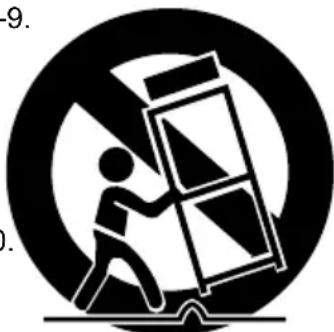
Accessories: Do not place this product on an unstable cart, stand, tri-9. pod, bracket, or table. Use only with carts, stands, tripods, brackets, or tables recommended by the manufacturer or sold with the product. Any mounting of the product should follow the manufacturer's instructions and should use a mounting accessory recommended by the manufacturer.
A product and cart combination should be moved with care. Quick 10 stops, excessive force, and uneven surfaces may cause the product and cart combination to overturn.
natural_image
Symbolic illustration of a person pushing a ladder with a box, enclosed in a circle (no text or symbols)Ventilation: Slots and openings in the cabinet are provided for ventilation 11.
to ensure reliable operation of the product and to protect it from overheating. These openings should never be blocked by placing the product on a bed, sofa, rug, or other similar surface. This product should not be placed in a built-in installation such as a bookcase or rack unless proper ventilation is provided or the manufacturer instructions have been adhered to.
- Power Sources: This product should be operated only from the type of power source indicated on the rating label. If you are not sure of the type of power supply to your home, consult your product dealer or local power company. For products intended to operate from battery power or other sources, refer to the operating instructions.
Power Sources: 13. Do not connect the power plug to a power outlet other than that which is indicated here and on the label as this may result in the risk of fire or electric shock. Do not handle the power plug with wet hands. Doing so may cause electric shock.
Power Lines: An outside antenna system should not be located in the vicinity of overhead 14. power lines or other electric light or power circuits, or where it can fall into such power lines or circuits. When installing an outside antenna system, extreme care should be taken to keep from touching such power lines or circuits, as contact with them might be fatal.
- Battery: Danger of explosion if battery is incorrectly replaced. Replace only with the same or equivalent type. Battery pack or batteries installed shall not be exposed to excessive heat such as sunshine, fire or the like.
12V Car Power Adaptor: 16. Disconnect this car power adaptor when not in use. Not for use in 24V vehicles.
- Using the unit in a Vehicle: On no account should this unit be used by the driver of a moving
IMPORTANT SAFETY INSTRUCTIONS
motor vehicle, or left unsecured in the vehicle whilst driving. If this unit is being used by a passenger in your vehicle, be sure that it is secured or held safely, and does not obstruct any safety device (i.e. airbag, seat belt etc.) that is fitted. All passengers should wear seat belts when using this unit in a moving vehicle. If in doubt, please contact your vehicle manufacturer for further advice. Using other car power adaptors could damage the unit.
Using 18. Headphones or Earphones: Hearing experts advise against the constant use of personal stereos played at high volume. Constant high volume use can lead to hearing loss. If you experience ringing in the ears or hearing loss, discontinue use and seek medical advise.
- Grounding or Polarization: This product may be equipped with a polarized alternating-current line plug that has one blade wider than the other. This plug will only fit into the power outlet in one direction. This is a safety feature. If you are unable to insert the plug fully into the outlet, try reversing the direction of the plug. If the plug should still fail to fit, contact an electrician to replace the obsolete outlet. Do not defeat the safety purpose of the polarized plug.
Power-Cord Protection: Power supply cords should be routed so that they are not likely to 20. be walked on or pinched by items placed upon or against them, paying particular attention to cords at plugs, convenience receptacles, and at the point which they exit from the product.
Protective Attachment Plug: The product may be equipped with an attachment plug with 21. overload protection. This is a safety feature. See the operating instructions for replacement or directions to reset the protective device. If replacement of the plug is required, be sure the service technician has used a replacement plug that has the same overload protection as the original plug as specified by the manufacturer.
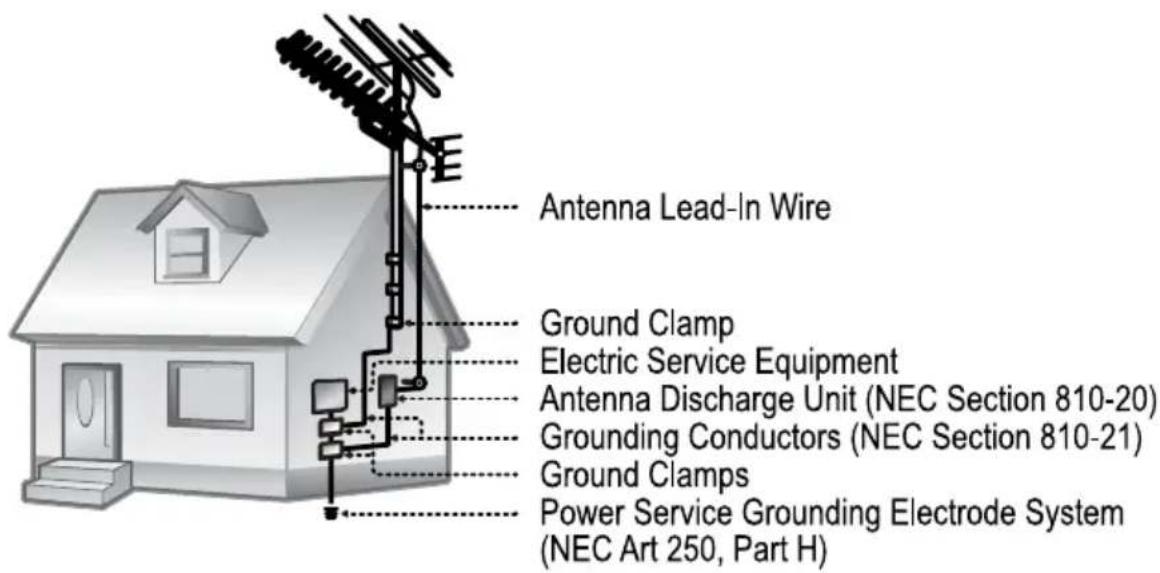
Outdoor Antenna Grounding: If an outside antenna is connected to the product, be sure the 22. antenna system is grounded so as to provide some protection against voltage surges and built-up static charges. Article 810 of the National Electrical Code, ANS/NFPA 70 provides information with regard to proper grounding of the mast and supporting structure, grounding of the lead-in wire to an antenna-discharge unit, size of grounding conductors, location of antenna-discharge unit, connection to grounding electrodes, and requirements for the grounding electrode (see figure).
- Lightning: For added protection for this product, unplug it from the wall outlet and disconnect the antenna or cable system during a lightning storm or when it is left unattended and unused
IMPORTANT SAFETY INSTRUCTIONS
for long periods of time. This will prevent damage to the product due to lightning or power-line surges.
If at any time in the future you should need to dispose of this product please note24. that Waste electrical products should not be disposed of with household waste.
Please recycle where facilities exist. Check with your Local Authority or retailer for recycling advice.(Waste Electrical and Electronic Equipment Directive)
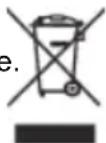
Overloading: Do not overload wall outlets, extension cords, or integral convenience 25. receptacles as this can result in a risk of fire or electric shock.
Object and Liquid Entry: Never push objects of any kind into this product through openings 26. as they may touch dangerous voltage points or shout-out parts that could result in a fire or electric shock. Never spill liquid of any kind on the product.
Servicing: Do not attempt to service this product yourself as opening or removing covers may 27. expose you to dangerous voltage or other hazards. Refer all servicing to qualified service personnel.
Damage Requiring Service: Unplug this product from the wall outlet and refer servicing to 28. qualified service personnel under the following conditions: a) when the power-supply or plug is damaged; b) if liquid has been spilled or if objects have fallen into the product; c) if the product has been exposed to rain or water; d) if the product does not operate normally by following the operating instructions. Adjust only those controls that are covered by the operating instructions as improper adjustment of other controls may result in damage and will often require extensive work by a qualified technician to restore the product to its normal operation; e) if the product has been dropped or damaged in any way; f) when the product exhibits a distinct change in performance—this indicates a need for service.
- Replacement Parts: When replacement parts are required, be sure that your service technician has used replacement parts specified by the manufacturer or have the same characteristics as the original part. Unauthorized substitutions may result in fire, electric shock, or other hazards.
- Safety Check: Upon completion of any service or repairs to this product, ask the service technician to perform safety checks to ensure that the product is in proper operating condition.
Wall or Ceiling Mounting: The product should be mounted to a wall or ceiling only as recom-31. mended by the manufacturer.
TABLE OF CONTENTS
PRECAUTIONS 2
IMPORTANT SAFETY INSTRUCTIONS ....4
TABLE OF CONTENTS....7
PACKAGE CONTENTS....9
ABOUT OPTICAL DISCS....10
Disc Requirements....10
Disc Care and Maintenance ....10
Handling a Disc....10
Cleaning a Disc....10
LOCATION OF CONTROLS....11
Front View....11
Right View....12
Left View 12
Bottom View....12
Remote Control....13
CONNECTIONS 14
Audio & Video Connections....14
USB Connection 14
Headphone Connection....14
Power Connection 15
Connecting to the wall outlet 15
Using the car plug....15
Using the Built-in battery 15
GETTING STARTED 16
Using the Remote Control 16
Power Supply 16
BASIC OPERATIONS....17
Basic Playback....17
Play/Pause/Stop 17
Next /Previous (Skip) 17
Forward/Reverse (Search) 17
Slow....17
Menu Navigation....17
Numeric Keypad 18
Adjusting the Volume....18
Disc Error Messages 18
Power Management....18
FUNCTION BUTTONS....19
Display / Setup....19
Zoom 19
Multi-Subtitle / Audio / Angle 19
Menu / Title 19
TABLE OF CONTENTS
Repeat A-B Mode 19
Repeat Playback of a chapter / Title / All of a Disc 19
LCD Menu....20
SETUP 21
Language 21
Video 21
Audio 22
Rating....22
Misc....22
SPECIFICATIONS 23
TROUBLESHOOTING....24
PACKAGE CONTENTS
Please make sure the following items are included in the package. If any items are missing, please contact your local dealer.
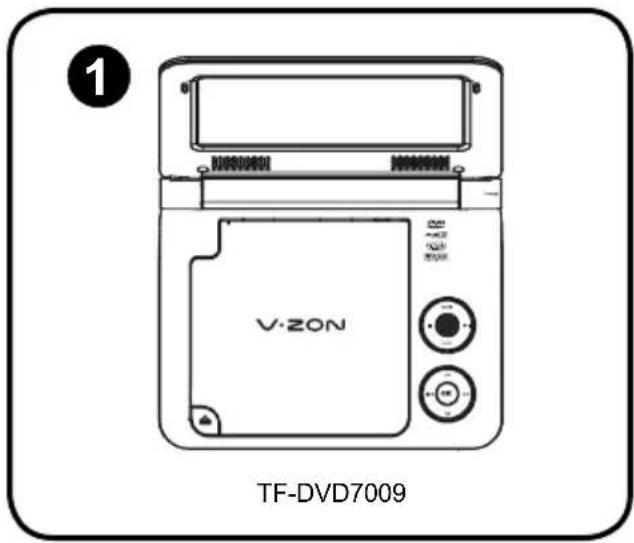
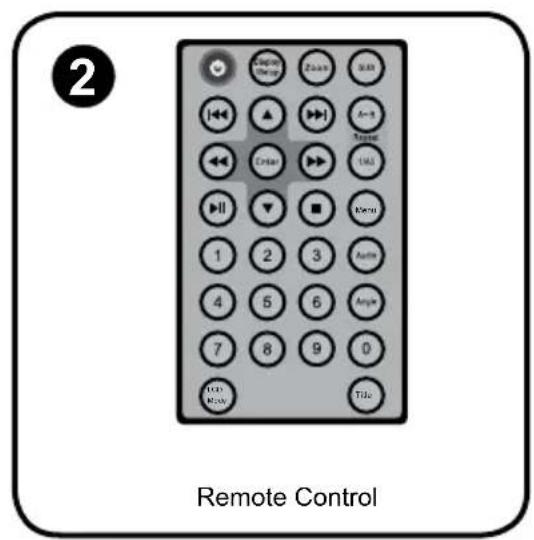
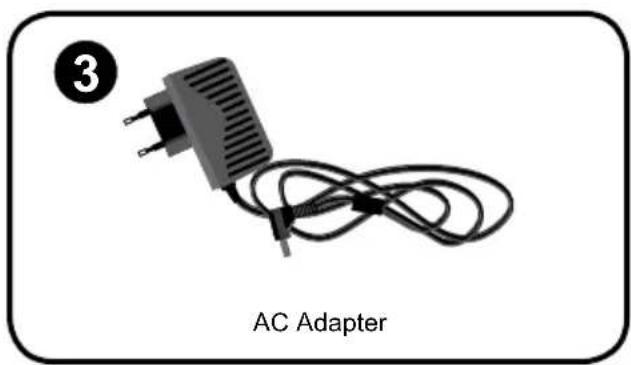
natural_image
AC adapter with a black plastic plug and coiled cable, labeled 'AC Adapter' (no additional text or symbols)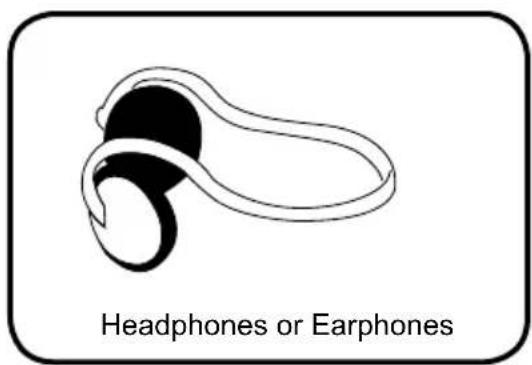
Disc Requirements
This DVD player supports playback of the following discs.
| Type Disc Mark Content Type | Disc Size Max. Playback Time | |||
| DVD-Video Discs |  | Audio + Video (moving picture) | 12 cm | 133 min (SS-SL) |
| 242 min (SS-DL) | ||||
| 266 min (DS-SL) | ||||
| 484 min (DS-DL) | ||||
| Audio Compact Discs (CDs) |  | Audio 12 cm | 74 min | |
| JPEG CDs -- Still Picture 12 cm -- | ||||
This unit can play back CD-R and CD-RW discs that contain JPEG picture files. Discs not listed above are not supported by this unit (eg, PC CD-ROM, CD-Extra, CD-G, CD-I, etc.)
Disc Care and Maintenance
Optical discs (DVDs, CDs) contain high-density compressed data and need proper handling.
Handling a Disc
- Hold a DVD/CD by its edges. Avoid touching the recorded side of the disc. To remove a DVD/CD from its storage case, press down on the center retention mechanism of the case and lift the disc out.
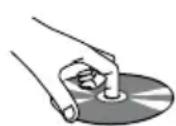
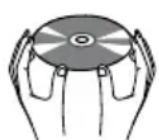
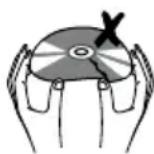
- Do not subject discs to prolonged exposure to direct sunlight, high humidity, or high temperatures.
• Do not bend or press discs.
• To reduce the risk of scratches, always put discs back in their case after use. Store discs vertically in a cabinet.
• Do not place stickers or labels on either side of a disc.
Cleaning a Disc
Use a dry, soft cloth to wipe off any fingerprints and dusts from the playing surface of the disc. Wipe in a straight line radially from the center to the outside edge of the disc. Small dust particles and light stains will not affect playback quality.
- Never use chemicals such as record sprays, anti-static sprays, benzene, or thinners to clean a disc. Doing so will damage the surface of the disc permanently.
LOCATION OF CONTROLS
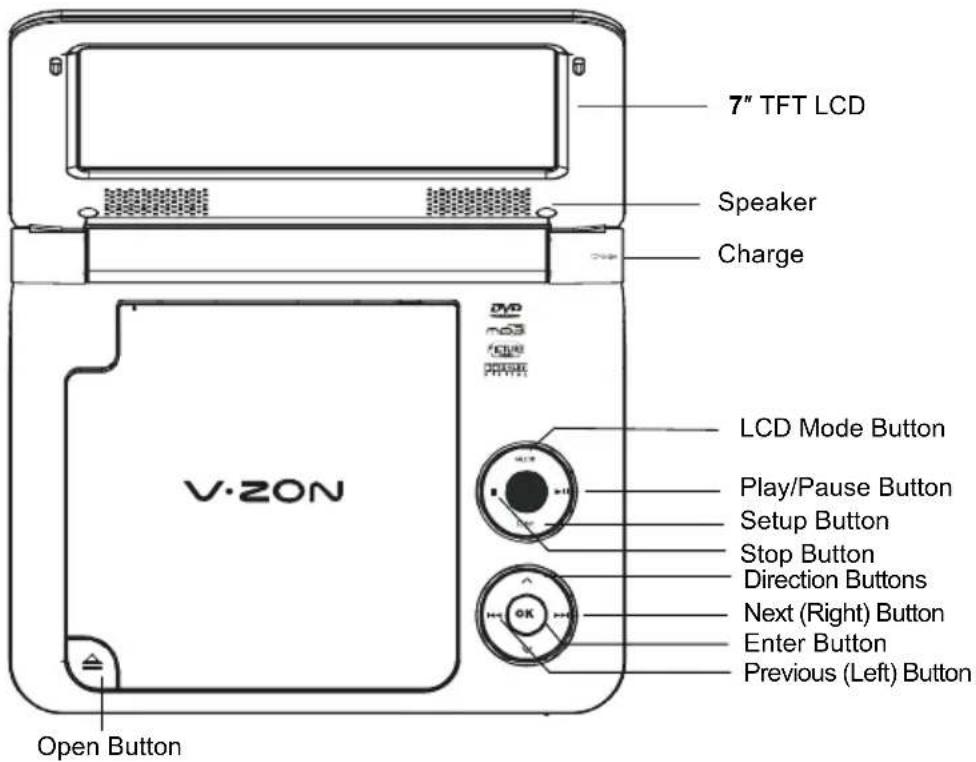
Front View
LCD Mode
Briefly press this button to display the LCD • menu.
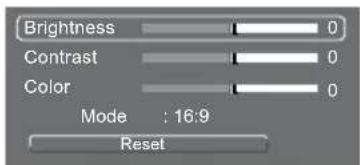
- Press up/down direction button to highlight item and then make adjustment by left/right direction button. Press up/down direction button to select Mode 2. and then press the Enter button to toggle the screen dimension between 16:9 and 4:3. Select RESET and press ENTER to return the 3. settings of brightness, contrast and color to their factory default settings.
Play/Pause button
To start/pause playback of a loaded disc.
Setup
To access the setup menu which various features of the player can be adjusted in.
Stop
Press once to prestop the playback, press twice to stop completely.
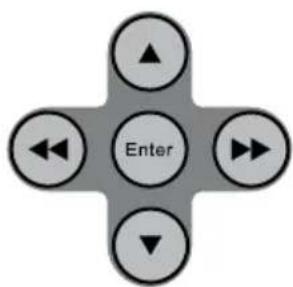
Direction / Enter buttons
Press the direction buttons to select an item and press the Enter button to confirm.
Fast Forward /Reverse
Press the Next button for a long time to skip forward one track.
Press the Previous button for a long time to skip back one track.
Press and hold the NEXT / PREVIOUS button to fast forward/reverse during video / audio playback.
LOCATION OF CONTROLS
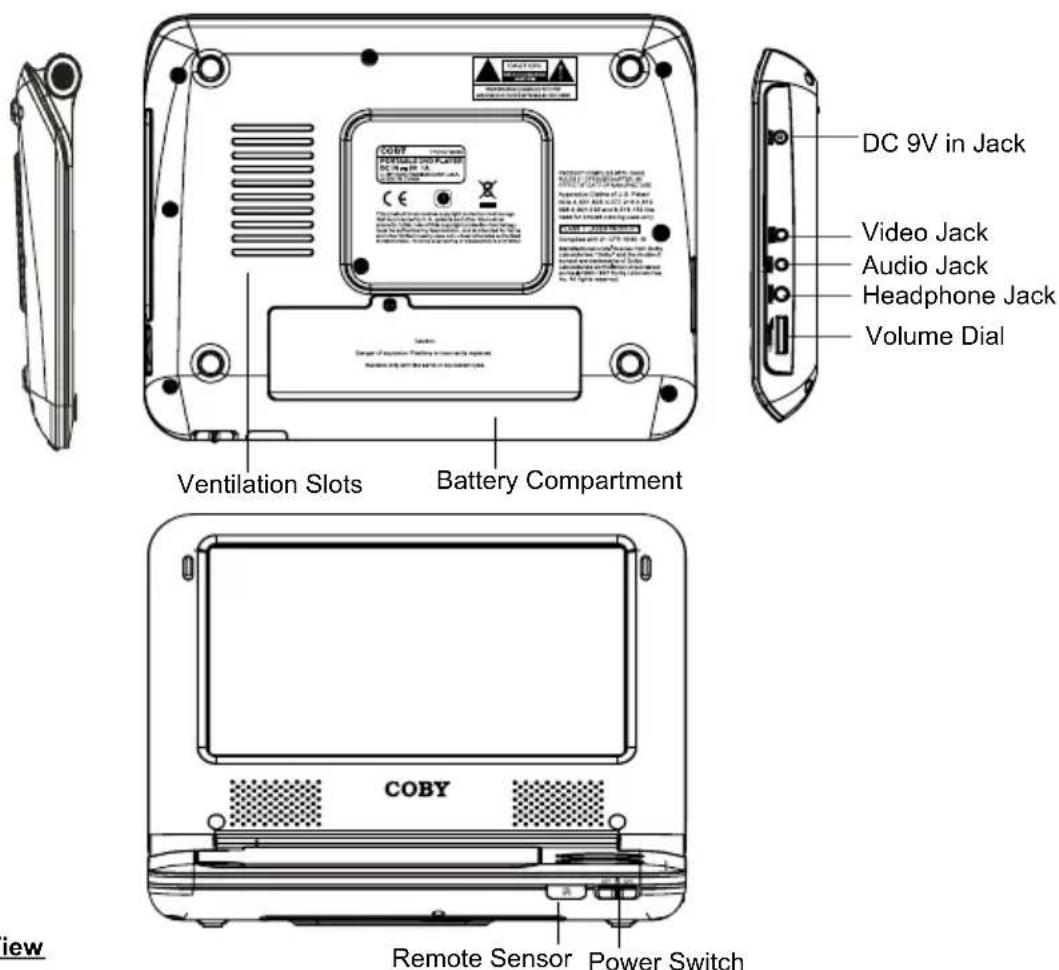
Right View
Remote Sensor Power Switch
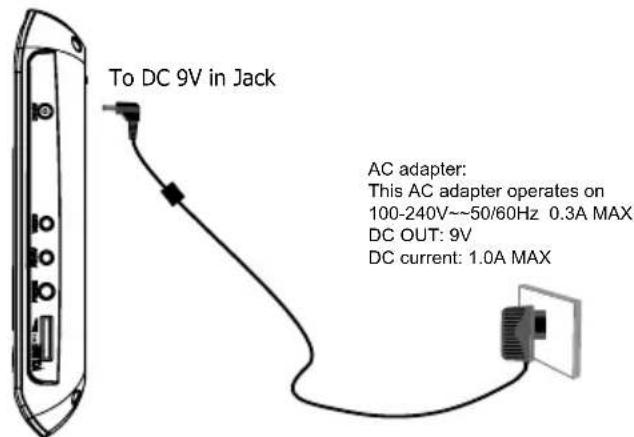
DC 9V IN Jack
To connect to the AC Adapter / DC 16V Car adapter for power supply.
Video Jack
To connect to an external TV screen by the AV cable.
Audio Jack
To connect to an external speaker system by the AV cable.
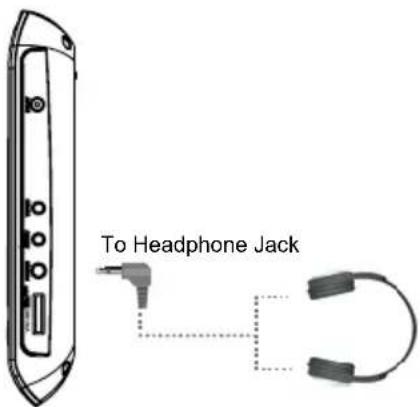
Headphone Jack
Volume Dial
To Adjust the Volume Level.
Bottom View
Ventilation Slots
Battery compartment
Front View
Power Switch
To turn on/off the unit.
Remote Sensor
LOCATION OF CONTROLS
Remote Control
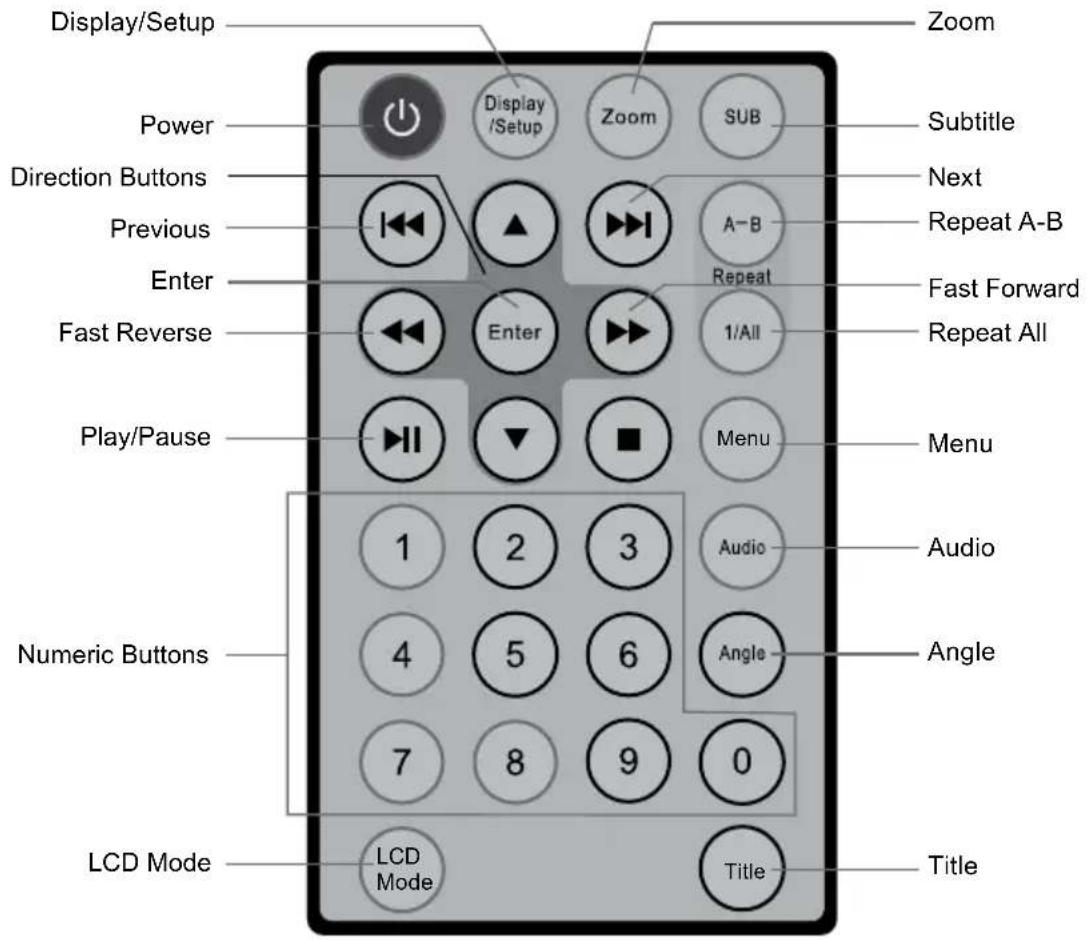
The remote control transmits a directional infrared beam. Be sure to aim the remote control directly at the infrared remote sensor during operation. The sensor may not be able to receive signals properly if the sensor is covered, if there is a large object between the remote control and the sensor, or if it is exposed to direct sunlight or a strong artificial light (e.g., fluorescent or strobe lights). In this case, change the direction of the light or reposition the unit to avoid direct lighting.
CONNECTIONS
Audio and Video Connections
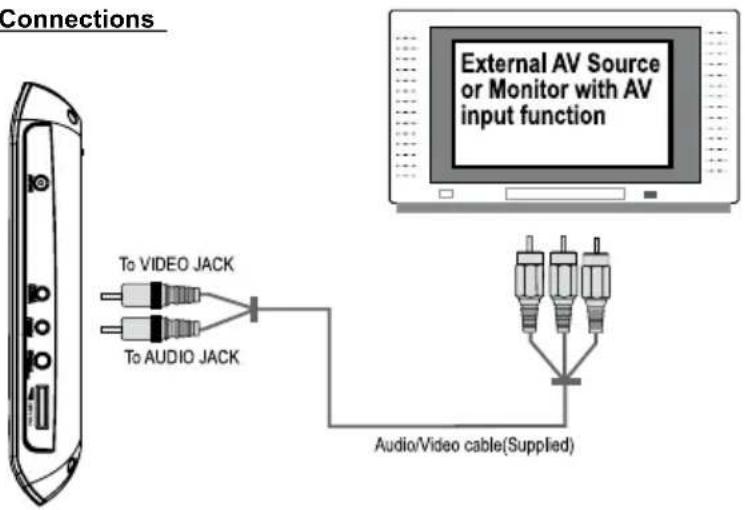
Refer to the owner's manual of the external device as well.1.
Before connecting the power source, 2. ensure that all the connections are properly done.
Headphone Connection
Be sure that your unit is at low volume level before connecting the headphones. Increase the volume gradually for your comfortable listening.
CAUTION:
Hearing experts advise against the constant use of personal stereos played at high volume. Constant high volume use can lead to hearing loss. If you experience ringing in the ears or hearing loss, discontinue use and seek medical advise.
CONNECTIONS
Power Connections
Connecting to the wall outlet•
Caution:
Do not connect the power plug to a • power outlet other than that which is indicated here and on the label as this may result in the risk of fire or electric shock.
Do not handle the power plug with wet hands. Doing so may cause electric shock.
Only use AC adapters of the type specified here. Failure to do so may case a fire or damage the player.
Using the car plug•
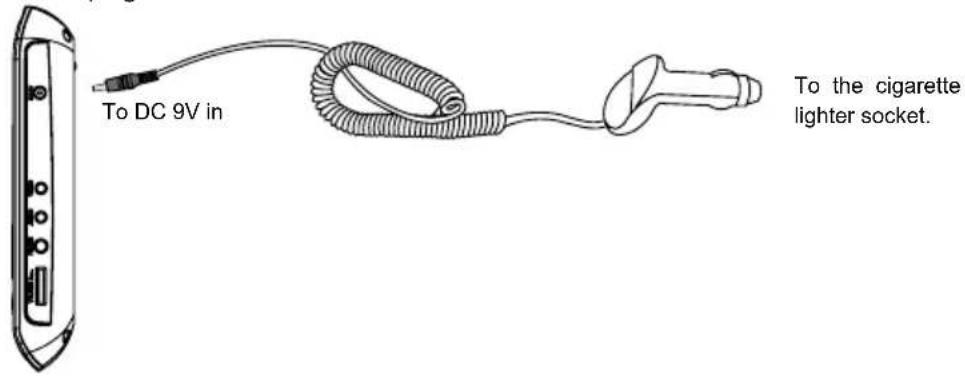

Disconnect this car power adaptor when not in use. Not for use in 24V vehicles.
Using the Built-in battery
The unit has a built-in rechargeable battery (lithium-polymer). Charge the built-in battery before using it for the first time. It takes about 4 hours to fully charge the battery.
Make sure that the power switch is set to the Off position before charging.
To charge the built-in battery, just connect the AC adapter to the player and a specified wall outlet. See above. (The Battery Charge indicator will light red while it is charging; it will go off when the battery is fully charged.)
- The built-in rechargeable battery can be used for approximately 300 charge-cycles without any noticeable change in performance.
When the built-in battery power is low, the low battery icon will flash on the upper right corner of the screen for a while, and then the player will turn itself off automatically.
Note:
Use the specified charger.
Never dispose of in fire or heat up.
Do not use in high temperature or near heat sources.
Do not open the cover.
Refer servicing only to qualified service personnel.
• To get the longest service life of the built-in battery, charge at indoor-temperature.
GETTING STARTED
Using the Remote Control
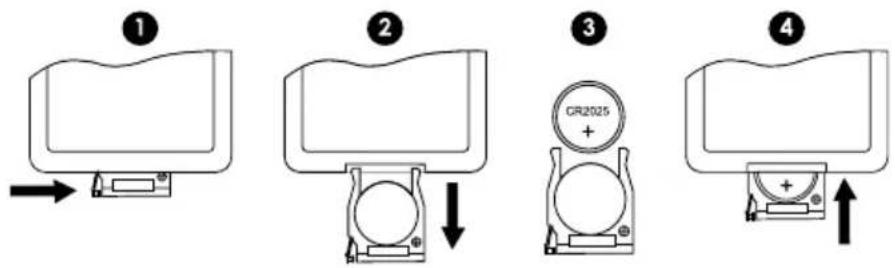
To load a battery in the remote:
Pull in the direction of the arrow.1.
Slide the compartment out.2.
Place the battery in the compartment with the positive side (+) facing up.3.
Push the compartment in to close.4.
Point the remote at the remote sensor of the photo frame at a distance of no more than 15" and at an angle no greater than 60 degrees.
Batteries will last for about one year under typical usage.
Replace the batteries if the remote is no longer working.
Do not spill water on the remote control.
Do not use the remote control for other equipment at the same time.
Remove the batteries if the remote control will not be in use for an extended period of time.
Power Supply
This unit should be used with 100-240V 50/60Hz AC wall outlets, only. See Power Connections section.
BASIC OPERATIONS
Basic Playback
- Prepare the connections and power supply.
- Load a disc.
Press the Open button to open the disc compartment lid. Load a disc with the label-side facing up. Close the lid manually. If a single-sided disc is loaded upside-down, the player will display "BAD DISC".
- Start playback.
Press Play/Pause button to start playback (some discs may start playing automatically).


Play/Pause/Stop
Press ▶ to play the disc for the first time.
Press ▶ during playback to pause. Press again to resume playback.
Press ☐ during playback to stop the disc ("Pre-Stop"). Press to resume playback.
Press ☐ when the disc is "Pre-Stopped" to stop playback completely. (When is pressed, the disc will start playing from the beginning.)
Next/Previous (Skip)
Press 🎨 to skip forward one track (DVD, CD, MP3, etc).
Press 📂 to skip back one track (DVD, CD, MP3, etc).
Forward/Reverse (Search)
Press 🎥 / to fast-forward / reverse through the disc.
• Each successive press of ➕ / ◀ will change the rate of fast-forward / reverse playback.

Slow
To slow-forward/reverse through the disc, press the DOWN/UP direction button.
• Each successive press of DOWN/UP direction button will change the rate of slow-motion playback.

Press 📋 to resume normal playback.
Note:
Audio will be muted during fast-forward, fast-reverse, and slow-motion playback
flowchart
graph TD
    A["▲"] --> B["Enter"]
    C["◀"] --> B
    D["▼"] --> B
    E["▶"] --> B
Menu Navigation
To navigate DVD disc menus or the player's setup menus:
- Press the DIRECTION keys (arrows) to select a desired feature or option in the menu
• Press ENTER to confirm a selection in the menu. - For some menu options, you may be able to use the numeric keypad to input data.
BASIC OPERATIONS
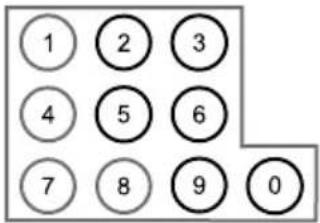
Numeric Keypad
• Use the numeric keypad to skip directly to a DVD chapter or CD track. (Some discs may not allow direct access function.)
• Use the numeric keypad to input numeric data in menu option fields when possible.
Adjusting the Volume
Turn the Volume Control dial to adjust the volume level up or down.
Disc Error Messages
The following messages will be displayed on-screen if there is a problem with the format of the loaded disc.
- WRONG REGIONAL DISC. The region code of the disc does not match the player's region code (Region 1).
- WRONG PASSWORD. The parental rating level of the disc is higher than the parental rating level setting of the player. The player will not play the disc.
- BAD DISC. The player is equipped with automatic disc quality detection software. If the player detects a disc that is damaged or has a format problem, it may play the disc at a lower quality or stop play completely, depending on how damaged the disc is.
Note:
DVD disc production quality may vary; some discs may deviate from the industry standard.
Some incorrectly-formatted discs may still play, however, the playback and operational quality of the disc may be substandard.
Power Management
If the player will not be in use for a long period of time, set the Power Switch to the OFF position and unplug the player.
FUNCTION BUTTONS

Display/Setup
Press the DISPLAY button once to show playback information.
Press it twice to enter the player's setup menu. Enter the Setup menu to adjust the player's internal settings, please see the SETUP section for more details.

Zoom
Press ZOOM to change the magnification level of the picture.
During DVD playback, each successive press of ZOOM will change the level of magnification • to:
Zoom 1x, Zoom 2x, Zoom 3x, Zoom Off.
In picture mode, each successive press of ZOOM will change the level of magnification to: •
Zoom 1x, Zoom 2x, Zoom 3x, Zoom Off.
When the magnification level is greater than Normal/100%, use the direction keys to pan around the magnified picture.
Note: The picture quality will decrease as the zoom level increases.

Multi-Subtitle / Audio / Angle
During playback of a DVD that has been mastered with subtitles, press SUBTITLE to view the available subtitle tracks. (A DVD may have up to 32 selectable subtitles.)

During playback of a DVD that has been mastered with alternate language/audio tracks, press • AUDIO to hear the alternate tracks. (A DVD may have up to 8 selectable audio tracks.)

During playback of a DVD that has been mastered with multiple angles, press ANGLE to view the available alternate camera angles. (A DVD may have up to 9 selectable angles.)

Menu / Title
Press the MENU button during DVD playback to return to the DVD's Main menu.

Press the TITLE button during DVD playback to return to the DVD's Title menu.

Repeat A-B Mode
To repeat playback of a specific section of a disc (loop):
Press A-B to set the desired start point ("A") of the section to be repeated.1.
Press A-B again to set the desired end point ("B") of the section to be repeated.2.
- The section "A-B" will now play repeatedly as a loop. Press A-B again to resume normal playback.

Repeat Playback of Chapter/Title/ALL of a Disc
Press REPEAT to change the repeat mode of the player. Each successive press of REPEAT will change the mode as follows:
Repeat Chapter → Repeat Title → Repeat Disc → Repeat Off
FUNCTION BUTTONS
LCD Mode
LCD Menu
Briefly press this button to display the LCD menu.
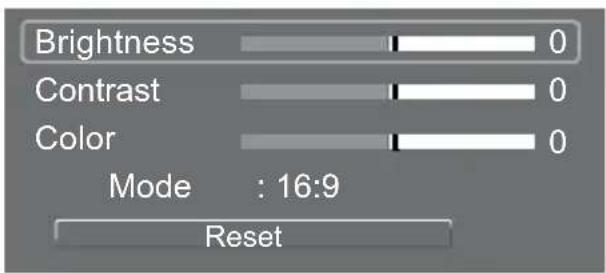
- Press up/down direction button to highlight item and then make adjustment by left/right direction button.
Press up/down direction button to select Mode and then press the Enter button to toggle the 2. screen dimension between 16:9 and 4:3.
Select RESET and press ENTER to return the settings of 3. brightness, contrast and color to their factory default settings.
SETUP

Various features of the player can be adjusted in the SETUP menu.
- Press twice to enter the player's setup menu.
- Press the direction buttons to select the desired item.
- Press ENTER to confirm.
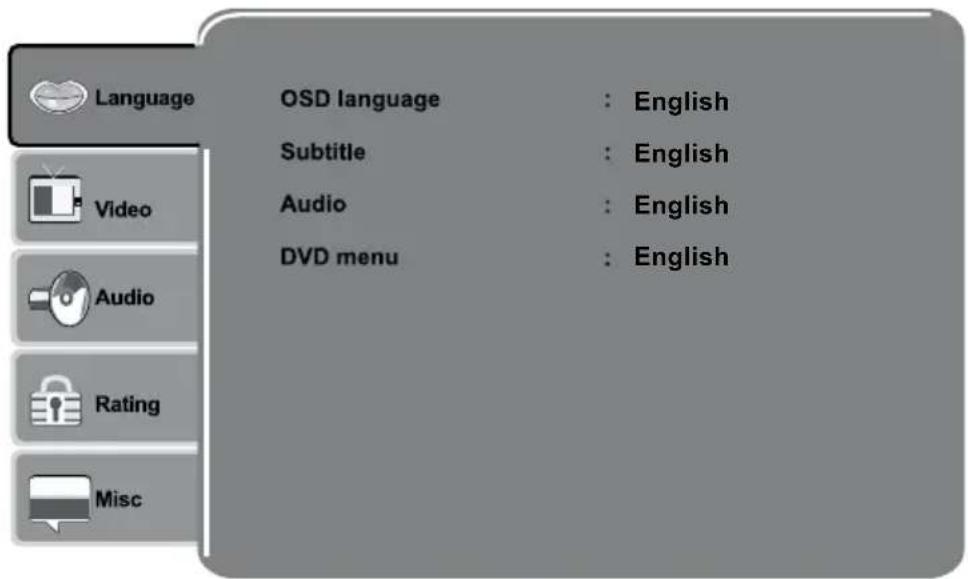
Language
| Item | Description | Default Setting |
| OSD | Sets the language of the player's on-screen display. | English |
| Subtitle | Sets the default subtitle track of loaded DVDs. | English |
| Audio | Sets the default language audio track of loaded DVDs. | English |
| DVD Menu | Sets the default menu language of loaded DVDs. | English |
Video
| Item | Description | Default Setting |
| Aspect Ratio | Sets the aspect ratio of the display. 4:3 is used with standard television displays; 16:9 is used with widescreen television displays. | 16:9 |
| TV System | Sets the player's Video Out signal type. Set this to correspond with your TV's Video System type. NTSC is the standard used in North America. | NTSC |
SETUP
Audio
| Item | Description | Default Setting |
| Channel Output | Sets the audio channel mix mode (LT/RT, Stereo). | Stereo |
Rating
| Item | Description | Default Setting |
| Parental Control | Sets the maturity rating level of the player.The player will not play any discs rated higher than this setting.This setting is password protected (the default password is: 8888). | Levels 1 to 8.(8: ADULT is de-fault) |
| Set Password | Change the Parental Ctrl password. Enter the old password, and then the new password.DO NOT FORGET THE PASSWORD; this password cannot be reset. | |
Misc
| Item | Description | Default Setting |
| Use Default Settings | Resets all settings to their factory default state. This will not reset the Parental Control password. | Read |
| Screen saver | The screen saver prevents burn-in damage to the player's screen. | On |
| Disc Resume | To set the Disc Resume on/off | On |
SPECIFICATIONS
| Power supply | DC 9.0V 1A (AC adapter Terminal) |
| Power consumption | ≤6W |
| Signal system | NTSC /PAL |
| Video output | 1±0.2V (p-p), 75ohm, Negative sync., 3.5 mm mini jack x1 |
| Audio output | 1.2 Vrms (1 KHz, 0dB), 3.5 mm mini jack x1 |
| Earphone terminal | 3.5mm stereo mini jack x1 |
| Signal /Noise ratio(audio) | 90dB typical |
| Dynamic range(audio) | 90dB typical |
| Panel size | 7 inch (16:9) |
| Resolution | 480(H) x 234 (V) (QVGA) Pixels |
| Laser | Wavelength 650 nm |
| Operating conditions | Temperature: 0°C to 35°C. Operation status : Horizontal |
| Dimensions | 251x208x59mm (Main Unit & Batt.) |
| Weight | 700g (Main Unit & Batt.) |
If you have a problem with this unit, please read the troubleshooting guide below and check our website at www.cobyusa.com for Frequently Asked Questions (FAQs) and firmware updates. If these resources do not resolve the problem, please contact Technical Support.
COBY Electronics Technical Support
56-65 Rust Street
Maspeth, NY 11378
Email: techsupport@cobyusa.com
Web: www.cobyusa.com
Phone: 800-727-3592: Monday to Friday, 8:30AM–9:00PM EST
Saturday, 9:00 AM-5:30PM EST
718-416-3197: Monday to Friday, 8:00AM–5:30PM EST
There is no power to the device.
Ensure that the Power Switch on the main unit is physically set to the ON position.
Ensure that the AC adapter cord is securely connected to the player and the proper wall outlet.
The device will not play the disc.
Ensure that a supported disc is loaded in the player label-side up.
Ensure that the disc's rating level does not exceed the player's parental rating level.
Ensure that the disc is not damaged or too dirty.
Clean the disc or try another disc. Moisture may have condensed inside the player. Remove the disc and •
leave the player on for 1-2 hours and then try again.
There is no picture.
Ensure that the TV set has been powered on and is set to the correct AV mode.
Ensure that the connections between the player and the TV are secure and correct.
Check if the connection cables are damaged.
The picture is noisy or distorted.
The disc may be damaged or dirty. Clean the disc or try another one.
Reset your TV's color system.
- Ensure that the player is connected directly to the TV (and not through a VCR, cable box, satellite receiver, etc.)
The picture is not full-screen.
• Change the aspect ratio setting of your player from the Setup menu.
- Select a different aspect ratio option from the DVD disc menu.
There is no sound or distorted sound.
• Ensure that the TV and amplifier have been turned on and properly set up.
• Ensure that the TV and amplifier connections are secure and correct.
• Try a different Audio track of the DVD by pressing AUDIO.
• Ensure that the MUTE function of the TV, Amplifier, or Player is not engaged.
TROUBLESHOOTING
The remote control doesn't work.
Ensure that the Power Switch has been physically set to the ON position.
Ensure that there are no obstacles between the remote and the player.
Point the remote at the remote sensor on the main unit.
Ensure that the batteries in the remote retain a charge and have been installed correctly.
Try replacing the remote's batteries.
Cannot turn the player on using battery power
To activate the battery power: • Turn off the player and then charge the battery by the AC adapter for about 10 seconds.
See • Using the Built-in battery section on Page 15.
NOTE
NOTE
COBY Electronics Corp.
56-65 Rust Street
Maspeth, NY 11378
www.cobyusa.com
www.ecoby.com
- CAUTION
- For Customer Use:
- WARNING:
- CAUTION:
- NOTICE:
- FCC Notice:
- PRECAUTIONS
- CPRM
- IMPORTANT SAFETY INSTRUCTIONS
- TABLE OF CONTENTS
- PACKAGE CONTENTS
- Disc Requirements
- Disc Care and Maintenance
- Handling a Disc
- Cleaning a Disc
- LOCATION OF CONTROLS
- Front View
- LCD Mode
- Play/Pause button
- Setup
- Stop
- Direction / Enter buttons
- Fast Forward /Reverse
- DC 9V IN Jack
- Video Jack
- Audio Jack
- Headphone Jack
- Volume Dial
- Bottom View
- Ventilation Slots
- Battery compartment
- Power Switch
- Remote Sensor
- Remote Control
- CONNECTIONS
- Headphone Connection
- Power Connections
- Using the Built-in battery
- Note:
- GETTING STARTED
- Using the Remote Control
- Power Supply
- BASIC OPERATIONS
- Basic Playback
- Play/Pause/Stop
- Next/Previous (Skip)
- Forward/Reverse (Search)
- Slow
- Menu Navigation
- Numeric Keypad
- Adjusting the Volume
- Disc Error Messages
- Power Management
- FUNCTION BUTTONS
- Display/Setup
- Zoom
- Multi-Subtitle / Audio / Angle
- Menu / Title
- Repeat A-B Mode
- Repeat Playback of Chapter/Title/ALL of a Disc
- LCD Menu
- Audio
- Rating
- Misc
- SPECIFICATIONS
- COBY Electronics Technical Support
- There is no power to the device.
- The device will not play the disc.
- There is no picture.
- The picture is noisy or distorted.
- The picture is not full-screen.
- There is no sound or distorted sound.
- TROUBLESHOOTING
- The remote control doesn't work.
- Cannot turn the player on using battery power
- NOTE
Brand : COBY
Model : TF-DVD7009
Category : Portable DVD Player