Flexx 10 - Tablet Nextbook - Free user manual and instructions
Find the device manual for free Flexx 10 Nextbook in PDF.


| Product type | Tablet |
| Brand | Nextbook |
| Model | Flexx 10 |
| Operating system | Windows 10 |
| Processor | Intel BayTrail-T CR, quad-core, 1.8 GHz (Z3735F) |
| RAM memory | 2 GB |
| Internal storage | 32 GB (eMMC) |
| Expandable memory | microSD card up to 64 GB |
| Display | 10.1 inches IPS LCD, resolution 1280 x 800 pixels |
| Wireless connectivity | Wi-Fi 802.11 b/g/n, Bluetooth 4.0 |
| Ports and interfaces | Micro-USB, HDMI, 3.5 mm audio jack, microSD slot, keyboard connector |
| Cameras | Front 2 MP, rear 2 MP |
| Battery | Rechargeable lithium-ion, 7000 mAh |
| Power supply | AC adapter 5 V / 2.5 A |
| Battery life (claimed) | Music: ~9h, Video: ~7h, Web: ~8h |
| Weight | Approximately 580 g (with battery) |
| Dimensions | Approximately 260 x 170 x 10 mm (estimated) |
| Operating temperature | 0°C to 40°C |
| Maintenance | Clean with a soft, slightly damp cloth, without chemical products |
| Safety | Do not expose to water, flames, shocks; use only the provided adapter |
| Repairability | No user-serviceable parts; integrated battery; limited 1-year warranty |
Frequently Asked Questions - Flexx 10 Nextbook
User questions about Flexx 10 Nextbook
0 question about this device. Answer the ones you know or ask your own.
Ask a new question about this device
Download the instructions for your Tablet in PDF format for free! Find your manual Flexx 10 - Nextbook and take your electronic device back in hand. On this page are published all the documents necessary for the use of your device. Flexx 10 by Nextbook.
USER MANUAL Flexx 10 Nextbook
- Do not subject the device to severe impact or drop it from heights.
- Do not use the device in extreme hot or cold, dusty or damp conditions. Do not expose it to direct sunlight.
- Avoid using the device near strong magnetic fields.
- Normal functioning of the product may be disturbed by ESD. If so, simply reset and restart the device following the instruction manual. During file transmission, please handle with care and operate in a static-free environment.
- Keep the device away from water and other liquids. In the event that water or other liquids enter the device, power off the product immediately and clean the device.
- Do not use chemicals to clean the device in order to avoid corrosion. Clean it with a dry cloth.
- Do not install this equipment in a confined space such as a book case or similar unit. The ventilation should not be impeded by covering the ventilation openings with items such as newspaper, table-cloths, curtains etc.
- No naked flame sources, such as lighted candles, should be placed on the apparatus.
- Attention should be drawn to environmental aspects of battery disposal.
- Use the apparatus in moderate climates.
- We are not responsible for damage or lost data caused by malfunction, misuse, modification of the device or battery replacement.
- Do not attempt to disassemble, repair or modify the product. This will invalidate the warranty.
- If the device will not be used for an extended period of time, please charge the battery at least once per month to maintain battery life.
- Charge the battery if:
a) The battery level icon displays □(An empty battery)
b) The device powers off automatically when restarted.
c) There is no response when pressing keys with keys unlocked and battery full. - Do not interrupt the connection when the device is being formatted or transferring files. Otherwise, data may be corrupted or lost.
- When the device is used as a portable HD, please use only per the instructions. Otherwise, permanent data loss could occur.
- Please use and install data using the attachments/accessories provided and only according to the manufacturer's instruction.
- Please refer to the information on the bottom of the device for electrical and safety information before installing data or operating the device.
- To reduce the risk of fire or electric shock, do not expose this device to rain or moisture. The device should not be exposed to dripping or splashing. Never place objects filled with liquids, such as vases, on the device.
- There is danger of explosion if the battery is replaced incorrectly. Replace only with the same or equivalent type.
- The battery (battery or batteries or battery pack) should not be exposed to excessive heat such as sunlight, fire or the like.
- Please follow responsible procedures for battery disposal.
- If the power adaptor disconnected from the device, the device will remain operable as long as the battery has sufficient charge.
- The power adaptor is a CLASS II apparatus with double insulation, and no external ground is provided.
- Safety symbol explanation:
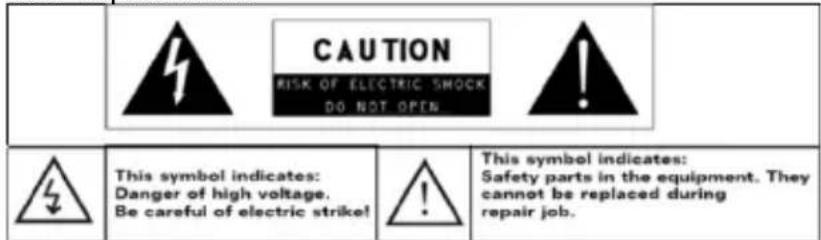
- The lightning flash with arrowhead symbol within an equilateral triangle is intended to alert the user to the presence of non-insulated “dangerous voltage” within the product’s enclosure that may be of sufficient magnitude to constitute a risk of electric shock.
- To reduce the risk of electric shock, do not remove the cover (or back) as there are no user-serviceable parts inside. Refer servicing to qualified personnel.
- The exclamation point within an equilateral triangle is intended to alert the user to the presence of important operating and maintenance instructions in the literature accompanying the device.
- Correct Disposal of this product. This marking indicates that this product should not be disposed of with other household waste in the EU. To prevent possible harm to the environment or human health from uncontrolled waste disposal, recycle it responsibly to promote the sustainable reuse of material resources. To dispose of your used device, please use the return and collection systems available in your area or contact the retailer where the product was purchased. They can take this product for safe environmental recycling.
- This equipment should be installed and operated with minimum distance 20cm between the radiator & your body.
- CE in which countries where the product may be used freely: Germany, UK, Italy, Spain, Belgium, Netherlands, Portugal, Greece, Ireland, Denmark, Luxembourg, Austria, Finland, Sweden, Norway and Iceland.
Listening Cautions
- This product respects the current regulations for limiting the output volume of consumer audio devices to a safe level. By listening to your device with headphones or earbuds at high volumes, you run the risk of permanent damage to your ears. Even if you get used to listening at high volumes and it seems normal to you, you still risk the possibility of damaging your hearing. Reduce the volume of your device to a reasonable level to avoid permanent hearing damage. If you hear ringing in your ears, reduce the volume or shut off your device. This device has been tested with the supplied earphones. In order to preserve your hearing, it is advised that you use only the following headphone models: the earphones supplied with your device, or any other headphones that respect the current regulations. Other types of headphones may produce higher volume levels. (At full power, the prolonged listening of the walkman can damage the ear of the use)
- Do not use while operating a motorized vehicle. It may create a traffic hazard and is illegal in many areas.
- You should use extreme caution or temporarily discontinue use in potentially hazardous situations created by obstructed hearing.
- Even if your headphones or earphones are the open-air type designed to let you hear outside sounds, don't turn up the volume so high that you can't hear what's around you.
- Sound can be deceiving. Over time your hearing “comfort level” adapts to higher volumes of sound. What sounds “normal” can actually be loud and harmful to your hearing. Guard against this by setting the volume of your device at a safe level BEFORE your hearing adapts.
To establish a safe volume level:
a. Start your volume control at a low setting.
b. Slowly increase the sound until you can hear it comfortably and clearly, and without distortion. Once you have established a comfortable sound level, leave it there.
This manual may not reflect your actual device's operation. All information is subject to change without prior notification. Please follow your actual device's operational procedures.
Table of Content
Safety Precautions.... 1
Listening Cautions .... 3
Packing Contents 5
Features & Functionality.... 5
Basic Connections....6
Basic Operation 9
Maintenance 13
Major Specifications 14
FCC Statement....15
Congratulations! Windows 10, the state-of-the-art operating system from Microsoft, is preinstalled on your Nextbook tablet PC. When you get your device, be sure to check the following items are enclosed in the package:
- Main Unit
- Power Adaptor
- Keyboard
- User's Manual
- Quick Start Guide (QSG)
Overview
Feature
-
microSD card slot
-
Charging indicator
-
HDMI port
-
Micro-USB port
-
DC-In socket
-
Microphone
-
Audio port (3.5 mm)
-
Sustaining port (female)
-
Pogo pin connector (female)
-
Front-facing camera
-
Rear camera
-
Windows button
13.Volume+/- buttons
Functionality
Reads and writes files stored on a microSD card.
Indicates the battery-charge status.
Connect HD television via optional HDMI cable, for switching the display to wider screen.
Connect USB devices, via an optional USB conversion cable, for transferring data, music, photos, videos, and so on.
Connect the supplied power adapter for charging the battery. Records sounds.
Provides sound input while making calls using web-based apps.
Connect a headset, headphones, microphones, or other audio equipment to listen to stereo sound, record audio, or make web phone calls.
Fix and sustain the connection to external keyboard.
Connect external keyboard
Capture a front view picture or record videos.
Use while making video calls.
Captures pictures or videos.
Press to open the Windows Start screen.
Press to increase/decrease volume
| 14. Power button | Press and hold to turn the tablet on or off. |
| Press to turn the display on or off. | |
| 15. Speaker | Provides audio output. |
Note:
- Both cameras support zoom, face tracking.
- User can connect a keyboard and USB mouse to this tablet if necessary.
Basic Connections
Charging the tablet
Note: If using the tablet for the first time, or after a long period of idle time, charge the battery for more than half an hour before turning it on, to ensure system stability. The tablet has a built-in rechargeable battery. Charge the device when the battery level is low.
- Plug the power adapter into the DC-in socket.
- Connect the power adapter to an electrical outlet and charge the tablet until the battery is fully charged.

natural_image
Pure electrical circuit lines without any symbolsCaution:
- Charge the battery in an ambient temperature of 0 °C to 35 °C.
- Use only the supplied power adapter to charge your tablet. Using unauthorized power adapters may severely damage your tablet.
Note:
- The battery is not fully charged when you can pack your tablet
Now the tablet is ready for use.
Note: If the login screen is not enabled in Windows 10, you will be taken directly from the lock screen to the Start screen.
Turning Off the Tablet
You can turn off the tablet in two ways:
Using the Power button:
- Press and hold the Power button for at least 4 seconds.
- Swipe-down the shutdown confirmation screen to the bottom edge of the display to turn off the tablet.
Using Start menu:
-
Touch the Windows/ Start button to bring up Start menu.
-
Touch Power → Shut down to turn off the tablet.
Turning On/Off screen
Usually, user can press once the power button to turn on/off the screen display. Optionally, user can also use the Start menu:
-
Touch the Windows/ Start button to bring up Start menu.
-
Touch Power → Sleep to turn off the screen.
Inserting a microSD card

natural_image
Diagram of a computer monitor with a blue indicator light and control panel (no text or symbols)- Pick up a microSD card.
- Align the microSD card so that the pins are pointed toward the card slot.
- Push the microSD card into the card slot until it locks into place.
Removing a microSD card
Caution: Removing the microSD card while it is in use may cause data loss or result in application errors. Make sure all save operations to the microSD card are complete before removing the microSD card.
-
Touch the Tray button in the notification area in the lower-right corner of the screen.
-
Touch Safely Remove Hardware

- Touch Eject XXXX SD Card. A message appears confirming that the microSD card can be safely removed. If a warning message appears stating the microSD card cannot be removed, ensure all data transfers involving the microSD card are complete.

natural_image
Line drawing of a rectangular electronic device with ports and a small screen (no text or symbols)- Press on the microSD card to release it.
- Slide the card out after it pops out from the microSD card slot.
Using Headphones
You can connect a headset or headphones to the audio port of your tablet.
Warning: Listening to loud music for an extended period of time can lead to hearing loss.
- Connect headphones to the audio port (3.5 mm) on the tablet.
- Insert the earphones in your ears and adjust the volume level to a comfortable level.
Note: When you connect an audio device to the 3.5 mm audio jack, the integrated speakers on your tablet are muted automatically.
Caution: To prevent damage to the headphones when disconnecting it from the tablet, pull the connector instead of the cable.
Connecting the Keyboard
For the sake of using convenience, this device is designed to be equipped with a dedicated keyboard. Follow these steps to connect the keyboard to your tablet:
- Place the dedicated keyboard on an even and stable plane (e.g. desk);
- Hold your tablet with two hands, align the connector and the two magnetic contacts on the keyboard to the jack and positioning slots at the bottom of the tablet.
- As soon as the keyboard is connected to the tablet, it is ready for use.
- You can rotate the tablet to overlap the keyboard as you do with a laptop.
Note:
- This keyboard is a plug-and-play device; you can connect/disconnect it anytime.
- Normally, the power LED on the keyboard will be turned on once the tablet is connected to the keyboard.
- When the tablet overlaps on the keyboard, the display will be turned off; as soon as it is erect, the display will be turned on again.
- Since the keyboard is powered by the tablet, it has no built-in battery inside.
Warning:
The maximum angle between the tablet and the keyboard is 120 degrees, so DO NOT rotate the tablet greater than that angle; otherwise, it may cause damage to the tablet and the keyboard.
Instructions for using the cool function keys:
Instructions for using the cool function keys:
| FN+ F1 | Switch off the screen display | FN+F5 | Decrease the volume |
| FN+F2 | Bring up Settings menu | FN+F6 | Increase the volume |
| FN+F3 | Decrease the display brightness | FN+F7 | Mute the tablet. |
| FN+F4 | Increase the display brightness | FN+F8 | switch display on tablet/HD TV. |
| FN+F9 | Lock or unlock the touch area on the keyboard | FN+F12 | Capture screenshot |
| FN+Nu mLk | Lock or unlock numeric keys on the keyboard. | Enter+Windows ESC+CapsLock | Turn on Narrator Turn off Narrator |
Gestures of using the touchpad
When using the touchpad on the keyboard, the following gestures are applicable:
Touch and slide with one finger- move the cursor;
Roll vertically with two fingers- roll through the screen;
Touch with two fingers and move them closer / apart-zoom in/out the screen display.
Touch once with two fingers-right click of mouse.
To remove the keyboard from tablet, you need to press the keyboard shaft with one hand, and at the same time lift up the tablet with the other hand properly.
Wi-Fi Setting
Turning On/Off Wi-Fi:
- Touch WiFi icon in the notification area in the lower-right corner of the screen to view the available WiFi hot spots.
- Touch Available WiFi icon to turn on/off WiFi connection.
Connecting to a network:
- Touch WiFi icon in the notification area in the lower-right corner of the screen to view the available WiFi hot spots.
- Select an available network from the list and touch Connect.
- Input the password if necessary, then touch Connect to start connecting to the Internet.
Gestures
Your tablet has a multi-touch display. You can touch the screen to operate the tablet.
Finger Gesture
Touch
You can do
Select items on the screen, including options,
Tap gently on the display with your fingertip.
entries, images, and icons.
Start apps.
Touch buttons on the screen.
Input text using the on-screen keyboard.
Touch and Hold
Touch and hold your finger on the display.
Display detailed information about an item.
Open the context menu of an item to perform further actions.
Drag
- Touch and hold your finger on an item on the screen.
- Keeping your finger in contact with the display, move your fingertip to the desired location.
- Take your finger off the display to drop the item in the desired location.
Move items such as images and icons on the screen.
Swipe or Slide
Move your finger in a vertical or horizontal direction on the display.
Scroll through the Start screen, web pages, lists, entries, photos, contacts, and so on.
Close an app. (Swipe the app to the bottom of the display.)
Zoom in
Touch the display with two fingers and then move the fingers apart.
Enlarge the view of an image or web page.
Zoom out
Touch the display with two fingers and then move the fingers closer.
Reduce the view of an image or web page.
Screen Orientation
For optimal viewing experience, the screen orientation changes automatically to
portrait or landscape format depending on how you hold the tablet. You can disable automatic screen rotation and lock the screen in portrait or landscape mode.
Note: Some apps may not support automatic screen rotation and are designed to work only in one orientation.
Locking the screen orientation
- Change the screen to the desired orientation.
- Touch Action Center button in the notification area to access the Action Center;
- Touch Rotation lock icon to lock or unlock screen rotation.
Windows 10 Start Screen
The Windows 10 Start screen displays a list of default and custom Live Tiles, which act as a shortcut to Mail, Microsoft Edge, Weather app, Calendar, Windows Store, and other installed apps.
Live Tiles on your Start screen change and update in real time to show news and sports updates, weather updates, social-networking feeds, and so on.
The tile-based user interface gives you direct access to your most recently used apps, emails, photos, music, videos, contacts, updates from social-networking sites, and frequently viewed websites. You can pin your favorite apps as tiles to customize the Start screen.
You also can personalize the Start screen by setting your favorite picture as the wallpaper.
Note: Live Tiles can be added or removed by using Pin to taskbar, Pin to Start or Unpin from Start options.
Accessing the Start screen
When your computer boots into Windows, the Start screen appears by default. To access the start screen from any other window or app, use any of the following methods:
- Press the Windows button on the keyboard.
- Touch the Start button in the lower left corner of the screen.
Note: The functionality of the Start icon is same as Windows button.
Getting Started
Touch the Start icon 📁 to bring up the start menu, from which you can find a list of Most used apps. Among the apps, Get Started is extremely useful for new user of the newest Windows system-Windows 10, includes some video clips introducing the new features of the newest system.
Windows Search bar
Next to Start button in the lower-left corner of the screen, it is Windows search bar, with which you can type in any keywords to search the web and Windows.
Swipe left/right/down
Swipe-in from the right edge of the display to show the Action Center, which provide access to the system commands, such as Tablet mode, Airplane mode, Rotation lock, WiFi connection, Location, Settings etc..
Swipe-in from the left edge of the display to show thumbnails of open apps.
Swipe-in from the top to the bottom of an app to dock or move the app.
Narrator Mode
This is a featured function that is friendly for blind users. Narrator is a screen reader that reads all elements on screen, like text and buttons.
- Touch Start > Settings>Easy access>Narrator, then toggle the slider to turn on Narrator.
- To turn Narrator off with the touch screen, tap the Narrator slider, and then double-tap anywhere on the screen.
Note: If you have a keyboard connected to the tablet, you can use some shortcut keys to turn on/off Narrator mode. See the section of 'Connecting the Keyboard'.
Synchronizing Your Tablet
If your computer has Microsoft Windows 10 installed, you can synchronize user settings of your tablet with your computer using a Microsoft account. When you sign in with your Microsoft account on your tablet, your settings, including internet browser history, app settings, and personal files etc., are synchronized with other Windows 10 PCs and tablets computers.
On the tablet, access Action Center by touching 📋 button → All Settings → Accounts → Sync your settings to switch your computer local account to your Microsoft account.
Copy music, photos, and videos
- Connect your tablet to a USB storage device with a Micro-USB to standard USB conversion cable, then transfer files to or from the USB storage device.
- After transferring files, use the Safely Remove Hardware wizard to remove the USB storage device.
Note: The Micro-USB to standard USB conversion cable is sold separately and is not shipped with the tablet. See the picture below for reference.

Maintenance
Cleaning Your Tablet
Caution:
Before you clean your tablet, disconnect all the cables and turn off the tablet. Clean your tablet with a soft cloth dampened with water. Do not use liquid or aerosol cleaners, which may contain flammable substances.
- Turn off your tablet. For more information on turning off your tablet,
- Disconnect any attached devices, headphones, and speakers from the tablet and from their electrical outlets.
- Moisten a soft, lint-free cloth with either water or a display cleaner, and wipe the surface of the tablet until it is clean. Do not allow water from the cloth to seep down to the tablet ports or buttons.
Caution:
- To avoid damaging the tablet or display, do not spray cleaning solution directly onto the display. Only use products specifically designed for cleaning displays and follow the instructions included with the product.
- Do not clean the keyboard with a moist cloth.
Resetting your tablet
If your PC isn't running well, resetting it might help. This lets you choose to keep your files or remove them, and then reinstall Windows.
To restore your tablet:
- Touch button in the notification area to access the Action Center;
- Touch All Settings → Update and security → Recovery → Reset this PC.
- Touch Get started to choose an option from Keep my files or Remove every thing.
4. You can have more choices if you select Advanced startup.
Note:
Apps installed from the Windows Store are automatically reinstalled after the refresh is complete. Apps installed from sources other than the Windows Store are removed and have to be manually installed. A list of apps removed during this process is created on the desktop after the process is complete.
In shutdown status, user can press and hold Power & Vol- keys at the same time to boot the device and enter Recovery mode, for the purpose of repairing or resetting the system.
Caution:
Resetting your tablet erases all data from your tablet, including your account configuration, apps, music, pictures, files, and so on. Make sure that you back up all the required data before you proceed.
Major Specifications
| Item | Descriptions |
| CPU | Intel BayTrail-T CR, Quad core/1.8GHz (Z3735F) |
| Operation system | Windows 10 |
| DDR | 2GB |
| Internal Memory | EMMC: 32 GB |
| Expandable Memory | Micro SD card: up to 64 GB |
| Interfaces | USB 2.0 high speed /Micro SD (compatible SDHC, up to 64GB) card |
| 3.5mm Earphone | |
| Connection Agreement | WiFi (802.11 b/g/n); BT4.0 |
| Front Webcam | Front camera, 2.0 Mega Pixels; rear camera, 2.0 Mega Pixels |
| Bluetooth | Support |
| Display | Resolution,1280*800 Pixels, 10.1 inch LCD IPS |
| Battery life | Music playback: about 9 hours;Video playback about 7 hours,web-browsing: about 8 hours. |
| Power Supply | Rechargeable lithium battery, 7000mAh; |
| AC Adapter: DC-Out 5V/2.5 A | |
| Storage Temp. | -20°C ~ +65°C |
| Ambient Temp. | 0°C ~ +40°C |
| Operation RH | 20% ~ 90% (40°C) |
| Storage RH | 20% ~ 93% (40°C) |
FCC Statement
IC Caution.
RSS-Gen Issue 4 November 2014"&"CNR-Gen 4e edition Novembre 2014:
- English:
This device complies with Industry Canada licence-exempt RSS standard(s).
Operation is subject to the following two conditions: (1) This device may not cause interference, and (2) This device must accept any interference, including interference that may cause undesired operation of the device.
- French:
This device complies with part 15 of the FCC Rules. Operation is subject to the following two conditions: (1) This device may not cause harmful interference, and (2) this device must accept any interference received, including interference that may cause undesired operation.
Any Changes or modifications not expressly approved by the party responsible for compliance could void the user's authority to operate the equipment.
Note: This equipment has been tested and found to comply with the limits for a Class B digital device, pursuant to part 15 of the FCC Rules. These limits are designed to provide reasonable protection against harmful interference in a residential installation. This equipment generates uses and can radiate radio frequency energy and, if not installed and used in accordance with the instructions, may cause harmful interference to radio communications. However, there is no guarantee that interference will not occur in a particular installation. If this equipment does cause harmful interference to radio or television reception, which can be determined by turning the equipment off and on, the user is encouraged to try to correct the interference by one or more of the following measures:
-Reorient or relocate the receiving antenna.
-Increase the separation between the equipment and receiver.
-Connect the equipment into an outlet on a circuit different from that to which the receiver is connected.
-Consult the dealer or an experienced radio/TV technician for help.
The device has been evaluated to meet general RF exposure requirement. The device can be used in portable exposure condition without restriction.
This manual was correct and complete at the time of printing. However, new specifications and updates can occur at any time without prior notice. No part of this manual may be copied, republished, reproduced, transmitted or distributed in any way without prior written consent of E Fun. Any unauthorized distribution of this manual is expressly forbidden.
E Fun may find it necessary to modify, amend or otherwise change or update this manual. We reserve the right to do this at any time, without any prior notice. All specifications and features are subject to change without notice. All screen shots shown are simulated and may not represent the actual screen on production units sold to consumers.
For instruction manuals, updated drivers or other information, be sure to visit our website at:
www.nextbookusa.com
Or write to us at:
E Fun
West Covina, CA 91791
USA
Copyright © 2015
Frequently Asked Questions (FAQ)

natural_image
Black laptop with visible keyboard, front screen, and status bar (no readable text or symbols)Q: Why the battery does not charge. What to do?
A: There are 3 main possible reasons for this problem: bad connection, improper temperature condition, damaged battery or adapter.
As for bad connection, user should:
- Check all connectors to ensure proper connectivity.
-
Unplug the supplied AC power adapter from the wall and verify that the outlet is functioning.
-
Check all cable connections, plug the adapter back into the tablet, and then plug back into the wall outlet.
And for improper temperature condition, i.e. the tablet's temperature is below 0\ °C or higher than 35\ °C , user should change the location and charge the battery in an ambient temperature between 0\ °C to 35\ °C .
And if the battery or adapter has been damaged, contact an authorized reseller to replace the battery or power adapter.
Q: My battery drains quickly even when the tablet is in Standby mode. What's the matter?
A: If the tablet is not in the range of a network it can connect to, the tablet continues to send out signals to locate a base station and drains the battery. So, just temporarily turn off the tablet, or move the tablet in range of a network it can connect to, or temporarily turn off the wireless connection on your tablet.
In addition, if the tablet keeps checking for Windows updates even in Standby mode, the battery will drain quickly too. It is normal in this case. User can disable it by selecting "Never check for update". However, it is not recommended. User should be cautious before doing this.
Q: Tablet does not turn on, what to do?
A: It may be because the battery is completely discharged. Charge the tablet for at least 4 hours, and then press and hold the Power button for 3 seconds to turn on the tablet.
Q: Tablet is connected to the power adapter for charging, but still fails to turn on. Why?
A: If the tablet has been idle for a long period of time, or has just been purchased and used for the first time, its battery might be completely discharged. In this case it is suggested that user should charge the battery for over half an hour before turning it on, so as to guarantee the stability of its system
Q: Tablet does not turn off, what to do?
A: Press and hold the Power button for 10 s to perform a hard shut down.
Note: User will have to wait for about 8 seconds before turning on the tablet again after it shuts down.
Q: Can blind people use this tablet freely?
A: Yes. This tablet supports a featured function designed for blind people-Narrator mode. Narrator is a screen reader that reads all elements on screen, like text and buttons.
To enable Narrator mode, touch Start > Settings>Easy access>Narrator, then toggle the slider to turn on Narrator.
In Narrator mode, every time you touch the screen, you will hear a voice telling you the text or button you are touching.
Q: The touch screen seems not to respond properly to touches, what is the problem?
A: Perhaps you have enabled the Narrator mode on your tablet. You can touch Start >
Settings>Easy access>Narrator, then toggle the slider to turn off Narrator. Or press ESC and CapsLock button at the same time to turn off Narrator mode.
Q: The system crashes, or the screen turns blue after startup. What can I do?
A: It may be because the system of the tablet has been damaged to some extent for improper shut-down actions. In shutdown status, press and hold the Power and Vol-button together to reboot the device and enter the Recovery mode, so as to repair or reset the system.
After entering the Recovery mode, user will have to choose an option from the menu before going on:
- Continue – Exit without doing anything and continue to Windows 10 system.
- Use a device- Refresh the system by using a USB device, network connection, or Windows recovery DVD.
- Troubleshoot- Refresh or reset your PC or use advanced tools.
- Turn off your PC- do nothing and turn off the tablet.
Q: Fail to access the account for losing the password, what should I do?
A:1. Press and hold the Power button for 10 seconds to perform a hard shut down;
- In shutdown status, press and hold the Power and Vol- button together to reboot the device and enter the Recovery mode;
- Select "Troubleshooting- Refresh or reset your PC or use advanced tools".
Q: How to deal with the case that my tablet is not responding or behaving as expected?
A:1. Reboot the tablet;
- If it still not works, try resetting the tablet.
- If the problem remains unsettled, contact the vendor's support service.
Q: Touchscreen responds slowly or improperly, what's wrong?
A: Perhaps the screen is dirty, and sometimes the protective cover prevents the tablet from recognizing your inputs.
- Moisten a soft, lint free cloth with either water or a display cleaner, and wipe the surface of the tablet until it is clean. Do not allow water from the cloth to seep down to the tablet ports or buttons.
- Remove any protective covers from the touch screen.
Q: No wireless connection, how to set it up?
A:1. Check if the wireless radio is on. See Wi-Fi setting.
- Try to get closer to the wireless access point.
- Reset the wireless router if using a private network; open the browser to view the landing page if using a public network.
Q: Slow Internet connections. How to make it faster?
A: The signal strength is not strong enough. Move your tablet to a different location for better signal reception.
Q: Why the touch pad of the keyboard does not function?
A: There are two possible reasons for this problem. One is that the keyboard has not been connected properly. If so, not only the touch pad, but also the other keys will not function. For this case, reconnect the keyboard.
The second reason is that the touch pad has been deactivated. Press function keys to activate it.
Q: When entering my password, I can't input the characters I want. What's the reason? And in some area of the keyboard, letters can not be input, only numbers, why?
A: Once the FN+NumLk keys are pressed, the numeric keys will be locked or unlocked. If they are locked, user can use them to enter numbers; if they are unlocked, user can only use them to enter letters.
Q: The screen of the tablet PC turns completely dark suddenly. What's wrong with it? What can I do?
A: Once the remaining capacity of the battery is less than 4 %, the screen will turn black automatically. It enters S4 mode (i.e. hibernating status). All running data will be saved on the HDD. Under such circumstance, user can recharge the battery with the supplied power adapter for about 5 minutes before rebooting it again.
Warranty Card
natural_image
Black laptop with keyboard and home screen displaying Windows logo (no visible text or symbols on screen)nextbook
ONE YEAR LIMITED WARRANTY
The Company hereby warrants to the original retail purchaser of this product that should this product or any part thereof, under normal use and conditions, be proven defective in material or workmanship within one year parts and 90 days labor from the date of original purchase, such defect(s) will be repaired or replaced with reconditioned product (at the Company's option) for parts and repair labor. This limited Warranty is the purchaser's exclusive remedy for any such defect(s).
To obtain repairs or replacement within the terms of this warranty, please visit www. Nextbookusa.com or contact us West Covina, CA 91791, USA. Proof of warranty coverage (i.e.- dated bill of sale) is required.
This Warranty dose not apply to any product or part thereof which, in the opinion of the Company, has suffered or been damaged through alteration, improper installation, mishandling, misuse, neglect, accident, or by removal or defacement of the factory serial number/bar code label(s). The opinion of the Company with respect to this matter shall be final. THE EXTENT OF THE COMPANY'S LIABILITY UNDER THIS WARRANTY IS LIMITED TO THE REPAIR OR REPLACEMENT PROVIDED ABOVE AND, IN NO EVENT, SHALL THE COMPANY'S LIABILITY EXCEED THE PURCHASE PRICE PAID BY PURCHASED FOR THE PRODUCT.
THIS WARRANTY IS IN LIEU OF ALL OTHER EXPRESS WARRANTIES OR LIABILITIES. ANY IMPLIED WARRANTIES, INCLUDING ANY IMPLIED WARRANTY OF MERCHANTABILITY, SHALL BE LIMITED TO THE DURATION OF THIS WRITTEN WARRANTY. ANY ACTION FOR BREACH OF ANY WARRANTY HEREUNDER, INCLUDING ANY IMPLIED WARRANTY OF MERCHANTABILITY, MUST BE BROUGHT WITHIN A PERIOD OF 12 MONTHS FROM THE DATE OF ORIGINAL PURCHASE. IN NO CASE SHALL THE COMPANY BE LIABLE FOR ANY CONSEQUENTIAL OR INCIDENTAL DAMAGES FOR BREACH OF THIS OR ANY OTHER WARRANTY EXPRESS OR IMPLIED WHATSOEVER.
No person or representative is authorized to assume for the Company any liability other than expressed herein in connection with the sale of this product. Some jurisdiction do not allow limitations on how long an implied warranty lasts or the exclusion or limitation of incidental or consequential damages so the above limitations or exclusions may not apply to you. This Warranty gives you specific legal rights and you may also have other rights, which vary from jurisdiction to jurisdiction.
Mesures de sé curité
| CAUTION RISK OF ELECTRIC SHOCK DO NOT OPEN | |||
| This symbol indicates: Danger of high voltage. Be careful of electric strike! | ! | This symbol indicates: Safety parts in the equipment. They cannot be replaced during repair job. | |
natural_image
Line drawing of a device with ports and connectors, no text or symbols presentAttention :
natural_image
Diagram of a computer monitor with an open button and a red arrow indicating upward motion (no text or symbols)Utiliser des é couteurs
flowchart
graph TD
    A["Laptop keyboard"] -->|Data Flow| B["L Tablet"]
RSS-Gen Issue 4 November 2014"&"CNR-Gen 4 e édition Novembre 2014 :
- Anglais :
This device complies with Industry Canada licence-exempt RSS standard(s).
Operation is subject to the following two conditions: (1) This device may not cause interference, and (2) This device must accept any interference, including interference that may cause undesired operation of the device.
- Français :
natural_image
Black laptop with open status screen displaying multiple app icons (no visible text or symbols on screen)natural_image
Black laptop with open status screen displaying colorful app icons (no visible text or symbols)nextbook®
UN AN DE GARANTIE LIMITEE
- Listening Cautions
- Table of Content
- Overview
- Feature
- Functionality
- Basic Connections
- Charging the tablet
- Caution:
- Note:
- Turning Off the Tablet
- Turning On/Off screen
- Inserting a microSD card
- Removing a microSD card
- Using Headphones
- Connecting the Keyboard
- Warning:
- Gestures of using the touchpad
- Wi-Fi Setting
- Turning On/Off Wi-Fi:
- Connecting to a network:
- Gestures
- Finger Gesture
- Touch
- You can do
- Touch and Hold
- Drag
- Swipe or Slide
- Zoom in
- Zoom out
- Screen Orientation
- Locking the screen orientation
- Windows 10 Start Screen
- Accessing the Start screen
- Swipe left/right/down
- Narrator Mode
- Synchronizing Your Tablet
- Copy music, photos, and videos
- Maintenance
- Cleaning Your Tablet
- Resetting your tablet
- You can have more choices if you select Advanced startup.
- FCC Statement
- Frequently Asked Questions (FAQ)
- Q: Why the battery does not charge. What to do?
- Q: My battery drains quickly even when the tablet is in Standby mode. What's the matter?
- Q: Tablet does not turn on, what to do?
- Q: Tablet is connected to the power adapter for charging, but still fails to turn on. Why?
- Q: Tablet does not turn off, what to do?
- Q: Can blind people use this tablet freely?
- Q: The touch screen seems not to respond properly to touches, what is the problem?
- Q: The system crashes, or the screen turns blue after startup. What can I do?
- Q: Fail to access the account for losing the password, what should I do?
- Q: How to deal with the case that my tablet is not responding or behaving as expected?
- Q: Touchscreen responds slowly or improperly, what's wrong?
- Q: No wireless connection, how to set it up?
- Q: Slow Internet connections. How to make it faster?
- Q: Why the touch pad of the keyboard does not function?
- Warranty Card
- nextbook
- ONE YEAR LIMITED WARRANTY
- Mesures de sé curité
- Attention :
- Utiliser des é couteurs
- - Anglais :
- - Français :
- nextbook®
- UN AN DE GARANTIE LIMITEE
Brand : Nextbook
Model : Flexx 10
Category : Tablet