CCTV-207 - Security Camera Steren - Free user manual and instructions
Find the device manual for free CCTV-207 Steren in PDF.


| Product Type | Wi-Fi Security Camera |
| Model | CCTV-207 |
| Brand | Steren |
| Power Input | 5 V DC, 1.6 A |
| Power Adapter Input | 100-240 V AC, 50/60 Hz, 0.3 A |
| Minimum Illumination | 0.5 lux |
| Video Compression | H.264, 720p |
| Network Protocols | TCP/IP, HTTP, UDP, SMTP, DHCP, PPPoE, DDNS, UPnP |
| Wireless Standard | 802.11b/g/n |
| Max Micro SD Card Capacity | 64 GB |
| Night Vision | Infrared LEDs (Night Shot) |
| Pan/Tilt | Motorized (robotized) |
| Audio | Built-in speaker |
| Mobile App | V380S (Android/iOS) |
| Connection Modes | Direct (AP) and Wi-Fi (Station) |
| Motion Detection Alerts | Push notifications |
| Alarm Scheduling | All day or custom time, with area selection |
| Recording | To micro SD card or mobile device |
| Security | Password protection |
| Warranty | 1 year |
Frequently Asked Questions - CCTV-207 Steren
User questions about CCTV-207 Steren
0 question about this device. Answer the ones you know or ask your own.
Ask a new question about this device
Download the instructions for your Security Camera in PDF format for free! Find your manual CCTV-207 - Steren and take your electronic device back in hand. On this page are published all the documents necessary for the use of your device. CCTV-207 by Steren.
USER MANUAL CCTV-207 Steren
natural_image
Illustration of a white spherical device with a black circular lens, resembling a smart camera or digital camera (no text or symbols visible)CÁMARA WI-FI
ROBOTIZADA PARA
MONITOREO POR INTERNET

natural_image
Simple line drawing of a person reading a book (no text or symbols)natural_image
Illustration of a medical device with a green arrow pointing to a device inside (no text or symbols)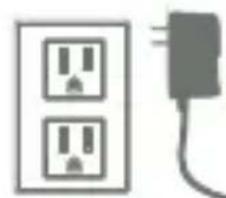
natural_image
Simple line drawing of a two-pin electrical outlet connected to a power plug (no text or symbols)
natural_image
Simple line drawing of a stylized human figure with no text or symbols
flowchart
graph TD
    A["Android"] --> C["Central Robot"]
    B["Apple"] --> C["Central Robot"]
natural_image
Illustration of a smart speaker and a smartphone with wireless signal icon (no text or symbols)natural_image
Illustration of a wireless router connected to a smart speaker and smartphone (no text or symbols)- Seleccione
natural_image
Simple line drawing of a pencil and a circular object (no text or symbols)2
natural_image
Silhouette of a boot with a hanging chain attached to it (no text or symbols)3
natural_image
Pure electrical circuit lines without any symbols4
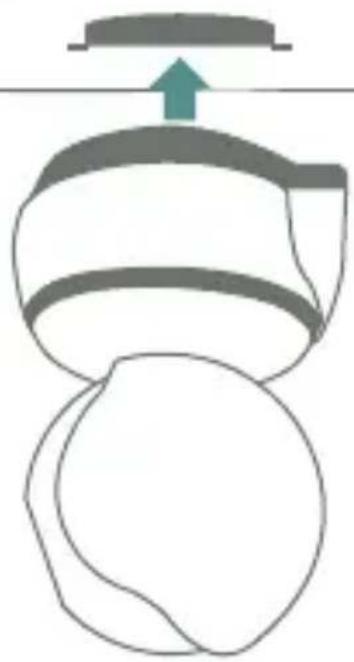
natural_image
Diagram of a mechanical component with a green arrow indicating upward motion (no text or symbols)5
Gire
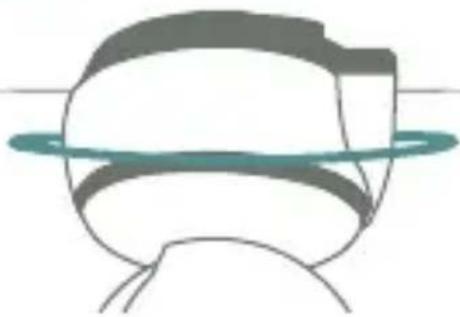
natural_image
Simple line drawing of a helmet with a circular ring above it (no text or symbols)ESPECIFICACIONES
natural_image
Illustration of a white spherical device with a black circular lens and a gray base (no text or symbols)
natural_image
Simple line drawing of a person wearing glasses and holding an object (no text or symbols)Before to use the product, please read carefully this manual to avoid any malfunction Consult our website www.steren.com to obtain the current version of this manual.
CAUTIONS
- This device is not designed for be using by people (including children) with physical capacities, sensorial or mental reduced, or they don't have the necessary experience or knowledge.
- The children should be supervised to ensure that don't use it like a toy.
- Don't try open the device, may cause malfunction and the warranty is avoid.
- Don't install the camera in places with high temperature, humidity, under solar beam or near heaters.
- The company is not responsible by the bad use of the generated content for this product.
- Don't place heavy objects over the camera.
- Don't use abrasive liquids to clean it.
- Don't expose the camera to humidity or water.
- Don't install it indoor.
The operation of this equipment is subject to the following two conditions: (1) it is possible that this equipment or device may not cause harmful interference and (2) this equipment or device must accept any interference, including interference that may cause its undesired operation
INDEX
PARTS....24
BEFORE TO USE....25
APP INSTALLATION ....26
OPTIONS CONNECTION......27
OPTION 1: DIRECT CONNECTION......28
OPTION 2: WI-FI CONNECTION....31
MONITORING....33
Remote monitoring....34
NOTIFICATION SETTINGS......35
FILES PREVIEW......36
GENERAL SETTINGS......37
INSTALLATION....38
PARTS
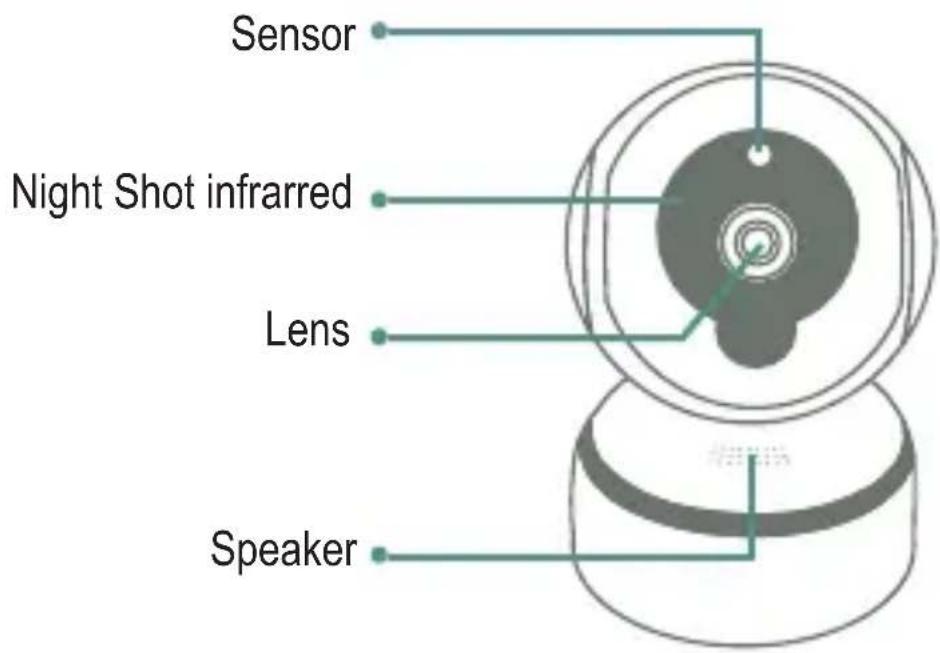
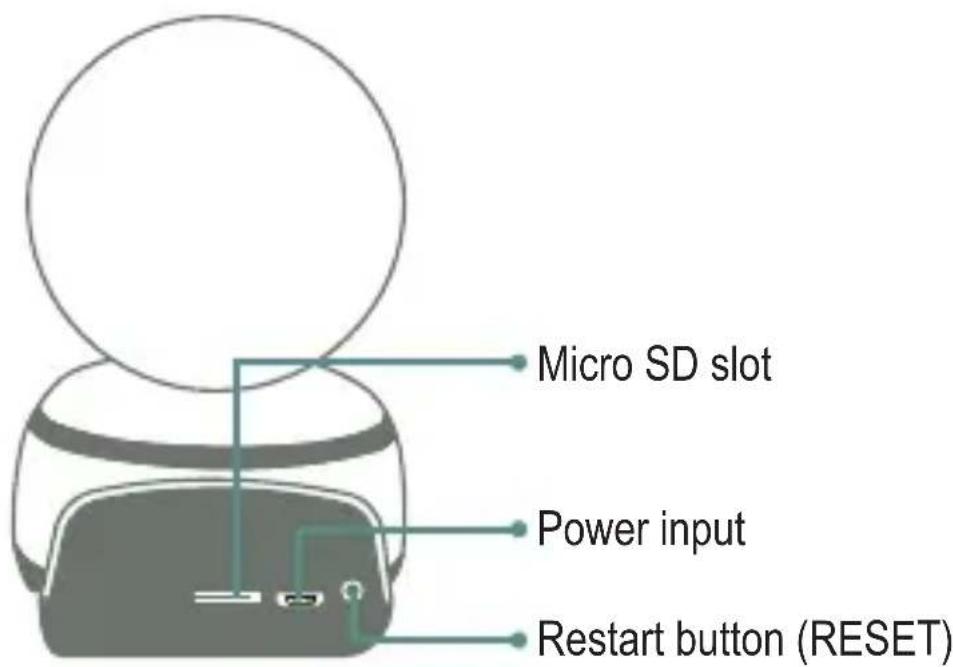
BEFORE TO USE
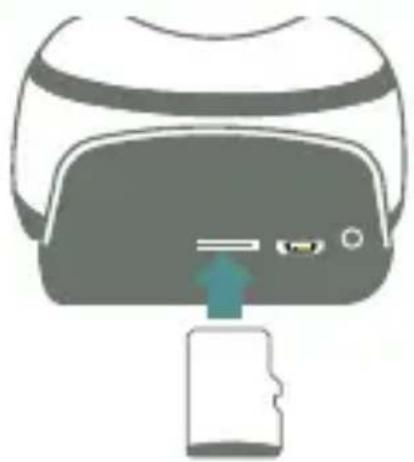
Insert a micro SD memory to storage videos and photos.
Connect the power cord into the camera and the converter into an outlet. The camera will emit some voice messages while the connection is ready.
natural_image
Illustration of a medical device with a green arrow pointing to a device inside, no text or symbols present.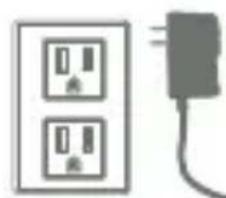
natural_image
Simple line drawing of a wall-mounted electrical socket connected to a plug (no text or symbols)
natural_image
Simple line drawing of a stylized human figure with no text or symbols
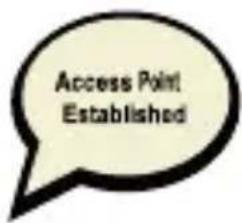
This message means that the camera is ready to pairing.
If you not can hear the voice message, press and hold the restart button until the camera emits the
next message: "Restore factory default settings".
APP INSTALLATION
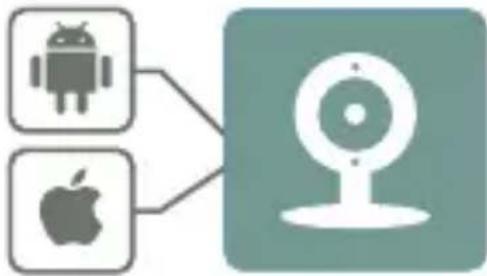
To manage and monitoring the camera working, you must install the app.
Enter to the apps store of your mobile device (Android/iOS), and download V380S.
flowchart
graph TD
    A["Android Robot"] --> C["Robot Icon"]
    B["Apple Robot"] --> C["Robot Icon"]
This app is not Steren's property, the company is not responsible by their working and updates.
The showed images corresponding to a device with Android 7.0 and V380S (5.2) app. The icons, the interface and the functions may vary according with the app version and OS used.
OPTIONS CONNECTION
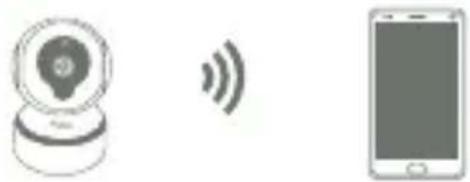
The camera have 2 ways to pairing with the mobile device. Choose a connection option and refer the corresponding section of this manual.
Option 1: Direct connection
natural_image
Illustration of a webcam and a smartphone with wireless signal icon (no text or symbols)The camera generate their own network to connect the mobile device.
natural_image
Illustration of a wireless router connected to an app and a smartphone, both emitting signal waves (no text or symbols)The camera and the mobile device are connect in the network of the modem.
OPTION 1: DIRECT CONNECTION
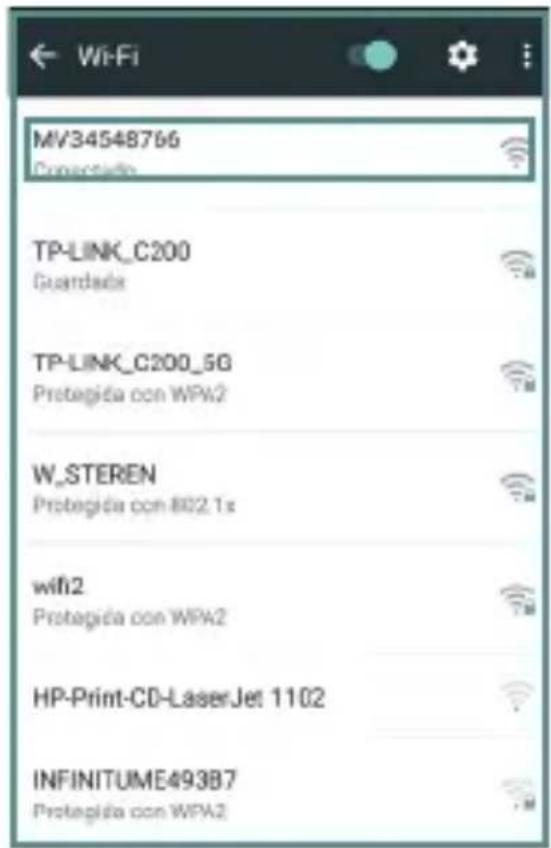
- In the mobile device, enter to Wi-Fi options settings, and select the network with the "MV" prefix and the camera ID number. Example: MV34548766
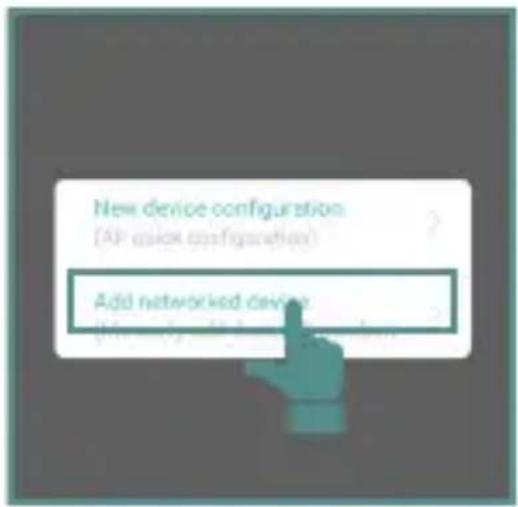
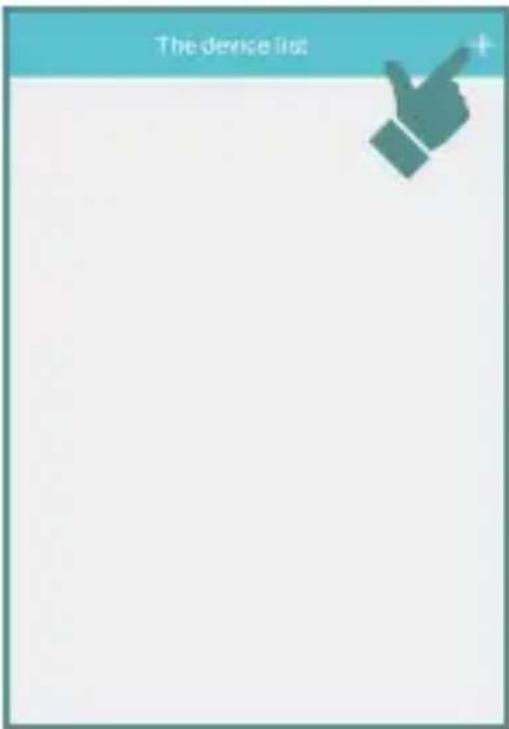
- Enter to app (V380S), select the region (North America), and press + to add a new device.
- Select
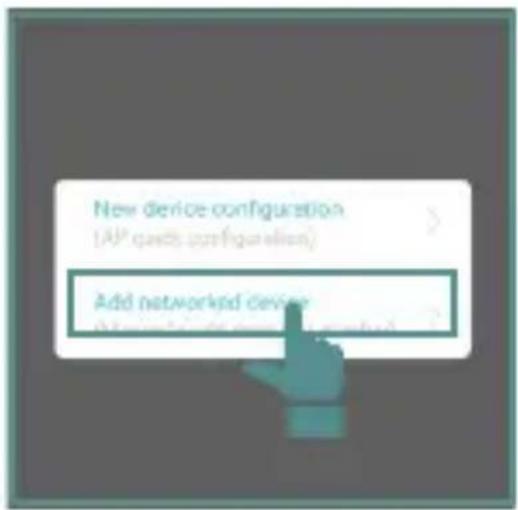
- Enter the camera ID (located in the bottom of the camera). Select Add to the list.
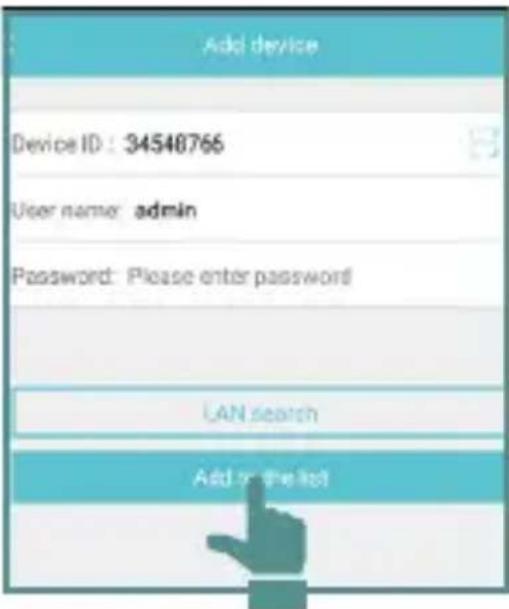
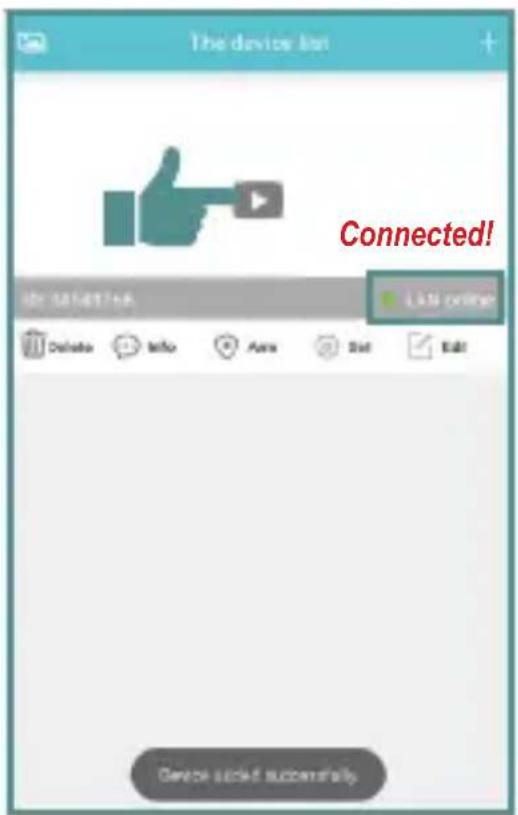
- Wait until the connection is established. In the screen will show the paired device with their setting options and, also the app submenus.
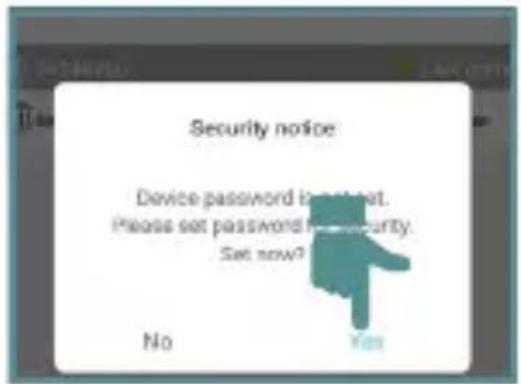
For security reasons, it's recommended set a password for your device.
OPTION 2: WI-FI CONNECTION
For this type of connection, is necessary to make the process of direct connection.
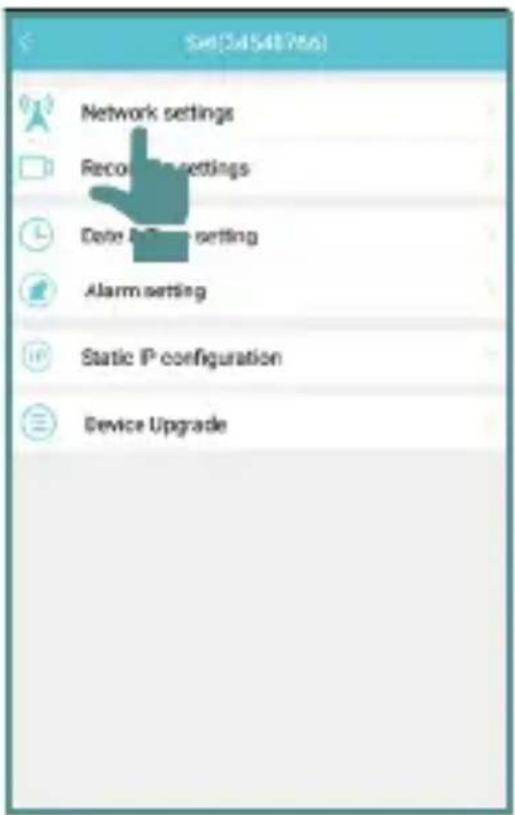
-
In the main menu, enter to 🎨 submenu.
-
Choose.
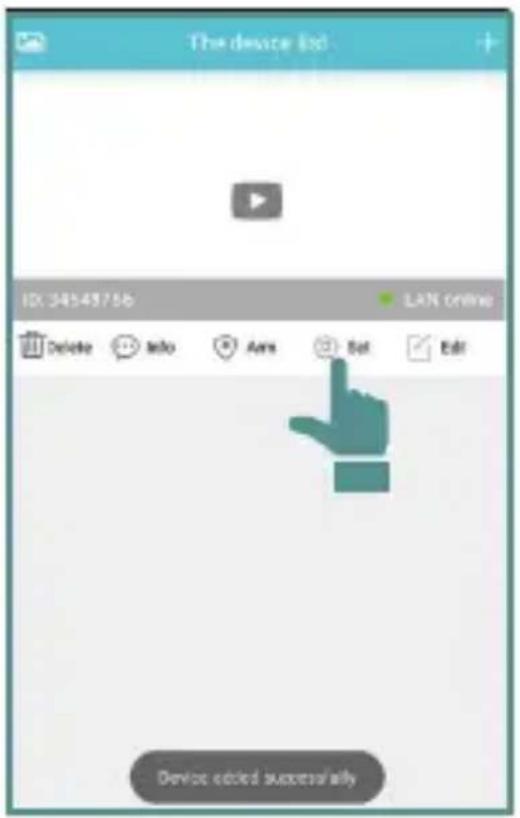
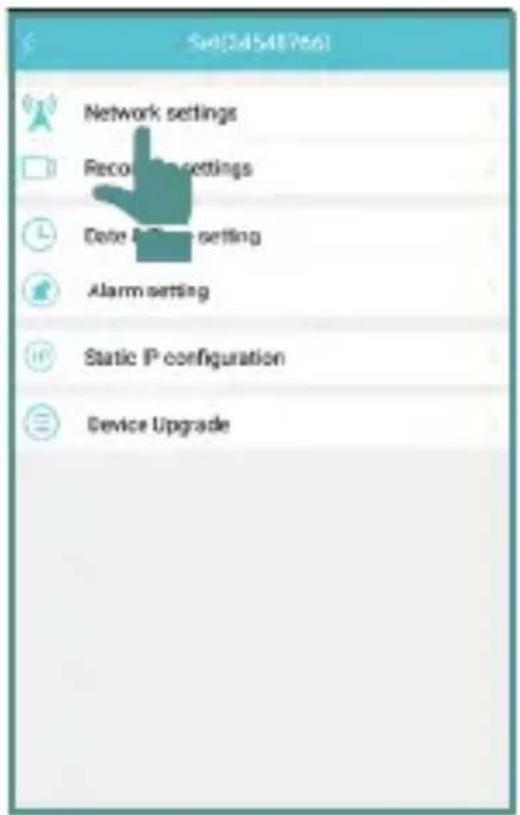
- Change to the type connection to Station mode. Choose the Wi-Fi network where you want to connect the camera. Enter the password.
![Network settings Current mode AP AP mode (hot spot mode. router is not required) Station mode (router connection mode) Station mode is required. WiFi password Local WIFI device list: Please choose one. W_STEREN Energetation ways: [MPX-EAP-TK(P)HC(SMP)(MPR2-EAP-TK(P)C)] Encryption ways: [MPX-EAP-TK(P)HC(SMP)(MPR2-EAP-TK(P)C)] Encryption ways: [MPX-EAP-TK(P)HC(SMP)(MPR2-EAP-TK(P)C)] W_STEREN Encryption ways: [MPX-EAP-TK(P)HC(SMP)(MPR2-EAP-TK(P)C)] Encryption ways: [MPX-EAP-TK(P)HC(SMP)(MPR2-EAP-TK(P)C]](/content/2026/05/947516/images/f912083c127ea62c729d44fbd6f4a5ec793cbb3a6403503a3dbadb5501207682.jpg)
The camera will emit two message.
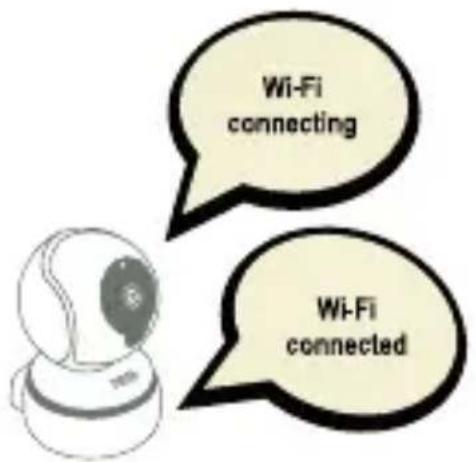
- Exit to the app and enter again.
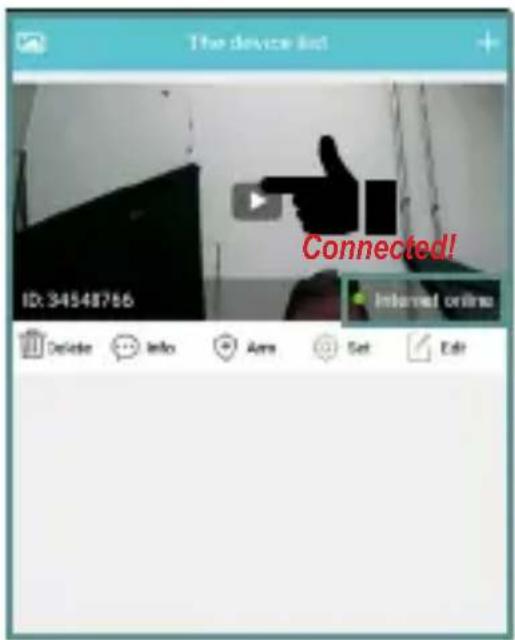
Press to visualizing
MONITORING
In the main screen press ▶ to preview in real time.
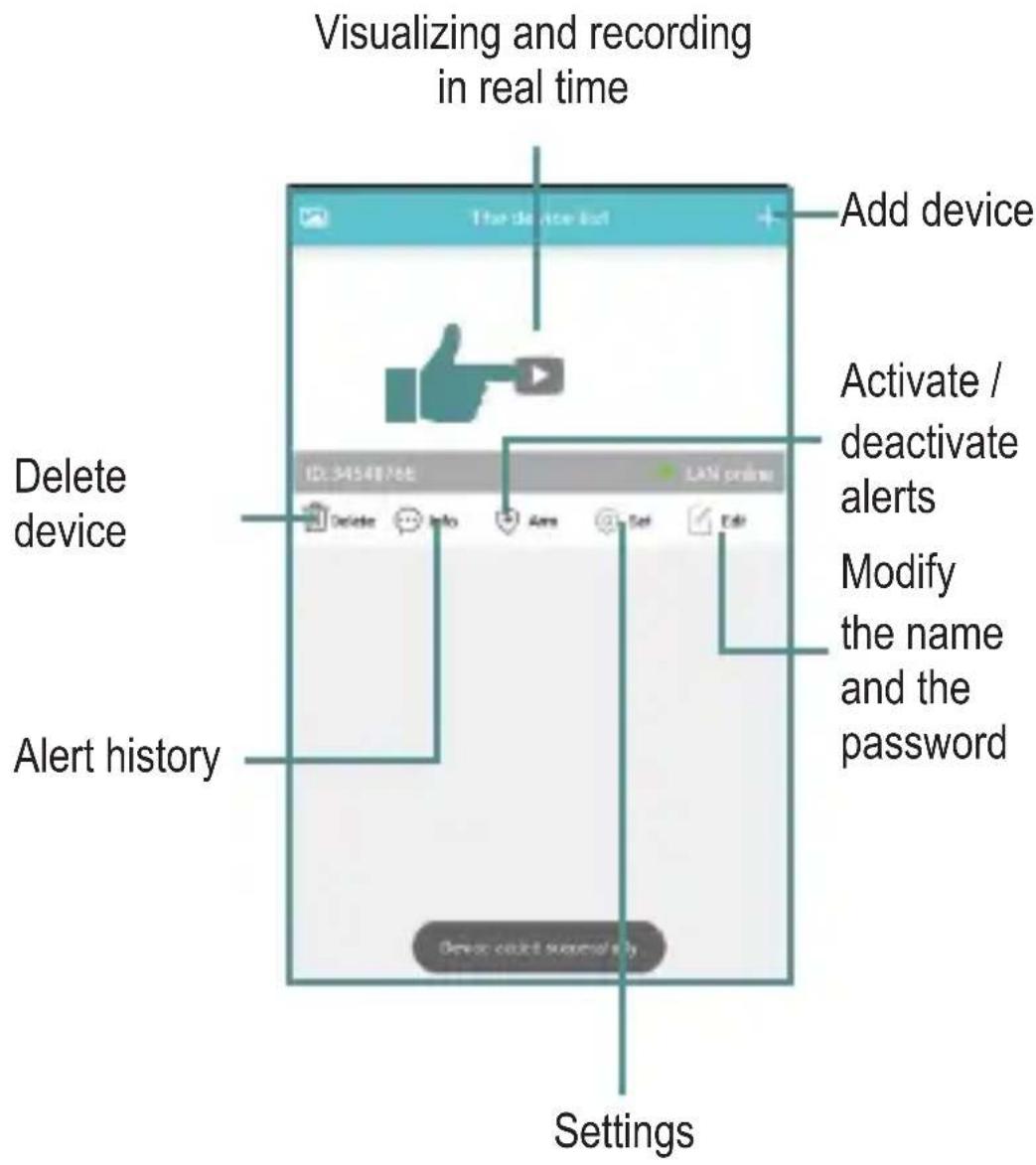
Remote monitoring
Once stabilized the connection between the mobile and the device, when you are out of the local network, ensure that the smartphone have internet connection.
- Open the app and wait a few seconds until the camera appears online.
- Select it to visualizing.
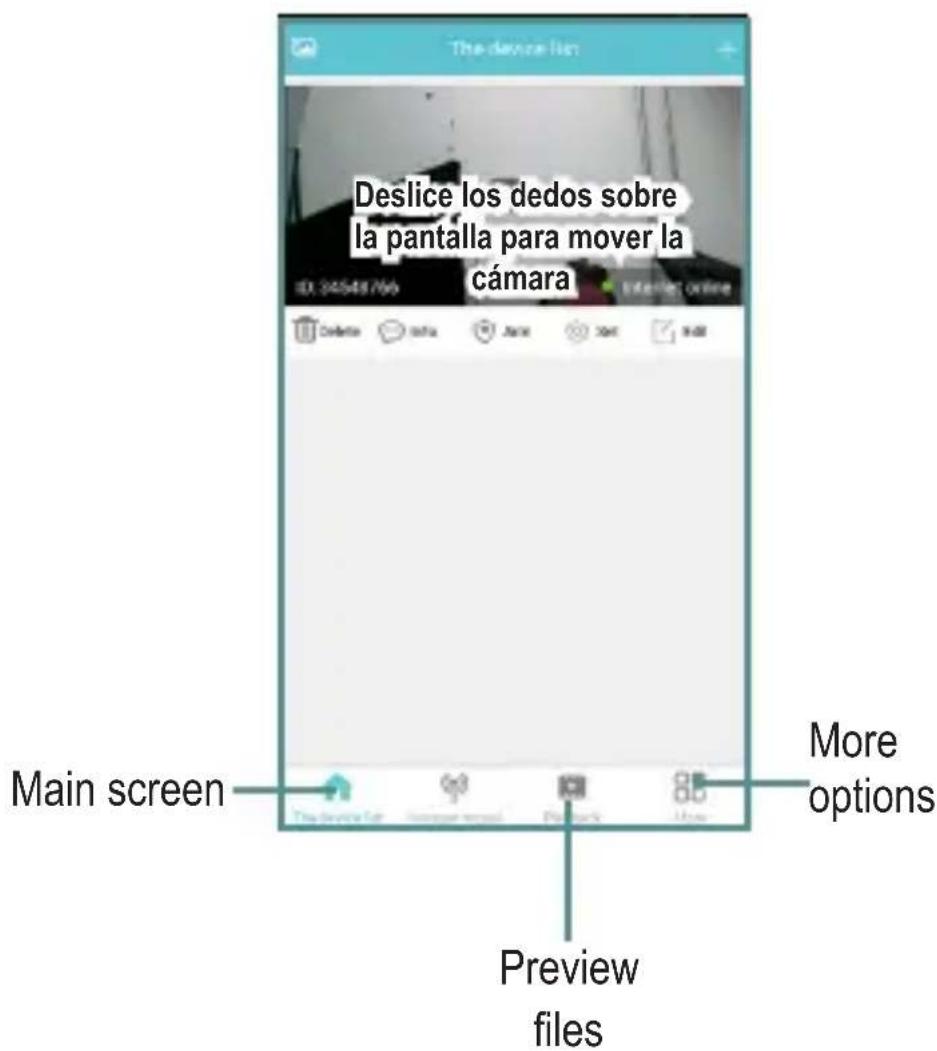
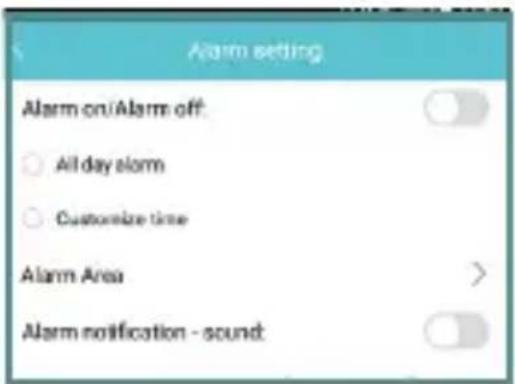
When the camera detects movement will send a notification in your mobile device. Activate or deactivate the notifications as shown below:
- In the main screen enter to submenu ⚙ (More functions) and select App Notification.
- Activate or diactivate the options that you prefers.
FILES PREVIEW
To can see the photos and videos from the app, enter to (More)submenu and going to Photo. This files are storage in the mobile device.
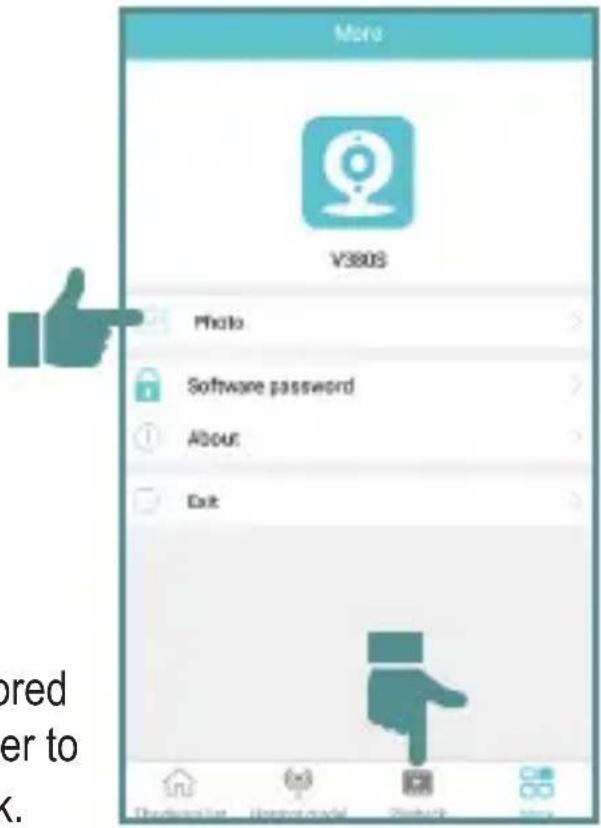
If you want to see the stored files in the micro SD, enter to submenu Video playback.
GENERAL SETTINGS
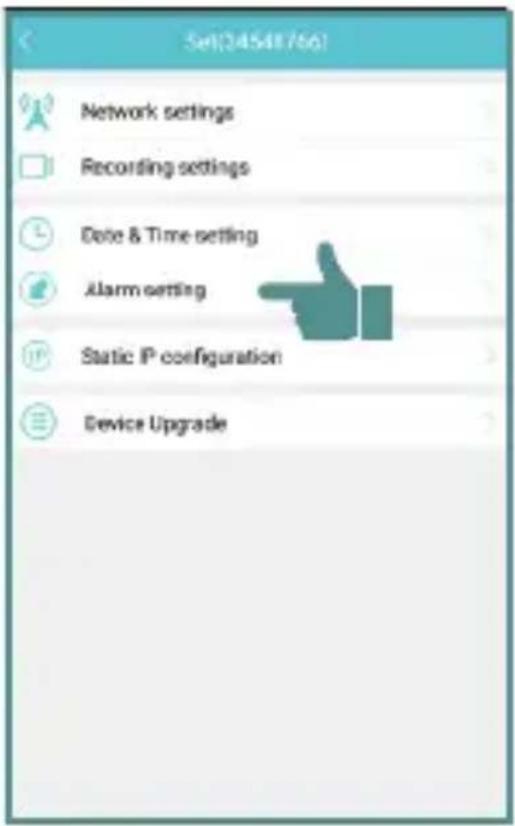
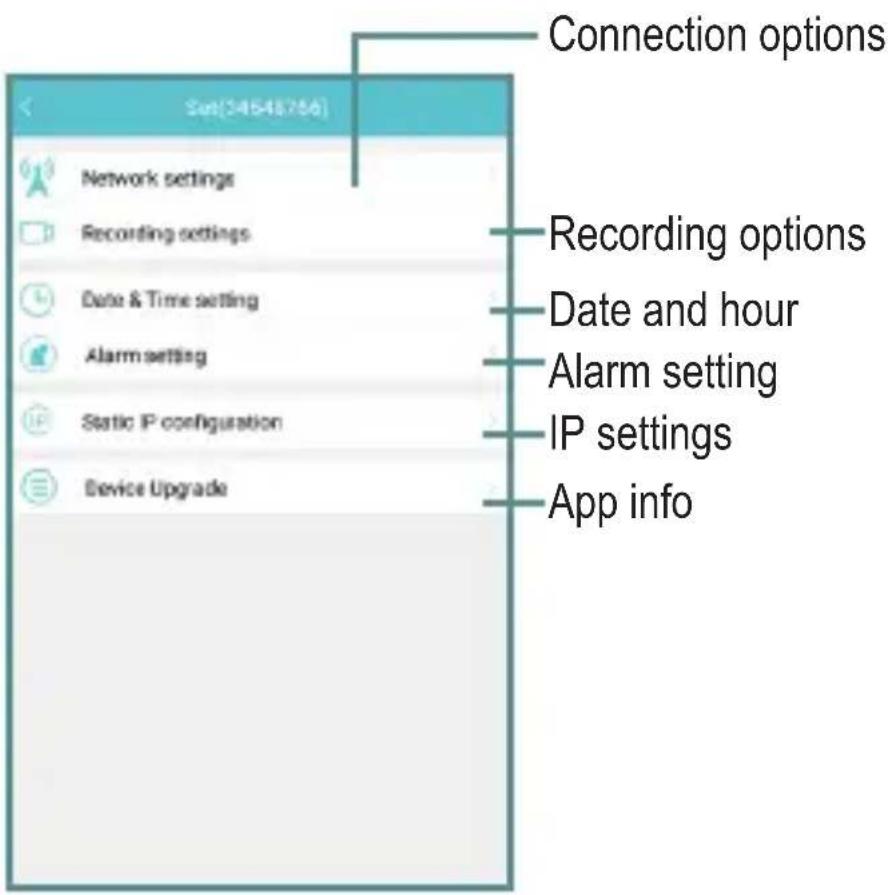
Enter to

submenu to edit camera general settings.
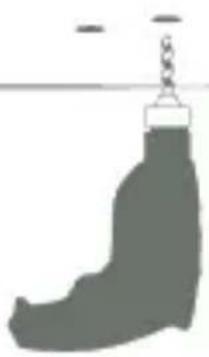
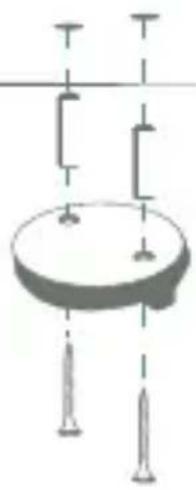
INSTALLATION
1
natural_image
Simple line drawing of a pencil and a circular object (no text or symbols)2
natural_image
Silhouette of a boot with a hanging chain attached to it (no text or symbols)3
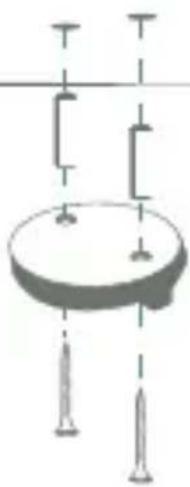
natural_image
Pure electrical circuit lines without any symbols4
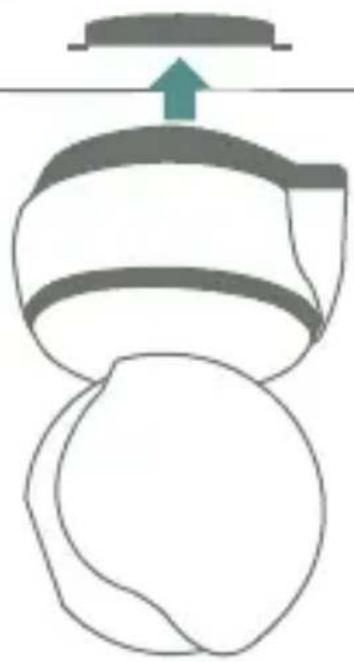
natural_image
Diagram of a mechanical component with a green arrow indicating upward motion (no text or symbols)5
Turn
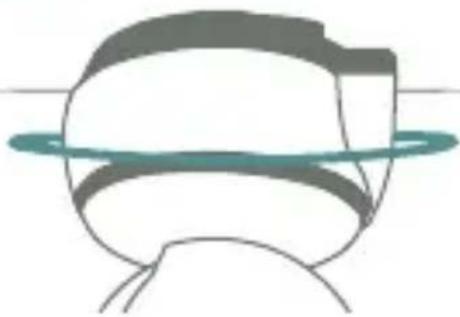
natural_image
Simple line drawing of a helmet with a ring above it (no text or symbols)SPECIFICATIONS
Input: 5 V --- 1.6 A
Minimum light: 0.5 lux
Video compression: H.264 720 p
Protocol: TCP/IP, HTTP, UDP, SMTP, DHCP, PPPoE,
DDNS, UPnP
Wireless network: 802.11b/g/n
Maximum micro SD card capacity: 64 GB
AC / DC power converter
Input: 100 - 240 V\~ 50 - 60 Hz 0.3 A
Output: 5 V --- 1.6 A
Specifications may change without previous notice

STEREN
Product: Wi-Fi camera
Number part: CCTV-207
Brand: Steren
This Steren product is warranted under normal usage against defects in workmanship and materials to the original purchaser for one year from the date of purchase.
CONDITIONS
- This warranty card with all the required information, invoice or purchase ticket, product box or package, and product, must be presented when warranty service is required.
- If the product is in the warranty time, the company will repair it free of charge.
- The repairing time will not exceed 30 natural days, from the day the claim was received.
- Steren sell parts, components, consumables and accessories to customer, as well as warranty service, at any of the addresses mentioned later.
THIS WARRANTY IS VOID IN THE NEXT CASES:
If the product has been damaged by an accident, acts of God, mishandling, leaky batteries, failure to follow enclosed instructions, improper repair by unauthorized personnel, improper safe keeping, among others.
a) The consumer can also claim the warranty service in the purchase establishment.
b) If you lose the warranty card, we can reissue it, if you show the invoice or purchase ticket.
RETAILER INFORMATION
Name of the retailer
Address
Product
Brand
Serial number
Date of delivery

STEREN
Brand : Steren
Model : CCTV-207
Category : Security Camera