
ACF600 - Computer Cooling Component APC - Free user manual and instructions
Find the device manual for free ACF600 APC in PDF.


| Product Type | Precision Air Conditioner for IT Cooling |
| Model | APC ACF600 |
| Cooling Capacity | 5.0 kW |
| Dimensions (W x D x H) | 600 mm x 800 mm x 300 mm |
| Weight | 50 kg |
| Power Supply | 230 V AC, 50/60 Hz, 1-phase |
| Maximum Power Consumption | 2.0 kW |
| Refrigerant | R410A |
| Air Flow Rate | 800 m³/h |
| Noise Level | < 55 dBA |
| Operating Temperature Range | 20 °C to 30 °C |
| Humidity Control | Integrated humidifier and dehumidifier |
| Air Filtration | Washable foam filter, efficiency 85% |
| Installation | Indoor, floor-standing or rack-mountable |
| Maintenance | Clean filters every 3 months; annual professional service |
| Safety Features | Overload protection, high-temperature alarm, refrigerant leak detection |
| Repairability | Replaceable fan, compressor service by certified technician |
| Compliance | CE, RoHS, REACH |
| Warranty | 2 years |
Frequently Asked Questions - ACF600 APC
User questions about ACF600 APC
0 question about this device. Answer the ones you know or ask your own.
Ask a new question about this device
Download the instructions for your Computer Cooling Component in PDF format for free! Find your manual ACF600 - APC and take your electronic device back in hand. On this page are published all the documents necessary for the use of your device. ACF600 by APC.
USER MANUAL ACF600 APC
American Power Conversion Legal Disclaimer
The information presented in this manual is not warranted by the American Power Conversion Corporation to be authoritative, error free, or complete. This publication is not meant to be a substitute for a detailed operational and site specific development plan. Therefore, American Power Conversion Corporation assumes no liability for damages, violations of codes, improper installations, system failures, or any other problems that could arise based on the use of this Publication.
The information contained in this publication is provided as is and has been prepared solely for the purpose of evaluation data center design and construction. This publication has been compiled in good faith by American Power Conversion Corporation. However, no representation is made or warranty given, either express or implied, as to the completeness or accuracy of the information this publication contains.
IN NO EVENT SHALL AMERICAN POWER CONVERSION CORPORATION, OR ANY PARENT, AFFILIATE OR SUBSIDIARY COMPANY OF AMERICAN POWER CONVERSION CORPORATION OR THEIR RESPECTIVE OFFICERS, DIRECTOS, OR EMPLOYEES BE LIABLE FOR ANY DIRECT, INDIRECT, CONSEQUENTIAL, PUNITIVE, SPECIAL, OR INCIDENTAL DAMAGES (INCLUDING, WITHOUT LIMITATION, DAMAGES FOR LOSS OF BUSINESS, CONTRACT REVENUE, DATA, INFORMATION, OR BUSINESS INTERUPTION) RESULTING FROM, ARISING OUT, OR IN CONNECTION WITH THE USE OF, OR INABILITY TO USE THIS PUBLICATION OR THE CONTENT, EVEN IF AMERICAN POWER CONVERSION CORPORATION HAS BEEN EXPRESSLY ADVISED OF THE POSSIBILITY OF SUCH DAMAGES. AMERICAN POWER CONVERSION CORPORATION RESERVES THE RIGHT TO MAKE CHANGES OR UPDATES WITH RESPECT TO OR IN THE CONTEXT OF THE PUBLICATION OR THE FORMAT THEREOF AT ANY TIME WITHOUT NOTICE.
Copyright, intellectual, and all other proprietary right in the content (including but not limited to software, audio, video, text, and photographs) rests with American Power Conversion Corporation or its licensors. All rights in the content not expressly granted herein are reserved. No rights of any kind are licensed or assigned to shall otherwise pass to persons accessing this information.
This publication shall not be for resale in whole or in part.
Installing the Rack Fan Panel (ACF600)
The NetShelter AV 2U rack fan panel can be used to cool individual devices or to draw air into or out of a rack. Before installing the fan panel, determine its application.
- Determine the desired airflow direction and reverse the fans if necessary. Airflow direction is indicated by an arrow on each fan.
a. To reverse the airflow direction, slowly pull the fans from the rubber mounts one at a time. Note: All four fans are wired together
b. Turn the entire fan assembly over.
c. To reattach the fans, pull the rubber mounts through the sheet metal housing and then pull the rubber mounts through the mounting holes on the fans.
- Determine the installation location in the rack.
Note: The fan panel requires 2U of available rack space. If you are using the optional ACF601 temperature controller, install the temperature controller before you install the fan panel. See the installation instructions on page 4.
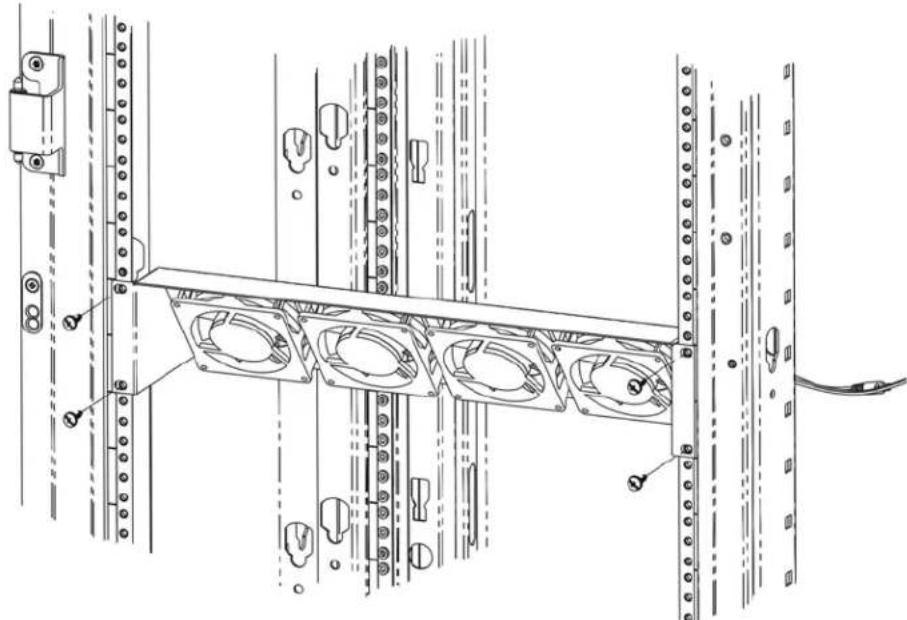
- To install the unit fan panel in a standard AV enclosure, use the provided 10-32 threaded screws.
natural_image
Technical line drawing of a mechanical assembly with mounting holes and structural brackets (no text or symbols)Note: For installation in a standard IT equipment enclosure, use the cage nuts provided with the enclosure.
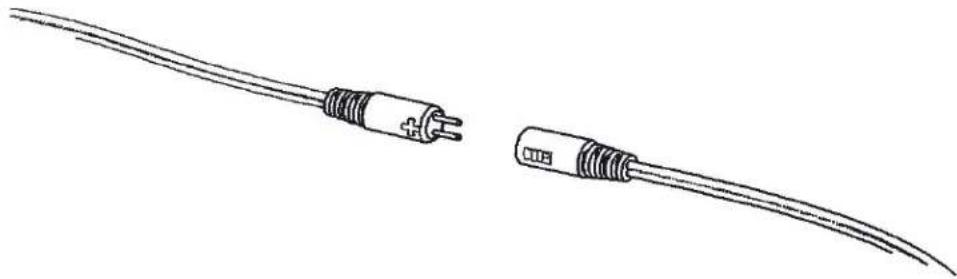
- Connect the provided power cord to the fan panel. To ensure polarity protection, align TIP to +.
natural_image
Line drawing of two types of audio/video cables, one with a plus button and the other with a rectangular plug (no text or symbols)Note: Reversing polarity will not damage the fan panel, but the fan panel will not operate until the power cord is connected correctly.
- Ensure that the voltage switch on the power supply is set to at least 7 Volts and that no wires or other obstructions can come in contact with the fans.
Note: The universal power supply voltage must be set to 12 Volts when used with the rack fan temperature controller.
- Plug in the power supply to turn on the fan panel.
- Control the speed and noise level by adjusting the voltage on the power supply.
- Enhance the effectiveness of the fan panel by changing the airflow direction and the position of the panel.
Installing the Rack Fan Temperature Controller (ACF601)
The Rack Fan Temperature Controller is designed to provide on/off and variable speed fan control based on the ambient temperature of the unit. The unit features two jumper selectable on/off set points, identified by an 'L' (low) and 'H' (high) on the unit's circuit board.
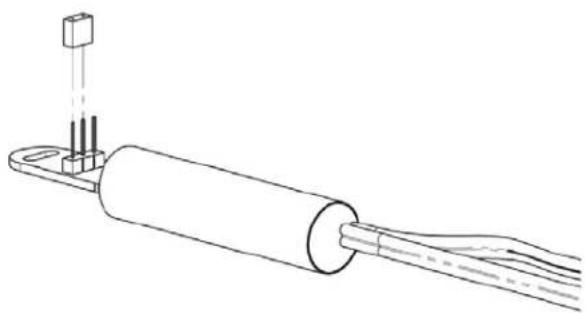
- Set the jumper on the unit to the appropriate position for your application.
natural_image
Technical line drawing of a cylindrical electronic component with a terminal and connector (no text or symbols)Note: The On set point for the low setting is 80^ F and is most appropriate for equipment rooms or closets. The On set point for the high setting is 88^ F and is most appropriate for cabinets or other small enclosure applications. The unit's Off set point is approximately 3 degrees lower than the On set point. On the low setting, the fans will turn on at 80^ F and turn off when the temperature at the unit drops below 77^ F. On the high setting, the fans will turn on at 88^ F and turn off when the temperature at the unit drops below 85^ F. As the temperature increases, the fan speed will also increase in linear progression. In the low setting, the fans will turn on at roughly 50% fan speed when the temperature reaches 80^ F and will reach full speed at 100^ F. For the high setting, the fans will turn on at 88^ F and reach at full speed at 105^ F. These are fixed set points that cannot be modified.
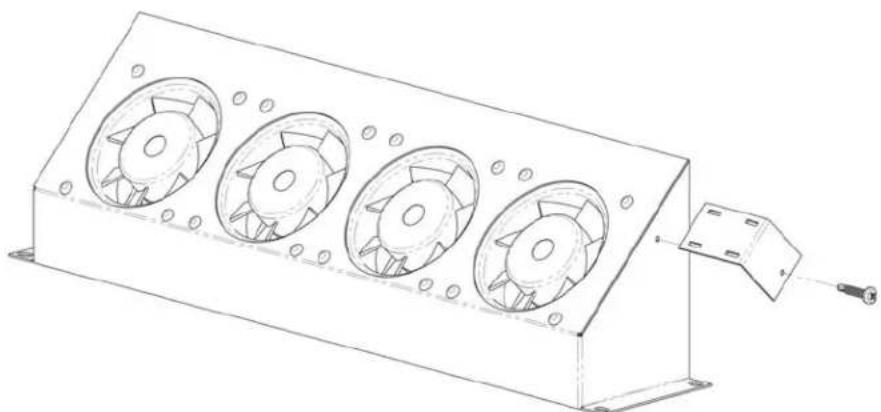
- Attach the provided bracket to the fan panel using the provided screw.
natural_image
Technical line drawing of a rectangular electronic device with four circular fans and mounting bracket (no text or symbols)- Turn on the temperature controller by connecting it between the Rack Fan Panel and the supplied power cord as shown below.
Note: For proper functionality, the power supply must be set to 12 Volts.
Note: Observe proper polarity by connecting TIP to +.
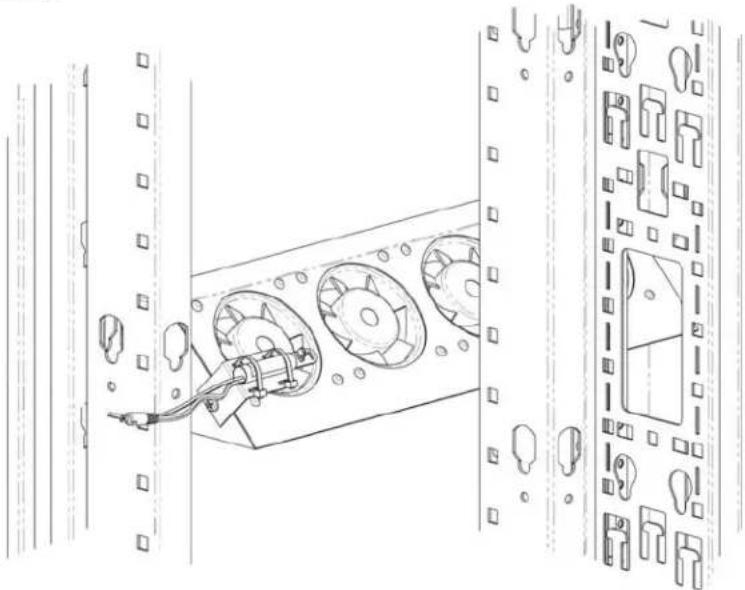
- Install the sensor on the bracket using the supplied hook and loop fastener.
Note: Be sure the end of the controller extends slightly over the edge of the bracket.
natural_image
Technical line drawing of a server rack with multiple drive bays and mounting holes (no text or symbols)Installing the Vent Panel (ACAC40000) and Vent Panel with Temperature Display (ACAC40001)
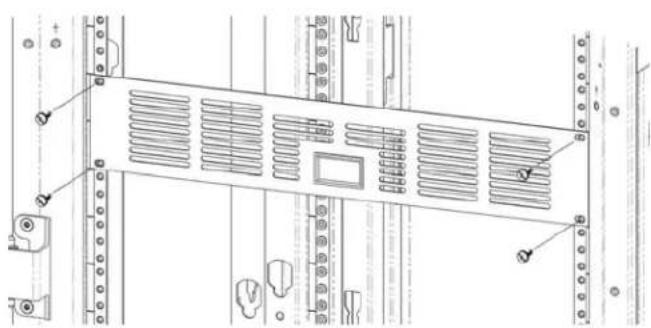
- Install the Vent Panel in an open 2U space using the 10-32 threaded screws provided.
natural_image
Technical line drawing of a server rack cabinet with ventilation grilles and mounting hardware (no text or symbols)- Install the temperature sensor in the area to be monitored. (ACAC40001 Only)
Note: To monitor a specific device, position the sensor near the component's ventilation area for the most accurate reading. The sensor wire is approximately 36 inches long.
-
Provide power to the Temperature Display using the provided fixed 9 volt AC to DC adapter. (ACAC40001 Only)
-
Determine the best route for the sensor and supply cables, and secure the cables using the provided wire ties. (ACAC40001 Only)
Alternative Installation (ACAC40000 or ACAC40001)
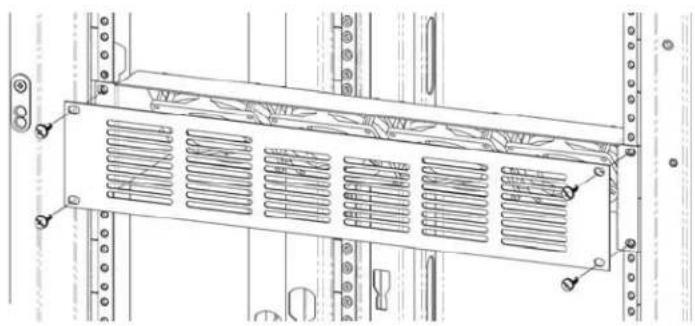
- Install the Vent Panel over the Fan Panel in an open 2U space using the 10-32 threaded screws provided.
natural_image
Technical line drawing of a server rack with ventilation grilles and mounting brackets (no text or symbols)- Route the sensor cable and the power cable through the hole in the center of the Fan Panel and secure the cables to the back of the Fan Panel using the provided wire ties.
- To secure cable when routing it in either direction from the center, use the wire tie slots positioned along the edge of the Fan Panel.
Customer support and warranty information is available at the APC Web site, www.apc.com.
© 7/22/10 APC by Schneider Electric. APC, the APC logo, and NetShelter are owned by Schneider Electric Industries S.A.S., American Power Conversion Corporation, or their affiliated companies. All other trademarks are property of their respective owners.
990-3938
Brand : APC
Model : ACF600
Category : Computer Cooling Component