
LRCR4383 - Remote control RCA - Free user manual and instructions
Find the device manual for free LRCR4383 RCA in PDF.


User questions about LRCR4383 RCA
0 question about this device. Answer the ones you know or ask your own.
Ask a new question about this device
Download the instructions for your Remote control in PDF format for free! Find your manual LRCR4383 - RCA and take your electronic device back in hand. On this page are published all the documents necessary for the use of your device. LRCR4383 by RCA.
USER MANUAL LRCR4383 RCA
Universal Remote Control Owner's Manual
SAVE THIS MANUAL AND THE CODE LISTS!
Remote controls can sometimes lose their programming when you change the batteries. Make sure you keep the manual and code lists in a safe place so that you can reprogram the remote if you need to
Tip: This remote is all easy programmed to operate near BCA-limited TVs, VCPs, DVD players and adelike receivers. Just press the corresponding key—DVD+VCP for a DVD player, 10 for a submission, SOT-CIT-DTC for a release receiver.
Step 1: Install your batteries
Your universal remote requires two AAA alkaline batteries (not included).
To install the batteries:
- (See the production
complement cover to remove

- under the baller, matching
the batteries to the 141 and
(1) non-Trade, 0.000's commanders
- The balance is over 100
place.
Battery Presaurations:
• Do not mix old and new butter tea.
- Do not mix alkaline, standard is carbon diameter
rectar possible critical andmium batteries.
• Akupra nettisii nii, eink or vaam-nii hellee se principally and endi to disjedihum in varabha piliand
and recycle of dispose in order to accumulate with local and National Reparactures.
Battery Saver
Your universal remote control source battery power by automatically turning off if any key is pressed for more than 60 seconds. This saves your battery life should your remote get into a place where the boys remain depressed, such as between sell channels.
Step 2: Program your remote
To use the universal remote with your home entertainment system, and you need to program it in centre your devices. There are four ways you can program the universal remote to operate your devices:
- The Auto Code Search goes automatically through all the order for the device you're trying in control. It's the desired method, but I can sometimes take longer than some of the other programming methods.
- The Brand Code Search searches through the zones for select brands of devices, it's not so easy as the auto code search, but it can be added.
- The Direct Code Entry lets you enter a code from the accompanying code list for your hand of devices. It's not a easy as the other methods, but it's potentially the fastest method.
- The Manual Code Search kits you manually go through all the orders for the device you're trying to control.
Auto Code Search
The Auto Code Search goes automatically through all the order for the device you're trying to control. When you find the one that operates your device, you can stop the search and store that else.
TPS: Each device key is associated with a type of device—the TV is present to search for TVs. SVD-VOR-101C for satellite receivers, table series or digital TV converters, IOTC, and DVD-VOR for DVD players. To program a device key for a different type of device for example, to program the DVD-VOR key to control a VOR or VCH, read the Recognizing the DVD-VOR Key to Control a VOR section.
to not without saving a new code at any point in the Auto Code Search, press the CLEAR key.
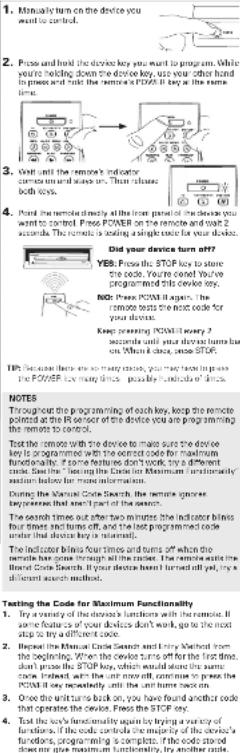
- Manually turn on the device you want to control.

- Press and hold the devices say you want to program. While you're holding down the device key, use your other hand to press and hold the remote PC/MEB key at the same time.
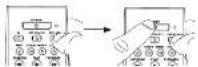
- Wait until the remote's indicator comes on and stays on. That releases train keys.

- Point the remote directly at the front panel of the device you want to control. Press PLAY on the remote and wait 5 seconds. The remote is ending a ramp of 10 orders on your device.

Did your device turn off?
YES: Go to step 5
NO: Press PLAY again. The remote tests the next batch of 10 orders.
Keep pressing PLAY every 5 seconds until your device turns off.
- When your device lume off, peace
the REVERSE key on the remove
and wait at least 2 seconds. The remote trip is last of the
previous tan codes
Did your device turn on?
YES: Press the STOP say. You're
doral You've programmed this
NO. 2018 DELIBRE AND THE WORKS OF THE
NO: PRESS REVERSE code in 170 kaih
Keep opening 3-41151 more 2 seconds until your device
hume back on. When it once, peace STOP!
Note: If you accidentally press the REVERSE key after your
device turns on, press the FORWARD key. Then, wait two seconds to use if your device turns off again.
NOTES
Throughout the programming of such key, be sure to keep the remote program at the 10 seconds at the device you are currently programming the remote in control.
Test the remote with the device to make sure the device say is programmed with the correct code for maximum functionality. If some features don't work, try a different mode. See the "Tealing the Code for Maximum Functionality" standard below for more information.
During the Auto Code Search, the remote ignores
expressed that a sn't part of the search.
The search times cut after two minutes the indicator blinks four times and turns off, and the last programmed code under that device key is retained.
The indicator clicks four times and turns off when the
Items a bus route through all the codes. The tennis scale the Auto Code Search. If your device hasn't turned off yet, try a different season method.
Testing the Code for Maximum Functionality
-
Try a variety of the choice's structure with the lemma. If some choice features don't work, get so the second step in try a different choice.
-
Repeat the Auto Code Search Method from the beginning. When your device turns off, do not stop searching, instead, with the unit run off, continue to press the PLAY key every 5 seconds until the unit runs back up.
-
Once the unit turns back on, press the REFERENCE key on the remote every 2 seconds until your device turns off again. When your device turns off again, press the STOP key.
-
Test one key's functionality again by attempting in control a variety of the device's functions. If the code that has been stored controls the majority of the device's functions, programming is complete. If the code stored does not give maximum functionality, try another code.
Brand Code Search
The Brand Code Search goes through only the codes for one of the select brands listed in the accompanying code list. If your brand of device is listed, this search can be very quick and easy.
TIPS: Each device key is associated with a type of device—the TV is present to search for TVs, SAT+CBLOTC for satellite receivers, cable boxes or digital TV converters (DTC) and DVD-VCR for DVD players. In program a device key for a different type of device for example, to program the DVD-VCR key to control a PVR or VCR, see the Postsigning the DVD-VCR Key in Current v VCR section.
To exit without saving a new code at any point in the Brand Code Search, press the CIE All key.
- Manually turn on the device you
with to be held

- Find your brand's best hotel in the Brand Code list section of the accompanying code list. Given the number for your brand and keep the list handy.

- Press and hold the device say you want to program. While you're holding down the devices box, use your other hand to press and hold the remote's POWER key at the same
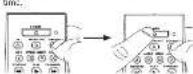
- What will the remote's indicator comes on and stays on. Then release both keys.

- Look at the number you ended for your device's brand mark number. I guess that number on the name is beyond.

- Point the remote directly at the

to control. Press POWER on the

rarely and wait 2 seconds. The
your device's hand.
Did your device turn off?
YES: Press the STOP key to store the code. You're done!
(2) 10.3.1. (2)
NO. (1) 2017 OMEAN, 2018 The United States is the first year.
Keep pressing PAGD library 2 seconds until your device
turns book on. When it does, press STOP.
NOTES
Throughout the programming of each way, he needs to keep the remote program at the 11 seconds of the device you are currently programming the remote to concrete.
Test the remote with the device to make sure the device key is programmed with the correct code for maximum functionality. If some features don't work, try a different code. See the "Testing the Code for Maximum Functionality" section below for more information.
During the Brand Code Search, the remote ignored
The search times out after two minutes, the indicator blocks four times and four times, and the set programmed circle alphabet that requires buy or retained.
The indicator blinks four times and turns off when the remote has gone through all the order. The remote adds the Brand Code Search. If your device hasn't turned off yet, try a different search method.
Texting the Code for Maximum Functionality
-
Try a variety of the device's functions with the remote. If some device features don't work, go to the next step to try a different case
-
Repeat the Brand Code Search from the beginning. When the device turns off for the first time, don't press the STOP key, which would store the same code, induced, with the unit now off, continue to press the POWER key repeatedly until the unit turns back on.
-
Case (at unit) turns back to, you have interest another rule that operates the device. Press the STOP key.
-
Test the key's functionality again by announcing to control a variety of the device's functions. If the scope that has been stored controls the majority of the device's functions, programming is complete. If the code should does not give maximum functionality, try another code.
Direct Code Entry
Direct Code Entry lets you enter a code from the accompanying code list for your brand of choice. It's not easy to see the other methods, but it's potentially the funeral method.
TIP. Each device key is associated with a type of device line TV in press to search for TVs, SATA-CDI-DCI for reliable readers, define hours or digital TV curvectors (TIC), and DVD-VCR for DVD players. To program a device key for a different type of device for example, to program the DVD-VCR key by control in PVI or VCH, see the Developing the DVD-VCR Key to Control a VCR section.
- Manually burn on the device you want to control.
. Manually turn on the device you want to control.

Find the Code List that came with the remote. Locals the section for the type of device you're trying to program, and find your brand in that section. Choose the codes for your brand and keep them handy.

- Press and hold the device key you want to program the indicator light camera unit.
Where your building down the device long, use your other hand enter the first five-digit code for your brand in the code list the indicator light opens all after the first digit.
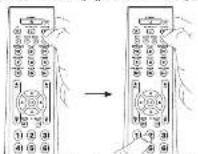
- When you've finished entering the trans-digit code, long building share the device key and look at the indicator light.
Is the indicator light on?
YES: You're called You've programmed this device key
NO, it blinked four times and turned off: Sun new
otherwise entered a code number that is no. In the code has or missed a step in the code entry procedure. Try step 3 again.
NOTES
Remember to enter the code for future reference in the sum provided in the Code Retrieval section of this manual. If your brand isn't tested in the code list, now one of the Code Search methods to program the remote control. (Refer to the Auto and Manual Code Search methods.)
If you release the device key any time during the Direct Data Entry process, the indicator blinks four times, and the process is exited. The last programmed check under the device key is retained.
Test the remote with the device to make sure the device is programmed with the correct code for maximum functionality. If some features don't work, try a different code in the list
The Ground Truth image displays a single, solid horizontal line. According to Rule 2 (UNDERSCORE & LINE RULES), if the GT contains lines used for stylistic emphasis or as background (like ruled paper), the OCR result must ignore them. The line in the GT is clearly a stylistic or background line, not a placeholder for text. Therefore, the OCR should not have output any underscores. Outputting `____` constitutes an error under Rule 2, as it hallucinates placeholder symbols where none are semantically intended. Hence, the OCR result is inconsistent with the Ground Truth.
Manual Code Search
The Manual Code Search lets you go one by one through all the codes for the device you're trying to control. When you find the one that operates your device, you can stop the search and store that code.
TIPS: The Manual Code Search method may take a long time because the remote searches through all of the codes in its memory one-by-one. If your brand is listed in the Brand Code or the Code, data first by the Brand Code Search or the Direct Code Entry method.
Each device key is associated with a type of device—the TV to present in search for 126, SAI-CDI-4DTC for satellite reconstruction, cable boxes or digital TV encoders (IDTC), and DVD/VCR for DVD players. To program a device key for a different type of device for example, to program the DVD/VCR key to control a PSC in VCDT, but the following the DVD/VCR Key is carried in VCR and pin.
To exit without saving a new code at any point in the Manual Code Search, press the CLEAR key.
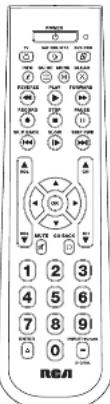
Tour of the Remote
In most cases, the keys on this remote perform the same functions as the keys on your original remote once you've programmed this remote in operate your components. Many keys on this remote have other functions as well.
Device keys (TV, SAT-CRL-OTC, DVD-VOR) put the remote in the right mode in control your device.
GUIDE and MENU put the remote in menuguide mode; they also access the same features as the boys on your original remotion.
CLEAR wireless remote programming, it also performs the same functions as on your original remotes. Arrow keys act as navigation keys in device guides and menu systems.
The INPUT and — (dash) key has three functions (1): it toggles through all the video sources connected to your TV: (2) when the remote is in VCR mode, this button toggles between VCR and the TV input: (3) when you're entering digital channel numbers directly, this button lets you separate the main channel number from the sub channel number such as 59.11.
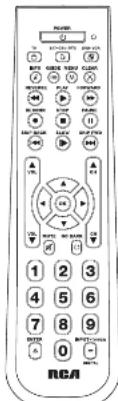
Actual metal may vary from illustration
IMPORTANT
Because this remote controls more than one device, you must find "Call" the remote which devise you with operators. That means, if you want to open your TV, you must first process the TV key to put the remote in the TV mode. The remote stays in that device mode until you press a different device key. For example, if your remote is in TV mode and you want to open the DAI player, you must press the DAI-928 key in change device mode.
Accessing Device Manus and Guides
Many devices use on-screen menus and quickes to help you navigate through all their instances and programming. While this remote may not access every menu or quick system of every device model, it does offer some menu and quick functionality.
In use a device's on-screen menu or quite system, you first have to put the range in Menu or Guide Mode.
-
Make sure your devices are turned on and your TV is set to the correct device input fuse the INPUT key to toggle through inputs when in TV Mode.)
-
Price the device key which means you want to move.
-
To access menu, press the MENU key. To access guides, press the GUIDE key. The indicator asks blinking, instructing you and in Menu or Guide Links.

Use the angry keys to navigate through the on-screen menu system or quick. In select the highlighted item, pose the OK key.
TIP: If the remote doesn't required, decide to see that the indicator is still blinking. The indicator times not after 20 seconds. If this happens, just press the MENU or GUIDE key again, and then retry your selection.
Exiting Menu/Guide Mode
The remote automatically times out of Menu or Guide Mode after 20 seconds of reactivity into keys being pressed. At that time, the remote clears the displayed menu from the TV. If you want to exit the Menu Mode yourself, press the corresponding device key on the remote (TV, SAT-CBL-DTC, DVD/PCI). The reader turns all.
Advanced Functions
Reassigning the DVD•VCR Key to Control a VCR
The DVD+VCR key details in central a DVD player. If you want the DVD+VCR key to central a VCR, you must navigate it.
-
Press and hold the DVD+VCR key. The indicator turns on. Keep holding down the DVD+VCR key.
-
While holding down the DVD/CR key, press and release the number 2 key on the keypad. The indicator turns off.
-
Release the DVO+VCR key. The indicator clinics four times a then turns off. The DADVCR key is now set to control a VCO
-
Follow the directions in the auto, brand, direct entry, or manual code search to program the DVD+VCR key for your VCR.
Code Retrieval
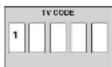
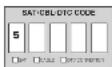
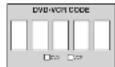
Draw you as programmed the remote to control your discover, you may want to record the codes for future reference. If you used the Direct Code Entry method, this is easy. Just find the code you entered and make a note of them in the boxes below. If you used one of the Code Search methods to program your remote or if you used the Direct Entry method but don't remember the code, you will need to retrieve each code's first flight. Present the usual odds, and writing down the code you are required to perform the remote again up on it, if programming is lost when you change the barriers, if the codes are recorded, you can use the Direct Entry method to reprogram your remote to control your devices, which is quick and easy.

Press and hold the device key (TV, SAT-CBI-OTC, DVD+OP) whose code you wish to retrieve. The indicator turns on. Keep pressing the device key.
-
While holding the device key down, press and hold the INFO key. The indicator turns off. After holding down both keys for three seconds, the indicator turns back on.
-
Release both keys. The indicator remains on.
- Starting with the number 1 key, press and release each number key on the keypad in the following order: 10, then 0. The number that causes the indicator to blink is the first number of the code. As you find each number of the code, write it down for future reference.
Note: All TV codes begin with the number 1; all VCR and DVP codes begin with the number 2; all D/Do, the number 3; and all satellite receivers, digital TV converters (DTC) and cable bands, the number 5.
- Repeat step 4 until you have retrieved all five numbers in the code. After the fifth number is retrieved, the indicator clinics briefly, then turns off.
TIP: To exit the Code Retrieval Mode at any time, press the CLEAR key.
Note: If you press an invalid key during the Code Retrieval process, the remote will not respond. If you do not press a valid Code Retrieval key ITV, SAT-CBL-OTC, DVD-VCR, INFO, CLEANO, Code Retrieval times not after 16 seconds. The indicator hires four times, and then hume off.
Troubleshooting
Problem: The remote does not operate your device.
- Make sure the remote is in the contact mode by prezary the corresponding device top ITV, SAT-OBL-DTC, DVD/4CR. This tells the remote which devies to operate
- Random any obstacle between the sensors and the device. Make sure you're aiming the sensors at the device's. If secure.
- Make sure the batteries are fresh and are properly installed. Replace the batteries with two new AAA batteries, if necessary (see the Battery Type I only for parking).
Problem: The remote can't be programmed to operate your device.
- If you are testing the remote while programming pit, you may be too far away from the device or at a wrong angle. There must be an undetermined path between the remote and the I1 sensor on the device. More closer and more sure you point the narrow at. In Denver you're trying to control
If you're using the Direct Entry programming method to view the order for your brand and the unit is all not functioning.
property, by mir and, blank, be manual to cover normal. To control combo units, like TW/CRs or TW/CPa, you must
program the individual corresponding device keys to control each part of the combo unit. Once programmed successfully, the TV key controls the TV functions, and the OED-VCH key controls the VCH or DVD functions.
Make sure the hormones are fresh and are properly localized.
Problem: The remote doesn't perform commands properly.
- Make sure the remote to the correct mode by pressing the corresponding remote by IIV, S41+26L/DIC, EVD/CS. That relates the remote which desires to operate
- Make sure choice is ready (for example, the DVD player has a dia loaded).
- Yes may have pressed an invalid key for the mode the remote is in. - If you're trying to enter a channel number closely, try pressing the ENTER key after entering the channel number as this is a requirement of certain models and brands.
There is a possibility that a programmed mode may only be able to control some of your device features. For example, only turns a device on and off. To confirm that the device may be programmed with the correct mode for maximum first-order, load the device. Except therefore a variety of the devices functions with the remote. If some of the features of your devices don't work, by programming the remote wish with home code in the ring using the Eimer Code Entry Method, until you find the one that allows the remote to control the majority of your device's function. Different orders can provide different levels of performance.
Problem: The indicator does not light when you press a key.
In.
Make sure the remote is in the correct mode by preasing the corresponding remote by 119, 541-05L-DTC, DVD/CKs. That is the remote which does to operate.
Make sure the bellies are fresh and are properly installed. Replace the bellies with how new 928 bellies, if necessary
Use the Battery Translation section.
Problem: The remote will not change channels on device. • Make sure the remote is in the correct mode increasing the
corresponding device by TIV, SAT-OSL/DIC, EV8/6/6. That is the remote which device to operate.
- Remove any obstacles between the remote and the device. Make sure to aim the remote at the B sensor on the device.
Problem: The device's menu does not appear on the TV screen. • Make sure you have connected the device to your TV properly and selected the correct input. (See your device! Owner's Manuals for common connection procedures.)
- Make sure the remote is in the correct mode by preusing the corresponding device by ITV, BAT-CBL-OTC, DVD/CBI. This will be remote which drive to operate.
- None access isn't supported for all brands. You may need to use your original remote control to access more functions for some decisions.
For more information, please visit www.rcsaccessories.com
Care and Maintenance
- Keep the remote dry. If it gets wet, wipe it dry immediately.
- LAA AFT 0.1%
- Handle the remote gently and carefully. Don't drop it.
- Keep the turn of safety, no. 105, with the - 7ips the tennis with a clamp cloth necessarily to keep it
lucky now.
- Identifying or tempering with the remote's internal device can cause malfunction and invalidate its warranty.
Limited Lifetime Warranty
Aurilaw Electronic Corporation (the "Company") women to your the official person of this provider that should it understand any and conditions, be prone to select in a man or workmen to dining to them while you can it, such as worked will be required and used for the Company's purpose in charge for point, and may also be. To ensure staff or replacement within the terms of the Company, the product is not being used with proof of warranty coverage (e.g., detail of sale, specification of market), compensation or prepare, to the Company in the address shown below.
This Warranty does not offer product purchased, survived or saved as the United States or Canada. This Warranty is not immaterable and could not extend to costs incurred for installation, removal or self-installation of Jus products. This Warranty does not apply if in The Commission's top revenue.
the product has been damaged through a dealer, improper installation, richardling, misuse, neglect, accident, or the simultaneous use of different battery (gava leg, alkaline, standard or redesignable).
THE EXTENT OF THE COMPANY'S LIABILITY UNDER THIS WARRANTY IS LIMITED TO THE REPAIR OR REPLACEMENT PROVIDED ABOVE AND, IN NO EVENT SHALL THE COMPANY'S LIABILITY EXCEED THE PUDCHASE PRICE (BUY) PURCHASED FOR THE PRODUCT.
The Wardeny is in lieu of all other express warranties or liabilities. Any IMPLIED WARRANTIES, INCLUDING ANY IMPLIED WARRANTY OF
MERCHANTABILITY OF BUSINESS FOR A PARTICULAR PURPOSE SHALL BE LIMITED TO DURATION OF THIS WARRANTY IN NO CASE SHALL. THE COMPANY IS LIABLE FOR ANY CONSTITUTIONAL OR ADDITIONAL DAMAGES WHATSOEVER. No person or representative is authorized to assume for the Company any liable by other than expressed herein in connection with the sum of this product.
Some terms otherwise do not allow limitations on how long an involved warranty lists or the conclusion or limitation of incidents or non-sequential damage to above limitations and taking any not apply to you. This Warranty gives you special legal rights and you may also have other rights which easy from data/provide to data/provide.
U.S.A. Auditors Electronics Corporation, 103 Monarch Med., Johannesburg, New York 1138 CANADA: Auditors Electronics Center, Inc. Genes 1975, Johannesburg
Unit 3, Box 16, Manitoba, Canada. Let 145
©2009 Audiovox Accessories Corporation
111 Congressional Blvd., Suite 290 Carmal, IN 46032
Trademark(s) ¥ Registered RCB310N US 65 RCB310N US 61
REA
RCR3283N /
RCR3383N
Owner's Manual (English on back)
• So combining the other means of six.
• No combine differentially can be seen as alkaline, estander
- 2017, 3: 19:45:16 (19:45-19:45).
Recorrido del control remoto
En la mayoría de los valores, las factas del control remate a sucho en el centro de la financia que las dos de los contales remotes originala. La financia de la control remote para montaraje, concomerente. La摺色vo de la financia de la financia de las formales internas diferentes sistemas. Los locales de disposición TV, SAT-CBL-BTC, DVD-VCR, VISA, 1980, 1985, 1986, 1987, 1988, 1989, 1990, 1991, 1992, 1993, 1994, 1995, 1996, 1997, 1998, 1999, 2000, 2001, 2002, 2003, 2004, 2005, 2006, 2007, 2008, 2009, 2010, 2011, 2012, 2013, 2014, 2015, 2016, 2017, 2018, 2019, 2020, 2021, 2022, 2023, 2024, 2025, 2026, 2027, 2028, 2029, 2030, 2031, 2032, 2033, 2034, 2035, 2036, 2037, 2038, 2039, 2040, 2041, 2042, 2043, 2044, 2045, 2046, 2047, 2048, 2049, 2050, 2051, 2052, 2053, 2054, 2055, 2056, 2057, 2058, 2059, 2060, 2061, 2062, 2063, 2064, 2065, 2066, 2067, 2068, 2069, 2070, 2071, 2072, 2073, 2074, 2075, 2076, 2077, 2078, 2079, 2080, 2081, 2082, 2083, 2084, 2085, 2086, 2087, 2088, 2089, 2090, 2091, 2092, 2093, 2094, 2095, 2096, 2097, 2098, 2099, 2100, 2101, 2102, 2103, 2104, 2105, 2106, 2107, 2108, 2109, 2110, 2111, 2112, 2113, 2114, 2115, 2116, 2117, 2118, 2119, 2120, 2121, 2122, 2123, 2124, 2125, 2126, 2127, 2128, 2129, 2130, 2131, 2132, 2133, 2134, 2135, 2136, 2137, 2138, 2139, 2140, 2141, 2142, 2143, 2144, 2145, 2146, 2147, 2148, 2149, 2150,
- Step 1: Install your batteries
- Battery Presaurations:
- Battery Saver
- Step 2: Program your remote
- Auto Code Search
- Did your device turn off?
- NOTES
- Testing the Code for Maximum Functionality
- Brand Code Search
- Texting the Code for Maximum Functionality
- Direct Code Entry
- Manual Code Search
- Tour of the Remote
- IMPORTANT
- Accessing Device Manus and Guides
- Exiting Menu/Guide Mode
- Advanced Functions
- Reassigning the DVD•VCR Key to Control a VCR
- Code Retrieval
- Troubleshooting
- Care and Maintenance
- Limited Lifetime Warranty
- REA
- RCR3283N /
- RCR3383N
- Recorrido del control remoto
Brand : RCA
Model : LRCR4383
Category : Remote control