
RCRPS02GR - Remote control RCA - Free user manual and instructions
Find the device manual for free RCRPS02GR RCA in PDF.


| Product Type | Remote Control |
| Brand | RCA |
| Model | RCRPS02GR |
| Color | Gray |
| Compatibility | RCA TV models (2000-2010) and select universal codes |
| Control Type | Infrared (IR) |
| Range | Up to 10 meters (30 feet) |
| Power Source | 2 AAA batteries (not included) |
| Battery Life | Approximately 12 months with normal use |
| Dimensions (W x H x D) | 2.0 x 8.5 x 1.0 inches (51 x 216 x 25 mm) |
| Weight | 3.2 oz (91 g) with batteries |
| Keypad Type | Rubber dome membrane switch |
| Number of Buttons | 28 buttons including numeric keypad |
| Key Functions | Power, Volume +/-, Channel +/-, Mute, Input, Menu, Navigation (up/down/left/right/OK), Numbers 0-9, Last Channel, Display, Sleep, A/V, Exit, Color buttons (if applicable) |
| Programming Method | Manual code entry or auto-search |
| Memory | Non-volatile; retains settings after battery change |
| Housing Material | ABS plastic |
| Cleaning Instructions | Wipe with a soft, dry cloth; avoid liquids and abrasives |
| Safety Information | Do not drop, expose to extreme heat, or immerse in water |
| Warranty | 1 year limited warranty |
Frequently Asked Questions - RCRPS02GR RCA
User questions about RCRPS02GR RCA
0 question about this device. Answer the ones you know or ask your own.
Ask a new question about this device
Download the instructions for your Remote control in PDF format for free! Find your manual RCRPS02GR - RCA and take your electronic device back in hand. On this page are published all the documents necessary for the use of your device. RCRPS02GR by RCA.
USER MANUAL RCRPS02GR RCA
Universal Remote Control Owner's Manual
RCR312WR / RCR311BR / RCR311BIR / RCR311SR / RCR311STR
SAVE THIS MANUAL AND THE CODE LISTS? Remote controls can sometimes lose their programming when you change the ballanics. Where you keep the manual and code lists in a safe pace so that you can reprogram the remote if you need to
Tip: This remote is already programmed to operate mini PCS-branded Tax, GPS, D4D players and selective receivers. Just press the corresponding help—GPS-DVD for a DVD player, TV for a television, SAT-CBL-DTC for a satellite receiver.
Step 1: Install your batteries
Your universal remote requires two AA alkaline batteries (batteries may or may not be included, depending on model). To install the batteries:

- James Haller
compars 8-12075
- travel the half-sec matching the arteries to the landed
(-) marks inside the battery
L01
- Then the gallery owner took him.
Battery Precautions
- On not mix oils and new batteries. - On not mix alkaline, saturated carbonated, or rechargeable in other carbium sulfate ice. - Although mixture oil, crude oil and natural batteries promptly and prevent discharge of them in accordance with Local and National Regulations.
Battery Saver
Your universal remote control saves battery power by automatically turning until if any key is pressed for more than 60 seconds. This saves your battery life should your remote get stuck in a place where the large remain depressed, such as between sofa cushions.
Step 2: Program your remote
To use this universal remote with your home entertainment system, it may you need in program it to retail your devices. There are four ways you can require the universal remote to operate your devices:
- The Auto Code Search pass automatically through all the traces for the device you're trying in control. It's the next method, but it can sometimes take longer than some of the other programming methods.
- The Brand Code Search searches through the codes for select brands of devices. It's not as easy as the auto code search, but it has better.
- The Direct Code Entry lets you enter a code from the accompanying code list for your brand of devices. It's not as easy as the other methods, but it's potentially the fastest method.
- The Manual Code Search lets you manually go through all the codes for the device you're trying in control.
Auto Code Search
The Auto Cache Search goes automatically through all the orders for the device you're trying to control. When you find the one that operates your device, you can stop the search and store that code.
TIPS: Each device key is associated with a type of device line IV is proud in search for IVs, SAT-CII-OTC for additional converters, radio lessons or digital TV connectors (OTC), and VOR-OVD for VCRs or DVD players.
To end without seeing a new code at any point in the Auto Code Search, press the GO BACK toy.
- 2007 hum on the down you
want to control.

- If you're programming the TV or SAT-CBL-DTC key, go to step 3
If you're programming the VCR+DVD key, you need to tell the remote which kind of device you want this key to control, VCR or DVD.
see and hold the VCR-DVD key. While you're holding down the VCR-DVD key, one your other hand in place the number key for the type of device you want to control with this key 2 for VCR, 3 for DVI.
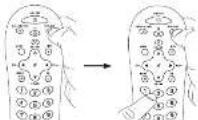
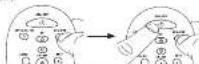
- Press and hold the device key you want to program. While your're holding down the device key, use your other hard to press and hold the remote's ON/OFF key at the same time.
-
Wait until the ON/OFF key comes on and stays on. Then release both keys.
-
Point the remote directly at the
Port card of the device you want to control. Page 51-IV
the remote and wait 3 seconds.
The remote is testing a batch of
10.23.25 347 (347, 2674)
Id your device burn off?
YES: GO 19 S###
NO: Press PLA
10.
stop preicing PLAY every 5 seconds until your device turns
- When your car is a lunge off, cars
The REVERSE KEY on the remote and all at least 7 seconds.
The remote trips the last of the
30.10.21th oct.2
id your device turn on?
YES: Please tell S. OP. EY. YH. IN and You're programmes the
devlos key.
NO: Pass III/MSL apart. The tennis stands like max
in 501526
harry back on. When it buys, press STOP.
Note: If you actually press the REVERSE key after your extra turns on, press that FORWARD key. Then, will two seconds in use if your devas turns off again.
NOTES
Throughout the programming of such key, be sure to keep the name paired at the ill sense of the device you are currently programming the remote to control.
Test the remote with the device to make sure the device key is programmed with the correct code for maximum functionality. If some instances don't work, try a different code. See the "Use up the Code for Maximum Functionality" section below for more information. During the Auto Code Search, the remote igmena bypasses that aren't part of our search
The search time out after five minutes the ON-OFF key blines four times and turns off, and the last programmed code under that device key is returned.
The ON-OFF key blinks four times and turns off when the remote has gone through all the codes. The remote scale the Auto Code Search. If your device hasn't turned off yet, try a billion search method.
Testing the Code for Maximum Functionality
-
Try a variety of trade marks functions with the name. If some devices feature don't work, go to next step to try a different rule.
-
Repeat the Auto Code Search Method from the beginning. When your device turns off, do not stop searching, unless, with the unit now on, continue to press the PLAY way every 5 seconds until the unit turns back on.
-
Once the unit turns back on, press the IMM-RED key on the turnout every 2 seconds until your device turns off again. When your device turns off again, press the STOP key
-
Test the key's functionality again by attempting to control a variety of the device's functions. If the code that has been stored controls the majority of the device's functions, programming is complete. If the code stored does not give maximum functionality, try another code.
Brand Code Search
The Brand Code Search goes through only the codes for one of the select brands. Level in the accompanying code is, if your brand of device is listed, this search can be very quick and easy.
TIPS: Each device key is associated with a type of device—the TV is preset to search for TVs, SOT-CBL-DTC for one of the maximums, cable lasers or digital TV connectors (DTC), and VCR/DVD for VCRs or DVD players.
The ON-OFF key serves us an indicator light during programming, giving you feedback at each stage of the process. To exit without saving a new code at any point in the Brand Code Search, press the GD BACK key.
- Manually turn on the device you
want to control.

- If you're programming the TV or SAT-CBL-DTC key,
If you're programming the VCR-DVD key, you want to tell the remote which is of device you want this key to current, VCR or DVD.
Press and hold the VCR-OVD key. While you're holding down the VCR-OVD key, use your other hand to press the number key for the type of device you want to control with this key; 2 for VCR, 3 for DVD.
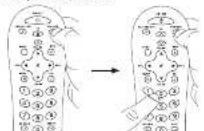
- Find your device's brand in the Brand Center for audience of the accompanying code list. Circle the number for your brand and keep the list handy.

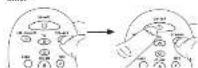
- Press and hold the device buy you want to program. While you're holding down the device key, use your other hand to press and hold the remote's ON-CFF key at the same
-
Wait until the ON/OFF key comes on and stops on. Then, release both keys.
-
Look at the number you ordered for your destination brand name number. Press that number on the remote board
(3) 2017年
- Point the remote directly at the front panel of the device you want to control. Press ON-OFF on the remote and wait 2 seconds. The remote is lasting a single code for your device's brand.
Did your device turn off?
YES: Suppose the STOP key to alter the scale. You're sure!
You've programmed this device say.
NO: Press ON-CFF again. The nature gets the next stock for your hand.
Keep pressing ON/OFF every 2 seconds until your device turns off. When it does, press STOP.
NOTES
The throughput the programming of each key, be sure to keep the remote protected at the if sensor of the device you are currently programming the remote to control. Test the remote with the device to make sure the device key is programmed with the correct code for maximum functionality. If some features don't work, try a different mode. See the following the Code for Maximum functionality because below for more information.
During the Brand Code Search, the remote ignored by proposals that aren't part of the search. The search times out after two minutes (the OY-OF Infinita four times and turns off, and the last program code under that device key is retained).
The CN-DI key blocks (car series and hours off when the remote has gone through all the codes. The remote exits the Brand Code Search. If your device hasn't turned off yet, try a different search method.
Testing the Code for Maximum Functionality 1. Try a variety of the devices' functions with the same device features don't work, go in the next different units.
-
Repeat the Grand Circle Search from the beginning. When the device turns out for its first time, don't press the STO key, which would store the same code. Instead, with the unit turn off, sometimes to press the ON-OFF key repeatedly until the unit turns back on.
-
Deve the unit turns back on, you have found another rule that operates the device. Press the STOP key.
-
Test the key functionality upon by attempting to control a variety of the device's functions. If the code that has been stored controls the majority of the device's functions programming is complete. If the code stored does not give maximum functionality, try another code.

and also on. Then
[Non-Text]
1
② ③ ④
① ② ③
(1)
②⑥①
(二) 本次股东大会的决议
- 2017年1月1日
(1)
(五)
46
[Unreadable]
| | ∅
to think. Will be cut
The results were reported.
(四) 本次股东大会的召集和召开程序
Direct Code Entry
Direct Code Entry lists you enter a code from the accompanying rules list for your brand of decisions. It's not easy as the other methods, but it's potentially the fastest method.
TP: Each device locy is annotated with a type of device—the TV is present to search for TVs, SATA-GBS-41G for rated the best order, write boxes or digital TV consoles (OTC), and DVD/DVD for VCDs or DVD players.
The DN-DE help remove as an extra light sharing programming, giving you feedback at each stage of the process.
- Manually turn on the state you want to control.

- Find the Code List that came with the remote. Locate the section for the type of device you're trying to
program, and I find your brand in
your limeral and deep them handy
- Press and hold the device key you want to program the ON-OFF key comes out.
While you're holding down the device key, use your other hand to enter the first five digit code for your brand in the code list the ON/OFF key goes off after the first digit
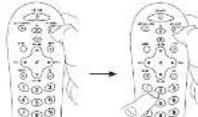
YES: You're done! You've programmed this device key. NO, it blinked four times and turned off: You have
which entered a scale number that is not in the scale of or missed a step in the rank entry procedure. Try step 3 again
Remember to enter the code for future reference in the box provided in the Code Delmaral section of this manual.
If your brand isn't listed in the code list, was one of the Code Search methods to program the remote control, (Refer to the Auto and Manual Code Search methods.)
If you release the device key any time during the Direct Code Entry procedure, the ON/OFF key inference four times, and the process is edited. The last programmed code under the device key is returned.
Test the remote with the device to make sure the device buy in programmed with the carried mode or maximum functionality. If some features don't work, try a different code in the rel.
The Manual Code Search lets you go one by one through all the courses for the devices you're trying to control. When you do not the time that operation your devices, you can help the search and share that code.
10.10.2
This image contains no text to OCR. The visible element is a stylistic horizontal line, which must be ignored according to the rules.
TPS: Each device key is associated with a type of device—the TV is present to search for TVs. SAT-CIII-DTC for next the receivers, entire boxes or digital TV converters (DTC), and VCR-DVD for VCRs or DVD prayers.
The OX-OFI key service at an indicator light drawing programming, giving you feedback at each stage of the process. The Manual Code Search method may take a long time to ensure the remote search through all of the codes in. In memory one by one, if your brand is listed in the Brand Codes or the Code Lists, it is by the Brand Code Search or the Direct Code Entry method.
To edit without saving a new code at any point in the Manual Code Sounds, prove the GD BACK key.
- Manually turn on the device you
will to control.

- If you're programming the TV or 8AT+CBL+DTC key, go to step 3.
If you're programming the VCR+DVD key, you need to tell the remote which kind of device you want this key to control. VCR or DVD.
Press and hold the VCR-DVD key. While you're holding down the VCR-DVD key, use your other hand to press the number key for the type of device you want to control with this key: 2 for VCR, 3 for DVD.
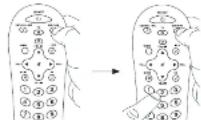
- Press and hold the device key you want to program. While you're holding down the device key, use your other hand to press and hold the remote's DNOOII key at the same time.
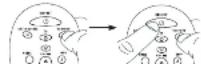
-
Wait until the ON-OFF key comes up and stops on. Then release both keys.
-
Point the remote directly at the front panel of the device you want to control. Press CN/CHS on the remote and wait 2 seconds. The remote is testing a single code for your device.

Did your device turn off? YES: Press the STOP key to store the code. You're done! You're programmed this device key. NO: Press OK-OFF again. The remote heats the next code for your device.
Keep pushing CNOFF every 2 seconds until your device turns back on. When I does, press SIGP.
TIP: Because there are so many codes, you may have to press the O'S-OFF key many lines-up—possible vibration of lines.
NOTES
Throughout the programming of each key, keep the remote painted at the IR sensor of the device you are programming the remote to control.
Test the remote with the device to make sure the device key is programmed with the correct code for maximum functionality. If some features don't work, try a different code. See the "Using the Code for Maximum Functionality" section below for more information.
During the Manual Cycle Search, the removal ignores compresses that aren't part of the search.
The search times cut after two minutes (the ON+DI key blinks four times and turns off, and the last programmed code under that device key is retained).
The ON-OFF key blinks four times and turns off when the remote has gone through all the codes. The remote exits the Manual Code Search. If your device hasn't turned off yet, try a different search method.
Testing the Code for Maximum Functionality
-
Try a variety of the devices' functions with the remote. If some features of your devices don't work, go to the next step in try a different cycle.
-
Repeat the Manual Code Search from the beginning. When the device turns off for the first time, don't press the STOP key, which would store the same code. Instead, with the unit now off, continue to press the OK-OFF key repeatedly until the unit turns back on.
-
Once the unit turns back on, you have found another code that operates the device. Press the STCP key.
Test the key's functionality again by trying a variety of
the function is the basic linear and inequality of the classical functions, programming is complete. If the scale stored
does not give maximum functionality, try another code.
Tour of the Remote
In most cases, the keys on this name perform the same functions as the keys on your original names once you've programmed this remote to operate your components. Many keys on this name have other functions as well.
Illuminated ON-OFF key serves as an indicator light to provide headbars.
Deviance kept (TV,
the remote in the right mode
to control your device.
Blacklightkey: lurres insightation point
EURO and MELLI and the
remote in merugule mode.
which makes the CHYVOL
they also access the same
straining to this copy an your original remote.
“
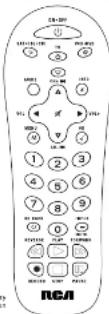
Actual model may vary from Evaluation
CH and VOL keys have dual functions they can act as navigation keys in menu systems as well as channel and volume controllers outside the menus. The CH keys also provide ship forward and slip back control for DVD players and DVRs that support this functionality.
GO BACK exists remote programming; it also performs the same functions as on your original remote
The INPUT and — (dash) key has three functions: (1) it toggles through all the video sources connected to your TV; (2) when the seconds is in 968 mode, this button toggles between 968 and the TV input; (3) when you're entering digital channel numbers directly, this button less you separate the main channels number from the sub-channel number (such as N-1).
IMPORTANT
Because the remote controls more than one device, you must first "tell" the remote which device you wish to operate. That means, if you wish to operate your TV, you must find previous the TV key to put the remote in the TV mode. The remote stays in that device mode until you press a different device key. For example, if your remote is in TV mode, and you want to operate the DVD player, you must press the VCR-DVD key to change device modes.
Backlighting
Backlight illumination helps you see the remote control keys better in the dark. You can turn backlight illumination on or off by pressing the backlight key 1(1). Backlighting stays on so long as keys are losing pressure and turns off six seconds after the last key press. Once the backlight time has timed out, any beginning will reach above it. If the backlight illumination is on, and you press the backlight key, the backlight turns off.
Accessing Device Menus and Guides
Many devices can access menu and guide to help you navigate through all their features and programming. While this remote may not access every menu or guide system at every device market, it does offer some menu and guide functionality.
To use a device's on-screen menu or guide system, you'll ret have to put the remote in Menu or Guide Mode.
-
Make sure your devices and turned on and your TV to set to the correct device input (use the INPUT key to toggle through inputs when in TV Mode.)
-
Press the Guide key where menu you want to access.
- To access menu, press the MENU key. To access guides, press the GUIDE key. The DV-GIT key starts limiting, including your use in Menu or Guide Music.

- Use the 9014/- and CH2- keys to navigate through the in-screen menu system or pulse. To select the highlighted items, press the OK key. TIP: If the remote doesn't respond, check to see that the OVOFF key is still blinding. The ON-OFF key times can after 30 seconds. If this happens, just press the MENU key again, and then retry your reaction.
Exiting Menu/Guide Mode
The remote automatically times out of Menu or Guide Mode after 20 seconds of inactivity (no keys being precault). At that time, the remote clears the displayed menu from the TV. If you want to add the Menu Mode yourself, press the corresponding device key on the remote: TV, SAT-CBL-DTC, VCR-DVD. The ON-OFF key turns off.
Advanced Functions
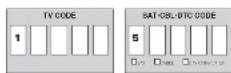
Code Retrieval
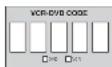
Once you've programmed the remote to control your devices, you may want to record the codes for future reference. If you used the Direct Code Entry method, this is easy. Just
It will the codes you entered and make a rule of them in the lines below. If you read one of the Code Search methods to program your remote or if you used the Direct Entry method, but don't remember the code, you will need to retrieve each device's five-digit code. Retrieving the actual code and writing it down will save you time if you ever need to program the code.
the batteries). If the codes are recorded, you can use the Direct Entry method to reprogram your remote to control your device, which is quick and easy.

Press and hold the device key (TV, SAT-CBL-OTC, VOR-DVD) whose code you wish to retrieve The ON-CFF key turns on. Keep praxing the device key.
-
While holding the device key down, press and hold the INIO key. The DN-OFF key turns out. After holding down both keys for three seconds, the ON-OFF key turns back on.
-
Release both keys. The ON-OFF key remains on.
Starting with the number 1 key, press and release each number key on the looped in the following order: 1-9, then 0. The number that causes the ON-OFF key to blink is the first number of the code. As you find each number of the code, write it down for future minutes.
Note: All TV codes begin with the number 1; all VCR and DVR codes begin with the number 2; all DVDs, the number 3, and all satellite receivers, cable boxes and DTV converters, the number 5.
- Repeat step 4 until you have retrieved all 1 or numbers in the code. After the 1 fth number is retrieved, the ON-OFF key blinks brief v, then turns off.
TIP: In sell the Code Retrieval Mode at any time, press the GO BACK bay.
Note: If you press an invalid key during the Code Retrieval process, the norms will not resuspect. If you do not press a valid Code Retrieval key (TV, BAT,CBL,DTC, VOR,DVD, INFO, GO BACK), Code Retrieval times out after 10 seconds. The OVOFF key thinks four times, and then turns off.
Troubleshooting
Problem: The remote does not operate your device.
- Make sure the remote is in the context by browsing the corresponding device by TV, SAT-CIL-DTC, VOT-DVD. This is the remote which devices are present.
- Promote any switches between the remote and the device. Make sure you're almost the remote at the device's 8 sensor. - Make sure the batteries are fresh and are properly installed. Replace this homeless with new AS homeless, if necessary (see the Bottom installation protocol).
Problem: The remote can't be programmed to operate your device.
- If you are having the remote while programming I, you may be run for away from the device or at a wrong angle. There must be an attachment path between the remote and the IR sensor on the device. More closer and make sure you point the remote of the device you're trying to control.
- If you're using the Direct Entry programming method to order the code for your brand and the unit is still not functioning properly, try the auto, brand, or manual search method. - To control common units, like TWV/DE or TWV/DE, you must program the individual corresponding device keys to control each part of the combo unit. Once programmed successfully, the TV key controls the TV function, and the VCB-DVD key controls the VCB or DVD functions.
- Make sure the batexics are fresh and are properly installed.
Problem: The remote doesn't perform commands properly. - Make sure the remote is in the correct mode by pressing the corresponding device by ITV, SAT/CSL/DTC, 92018V03. This talk is the remote which device to operate. - Make sure device is ready for example, the DVD player has a classic radio.
- You may have permission would key for the model's remote train - If you're trying to enter a channel number directly, try pressing the ENTER key after entering the channel number as this is a requirement of certain models and friends.
- There is a possibility that a programmed code may only be able to control some of your device features for example, only time a device on and off. To confirm that the device key is programmed with the correct code for maximum functionality, but the device. Attempt to control a variety of the devices
otherwise with the article. It is a China website at your device can work, by programming the remote with a different code in the list using the Direct Docs Entry Method, until you find the code that allows the remote to control the majority of your devices (lunar one). Different codes can provide different levels of functionality.
Problem: The ON-OFF key does not light when you press a key. - You may have pressed an invalid key for the mode the remote is in.
- Make sure the remote is in the correct mode by pressing the corresponding device key iTV, SGT-CBI-DTC, VGP-DVC0. This is in the remote which device to operate.
- Make sure the batteries are fresh and are properly installed. Replace the batteries with two new AA batteries, if necessary, see the battery installation section.
Problem: The remote will not change channels on device. - Make sure the remote is in the convit mode by pressing the corresponding device key (TV, SAT-CBL-DC, VDD-DVD). This leads the remote which device to vends.
- Press the ENTER key after you enter a channel number.
- Partners may consider between the remote and the device. Make sure to aim the remote at the Restaurant on the device.
Problem: The device's menu does not appear on the TV screen. • Show sure you have connected the devices to your TV property and selected the current input. (See your device/ Owner's Manuals for
Make sure the remote is in the correct mode by pressing the corresponding device key (TV, SAT-CBL-OTC, VCR/DVD). This tells the remote which descends to operate.
- Many excess isn't supported for all brands. You may need to use your original remote control to access manual functions for some devices.
For more information, please visit www.csaccoservices.com Consumer Help Line: 1-800-420-3966
Care and Maintenance
- Keep the remote dry. If it gets wet, wipe it dry immediately. - Use and store the remote only in normal temperature environment.
- Handle the remote gently and carefully. Don't drop it.
- Keep the remite water from dual and dirt
- Tape the remote with a damp cloth occasionally to keep it looking new.
- Making up tampering with the remote's internal devices can cause malfunction and invalid site vacancy.
Limited Lifetime Warranty
And/oro Chemerix Corporation (the "Company") promotes to you the original reader of this product that should it, under normal law and conditions, be proven in particular on work Monday during the first week when you can, such defects will be resampled or replaced by the Company's option without charge for parts and repair labor. To obtain options or replacements within the terms of the Warzone, the product is not delivered with cover of warranty covers (e.g., above bill prices, specification of defective transportation prepaid, to the Company at the address above law).
This Warranty does not cover product purchased, serviced or used outside the United States or Canada. This Warranty is not available and does not offer/or provide insurance for installation, removal or reinstallation of the product. This Warranty does not apply in the Company's opinion.
To produce low levels of high sensitivity, the potential is evident, understanding risks and risk, avident or deviralsative use of different surveys types (e.g. alakers, everant rechangeable).
THE EXTERIOR OF THE COMPANY'S LIABILITY UNDER THE WARRANTY IS LIMITED TO THE REPAIR OR REPLACEMENT PROVIDED ABOVE AND, INNO TWENT, SHALL THE COMPANIES LIABILITY EXCEED THE PURCHASE PRICE TAX BY PURCHASER FOR THE PRODUCT.
This Warranty is also all other options available or available. All MELIC WARRIANTES, INCLUDING ANYMPLED WARRANTY OF
WEICHAN FACILITY OF FITNESS FOR A PARTICULAR POURSO'S SHALL BE LIMITED TO CURAT ON OF THE WARRANTY. IN NO CASE SHALL THE COMPANY IS LARGE FOR ANY CONSULTING OR INCIDENTAL DAMAGES WHAT SCENTIL for person or representations is authorized investors for the Company any label by other than approved herein in connection with the case of this product.
Some data-prostices do not all other limitations on how long an implied warranty allows the exclusion or limitation of individuals or consequential damage to the above limitations or conclusions may not apply to you. This warranty gives you special legal rights and you may also have other rights which easy from data power to sale or purchase.
U.S.L.: Austrava/FAKMA/Corporio, Bultoralek Hrad, Revista New York 31781 CANADA: Austrava, Ralam Darler, bio Gawa, dbb Kennedy Head, Unit 2, Door 10, Maricana, Corrado, LCT 255
92210 Audiovox Accessories Corporation 111 Congressional Blvd., Suite 350 Carmal, IN 46232
Trademark: 2 Registered BCR312298 US 08
- Universal Remote Control Owner's Manual
- Step 1: Install your batteries
- Battery Precautions
- Battery Saver
- Step 2: Program your remote
- Auto Code Search
- NOTES
- Brand Code Search
- Direct Code Entry
- Testing the Code for Maximum Functionality
- Tour of the Remote
- IMPORTANT
- Backlighting
- Accessing Device Menus and Guides
- Exiting Menu/Guide Mode
- Advanced Functions
- Code Retrieval
- Troubleshooting
- Care and Maintenance
- Limited Lifetime Warranty
Brand : RCA
Model : RCRPS02GR
Category : Remote control