
RCR313BZ - Remote control RCA - Free user manual and instructions
Find the device manual for free RCR313BZ RCA in PDF.


| Product Type | Universal Remote Control |
| Model Number | RCR313BZ |
| Brand | RCA |
| Number of Devices Controlled | Up to 3 |
| Power Source | 2 AA alkaline batteries (not included) |
| Battery Saver | Auto power-off after 60 seconds of non-use |
| Backlight | Yes, with dedicated LIGHT key; stays on as long as keys are pressed, turns off after 6 seconds of inactivity |
| Programming Methods | Brand Code Search, Direct Code Entry, Auto Code Search, Manual Code Search |
| Code Library | Includes codes for latest devices of all major brands and streaming media players |
| Device Modes | TV, SAT•CBL•STREAM, DVD•VCR |
| Navigation Keys | Arrow keys for menu and guide navigation |
| Channel and Volume Control | CHAN and VOL keys; CHAN also provides skip forward/back for compatible DVRs/DVDs |
| Input Key | Cycles through video sources; also separates main and sub-channel numbers for digital channels |
| Code Retrieval | Five-digit code retrieval feature for future reference |
| FCC Compliance | Part 15 Class B digital device |
| Industry Canada | ICES-003 Class B digital apparatus |
| Warranty | Limited lifetime warranty for original purchaser |
| Care | Keep dry; wipe with damp cloth; store in normal temperatures; avoid dust and dirt |
| Dimensions (approx.) | 8.5 x 2.25 x 1.25 inches |
| Weight (with batteries, approx.) | 4.5 oz |
Frequently Asked Questions - RCR313BZ RCA
User questions about RCR313BZ RCA
0 question about this device. Answer the ones you know or ask your own.
Ask a new question about this device
Download the instructions for your Remote control in PDF format for free! Find your manual RCR313BZ - RCA and take your electronic device back in hand. On this page are published all the documents necessary for the use of your device. RCR313BZ by RCA.
USER MANUAL RCR313BZ RCA
Universal Remote Control Owner's Manual
RCR314WR / RCR313BR
This device complies with part 15 of the FCC Rules. Operation is subject to the following two conditions: (1) This device may not cause harmful interference, and (2) this device must accept any interference received, including interference that may cause undesired operation. Note: This equipment has been tested and found to comply with the limits for a Class B digital device, pursuant to part 15 of the FCC Rules. These limits are designed to provide reasonable protection against harmful interference in a residential installation. This equipment generates, uses and can radiate radio frequency energy and, if not installed and used in accordance with the instructions, may cause harmful interference to radio communications. However, there is no guarantee that interference will not occur in a particular installation. If this equipment does cause harmful interference to radio or television reception, which can be determined by turning the equipment off and on, the user is encouraged to try to correct the interference by one or more of the following measures:
• Reorient or relocate the receiving antenna.
- Increase the separation between the equipment and receiver.
- Connect the equipment into an outlet on a circuit different from that to which the receiver is connected.
- Consult the dealer or an experienced radio/TV technician for help. Caution: Any Changes or modifications not expressly approved by the party responsible for compliance could void the user's authority to operate this equipment.
Industry Canada Regulatory Information
This class B digital apparatus complies with Canadian ICES-003
SAVE THIS MANUAL AND THE CODE LISTS!
Remote controls can sometimes lose their programming when you change the batteries. Make sure you keep the manual and code lists in a safe place so that you can reprogram the remote if you need to.
Congratulations on your purchase of this 3-device RCA Universal Remote Control. This remote features a library of codes with the latest devices of all major brands, with support for streaming media players as well. The navigation keys have been redesigned to function seamlessly with the more sophisticated menu and guide systems found in today's home entertainment devices.
Step 1: Install your batteries
Your universal remote requires two AA alkaline batteries (batteries may or may not be included, depending on model).
To install the batteries:
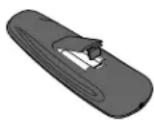
- Remove the battery compartment cover.
- Insert the batteries, matching the batteries to the (+) and (−) marks inside the battery compartment.
- Push the battery cover back into place.
Battery Precautions:
- Do not mix old and new batteries.
- Do not mix alkaline, standard (carbon-zinc) or rechargeable (nickel-cadmium) batteries.
- Always remove old, weak or worn-out batteries promptly and recycle or dispose of them in accordance with Local and National Regulations.
Battery Saver
Your universal remote control saves battery power by automatically turning off if any key is pressed for more than 60 seconds. This saves your battery life should your remote get stuck in a place where the keys remain depressed, such as between sofa cushions.
Step 2: Program your remote
To use this universal remote with your home entertainment system, fi rst you need to program it to control your devices. There are four ways you can program the universal remote to operate your devices. Try them in the order listed here:
- The Brand Code Search searches through the codes for select brands of devices.
- The Direct Code Entry lets you enter a code from the accompanying code list for your brand of device.
- The Auto Code Search goes automatically through all the codes for the device you're trying to control.
- The Manual Code Search lets you manually go through all the codes for the device you're trying to control.
Brand Code Search
The Brand Code Search goes through only the codes for one of the select brands listed in the accompanying code list. If your brand of device is listed, this search can be very quick and easy.
TIPS: Each device key is associated with a type of device—the TV is preset to search for TVs, SAT•CBL•STREAM for satellite receivers, cable boxes, digital TV converters, or streaming media players and DVD•VCR for VCRs or DVD players.
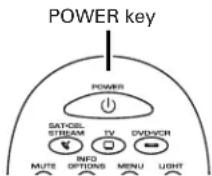
The POWER key serves as an indicator light during programming, giving you feedback at each stage of the process.
To exit without saving a new code at any point in the Brand Code Search, press the GO BACK key.
- Manually turn on the device you want to control.
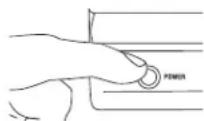
- If you're programming the TV or SAT•CBL•STREAM key, go to step 3.
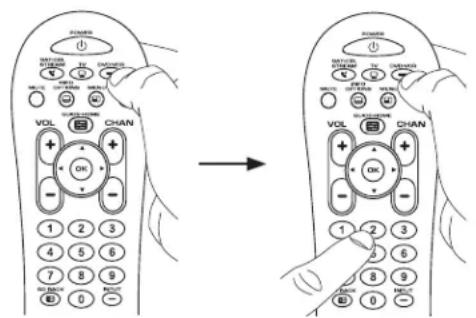
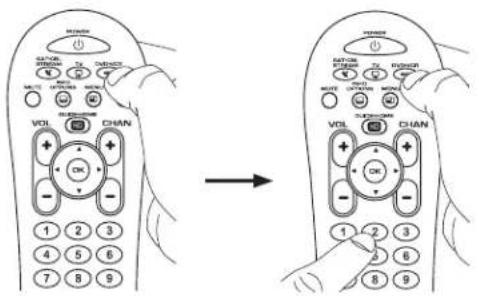
If you're programming the DVD•VCR key, you need to tell the remote which kind of device you want this key to control, VCR or DVD.
Press and hold the DVD•VCR key. While you're holding down the DVD•VCR key, use your other hand to press the number key for the type of device you want to control with this key: 2 for VCR, 3 for DVD.
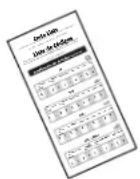
- Find your device's brand in the Brand Code list section of the accompanying code list. Circle the number for your brand and keep the list handy.
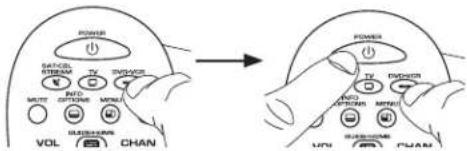
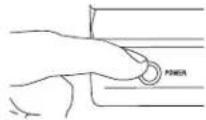
- Press and hold the device key you want to program. While you're holding down the device key, use your other hand to press and hold the remote's POWER key at the same time.
-
Wait until the POWER key comes on and stays on. Then release both keys.
-
Look at the number you circled for your device's brand code number. Press that number on the remote keypad.
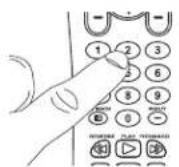
- Point the remote directly at the front panel of the device you want to control. Press POWER on the remote and wait 2 seconds. The remote is testing a single code for your device's brand.
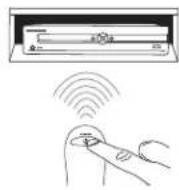
Did your device turn off?
YES: Press the STOP key to store the code. You're done! You've programmed this device key.
NO: Press POWER again. The remote tests the next code for your brand.
Keep pressing POWER every 2 seconds until your device turns off. When it does, press STOP.
NOTES
Throughout the programming of each key, be sure to keep the remote pointed at the IR sensor of the device you are currently programming the remote to control. Test the remote with the device to make sure the device key is programmed with the correct code for maximum functionality. If some features don't work, try a different code. See the "Testing the Code for Maximum Functionality" section below for more information. During the Brand Code Search, the remote ignores keypresses that aren't part of the search.
The search times out after two minutes (the POWER key blinks four times and turns off, and the last programmed code under that device key is retained).
The POWER key blinks four times and turns off when the remote has gone through all the codes. The remote exits the Brand Code Search. If your device hasn't turned off yet, try a different search method.
Testing the Code for Maximum Functionality
-
Try a variety of the device's functions with the remote. If some device features don't work, go to the next step to try a different code.
-
Repeat the Brand Code Search from the beginning. When the device turns off for the fi rst time, don't press the STOP key, which would store the same code. Instead, with the unit now off, continue to press the POWER key repeatedly until the unit turns back on.
-
Once the unit turns back on, you have found another code that operates the device. Press the STOP key.
-
Test the key's functionality again by attempting to control a variety of the device's functions. If the code that has been stored controls the majority of the device's functions, programming is complete. If the code stored does not give maximum functionality, try another code.
Direct Code Entry
Direct Code Entry lets you enter a code from the accompanying code list for your brand of device. It's not as easy as the other methods, but it's potentially the fastest method.
TIP: Each device key is associated with a type of device—the TV is preset to search for TVs, SAT•CBL•STREAM for satellite receivers, cable boxes, digital TV converters, or streaming media players, and DVD•VCR for VCRs or DVD players.
The POWER key serves as an indicator light during programming, giving you feedback at each stage of the process.
- Manually turn on the device you want to control.
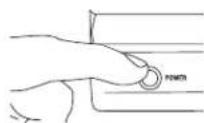
- Find the Code List that came with the remote. Locate the section for the type of device you're trying to program, and find your brand in that section. Circle the codes for your brand and keep them handy.
- Press and hold the device key you want to program (the POWER key comes on).
While you're holding down the device key, use your other hand enter the fi rst fi ve-digit code for your brand in the code list (the POWER key goes off after the fi rst digit).
- When you've fi nished entering the fi ve-digit code, keep holding down the device key and look at the POWER key.
Is the POWER key on?
YES: You're done! You've programmed this device key.
NO, it blinked four times and turned off: You have either entered a code number that is not in the code lists or missed a step in the code entry procedure. Try step 3 again.
NOTES
Remember to enter the code for future reference in the box provided in the Code Retrieval section of this manual. If your brand isn't listed in the code list, use one of the Code Search methods to program the remote control. (Refer to the Auto and Manual Code Search methods.)
If you release the device key any time during the Direct Code Entry procedure, the POWER key blinks four times, and the process is exited. The last programmed code under the device key is retained.
Test the remote with the device to make sure the device key is programmed with the correct code for maximum functionality. If some features don't work, try a different code in the list.
Auto Code Search
The Auto Code Search goes automatically through all the codes for the device you're trying to control. When you find the one that operates your device, you can stop the search and store that code.
TIPS: Each device key is associated with a type of device—the TV is preset to search for TVs, SAT•CBL•STREAM for satellite receivers, cable boxes, digital TV converters, or streaming media players, and DVD•VCR for VCRs or DVD players.
To exit without saving a new code at any point in the Auto Code Search, press the GO BACK key.
- Manually turn on the device you want to control.
- If you're programming the TV or SAT•CBL•STREAM key, go to step 3.
If you're programming the DVD•VCR key, you need to tell the remote which kind of device you want this key to control, VCR or DVD.
Press and hold the DVD•VCR key. While you're holding down the DVD•VCR key, use your other hand to press the number key for the type of device you want to control with this key: 2 for VCR, 3 for DVD.
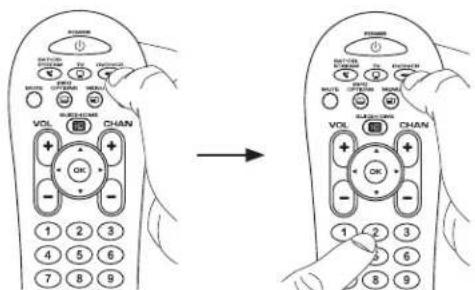
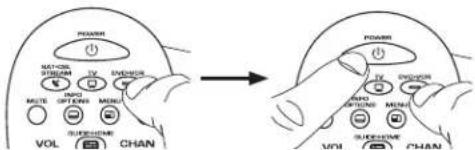
- Press and hold the device key you want to program. While you're holding down the device key, use your other hand to press and hold the remote's POWER key at the same time.
-
Wait until the POWER key comes on and stays on. Then release both keys.
-
Point the remote directly at the front panel of the device you want to control. Press PLAY on the remote and wait 5 seconds. The remote is testing a batch of 10 codes on your device.
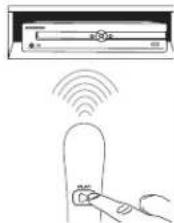
Did your device turn off?
YES: Go to step 6.
NO: Press PLAY again. The remote tests the next batch of 10 codes.
Keep pressing PLAY every 5 seconds until your device turns off.
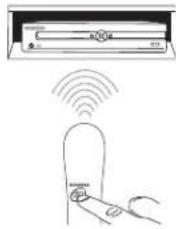
- When your device turns off, press the REVERSE key on the remote and wait at least 2 seconds. The remote tries the last of the previous ten codes.
Did your device turn on?
YES: Press the STOP key. You're done! You've programmed this device key.
natural_image
Diagram showing a device connected to a hand holding a remote control, with wireless signal waves above (no text or symbols)NO: Press REVERSE again. The remote tests the next code in the batch.
Keep pressing REVERSE every 2 seconds until your device turns back on. When it does, press STOP.
Note: If you accidentally press the REVERSE key after your device turns on, press the FORWARD key. Then, wait two seconds to see if your device turns off again.
NOTES
Throughout the programming of each key, be sure to keep the remote pointed at the IR sensor of the device you are currently programming the remote to control.
Test the remote with the device to make sure the device key is programmed with the correct code for maximum functionality. If some features don't work, try a different code. See the "Testing the Code for Maximum Functionality" section below for more information.
During the Auto Code Search, the remote ignores keypresses that aren't part of the search.
The search times out after two minutes (the POWER key blinks four times and turns off, and the last programmed code under that device key is retained).
The POWER key blinks four times and turns off when the remote has gone through all the codes. The remote exits the Auto Code Search. If your device hasn't turned off yet, try a different search method.
Testing the Code for Maximum Functionality
- Try a variety of the device's functions with the remote. If some device features don't work, go to next step to try a different code.
- Repeat the Auto Code Search Method from the beginning. When your device turns off, do not stop searching. Instead, with the unit now off, continue to press the PLAY key every 5 seconds until the unit turns back on.
- Once the unit turns back on, press the REVERSE key on the remote every 2 seconds until your device turns off again. When your device turns off again, press the STOP key.
- Test the key's functionality again by attempting to control a variety of the device's functions. If the code that has been stored controls the majority of the device's functions, programming is complete. If the code stored does not give maximum functionality, try another code.
Manual Code Search
The Manual Code Search lets you go one-by-one through all the codes for the device you're trying to control. When you find the one that operates your device, you can stop the search and store that code.
TIPS: Each device key is associated with a type of device—the TV is preset to search for TVs, SAT•CBL•STREAM for satellite receivers, cable boxes, digital TV converters, or streaming media players, and DVD•VCR for VCRs or DVD players.
The POWER key serves as an indicator light during programming, giving you feedback at each stage of the process.
The Manual Code Search method may take a long time because the remote searches through all of the codes in its memory one-by-one. If your brand is listed in the Brand Codes or the Code Lists, first try the Brand Code Search or the Direct Code Entry method.
To exit without saving a new code at any point in the Manual Code Search, press the GO BACK key.
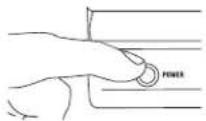
- Manually turn on the device you want to control.
- If you're programming the TV or SAT·CBL·STREAM key, go to step 3.
If you're programming the DVD•VCR key, you need to tell the remote which kind of device you want this key to control, VCR or DVD.
Press and hold the DVD•VCR key. While you're holding down the DVD•VCR key, use your other hand to press the number key for the type of device you want to control with this key: 2 for VCR, 3 for DVD.
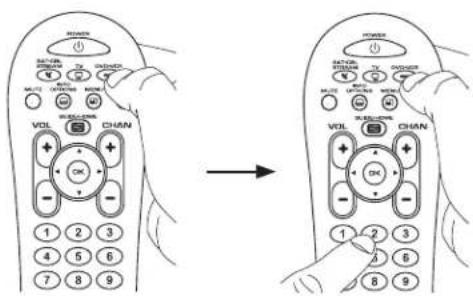
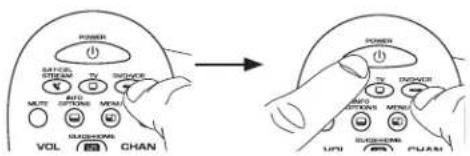
- Press and hold the device key you want to program. While you're holding down the device key, use your other hand to press and hold the remote's POWER key at the same time.
-
Wait until the POWER key comes on and stays on. Then release both keys.
-
Point the remote directly at the front panel of the device you want to control. Press POWER on the remote and wait 2 seconds. The remote is testing a single code for your device.
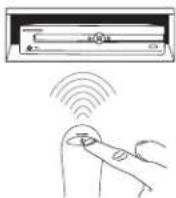
Did your device turn off?
YES: Press the STOP key to store the code. You're done! You've programmed this device key.
NO: Press POWER again. The remote tests the next code for your device.
Keep pressing POWER every 2 seconds until your device turns off. When it does, press STOP.
TIP: Because there are so many codes, you may have to press the POWER key many times—possibly hundreds of times.
NOTES
Throughout the programming of each key, keep the remote pointed at the IR sensor of the device you are programming the remote to control.
Test the remote with the device to make sure the device key is programmed with the correct code for maximum functionality. If some features don't work, try a different code. See the "Testing the Code for Maximum Functionality" section below for more information.
During the Manual Code Search, the remote ignores keypresses that aren't part of the search.
The search times out after two minutes (the POWER key blinks four times and turns off, and the last programmed code under that device key is retained).
The POWER key blinks four times and turns off when the remote has gone through all the codes. The remote exits the Manual Code Search. If your device hasn't turned off yet, try a different search method.
Testing the Code for Maximum Functionality
- Try a variety of the device's functions with the remote. If some features of your devices don't work, go to the next step to try a different code.
- Repeat the Manual Code Search from the beginning. When the device turns off for the fi rst time, don't press the STOP key, which would store the same code. Instead, with the unit now off, continue to press the POWER key repeatedly until the unit turns back on.
- Once the unit turns back on, you have found another code that operates the device. Press the STOP key.
- Test the key's functionality again by trying a variety of functions. If the code controls the majority of the device's functions, programming is complete. If the code stored does not give maximum functionality, try another code.
Tour of the Remote
In most cases, the keys on this remote perform the same functions as the keys on your original remotes once you've programmed this remote to operate your components. Many keys on this remote have other functions as well.
Illuminated POWER key serves as an indicator light to provide feedback.
Device keys (TV, SAT·CBL·STREAM, DVD·VCR) put the remote in the right mode to control your device.
LIGHT key ( ) turns backlighting on/off.
GUIDE/HOME and MENU access the same features as the keys on your original remotes.
Arrow keys act as navigation keys for streaming media players as well as in menu and guide systems for other devices.
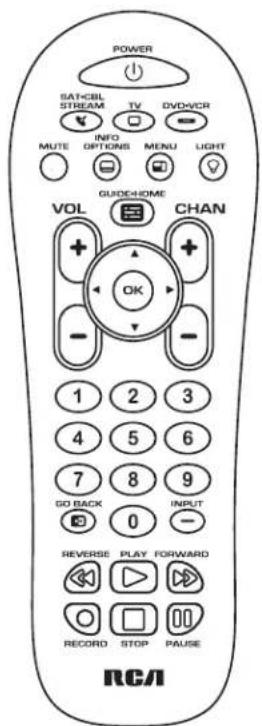
Actual model may vary from illustration
CHAN and VOL keys act as channel and volume controllers. The CHAN keys also provide skip forward and skip back control for DVD players and DVRs that support this functionality.
GO BACK exits remote programming; it also performs the same functions as on your original remotes.
The INPUT and — (dash) key has three functions: (1) it toggles through all the video sources connected to your TV; (2) when the remote is in VCR mode, this button toggles between VCR and the TV input; (3) when you're entering digital channel numbers directly, this button lets you separate the main channel number from the sub-channel number (such as 59.1).
IMPORTANT
Because this remote controls more than one device, you must first "tell" the remote which device you wish to operate. That means, if you wish to operate your TV, you must first press the TV key to put the remote in the TV Mode. The remote stays in that device mode until you press a different device key. For example, if your remote is in TV Mode and you want to operate the DVD player, you must press the DVD•VCR key to change device modes.
Backlighting
Backlight illumination helps you see the remote control keys better in the dark. You can turn backlight illumination on or off by pressing the LIGHT key (Backlighting stays on as long as keys are being pressed and turns off six seconds after the last keypress. Once the backlight time has timed out, any keypress will reactivate it. If the backlight illumination is on, and you press the backlight key, the backlight turns off.
Advanced Functions
Code Retrieval
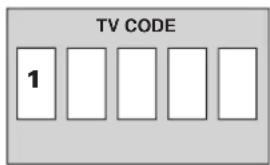
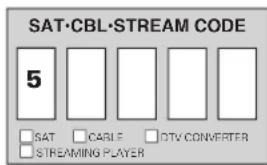
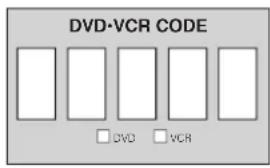
Once you've programmed the remote to control your devices, you may want to record the codes for future reference. If you used the Direct Code Entry method, this is easy. Just find the codes you entered and make a note of them in the boxes below. If you used one of the Code Search methods to program your remote or if you used the Direct Entry method but don't remember the code, you will need to retrieve each device's fi ve-digit code. Retrieving the actual code and writing it down will save you time if you ever need to program the remote again (e.g., if programming is lost when you change the batteries). If the codes are recorded, you can use the Direct Entry method to reprogram your remote to control your devices, which is quick and easy.
-
Press and hold the device key (TV, SAT•CBL•STREAM, DVD•VCR) whose code you wish to retrieve. The POWER key turns on. Keep pressing the device key.
-
While holding the device key down, press and hold the INFO-OPTIONS key. The POWER key turns off. After holding down both keys for three seconds, the POWER key turns back on.
- Release both keys. The POWER key remains on.
- Starting with the number 1 key, press and release each number key on the keypad in the following order: 1-9, then 0. The number that causes the POWER key to blink is the fi rst number of the code. As you fi nd each number of the code, write it down for future reference.
Note: All TV codes begin with the number 1; all VCR and DVR codes begin with the number 2; all DVDs, the number 3; and all satellite receivers, cable boxes, streaming players, and DTV converters, the number 5.
- Repeat step 4 until you have retrieved all fi ve numbers in the code. After the fi fth number is retrieved, the POWER key blinks briefl y, then turns off.
TIP: To exit the Code Retrieval Mode at any time, press the GO BACK key.
Note: If you press an invalid key during the Code Retrieval process, the remote will not respond. If you do not press a valid Code Retrieval key (TV, SAT•CBL•STREAM, DVD•VCR, INFO-OPTIONS, GO BACK), Code Retrieval times out after 15 seconds. The POWER key blinks four times, and then turns off.
Troubleshooting
Problem: The remote does not operate your device.
- Make sure the remote is in the correct mode by pressing the corresponding device key (TV, SAT•CBL•STREAM, DVD•VCR). This tells the remote which device to operate.
- Remove any obstacles between the remote and the device. Make sure you're aiming the remote at the device's IR sensor.
- Make sure the batteries are fresh and are properly installed. Replace the batteries with two new AA batteries, if necessary (see the Battery Installation section).
Problem: The remote can't be programmed to operate your device.
- If you are testing the remote while programming it, you may be too far away from the device or at a wrong angle. There must be an unobstructed path between the remote and the IR sensor on the device. Move closer and make sure you point the remote at the device you're trying to control.
- If you're using the Direct Entry programming method to enter the codes for your brand and the unit is still not functioning properly, try the auto, brand, or manual search method.
- To control combo units, like TV/VCRs or TV/DVDs, you must program the individual corresponding device keys to control each part of the combo unit. Once programmed successfully, the TV key controls the TV functions, and the DVD•VCR key controls the VCR or DVD functions.
- Make sure the batteries are fresh and are properly installed.
Problem: The remote doesn't perform commands properly.
- Make sure the remote is in the correct mode by pressing the corresponding device key (TV, SAT•CBL•STREAM, DVD•VCR). This tells the remote which device to operate.
- Make sure device is ready (for example, the DVD player has a disc loaded).
- You may have pressed an invalid key for the mode the remote is in.
- If you're trying to enter a channel number directly, try pressing the OK key after entering the channel number as this is a requirement of certain models and brands.
- There is a possibility that a programmed code may only be able to control some of your device features (for example, only turns a device on and off). To confirm that the device key is programmed with the correct code for maximum functionality, test the device. Attempt to control a variety of the device's functions with the remote. If some of the features of your devices don't work, try programming the remote with a different code in the list using the Direct Code Entry Method, until you find the code that allows the remote to control the majority of your device's functions. Different codes can provide different levels of functionality.
Problem: The POWER key does not light when you press a key.
- You may have pressed an invalid key for the mode the remote is in.
- Make sure the remote is in the correct mode by pressing the corresponding device key (TV, SAT•CBL•STREAM, DVD•VCR). This tells the remote which device to operate.
- Make sure the batteries are fresh and are properly installed. Replace the batteries with two new AA batteries, if necessary (see the Battery Installation section).
Problem: The remote will not change channels on device.
- Make sure the remote is in the correct mode by pressing the corresponding device key (TV, SAT•CBL•STREAM, DVD•VCR). This tells the remote which device to operate.
- Press the OK key after you enter a channel number.
- Remove any obstacles between the remote and the device. Make sure to aim the remote at the IR sensor on the device.
Problem: The device's menu does not appear on the TV screen.
- Make sure you have connected the device to your TV properly and selected the correct input. (See your devices' Owner's Manuals for proper connection procedures.)
- Make sure the remote is in the correct mode by pressing the corresponding device key (TV, SAT•CBL•STREAM, DVD•VCR). This tells the remote which device to operate.
- Menu access isn't supported for all brands. You may need to use your original remote control to access menu functions for some devices.
For more information, please visit
www.RCAAudioVideo.com
Consumer Help Line: 1-800-420-7968
Care and Maintenance
- Keep the remote dry. If it gets wet, wipe it dry immediately.
- Use and store the remote only in normal temperature environments.
- Handle the remote gently and carefully. Don't drop it.
- Keep the remote away from dust and dirt.
- Wipe the remote with a damp cloth occasionally to keep it looking new.
- Modifying or tampering with the remote's internal devices can cause malfunction and invalidate its warranty.
Limited Lifetime Warranty
VOXX Accessories Corporation (the "Company") warrants to you the original retail purchaser of this product that should it, under normal use and conditions, be proven defective in material or workmanship during its lifetime while you own it, such defect(s) will be repaired or replaced (at the Company's option) without charge for parts and repair labor. To obtain repair or replacement within the terms of this Warranty, the product is to be delivered with proof of warranty coverage (e.g. dated bi of sale), specifi cation of defect(s), transportation prepaid, to the Comp at the address shown below.
This Warranty does not cover product purchased, serviced or used outside the United States or Canada. This Warranty is not transferable and does not extend to costs incurred for installation, removal or reinstallation of the product. This Warranty does not apply if in the Company's opinion, the product has been damaged through alteration, improper installation, mishandling, misuse, neglect, accident, or the simultaneous use of different battery types (e.g. alkaline, standard or rechargeable).
THE EXTENT OF THE COMPANY'S LIABILITY UNDER THIS WARRANTY IS LIMITED TO THE REPAIR OR REPLACEMENT PROVIDED ABOVE AND, IN NO EVENT, SHALL THE COMPANY'S LIABILITY EXCEED THE PURCHASE PRICE PAID BY PURCHASER FOR THE PRODUCT.
This Warranty is in lieu of all other express warranties or liabilities. ANY IMPLIED WARRANTIES, INCLUDING ANY IMPLIED WARRANTY OF MERCHANTABILITY OR FITNESS FOR A PARTICULAR PURPOSE SHALL BE LIMITED TO DURATION OF THIS WARRANTY. IN NO CASE SHALL THE COMPANY BE LIABLE FOR ANY CONSEQUENTIAL OR INCIDENTAL DAMAGES WHATSOEVER. No person or representative is authorized to assume for the Company any liability other than expressed herein in connection with the sale of this product.
Some states/provinces do not allow limitations on how long an implied warranty lasts or the exclusion or limitation of incidental or consequent damage so the above limitations or exclusions may not apply to you. This Warranty gives you specific legal rights and you may also have other rights, which vary from state/province to state/province.
U.S.A.: Audiovox Return Center, 150 Marcus Blvd., Hauppauge, New York 11788
CANADA: Audiovox Return Center, c/o Genco, 6685 Kennedy Road, Unit 3, Door 16, Mississauga, Ontario L5T 3A5
- Universal Remote Control Owner's Manual
- RCR314WR / RCR313BR
- Industry Canada Regulatory Information
- SAVE THIS MANUAL AND THE CODE LISTS!
- Step 1: Install your batteries
- To install the batteries:
- Battery Precautions:
- Battery Saver
- Step 2: Program your remote
- Brand Code Search
- Did your device turn off?
- NOTES
- Testing the Code for Maximum Functionality
- Direct Code Entry
- Auto Code Search
- Did your device turn on?
- Manual Code Search
- Tour of the Remote
- IMPORTANT
- Backlighting
- Advanced Functions
- Code Retrieval
- Troubleshooting
- Problem: The remote can't be programmed to operate your device.
- Problem: The remote doesn't perform commands properly.
- Problem: The POWER key does not light when you press a key.
- Problem: The remote will not change channels on device.
- Problem: The device's menu does not appear on the TV screen.
- For more information, please visit
- www.RCAAudioVideo.com
- Consumer Help Line: 1-800-420-7968
- Care and Maintenance
- Limited Lifetime Warranty
Brand : RCA
Model : RCR313BZ
Category : Remote control